푸터 콘텐츠로 바로가기
JAVA용 IRONPDF 사용

Java의 템플릿에서 PDF를 만드는 방법

One of the great features of IronPDF for Java is its ability to work with PDF templates. A PDF template is a pre-designed PDF file that contains placeholders for dynamic content. Using IronPDF, you can easily replace these placeholders with actual data to generate a customized new document in PDF format.

IronPDF

IronPDF is a Java library that is developed and maintained by Iron Software. It provides an easy-to-use interface that abstracts away many of the complexities of PDF generation, allowing developers to focus on the content of their PDFs rather than the details of how the files are generated. IronPDF also provides a range of features that make it easy to work with PDF templates, fillable forms, and digital signatures.

This tutorial will walk you through the steps required to create a PDF file from a template using IronPDF in Java.

The first step is to create a project.

Step 1: Create a new Java project

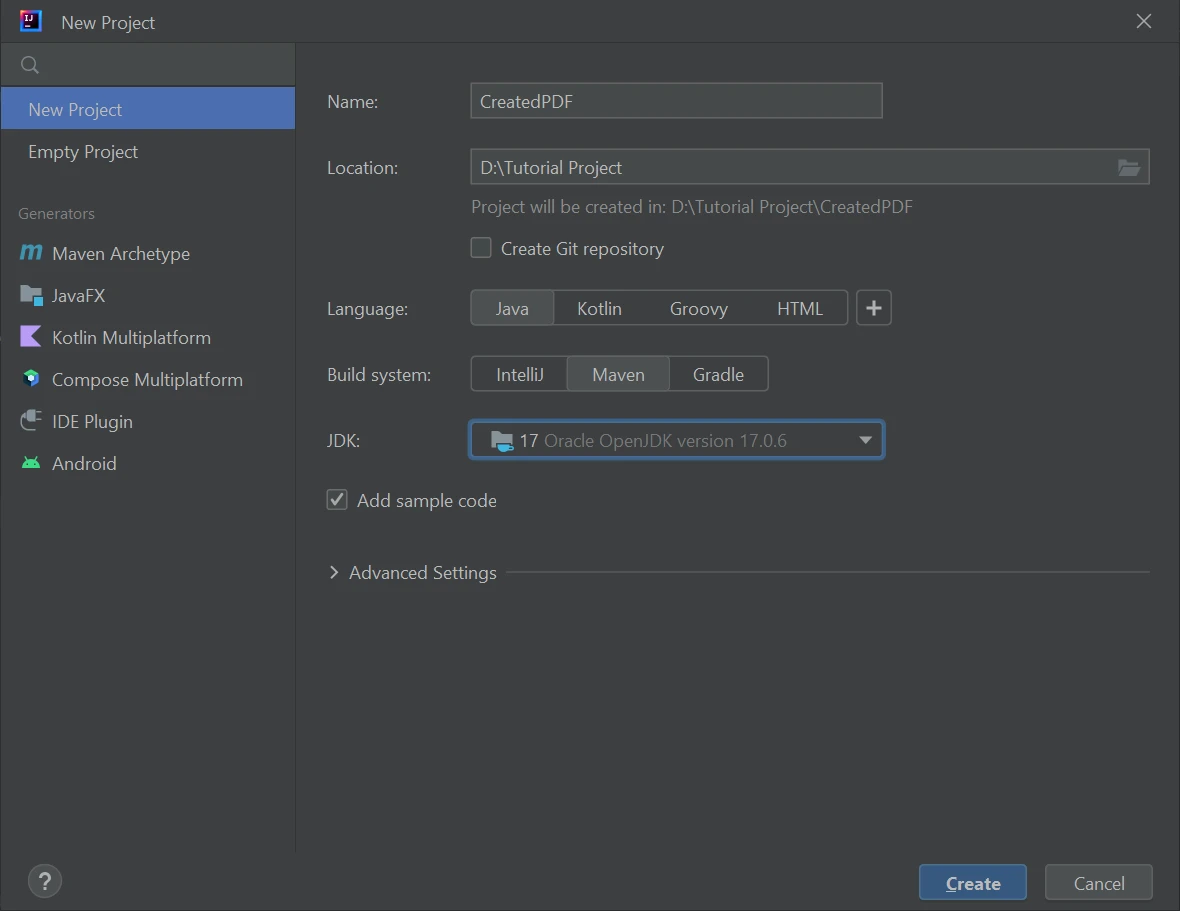
Here are the steps to create a new Java project using IntelliJ IDEA:

  1. Open IntelliJ IDEA and select "Create New Project" from the welcome screen or from the "File" menu.
  2. Select "Java" from the left-hand menu and choose the JDK version that you want to use for your project. Click "Next".
  3. Choose a project name and location for your project, and select the project type. You can choose from a number of different project types, such as "Java Application", "Java Library", or "JavaFX Application". Click "Next".
  4. Configure the project settings. You can specify the project SDK, project language level, and other settings. You can also choose to create a module or select an existing one. Click "Next".
  5. Choose the project template. You can choose to create a blank project, a project with a sample code, or import an existing project. Click "Finish".

How to Create PDF From Template in Java, Figure 1: Create new Java Project Using IntelliJ IDEA Create new Java Project Using IntelliJ IDEA

Step 2: Add the IronPDF Library to Your Project

The second step is to add the IronPDF library to your Java project using an XML file. You can do this by adding the following dependency to your project's pom.xml file:


<dependency>
    <groupId>com.ironsoftware</groupId>
    <artifactId>ironpdf</artifactId>
    <version>VERSION_NUMBER</version> 
</dependency>

<dependency>
    <groupId>com.ironsoftware</groupId>
    <artifactId>ironpdf</artifactId>
    <version>VERSION_NUMBER</version> 
</dependency>
XML

Step 3: Create the PDF Template

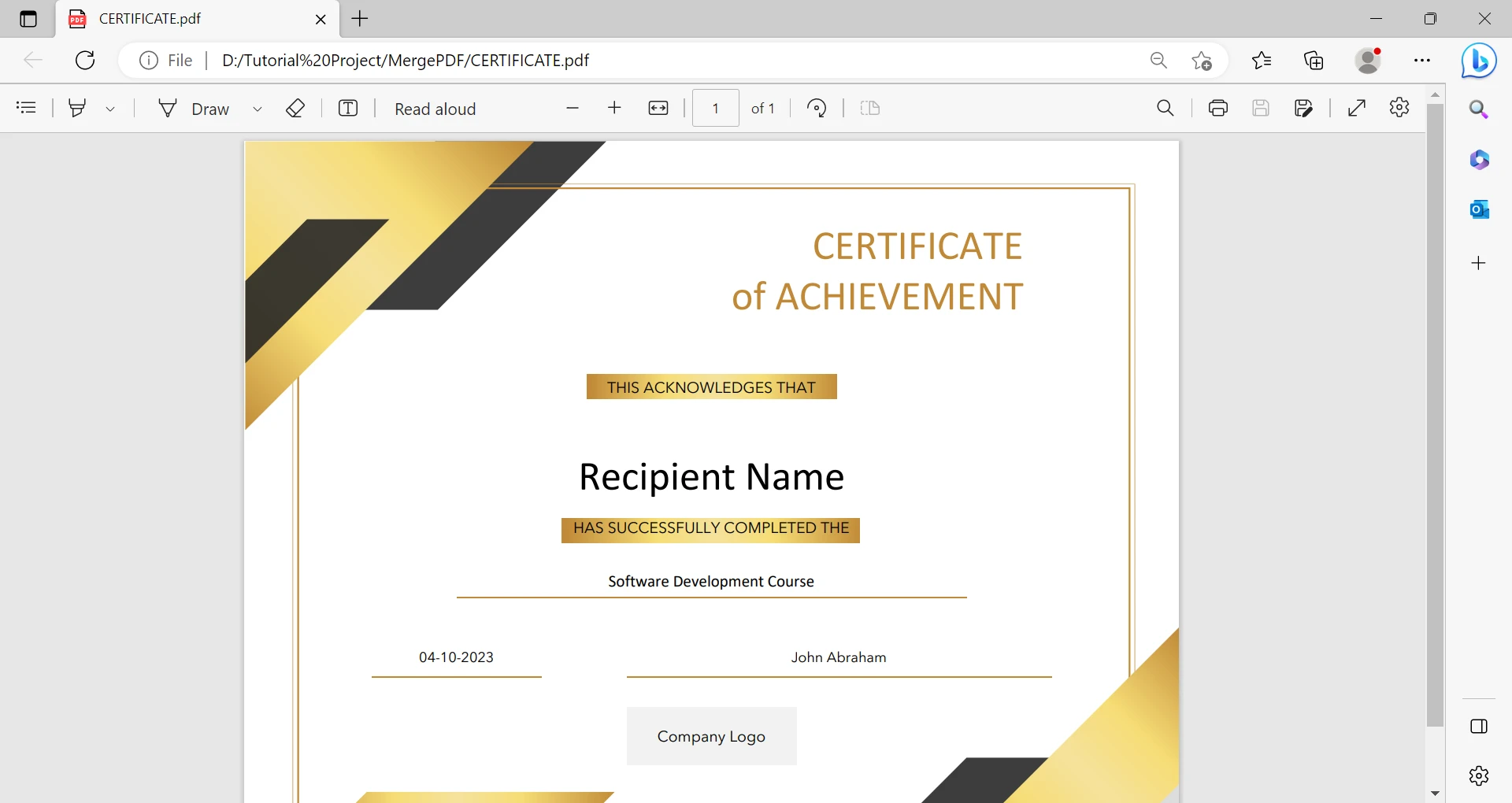
Next, you need to create a PDF template that you will use to generate your PDF file. You can create your PDF template using any PDF editor. The template can include placeholders that will be replaced with dynamic data at runtime.

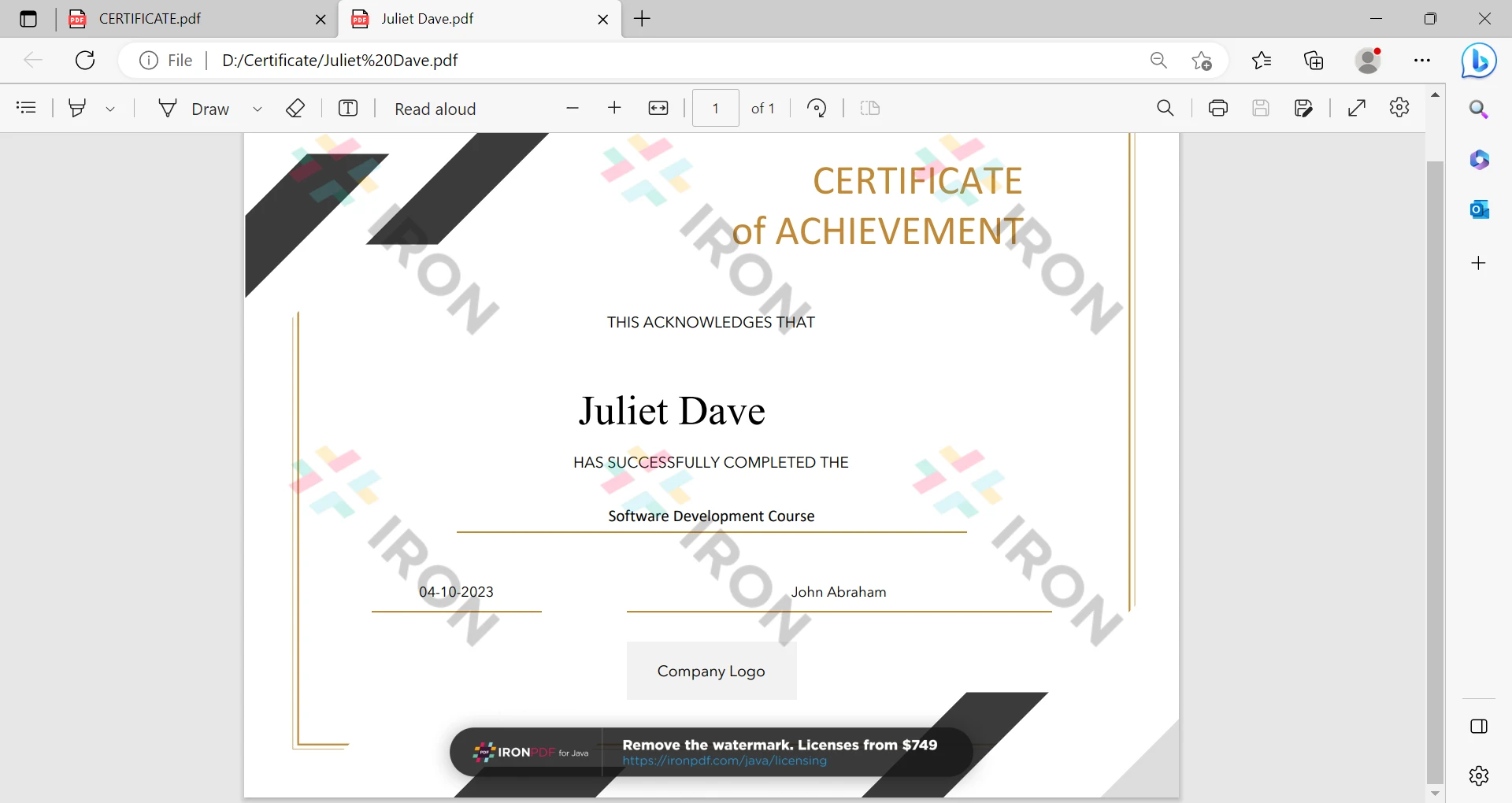
Suppose a use case where a number of certificates are issued to 50 students. Now it is a very hectic task to create separate certificates for each user. So a template is used and just change a name using this demo program as demonstrated below.

How to Create PDF From Template in Java, Figure 2: Certificate Template image instance Certificate Template image instance

Step 4: Create PDF Documents from Template

After creating the PDF template certificate, the first step is to load it into the Java application. The IronPDF PdfDocument class is used to load the PDF template into memory. Here is an example code snippet that shows how to load a PDF template using IronPDF:

// Load the PDF template into memory using IronPDF
PdfDocument pdfDoc = PdfDocument.fromFile(Paths.get("CERTIFICATE.pdf"));
// Load the PDF template into memory using IronPDF
PdfDocument pdfDoc = PdfDocument.fromFile(Paths.get("CERTIFICATE.pdf"));
JAVA

Now, let's write a code example that will create 5 certificates based on the given template.

import com.ironsoftware.ironpdf.PageSelection;
import com.ironsoftware.ironpdf.PdfDocument;

import java.io.IOException;
import java.nio.file.Paths;

public class CertificateGenerator {
    public static void main(String[] args) throws IOException {
        // Array of student names
        String[] studentNames = {"Georgia Wade", "Juliet Dave", "Olive Seth", "Miles Jorg", "Oscar Den"};

        // Iterate through each student's name
        for (String name : studentNames) {
            // Load the PDF template
            PdfDocument pdfDoc = PdfDocument.fromFile(Paths.get("CERTIFICATE.pdf"));

            // Replace the placeholder text with the student's name
            pdfDoc.replaceText(PageSelection.firstPage(), "Recipient Name", name);

            // Save the new PDF with the student's name as the file name
            pdfDoc.saveAs(Paths.get("Certificate/" + name + ".pdf"));
        }
    }
}
import com.ironsoftware.ironpdf.PageSelection;
import com.ironsoftware.ironpdf.PdfDocument;

import java.io.IOException;
import java.nio.file.Paths;

public class CertificateGenerator {
    public static void main(String[] args) throws IOException {
        // Array of student names
        String[] studentNames = {"Georgia Wade", "Juliet Dave", "Olive Seth", "Miles Jorg", "Oscar Den"};

        // Iterate through each student's name
        for (String name : studentNames) {
            // Load the PDF template
            PdfDocument pdfDoc = PdfDocument.fromFile(Paths.get("CERTIFICATE.pdf"));

            // Replace the placeholder text with the student's name
            pdfDoc.replaceText(PageSelection.firstPage(), "Recipient Name", name);

            // Save the new PDF with the student's name as the file name
            pdfDoc.saveAs(Paths.get("Certificate/" + name + ".pdf"));
        }
    }
}
JAVA

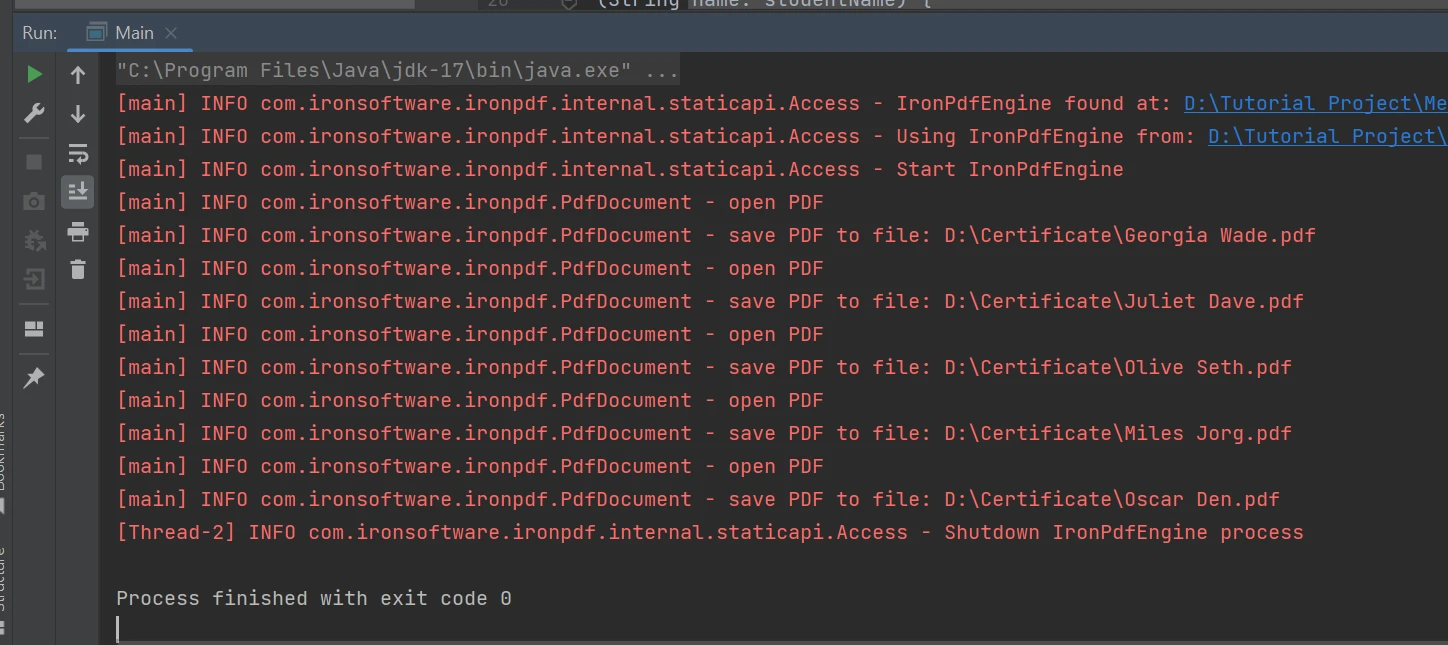
Following are the output logs:

How to Create PDF From Template in Java, Figure 3: Output Output

The above code creates an array of student names and then uses the IronPDF library to replace a placeholder text in a pre-existing PDF template with each student's name and then saves a new copy of the PDF with the student's name as the file name.

Here's how the code works:

  1. The studentNames array is defined and initialized with five student names.
  2. The for loop iterates through each name in the studentNames array.
  3. The PdfDocument.fromFile method loads the PDF template file named "CERTIFICATE.pdf" into a PdfDocument object.
  4. The PdfDocument.replaceText method is used to replace the text "Recipient Name" in the PDF template with the current student's name.
  5. The PdfDocument.saveAs method saves the modified PDF file with the student's name as the file name in the "Certificate" directory.
  6. The loop continues until all student names have been processed.

In this way, multiple certificates are generated, each with a unique student name, based on a single PDF template. The same approach can be used to generate PDF documents with any template.

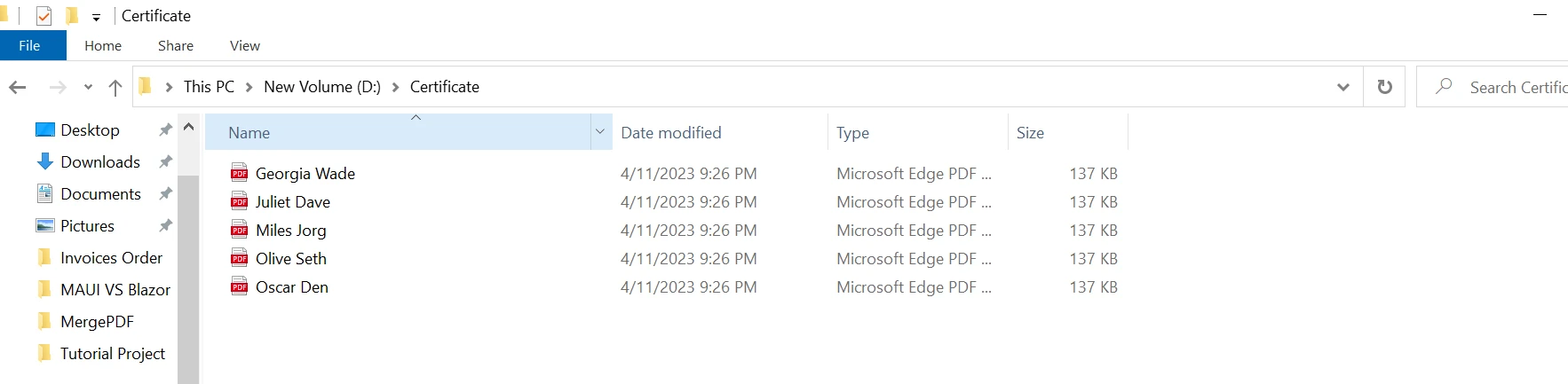
Generated PDF Files

How to Create PDF From Template in Java, Figure 4: PDF Outputs PDF Outputs

Certificate Output File

Following is the certificate generated by this demo program.

How to Create PDF From Template in Java, Figure 5: Certificate Output Certificate Output

Step 5: Create PDF Template from HTML Template

In this example, the HTML file will be used to create a PDF template and then will use that template to generate a PDF document.

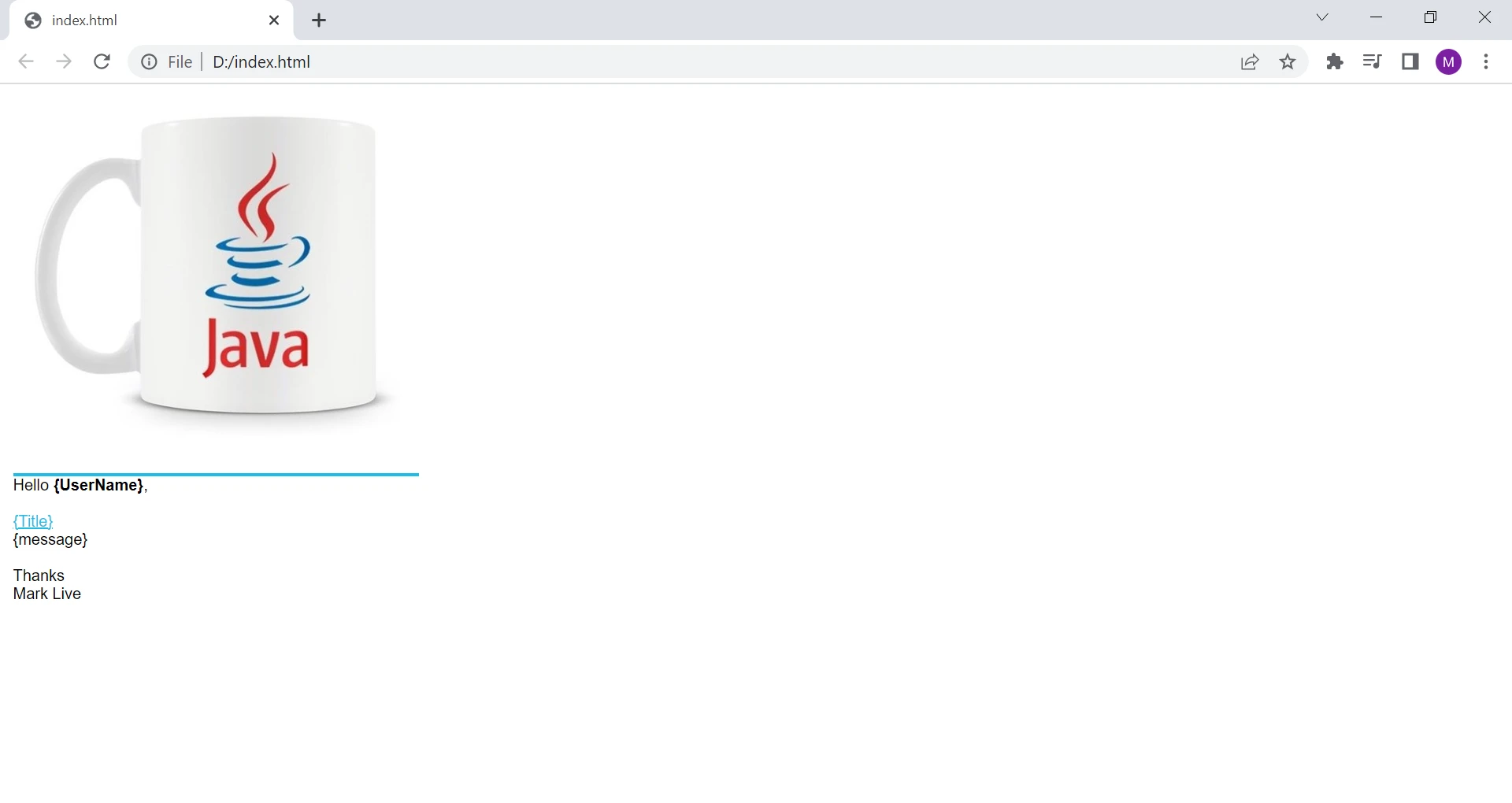
This is the HTML file for demonstrating in the example.

How to Create PDF From Template in Java, Figure 6: HTML Output HTML Output

Consider the following code example to create a new document from the given HTML format.

import com.ironsoftware.ironpdf.PdfDocument;

import java.io.IOException;
import java.nio.file.Files;
import java.nio.file.Path;
import java.nio.file.Paths;

public class HtmlToPdfExample {
    public static void main(String[] args) throws IOException {
        // Path to the HTML template
        Path fileName = Path.of("D:\\index.html");

        // Dynamic data to replace placeholders in the template
        String userName = "Mike";
        String title = "Sample PDF File";
        String body = "This is the body of our template PDF";

        // Read the HTML file content as a string
        String htmlStr = Files.readString(fileName);

        // Replace placeholders with actual data
        htmlStr = htmlStr.replace("{UserName}", userName);
        htmlStr = htmlStr.replace("{Title}", title);
        htmlStr = htmlStr.replace("{message}", body);

        // Render the HTML as a PDF document using IronPDF
        PdfDocument pdfDoc = PdfDocument.renderHtmlAsPdf(htmlStr);

        // Save the generated PDF document in the specified directory
        pdfDoc.saveAs(Paths.get("htmlTemplate/" + userName + ".pdf"));
    }
}
import com.ironsoftware.ironpdf.PdfDocument;

import java.io.IOException;
import java.nio.file.Files;
import java.nio.file.Path;
import java.nio.file.Paths;

public class HtmlToPdfExample {
    public static void main(String[] args) throws IOException {
        // Path to the HTML template
        Path fileName = Path.of("D:\\index.html");

        // Dynamic data to replace placeholders in the template
        String userName = "Mike";
        String title = "Sample PDF File";
        String body = "This is the body of our template PDF";

        // Read the HTML file content as a string
        String htmlStr = Files.readString(fileName);

        // Replace placeholders with actual data
        htmlStr = htmlStr.replace("{UserName}", userName);
        htmlStr = htmlStr.replace("{Title}", title);
        htmlStr = htmlStr.replace("{message}", body);

        // Render the HTML as a PDF document using IronPDF
        PdfDocument pdfDoc = PdfDocument.renderHtmlAsPdf(htmlStr);

        // Save the generated PDF document in the specified directory
        pdfDoc.saveAs(Paths.get("htmlTemplate/" + userName + ".pdf"));
    }
}
JAVA

The above code reads the content of an HTML file, replaces placeholders in the HTML file with dynamic data, renders the HTML as a PDF document using the IronPDF library, and saves the generated PDF document in a specific directory.

Here's a step-by-step explanation of what the code does:

  1. The code begins by creating a Path object that points to an HTML file on the local file system. In this case, the file is located at "D:\index.html".
  2. Three variables are declared and initialized with some sample data: userName, title, and body.
  3. The content of the HTML file is read into a string variable called htmlStr using the Files.readString method.
  4. The String.replace method is used to replace three placeholders ({UserName}, {Title}, and {message}) in the HTML file with the corresponding dynamic data.
  5. The PdfDocument.renderHtmlAsPdf method is called with the modified HTML string as an argument to render the HTML as a PDF document. The resulting PDF document is stored in a PdfDocument object called pdfDoc.
  6. The pdfDoc.saveAs method is called to save the generated PDF document to a directory called "htmlTemplate" on the local file system, with the filename constructed from the userName variable.

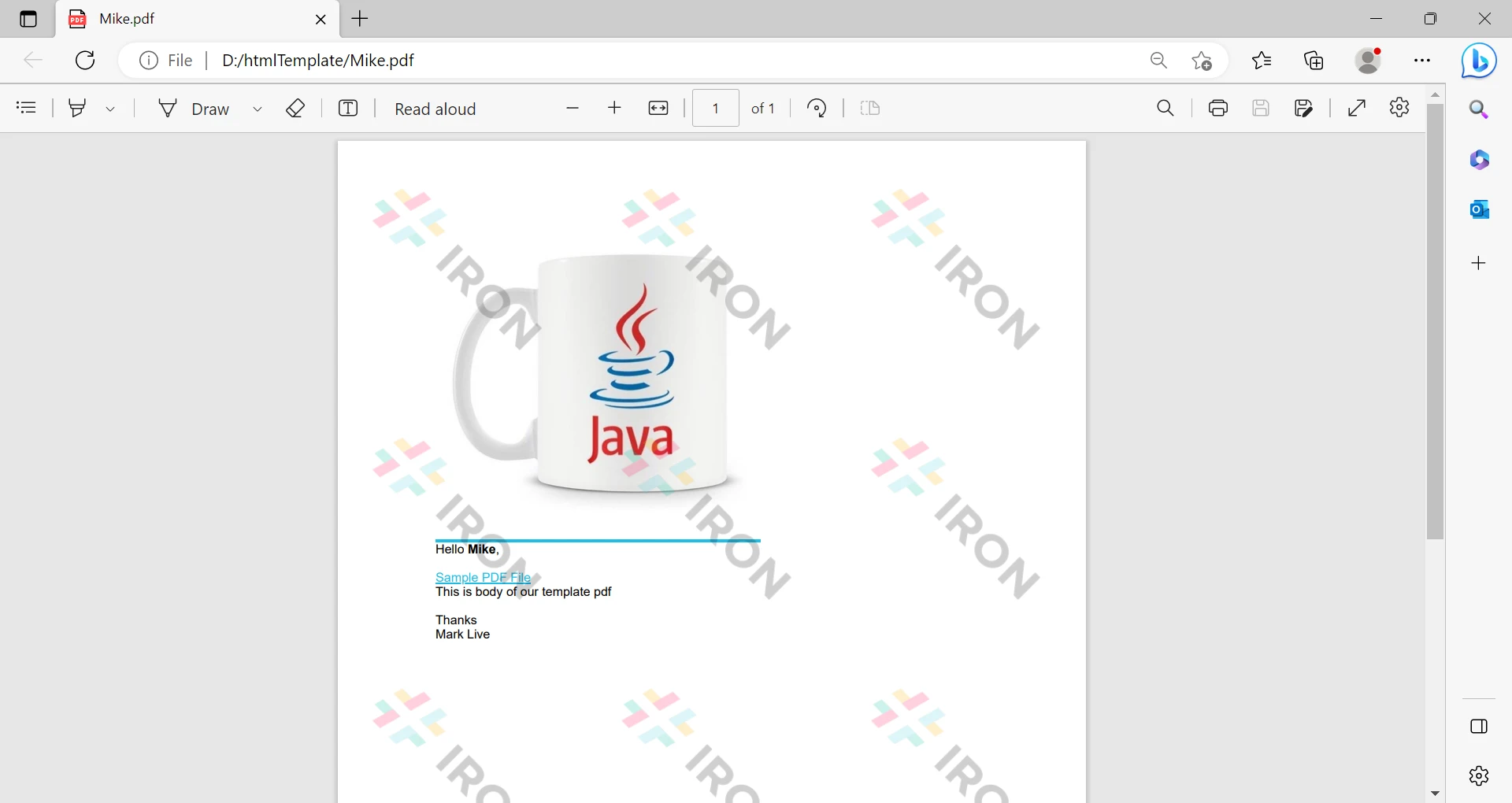
How to Create PDF From Template in Java, Figure 7: Output Output

In this way, it is easy to create PDF files from HTML templates programmatically.

It is possible to replace this watermark by getting a free trial or purchasing a commercial license.

Conclusion

This article explored how to use IronPDF for Java to generate PDF files. IronPDF provides a simple and powerful interface that allows you to create and manipulate PDF files with ease. With IronPDF, you can easily create professional-looking PDF documents that can be used for a variety of purposes, such as generating reports, invoices, and other types of documents.

IronPDF is also highly customizable, with options to control the appearance and layout of PDF files. Developers can specify page margins, font sizes, colors, and other properties to create PDF files that match their specific requirements.

Overall, IronPDF is a powerful and flexible library for PDF generation in Java. With its easy-to-use interface and wide range of features, IronPDF is a great choice for any application that requires PDF generation.

Download IronPDF for Java, the software product.

자주 묻는 질문

Java의 템플릿에서 PDF를 생성하려면 어떻게 해야 하나요?

IronPDF를 사용하여 Java의 템플릿에서 PDF를 생성하려면 PdfDocument.fromFile로 템플릿을 로드하고 PdfDoc.replaceText로 자리 표시자를 바꾸고 SaveAs 메서드를 사용하여 문서를 저장합니다.

IntelliJ IDEA에서 Java 프로젝트에 PDF 라이브러리를 추가하는 단계는 무엇인가요?

IntelliJ IDEA의 Java 프로젝트에 IronPDF를 추가하려면 라이브러리의 groupId, artifactId 및 버전을 지정하여 pom.xml 파일에 해당 Maven 종속성을 포함하세요.

HTML 템플릿을 사용하여 Java로 PDF를 만들 수 있나요?

예, IronPDF를 사용하면 HTML 템플릿에서 PDF를 만들 수 있습니다. HTML 파일을 읽고, 자리 표시자를 동적 데이터로 바꾸고, PDF 문서로 렌더링할 수 있습니다.

IronPDF를 사용하여 PDF 템플릿에서 자리 표시자를 바꾸려면 어떻게 해야 하나요?

PDF 템플릿의 자리 표시자를 바꾸려면 PdfDocument.replaceText 메서드를 사용합니다. 대체할 텍스트와 PDF 문서의 새 콘텐츠를 지정해야 합니다.

템플릿을 사용한 PDF 생성의 일반적인 사용 사례에는 어떤 것이 있나요?

템플릿을 사용한 PDF 생성의 일반적인 사용 사례로는 인증서 생성, 송장 작성, 일관된 서식과 동적 콘텐츠 삽입이 필요한 보고서 작성 등이 있습니다.

PDF 생성 작업을 위해 IntelliJ IDEA에서 새 Java 프로젝트를 만들려면 어떻게 해야 하나요?

IntelliJ IDEA에서 '새 프로젝트 만들기'를 선택하고 'Java'를 선택한 다음 JDK 버전을 설정하고 프로젝트 설정을 구성합니다. 그런 다음 프로젝트의 종속성에 IronPDF를 추가할 수 있습니다.

IronPDF는 Java로 PDF를 만들 때 어떤 이점을 제공하나요?

IronPDF는 직관적인 인터페이스, 템플릿 처리 지원, 채울 수 있는 양식 및 디지털 서명과 같은 기능을 제공하여 Java에서 PDF 생성을 간소화합니다.

IronPDF로 생성된 PDF의 레이아웃을 사용자 지정할 수 있나요?

예, IronPDF를 사용하면 특정 디자인 요구 사항을 충족하도록 페이지 여백, 글꼴 크기, 색상 및 기타 시각적 요소를 조정하는 등 PDF 레이아웃을 사용자 지정할 수 있습니다.

IronPDF를 사용하기에 이상적인 프로젝트 유형은 무엇인가요?

보고서, 송장, 인증서와 같은 전문 PDF를 생성해야 하는 프로젝트는 IronPDF의 유연성과 강력한 기능을 활용할 수 있습니다.

커티스 차우
기술 문서 작성자

커티스 차우는 칼턴 대학교에서 컴퓨터 과학 학사 학위를 취득했으며, Node.js, TypeScript, JavaScript, React를 전문으로 하는 프론트엔드 개발자입니다. 직관적이고 미적으로 뛰어난 사용자 인터페이스를 만드는 데 열정을 가진 그는 최신 프레임워크를 활용하고, 잘 구성되고 시각적으로 매력적인 매뉴얼을 제작하는 것을 즐깁니다.


커티스는 개발 분야 외에도 사물 인터넷(IoT)에 깊은 관심을 가지고 있으며, 하드웨어와 소프트웨어를 통합하는 혁신적인 방법을 연구합니다. 여가 시간에는 게임을 즐기거나 디스코드 봇을 만들면서 기술에 대한 애정과 창의성을 결합합니다.