using IronPdf;

// Disable local disk access or cross-origin requests
Installation.EnableWebSecurity = true;

// Instantiate Renderer
var renderer = new ChromePdfRenderer();

// Create a PDF from a HTML string using C#
var pdf = renderer.RenderHtmlAsPdf("<h1>Hello World</h1>");

// Export to a file or Stream
pdf.SaveAs("output.pdf");

// Advanced Example with HTML Assets
// Load external html assets: Images, CSS and JavaScript.
// An optional BasePath 'C:\site\assets\' is set as the file location to load assets from
var myAdvancedPdf = renderer.RenderHtmlAsPdf("<img src='icons/iron.png'>", @"C:\site\assets\");
myAdvancedPdf.SaveAs("html-with-assets.pdf");
using IronPdf;// Disable local disk access or cross-origin requestsInstallation.EnableWebSecurity = true;// Instantiate Renderervar renderer = new ChromePdfRenderer();// Create a PDF from a HTML string using C#var pdf = renderer.RenderHtmlAsPdf("<h1>Hello World</h1>");// Export to a file or Streampdf.SaveAs("output.pdf");// Advanced Example with HTML Assets// Load external html assets: Images, CSS and JavaScript.// An optional BasePath 'C:\site\assets\' is set as the file location to load assets fromvar myAdvancedPdf = renderer.RenderHtmlAsPdf("<img src='icons/iron.png'>", @"C:\site\assets\");myAdvancedPdf.SaveAs("html-with-assets.pdf");
.NET Aspire stoi jako zdecydowane, gotowe na chmurę środowisko frameworkowe dostosowane do tworzenia obserwowalnych, gotowych do produkcji, rozproszonych aplikacji. Dostarczony przez zestaw pakietów NuGet, Aspire skutecznie rozwiązuje różne zagadnienia związane z wykrywaniem usług natywnych dla chmury i dąży do zapewnienia spójnych wzorców konfiguracji. W sferze aplikacji chmurowo-natywnych .NET norma obejmuje mniejsze, powiązane komponenty lub mikrousługi w aplikacjach rozproszonych, odchodząc od tradycyjnej monolitycznej struktury kodu. Te aplikacje zazwyczaj opierają się na licznych usługach, takich jak bazy danych, systemy wiadomości, zasoby w chmurze i buforowanie.
Aplikacje rozproszone, w tym kontekście, korzystają z zasobów obliczeniowych obejmujących wiele węzłów, takich jak kontenery działające na różnych hostach. Skuteczna komunikacja przez granice sieciowe jest niezbędna, aby te węzły mogły wspólnie dostarczać odpowiedzi dla użytkowników końcowych. Konkretna aplikacja rozproszona w chmurze jest odrębną kategorią w ramach aplikacji rozproszonych, korzystając z elastyczności, odporności i łatwości zarządzania wbudowanych w infrastrukturze aplikacji chmurowo-natywnych.
W tym artykule omówimy komponenty [.NET Aspire](https://learn.microsoft.com/en-us/dotnet/aspire/get-started/aspire-overview) do tworzenia aplikacji internetowej. Ponadto korzystamy z [biblioteki IronPDF](https://ironpdf.com) do tworzenia i pobierania plików PDF w komponencie projektu Aspire .NET.
## 1. Wprowadzenie do .NET Aspire
Aplikacja [.NET Aspire](https://learn.microsoft.com/en-us/dotnet/aspire/get-started/aspire-overview) stanowi celową inicjatywę mającą na celu poprawę doświadczeń programistycznych dla aplikacji .NET chmurowo-natywnych w ekosystemie .NET. Wprowadza spójny i wyrazisty zestaw narzędzi i wzorców projektowych stworzonych do ułatwienia płynnej konstrukcji i operacji aplikacji rozproszonych. Kluczowe cele aplikacji startowej .NET Aspire obejmują:
1. **Orkiestracja:** Orkiestracja w .NET Aspire oferuje solidne możliwości orkiestracji aplikacji wieloprojektowych i ich złożonych zależności. Ta funkcjonalność zapewnia płynne wykonanie i bezproblemową łączność między różnorodnymi komponentami projektów .NET.
2. **Komponenty:** Komponenty oferowane przez orkiestrację .NET Aspire są pakowane w pakietach NuGet, reprezentując szeroko używane usługi, takie jak lokalny zasób kontenera Redis lub Postgres. Te komponenty charakteryzują się ustandaryzowanymi interfejsami, gwarantującymi spójną i płynną integrację z Twoją aplikacją. Korzystając z tych gotowych komponentów, programiści mogą przyspieszyć proces developmentu i utrzymać wyższy poziom interoperacyjności oraz konfigurowalnych aplikacji chmurowo-natywnych korzystając z szablonów projektów .NET Aspire.
3. **Narzędzia:** Szablony startowe .NET Aspire zawierają kompleksowy zestaw narzędzi dostosowanych do uproszczenia procesu projektowego. Szablony projektów i doświadczenia narzędziowe są przemyślanie zintegrowane z Visual Studio i .NET CLI, umożliwiając developerom łatwe tworzenie i interakcję z aplikacjami .NET Aspire. Ten wszechstronny framework narzędziowy zwiększa produktywność i zapewnia spójne środowisko do tworzenia i zarządzania konfiguracjami aplikacji .NET Aspire oraz szablonami projektów.
W istocie, .NET Aspire służy jako holistyczne rozwiązanie, adresujące kluczowe kwestie specyficznych obaw chmurowo-natywnych, takich jak orkiestracja, integracja komponentów i narzędzia, wszystko w celu podwyższenia efektywności i spójności budowania i wdrażania aplikacji chmurowo-natywnych .NET.
## 2. Rozpoczęcie pracy z .NET Aspire
Przed rozpoczęciem pracy z .NET Aspire, upewnij się, że następujące komponenty są zainstalowane lokalnie:
1. **.NET 8.0:** Upewnij się, że na Twoim systemie zainstalowany jest .NET 8.0.
2. **.NET Aspire Workload:** Kup obciazenie pracy .NET Aspire, korzystajac z instalatora VS lub wykonujac polecenie `dotnet workload install aspire`.
3. **Zintegrowane środowisko programistyczne (IDE) lub edytor kodu:** Visual Studio 2022 powinno być zainstalowane na systemie wcześniej.
Jeśli wszystkie te wymagania są spełnione, jesteś gotowy, aby rozpocząć tworzenie swoich pierwszych komponentów .NET Aspire, które obsługują aplikacje.
## 3. Tworzenie nowego projektu .NET Aspire
Aby tworzyć aplikacje .NET Aspire, postępuj zgodnie z poniższymi krokami.
1. Otwórz Visual Studio i kliknij Utwórz nowy projekt.
2. Pojawi się nowe okno. W nowym oknie wyszukaj Aspire na pasku wyszukiwania.
3. Poniżej pojawi się lista, z tej listy wybierz projekt Aspire Starter apphost oraz odwołania do pakietów, a następnie kliknij Dalej.
4. Pojawi się nowe okno. W nowym oknie wpisz nazwę projektu i kliknij Dalej.
5. W tym oknie wybierz docelowe środowisko frameworkowe i kliknij przycisk Utwórz.
Aplikacja .NET Aspire zostanie utworzona w kilka sekund, a Ty będziesz gotowy, aby rozpocząć pracę nad rozwojem i dostosowaniem.
## 4. Uruchamianie i testowanie aplikacji .NET Aspire
Po utworzeniu projektu wystarczy kliknąć przycisk Uruchom, zajmie to trochę czasu, aby utworzyć kompilację, a następnie otworzy stronę internetową naszej strony głównej aplikacji internetowej Aspire.
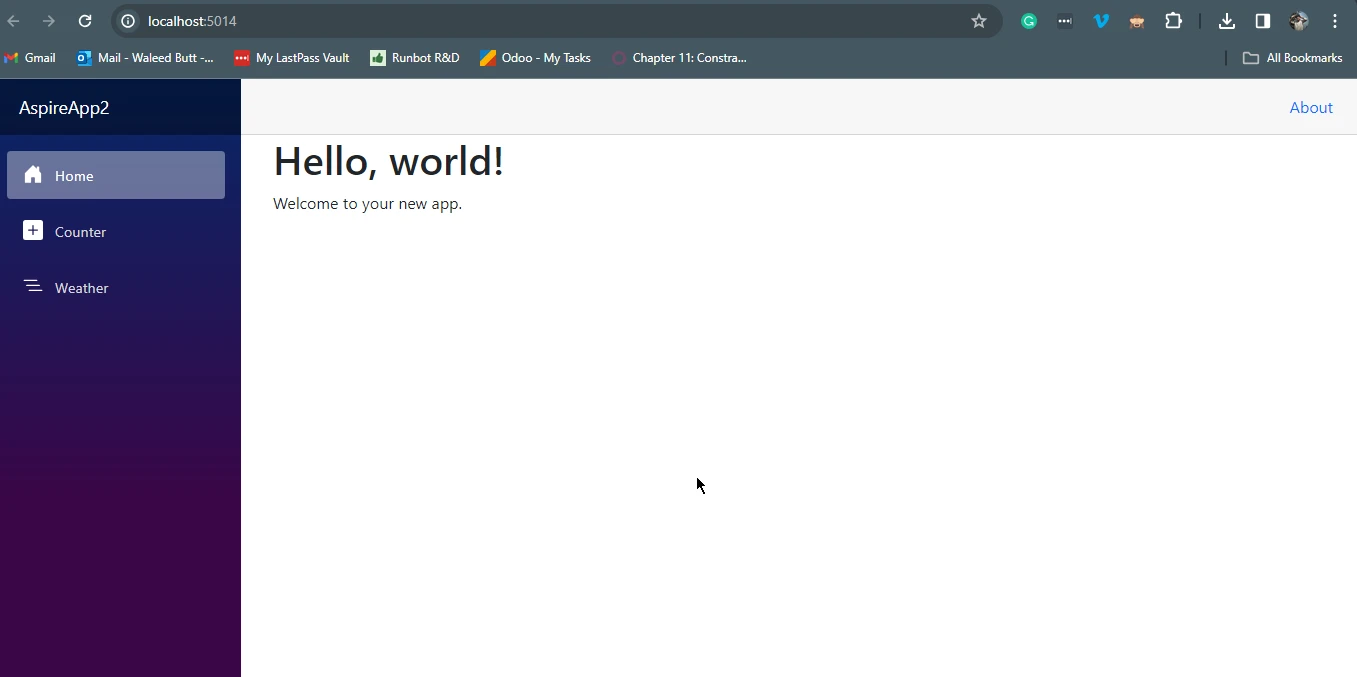
Ta strona główna będzie zawierała nasz stos aplikacji chmurowo-natywnych .NET Aspire do tworzenia obserwowalnych gotowych do produkcji aplikacji startowych .NET Aspire.
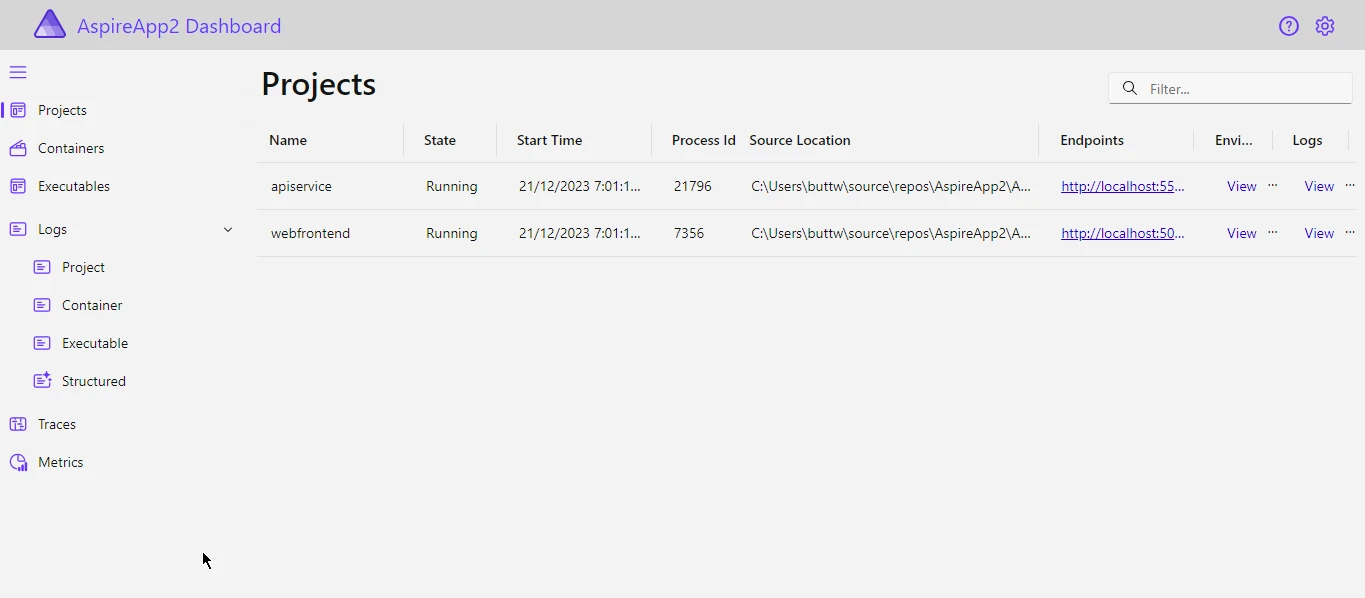
Teraz kliknij na linki, aby interakcjonować z .NET. Na razie kliknij na projekt internetowy frontend .NET Aspire oraz odwołania do pakietów. Otworzy to nową stronę internetową z inną nazwą portu.
## 5. Introducing IronPDF C#
[Dokumentacja IronPDF](/docs/) opisuje ją jako potężną i wszechstronną bibliotekę C#, która umożliwia programistom bezproblemową integrację zaawansowanych możliwości generowania i manipulacji dokumentami PDF w ich aplikacjach. Opracowana przez Iron Software, ta bogata w funkcje biblioteka oferuje wszechstronny zestaw narzędzi do tworzenia, modyfikowania i renderowania dokumentów PDF bezpośrednio w aplikacjach C#.
Z pomocą IronPDF, programiści mogą łatwo generować dokumenty PDF z różnych źródeł, takich jak HTML, obrazy i istniejące dokumenty, przy jednoczesnym zachowaniu precyzyjnej kontroli nad formatowaniem i układem. Niezależnie od tego, czy chodzi o tworzenie dynamicznych raportów, konwersję treści HTML na PDF czy dodawanie adnotacji do istniejących dokumentów, IronPDF usprawnia proces obsługi dokumentów PDF, czyniąc go bezcennym aktywem dla deweloperów C#, poszukujących niezawodnego i efektywnego rozwiązania do zarządzania dokumentami.
### 5.1. Instalacja IronPDF
Aby płynnie zainstalować IronPDF, wykorzystaj Menedżera Pakietów NuGet w Visual Studio. Wyznaczony pakiet do instalacji nosi nazwę IronPDF. Po prostu skopiuj i wklej poniższe polecenie do konsoli Menedżera Pakietów i naciśnij enter:
```shell
:ProductInstall
```
### 5.2. Integracja IronPDF z komponentem Aspire
Integracja IronPDF z komponentem Aspire jest taka sama jak integracja z aplikacją internetową Blazor, ponieważ komponenty Aspire mogą używać aplikacji Blazor jako komponentu. W tym przykładzie kodu zmienimy kod Strony Licznika, aby utworzyć i pobrać plik PDF.
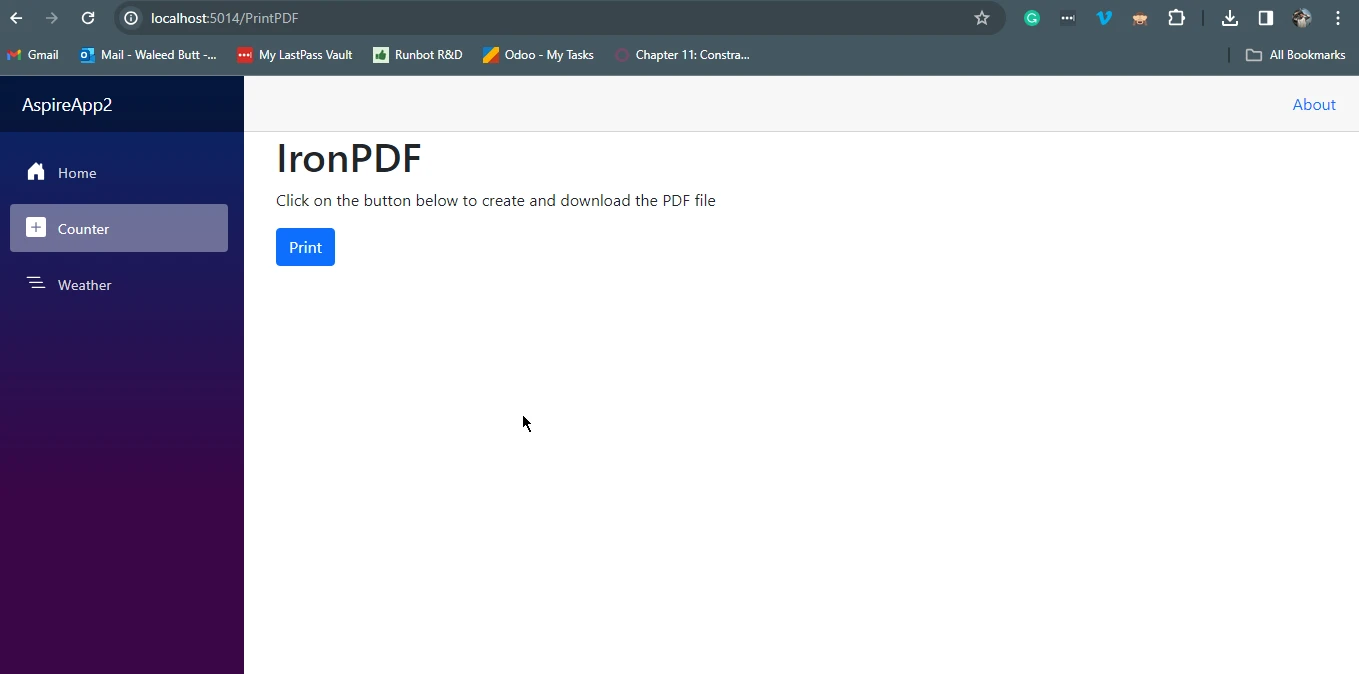
Otworz plik `counter.razor` i zastep kod ponizszym kodem.
```csharp
@page "/PrintPDF"
@rendermode InteractiveServer
@using IronPdf
<PageTitle>Print PDF</PageTitle>
<h1>IronPDF</h1>
<p role="status">Click on the button below to create and download the PDF file </p>
<button class="btn btn-primary" @onclick="IncrementCount">Print</button>
@code {
    private int currentCount = 0;

    /// <summary>
    /// Handles the click event of the "Print" button.
    /// This function will generate a PDF from an HTML string and prompt the user to download it.
    /// </summary>
    private void IncrementCount()
    {
        var renderer = new ChromePdfRenderer();
        // Create a PDF from an HTML string using C#
        var pdf = renderer.RenderHtmlAsPdf("<h1>Hello World</h1>");
        // Export to a file using JavaScript Interop to initiate download
        JSRuntime.InvokeVoidAsync("saveAsFile", "output.pdf", Convert.ToBase64String(pdf.Stream.ToArray()));
    }
}
```
Następnie napisz kod JavaScript do pobrania pliku PDF. Napisz ten kod w tagu skryptu w zakresie tagu ciała HTML. Poniżej znajduje się kod do dodania do projektu.
```javascript
<script type="text/javascript">
function saveAsFile(filename, bytesBase64) {
if (navigator.msSaveBlob) {
//Download document in Edge browser
var data = window.atob(bytesBase64);
var bytes = new Uint8Array(data.length);
for (var i = 0; i < data.length; i++) {
bytes[i] = data.charCodeAt(i);
}
var blob = new Blob([bytes.buffer], { type: "application/octet-stream" });
navigator.msSaveBlob(blob, filename);
window.navigator.msSaveOrOpenBlob(blob);
}
else {
var link = document.createElement('a');
link.download = filename;
link.href = "data:application/octet-stream;base64," + bytesBase64;
document.body.appendChild(link); // Needed for Firefox
link.click();
document.body.removeChild(link);
}
}
</script>
```
Po prostu uruchom kod, a po tym będzie on wyglądać podobnie do poniższego obrazu.
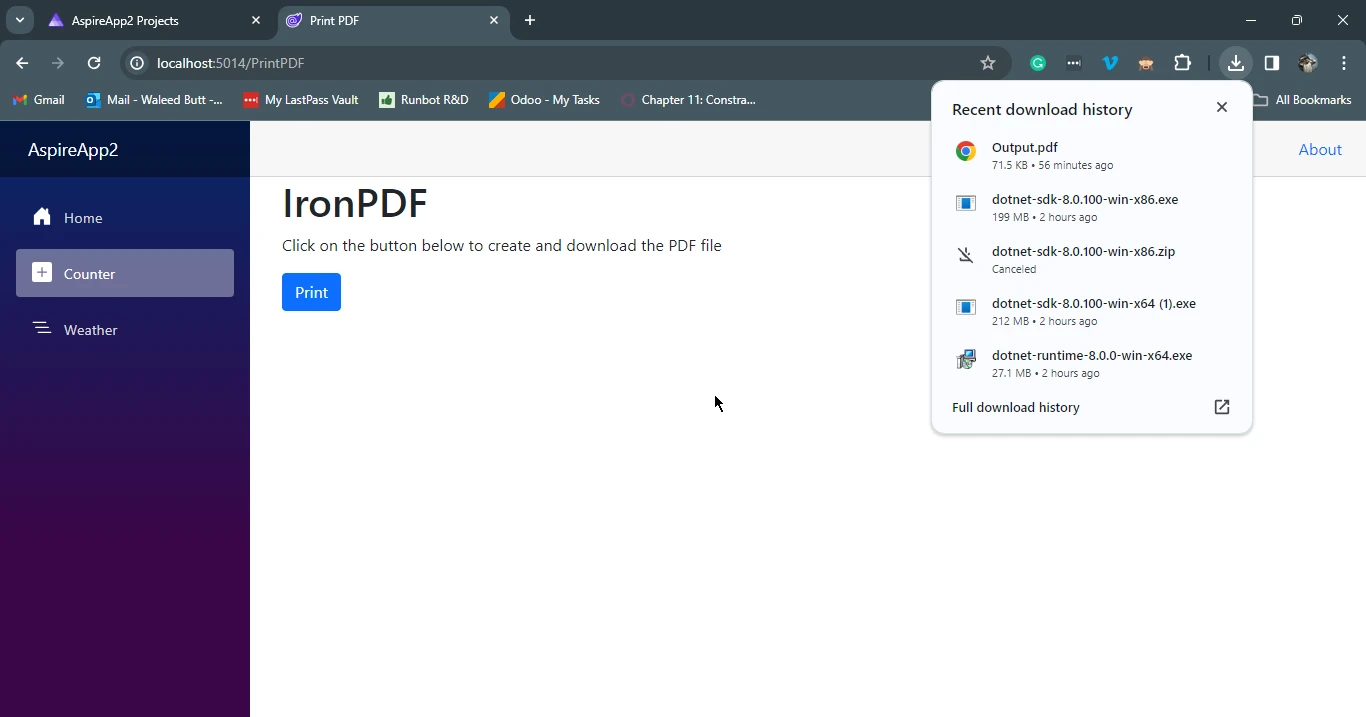
Aby utworzyć i pobrać plik PDF, kliknij przycisk Print. Utworzy i pobierze plik PDF o nazwie output.pdf.
## 6. Podsumowanie
.NET Aspire staje się kluczowym frameworkiem, zaprojektowanym specjalnie do tworzenia solidnych, obserwowalnych i rozproszonych aplikacji w środowisku chmury. Dzięki spójnemu zestawowi narzędzi i wzorców projektowych .NET Aspire upraszcza złożoność związaną z tworzeniem aplikacji natywnych dla chmury, oferując płynną koordynację, integrację komponentów oraz przyjazną dla użytkownika platformę narzędziową. Koncentrując się na skalowalności, odporności i łatwości zarządzania, .NET Aspire wpisuje się w zmianę paradygmatu w kierunku mikrousług i architektur rozproszonych.
Rozpoczynając pracę z .NET Aspire, programiści zyskują dostęp do kompleksowej Suite funkcji, od skoordynowanych aplikacji wieloprojektowych po standardowe komponenty zawarte w pakietach NuGet. Przestrzegając wymagań wstępnych i postępując zgodnie z prostymi krokami opisanymi w przewodniku, programiści mogą bez wysiłku tworzyć, uruchamiać i testować aplikacje .NET Aspire.
Ponadto integracja IronPDF z komponentami Aspire podkreśla rozszerzalność i wszechstronność frameworka, umożliwiając programistom płynne włączanie zaawansowanych funkcji generowania i manipulacji plikami PDF do ich aplikacji natywnych dla chmury. Ogólnie rzecz biorąc, .NET Aspire, dzięki jasno określonym celom i przyjaznemu dla użytkownika podejściu, stanowi cenne narzędzie dla programistów poszukujących wydajnego i spójnego rozwiązania do tworzenia i wdrażania aplikacji natywnych dla chmury w ekosystemie .NET.
Pełny samouczek dotyczący korzystania z [IronPDF w](/blog/using-ironpdf/blazor-create-pdf-tutorial/) aplikacjach internetowych [Blazor](/blog/using-ironpdf/blazor-create-pdf-tutorial/) można znaleźć na blogu IronPDF. Aby uzyskać darmową wersję próbną IronPDF, odwiedź stronę [licencjonowania IronPDF](/licensing/), aby uzyskać swoją darmową próbkę licencji.
.NET Aspire stoi jako zdecydowane, gotowe na chmurę środowisko frameworkowe dostosowane do tworzenia obserwowalnych, gotowych do produkcji, rozproszonych aplikacji. Dostarczony przez zestaw pakietów NuGet, Aspire skutecznie rozwiązuje różne zagadnienia związane z wykrywaniem usług natywnych dla chmury i dąży do zapewnienia spójnych wzorców konfiguracji. W sferze aplikacji chmurowo-natywnych .NET norma obejmuje mniejsze, powiązane komponenty lub mikrousługi w aplikacjach rozproszonych, odchodząc od tradycyjnej monolitycznej struktury kodu. Te aplikacje zazwyczaj opierają się na licznych usługach, takich jak bazy danych, systemy wiadomości, zasoby w chmurze i buforowanie.
Aplikacje rozproszone, w tym kontekście, korzystają z zasobów obliczeniowych obejmujących wiele węzłów, takich jak kontenery działające na różnych hostach. Skuteczna komunikacja przez granice sieciowe jest niezbędna, aby te węzły mogły wspólnie dostarczać odpowiedzi dla użytkowników końcowych. Konkretna aplikacja rozproszona w chmurze jest odrębną kategorią w ramach aplikacji rozproszonych, korzystając z elastyczności, odporności i łatwości zarządzania wbudowanych w infrastrukturze aplikacji chmurowo-natywnych.
W tym artykule omówimy komponenty .NET Aspire do tworzenia aplikacji internetowej. Ponadto korzystamy z biblioteki IronPDF do tworzenia i pobierania plików PDF w komponencie projektu Aspire .NET.
1. Wprowadzenie do .NET Aspire
Aplikacja .NET Aspire stanowi celową inicjatywę mającą na celu poprawę doświadczeń programistycznych dla aplikacji .NET chmurowo-natywnych w ekosystemie .NET. Wprowadza spójny i wyrazisty zestaw narzędzi i wzorców projektowych stworzonych do ułatwienia płynnej konstrukcji i operacji aplikacji rozproszonych. Kluczowe cele aplikacji startowej .NET Aspire obejmują:
Orkiestracja: Orkiestracja w .NET Aspire oferuje solidne możliwości orkiestracji aplikacji wieloprojektowych i ich złożonych zależności. Ta funkcjonalność zapewnia płynne wykonanie i bezproblemową łączność między różnorodnymi komponentami projektów .NET.
Komponenty: Komponenty oferowane przez orkiestrację .NET Aspire są pakowane w pakietach NuGet, reprezentując szeroko używane usługi, takie jak lokalny zasób kontenera Redis lub Postgres. Te komponenty charakteryzują się ustandaryzowanymi interfejsami, gwarantującymi spójną i płynną integrację z Twoją aplikacją. Korzystając z tych gotowych komponentów, programiści mogą przyspieszyć proces developmentu i utrzymać wyższy poziom interoperacyjności oraz konfigurowalnych aplikacji chmurowo-natywnych korzystając z szablonów projektów .NET Aspire.
Narzędzia: Szablony startowe .NET Aspire zawierają kompleksowy zestaw narzędzi dostosowanych do uproszczenia procesu projektowego. Szablony projektów i doświadczenia narzędziowe są przemyślanie zintegrowane z Visual Studio i .NET CLI, umożliwiając developerom łatwe tworzenie i interakcję z aplikacjami .NET Aspire. Ten wszechstronny framework narzędziowy zwiększa produktywność i zapewnia spójne środowisko do tworzenia i zarządzania konfiguracjami aplikacji .NET Aspire oraz szablonami projektów.
W istocie, .NET Aspire służy jako holistyczne rozwiązanie, adresujące kluczowe kwestie specyficznych obaw chmurowo-natywnych, takich jak orkiestracja, integracja komponentów i narzędzia, wszystko w celu podwyższenia efektywności i spójności budowania i wdrażania aplikacji chmurowo-natywnych .NET.
2. Rozpoczęcie pracy z .NET Aspire
Przed rozpoczęciem pracy z .NET Aspire, upewnij się, że następujące komponenty są zainstalowane lokalnie:
.NET 8.0: Upewnij się, że na Twoim systemie zainstalowany jest .NET 8.0.
.NET Aspire Workload: Kup obciazenie pracy .NET Aspire, korzystajac z instalatora VS lub wykonujac polecenie dotnet workload install aspire.
Zintegrowane środowisko programistyczne (IDE) lub edytor kodu: Visual Studio 2022 powinno być zainstalowane na systemie wcześniej.
Jeśli wszystkie te wymagania są spełnione, jesteś gotowy, aby rozpocząć tworzenie swoich pierwszych komponentów .NET Aspire, które obsługują aplikacje.
3. Tworzenie nowego projektu .NET Aspire
Aby tworzyć aplikacje .NET Aspire, postępuj zgodnie z poniższymi krokami.
Otwórz Visual Studio i kliknij Utwórz nowy projekt.
Pojawi się nowe okno. W nowym oknie wyszukaj Aspire na pasku wyszukiwania.
Poniżej pojawi się lista, z tej listy wybierz projekt Aspire Starter apphost oraz odwołania do pakietów, a następnie kliknij Dalej.
Pojawi się nowe okno. W nowym oknie wpisz nazwę projektu i kliknij Dalej.
W tym oknie wybierz docelowe środowisko frameworkowe i kliknij przycisk Utwórz.
Aplikacja .NET Aspire zostanie utworzona w kilka sekund, a Ty będziesz gotowy, aby rozpocząć pracę nad rozwojem i dostosowaniem.
4. Uruchamianie i testowanie aplikacji .NET Aspire
Po utworzeniu projektu wystarczy kliknąć przycisk Uruchom, zajmie to trochę czasu, aby utworzyć kompilację, a następnie otworzy stronę internetową naszej strony głównej aplikacji internetowej Aspire.
Ta strona główna będzie zawierała nasz stos aplikacji chmurowo-natywnych .NET Aspire do tworzenia obserwowalnych gotowych do produkcji aplikacji startowych .NET Aspire.
Teraz kliknij na linki, aby interakcjonować z .NET. Na razie kliknij na projekt internetowy frontend .NET Aspire oraz odwołania do pakietów. Otworzy to nową stronę internetową z inną nazwą portu.
5. Introducing IronPDF C#
Dokumentacja IronPDF opisuje ją jako potężną i wszechstronną bibliotekę C#, która umożliwia programistom bezproblemową integrację zaawansowanych możliwości generowania i manipulacji dokumentami PDF w ich aplikacjach. Opracowana przez Iron Software, ta bogata w funkcje biblioteka oferuje wszechstronny zestaw narzędzi do tworzenia, modyfikowania i renderowania dokumentów PDF bezpośrednio w aplikacjach C#.
Z pomocą IronPDF, programiści mogą łatwo generować dokumenty PDF z różnych źródeł, takich jak HTML, obrazy i istniejące dokumenty, przy jednoczesnym zachowaniu precyzyjnej kontroli nad formatowaniem i układem. Niezależnie od tego, czy chodzi o tworzenie dynamicznych raportów, konwersję treści HTML na PDF czy dodawanie adnotacji do istniejących dokumentów, IronPDF usprawnia proces obsługi dokumentów PDF, czyniąc go bezcennym aktywem dla deweloperów C#, poszukujących niezawodnego i efektywnego rozwiązania do zarządzania dokumentami.
5.1. Instalacja IronPDF
Aby płynnie zainstalować IronPDF, wykorzystaj Menedżera Pakietów NuGet w Visual Studio. Wyznaczony pakiet do instalacji nosi nazwę IronPDF. Po prostu skopiuj i wklej poniższe polecenie do konsoli Menedżera Pakietów i naciśnij enter:
PM > Install-Package IronPdf
Install-Package IronPdf
5.2. Integracja IronPDF z komponentem Aspire
Integracja IronPDF z komponentem Aspire jest taka sama jak integracja z aplikacją internetową Blazor, ponieważ komponenty Aspire mogą używać aplikacji Blazor jako komponentu. W tym przykładzie kodu zmienimy kod Strony Licznika, aby utworzyć i pobrać plik PDF.
Otworz plik counter.razor i zastep kod ponizszym kodem.
@page "/PrintPDF"@rendermode InteractiveServer@using IronPdf<PageTitle>PrintPDF</PageTitle><h1>IronPDF</h1><p role="status">Click on the button below to create and download the PDF file </p><button class="btn btn-primary" @onclick="IncrementCount">Print</button>@code { private int currentCount = 0; /// <summary> /// Handles the click event of the "Print" button. /// This function will generate a PDF from an HTML string and prompt the user to download it. /// </summary> private voidIncrementCount() { var renderer = new ChromePdfRenderer(); // Create a PDF from an HTML string using C# var pdf = renderer.RenderHtmlAsPdf("<h1>Hello World</h1>"); // Export to a file using JavaScript Interop to initiate downloadJSRuntime.InvokeVoidAsync("saveAsFile", "output.pdf", Convert.ToBase64String(pdf.Stream.ToArray())); }}
@page "/PrintPDF"
@rendermode InteractiveServer
@using IronPdf
<PageTitle>Print PDF</PageTitle>
<h1>IronPDF</h1>
<p role="status">Click on the button below to create and download the PDF file </p>
<button class="btn btn-primary" @onclick="IncrementCount">Print</button>
@code {
    private int currentCount = 0;

    /// <summary>
    /// Handles the click event of the "Print" button.
    /// This function will generate a PDF from an HTML string and prompt the user to download it.
    /// </summary>
    private void IncrementCount()
    {
        var renderer = new ChromePdfRenderer();
        // Create a PDF from an HTML string using C#
        var pdf = renderer.RenderHtmlAsPdf("<h1>Hello World</h1>");
        // Export to a file using JavaScript Interop to initiate download
        JSRuntime.InvokeVoidAsync("saveAsFile", "output.pdf", Convert.ToBase64String(pdf.Stream.ToArray()));
    }
}
'INSTANT VB WARNING: An assignment within expression was extracted from the following statement:'ORIGINAL LINE: @page "/PrintPDF" @rendermode InteractiveServer using IronPdf <PageTitle> Print PDF</PageTitle> <h1> IronPDF</h1> <p role="status"> Click on the button below to create and download the PDF file </p> <button class="btn btn-primary" onclick="IncrementCount"> Print</button> @code"btn btn-primary" onclick="IncrementCount"> Print</button> code'INSTANT VB WARNING: An assignment within expression was extracted from the following statement:'ORIGINAL LINE: Friend @page "/PrintPDF" @rendermode InteractiveServer using IronPdf <PageTitle> Print PDF</PageTitle> <h1> IronPDF</h1> <p role="status"> Click on the button below to create and download the PDF file </p> <button Class="btn btn-primary" onclick"status"> Click on the button below [to] create [and] download the PDF file </p> <button Class="btn btn-primary" onclickPrivate PrivateFriend page "/PrintPDF" rendermode InteractiveServer [using] IronPdf (OfPageTitle) PrintPDF</PageTitle> (Of h1) IronPDF</h1> <p role="status"> Click on the button below [to] create [and] download the PDF file </p> <button Class Private currentCount AsInteger = 0 ''' <summary> ''' Handles the click event of the "Print" button. ''' This function will generate a PDF from an HTML string and prompt the user to download it. ''' </summary> Private Sub IncrementCount() Dim renderer = New ChromePdfRenderer() ' Create a PDF from an HTML string using C# Dim pdf = renderer.RenderHtmlAsPdf("<h1>Hello World</h1>") ' Export to a file using JavaScript Interop to initiate downloadJSRuntime.InvokeVoidAsync("saveAsFile", "output.pdf", Convert.ToBase64String(pdf.Stream.ToArray())) End SubEnd Class
'INSTANT VB WARNING: An assignment within expression was extracted from the following statement:
'ORIGINAL LINE: @page "/PrintPDF" @rendermode InteractiveServer using IronPdf <PageTitle> Print PDF</PageTitle> <h1> IronPDF</h1> <p role="status"> Click on the button below to create and download the PDF file </p> <button class="btn btn-primary" onclick="IncrementCount"> Print</button> @code
"btn btn-primary" onclick="IncrementCount"> Print</button> code
'INSTANT VB WARNING: An assignment within expression was extracted from the following statement:
'ORIGINAL LINE: Friend @page "/PrintPDF" @rendermode InteractiveServer using IronPdf <PageTitle> Print PDF</PageTitle> <h1> IronPDF</h1> <p role="status"> Click on the button below to create and download the PDF file </p> <button Class="btn btn-primary" onclick
"status"> Click on the button below [to] create [and] download the PDF file </p> <button Class="btn btn-primary" onclick
Private Private Friend page "/PrintPDF" rendermode InteractiveServer [using] IronPdf (Of PageTitle) Print PDF</PageTitle> (Of h1) IronPDF</h1> <p role="status"> Click on the button below [to] create [and] download the PDF file </p> <button Class
	Private currentCount As Integer = 0

	''' <summary>
	''' Handles the click event of the "Print" button.
	''' This function will generate a PDF from an HTML string and prompt the user to download it.
	''' </summary>
	Private Sub IncrementCount()
		Dim renderer = New ChromePdfRenderer()
		' Create a PDF from an HTML string using C#
		Dim pdf = renderer.RenderHtmlAsPdf("<h1>Hello World</h1>")
		' Export to a file using JavaScript Interop to initiate download
		JSRuntime.InvokeVoidAsync("saveAsFile", "output.pdf", Convert.ToBase64String(pdf.Stream.ToArray()))
	End Sub
End Class
Następnie napisz kod JavaScript do pobrania pliku PDF. Napisz ten kod w tagu skryptu w zakresie tagu ciała HTML. Poniżej znajduje się kod do dodania do projektu.
<script type="text/javascript"> function saveAsFile(filename, bytesBase64) { if (navigator.msSaveBlob) { //Download document in Edge browser var data = window.atob(bytesBase64); var bytes = new Uint8Array(data.length); for (var i = 0; i < data.length; i++) { bytes[i] = data.charCodeAt(i); } var blob = new Blob([bytes.buffer], { type: "application/octet-stream" }); navigator.msSaveBlob(blob, filename); window.navigator.msSaveOrOpenBlob(blob); } else { var link = document.createElement('a'); link.download = filename; link.href = "data:application/octet-stream;base64," + bytesBase64; document.body.appendChild(link); // Needed for Firefox link.click(); document.body.removeChild(link); } }</script>
<script type="text/javascript">
    function saveAsFile(filename, bytesBase64) {
        if (navigator.msSaveBlob) {
            //Download document in Edge browser
            var data = window.atob(bytesBase64);
            var bytes = new Uint8Array(data.length);
            for (var i = 0; i < data.length; i++) {
                bytes[i] = data.charCodeAt(i);
            }
            var blob = new Blob([bytes.buffer], { type: "application/octet-stream" });
            navigator.msSaveBlob(blob, filename);
            window.navigator.msSaveOrOpenBlob(blob);
        }
        else {
            var link = document.createElement('a');
            link.download = filename;
            link.href = "data:application/octet-stream;base64," + bytesBase64;
            document.body.appendChild(link); // Needed for Firefox
            link.click();
            document.body.removeChild(link);
        }
    }
</script>
JavaScript
Po prostu uruchom kod, a po tym będzie on wyglądać podobnie do poniższego obrazu.
Aby utworzyć i pobrać plik PDF, kliknij przycisk Print. Utworzy i pobierze plik PDF o nazwie output.pdf.
6. Podsumowanie
.NET Aspire staje się kluczowym frameworkiem, zaprojektowanym specjalnie do tworzenia solidnych, obserwowalnych i rozproszonych aplikacji w środowisku chmury. Dzięki spójnemu zestawowi narzędzi i wzorców projektowych .NET Aspire upraszcza złożoność związaną z tworzeniem aplikacji natywnych dla chmury, oferując płynną koordynację, integrację komponentów oraz przyjazną dla użytkownika platformę narzędziową. Koncentrując się na skalowalności, odporności i łatwości zarządzania, .NET Aspire wpisuje się w zmianę paradygmatu w kierunku mikrousług i architektur rozproszonych.
Rozpoczynając pracę z .NET Aspire, programiści zyskują dostęp do kompleksowej Suite funkcji, od skoordynowanych aplikacji wieloprojektowych po standardowe komponenty zawarte w pakietach NuGet. Przestrzegając wymagań wstępnych i postępując zgodnie z prostymi krokami opisanymi w przewodniku, programiści mogą bez wysiłku tworzyć, uruchamiać i testować aplikacje .NET Aspire.
Ponadto integracja IronPDF z komponentami Aspire podkreśla rozszerzalność i wszechstronność frameworka, umożliwiając programistom płynne włączanie zaawansowanych funkcji generowania i manipulacji plikami PDF do ich aplikacji natywnych dla chmury. Ogólnie rzecz biorąc, .NET Aspire, dzięki jasno określonym celom i przyjaznemu dla użytkownika podejściu, stanowi cenne narzędzie dla programistów poszukujących wydajnego i spójnego rozwiązania do tworzenia i wdrażania aplikacji natywnych dla chmury w ekosystemie .NET.
Pełny samouczek dotyczący korzystania z IronPDF w aplikacjach internetowych Blazor można znaleźć na blogu IronPDF. Aby uzyskać darmową wersję próbną IronPDF, odwiedź stronę licencjonowania IronPDF, aby uzyskać swoją darmową próbkę licencji.
Jacob Mellor jest Chief Technology Officer w Iron Software i wizjonerskim inżynierem, pionierem technologii C# PDF. Jako pierwotny deweloper głównej bazy kodowej Iron Software, kształtuje architekturę produktów firmy od jej początku, przekształcając ją wspólnie z CEO Cameron Rimington w firmę liczącą ponad 50 osób, obsługującą NASA, Teslę i światowe agencje rządowe.

















