

Środowisko programistyczne Spyder Python: Kompletny przewodnik

Spyder, skrót od Scientific PYthon Development Srodowiska, to potężne zintegrowane środowisko programistyczne (IDE) zaprojektowane specjalnie dla języka Python. Oferuje bogate w funkcje srodowisko z interaktywnym wykonywaniem zadań do obliczeń naukowych, analizy danych i programowania. Niezależnie od tego, czy jesteś początkującym, czy doświadczonym programistą, Spyder to kompleksowe narzędzie programistyczne, które oferuje przyjazny interfejs zwiększający produktywność i ułatwiający wydajne kodowanie dzięki zaawansowanym funkcjom edycji, które nie wymagają wtyczek innych firm. W tym artykule omówimy, czym jest Spyder, jak go zainstalować i jak korzystać z jego kluczowych funkcji.
Czym jest Spyder?
Spyder to otwarte środowisko IDE, które łączy prostotę edytora kodu z możliwościami zintegrowanych narzędzi do obliczeń naukowych w języku Python. Zostało stworzone, aby zapewnić środowisko dostosowane do potrzeb naukowców, inżynierów i analityków danych. Niektóre z kluczowych funkcji, które wyróżniają Spyder, to:
1. Konsola interaktywna
Spyder jest wyposażony w interaktywną konsolę, która pozwala użytkownikom na wykonywanie kodu w języku Python linia po linii. Jest to szczególnie przydatne do testowania małych fragmentów kodu oraz interaktywnego przeglądania danych.
2. Eksplorator zmiennych
Variable Explorer zapewnia graficzny interfejs do szczegółowej analizy i manipulowania zmiennymi w kodzie. Ułatwia to przeglądanie zawartości zmiennych, tablic i ram danych.
3. Edytor kodu
Zintegrowany edytor kodu w Spyderze zawiera funkcje takie jak podświetlanie składni, zwijanie kodu i autouzupełnianie, które pomagają usprawnić proces kodowania i poprawić czytelność kodu.
4. Integracja z IPython
Spyder płynnie integruje się z IPythonem, interaktywnym interfejsem wiersza poleceń dla języka Python. Ta integracja poprawia interaktywność pracy z komputerem, zapewniając takie funkcje, jak ulepszona introspekcja, profilowanie oraz obsługa multimediów.
5. Wykresy i wizualizacje
Spyder zawiera wbudowany interaktywny system tworzenia wykresów z pięknymi możliwościami wizualizacji, umożliwiający użytkownikom tworzenie i przeglądanie wykresów bezpośrednio w środowisku IDE. Ta funkcja jest przydatna do wizualizacji i analizy danych w naukowym Pythonie.
6. Przeglądarka dokumentacji
Przeglądarka dokumentacji w Spyder zapewnia szybki dostęp do dokumentacji bibliotek i funkcji języka Python. This can be a valuable resource for understanding and utilizing different Python modules.
How to Install Python
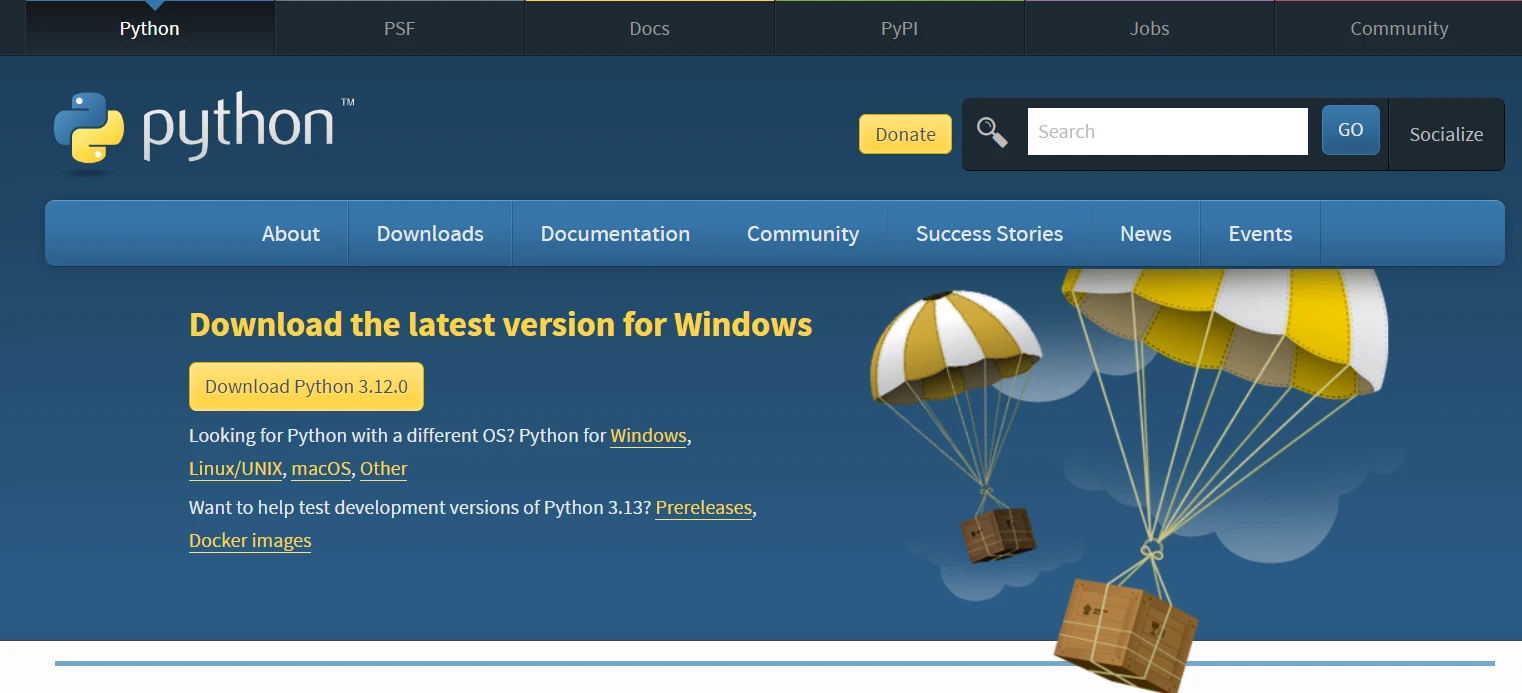
Before we install Spyder, it's crucial to have Python installed on your system. You can download the latest version of Python from the official website python.org. Follow the installation instructions provided for your operating system. Don't forget to add Python bindings to the "PATH" system environment variable.
How to Install Spyder using Terminal
Now that Python is installed, we can proceed to install Spyder. Postępuj zgodnie z poniższymi wskazówkami:
Step 1: Open a Terminal or Command Prompt
Open your terminal or command prompt on your computer.
Step 2: Install Spyder
Run the following command to install Spyder using pip:
pip install spyderpip install spyderStep 3: Launch Spyder
Once the installation is complete, you can launch Spyder by typing the following command in the terminal or command prompt:
spyderspyderAlternatively, you can launch Spyder from your system's application menu.
How to Install Spyder Using Standalone Installer
To make the installation process more user-friendly, Spyder provides standalone installers. Follow these steps for macOS:
Step 1: Download the Standalone Installer
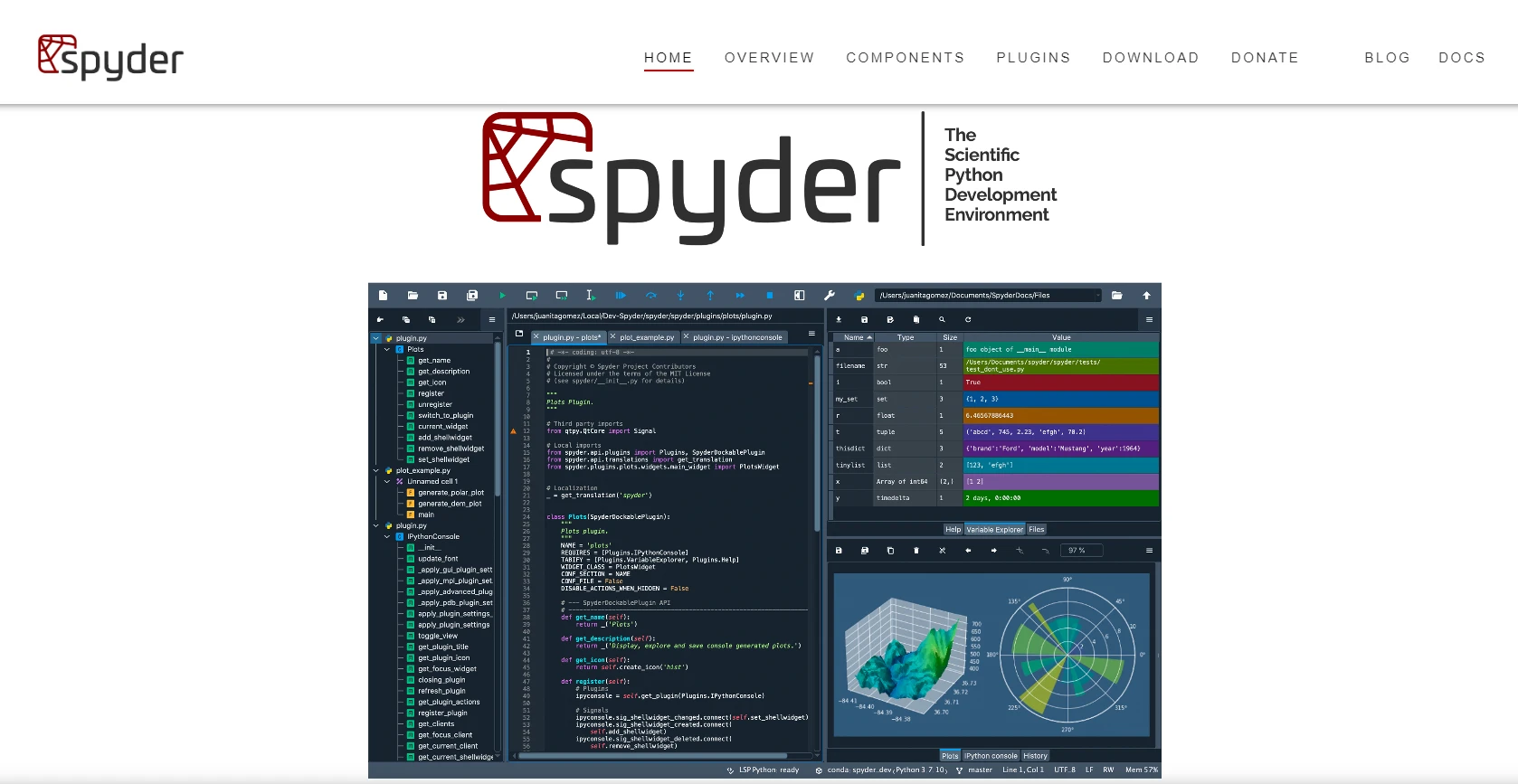
Visit the Spyder website at https://www.spyder-ide.org/ and download the appropriate standalone installer for macOS.
Step 2: Double-Click and Install
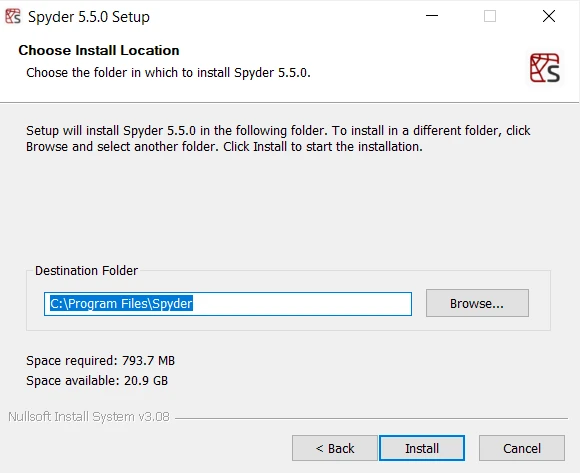
Locate the downloaded installer file and double-click it. This will initiate the installation process. Follow the on-screen instructions to complete the installation as shown in the screenshot below.
Step 3: Launch Spyder
Once the installation is complete, you can launch Spyder from your Applications folder or using Spotlight search. Alternatively, you can use the terminal and type spyder.
Getting Started with Spyder
Now that Spyder is installed, let's explore some basic usage:
1. Konsola interaktywna
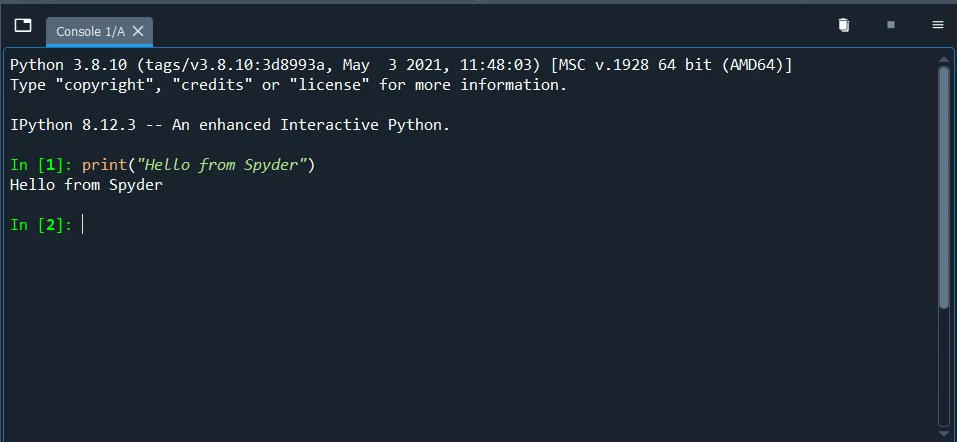
Once Spyder is launched, you'll see an interactive console at the bottom. You can type and execute Python code directly in this console.
2. Code Editor
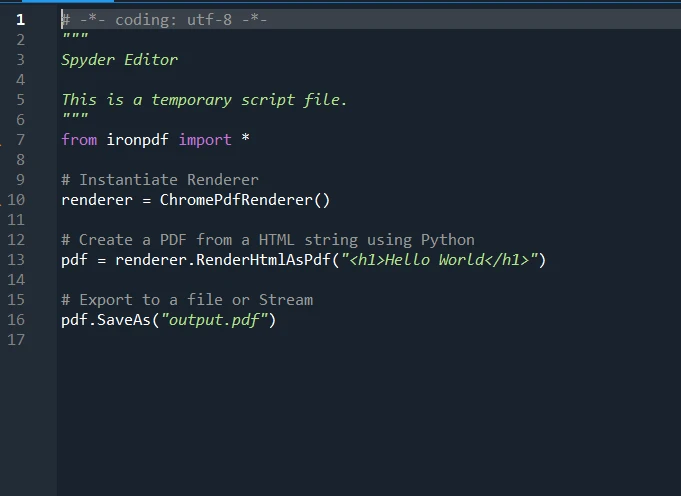
Create a new Python script by clicking on "File" -> "New File" -> "Python script." Write your Python code in the editor, and execute it by clicking the green "Run" arrow or pressing F5.
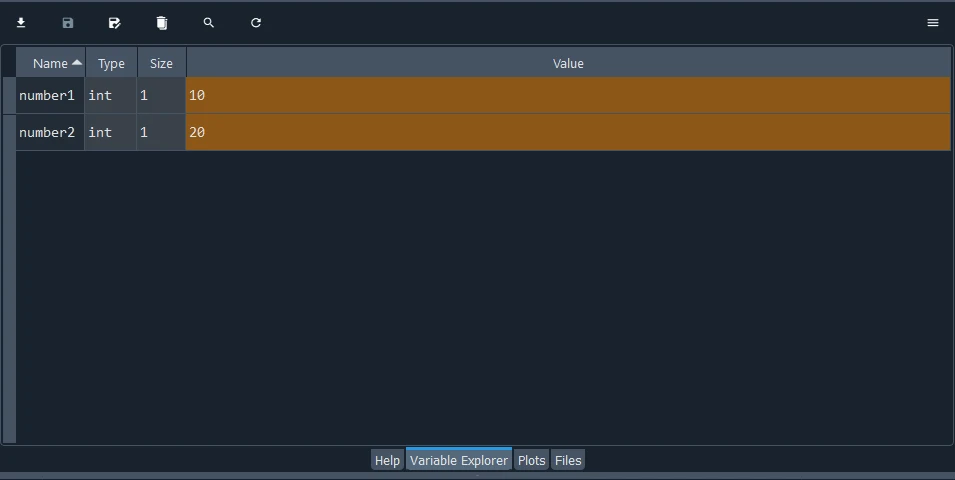
3. Variable Explorer
As you run the code, variables will appear in the Explorer. Click on the Variable Explorer tab to inspect the values of variables.
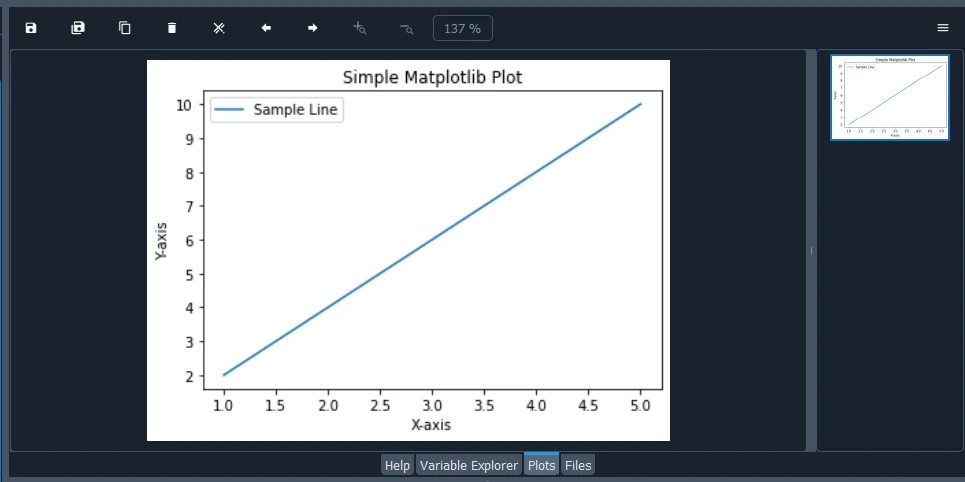
4. Plots and Visualizations
Create plots by using the plotting tools available in the "Plots" pane. Execute code that generates plots, and they will be displayed within Spyder.
5. Documentation Viewer
Access documentation by typing the function or module name in the IPython console and adding a ? at the end. Na przykład:
numpy.random?numpy.random?This will display the documentation for the specified function.
Wnioski
In conclusion, Spyder stands out as a comprehensive development tool and a scientific package with a unique combination, offering interactive execution, beautiful visualization capabilities, and advanced editing features. Tailored for data analysts and supporting data exploration, Spyder provides automatic code completion, a variable explorer, and deep inspection functionalities. With its unique combination of many built-in features, including profiling functionality and bindings, Spyder creates a powerful scientific environment written with the needs of developers in mind. The inclusion of as many IPython consoles, a multi-language editor, and the Spyder project further contribute to its status as a versatile and indispensable tool for Python programmers engaged in scientific computing and data analysis.
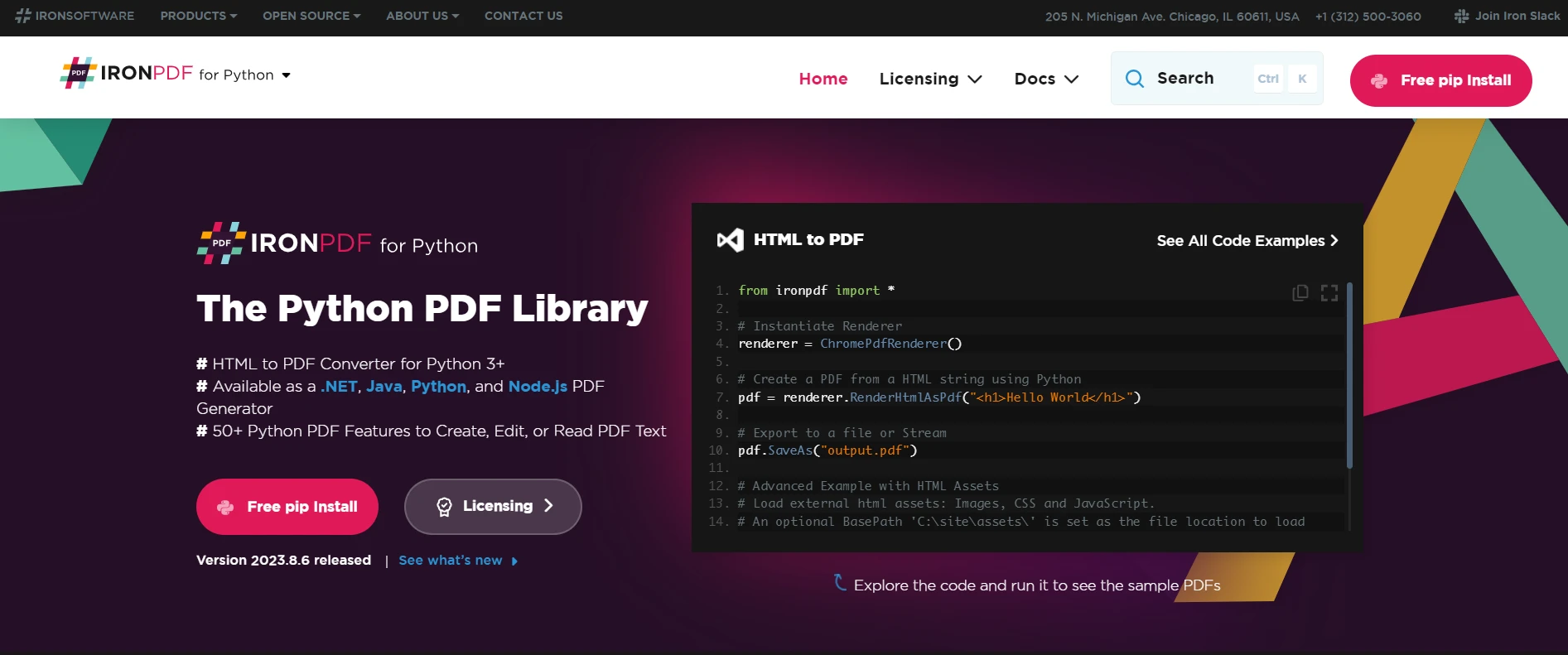
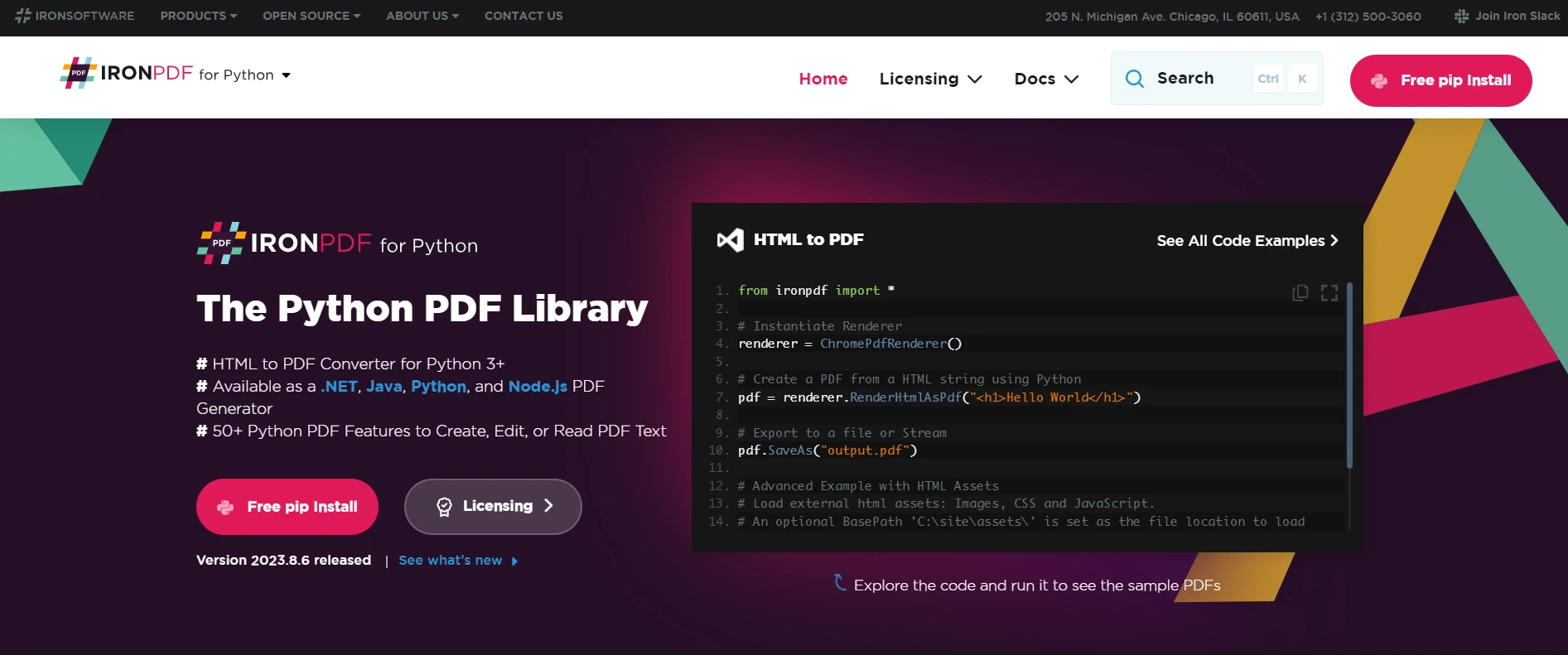
IronPDF, developed by Iron Software, provides a range of features for working with PDF files, including generating PDFs from HTML, manipulating existing PDFs, and extracting text or images from PDF documents. Its multiple language support makes it a one-go choice in console, desktop, or web applications for tasks related to document management, report generation, and other scenarios where PDF handling is required.
Python developers can utilize IronPDF to generate and manipulate PDFs directly within Spyder. This is particularly useful for seamlessly creating reports, exporting visualizations, and documenting analysis results in a PDF format. By integrating IronPDF into Spyder, Python developers can enhance their workflow, making it easier to produce professional and shareable documents directly from their analysis scripts, ultimately streamlining the process of communicating insights and results.
IronPDF is free for development purposes but needs to be licensed and can be downloaded from here.







 Rozpocznij za DARMO
 Rozpocznij za DARMO
 Zarezerwuj darmowe Demo na żywo





 Nie wymaga karty kredytowej ani tworzenia konta










