이 비디오는PDFSharp라이브러리를 사용하여 C# 코드로 PDF 파일을 생성하는 방법에 대한 지침입니다. 발표자는 PDF 파일을 생성하기 위한 복잡하지만 효과적인 라이브러리로 PDFSharp을 소개합니다. 이 라이브러리는 고급 기능을 갖추고 있으며 많은 경쟁업체와 달리 완전히 무료입니다. 발표자는 PDFSharp의 복잡성에도 불구하고, C#을 사용하여 PDF 파일을 생성하는 데 훌륭한 선택이라고 강조합니다.
튜토리얼을 시작하기 위해, 발표자는 세 줄의 텍스트로 구성된 생성된 PDF 파일의 예를 제시합니다. 첫 번째 줄의 텍스트는 정확히 첫 번째 것이 아니며, 세 번째 줄의 텍스트는 오른쪽 하단 모서리에 나타납니다. 발표자는 코드를 살펴보면 텍스트의 순서가 이해될 것이라고 언급합니다. 또한 발표자는 PDFSharp이 어떻게 작동하는지를 데모하기 위해 .NET 5를 사용할 것이라고 설명합니다. C#을 사용하여 PDF를 처음부터 생성하는 방법 에 대한 보다 포괄적인 접근 방식을 원한다면IronPDF간소화된 대안을 제공합니다.
.NET PDF 프로젝트와 관련하여 PDFSharp과 IronPDF가 능력에서 어떻게 다른지를 간략히 살펴보겠습니다:
아래 섹션에서는 이러한 차이점 각각에 대한 자세한 설명과 코드 예제를 제공합니다. 두 라이브러리를 비교하는 팀은 무료 30일 체험으로 IronPDF의 기능을 테스트할 수 있습니다.
설치 및 설정
코드에 들어가기 전에 발표자는 PDFSharp을 위한 환경 설정이 상당히 도전적일 수 있음을 강조합니다. 작업을 시작하기 전에 PDFSharp NuGet 패키지 세부 사항을 가진 세 개의 NuGet 패키지를 설치해야 한다고 설명합니다. 첫 번째 패키지는PDFSharp자체로, 더 오래된 버전으로 인해 .NET과 일치하지 않을 수 있다는 경고가 발생할 수 있습니다. 다른 두 패키지는 System.Drawing.Common 및 System.Text.Encoding.CodePages입니다.
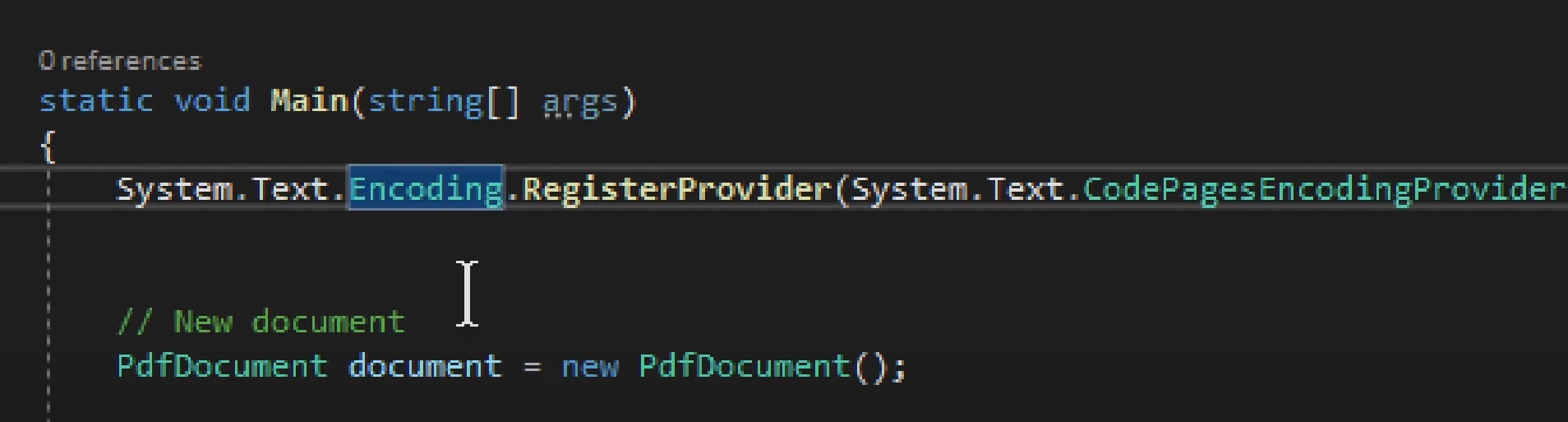
발표자는 PDFSharp을 작업하기 전에 세 개의 모든 패키지를 설치해야 하며 그렇지 않으면 코드에서 오류가 발생할 것이라고 강조합니다. System.Text.Encoding.CodePages 패키지는 PDF 파일을 생성하는 데 필요한 인코딩 지원을 제공하기 때문에 특히 중요하다고 설명합니다. 또한, 패키지를 제대로 설치하지 않으면 문제 해결이 어렵다고 발표자는 강조합니다. 이 다중 패키지 설정을 완전히 피하고자 하는 팀은 단계별 전환을 위한 PDFSharp에서 IronPDF로 전환하는 가이드를 따를 수 있습니다.
관련 라이브러리 설치
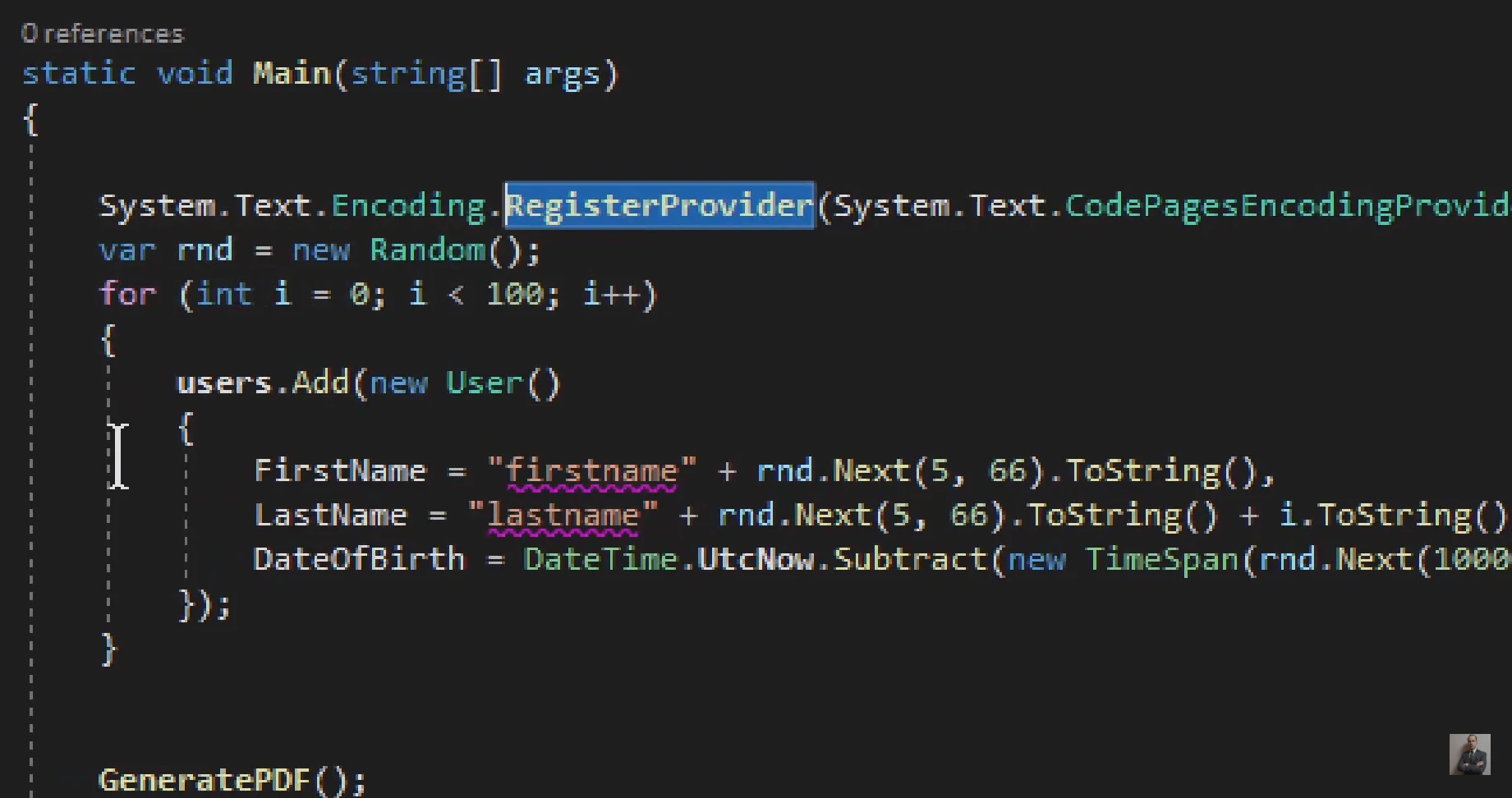
PDFSharp가 제대로 작동하려면, 발표자가 System.Text.Encoding에 대한 공급자를 등록해야 한다고 설명합니다. 공급자는 System.Text.Encoding.CodePages 패키지에서 제공되며, 발표자는 PDFSharp의 기능이 제대로 작동하도록 패키지를 등록하는 것이 중요하다고 강조합니다. 그들은 공급자를 등록하지 않으면 오류가 발생할 것이며, 이는 문제를 해결하기 어렵게 만들 수 있다고 설명합니다.
PDF 파일 생성하기
다음으로, 발표자는 PDFSharp을 사용하여 PDF 파일을 생성하는 간단한 콘솔 응용 프로그램을 제시합니다. 라이브러리를 사용하기 전에PDFSharp드로잉 및PDFSharpPDF에 대한 using 문이 선언되어야 한다고 설명합니다. 발표자는 PDF 파일을 생성하기 위한 코드를 제시하며, 이는 새 문서 생성, 새 페이지 추가, 페이지에 텍스트 그리기를 포함합니다.
using PdfSharp.Drawing;
using PdfSharp.Pdf;

namespace PdfSharpExample
{
    class Program
    {
        static void Main(string[] args)
        {
            // Create a new PDF document
            PdfDocument document = new PdfDocument();
            // Add a new page
            PdfPage page = document.AddPage();
            // Prepare to draw on the page
            XGraphics gfx = XGraphics.FromPdfPage(page);
            // Define a font
            XFont font = new XFont("Verdana", 20, XFontStyle.Bold);

            // Draw a string to the page
            gfx.DrawString("Hello, PDFsharp!", font, XBrushes.Black,
                new XRect(0, 0, page.Width, page.Height),
                XStringFormats.Center);

            // Save the document
            const string filename = "HelloWorld.pdf";
            document.Save(filename);
        }
    }
}
using PdfSharp.Drawing;
using PdfSharp.Pdf;

namespace PdfSharpExample
{
    class Program
    {
        static void Main(string[] args)
        {
            // Create a new PDF document
            PdfDocument document = new PdfDocument();
            // Add a new page
            PdfPage page = document.AddPage();
            // Prepare to draw on the page
            XGraphics gfx = XGraphics.FromPdfPage(page);
            // Define a font
            XFont font = new XFont("Verdana", 20, XFontStyle.Bold);

            // Draw a string to the page
            gfx.DrawString("Hello, PDFsharp!", font, XBrushes.Black,
                new XRect(0, 0, page.Width, page.Height),
                XStringFormats.Center);

            // Save the document
            const string filename = "HelloWorld.pdf";
            document.Save(filename);
        }
    }
}
Imports PdfSharp.Drawing
Imports PdfSharp.Pdf
Namespace PdfSharpExample
Friend Class Program
Shared Sub Main(ByVal args() As String)
' Create a new PDF document
Dim document As New PdfDocument()
' Add a new page
Dim page As PdfPage = document.AddPage()
' Prepare to draw on the page
Dim gfx As XGraphics = XGraphics.FromPdfPage(page)
' Define a font
Dim font As New XFont("Verdana", 20, XFontStyle.Bold)
' Draw a string to the page
gfx.DrawString("Hello, PDFsharp!", font, XBrushes.Black, New XRect(0, 0, page.Width, page.Height), XStringFormats.Center)
' Save the document
Const filename As String = "HelloWorld.pdf"
document.Save(filename)
End Sub
End Class
End Namespace
Imports PdfSharp.Drawing
Imports PdfSharp.Pdf

Namespace PdfSharpExample
	Friend Class Program
		Shared Sub Main(ByVal args() As String)
			' Create a new PDF document
			Dim document As New PdfDocument()
			' Add a new page
			Dim page As PdfPage = document.AddPage()
			' Prepare to draw on the page
			Dim gfx As XGraphics = XGraphics.FromPdfPage(page)
			' Define a font
			Dim font As New XFont("Verdana", 20, XFontStyle.Bold)

			' Draw a string to the page
			gfx.DrawString("Hello, PDFsharp!", font, XBrushes.Black, New XRect(0, 0, page.Width, page.Height), XStringFormats.Center)

			' Save the document
			Const filename As String = "HelloWorld.pdf"
			document.Save(filename)
		End Sub
	End Class
End Namespace
발표자는 PDF 파일을 생성하는 코드를 조정하여 이미지 추가(IronPDF사용하여 이미지를 PDF로 변환하는 방법 참조), 표 및 차트 추가와 같은 더 복잡한 기능을 포함할 수 있다고 언급합니다. 또한 PDFSharp은 PDF 파일에 폰트를 임베딩하는 등의 작업을 포함하여 폰트 작업을 위한 다양한 기능을 제공한다고 설명합니다.
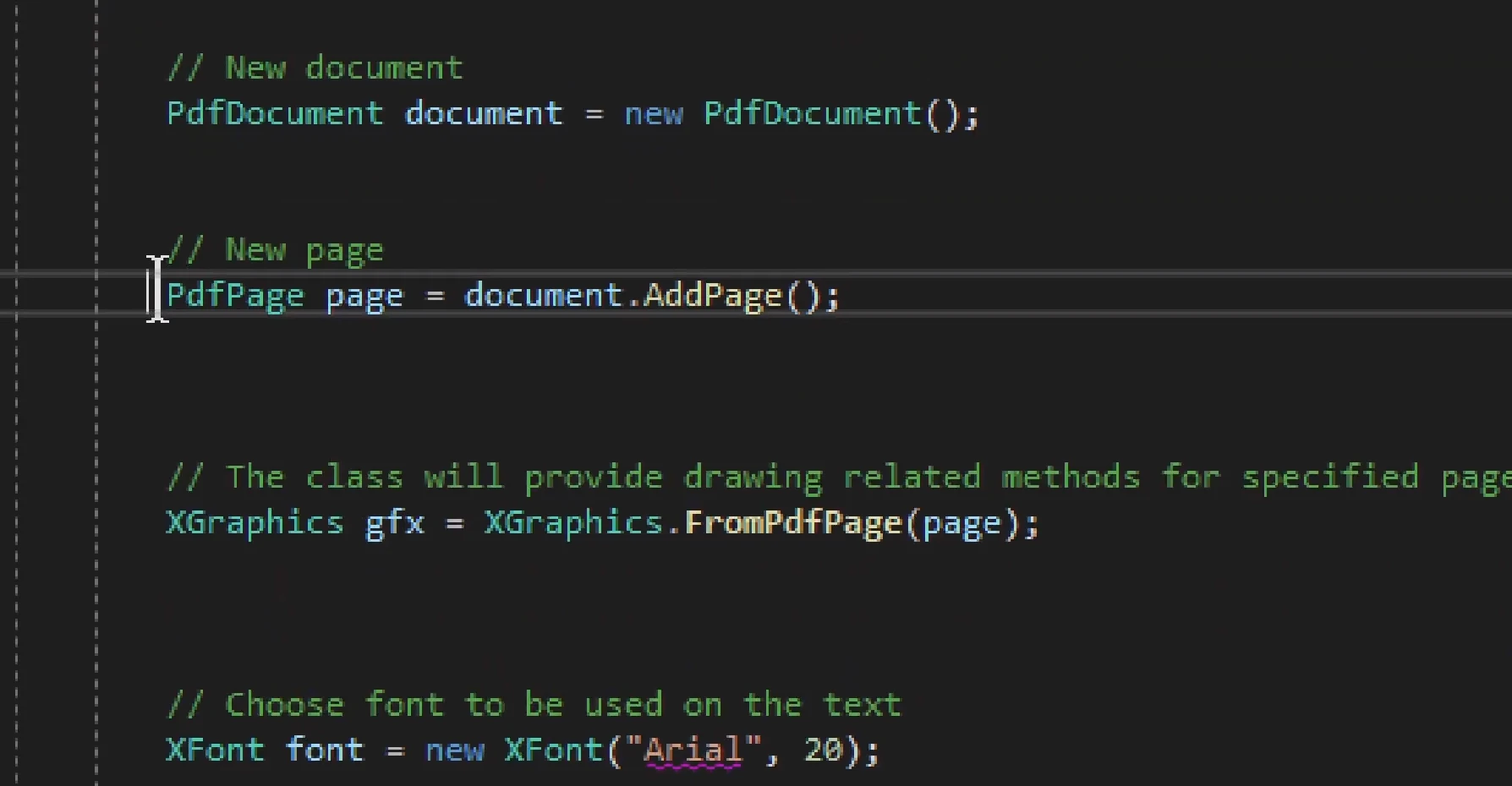
발표자는 NuGet 패키지를 설치하고 System.Text.Encoding에 대한 공급자를 등록하여 환경 설정을 올바르게 설정하는 것이 중요하다고 설명합니다. PDFSharp을 사용하여 PDF 파일을 생성하는 간단한 콘솔 응용 프로그램을 제시하고 코드가 더 복잡한 기능을 포함하도록 조정될 수 있는 방법을 시연합니다. 영상은 C#으로 PDF 파일을 생성하려는 사람들에게 우수한 자료가 됩니다.
목록 생성 및 더 복잡한 항목
비디오의 두 번째 부분에서 발표자는 PDF 문서를 생성하는 더 복잡한 예제를 소개합니다. 그는 빈 PDF 문서를 갖는 것은 무의미하다고 강조하고,PDFSharp라이브러리를 사용하여 새 페이지를 만드는 방법을 설명합니다. 그는 프로세스가 Excel 또는 PowerPoint 추가 기능에서 항목을 만드는 것과 유사하며, 페이지가 생성되면 다른 메서드를 호출할 필요가 없는 참조와 함께 작동한다고 언급합니다.
그 후 발표자는 텍스트, 선 및 이미지와 같은 항목을 그릴 메서드를 제공하는 XGraphics 변수를 소개하며, 이는 텍스트 및 이미지 스탬핑 API를 통해 IronPDF가 좌표 계산 없이 처리하는 기능입니다. XFont 변수는 PDF 문서에서 사용할 폰트를 설정하는 수단으로도 소개됩니다. 발표자는 폰트를 다른 곳에서 생성할 수는 있지만, 더 복잡한 배치가 있는 경우 전역적으로 설정하는 것이 유용하다고 언급합니다.
이어서 발표자는 PDF 파일에 텍스트를 작성하는 DrawString 메서드를 논의하며 복잡한 부분은 텍스트를 어디에 그릴지 결정하는 것이라고 설명하고, 폰트, 색상 및 텍스트 정렬 위치 등 다양한 매개변수들에 대해 설명합니다. 또한 XBrushes 변수를 사용하여 텍스트의 색상을 설정하는 방법을 설명합니다.
DrawString 및 기타 메서드 설명
발표자는 DrawString 메서드를 사용하여 텍스트를 중앙에 정렬하거나, 좌측 하단에 정렬하거나, 텍스트가 배치될 정확한 좌표를 지정하는 등 다양한 매개변수를 사용하는 여러 예제를 제시합니다. 그는 마지막 옵션이 가장 사용자 정의가 가능하며 상당한 유연성을 제공한다고 언급합니다.
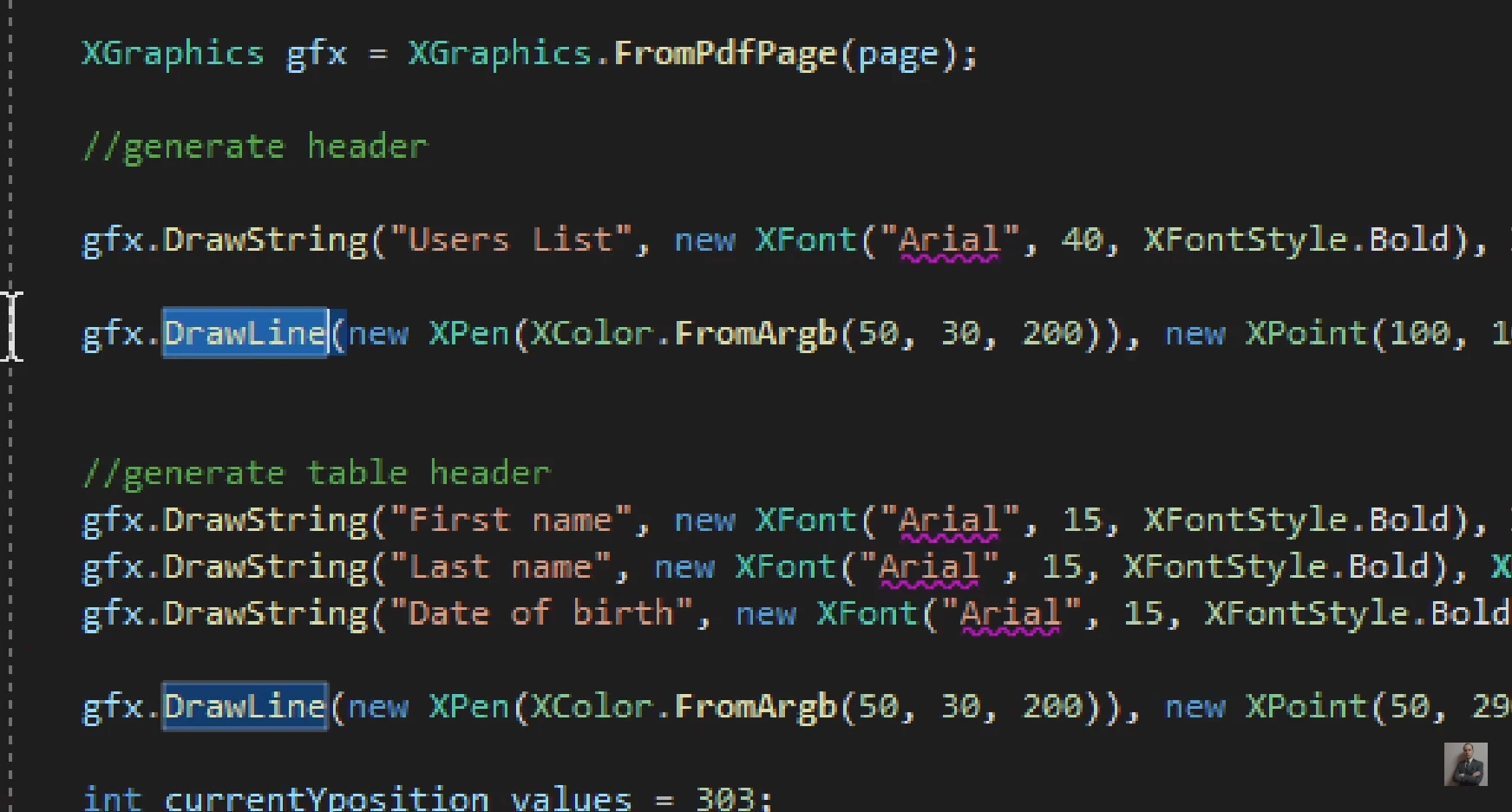
발표자는 C# 프로그래밍 언어에서 그래픽을 사용하여 테이블을 만드는 방법을 설명합니다. 이 문서에서는 이미지, 문자열 및 선을 삽입하는 방법은 물론 그래픽 기능을 사용하여 호와 바코드를 그리는 방법도 다룹니다.IronPDF여백, 머리글 및 DPI에 대한 렌더링 옵션을 통해 이러한 작업을 간소화합니다. 그들은 또한 좌표 작업 시 시행착오의 중요성과 행을 구분하기 위해 선을 그리는 방법을 설명합니다.
발표자는 또한 테이블 헤더와 값 및 선의 시작점 필요성을 논의합니다. Y 위치를 조정하고 기록 행을 추가하는 방법, 테이블이 일정 수의 기록을 초과할 때 다른 페이지로 이동하는 방법을 설명합니다. 마지막으로, 각 페이지에 대해 값을 리셋하는 것이 중요하다는 점을 언급합니다.
어떤 라이브러리를 선택해야 합니까?
결론적으로, 발표자는 PDFSharp로 작업할 때 Microsoft Office 추가 기능에 익숙해지는 것이 중요하다고 강조하고 주제에 대한 자신의 코스를 제공합니다. 그는 또한 라이브러리가 매우 다재다능하며 간단한 텍스트 문서부터 이미지, 그래픽, 사용자 정의 레이아웃이 포함된 더 복잡한 문서까지 다양한 PDF 문서를 생성하는 데 사용할 수 있다고 언급합니다.
IronPDF란?
IronPDF 는 PDF 문서를 생성, 편집 및 조작하기 위한 C# PDF 라이브러리입니다. 하나의 NuGet 패키지로 제공되며 – Install-Package IronPdf – 추가 종속성 설정 없이 .NET 응용 프로그램과 통합됩니다.
PDFSharp은 견고한 저수준 드로잉 제어를 제공하며 관대한 MIT 라이선스 하에 제공됩니다 – 이는 많은 .NET 프로젝트에서 기본 요소가 된 두 가지 진정한 강점입니다. 팀이 마찰을 겪는 경우는 흔히 좌표 기반 렌더링을 넘어 HTML을 PDF로 변환하거나 디지털 서명, 문서 암호화와 같은 영역으로 요구 사항이 확장될 때 발생합니다.IronPDF는 이러한 시나리오를 주요 기능으로 처리하는 상용 라이브러리로, HTML, CSS 및 JavaScript 렌더링을 포함한 일반적인 문서 생성 워크플로를 중심으로 설계된 API와 Professional 지원을 제공합니다.
특징
IronPDF 의 주요 기능 중 하나는 HTML을IronPDF로 변환할 수 있다는 점으로 , 웹 페이지에서 PDF 문서를 간편하게 생성할 수 있도록 해줍니다. HTML에서 PDF로의 변환은 PDFSharp의 현재 범위를 벗어납니다 – 좌표 드로잉 수준에서 작동하므로, 해당 기능이 필요한 팀은 일반적으로 별도의 렌더링 라이브러리를 추가하거나 IronPDF의 내장된 Chromium 엔진을 평가합니다.
IronPDF 디지털 서명 및 암호 보호를 통한 PDF 암호화 기능 도 지원하는데, 이는 안전한 처리가 필요한 중요한 문서에 매우 중요합니다. PDFSharp은 이러한 보안 시나리오를 처리하기 위해 설계되지 않았으므로, 준수 또는 문서 보호 요구 사항이 있는 팀은 종종 IronPDF를 평가하기 위한 자연스러운 전환점을 찾습니다.
IronPDF는 HTML 렌더링, 암호화 및 디지털 서명을 하나의 NuGet 패키지로 포괄하여 PDFSharp에 비해 더 넓은 기능 세트와 더 포괄적인 지원을 제공합니다. 그러나 상업적 제품이기 때문에, PDFSharp의 좌표 드로잉 모델 내에서 요구 사항이 맞는 팀 – 특히 HTML 변환 또는 내장된 보안 기능이 필요하지 않은 팀 – 은 PDFSharp의 MIT 라이선스, 오픈 소스 접근 방식을 선호할 수 있습니다.
라이선스 비용 외에도 전체 프로젝트 비용에는 별도의 렌더링 라이브러리를 조립하는 데 소요되는 개발자 시간, 복잡한 문서 페이지 레이아웃을 좌표 기반으로 관리하는 데 드는 인력 시간, PDFSharp가 요구하는 다중 패키지 설정을 문제 해결하는 데 드는 시간이 포함됩니다. 수년에 걸친 프로젝트 수명 주기 동안 비용을 평가하는 팀의 경우, 이러한 통합 및 유지 관리 비용이 오픈 소스 라이선스와 상용 라이선스 간의 차이를 훨씬 능가하는 경우가 많습니다.
IronPDF 여러분의 워크플로우에 어떻게 적용되는지 확인해 보실 준비가 되셨나요? [30일 무료 평가판 다운로드](trial-license를 통해 이 비교에서 다루는 모든 기능을 테스트해 보세요.
(PDFsharp는 해당 소유자의 등록 상표입니다. 본 사이트는 PDFsharp와 관련이 없으며, PDFsharp의 승인을 받거나 후원을 받지 않았습니다. 모든 제품 이름, 로고 및 브랜드는 해당 소유자의 자산입니다. 비교는 정보 제공 목적으로만 제공되며 작성 시점을 기준으로 공개적으로 제공된 정보를 반영합니다.)]























