푸터 콘텐츠로 바로가기
제품 비교

Java용 IronPDF와 Qoppa 소프트웨어의 비교 - Java PDF 라이브러리

PDF files are a popular format for sharing documents and information. There are many tools available to read, extract, and manipulate PDF files. Explore IronPDF for Java and Qoppa PDF are two popular tools that developers use to read PDF files. This article will provide a step-by-step guide on HTML to PDF conversion using IronPDF in Java for reading and manipulating PDF files efficiently, including sample codes.

In the world of PDF manipulation, two popular tools stand out: IronPDF and Qoppa PDF. Both tools have their own unique features and capabilities, but when it comes to choosing the best PDF tool, IronPDF takes the lead.

Get started with IronPDF for Java as a robust PDF tool that is used for creating, reading, and manipulating PDF files. With IronPDF, developers can easily integrate PDF functionality into their applications without the need for any third-party software.

On the other hand, Qoppa PDF is a powerful PDF tool that allows users to create, edit, and manipulate PDF files. Qoppa PDF offers a wide range of features, including digital signatures, form filling, and redaction.

1. Installing IronPDF and Qoppa PDF

A Comparison Between IronPDF For Java & Qoppa Software – Java PDF Library: Figure 1 - C# .NET HTML-to-PDF

Learn how to install IronPDF in Java and Qoppa PDF in Java, which is a straightforward process that can be done using the NuGet package manager. Once installed, developers can use these powerful libraries to create, edit, and manipulate PDF documents.

1.1. Installing IronPDF in Java

A Comparison Between IronPDF For Java & Qoppa Software – Java PDF Library: Figure 2 - IronPDF

To include the IronPDF Library in a Java Project, there are two methods available:

  1. Adding IronPDF as a dependency in a Maven-configured Java Project.
  2. Downloading the IronPDF JAR File and manually adding it to the project classpath.

Both of these installation methods will be briefly explained in the following section.

Option 1: Installing IronPDF as a Maven Dependency involves adding the necessary artifacts to the dependency section of the Java project's pom.xml file.

<dependency>
    <groupId>com.ironsoftware</groupId>
    <artifactId>ironpdf</artifactId>
    <version>2023.1.1</version>
</dependency>
<dependency>
    <groupId>org.slf4j</groupId>
    <artifactId>slf4j-api</artifactId>
    <version>1.7.32</version>
</dependency>
<dependency>
    <groupId>com.ironsoftware</groupId>
    <artifactId>ironpdf</artifactId>
    <version>2023.1.1</version>
</dependency>
<dependency>
    <groupId>org.slf4j</groupId>
    <artifactId>slf4j-api</artifactId>
    <version>1.7.32</version>
</dependency>
XML

The initial artifact references the most recent version of the IronPDF library for Java, while the second artifact references an SLF4J implementation. This dependency is necessary for the IronPDF rendering engine to produce logging messages during its operation. Programmers can substitute this dependency with other logging providers like Logback and Log4J or omit it entirely if logging is not needed.

To obtain the latest version of the aforementioned libraries, execute the mvn install command within a terminal at the root directory of the Java project.

Option 2: Alternatively, developers who do not wish to use Maven or other dependency management systems can manually download the IronPDF Library's JAR file (along with the optional SLF4J implementation) and add it to their project's classpath.

To download the IronPDF JAR file, access it directly from the Maven Repository.

1.2. Installing Qoppa PDF in Java

A Comparison Between IronPDF For Java & Qoppa Software – Java PDF Library: Figure 3 - Image result for using Qoppa PDF in C#

Qoppa PDF is a third-party library for working with PDF files in Java applications.

Qoppa Java PDF libraries are made available as artifacts and are hosted by Qoppa Software in a Maven Repository. With only a little POM file modification, you can simply integrate Qoppa PDF capabilities into your Maven projects and applications.

The details of Qoppa's Maven repository and the published artifacts' dependencies can be seen below.

The Qoppa repository settings and location to include in your Maven pom.xml file are as follows:

<repositories>
    <repository>
        <id>QoppaSoftware</id>
        <name>Qoppa Software</name>
        <url>http://download.qoppa.com/maven</url>
    </repository>
</repositories>
<repositories>
    <repository>
        <id>QoppaSoftware</id>
        <name>Qoppa Software</name>
        <url>http://download.qoppa.com/maven</url>
    </repository>
</repositories>
XML

You can add one of Qoppa's JAR files as a local file to your Maven project as an alternative to using Qoppa Software's Maven Repository. Therefore, for example, if you wanted to add jPDFEditor as a local JAR, you would save the file in a system path given, such as $project.basedir/src/main/resources/, and then add jPDFEditor using the dependency listed below.

<dependencies>
    <dependency>
        <groupId>com.qoppa</groupId>
        <artifactId>jPDFEditor</artifactId>
        <version>2021R1.01</version>
        <scope>system</scope>
        <systemPath>${project.basedir}/src/main/resources/jPDFEditor.jar</systemPath>
    </dependency>
</dependencies>
<dependencies>
    <dependency>
        <groupId>com.qoppa</groupId>
        <artifactId>jPDFEditor</artifactId>
        <version>2021R1.01</version>
        <scope>system</scope>
        <systemPath>${project.basedir}/src/main/resources/jPDFEditor.jar</systemPath>
    </dependency>
</dependencies>
XML

2. PDF Processing with IronPDF

2.1. Manipulating PDF with IronPDF

IronPDF is a powerful tool that provides developers with the ability to process and manipulate PDF documents while respecting the document workflows. With its latest version, the tool provides end-users with various components and features to support their needs in reading and writing PDF files. In this article, we will explore how to read and write PDF files with IronPDF.

To get started, developers must first install IronPDF for Java and then import the necessary classes and start reading PDF files.

2.2. Reading PDF Files with IronPDF

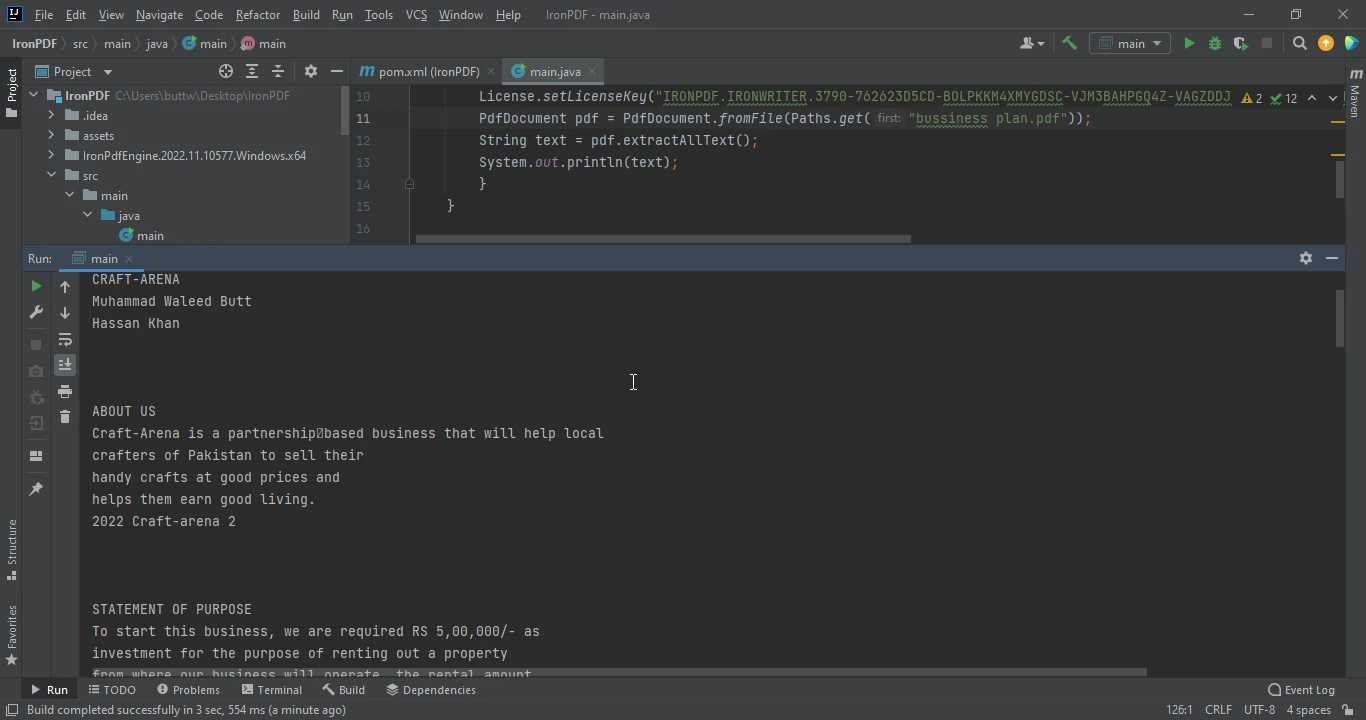
After installing IronPDF, we can use its classes and Apache Tika parsers in our project. To read an existing PDF file in Java, we can use the following code:

import com.ironsoftware.ironpdf.*;

public class ReadPDFExample {
    public static void main(String[] args) {
        // Load the PDF document
        PdfDocument pdf = PdfDocument.fromFile(Paths.get("assets/sample.pdf"));
        // Extract all the text from the document
        String text = pdf.extractAllText();
        // Output the extracted text
        System.out.println(text);
    }
}
import com.ironsoftware.ironpdf.*;

public class ReadPDFExample {
    public static void main(String[] args) {
        // Load the PDF document
        PdfDocument pdf = PdfDocument.fromFile(Paths.get("assets/sample.pdf"));
        // Extract all the text from the document
        String text = pdf.extractAllText();
        // Output the extracted text
        System.out.println(text);
    }
}
JAVA

A Comparison Between IronPDF For Java & Qoppa Software – Java PDF Library: Figure 4

In this code, PdfDocument.fromFile opens the PDF document, and Paths.get gets the path of the file. The extractAllText method reads all the text in the document.

2.3. Read Text from Specific Page

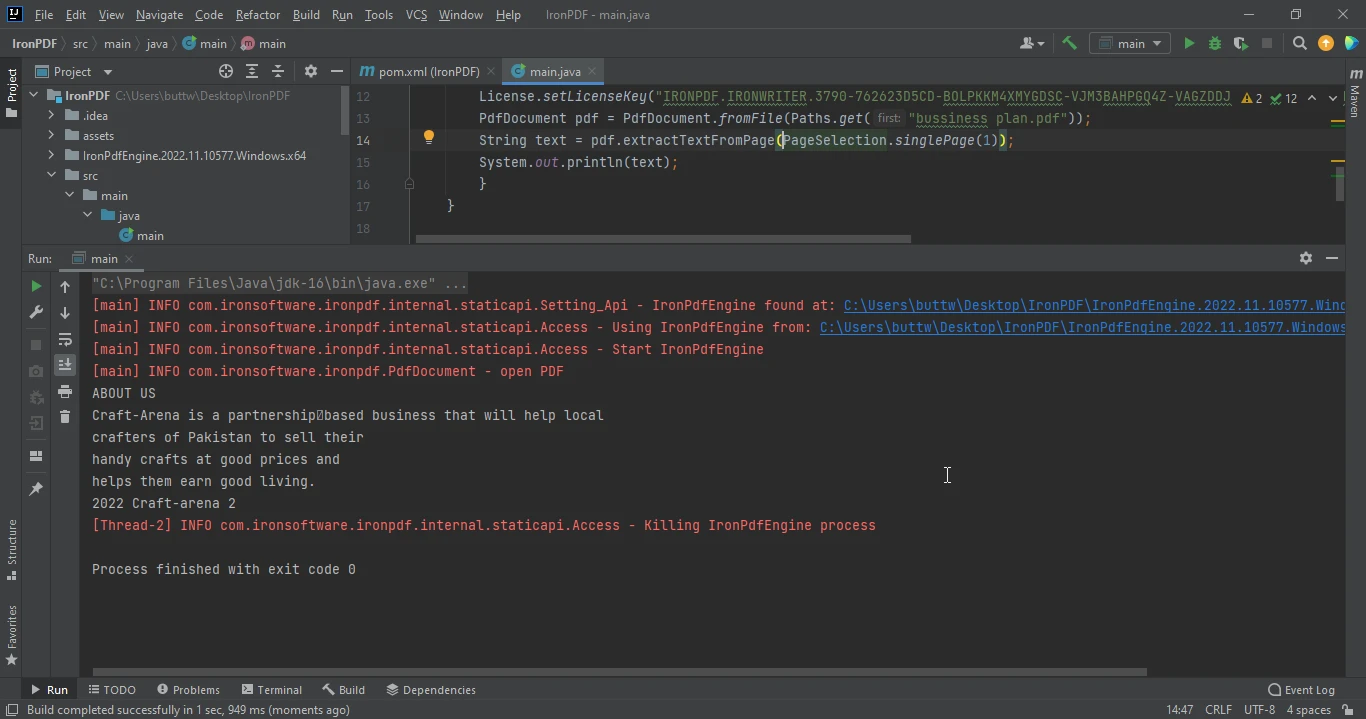
To read text from a specific page, we can use the extractTextFromPage method. For example, to extract text from the second page of the PDF document, we can use the following code:

public class ReadSpecificPageExample {
    public static void main(String[] args) {
        // Load the PDF document
        PdfDocument pdf = PdfDocument.fromFile(Paths.get("assets/sample.pdf"));
        // Extract text from the second page (page index starts at 0)
        String text = pdf.extractTextFromPage(PageSelection.singlePage(1));
        // Output the extracted text from the specific page
        System.out.println(text);
    }
}
public class ReadSpecificPageExample {
    public static void main(String[] args) {
        // Load the PDF document
        PdfDocument pdf = PdfDocument.fromFile(Paths.get("assets/sample.pdf"));
        // Extract text from the second page (page index starts at 0)
        String text = pdf.extractTextFromPage(PageSelection.singlePage(1));
        // Output the extracted text from the specific page
        System.out.println(text);
    }
}
JAVA

IronPDF provides other methods in the PageSelection class that can be used to extract text from various pages, such as firstPage, lastPage, pageRange, and allPages.

OUTPUT

A Comparison Between IronPDF For Java & Qoppa Software – Java PDF Library: Figure 5

2.4. URL to PDF

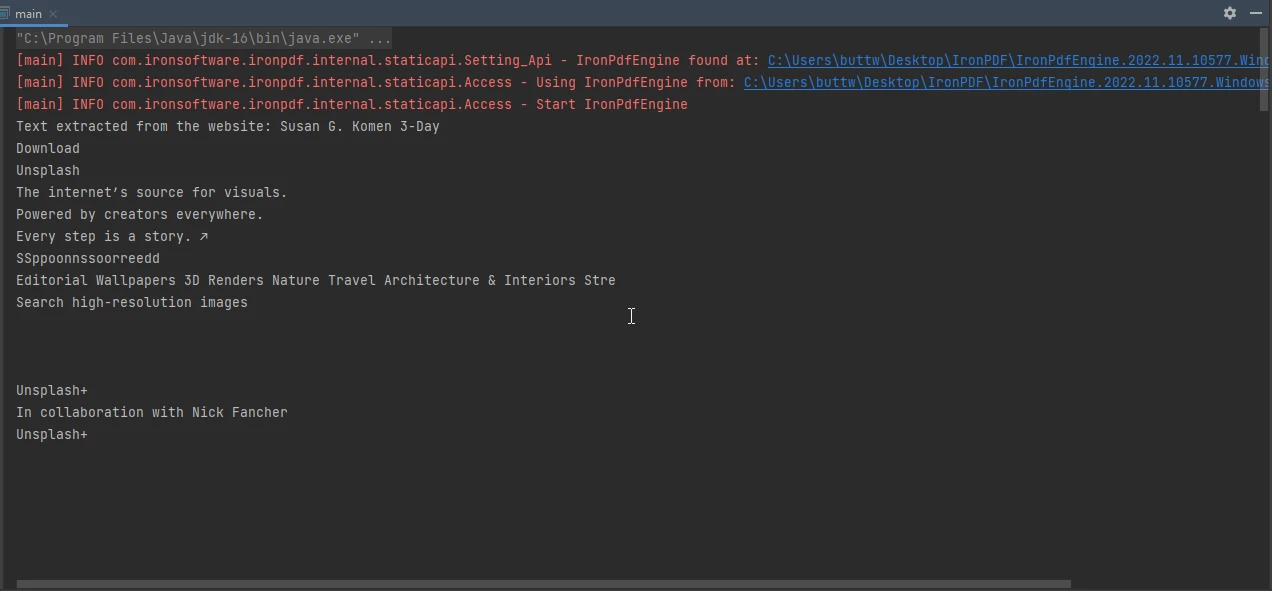
We can also use IronPDF to convert a webpage to a PDF and then extract text from it. The following code generates a PDF from a URL and extracts all text from the website:

public class UrlToPdfExample {
    public static void main(String[] args) {
        // Render the website as a PDF
        PdfDocument pdf = PdfDocument.renderUrlAsPdf("https://unsplash.com/");
        // Extract all text from the generated PDF
        String text = pdf.extractAllText();
        // Output the extracted text
        System.out.println("Text extracted from the website: " + text);
    }
}
public class UrlToPdfExample {
    public static void main(String[] args) {
        // Render the website as a PDF
        PdfDocument pdf = PdfDocument.renderUrlAsPdf("https://unsplash.com/");
        // Extract all text from the generated PDF
        String text = pdf.extractAllText();
        // Output the extracted text
        System.out.println("Text extracted from the website: " + text);
    }
}
JAVA

A Comparison Between IronPDF For Java & Qoppa Software – Java PDF Library: Figure 6

2.5. Extract Images From PDF

Additionally, IronPDF can be used to extract images from PDF files. The code below demonstrates the extraction of images:

import com.ironsoftware.ironpdf.License;
import com.ironsoftware.ironpdf.PdfDocument;
import java.awt.image.BufferedImage;
import java.io.IOException;
import java.nio.file.Files;
import java.nio.file.Path;
import java.nio.file.Paths;
import java.util.List;
import javax.imageio.ImageIO;

public class ExtractImagesExample {
    public static void main(String[] args) throws IOException {
        // Set the IronPDF license key
        License.setLicenseKey("YOUR LICENSE KEY HERE");
        // Load the PDF document
        PdfDocument pdf = PdfDocument.fromFile(Paths.get("assets/sample.pdf"));

        try {
            // Extract all images from the PDF document
            List<BufferedImage> images = pdf.extractAllImages();
            // Output number of images extracted
            System.out.println("Number of images extracted from the website: " + images.size());

            // Save each extracted image to a file
            int i = 0;
            for (BufferedImage image : images) {
                ImageIO.write(image, "PNG", Files.newOutputStream(Path.of("assets/extracted_" + ++i + ".png")));
            }
        } catch (Exception exception) {
            System.out.println("Failed to extract images from the website");
            exception.printStackTrace();
        }
    }
}
import com.ironsoftware.ironpdf.License;
import com.ironsoftware.ironpdf.PdfDocument;
import java.awt.image.BufferedImage;
import java.io.IOException;
import java.nio.file.Files;
import java.nio.file.Path;
import java.nio.file.Paths;
import java.util.List;
import javax.imageio.ImageIO;

public class ExtractImagesExample {
    public static void main(String[] args) throws IOException {
        // Set the IronPDF license key
        License.setLicenseKey("YOUR LICENSE KEY HERE");
        // Load the PDF document
        PdfDocument pdf = PdfDocument.fromFile(Paths.get("assets/sample.pdf"));

        try {
            // Extract all images from the PDF document
            List<BufferedImage> images = pdf.extractAllImages();
            // Output number of images extracted
            System.out.println("Number of images extracted from the website: " + images.size());

            // Save each extracted image to a file
            int i = 0;
            for (BufferedImage image : images) {
                ImageIO.write(image, "PNG", Files.newOutputStream(Path.of("assets/extracted_" + ++i + ".png")));
            }
        } catch (Exception exception) {
            System.out.println("Failed to extract images from the website");
            exception.printStackTrace();
        }
    }
}
JAVA

A Comparison Between IronPDF For Java & Qoppa Software – Java PDF Library: Figure 7

3. Manipulating PDF files using Qoppa PDF

Qoppa PDF is a popular PDF processing tool that provides users with a powerful set of components for working with PDF files. In this article, we will explore how to read and write PDF files with Qoppa PDF in Java.

To get started, developers must first download the Qoppa PDF JAR file and add it to their project's classpath. Once the JAR file is added, developers can import the necessary classes and start reading PDF files.

A Comparison Between IronPDF For Java & Qoppa Software – Java PDF Library: Figure 8

3.1. Reading PDF Files with Qoppa PDF

Reading PDF files with Qoppa PDF in Java can be accomplished using the following sample code:

import com.qoppa.pdf.PDFImages;
import java.awt.Color;
import java.awt.Graphics2D;
import java.awt.image.BufferedImage;
import java.awt.Font;
import java.io.File;
import javax.imageio.ImageIO;

public class ReadPdfWithQoppa {
    public static void main(String[] args) {
        try {
            // Load the document
            PDFImages pdfDoc = new PDFImages("input.pdf", null);

            // Loop through pages
            for (int count = 0; count < pdfDoc.getPageCount(); ++count) {
                // Get an image of the PDF page at a resolution of 150 DPI
                BufferedImage pageImage = pdfDoc.getPageImage(count, 150);

                // Create a Graphics 2D from the page image
                Graphics2D g2d = pageImage.createGraphics();

                // Modify BufferedImage using drawing functions available in Graphics2D
                // Here is an example on how to add a watermark
                g2d.setFont(new Font("sansserif", Font.PLAIN, 200));
                g2d.rotate(Math.toRadians(45));
                g2d.setColor(new Color(128, 128, 128, 128));
                g2d.drawString("Watermark", 300, g2d.getFontMetrics().getMaxDescent());

                // Save the image as a JPEG
                File outputFile = new File("output_" + count + ".jpg");
                ImageIO.write(pageImage, "JPEG", outputFile);
                System.out.println("Page " + count + " processed.");
            }
        } catch (Exception e) {
            e.printStackTrace();
        }
    }
}
import com.qoppa.pdf.PDFImages;
import java.awt.Color;
import java.awt.Graphics2D;
import java.awt.image.BufferedImage;
import java.awt.Font;
import java.io.File;
import javax.imageio.ImageIO;

public class ReadPdfWithQoppa {
    public static void main(String[] args) {
        try {
            // Load the document
            PDFImages pdfDoc = new PDFImages("input.pdf", null);

            // Loop through pages
            for (int count = 0; count < pdfDoc.getPageCount(); ++count) {
                // Get an image of the PDF page at a resolution of 150 DPI
                BufferedImage pageImage = pdfDoc.getPageImage(count, 150);

                // Create a Graphics 2D from the page image
                Graphics2D g2d = pageImage.createGraphics();

                // Modify BufferedImage using drawing functions available in Graphics2D
                // Here is an example on how to add a watermark
                g2d.setFont(new Font("sansserif", Font.PLAIN, 200));
                g2d.rotate(Math.toRadians(45));
                g2d.setColor(new Color(128, 128, 128, 128));
                g2d.drawString("Watermark", 300, g2d.getFontMetrics().getMaxDescent());

                // Save the image as a JPEG
                File outputFile = new File("output_" + count + ".jpg");
                ImageIO.write(pageImage, "JPEG", outputFile);
                System.out.println("Page " + count + " processed.");
            }
        } catch (Exception e) {
            e.printStackTrace();
        }
    }
}
JAVA

3.2. Writing PDF Files with Qoppa PDF

Writing PDF files with Qoppa PDF in Java can be done using their APIs:

/*
 * This sample Java program uses jPDFWriter
 * to create a new PDF file, add a page to it
 * and draw an image and text on the page.
 */
package jPDFWriterSamples;

import java.awt.Color;
import java.awt.image.BufferedImage;
import java.awt.print.PageFormat;
import java.awt.print.Paper;
import java.io.File;
import javax.imageio.ImageIO;
import com.qoppa.pdfWriter.PDFDocument;
import com.qoppa.pdfWriter.PDFGraphics;
import com.qoppa.pdfWriter.PDFPage;

public class CreatePDFWithTextAndImage {
    public static void main(String [] args) {
        try {
            // Create a new PDF document
            PDFDocument pdfDoc = new PDFDocument();

            // Create a PageFormat of standard letter size with no margins
            Paper paper = new Paper();
            paper.setSize(8.5 * 72, 11 * 72);
            paper.setImageableArea(0, 0, 8.5 * 72, 11 * 72);
            PageFormat pf = new PageFormat();
            pf.setPaper(paper);

            // Create a new page and add it to the PDF
            PDFPage page = pdfDoc.createPage(pf);
            pdfDoc.addPage(page);

            // Get graphics from the page to draw content
            PDFGraphics g2d = (PDFGraphics) page.createGraphics();

            // Read an image (could be png, jpg, etc.)
            BufferedImage image = ImageIO.read(new File("C:\\photo.jpg"));

            // Draw the image on the page
            g2d.drawImage(image, 0, 0, null);

            // Set the font and color for the text
            g2d.setFont(PDFGraphics.HELVETICA.deriveFont(24f));
            g2d.setColor(Color.BLUE);

            // Draw text on the graphics object of the page
            g2d.drawString("NEW TEXT", 200, 30);

            // Save the document to a file
            pdfDoc.saveDocument("C:\\output.pdf");
            System.out.println("PDF created successfully.");
        } catch (Throwable t) {
            System.out.println("Error creating PDF.");
            t.printStackTrace();
        }
    }
}
/*
 * This sample Java program uses jPDFWriter
 * to create a new PDF file, add a page to it
 * and draw an image and text on the page.
 */
package jPDFWriterSamples;

import java.awt.Color;
import java.awt.image.BufferedImage;
import java.awt.print.PageFormat;
import java.awt.print.Paper;
import java.io.File;
import javax.imageio.ImageIO;
import com.qoppa.pdfWriter.PDFDocument;
import com.qoppa.pdfWriter.PDFGraphics;
import com.qoppa.pdfWriter.PDFPage;

public class CreatePDFWithTextAndImage {
    public static void main(String [] args) {
        try {
            // Create a new PDF document
            PDFDocument pdfDoc = new PDFDocument();

            // Create a PageFormat of standard letter size with no margins
            Paper paper = new Paper();
            paper.setSize(8.5 * 72, 11 * 72);
            paper.setImageableArea(0, 0, 8.5 * 72, 11 * 72);
            PageFormat pf = new PageFormat();
            pf.setPaper(paper);

            // Create a new page and add it to the PDF
            PDFPage page = pdfDoc.createPage(pf);
            pdfDoc.addPage(page);

            // Get graphics from the page to draw content
            PDFGraphics g2d = (PDFGraphics) page.createGraphics();

            // Read an image (could be png, jpg, etc.)
            BufferedImage image = ImageIO.read(new File("C:\\photo.jpg"));

            // Draw the image on the page
            g2d.drawImage(image, 0, 0, null);

            // Set the font and color for the text
            g2d.setFont(PDFGraphics.HELVETICA.deriveFont(24f));
            g2d.setColor(Color.BLUE);

            // Draw text on the graphics object of the page
            g2d.drawString("NEW TEXT", 200, 30);

            // Save the document to a file
            pdfDoc.saveDocument("C:\\output.pdf");
            System.out.println("PDF created successfully.");
        } catch (Throwable t) {
            System.out.println("Error creating PDF.");
            t.printStackTrace();
        }
    }
}
JAVA

4. Why choose IronPDF over Qoppa PDF

While both tools are useful, IronPDF takes the lead in terms of ease of use and functionality. Here are some of the reasons why IronPDF is the best choice for manipulating PDF files:

4.1. Simplicity

One of the main advantages of IronPDF is its simplicity. IronPDF has a straightforward API that is easy to use, even for beginners. Developers can easily create and modify PDF documents with just a few lines of code. In contrast, Qoppa PDF has a more complex API, which can be daunting for new users.

4.2. Compatibility

IronPDF is compatible with a wide range of platforms and frameworks, including Java, .NET, ASP.NET, and .NET Core. IronPDF also supports a range of file formats, including HTML, CSS, and SVG. This makes it easy for developers to integrate IronPDF into their existing applications.

In contrast, Qoppa PDF has limited compatibility with platforms other than Java. This can be a drawback for developers who work with other programming languages.

4.3. Performance

IronPDF is designed to be fast and efficient, even when working with large PDF documents. IronPDF uses optimized algorithms to ensure that PDF manipulation is performed quickly and smoothly. This is especially important for applications that need to handle a large volume of PDF files.

IronPDF's performance is impressive, even when working with large PDF files. This is due to IronPDF's optimized algorithms and efficient memory management.

5. Pricing and Licensing

When it comes to pricing and licensing, IronPDF and Qoppa PDF have different approaches. In this article, we will compare the pricing and licensing of both tools and give preference to IronPDF.

5.1. IronPDF Pricing and Licensing

IronPDF offers a simple and transparent pricing model based on the number of developers who will be using the tool. You can purchase a license for a single developer, a team of developers, or an enterprise with unlimited developers.

With the purchase of a license, you can use IronPDF in any number of projects, and you will receive free updates and technical support for one year. After the first year, you can choose to renew your license for a discounted price.

5.2. Qoppa PDF Pricing and Licensing

Qoppa PDF offers a variety of licensing options, including perpetual licenses, annual licenses, and subscription licenses.

In terms of pricing and licensing, IronPDF offers a simpler and more transparent approach. The pricing is based on the number of developers using the tool, and there are no hidden fees or additional costs.

A Comparison Between IronPDF For Java & Qoppa Software – Java PDF Library: Figure 10

6. Conclusion

In conclusion, IronPDF is the best choice for manipulating PDF files. IronPDF's simplicity, compatibility, and performance make it a powerful tool for developers who need to work with PDF documents. While Qoppa PDF has its own unique features, IronPDF offers a better overall package for PDF manipulation. IronPDF provides extensive documentation and support, making it easy for developers to learn and use the tool. IronPDF is also highly compatible with a wide range of platforms and frameworks, making it a versatile tool for developers.

On the other hand, Qoppa PDF is designed with flexibility and ease of use in mind, providing a wide range of customization options that allow developers to tailor the library to their specific needs. Its advanced features, such as support for 3D PDFs, OCR, and form field recognition, make it a versatile tool for handling complex PDF documents.

If you're looking for a reliable and efficient PDF manipulation tool, IronPDF is the way to go.

IronPDF packages provide competitive licensing and support with no ongoing costs. IronPDF also supports multiple platforms at a single price!

If you are not yet an IronPDF customer, you can access the free trial of IronPDF to check out all the available features. If you buy the complete Iron Suite, you can get all five products for the price of two. For further details regarding IronPDF licensing, please follow this comprehensive package overview to review the complete package information.

참고해 주세요Qoppa PDF is a registered trademark of its respective owner. This site is not affiliated with, endorsed by, or sponsored by Qoppa PDF. All product names, logos, and brands are property of their respective owners. Comparisons are for informational purposes only and reflect publicly available information at the time of writing.

자주 묻는 질문

IronPDF와 Qoppa PDF의 주요 차이점은 무엇인가요?

IronPDF는 Java, .NET, ASP.NET 등 여러 플랫폼에 걸쳐 단순성과 호환성을 제공하는 것으로 잘 알려져 있는 반면, Qoppa PDF는 주로 Java 중심입니다. 또한 IronPDF는 간단한 API를 제공하며 속도에 최적화되어 대용량 PDF 문서를 효율적으로 처리합니다.

Java에서 HTML을 PDF로 변환하려면 어떻게 해야 하나요?

HTML에서 PDF로 변환하기 위해 설계된 방법을 사용하여 Java에서 HTML을 PDF로 변환하는 데 IronPDF를 사용할 수 있습니다. IronPDF는 이 프로세스를 용이하게 하기 위해 단계별 가이드와 샘플 코드를 제공합니다.

IronPDF를 사용하여 PDF에서 텍스트와 이미지를 추출할 수 있나요?

예, IronPDF를 사용하면 PDF 파일에서 텍스트와 이미지를 모두 추출할 수 있습니다. 텍스트 추출을 효과적으로 처리하는 기능을 제공하고 이미지를 추출하여 별도로 저장할 수 있는 도구를 제공합니다.

IronPDF는 Java 프로젝트에 쉽게 통합할 수 있나요?

예, IronPDF는 Maven 종속성으로 추가하거나 프로젝트 클래스 경로에 JAR 파일을 수동으로 포함시켜 Java 프로젝트에 쉽게 통합할 수 있습니다.

IronPDF에는 어떤 가격 모델이 있나요?

IronPDF는 개발자 수에 따라 투명하고 유연한 가격 모델을 제공합니다. 라이선스는 단일 개발자, 팀 또는 기업에 대해 숨겨진 비용 없이 사용할 수 있습니다.

IronPDF는 고급 PDF 기능을 제공하나요?

IronPDF는 단순성과 성능이 뛰어나지만 HTML-PDF 변환, 텍스트 추출 및 이미지 처리 기능도 제공합니다. 그러나 Qoppa에서 제공하는 3D PDF 및 OCR과 같은 고급 기능에는 중점을 두지 않습니다.

구매하기 전에 IronPDF를 사용해 볼 수 있나요?

예, IronPDF는 사용자가 기능을 살펴볼 수 있는 무료 평가판을 제공합니다. 이 평가판은 개발자가 구매하기 전에 제품을 평가하는 데 도움이 됩니다.

개발자가 Qoppa PDF 대신 IronPDF를 선택하는 이유는 무엇인가요?

개발자는 사용 편의성, 크로스 플랫폼 호환성, 효율적인 성능 및 직관적인 API로 인해 Qoppa PDF 대신 IronPDF를 선택할 수 있습니다. 또한 IronPDF는 경쟁력 있는 가격과 강력한 지원을 제공하므로 많은 개발자에게 매력적인 옵션입니다.

커티스 차우
기술 문서 작성자

커티스 차우는 칼턴 대학교에서 컴퓨터 과학 학사 학위를 취득했으며, Node.js, TypeScript, JavaScript, React를 전문으로 하는 프론트엔드 개발자입니다. 직관적이고 미적으로 뛰어난 사용자 인터페이스를 만드는 데 열정을 가진 그는 최신 프레임워크를 활용하고, 잘 구성되고 시각적으로 매력적인 매뉴얼을 제작하는 것을 즐깁니다.
커티스는 개발 분야 외에도 사물 인터넷(IoT)에 깊은 관심을 가지고 있으며, 하드웨어와 소프트웨어를 통합하는 혁신적인 방법을 연구합니다. 여가 시간에는 게임을 즐기거나 디스코드 봇을 만들면서 기술에 대한 애정과 창의성을 결합합니다.