푸터 콘텐츠로 바로가기
JAVA용 IRONPDF 사용

Java 애플리케이션에서 PDF 파일을 동적으로 생성하는 방법

This tutorial will explain how to create PDF files dynamically in Java applications and explore the code examples for creating PDF pages from text, URL, and HTML pages. Afterward, it will cover the creation of a password-protected PDF file from a new document instance.

The IronPDF Java Library is ideal for this purpose because it is free for development, more secure, provides all functionalities in a single library with 100% accuracy, and performs exceptionally well.

Before moving forward, let's have a brief introduction to IronPDF.

IronPDF

IronPDF Java Library is the most popular Java PDF library developed by Iron Software for creating PDFs, editing new files, and manipulating existing PDFs. It is designed to be compatible with a wide range of JVM languages, including Java, Scala, and Kotlin, and it can run on a wide range of platforms, including Windows, Linux, Docker, Azure, and AWS. IronPDF works with popular IDEs such as IntelliJ IDEA and Eclipse.

The main features include the ability to create a PDF file from HTML, HTTP, JavaScript, CSS, XML documents, and various image formats. In addition, IronPDF offers the abilities to add headers and footers, create tables in PDF, add digital signatures, attachments, implement passwords, and security features. It supports complete multithreading and so much more!

Now, let's begin with the code examples for creating dynamic documents.

First of all, create a new Maven repository project.

Create a New Java Project

For demonstration purposes, this tutorial will use IntelliJ IDE. You can use an IDE of your choice. Steps for creating a new Java project may differ from IDE to IDE. Use the following steps:

  1. Launch the IntelliJ IDE.
  2. Select File > New > Project.
  3. Enter Project Title.
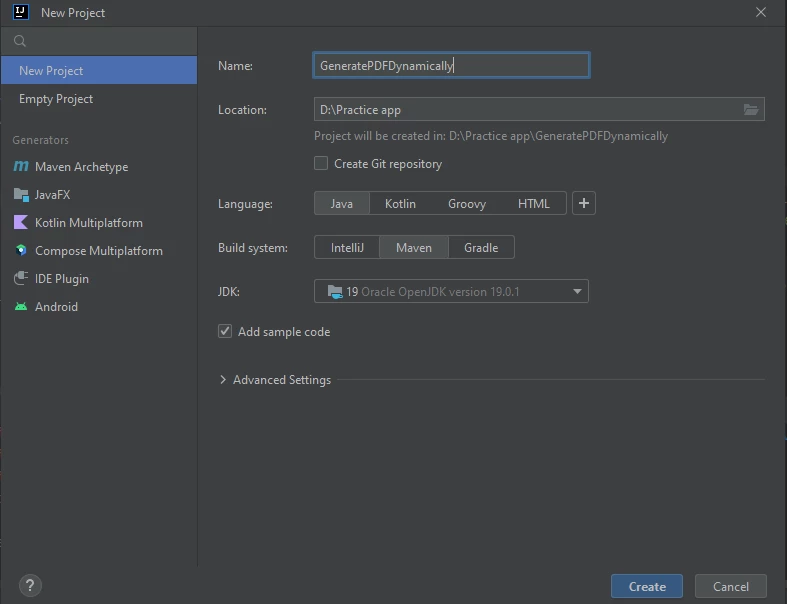
  4. Choose a location, a language, a build system, and a JDK.
  5. Click the Create button.

How to Generate PDF Files From Java Applications Dynamically, Figure 1: Create a Project Create a Project

Name your project, choose a location, a language, a build system, and a JDK, then select the Create button option. A new project will be created.

Now, install IronPDF in this demo Java application.

Install IronPDF Java Library

The next step is to add a dependency in the pom.xml file for installing IronPDF. Add the following XML source code in the pom.xml file as shown below.


<dependency>
    <groupId>com.ironsoftware</groupId>
    <artifactId>ironpdf</artifactId>
    <version>INSERT_LATEST_VERSION_HERE</version>
</dependency>

<dependency>
    <groupId>com.ironsoftware</groupId>
    <artifactId>ironpdf</artifactId>
    <version>INSERT_LATEST_VERSION_HERE</version>
</dependency>
XML

Replace INSERT_LATEST_VERSION_HERE with the latest version of IronPDF from the Maven repository.

After adding the dependency, build the project. The application will automatically install the library from the Maven repository.

Let's begin with a straightforward example of converting an HTML string into a PDF file.

Create PDF Documents

Consider the following example:

import com.ironsoftware.ironpdf.PdfDocument;
import java.io.IOException;
import java.nio.file.Paths;

public class HtmlToPdfExample {

    public static void main(String[] args) {
        // Define HTML content
        String htmlString = "<h1>My First PDF File</h1><p>This is a sample PDF file</p>";

        // Convert HTML content to PDF
        PdfDocument myPdf = PdfDocument.renderHtmlAsPdf(htmlString);

        // Save the PdfDocument to a file
        try {
            myPdf.saveAs(Paths.get("myPDF.pdf"));
        } catch (IOException e) {
            e.printStackTrace();
        }
    }
}
import com.ironsoftware.ironpdf.PdfDocument;
import java.io.IOException;
import java.nio.file.Paths;

public class HtmlToPdfExample {

    public static void main(String[] args) {
        // Define HTML content
        String htmlString = "<h1>My First PDF File</h1><p>This is a sample PDF file</p>";

        // Convert HTML content to PDF
        PdfDocument myPdf = PdfDocument.renderHtmlAsPdf(htmlString);

        // Save the PdfDocument to a file
        try {
            myPdf.saveAs(Paths.get("myPDF.pdf"));
        } catch (IOException e) {
            e.printStackTrace();
        }
    }
}
JAVA

In the above function, the HTML content is assigned to a string variable. The renderHtmlAsPdf method takes a string as an argument and converts HTML content into a PDF document instance. The saveAs method accepts the location path as an input and saves the instance of the PDF file in the selected directory.

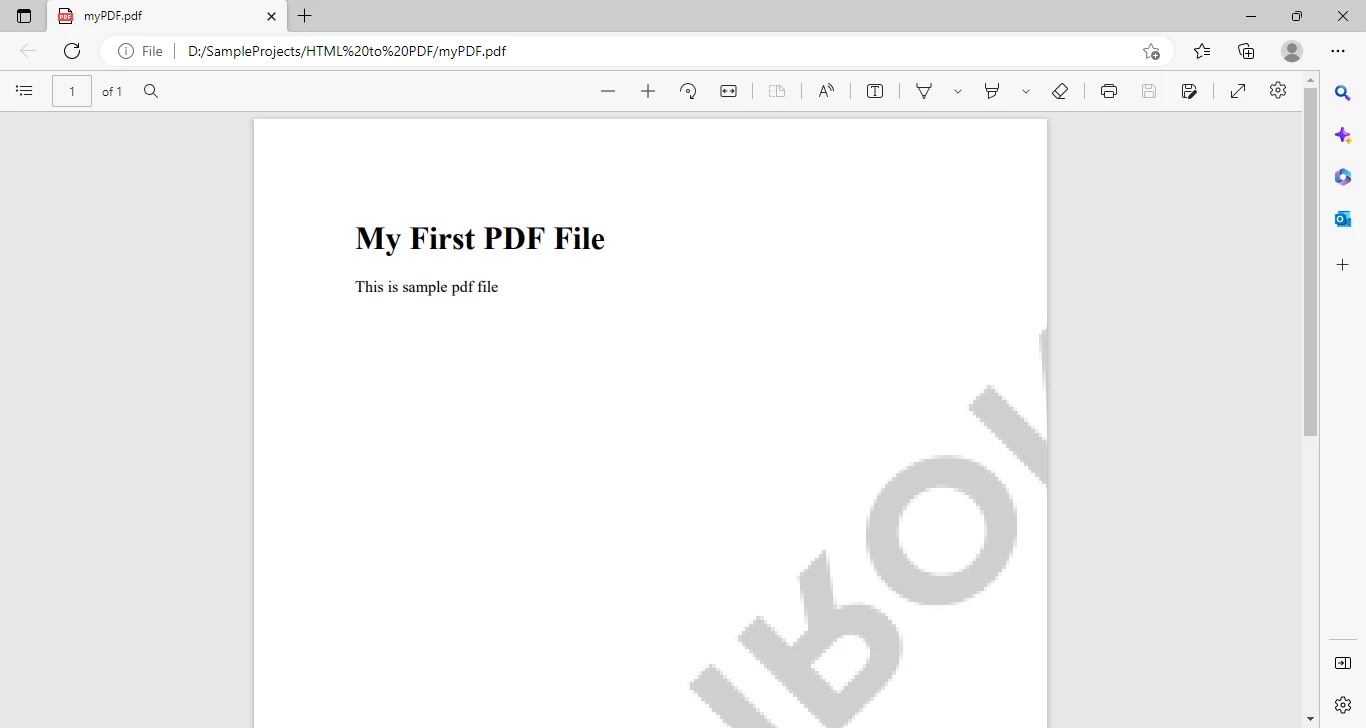
The PDF produced by the aforementioned code is shown below.

How to Generate PDF Files From Java Applications Dynamically, Figure 2: Output Output

Generate PDF File from HTML File

IronPDF also provides the amazing functionality of generating PDF files from HTML files.

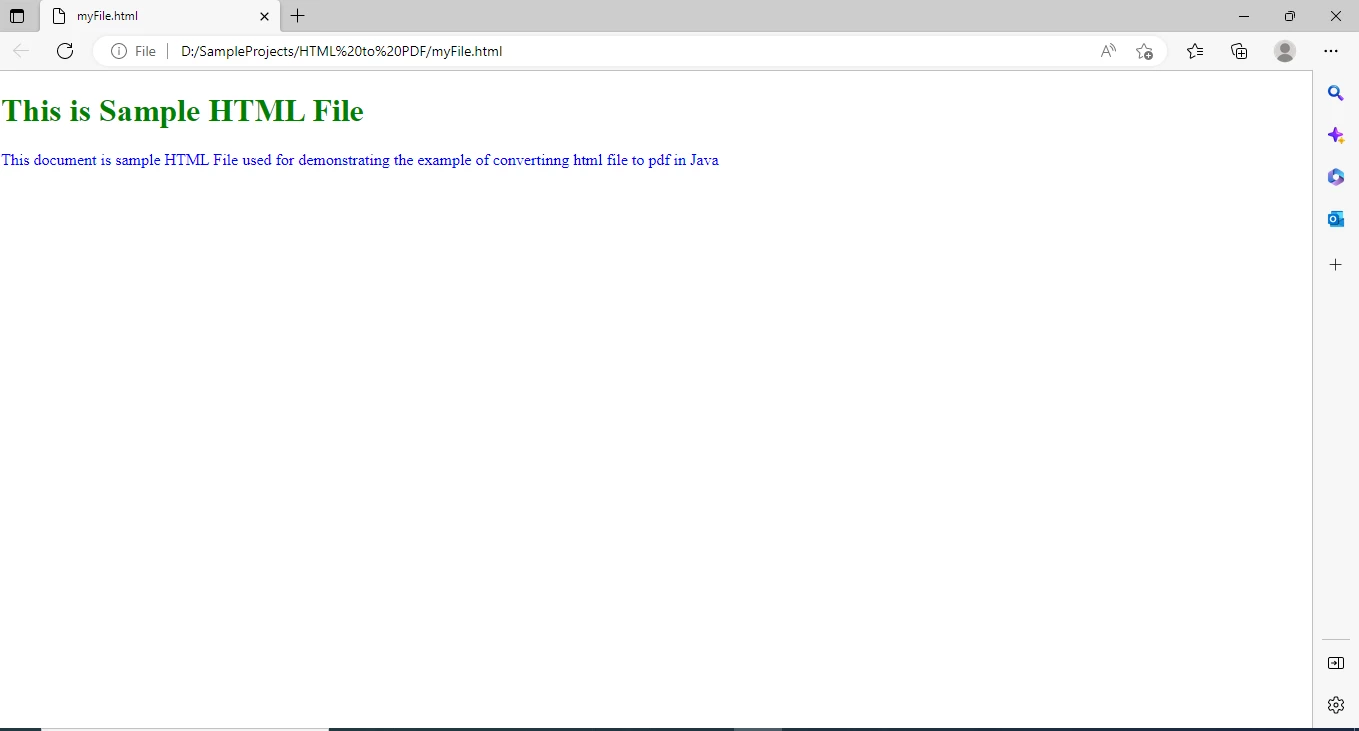
The sample HTML file that will be used in the example is shown below.

How to Generate PDF Files From Java Applications Dynamically, Figure 3: Rendered HTML with new paragraph Rendered HTML with new paragraph

The following is the sample code snippet for generating PDFs:

import com.ironsoftware.ironpdf.PdfDocument;
import java.io.IOException;

public class HtmlFileToPdfExample {

    public static void main(String[] args) {
        // Convert HTML file to PDF
        PdfDocument myPdf = PdfDocument.renderHtmlFileAsPdf("myFile.html");

        // Save the PdfDocument to a file
        try {
            myPdf.saveAs("myPDF.pdf");
        } catch (IOException e) {
            e.printStackTrace();
        }
    }
}
import com.ironsoftware.ironpdf.PdfDocument;
import java.io.IOException;

public class HtmlFileToPdfExample {

    public static void main(String[] args) {
        // Convert HTML file to PDF
        PdfDocument myPdf = PdfDocument.renderHtmlFileAsPdf("myFile.html");

        // Save the PdfDocument to a file
        try {
            myPdf.saveAs("myPDF.pdf");
        } catch (IOException e) {
            e.printStackTrace();
        }
    }
}
JAVA

The renderHtmlFileAsPdf method accepts the path to the HTML file as an argument and produces a PDF document from the HTML file. This PDF file is afterward saved using the saveAs method to a local drive.

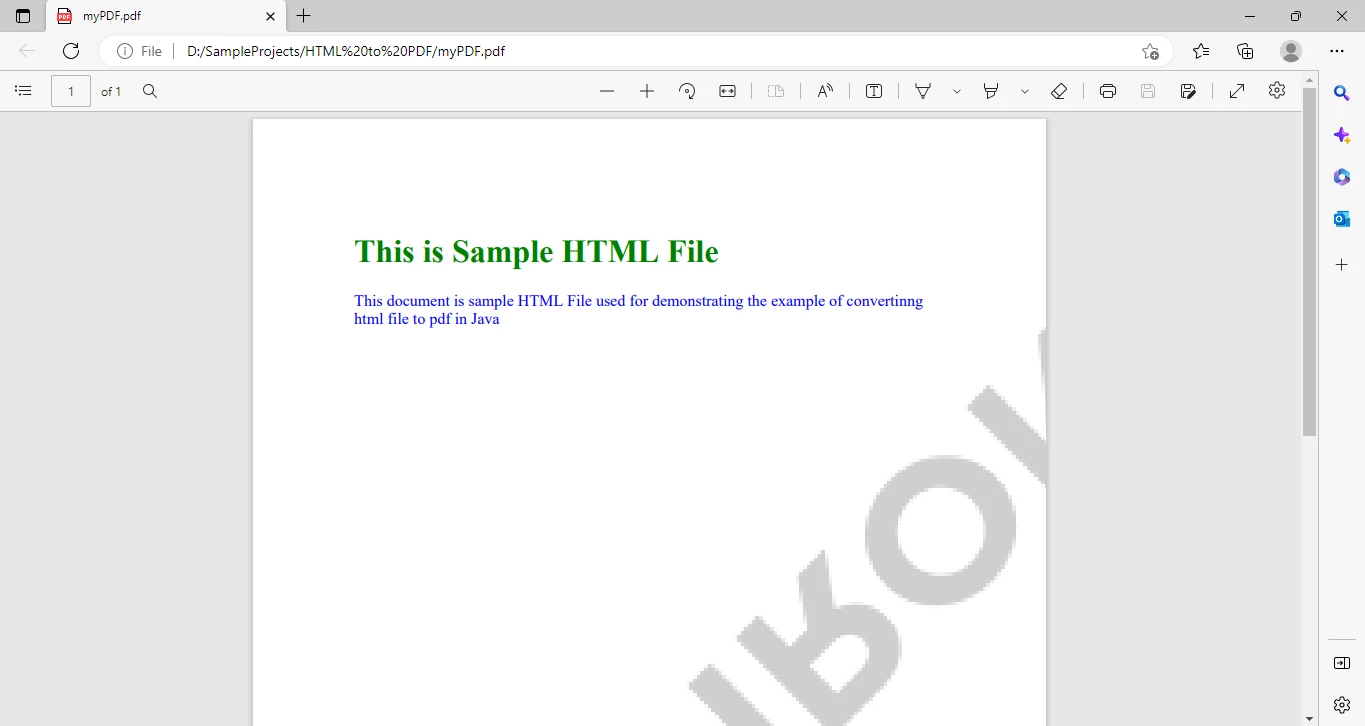
The document that this program generated in PDF format is shown below.

How to Generate PDF Files From Java Applications Dynamically, Figure 4: PDF Output PDF Output

The next step is to use a sizable HTML document that contains JavaScript and CSS and check the accuracy and consistency of the design as it converts HTML to PDF.

Generate PDF files from HTML files

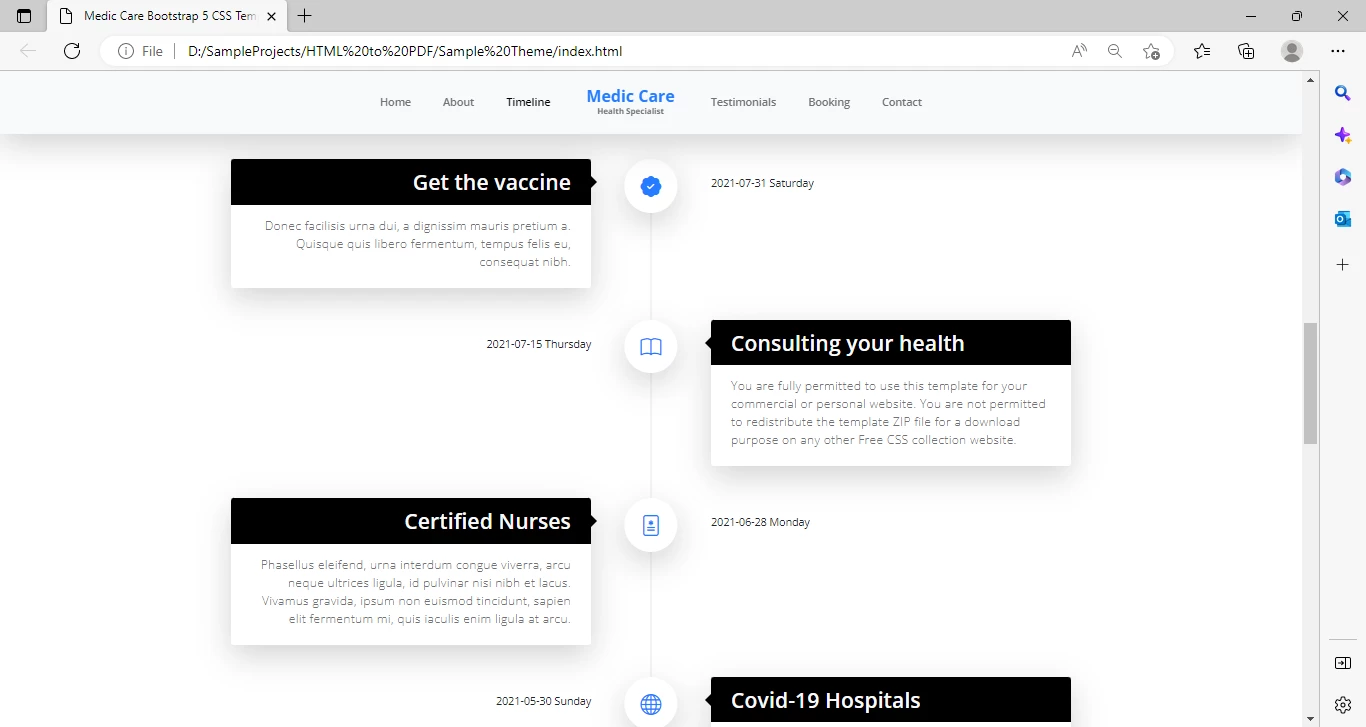
The following sample HTML page will be used and it includes images, animation, styling, jQuery, and Bootstrap.

How to Generate PDF Files From Java Applications Dynamically, Figure 5: Sample HTML Page Sample HTML Page

How to Generate PDF Files From Java Applications Dynamically, Figure 6: Sample HTML Sample HTML

The sample HTML document shows that it has extensive styling and includes graphics. This HTML file will be converted into a PDF document, and the accuracy of the content and styling will be evaluated.

The same line of code from the example above will be used.

import com.ironsoftware.ironpdf.PdfDocument;
import java.io.IOException;

public class StyledHtmlToPdfExample {

    public static void main(String[] args) {
        // Convert HTML file with styling to PDF
        PdfDocument myPdf = PdfDocument.renderHtmlFileAsPdf("index.html");

        // Save the PdfDocument to a file
        try {
            myPdf.saveAs("styledPDF.pdf");
        } catch (IOException e) {
            e.printStackTrace();
        }
    }
}
import com.ironsoftware.ironpdf.PdfDocument;
import java.io.IOException;

public class StyledHtmlToPdfExample {

    public static void main(String[] args) {
        // Convert HTML file with styling to PDF
        PdfDocument myPdf = PdfDocument.renderHtmlFileAsPdf("index.html");

        // Save the PdfDocument to a file
        try {
            myPdf.saveAs("styledPDF.pdf");
        } catch (IOException e) {
            e.printStackTrace();
        }
    }
}
JAVA

The previous example already includes a code explanation. The rest is unchanged;

This is the output PDF file:

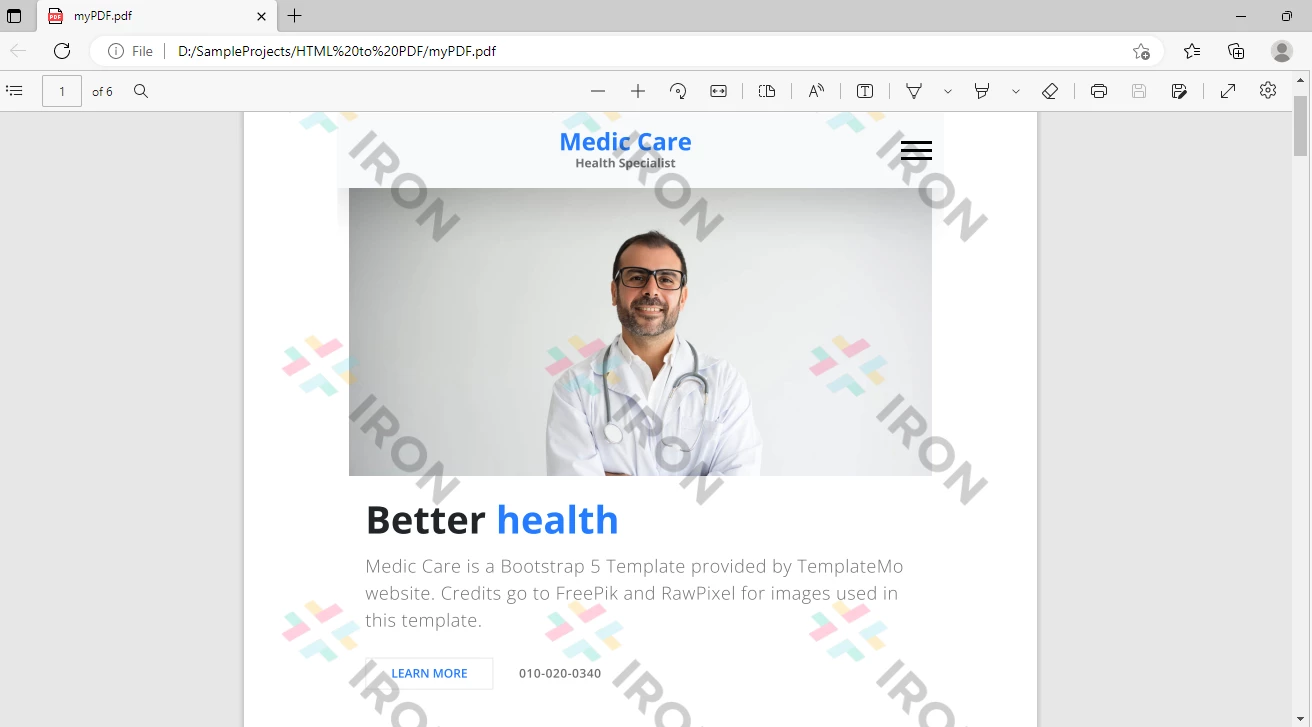
How to Generate PDF Files From Java Applications Dynamically, Figure 7: HTML to PDF HTML to PDF

Using IronPDF to create PDF files is quite simple. The source document's format and content are both consistent.

A URL can also be used to create a PDF file.

Convert URL to PDF document

The following code sample will generate a PDF file from a URL.

import com.ironsoftware.ironpdf.PdfDocument;
import java.io.IOException;

public class UrlToPdfExample {

    public static void main(String[] args) {
        // Convert URL to PDF
        PdfDocument myPdf = PdfDocument.renderUrlAsPdf("https://en.wikipedia.org/wiki/PDF");

        // Save the PdfDocument to a file
        try {
            myPdf.saveAs("urlPDF.pdf");
        } catch (IOException e) {
            e.printStackTrace();
        }
    }
}
import com.ironsoftware.ironpdf.PdfDocument;
import java.io.IOException;

public class UrlToPdfExample {

    public static void main(String[] args) {
        // Convert URL to PDF
        PdfDocument myPdf = PdfDocument.renderUrlAsPdf("https://en.wikipedia.org/wiki/PDF");

        // Save the PdfDocument to a file
        try {
            myPdf.saveAs("urlPDF.pdf");
        } catch (IOException e) {
            e.printStackTrace();
        }
    }
}
JAVA

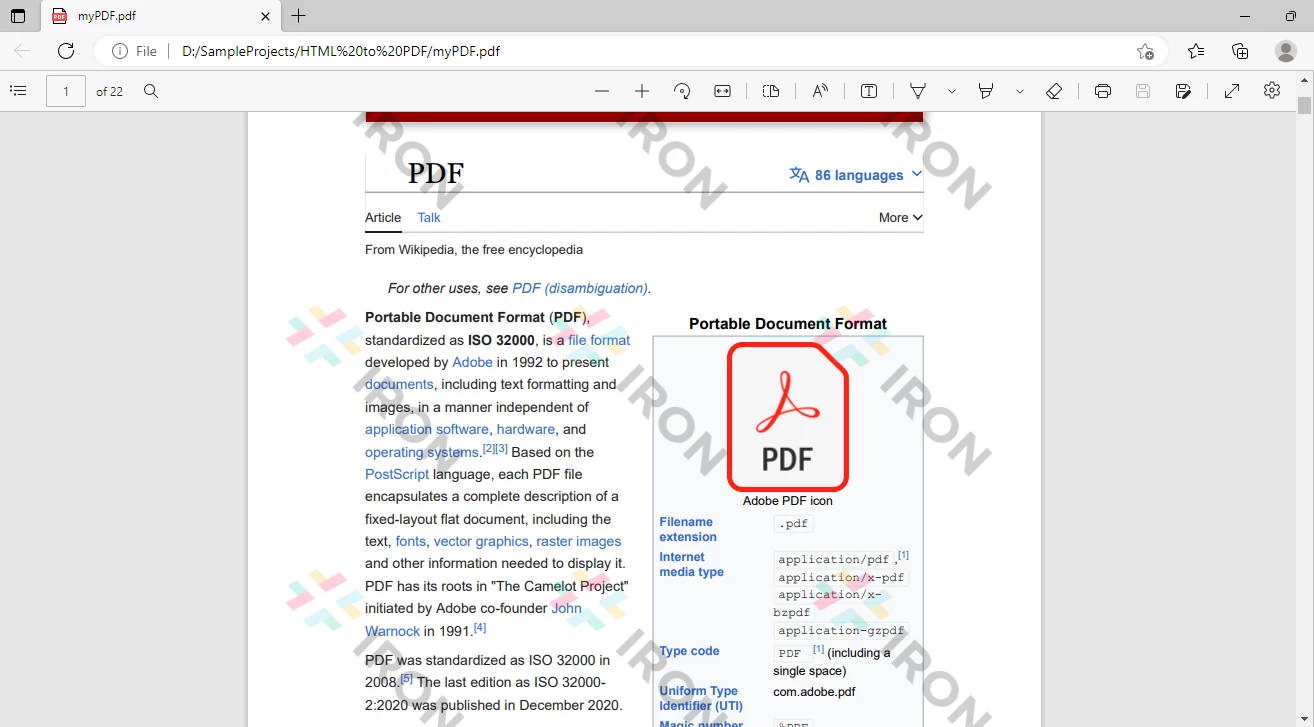
The renderUrlAsPdf function accepts a URL as an argument and converts it to a PDF document. This PDF document is later saved to a local drive using the saveAs function.

The following is the output PDF:

How to Generate PDF Files From Java Applications Dynamically, Figure 8: Output PDF Output PDF

It is also possible to add a watermark, header, footer, digital signature, convert XML files/JSP pages, and more.

The next step is to generate password-protected PDFs.

Generate Password-protected PDF File

The following sample code demonstrates the example of adding security to the generated PDF file.

import com.ironsoftware.ironpdf.PdfDocument;
import com.ironsoftware.ironpdf.security.PdfEditSecurity;
import com.ironsoftware.ironpdf.security.PdfPrintSecurity;
import com.ironsoftware.ironpdf.security.SecurityOptions;
import java.io.IOException;
import java.nio.file.Paths;

public class SecurePdfExample {

    public static void main(String[] args) {
        // Load an existing PDF document
        PdfDocument myPdf = PdfDocument.fromFile(Paths.get("myPDF.pdf"));

        // Configure security options
        SecurityOptions securityOptions = new SecurityOptions();
        securityOptions.setAllowUserEdits(PdfEditSecurity.NO_EDIT);
        securityOptions.setAllowUserAnnotations(false);
        securityOptions.setAllowUserPrinting(PdfPrintSecurity.NO_PRINT);
        securityOptions.setAllowUserFormData(false);
        securityOptions.setOwnerPassword("123456"); // Set owner password
        securityOptions.setUserPassword("123412"); // Set user password

        // Apply security options to the PDF document
        myPdf.applySecurity(securityOptions);

        // Save the secured PdfDocument to a file
        try {
            myPdf.saveAs(Paths.get("securedPDF.pdf"));
        } catch (IOException e) {
            e.printStackTrace();
        }
    }
}
import com.ironsoftware.ironpdf.PdfDocument;
import com.ironsoftware.ironpdf.security.PdfEditSecurity;
import com.ironsoftware.ironpdf.security.PdfPrintSecurity;
import com.ironsoftware.ironpdf.security.SecurityOptions;
import java.io.IOException;
import java.nio.file.Paths;

public class SecurePdfExample {

    public static void main(String[] args) {
        // Load an existing PDF document
        PdfDocument myPdf = PdfDocument.fromFile(Paths.get("myPDF.pdf"));

        // Configure security options
        SecurityOptions securityOptions = new SecurityOptions();
        securityOptions.setAllowUserEdits(PdfEditSecurity.NO_EDIT);
        securityOptions.setAllowUserAnnotations(false);
        securityOptions.setAllowUserPrinting(PdfPrintSecurity.NO_PRINT);
        securityOptions.setAllowUserFormData(false);
        securityOptions.setOwnerPassword("123456"); // Set owner password
        securityOptions.setUserPassword("123412"); // Set user password

        // Apply security options to the PDF document
        myPdf.applySecurity(securityOptions);

        // Save the secured PdfDocument to a file
        try {
            myPdf.saveAs(Paths.get("securedPDF.pdf"));
        } catch (IOException e) {
            e.printStackTrace();
        }
    }
}
JAVA

The PDF file is made read-only by the above code, and edits or paragraph alignment are not allowed. The document is also restricted from printing, ensuring it cannot be printed. A password has also been set. The file is now very secure. In this way, different file permissions can be defined, and dynamic output can be generated using IronPDF.

Summary

This tutorial demonstrated how to generate PDF files. A PDF file was created from an HTML string, an HTML file, and a URL, with examples ranging from simple to complex. Many more useful features are available such as adding a watermark, footer, header, foreground color, merging and splitting pages, etc. All of them cannot be covered here; visit the IronPDF Official Documentation for further exploration.

HTML to PDF conversion was made a breeze by IronPDF. HTML was converted to PDF with just one line of code. Some security measures have also been added to the PDF file. It's faster, more accurate, and safer. Each generated PDF includes the IronPDF watermark. This is due to the fact that a free development version with limited permissions is being used, not the commercial license. It can be gotten rid of by purchasing a free trial version or a full license as needed.

자주 묻는 질문

Java에서 HTML로 PDF 파일을 생성하려면 어떻게 해야 하나요?

HTML 문자열을 변환하는 IronPDF의 renderHtmlAsPdf 메서드와 HTML 파일에 대한 renderHtmlFileAsPdf 메서드를 사용하여 Java에서 HTML로 PDF 파일을 생성할 수 있습니다.

Java에서 URL을 PDF로 변환하려면 어떤 방법을 사용해야 하나요?

Java에서 URL을 PDF로 변환하려면 웹 페이지에서 PDF를 쉽게 생성할 수 있는 IronPDF의 renderUrlAsPdf 메서드를 사용하세요.

Java에서 비밀번호로 PDF를 보호하려면 어떻게 해야 하나요?

Java에서는 IronPDF를 사용하여 비밀번호를 추가하고 PDF 문서에 대한 권한을 관리하는 SecurityOptions를 설정하여 비밀번호로 PDF를 보호할 수 있습니다.

IronPDF는 HTML을 PDF로 변환할 때 복잡한 CSS를 처리할 수 있나요?

예, IronPDF는 HTML을 PDF로 변환할 때 복잡한 CSS를 처리하여 생성된 PDF 문서에 스타일이 정확하게 반영되도록 할 수 있습니다.

IronPDF 무료 개발 버전의 제한 사항은 무엇인가요?

IronPDF의 무료 개발 버전에는 생성된 각 PDF에 워터마크가 포함되어 있습니다. 상용 라이선스를 구매하면 이러한 제한이 제거됩니다.

IronPDF는 PDF에 어떤 추가 기능을 제공하나요?

IronPDF는 워터마크, 머리글, 바닥글 추가 및 PDF 내 페이지 병합 기능과 같은 추가 기능을 제공합니다.

새 Java 프로젝트에서 IronPDF를 설정하는 단계는 무엇인가요?

새 Java 프로젝트에서 IronPDF를 설정하려면 Maven을 통해 라이브러리를 설치한 다음 필요한 클래스를 프로젝트에 가져와서 PDF 생성을 시작하세요.

IronPDF에서 생성한 PDF의 편집 및 인쇄를 제한할 수 있나요?

예, IronPDF를 사용하면 PDF 문서에 특정 보안 설정을 적용하여 편집, 주석, 인쇄 및 양식 데이터 입력을 제한할 수 있습니다.

Java용 IronPDF는 어떤 플랫폼을 지원하나요?

Java용 IronPDF는 Windows, Linux, Docker, Azure 및 AWS를 비롯한 다양한 플랫폼을 지원합니다.

Java에서 IronPDF를 사용하기 위한 자세한 문서는 어디에서 찾을 수 있나요?

Java에서 IronPDF를 사용하기 위한 자세한 문서와 예제는 종합적인 리소스와 가이드를 제공하는 IronPDF 공식 웹사이트에서 확인할 수 있습니다.

커티스 차우
기술 문서 작성자

커티스 차우는 칼턴 대학교에서 컴퓨터 과학 학사 학위를 취득했으며, Node.js, TypeScript, JavaScript, React를 전문으로 하는 프론트엔드 개발자입니다. 직관적이고 미적으로 뛰어난 사용자 인터페이스를 만드는 데 열정을 가진 그는 최신 프레임워크를 활용하고, 잘 구성되고 시각적으로 매력적인 매뉴얼을 제작하는 것을 즐깁니다.


커티스는 개발 분야 외에도 사물 인터넷(IoT)에 깊은 관심을 가지고 있으며, 하드웨어와 소프트웨어를 통합하는 혁신적인 방법을 연구합니다. 여가 시간에는 게임을 즐기거나 디스코드 봇을 만들면서 기술에 대한 애정과 창의성을 결합합니다.