


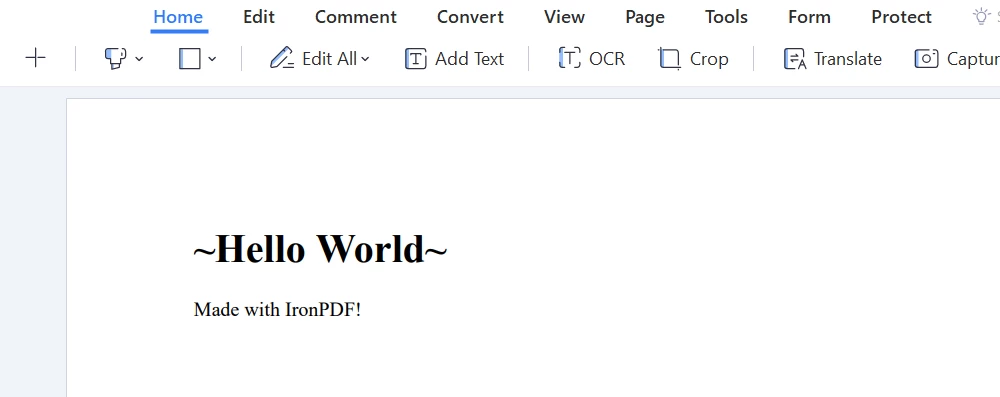
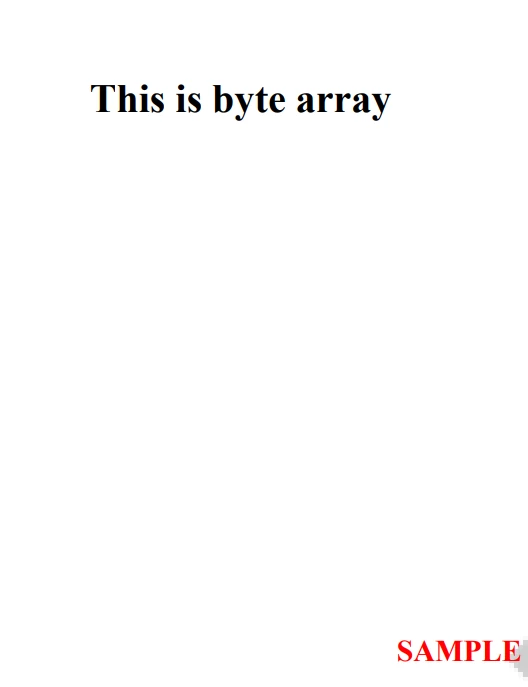
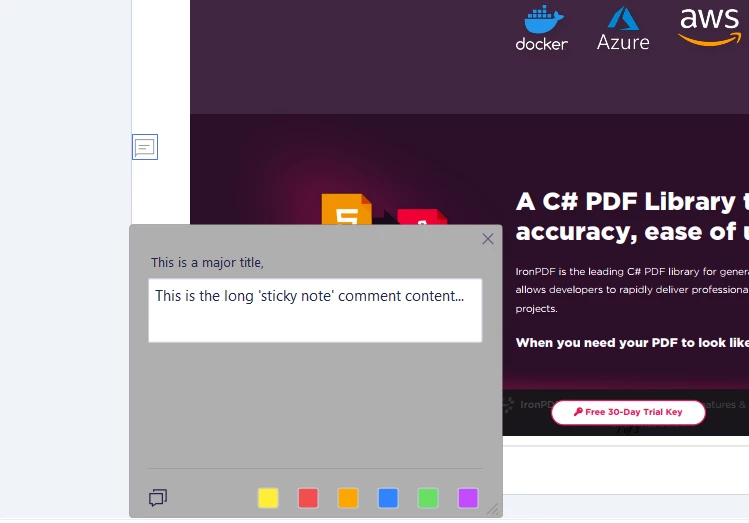
JAVA용 IRONPDF 사용 Java로 PDF 파일을 작성하는 방법 커티스 차우 업데이트됨:7월 28, 2025 다운로드 IronPDF 메이븐 다운로드 JAR 다운로드 무료 체험 시작하기 LLM용 사본 LLM용 사본 LLM용 마크다운 형식으로 페이지를 복사하세요 ChatGPT에서 열기 ChatGPT에 이 페이지에 대해 문의하세요 제미니에서 열기 제미니에게 이 페이지에 대해 문의하세요 Grok에서 열기 Grok에게 이 페이지에 대해 문의하세요 혼란 속에서 열기 Perplexity에게 이 페이지에 대해 문의하세요 공유하다 페이스북에 공유하기 트위터에 공유하기 LinkedIn에 공유하기 URL 복사 이메일로 기사 보내기 This article will explore IronPDF for creating PDF documents programmatically. IronPDF for Java PDF Library The Java PDF Library by IronPDF allows developers to create, edit, and manipulate PDF documents in their Java applications. Java developers who need to create PDF files from their applications' data will find this library to be an excellent choice because it offers a diverse set of functionalities. IronPDF comes with features such as adding new HTML content, embedding HTML headers and footers, stamping and watermarking documents, creating password-protected PDF files, applying digital signatures to PDF files, enhancing documents with backgrounds and foregrounds, creating a full PDF file from XML documents, adding and editing annotations, and using outlines and bookmarks for better navigation. Let's take a closer look. Add New HTML Content With IronPDF, developers can easily add new HTML content to their PDF documents. This is a great feature for developers who want to dynamically generate their PDF form documents with rich HTML content. The library supports many HTML elements, including images, links, and tables, among others. HTML content can also be styled using CSS, making it easy to create professional-looking PDFs. import com.ironsoftware.ironpdf.*; import java.io.IOException; import java.nio.file.Paths; // Apply your license key License.setLicenseKey("YOUR-LICENSE-KEY"); // Set a log path Settings.setLogPath(Paths.get("C:/tmp/IronPdfEngine.log")); // Render the HTML as a PDF. Stored in myPdf as type PdfDocument. PdfDocument myPdf = PdfDocument.renderHtmlAsPdf("<h1>Hello World</h1> Made with IronPDF!"); // Save the PdfDocument to a file myPdf.saveAs(Paths.get("html_saved.pdf")); import com.ironsoftware.ironpdf.*; import java.io.IOException; import java.nio.file.Paths; // Apply your license key License.setLicenseKey("YOUR-LICENSE-KEY"); // Set a log path Settings.setLogPath(Paths.get("C:/tmp/IronPdfEngine.log")); // Render the HTML as a PDF. Stored in myPdf as type PdfDocument. PdfDocument myPdf = PdfDocument.renderHtmlAsPdf("<h1>Hello World</h1> Made with IronPDF!"); // Save the PdfDocument to a file myPdf.saveAs(Paths.get("html_saved.pdf")); JAVA Output PDF Add HTML Headers and Footers Headers and footers are essential components of many PDF documents, and IronPDF makes it easy to integrate HTML headers and footers into your documents. With IronPDF, developers can add custom headers and footers, including text, images, and page numbers, to their PDF documents. This feature is particularly useful for businesses that need to add branding or copyright information to their documents. import com.ironsoftware.ironpdf.PdfDocument; import com.ironsoftware.ironpdf.headerfooter.HtmlHeaderFooter; import java.io.IOException; import java.nio.file.Paths; import java.util.List; import java.util.ArrayList; // Render a PDF from a URL PdfDocument pdf = PdfDocument.renderUrlAsPdf("https://ironpdf.com"); // Build a footer using HTML HtmlHeaderFooter footer = new HtmlHeaderFooter(); footer.setMaxHeight(15); // millimeters footer.setHtmlFragment("<center><i>{page} of {total-pages}</i></center>"); footer.setDrawDividerLine(true); pdf.addHtmlFooter(footer); List<PdfDocument> pdfs = new ArrayList<>(); // Build a header using an image asset HtmlHeaderFooter header = new HtmlHeaderFooter(); header.setMaxHeight(20); // millimeters header.setHtmlFragment("<img src=\"logo.png\" />"); header.setBaseUrl("./assets/"); pdf.addHtmlHeader(header); try { pdf.saveAs(Paths.get("assets/html_headers_footers.pdf")); } catch (IOException e) { throw new RuntimeException(e); } import com.ironsoftware.ironpdf.PdfDocument; import com.ironsoftware.ironpdf.headerfooter.HtmlHeaderFooter; import java.io.IOException; import java.nio.file.Paths; import java.util.List; import java.util.ArrayList; // Render a PDF from a URL PdfDocument pdf = PdfDocument.renderUrlAsPdf("https://ironpdf.com"); // Build a footer using HTML HtmlHeaderFooter footer = new HtmlHeaderFooter(); footer.setMaxHeight(15); // millimeters footer.setHtmlFragment("<center><i>{page} of {total-pages}</i></center>"); footer.setDrawDividerLine(true); pdf.addHtmlFooter(footer); List<PdfDocument> pdfs = new ArrayList<>(); // Build a header using an image asset HtmlHeaderFooter header = new HtmlHeaderFooter(); header.setMaxHeight(20); // millimeters header.setHtmlFragment("<img src=\"logo.png\" />"); header.setBaseUrl("./assets/"); pdf.addHtmlHeader(header); try { pdf.saveAs(Paths.get("assets/html_headers_footers.pdf")); } catch (IOException e) { throw new RuntimeException(e); } JAVA Output PDF Stamp & Watermark Using IronPDF, developers can add stamps and watermarks to their PDF documents. Watermarks are transparent images or text that appear in the document's background, while stamps add a custom message or image to a new document. These features are great for businesses that need to protect their documents from unauthorized use or to add a custom message to their documents. package IronPDF.ironpdf_java; import java.io.IOException; import java.nio.file.Paths; import com.ironsoftware.ironpdf.*; import com.ironsoftware.ironpdf.stamp.HorizontalAlignment; import com.ironsoftware.ironpdf.stamp.VerticalAlignment; public class Test { public static void main(String[] args) throws IOException { License.setLicenseKey("Your-License"); // Load an existing PDF from the filesystem PdfDocument pdf = PdfDocument.fromFile(Paths.get("C:\\byteToPdf.pdf")); // Apply a watermark to the PDF pdf.applyWatermark("<h2 style='color:red'>SAMPLE</h2>", 30, VerticalAlignment.TOP, HorizontalAlignment.CENTER); // Save the watermarked PDF pdf.saveAs(Paths.get("assets/watermark.pdf")); } } package IronPDF.ironpdf_java; import java.io.IOException; import java.nio.file.Paths; import com.ironsoftware.ironpdf.*; import com.ironsoftware.ironpdf.stamp.HorizontalAlignment; import com.ironsoftware.ironpdf.stamp.VerticalAlignment; public class Test { public static void main(String[] args) throws IOException { License.setLicenseKey("Your-License"); // Load an existing PDF from the filesystem PdfDocument pdf = PdfDocument.fromFile(Paths.get("C:\\byteToPdf.pdf")); // Apply a watermark to the PDF pdf.applyWatermark("<h2 style='color:red'>SAMPLE</h2>", 30, VerticalAlignment.TOP, HorizontalAlignment.CENTER); // Save the watermarked PDF pdf.saveAs(Paths.get("assets/watermark.pdf")); } } JAVA Output PDF Backgrounds & Foregrounds IronPDF also allows developers to implement custom backgrounds and foregrounds in their PDF documents. Foregrounds are used to add custom text or images on top of a document, while backgrounds add a custom image or color to the background. Business owners who want their documents or PDF forms to have custom branding or graphics will find this feature particularly useful. import com.ironsoftware.ironpdf.*; import java.io.IOException; import java.nio.file.Paths; public class BackgroundForegroundExample { public static void main(String[] args) throws IOException { // Load background and foreground PDFs from the filesystem PdfDocument backgroundPdf = PdfDocument.fromFile(Paths.get("assets/MyBackground.pdf")); PdfDocument foregroundPdf = PdfDocument.fromFile(Paths.get("assets/MyForeground.pdf")); // Render content (HTML, URL, etc) as a PDF Document PdfDocument pdf = PdfDocument.renderUrlAsPdf("https://www.nuget.org/packages/IronPdf"); // Add the background and foreground PDFs to the newly-rendered document. pdf.addBackgroundPdf(backgroundPdf); pdf.addForegroundPdf(foregroundPdf); // Save the document with background and foreground pdf.saveAs(Paths.get("assets/BackgroundForegroundPdf.pdf")); } } import com.ironsoftware.ironpdf.*; import java.io.IOException; import java.nio.file.Paths; public class BackgroundForegroundExample { public static void main(String[] args) throws IOException { // Load background and foreground PDFs from the filesystem PdfDocument backgroundPdf = PdfDocument.fromFile(Paths.get("assets/MyBackground.pdf")); PdfDocument foregroundPdf = PdfDocument.fromFile(Paths.get("assets/MyForeground.pdf")); // Render content (HTML, URL, etc) as a PDF Document PdfDocument pdf = PdfDocument.renderUrlAsPdf("https://www.nuget.org/packages/IronPdf"); // Add the background and foreground PDFs to the newly-rendered document. pdf.addBackgroundPdf(backgroundPdf); pdf.addForegroundPdf(foregroundPdf); // Save the document with background and foreground pdf.saveAs(Paths.get("assets/BackgroundForegroundPdf.pdf")); } } JAVA Add & Edit Annotations Annotations are a great way to add additional information to PDF documents, such as notes, comments, or highlights. With IronPDF, developers can easily manage annotations effectively by adding and editing them in their PDF documents. import com.ironsoftware.ironpdf.PdfDocument; import com.ironsoftware.ironpdf.annotation.AnnotationIcon; import com.ironsoftware.ironpdf.annotation.AnnotationManager; import com.ironsoftware.ironpdf.annotation.AnnotationOptions; import java.io.IOException; import java.nio.file.Paths; public class AnnotationExample { public static void main(String[] args) throws IOException { // Load an existing PDF from the file system PdfDocument pdf = PdfDocument.fromFile(Paths.get("assets/example.pdf")); // Create an annotation to be placed at a specific location on a page. AnnotationOptions annotation = new AnnotationOptions( "This is a major title", // Title of the annotation "This is the long 'sticky note' comment content...", // Content of the annotation 150, // x-axis coordinate location 250 // y-axis coordinate location ); annotation.setIcon(AnnotationIcon.HELP); annotation.setOpacity(0.9); annotation.setPrintable(false); annotation.setHidden(false); annotation.setOpen(true); annotation.setReadonly(true); annotation.setRotateable(true); // Add the annotation to a specific page of the PDF AnnotationManager annotationManager = pdf.getAnnotation(); annotationManager.addTextAnnotation(annotation, 0); // Add to the first page // Save the PDF with the modifications pdf.saveAs(Paths.get("assets/annotated.pdf")); } } import com.ironsoftware.ironpdf.PdfDocument; import com.ironsoftware.ironpdf.annotation.AnnotationIcon; import com.ironsoftware.ironpdf.annotation.AnnotationManager; import com.ironsoftware.ironpdf.annotation.AnnotationOptions; import java.io.IOException; import java.nio.file.Paths; public class AnnotationExample { public static void main(String[] args) throws IOException { // Load an existing PDF from the file system PdfDocument pdf = PdfDocument.fromFile(Paths.get("assets/example.pdf")); // Create an annotation to be placed at a specific location on a page. AnnotationOptions annotation = new AnnotationOptions( "This is a major title", // Title of the annotation "This is the long 'sticky note' comment content...", // Content of the annotation 150, // x-axis coordinate location 250 // y-axis coordinate location ); annotation.setIcon(AnnotationIcon.HELP); annotation.setOpacity(0.9); annotation.setPrintable(false); annotation.setHidden(false); annotation.setOpen(true); annotation.setReadonly(true); annotation.setRotateable(true); // Add the annotation to a specific page of the PDF AnnotationManager annotationManager = pdf.getAnnotation(); annotationManager.addTextAnnotation(annotation, 0); // Add to the first page // Save the PDF with the modifications pdf.saveAs(Paths.get("assets/annotated.pdf")); } } JAVA Output File Outlines & Bookmarks Developers can enhance PDF documents using bookmarks with IronPDF. An outline provides a high-level overview of the contents of a document, while bookmarks provide quick access to specific sections. For large or complex documents, this feature allows users to navigate quickly to their desired sections. import com.ironsoftware.ironpdf.PdfDocument; import com.ironsoftware.ironpdf.bookmark.Bookmark; import com.ironsoftware.ironpdf.bookmark.BookmarkManager; import java.io.IOException; import java.nio.file.Paths; import java.util.List; public class BookmarkExample { public static void main(String[] args) throws IOException { // Load an existing PDF from the file system PdfDocument pdf = PdfDocument.fromFile(Paths.get("assets/book.pdf")); // Add top-level bookmarks to pages of the PDF using their page indices BookmarkManager bookmarks = pdf.getBookmark(); bookmarks.addBookMarkAtEnd("Author's Note", 2); bookmarks.addBookMarkAtEnd("Table of Contents", 3); bookmarks.addBookMarkAtEnd("Summary", 10); bookmarks.addBookMarkAtEnd("References", 12); List<Bookmark> bookmarkList = bookmarks.getBookmarks(); Bookmark bookmark = bookmarkList.get(2); // Add a child bookmark bookmark.addChildBookmark("Conclusion", 11); // Save the PDF to the filesystem pdf.saveAs(Paths.get("assets/bookmarked.pdf")); } } import com.ironsoftware.ironpdf.PdfDocument; import com.ironsoftware.ironpdf.bookmark.Bookmark; import com.ironsoftware.ironpdf.bookmark.BookmarkManager; import java.io.IOException; import java.nio.file.Paths; import java.util.List; public class BookmarkExample { public static void main(String[] args) throws IOException { // Load an existing PDF from the file system PdfDocument pdf = PdfDocument.fromFile(Paths.get("assets/book.pdf")); // Add top-level bookmarks to pages of the PDF using their page indices BookmarkManager bookmarks = pdf.getBookmark(); bookmarks.addBookMarkAtEnd("Author's Note", 2); bookmarks.addBookMarkAtEnd("Table of Contents", 3); bookmarks.addBookMarkAtEnd("Summary", 10); bookmarks.addBookMarkAtEnd("References", 12); List<Bookmark> bookmarkList = bookmarks.getBookmarks(); Bookmark bookmark = bookmarkList.get(2); // Add a child bookmark bookmark.addChildBookmark("Conclusion", 11); // Save the PDF to the filesystem pdf.saveAs(Paths.get("assets/bookmarked.pdf")); } } JAVA Summary This article explores various features of IronPDF, such as the ability to add annotations, bookmarks, HTML content, background and foreground colors, and headers and footers to PDF documents. The article provides step-by-step instructions for implementing these features using IronPDF, making it easy for developers to create professional-looking PDF documents that meet their specific needs. Whether you're building a web application or a desktop application, IronPDF can help you streamline the process of generating PDF documents, saving you time and effort while ensuring that your documents look great. The IronPDF licensing information starts from $799. IronPDF also offers a free trial, allowing developers to test the library and evaluate its capabilities before making a purchase decision. During the trial period, users have access to all the features of the library, including support and updates. After the trial period, users can choose to purchase a license to continue using the library. The pricing for IronPDF varies depending on the number of developers using the library and the type of license. 자주 묻는 질문 Java에서 프로그래밍 방식으로 PDF 문서를 만들려면 어떻게 해야 하나요? Java용 IronPDF를 사용하여 프로그래밍 방식으로 PDF 문서를 만들 수 있습니다. 이 라이브러리는 HTML 콘텐츠, 머리글, 바닥글 등에 대한 지원을 포함하여 고품질 PDF를 생성할 수 있는 다양한 기능을 제공합니다. PDF에 HTML 콘텐츠를 추가하는 데 사용할 수 있는 방법은 무엇인가요? IronPDF를 사용하면 개발자가 RenderHtmlAsPdf 메서드를 사용하여 HTML 콘텐츠를 PDF에 직접 추가할 수 있습니다. 이 메서드는 다양한 HTML 요소와 스타일링을 위한 CSS를 지원합니다. PDF 문서에 디지털 서명을 포함할 수 있나요? 예, IronPDF는 PDF 문서에 디지털 서명을 추가하여 문서의 신뢰성과 보안을 보장하는 기능을 지원합니다. PDF 문서를 비밀번호로 보호하려면 어떻게 해야 하나요? IronPDF는 암호로 보호된 PDF를 생성하는 기능을 제공하여 문서 내의 민감한 정보를 보호할 수 있습니다. PDF에 사용자 지정 배경과 전경을 추가할 수 있나요? IronPDF를 사용하면 개발자가 PDF에 브랜딩 요소나 장식 그래픽을 포함한 사용자 지정 배경과 전경을 추가할 수 있습니다. 개요와 북마크로 PDF에서 문서 탐색을 개선하려면 어떻게 해야 하나요? IronPDF는 개요와 북마크를 추가할 수 있어 사용자가 PDF의 특정 섹션으로 빠르게 이동하고 문서 구조에 대한 체계적인 개요를 제공하는 데 도움이 됩니다. PDF 문서에 주석을 달 때 어떤 옵션을 사용할 수 있나요? IronPDF를 사용하면 메모, 주석, 하이라이트와 같은 다양한 주석을 추가하여 PDF 문서의 상호 작용성과 사용성을 향상시킬 수 있습니다. Java 애플리케이션에서 IronPDF를 사용하기 위한 라이선스 옵션은 무엇인가요? IronPDF는 평가 목적의 무료 평가판을 포함하여 여러 가지 라이선스 옵션을 제공합니다. 라이선스는 개발자 수와 프로젝트의 특정 요구 사항에 따라 다릅니다. 커티스 차우 지금 바로 엔지니어링 팀과 채팅하세요 기술 문서 작성자 커티스 차우는 칼턴 대학교에서 컴퓨터 과학 학사 학위를 취득했으며, Node.js, TypeScript, JavaScript, React를 전문으로 하는 프론트엔드 개발자입니다. 직관적이고 미적으로 뛰어난 사용자 인터페이스를 만드는 데 열정을 가진 그는 최신 프레임워크를 활용하고, 잘 구성되고 시각적으로 매력적인 매뉴얼을 제작하는 것을 즐깁니다. 커티스는 개발 분야 외에도 사물 인터넷(IoT)에 깊은 관심을 가지고 있으며, 하드웨어와 소프트웨어를 통합하는 혁신적인 방법을 연구합니다. 여가 시간에는 게임을 즐기거나 디스코드 봇을 만들면서 기술에 대한 애정과 창의성을 결합합니다. 관련 기사 업데이트됨 6월 22, 2025 Java에서 TIFF를 PDF로 변환하는 방법 이 포괄적인 가이드는 IronPDF를 사용하여 Java에서 TIFF 이미지를 PDF로 원활하게 변환하는 방법에 대한 단계를 안내합니다. 더 읽어보기 업데이트됨 7월 28, 2025 Java에서 PDF를 PDFA로 변환하는 방법 이 문서에서는 IronPDF를 사용하여 Java에서 PDF 파일을 PDF/A 형식으로 변환하는 방법을 살펴봅니다. 더 읽어보기 업데이트됨 7월 28, 2025 Java로 PDF 문서를 만드는 방법 이 문서에서는 주요 개념, 최고의 라이브러리 및 예제를 다루는 Java에서 PDF 작업에 대한 포괄적인 가이드를 제공합니다. 더 읽어보기 Java PDF 생성기(코드 예제 튜토리얼)Java 애플리케이션에서 PDF ...

업데이트됨 6월 22, 2025 Java에서 TIFF를 PDF로 변환하는 방법 이 포괄적인 가이드는 IronPDF를 사용하여 Java에서 TIFF 이미지를 PDF로 원활하게 변환하는 방법에 대한 단계를 안내합니다. 더 읽어보기
업데이트됨 7월 28, 2025 Java에서 PDF를 PDFA로 변환하는 방법 이 문서에서는 IronPDF를 사용하여 Java에서 PDF 파일을 PDF/A 형식으로 변환하는 방법을 살펴봅니다. 더 읽어보기
업데이트됨 7월 28, 2025 Java로 PDF 문서를 만드는 방법 이 문서에서는 주요 개념, 최고의 라이브러리 및 예제를 다루는 Java에서 PDF 작업에 대한 포괄적인 가이드를 제공합니다. 더 읽어보기



