using IronPdf;

// Disable local disk access or cross-origin requests
Installation.EnableWebSecurity = true;

// Instantiate Renderer
var renderer = new ChromePdfRenderer();

// Create a PDF from a HTML string using C#
var pdf = renderer.RenderHtmlAsPdf("<h1>Hello World</h1>");

// Export to a file or Stream
pdf.SaveAs("output.pdf");

// Advanced Example with HTML Assets
// Load external html assets: Images, CSS and JavaScript.
// An optional BasePath 'C:\site\assets\' is set as the file location to load assets from
var myAdvancedPdf = renderer.RenderHtmlAsPdf("<img src='icons/iron.png'>", @"C:\site\assets\");
myAdvancedPdf.SaveAs("html-with-assets.pdf");
using IronPdf;// Disable local disk access or cross-origin requestsInstallation.EnableWebSecurity = true;// Instantiate Renderervar renderer = new ChromePdfRenderer();// Create a PDF from a HTML string using C#var pdf = renderer.RenderHtmlAsPdf("<h1>Hello World</h1>");// Export to a file or Streampdf.SaveAs("output.pdf");// Advanced Example with HTML Assets// Load external html assets: Images, CSS and JavaScript.// An optional BasePath 'C:\site\assets\' is set as the file location to load assets fromvar myAdvancedPdf = renderer.RenderHtmlAsPdf("<img src='icons/iron.png'>", @"C:\site\assets\");myAdvancedPdf.SaveAs("html-with-assets.pdf");
Biblioteka kliencka C# o nazwie FireSharp została stworzona, aby ułatwić pracę z [Firebase](https://en.wikipedia.org/wiki/Firebase) Realtime Database. Oferuje synchronizację danych w czasie rzeczywistym oraz płynną integrację. Bez konieczności bezpośredniej obsługi zapytań i odpowiedzi HTTP, deweloperzy mogą łatwo zarządzać i synchronizować dane strukturalne w Firebase z aplikacji C#, wykorzystując FireSharp.
Z kolei [IronPDF - .NET PDF Library for PDF Document Creation](https://ironpdf.com) to solidna biblioteka .NET do programowego tworzenia, edytowania i modyfikacji dokumentów PDF. Oferuje prosty, ale potężny interfejs API do tworzenia PDF od podstaw, przekształcania informacji HTML na PDF oraz wykonywania różnych operacji na PDF.
Deweloperzy mogą tworzyć dynamiczne publikacje PDF oparte na danych w czasie rzeczywistym zapisanych w Firebase i zarządzać nimi przy pomocy FireSharp i IronPDF razem. Ten interfejs jest szczególnie pomocny, gdy programy muszą dynamicznie tworzyć raporty, faktury lub inne dokumenty do drukowania z danych Firebase, zachowując spójność i aktualizacje w czasie rzeczywistym.
Poprzez płynną integrację danych obsługiwanych przez Firebase i możliwości generowania dokumentów PDF, deweloperzy mogą poprawić ogólne doświadczenie użytkownika, usprawnić procesy generowania dokumentów i poprawić funkcjonalność aplikacji opartych na danych, korzystając z FireSharp do pobierania i zarządzania danymi z Firebase oraz IronPDF do konwersji tych danych na dokumenty PDF.
### Czym jest FireSharp C#?
FireSharp to asynchroniczna, wieloplatformowa biblioteka .NET zbudowana do pracy z Firebase Realtime Database, ułatwiająca ten proces dla deweloperów. Z platformą backendową Firebase Google, deweloperzy mogą przechowywać i synchronizować dane w czasie rzeczywistym między klientami za pomocą bazy danych NoSQL w chmurze. Ponieważ FireSharp oferuje wysokopoziomowy interfejs API, który abstrakcyjnie oddala złożoność wysyłania bezpośrednich połączeń HTTP do REST API Firebase, integracja API Firebase z aplikacjami C# staje się łatwiejsza.
Jedną z kluczowych zalet FireSharp jest jej bezbłędna obsługa działań CRUD (Create, Read, Update, Delete) na danych Firebase. Ułatwia tworzenie słuchaczy zdarzeń w czasie rzeczywistym, które informują klientów o modyfikacjach danych i gwarantują synchronizację w czasie rzeczywistym między przeglądarkami i urządzeniami. Dlatego doskonale nadaje się do tworzenia aplikacji typu chat, pulpitów nawigacyjnych w czasie rzeczywistym, aplikacji kolaboracyjnych i innych.
Ponieważ FireSharp działa asynchronicznie, programy mogą komunikować się z Firebase i nadal działać normalnie. Aby ułatwić bezpieczny dostęp do zasobów Firebase, umożliwia stosowanie metod uwierzytelniania. Posiada również silne możliwości obsługi błędów i logowania, aby pomóc w rozwiązywaniu problemów i debugowaniu.
### Features of FireSharp C#
Jako biblioteka kliencka C# do Firebase Realtime Database, FireSharp zapewnia szereg kluczowych funkcji, które usprawniają i poprawiają komunikację z Firebase:
**Uproszczony interfejs API:** Działania CRUD na danych Firebase są uproszczone dzięki wysokopoziomowemu interfejsowi API FireSharp, który abstrakcyjnie ukrywa złożoność komunikacji z REST API Firebase. Może to być wykonane bezpośrednio z poziomu C#.
**Synchronizacja danych w czasie rzeczywistym:** FireSharp obsługuje słuchaczy zdarzeń w czasie rzeczywistym, umożliwiając aplikacjom odbieranie aktualizacji zawsze, gdy dane Firebase są modyfikowane. Pozwala to klientom na synchronizację danych w czasie rzeczywistym, zapewniając, że aktualizacje są natychmiast przesyłane do wszystkich podłączonych urządzeń.
**Operacje asynchroniczne:** Ponieważ FireSharp działa asynchronicznie, programy C# mogą kontynuować normalne funkcjonowanie nawet podczas obsługi zapytań do bazy danych. Jego asynchroniczna konstrukcja jest kluczowa dla efektywnego zarządzania wieloma równoczesnymi zapytaniami.
**Wsparcie autoryzacji:** Deweloperzy mogą bezpiecznie uzyskiwać dostęp do zasobów Firebase za pomocą FireSharp, korzystając z różnych dostawców autoryzacji, takich jak Google, Facebook, e-mail i hasło oraz inne.
**Obsługa błędów i logowanie:** Biblioteka posiada silne funkcje obsługi błędów i logowania, które dostarczają deweloperom szczegółowych informacji zwrotnych i danych do debugowania, aby efektywnie rozwiązywać problemy.
**Kompatybilność wieloplatformowa:** Dzięki zgodności FireSharp z .NET Framework, .NET Core i .NET Standard, wspiera i umożliwia elastyczność w różnych kontekstach aplikacji C#.
**Konfigurowalność:** Dzięki prostym opcjom konfiguracji, deweloperzy mogą dostosować FireSharp do swoich unikalnych wymagań, w tym konfigurować adresy URL bazy danych Firebase, tokeny uwierzytelniające i inne cechy.
**Dokumentacja i wsparcie społeczności:** Dzięki szerokiej dokumentacji i żywej społeczności, FireSharp pomaga deweloperom w integracji Firebase z ich projektami C# poprzez oferowanie narzędzi i wsparcia.
### Tworzenie i konfigurowanie aplikacji FireSharp C#
#### Instalacja FireSharp przez NuGet
* **Zarządzaj pakietami NuGet:** Użyj Eksploratora rozwiązań, aby kliknąć prawym przyciskiem myszy na swoim projekcie i wybrać "Manage NuGet Packages".
* **Wyszukaj FireSharp:** Zainstaluj pakiet FireSharp firmy Gehtsoft. Pakiet ten zawiera bibliotekę FireSharp potrzebną do komunikacji z Firebase Realtime Database.
Możesz również użyć poniższej linii, aby zainstalować FireSharp przez NuGet:
```shell
:InstallCmd Install-Package FireSharp
```
#### Utwórz nowy projekt .NET
Otwórz swoją konsolę poleceń, konsolę lub terminal.
Utwórz i uruchom nową aplikację konsolową .NET, wpisując:
```shell
dotnet new console -n FiresharpExample
cd FiresharpExample
```
#### Konfiguracja projektu Firebase
* **Utwórz projekt Firebase:** Przejdź do Konsoli Firebase ([https://console.firebase.google.com/](https://console.firebase.google.com/)) i stwórz nowy projekt lub użyj istniejącego.
* **Skonfiguruj Firebase Realtime Database:** Aby skonfigurować Realtime Database, przejdź do sekcji Bazy danych w Konsoli Firebase. Skonfiguruj reguły zgodnie z wymaganiami bezpieczeństwa.
#### Inicjalizacja FireSharp
```csharp
using FireSharp.Config;
using FireSharp.Interfaces;
using FireSharp.Response;
class Program
{
static void Main(string[] args)
{
// Step 1: Configure FireSharp
IFirebaseConfig config = new FirebaseConfig
{
AuthSecret = "your_firebase_auth_secret",
BasePath = "https://your_project_id.firebaseio.com/"
};
IFirebaseClient client = new FireSharp.FirebaseClient(config);
// Step 2: Perform CRUD operations
// Example: Write data to Firebase
var data = new
{
Name = "John Doe",
Age = 30,
Email = "johndoe@example.com"
};
SetResponse response = client.Set("users/1", data);
if (response.StatusCode == System.Net.HttpStatusCode.OK)
{
Console.WriteLine("Data written to Firebase successfully");
}
else
{
Console.WriteLine($"Error writing data: {response.Error}");
}
// Step 3: Read data from Firebase
FirebaseResponse getResponse = client.Get("users/1");
if (getResponse.StatusCode == System.Net.HttpStatusCode.OK)
{
Console.WriteLine(getResponse.Body);
}
else
{
Console.WriteLine($"Error reading data: {getResponse.Error}");
}
// Step 4: Update data in Firebase
var newData = new
{
Age = 31
};
FirebaseResponse updateResponse = client.Update("users/1", newData);
if (updateResponse.StatusCode == System.Net.HttpStatusCode.OK)
{
Console.WriteLine("Data updated successfully");
}
else
{
Console.WriteLine($"Error updating data: {updateResponse.Error}");
}
// Step 5: Delete data from Firebase
FirebaseResponse deleteResponse = client.Delete("users/1");
if (deleteResponse.StatusCode == System.Net.HttpStatusCode.OK)
{
Console.WriteLine("Data deleted successfully");
}
else
{
Console.WriteLine($"Error deleting data: {deleteResponse.Error}");
}
}
}
```
Udostępniony kod C# demonstruje, jak skonfigurować i skonfigurować FireSharp do interakcji z Firebase Realtime Database. Zaczyna się od zaimportowania niezbędnych przestrzenni nazw FireSharp i skonfigurowania klienta Firebase za pomocą `IFirebaseConfig`, co wymaga tajnego klucza uwierzytelniającego projektu Firebase (`AuthSecret`) oraz URL bazy danych (`BasePath`).
Następnie tworzona jest instancja `IFirebaseClient` z tą konfiguracją. Kod wykonuje podstawowe operacje CRUD: zapisuje dane do bazy danych przy użyciu `client.Set`, pobiera dane za pomocą `client.Get`, aktualizuje istniejące dane przez `client.Update` oraz usuwa dane używając `client.Delete`.

Każda operacja sprawdza `StatusCode` odpowiedzi, aby potwierdzić sukces lub obsłużyć błędy. Przykład demonstruje, jak efektywnie zarządzać danymi w Firebase z aplikacji C#, ilustrując prostotę i skuteczność korzystania z FireSharp do interakcji z bazą danych w czasie rzeczywistym.
## Pierwsze kroki
Aby rozpocząć korzystanie z IronPDF i FireSharp w C#, włącz obie biblioteki do swojego projektu, postępując zgodnie z tymi instrukcjami. Ta konfiguracja pokaże, jak używać FireSharp do pobierania danych z Firebase Realtime Database i używać IronPDF do tworzenia PDF na podstawie tych danych.
### Czym jest IronPDF?
Dokumenty PDF mogą być tworzone, czytane i edytowane przez programy C# dzięki [IronPDF](https://ironpdf.com/). Deweloperzy mogą szybko konwertować treści HTML, CSS i JavaScript na wysokiej jakości, gotowe do druku PDFy za pomocą tej aplikacji. Dodawanie nagłówków i stopek, dzielenie i łączenie PDFów, znakowanie wodne dokumentów i konwersja HTML na PDF to jedne z najważniejszych zadań.
IronPDF obsługuje zarówno .NET Framework, jak i .NET Core, dzięki czemu jest przydatny w szerokim zakresie zastosowań. Jego przyjazny dla użytkownika interfejs API pozwala deweloperom łatwo integrować PDFy do ich produktów. Zdolność IronPDF do zarządzania złożonymi układami danych i formatowaniem oznacza, że PDFy, które produkuje, ściśle przypominają oryginalny tekst HTML klienta.
IronPDF to narzędzie do konwersji stron internetowych, URLi i [HTML na PDF](https://ironpdf.com/tutorials/html-to-pdf/). Generowane PDFy zachowują oryginalne formatowanie i stylizację stron internetowych. Narzędzie to nadaje się szczególnie do tworzenia plików PDF z treści internetowych, w tym raportów i faktur.
```csharp
using IronPdf;
class Program
{
static void Main(string[] args)
{
var renderer = new ChromePdfRenderer();
// 1. Convert HTML String to PDF
var htmlContent = "<h1>Hello, IronPDF!</h1><p>This is a PDF from an HTML string.</p>";
var pdfFromHtmlString = renderer.RenderHtmlAsPdf(htmlContent);
pdfFromHtmlString.SaveAs("HTMLStringToPDF.pdf");
// 2. Convert HTML File to PDF
var htmlFilePath = "path_to_your_html_file.html"; // Specify the path to your HTML file
var pdfFromHtmlFile = renderer.RenderHtmlFileAsPdf(htmlFilePath);
pdfFromHtmlFile.SaveAs("HTMLFileToPDF.pdf");
// 3. Convert URL to PDF
var url = "http://ironpdf.com"; // Specify the URL
var pdfFromUrl = renderer.RenderUrlAsPdf(url);
pdfFromUrl.SaveAs("URLToPDF.pdf");
}
}
```
### Funkcje IronPDF
**Generowanie plików PDF z HTML**
Konwertuj HTML, CSS i JavaScript do formatu PDF. IronPDF obsługuje dwa nowoczesne standardy internetowe: zapytania o media i projekt responsywny. Obsługa nowoczesnych standardów internetowych jest przydatna przy używaniu HTML i CSS do dynamicznego formatowania dokumentów PDF, faktur i raportów.
**Edycja plików PDF**
Możliwe jest dodawanie tekstu, obrazów i innych materiałów do już istniejących plików PDF. Użyj IronPDF, aby wyodrębnić tekst i obrazy z plików PDF, połączyć wiele plików PDF w jeden, podzielić pliki PDF na kilka oddzielnych dokumentów oraz dodać nagłówki, stopki, adnotacje i znaki wodne.
**Konwersja plików PDF**
Konwertuj pliki WORD, Excel i obrazy oraz inne formaty plików do formatu PDF. IronPDF obsługuje konwersję plików PDF na obrazy (PNG, JPEG itp.).
**Wydajność i niezawodność**
W kontekście przemysłowym pożądanymi cechami projektowymi są wysoka wydajność i niezawodność. IronPDF z łatwością obsługuje duże zbiory dokumentów.
### Zainstaluj IronPDF
Zainstaluj pakiet IronPDF, aby uzyskać narzędzia potrzebne do pracy z plikami PDF w projektach .NET.
```shell
:ProductInstall
```
## Zainicjuj FireSharp i IronPDF
Oto przykład wykorzystujący FireSharp do pobierania danych z Firebase oraz IronPDF do tworzenia plików PDF.
```csharp
using System;
using FireSharp.Config;
using FireSharp.Interfaces;
using FireSharp.Response;
using IronPdf;
class Program
{
static void Main(string[] args)
{
// Step 1: Configure FireSharp
IFirebaseConfig config = new FirebaseConfig
{
AuthSecret = "your_firebase_auth_secret",
BasePath = "https://your_project_id.firebaseio.com/"
};
IFirebaseClient client = new FireSharp.FirebaseClient(config);
// Step 2: Retrieve data from Firebase
FirebaseResponse response = client.Get("users/1");
if (response.StatusCode != System.Net.HttpStatusCode.OK)
{
Console.WriteLine($"Error retrieving data: {response.StatusCode}");
return;
}
else
{
Console.WriteLine(response.Body);
}
// Deserialize the data (assuming the data is in a simple format)
var user = response.ResultAs<User>();
// Step 3: Generate PDF using IronPDF
var htmlContent = $"<h1>User Information</h1><p>Name: {user.Name}</p><p>Age: {user.Age}</p><p>Email: {user.Email}</p>";
var pdf = new ChromePdfRenderer().RenderHtmlAsPdf(htmlContent);
// Save the PDF to a file
pdf.SaveAs("UserInformation.pdf");
Console.WriteLine("PDF generated and saved successfully");
}
public class User
{
public string Name { get; set; }
public int Age { get; set; }
public string Email { get; set; }
}
}
```
Podany kod w języku C# pokazuje, jak zintegrować FireSharp z IronPDF w celu pobrania nowych danych z bazy danych Firebase Realtime Database i wygenerowania [dokumentu](https://ironpdf.com/examples/using-html-to-create-a-pdf/) [PDF na podstawie treści HTML](https://ironpdf.com/examples/using-html-to-create-a-pdf/) opartej na tych danych. Na początku kod konfiguruje FireSharp za pomocą obiektu `IFirebaseConfig`, który zawiera tajny klucz uwierzytelniający Firebase (`AuthSecret`) oraz podstawowy URL Bazy Danych Realtime Firebase (`BasePath`).
Tworzona jest instancja `IFirebaseClient` z tą konfiguracją do interakcji z Firebase. Kod następnie pobiera dane z bazy danych Firebase używając metody `client.Get`, pobierając dane z określonej ścieżki (`users/1`). Odpowiedź jest sprawdzana pod kątem sukcesu, a jeśli jest udana, dane są deserializowane do obiektu `User`.
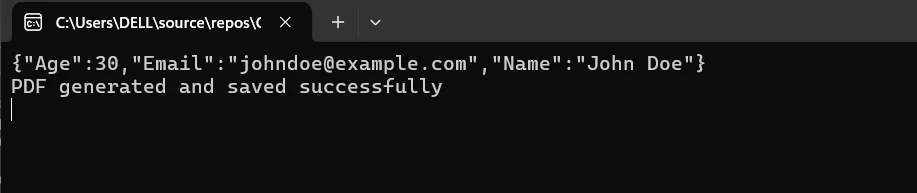
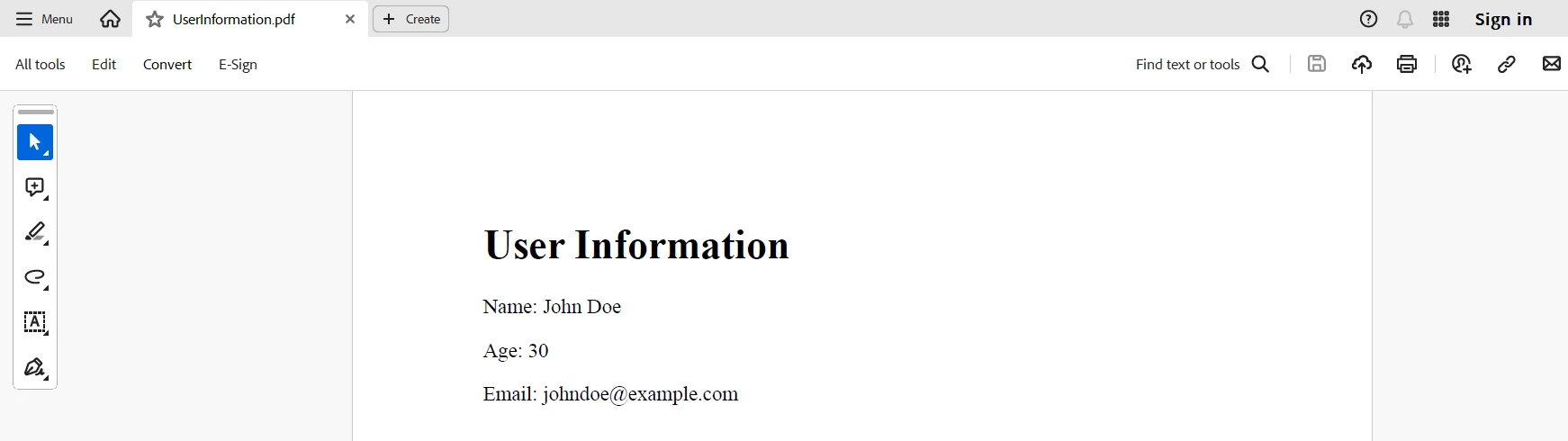
Korzystając z [samouczka IronPDF - Konwersja HTML do PDF](https://ironpdf.com/tutorials/html-to-pdf/), kod generuje dokument PDF poprzez konwersję treści HTML, która zawiera pobrane informacje o użytkowniku, do formatu PDF. Zawartość HTML jest renderowana jako PDF przy użyciu `ChromePdfRenderer().RenderHtmlAsPdf` i zapisywana do pliku o nazwie 'UserInformation.pdf'. Ta integracja pokazuje, jak połączyć FireSharp do pobierania danych w czasie rzeczywistym z Firebase z IronPDF do dynamicznego generowania plików PDF w płynnym przepływie pracy.
## Wnioski
Podsumowując, wykorzystanie FireSharp i IronPDF razem w programie napisanym w języku C# stanowi solidny i skuteczny sposób zarządzania danymi w czasie rzeczywistym oraz generowania dynamicznych dokumentów PDF. Dzięki przyjaznemu dla użytkownika API do operacji CRUD i synchronizacji klienta w czasie rzeczywistym, FireSharp usprawnia interakcje z bazą danych Firebase Realtime Database. Z drugiej strony, IronPDF doskonale radzi sobie z przekształcaniem treści HTML w wysokiej jakości dokumenty PDF, dzięki czemu idealnie nadaje się do tworzenia dokumentów do druku, takich jak faktury i raporty oparte na danych w czasie rzeczywistym.
Programiści mogą zwiększyć funkcjonalność i poprawić komfort użytkowania swoich aplikacji, integrując te dwie biblioteki w celu łatwego tworzenia i dystrybucji dokumentów PDF przy jednoczesnym pobieraniu najnowszych informacji z Firebase. Z tej integracji najbardziej skorzystają aplikacje, które muszą dynamicznie generować dokumenty na podstawie najnowszych danych i wymagają zmian danych w czasie rzeczywistym. Ogólnie rzecz biorąc, dzięki synergii między FireSharp a IronPDF programiści mogą tworzyć solidne, oparte na danych aplikacje, które wykorzystują możliwości zarówno Firebase, jak i technologii tworzenia plików PDF.
Korzystając z IronPDF i Iron Software, możesz wzbogacić swój zestaw narzędzi do programowania w środowisku .NET, wykorzystując funkcje OCR, skanowania kodów kreskowych, tworzenia plików PDF, połączenia z Excelem i wiele innych. IronPDF jest dostępny w cenie początkowej `$liteLicense`.
Biblioteka kliencka C# o nazwie FireSharp została stworzona, aby ułatwić pracę z Firebase Realtime Database. Oferuje synchronizację danych w czasie rzeczywistym oraz płynną integrację. Bez konieczności bezpośredniej obsługi zapytań i odpowiedzi HTTP, deweloperzy mogą łatwo zarządzać i synchronizować dane strukturalne w Firebase z aplikacji C#, wykorzystując FireSharp.
Z kolei IronPDF - .NET PDF Library for PDF Document Creation to solidna biblioteka .NET do programowego tworzenia, edytowania i modyfikacji dokumentów PDF. Oferuje prosty, ale potężny interfejs API do tworzenia PDF od podstaw, przekształcania informacji HTML na PDF oraz wykonywania różnych operacji na PDF.
Deweloperzy mogą tworzyć dynamiczne publikacje PDF oparte na danych w czasie rzeczywistym zapisanych w Firebase i zarządzać nimi przy pomocy FireSharp i IronPDF razem. Ten interfejs jest szczególnie pomocny, gdy programy muszą dynamicznie tworzyć raporty, faktury lub inne dokumenty do drukowania z danych Firebase, zachowując spójność i aktualizacje w czasie rzeczywistym.
Poprzez płynną integrację danych obsługiwanych przez Firebase i możliwości generowania dokumentów PDF, deweloperzy mogą poprawić ogólne doświadczenie użytkownika, usprawnić procesy generowania dokumentów i poprawić funkcjonalność aplikacji opartych na danych, korzystając z FireSharp do pobierania i zarządzania danymi z Firebase oraz IronPDF do konwersji tych danych na dokumenty PDF.
Czym jest FireSharp C#?
FireSharp to asynchroniczna, wieloplatformowa biblioteka .NET zbudowana do pracy z Firebase Realtime Database, ułatwiająca ten proces dla deweloperów. Z platformą backendową Firebase Google, deweloperzy mogą przechowywać i synchronizować dane w czasie rzeczywistym między klientami za pomocą bazy danych NoSQL w chmurze. Ponieważ FireSharp oferuje wysokopoziomowy interfejs API, który abstrakcyjnie oddala złożoność wysyłania bezpośrednich połączeń HTTP do REST API Firebase, integracja API Firebase z aplikacjami C# staje się łatwiejsza.
Jedną z kluczowych zalet FireSharp jest jej bezbłędna obsługa działań CRUD (Create, Read, Update, Delete) na danych Firebase. Ułatwia tworzenie słuchaczy zdarzeń w czasie rzeczywistym, które informują klientów o modyfikacjach danych i gwarantują synchronizację w czasie rzeczywistym między przeglądarkami i urządzeniami. Dlatego doskonale nadaje się do tworzenia aplikacji typu chat, pulpitów nawigacyjnych w czasie rzeczywistym, aplikacji kolaboracyjnych i innych.
Ponieważ FireSharp działa asynchronicznie, programy mogą komunikować się z Firebase i nadal działać normalnie. Aby ułatwić bezpieczny dostęp do zasobów Firebase, umożliwia stosowanie metod uwierzytelniania. Posiada również silne możliwości obsługi błędów i logowania, aby pomóc w rozwiązywaniu problemów i debugowaniu.
Features of FireSharp C#
Jako biblioteka kliencka C# do Firebase Realtime Database, FireSharp zapewnia szereg kluczowych funkcji, które usprawniają i poprawiają komunikację z Firebase:
Uproszczony interfejs API: Działania CRUD na danych Firebase są uproszczone dzięki wysokopoziomowemu interfejsowi API FireSharp, który abstrakcyjnie ukrywa złożoność komunikacji z REST API Firebase. Może to być wykonane bezpośrednio z poziomu C#.
Synchronizacja danych w czasie rzeczywistym: FireSharp obsługuje słuchaczy zdarzeń w czasie rzeczywistym, umożliwiając aplikacjom odbieranie aktualizacji zawsze, gdy dane Firebase są modyfikowane. Pozwala to klientom na synchronizację danych w czasie rzeczywistym, zapewniając, że aktualizacje są natychmiast przesyłane do wszystkich podłączonych urządzeń.
Operacje asynchroniczne: Ponieważ FireSharp działa asynchronicznie, programy C# mogą kontynuować normalne funkcjonowanie nawet podczas obsługi zapytań do bazy danych. Jego asynchroniczna konstrukcja jest kluczowa dla efektywnego zarządzania wieloma równoczesnymi zapytaniami.
Wsparcie autoryzacji: Deweloperzy mogą bezpiecznie uzyskiwać dostęp do zasobów Firebase za pomocą FireSharp, korzystając z różnych dostawców autoryzacji, takich jak Google, Facebook, e-mail i hasło oraz inne.
Obsługa błędów i logowanie: Biblioteka posiada silne funkcje obsługi błędów i logowania, które dostarczają deweloperom szczegółowych informacji zwrotnych i danych do debugowania, aby efektywnie rozwiązywać problemy.
Kompatybilność wieloplatformowa: Dzięki zgodności FireSharp z .NET Framework, .NET Core i .NET Standard, wspiera i umożliwia elastyczność w różnych kontekstach aplikacji C#.
Konfigurowalność: Dzięki prostym opcjom konfiguracji, deweloperzy mogą dostosować FireSharp do swoich unikalnych wymagań, w tym konfigurować adresy URL bazy danych Firebase, tokeny uwierzytelniające i inne cechy.
Dokumentacja i wsparcie społeczności: Dzięki szerokiej dokumentacji i żywej społeczności, FireSharp pomaga deweloperom w integracji Firebase z ich projektami C# poprzez oferowanie narzędzi i wsparcia.
Tworzenie i konfigurowanie aplikacji FireSharp C#
Instalacja FireSharp przez NuGet
Zarządzaj pakietami NuGet: Użyj Eksploratora rozwiązań, aby kliknąć prawym przyciskiem myszy na swoim projekcie i wybrać "Manage NuGet Packages".
Wyszukaj FireSharp: Zainstaluj pakiet FireSharp firmy Gehtsoft. Pakiet ten zawiera bibliotekę FireSharp potrzebną do komunikacji z Firebase Realtime Database.
Możesz również użyć poniższej linii, aby zainstalować FireSharp przez NuGet:
PM > Install-Package FireSharp
Install-Package FireSharp
Utwórz nowy projekt .NET
Otwórz swoją konsolę poleceń, konsolę lub terminal.
Utwórz i uruchom nową aplikację konsolową .NET, wpisując:
dotnet new console -n FiresharpExamplecd FiresharpExample
dotnet new console -n FiresharpExample
cd FiresharpExample
Skonfiguruj Firebase Realtime Database: Aby skonfigurować Realtime Database, przejdź do sekcji Bazy danych w Konsoli Firebase. Skonfiguruj reguły zgodnie z wymaganiami bezpieczeństwa.
Inicjalizacja FireSharp
using FireSharp.Config;using FireSharp.Interfaces;using FireSharp.Response;class Program{ static voidMain(string[] args) { // Step 1: Configure FireSharp IFirebaseConfig config = new FirebaseConfig {AuthSecret = "your_firebase_auth_secret",BasePath = "https://your_project_id.firebaseio.com/" }; IFirebaseClient client = new FireSharp.FirebaseClient(config); // Step 2: Perform CRUD operations // Example: Write data to Firebase var data = new {Name = "John Doe",Age = 30,Email = "johndoe@example.com" }; SetResponse response = client.Set("users/1", data); if (response.StatusCode == System.Net.HttpStatusCode.OK) {Console.WriteLine("Data written to Firebase successfully"); } else {Console.WriteLine($"Error writing data: {response.Error}"); } // Step 3: Read data from Firebase FirebaseResponse getResponse = client.Get("users/1"); if (getResponse.StatusCode == System.Net.HttpStatusCode.OK) {Console.WriteLine(getResponse.Body); } else {Console.WriteLine($"Error reading data: {getResponse.Error}"); } // Step 4: Update data in Firebase var newData = new {Age = 31 }; FirebaseResponse updateResponse = client.Update("users/1", newData); if (updateResponse.StatusCode == System.Net.HttpStatusCode.OK) {Console.WriteLine("Data updated successfully"); } else {Console.WriteLine($"Error updating data: {updateResponse.Error}"); } // Step 5: Delete data from Firebase FirebaseResponse deleteResponse = client.Delete("users/1"); if (deleteResponse.StatusCode == System.Net.HttpStatusCode.OK) {Console.WriteLine("Data deleted successfully"); } else {Console.WriteLine($"Error deleting data: {deleteResponse.Error}"); } }}
using FireSharp.Config;
using FireSharp.Interfaces;
using FireSharp.Response;
class Program
{
    static void Main(string[] args)
    {
        // Step 1: Configure FireSharp
        IFirebaseConfig config = new FirebaseConfig
        {
            AuthSecret = "your_firebase_auth_secret",
            BasePath = "https://your_project_id.firebaseio.com/"
        };
        IFirebaseClient client = new FireSharp.FirebaseClient(config);

        // Step 2: Perform CRUD operations

        // Example: Write data to Firebase
        var data = new
        {
            Name = "John Doe",
            Age = 30,
            Email = "johndoe@example.com"
        };

        SetResponse response = client.Set("users/1", data);
        if (response.StatusCode == System.Net.HttpStatusCode.OK)
        {
            Console.WriteLine("Data written to Firebase successfully");
        }
        else
        {
            Console.WriteLine($"Error writing data: {response.Error}");
        }

        // Step 3: Read data from Firebase
        FirebaseResponse getResponse = client.Get("users/1");
        if (getResponse.StatusCode == System.Net.HttpStatusCode.OK)
        {
            Console.WriteLine(getResponse.Body);
        }
        else
        {
            Console.WriteLine($"Error reading data: {getResponse.Error}");
        }

        // Step 4: Update data in Firebase
        var newData = new
        {
            Age = 31
        };

        FirebaseResponse updateResponse = client.Update("users/1", newData);
        if (updateResponse.StatusCode == System.Net.HttpStatusCode.OK)
        {
            Console.WriteLine("Data updated successfully");
        }
        else
        {
            Console.WriteLine($"Error updating data: {updateResponse.Error}");
        }

        // Step 5: Delete data from Firebase
        FirebaseResponse deleteResponse = client.Delete("users/1");
        if (deleteResponse.StatusCode == System.Net.HttpStatusCode.OK)
        {
            Console.WriteLine("Data deleted successfully");
        }
        else
        {
            Console.WriteLine($"Error deleting data: {deleteResponse.Error}");
        }
    }
}
ImportsFireSharp.ConfigImportsFireSharp.InterfacesImportsFireSharp.ResponseFriend Class ProgramShared Sub Main(ByVal args() AsString) ' Step 1: Configure FireSharp Dim config AsIFirebaseConfig = New FirebaseConfigWith { .AuthSecret = "your_firebase_auth_secret", .BasePath = "https://your_project_id.firebaseio.com/" } Dim client AsIFirebaseClient = New FireSharp.FirebaseClient(config) ' Step 2: Perform CRUD operations ' Example: Write data to Firebase Dim data = New With {Key .Name = "John Doe",Key .Age = 30,Key .Email = "johndoe@example.com" } Dim response AsSetResponse = client.Set("users/1", data) If response.StatusCode = System.Net.HttpStatusCode.OKThenConsole.WriteLine("Data written to Firebase successfully") ElseConsole.WriteLine($"Error writing data: {response.Error}") End If ' Step 3: Read data from Firebase Dim getResponse AsFirebaseResponse = client.Get("users/1") If getResponse.StatusCode = System.Net.HttpStatusCode.OKThenConsole.WriteLine(getResponse.Body) ElseConsole.WriteLine($"Error reading data: {getResponse.Error}") End If ' Step 4: Update data in Firebase Dim newData = New With {Key .Age = 31} Dim updateResponse AsFirebaseResponse = client.Update("users/1", newData) If updateResponse.StatusCode = System.Net.HttpStatusCode.OKThenConsole.WriteLine("Data updated successfully") ElseConsole.WriteLine($"Error updating data: {updateResponse.Error}") End If ' Step 5: Delete data from Firebase Dim deleteResponse AsFirebaseResponse = client.Delete("users/1") If deleteResponse.StatusCode = System.Net.HttpStatusCode.OKThenConsole.WriteLine("Data deleted successfully") ElseConsole.WriteLine($"Error deleting data: {deleteResponse.Error}") End If End SubEnd Class
Imports FireSharp.Config
Imports FireSharp.Interfaces
Imports FireSharp.Response
Friend Class Program
	Shared Sub Main(ByVal args() As String)
		' Step 1: Configure FireSharp
		Dim config As IFirebaseConfig = New FirebaseConfig With {
			.AuthSecret = "your_firebase_auth_secret",
			.BasePath = "https://your_project_id.firebaseio.com/"
		}
		Dim client As IFirebaseClient = New FireSharp.FirebaseClient(config)

		' Step 2: Perform CRUD operations

		' Example: Write data to Firebase
		Dim data = New With {
			Key .Name = "John Doe",
			Key .Age = 30,
			Key .Email = "johndoe@example.com"
		}

		Dim response As SetResponse = client.Set("users/1", data)
		If response.StatusCode = System.Net.HttpStatusCode.OK Then
			Console.WriteLine("Data written to Firebase successfully")
		Else
			Console.WriteLine($"Error writing data: {response.Error}")
		End If

		' Step 3: Read data from Firebase
		Dim getResponse As FirebaseResponse = client.Get("users/1")
		If getResponse.StatusCode = System.Net.HttpStatusCode.OK Then
			Console.WriteLine(getResponse.Body)
		Else
			Console.WriteLine($"Error reading data: {getResponse.Error}")
		End If

		' Step 4: Update data in Firebase
		Dim newData = New With {Key .Age = 31}

		Dim updateResponse As FirebaseResponse = client.Update("users/1", newData)
		If updateResponse.StatusCode = System.Net.HttpStatusCode.OK Then
			Console.WriteLine("Data updated successfully")
		Else
			Console.WriteLine($"Error updating data: {updateResponse.Error}")
		End If

		' Step 5: Delete data from Firebase
		Dim deleteResponse As FirebaseResponse = client.Delete("users/1")
		If deleteResponse.StatusCode = System.Net.HttpStatusCode.OK Then
			Console.WriteLine("Data deleted successfully")
		Else
			Console.WriteLine($"Error deleting data: {deleteResponse.Error}")
		End If
	End Sub
End Class
Udostępniony kod C# demonstruje, jak skonfigurować i skonfigurować FireSharp do interakcji z Firebase Realtime Database. Zaczyna się od zaimportowania niezbędnych przestrzenni nazw FireSharp i skonfigurowania klienta Firebase za pomocą IFirebaseConfig, co wymaga tajnego klucza uwierzytelniającego projektu Firebase (AuthSecret) oraz URL bazy danych (BasePath).
Następnie tworzona jest instancja IFirebaseClient z tą konfiguracją. Kod wykonuje podstawowe operacje CRUD: zapisuje dane do bazy danych przy użyciu client.Set, pobiera dane za pomocą client.Get, aktualizuje istniejące dane przez client.Update oraz usuwa dane używając client.Delete.
Każda operacja sprawdza StatusCode odpowiedzi, aby potwierdzić sukces lub obsłużyć błędy. Przykład demonstruje, jak efektywnie zarządzać danymi w Firebase z aplikacji C#, ilustrując prostotę i skuteczność korzystania z FireSharp do interakcji z bazą danych w czasie rzeczywistym.
Pierwsze kroki
Aby rozpocząć korzystanie z IronPDF i FireSharp w C#, włącz obie biblioteki do swojego projektu, postępując zgodnie z tymi instrukcjami. Ta konfiguracja pokaże, jak używać FireSharp do pobierania danych z Firebase Realtime Database i używać IronPDF do tworzenia PDF na podstawie tych danych.
Czym jest IronPDF?
Dokumenty PDF mogą być tworzone, czytane i edytowane przez programy C# dzięki IronPDF. Deweloperzy mogą szybko konwertować treści HTML, CSS i JavaScript na wysokiej jakości, gotowe do druku PDFy za pomocą tej aplikacji. Dodawanie nagłówków i stopek, dzielenie i łączenie PDFów, znakowanie wodne dokumentów i konwersja HTML na PDF to jedne z najważniejszych zadań.
IronPDF obsługuje zarówno .NET Framework, jak i .NET Core, dzięki czemu jest przydatny w szerokim zakresie zastosowań. Jego przyjazny dla użytkownika interfejs API pozwala deweloperom łatwo integrować PDFy do ich produktów. Zdolność IronPDF do zarządzania złożonymi układami danych i formatowaniem oznacza, że PDFy, które produkuje, ściśle przypominają oryginalny tekst HTML klienta.
IronPDF to narzędzie do konwersji stron internetowych, URLi i HTML na PDF. Generowane PDFy zachowują oryginalne formatowanie i stylizację stron internetowych. Narzędzie to nadaje się szczególnie do tworzenia plików PDF z treści internetowych, w tym raportów i faktur.
using IronPdf;class Program{ static voidMain(string[] args) { var renderer = new ChromePdfRenderer(); // 1. Convert HTML String to PDF var htmlContent = "<h1>Hello, IronPDF!</h1><p>This is a PDF from an HTML string.</p>"; var pdfFromHtmlString = renderer.RenderHtmlAsPdf(htmlContent); pdfFromHtmlString.SaveAs("HTMLStringToPDF.pdf"); // 2. Convert HTML File to PDF var htmlFilePath = "path_to_your_html_file.html"; // Specify the path to your HTML file var pdfFromHtmlFile = renderer.RenderHtmlFileAsPdf(htmlFilePath); pdfFromHtmlFile.SaveAs("HTMLFileToPDF.pdf"); // 3. Convert URL to PDF var url = "http://ironpdf.com"; // Specify the URL var pdfFromUrl = renderer.RenderUrlAsPdf(url); pdfFromUrl.SaveAs("URLToPDF.pdf"); }}
using IronPdf;

class Program
{
    static void Main(string[] args)
    {
        var renderer = new ChromePdfRenderer();

        // 1. Convert HTML String to PDF
        var htmlContent = "<h1>Hello, IronPDF!</h1><p>This is a PDF from an HTML string.</p>";
        var pdfFromHtmlString = renderer.RenderHtmlAsPdf(htmlContent);
        pdfFromHtmlString.SaveAs("HTMLStringToPDF.pdf");

        // 2. Convert HTML File to PDF
        var htmlFilePath = "path_to_your_html_file.html"; // Specify the path to your HTML file
        var pdfFromHtmlFile = renderer.RenderHtmlFileAsPdf(htmlFilePath);
        pdfFromHtmlFile.SaveAs("HTMLFileToPDF.pdf");

        // 3. Convert URL to PDF
        var url = "http://ironpdf.com"; // Specify the URL
        var pdfFromUrl = renderer.RenderUrlAsPdf(url);
        pdfFromUrl.SaveAs("URLToPDF.pdf");
    }
}
ImportsIronPdfFriend Class ProgramShared Sub Main(ByVal args() AsString) Dim renderer = New ChromePdfRenderer() ' 1. Convert HTML String to PDF Dim htmlContent = "<h1>Hello, IronPDF!</h1><p>This is a PDF from an HTML string.</p>" Dim pdfFromHtmlString = renderer.RenderHtmlAsPdf(htmlContent) pdfFromHtmlString.SaveAs("HTMLStringToPDF.pdf") ' 2. Convert HTML File to PDF Dim htmlFilePath = "path_to_your_html_file.html" ' Specify the path to your HTML file Dim pdfFromHtmlFile = renderer.RenderHtmlFileAsPdf(htmlFilePath) pdfFromHtmlFile.SaveAs("HTMLFileToPDF.pdf") ' 3. Convert URL to PDF Dim url = "http://ironpdf.com" ' Specify the URL Dim pdfFromUrl = renderer.RenderUrlAsPdf(url) pdfFromUrl.SaveAs("URLToPDF.pdf") End SubEnd Class
Imports IronPdf

Friend Class Program
	Shared Sub Main(ByVal args() As String)
		Dim renderer = New ChromePdfRenderer()

		' 1. Convert HTML String to PDF
		Dim htmlContent = "<h1>Hello, IronPDF!</h1><p>This is a PDF from an HTML string.</p>"
		Dim pdfFromHtmlString = renderer.RenderHtmlAsPdf(htmlContent)
		pdfFromHtmlString.SaveAs("HTMLStringToPDF.pdf")

		' 2. Convert HTML File to PDF
		Dim htmlFilePath = "path_to_your_html_file.html" ' Specify the path to your HTML file
		Dim pdfFromHtmlFile = renderer.RenderHtmlFileAsPdf(htmlFilePath)
		pdfFromHtmlFile.SaveAs("HTMLFileToPDF.pdf")

		' 3. Convert URL to PDF
		Dim url = "http://ironpdf.com" ' Specify the URL
		Dim pdfFromUrl = renderer.RenderUrlAsPdf(url)
		pdfFromUrl.SaveAs("URLToPDF.pdf")
	End Sub
End Class
Funkcje IronPDF
Generowanie plików PDF z HTML
Konwertuj HTML, CSS i JavaScript do formatu PDF. IronPDF obsługuje dwa nowoczesne standardy internetowe: zapytania o media i projekt responsywny. Obsługa nowoczesnych standardów internetowych jest przydatna przy używaniu HTML i CSS do dynamicznego formatowania dokumentów PDF, faktur i raportów.
Edycja plików PDF
Możliwe jest dodawanie tekstu, obrazów i innych materiałów do już istniejących plików PDF. Użyj IronPDF, aby wyodrębnić tekst i obrazy z plików PDF, połączyć wiele plików PDF w jeden, podzielić pliki PDF na kilka oddzielnych dokumentów oraz dodać nagłówki, stopki, adnotacje i znaki wodne.
Konwersja plików PDF
Konwertuj pliki WORD, Excel i obrazy oraz inne formaty plików do formatu PDF. IronPDF obsługuje konwersję plików PDF na obrazy (PNG, JPEG itp.).
Wydajność i niezawodność
W kontekście przemysłowym pożądanymi cechami projektowymi są wysoka wydajność i niezawodność. IronPDF z łatwością obsługuje duże zbiory dokumentów.
Zainstaluj IronPDF
Zainstaluj pakiet IronPDF, aby uzyskać narzędzia potrzebne do pracy z plikami PDF w projektach .NET.
PM > Install-Package IronPdf
Install-Package IronPdf
Zainicjuj FireSharp i IronPDF
Oto przykład wykorzystujący FireSharp do pobierania danych z Firebase oraz IronPDF do tworzenia plików PDF.
using System;using FireSharp.Config;using FireSharp.Interfaces;using FireSharp.Response;using IronPdf;class Program{ static voidMain(string[] args) { // Step 1: Configure FireSharp IFirebaseConfig config = new FirebaseConfig {AuthSecret = "your_firebase_auth_secret",BasePath = "https://your_project_id.firebaseio.com/" }; IFirebaseClient client = new FireSharp.FirebaseClient(config); // Step 2: Retrieve data from Firebase FirebaseResponse response = client.Get("users/1"); if (response.StatusCode != System.Net.HttpStatusCode.OK) {Console.WriteLine($"Error retrieving data: {response.StatusCode}"); return; } else {Console.WriteLine(response.Body); } // Deserialize the data (assuming the data is in a simple format) var user = response.ResultAs<User>(); // Step 3: Generate PDF using IronPDF var htmlContent = $"<h1>User Information</h1><p>Name: {user.Name}</p><p>Age: {user.Age}</p><p>Email: {user.Email}</p>"; var pdf = new ChromePdfRenderer().RenderHtmlAsPdf(htmlContent); // Save the PDF to a file pdf.SaveAs("UserInformation.pdf");Console.WriteLine("PDF generated and saved successfully"); } public class User { public stringName { get; set; } public intAge { get; set; } public stringEmail { get; set; } }}
using System;
using FireSharp.Config;
using FireSharp.Interfaces;
using FireSharp.Response;
using IronPdf;

class Program
{
    static void Main(string[] args)
    {
        // Step 1: Configure FireSharp
        IFirebaseConfig config = new FirebaseConfig
        {
            AuthSecret = "your_firebase_auth_secret",
            BasePath = "https://your_project_id.firebaseio.com/"
        };
        IFirebaseClient client = new FireSharp.FirebaseClient(config);

        // Step 2: Retrieve data from Firebase
        FirebaseResponse response = client.Get("users/1");
        if (response.StatusCode != System.Net.HttpStatusCode.OK)
        {
            Console.WriteLine($"Error retrieving data: {response.StatusCode}");
            return;
        }
        else
        {
            Console.WriteLine(response.Body);
        }

        // Deserialize the data (assuming the data is in a simple format)
        var user = response.ResultAs<User>();

        // Step 3: Generate PDF using IronPDF
        var htmlContent = $"<h1>User Information</h1><p>Name: {user.Name}</p><p>Age: {user.Age}</p><p>Email: {user.Email}</p>";
        var pdf = new ChromePdfRenderer().RenderHtmlAsPdf(htmlContent);

        // Save the PDF to a file
        pdf.SaveAs("UserInformation.pdf");
        Console.WriteLine("PDF generated and saved successfully");
    }

    public class User
    {
        public string Name { get; set; }
        public int Age { get; set; }
        public string Email { get; set; }
    }
}
ImportsSystemImportsFireSharp.ConfigImportsFireSharp.InterfacesImportsFireSharp.ResponseImportsIronPdfFriend Class ProgramShared Sub Main(ByVal args() AsString) ' Step 1: Configure FireSharp Dim config AsIFirebaseConfig = New FirebaseConfigWith { .AuthSecret = "your_firebase_auth_secret", .BasePath = "https://your_project_id.firebaseio.com/" } Dim client AsIFirebaseClient = New FireSharp.FirebaseClient(config) ' Step 2: Retrieve data from Firebase Dim response AsFirebaseResponse = client.Get("users/1") If response.StatusCode <> System.Net.HttpStatusCode.OKThenConsole.WriteLine($"Error retrieving data: {response.StatusCode}") Return ElseConsole.WriteLine(response.Body) End If ' Deserialize the data (assuming the data is in a simple format) Dim user = response.ResultAs(OfUser)() ' Step 3: Generate PDF using IronPDF Dim htmlContent = $"<h1>User Information</h1><p>Name: {user.Name}</p><p>Age: {user.Age}</p><p>Email: {user.Email}</p>" Dim pdf = (New ChromePdfRenderer()).RenderHtmlAsPdf(htmlContent) ' Save the PDF to a file pdf.SaveAs("UserInformation.pdf")Console.WriteLine("PDF generated and saved successfully") End Sub Public Class User Public Property Name() AsString Public Property Age() AsInteger Public Property Email() AsString End ClassEnd Class
Imports System
Imports FireSharp.Config
Imports FireSharp.Interfaces
Imports FireSharp.Response
Imports IronPdf

Friend Class Program
	Shared Sub Main(ByVal args() As String)
		' Step 1: Configure FireSharp
		Dim config As IFirebaseConfig = New FirebaseConfig With {
			.AuthSecret = "your_firebase_auth_secret",
			.BasePath = "https://your_project_id.firebaseio.com/"
		}
		Dim client As IFirebaseClient = New FireSharp.FirebaseClient(config)

		' Step 2: Retrieve data from Firebase
		Dim response As FirebaseResponse = client.Get("users/1")
		If response.StatusCode <> System.Net.HttpStatusCode.OK Then
			Console.WriteLine($"Error retrieving data: {response.StatusCode}")
			Return
		Else
			Console.WriteLine(response.Body)
		End If

		' Deserialize the data (assuming the data is in a simple format)
		Dim user = response.ResultAs(Of User)()

		' Step 3: Generate PDF using IronPDF
		Dim htmlContent = $"<h1>User Information</h1><p>Name: {user.Name}</p><p>Age: {user.Age}</p><p>Email: {user.Email}</p>"
		Dim pdf = (New ChromePdfRenderer()).RenderHtmlAsPdf(htmlContent)

		' Save the PDF to a file
		pdf.SaveAs("UserInformation.pdf")
		Console.WriteLine("PDF generated and saved successfully")
	End Sub

	Public Class User
		Public Property Name() As String
		Public Property Age() As Integer
		Public Property Email() As String
	End Class
End Class
Podany kod w języku C# pokazuje, jak zintegrować FireSharp z IronPDF w celu pobrania nowych danych z bazy danych Firebase Realtime Database i wygenerowania dokumentuPDF na podstawie treści HTML opartej na tych danych. Na początku kod konfiguruje FireSharp za pomocą obiektu IFirebaseConfig, który zawiera tajny klucz uwierzytelniający Firebase (AuthSecret) oraz podstawowy URL Bazy Danych Realtime Firebase (BasePath).
Tworzona jest instancja IFirebaseClient z tą konfiguracją do interakcji z Firebase. Kod następnie pobiera dane z bazy danych Firebase używając metody client.Get, pobierając dane z określonej ścieżki (users/1). Odpowiedź jest sprawdzana pod kątem sukcesu, a jeśli jest udana, dane są deserializowane do obiektu User.
Korzystając z samouczka IronPDF - Konwersja HTML do PDF, kod generuje dokument PDF poprzez konwersję treści HTML, która zawiera pobrane informacje o użytkowniku, do formatu PDF. Zawartość HTML jest renderowana jako PDF przy użyciu ChromePdfRenderer().RenderHtmlAsPdf i zapisywana do pliku o nazwie 'UserInformation.pdf'. Ta integracja pokazuje, jak połączyć FireSharp do pobierania danych w czasie rzeczywistym z Firebase z IronPDF do dynamicznego generowania plików PDF w płynnym przepływie pracy.
Wnioski
Podsumowując, wykorzystanie FireSharp i IronPDF razem w programie napisanym w języku C# stanowi solidny i skuteczny sposób zarządzania danymi w czasie rzeczywistym oraz generowania dynamicznych dokumentów PDF. Dzięki przyjaznemu dla użytkownika API do operacji CRUD i synchronizacji klienta w czasie rzeczywistym, FireSharp usprawnia interakcje z bazą danych Firebase Realtime Database. Z drugiej strony, IronPDF doskonale radzi sobie z przekształcaniem treści HTML w wysokiej jakości dokumenty PDF, dzięki czemu idealnie nadaje się do tworzenia dokumentów do druku, takich jak faktury i raporty oparte na danych w czasie rzeczywistym.
Programiści mogą zwiększyć funkcjonalność i poprawić komfort użytkowania swoich aplikacji, integrując te dwie biblioteki w celu łatwego tworzenia i dystrybucji dokumentów PDF przy jednoczesnym pobieraniu najnowszych informacji z Firebase. Z tej integracji najbardziej skorzystają aplikacje, które muszą dynamicznie generować dokumenty na podstawie najnowszych danych i wymagają zmian danych w czasie rzeczywistym. Ogólnie rzecz biorąc, dzięki synergii między FireSharp a IronPDF programiści mogą tworzyć solidne, oparte na danych aplikacje, które wykorzystują możliwości zarówno Firebase, jak i technologii tworzenia plików PDF.
Korzystając z IronPDF i Iron Software, możesz wzbogacić swój zestaw narzędzi do programowania w środowisku .NET, wykorzystując funkcje OCR, skanowania kodów kreskowych, tworzenia plików PDF, połączenia z Excelem i wiele innych. IronPDF jest dostępny w cenie początkowej $999.
Jacob Mellor jest Chief Technology Officer w Iron Software i wizjonerskim inżynierem, pionierem technologii C# PDF. Jako pierwotny deweloper głównej bazy kodowej Iron Software, kształtuje architekturę produktów firmy od jej początku, przekształcając ją wspólnie z CEO Cameron Rimington w firmę liczącą ponad 50 osób, obsługującą NASA, Teslę i światowe agencje rządowe.


















