Pliki PDF (Portable Document Format) są powszechnie używane do udostępniania i przechowywania dokumentów w spójnym formacie na różnych platformach. W tym artykułe omówimy, jak generować pliki PDF w języku C++ przy użyciu biblioteki wkhtmltopdf. Jest to narzędzie typu open source działające w wierszu poleceń, służące do konwersji treści HTML na pliki PDF. Wykorzystując możliwości tej biblioteki, możemy programowo tworzyć dokumenty PDF na podstawie treści HTML w naszych aplikacjach C++.
biblioteka wkhtmltopdf
wkhtmltopdf to narzędzie wiersza poleceń typu open source oraz silnik renderujący, który konwertuje strony internetowe HTML lub treści HTML na dokumenty PDF. Wykorzystuje silnik renderujący WebKit do analizowania i renderowania HTML, CSS i JavaScript, a następnie generuje plik PDF na podstawie wyrenderowanej treści.
"Biblioteka wkhtmltopdf C++" (znana również jako "wkhtmltopdf C API"). Ta biblioteka udostępnia interfejs C++ do narzędzia wkhtmltopdf wiersza poleceń, umożliwiając tworzenie plików PDF z zawartości HTML bezpośrednio w aplikacjach C++. Zagłębmy się w proces krok-po-kroku konwersji HTML na PDF w C++ przy użyciu biblioteki wkhtmltopdf.
Wymagania wstępne
Aby tworzyć pliki PDF w języku C++, potrzebujemy następujących elementów:
- Kompilator C++, taki jak GCC lub Clang, zainstalowany w systemie. Możesz użyć dowolnego środowiska IDE obsługującego programowanie w języku C++.
- Pobrano i zainstalowano bibliotekę wkhtmltopdf. Najnowszą wersję można pobrać z oficjalnej strony internetowej wkhtmltopdf i zainstalować zgodnie z instrukcjami dla danego systemu operacyjnego.
- Podstawowa znajomość programowania w języku C++.
C++ Utwórz projekt PDF w Code::Blocks
Utwórz projekt w Code::Blocks, a następnie wykonaj poniższe kroki, aby połączyć folder biblioteki i plik. Jeśli korzystasz z innego środowiska IDE, opcje mogą się różnić, ale musisz odwołać się do pobranej biblioteki w swoim projekcie, aby działała.
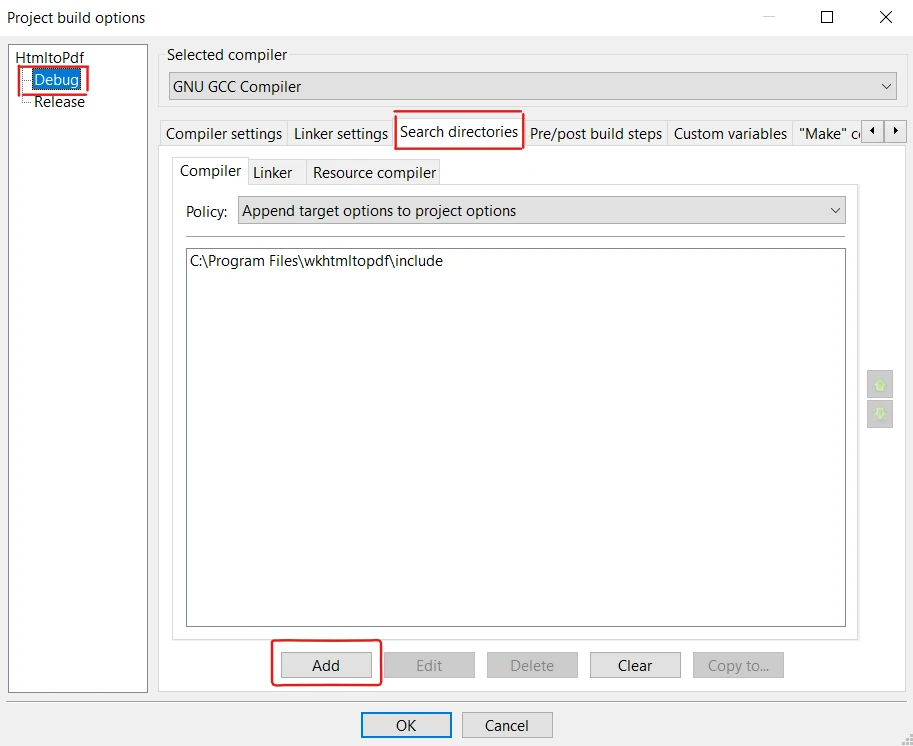
1. Dodawanie folderu include w katalogach wyszukiwania
Aby zapewnić, że Code::Blocks może znaleźć niezbędne pliki nagłówkowe, musimy skonfigurować katalogi wyszukiwania.
- Kliknij menu "Projekt" na pasku menu i wybierz "Opcje kompilacji". Pamiętaj, aby wybrać opcję "Debug".
- W oknie dialogowym "Opcje kompilacji" wybierz kartę "Katalogi wyszukiwania".
- W zakładce "Kompilator" kliknij przycisk "Dodaj".
- Przejdź do katalogu, w którym znajdują się pliki nagłówkowe wkhtmltox (np. C:\Program Files\wkhtmltopdf\include>), i wybierz go.
- Na koniec kliknij "OK", aby zamknąć okno dialogowe.
2. Łączenie bibliotek w ustawieniach linkera
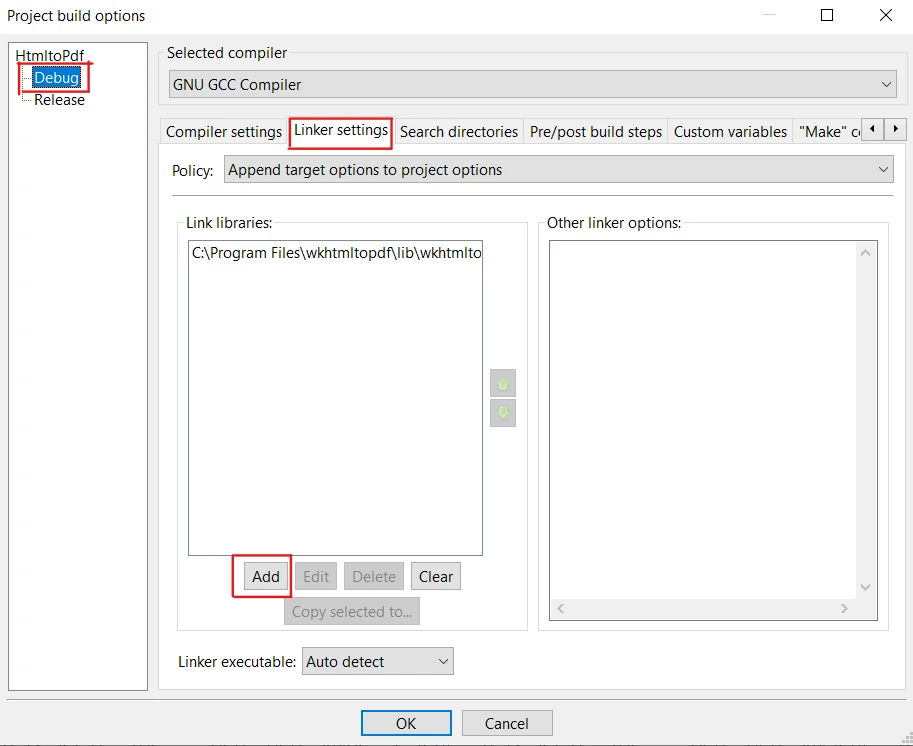
Aby połączyć z biblioteką wkhtmltox, wykonaj te kroki:
- Ponownie kliknij menu "Projekt" na pasku menu i wybierz "Opcje kompilacji". Pamiętaj, aby wybrać opcję "Debug".
- W oknie dialogowym "Opcje kompilacji" wybierz zakładkę "Ustawienia linkera".
- W zakładce "Połącz biblioteki" kliknij przycisk "Dodaj".
- Przeglądaj katalog, w którym znajdują się pliki biblioteki wkhtmltox (np. C:\Program Files\wkhtmltopdf\lib), i wybierz odpowiedni plik biblioteki.
- Kliknij "Otwórz", aby dodać bibliotekę do swojego projektu.
- Na koniec kliknij "OK", aby zamknąć okno dialogowe.
Kroki tworzenia PDF w C++ używając wkhtmltopdf
1. Dołącz niezbędne biblioteki
Aby rozpocząć, najpierw uwzględnimy niezbędne pliki nagłówkowe, aby korzystać z funkcji biblioteki wkhtmltopdf w naszym programie C++. Zawrzyj następujące pliki nagłówkowe na początku pliku kodu źródłowego main.cpp:
#include <iostream>
#include <fstream>
#include <string>
#include <wkhtmltox/pdf.h> // Include wkhtmltopdf library headers
#include <iostream>
#include <fstream>
#include <string>
#include <wkhtmltox/pdf.h> // Include wkhtmltopdf library headers
Text
2. Wyłącz komponent GUI
Jeśli nie pracujesz z GUI, musisz go wyłączyć, aby uniknąć błędów. Kod wygląda następująco:
wkhtmltopdf_init(false); // Initialize the wkhtmltopdf library in non-GUI mode
wkhtmltopdf_init(false); // Initialize the wkhtmltopdf library in non-GUI mode
Text
3. Inicjalizacja ustawień i konwertera
Następnie musimy zainicjować wskaźniki ustawień globalnych i obiektowych, a następnie wkhtmltopdf konwerter.
wkhtmltopdf_global_settings* gs = wkhtmltopdf_create_global_settings();
wkhtmltopdf_object_settings* os = wkhtmltopdf_create_object_settings();
wkhtmltopdf_converter* converter = wkhtmltopdf_create_converter(gs);
wkhtmltopdf_global_settings* gs = wkhtmltopdf_create_global_settings();
wkhtmltopdf_object_settings* os = wkhtmltopdf_create_object_settings();
wkhtmltopdf_converter* converter = wkhtmltopdf_create_converter(gs);
Text
4. Dodawanie zawartości PDF
Teraz stwórzmy ciąg HTML, aby wypełnić naszym nowo utworzony dokument PDF treścią. Kod wygląda następująco:
std::string htmlString = "<html><body><h1>Create a PDF in C++ using WKHTMLTOPDF Library</h1></body></html>";
wkhtmltopdf_add_object(converter, os, htmlString.c_str());
std::string htmlString = "<html><body><h1>Create a PDF in C++ using WKHTMLTOPDF Library</h1></body></html>";
wkhtmltopdf_add_object(converter, os, htmlString.c_str());
Text
5. Konwertuj ciąg HTML na plik PDF
wkhtmltopdf oferuje metodę konwertera do zamiany zawartości HTML na PDF. Oto fragment kodu:
wkhtmltopdf_convert(converter); // Converts HTML content to PDF
wkhtmltopdf_convert(converter); // Converts HTML content to PDF
Text
6. Uzyskiwanie wyniku jako bufor pamięci
Za pomocą funkcji wkhtmltopdf_get_output możemy uzyskać dane PDF jako strumień bufora pamięci. Zwraca również długość PDFa. Oto przykładowe zadanie:
const unsigned char* pdfData;
int pdfLength = wkhtmltopdf_get_output(converter, &pdfData); // Get PDF data and length
const unsigned char* pdfData;
int pdfLength = wkhtmltopdf_get_output(converter, &pdfData); // Get PDF data and length
Text
7. Zapisz plik PDF
Wskaźnik pdfData będzie teraz miał strumień znaków z wkhtmltopdf_converter. Aby zapisać do pliku PDF, najpierw określmy ścieżkę pliku, gdzie chcemy zapisać PDF. Następnie, używając strumienia pliku wyjściowego, otwieramy plik w trybie binarnym i zapisujemy do niego pdfData poprzez rzutowanie typu za pomocą funkcji reinterpret_cast. Na koniec zamykamy plik.
const char* outputPath = "file.pdf";
std::ofstream outputFile(outputPath, std::ios::binary); // Open file in binary mode
outputFile.write(reinterpret_cast<const char*>(pdfData), pdfLength); // Write PDF data
outputFile.close(); // Close the file
const char* outputPath = "file.pdf";
std::ofstream outputFile(outputPath, std::ios::binary); // Open file in binary mode
outputFile.write(reinterpret_cast<const char*>(pdfData), pdfLength); // Write PDF data
outputFile.close(); // Close the file
Text
8. Zwolnienie pamięci
Po udanym utworzeniu pliku PDF, ważne jest, aby oczyścić zasoby alokowane przez wkhtmltopdf, w przeciwnym razie doprowadzi to do wycieku pamięci.
wkhtmltopdf_destroy_converter(converter); // Destroy the converter
wkhtmltopdf_destroy_object_settings(os);  // Destroy object settings
wkhtmltopdf_destroy_global_settings(gs);  // Destroy global settings
wkhtmltopdf_deinit();                     // Deinitialize the library

std::cout << "PDF created successfully." << std::endl; // Inform the user
wkhtmltopdf_destroy_converter(converter); // Destroy the converter
wkhtmltopdf_destroy_object_settings(os);  // Destroy object settings
wkhtmltopdf_destroy_global_settings(gs);  // Destroy global settings
wkhtmltopdf_deinit();                     // Deinitialize the library

std::cout << "PDF created successfully." << std::endl; // Inform the user
Text
9. Wykonaj kod i wygeneruj plik PDF
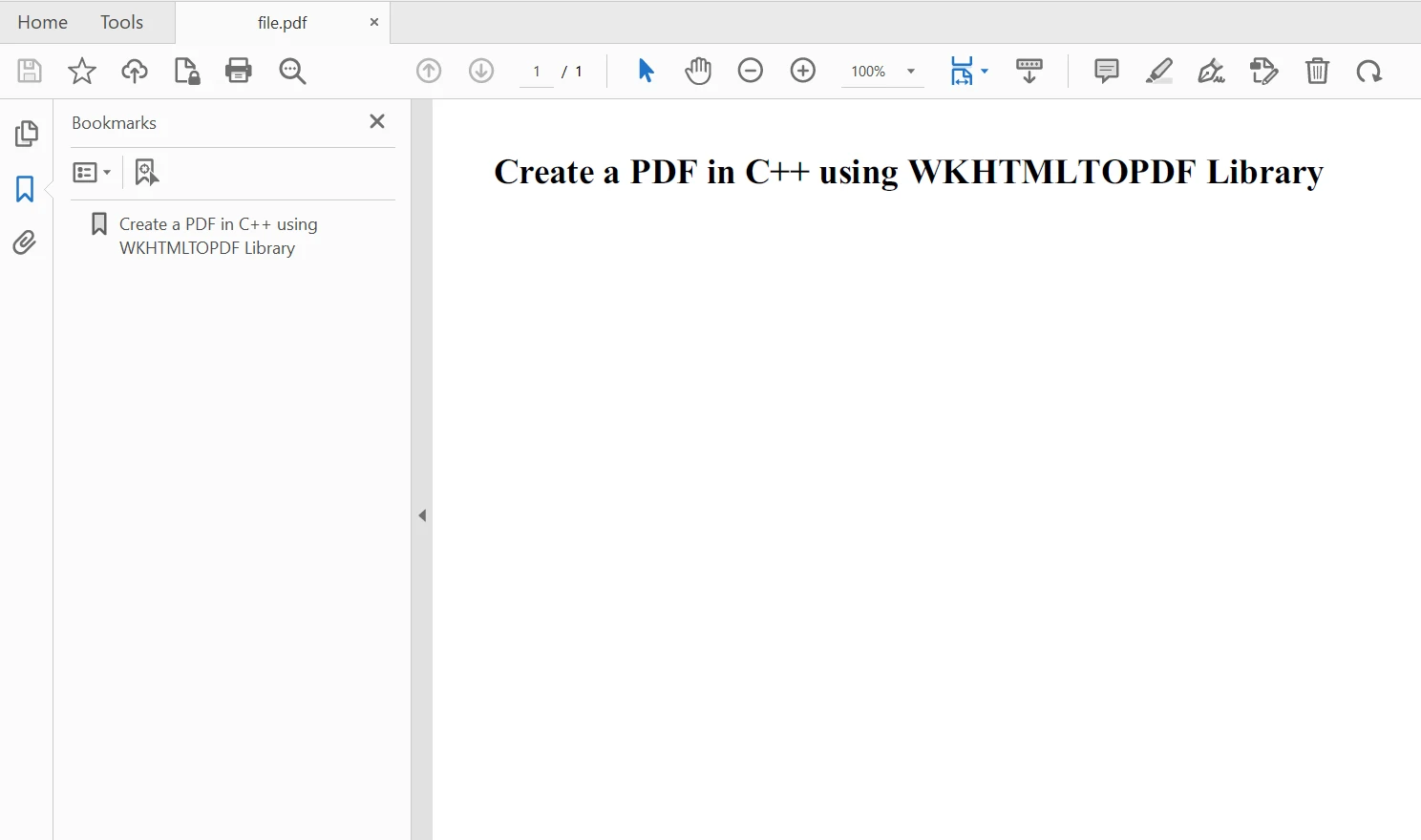
Teraz, skompiluj projekt i wykonaj kod używając F9. Wynik jest generowany i zapisany w folderze projektu. Wynikowy PDF wygląda następująco:
Create PDF File in C#
IronPDF
IronPDF to biblioteka PDF .NET C#, która pozwala deweloperom tworzyć dokumenty PDF z HTML z łatwością. Oferuje intuicyjne API, które upraszcza proces tworzenia plików PDF z HTML.
IronPDF jest solidny i wszechstronny, jeśli chodzi o pracę z PDFami. Tworzy PDF nie tylko z prostych dokumentów HTML, ale także złożonych stron internetowych z stylowaniem CSS, interakcjami JavaScript i nawet dynamiczną zawartością. Ponadto można opracować różne konwertery PDF z szybkim dostępem do metod konwersji.
Oto przykładowy kod, aby tworzyć PDF z IronPDF wykorzystując konwersję ciągu HTML na PDF:
using IronPdf;

// Instantiate Renderer
var renderer = new ChromePdfRenderer();

// Create a PDF from an HTML string using C#
var pdf = renderer.RenderHtmlAsPdf("<h1>Hello World</h1>");

// Export to a file or Stream
pdf.SaveAs("output.pdf");
using IronPdf;

// Instantiate Renderer
var renderer = new ChromePdfRenderer();

// Create a PDF from an HTML string using C#
var pdf = renderer.RenderHtmlAsPdf("<h1>Hello World</h1>");

// Export to a file or Stream
pdf.SaveAs("output.pdf");
Imports IronPdf
' Instantiate Renderer
Private renderer = New ChromePdfRenderer()
' Create a PDF from an HTML string using C#
Private pdf = renderer.RenderHtmlAsPdf("<h1>Hello World</h1>")
' Export to a file or Stream
pdf.SaveAs("output.pdf")
Imports IronPdf

' Instantiate Renderer
Private renderer = New ChromePdfRenderer()

' Create a PDF from an HTML string using C#
Private pdf = renderer.RenderHtmlAsPdf("<h1>Hello World</h1>")

' Export to a file or Stream
pdf.SaveAs("output.pdf")
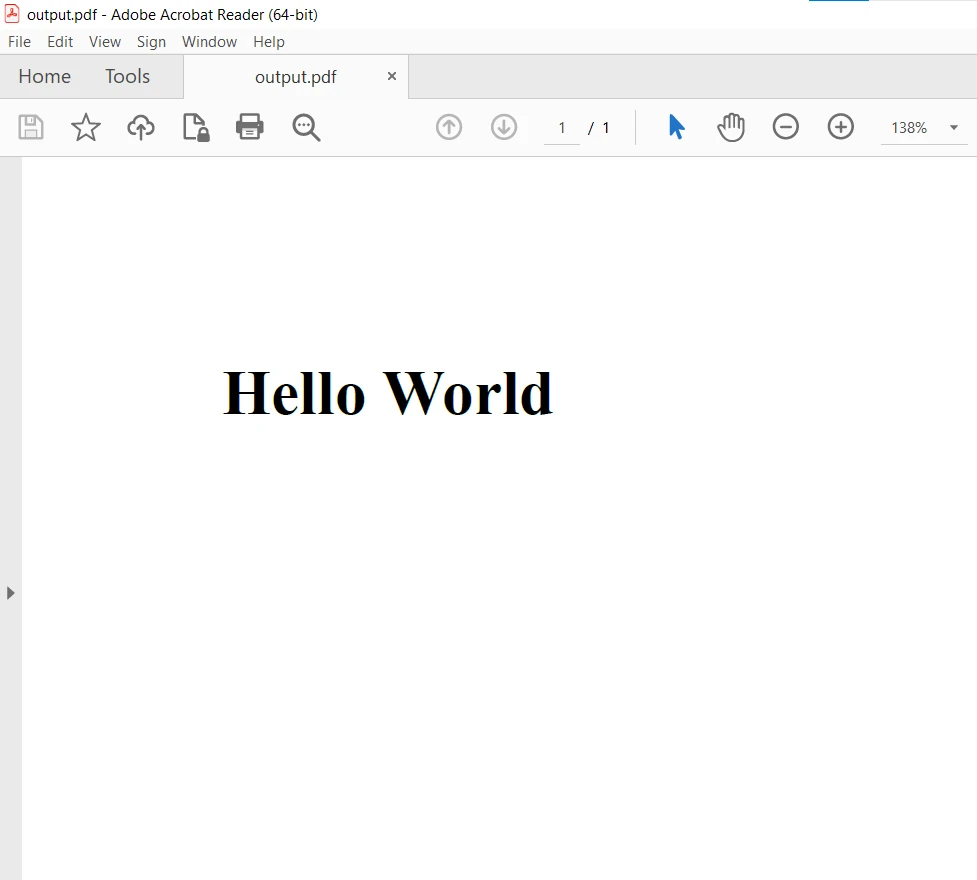
Tworzymy instancję ChromePdfRenderer, aby renderować zawartość HTML jako PDF. Wywołujemy metodę RenderHtmlAsPdf na obiekcie renderer i przekazujemy ciąg HTML. To generuje dokument PDF, a następnie zapisujemy dokument PDF za pomocą metody SaveAs.
Aby uzyskać więcej szczegółów o tym, jak tworzyć PDF z różnych zasobów za pomocą IronPDF, odwiedź tę stronę przykładów kodu IronPDF.
Wnioski
W tym artykule przyjrzeliśmy się generowaniu PDF w C++ z użyciem wkhtmltopdf C++ Library i również nauczyliśmy się, jak używać IronPDF do generowania dokumentów PDF w C#.
Z IronPDF, generowanie plików PDF z zawartości HTML staje się prostym zadaniem w językach .NET Framework. Jego bogaty zestaw funkcji czyni go cennym narzędziem dla programistów potrzebujących konwersji HTML na PDF w swoich projektach C#. Niezależnie od tego, czy to generowanie raportów, faktur, czy innego dokumentu wymagającego dokładnej konwersji HTML na PDF, IronPDF jest niezawodnym i efektywnym rozwiązaniem.
IronPDF jest darmowy do celów deweloperskich, ale do użytku komercyjnego trzeba go licencjonować. Oferuje również darmową wersję próbną do użytku komercyjnego, aby przetestować jego pełną funkcjonalność. Pobierz IronPDF i spróbuj samodzielnie.













