



Zaktualizowano 21 kwietnia 2026
Jak przekonwertować plik TIFF na PDF w Javie
Ten kompleksowy przewodnik przeprowadzi Cię krok po kroku przez proces płynnej konwersji obrazu TIFF do formatu PDF w Javie przy użyciu IronPDF.
Czytaj więcej

Ten artykul zglebi IronPDF do programowego tworzenia dokumentow PDF.
Biblioteka PDF dla Javy autorstwa IronPDF umozliwia programistom tworzenie, edytowanie i manipulowanie dokumentami PDF w ich aplikacjach Java. Programisci Java, ktorzy musza tworzyc pliki PDF z danych swoich aplikacji, znajda te biblioteke jako doskonaly wybor, poniewaz oferuje szeroki zestaw funkcjonalnosci.
IronPDF oferuje takie funkcje jak dodawanie nowej tresci HTML, osadzanie naglowkow i stopki HTML, tworzenie i dodawanie pieczeci oraz znakow wodnych, tworzenie plikow PDF chronionych haslem, stosowanie podpisow cyfrowych do plikow PDF, ulepszanie dokumentow za pomoca tla i pierwszoplanowych elementow, tworzenie pelnych plikow PDF z dokumentow XML, dodawanie i edytowanie adnotacji oraz korzystanie z kontur i zakladek dla lepszej nawigacji. Przyjrzyjmy sie temu blizej.
Z IronPDF programisci moga latwo dodawac nowe tresci HTML do swoich dokumentow PDF. Jest to swietna funkcja dla programistow, ktorzy chca dynamicznie generowac swoje formularze PDF z bogatymi tresciami HTML. Biblioteka obsluguje wiele elementow HTML, w tym obrazki, linki i tabele, miedzy innymi. Tresc HTML moze byc stylizowana za pomoca CSS, co ulatwia tworzenie profesjonalnie wygladajacych dokumentow PDF.
import com.ironsoftware.ironpdf.*;
import java.io.IOException;
import java.nio.file.Paths;

// Apply your license key
License.setLicenseKey("YOUR-LICENSE-KEY");

// Set a log path
Settings.setLogPath(Paths.get("C:/tmp/IronPdfEngine.log"));

// Render the HTML as a PDF. Stored in myPdf as type PdfDocument.
PdfDocument myPdf = PdfDocument.renderHtmlAsPdf("<h1>Hello World</h1> Made with IronPDF!");

// Save the PdfDocument to a file
myPdf.saveAs(Paths.get("html_saved.pdf"));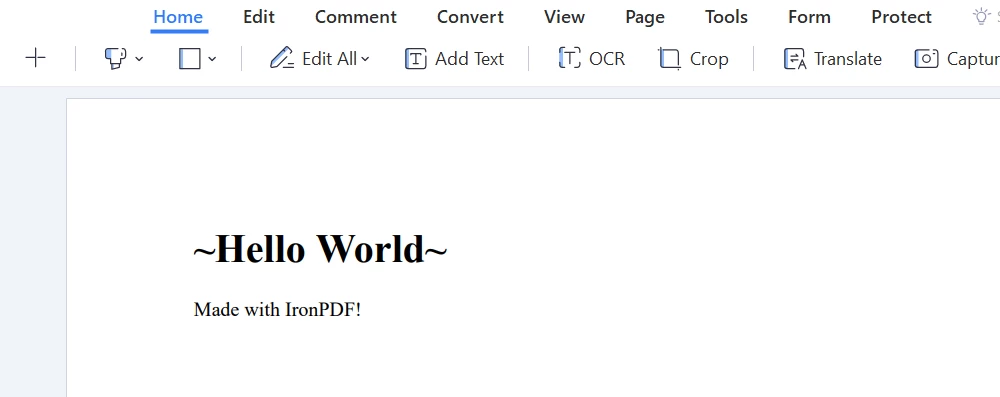 Wynik w formacie PDF
Naglowki i stopki sa niezbednymi elementami wielu dokumentow PDF, a IronPDF ulatwia integracje naglowkow i stopki HTML z dokumentami PDF. Dzieki IronPDF programisci moga dodawac niestandardowe naglowki i stopki, w tym tekst, obrazki i numery stron, do swoich dokumentow PDF. Funkcja ta jest szczegolnie przydatna dla firm, ktore musza dodawac branding lub informacje o prawach autorskich do swoich dokumentow.
import com.ironsoftware.ironpdf.PdfDocument;
import com.ironsoftware.ironpdf.headerfooter.HtmlHeaderFooter;
import java.io.IOException;
import java.nio.file.Paths;
import java.util.List;
import java.util.ArrayList;

// Render a PDF from a URL
PdfDocument pdf = PdfDocument.renderUrlAsPdf("https://ironpdf.com");

// Build a footer using HTML
HtmlHeaderFooter footer = new HtmlHeaderFooter();
footer.setMaxHeight(15); // millimeters
footer.setHtmlFragment("<center><i>{page} of {total-pages}</i></center>");
footer.setDrawDividerLine(true);
pdf.addHtmlFooter(footer);
List<PdfDocument> pdfs = new ArrayList<>();

// Build a header using an image asset
HtmlHeaderFooter header = new HtmlHeaderFooter();
header.setMaxHeight(20); // millimeters
header.setHtmlFragment("<img src=\"logo.png\" />");
header.setBaseUrl("./assets/");
pdf.addHtmlHeader(header);

try {
    pdf.saveAs(Paths.get("assets/html_headers_footers.pdf"));
} catch (IOException e) {
    throw new RuntimeException(e);
}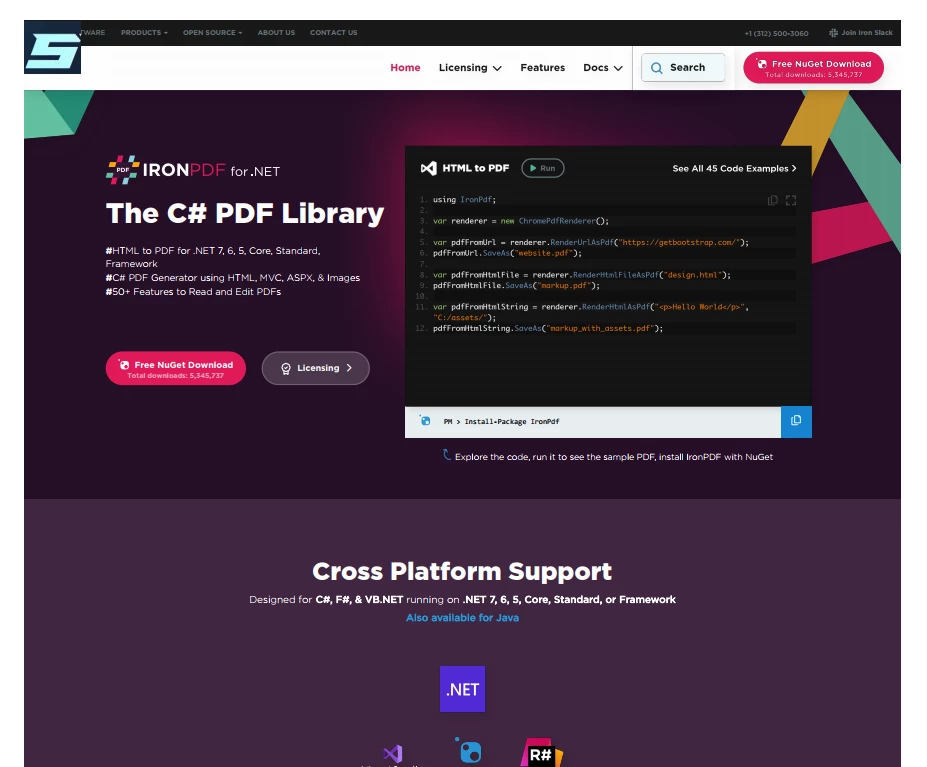 Wynik w formacie PDF
Korzystajac z IronPDF, programisci moga dodawac pieczecie i znaki wodne do swoich dokumentow PDF. Znaki wodne to przezroczyste obrazy lub tekst pojawiajace sie w tlesie dokumentu, podczas gdy pieczecie dodaja niestandardowa wiadomosc lub obrazek do nowego dokumentu.
Te funkcje sa doskonale dla firm, ktore potrzebuja chronic swoje dokumenty przed nieautoryzowanym uzyciem lub dodac niestandardowa wiadomosc do swoich dokumentow.
package IronPDF.ironpdf_java;

import java.io.IOException;
import java.nio.file.Paths;
import com.ironsoftware.ironpdf.*;
import com.ironsoftware.ironpdf.stamp.HorizontalAlignment;
import com.ironsoftware.ironpdf.stamp.VerticalAlignment;

public class Test {
    public static void main(String[] args) throws IOException {
        License.setLicenseKey("Your-License");

        // Load an existing PDF from the filesystem
        PdfDocument pdf = PdfDocument.fromFile(Paths.get("C:\\byteToPdf.pdf"));

        // Apply a watermark to the PDF
        pdf.applyWatermark("<h2 style='color:red'>SAMPLE</h2>", 30, VerticalAlignment.TOP, HorizontalAlignment.CENTER);

        // Save the watermarked PDF
        pdf.saveAs(Paths.get("assets/watermark.pdf"));
    }
}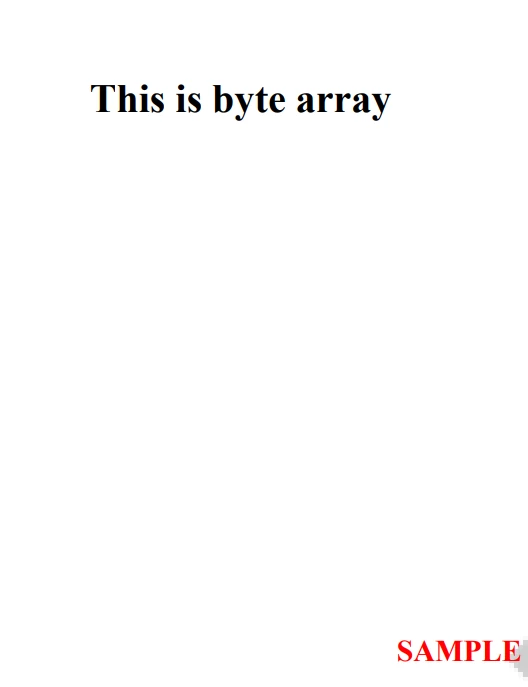 Wynik w formacie PDF
IronPDF pozwala rowniez na implementowanie niestandardowych tla i pierwszoplanowych elementow w dokumentach PDF. Elementy pierwszoplanowe sluza do dodawania niestandardowego tekstu lub obrazow na wierzch dokumentu, natomiast tla dodaja niestandardowy obraz lub kolor do tla. Wlasciciele firm, ktorzy chca, aby ich dokumenty lub formularze PDF mialy niestandardowy branding lub grafike, znajda te funkcje szczegolnie przydatna.
import com.ironsoftware.ironpdf.*;
import java.io.IOException;
import java.nio.file.Paths;

public class BackgroundForegroundExample {

    public static void main(String[] args) throws IOException {
        // Load background and foreground PDFs from the filesystem
        PdfDocument backgroundPdf = PdfDocument.fromFile(Paths.get("assets/MyBackground.pdf"));
        PdfDocument foregroundPdf = PdfDocument.fromFile(Paths.get("assets/MyForeground.pdf"));

        // Render content (HTML, URL, etc) as a PDF Document
        PdfDocument pdf = PdfDocument.renderUrlAsPdf("https://www.nuget.org/packages/IronPdf");

        // Add the background and foreground PDFs to the newly-rendered document.
        pdf.addBackgroundPdf(backgroundPdf);
        pdf.addForegroundPdf(foregroundPdf);

        // Save the document with background and foreground
        pdf.saveAs(Paths.get("assets/BackgroundForegroundPdf.pdf"));
    }
}Adnotacje to swietny sposob na dodawanie dodatkowych informacji do dokumentow PDF, takich jak notatki, komentarze lub podswietlenia. Z IronPDF programisci moga latwo skutecznie zarzadzac adnotacjami, dodawajac i edytujac je w swoich dokumentach PDF.
import com.ironsoftware.ironpdf.PdfDocument;
import com.ironsoftware.ironpdf.annotation.AnnotationIcon;
import com.ironsoftware.ironpdf.annotation.AnnotationManager;
import com.ironsoftware.ironpdf.annotation.AnnotationOptions;
import java.io.IOException;
import java.nio.file.Paths;

public class AnnotationExample {

    public static void main(String[] args) throws IOException {
        // Load an existing PDF from the file system
        PdfDocument pdf = PdfDocument.fromFile(Paths.get("assets/example.pdf"));

        // Create an annotation to be placed at a specific location on a page.
        AnnotationOptions annotation = new AnnotationOptions(
            "This is a major title", // Title of the annotation
            "This is the long 'sticky note' comment content...", // Content of the annotation
            150, // x-axis coordinate location
            250  // y-axis coordinate location
        );
        annotation.setIcon(AnnotationIcon.HELP);
        annotation.setOpacity(0.9);
        annotation.setPrintable(false);
        annotation.setHidden(false);
        annotation.setOpen(true);
        annotation.setReadonly(true);
        annotation.setRotateable(true);

        // Add the annotation to a specific page of the PDF
        AnnotationManager annotationManager = pdf.getAnnotation();
        annotationManager.addTextAnnotation(annotation, 0); // Add to the first page

        // Save the PDF with the modifications
        pdf.saveAs(Paths.get("assets/annotated.pdf"));
    }
}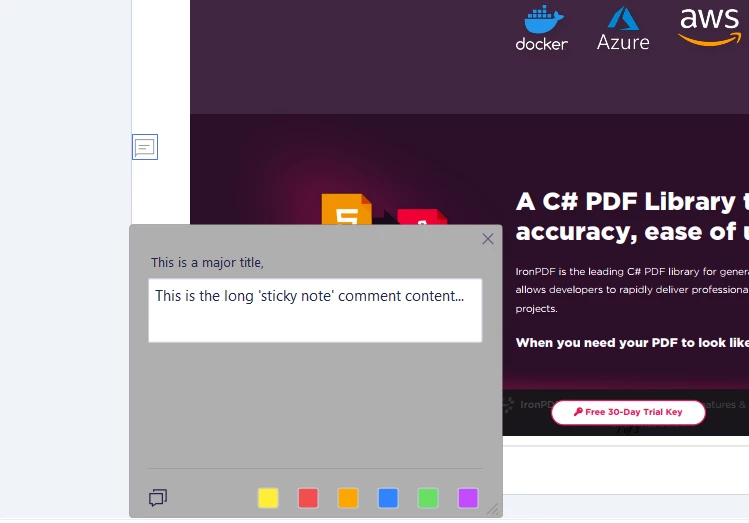 Plik wyjściowy
Programisci moga ulepszac dokumenty PDF za pomoca zakladek dzieki IronPDF. Spis treści zapewnia ogólny przegląd zawartości dokumentu, a zakładki umożliwiają szybki dostęp do konkretnych sekcji. W przypadku dużych lub złożonych dokumentów funkcja ta pozwala użytkownikom szybko przejść do wybranych sekcji.
import com.ironsoftware.ironpdf.PdfDocument;
import com.ironsoftware.ironpdf.bookmark.Bookmark;
import com.ironsoftware.ironpdf.bookmark.BookmarkManager;
import java.io.IOException;
import java.nio.file.Paths;
import java.util.List;

public class BookmarkExample {

    public static void main(String[] args) throws IOException {
        // Load an existing PDF from the file system
        PdfDocument pdf = PdfDocument.fromFile(Paths.get("assets/book.pdf"));

        // Add top-level bookmarks to pages of the PDF using their page indices
        BookmarkManager bookmarks = pdf.getBookmark();
        bookmarks.addBookMarkAtEnd("Author's Note", 2);
        bookmarks.addBookMarkAtEnd("Table of Contents", 3);
        bookmarks.addBookMarkAtEnd("Summary", 10);
        bookmarks.addBookMarkAtEnd("References", 12);

        List<Bookmark> bookmarkList = bookmarks.getBookmarks();
        Bookmark bookmark = bookmarkList.get(2);

        // Add a child bookmark
        bookmark.addChildBookmark("Conclusion", 11);

        // Save the PDF to the filesystem
        pdf.saveAs(Paths.get("assets/bookmarked.pdf"));
    }
}W tym artykułe omówiono różne funkcje IronPDF, takie jak możliwość dodawania adnotacji, zakładek, treści HTML, kolorów tła i pierwszego planu oraz nagłówków i stopek do dokumentów PDF. Artykuł zawiera szczegółowe instrukcje dotyczące wdrażania tych funkcji przy użyciu IronPDF, ułatwiając programistom tworzenie profesjonalnie wyglądających dokumentów PDF, które spełniają ich konkretne potrzeby.
Niezależnie od tego, czy tworzysz aplikację internetową, czy aplikację desktopową, IronPDF pomoże Ci usprawnić proces generowania dokumentów PDF, oszczędzając czas i wysiłek, a jednocześnie zapewniając doskonały wygląd dokumentów.
Informacje o licencjonowaniu IronPDF zaczynają się od $999. IronPDF oferuje również bezpłatną wersję próbną, umożliwiającą programistom przetestowanie biblioteki i ocenę jej możliwości przed podjęciem decyzji o zakupie. W okresie próbnym użytkownicy mają dostęp do wszystkich funkcji biblioteki, w tym do wsparcia technicznego i aktualizacji. Po okresie próbnym użytkownicy mogą zdecydować się na zakup licencji, aby nadal korzystać z biblioteki. Ceny IronPDF różnią się w zależności od liczby programistów korzystających z biblioteki oraz rodzaju licencji.

Curtis Chau posiada tytuł licencjata z informatyki (Uniwersytet Carleton) i specjalizuje się w front-endowym rozwoju, z ekspertką w Node.js, TypeScript, JavaScript i React. Pasjonuje się tworzeniem intuicyjnych i estetycznie przyjemnych interfejsów użytkownika, Curtis cieszy się pracą z nowoczesnymi frameworkami i tworzeniem dobrze zorganizowanych, atrakcyjnych wizualnie podręczników.



IronPDF jest częścią IRONSUITE
10 produktów API .NET dla twoich dokumentów biurowych

Kiedy potrzebujesz, aby twój PDF wyglądał jak HTML, szybko.

