from ironpdf import *

# Instantiate Renderer
renderer = ChromePdfRenderer()

# Create a PDF from a HTML string using Python
pdf = renderer.RenderHtmlAsPdf("<h1>Hello World</h1>")

# Export to a file or Stream
pdf.SaveAs("output.pdf")

# Advanced Example with HTML Assets
# Load external html assets: Images, CSS and JavaScript.
# An optional BasePath 'C:\site\assets\' is set as the file location to load assets from
myAdvancedPdf = renderer.RenderHtmlAsPdf("<img src='icons/iron.png'>", r"C:\site\assets")
myAdvancedPdf.SaveAs("html-with-assets.pdf")
from ironpdf import *# Instantiate Rendererrenderer = ChromePdfRenderer()# Create a PDF from a HTML string using Pythonpdf = renderer.RenderHtmlAsPdf("<h1>Hello World</h1>")# Export to a file or Streampdf.SaveAs("output.pdf")# Advanced Example with HTML Assets# Load external html assets: Images, CSS and JavaScript.# An optional BasePath 'C:\site\assets\' is set as the file location to load assets frommyAdvancedPdf = renderer.RenderHtmlAsPdf("<img src='icons/iron.png'>", r"C:\site\assets")myAdvancedPdf.SaveAs("html-with-assets.pdf")
KORZYSTANIE Z IRONPDF FOR PYTHON
Jak tworzyć pliki PDF z tekstem i obrazami w języku Python
W dzisiejszej erze cyfrowej potrzeba generowania dokumentów PDF z dynamiczną treścią, w tym tekstem i obrazami, jest powszechnym wymogiem. Python to popularny język programowania, który ułatwia automatyzację rutynowych procesów, pozwalając zaoszczędzić czas i energię. Posiadanie wszechstronnej biblioteki do [**tworzenia plików PDF z tekstem i obrazami**](https://stackoverflow.com/questions/19768495/how-do-i-create-a-pdf-file-including-images-and-text-from-python) w języku Python może być bardzo przydatne do automatycznego generowania raportów, pokwitowań lub faktur. [**IronPDF**](/python/), wszechstronna biblioteka języka Python, upraszcza proces tworzenia plików PDF o bogatej zawartości.
W tym artykułe omówimy, jak używać IronPDF do generowania plików PDF zawierających zarówno tekst, jak i obrazy w projekcie w języku Python.
## Jak tworzyć pliki PDF z tekstem i obrazami w języku Python
1. Zainstaluj bibliotekę IronPDF for Python
2. Utwórz instancję ChromePdfRenderer
3. Dodaj treść tekstową
4. Dodaj obraz jako dane binarne
5. Utwórz ciąg HTML zawierający tekst i obrazy
6. Renderowanie HTML do PDF za pomocą RenderHtmlAsPdf
7. Zapisz plik PDF za pomocą metody SaveAs
## Wprowadzenie do IronPDF
[**IronPDF**](/python/) to bogata w funkcje biblioteka języka Python, która zapewnia programistom potężne narzędzia do [**tworzenia**](/python/how-to/python-create-pdf/), modyfikowania i przetwarzania dokumentów PDF. Dzięki IronPDF można z łatwością włączać tekst, obrazy, tabele i inne elementy do plików PDF, co czyni go cennym narzędziem do szerokiego zakresu zastosowań, od generowania raportów po tworzenie dokumentów.
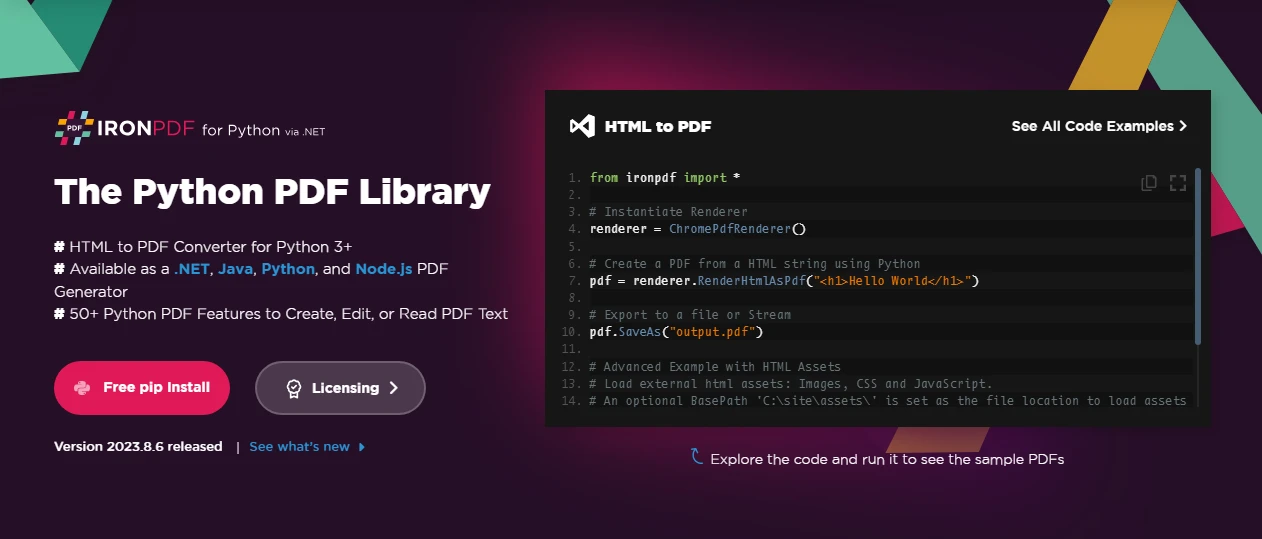
Najważniejsze cechy IronPDF:
* **Łatwa integracja:** IronPDF płynnie integruje się z popularnymi środowiskami programistycznymi Python, dzięki czemu jest dostępny dla programistów korzystających z narzędzi takich jak PyCharm.
* **Obsługa sformatowanego tekstu:** Obsługuje formatowanie tekstu, umożliwiając programistom łatwe tworzenie atrakcyjnych wizualnie dokumentów PDF.
* **Obsługa obrazów:** IronPDF umożliwia umieszczanie obrazów w plikach PDF, zapewniając elastyczność w projektowaniu i dostosowywaniu dokumentów.
* **Kompatybilność międzyplatformowa:** IronPDF działa na różnych platformach, zapewniając spójne wyświetlanie i obsługę wygenerowanych plików PDF.
## Wymagania wstępne
Zanim zaczniesz tworzyć dokumenty PDF za pomocą IronPDF, upewnij się, że spełniasz następujące wymagania wstępne:
1. **Zainstalowany Python:** Python musi być zainstalowany na komputerze. Możesz pobrać i zainstalować najnowszą wersję z oficjalnej strony internetowej Pythona ([**https://www.python.org/**](https://www.python.org/)).
2. **Środowisko IDE PyCharm:** Użyj PyCharm lub dowolnego innego środowiska IDE dla języka Python. [PyCharm](https://www.jetbrains.com/pycharm/) to popularne zintegrowane środowisko programistyczne, które zapewnia wygodną przestrzeń roboczą do tworzenia oprogramowania w języku Python.
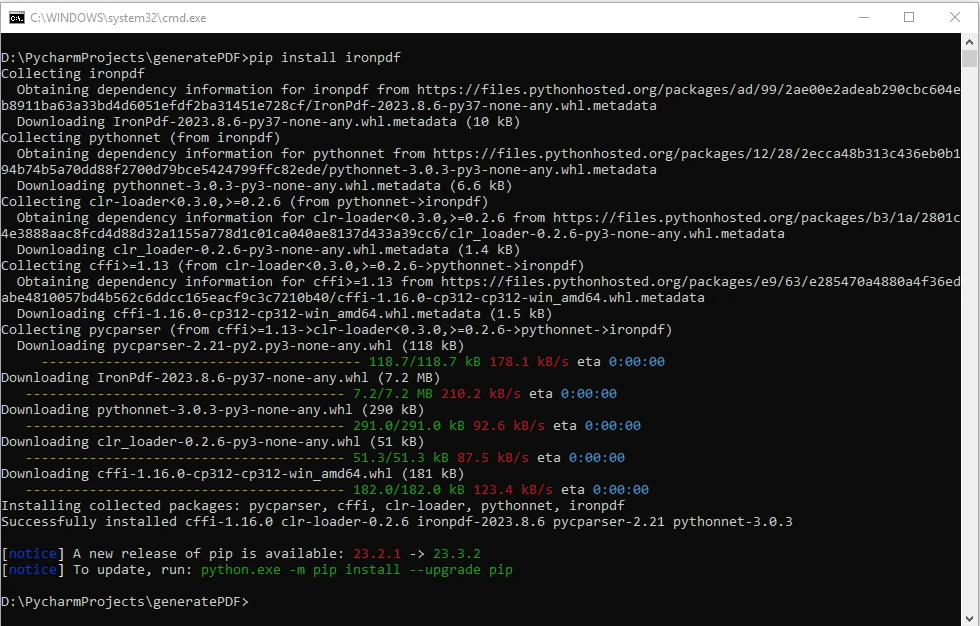
3. **IronPDF:** biblioteka IronPDF pobrana stąd lub zainstalowana za pomocą PIP (Python Package Manager). Do prawidłowego korzystania z funkcji IronPDF wymagane jest również środowisko uruchomieniowe Microsoft .NET. Użytkownicy systemów Linux, Mac i Windows mogą pobrać wersję .NET 6.0, korzystając z [**tego**](https://dotnet.microsoft.com/en-us/download/dotnet/6.0) linku do pobrania.
## Utwórz projekt Python w PyCharm
Po spełnieniu wymagań wstępnych otwórz PyCharm i utwórz nowy projekt w języku Python. Skonfiguruj środowisko wirtualne dla swojego projektu, aby efektywnie zarządzać zależnościami.
1. Kliknij **Plik > Nowy projekt**.
2. W oknie "Nowy projekt":
* Wpisz nazwę swojego projektu w polu "Lokalizacja".
* Wybierz lokalizację, w której chcesz zapisać pliki projektu.
3. W sekcji "Interpreter projektu" wybierz interpreter języka Python. Jeśli zainstalowałeś Pythona, program automatycznie wykryje interpreter Pythona.
4. Wybierz typ projektu. W przypadku prostego projektu w języku Python można pozostać przy ustawieniach domyślnych.
## Tworzenie prostego PDF z tekstem i obrazami
Chodźmy przez kroki do stworzenia jednego dokumentu PDF na jednej stronie, który zawiera zarówno tekst, jak i obraz, przy użyciu IronPDF:
### Krok 1: Importuj IronPDF
W tym kroku importujemy wszystkie wymagane moduły z IronPDF. Importujemy **ChromePdfRenderer** do renderowania PDF oraz **base64** do kodowania danych obrazu.
```python
from ironpdf import ChromePdfRenderer
import base64
```
### Krok 2: Utwórz instancję ChromePdfRenderer
Tutaj stworzymy instancję **ChromePdfRenderer**, która będzie używana do renderowania treści HTML na PDF.
```python
# Instantiate Renderer
renderer = ChromePdfRenderer()
```
### Krok 3: Dodaj Treść Tekstową
W tym kroku zdefiniujemy ciąg HTML (**html_content**), który zawiera strukturę dokumentu HTML, w tym nagłówek, treść i sekcję z treścią tekstową, która później zostanie przekonwertowana na jeden plik PDF. Stylizacja CSS jest używana do ustawienia pozycji tekstu i obrazu.
```python
# HTML String with Text
html_content = """
<!DOCTYPE html>
<html lang="en">
<head>
    <meta charset="UTF-8">
    <meta name="viewport" content="width=device-width, initial-scale=1.0">
    <title>PDF Generation Example</title>
    <style>
        body {
            margin: 0; /* Remove default margin */
            padding: 20px; /* Add padding for better visibility */
            position: relative; /* Set the body as a relative position */
        }
        header {
            text-align: center;
        }
        section {
            margin-top: 20px; /* Add margin to separate sections */
        }
        img {
            position: absolute;
            top: 20px; /* Adjust the top position */
            right: 20px; /* Adjust the right position */
        }
    </style>
</head>
<body>
    <header>
        <h1>PDF Generation Example</h1>
    </header>
    <section id="contentSection">
        <h2>Text and Image in PDF</h2>
        <p>This PDF includes both text and an embedded image:</p>
        <p>IronPDF developed by Ironsoftware is a great PDF creating library for .NET, Python, JAVA, Node.JS.</p>
"""
```
### Krok 4: Dodaj Obraz
Tutaj otworzymy i odczytamy plik obrazu (**IronPDF-logo.png**) w trybie binarnym, przekonwertujemy go na dane URI zakodowane w formacie base64 i osadzimy w ciągu HTML. Obraz jest następnie ustawiany przy użyciu stylów CSS, aby pojawił się w prawym górnym rogu.
```python
# Read image and convert to base64 string
with open("ironpdf-logo.png", "rb") as f:
    pngBinaryData = f.read()
    imgDataUri = "data:image/png;base64," + base64.b64encode(pngBinaryData).decode("utf-8")
    imgHtml = f"""<!-- Embedded Image -->
        <img src='{imgDataUri}' width=100px height=100px
            alt="IronPDF Logo">
    </section>
</body>
</html>
"""
```
### Krok 5: Połącz Treść Tekstową i Obrazową
Ten krok konkatenacji ciągów HTML tekstu i obrazu, aby utworzyć kompletną zawartość HTML (**full_html_content**), która zostanie wyrenderowana do pliku wyjściowego PDF.
```python
full_html_content = html_content + imgHtml
```
### Krok 6: Render&H&HTML jako plik PDF
Tutaj metoda **RenderHtmlAsPdf** jest używana do konwersji HTML na PDF za pomocą **ChromePdfRenderer**.
```python
# Create a PDF from the HTML string
pdf = renderer.RenderHtmlAsPdf(full_html_content)
```
### Krok 7: Zapisz plik PDF
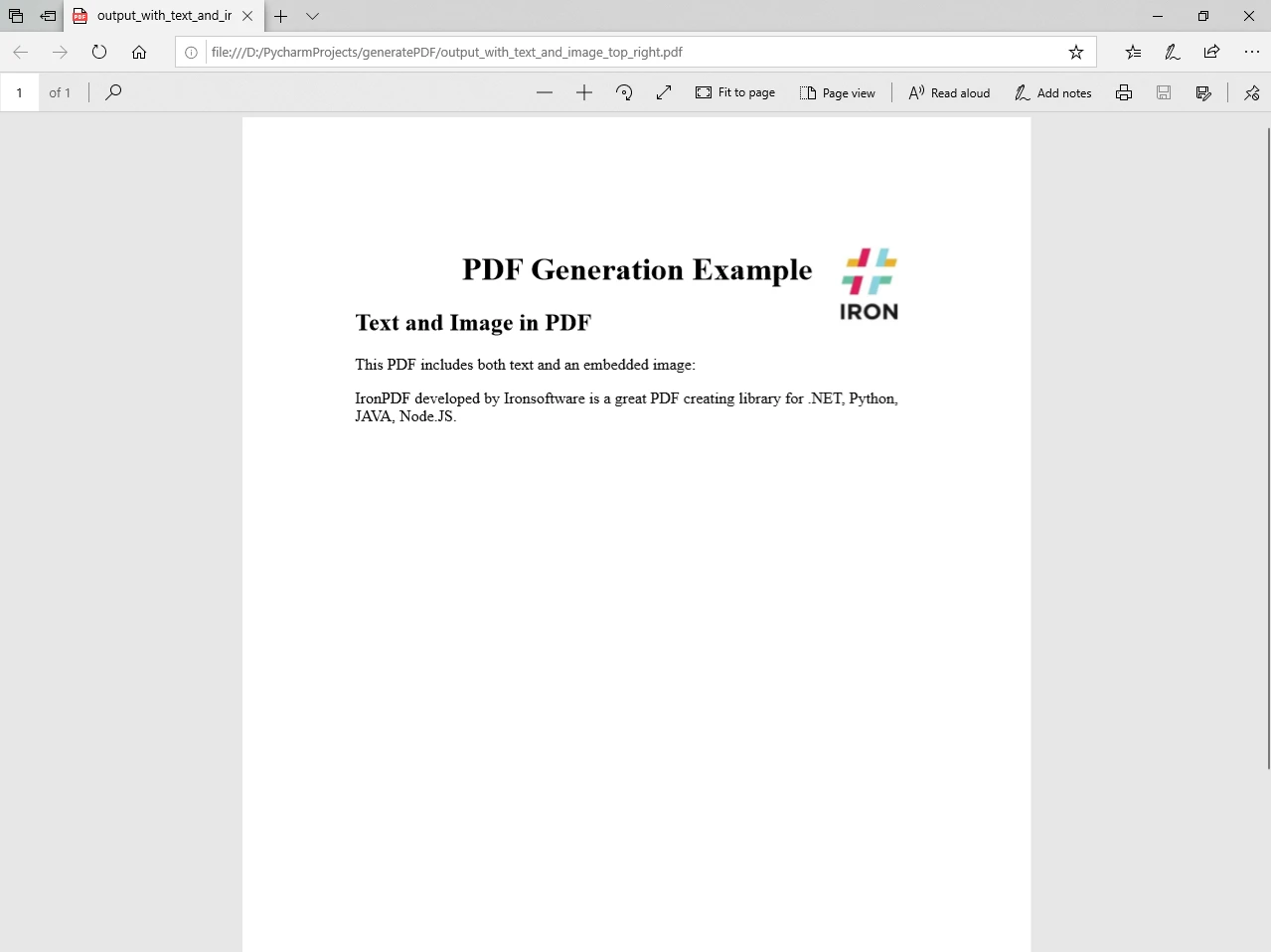
Na koniec, wygenerowany PDF jest zapisywany jako "output_with_text_and_image_top_right.pdf". Ten plik będzie zawierał sformatowany tekst i osadzony obraz umieszczony w prawym górnym rogu.
```python
# Save the PDF to a file
pdf.SaveAs("output_with_text_and_image_top_right.pdf")
```
### Wynikowy dokument PDF
Teraz po wykonaniu programu, wynikowy plik PDF wygląda następująco:
Podobnie, wiele stron PDF może być dodawanych do pliku PDF z łatwością.
## Zaawansowane Użycie: Dostosowanie Pozycji Tekstu i Obrazu
IronPDF oferuje dodatkowe funkcje pozwalające na precyzyjne dostosowanie położenia i stylizacji tekstu i obrazów w PDF za pomocą zewnętrznego pliku CSS/JavaScript. Ścieżka bazowa może być przesłana jako opcjonalny argument do metody RenderHtmlAsPdf, jak pokazano w poniższym kodzie:
```python
# Advanced Example with HTML Assets
# Load external HTML assets: Images, CSS, and JavaScript.
# An optional BasePath 'C:\site\assets\' is set as the file location to load assets from.
myAdvancedPdf = renderer.RenderHtmlAsPdf("<img src='icons/iron.png'>", r"C:\site\assets")
myAdvancedPdf.SaveAs("html-with-assets.pdf")
```
W tym zaawansowanym przykładzie kodu rozwijamy koncepcję osadzania obrazu z zewnętrznych źródeł. Zawartość HTML w metodzie **RenderHtmlAsPdf** zawiera tag **<img />** wskazujący na plik obrazu (**iron.png**) umieszczony w określonym katalogu zasobów (**C:\site\assets\**). Ponadto, ten katalog jest ustawiany jako parametr **BasePath**.
W **RenderHtmlAsPdf** możesz przesłać kompletną stronę HTML, jak pokazano w powyższych krokach. Plik CSS może być referencjonowany przy użyciu ścieżki bazowej jako drugiego opcjonalnego parametru. Aby uzyskać bardziej szczegółowe informacje na temat innych sposobów generowania formatu PDF lub modyfikowania istniejącego pliku PDF, odwiedź stronę [**przykładów kodu**](/python/examples/using-html-to-create-a-pdf/) oraz [**dokumentację**](/python/docs/).
## Wnioski
W tym artykule omówiliśmy, jak używać [**IronPDF**](/python/) do tworzenia plików PDF z tekstem i obrazami w projekcie Python. Dzięki intuicyjnemu API i potężnym funkcjom, IronPDF umożliwia programistom generowanie dynamicznych i atrakcyjnych wizualnie dokumentów PDF bez większego wysiłku. Niezależnie od tego, czy tworzysz raporty, dokumentację, czy jakikolwiek inny typ treści, IronPDF oferuje niezawodne i elastyczne rozwiązanie do generowania PDF w Pythonie. Eksperymentuj z opcjami dostosowywania, aby dostosować swoje PDF-y do konkretnych wymagań projektowych, czyniąc IronPDF cennym narzędziem do generacji dokumentów.
Licencja IronPDF [**license**](licensing) lub możesz [**skontaktować się z pomocą techniczną**](https://ironsoftware.com/contact-us/#live-chat-support) w celu uzyskania dalszych pytań.
Możesz pobrać i zainstalować bibliotekę z [**strony internetowej**](/python/) IronPDF.
W dzisiejszej erze cyfrowej potrzeba generowania dokumentów PDF z dynamiczną treścią, w tym tekstem i obrazami, jest powszechnym wymogiem. Python to popularny język programowania, który ułatwia automatyzację rutynowych procesów, pozwalając zaoszczędzić czas i energię. Posiadanie wszechstronnej biblioteki do tworzenia plików PDF z tekstem i obrazami w języku Python może być bardzo przydatne do automatycznego generowania raportów, pokwitowań lub faktur. IronPDF, wszechstronna biblioteka języka Python, upraszcza proces tworzenia plików PDF o bogatej zawartości.
W tym artykułe omówimy, jak używać IronPDF do generowania plików PDF zawierających zarówno tekst, jak i obrazy w projekcie w języku Python.
Jak tworzyć pliki PDF z tekstem i obrazami w języku Python
Zainstaluj bibliotekę IronPDF for Python
Utwórz instancję ChromePdfRenderer
Dodaj treść tekstową
Dodaj obraz jako dane binarne
Utwórz ciąg HTML zawierający tekst i obrazy
Renderowanie HTML do PDF za pomocą RenderHtmlAsPdf
Zapisz plik PDF za pomocą metody SaveAs
Wprowadzenie do IronPDF
IronPDF to bogata w funkcje biblioteka języka Python, która zapewnia programistom potężne narzędzia do tworzenia, modyfikowania i przetwarzania dokumentów PDF. Dzięki IronPDF można z łatwością włączać tekst, obrazy, tabele i inne elementy do plików PDF, co czyni go cennym narzędziem do szerokiego zakresu zastosowań, od generowania raportów po tworzenie dokumentów.
Najważniejsze cechy IronPDF:
Łatwa integracja: IronPDF płynnie integruje się z popularnymi środowiskami programistycznymi Python, dzięki czemu jest dostępny dla programistów korzystających z narzędzi takich jak PyCharm.
Obsługa obrazów: IronPDF umożliwia umieszczanie obrazów w plikach PDF, zapewniając elastyczność w projektowaniu i dostosowywaniu dokumentów.
Kompatybilność międzyplatformowa: IronPDF działa na różnych platformach, zapewniając spójne wyświetlanie i obsługę wygenerowanych plików PDF.
Wymagania wstępne
Zanim zaczniesz tworzyć dokumenty PDF za pomocą IronPDF, upewnij się, że spełniasz następujące wymagania wstępne:
Zainstalowany Python: Python musi być zainstalowany na komputerze. Możesz pobrać i zainstalować najnowszą wersję z oficjalnej strony internetowej Pythona (https://www.python.org/).
Środowisko IDE PyCharm: Użyj PyCharm lub dowolnego innego środowiska IDE dla języka Python. PyCharm to popularne zintegrowane środowisko programistyczne, które zapewnia wygodną przestrzeń roboczą do tworzenia oprogramowania w języku Python.
IronPDF: biblioteka IronPDF pobrana stąd lub zainstalowana za pomocą PIP (Python Package Manager). Do prawidłowego korzystania z funkcji IronPDF wymagane jest również środowisko uruchomieniowe Microsoft .NET. Użytkownicy systemów Linux, Mac i Windows mogą pobrać wersję .NET 6.0, korzystając z tego linku do pobrania.
Utwórz projekt Python w PyCharm
Po spełnieniu wymagań wstępnych otwórz PyCharm i utwórz nowy projekt w języku Python. Skonfiguruj środowisko wirtualne dla swojego projektu, aby efektywnie zarządzać zależnościami.
Kliknij Plik > Nowy projekt.
W oknie "Nowy projekt":
Wpisz nazwę swojego projektu w polu "Lokalizacja".
Wybierz lokalizację, w której chcesz zapisać pliki projektu.
W sekcji "Interpreter projektu" wybierz interpreter języka Python. Jeśli zainstalowałeś Pythona, program automatycznie wykryje interpreter Pythona.
Wybierz typ projektu. W przypadku prostego projektu w języku Python można pozostać przy ustawieniach domyślnych.














