

Jak wygenerować plik PDF w języku Python

In the ever-evolving field of software development, creating and manipulating PDF (Portable Document Format) files is a common requirement. Python, being a versatile and powerful programming language, offers various libraries for handling PDF generation tasks. One such library is IronPDF, a comprehensive tool that simplifies PDF generation in Python.
In this article, we will explore IronPDF for Python, its features, the prerequisites for using it, and step-by-step instructions to generate PDFs in a Python project using IronPDF.
Python PDF Generation Tutorial
- Zainstaluj bibliotekę IronPDF for Python
- Instantiate
ChromePdfRendererObject - Generate a PDF document using an HTML string
- Generate a PDF document using an HTML file
- Generate a PDF document using a URL
IronPDF - Introduction and Features
IronPDF is a Python library that helps to create PDF documents, and edit or manipulate any existing PDF files within Python applications.
It provides a simple yet powerful API to create PDF files with features like text formatting, images, tables, and more.
With IronPDF, developers can seamlessly integrate PDF functionality into their Python projects, making it an ideal choice for a wide range of applications, including reports, invoices, and documentation.
Najważniejsze cechy IronPDF:
- Easy Integration: IronPDF seamlessly integrates with popular Python development environments, making it accessible to developers using tools like PyCharm.
- Rich Text Support: It supports rich text formatting, allowing developers to create visually appealing PDF documents with ease.
- Image Handling: IronPDF enables the inclusion of images in PDFs, providing flexibility in designing and customizing documents.
- Cross-Platform Compatibility: IronPDF works across different platforms, ensuring that generated PDFs can be viewed and interacted with consistently.
- Document Settings: IronPDF offers robust document settings, empowering users to control PDF metadata, set permissions and passwords for enhanced security to generate encrypted PDF files, and seamlessly integrate digital signatures for document authenticity and integrity.
Wymagania wstępne
Before diving into the PDF generation process using IronPDF, ensure that you have the following prerequisites in place:
- Python Installed: Python programming language needs to be installed on your system. You can download and install the latest version from the official Python website (https://www.python.org/).
- PyCharm IDE: Use PyCharm or any other Python IDE of your choice. PyCharm is a popular integrated development environment that provides a comfortable workspace for Python development.
- IronPDF: biblioteka IronPDF pobrana stąd lub zainstalowana za pomocą PIP (Python Package Manager). .NET runtime is also required to successfully use IronPDF functionality. Linux, Mac, and Windows users can download the .NET 6.0 version from here.
Create a Python Project in PyCharm
Po spełnieniu wymagań wstępnych otwórz PyCharm i utwórz nowy projekt w języku Python. Skonfiguruj środowisko wirtualne dla swojego projektu, aby efektywnie zarządzać zależnościami.
- Kliknij Plik > Nowy projekt.
- W oknie "Nowy projekt":
- Enter a name for your project in the "Location" field.
- Choose the location where you want to save your project files.
- Under "Project Interpreter," select the Python interpreter you configured in Step 3.
Wybierz typ projektu. W przypadku prostego projektu w języku Python można pozostać przy ustawieniach domyślnych.
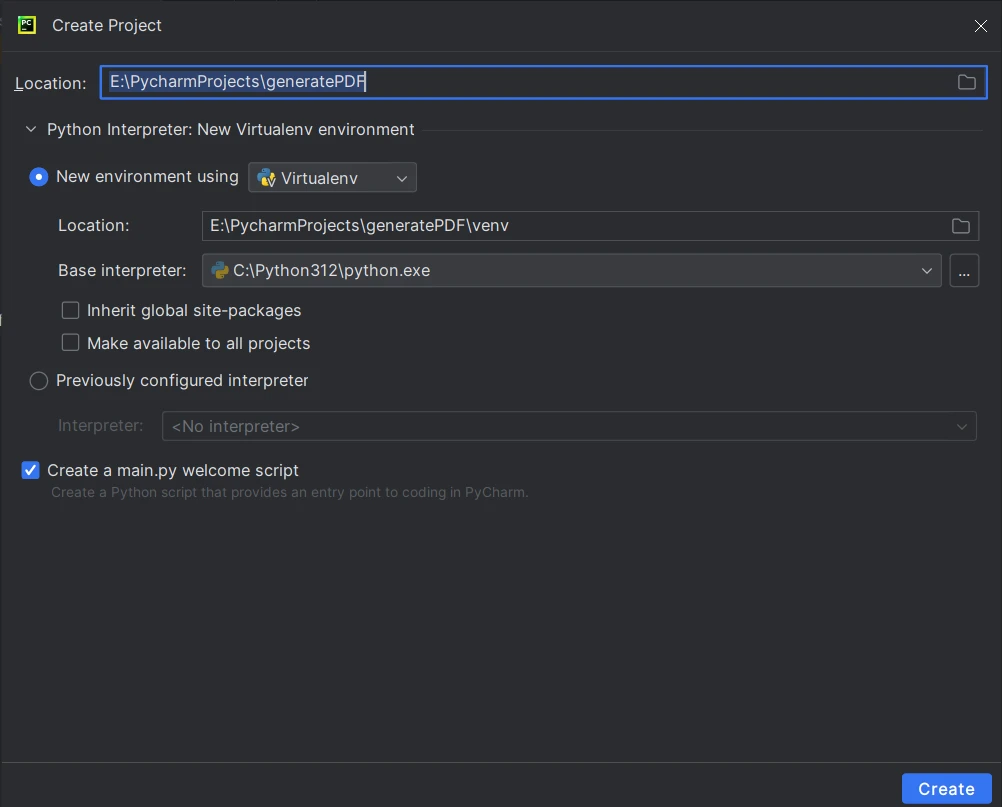
- Click Create to create the project.
Install IronPDF for Python Using PIP
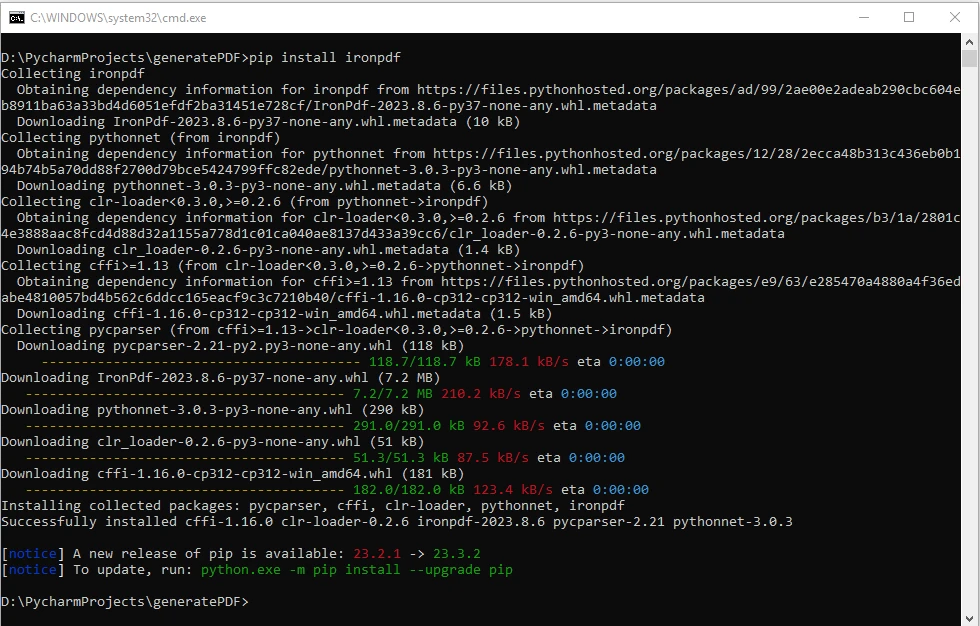
To install IronPDF, use the following PIP command in your project's terminal or command prompt:
pip install ironpdf
This command will automatically download and install the IronPDF library along with its dependencies.
Steps to Generate PDF in Python
Now that IronPDF is installed, we'll explore three common scenarios for PDF generation using IronPDF: from an HTML string, an HTML file, and a URL.
1. Generate PDF using an HTML String
IronPDF allows you to generate PDFs from HTML. For creating PDF files from an HTML string, you can follow these simple steps:
from ironpdf import ChromePdfRenderer

# Instantiate ChromePdfRenderer
renderer = ChromePdfRenderer()

# Create a PDF from an HTML string using Python
pdf = renderer.RenderHtmlAsPdf("<h1>Hello World</h1>")

# Export the PDF to a file
pdf.SaveAs("output_htmlstring.pdf")
from ironpdf import ChromePdfRenderer
# Instantiate ChromePdfRenderer
renderer = ChromePdfRenderer()
# Create a PDF from an HTML string using Python
pdf = renderer.RenderHtmlAsPdf("<h1>Hello World</h1>")
# Export the PDF to a file
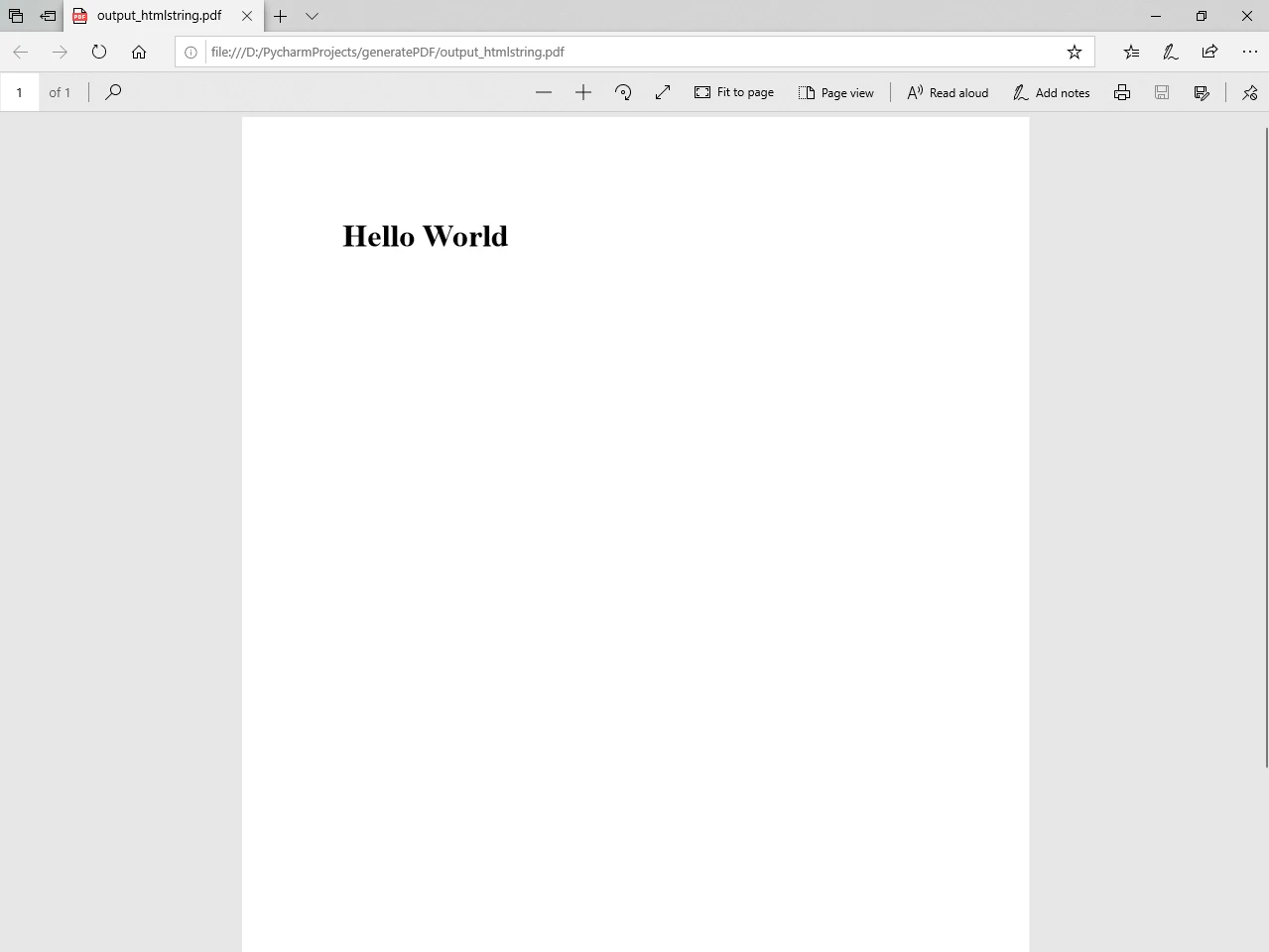
pdf.SaveAs("output_htmlstring.pdf")This code initializes the ChromePdfRenderer, renders an HTML string as a PDF, and saves the PDF document to a file named "output_htmlstring.pdf".
You can also handle more complex scenarios by including external HTML assets such as images, CSS, and JavaScript:
# Advanced Example with HTML Assets
# Load external HTML assets: Images, CSS, and JavaScript.
# An optional BasePath 'C:\\site\\assets\\' is set as the file location to load assets from
myAdvancedPdf = renderer.RenderHtmlAsPdf("<img src='icons/iron.png'>", r"C:\site\assets")
myAdvancedPdf.SaveAs("html-with-assets.pdf")
# Advanced Example with HTML Assets
# Load external HTML assets: Images, CSS, and JavaScript.
# An optional BasePath 'C:\\site\\assets\\' is set as the file location to load assets from
myAdvancedPdf = renderer.RenderHtmlAsPdf("<img src='icons/iron.png'>", r"C:\site\assets")
myAdvancedPdf.SaveAs("html-with-assets.pdf")Output PDF File
After executing the HTML String to PDF code, you will find a file named output_htmlstring.pdf in your project directory, containing the generated PDF document.
2. Generate PDF using an HTML File
Creating a PDF from an existing HTML file is straightforward. Oto przykład:
from ironpdf import ChromePdfRenderer

# Instantiate ChromePdfRenderer
renderer = ChromePdfRenderer()

# Create a PDF from an existing HTML file using Python
pdf = renderer.RenderHtmlFileAsPdf("example.html")

# Export the PDF to a file
pdf.SaveAs("output_htmlfile.pdf")
from ironpdf import ChromePdfRenderer
# Instantiate ChromePdfRenderer
renderer = ChromePdfRenderer()
# Create a PDF from an existing HTML file using Python
pdf = renderer.RenderHtmlFileAsPdf("example.html")
# Export the PDF to a file
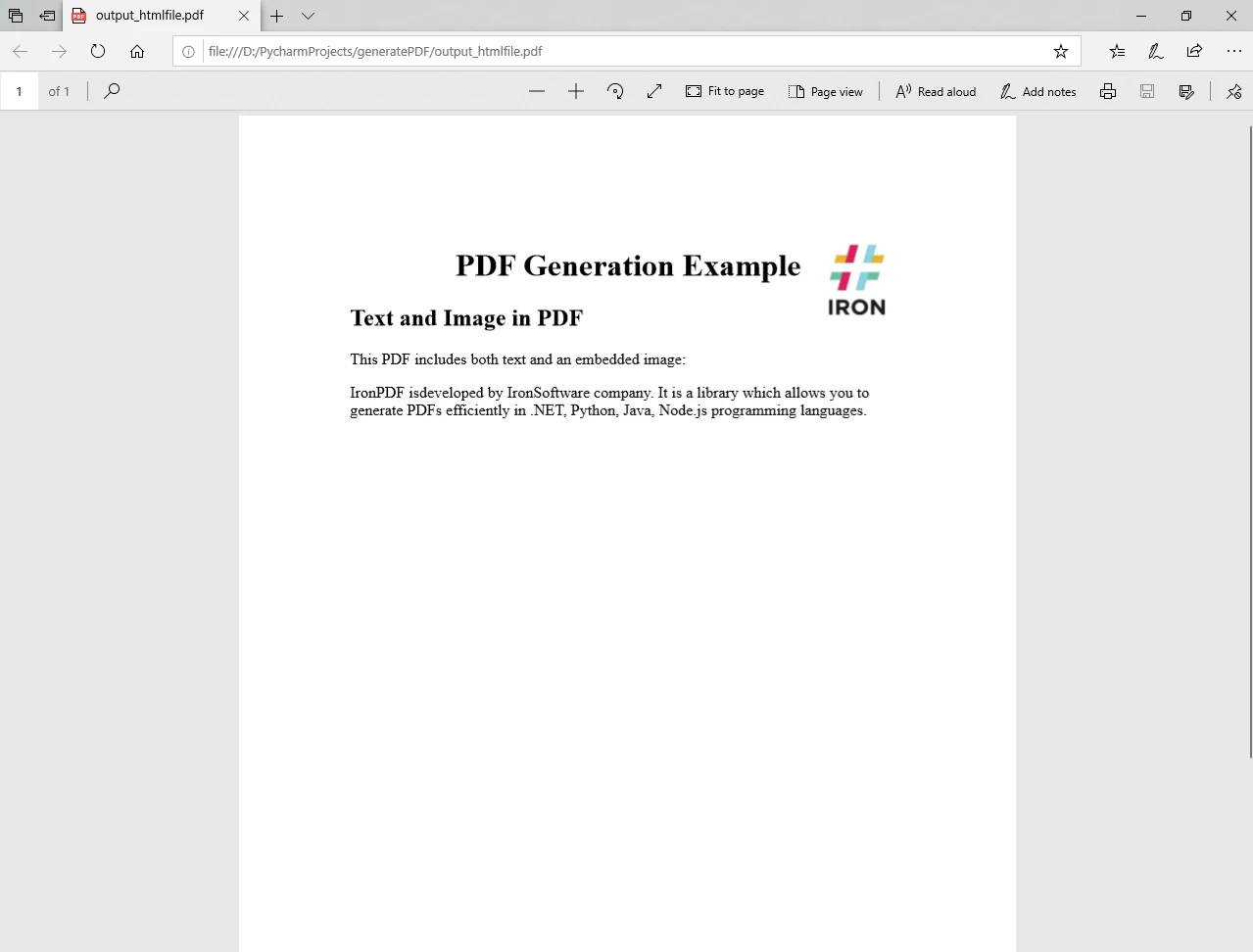
pdf.SaveAs("output_htmlfile.pdf")This snippet uses the ChromePdfRenderer to render an HTML file ("example.html") into a PDF using the RenderHtmlFileAsPdf method, and saves it as "output_htmlfile.pdf".
Output PDF File
After executing the above code, you will find a file named output_htmlfile.pdf in your project directory, containing the generated PDF document.
3. Generate PDF using a URL
Generating a PDF from a URL or a local file path is also possible with IronPDF:
from ironpdf import ChromePdfRenderer

# Instantiate ChromePdfRenderer
renderer = ChromePdfRenderer()

# Create a PDF from a URL or local file path
pdf = renderer.RenderUrlAsPdf("https://ironpdf.com/python/")

# Export the PDF to a file
pdf.SaveAs("output_url.pdf")
from ironpdf import ChromePdfRenderer
# Instantiate ChromePdfRenderer
renderer = ChromePdfRenderer()
# Create a PDF from a URL or local file path
pdf = renderer.RenderUrlAsPdf("https://ironpdf.com/python/")
# Export the PDF to a file
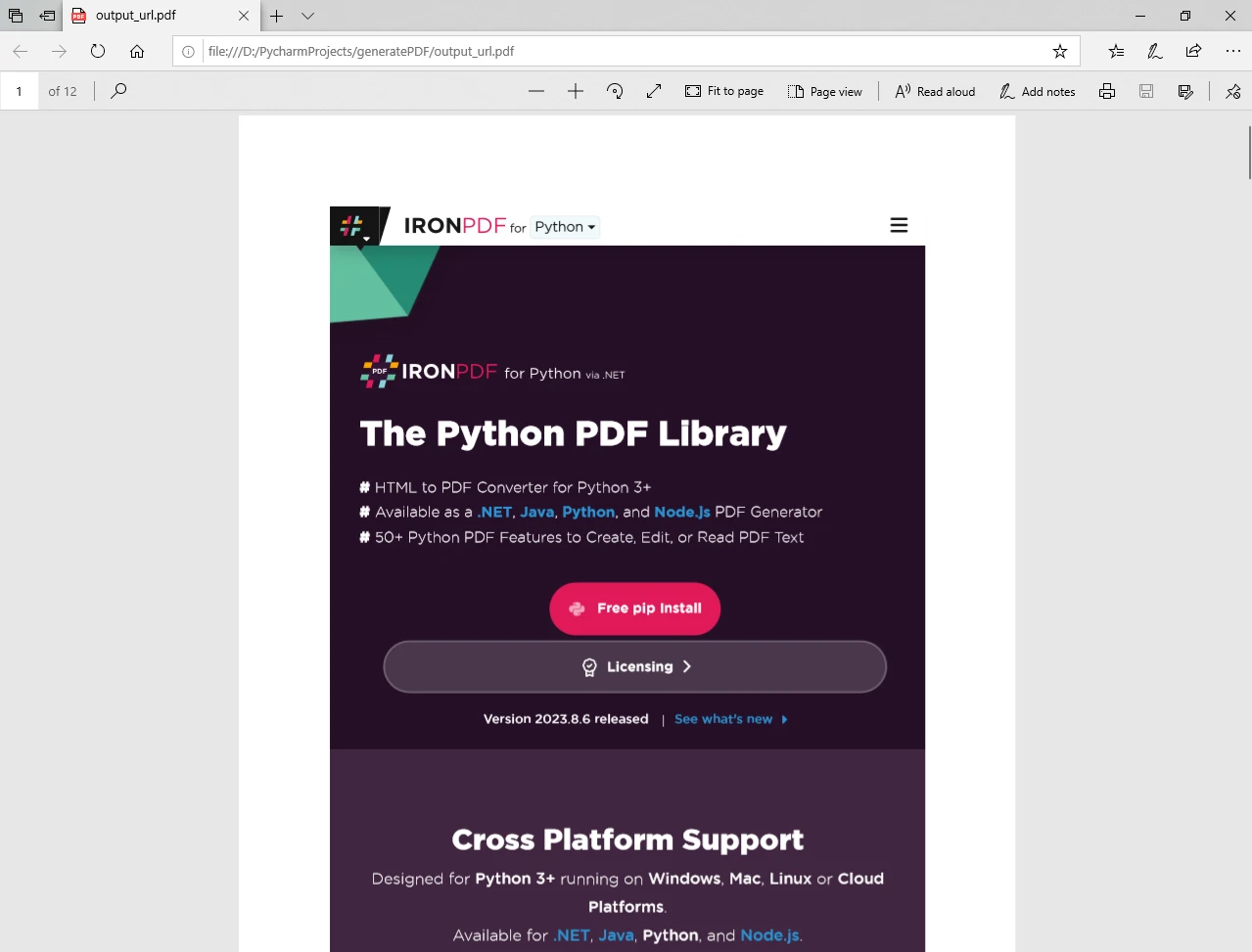
pdf.SaveAs("output_url.pdf")In this case, the code renders the content of the specified URL ("https://ironpdf.com/python/") into a PDF and saves the output file as "output_url.pdf".
Output PDF File
After executing the Python program, you will find a file named output_url.pdf in your project directory, containing the generated PDF document.
With these examples, you can leverage IronPDF to cover a range of scenarios for PDF generation in your Python projects. Whether it's simple HTML strings, existing HTML files, or content from URLs, IronPDF provides a seamless and efficient solution for your PDF generation needs.
For more information on how to generate PDF files, and manipulate and configure different options, please visit the code examples and documentation pages.
Wnioski
IronPDF simplifies PDF generation in Python, offering a feature-rich and easy-to-use library for developers. In this article, we explored the introduction and features of IronPDF, the prerequisites for using it, and a step-by-step guide to generating PDFs in a Python project.
By leveraging IronPDF, developers can enhance their applications with robust PDF functionality, opening up possibilities for creating sophisticated and professional-looking documents.
Często Zadawane Pytania
Jak wygenerować plik PDF z ciągu znaków HTML w języku Python?
Możesz użyć klasy ChromePdfRenderer biblioteki IronPDF do wygenerowania pliku PDF na podstawie ciągu znaków HTML. Użyj metody RenderHtmlAsPdf z ciągiem znaków HTML, a następnie zapisz plik PDF za pomocą metody SaveAs.
Czy mogę przekonwertować stronę internetową do formatu PDF w języku Python?
Tak, IronPDF umożliwia konwersję stron internetowych do dokumentów PDF za pomocą metody RenderUrlAsPdf. Ta funkcja jest przydatna do przechwytywania treści i układu aktywnych stron internetowych.
Jakie są warunki korzystania z biblioteki do generowania plików PDF w języku Python?
Aby korzystać z IronPDF, upewnij się, że masz zainstalowany Python, środowisko IDE takie jak PyCharm, bibliotekę IronPDF oraz środowisko uruchomieniowe .NET. IronPDF jest kompatybilny z Wersją .NET 6.0 i obsługuje systemy Linux, Mac oraz Windows.
Czy IronPDF obsługuje obsługę obrazów w dokumentach PDF?
Tak, IronPDF obsługuje obrazy, umożliwiając umieszczanie ich w dokumentach PDF. Można ładować zewnętrzne zasoby HTML, takie jak obrazy, CSS i JavaScript, podając odpowiednią ścieżkę bazową.
Jak zainstalować IronPDF for Python do generowania plików PDF?
Zainstaluj IronPDF za pomocą polecenia pip install IronPdf. Polecenie to spowoduje pobranie i zainstalowanie biblioteki IronPDF wraz z niezbędnymi zależnościami.
Jak wygląda proces tworzenia nowego projektu w języku Python do generowania plików PDF w PyCharm?
Aby utworzyć nowy projekt w języku Python w PyCharm w celu generowania plików PDF, przejdź do menu Plik > Nowy projekt, wprowadź nazwę projektu, wybierz lokalizację, wybierz interpreter języka Python, a następnie kliknij Utwórz, aby zainicjować projekt.
Czy biblioteka IronPDF jest kompatybilna z różnymi platformami?
Tak, IronPDF jest w pełni kompatybilny z różnymi platformami i działa płynnie w różnych systemach operacyjnych, zapewniając spójną obsługę i przeglądanie dokumentów PDF.
Jakie funkcje oferuje IronPDF do generowania plików PDF w języku Python?
IronPDF oferuje takie funkcje, jak łatwa integracja, formatowanie tekstu sformatowanego, obsługa obrazów, kompatybilność międzyplatformowa oraz zaawansowane ustawienia dokumentów, w tym metadane i podpisy cyfrowe.
W jaki sposób IronPDF usprawnia projekty w języku Python?
IronPDF wzbogaca projekty w języku Python, zapewniając proste, ale potężne API, które pozwala tworzyć profesjonalnie wyglądające dokumenty PDF, poszerzając zakres zastosowań, takich jak raporty, faktury i dokumentacja.



















 Rozpocznij za DARMO
 Rozpocznij za DARMO
 Zarezerwuj darmowe Demo na żywo





 Nie wymaga karty kredytowej ani tworzenia konta










