


Actualizado 18 de enero de 2026
Cómo editar un archivo PDF en Node.js
Este tutorial pretende guiar a los principiantes a través de los conceptos básicos de uso de IronPDF en Node.js para editar y crear archivos PDF.
Leer más

Si aún no ha instalado Node.js, descárguelo e instálelo desde https://nodejs.org/.
El paquete NPM IronPDF es una envoltura de Node.js para la biblioteca IronPDF, originalmente diseñada para entornos .NET. Permite a los desarrolladores aprovechar las potentes capacidades de manipulación de PDF de IronPDF en aplicaciones Node.js. Este paquete es particularmente útil para trabajar con documentos PDF, ofreciendo una gama de características que pueden ser útiles en muchas aplicaciones del mundo real, como el procesamiento de archivos, la generación de reportes, y más.
Creación de PDF:
IronPDF puede crear PDFs desde varias fuentes, incluyendo contenido HTML, imágenes o incluso texto en bruto. Esta característica es muy útil para aplicaciones web que necesitan generar reportes, facturas, o cualquier otro documento en formato PDF.
IronPDF admite aplicar estilo y dar formato al contenido HTML, lo que lo convierte en una gran opción para convertir páginas web en documentos PDF bien estructurados.
Edición de PDF:
IronPDF permite manipular PDFs existentes añadiendo texto, imágenes, anotaciones y modificando la disposición. También puede fusionar varios PDFs en uno, dividir un documento grande en partes más pequeñas, o incluso reordenar páginas dentro de un PDF.
Estas características lo hacen ideal para aplicaciones que necesitan modificar PDFs dinámicamente, como sistemas de gestión de documentos o aplicaciones que requieren generación automatizada de documentos.
Conversión de PDF:
Una de las características distintivas de IronPDF es su capacidad para convertir PDFs a varios otros formatos. Por ejemplo, puede convertir documentos PDF a imágenes (PNG, JPEG), HTML y formatos de Word.
Esta característica es particularmente útil cuando necesita presentar el contenido de un PDF en diferentes formatos o crear vistas previas de imágenes de PDFs para interfaces de usuario.
Extracción de texto e imágenes:
Aunque IronPDF no tiene una API REST directa para extraer imágenes en bruto de un PDF, proporciona un método para renderizar páginas de PDF como imágenes (como PNG o JPEG), que puede utilizarse como un modo indirecto de extraer contenido.
Puede renderizar cada página del PDF en una imagen, capturando efectivamente la representación visual del documento, y guardándola para su uso posterior o visualización.
Representación de páginas como imágenes:
IronPDF puede convertir páginas de PDF en imágenes de alta calidad. Por ejemplo, puede convertir un PDF de varias páginas en una serie de PNGs, uno para cada página. Esto es particularmente útil cuando necesita mostrar las páginas como miniaturas o en un formato basado en imágenes. Admite varios tipos de formato de imagen.
Seguridad y cifrado:
IronPDF admite trabajar con PDFs encriptados. Permite abrir, desencriptar y manipular documentos protegidos, lo cual es esencial para trabajar con documentos que requieren contraseñas u otras formas de protección.
Compatibilidad entre plataformas:
IronPDF es compatible tanto con entornos Windows como Linux, convirtiéndolo en una herramienta versátil para aplicaciones del lado del servidor. La envoltura de Node.js simplifica el proceso de integrar IronPDF en aplicaciones basadas en Node.js.
Para empezar, configure la carpeta del proyecto de Node.js creando una carpeta en la máquina local y abriendo Visual Studio Code.
mkdir PdfImageExtractor
cd PdfImageExtractor
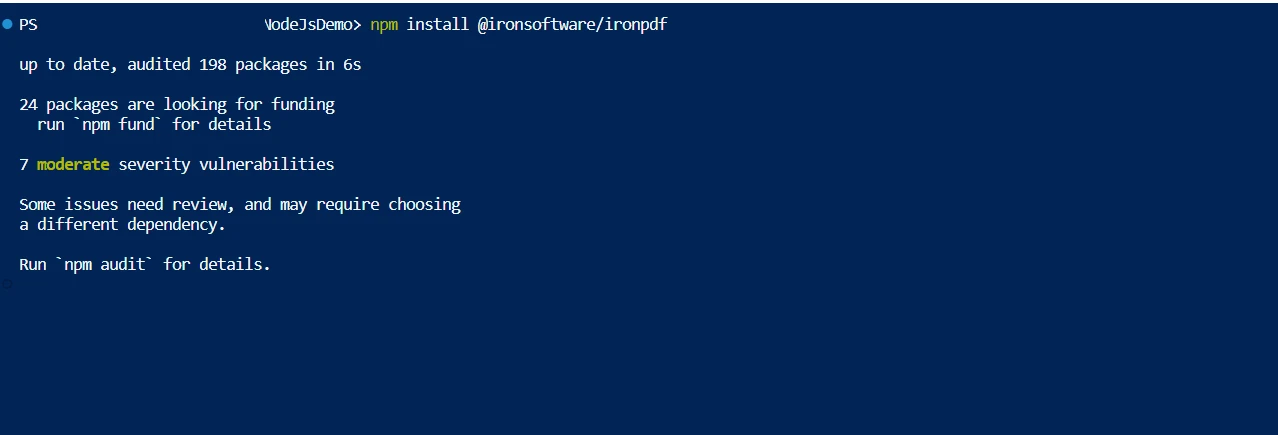
code .Instale el paquete de IronPDF de Node.js y su paquete de soporte basado en máquinas Windows o Linux
El paquete @ironsoftware/ironpdf-engine-windows-x64 es una versión específica de plataforma de la biblioteca IronPDF, diseñada específicamente para sistemas Windows de 64 bits.
La biblioteca IronPDF tiene dependencias específicas para la plataforma. Para que Node.js funcione eficientemente con IronPDF, requiere binarios nativos adaptados para sistemas operativos y arquitecturas específicos. En este caso, el paquete @ironsoftware/ironpdf-engine-windows-x64 proporciona el motor nativo para entornos Windows 64-bit.
Al usar este paquete específico para Windows, asegura que la biblioteca IronPDF funcione óptimamente en sistemas basados en Windows. Se asegura de que todas las dependencias nativas, como las relacionadas con la renderización y manipulación de PDF, sean compatibles y funcionen sin problemas en su máquina.
En lugar de gestionar y configurar manualmente los binarios necesarios para sistemas Windows de 64 bits, instalar el paquete @ironsoftware/ironpdf-engine-windows-x64 automatiza este proceso. Esto ahorra tiempo y elimina problemas potenciales de compatibilidad.
IronPDF también admite otras plataformas como macOS y Linux. Ofrecer paquetes específicos para cada plataforma permite a los desarrolladores utilizar el binario adecuado para su sistema operativo, lo que mejora la estabilidad y fiabilidad generales de la biblioteca.
Si está usando ciertas características de IronPDF (como renderizar PDFs a imágenes o realizar manipulaciones de documentos complejas), se requiere el motor nativo. El paquete @ironsoftware/ironpdf-engine-windows-x64 incluye este motor específicamente para entornos basados en Windows.
Ahora obtenga el archivo PDF que necesita extracción. Copie la ruta a ser utilizada en la aplicación. Este artículo utiliza el siguiente archivo.
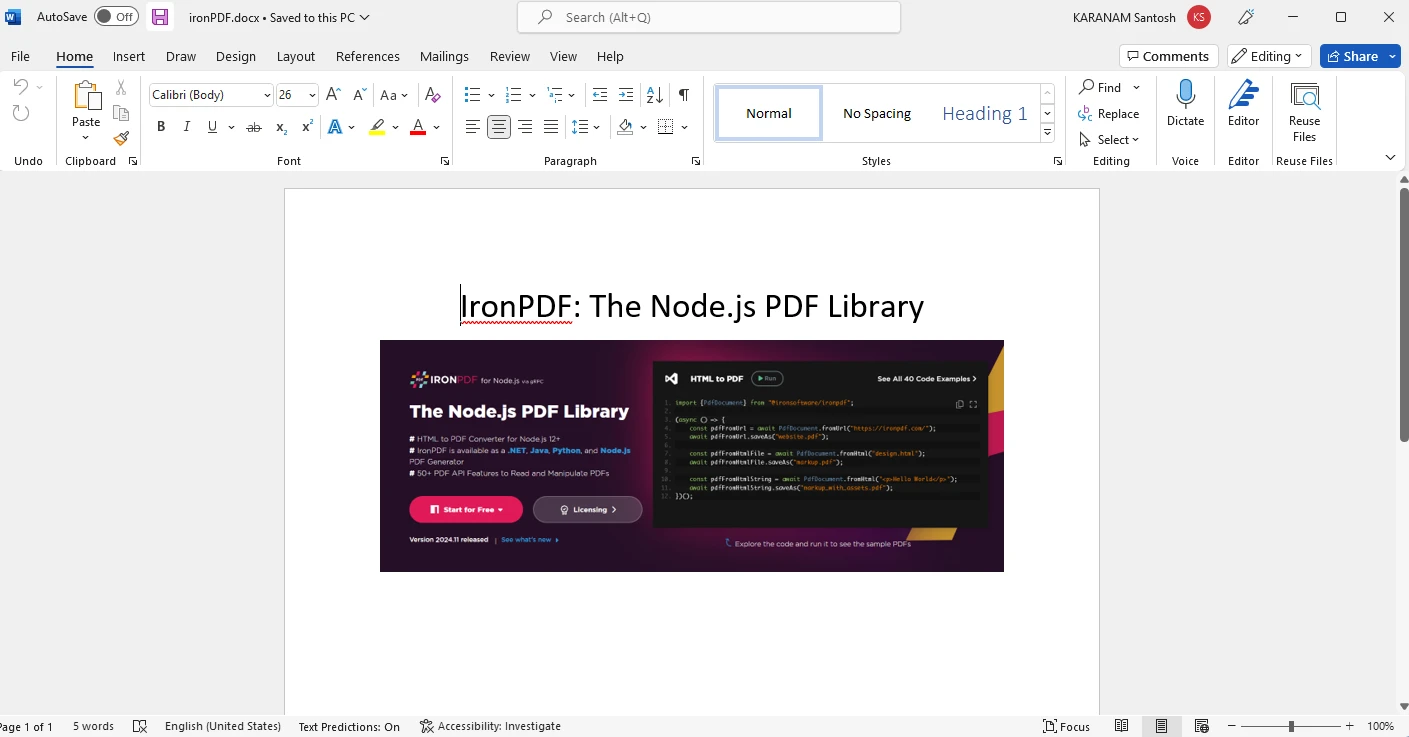
Ahora use el archivo en el paso anterior y escriba el siguiente fragmento de código en un archivo app.js en la carpeta del proyecto Node.js.
const fs = require('fs');
const { IronPdfGlobalConfig, PdfDocument } = require('@ironsoftware/ironpdf')

// Apply your IronPDF license key
IronPdfGlobalConfig.getConfig().licenseKey = "Your license key";

(async () => {
    // Extracting Image and Text content from Pdf Documents

    // Import existing PDF document
    const pdf = await PdfDocument.fromFile("ironPDF.pdf");

    // Get all text to put in a search index and log it
    const text = await pdf.extractText();
    console.log('All Text: ' + text);

    // Get all Images as buffers
    const imagesBuffer = await pdf.extractRawImages();
    console.log('Images count: ' + imagesBuffer.length);

    // Save the first extracted image to the local file system
    fs.writeFileSync("./file1.jpg", imagesBuffer[0]);

    // Indicate completion
    console.log('Complete!');
})();Ejecuta la app:
node app.jsEste ejemplo de fragmento de código demuestra cómo usar la biblioteca IronPDF en Node.js para extraer texto e imágenes (formato JPG) de un documento PDF.
Configuración de licencia: Se usa el IronPdfGlobalConfig para establecer la clave de licencia para IronPDF, que es necesaria para utilizar las características de la biblioteca.
Carga de PDF: El código carga un documento PDF ironPDF.pdf usando el método PdfDocument.fromFile(). Esto permite que el programa trabaje con los contenidos del PDF.
Extracción de texto: Se utiliza el método extractText() para extraer todo el texto del PDF cargado. Este texto se puede usar para tareas como indexar o buscar en el documento.
Extracción de imágenes: Se utiliza el método extractRawImages() para extraer imágenes en bruto del PDF. Estas imágenes se devuelven como un buffer, que puede ser guardado o procesado más.
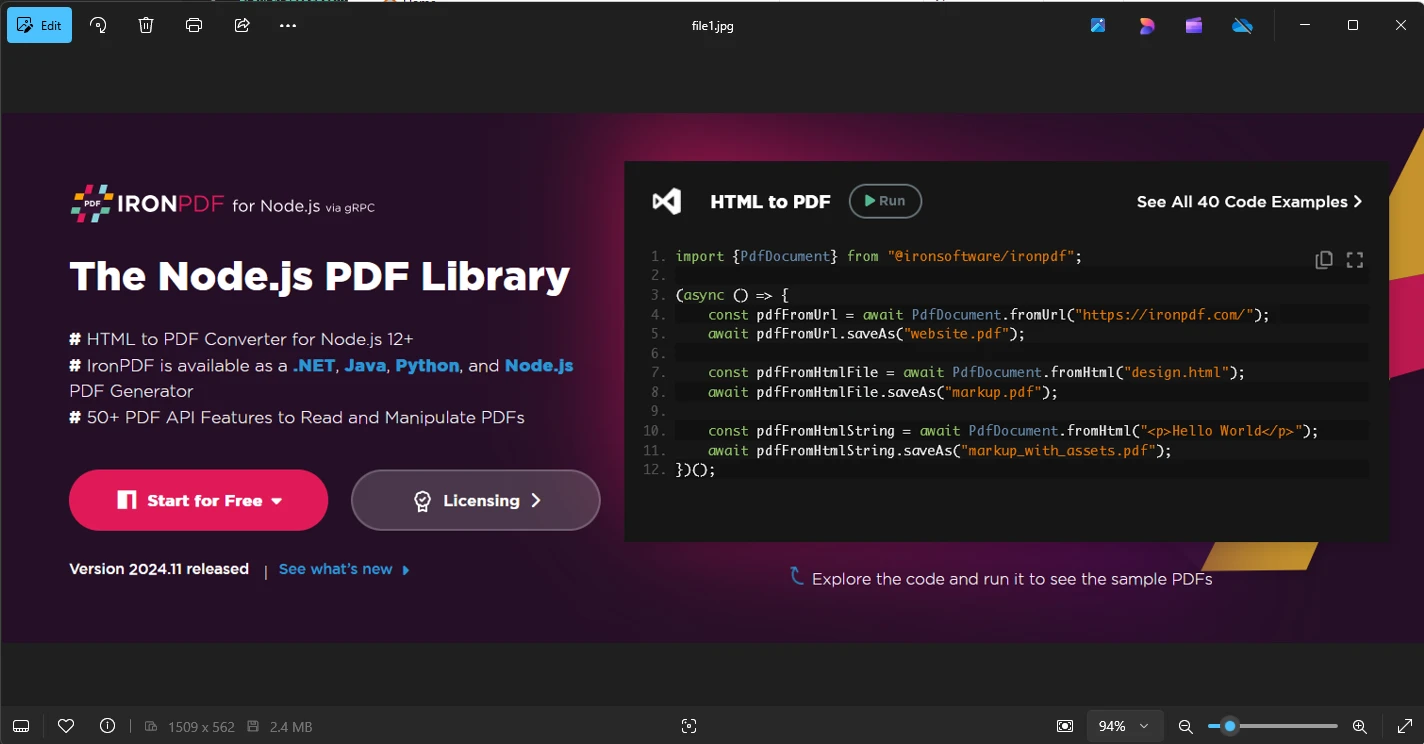
Guardado de imágenes: Las imágenes extraídas se guardan en el sistema de archivos local como archivos JPG usando el método fs.writeFileSync() de Node.
Salida final: una vez completada la extracción, el programa imprime el texto extraído, el número de imágenes extraídas y luego guarda la primera imagen.
El código demuestra cómo interactuar con archivos PDF usando IronPDF para extraer contenido y procesarlo dentro de un entorno Node.js.

IronPDF Node.js requiere una clave de licencia para funcionar. Los desarrolladores pueden obtener una licencia de prueba usando su ID de correo electrónico desde la página de licencias. Una vez que proporciona el ID de correo electrónico, la clave será entregada al correo electrónico y se puede usar en la aplicación como a continuación.
const { IronPdfGlobalConfig } = require('@ironsoftware/ironpdf')

// Apply your IronPDF license key
IronPdfGlobalConfig.getConfig().licenseKey = "Your license key";Usar IronPDF en Node.js para extraer imágenes de PDFs proporciona una manera robusta y eficiente de manejar contenido PDF. Aunque IronPDF no ofrece una extracción de imágenes directa como algunas herramientas especializadas, permite renderizar páginas de PDF como imágenes, lo cual es útil para crear representaciones visuales del documento.
La capacidad de la biblioteca para extraer tanto texto como imágenes de PDFs de una manera sencilla lo convierte en una herramienta valiosa para aplicaciones que necesitan procesar y manipular contenido PDF. Su integración con Node.js permite a los desarrolladores incorporar fácilmente la extracción de PDF en aplicaciones web o del lado del servidor.
En general, IronPDF es una solución poderosa para la manipulación de PDF, ofreciendo flexibilidad para convertir, guardar y extraer imágenes de PDFs, haciéndolo adecuado para una amplia gama de casos de uso como la indexación de documentos, la generación de vistas previas y la extracción de contenido. Sin embargo, si su enfoque es únicamente extraer imágenes incrustadas de PDFs, explorar bibliotecas adicionales podría proporcionar soluciones más especializadas.

Curtis Chau tiene una licenciatura en Ciencias de la Computación (Carleton University) y se especializa en el desarrollo front-end con experiencia en Node.js, TypeScript, JavaScript y React. Apasionado por crear interfaces de usuario intuitivas y estéticamente agradables, disfruta trabajando con frameworks modernos y creando manuales bien estructurados y visualmente atractivos.


IronPDF es parte de IRONSUITE
10 productos API .NET para tus documentos de oficina











Cuando necesitas que tu PDF se parezca al HTML, rápido.

