from ironpdf import *

# Instantiate Renderer
renderer = ChromePdfRenderer()

# Create a PDF from a HTML string using Python
pdf = renderer.RenderHtmlAsPdf("<h1>Hello World</h1>")

# Export to a file or Stream
pdf.SaveAs("output.pdf")

# Advanced Example with HTML Assets
# Load external html assets: Images, CSS and JavaScript.
# An optional BasePath 'C:\site\assets\' is set as the file location to load assets from
myAdvancedPdf = renderer.RenderHtmlAsPdf("<img src='icons/iron.png'>", r"C:\site\assets")
myAdvancedPdf.SaveAs("html-with-assets.pdf")
from ironpdf import *# Instantiate Rendererrenderer = ChromePdfRenderer()# Create a PDF from a HTML string using Pythonpdf = renderer.RenderHtmlAsPdf("<h1>Hello World</h1>")# Export to a file or Streampdf.SaveAs("output.pdf")# Advanced Example with HTML Assets# Load external html assets: Images, CSS and JavaScript.# An optional BasePath 'C:\site\assets\' is set as the file location to load assets frommyAdvancedPdf = renderer.RenderHtmlAsPdf("<img src='icons/iron.png'>", r"C:\site\assets")myAdvancedPdf.SaveAs("html-with-assets.pdf")
Este tutorial explorará cómo utilizar esta biblioteca para crear formularios PDF, crear nuevos archivos PDF y agrupar explícitamente formularios interactivos con datos.
## Creación de formularios PDF interactivos en Python
1. Instalar la biblioteca PDF para generar formularios PDF.
2. Crear un formulario PDF a partir de una cadena HTML y guardar el documento PDF.
3. Carga el archivo PDF creado utilizando la clase `PdfDocument`.
4. Actualizar los campos del documento PDF.
5. Guardar el documento en una nueva ubicación.
## IronPDF
Python es un lenguaje de programación que ayuda a la creación rápida y sencilla de interfaces gráficas de usuario. Para los programadores, Python es también mucho más dinámico que otros lenguajes. Por esta razón, agregar la biblioteca IronPDF a Python es un proceso sencillo. Se puede utilizar una amplia gama de herramientas preinstaladas, como `PyQt`, `wxWidgets`, `Kivy` y muchos otros paquetes y bibliotecas, para construir de forma rápida y segura una interfaz gráfica de usuario (GUI) totalmente completa.
IronPDF for Python combina varias capacidades de otros frameworks como .NET Core. Para más información, haga clic en la siguiente [página oficial de IronPDF for Python](/python/).
El diseño y desarrollo web en Python se facilita usando IronPDF. Como resultado, tres paradigmas de desarrollo web en Python - Django, Flask y Pyramid - han ganado amplio reconocimiento. Sitios web y servicios en línea como Reddit, Mozilla y Spotify han utilizado estos frameworks.
## Características de IronPDF
- Con IronPDF, se pueden producir PDFs a partir de una variedad de formatos, incluyendo HTML, HTML5, ASPX y Razor/MVC View. Ofrece la opción de [convertir imágenes](/python/blog/using-ironpdf-for-python/image-to-pdf-python-tutorial/) en formatos PDF y [páginas HTML en archivos PDF](/python/tutorials/html-to-pdf/).
- Crear PDF interactivos, completar y enviar [formularios interactivos](/python/examples/form-data/), [fusionar](/python/how-to/python-merge-pdf/) y [dividir](/python/blog/using-ironpdf-for-python/split-pdf-python-tutorial/) archivos PDF, [extraer texto e imágenes](/python/blog/using-ironpdf-for-python/extract-data-from-pdf-python-tutorial/), buscar texto dentro de archivos PDF, [rasterizar PDFs a imágenes](/python/examples/rasterize-a-pdf-to-images/), cambiar tamaño de fuente, color del borde y fondo, y convertir archivos PDF son todas tareas que el kit de herramientas IronPDF puede ayudar a realizar.
- IronPDF ofrece validación de formularios de inicio de sesión HTML con soporte para agentes de usuario, proxies, cookies, encabezados HTTP y variables de formulario.
- IronPDF utiliza nombres de usuario y contraseñas para permitir a los usuarios [acceder a documentos protegidos](/python/examples/security-and-metadata/).
- Con solo unas pocas líneas de código, podemos imprimir un archivo PDF desde una variedad de fuentes, incluyendo una cadena, flujo o URL.
- IronPDF nos permite crear [documentos PDF planos](/python/blog/using-ironpdf-for-python/flatten-pdf-python-tutorial/).
## Configuración de Python
### Configuración del entorno
Verifique que Python esté configurado en su computadora. Para descargar e instalar la versión más reciente de Python que sea compatible con su sistema operativo, vaya al [sitio web oficial de Python](https://www.python.org/downloads/). Después de instalar Python, cree un entorno virtual para separar los requisitos de su proyecto. Tu proyecto de conversión puede disponer de un espacio de trabajo ordenado e independiente gracias al módulo `venv`, que te permite crear y gestionar entornos virtuales.
### Nuevo proyecto en PyCharm
Para este artículo, se recomienda PyCharm como un IDE para desarrollar código en Python.
Una vez iniciado el IDE PyCharm, elija "Nuevo proyecto".
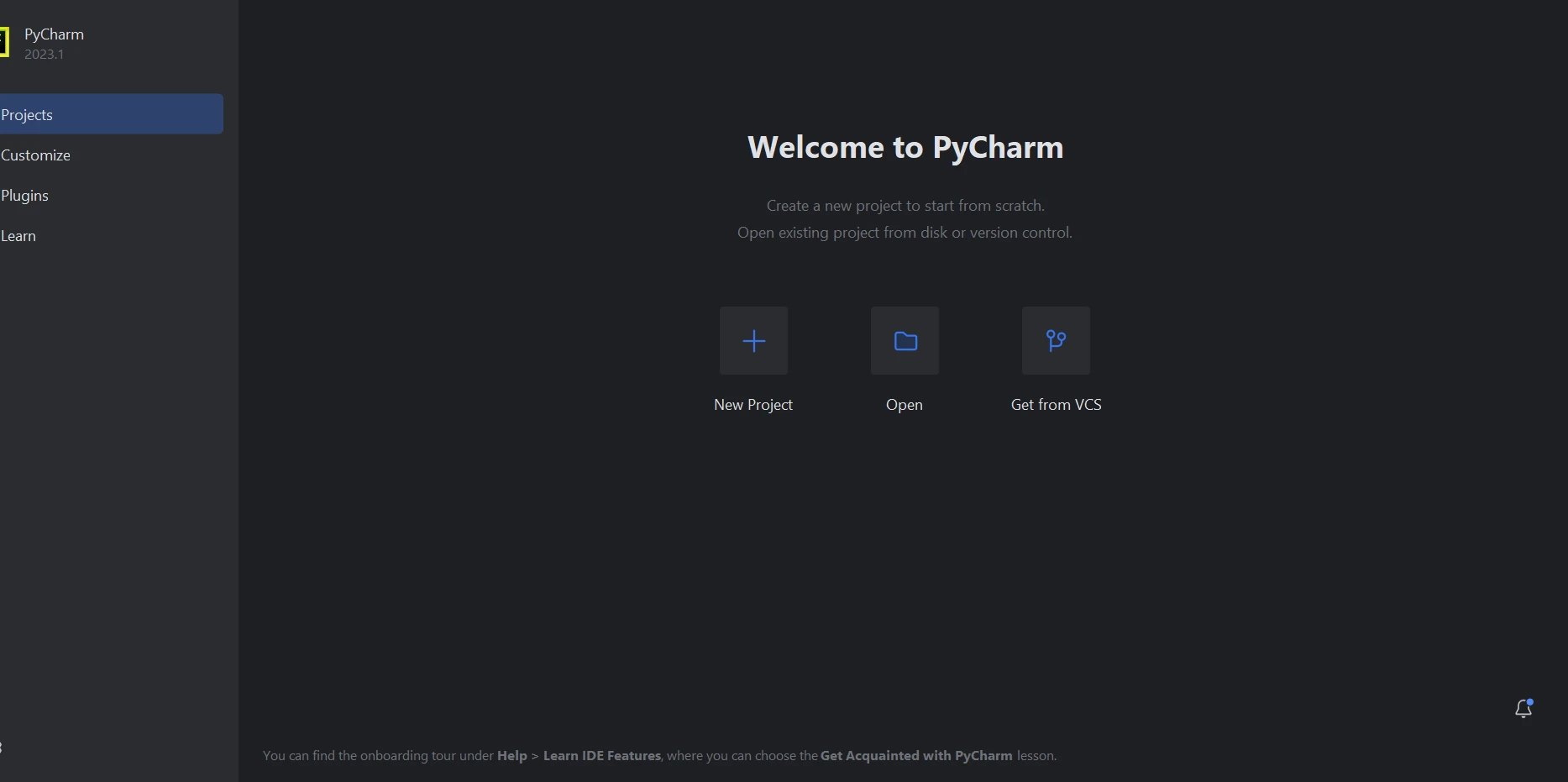
**PyCharm**
Cuando elige "Nuevo proyecto", se abrirá una nueva ventana donde puede especificar el entorno y la ubicación del proyecto. Puede resultarle más fácil entender esto en la imagen a continuación.
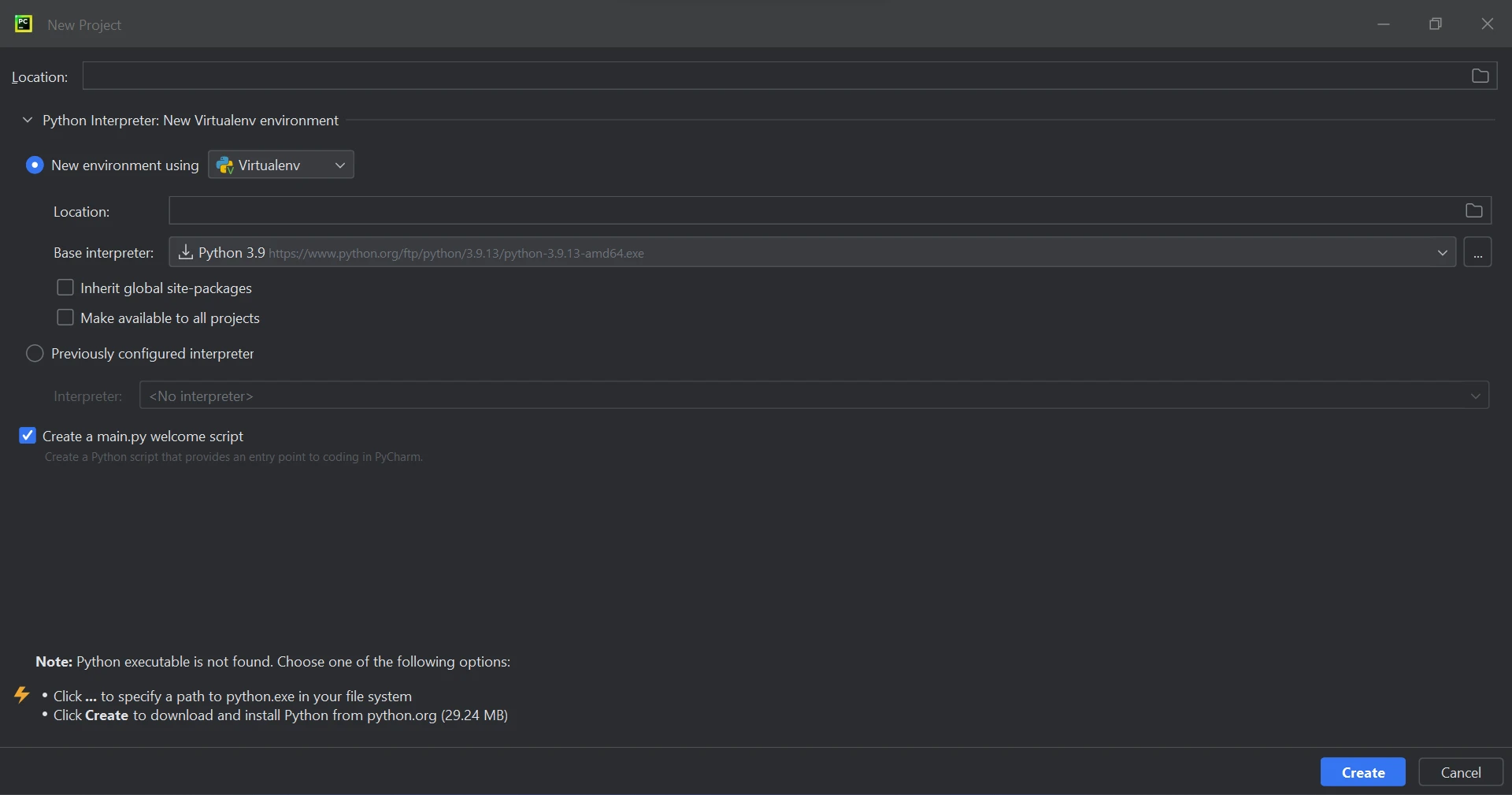
**Nuevo Proyecto**
Después de elegir la ubicación del proyecto y la ruta del entorno, haga clic en el botón **Crear** para lanzar un nuevo proyecto. La nueva ventana subsiguiente que aparece puede ser utilizada para construir el software. Python 3.9 se utiliza en esta guía.
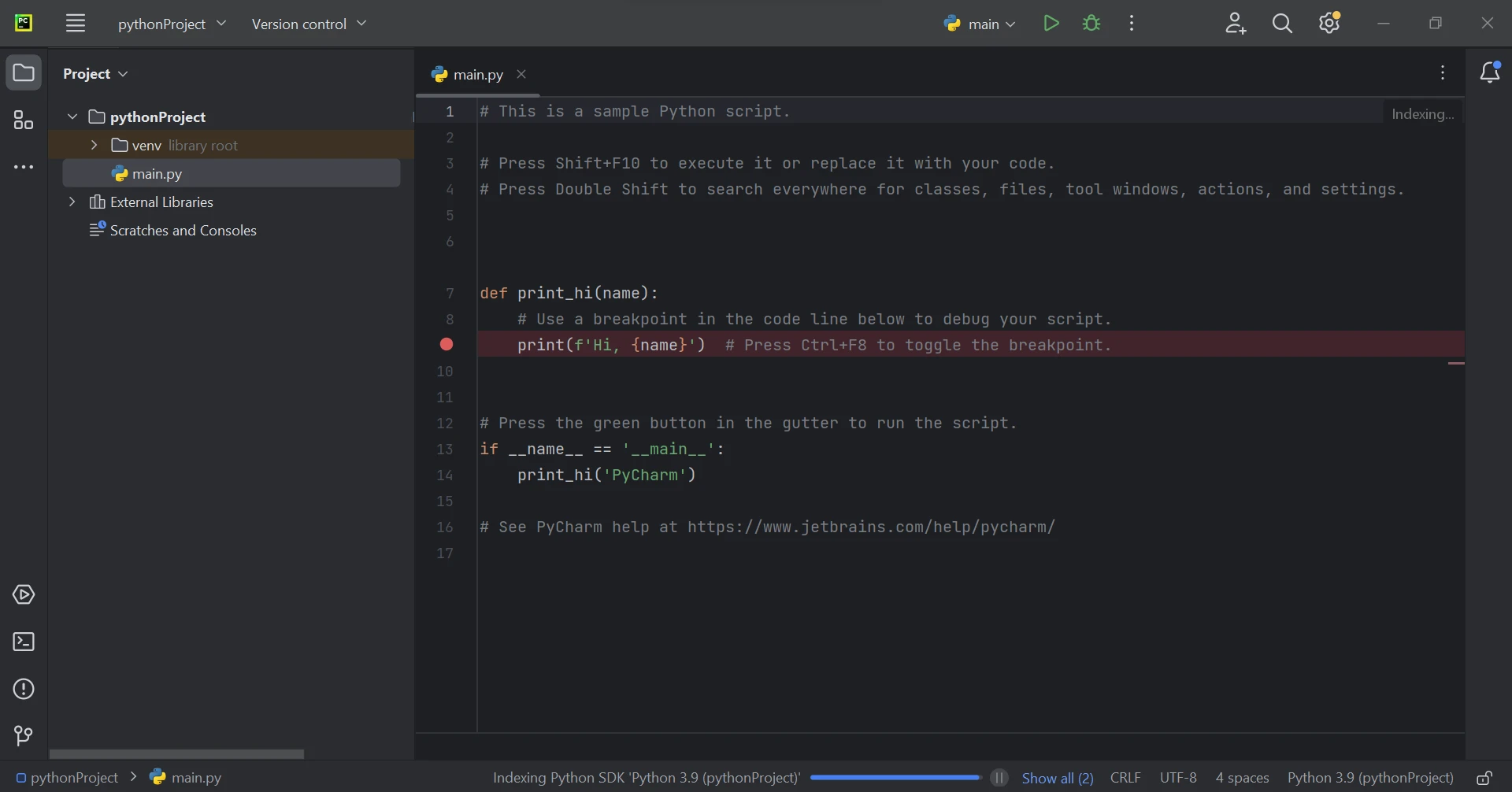
**Crear Proyecto**
### Requisitos de la biblioteca IronPDF
La mayor parte del tiempo, el módulo Python IronPDF utiliza .NET 6.0. Como resultado, el runtime .NET 6.0 debe estar instalado en su computadora para poder utilizar IronPDF con Python. Podría ser necesario instalar .NET antes de que este módulo de Python pueda ser utilizado por usuarios de Linux y Mac. Visite esta [página](https://dotnet.microsoft.com/en-us/download/dotnet/6.0) para obtener el entorno de runtime necesario.
### Configuración de la biblioteca IronPDF
Para generar, modificar y abrir archivos con la extensión ".pdf", es necesario tener instalado el paquete "IronPDF". Abre una ventana de terminal e ingresa el siguiente comando para instalar el paquete en PyCharm:
```shell
:ProductInstall
```
La instalación del paquete "IronPDF" se muestra en la captura de pantalla siguiente.
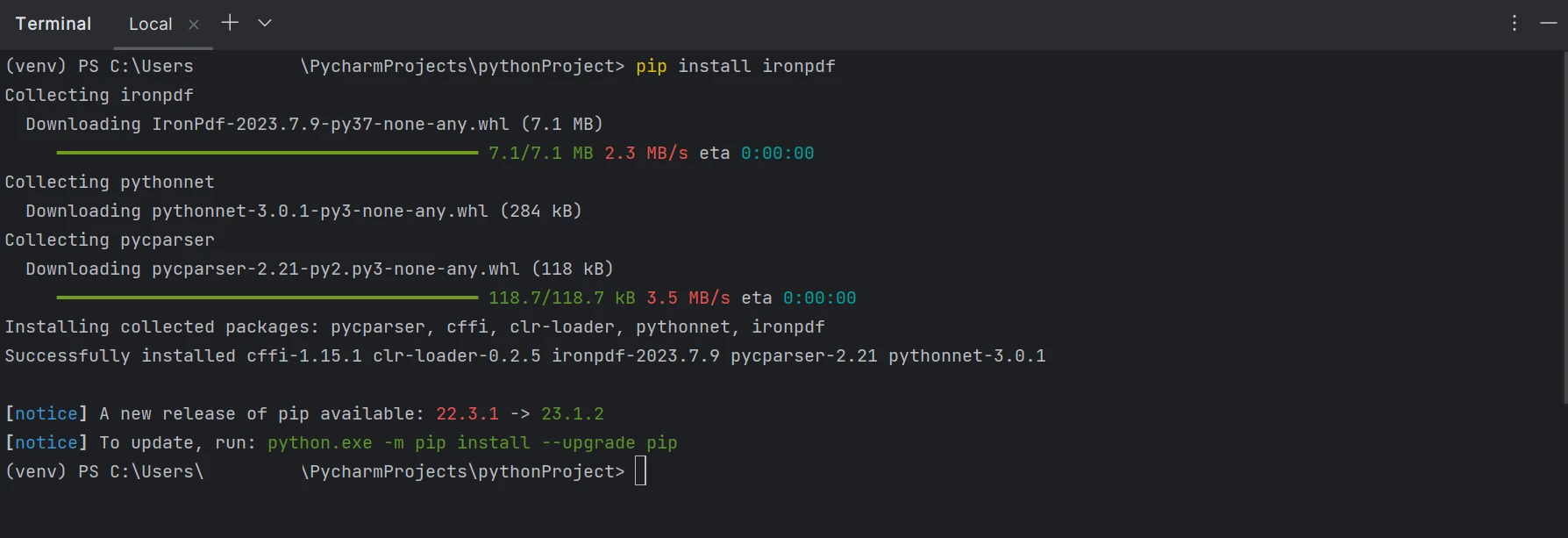
**IronPDF**
## Generar formularios PDF
Se pueden crear Formularios PDF interactivos con facilidad con la ayuda de IronPDF. Con unas pocas líneas de código, el formulario PDF de ejemplo con una demostración de radio se muestra a continuación.
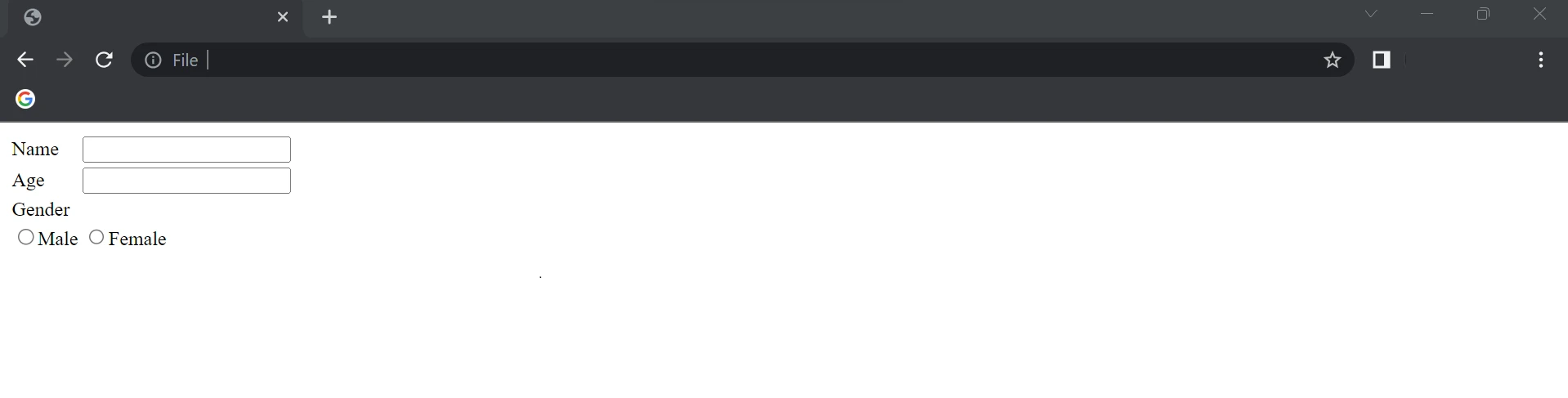
**Primer página de formulario PDF de ejemplo**
El HTML anterior se utiliza como una cadena para crear formularios PDF en el siguiente código.
```python
from ironpdf import ChromePdfRenderer, PdfDocument

# Define HTML string to construct the form
form_data = """
<html>
    <body>
        <table>
            <tr>
                <td>Name</td>
                <td><input name="name" type="text"/></td>
            </tr>
            <tr>
                <td>Age</td>
                <td><input name="age" type="text"/></td>
            </tr>
            <tr>
                <td>Gender</td>
            </tr>
            <tr>
                <td><input name="Gender" type="radio">Male</input></td>
                <td><input name="Gender" type="radio">Female</input></td>
            </tr>
        </table>
    </body>
</html>"""

# Step 1: Create PDF Form from HTML string
renderer = ChromePdfRenderer()
renderer.RenderingOptions.CreatePdfFormsFromHtml = True
# Render HTML to PDF and save it
renderer.RenderHtmlAsPdf(form_data).SaveAs("DemoForm.pdf")

# Step 2: Reading and Writing PDF form values
form_document = PdfDocument.FromFile("DemoForm.pdf")

# Find the 'name' field and update its value
name_field = form_document.Form.FindFormField("name")
name_field.Value = "Mike"
print(f"NameField value: {name_field.Value}")

# Find the 'age' field and update its value
age_field = form_document.Form.FindFormField("age")
age_field.Value = "21"
print(f"AgeField value: {age_field.Value}")

# Update the first 'Gender' radio field, assuming it's the male option
gender_field = form_document.Form.Fields[3]
gender_field.Value = "On"

# Save the updated PDF to a new file
form_document.SaveAs("UpdatedForm.pdf")
```
En el ejemplo anterior, se crea un objeto `ChromePdfRenderer()` y se establece el valor `RenderingOptions.CreatePdfFormsFromHtml` en `True`, lo que habilita los formularios del archivo PDF. El método `RenderHtmlAsPdf` se utiliza para pasar la cadena HTML como parámetro.
Con la ayuda del método `SaveAs`, se crean archivos PDF a partir de la cadena HTML con un formulario PDF, que tendrá el aspecto de la imagen siguiente y estará inicialmente vacío. IronPDF nuevamente actualiza los campos en los formularios PDF. En el PDF, los dos primeros campos son un campo de texto y el otro campo son botones de radio.
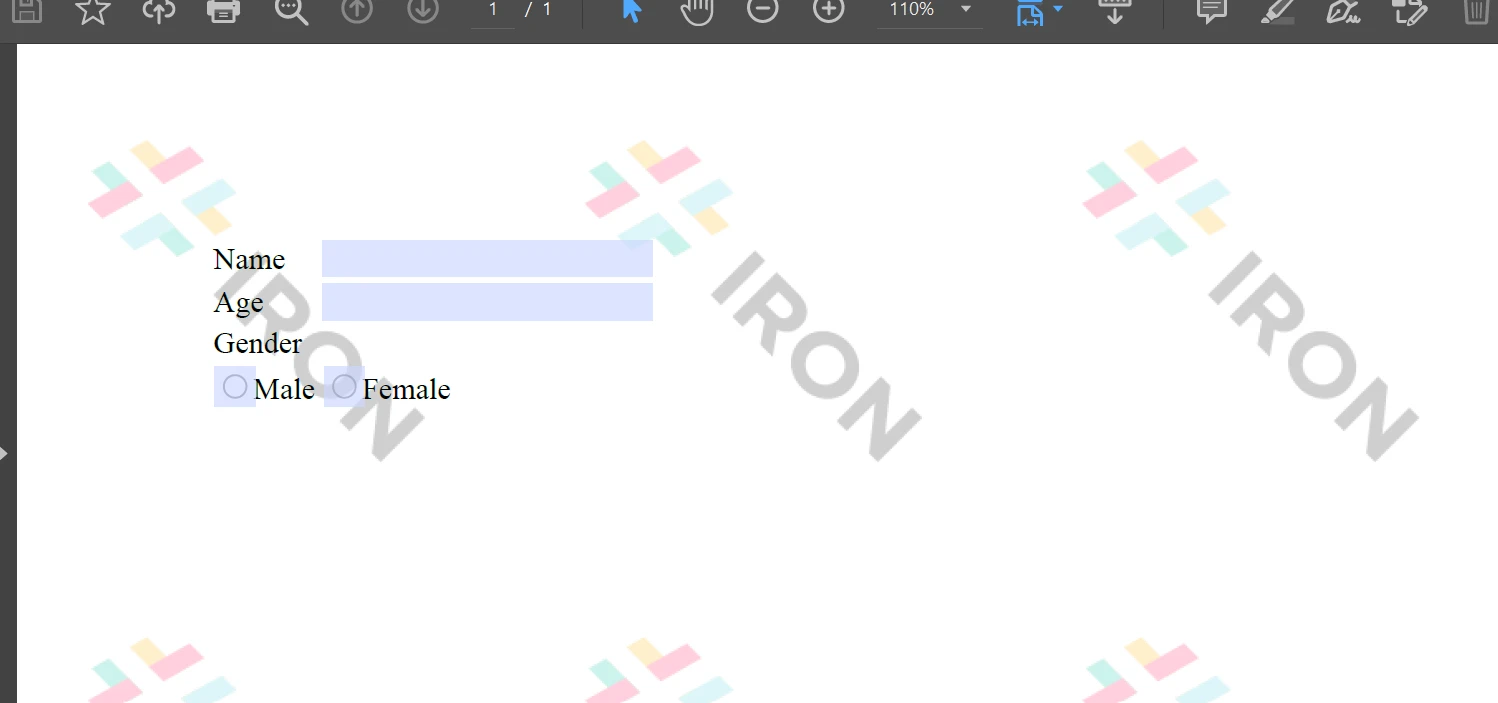
**Formulario PDF**
A continuación, se utiliza el mismo objeto `PdfDocument` para cargar el formulario PDF existente. Con el método `Form.FindFormField`, se puede obtener el valor a partir del nombre del elemento, o bien se puede utilizar `Form.Fields[]` pasando el índice del elemento al valor de la matriz. Esas propiedades le permiten obtener y establecer el valor del elemento en los formularios PDF. Por último, se activa la función `SaveAs` para guardar el archivo PDF actualizado o nuevo en una ubicación.
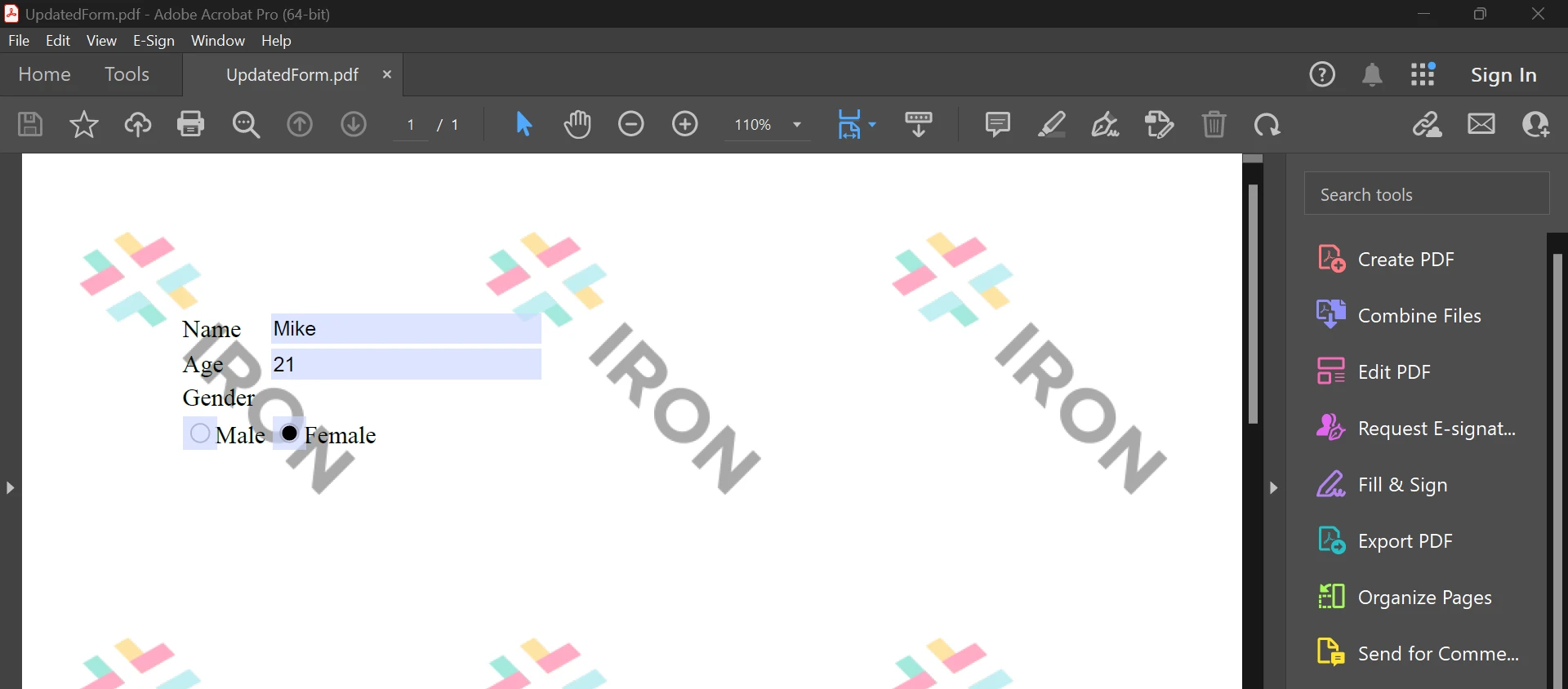
**Cargar formulario PDF**
Lo anterior es el resultado del código, que ayuda a completar formularios PDF. Para obtener más información sobre los formularios PDF, consulte la siguiente [página de ejemplo](/python/examples/form-data/).
## Conclusión
La biblioteca IronPDF ofrece fuertes técnicas de seguridad para reducir riesgos y garantizar la seguridad de los datos. No está restringida a ningún navegador en particular y es compatible con todos los populares. Con solo unas pocas líneas de código, IronPDF permite a los programadores generar y leer archivos PDF rápidamente. La biblioteca IronPDF ofrece una gama de opciones de licencia para satisfacer las diversas demandas de los desarrolladores, incluyendo una licencia gratuita para desarrolladores y licencias adicionales de desarrollo que se pueden adquirir.
El paquete `$liteLicense` Lite incluye una licencia perpetua, una garantía de devolución del dinero de 30 días, un año de mantenimiento del software y opciones de actualización. No hay costos adicionales después de la compra inicial. Estas licencias se pueden utilizar en entornos de desarrollo, ensayo y producción. Además, IronPDF proporciona licencias gratuitas con algunas restricciones de tiempo y redistribución. Los usuarios pueden evaluar el producto en un uso real durante el período de prueba gratuita sin una marca de agua. Por favor, haga clic en la siguiente [página de licencias](licensing) para obtener más información sobre el costo de la edición de prueba de IronPDF y cómo licenciarla.
Este tutorial explorará cómo utilizar esta biblioteca para crear formularios PDF, crear nuevos archivos PDF y agrupar explícitamente formularios interactivos con datos.
Creación de formularios PDF interactivos en Python
Instalar la biblioteca PDF para generar formularios PDF.
Crear un formulario PDF a partir de una cadena HTML y guardar el documento PDF.
Carga el archivo PDF creado utilizando la clase PdfDocument.
Actualizar los campos del documento PDF.
Guardar el documento en una nueva ubicación.
IronPDF
Python es un lenguaje de programación que ayuda a la creación rápida y sencilla de interfaces gráficas de usuario. Para los programadores, Python es también mucho más dinámico que otros lenguajes. Por esta razón, agregar la biblioteca IronPDF a Python es un proceso sencillo. Se puede utilizar una amplia gama de herramientas preinstaladas, como PyQt, wxWidgets, Kivy y muchos otros paquetes y bibliotecas, para construir de forma rápida y segura una interfaz gráfica de usuario (GUI) totalmente completa.
IronPDF for Python combina varias capacidades de otros frameworks como .NET Core. Para más información, haga clic en la siguiente página oficial de IronPDF for Python.
El diseño y desarrollo web en Python se facilita usando IronPDF. Como resultado, tres paradigmas de desarrollo web en Python - Django, Flask y Pyramid - han ganado amplio reconocimiento. Sitios web y servicios en línea como Reddit, Mozilla y Spotify han utilizado estos frameworks.
Características de IronPDF
Con IronPDF, se pueden producir PDFs a partir de una variedad de formatos, incluyendo HTML, HTML5, ASPX y Razor/MVC View. Ofrece la opción de convertir imágenes en formatos PDF y páginas HTML en archivos PDF.
IronPDF ofrece validación de formularios de inicio de sesión HTML con soporte para agentes de usuario, proxies, cookies, encabezados HTTP y variables de formulario.
Verifique que Python esté configurado en su computadora. Para descargar e instalar la versión más reciente de Python que sea compatible con su sistema operativo, vaya al sitio web oficial de Python. Después de instalar Python, cree un entorno virtual para separar los requisitos de su proyecto. Tu proyecto de conversión puede disponer de un espacio de trabajo ordenado e independiente gracias al módulo venv, que te permite crear y gestionar entornos virtuales.
Nuevo proyecto en PyCharm
Para este artículo, se recomienda PyCharm como un IDE para desarrollar código en Python.
Una vez iniciado el IDE PyCharm, elija "Nuevo proyecto".
PyCharm
Cuando elige "Nuevo proyecto", se abrirá una nueva ventana donde puede especificar el entorno y la ubicación del proyecto. Puede resultarle más fácil entender esto en la imagen a continuación.
Nuevo Proyecto
Después de elegir la ubicación del proyecto y la ruta del entorno, haga clic en el botón Crear para lanzar un nuevo proyecto. La nueva ventana subsiguiente que aparece puede ser utilizada para construir el software. Python 3.9 se utiliza en esta guía.
Crear Proyecto
Requisitos de la biblioteca IronPDF
La mayor parte del tiempo, el módulo Python IronPDF utiliza .NET 6.0. Como resultado, el runtime .NET 6.0 debe estar instalado en su computadora para poder utilizar IronPDF con Python. Podría ser necesario instalar .NET antes de que este módulo de Python pueda ser utilizado por usuarios de Linux y Mac. Visite esta página para obtener el entorno de runtime necesario.
Configuración de la biblioteca IronPDF
Para generar, modificar y abrir archivos con la extensión ".pdf", es necesario tener instalado el paquete "IronPDF". Abre una ventana de terminal e ingresa el siguiente comando para instalar el paquete en PyCharm:
> pip install ironpdf
pip install ironpdf
La instalación del paquete "IronPDF" se muestra en la captura de pantalla siguiente.
IronPDF
Generar formularios PDF
Se pueden crear Formularios PDF interactivos con facilidad con la ayuda de IronPDF. Con unas pocas líneas de código, el formulario PDF de ejemplo con una demostración de radio se muestra a continuación.
Primer página de formulario PDF de ejemplo
El HTML anterior se utiliza como una cadena para crear formularios PDF en el siguiente código.
from ironpdf importChromePdfRenderer, PdfDocument# Define HTML string to construct the formform_data = """<html> <body> <table> <tr> <td>Name</td> <td><input name="name" type="text"/></td> </tr> <tr> <td>Age</td> <td><input name="age" type="text"/></td> </tr> <tr> <td>Gender</td> </tr> <tr> <td><input name="Gender" type="radio">Male</input></td> <td><input name="Gender" type="radio">Female</input></td> </tr> </table> </body></html>"""# Step 1: Create PDF Form from HTML stringrenderer = ChromePdfRenderer()renderer.RenderingOptions.CreatePdfFormsFromHtml = True# Render HTML to PDF and save itrenderer.RenderHtmlAsPdf(form_data).SaveAs("DemoForm.pdf")# Step 2: Reading and Writing PDF form valuesform_document = PdfDocument.FromFile("DemoForm.pdf")# Find the 'name' field and update its valuename_field = form_document.Form.FindFormField("name")name_field.Value = "Mike"print(f"NameField value: {name_field.Value}")# Find the 'age' field and update its valueage_field = form_document.Form.FindFormField("age")age_field.Value = "21"print(f"AgeField value: {age_field.Value}")# Update the first 'Gender' radio field, assuming it's the male optiongender_field = form_document.Form.Fields[3]gender_field.Value = "On"# Save the updated PDF to a new fileform_document.SaveAs("UpdatedForm.pdf")
from ironpdf import ChromePdfRenderer, PdfDocument

# Define HTML string to construct the form
form_data = """
<html>
    <body>
        <table>
            <tr>
                <td>Name</td>
                <td><input name="name" type="text"/></td>
            </tr>
            <tr>
                <td>Age</td>
                <td><input name="age" type="text"/></td>
            </tr>
            <tr>
                <td>Gender</td>
            </tr>
            <tr>
                <td><input name="Gender" type="radio">Male</input></td>
                <td><input name="Gender" type="radio">Female</input></td>
            </tr>
        </table>
    </body>
</html>"""

# Step 1: Create PDF Form from HTML string
renderer = ChromePdfRenderer()
renderer.RenderingOptions.CreatePdfFormsFromHtml = True
# Render HTML to PDF and save it
renderer.RenderHtmlAsPdf(form_data).SaveAs("DemoForm.pdf")

# Step 2: Reading and Writing PDF form values
form_document = PdfDocument.FromFile("DemoForm.pdf")

# Find the 'name' field and update its value
name_field = form_document.Form.FindFormField("name")
name_field.Value = "Mike"
print(f"NameField value: {name_field.Value}")

# Find the 'age' field and update its value
age_field = form_document.Form.FindFormField("age")
age_field.Value = "21"
print(f"AgeField value: {age_field.Value}")

# Update the first 'Gender' radio field, assuming it's the male option
gender_field = form_document.Form.Fields[3]
gender_field.Value = "On"

# Save the updated PDF to a new file
form_document.SaveAs("UpdatedForm.pdf")
Python
En el ejemplo anterior, se crea un objeto ChromePdfRenderer() y se establece el valor RenderingOptions.CreatePdfFormsFromHtml en True, lo que habilita los formularios del archivo PDF. El método RenderHtmlAsPdf se utiliza para pasar la cadena HTML como parámetro.
Con la ayuda del método SaveAs, se crean archivos PDF a partir de la cadena HTML con un formulario PDF, que tendrá el aspecto de la imagen siguiente y estará inicialmente vacío. IronPDF nuevamente actualiza los campos en los formularios PDF. En el PDF, los dos primeros campos son un campo de texto y el otro campo son botones de radio.
Formulario PDF
A continuación, se utiliza el mismo objeto PdfDocument para cargar el formulario PDF existente. Con el método Form.FindFormField, se puede obtener el valor a partir del nombre del elemento, o bien se puede utilizar Form.Fields[] pasando el índice del elemento al valor de la matriz. Esas propiedades le permiten obtener y establecer el valor del elemento en los formularios PDF. Por último, se activa la función SaveAs para guardar el archivo PDF actualizado o nuevo en una ubicación.
Cargar formulario PDF
Lo anterior es el resultado del código, que ayuda a completar formularios PDF. Para obtener más información sobre los formularios PDF, consulte la siguiente página de ejemplo.
Conclusión
La biblioteca IronPDF ofrece fuertes técnicas de seguridad para reducir riesgos y garantizar la seguridad de los datos. No está restringida a ningún navegador en particular y es compatible con todos los populares. Con solo unas pocas líneas de código, IronPDF permite a los programadores generar y leer archivos PDF rápidamente. La biblioteca IronPDF ofrece una gama de opciones de licencia para satisfacer las diversas demandas de los desarrolladores, incluyendo una licencia gratuita para desarrolladores y licencias adicionales de desarrollo que se pueden adquirir.
El paquete $999 Lite incluye una licencia perpetua, una garantía de devolución del dinero de 30 días, un año de mantenimiento del software y opciones de actualización. No hay costos adicionales después de la compra inicial. Estas licencias se pueden utilizar en entornos de desarrollo, ensayo y producción. Además, IronPDF proporciona licencias gratuitas con algunas restricciones de tiempo y redistribución. Los usuarios pueden evaluar el producto en un uso real durante el período de prueba gratuita sin una marca de agua. Por favor, haga clic en la siguiente página de licencias para obtener más información sobre el costo de la edición de prueba de IronPDF y cómo licenciarla.
Curtis Chau tiene una licenciatura en Ciencias de la Computación (Carleton University) y se especializa en el desarrollo front-end con experiencia en Node.js, TypeScript, JavaScript y React. Apasionado por crear interfaces de usuario intuitivas y estéticamente agradables, disfruta trabajando con frameworks modernos y creando manuales bien estructurados y visualmente atractivos.




 PyCharm
 Nuevo Proyecto
 Crear Proyecto
 IronPDF
 Primer página de formulario PDF de ejemplo
 Formulario PDF
 Cargar formulario PDF
















