푸터 콘텐츠로 바로가기
JAVA용 IRONPDF 사용

Java에서 PDF 파일을 보는 방법

PDF viewers often offer features like zooming, page navigation, searching, and annotation support, empowering users to efficiently navigate and analyze documents. These viewers utilize libraries such as IronPDF, providing a versatile and customizable solution for incorporating PDF viewing capabilities into Java projects.

1. IronPDF for Java

IronPDF for Java is a powerful and feature-rich library that enables developers to effortlessly create, edit, and manipulate PDF documents within their applications. With IronPDF, developers can generate PDF files from HTML, URLs, and other sources, apply formatting and styling, add pictures, tables, and text, as well as perform advanced operations such as merging multiple PDFs in Java, splitting PDF documents in Java, and encrypting PDFs for security.

2. Prerequisites

To utilize a Java viewer with IronPDF, certain prerequisites must be met. Ensure that you have the following:

  1. Java Installation: Verify that Java is installed on your system and that its path is set in the environment variables. If you haven't installed Java yet, you can find installation instructions from this Java website.
  2. Java IDE: Install a Java Integrated Development Environment (IDE) such as Eclipse IDE download page or IntelliJ IDEA download section.
  3. IronPDF Library: Download the IronPDF library and add it as a dependency in your project using the command line. Instructions for setting up the IronPDF library can be found on the IronPDF official website.
  4. Maven Installation: Install Maven from Apache before starting the PDF conversion process.

3. Create a New Java Maven Project

For this tutorial, it is recommended to use IntelliJ IDE. However, please note that you can use any IDE of your choice. Keep in mind that the process of creating a new Java project may vary slightly depending on the IDE you are using.

  1. Launch the IntelliJ IDE, or go to an already opened instance of IntelliJ.
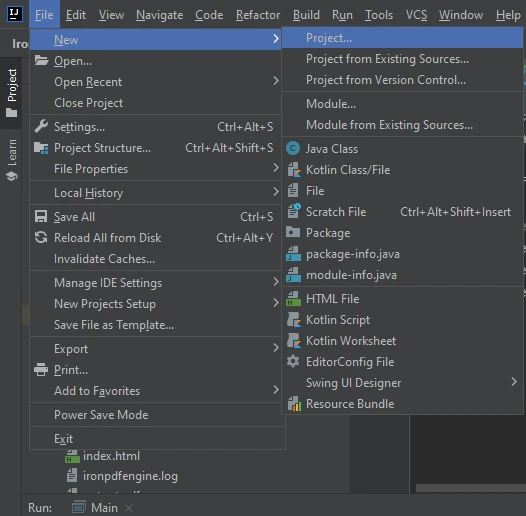
  2. Hover on File > New > Project.

    How to View PDF Files in Java, Figure 1: IntelliJ IntelliJ

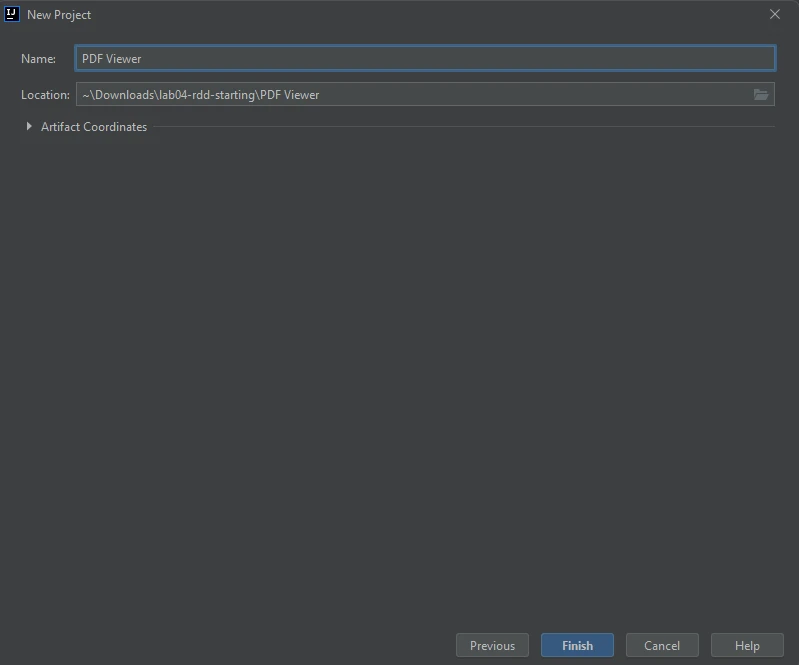
  3. Enter Project Title name.
  4. Choose a location, a build system, and a JDK.
  5. Click on Finish as shown in the below image.

How to View PDF Files in Java, Figure 2: Create Project Create Project

3.1. Setting up the Project

Once the project is created, add the dependency for IronPDF in the pom.xml.

Below is the dependency code, place it in your pom.xml.

<dependency>
    <groupId>com.ironsoftware</groupId>
    <artifactId>ironpdf-java</artifactId>
    <version>2023.9.1</version> 
</dependency>
<dependency>
    <groupId>com.ironsoftware</groupId>
    <artifactId>ironpdf-java</artifactId>
    <version>2023.9.1</version> 
</dependency>
XML

Now the environment is set. Let's write the logic to create and open PDF in PDF viewer.

4. Creating and Viewing PDF Document in Default PDF Viewer

Now create a new Java file in src > main > java.

First, import the required references that are important for creating and viewing PDF files in this Java application.

import com.ironsoftware.ironpdf.License;
import com.ironsoftware.ironpdf.PdfDocument;

import java.awt.Desktop;
import java.io.File;
import java.io.IOException;
import java.nio.file.Paths;
import com.ironsoftware.ironpdf.License;
import com.ironsoftware.ironpdf.PdfDocument;

import java.awt.Desktop;
import java.io.File;
import java.io.IOException;
import java.nio.file.Paths;
JAVA

These imports are important because they will help the Java program to execute the desired logic.

Now let's write the example code that will create the PDF document and implement the document viewer logic to open the created PDF file in the PDF Viewer.

public class Main {
    public static void main(String[] args) throws IOException {
        // Use IronPDF to create a PDF document from a URL
        PdfDocument pdf = PdfDocument.renderUrlAsPdf("https://ironpdf.com/");

        // Save the PDF document to the local file system
        pdf.saveAs(Paths.get("html_saved.pdf"));

        // Create a new file object for the saved PDF
        File file = new File("html_saved.pdf");

        // Check if the desktop is supported and the file exists, then open the PDF
        if (Desktop.isDesktopSupported() && file.exists()) {
            Desktop desktop = Desktop.getDesktop();
            desktop.open(file);
        }
    }
}
public class Main {
    public static void main(String[] args) throws IOException {
        // Use IronPDF to create a PDF document from a URL
        PdfDocument pdf = PdfDocument.renderUrlAsPdf("https://ironpdf.com/");

        // Save the PDF document to the local file system
        pdf.saveAs(Paths.get("html_saved.pdf"));

        // Create a new file object for the saved PDF
        File file = new File("html_saved.pdf");

        // Check if the desktop is supported and the file exists, then open the PDF
        if (Desktop.isDesktopSupported() && file.exists()) {
            Desktop desktop = Desktop.getDesktop();
            desktop.open(file);
        }
    }
}
JAVA

The above code will create a PDF file using PdfDocument.renderUrlAsPdf, which takes a URL as an input stream and returns a PDF file as output. After that, instantiate a new File object using the same PDF document. Then, the desktop.open(file) will be used to open the PDF file in the default PDF Viewer.

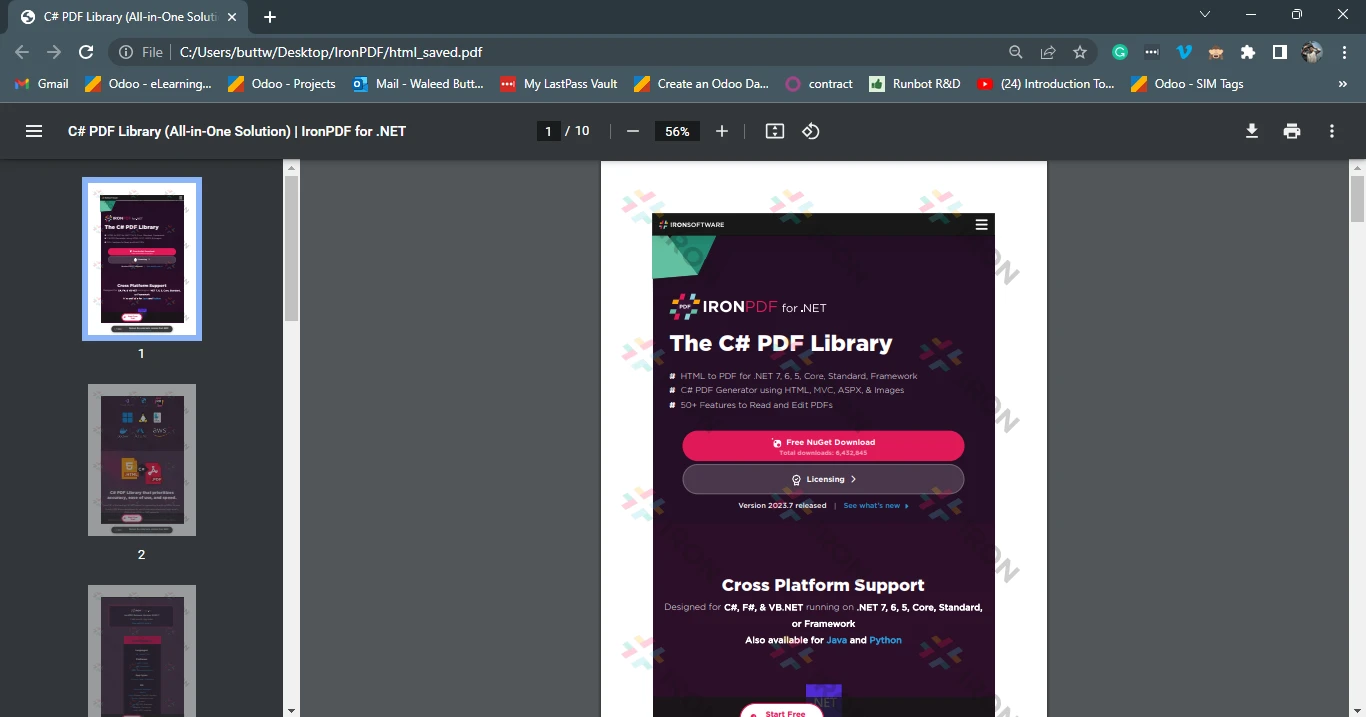
PDFs created using IronPDF can be printed. They also load all the pages perfectly with all the images intact and URLs are also clickable. An example output of the PDF file screenshot is attached in the default PDF Viewer.

How to View PDF Files in Java, Figure 3: PDF Output PDF Output

5. Conclusion

A Java PDF Viewer is a valuable tool that allows users to view, print, and interact with PDF files within a Java environment. It provides features such as rendering, navigation, searching, and annotation support, making it easier for users to access and analyze PDF content. IronPDF for Java is a robust library that empowers developers to effortlessly create, edit, and manipulate PDF documents.

With its extensive set of APIs and functionalities, IronPDF enables seamless integration of PDF generation and manipulation capabilities into Java applications. By following the steps to create a new Java project and setting up the environment, developers can leverage IronPDF to create and view PDF documents in the default PDF viewer. This offers advantages such as cross-platform compatibility, customization options, efficient performance, and enhanced security. With IronPDF for Java, developers can generate professional-grade PDF documents with ease and provide a seamless viewing experience for users.

Read our tutorial to learn how to use IronPDF to convert HTML to PDF files in Java.

자주 묻는 질문

Java PDF 뷰어의 필수 기능은 무엇인가요?

Java PDF 뷰어는 일반적으로 확대/축소, 페이지 탐색, 검색 및 주석 지원과 같은 기능을 제공합니다. 이러한 기능은 Java 프로젝트에 다양하고 사용자 정의 가능한 통합이 가능한 IronPDF와 같은 라이브러리를 사용하여 효율적으로 구현할 수 있습니다.

라이브러리를 사용하여 Java PDF 뷰어를 만들려면 어떻게 해야 하나요?

Java PDF 뷰어를 만들려면 PDF 렌더링 및 조작에 대한 강력한 지원을 제공하는 IronPDF 라이브러리를 사용할 수 있습니다. 먼저 Java Maven 프로젝트를 설정하고 `pom.xml`에 IronPDF 종속성을 추가한 다음 해당 메서드를 사용하여 PDF 문서를 렌더링하고 볼 수 있습니다.

Java PDF 뷰어를 설정하려면 어떤 전제 조건이 필요하나요?

IronPDF로 Java PDF 뷰어를 설정하려면 Java가 설치되어 있어야 하며, IntelliJ와 같은 Java IDE, 종속성으로 IronPDF 라이브러리, 프로젝트 관리를 위한 Maven이 있어야 합니다. 이 설정을 통해 PDF 보기 기능을 Java 애플리케이션에 통합할 수 있습니다.

Java 프로젝트에 IronPDF 라이브러리를 추가하려면 어떻게 해야 하나요?

IronPDF 라이브러리를 `pom.xml` 파일에 종속성으로 포함시켜 Java Maven 프로젝트에 추가할 수 있습니다: `com.ironsoftwareironpdf-java2023.9.1`.

Java를 사용하여 URL에서 PDF를 생성하려면 어떻게 해야 하나요?

Java에서 IronPDF를 사용하면 PdfDocument.renderUrlAsPdf 메서드를 사용하여 URL에서 PDF를 생성할 수 있습니다. 이 메서드를 사용하면 생성된 PDF를 로컬 파일 시스템에 저장하고 기본 PDF 뷰어로 열 수 있습니다.

Java에서 PDF 조작을 위해 IronPDF를 사용하면 어떤 이점이 있나요?

IronPDF는 플랫폼 간 호환성, 사용자 정의 옵션, 효율적인 성능 등 Java에서 PDF를 조작할 때 여러 가지 이점을 제공합니다. 이를 통해 개발자는 전문가 수준의 PDF 문서를 쉽게 생성하고 조작할 수 있습니다.

IntelliJ를 사용하여 PDF 보기 기능이 있는 Java 프로젝트를 개발할 수 있나요?

예, IntelliJ를 사용하여 IronPDF 라이브러리를 통합하여 PDF 보기 기능을 갖춘 Java 프로젝트를 개발할 수 있습니다. IDE는 새 Maven 프로젝트 생성, 종속성 설정, PDF 렌더링 및 보기에 필요한 로직 작성 등을 지원합니다.

IronPDF는 Java로 PDF를 만들고 편집하는 데 적합합니까?

IronPDF는 Java로 PDF를 생성하고 편집할 수 있는 강력한 라이브러리입니다. HTML 및 URL과 같은 다양한 소스에서 PDF 생성을 지원하며 PDF 병합, 분할 및 보안과 같은 기능을 제공하여 포괄적인 PDF 조작에 적합합니다.

IronPDF는 PDF 기능으로 Java 애플리케이션을 어떻게 향상시키나요?

IronPDF는 PDF 생성, 편집 및 보기를 위한 포괄적인 툴킷을 제공하여 Java 애플리케이션을 향상시킵니다. URL 또는 HTML에서 PDF 렌더링, 주석 추가, 고급 문서 조작 지원 등의 기능을 통해 강력한 PDF 기능으로 Java 애플리케이션을 강화할 수 있습니다.

Java와 함께 IronPDF를 사용하기 위한 추가 리소스는 어디에서 찾을 수 있나요?

Java와 함께 IronPDF를 사용하기 위한 추가 리소스 및 튜토리얼은 IronPDF 공식 웹사이트에서 확인할 수 있습니다. 이러한 리소스에는 HTML을 PDF 파일로 변환하고 기타 고급 PDF 기능을 Java 애플리케이션에 통합하는 방법에 대한 안내서가 포함되어 있습니다.

커티스 차우
기술 문서 작성자

커티스 차우는 칼턴 대학교에서 컴퓨터 과학 학사 학위를 취득했으며, Node.js, TypeScript, JavaScript, React를 전문으로 하는 프론트엔드 개발자입니다. 직관적이고 미적으로 뛰어난 사용자 인터페이스를 만드는 데 열정을 가진 그는 최신 프레임워크를 활용하고, 잘 구성되고 시각적으로 매력적인 매뉴얼을 제작하는 것을 즐깁니다.


커티스는 개발 분야 외에도 사물 인터넷(IoT)에 깊은 관심을 가지고 있으며, 하드웨어와 소프트웨어를 통합하는 혁신적인 방법을 연구합니다. 여가 시간에는 게임을 즐기거나 디스코드 봇을 만들면서 기술에 대한 애정과 창의성을 결합합니다.