푸터 콘텐츠로 바로가기
JAVA용 IRONPDF 사용

Java용 PDF 크리에이터(단계별) 튜토리얼

This article will demonstrate how you can create PDF files using a PDF creator written in the Java programming language.

Creating PDF files using Java has many applications in the IT industry. Once in a while, developers may need a PDF creator to be integrated into their projects. The PDF creator discussed in this article is IronPDF for Java. It helps developers to create new PDF documents from scratch and convert different file formats into PDF documents.

1. IronPDF for Java

IronPDF for Java is a Java library for creating, preparing, and managing PDF files. It allows developers to read, produce, and alter PDF files without needing to install any Adobe software.

IronPDF is also amazing at creating PDF forms from a PDF file. IronPDF for Java can create custom headers and footers, create signatures, add attachments, and add password encryption and security mechanisms. IronPDF also supports multithreading and asynchronous features for improved performance.

2. Prerequisites

Before getting started, there are some prerequisites that must be fulfilled to carry out PDF creation.

  1. Java should be installed on the system, and its path should be set in Environment Variables. Please refer to this installation guideline to install Java if you haven't already done so.
  2. A good Java IDE should be installed, like Eclipse or IntelliJ. To download Eclipse, please visit this download page, or click on this installation page to install IntelliJ.
  3. Maven should be integrated with the IDE before starting with PDF conversion. For a tutorial on installing Maven and integrating it into the environment, visit the following integration link from JetBrains.

3. IronPDF for Java Installation

Once all the prerequisites are fulfilled, installing IronPDF for Java is quite simple and easy, even for new Java developers.

This article will use the JetBrains IntelliJ IDEA to install the library and execute the code examples.

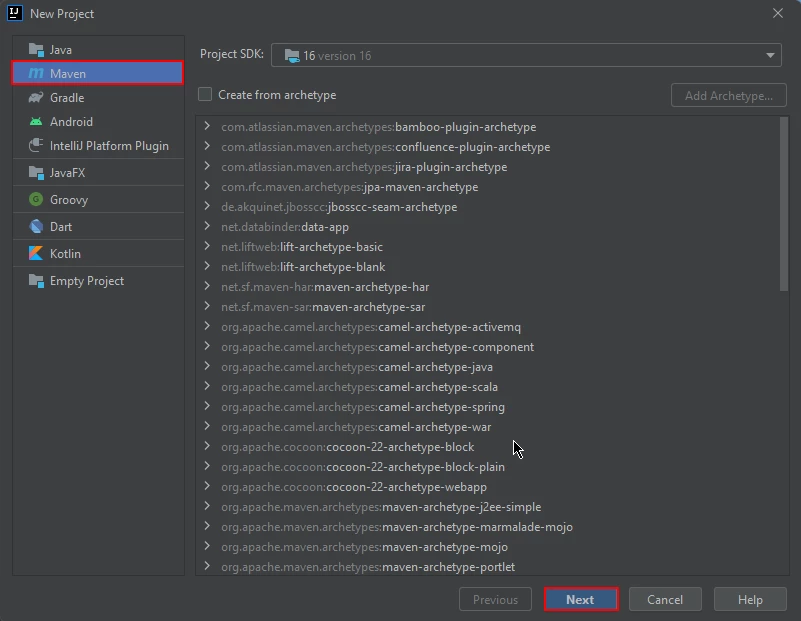
First, open JetBrains IntelliJ IDEA and create a new Maven project.

PDF Creator For Java (Step-By-Step) Tutorial, Figure 1: New project New project

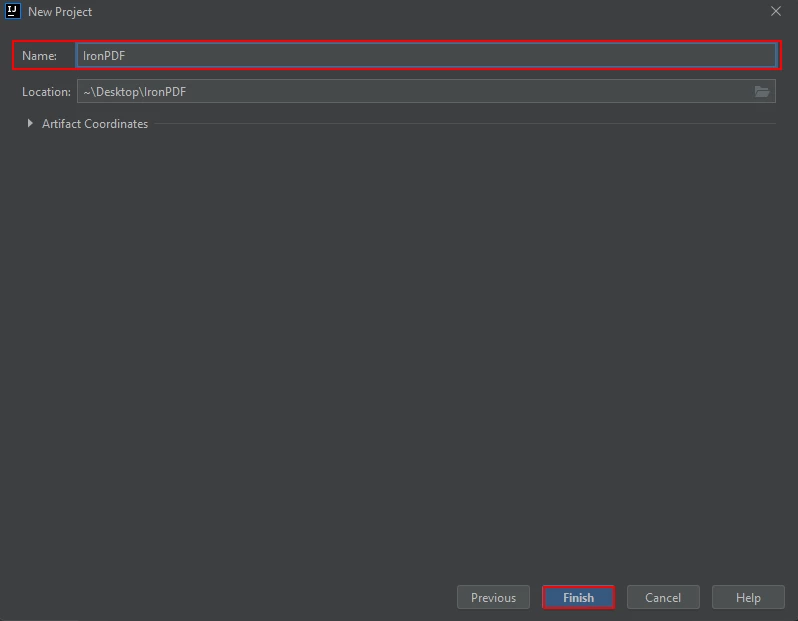
A new window will appear. Enter the name of the project and click on finish.

PDF Creator For Java (Step-By-Step) Tutorial, Figure 2: Configure the new project Configure the new project

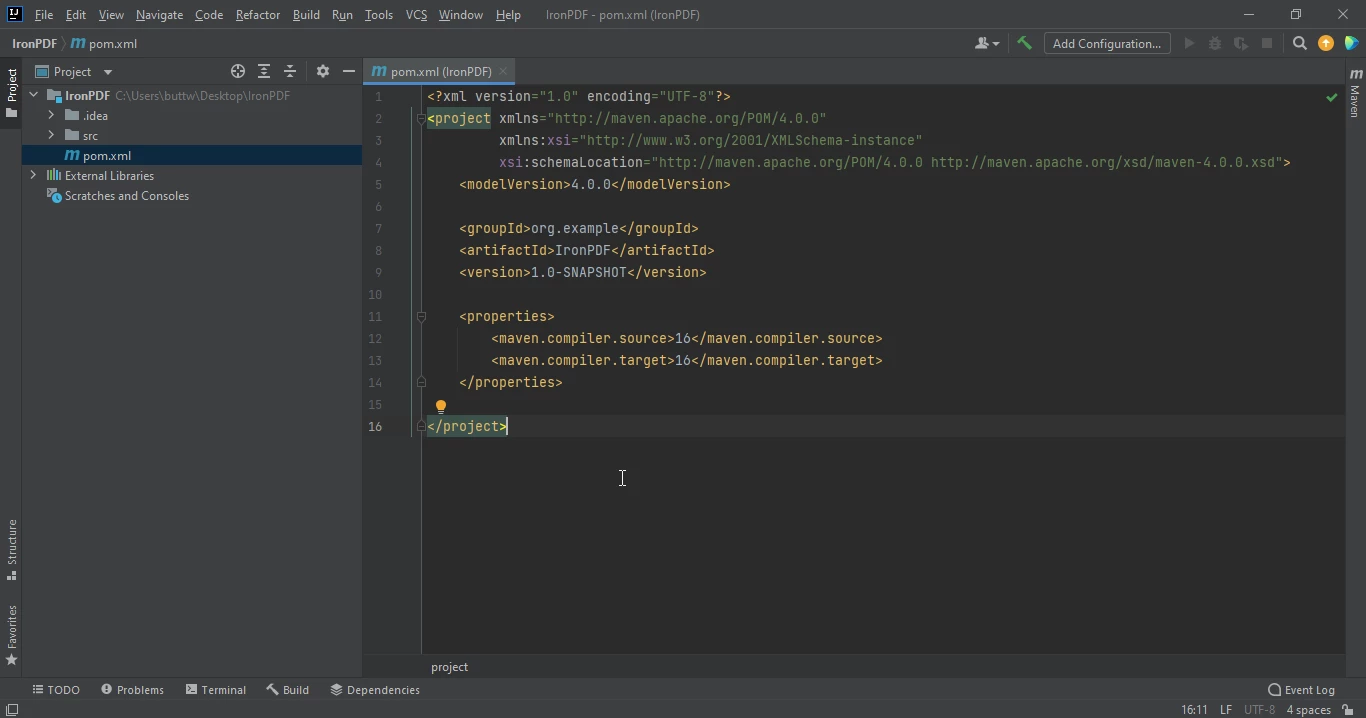
After you click Finish, a new project will open to a pom.xml file, then use this file to add some Maven project dependencies.

PDF Creator For Java (Step-By-Step) Tutorial, Figure 3: The pom.xml file The pom.xml file

Add the following dependencies in the pom.xml file.

<dependencies>
    <dependency>
        <groupId>com.ironsoftware</groupId>
        <artifactId>ironpdf</artifactId>
        <version>1.0.0</version> 
    </dependency>
</dependencies>
<dependencies>
    <dependency>
        <groupId>com.ironsoftware</groupId>
        <artifactId>ironpdf</artifactId>
        <version>1.0.0</version> 
    </dependency>
</dependencies>
XML

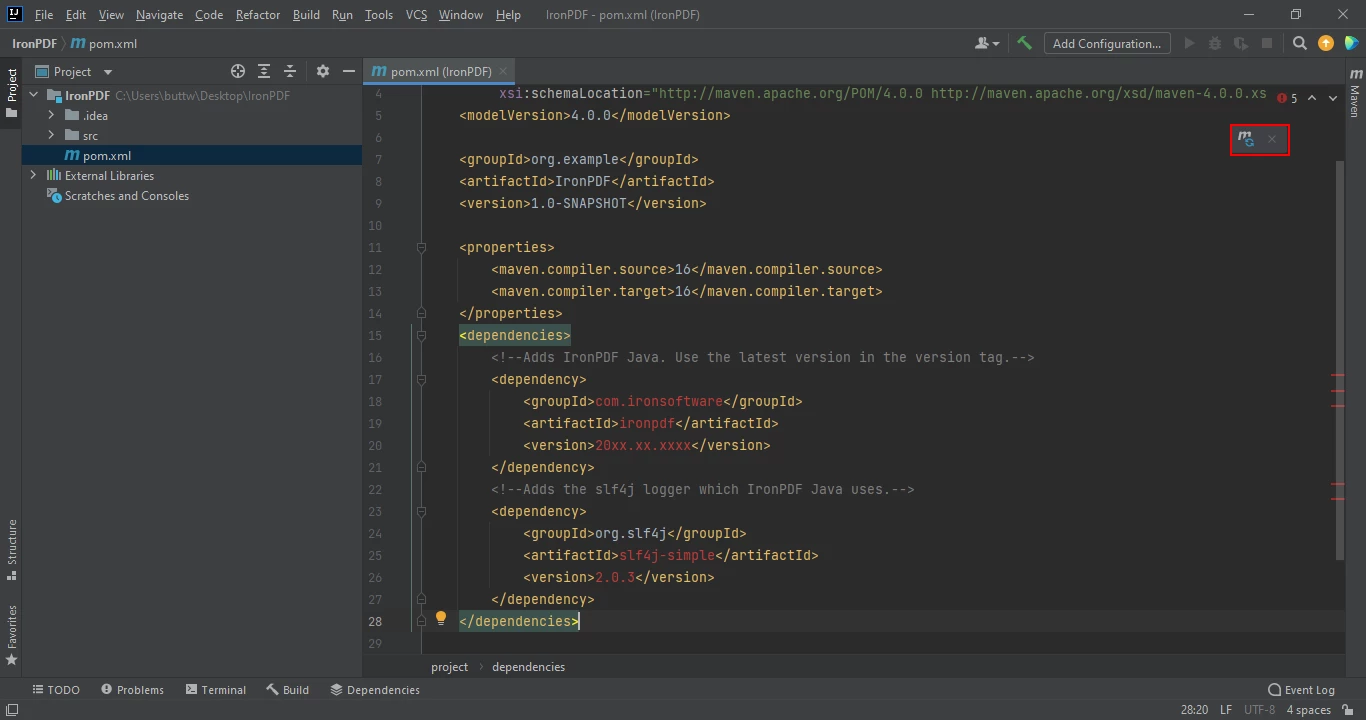
Once you have placed the dependencies in the pom.xml file, a small icon will appear in the top right corner of the file.

PDF Creator For Java (Step-By-Step) Tutorial, Figure 4: The pom.xml file with an icon to install dependencies The pom.xml file with an icon to install dependencies

Click on this icon to install the Maven dependencies of IronPDF for Java. This will only take a few minutes, depending on your internet connection.

4. Creating PDF Files

This section will discuss how to create new PDF documents using IronPDF for Java. IronPDF makes it very easy to create new PDF documents with just a few lines of code.

There are many different ways to create PDF files using IronPDF for Java

  • The renderHtmlAsPdf method can convert an HTML string to a PDF file
  • The renderHtmlFileAsPdf method can convert HTML files into PDF documents
  • The renderUrlAsPdf method can create PDF files directly from a URL and save the result in a specified folder.

4.1. Create PDF Documents using an HTML String

The code example below shows how to use the renderHtmlAsPdf method to convert a string of HTML markup into a PDF. Note that using the renderHtmlAsPdf method requires basic knowledge of how HTML works.

import com.ironsoftware.ironpdf.*;
import java.io.IOException;
import java.nio.file.Paths;

public class Main {
    public static void main(String[] args) throws IOException {
        License.setLicenseKey("YOUR-LICENSE-KEY"); // Set your IronPDF license key
        Settings.setLogPath(Paths.get("C:/tmp/IronPdfEngine.log")); // Set the path for log files
        // Convert a simple HTML string into a PDF document
        PdfDocument myPdf = PdfDocument.renderHtmlAsPdf("<h1> ~Hello World~ </h1> Made with IronPDF!");
        // Save the PDF document to the specified path
        myPdf.saveAs(Paths.get("html_saved.pdf"));
    }
}
import com.ironsoftware.ironpdf.*;
import java.io.IOException;
import java.nio.file.Paths;

public class Main {
    public static void main(String[] args) throws IOException {
        License.setLicenseKey("YOUR-LICENSE-KEY"); // Set your IronPDF license key
        Settings.setLogPath(Paths.get("C:/tmp/IronPdfEngine.log")); // Set the path for log files
        // Convert a simple HTML string into a PDF document
        PdfDocument myPdf = PdfDocument.renderHtmlAsPdf("<h1> ~Hello World~ </h1> Made with IronPDF!");
        // Save the PDF document to the specified path
        myPdf.saveAs(Paths.get("html_saved.pdf"));
    }
}
JAVA

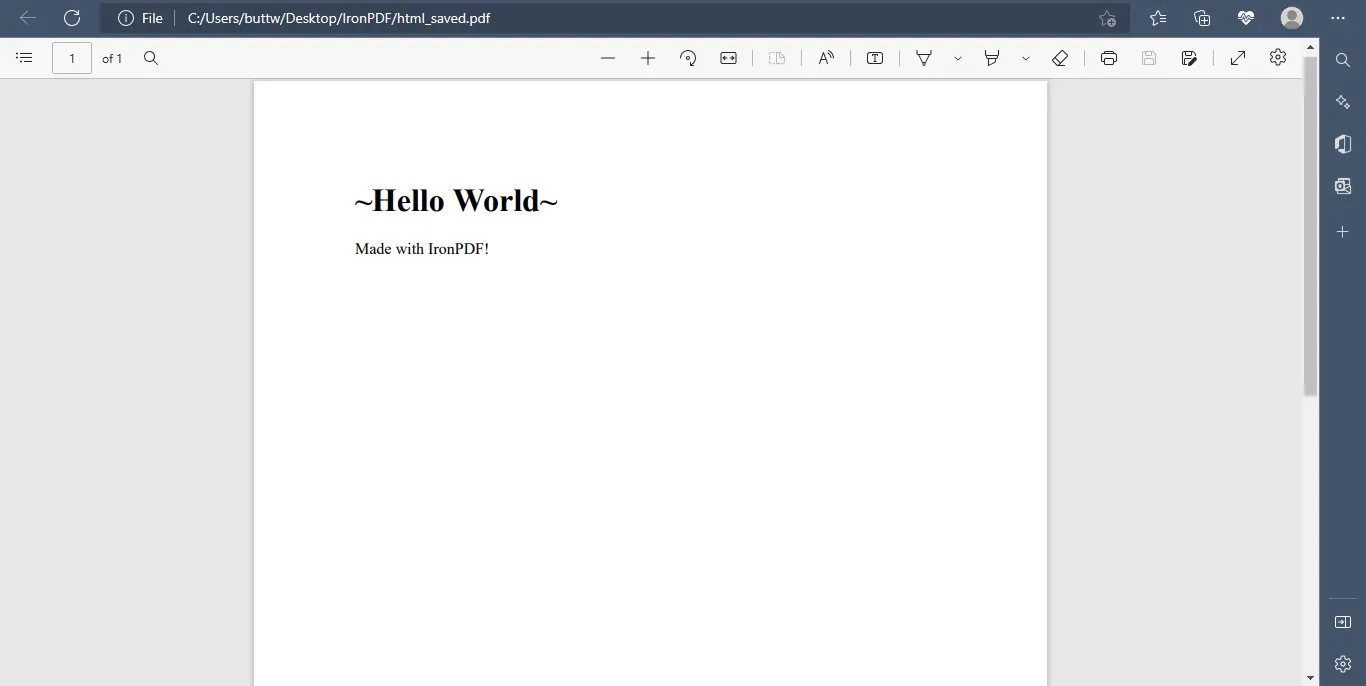
The output of the above code is given below.

PDF Creator For Java (Step-By-Step) Tutorial, Figure 5: The output file The output file

4.2. Create a PDF file from an HTML File

The IronPDF library's renderHtmlFileAsPdf method allows you to generate a new PDF file from an HTML source file. This method turns everything in an HTML document into a PDF, including graphics, CSS, forms, and so on.

import com.ironsoftware.ironpdf.*;
import java.io.IOException;
import java.nio.file.Paths;

public class Main {
    public static void main(String[] args) throws IOException {
        License.setLicenseKey("YOUR-LICENSE-KEY"); // Set your IronPDF license key
        Settings.setLogPath(Paths.get("C:/tmp/IronPdfEngine.log")); // Set the path for log files
        // Convert an HTML file into a PDF document
        PdfDocument myPdf = PdfDocument.renderHtmlFileAsPdf("index.html");
        // Save the PDF document to the specified path
        myPdf.saveAs(Paths.get("html_saved.pdf"));
    }
}
import com.ironsoftware.ironpdf.*;
import java.io.IOException;
import java.nio.file.Paths;

public class Main {
    public static void main(String[] args) throws IOException {
        License.setLicenseKey("YOUR-LICENSE-KEY"); // Set your IronPDF license key
        Settings.setLogPath(Paths.get("C:/tmp/IronPdfEngine.log")); // Set the path for log files
        // Convert an HTML file into a PDF document
        PdfDocument myPdf = PdfDocument.renderHtmlFileAsPdf("index.html");
        // Save the PDF document to the specified path
        myPdf.saveAs(Paths.get("html_saved.pdf"));
    }
}
JAVA

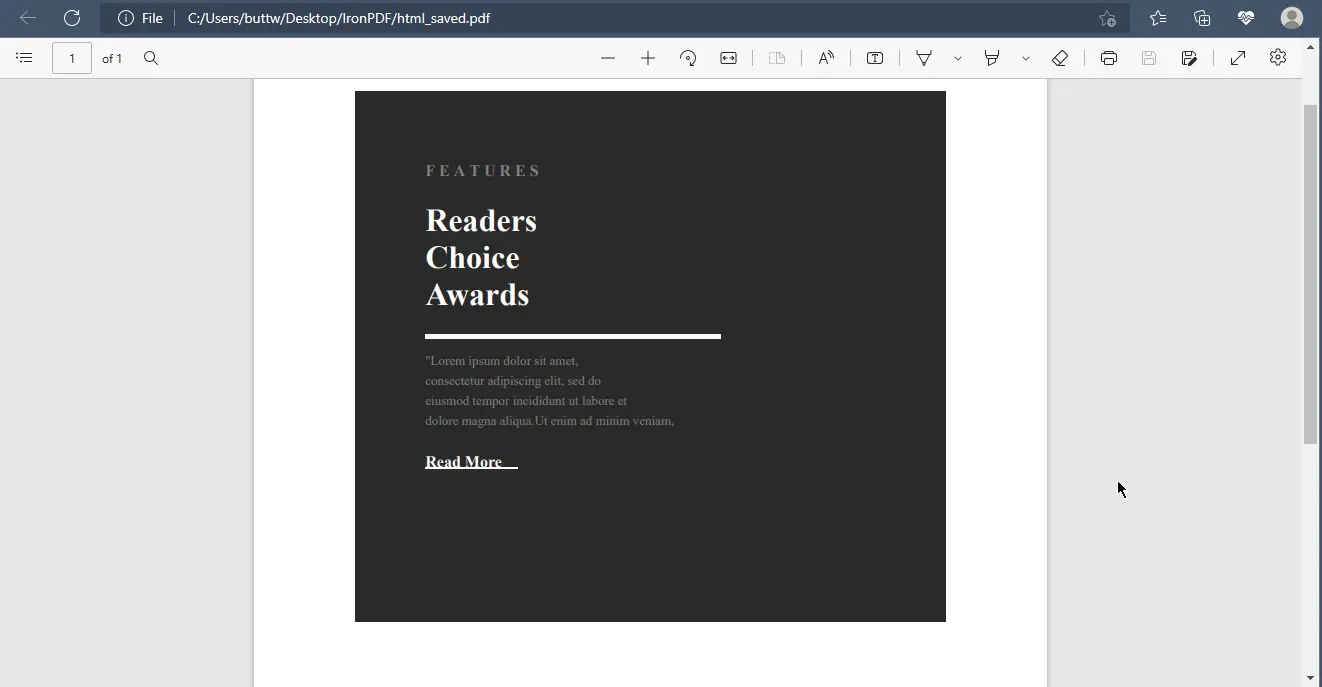
The output of the above code example is given below.

PDF Creator For Java (Step-By-Step) Tutorial, Figure 6: The output file from an HTML file The output file from an HTML file

4.3. Create PDF files from URLs

Using IronPDF, you can quickly create a PDF from a web page's URL with excellent precision and accuracy. It also provides the ability to create PDF files from credential-locked websites.

import com.ironsoftware.ironpdf.*;
import java.io.IOException;
import java.nio.file.Paths;

public class Main {
    public static void main(String[] args) throws IOException {
        License.setLicenseKey("YOUR-LICENSE-KEY"); // Set your IronPDF license key
        Settings.setLogPath(Paths.get("C:/tmp/IronPdfEngine.log")); // Set the path for log files
        // Convert a web page URL into a PDF document
        PdfDocument myPdf = PdfDocument.renderUrlAsPdf("https://www.alibaba.com/");
        // Save the PDF document to the specified path
        myPdf.saveAs(Paths.get("html_saved.pdf"));
    }
}
import com.ironsoftware.ironpdf.*;
import java.io.IOException;
import java.nio.file.Paths;

public class Main {
    public static void main(String[] args) throws IOException {
        License.setLicenseKey("YOUR-LICENSE-KEY"); // Set your IronPDF license key
        Settings.setLogPath(Paths.get("C:/tmp/IronPdfEngine.log")); // Set the path for log files
        // Convert a web page URL into a PDF document
        PdfDocument myPdf = PdfDocument.renderUrlAsPdf("https://www.alibaba.com/");
        // Save the PDF document to the specified path
        myPdf.saveAs(Paths.get("html_saved.pdf"));
    }
}
JAVA

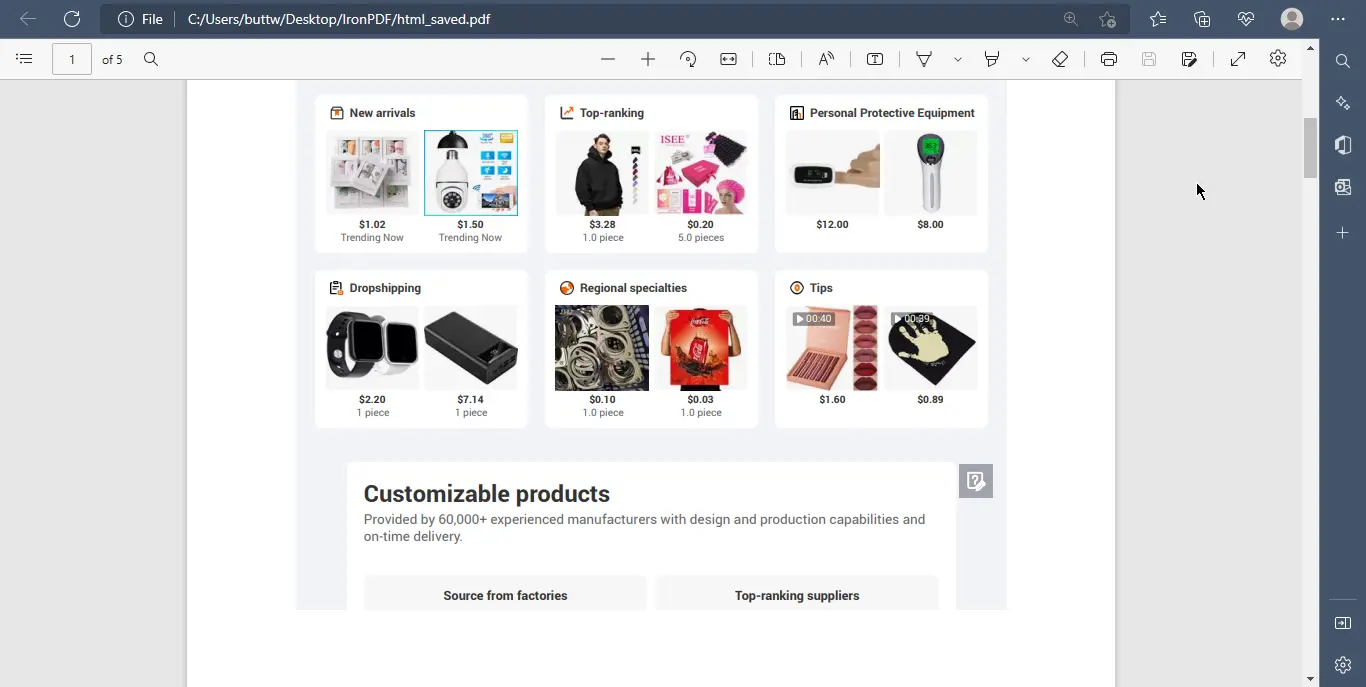
The output of the above code is given below.

PDF Creator For Java (Step-By-Step) Tutorial, Figure 7: The output PDF file from the Alibaba website The output PDF file from the Alibaba website

4.4. Create PDF Files from Images

IronPDF for Java can also create a PDF file from one or more images.

import com.ironsoftware.ironpdf.*;
import java.io.IOException;
import java.nio.file.*;
import java.util.ArrayList;
import java.util.List;

public class Main {
    public static void main(String[] args) throws IOException {
        Path imageDirectory = Paths.get("assets/images"); // Define the directory to search for images
        List<Path> imageFiles = new ArrayList<>();
        try (DirectoryStream<Path> stream = Files.newDirectoryStream(imageDirectory, "*.{png,jpg}")) {
            for (Path entry: stream) {
                imageFiles.add(entry); // Add each image file to the list
            }
            // Convert images into a composite PDF document
            PdfDocument.fromImage(imageFiles).saveAs(Paths.get("assets/composite.pdf"));
        } catch (IOException exception) {
            // Handle the exception if an error occurs during image-to-PDF conversion
            throw new RuntimeException(String.format("Error converting images to PDF from directory: %s: %s",
                    imageDirectory,
                    exception.getMessage()),
                exception);
        }
    }
}
import com.ironsoftware.ironpdf.*;
import java.io.IOException;
import java.nio.file.*;
import java.util.ArrayList;
import java.util.List;

public class Main {
    public static void main(String[] args) throws IOException {
        Path imageDirectory = Paths.get("assets/images"); // Define the directory to search for images
        List<Path> imageFiles = new ArrayList<>();
        try (DirectoryStream<Path> stream = Files.newDirectoryStream(imageDirectory, "*.{png,jpg}")) {
            for (Path entry: stream) {
                imageFiles.add(entry); // Add each image file to the list
            }
            // Convert images into a composite PDF document
            PdfDocument.fromImage(imageFiles).saveAs(Paths.get("assets/composite.pdf"));
        } catch (IOException exception) {
            // Handle the exception if an error occurs during image-to-PDF conversion
            throw new RuntimeException(String.format("Error converting images to PDF from directory: %s: %s",
                    imageDirectory,
                    exception.getMessage()),
                exception);
        }
    }
}
JAVA

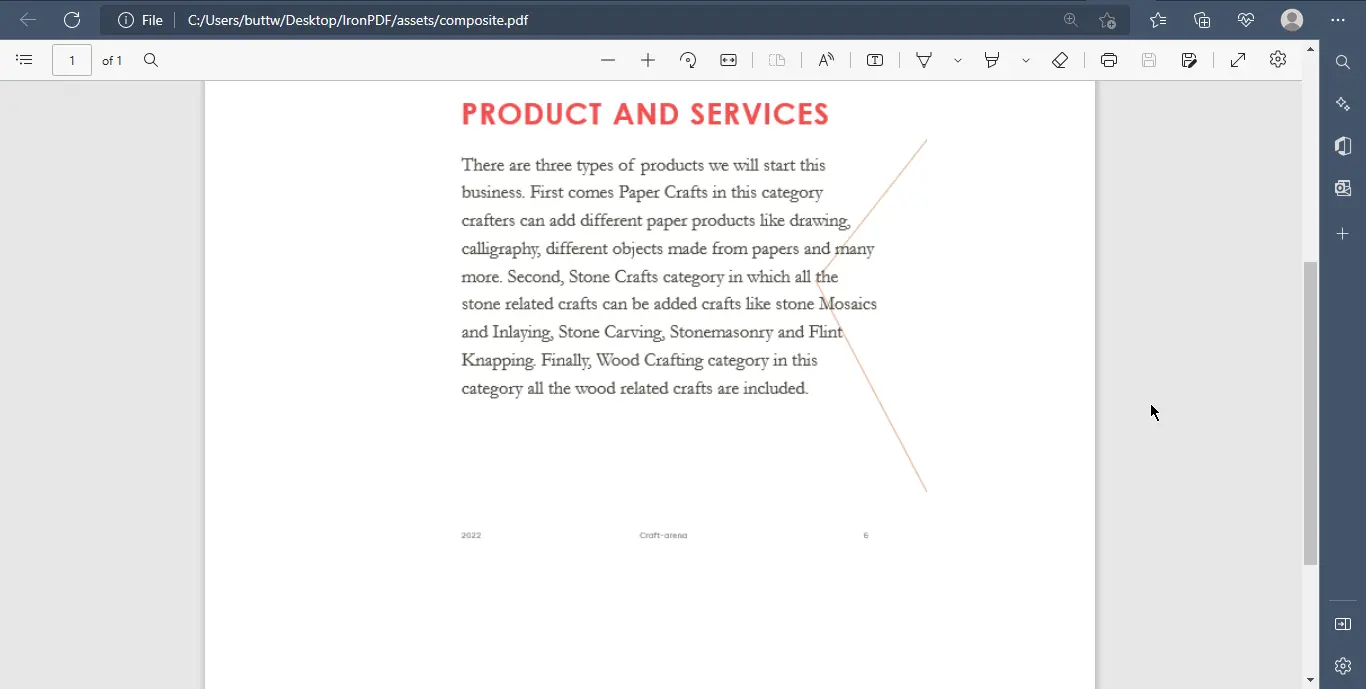
The output of the above code is given below.

PDF Creator For Java (Step-By-Step) Tutorial, Figure 8: The output PDF file from images The output PDF file from images

5. Conclusion

This article demonstrated how you can create PDFs from scratch or from already existing HTML files or URLs. IronPDF allows you to convert from several formats to produce a high-quality PDF and makes it very simple to manipulate and format these PDF files.

IronPDF is perfect for software developers and businesses who need to handle, modify, or manipulate PDF files. To know more about IronPDF for Java and to get similar tutorials on how to manipulate PDF using Java, please refer to the following official documentation. For a tutorial on creating PDF files using Java, please visit this Java code example.

IronPDF for Java is free for development purposes but requires a license for commercial use. For more additional information about licensing, please visit the following licensing page.

자주 묻는 질문

Java를 사용하여 PDF 파일을 만들려면 어떻게 해야 하나요?

처음부터 PDF를 생성하거나 HTML, URL 또는 이미지와 같은 다양한 형식을 PDF 문서로 변환할 수 있는 Java용 IronPDF 라이브러리를 사용하여 PDF 파일을 생성할 수 있습니다.

IntelliJ IDEA에서 PDF 라이브러리를 설치하는 단계는 무엇인가요?

IntelliJ IDEA에 IronPDF를 설치하려면 Maven 프로젝트를 설정하고 IronPDF의 Maven 종속성을 pom.xml 파일에 추가하세요. 그런 다음 IDE를 사용하여 설치를 관리하세요.

Java로 된 PDF에 사용자 정의 머리글과 바닥글을 추가할 수 있나요?

예, Java용 IronPDF를 사용하면 API 메서드를 사용하여 머리글과 바닥글을 추가하여 PDF 문서를 사용자 지정할 수 있습니다.

Java에서 HTML 파일을 PDF 문서로 변환하려면 어떻게 해야 하나요?

Java용 IronPDF 라이브러리에서 renderHtmlFileAsPdf 메서드를 사용하여 HTML 파일을 PDF 문서로 변환할 수 있습니다. 이 메서드는 그래픽, CSS 및 양식을 보존합니다.

Java를 사용하여 PDF 파일을 암호화할 수 있나요?

예, Java용 IronPDF는 PDF 파일에 대한 암호 암호화를 지원하므로 문서를 효과적으로 보호할 수 있습니다.

이미지를 사용하여 Java로 PDF 문서를 만들려면 어떻게 해야 하나요?

Java용 IronPDF는 하나 이상의 이미지에서 PDF 문서를 생성할 수 있는 fromImage라는 메서드를 제공합니다.

Java용 IronPDF는 멀티스레딩을 지원하나요?

예, Java용 IronPDF에는 PDF 문서 처리 시 성능을 개선하기 위한 멀티스레딩 및 비동기 기능이 포함되어 있습니다.

Java에서 PDF 생성에 실패하면 어떻게 해야 하나요?

Java용 IronPDF가 제대로 설치되어 있고 Java 환경이 올바르게 구성되어 있는지 확인합니다. IronPDF 메서드 사용 시 코드에 오류가 있는지 확인하고 문제 해결을 위해 공식 문서를 참조하세요.

웹페이지 URL을 Java로 PDF로 변환할 수 있나요?

예, Java용 IronPDF를 사용하면 renderUrlAsPdf 메서드를 사용하여 웹페이지 URL을 PDF 문서로 변환할 수 있습니다.

Java용 IronPDF 사용법을 배우기 위한 리소스는 어디에서 찾을 수 있나요?

Java용 IronPDF 사용에 대한 포괄적인 튜토리얼과 문서는 공식 IronPDF 문서 페이지에서 찾을 수 있습니다.

커티스 차우
기술 문서 작성자

커티스 차우는 칼턴 대학교에서 컴퓨터 과학 학사 학위를 취득했으며, Node.js, TypeScript, JavaScript, React를 전문으로 하는 프론트엔드 개발자입니다. 직관적이고 미적으로 뛰어난 사용자 인터페이스를 만드는 데 열정을 가진 그는 최신 프레임워크를 활용하고, 잘 구성되고 시각적으로 매력적인 매뉴얼을 제작하는 것을 즐깁니다.


커티스는 개발 분야 외에도 사물 인터넷(IoT)에 깊은 관심을 가지고 있으며, 하드웨어와 소프트웨어를 통합하는 혁신적인 방법을 연구합니다. 여가 시간에는 게임을 즐기거나 디스코드 봇을 만들면서 기술에 대한 애정과 창의성을 결합합니다.