푸터 콘텐츠로 바로가기
NODE.JS용 IRONPDF 사용

Node.js에서 PDF에서 이미지를 추출하는 방법

How to extract images from PDF files using IronPDF Node.js

  1. Set up a Node.js application.
  2. Install IronPDF NPM packages.
  3. Prepare a PDF for the extraction.
  4. Extract images from the PDF file and save.

Prerequisites

If you haven't installed Node.js yet, download and install it from https://nodejs.org/.

Introducing the IronPDF NPM package

The IronPDF NPM package is a Node.js wrapper for the IronPDF library, originally designed for .NET environments. It allows developers to harness the powerful PDF manipulation capabilities of IronPDF in Node.js applications. This package is particularly useful for working with PDF documents, offering a range of features that can be useful in many real-world applications such as file processing, report generation, and more.

Key Features of IronPDF in Node.js

  1. PDF Creation:

    IronPDF can create PDFs from various sources, including HTML content, images, or even raw text. This feature is highly useful for web applications that need to generate reports, invoices, or any other document in PDF format.

    IronPDF supports styling and formatting HTML content, making it a great choice for converting web pages into well-structured PDF documents.

  2. PDF Editing:

    IronPDF allows you to manipulate existing PDFs by adding text, images, annotations, and modifying the layout. You can also merge multiple PDFs into one, split a large document into smaller parts, or even reorder pages within a PDF.

    These features make it ideal for applications that need to dynamically modify PDFs, such as document management systems or applications that require automated document generation.

  3. PDF Conversion:

    One of the standout features of IronPDF is its ability to convert PDFs into various other formats. For example, it can convert PDF documents to images (PNG, JPEG), HTML, and Word formats.

    This feature is particularly useful when you need to present a PDF's content in different formats or create image previews of PDFs for user interfaces.

  4. Extracting Text and Images:

    While IronPDF does not have a direct REST API to extract raw images from a PDF, it provides a method for rendering PDF pages as images (such as PNG or JPEG), which can be used as an indirect way of extracting content.

    You can render each page of the PDF into an image, effectively capturing the visual representation of the document, and saving it for further use or display.

  5. Rendering Pages as Images:

    IronPDF can convert PDF pages into high-quality images. For example, you can convert a multipage PDF into a series of PNGs, one for each page. This is particularly useful when you need to display the pages as thumbnails or in an image-based format. It supports various image format types.

  6. Security and Encryption:

    IronPDF supports working with encrypted PDFs. It allows you to open, decrypt, and manipulate secured documents, which is essential for working with documents that require passwords or other forms of protection.

  7. Cross-Platform Compatibility:

    IronPDF is compatible with both Windows and Linux environments, making it a versatile tool for server-side applications. The Node.js wrapper simplifies the process of integrating IronPDF into Node.js-based applications.

Step 1: Set up a Node.js application

To start with, set up the Node.js project folder by creating a folder on the local machine and opening Visual Studio Code.

mkdir PdfImageExtractor
cd PdfImageExtractor
code .
mkdir PdfImageExtractor
cd PdfImageExtractor
code .
SHELL

Step 2: Install the IronPDF NPM packages

Install the IronPDF Node.js package and its supporting package based on Windows or Linux machines

npm install @ironsoftware/ironpdf
npm install @ironsoftware/ironpdf-engine-windows-x64
npm install @ironsoftware/ironpdf
npm install @ironsoftware/ironpdf-engine-windows-x64
SHELL

The package @ironsoftware/ironpdf-engine-windows-x64 is a platform-specific version of the IronPDF library, specifically designed for Windows 64-bit systems.

1. Platform-Specific Binary for Windows (64-bit)

The IronPDF library has platform-specific dependencies. For Node.js to work efficiently with IronPDF, it requires native binaries that are tailored for specific operating systems and architectures. In this case, the @ironsoftware/ironpdf-engine-windows-x64 package provides the native engine for Windows 64-bit environments.

2. Optimized Performance

By using this Windows-specific package, you ensure that the IronPDF library works optimally on Windows-based systems. It ensures that all the native dependencies, such as those related to PDF rendering and manipulation, are compatible and function smoothly on your machine.

3. Simplifying Installation

Instead of manually managing and configuring the required binaries for Windows 64-bit systems, installing the @ironsoftware/ironpdf-engine-windows-x64 package automates this process. This saves time and eliminates potential compatibility issues.

4. Cross-Platform Compatibility

IronPDF also supports other platforms like macOS and Linux. Providing platform-specific packages, allows developers to use the right binary for their operating system, improving the overall stability and reliability of the library.

5. Required for Certain Features

If you're using certain IronPDF features (like rendering PDFs to images or performing complex document manipulations), the native engine is required. The @ironsoftware/ironpdf-engine-windows-x64 package includes this engine specifically for Windows-based environments.

Step 3: Prepare a PDF for the extraction

Now get the PDF file that needs extraction. Copy the path to be used in the application. This article uses the following file.

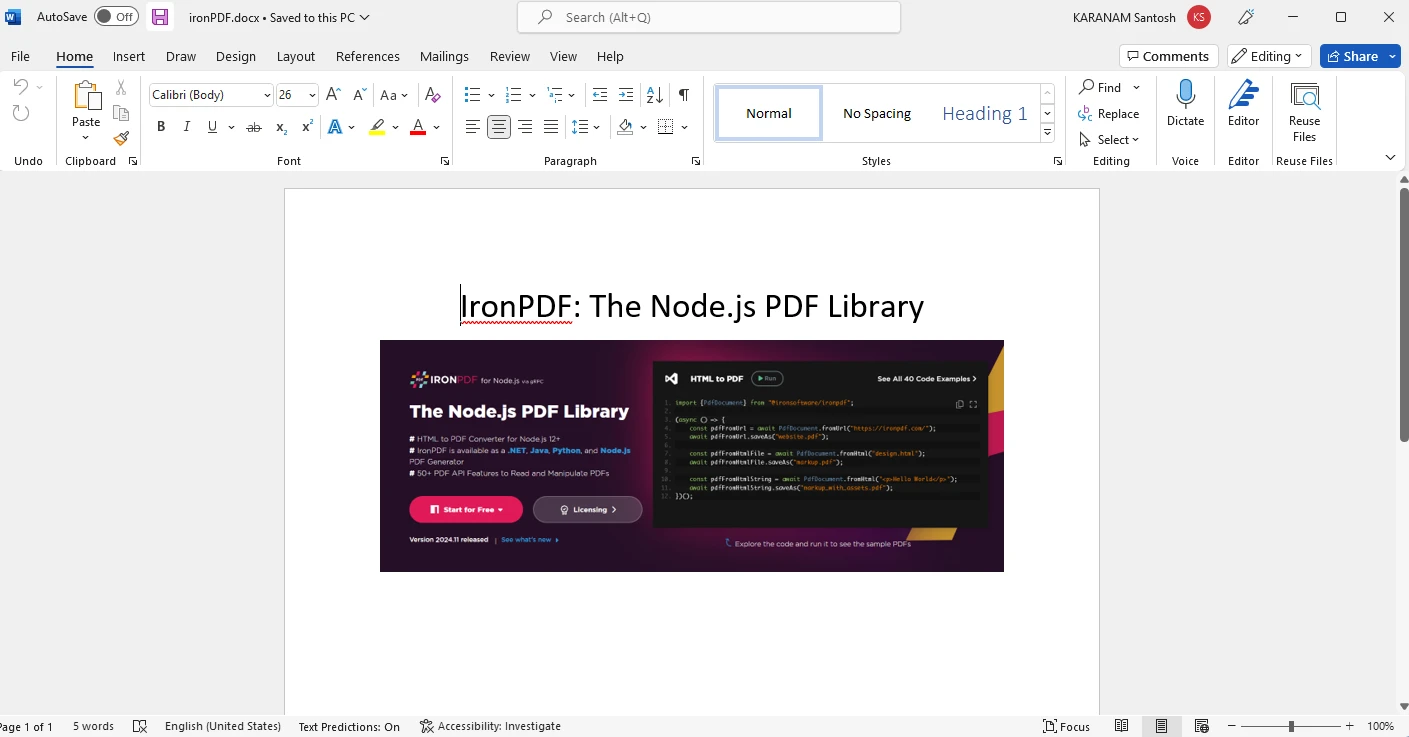
How to Extract Images From PDF in Node.js: Figure 1 - Sample File

Step 4: Extract images from PDF file and save

Now use the file in the above step and write the below code snippet in an app.js file in the Node.js project folder.

const fs = require('fs');
const { IronPdfGlobalConfig, PdfDocument } = require('@ironsoftware/ironpdf')

// Apply your IronPDF license key
IronPdfGlobalConfig.getConfig().licenseKey = "Your license key";

(async () => {
    // Extracting Image and Text content from Pdf Documents

    // Import existing PDF document
    const pdf = await PdfDocument.fromFile("ironPDF.pdf");

    // Get all text to put in a search index and log it
    const text = await pdf.extractText();
    console.log('All Text: ' + text);

    // Get all Images as buffers
    const imagesBuffer = await pdf.extractRawImages();
    console.log('Images count: ' + imagesBuffer.length);

    // Save the first extracted image to the local file system
    fs.writeFileSync("./file1.jpg", imagesBuffer[0]);

    // Indicate completion
    console.log('Complete!');
})();

Run the app:

node app.js
node app.js
SHELL

Code Explanation

This code snippet example demonstrates how to use the IronPDF library in Node.js to extract text and images (JPG format) from a PDF document.

  1. License Setup: The IronPdfGlobalConfig is used to set the license key for IronPDF, which is required to use the library's features.

  2. PDF Loading: The code loads a PDF document ironPDF.pdf using the PdfDocument.fromFile() method. This allows the program to work with the contents of the PDF.

  3. Text Extraction: The extractText() method is used to extract all the text from the loaded PDF. This text can be used for tasks like indexing or searching through the document.

  4. Image Extraction: The extractRawImages() method is used to extract raw images from the PDF. These images are returned as a buffer, which can be saved or processed further.

  5. Saving Images: The extracted images are saved to the local file system as JPG files using Node's fs.writeFileSync() method.

  6. Final Output: After the extraction is complete, the program prints out the extracted text, the number of images extracted, followed by saving the first image.

The code demonstrates how to interact with PDF files using IronPDF to extract content and process it within a Node.js environment.

Output

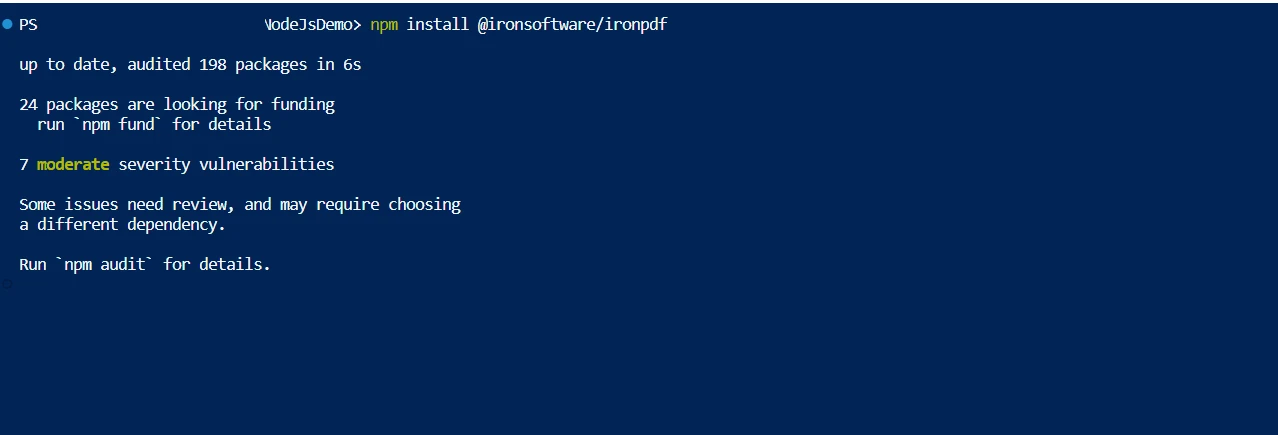
How to Extract Images From PDF in Node.js: Figure 2 - Console Output

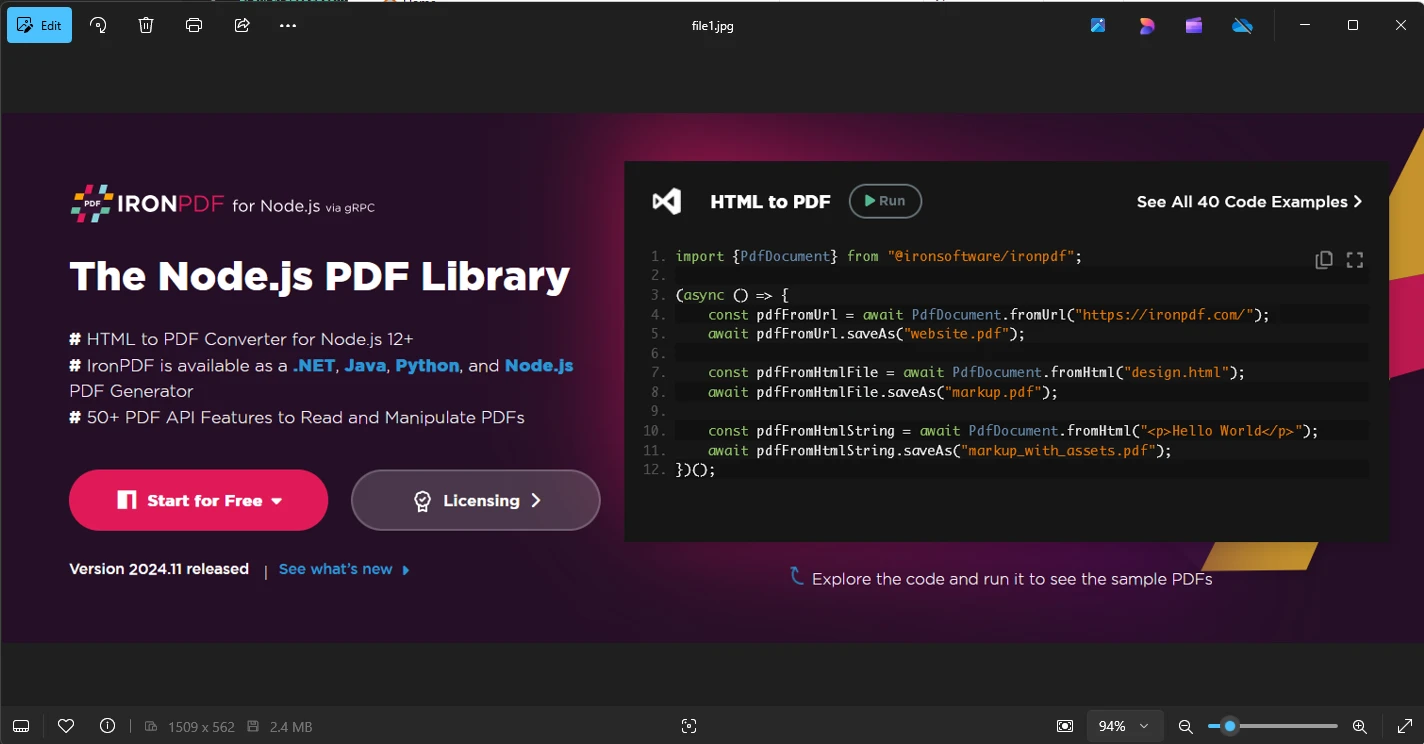
How to Extract Images From PDF in Node.js: Figure 3 - Image Output

License (Trial Available)

IronPDF Node.js requires a license key to work. Developers can get a trial license using their email ID from the license page. Once you provide the email ID, the key will be delivered to the email and can be used in the application as below.

const { IronPdfGlobalConfig } = require('@ironsoftware/ironpdf')

// Apply your IronPDF license key
IronPdfGlobalConfig.getConfig().licenseKey = "Your license key";

Conclusion

Using IronPDF in Node.js for extracting images from PDFs provides a robust and efficient way to handle PDF content. While IronPDF does not offer direct image extraction like some specialized tools, it allows you to render PDF pages as images, which is useful for creating visual representations of the document.

The library’s ability to extract both text and images from PDFs in a straightforward manner makes it a valuable tool for applications that need to process and manipulate PDF content. Its integration with Node.js allows developers to easily incorporate PDF extraction into web or server-side applications.

Overall, IronPDF is a powerful solution for PDF manipulation, offering flexibility to convert, save, and extract images from PDFs, making it suitable for a wide range of use cases such as document indexing, preview generation, and content extraction. However, if your focus is solely on extracting embedded images from PDFs, exploring additional libraries might provide more specialized solutions.

자주 묻는 질문

Node.js를 사용하여 PDF 파일에서 이미지를 추출하려면 어떻게 해야 하나요?

Node.js의 IronPDF를 활용하여 PDF 페이지를 이미지로 렌더링하여 파일로 저장할 수 있습니다. 여기에는 Node.js 프로젝트를 설정하고, IronPDF를 설치한 다음, 해당 메서드를 사용하여 PDF 페이지를 이미지 형식으로 변환하는 작업이 포함됩니다.

Node.js에서 이미지 추출을 위해 IronPDF를 설정하는 단계에는 어떤 것이 있나요?

Node.js에서 이미지 추출을 위해 IronPDF를 설정하려면 Node.js 프로젝트를 만들고 IronPDF NPM 패키지를 설치한 다음 IronPDF의 기능을 사용하여 PDF 문서를 로드하고 해당 페이지를 이미지로 렌더링해야 합니다.

IronPDF는 Node.js의 PDF에서 이미지를 직접 추출할 수 있나요?

IronPDF는 이미지를 직접 추출하지는 않지만 PDF 페이지를 이미지로 렌더링할 수 있습니다. 이렇게 렌더링된 이미지를 저장할 수 있으므로 PDF에서 이미지 콘텐츠를 효과적으로 추출할 수 있습니다.

Node.js 환경에서 IronPDF를 사용하기 위한 전제 조건은 무엇인가요?

전제 조건에는 최적의 성능을 위한 Windows 64비트 버전과 같은 플랫폼별 패키지와 함께 Node.js 설치, 프로젝트 디렉터리 설정, IronPDF NPM 패키지 설치가 포함됩니다.

IronPDF로 Node.js에서 PDF 조작 작업을 어떻게 처리하나요?

IronPDF를 사용하면 Node.js에서 PDF를 생성, 편집, 변환, 콘텐츠 추출과 같은 작업을 수행할 수 있습니다. IronPDF 메서드를 사용하여 PDF를 로드하고 필요에 따라 조작할 수 있습니다.

Node.js에서 PDF 조작을 위해 IronPDF를 사용하려면 라이선스가 필요하나요?

예, IronPDF의 모든 기능을 사용하려면 라이선스가 필요합니다. IronPDF 웹사이트에서 이메일로 가입하여 평가판 라이선스를 받을 수 있습니다.

Node.js에서 PDF에서 직접 이미지를 추출하려면 어떤 추가 라이브러리가 필요할 수 있나요?

IronPDF는 페이지를 이미지로 렌더링할 수 있지만, 직접 이미지를 추출하려면 PDF 파일에서 직접 임베디드 이미지를 추출하는 데 특화된 추가 라이브러리를 사용하는 것을 고려할 수 있습니다.

Node.js 애플리케이션에서 PDF를 처리하는 데 IronPDF가 강력한 선택인 이유는 무엇인가요?

IronPDF의 견고성, Node.js와의 간편한 통합, PDF 생성, 편집 및 콘텐츠 추출을 위한 포괄적인 기능으로 웹 및 문서 처리 애플리케이션에 적합합니다.

커티스 차우
기술 문서 작성자

커티스 차우는 칼턴 대학교에서 컴퓨터 과학 학사 학위를 취득했으며, Node.js, TypeScript, JavaScript, React를 전문으로 하는 프론트엔드 개발자입니다. 직관적이고 미적으로 뛰어난 사용자 인터페이스를 만드는 데 열정을 가진 그는 최신 프레임워크를 활용하고, 잘 구성되고 시각적으로 매력적인 매뉴얼을 제작하는 것을 즐깁니다.

커티스는 개발 분야 외에도 사물 인터넷(IoT)에 깊은 관심을 가지고 있으며, 하드웨어와 소프트웨어를 통합하는 혁신적인 방법을 연구합니다. 여가 시간에는 게임을 즐기거나 디스코드 봇을 만들면서 기술에 대한 애정과 창의성을 결합합니다.