# Node.js에서 HTML을 PDF로 변환하기
IronPDF의 가장 강력하고 인기 있는 기능은 원본 HTML, CSS 및 JavaScript에서 높은 충실도의 PDF를 생성하는 능력입니다. 이 튜토리얼은 Node.js 개발자가 HTML 콘텐츠를 PDF로 전환하는 실용적인 모든 방법을 제공합니다 - 단일 문자열 변환부터 동적 템플릿 기반 문서 생성까지.
IronPDF는 개발자가 소프트웨어 애플리케이션에 강력한 PDF 처리 기능을 신속하게 구현할 수 있도록 돕는 고수준 API 라이브러리입니다. IronPDF 는 [다양한 프로그래밍 언어](/nodejs/licensing/) 로 제공됩니다. PDF 생성에 대한 자세한 내용은 [.NET](/tutorials/html-to-pdf/), [Java](/java/tutorials/html-to-pdf/), [Python](/python/tutorials/html-to-pdf/) 공식 문서 페이지를 참조하십시오. 이 튜토리얼은 Node.js 프로젝트에 적용된 사용법을 다룹니다.
*as-heading:2(빠른 시작: Node.js에서 HTML을 PDF로 변환)*
<div class="hsg-featured-snippet">
<h2>Node.js 사용하여 HTML을 PDF로 변환하는 방법</h2>
<ol>
<li><a class="js-modal-open" data-modal-id="download-modal" href="#download-modal">NPM을 통해 IronPDF Node.js 라이브러리 설치: <code>npm install @ironsoftware/ironpdf</code></a></li>
<li><code>@ironsoftware/ironpdf</code> 패키지에서 <strong>PdfDocument</strong> 클래스를 가져옵니다.</li>
<li><code>PdfDocument.fromHtml</code>, <code>PdfDocument.fromUrl</code> 또는 <code>PdfDocument.fromZip</code>을 사용하여 HTML 소스에 따라 호출하십시오.</li>
<li>렌더링 옵션을 선택적으로 구성하십시오: 헤더, 바닥글, 페이지 크기, 방향, 여백.</li>
<li>생성된 PDF를 디스크에 저장하려면 <code>PdfDocument.saveAs</code>를 호출하십시오.</li>
</ol>
</div>
*as-heading:2(목차)*
- [IronPDF for Node.js를 시작하는 방법은?](#getting-started)
- [Node.js에서 HTML을 PDF로 변환하는 방법은?](#convert-html-to-pdf)
- [HTML 문자열에서 PDF를 생성하는 방법은?](#create-pdf-from-html-string)
- [HTML 파일에서 PDF를 생성하는 방법은?](#create-pdf-from-html-file)
- [URL에서 PDF를 생성하는 방법은?](#create-pdf-from-url)
- [Zip 아카이브에서 PDF를 생성하는 방법은?](#create-pdf-from-zip)
- [IronPDF가 지원하는 고급 렌더링 옵션은 무엇인가요?](#advanced-rendering-options)
- [헤더와 바닥글을 추가하는 방법은?](#add-headers-footers)
- [페이지 크기, 방향 및 여백을 제어하는 방법은?](#page-size-orientation-margins)
- [동적 웹 페이지를 처리하는 방법은?](#dynamic-web-pages)
- [HTML 템플릿에서 PDF를 생성하는 방법은?](#html-template-to-pdf)
- [다음 단계는 무엇입니까?](#next-steps)
## IronPDF for Node.js를 시작하는 방법은?
!!!--LIBRARY_START_TRIAL_BLOCK--!!!
### IronPDF 라이브러리 설치하기
!!!--LIBRARY_NUGET_INSTALL_BLOCK--!!!
선택한 Node.js 프로젝트에서 아래 NPM 명령을 실행하여 IronPDF Node.js 패키지를 설치하십시오:
```shell
:ProductInstall
```
[IronPDF 패키지를 수동으로 다운로드하고 설치](#download-modal) 할 수도 있습니다.
### IronPDF 엔진을 어떻게 설치합니까?
IronPDF for Node.js는 기능을 수행하기 위해 [IronPDF 엔진 바이너리](https://www.npmjs.com/package/@ironsoftware/ironpdf-engine-windows-x64)가 필요합니다.
[[i:(IronPDF 엔진 설치는 선택 사항입니다. `@ironsoftware/ironpdf` 패키지는 처음 실행 시 운영 체제에 적합한 바이너리를 자동으로 다운로드하여 설치합니다. 명시적 설치는 인터넷 접근이 제한되거나 불가능한 환경에서 추천됩니다.)]]
[운영 체제에 맞는 적절한 패키지를 설치](https://www.npmjs.com/package/@ironsoftware/ironpdf#for-windows-x64)하여 IronPDF 엔진 바이너리를 설치하십시오.
### 라이선스 키를 어떻게 적용하나요?
기본적으로, IronPDF는 생성하거나 수정한 모든 문서에 워터마크를 표기합니다. 워터마크를 제거하려면, 인증된 라이센스 키로 전역 `IronPdfGlobalConfig` 객체의 `licenseKey` 속성을 설정하십시오:
```javascript
import { IronPdfGlobalConfig } from "@ironsoftware/ironpdf";

// Retrieve the global configuration object
var config = IronPdfGlobalConfig.getConfig();

// Set a valid license key to remove watermarks
config.licenseKey = "{YOUR-LICENSE-KEY-HERE}";
```
[무료 체험 라이선스를 받으세요](#trial-license) 또는 라이선스 페이지에서 [라이선스 키를 구매하십시오](/nodejs/licensing/).
[[i:(라이선스 키 및 기타 글로벌 설정 설정](/nodejs/object-reference/api/interfaces/IronPdfConfig.html) 후 다른 라이브러리 기능을 호출하십시오. 이는 애플리케이션 전반에서 최적의 성능과 올바른 동작을 보장합니다.)]]
이 튜토리얼의 나머지 코드 예제들은 각 스크립트의 맨 위에서 가져온 별도의 `config.js` 파일에 라이센스 키가 적용되었다고 가정합니다:
```javascript
import { PdfDocument } from "@ironsoftware/ironpdf";
import './config.js'; // Import the configuration script
// ...
```
**워터마크 없는 PDF 문서를 생성하려면 IronPDF 에서 라이선스 키를 받으세요.**
## Node.js에서 HTML을 PDF로 변환하는 방법은?
IronPDF Node.js 라이브러리는 HTML 콘텐츠에서 PDF 파일을 생성하기 위해 네 가지 접근 방식을 제공합니다:
1. HTML 코드 문자열에서
2. 로컬 HTML 파일에서
3. 온라인 URL에서
4. 압축된 ZIP 아카이브에서
각 접근에는 [`PdfDocument`](/nodejs/object-reference/api/classes/PdfDocument.html) 클래스가 기초로 사용됩니다. `PdfDocument`는 특정 소스 콘텐츠로부터 생성된 PDF 파일을 나타내며 IronPDF의 핵심 생성 및 편집 기능을 지원합니다.
### HTML 문자열에서 PDF를 생성하는 방법은?
`PdfDocument.fromHtml`은 원시 HTML 마크업 문자열로부터 PDF를 생성합니다. 이 접근은 네 가지 방법 중 가장 유연성을 제공하며 HTML 문자열이 사실상 어디에서나 생성될 수 있기 때문입니다 - 텍스트 파일, 데이터 스트림, HTML 템플릿 엔진 또는 동적으로 생성된 마크업.
```javascript
import { PdfDocument } from "@ironsoftware/ironpdf";
import './config.js'; // Import the configuration script
// Create a PDF from an HTML string
const pdf = await PdfDocument.fromHtml("<h1>Hello from IronPDF!</h1>");
// Save the PDF document to the file system
await pdf.saveAs("html-string-to-pdf.pdf");
```
`PdfDocument.fromHtml`은 `PdfDocument` 클래스의 인스턴스로 해석되는 프로미스를 반환합니다. 인스턴스를 얻은 후, PDF를 디스크에 기록하기 위해 대상 파일 경로와 함께 `saveAs`을 호출하십시오. 저장된 PDF 파일은 표준 준수 브라우저가 표시하는 방식대로 HTML을 정확히 렌더링합니다.
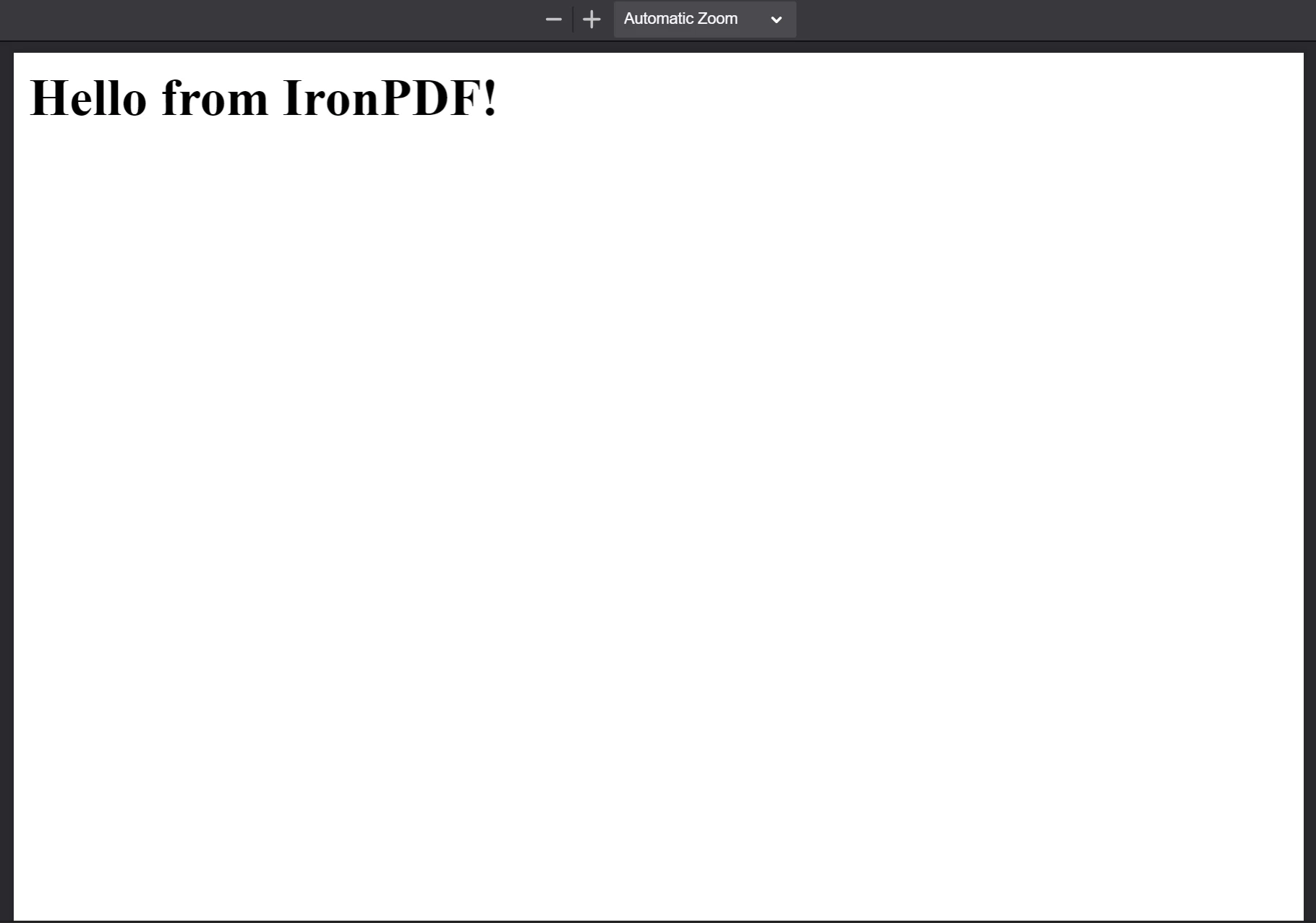
**The PDF generated from the HTML string `<h1>Hello from IronPDF!</h1>`. `PdfDocument.fromHtml`이 생성한 PDF 파일의 모습은 웹 페이지 컨텐츠와 유사하게 나타납니다.**
### HTML 파일에서 PDF를 어떻게 만드나요?
`PdfDocument.fromHtml`은 로컬 HTML 문서 경로도 허용합니다. 마크업 문자열 대신, 유효한 파일 경로를 첫 번째 인수로 전달합니다. 로컬 CSS, JavaScript, 이미지 자산을 참조하는 저장된 웹 페이지를 작업할 때 선호되는 방법입니다.
다음 예제는 [샘플 웹 페이지](https://filesamples.com/samples/code/html/sample2.html)를 PDF로 변환합니다:
```javascript
import { PdfDocument } from "@ironsoftware/ironpdf";
import './config.js'; // Import the configuration script
// Render a PDF from a local HTML file
const pdf = await PdfDocument.fromHtml("./sample2.html");
// Save the PDF document to the project directory
await pdf.saveAs("html-file-to-pdf-1.pdf");
```
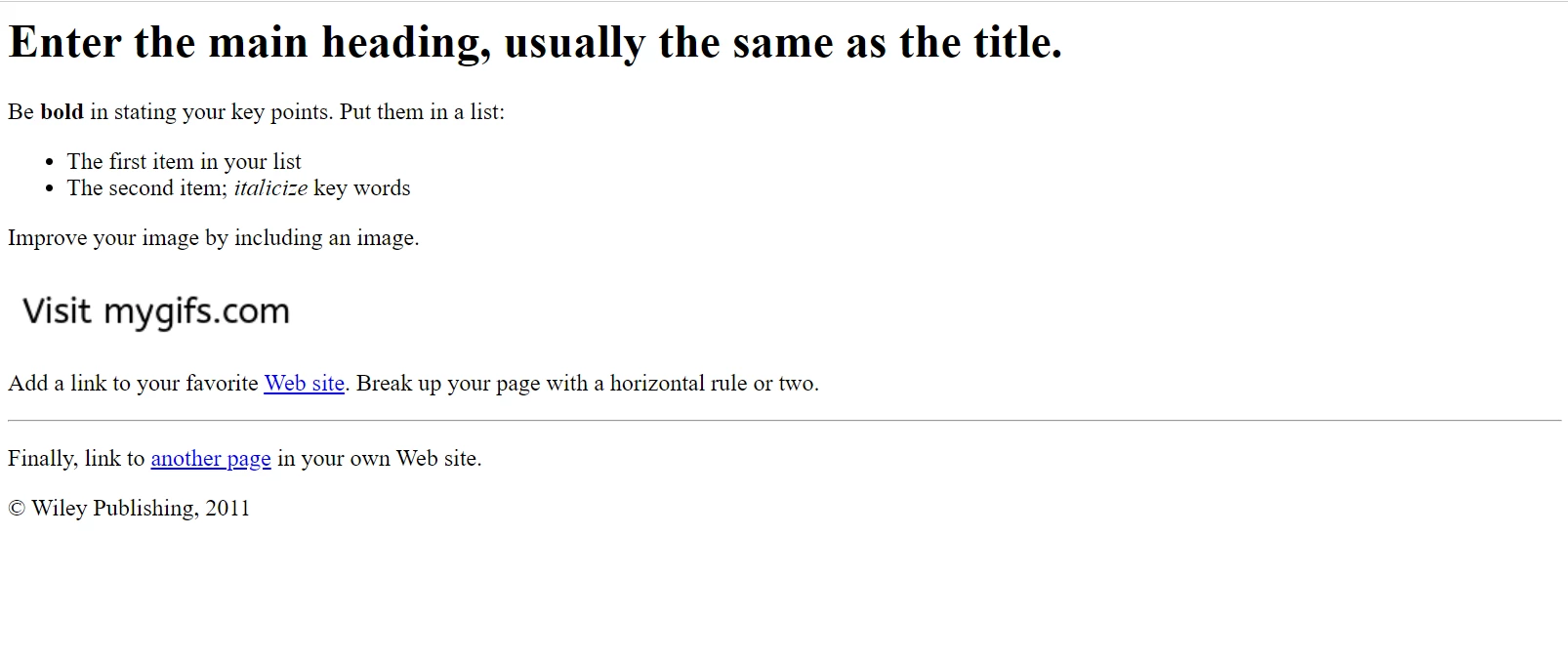
**Google Chrome에서 나타나는 샘플 HTML 페이지. 다음과 유사한 페이지를 파일 샘플 웹사이트에서 다운로드하세요: https://filesamples.com/samples/code/html/sample2.html**
IronPDF는 원본 HTML 문서의 외형을 보존하며 링크, 폼, 기타 상호작용 요소의 기능을 유지합니다. 이 신뢰성은 단락, 목록, 이미지, 하이퍼링크, 클라이언트 측 스크립트가 포함된 복잡한 페이지까지 확장됩니다.
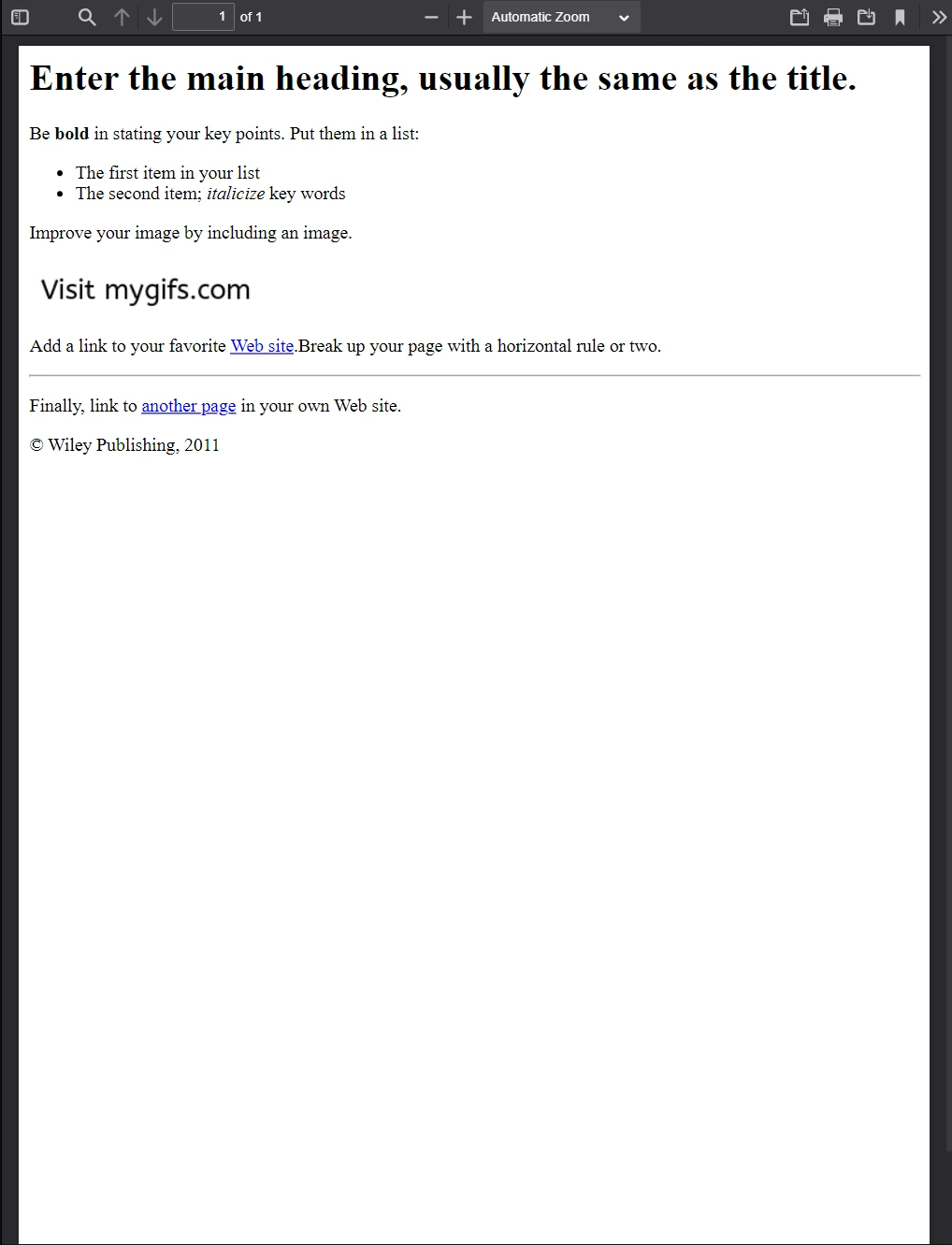
**위의 HTML 파일 예제에서 생성된 PDF입니다. 이전 이미지와의 외형을 비교하세요 - IronPDF는 높은 신뢰도로 레이아웃을 보존합니다.**
IronPDF는 단순한 마크업을 넘어서 상세한 페이지를 처리합니다. 다음 예제는 많은 외부 CSS 파일, 이미지 및 스크립트 자산을 활용하는 기능이 풍부한 페이지를 변환합니다:
```javascript
import { PdfDocument } from "@ironsoftware/ironpdf";
import './config.js'; // Import the configuration script
// Render a PDF from a complex HTML page with external assets
PdfDocument.fromHtml("./sample4.html").then(async (pdf) => {
return await pdf.saveAs("html-file-to-pdf-2.pdf");
});
```
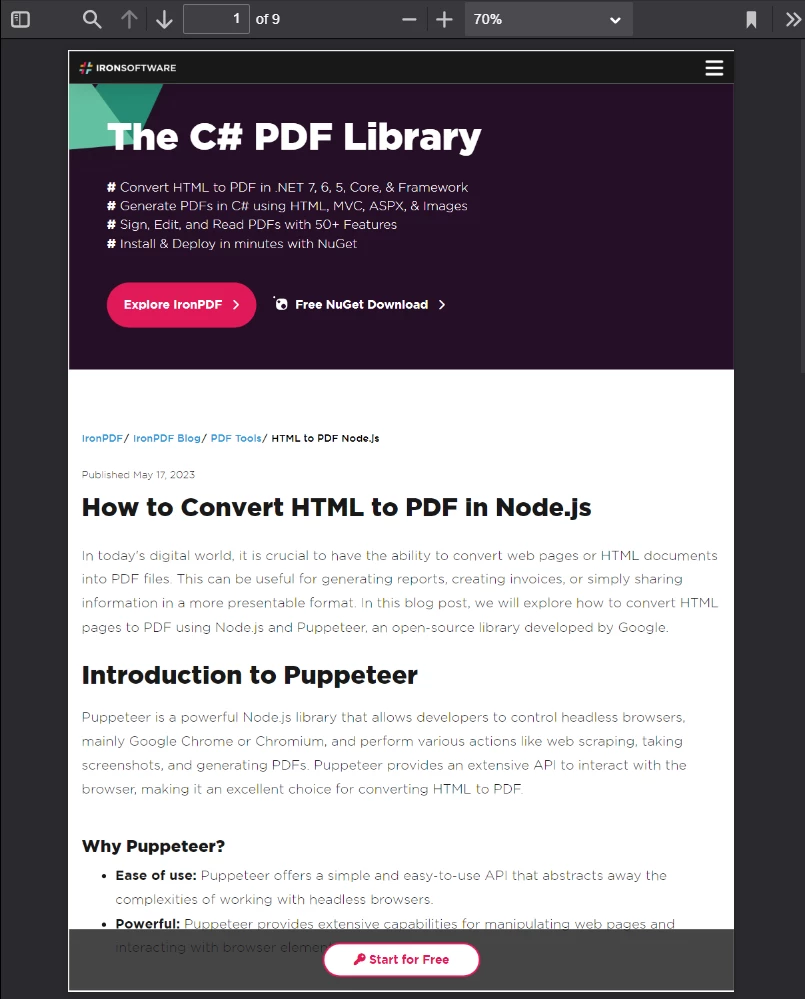
**Google Chrome에서 좋게 보인다면, PDF로 변환되었을 때도 좋게 보일 것입니다. CSS가 많이 사용되고 JavaScript로 렌더링된 페이지 디자인도 포함됩니다.**
[[t:(페이지에 로컬 파일 경로에서 자산이 제공된다면, 모든 참조된 CSS 파일, 이미지 및 스크립트가 HTML 파일의 위치를 기준으로 존재하는지 확인해야 합니다. IronPDF의 Chrome 렌더링 엔진은 브라우저처럼 이 경로를 해결합니다.)]]
### URL에서 PDF를 어떻게 만드나요?
`PdfDocument.fromUrl`은 라이브 웹 페이지를 PDF로 가져오고 렌더링합니다. 공개적으로 접근 가능한 URL을 인수로 전달합니다. IronPDF의 Chrome 렌더링 엔진은 페이지를 검색하고, 모든 자산을 로드하며, 수동으로 HTML을 다운로드할 필요 없이 픽셀 완벽한 PDF를 생성합니다.
```javascript
import { PdfDocument } from "@ironsoftware/ironpdf";
import './config.js'; // Import the configuration script
// Convert a live web page to a PDF
const pdf = await PdfDocument.fromUrl("https://en.wikipedia.org/wiki/PDF");
// Save the document
await pdf.saveAs("url-to-pdf.pdf");
```
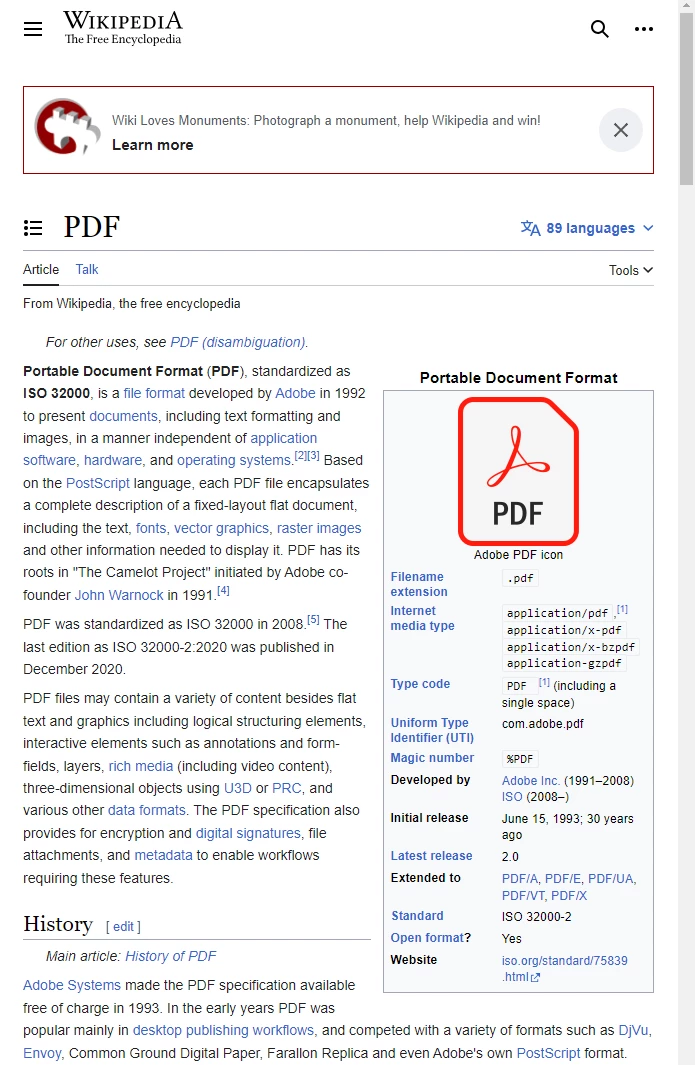
**표준을 준수하는 웹 브라우저에서 보이는 PDF 형식에 대한 위키백과 문서입니다.**
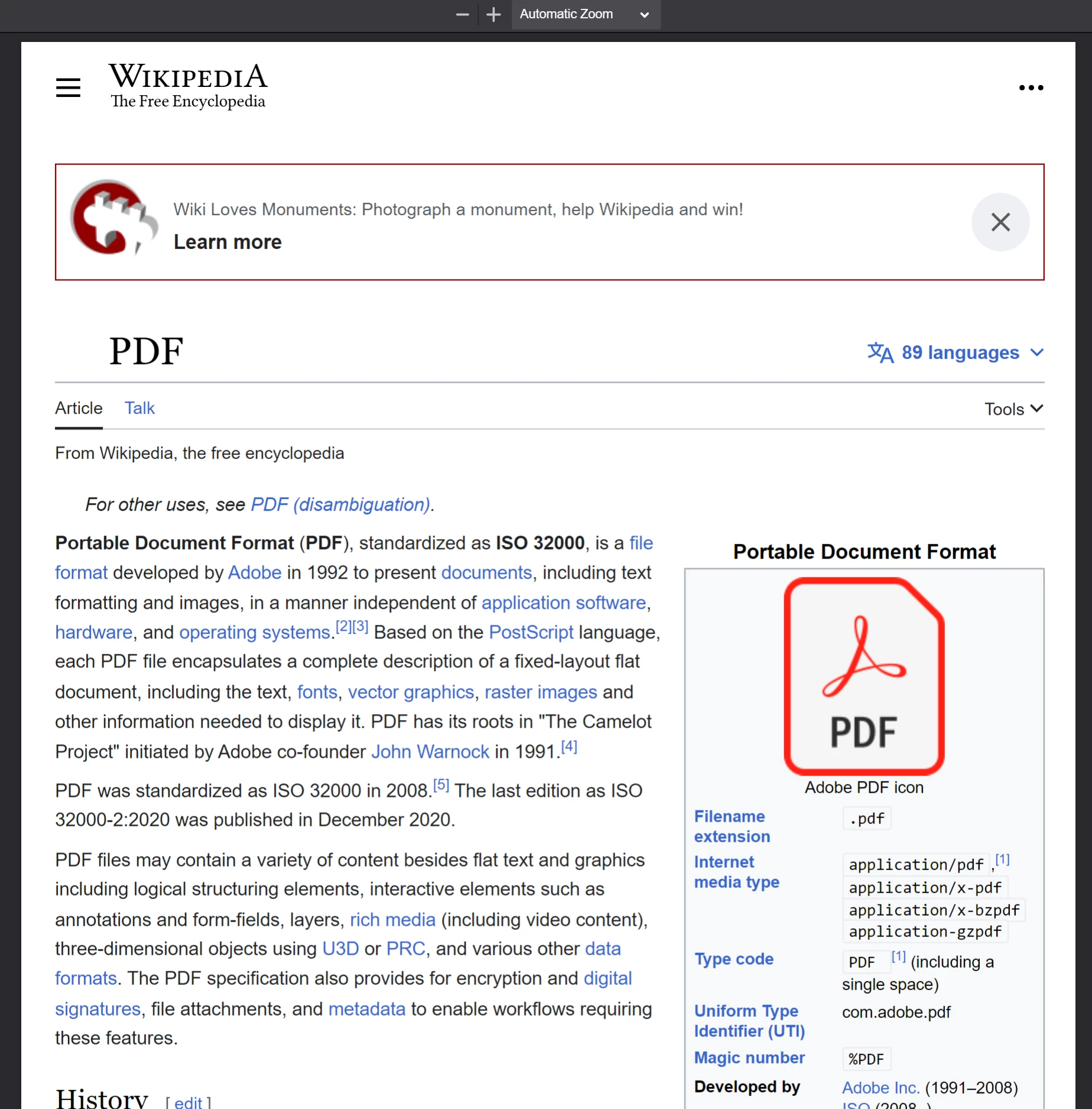
**Wikipedia 기사에서 `PdfDocument.fromUrl`를 호출하여 생성된 PDF. 원본 웹 페이지와의 유사점을 주목하세요.**
[[n:(URL 기반 변환은 IronPDF를 실행하는 기기에서 대상 서버에 접근이 가능해야 합니다. 인증, VPN 또는 방화벽 뒤의 페이지들은 `ChromePdfRenderOptions`를 통해 추가 구성이 필요할 수 있습니다.)]]
### ZIP 아카이브에서 PDF를 어떻게 만드나요?
`PdfDocument.fromZip`은 ZIP 아카이브에 포함된 특정 HTML 파일을 PDF로 변환합니다. HTML, CSS, 이미지 자산을 함께 번들로 제공하는 자체 포함 HTML 프로젝트를 배포할 때 특히 유용합니다.
이 예제에서는 프로젝트 디렉토리에 다음 구조를 가진 ZIP 파일이 있다고 가정합니다:
```plaintext
//:path=/static-assets/ironpdf-nodejs/content-code-examples/tutorials/html-to-pdf/zip-structure.txt
html-zip.zip
├─ index.html
├─ style.css
├─ logo.png
```
`index.html` 파일에는 다음이 포함됩니다:
```html
//:path=/static-assets/ironpdf-nodejs/content-code-examples/tutorials/html-to-pdf/index.html
<!DOCTYPE html>
<html lang="en">
<head>
<meta charset="UTF-8">
<meta name="viewport" content="width=device-width, initial-scale=1">
<title>Hello world!</title>
<link rel="stylesheet" href="style.css">
</head>
<body>
<h1>Hello from IronPDF!</h1>
<a href="https://ironpdf.com/nodejs/">
<img src="logo.png" alt="Node.js용 IronPDF">
</a>
</body>
</html>
```
그리고 `style.css`은 페이지 레이아웃 및 폰트 규칙을 선언합니다:
```css
//:path=/static-assets/ironpdf-nodejs/content-code-examples/tutorials/html-to-pdf/style.css
@font-face {
font-family: 'Gotham-Black';
src: url('gotham-black-webfont.eot?') format('embedded-opentype'),
url('gotham-black-webfont.woff2') format('woff2'),
url('gotham-black-webfont.woff') format('woff'),
url('gotham-black-webfont.ttf') format('truetype'),
url('gotham-black-webfont.svg') format('svg');
font-weight: normal;
font-style: normal;
font-display: swap;
}
body {
display: flex;
flex-direction: column;
justify-content: center;
margin-left: auto;
margin-right: auto;
margin-top: 200px;
margin-bottom: auto;
color: white;
background-color: black;
text-align: center;
font-family: "Helvetica"
}
h1 {
font-family: "Gotham-Black";
margin-bottom: 70px;
font-size: 32pt;
}
img {
width: 400px;
height: auto;
}
p {
text-decoration: underline;
font-size: smaller;
}
```

**가상 HTML ZIP 파일에 포함된 샘플 이미지입니다.**
`fromZip`을 호출할 때, 첫 번째 인수로 ZIP 파일의 경로를, 두 번째 인수로 구성 객체를 지정하십시오. `mainHtmlFile` 속성을 변환해야 하는 아카이브 내부 HTML 파일의 이름으로 설정하십시오:
```javascript
import { PdfDocument } from "@ironsoftware/ironpdf";
import './config.js'; // Import the configuration script
// Convert an HTML file from a ZIP archive to PDF
PdfDocument.fromZip("./html-zip.zip", {
mainHtmlFile: "index.html"
}).then(async (pdf) => {
return await pdf.saveAs("html-zip-to-pdf.pdf");
});
```
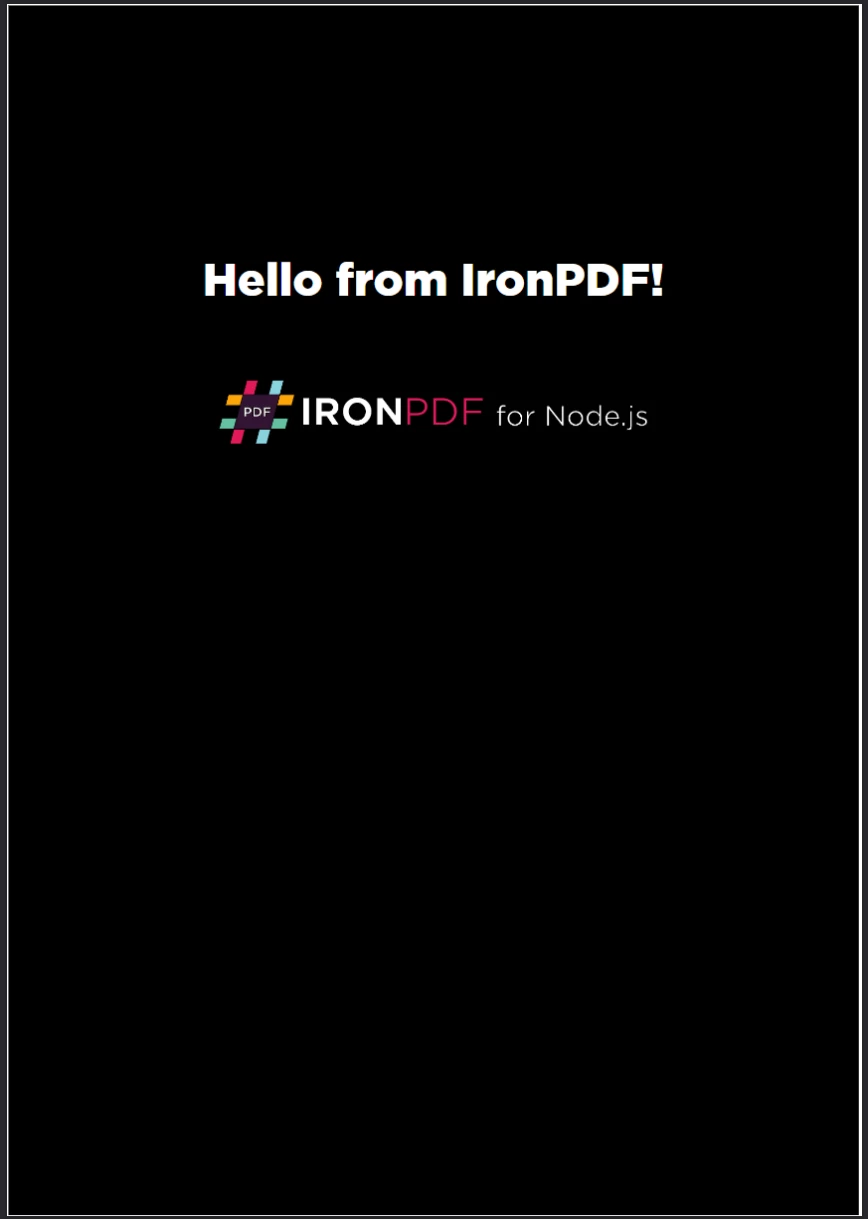
**`PdfDocument.fromZip`를 사용한 PDF 생성입니다. 함수는 ZIP 파일에서 번들 자산과 함께 HTML 코드를 성공적으로 렌더링합니다.**
## IronPDF는 어떤 고급 렌더링 옵션을 지원하나요?
[`ChromePdfRenderOptions`](/nodejs/object-reference/api/interfaces/ChromePdfRenderOptions.html) 인터페이스는 PDF 렌더링 동작의 세부적인 사용자 지정을 위한 속성을 제공합니다. 이 설정은 PDF가 생성되기 전에 적용되며 레이아웃, 시각적 외모, 동적 콘텐츠의 경계 케이스를 다룹니다.
IronPDF는 기본 렌더링 설정을 모든 변환에 적용합니다. `defaultChromePdfRenderOptions` 함수를 통해 이러한 기본값을 검색하십시오:
```javascript
import { defaultChromePdfRenderOptions } from "@ironsoftware/ironpdf";
// Retrieve a ChromePdfRenderOptions object with default settings
var options = defaultChromePdfRenderOptions();
```
필요에 따라 반환된 객체의 속성을 수정하고 이를 변환 메소드의 `renderOptions` 매개변수에 전달하십시오.
### 머리글과 바닥글을 어떻게 추가합니까?
`textHeader` 및 `textFooter` 속성은 새로 렌더링된 PDF의 모든 페이지에 사용자 정의된 텍스트 기반 콘텐츠를 고정합니다. 다음 예제는 각기 다른 글꼴을 사용해 사용자 정의 헤더와 푸터를 추가하여 Google 검색 홈페이지에서 PDF를 생성합니다:
```javascript
import { PdfDocument, defaultChromePdfRenderOptions, AffixFonts } from "@ironsoftware/ironpdf";
import './config.js'; // Import the configuration script
// Start from default render options
var options = defaultChromePdfRenderOptions();
// Configure a text-based header
options.textHeader = {
centerText: "https://www.adobe.com",
dividerLine: true,
font: AffixFonts.CourierNew,
fontSize: 12,
leftText: "URL to PDF"
};
// Configure a text-based footer
options.textFooter = {
centerText: "IronPDF for Node.js",
dividerLine: true,
fontSize: 14,
font: AffixFonts.Helvetica,
rightText: "HTML to PDF in Node.js"
};
// Render the page with custom headers and footers applied
PdfDocument.fromUrl("https://www.google.com/", { renderOptions: options }).then(async (pdf) => {
return await pdf.saveAs("add-custom-headers-footers-1.pdf");
});
```
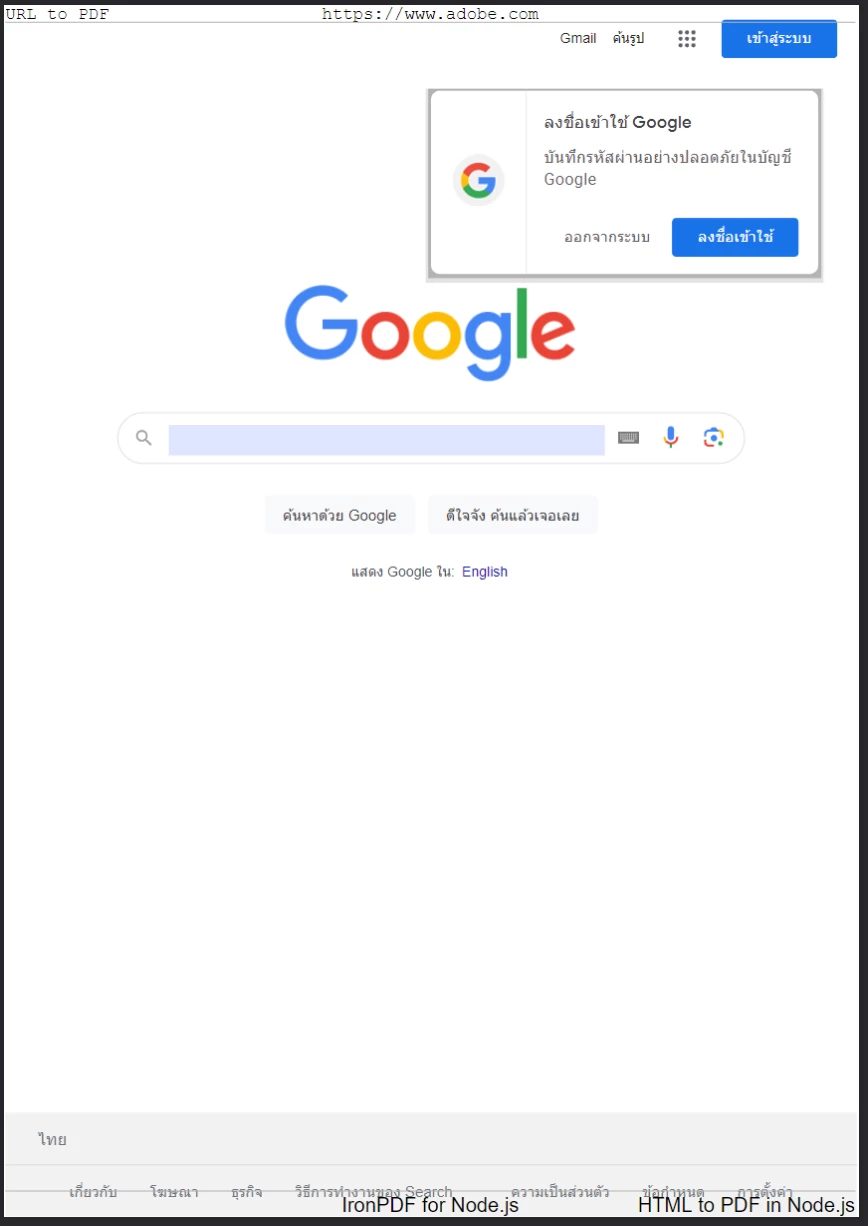
**Google 홈 페이지에서 생성된 PDF에 사용자 정의 텍스트 헤더와 풋터를 `textHeader` 및 `textFooter`로 적용한 예.**
더 풍부한 헤더와 풋터 레이아웃을 위해, 대신 `htmlHeader` 및 `htmlFooter` 속성을 사용하십시오. 이들은 원시 HTML 조각을 허용하여 타이포그래피, 이미지 및 정렬을 완전히 제어할 수 있습니다. 아래 예제는 헤더에 페이지 URL을 굵게 중앙 정렬하고 푸터에 로고 이미지를 삽입합니다:
```javascript
import { PdfDocument, defaultChromePdfRenderOptions } from "@ironsoftware/ironpdf";
import './config.js'; // Import the configuration script
// Start from default render options
var options = defaultChromePdfRenderOptions();
// Define a rich HTML header
options.htmlHeader = {
htmlFragment: "<strong>https://www.google.com/</strong>",
dividerLine: true,
dividerLineColor: "blue",
loadStylesAndCSSFromMainHtmlDocument: true,
};
// Define a rich HTML footer with a logo
options.htmlFooter = {
htmlFragment: "<img src='logo.png' alt='IronPDF for Node.js' style='display: block; width: 150px; height: auto; margin-left: auto; margin-right: auto;'>",
dividerLine: true,
loadStylesAndCSSFromMainHtmlDocument: true
};
// Apply custom HTML headers and footers during rendering
await PdfDocument.fromUrl("https://www.google.com/", { renderOptions: options }).then(async (pdf) => {
return await pdf.saveAs("add-html-headers-footers.pdf");
});
```
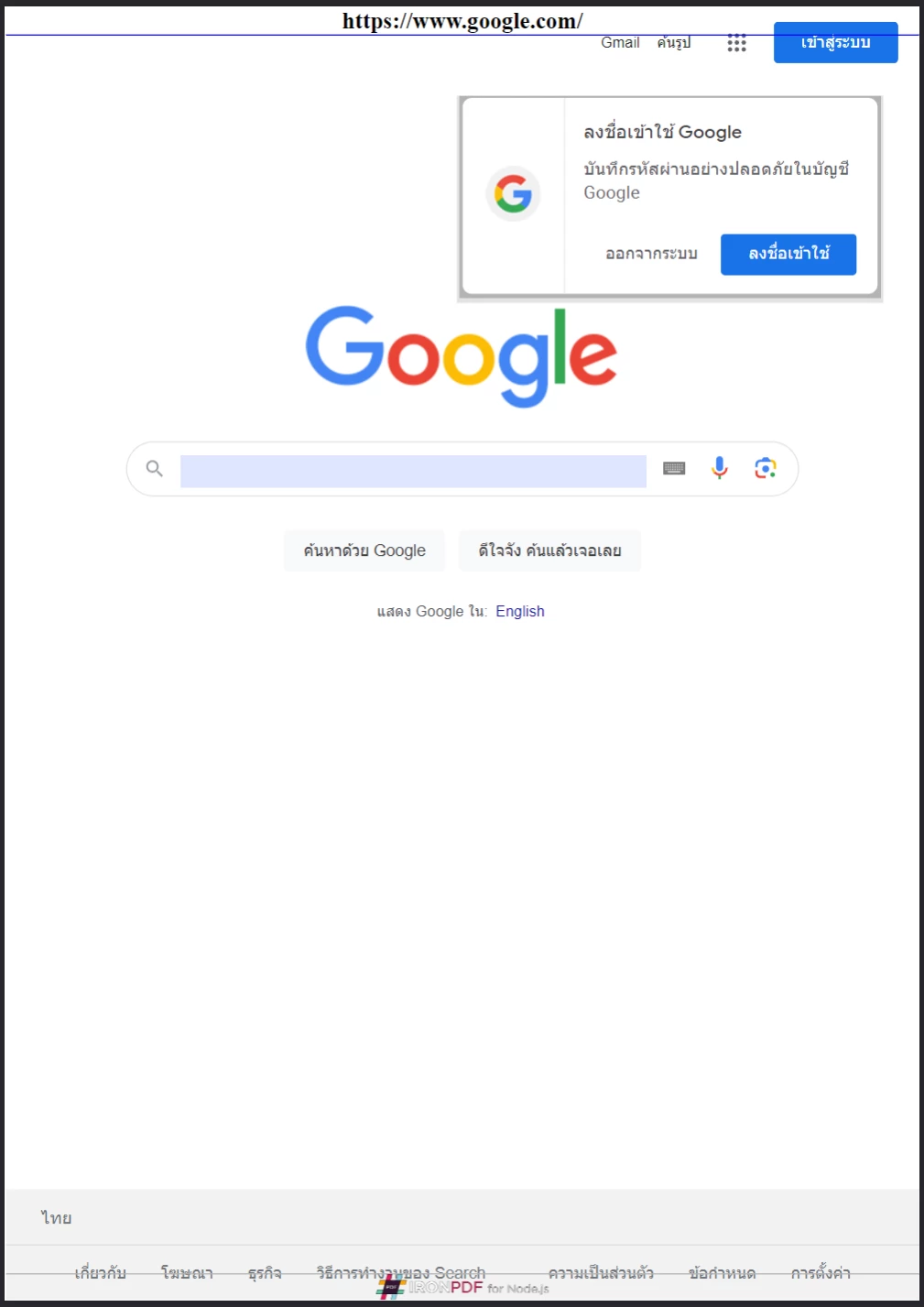
**IronPDF는 브랜드화 및 레이아웃을 각각의 페이지에서 완벽하게 제어할 수 있게 하는 HTML 기반 헤더와 푸터를 지원합니다.**
### 페이지 크기, 방향 및 여백을 어떻게 제어하나요?
`margin`, `paperSize`, `fitToPaperMode`, `paperOrientation` 및 `grayScale` 속성은 `ChromePdfRenderOptions`의 각 렌더링된 페이지의 물리적 레이아웃을 제어합니다. 다음 예제는 사용자 정의 여백, A5 가로방향, 그레이스케일 출력으로 Google 홈페이지를 변환합니다:
```javascript
import { PdfDocument, defaultChromePdfRenderOptions, PaperSize, FitToPaperModes, PdfPaperOrientation } from "@ironsoftware/ironpdf";
import './config.js'; // Import the configuration script
// Start from default render options
var options = defaultChromePdfRenderOptions();
// Set page margins in millimeters
options.margin = {
top: 50,
bottom: 50,
left: 60,
right: 60
};
// Configure paper size, fit mode, orientation, and color mode
options.paperSize = PaperSize.A5;
options.fitToPaperMode = FitToPaperModes.FitToPage;
options.paperOrientation = PdfPaperOrientation.Landscape;
options.grayScale = true;
// Render with the customized layout settings
PdfDocument.fromUrl("https://www.google.com/", { renderOptions: options }).then(async (pdf) => {
return await pdf.saveAs("set-margins-and-page-size.pdf");
});
```
`PaperSize` 열거형에는 `A4`, `A5`, `Letter`, 그리고 `Legal`과 같은 표준 용지 크기가 포함됩니다. `PdfPaperOrientation` 열거형은 `Portrait` 및 `Landscape`를 지원합니다. 이 설정은 인쇄 준비 문서를 위한 출력 크기에 대한 정확한 제어를 제공합니다.
[[t:(인쇄 워크 플로용 PDF를 생성할 때, 항상 여백을 명시적으로 지정해야 합니다. 기본 여백은 대상 프린터 또는 용지 형식의 요구 사항과 일치하지 않을 수 있습니다.)]]
### 동적 웹 페이지를 어떻게 처리하나요?
JavaScript 타이머, 지연 로딩, API 호출을 통해 비동기적으로 콘텐츠를 로드하는 페이지는 IronPDF의 엔진이 캡처할 때 완전히 렌더링되지 않을 수 있습니다. Chrome 렌더러가 페이지를 캡처하기 전에 설정된 조건이 만족될 때까지 대기하도록 `waitFor` 속성의 `WaitFor` 메커니즘을 구성하십시오.
다음 코드 블록은 IronPDF가 페이지 콘텐츠를 캡처하기 전에 20초 동안 기다리도록 설정합니다:
```javascript
import { PdfDocument, defaultChromePdfRenderOptions, WaitForType } from "@ironsoftware/ironpdf";
import './config.js'; // Import the configuration script
// Configure the renderer to wait 20 seconds before capturing
var options = defaultChromePdfRenderOptions();
options.waitFor = {
type: WaitForType.RenderDelay,
delay: 20000
};
PdfDocument.fromUrl("https://ironpdf.com/nodejs/", { renderOptions: options }).then(async (pdf) => {
return await pdf.saveAs("waitfor-renderdelay.pdf");
});
```
또는 IronPDF가 렌더링 전에 특정 DOM 요소가 나타날 때까지 기다리도록 구성할 수 있습니다. JavaScript 프레임워크가 마운트 프로세스를 완료한 후 콘텐츠가 삽입될 때 유용합니다:
```javascript
import { PdfDocument, defaultChromePdfRenderOptions, WaitForType } from "@ironsoftware/ironpdf";
import './config.js'; // Import the configuration script
// Configure the renderer to wait for a specific DOM element (up to 20 seconds)
var options = defaultChromePdfRenderOptions();
options.waitFor = {
type: WaitForType.HtmlElement,
htmlQueryStr: "div.ProseMirror",
maxWaitTime: 20000,
};
PdfDocument.fromUrl("https://app.surferseo.com/drafts/s/V7VkcdfgFz-dpkldsfHDGFFYf4jjSvvjsdf", { renderOptions: options }).then(async (pdf) => {
return await pdf.saveAs("waitfor-htmlelement.pdf");
});
```
`WaitForType.HtmlElement` 전략은 표준 CSS 쿼리 선택기를 사용합니다. 렌더러는 `maxWaitTime` 밀리초가 흐르거나 요소가 발견될 때까지 요소의 존재 유무를 탐색합니다 - 둘 중 먼저 오는 일이 발생합니다.
[[w:(과도하게 긴 대기 시간을 설정하면 고수준 애플리케이션에서 PDF 생성 시간이 크게 증가할 수 있습니다. 사용 사례의 콘텐츠를 신뢰성 있게 캡처할 수 있는 최소 지연 시간을 사용하세요.)]]
## HTML 템플릿에서 PDF를 어떻게 생성하나요?
일반적인 실세계 자동화 패턴은 공유 HTML 템플릿에서 배치 PDF를 생성하고 데이터베이스, API 또는 스프레드시트에서 데이터를 가져와 자리 표시자 값을 대체하는 것입니다. IronPDF의 `PdfDocument`에 대한 `replaceText` 메소드는 이를 직접 처리합니다.
아래의 청구서 템플릿 샘플은 공용으로 접근 가능한 [CodePen 청구서 템플릿](https://codepen.io/tjoen/pen/wvgvLX)에서 조정된 것으로, 대체 가능한 콘텐츠용으로 `{COMPANY-NAME}`, `{FULL-NAME}` 및 `{INVOICE-NUMBER}`와 같은 중괄호 자리표시기를 사용합니다:
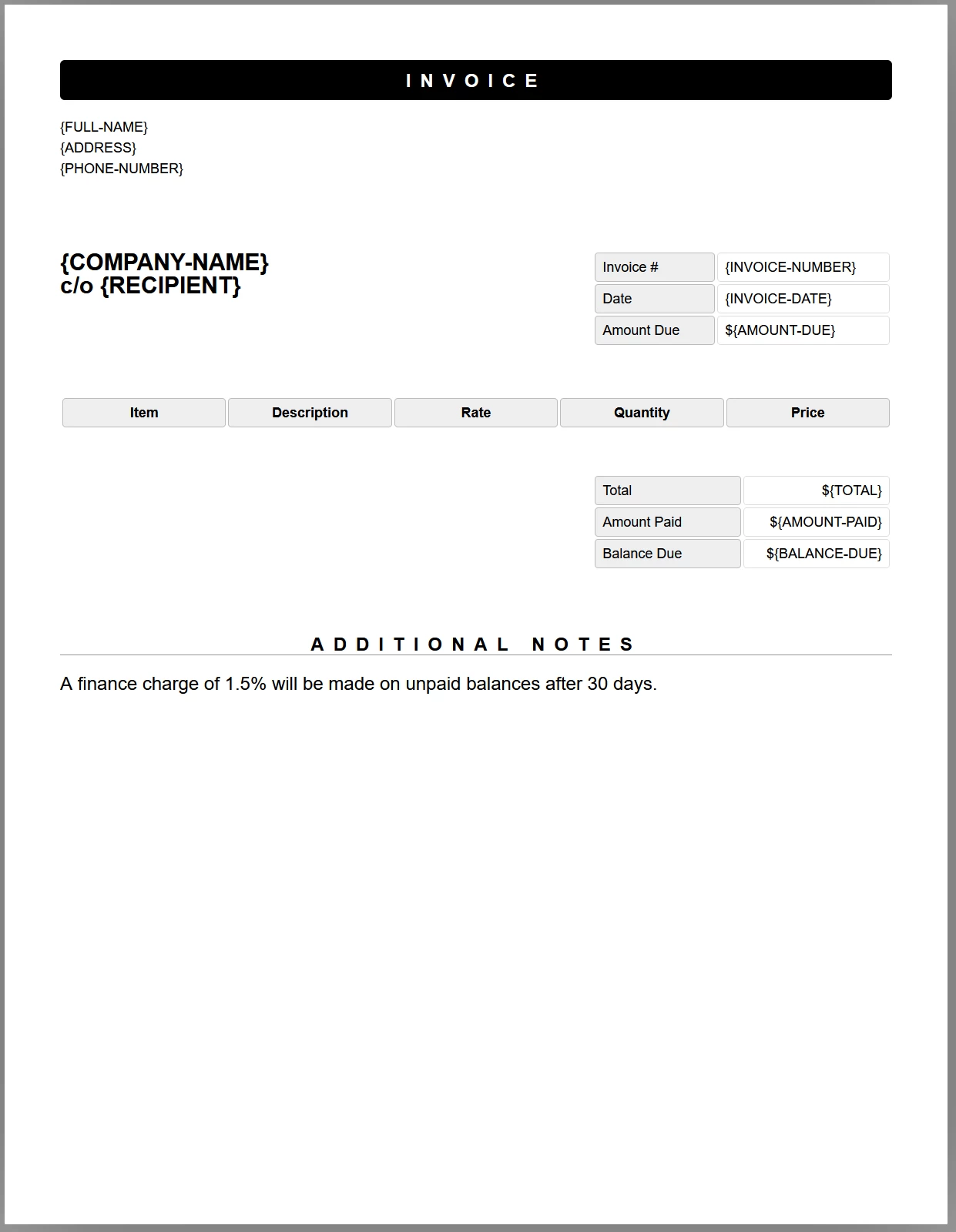
**자리표시자 태그가 있는 샘플 청구서 템플릿. JavaScript 코드는 각 태그를 실제 데이터로 교체하여 문서가 PDF로 저장되기 전에 교체합니다.**
다음 코드는 템플릿을 로드하고, 각 자리표시자를 테스트 데이터로 대체하고, 결과를 PDF로 저장합니다:
```javascript
//:path=/static-assets/ironpdf-nodejs/content-code-examples/tutorials/html-to-pdf/html-template-to-pdf.js
import { PdfDocument } from "@ironsoftware/ironpdf";
import './config.js'; // Import the configuration script
/**
* Loads an HTML template from the file system as a PdfDocument.
*/
async function getTemplateHtml(fileLocation) {
return PdfDocument.fromHtml(fileLocation);
}
/**
* Saves a PdfDocument to the specified file path.
*/
async function generatePdf(pdf, location) {
return pdf.saveAs(location);
}
/**
* Replaces a named placeholder in the PdfDocument with a data value.
*/
async function addTemplateData(pdf, key, value) {
return pdf.replaceText(key, value);
}
// Path to the HTML invoice template
const template = "./sample-invoice.html";
// Load the template, fill in all placeholder values, then save the PDF
getTemplateHtml(template).then(async (doc) => {
await addTemplateData(doc, "{FULL-NAME}", "Lizbeth Presland");
await addTemplateData(doc, "{ADDRESS}", "678 Manitowish Alley, Portland, OG");
await addTemplateData(doc, "{PHONE-NUMBER}", "(763) 894-4345");
await addTemplateData(doc, "{INVOICE-NUMBER}", "787");
await addTemplateData(doc, "{INVOICE-DATE}", "August 28, 2023");
await addTemplateData(doc, "{AMOUNT-DUE}", "13,760.13");
await addTemplateData(doc, "{RECIPIENT}", "Celestyna Farmar");
await addTemplateData(doc, "{COMPANY-NAME}", "BrainBook");
await addTemplateData(doc, "{TOTAL}", "13,760.13");
await addTemplateData(doc, "{AMOUNT-PAID}", "0.00");
await addTemplateData(doc, "{BALANCE-DUE}", "13,760.13");
await addTemplateData(doc, "{ITEM}", "Training Sessions");
await addTemplateData(doc, "{DESCRIPTION}", "60 Minute instruction");
await addTemplateData(doc, "{RATE}", "3,440.03");
await addTemplateData(doc, "{QUANTITY}", "4");
await addTemplateData(doc, "{PRICE}", "13,760.13");
return doc;
}).then(async (doc) => await generatePdf(doc, "html-template-to-pdf.pdf"));
```
위의 코드는 세 개의 비동기 도우미 기능을 정의합니다:
- `getTemplateHtml`: `PdfDocument.fromHtml`을 사용하여 HTML 파일을 `PdfDocument` 객체로 로드합니다.
- `addTemplateData`: `PdfDocument.replaceText`을 호출하여 자리표시기 키를 실제 데이터 값으로 대체합니다.
- `generatePdf`: 완료된 `PdfDocument`을 대상 파일 경로에 작성합니다.
각 `replaceText` 호출은 메모리에 있는 PDF 표현에 직접 작용하므로, 문서를 디스크에서 다시 로드하지 않고 여러 번의 치환을 체인할 수 있습니다. 결과 PDF는 원본 템플릿의 모든 CSS 스타일, 글꼴 및 레이아웃을 유지합니다.
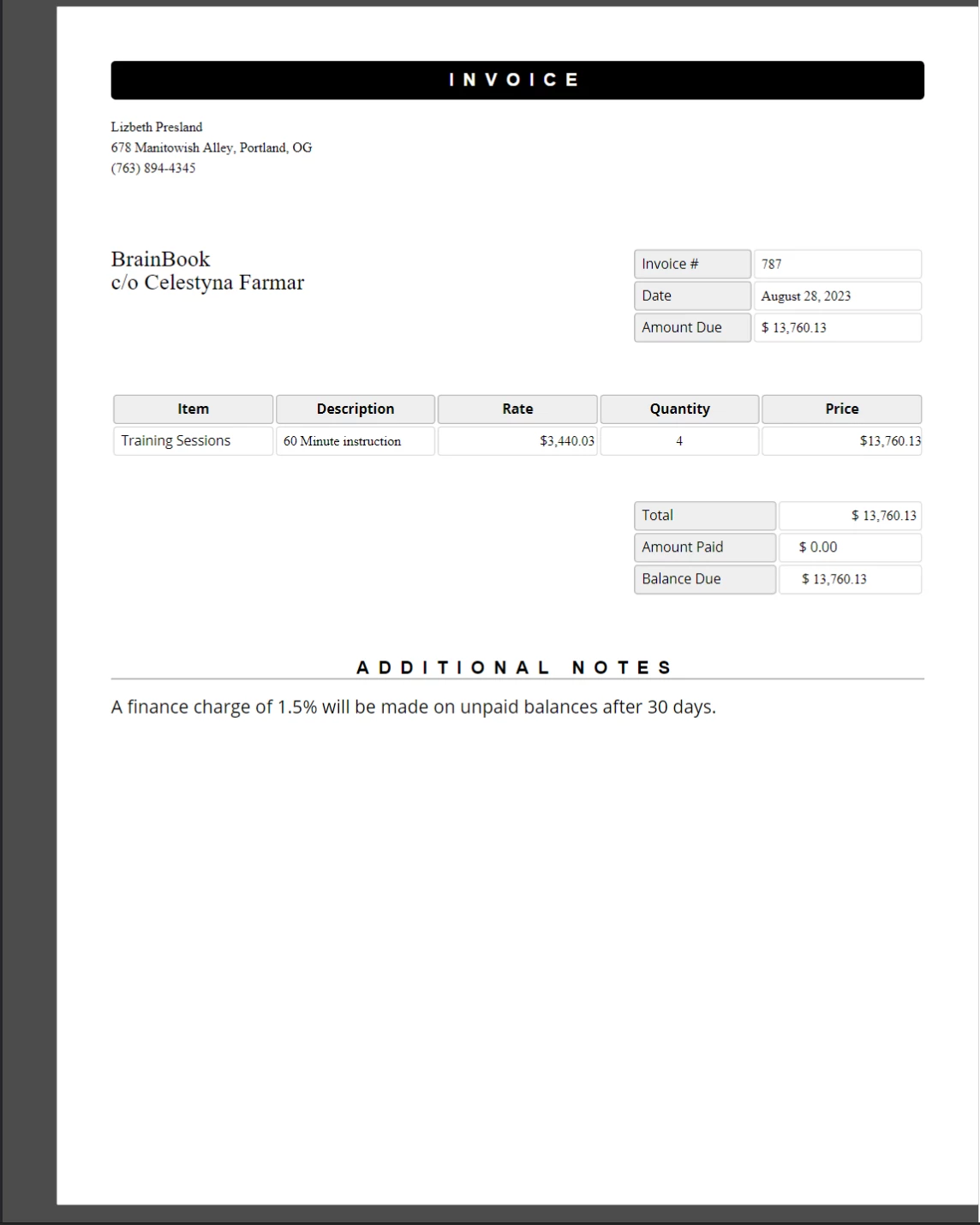
**실제 데이터로 자리표시자가 대체된 완료된 PDF 청구서. 원본 템플릿의 CSS 스타일과 레이아웃은 정확히 보존됩니다.**
이 접근법은 배치 문서 생성에 적합하게 확장됩니다. 각 출력 파일에 대해 새 `PdfDocument`을 생성하려면 한 레코드당 한 번 `getTemplateHtml`을 호출한 후 해당 레코드의 데이터를 위한 `addTemplateData` 호출을 체인한 다음 `generatePdf`을 호출하십시오.
## 다음 단계는 무엇인가요?
이 튜토리얼은 Node.js의 IronPDF에서 가장 자주 사용되는 렌더링 옵션과 핵심 HTML-대-PDF 변환 메소드를 다룹니다. 아래 주제는 여기에서 배운 것을 더 전문화된 영역으로 확장합니다.
- **[Node.js에서 PDF 편집 및 Stamp 추가하기](/nodejs/examples/stamping-new-content/)** - 프로그램적으로 기존 PDF 문서에 스탬프, 주석 및 텍스트 편집을 적용합니다.
- **[Node.js에서 PDF 병합 및 분할](/nodejs/how-to/nodejs-merge-pdf/)** - 여러 PDF를 단일 문서로 결합하거나 하나의 PDF를 개별 페이지로 분할합니다.
- **[Node.js에서 PDF에 워터마크 추가](/nodejs/examples/stamping-new-content/)** - PDF의 각 페이지에 정밀한 위치 제어로 텍스트 또는 이미지 워터마크를 추가합니다.
- **[IronPDF Node.js API Reference](/nodejs/object-reference/api/)** - `PdfDocument`, `ChromePdfRenderOptions`, `WaitFor`, `AffixFonts` 및 모든 다른 클래스와 인터페이스에 대한 완전한 API를 참고하십시오.
- **[무료 체험판 라이센스 키 받기](#trial-license)** - 30일 무료 체험판 라이센스를 활성화하여 워터마크 없이 상용품질 PDF를 생성합니다.
IronPDF의 가장 강력하고 인기 있는 기능은 원본 HTML, CSS 및 JavaScript에서 높은 충실도의 PDF를 생성하는 능력입니다. 이 튜토리얼은 Node.js 개발자가 HTML 콘텐츠를 PDF로 전환하는 실용적인 모든 방법을 제공합니다 - 단일 문자열 변환부터 동적 템플릿 기반 문서 생성까지.
IronPDF는 개발자가 소프트웨어 애플리케이션에 강력한 PDF 처리 기능을 신속하게 구현할 수 있도록 돕는 고수준 API 라이브러리입니다. IronPDF 는 다양한 프로그래밍 언어 로 제공됩니다. PDF 생성에 대한 자세한 내용은 .NET, Java, Python 공식 문서 페이지를 참조하십시오. 이 튜토리얼은 Node.js 프로젝트에 적용된 사용법을 다룹니다.
기본적으로, IronPDF는 생성하거나 수정한 모든 문서에 워터마크를 표기합니다. 워터마크를 제거하려면, 인증된 라이센스 키로 전역 IronPdfGlobalConfig 객체의 licenseKey 속성을 설정하십시오:
import { IronPdfGlobalConfig } from "@ironsoftware/ironpdf";// Retrieve the global configuration objectvar config = IronPdfGlobalConfig.getConfig();// Set a valid license key to remove watermarksconfig.licenseKey = "{YOUR-LICENSE-KEY-HERE}";
import { IronPdfGlobalConfig } from "@ironsoftware/ironpdf";

// Retrieve the global configuration object
var config = IronPdfGlobalConfig.getConfig();

// Set a valid license key to remove watermarks
config.licenseKey = "{YOUR-LICENSE-KEY-HERE}";
참고해 주세요: 라이선스 키 및 기타 글로벌 설정 설정](/nodejs/object-reference/api/interfaces/IronPdfConfig.html) 후 다른 라이브러리 기능을 호출하십시오. 이는 애플리케이션 전반에서 최적의 성능과 올바른 동작을 보장합니다.
이 튜토리얼의 나머지 코드 예제들은 각 스크립트의 맨 위에서 가져온 별도의 config.js 파일에 라이센스 키가 적용되었다고 가정합니다:
import { PdfDocument } from "@ironsoftware/ironpdf";import './config.js'; // Import the configuration script// ...
import { PdfDocument } from "@ironsoftware/ironpdf";
import './config.js'; // Import the configuration script
// ...
JavaScript
워터마크 없는 PDF 문서를 생성하려면 IronPDF 에서 라이선스 키를 받으세요.
Node.js에서 HTML을 PDF로 변환하는 방법은?
IronPDF Node.js 라이브러리는 HTML 콘텐츠에서 PDF 파일을 생성하기 위해 네 가지 접근 방식을 제공합니다:
HTML 코드 문자열에서
로컬 HTML 파일에서
온라인 URL에서
압축된 ZIP 아카이브에서
각 접근에는 PdfDocument 클래스가 기초로 사용됩니다. PdfDocument는 특정 소스 콘텐츠로부터 생성된 PDF 파일을 나타내며 IronPDF의 핵심 생성 및 편집 기능을 지원합니다.
HTML 문자열에서 PDF를 생성하는 방법은?
PdfDocument.fromHtml은 원시 HTML 마크업 문자열로부터 PDF를 생성합니다. 이 접근은 네 가지 방법 중 가장 유연성을 제공하며 HTML 문자열이 사실상 어디에서나 생성될 수 있기 때문입니다 - 텍스트 파일, 데이터 스트림, HTML 템플릿 엔진 또는 동적으로 생성된 마크업.
import { PdfDocument } from "@ironsoftware/ironpdf";import './config.js'; // Import the configuration script// Create a PDF from an HTML stringconst pdf = awaitPdfDocument.fromHtml("<h1>Hello from IronPDF!</h1>");// Save the PDF document to the file systemawait pdf.saveAs("html-string-to-pdf.pdf");
import { PdfDocument } from "@ironsoftware/ironpdf";
import './config.js'; // Import the configuration script

// Create a PDF from an HTML string
const pdf = await PdfDocument.fromHtml("<h1>Hello from IronPDF!</h1>");

// Save the PDF document to the file system
await pdf.saveAs("html-string-to-pdf.pdf");
JavaScript
PdfDocument.fromHtml은 PdfDocument 클래스의 인스턴스로 해석되는 프로미스를 반환합니다. 인스턴스를 얻은 후, PDF를 디스크에 기록하기 위해 대상 파일 경로와 함께 saveAs을 호출하십시오. 저장된 PDF 파일은 표준 준수 브라우저가 표시하는 방식대로 HTML을 정확히 렌더링합니다.
The PDF generated from the HTML string <h1>Hello from IronPDF!</h1>. PdfDocument.fromHtml이 생성한 PDF 파일의 모습은 웹 페이지 컨텐츠와 유사하게 나타납니다.
HTML 파일에서 PDF를 어떻게 만드나요?
PdfDocument.fromHtml은 로컬 HTML 문서 경로도 허용합니다. 마크업 문자열 대신, 유효한 파일 경로를 첫 번째 인수로 전달합니다. 로컬 CSS, JavaScript, 이미지 자산을 참조하는 저장된 웹 페이지를 작업할 때 선호되는 방법입니다.
import { PdfDocument } from "@ironsoftware/ironpdf";import './config.js'; // Import the configuration script// Render a PDF from a local HTML fileconst pdf = awaitPdfDocument.fromHtml("./sample2.html");// Save the PDF document to the project directoryawait pdf.saveAs("html-file-to-pdf-1.pdf");
import { PdfDocument } from "@ironsoftware/ironpdf";
import './config.js'; // Import the configuration script

// Render a PDF from a local HTML file
const pdf = await PdfDocument.fromHtml("./sample2.html");

// Save the PDF document to the project directory
await pdf.saveAs("html-file-to-pdf-1.pdf");
IronPDF는 원본 HTML 문서의 외형을 보존하며 링크, 폼, 기타 상호작용 요소의 기능을 유지합니다. 이 신뢰성은 단락, 목록, 이미지, 하이퍼링크, 클라이언트 측 스크립트가 포함된 복잡한 페이지까지 확장됩니다.
위의 HTML 파일 예제에서 생성된 PDF입니다. 이전 이미지와의 외형을 비교하세요 - IronPDF는 높은 신뢰도로 레이아웃을 보존합니다.
IronPDF는 단순한 마크업을 넘어서 상세한 페이지를 처리합니다. 다음 예제는 많은 외부 CSS 파일, 이미지 및 스크립트 자산을 활용하는 기능이 풍부한 페이지를 변환합니다:
import { PdfDocument } from "@ironsoftware/ironpdf";import './config.js'; // Import the configuration script// Render a PDF from a complex HTML page with external assetsPdfDocument.fromHtml("./sample4.html").then(async (pdf) => { return await pdf.saveAs("html-file-to-pdf-2.pdf");});
import { PdfDocument } from "@ironsoftware/ironpdf";
import './config.js'; // Import the configuration script

// Render a PDF from a complex HTML page with external assets
PdfDocument.fromHtml("./sample4.html").then(async (pdf) => {
    return await pdf.saveAs("html-file-to-pdf-2.pdf");
});
JavaScript
Google Chrome에서 좋게 보인다면, PDF로 변환되었을 때도 좋게 보일 것입니다. CSS가 많이 사용되고 JavaScript로 렌더링된 페이지 디자인도 포함됩니다.
팁: 페이지에 로컬 파일 경로에서 자산이 제공된다면, 모든 참조된 CSS 파일, 이미지 및 스크립트가 HTML 파일의 위치를 기준으로 존재하는지 확인해야 합니다. IronPDF의 Chrome 렌더링 엔진은 브라우저처럼 이 경로를 해결합니다.
URL에서 PDF를 어떻게 만드나요?
PdfDocument.fromUrl은 라이브 웹 페이지를 PDF로 가져오고 렌더링합니다. 공개적으로 접근 가능한 URL을 인수로 전달합니다. IronPDF의 Chrome 렌더링 엔진은 페이지를 검색하고, 모든 자산을 로드하며, 수동으로 HTML을 다운로드할 필요 없이 픽셀 완벽한 PDF를 생성합니다.
import { PdfDocument } from "@ironsoftware/ironpdf";import './config.js'; // Import the configuration script// Convert a live web page to a PDFconst pdf = awaitPdfDocument.fromUrl("https://en.wikipedia.org/wiki/PDF");// Save the documentawait pdf.saveAs("url-to-pdf.pdf");
import { PdfDocument } from "@ironsoftware/ironpdf";
import './config.js'; // Import the configuration script

// Convert a live web page to a PDF
const pdf = await PdfDocument.fromUrl("https://en.wikipedia.org/wiki/PDF");

// Save the document
await pdf.saveAs("url-to-pdf.pdf");
JavaScript
표준을 준수하는 웹 브라우저에서 보이는 PDF 형식에 대한 위키백과 문서입니다.
Wikipedia 기사에서 PdfDocument.fromUrl를 호출하여 생성된 PDF. 원본 웹 페이지와의 유사점을 주목하세요.
중요한: URL 기반 변환은 IronPDF를 실행하는 기기에서 대상 서버에 접근이 가능해야 합니다. 인증, VPN 또는 방화벽 뒤의 페이지들은 ChromePdfRenderOptions를 통해 추가 구성이 필요할 수 있습니다.
ZIP 아카이브에서 PDF를 어떻게 만드나요?
PdfDocument.fromZip은 ZIP 아카이브에 포함된 특정 HTML 파일을 PDF로 변환합니다. HTML, CSS, 이미지 자산을 함께 번들로 제공하는 자체 포함 HTML 프로젝트를 배포할 때 특히 유용합니다.
fromZip을 호출할 때, 첫 번째 인수로 ZIP 파일의 경로를, 두 번째 인수로 구성 객체를 지정하십시오. mainHtmlFile 속성을 변환해야 하는 아카이브 내부 HTML 파일의 이름으로 설정하십시오:
import { PdfDocument } from "@ironsoftware/ironpdf";import './config.js'; // Import the configuration script// Convert an HTML file from a ZIP archive to PDFPdfDocument.fromZip("./html-zip.zip", { mainHtmlFile: "index.html"}).then(async (pdf) => { return await pdf.saveAs("html-zip-to-pdf.pdf");});
import { PdfDocument } from "@ironsoftware/ironpdf";
import './config.js'; // Import the configuration script

// Convert an HTML file from a ZIP archive to PDF
PdfDocument.fromZip("./html-zip.zip", {
  mainHtmlFile: "index.html"
}).then(async (pdf) => {
  return await pdf.saveAs("html-zip-to-pdf.pdf");
});
JavaScript
PdfDocument.fromZip를 사용한 PDF 생성입니다. 함수는 ZIP 파일에서 번들 자산과 함께 HTML 코드를 성공적으로 렌더링합니다.
IronPDF는 어떤 고급 렌더링 옵션을 지원하나요?
ChromePdfRenderOptions 인터페이스는 PDF 렌더링 동작의 세부적인 사용자 지정을 위한 속성을 제공합니다. 이 설정은 PDF가 생성되기 전에 적용되며 레이아웃, 시각적 외모, 동적 콘텐츠의 경계 케이스를 다룹니다.
IronPDF는 기본 렌더링 설정을 모든 변환에 적용합니다. defaultChromePdfRenderOptions 함수를 통해 이러한 기본값을 검색하십시오:
import { defaultChromePdfRenderOptions } from "@ironsoftware/ironpdf";// Retrieve a ChromePdfRenderOptions object with default settingsvar options = defaultChromePdfRenderOptions();
import { defaultChromePdfRenderOptions } from "@ironsoftware/ironpdf";

// Retrieve a ChromePdfRenderOptions object with default settings
var options = defaultChromePdfRenderOptions();
JavaScript
필요에 따라 반환된 객체의 속성을 수정하고 이를 변환 메소드의 renderOptions 매개변수에 전달하십시오.
머리글과 바닥글을 어떻게 추가합니까?
textHeader 및 textFooter 속성은 새로 렌더링된 PDF의 모든 페이지에 사용자 정의된 텍스트 기반 콘텐츠를 고정합니다. 다음 예제는 각기 다른 글꼴을 사용해 사용자 정의 헤더와 푸터를 추가하여 Google 검색 홈페이지에서 PDF를 생성합니다:
import { PdfDocument, defaultChromePdfRenderOptions, AffixFonts } from "@ironsoftware/ironpdf";import './config.js'; // Import the configuration script// Start from default render optionsvar options = defaultChromePdfRenderOptions();// Configure a text-based headeroptions.textHeader = { centerText: "https://www.adobe.com", dividerLine: true, font: AffixFonts.CourierNew, fontSize: 12, leftText: "URL to PDF"};// Configure a text-based footeroptions.textFooter = { centerText: "IronPDF for Node.js", dividerLine: true, fontSize: 14, font: AffixFonts.Helvetica, rightText: "HTML to PDF in Node.js"};// Render the page with custom headers and footers appliedPdfDocument.fromUrl("https://www.google.com/", { renderOptions: options }).then(async (pdf) => { return await pdf.saveAs("add-custom-headers-footers-1.pdf");});
import { PdfDocument, defaultChromePdfRenderOptions, AffixFonts } from "@ironsoftware/ironpdf";
import './config.js'; // Import the configuration script

// Start from default render options
var options = defaultChromePdfRenderOptions();

// Configure a text-based header
options.textHeader = {
  centerText: "https://www.adobe.com",
  dividerLine: true,
  font: AffixFonts.CourierNew,
  fontSize: 12,
  leftText: "URL to PDF"
};

// Configure a text-based footer
options.textFooter = {
  centerText: "IronPDF for Node.js",
  dividerLine: true,
  fontSize: 14,
  font: AffixFonts.Helvetica,
  rightText: "HTML to PDF in Node.js"
};

// Render the page with custom headers and footers applied
PdfDocument.fromUrl("https://www.google.com/", { renderOptions: options }).then(async (pdf) => {
  return await pdf.saveAs("add-custom-headers-footers-1.pdf");
});
JavaScript
Google 홈 페이지에서 생성된 PDF에 사용자 정의 텍스트 헤더와 풋터를 textHeader 및 textFooter로 적용한 예.
더 풍부한 헤더와 풋터 레이아웃을 위해, 대신 htmlHeader 및 htmlFooter 속성을 사용하십시오. 이들은 원시 HTML 조각을 허용하여 타이포그래피, 이미지 및 정렬을 완전히 제어할 수 있습니다. 아래 예제는 헤더에 페이지 URL을 굵게 중앙 정렬하고 푸터에 로고 이미지를 삽입합니다:
import { PdfDocument, defaultChromePdfRenderOptions } from "@ironsoftware/ironpdf";import './config.js'; // Import the configuration script// Start from default render optionsvar options = defaultChromePdfRenderOptions();// Define a rich HTML headeroptions.htmlHeader = { htmlFragment: "<strong>https://www.google.com/</strong>", dividerLine: true, dividerLineColor: "blue", loadStylesAndCSSFromMainHtmlDocument: true,};// Define a rich HTML footer with a logooptions.htmlFooter = { htmlFragment: "<img src='logo.png' alt='IronPDF for Node.js' style='display: block; width: 150px; height: auto; margin-left: auto; margin-right: auto;'>", dividerLine: true, loadStylesAndCSSFromMainHtmlDocument: true};// Apply custom HTML headers and footers during renderingawaitPdfDocument.fromUrl("https://www.google.com/", { renderOptions: options }).then(async (pdf) => { return await pdf.saveAs("add-html-headers-footers.pdf");});
import { PdfDocument, defaultChromePdfRenderOptions } from "@ironsoftware/ironpdf";
import './config.js'; // Import the configuration script

// Start from default render options
var options = defaultChromePdfRenderOptions();

// Define a rich HTML header
options.htmlHeader = {
  htmlFragment: "<strong>https://www.google.com/</strong>",
  dividerLine: true,
  dividerLineColor: "blue",
  loadStylesAndCSSFromMainHtmlDocument: true,
};

// Define a rich HTML footer with a logo
options.htmlFooter = {
  htmlFragment: "<img src='logo.png' alt='IronPDF for Node.js' style='display: block; width: 150px; height: auto; margin-left: auto; margin-right: auto;'>",
  dividerLine: true,
  loadStylesAndCSSFromMainHtmlDocument: true
};

// Apply custom HTML headers and footers during rendering
await PdfDocument.fromUrl("https://www.google.com/", { renderOptions: options }).then(async (pdf) => {
  return await pdf.saveAs("add-html-headers-footers.pdf");
});
JavaScript
IronPDF는 브랜드화 및 레이아웃을 각각의 페이지에서 완벽하게 제어할 수 있게 하는 HTML 기반 헤더와 푸터를 지원합니다.
페이지 크기, 방향 및 여백을 어떻게 제어하나요?
margin, paperSize, fitToPaperMode, paperOrientation 및 grayScale 속성은 ChromePdfRenderOptions의 각 렌더링된 페이지의 물리적 레이아웃을 제어합니다. 다음 예제는 사용자 정의 여백, A5 가로방향, 그레이스케일 출력으로 Google 홈페이지를 변환합니다:
import { PdfDocument, defaultChromePdfRenderOptions, PaperSize, FitToPaperModes, PdfPaperOrientation } from "@ironsoftware/ironpdf";import './config.js'; // Import the configuration script// Start from default render optionsvar options = defaultChromePdfRenderOptions();// Set page margins in millimetersoptions.margin = { top: 50, bottom: 50, left: 60, right: 60};// Configure paper size, fit mode, orientation, and color modeoptions.paperSize = PaperSize.A5;options.fitToPaperMode = FitToPaperModes.FitToPage;options.paperOrientation = PdfPaperOrientation.Landscape;options.grayScale = true;// Render with the customized layout settingsPdfDocument.fromUrl("https://www.google.com/", { renderOptions: options }).then(async (pdf) => { return await pdf.saveAs("set-margins-and-page-size.pdf");});
import { PdfDocument, defaultChromePdfRenderOptions, PaperSize, FitToPaperModes, PdfPaperOrientation } from "@ironsoftware/ironpdf";
import './config.js'; // Import the configuration script

// Start from default render options
var options = defaultChromePdfRenderOptions();

// Set page margins in millimeters
options.margin = {
  top: 50,
  bottom: 50,
  left: 60,
  right: 60
};

// Configure paper size, fit mode, orientation, and color mode
options.paperSize = PaperSize.A5;
options.fitToPaperMode = FitToPaperModes.FitToPage;
options.paperOrientation = PdfPaperOrientation.Landscape;
options.grayScale = true;

// Render with the customized layout settings
PdfDocument.fromUrl("https://www.google.com/", { renderOptions: options }).then(async (pdf) => {
  return await pdf.saveAs("set-margins-and-page-size.pdf");
});
JavaScript
PaperSize 열거형에는 A4, A5, Letter, 그리고 Legal과 같은 표준 용지 크기가 포함됩니다. PdfPaperOrientation 열거형은 Portrait 및 Landscape를 지원합니다. 이 설정은 인쇄 준비 문서를 위한 출력 크기에 대한 정확한 제어를 제공합니다.
팁: 인쇄 워크 플로용 PDF를 생성할 때, 항상 여백을 명시적으로 지정해야 합니다. 기본 여백은 대상 프린터 또는 용지 형식의 요구 사항과 일치하지 않을 수 있습니다.
동적 웹 페이지를 어떻게 처리하나요?
JavaScript 타이머, 지연 로딩, API 호출을 통해 비동기적으로 콘텐츠를 로드하는 페이지는 IronPDF의 엔진이 캡처할 때 완전히 렌더링되지 않을 수 있습니다. Chrome 렌더러가 페이지를 캡처하기 전에 설정된 조건이 만족될 때까지 대기하도록 waitFor 속성의 WaitFor 메커니즘을 구성하십시오.
다음 코드 블록은 IronPDF가 페이지 콘텐츠를 캡처하기 전에 20초 동안 기다리도록 설정합니다:
import { PdfDocument, defaultChromePdfRenderOptions, WaitForType } from "@ironsoftware/ironpdf";import './config.js'; // Import the configuration script// Configure the renderer to wait 20 seconds before capturingvar options = defaultChromePdfRenderOptions();options.waitFor = { type: WaitForType.RenderDelay, delay: 20000};PdfDocument.fromUrl("https://ironpdf.com/nodejs/", { renderOptions: options }).then(async (pdf) => { return await pdf.saveAs("waitfor-renderdelay.pdf");});
import { PdfDocument, defaultChromePdfRenderOptions, WaitForType } from "@ironsoftware/ironpdf";
import './config.js'; // Import the configuration script

// Configure the renderer to wait 20 seconds before capturing
var options = defaultChromePdfRenderOptions();
options.waitFor = {
  type: WaitForType.RenderDelay,
  delay: 20000
};

PdfDocument.fromUrl("https://ironpdf.com/nodejs/", { renderOptions: options }).then(async (pdf) => {
  return await pdf.saveAs("waitfor-renderdelay.pdf");
});
JavaScript
또는 IronPDF가 렌더링 전에 특정 DOM 요소가 나타날 때까지 기다리도록 구성할 수 있습니다. JavaScript 프레임워크가 마운트 프로세스를 완료한 후 콘텐츠가 삽입될 때 유용합니다:
import { PdfDocument, defaultChromePdfRenderOptions, WaitForType } from "@ironsoftware/ironpdf";import './config.js'; // Import the configuration script// Configure the renderer to wait for a specific DOM element (up to 20 seconds)var options = defaultChromePdfRenderOptions();options.waitFor = { type: WaitForType.HtmlElement, htmlQueryStr: "div.ProseMirror", maxWaitTime: 20000,};PdfDocument.fromUrl("https://app.surferseo.com/drafts/s/V7VkcdfgFz-dpkldsfHDGFFYf4jjSvvjsdf", { renderOptions: options }).then(async (pdf) => { return await pdf.saveAs("waitfor-htmlelement.pdf");});
import { PdfDocument, defaultChromePdfRenderOptions, WaitForType } from "@ironsoftware/ironpdf";
import './config.js'; // Import the configuration script

// Configure the renderer to wait for a specific DOM element (up to 20 seconds)
var options = defaultChromePdfRenderOptions();
options.waitFor = {
  type: WaitForType.HtmlElement,
  htmlQueryStr: "div.ProseMirror",
  maxWaitTime: 20000,
};

PdfDocument.fromUrl("https://app.surferseo.com/drafts/s/V7VkcdfgFz-dpkldsfHDGFFYf4jjSvvjsdf", { renderOptions: options }).then(async (pdf) => {
  return await pdf.saveAs("waitfor-htmlelement.pdf");
});
JavaScript
WaitForType.HtmlElement 전략은 표준 CSS 쿼리 선택기를 사용합니다. 렌더러는 maxWaitTime 밀리초가 흐르거나 요소가 발견될 때까지 요소의 존재 유무를 탐색합니다 - 둘 중 먼저 오는 일이 발생합니다.
경고: 과도하게 긴 대기 시간을 설정하면 고수준 애플리케이션에서 PDF 생성 시간이 크게 증가할 수 있습니다. 사용 사례의 콘텐츠를 신뢰성 있게 캡처할 수 있는 최소 지연 시간을 사용하세요.
HTML 템플릿에서 PDF를 어떻게 생성하나요?
일반적인 실세계 자동화 패턴은 공유 HTML 템플릿에서 배치 PDF를 생성하고 데이터베이스, API 또는 스프레드시트에서 데이터를 가져와 자리 표시자 값을 대체하는 것입니다. IronPDF의 PdfDocument에 대한 replaceText 메소드는 이를 직접 처리합니다.
아래의 청구서 템플릿 샘플은 공용으로 접근 가능한 CodePen 청구서 템플릿에서 조정된 것으로, 대체 가능한 콘텐츠용으로 {COMPANY-NAME}, {FULL-NAME} 및 {INVOICE-NUMBER}와 같은 중괄호 자리표시기를 사용합니다:
자리표시자 태그가 있는 샘플 청구서 템플릿. JavaScript 코드는 각 태그를 실제 데이터로 교체하여 문서가 PDF로 저장되기 전에 교체합니다.
다음 코드는 템플릿을 로드하고, 각 자리표시자를 테스트 데이터로 대체하고, 결과를 PDF로 저장합니다:
//:path=/static-assets/ironpdf-nodejs/content-code-examples/tutorials/html-to-pdf/html-template-to-pdf.jsimport { PdfDocument } from "@ironsoftware/ironpdf";import './config.js'; // Import the configuration script/** * Loads an HTML template from the file system as a PdfDocument. */async function getTemplateHtml(fileLocation) { returnPdfDocument.fromHtml(fileLocation);}/** * Saves a PdfDocument to the specified file path. */async function generatePdf(pdf, location) { return pdf.saveAs(location);}/** * Replaces a named placeholder in the PdfDocument with a data value. */async function addTemplateData(pdf, key, value) { return pdf.replaceText(key, value);}// Path to the HTML invoice templateconst template = "./sample-invoice.html";// Load the template, fill in all placeholder values, then save the PDFgetTemplateHtml(template).then(async (doc) => { await addTemplateData(doc, "{FULL-NAME}", "Lizbeth Presland"); await addTemplateData(doc, "{ADDRESS}", "678 Manitowish Alley, Portland, OG"); await addTemplateData(doc, "{PHONE-NUMBER}", "(763) 894-4345"); await addTemplateData(doc, "{INVOICE-NUMBER}", "787"); await addTemplateData(doc, "{INVOICE-DATE}", "August 28, 2023"); await addTemplateData(doc, "{AMOUNT-DUE}", "13,760.13"); await addTemplateData(doc, "{RECIPIENT}", "Celestyna Farmar"); await addTemplateData(doc, "{COMPANY-NAME}", "BrainBook"); await addTemplateData(doc, "{TOTAL}", "13,760.13"); await addTemplateData(doc, "{AMOUNT-PAID}", "0.00"); await addTemplateData(doc, "{BALANCE-DUE}", "13,760.13"); await addTemplateData(doc, "{ITEM}", "Training Sessions"); await addTemplateData(doc, "{DESCRIPTION}", "60 Minute instruction"); await addTemplateData(doc, "{RATE}", "3,440.03"); await addTemplateData(doc, "{QUANTITY}", "4"); await addTemplateData(doc, "{PRICE}", "13,760.13"); return doc;}).then(async (doc) => await generatePdf(doc, "html-template-to-pdf.pdf"));
//:path=/static-assets/ironpdf-nodejs/content-code-examples/tutorials/html-to-pdf/html-template-to-pdf.js
import { PdfDocument } from "@ironsoftware/ironpdf";
import './config.js'; // Import the configuration script

/**
 * Loads an HTML template from the file system as a PdfDocument.
 */
async function getTemplateHtml(fileLocation) {
  return PdfDocument.fromHtml(fileLocation);
}

/**
 * Saves a PdfDocument to the specified file path.
 */
async function generatePdf(pdf, location) {
  return pdf.saveAs(location);
}

/**
 * Replaces a named placeholder in the PdfDocument with a data value.
 */
async function addTemplateData(pdf, key, value) {
  return pdf.replaceText(key, value);
}

// Path to the HTML invoice template
const template = "./sample-invoice.html";

// Load the template, fill in all placeholder values, then save the PDF
getTemplateHtml(template).then(async (doc) => {
    await addTemplateData(doc, "{FULL-NAME}", "Lizbeth Presland");
    await addTemplateData(doc, "{ADDRESS}", "678 Manitowish Alley, Portland, OG");
    await addTemplateData(doc, "{PHONE-NUMBER}", "(763) 894-4345");
    await addTemplateData(doc, "{INVOICE-NUMBER}", "787");
    await addTemplateData(doc, "{INVOICE-DATE}", "August 28, 2023");
    await addTemplateData(doc, "{AMOUNT-DUE}", "13,760.13");
    await addTemplateData(doc, "{RECIPIENT}", "Celestyna Farmar");
    await addTemplateData(doc, "{COMPANY-NAME}", "BrainBook");
    await addTemplateData(doc, "{TOTAL}", "13,760.13");
    await addTemplateData(doc, "{AMOUNT-PAID}", "0.00");
    await addTemplateData(doc, "{BALANCE-DUE}", "13,760.13");
    await addTemplateData(doc, "{ITEM}", "Training Sessions");
    await addTemplateData(doc, "{DESCRIPTION}", "60 Minute instruction");
    await addTemplateData(doc, "{RATE}", "3,440.03");
    await addTemplateData(doc, "{QUANTITY}", "4");
    await addTemplateData(doc, "{PRICE}", "13,760.13");
    return doc;
}).then(async (doc) => await generatePdf(doc, "html-template-to-pdf.pdf"));
JavaScript
위의 코드는 세 개의 비동기 도우미 기능을 정의합니다:
getTemplateHtml: PdfDocument.fromHtml을 사용하여 HTML 파일을 PdfDocument 객체로 로드합니다.
addTemplateData: PdfDocument.replaceText을 호출하여 자리표시기 키를 실제 데이터 값으로 대체합니다.
generatePdf: 완료된 PdfDocument을 대상 파일 경로에 작성합니다.
각 replaceText 호출은 메모리에 있는 PDF 표현에 직접 작용하므로, 문서를 디스크에서 다시 로드하지 않고 여러 번의 치환을 체인할 수 있습니다. 결과 PDF는 원본 템플릿의 모든 CSS 스타일, 글꼴 및 레이아웃을 유지합니다.
실제 데이터로 자리표시자가 대체된 완료된 PDF 청구서. 원본 템플릿의 CSS 스타일과 레이아웃은 정확히 보존됩니다.
이 접근법은 배치 문서 생성에 적합하게 확장됩니다. 각 출력 파일에 대해 새 PdfDocument을 생성하려면 한 레코드당 한 번 getTemplateHtml을 호출한 후 해당 레코드의 데이터를 위한 addTemplateData 호출을 체인한 다음 generatePdf을 호출하십시오.
다음 단계는 무엇인가요?
이 튜토리얼은 Node.js의 IronPDF에서 가장 자주 사용되는 렌더링 옵션과 핵심 HTML-대-PDF 변환 메소드를 다룹니다. 아래 주제는 여기에서 배운 것을 더 전문화된 영역으로 확장합니다.
IronPDF Node.js API Reference - PdfDocument, ChromePdfRenderOptions, WaitFor, AffixFonts 및 모든 다른 클래스와 인터페이스에 대한 완전한 API를 참고하십시오.
무료 체험판 라이센스 키 받기 - 30일 무료 체험판 라이센스를 활성화하여 워터마크 없이 상용품질 PDF를 생성합니다.
자주 묻는 질문
Node.js에서 HTML을 PDF로 변환하려면 어떻게 해야 하나요?
IronPDF 라이브러리를 사용하세요. npm install @ironsoftware/ironpdf로 설치한 다음 HTML 문자열이나 파일 경로와 함께 PdfDocument.fromHtml을 호출하거나 웹 주소와 함께 PdfDocument.fromUrl을 호출하세요. 결과를 PdfDocument.saveAs로 저장하세요.
Node.js에서 HTML 문자열을 PDF로 변환하려면 어떻게 해야 하나요?
HTML 문자열을 인수로 하여 PdfDocument.fromHtml을 호출하세요. 이 메소드는 PdfDocument 인스턴스로 resolve되는 Promise를 반환합니다. 결과에 saveAs를 연결하여 PDF를 디스크에 기록합니다.
Node.js에서 로컬 HTML 파일을 PDF로 변환하려면 어떻게 해야 하나요?
HTML 문자열 대신 유효한 파일 시스템 경로를 PdfDocument.fromHtml에 전달합니다. IronPDF는 파일 불러올 때 브라우저와 같은 방식으로 상대 CSS, 이미지 및 스크립트 경로를 해결합니다.
Node.js에서 URL을 PDF로 변환하려면 어떻게 해야 하나요?
대상 URL과 함께 PdfDocument.fromUrl을 호출하세요. IronPDF는 Chrome 렌더링 엔진을 사용하여 페이지를 가져와서 픽셀-퍼펙트 PDF를 생성합니다. 대상 URL은 IronPDF를 실행하는 호스트에서 공용으로 접근 가능해야 합니다.
Node.js에서 PDF에 머리글과 바닥글을 추가하려면 어떻게 해야 하나요?
ChromePdfRenderOptions 객체에서 textHeader 및 textFooter 속성을 설정하여 간단한 텍스트 머리글 및 바닥글을 만듭니다. 더 풍부한 레이아웃의 경우, 원시 HTML 조각과 함께 htmlHeader 및 htmlFooter를 사용합니다. 모든 변환 메소드의 renderOptions 매개변수에 옵션 객체를 전달하세요.
IronPDF for Node.js에서 페이지 크기와 방향을 변경하려면 어떻게 해야 하나요?
options.paperSize를 PaperSize 열거형(예: PaperSize.A4 또는 PaperSize.Letter)의 값으로 설정하고 options.paperOrientation을 PdfPaperOrientation.Portrait 또는 PdfPaperOrientation.Landscape로 설정하세요. 구성된 옵션을 변환 메소드에 전달하세요.
PDF로 변환할 때 동적 JavaScript 콘텐츠를 처리하려면 어떻게 해야 하나요?
ChromePdfRenderOptions에서 waitFor 속성을 사용하세요. type을 WaitForType.RenderDelay로 설정하고 밀리초로 지연 시간을 제공하거나, type을 WaitForType.HtmlElement로 설정하고 CSS 쿼리 선택자를 제공하세요. IronPDF는 조건이 만족될 때까지 렌더링을 중지합니다.
ZIP 아카이브 내의 HTML 파일을 PDF로 변환하려면 어떻게 해야 하나요?
ZIP 파일의 경로를 첫 번째 인수로, 옵션 객체를 두 번째 인수로 하여 PdfDocument.fromZip을 호출하세요. mainHtmlFile 속성을 아카이브 내 변환해야 할 HTML 파일의 이름으로 설정하세요.
생성된 PDF에서 IronPDF 워터마크를 제거하려면 어떻게 해야 하나요?
변환 메소드를 호출하기 전에 글로벌 구성에 유효한 라이센스 키를 적용하세요. IronPdfGlobalConfig.getConfig()로 구성 객체를 가져와서 config.licenseKey에 키를 설정하세요. 무료 체험판 라이센스는 ironpdf.com에서 제공됩니다.
Node.js에서 HTML 템플릿에서 PDF를 생성하려면 어떻게 해야 하나요?
PdfDocument.fromHtml로 템플릿을 불러온 다음, 템플릿의 각 플레이스홀더에 대해 PdfDocument.replaceText를 호출하여 플레이스홀더 문자열 및 대체 값을 전달합니다. 모든 대체가 완료되면 saveAs를 호출하여 최종 PDF를 기록합니다.
커티스 차우는 칼턴 대학교에서 컴퓨터 과학 학사 학위를 취득했으며, Node.js, TypeScript, JavaScript, React를 전문으로 하는 프론트엔드 개발자입니다. 직관적이고 미적으로 뛰어난 사용자 인터페이스를 만드는 데 열정을 가진 그는 최신 프레임워크를 활용하고, 잘 구성되고 시각적으로 매력적인 매뉴얼을 제작하는 것을 즐깁니다.


 워터마크 없는 PDF 문서를 생성하려면 IronPDF 에서 라이선스 키를 받으세요.
 The PDF generated from the HTML string
  Google Chrome에서 나타나는 샘플 HTML 페이지. 다음과 유사한 페이지를 파일 샘플 웹사이트에서 다운로드하세요: https://filesamples.com/samples/code/html/sample2.html
 위의 HTML 파일 예제에서 생성된 PDF입니다. 이전 이미지와의 외형을 비교하세요 - IronPDF는 높은 신뢰도로 레이아웃을 보존합니다.
 Google Chrome에서 좋게 보인다면, PDF로 변환되었을 때도 좋게 보일 것입니다. CSS가 많이 사용되고 JavaScript로 렌더링된 페이지 디자인도 포함됩니다.
 표준을 준수하는 웹 브라우저에서 보이는 PDF 형식에 대한 위키백과 문서입니다.
 Wikipedia 기사에서
  가상 HTML ZIP 파일에 포함된 샘플 이미지입니다.
 Google 홈 페이지에서 생성된 PDF에 사용자 정의 텍스트 헤더와 풋터를
  IronPDF는 브랜드화 및 레이아웃을 각각의 페이지에서 완벽하게 제어할 수 있게 하는 HTML 기반 헤더와 푸터를 지원합니다.
 자리표시자 태그가 있는 샘플 청구서 템플릿. JavaScript 코드는 각 태그를 실제 데이터로 교체하여 문서가 PDF로 저장되기 전에 교체합니다.
 실제 데이터로 자리표시자가 대체된 완료된 PDF 청구서. 원본 템플릿의 CSS 스타일과 레이아웃은 정확히 보존됩니다.



