在Node.js中将HTML转换为PDF Copy for LLMs Copy page as Markdown for LLMs
# 在Node.js中将HTML转换为PDF
IronPDF的最强大和最受欢迎的功能是能够从原始HTML、CSS和JavaScript创建高保真PDF。 本教程引导Node.js开发者了解将HTML内容转化为PDF的每一种实用方法——从单行字符串转换直到动态模板驱动的文档生成。
IronPDF是一个高级API库,能够帮助开发者快速将强大的PDF处理功能实现到软件应用程序中。 IronPDF 提供 [多种编程语言](/nodejs/licensing/)。 有关在[.NET](/tutorials/html-to-pdf/)、[Java](/java/tutorials/html-to-pdf/)和[Python](/python/tutorials/html-to-pdf/)中创建PDF文档的详细介绍,请参阅官方文档页面。 本教程涵盖它在Node.js项目中的应用。
*as-heading:2(快速入门:在Node.js中将HTML转换为PDF)*
<div class="hsg-featured-snippet">
<h2>如何在 Node.js 中将 HTML 转换为 PDF</h2>
<ol>
<li><a class="js-modal-open" data-modal-id="download-modal" href="#download-modal">通过NPM安装IronPDF Node.js库:<code>npm install @ironsoftware/ironpdf</code></a></li>
<li>从 <code>@ironsoftware/ironpdf</code> 包中导入 <strong>PdfDocument</strong> 类。</li>
<li>根据您的HTML来源调用<code>PdfDocument.fromHtml</code>、<code>PdfDocument.fromUrl</code>或<code>PdfDocument.fromZip</code>。</li>
<li>可选配置渲染选项:标题、页脚、页面大小、方向和边距。</li>
<li>调用<code>PdfDocument.saveAs</code>将生成的PDF保存到磁盘。</li>
</ol>
</div>
*as-heading:2(目录)*
- [如何开始使用IronPDF for Node.js?](#getting-started)
- [如何在Node.js中将HTML转换为PDF?](#convert-html-to-pdf)
- [如何从HTML字符串创建PDF?](#create-pdf-from-html-string)
- [如何从HTML文件创建PDF?](#create-pdf-from-html-file)
- [如何从URL创建PDF?](#create-pdf-from-url)
- [如何从Zip压缩包创建PDF?](#create-pdf-from-zip)
- [IronPDF支持哪些高级渲染选项?](#advanced-rendering-options)
- [如何添加标题和页脚?](#add-headers-footers)
- [如何控制页面大小、方向和边距?](#page-size-orientation-margins)
- [如何处理动态网页?](#dynamic-web-pages)
- [如何从HTML模板生成PDF?](#html-template-to-pdf)
- [下一步是什么?](#next-steps)
## 如何开始使用IronPDF for Node.js?
!!!--LIBRARY_START_TRIAL_BLOCK--!!!
### 安装IronPDF库
!!!--LIBRARY_NUGET_INSTALL_BLOCK--!!!
在您选择的Node.js项目中运行以下NPM命令来安装IronPDF Node.js包:
```shell
:ProductInstall
```
您也可以[手动下载并安装IronPDF包](#download-modal)。
### 如何安装IronPDF引擎?
IronPDF for Node.js需要一个[IronPDF引擎二进制文件](https://www.npmjs.com/package/@ironsoftware/ironpdf-engine-windows-x64)来运行。
[[i:(安装IronPDF引擎是可选的。 `@ironsoftware/ironpdf`包在第一次执行时会自动下载并安装适合您的操作系统的可执行文件。 在网络访问受到限制或不可用的环境中,建议手动安装。)]]
通过[安装适合您操作系统的包](https://www.npmjs.com/package/@ironsoftware/ironpdf#for-windows-x64)来安装IronPDF引擎二进制文件。
### 如何应用许可证密钥?
默认情况下,IronPDF会在它生成或修改的所有文档上添加水印。 要去除水印,请在全局`licenseKey`属性,并使用有效的许可证密钥:
```javascript
import { IronPdfGlobalConfig } from "@ironsoftware/ironpdf";

// Retrieve the global configuration object
var config = IronPdfGlobalConfig.getConfig();

// Set a valid license key to remove watermarks
config.licenseKey = "{YOUR-LICENSE-KEY-HERE}";
```
[获取一个免费试用许可证密钥](#trial-license)或从许可页面[购买许可证密钥](/nodejs/licensing/)。
[[i:(设置许可证密钥和任何其他[全球配置设置](/nodejs/object-reference/api/interfaces/IronPdfConfig.html)在调用其他库函数之前。 这可以确保应用程序的最佳性能和正确行为。)]]
本教程中剩余的代码示例假定在一个单独的`config.js`文件中应用了许可证密钥,该文件在每个脚本的顶部被导入:
```javascript
import { PdfDocument } from "@ironsoftware/ironpdf";
import './config.js'; // Import the configuration script
// ...
```
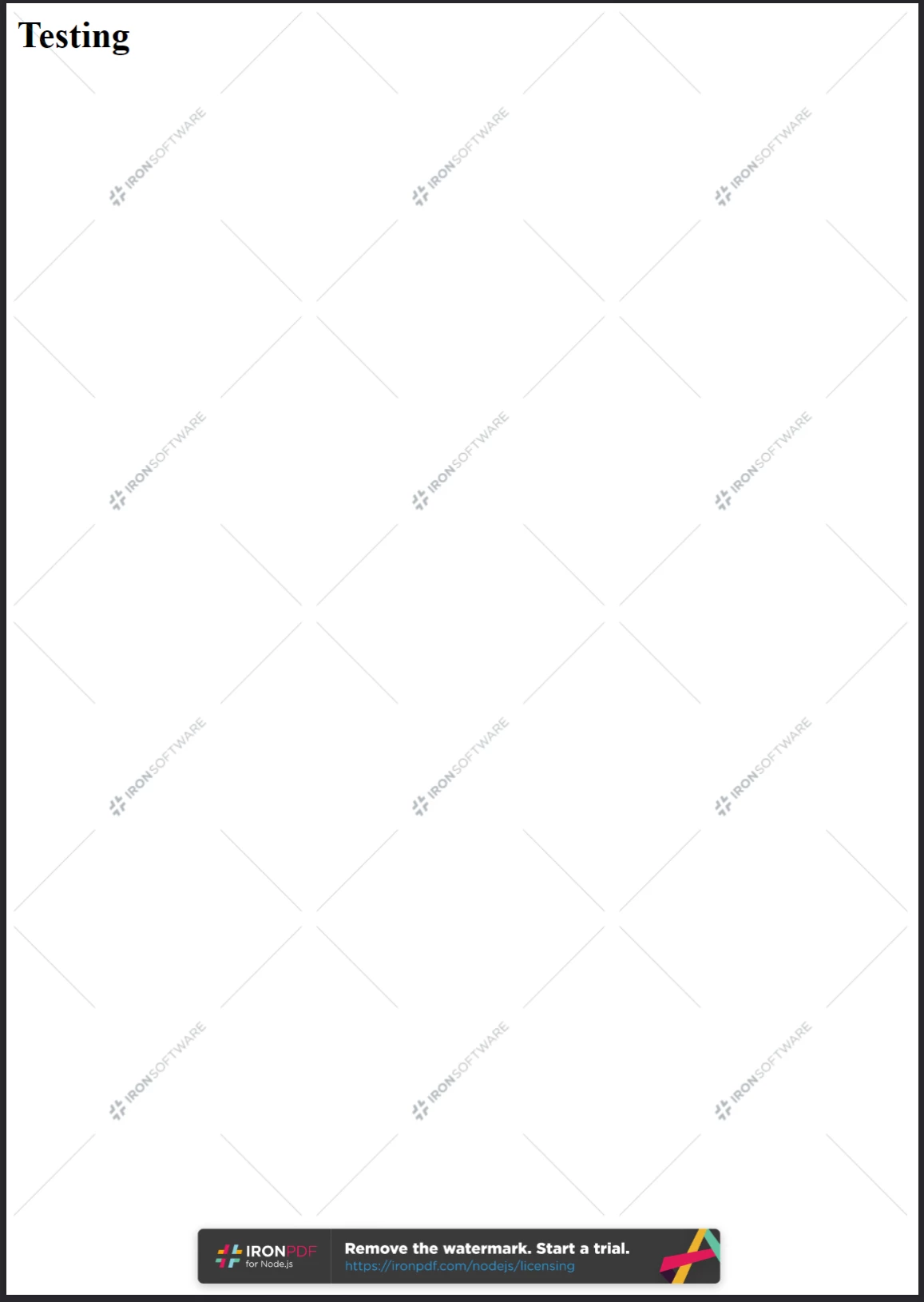
**在 ironpdf.com/nodejs/licensing/ 上获取许可证密钥以生成无水印的 PDF 文档。**
## 如何在Node.js中将HTML转换为PDF?
IronPDF Node.js库提供了四种从HTML内容创建PDF文件的方法:
1. 从 HTML 代码字符串中
2. 从本地 HTML 文件中
3. 从在线URL创建
4. 从压缩的ZIP档案创建
每种方法都使用[`PdfDocument`](/nodejs/object-reference/api/classes/PdfDocument.html)类作为其基础。 `PdfDocument`表示由某些来源内容生成的PDF文件,并驱动IronPDF的大多数核心创建和编辑功能。
### 如何从HTML字符串创建PDF?
`PdfDocument.fromHtml`从原始HTML标记字符串生成PDF。这种方法提供了四种方法中最大的灵活性,因为HTML字符串几乎可以从任何地方获取——例如文本文件、数据流、HTML模板引擎或动态构建的标记。
```javascript
import { PdfDocument } from "@ironsoftware/ironpdf";
import './config.js'; // Import the configuration script

// Create a PDF from an HTML string
const pdf = await PdfDocument.fromHtml("<h1>Hello from IronPDF!</h1>");

// Save the PDF document to the file system
await pdf.saveAs("html-string-to-pdf.pdf");
```
`PdfDocument`类的一个实例。 获得实例后,调用`saveAs`,将目标文件路径写入磁盘。 保存的PDF文件会将HTML呈现为符合标准的浏览器显示的样子。
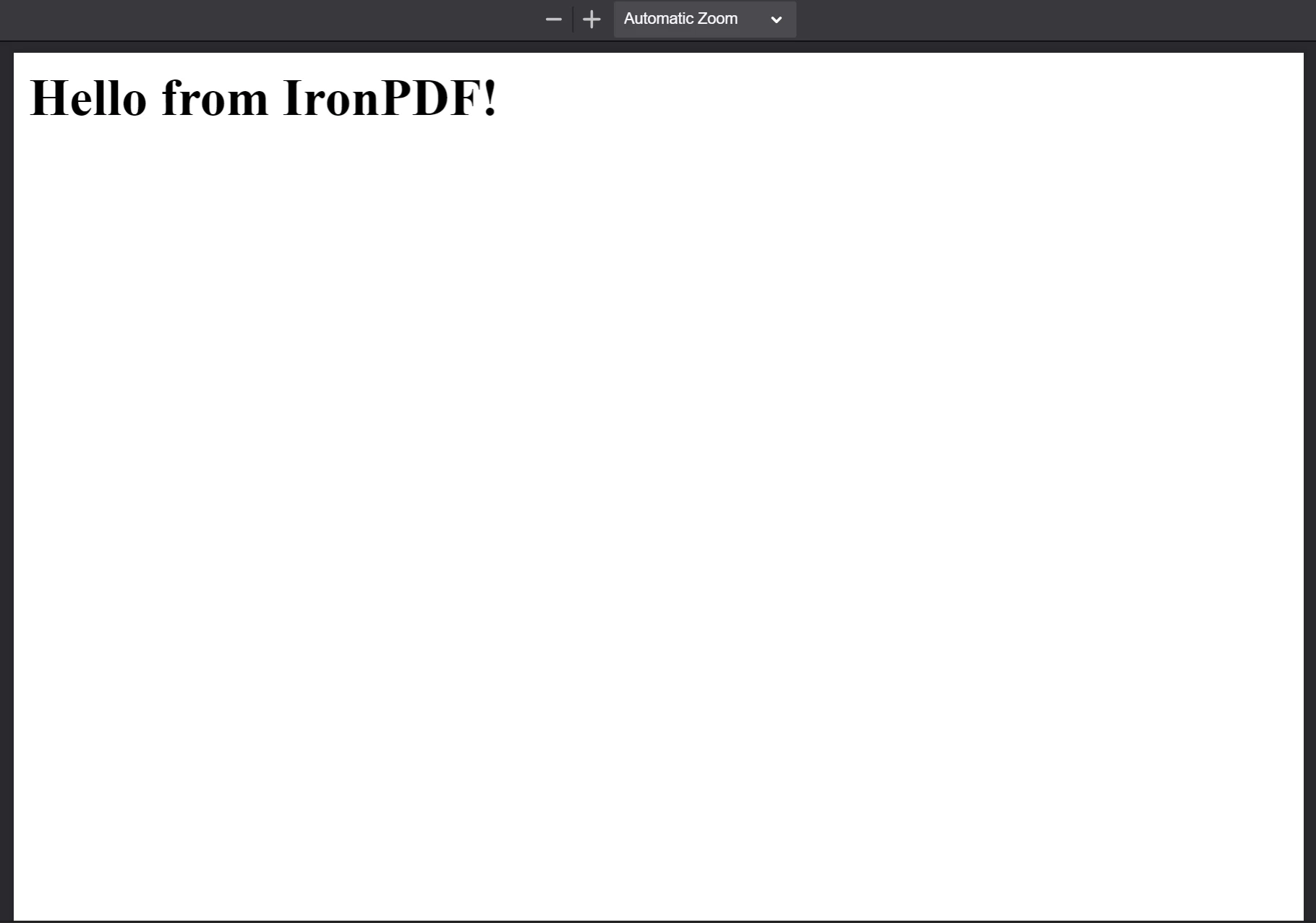
**The PDF generated from the HTML string `<h1>Hello from IronPDF!</h1>`. 由`PdfDocument.fromHtml`生成的PDF文件呈现为网页内容的样子。**
### 如何从HTML文件创建PDF?
`PdfDocument.fromHtml`还接受本地HTML文档的路径。 而不是一段标记字符串,将有效的文件路径作为第一个参数传递。 这是在处理引用本地CSS、JavaScript和图像资产的保存网页时的首选方法。
以下示例将[示例网页](https://filesamples.com/samples/code/html/sample2.html)转换为PDF:
```javascript
import { PdfDocument } from "@ironsoftware/ironpdf";
import './config.js'; // Import the configuration script

// Render a PDF from a local HTML file
const pdf = await PdfDocument.fromHtml("./sample2.html");

// Save the PDF document to the project directory
await pdf.saveAs("html-file-to-pdf-1.pdf");
```
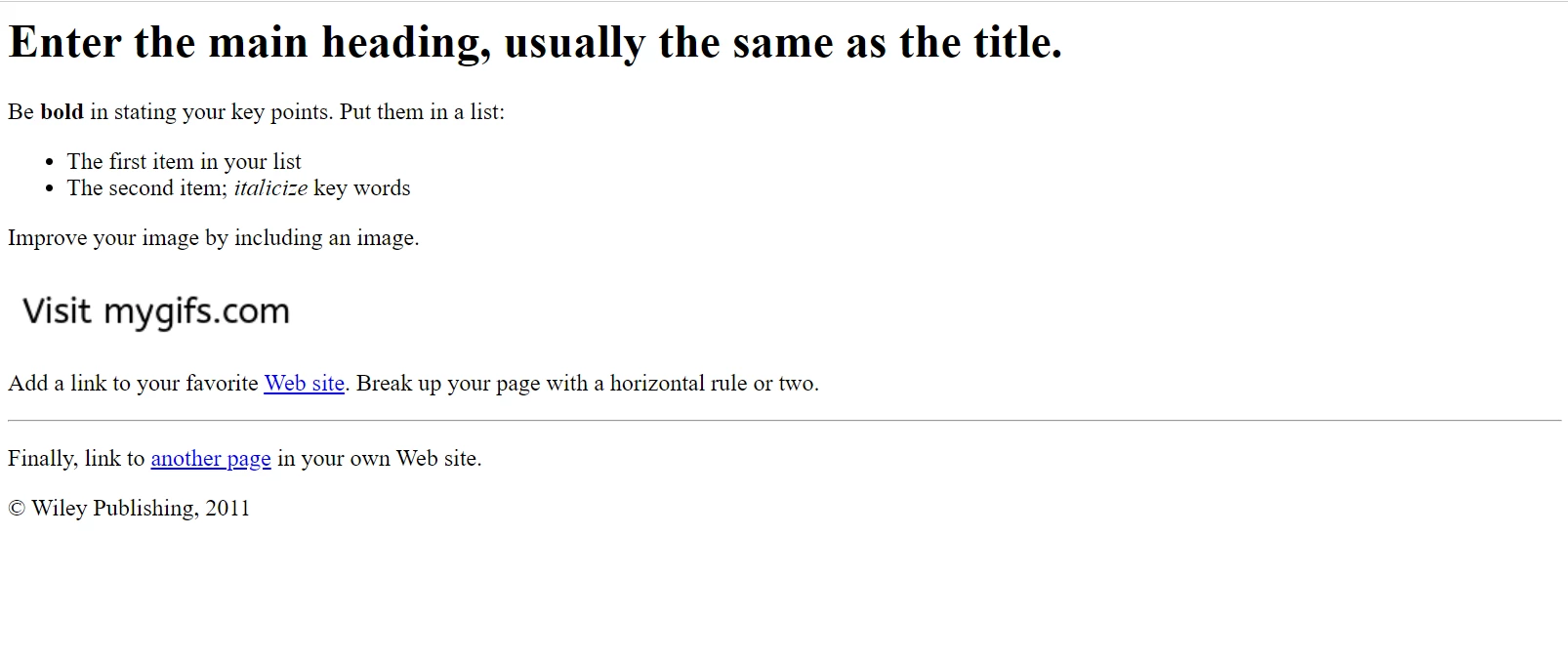
**示例HTML页面在Google Chrome中的显示。 从文件示例网站下载该页面及类似页面:https://filesamples.com/samples/code/html/sample2.html**
IronPDF会保持原始HTML文档的外观,并保留链接、表单和其他交互元素的功能。 这种保真度扩展至包含段落、列表、图像、超链接和客户端脚本的复杂页面。
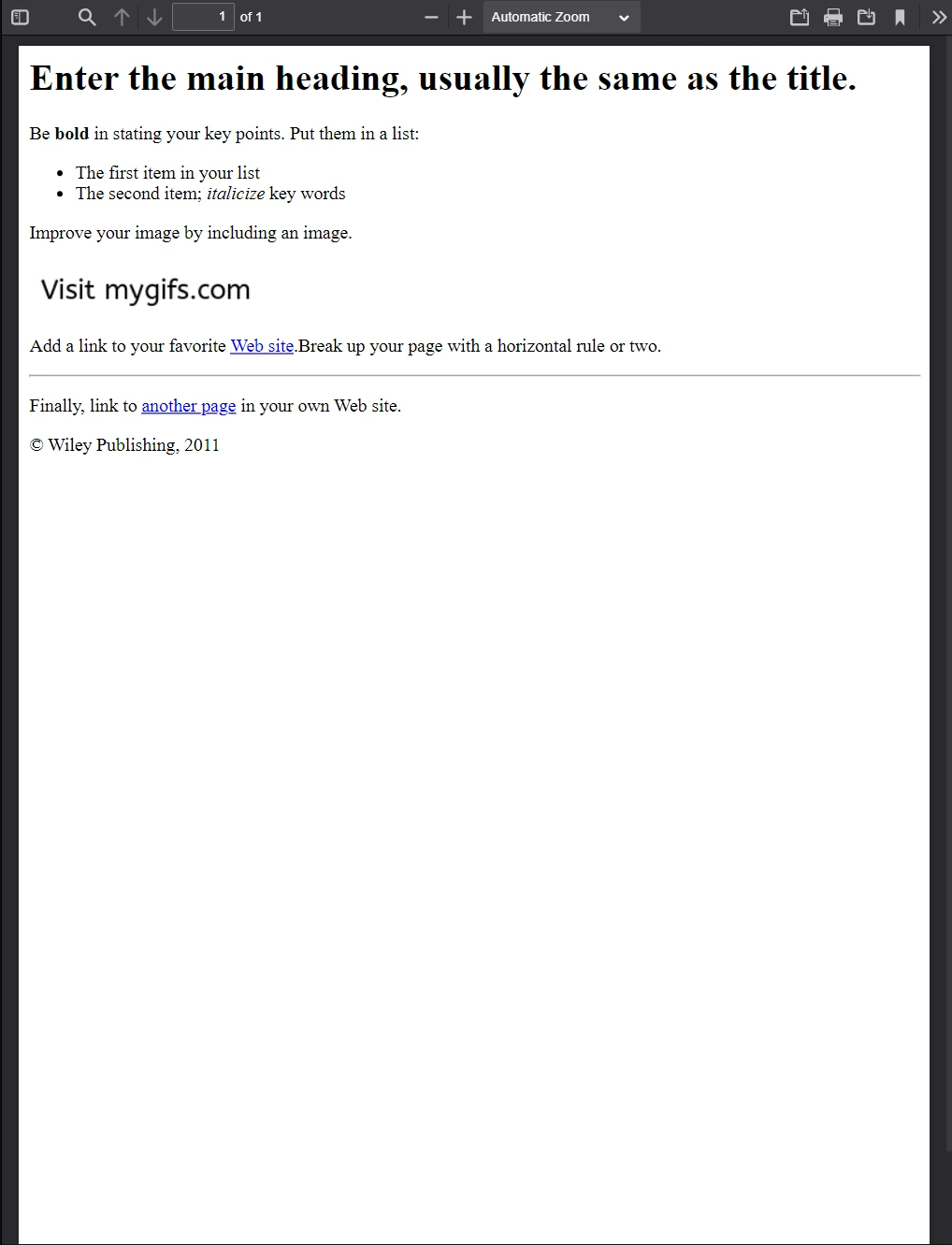
**此PDF是从上面的HTML文件示例生成的。 与之前的图像比较其外观——IronPDF保留了布局的高保真度。**
IronPDF处理的页面远远超过简单标记。以下示例将一个从众多外部CSS文件、图像和脚本资源加载的功能丰富的页面转换:
```javascript
import { PdfDocument } from "@ironsoftware/ironpdf";
import './config.js'; // Import the configuration script

// Render a PDF from a complex HTML page with external assets
PdfDocument.fromHtml("./sample4.html").then(async (pdf) => {
    return await pdf.saveAs("html-file-to-pdf-2.pdf");
});
```
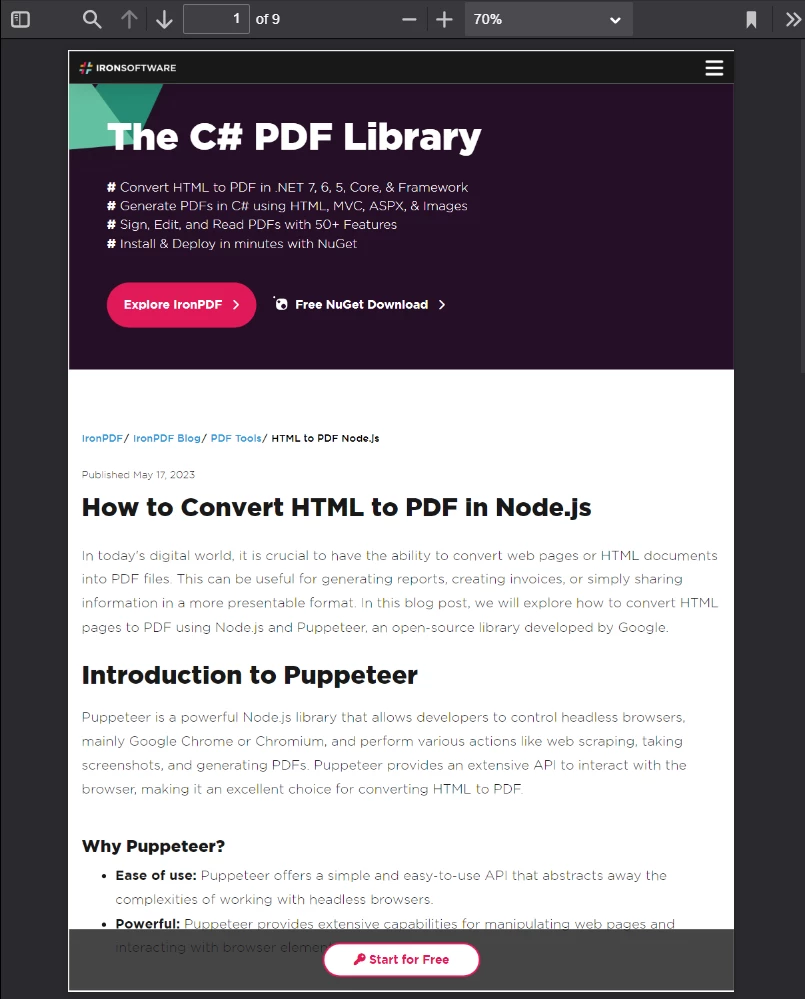
**如果在Google Chrome中看起来不错,转换为PDF时也会看起来不错。 这包括CSS重和JavaScript渲染的页面设计。**
[[t:(如果页面的资源来自本地文件路径,请确保所有引用的CSS文件、图像和脚本相对于HTML文件的位置存在。 IronPDF的Chrome渲染引擎以与浏览器相同的方式解析这些路径。)]]
### 如何从URL创建PDF?
`PdfDocument.fromUrl`获取并呈现动态网页为PDF。 将任何公开可访问的URL作为参数传递。 IronPDF的Chrome渲染引擎检索页面、加载所有资源,并生成完美像素的PDF——无需手动HTML下载。
```javascript
import { PdfDocument } from "@ironsoftware/ironpdf";
import './config.js'; // Import the configuration script

// Convert a live web page to a PDF
const pdf = await PdfDocument.fromUrl("https://en.wikipedia.org/wiki/PDF");

// Save the document
await pdf.saveAs("url-to-pdf.pdf");
```
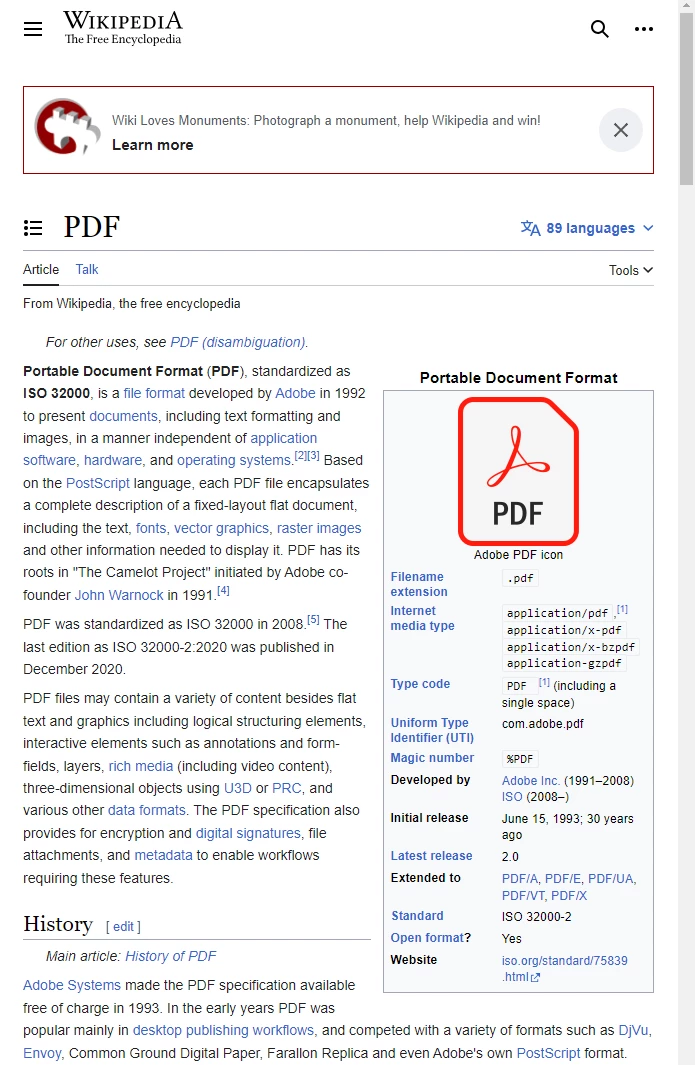
**关于 PDF 格式的 Wikipedia 文章,其在符合标准的网络浏览器中的显示方式。**
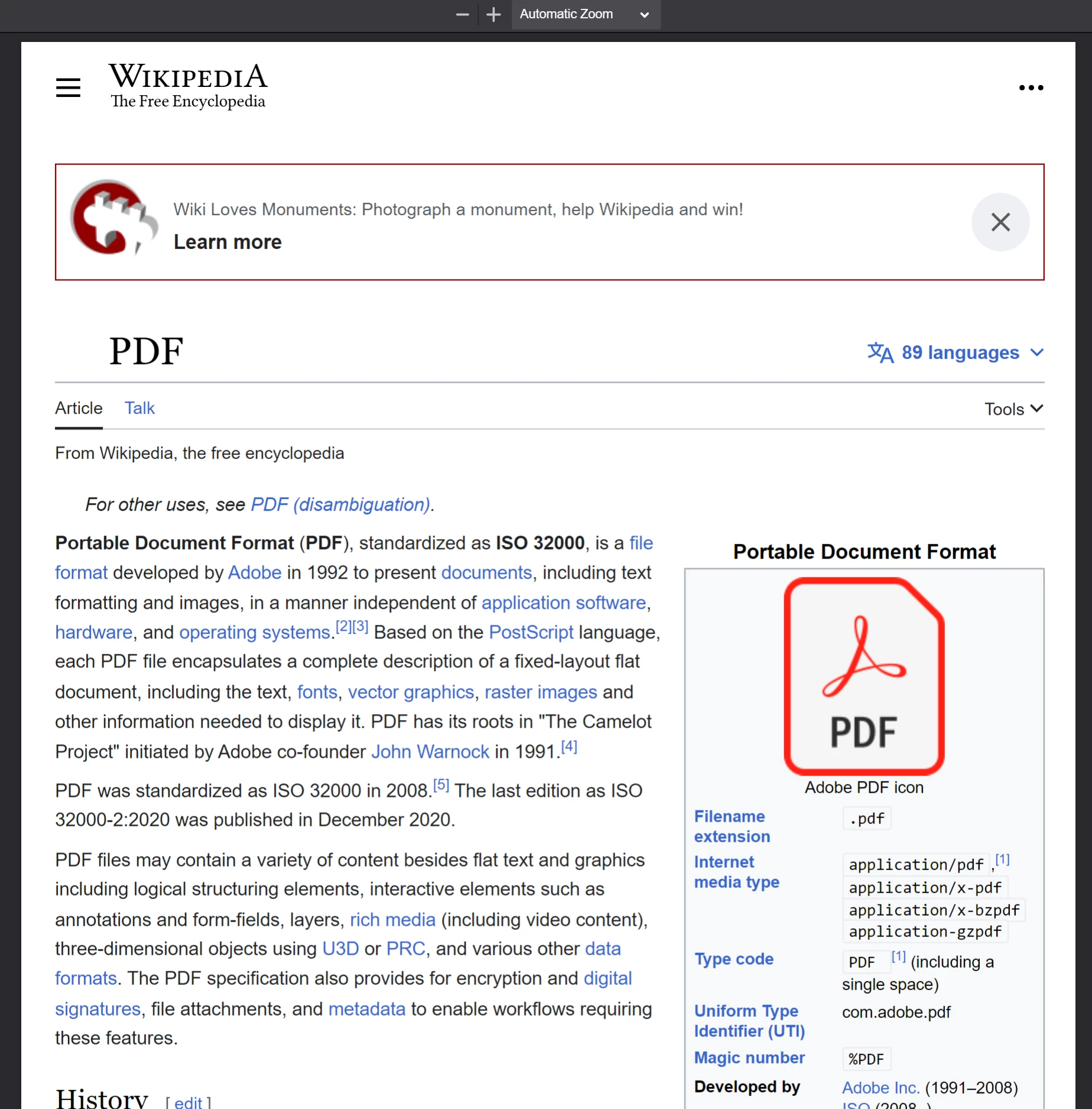
**调用`PdfDocument.fromUrl`在维基百科文章上生成的PDF。 请注意其与原始网页的高度相似性。**
[[n:(基于URL的转换需要目标服务器对于运行IronPDF的机器是可访问的。 需要通过`ChromePdfRenderOptions`进行额外配置才能访问身份验证、VPN或防火墙后的页面。)]]
### 如何从Zip压缩包创建PDF?
`PdfDocument.fromZip`将压缩档案中的特定HTML文件转换为PDF。 这在分发将HTML、CSS和图像资源打包在一起的独立HTML项目时特别有用。
对于此示例,假设项目目录中包含一个具有以下结构的ZIP文件:
```plaintext
//:path=/static-assets/ironpdf-nodejs/content-code-examples/tutorials/html-to-pdf/zip-structure.txt
html-zip.zip
├─ index.html
├─ style.css
├─ logo.png
```
`index.html`文件包含:
```html
//:path=/static-assets/ironpdf-nodejs/content-code-examples/tutorials/html-to-pdf/index.html
<!DOCTYPE html>
<html lang="en">
<head>
<meta charset="UTF-8">
<meta name="viewport" content="width=device-width, initial-scale=1">
<title>Hello world!</title>
<link rel="stylesheet" href="style.css">
</head>
<body>
<h1>Hello from IronPDF!</h1>
<a href="https://ironpdf.com/nodejs/">
<img src="logo.png" alt="适用于 Node.js 的 IronPDF">
</a>
</body>
</html>
```
和`style.css`声明页面布局和字体规则:
```css
//:path=/static-assets/ironpdf-nodejs/content-code-examples/tutorials/html-to-pdf/style.css
@font-face {
font-family: 'Gotham-Black';
src: url('gotham-black-webfont.eot?') format('embedded-opentype'),
url('gotham-black-webfont.woff2') format('woff2'),
url('gotham-black-webfont.woff') format('woff'),
url('gotham-black-webfont.ttf') format('truetype'),
url('gotham-black-webfont.svg') format('svg');
font-weight: normal;
font-style: normal;
font-display: swap;
}
body {
display: flex;
flex-direction: column;
justify-content: center;
margin-left: auto;
margin-right: auto;
margin-top: 200px;
margin-bottom: auto;
color: white;
background-color: black;
text-align: center;
font-family: "Helvetica"
}
h1 {
font-family: "Gotham-Black";
margin-bottom: 70px;
font-size: 32pt;
}
img {
width: 400px;
height: auto;
}
p {
text-decoration: underline;
font-size: smaller;
}
```

**假设HTML ZIP文件中的样例图片。**
调用`fromZip`时,指定ZIP文件路径作为第一个参数,并将配置对象作为第二个参数。 将`mainHtmlFile`属性设置为存档中应转换的HTML文件的名称:
```javascript
import { PdfDocument } from "@ironsoftware/ironpdf";
import './config.js'; // Import the configuration script
// Convert an HTML file from a ZIP archive to PDF
PdfDocument.fromZip("./html-zip.zip", {
mainHtmlFile: "index.html"
}).then(async (pdf) => {
return await pdf.saveAs("html-zip-to-pdf.pdf");
});
```
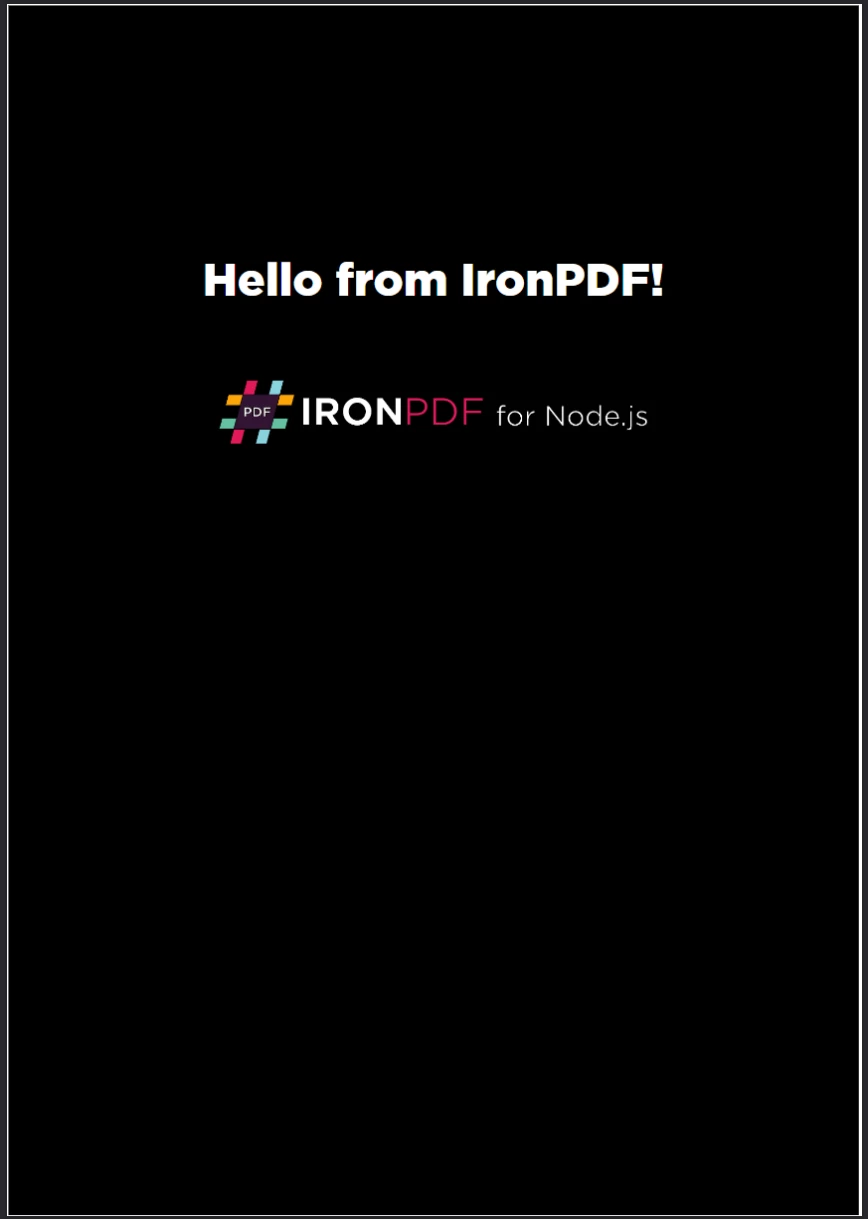
**使用`PdfDocument.fromZip`创建PDF。 该函数成功渲染了ZIP文件中的HTML代码以及其捆绑的资产。**
## IronPDF支持哪些高级渲染选项?
[`ChromePdfRenderOptions`](/nodejs/object-reference/api/interfaces/ChromePdfRenderOptions.html)接口用来详细定制PDF渲染行为的属性。 这些设置在生成PDF之前应用,涵盖了布局、视觉外观以及动态内容的边缘情况。
IronPDF为每次转换应用默认的渲染设置。 使用`defaultChromePdfRenderOptions`函数检索这些默认值:
```javascript
import { defaultChromePdfRenderOptions } from "@ironsoftware/ironpdf";
// Retrieve a ChromePdfRenderOptions object with default settings
var options = defaultChromePdfRenderOptions();
```
根据需要修改返回对象的属性并将其传递给任何转换方法的`renderOptions`参数。
### 如何添加页眉和页脚?
`textFooter`属性将自定义文本内容附加到新渲染PDF的每一页。 下面的示例从Google搜索主页创建PDF,并在每一页添加自定义页眉和页脚,每个使用不同的字体:
```javascript
import { PdfDocument, defaultChromePdfRenderOptions, AffixFonts } from "@ironsoftware/ironpdf";
import './config.js'; // Import the configuration script
// Start from default render options
var options = defaultChromePdfRenderOptions();
// Configure a text-based header
options.textHeader = {
centerText: "https://www.adobe.com",
dividerLine: true,
font: AffixFonts.CourierNew,
fontSize: 12,
leftText: "URL to PDF"
};
// Configure a text-based footer
options.textFooter = {
centerText: "IronPDF for Node.js",
dividerLine: true,
fontSize: 14,
font: AffixFonts.Helvetica,
rightText: "HTML to PDF in Node.js"
};
// Render the page with custom headers and footers applied
PdfDocument.fromUrl("https://www.google.com/", { renderOptions: options }).then(async (pdf) => {
return await pdf.saveAs("add-custom-headers-footers-1.pdf");
});
```
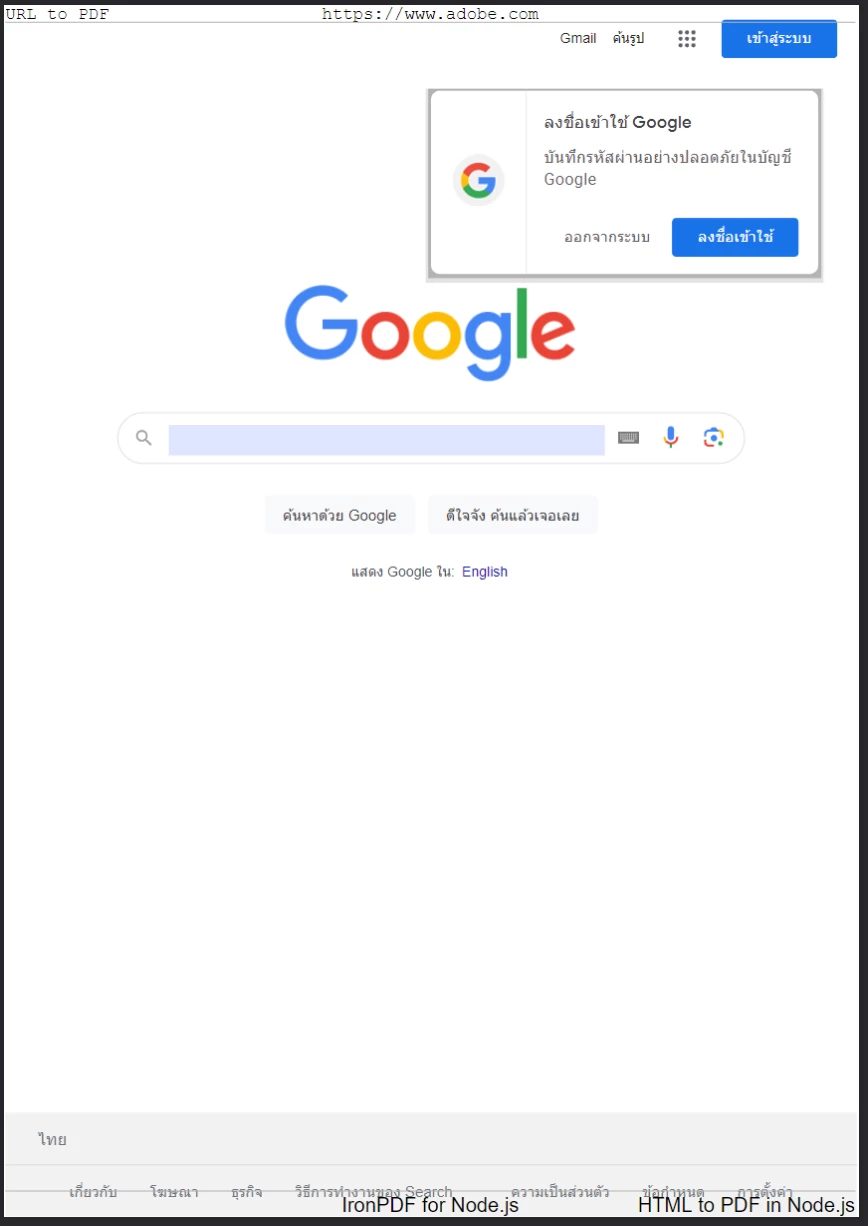
**从Google主页生成的PDF,使用`textFooter`应用自定义文本页眉和页脚。**
对于更丰富的页眉和页脚布局,使用`htmlFooter`属性。 这些接受原生HTML片段,使得在排版、图像和对齐方面完全控制。 下面的示例在页眉中以粗体居中显示页面URL,并在页脚嵌入了logo图像:
```javascript
import { PdfDocument, defaultChromePdfRenderOptions } from "@ironsoftware/ironpdf";
import './config.js'; // Import the configuration script
// Start from default render options
var options = defaultChromePdfRenderOptions();
// Define a rich HTML header
options.htmlHeader = {
htmlFragment: "<strong>https://www.google.com/</strong>",
dividerLine: true,
dividerLineColor: "blue",
loadStylesAndCSSFromMainHtmlDocument: true,
};
// Define a rich HTML footer with a logo
options.htmlFooter = {
htmlFragment: "<img src='logo.png' alt='IronPDF for Node.js' style='display: block; width: 150px; height: auto; margin-left: auto; margin-right: auto;'>",
dividerLine: true,
loadStylesAndCSSFromMainHtmlDocument: true
};
// Apply custom HTML headers and footers during rendering
await PdfDocument.fromUrl("https://www.google.com/", { renderOptions: options }).then(async (pdf) => {
return await pdf.saveAs("add-html-headers-footers.pdf");
});
```
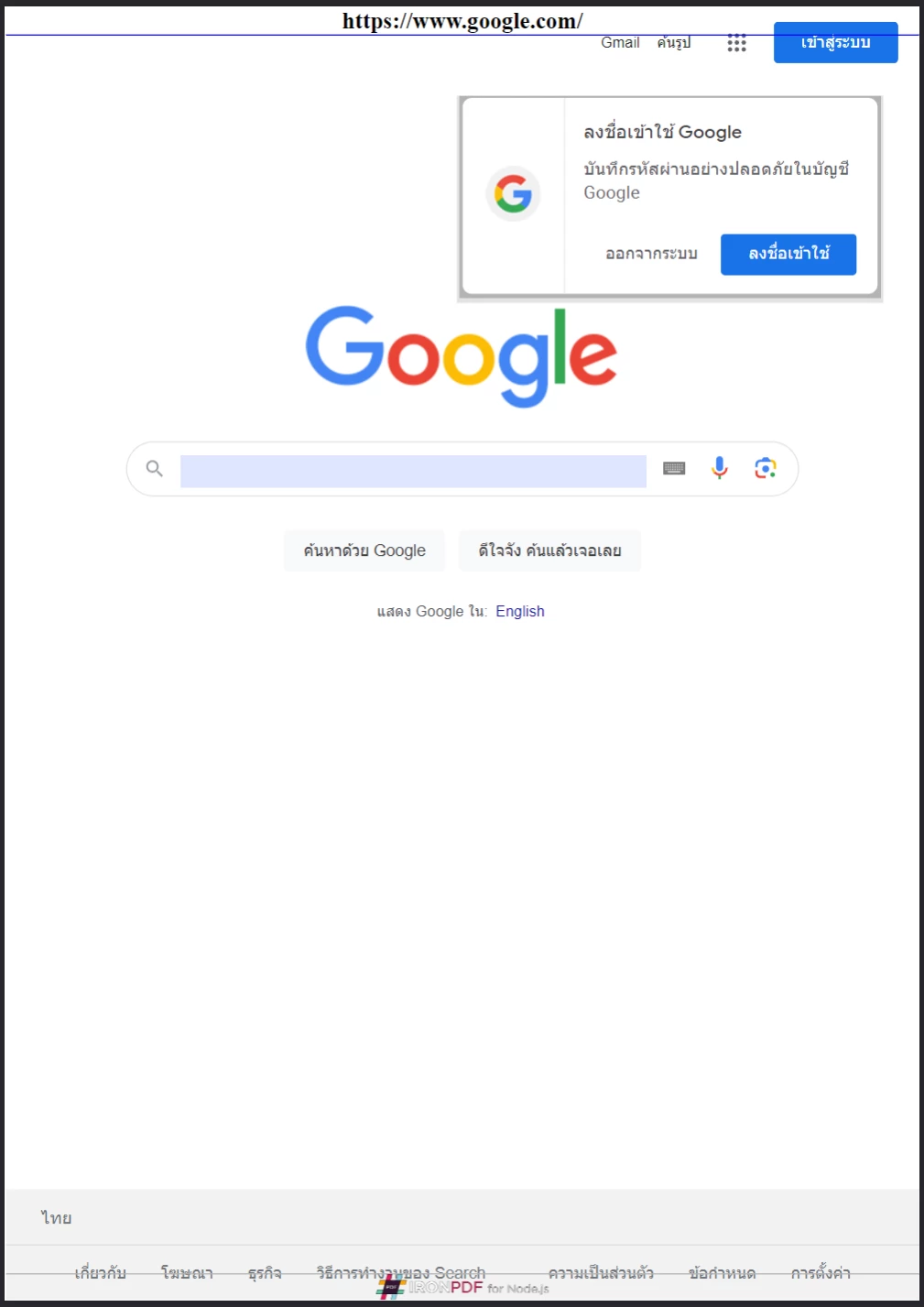
**IronPDF支持基于HTML的页眉和页脚,能够在每一页上完全控制品牌和布局。**
### 如何控制页面大小、方向和边距?
`ChromePdfRenderOptions`上控制每页的物理布局。 以下示例将Google主页转换为具有自定义边距、A5横向和灰度输出:
```javascript
import { PdfDocument, defaultChromePdfRenderOptions, PaperSize, FitToPaperModes, PdfPaperOrientation } from "@ironsoftware/ironpdf";
import './config.js'; // Import the configuration script
// Start from default render options
var options = defaultChromePdfRenderOptions();
// Set page margins in millimeters
options.margin = {
top: 50,
bottom: 50,
left: 60,
right: 60
};
// Configure paper size, fit mode, orientation, and color mode
options.paperSize = PaperSize.A5;
options.fitToPaperMode = FitToPaperModes.FitToPage;
options.paperOrientation = PdfPaperOrientation.Landscape;
options.grayScale = true;
// Render with the customized layout settings
PdfDocument.fromUrl("https://www.google.com/", { renderOptions: options }).then(async (pdf) => {
return await pdf.saveAs("set-margins-and-page-size.pdf");
});
```
`Legal`。 `Landscape`。 这些设置对打印就绪文档的输出尺寸提供了精确控制。
[[t:(生成用于打印工作流程的PDF时,请始终明确指定边距。 默认边距可能不符合目标打印机或纸张格式的要求。)]]
### 如何处理动态网页?
通过JavaScript计时器、懒加载或API调用异步加载内容的页面,可能在IronPDF的引擎捕获时尚未完全呈现。 `ChromePdfRenderOptions`配置,指示Chrome渲染器在捕捉页面前暂停直到达到指定条件。
以下代码块将IronPDF设置为在捕获页面内容之前等待20秒:
```javascript
import { PdfDocument, defaultChromePdfRenderOptions, WaitForType } from "@ironsoftware/ironpdf";
import './config.js'; // Import the configuration script
// Configure the renderer to wait 20 seconds before capturing
var options = defaultChromePdfRenderOptions();
options.waitFor = {
type: WaitForType.RenderDelay,
delay: 20000
};
PdfDocument.fromUrl("https://ironpdf.com/nodejs/", { renderOptions: options }).then(async (pdf) => {
return await pdf.saveAs("waitfor-renderdelay.pdf");
});
```
或者,可以将IronPDF配置为在呈现之前等待特定DOM元素出现。 这对于在JavaScript框架完成挂载后注入内容的页面非常有用:
```javascript
import { PdfDocument, defaultChromePdfRenderOptions, WaitForType } from "@ironsoftware/ironpdf";
import './config.js'; // Import the configuration script
// Configure the renderer to wait for a specific DOM element (up to 20 seconds)
var options = defaultChromePdfRenderOptions();
options.waitFor = {
type: WaitForType.HtmlElement,
htmlQueryStr: "div.ProseMirror",
maxWaitTime: 20000,
};
PdfDocument.fromUrl("https://app.surferseo.com/drafts/s/V7VkcdfgFz-dpkldsfHDGFFYf4jjSvvjsdf", { renderOptions: options }).then(async (pdf) => {
return await pdf.saveAs("waitfor-htmlelement.pdf");
});
```
`WaitForType.HtmlElement`策略使用标准CSS查询选择器。 渲染器轮询元素的存在,直到`maxWaitTime`毫秒过去或找到元素——以先到者为准。
[[w:(设置过长的等待时间可能会在高吞吐量应用程序中显著增加PDF生成时间。 请使用能够可靠捕获您用例所需内容的最小延迟。)]]
## 如何从HTML模板生成PDF?
一个常见的实际自动化模式是从共享HTML模板生成一批PDF,用数据库、API或电子表格中的数据替换占位符值。 IronPDF的`PdfDocument`上直接处理这一点。
下面的示例发票模板(改编自一个公开访问的[CodePen发票模板](https://codepen.io/tjoen/pen/wvgvLX))使用花括号占位符,如`{INVOICE-NUMBER}`用于可替代内容:
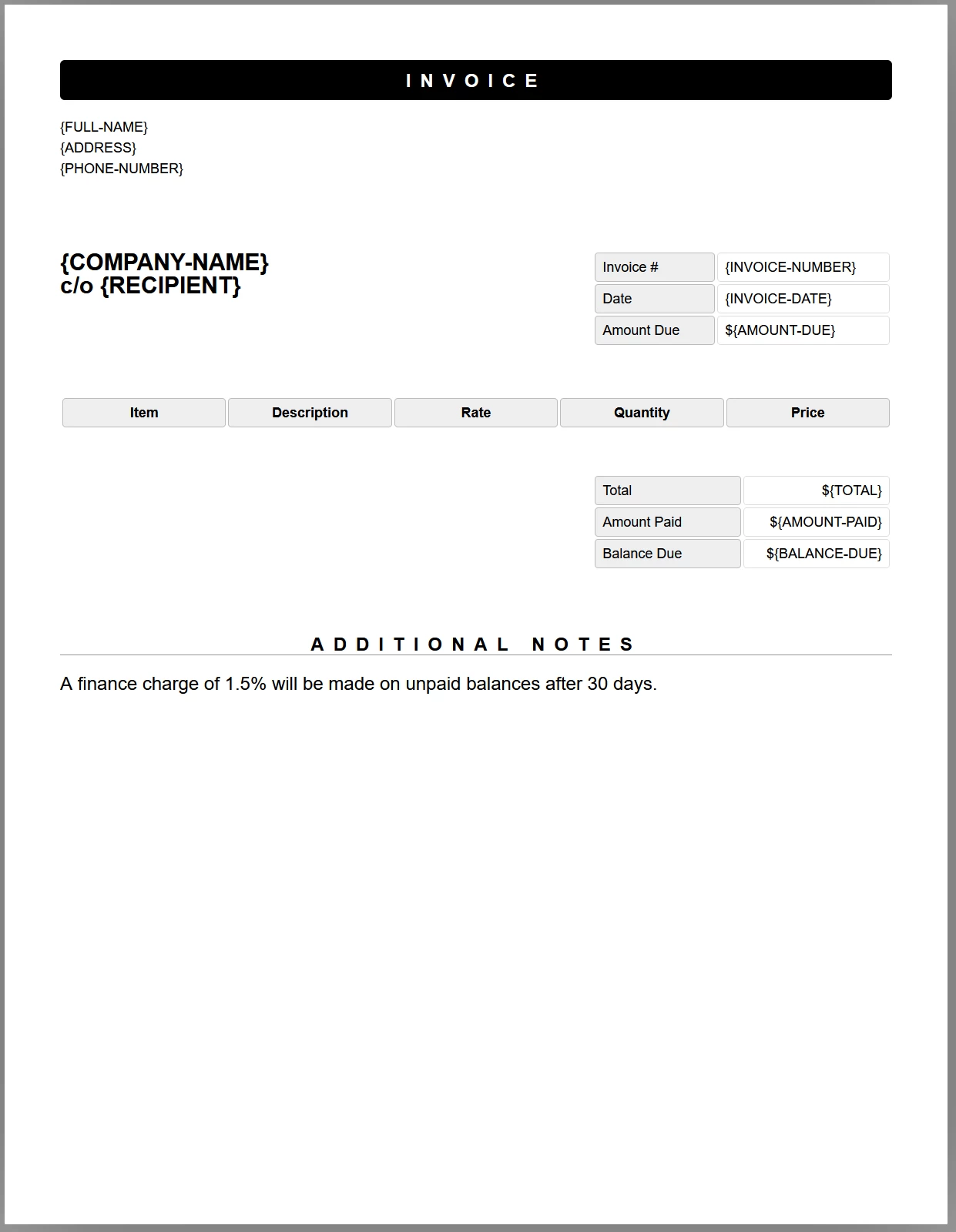
**带有占位符标签的样例发票模板。 JavaScript代码将在文档保存为PDF之前用真实数据替换每个标签。**
以下代码加载模板,用测试数据替换每个占位符,并将结果保存为PDF:
```javascript
//:path=/static-assets/ironpdf-nodejs/content-code-examples/tutorials/html-to-pdf/html-template-to-pdf.js
import { PdfDocument } from "@ironsoftware/ironpdf";
import './config.js'; // Import the configuration script
/**
* Loads an HTML template from the file system as a PdfDocument.
*/
async function getTemplateHtml(fileLocation) {
return PdfDocument.fromHtml(fileLocation);
}
/**
* Saves a PdfDocument to the specified file path.
*/
async function generatePdf(pdf, location) {
return pdf.saveAs(location);
}
/**
* Replaces a named placeholder in the PdfDocument with a data value.
*/
async function addTemplateData(pdf, key, value) {
return pdf.replaceText(key, value);
}
// Path to the HTML invoice template
const template = "./sample-invoice.html";
// Load the template, fill in all placeholder values, then save the PDF
getTemplateHtml(template).then(async (doc) => {
await addTemplateData(doc, "{FULL-NAME}", "Lizbeth Presland");
await addTemplateData(doc, "{ADDRESS}", "678 Manitowish Alley, Portland, OG");
await addTemplateData(doc, "{PHONE-NUMBER}", "(763) 894-4345");
await addTemplateData(doc, "{INVOICE-NUMBER}", "787");
await addTemplateData(doc, "{INVOICE-DATE}", "August 28, 2023");
await addTemplateData(doc, "{AMOUNT-DUE}", "13,760.13");
await addTemplateData(doc, "{RECIPIENT}", "Celestyna Farmar");
await addTemplateData(doc, "{COMPANY-NAME}", "BrainBook");
await addTemplateData(doc, "{TOTAL}", "13,760.13");
await addTemplateData(doc, "{AMOUNT-PAID}", "0.00");
await addTemplateData(doc, "{BALANCE-DUE}", "13,760.13");
await addTemplateData(doc, "{ITEM}", "Training Sessions");
await addTemplateData(doc, "{DESCRIPTION}", "60 Minute instruction");
await addTemplateData(doc, "{RATE}", "3,440.03");
await addTemplateData(doc, "{QUANTITY}", "4");
await addTemplateData(doc, "{PRICE}", "13,760.13");
return doc;
}).then(async (doc) => await generatePdf(doc, "html-template-to-pdf.pdf"));
```
上面的代码定义了三个异步辅助函数:
- `PdfDocument`对象。
- `PdfDocument.replaceText`用其真实数据值替代一个占位符键。
- `PdfDocument`写入目标文件路径。
每个`replaceText`调用直接在内存中的PDF表示上操作,因此可以在不从磁盘重载文档的情况下链接多个替换。 生成的PDF保留了原始模板的所有CSS样式、字体和布局。
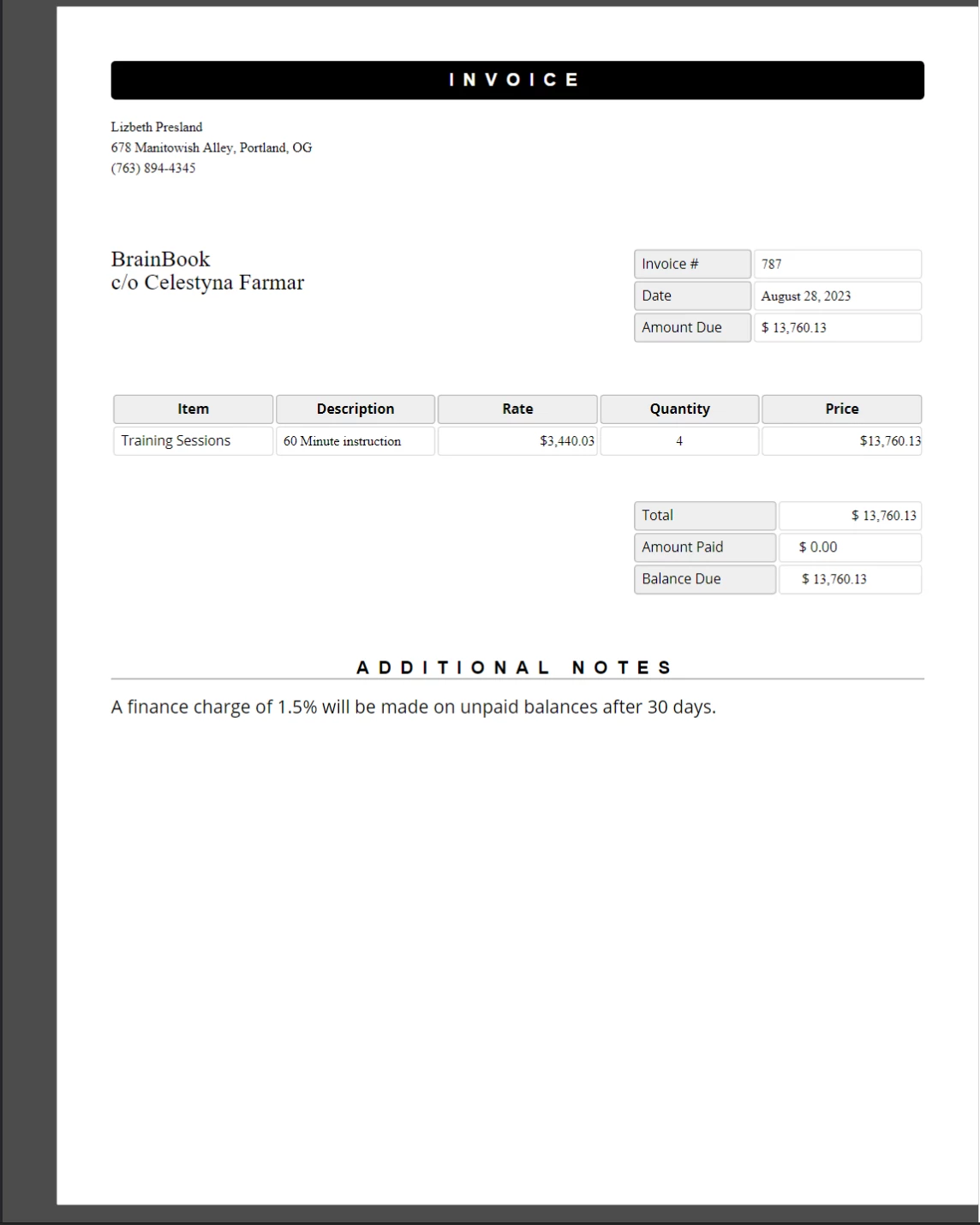
**已完成的PDF发票,占位符值已替换为真实数据。 原始模板的CSS样式和布局被精确保留。**
这种方法在批量文档生成中表现良好。 每次记录调用`generatePdf`之前。
## 下一步是什么?
本教程涵盖了核心HTML到PDF转换方法以及IronPDF for Node.js中最常用的渲染选项。 下面的主题将您在此处学习的内容扩展到更专业的领域。
- **[在Node.js中编辑和盖章PDF](/nodejs/tutorials/edit-pdf/)** —— 以编程方式为现有PDF文档应用印章、批注和文本编辑。
- **[在Node.js中合并和拆分PDF](/nodejs/tutorials/merge-pdfs/)** —— 将多个PDF合并为一个文档或将一个PDF拆分为独立的页面。
- **[在Node.js中为PDF添加水印](/nodejs/tutorials/watermark-pdf/)** —— 为PDF的每一页添加文本或图像水印,精确操作定位。
- **[IronPDF Node.js API参考](/nodejs/object-reference/api/)** - 浏览完整的API,`AffixFonts`,以及所有其他导出的类和接口。
- **[获取免费试用许可证密钥](#trial-license)** —— 通过激活免费30天试用许可证,生成无水印的生产质量PDF。
Ask ChatGPT about this page
Ask Gemini about this page
Ask Perplexity about this page
IronPDF的最强大和最受欢迎的功能是能够从原始HTML、CSS和JavaScript创建高保真PDF。 本教程引导Node.js开发者了解将HTML内容转化为PDF的每一种实用方法——从单行字符串转换直到动态模板驱动的文档生成。
IronPDF是一个高级API库,能够帮助开发者快速将强大的PDF处理功能实现到软件应用程序中。 IronPDF 提供 多种编程语言 。 有关在.NET 、Java 和Python 中创建PDF文档的详细介绍,请参阅官方文档页面。 本教程涵盖它在Node.js项目中的应用。
如何开始使用IronPDF for Node.js?
Start using IronPDF in your project today with a free trial.
安装IronPDF库
在您选择的Node.js项目中运行以下NPM命令来安装IronPDF Node.js包:
> npm i @ironsoftware/ironpdf
npm i @ironsoftware/ironpdf
您也可以手动下载并安装IronPDF包 。
如何安装IronPDF引擎?
IronPDF for Node.js需要一个IronPDF引擎二进制文件 来运行。
安装IronPDF引擎是可选的。 @ironsoftware/ironpdf包在第一次执行时会自动下载并安装适合您的操作系统的可执行文件。 在网络访问受到限制或不可用的环境中,建议手动安装。
通过安装适合您操作系统的包 来安装IronPDF引擎二进制文件。
如何应用许可证密钥?
默认情况下,IronPDF会在它生成或修改的所有文档上添加水印。 要去除水印,请在全局licenseKey属性,并使用有效的许可证密钥:
import { IronPdfGlobalConfig } from "@ironsoftware/ironpdf" ; // Retrieve the global configuration object var config = IronPdfGlobalConfig .getConfig(); // Set a valid license key to remove watermarks config.licenseKey = "{YOUR-LICENSE-KEY-HERE}" ; import { IronPdfGlobalConfig } from "@ironsoftware/ironpdf";
// Retrieve the global configuration object
var config = IronPdfGlobalConfig.getConfig();
// Set a valid license key to remove watermarks
config.licenseKey = "{YOUR-LICENSE-KEY-HERE}";
JavaScript
获取一个免费试用许可证密钥 或从许可页面购买许可证密钥 。
设置许可证密钥和任何其他全球配置设置 在调用其他库函数之前。 这可以确保应用程序的最佳性能和正确行为。 本教程中剩余的代码示例假定在一个单独的config.js文件中应用了许可证密钥,该文件在每个脚本的顶部被导入:
import { PdfDocument } from "@ironsoftware/ironpdf" ; import './config.js' ; // Import the configuration script // ... import { PdfDocument } from "@ironsoftware/ironpdf";
import './config.js'; // Import the configuration script
// ...
JavaScript
在 ironpdf.com/nodejs/licensing/ 上获取许可证密钥以生成无水印的 PDF 文档。
如何在Node.js中将HTML转换为PDF?
IronPDF Node.js库提供了四种从HTML内容创建PDF文件的方法:
从 HTML 代码字符串中
从本地 HTML 文件中
从在线URL创建
从压缩的ZIP档案创建
每种方法都使用PdfDocumentPdfDocument表示由某些来源内容生成的PDF文件,并驱动IronPDF的大多数核心创建和编辑功能。
如何从HTML字符串创建PDF?
PdfDocument.fromHtml从原始HTML标记字符串生成PDF。这种方法提供了四种方法中最大的灵活性,因为HTML字符串几乎可以从任何地方获取——例如文本文件、数据流、HTML模板引擎或动态构建的标记。
import { PdfDocument } from "@ironsoftware/ironpdf" ; import './config.js' ; // Import the configuration script // Create a PDF from an HTML string const pdf = await PdfDocument .fromHtml( "<h1>Hello from IronPDF!</h1>" ); // Save the PDF document to the file system await pdf.saveAs( "html-string-to-pdf.pdf" ); import { PdfDocument } from "@ironsoftware/ironpdf";
import './config.js'; // Import the configuration script
// Create a PDF from an HTML string
const pdf = await PdfDocument.fromHtml("<h1>Hello from IronPDF!</h1>");
// Save the PDF document to the file system
await pdf.saveAs("html-string-to-pdf.pdf");
JavaScript
PdfDocument类的一个实例。 获得实例后,调用saveAs,将目标文件路径写入磁盘。 保存的PDF文件会将HTML呈现为符合标准的浏览器显示的样子。
The PDF generated from the HTML string <h1>Hello from IronPDF!</h1>. 由PdfDocument.fromHtml生成的PDF文件呈现为网页内容的样子。
如何从HTML文件创建PDF?
PdfDocument.fromHtml还接受本地HTML文档的路径。 而不是一段标记字符串,将有效的文件路径作为第一个参数传递。 这是在处理引用本地CSS、JavaScript和图像资产的保存网页时的首选方法。
以下示例将示例网页 转换为PDF:
import { PdfDocument } from "@ironsoftware/ironpdf" ; import './config.js' ; // Import the configuration script // Render a PDF from a local HTML file const pdf = await PdfDocument .fromHtml( "./sample2.html" ); // Save the PDF document to the project directory await pdf.saveAs( "html-file-to-pdf-1.pdf" ); import { PdfDocument } from "@ironsoftware/ironpdf";
import './config.js'; // Import the configuration script
// Render a PDF from a local HTML file
const pdf = await PdfDocument.fromHtml("./sample2.html");
// Save the PDF document to the project directory
await pdf.saveAs("html-file-to-pdf-1.pdf");
JavaScript
示例HTML页面在Google Chrome中的显示。 从文件示例网站下载该页面及类似页面:https://filesamples.com/samples/code/html/sample2.html
IronPDF会保持原始HTML文档的外观,并保留链接、表单和其他交互元素的功能。 这种保真度扩展至包含段落、列表、图像、超链接和客户端脚本的复杂页面。
此PDF是从上面的HTML文件示例生成的。 与之前的图像比较其外观——IronPDF保留了布局的高保真度。
IronPDF处理的页面远远超过简单标记。以下示例将一个从众多外部CSS文件、图像和脚本资源加载的功能丰富的页面转换:
import { PdfDocument } from "@ironsoftware/ironpdf" ; import './config.js' ; // Import the configuration script // Render a PDF from a complex HTML page with external assets PdfDocument .fromHtml( "./sample4.html" ).then( async (pdf) => { return await pdf.saveAs( "html-file-to-pdf-2.pdf" ); }); import { PdfDocument } from "@ironsoftware/ironpdf";
import './config.js'; // Import the configuration script
// Render a PDF from a complex HTML page with external assets
PdfDocument.fromHtml("./sample4.html").then(async (pdf) => {
return await pdf.saveAs("html-file-to-pdf-2.pdf");
});
JavaScript
如果在Google Chrome中看起来不错,转换为PDF时也会看起来不错。 这包括CSS重和JavaScript渲染的页面设计。
如果页面的资源来自本地文件路径,请确保所有引用的CSS文件、图像和脚本相对于HTML文件的位置存在。 IronPDF的Chrome渲染引擎以与浏览器相同的方式解析这些路径。
如何从URL创建PDF?
PdfDocument.fromUrl获取并呈现动态网页为PDF。 将任何公开可访问的URL作为参数传递。 IronPDF的Chrome渲染引擎检索页面、加载所有资源,并生成完美像素的PDF——无需手动HTML下载。
import { PdfDocument } from "@ironsoftware/ironpdf" ; import './config.js' ; // Import the configuration script // Convert a live web page to a PDF const pdf = await PdfDocument .fromUrl( "https://en.wikipedia.org/wiki/PDF" ); // Save the document await pdf.saveAs( "url-to-pdf.pdf" ); import { PdfDocument } from "@ironsoftware/ironpdf";
import './config.js'; // Import the configuration script
// Convert a live web page to a PDF
const pdf = await PdfDocument.fromUrl("https://en.wikipedia.org/wiki/PDF");
// Save the document
await pdf.saveAs("url-to-pdf.pdf");
JavaScript
关于 PDF 格式的 Wikipedia 文章,其在符合标准的网络浏览器中的显示方式。
调用PdfDocument.fromUrl在维基百科文章上生成的PDF。 请注意其与原始网页的高度相似性。
基于URL的转换需要目标服务器对于运行IronPDF的机器是可访问的。 需要通过ChromePdfRenderOptions进行额外配置才能访问身份验证、VPN或防火墙后的页面。
如何从Zip压缩包创建PDF?
PdfDocument.fromZip将压缩档案中的特定HTML文件转换为PDF。 这在分发将HTML、CSS和图像资源打包在一起的独立HTML项目时特别有用。
对于此示例,假设项目目录中包含一个具有以下结构的ZIP文件:
//:path=/static-assets/ironpdf-nodejs/content-code-examples/tutorials/html-to-pdf/zip-structure.txt html-zip.zip ├─ index.html ├─ style.css ├─ logo.png //:path=/static-assets/ironpdf-nodejs/content-code-examples/tutorials/html-to-pdf/zip-structure.txt
html-zip.zip
├─ index.html
├─ style.css
├─ logo.png
Text
index.html文件包含:
//:path=/static-assets/ironpdf-nodejs/content-code-examples/tutorials/html-to-pdf/index.html
<!DOCTYPE html>
<html lang="en">
  <head>
    <meta charset="UTF-8">
    <meta name="viewport" content="width=device-width, initial-scale=1">
    <title>Hello world!</title>
    <link rel="stylesheet" href="style.css">
  </head>
  <body>
    <h1>Hello from IronPDF!</h1>
    <a href="https://ironpdf.com/nodejs/">
      <img src="logo.png" alt="适用于 Node.js 的 IronPDF">
    </a>
  </body>
</html>
//:path=/static-assets/ironpdf-nodejs/content-code-examples/tutorials/html-to-pdf/index.html
<!DOCTYPE html>
<html lang="en">
<head>
<meta charset="UTF-8">
<meta name="viewport" content="width=device-width, initial-scale=1">
<title>Hello world!</title>
<link rel="stylesheet" href="style.css">
</head>
<body>
<h1>Hello from IronPDF!</h1>
<a href="https://ironpdf.com/nodejs/">
<img src="logo.png" alt="适用于 Node.js 的 IronPDF">
</a>
</body>
</html>
HTML
和style.css声明页面布局和字体规则:
//:path=/static-assets/ironpdf-nodejs/content-code-examples/tutorials/html-to-pdf/style.css
@font-face {
  font-family: 'Gotham-Black';
  src: url('gotham-black-webfont.eot?') format('embedded-opentype'),
       url('gotham-black-webfont.woff2') format('woff2'),
       url('gotham-black-webfont.woff') format('woff'),
       url('gotham-black-webfont.ttf') format('truetype'),
       url('gotham-black-webfont.svg') format('svg');
  font-weight: normal;
  font-style: normal;
  font-display: swap;
}

body {
  display: flex;
  flex-direction: column;
  justify-content: center;
  margin-left: auto;
  margin-right: auto;
  margin-top: 200px;
  margin-bottom: auto;
  color: white;
  background-color: black;
  text-align: center;
  font-family: "Helvetica"
}

h1 {
  font-family: "Gotham-Black";
  margin-bottom: 70px;
  font-size: 32pt;
}

img {
  width: 400px;
  height: auto;
}

p {
  text-decoration: underline;
  font-size: smaller;
}
//:path=/static-assets/ironpdf-nodejs/content-code-examples/tutorials/html-to-pdf/style.css
@font-face {
font-family: 'Gotham-Black';
src: url('gotham-black-webfont.eot?') format('embedded-opentype'),
url('gotham-black-webfont.woff2') format('woff2'),
url('gotham-black-webfont.woff') format('woff'),
url('gotham-black-webfont.ttf') format('truetype'),
url('gotham-black-webfont.svg') format('svg');
font-weight: normal;
font-style: normal;
font-display: swap;
}
body {
display: flex;
flex-direction: column;
justify-content: center;
margin-left: auto;
margin-right: auto;
margin-top: 200px;
margin-bottom: auto;
color: white;
background-color: black;
text-align: center;
font-family: "Helvetica"
}
h1 {
font-family: "Gotham-Black";
margin-bottom: 70px;
font-size: 32pt;
}
img {
width: 400px;
height: auto;
}
p {
text-decoration: underline;
font-size: smaller;
}
Text
假设HTML ZIP文件中的样例图片。
调用fromZip时,指定ZIP文件路径作为第一个参数,并将配置对象作为第二个参数。 将mainHtmlFile属性设置为存档中应转换的HTML文件的名称:
import { PdfDocument } from "@ironsoftware/ironpdf" ; import './config.js' ; // Import the configuration script // Convert an HTML file from a ZIP archive to PDF PdfDocument .fromZip( "./html-zip.zip" , { mainHtmlFile: "index.html" }).then( async (pdf) => { return await pdf.saveAs( "html-zip-to-pdf.pdf" ); }); import { PdfDocument } from "@ironsoftware/ironpdf";
import './config.js'; // Import the configuration script
// Convert an HTML file from a ZIP archive to PDF
PdfDocument.fromZip("./html-zip.zip", {
mainHtmlFile: "index.html"
}).then(async (pdf) => {
return await pdf.saveAs("html-zip-to-pdf.pdf");
});
JavaScript
使用PdfDocument.fromZip创建PDF。 该函数成功渲染了ZIP文件中的HTML代码以及其捆绑的资产。
IronPDF支持哪些高级渲染选项?
ChromePdfRenderOptions
IronPDF为每次转换应用默认的渲染设置。 使用defaultChromePdfRenderOptions函数检索这些默认值:
import { defaultChromePdfRenderOptions } from "@ironsoftware/ironpdf" ; // Retrieve a ChromePdfRenderOptions object with default settings var options = defaultChromePdfRenderOptions(); import { defaultChromePdfRenderOptions } from "@ironsoftware/ironpdf";
// Retrieve a ChromePdfRenderOptions object with default settings
var options = defaultChromePdfRenderOptions();
JavaScript
根据需要修改返回对象的属性并将其传递给任何转换方法的renderOptions参数。
如何添加页眉和页脚?
textFooter属性将自定义文本内容附加到新渲染PDF的每一页。 下面的示例从Google搜索主页创建PDF,并在每一页添加自定义页眉和页脚,每个使用不同的字体:
import { PdfDocument , defaultChromePdfRenderOptions, AffixFonts } from "@ironsoftware/ironpdf" ; import './config.js' ; // Import the configuration script // Start from default render options var options = defaultChromePdfRenderOptions(); // Configure a text-based header options.textHeader = { centerText: "https://www.adobe.com" , dividerLine: true , font: AffixFonts . CourierNew , fontSize: 12 , leftText: "URL to PDF" }; // Configure a text-based footer options.textFooter = { centerText: "IronPDF for Node.js" , dividerLine: true , fontSize: 14 , font: AffixFonts . Helvetica , rightText: "HTML to PDF in Node.js" }; // Render the page with custom headers and footers applied PdfDocument .fromUrl( "https://www.google.com/" , { renderOptions: options }).then( async (pdf) => { return await pdf.saveAs( "add-custom-headers-footers-1.pdf" ); }); import { PdfDocument, defaultChromePdfRenderOptions, AffixFonts } from "@ironsoftware/ironpdf";
import './config.js'; // Import the configuration script
// Start from default render options
var options = defaultChromePdfRenderOptions();
// Configure a text-based header
options.textHeader = {
centerText: "https://www.adobe.com",
dividerLine: true,
font: AffixFonts.CourierNew,
fontSize: 12,
leftText: "URL to PDF"
};
// Configure a text-based footer
options.textFooter = {
centerText: "IronPDF for Node.js",
dividerLine: true,
fontSize: 14,
font: AffixFonts.Helvetica,
rightText: "HTML to PDF in Node.js"
};
// Render the page with custom headers and footers applied
PdfDocument.fromUrl("https://www.google.com/", { renderOptions: options }).then(async (pdf) => {
return await pdf.saveAs("add-custom-headers-footers-1.pdf");
});
JavaScript
从Google主页生成的PDF,使用textFooter应用自定义文本页眉和页脚。
对于更丰富的页眉和页脚布局,使用htmlFooter属性。 这些接受原生HTML片段,使得在排版、图像和对齐方面完全控制。 下面的示例在页眉中以粗体居中显示页面URL,并在页脚嵌入了logo图像:
import { PdfDocument , defaultChromePdfRenderOptions } from "@ironsoftware/ironpdf" ; import './config.js' ; // Import the configuration script // Start from default render options var options = defaultChromePdfRenderOptions(); // Define a rich HTML header options.htmlHeader = { htmlFragment: "<strong>https://www.google.com/</strong>" , dividerLine: true , dividerLineColor: "blue" , loadStylesAndCSSFromMainHtmlDocument: true , }; // Define a rich HTML footer with a logo options.htmlFooter = { htmlFragment: "<img src='logo.png' alt='IronPDF for Node.js' style='display: block; width: 150px; height: auto; margin-left: auto; margin-right: auto;'>" , dividerLine: true , loadStylesAndCSSFromMainHtmlDocument: true }; // Apply custom HTML headers and footers during rendering await PdfDocument .fromUrl( "https://www.google.com/" , { renderOptions: options }).then( async (pdf) => { return await pdf.saveAs( "add-html-headers-footers.pdf" ); }); import { PdfDocument, defaultChromePdfRenderOptions } from "@ironsoftware/ironpdf";
import './config.js'; // Import the configuration script
// Start from default render options
var options = defaultChromePdfRenderOptions();
// Define a rich HTML header
options.htmlHeader = {
htmlFragment: "<strong>https://www.google.com/</strong>",
dividerLine: true,
dividerLineColor: "blue",
loadStylesAndCSSFromMainHtmlDocument: true,
};
// Define a rich HTML footer with a logo
options.htmlFooter = {
htmlFragment: "<img src='logo.png' alt='IronPDF for Node.js' style='display: block; width: 150px; height: auto; margin-left: auto; margin-right: auto;'>",
dividerLine: true,
loadStylesAndCSSFromMainHtmlDocument: true
};
// Apply custom HTML headers and footers during rendering
await PdfDocument.fromUrl("https://www.google.com/", { renderOptions: options }).then(async (pdf) => {
return await pdf.saveAs("add-html-headers-footers.pdf");
});
JavaScript
IronPDF支持基于HTML的页眉和页脚,能够在每一页上完全控制品牌和布局。
如何控制页面大小、方向和边距?
ChromePdfRenderOptions上控制每页的物理布局。 以下示例将Google主页转换为具有自定义边距、A5横向和灰度输出:
import { PdfDocument , defaultChromePdfRenderOptions, PaperSize , FitToPaperModes , PdfPaperOrientation } from "@ironsoftware/ironpdf" ; import './config.js' ; // Import the configuration script // Start from default render options var options = defaultChromePdfRenderOptions(); // Set page margins in millimeters options.margin = { top: 50 , bottom: 50 , left: 60 , right: 60 }; // Configure paper size, fit mode, orientation, and color mode options.paperSize = PaperSize . A5 ; options.fitToPaperMode = FitToPaperModes . FitToPage ; options.paperOrientation = PdfPaperOrientation . Landscape ; options.grayScale = true ; // Render with the customized layout settings PdfDocument .fromUrl( "https://www.google.com/" , { renderOptions: options }).then( async (pdf) => { return await pdf.saveAs( "set-margins-and-page-size.pdf" ); }); import { PdfDocument, defaultChromePdfRenderOptions, PaperSize, FitToPaperModes, PdfPaperOrientation } from "@ironsoftware/ironpdf";
import './config.js'; // Import the configuration script
// Start from default render options
var options = defaultChromePdfRenderOptions();
// Set page margins in millimeters
options.margin = {
top: 50,
bottom: 50,
left: 60,
right: 60
};
// Configure paper size, fit mode, orientation, and color mode
options.paperSize = PaperSize.A5;
options.fitToPaperMode = FitToPaperModes.FitToPage;
options.paperOrientation = PdfPaperOrientation.Landscape;
options.grayScale = true;
// Render with the customized layout settings
PdfDocument.fromUrl("https://www.google.com/", { renderOptions: options }).then(async (pdf) => {
return await pdf.saveAs("set-margins-and-page-size.pdf");
});
JavaScript
Legal。 Landscape。 这些设置对打印就绪文档的输出尺寸提供了精确控制。
生成用于打印工作流程的PDF时,请始终明确指定边距。 默认边距可能不符合目标打印机或纸张格式的要求。
如何处理动态网页?
通过JavaScript计时器、懒加载或API调用异步加载内容的页面,可能在IronPDF的引擎捕获时尚未完全呈现。 ChromePdfRenderOptions配置,指示Chrome渲染器在捕捉页面前暂停直到达到指定条件。
以下代码块将IronPDF设置为在捕获页面内容之前等待20秒:
import { PdfDocument , defaultChromePdfRenderOptions, WaitForType } from "@ironsoftware/ironpdf" ; import './config.js' ; // Import the configuration script // Configure the renderer to wait 20 seconds before capturing var options = defaultChromePdfRenderOptions(); options.waitFor = { type: WaitForType . RenderDelay , delay: 20000 }; PdfDocument .fromUrl( "https://ironpdf.com/nodejs/" , { renderOptions: options }).then( async (pdf) => { return await pdf.saveAs( "waitfor-renderdelay.pdf" ); }); import { PdfDocument, defaultChromePdfRenderOptions, WaitForType } from "@ironsoftware/ironpdf";
import './config.js'; // Import the configuration script
// Configure the renderer to wait 20 seconds before capturing
var options = defaultChromePdfRenderOptions();
options.waitFor = {
type: WaitForType.RenderDelay,
delay: 20000
};
PdfDocument.fromUrl("https://ironpdf.com/nodejs/", { renderOptions: options }).then(async (pdf) => {
return await pdf.saveAs("waitfor-renderdelay.pdf");
});
JavaScript
或者,可以将IronPDF配置为在呈现之前等待特定DOM元素出现。 这对于在JavaScript框架完成挂载后注入内容的页面非常有用:
import { PdfDocument , defaultChromePdfRenderOptions, WaitForType } from "@ironsoftware/ironpdf" ; import './config.js' ; // Import the configuration script // Configure the renderer to wait for a specific DOM element (up to 20 seconds) var options = defaultChromePdfRenderOptions(); options.waitFor = { type: WaitForType . HtmlElement , htmlQueryStr: "div.ProseMirror" , maxWaitTime: 20000 , }; PdfDocument .fromUrl( "https://app.surferseo.com/drafts/s/V7VkcdfgFz-dpkldsfHDGFFYf4jjSvvjsdf" , { renderOptions: options }).then( async (pdf) => { return await pdf.saveAs( "waitfor-htmlelement.pdf" ); }); import { PdfDocument, defaultChromePdfRenderOptions, WaitForType } from "@ironsoftware/ironpdf";
import './config.js'; // Import the configuration script
// Configure the renderer to wait for a specific DOM element (up to 20 seconds)
var options = defaultChromePdfRenderOptions();
options.waitFor = {
type: WaitForType.HtmlElement,
htmlQueryStr: "div.ProseMirror",
maxWaitTime: 20000,
};
PdfDocument.fromUrl("https://app.surferseo.com/drafts/s/V7VkcdfgFz-dpkldsfHDGFFYf4jjSvvjsdf", { renderOptions: options }).then(async (pdf) => {
return await pdf.saveAs("waitfor-htmlelement.pdf");
});
JavaScript
WaitForType.HtmlElement策略使用标准CSS查询选择器。 渲染器轮询元素的存在,直到maxWaitTime毫秒过去或找到元素——以先到者为准。
设置过长的等待时间可能会在高吞吐量应用程序中显著增加PDF生成时间。 请使用能够可靠捕获您用例所需内容的最小延迟。
如何从HTML模板生成PDF?
一个常见的实际自动化模式是从共享HTML模板生成一批PDF,用数据库、API或电子表格中的数据替换占位符值。 IronPDF的PdfDocument上直接处理这一点。
下面的示例发票模板(改编自一个公开访问的CodePen发票模板 )使用花括号占位符,如{INVOICE-NUMBER}用于可替代内容:
带有占位符标签的样例发票模板。 JavaScript代码将在文档保存为PDF之前用真实数据替换每个标签。
以下代码加载模板,用测试数据替换每个占位符,并将结果保存为PDF:
//:path=/static-assets/ironpdf-nodejs/content-code-examples/tutorials/html-to-pdf/html-template-to-pdf.js import { PdfDocument } from "@ironsoftware/ironpdf" ; import './config.js' ; // Import the configuration script /** * Loads an HTML template from the file system as a PdfDocument. */ async function getTemplateHtml(fileLocation) { return PdfDocument .fromHtml(fileLocation); } /** * Saves a PdfDocument to the specified file path. */ async function generatePdf(pdf, location) { return pdf.saveAs(location); } /** * Replaces a named placeholder in the PdfDocument with a data value. */ async function addTemplateData(pdf, key, value) { return pdf.replaceText(key, value); } // Path to the HTML invoice template const template = "./sample-invoice.html" ; // Load the template, fill in all placeholder values, then save the PDF getTemplateHtml(template).then( async (doc) => { await addTemplateData(doc, "{FULL-NAME}" , "Lizbeth Presland" ); await addTemplateData(doc, "{ADDRESS}" , "678 Manitowish Alley, Portland, OG" ); await addTemplateData(doc, "{PHONE-NUMBER}" , "(763) 894-4345" ); await addTemplateData(doc, "{INVOICE-NUMBER}" , "787" ); await addTemplateData(doc, "{INVOICE-DATE}" , "August 28, 2023" ); await addTemplateData(doc, "{AMOUNT-DUE}" , "13,760.13" ); await addTemplateData(doc, "{RECIPIENT}" , "Celestyna Farmar" ); await addTemplateData(doc, "{COMPANY-NAME}" , "BrainBook" ); await addTemplateData(doc, "{TOTAL}" , "13,760.13" ); await addTemplateData(doc, "{AMOUNT-PAID}" , "0.00" ); await addTemplateData(doc, "{BALANCE-DUE}" , "13,760.13" ); await addTemplateData(doc, "{ITEM}" , "Training Sessions" ); await addTemplateData(doc, "{DESCRIPTION}" , "60 Minute instruction" ); await addTemplateData(doc, "{RATE}" , "3,440.03" ); await addTemplateData(doc, "{QUANTITY}" , "4" ); await addTemplateData(doc, "{PRICE}" , "13,760.13" ); return doc; }).then( async (doc) => await generatePdf(doc, "html-template-to-pdf.pdf" )); //:path=/static-assets/ironpdf-nodejs/content-code-examples/tutorials/html-to-pdf/html-template-to-pdf.js
import { PdfDocument } from "@ironsoftware/ironpdf";
import './config.js'; // Import the configuration script
/**
* Loads an HTML template from the file system as a PdfDocument.
*/
async function getTemplateHtml(fileLocation) {
return PdfDocument.fromHtml(fileLocation);
}
/**
* Saves a PdfDocument to the specified file path.
*/
async function generatePdf(pdf, location) {
return pdf.saveAs(location);
}
/**
* Replaces a named placeholder in the PdfDocument with a data value.
*/
async function addTemplateData(pdf, key, value) {
return pdf.replaceText(key, value);
}
// Path to the HTML invoice template
const template = "./sample-invoice.html";
// Load the template, fill in all placeholder values, then save the PDF
getTemplateHtml(template).then(async (doc) => {
await addTemplateData(doc, "{FULL-NAME}", "Lizbeth Presland");
await addTemplateData(doc, "{ADDRESS}", "678 Manitowish Alley, Portland, OG");
await addTemplateData(doc, "{PHONE-NUMBER}", "(763) 894-4345");
await addTemplateData(doc, "{INVOICE-NUMBER}", "787");
await addTemplateData(doc, "{INVOICE-DATE}", "August 28, 2023");
await addTemplateData(doc, "{AMOUNT-DUE}", "13,760.13");
await addTemplateData(doc, "{RECIPIENT}", "Celestyna Farmar");
await addTemplateData(doc, "{COMPANY-NAME}", "BrainBook");
await addTemplateData(doc, "{TOTAL}", "13,760.13");
await addTemplateData(doc, "{AMOUNT-PAID}", "0.00");
await addTemplateData(doc, "{BALANCE-DUE}", "13,760.13");
await addTemplateData(doc, "{ITEM}", "Training Sessions");
await addTemplateData(doc, "{DESCRIPTION}", "60 Minute instruction");
await addTemplateData(doc, "{RATE}", "3,440.03");
await addTemplateData(doc, "{QUANTITY}", "4");
await addTemplateData(doc, "{PRICE}", "13,760.13");
return doc;
}).then(async (doc) => await generatePdf(doc, "html-template-to-pdf.pdf"));
JavaScript
上面的代码定义了三个异步辅助函数:
PdfDocument对象。PdfDocument.replaceText用其真实数据值替代一个占位符键。PdfDocument写入目标文件路径。
每个replaceText调用直接在内存中的PDF表示上操作,因此可以在不从磁盘重载文档的情况下链接多个替换。 生成的PDF保留了原始模板的所有CSS样式、字体和布局。
已完成的PDF发票,占位符值已替换为真实数据。 原始模板的CSS样式和布局被精确保留。
这种方法在批量文档生成中表现良好。 每次记录调用generatePdf之前。
下一步是什么?
本教程涵盖了核心HTML到PDF转换方法以及IronPDF for Node.js中最常用的渲染选项。 下面的主题将您在此处学习的内容扩展到更专业的领域。
常见问题解答 使用IronPDF库。通过npm install @ironsoftware/ironpdf安装,然后用HTML字符串或文件路径调用PdfDocument.fromHtml,或用网址调用PdfDocument.fromUrl。使用PdfDocument.saveAs保存结果。
用HTML字符串作为参数调用PdfDocument.fromHtml。方法返回一个Promise,解析为PdfDocument实例。在结果上链式调用saveAs以将PDF写入磁盘。
将有效的文件系统路径传给PdfDocument.fromHtml而不是HTML字符串。IronPDF以浏览器加载文件的方式解析相对CSS、图像和脚本路径。
用目标URL调用PdfDocument.fromUrl。IronPDF使用其Chrome渲染引擎抓取页面并生成像素完美的PDF。目标URL必须从运行IronPDF的主机公共访问。
在ChromePdfRenderOptions对象上设置textHeader和textFooter属性以进行简单文本页眉和页脚。对于更丰富的布局,使用htmlHeader和htmlFooter结合原始HTML片段。将选项对象传给任何转换方法的renderOptions参数。
将options.paperSize设置为PaperSize枚举中的值(如PaperSize.A4或PaperSize.Letter),将options.paperOrientation设置为PdfPaperOrientation.Portrait或PdfPaperOrientation.Landscape。将配置好的选项传给转换方法。
使用ChromePdfRenderOptions上的waitFor属性。将type设置为WaitForType.RenderDelay并提供毫秒延迟,或将type设置为WaitForType.HtmlElement并提供CSS查询选择器。IronPDF将暂停渲染,直到满足条件。
用ZIP文件路径作为第一个参数和选项对象为第二个参数调用PdfDocument.fromZip。将mainHtmlFile属性设置为应转换的压缩包内HTML文件名称。
在调用任何转换方法之前,将有效的许可证密钥应用于全局配置。使用IronPdfGlobalConfig.getConfig()检索配置对象,并将config.licenseKey设置为您的密钥。ironpdf.com提供免费试用许可证。
用PdfDocument.fromHtml加载模板,然后对模板中的每个占位符调用PdfDocument.replaceText,传入占位符字符串和替换值。在所有替换完成后,调用saveAs以写入最终PDF。
技术作家
Curtis Chau 拥有卡尔顿大学的计算机科学学士学位,专注于前端开发,精通 Node.js、TypeScript、JavaScript 和 React。他热衷于打造直观且美观的用户界面,喜欢使用现代框架并创建结构良好、视觉吸引力强的手册。
...
阅读更多 


 在 ironpdf.com/nodejs/licensing/ 上获取许可证密钥以生成无水印的 PDF 文档。
 The PDF generated from the HTML string
  示例HTML页面在Google Chrome中的显示。 从文件示例网站下载该页面及类似页面:https://filesamples.com/samples/code/html/sample2.html
 此PDF是从上面的HTML文件示例生成的。 与之前的图像比较其外观——IronPDF保留了布局的高保真度。
 如果在Google Chrome中看起来不错,转换为PDF时也会看起来不错。 这包括CSS重和JavaScript渲染的页面设计。
 关于 PDF 格式的 Wikipedia 文章,其在符合标准的网络浏览器中的显示方式。
 调用
调用 假设HTML ZIP文件中的样例图片。
 使用
使用 从Google主页生成的PDF,使用
 IronPDF支持基于HTML的页眉和页脚,能够在每一页上完全控制品牌和布局。
 带有占位符标签的样例发票模板。 JavaScript代码将在文档保存为PDF之前用真实数据替换每个标签。
 已完成的PDF发票,占位符值已替换为真实数据。 原始模板的CSS样式和布局被精确保留。













