將HTML轉換為Node.js中的PDF Copy for LLMs Copy page as Markdown for LLMs
# 將HTML轉換為Node.js中的PDF
IronPDF最強大和最受歡迎的功能是能夠從原始HTML、CSS和JavaScript建立高保真PDF。 本教程引導Node.js開發者通過每種實用方法將HTML內容轉換為PDF,從單行字串轉換到動態模板驅動的文件生成。
IronPDF是一個高級API程式庫,幫助開發者快速將強大的PDF處理功能整合到軟體應用中。 IronPDF在[多種編程語言](/nodejs/licensing/)中可用。 有關建立PDF的詳細資訊,請參閱[.NET](/tutorials/html-to-pdf/)、[Java](/java/tutorials/html-to-pdf/) 和[Python](/python/tutorials/html-to-pdf/)的官方文件頁面。 本教程涵蓋了其在Node.js項目中的應用。
*as-heading:2(快速入門:將HTML轉換為Node.js中的PDF)*
<div class="hsg-featured-snippet">
<h2>如何在Node.js中將HTML轉換為PDF</h2>
<ol>
<li><a class="js-modal-open" data-modal-id="download-modal" href="#download-modal">通過NPM安裝IronPDF Node.js庫:<code>npm install @ironsoftware/ironpdf</code></a></li>
<li>從<code>@ironsoftware/ironpdf</code>包中導入<strong>PdfDocument</strong>類。</li>
<li>根據您的HTML來源,調用<code>PdfDocument.fromHtml</code>、<code>PdfDocument.fromUrl</code>或<code>PdfDocument.fromZip</code>。</li>
<li>可選地配置渲染選項:標頭、頁腳、頁面大小、方向和邊距。</li>
<li>調用<code>PdfDocument.saveAs</code>將生成的PDF保存到磁盤。</li>
</ol>
</div>
*as-heading:2(目錄)*
- [如何開始使用IronPDF for Node.js?](#getting-started)
- [如何在Node.js中將HTML轉換為PDF?](#convert-html-to-pdf)
- [如何從HTML字串建立PDF?](#create-pdf-from-html-string)
- [如何從HTML文件建立PDF?](#create-pdf-from-html-file)
- [如何從URL建立PDF?](#create-pdf-from-url)
- [如何從Zip存檔建立PDF?](#create-pdf-from-zip)
- [IronPDF支持哪些高級渲染選項?](#advanced-rendering-options)
- [如何新增標頭和頁腳?](#add-headers-footers)
- [如何控制頁面大小、方向和邊距?](#page-size-orientation-margins)
- [如何處理動態網頁?](#dynamic-web-pages)
- [如何從HTML模板生成PDF?](#html-template-to-pdf)
- [下一步是什麼?](#next-steps)
## 如何開始使用IronPDF for Node.js?
!!!--LIBRARY_START_TRIAL_BLOCK--!!!
### 安裝IronPDF程式庫
!!!--LIBRARY_NUGET_INSTALL_BLOCK--!!!
在您選擇的Node.js項目中運行以下NPM命令來安裝IronPDF Node.js包:
```shell
:ProductInstall
```
您也可以[手動下載並安裝IronPDF包](#download-modal)。
### 如何安裝IronPDF引擎?
Node.js的IronPDF需要[IronPDF引擎二進制文件](https://www.npmjs.com/package/@ironsoftware/ironpdf-engine-windows-x64)才能運行。
[[i:(安裝IronPDF引擎是可選的。 `@ironsoftware/ironpdf`包在首次執行時會自動下載並安裝適合您操作系統的二進制文件。 在互聯網存取受限或不可用的環境中,建議明確安裝。)]]
通過[安裝適合您操作系統的包](https://www.npmjs.com/package/@ironsoftware/ironpdf#for-windows-x64)來安裝IronPDF引擎二進制文件。
### 如何應用授權金鑰?
預設情況下,IronPDF會將其生成或修改的所有文件用水印進行標記。 要移除水印,將有效的授權金鑰設置到全域`licenseKey`屬性中:
```javascript
import { IronPdfGlobalConfig } from "@ironsoftware/ironpdf";

// Retrieve the global configuration object
var config = IronPdfGlobalConfig.getConfig();

// Set a valid license key to remove watermarks
config.licenseKey = "{YOUR-LICENSE-KEY-HERE}";
```
[獲取免費試用授權金鑰](#trial-license)或從授權頁面[購買授權金鑰](/nodejs/licensing/)。
[[i:(設置授權金鑰和其他[全域配置設置](/nodejs/object-reference/api/interfaces/IronPdfConfig.html)在調用其他庫函式之前。 這可確保應用程式的最佳性能和正確行為。)]]
本教程中剩餘的程式碼範例假設授權金鑰已經在一個單獨的`config.js`文件中應用,並在每個腳本的頂部導入:
```javascript
import { PdfDocument } from "@ironsoftware/ironpdf";
import './config.js'; // Import the configuration script
// ...
```
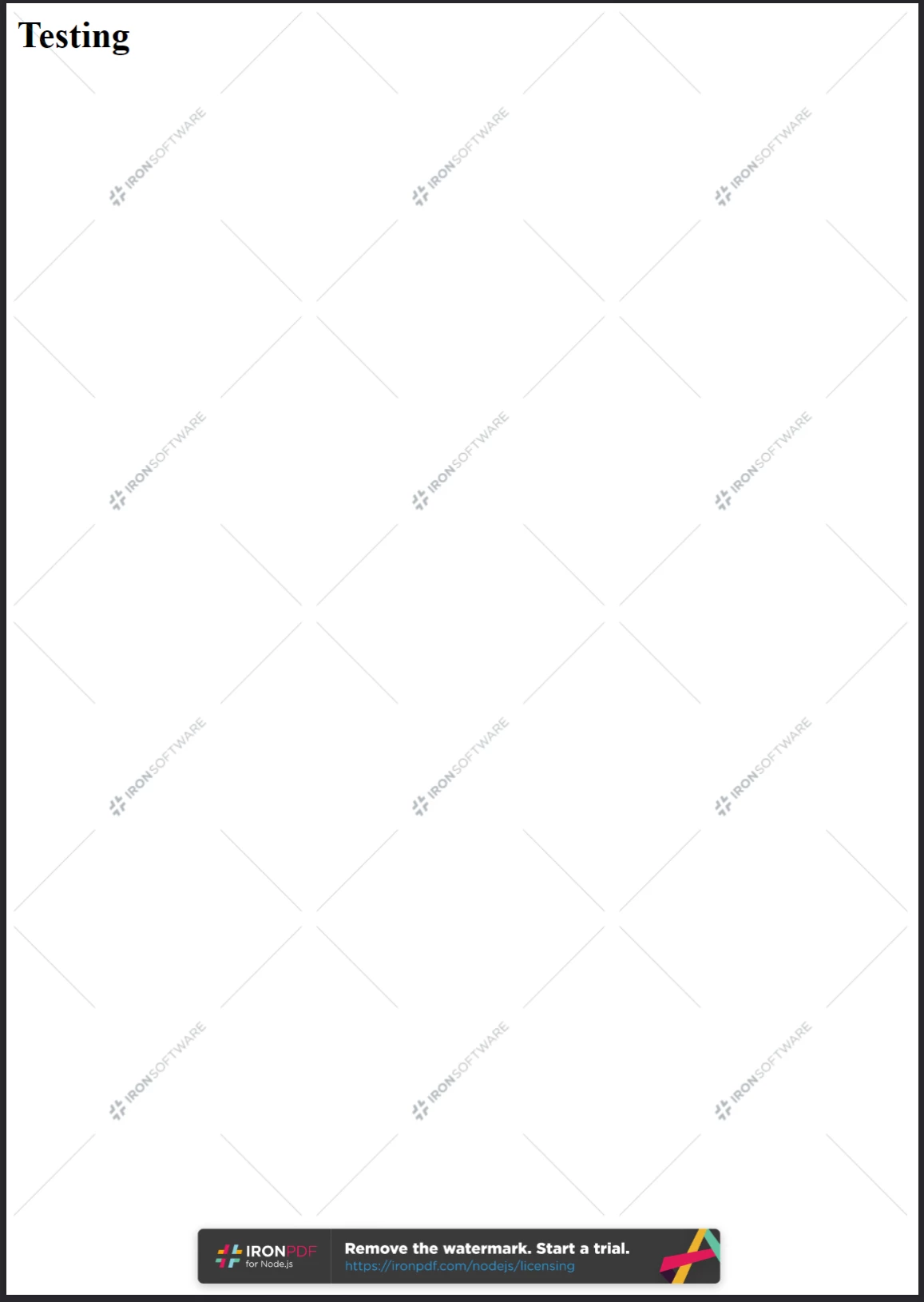
**獲取授權金鑰,請參訪ironpdf.com/nodejs/licensing/,以生成不含水印的PDF文件。**
## 如何在Node.js中將HTML轉換為PDF?
IronPDF Node.js庫提供了四種從HTML內容建立PDF文件的方法:
1. 從HTML程式碼字串建立
2. 從本地HTML文件建立
3. 從線上URL建立
4. 從壓縮的ZIP存檔建立
每種方法都以[`PdfDocument`](/nodejs/object-reference/api/classes/PdfDocument.html)類作為基礎。 `PdfDocument`代表由某些源內容生成的PDF文件,驅動著IronPDF的主要建立和編輯功能。
### 如何從HTML字串建立PDF?
`PdfDocument.fromHtml`從原始HTML標記字串生成PDF。這種方法在四種方法中提供了最大的靈活性,因為HTML字串幾乎可以來自任何地方——文字文件、資料流、HTML模板引擎或動態構建的標記。
```javascript
import { PdfDocument } from "@ironsoftware/ironpdf";
import './config.js'; // Import the configuration script

// Create a PDF from an HTML string
const pdf = await PdfDocument.fromHtml("<h1>Hello from IronPDF!</h1>");

// Save the PDF document to the file system
await pdf.saveAs("html-string-to-pdf.pdf");
```
`PdfDocument`類實例的Promise。 獲得該實例後,調用`saveAs`並提供一個目標文件路徑,將PDF寫入磁盤。 保存的PDF文件會將HTML渲染得與標準瀏覽器顯示完全一致。
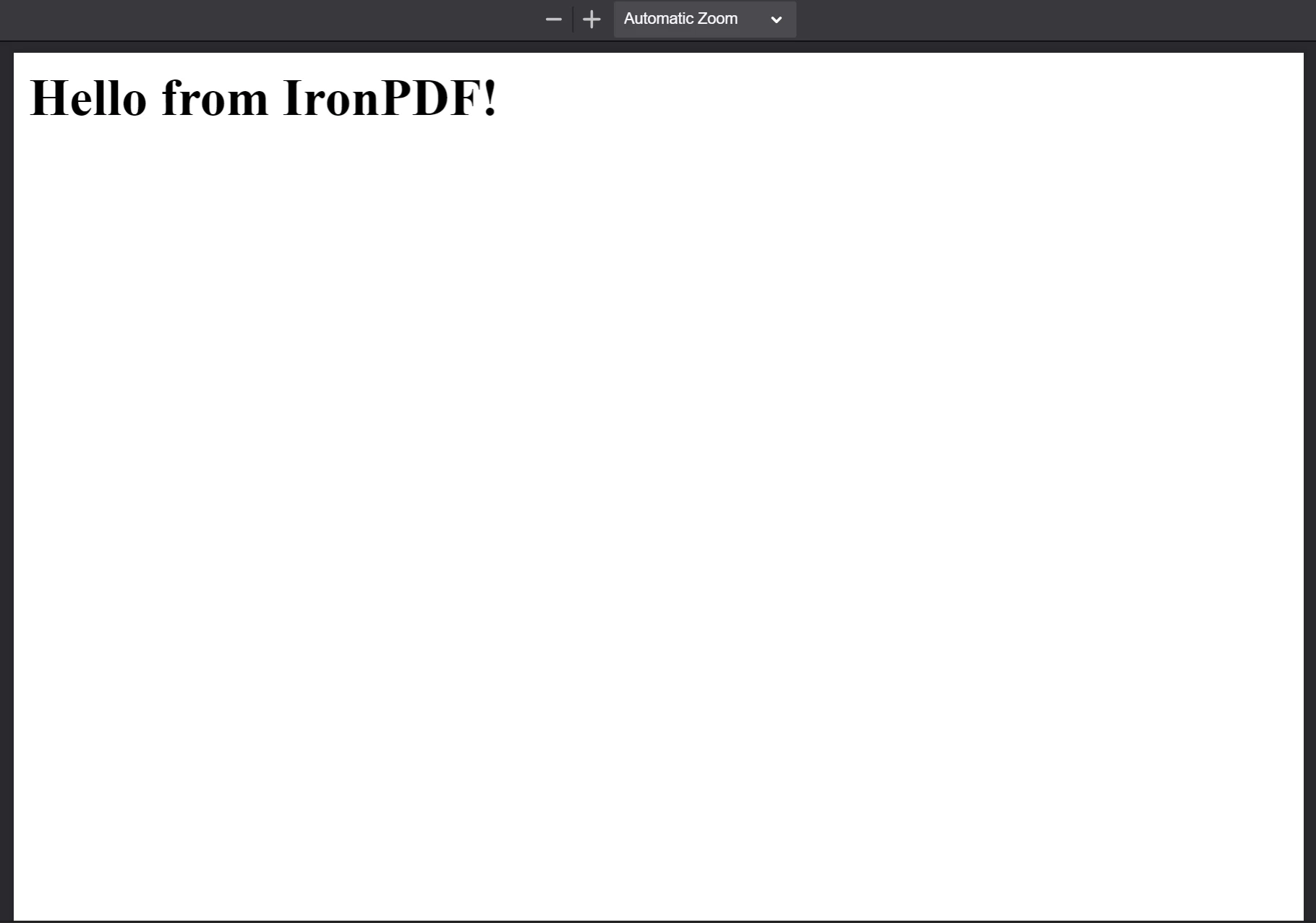
**The PDF generated from the HTML string `<h1>Hello from IronPDF!</h1>`. 由`PdfDocument.fromHtml`生成的PDF文件看起來就像網頁內容一樣。**
### 如何從HTML文件建立PDF?
`PdfDocument.fromHtml`也接受本地HTML文件的路徑。 將有效的文件路徑作為第一個參數傳遞,而不是標記字串。 這是在處理引用本地CSS、JavaScript和圖片資產的保存網頁時的首選方法。
以下範例將[範例網頁](https://filesamples.com/samples/code/html/sample2.html)轉換為PDF:
```javascript
import { PdfDocument } from "@ironsoftware/ironpdf";
import './config.js'; // Import the configuration script

// Render a PDF from a local HTML file
const pdf = await PdfDocument.fromHtml("./sample2.html");

// Save the PDF document to the project directory
await pdf.saveAs("html-file-to-pdf-1.pdf");
```
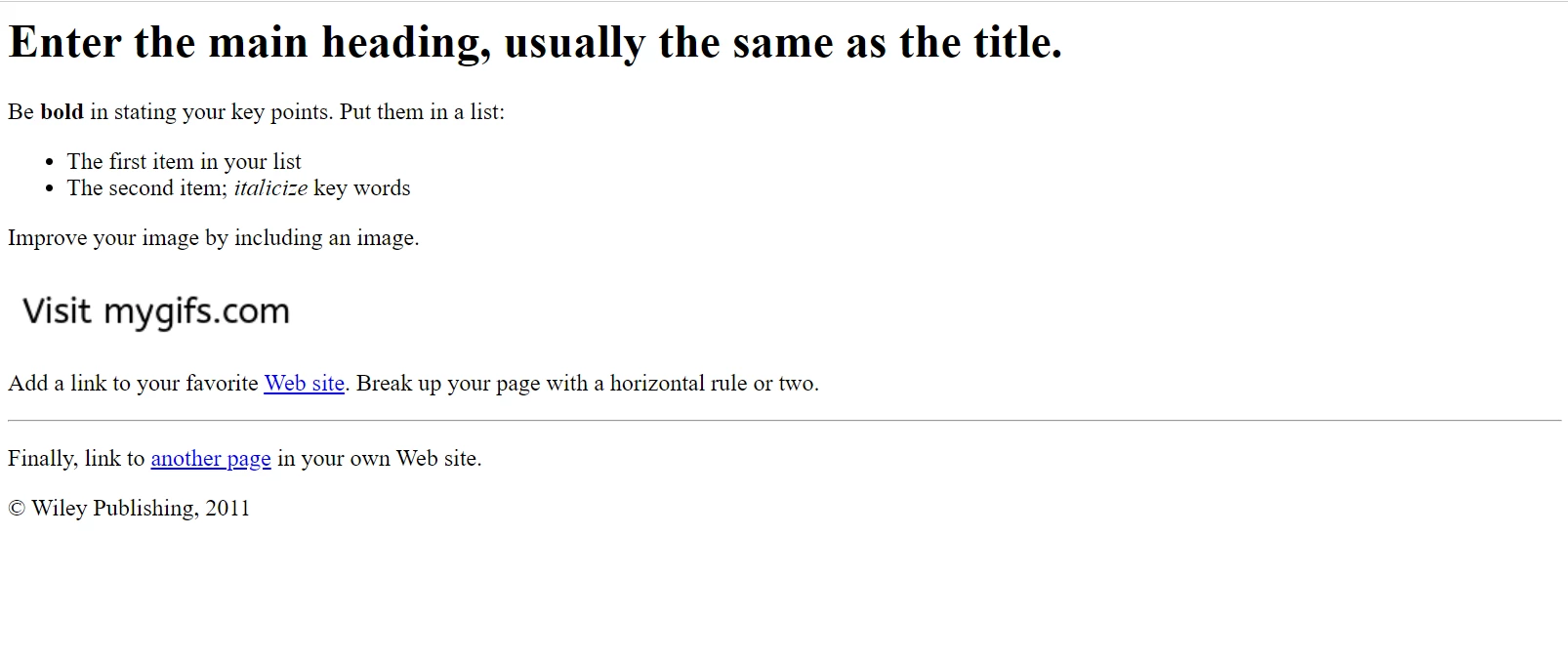
**在Google Chrome中顯示的樣本HTML頁面。 從文件樣本網站下載此頁面及類似頁面:https://filesamples.com/samples/code/html/sample2.html**
IronPDF保留了原始HTML文件的外觀,並保留了連結、表單和其他交互元素的功能。 這種保真度延伸到包含段落、列表、圖片、超連結和客戶端腳本的復雜頁面。
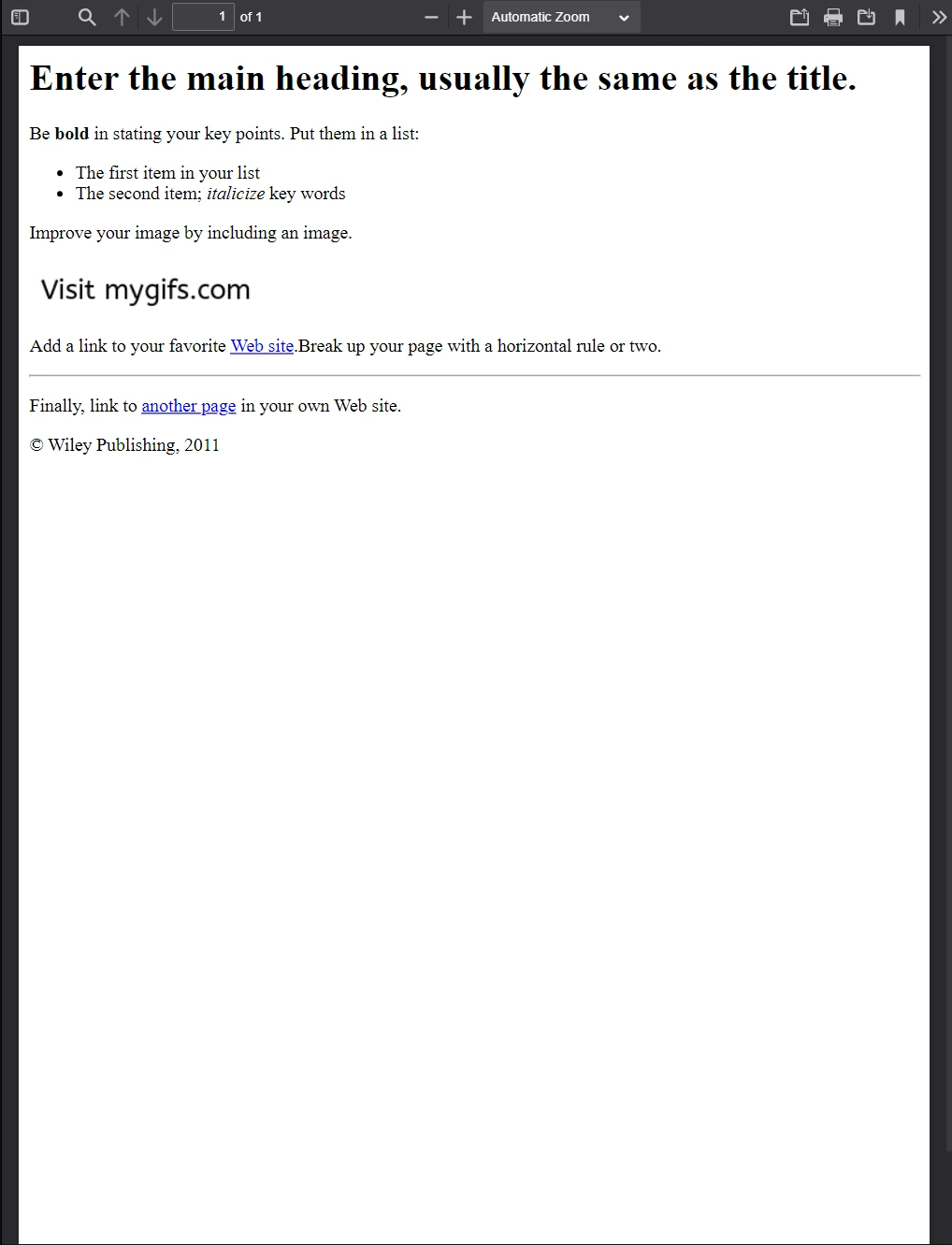
**這個PDF是從上述HTML文件範例生成的。 將其外觀與前一張圖片進行比較——IronPDF用高保真度保留了佈局。**
IronPDF處理的不只是簡單標記的頁面。以下範例將一個功能豐富的頁面轉換為源自多個外部CSS文件、圖片和腳本資產的內容:
```javascript
import { PdfDocument } from "@ironsoftware/ironpdf";
import './config.js'; // Import the configuration script

// Render a PDF from a complex HTML page with external assets
PdfDocument.fromHtml("./sample4.html").then(async (pdf) => {
    return await pdf.saveAs("html-file-to-pdf-2.pdf");
});
```
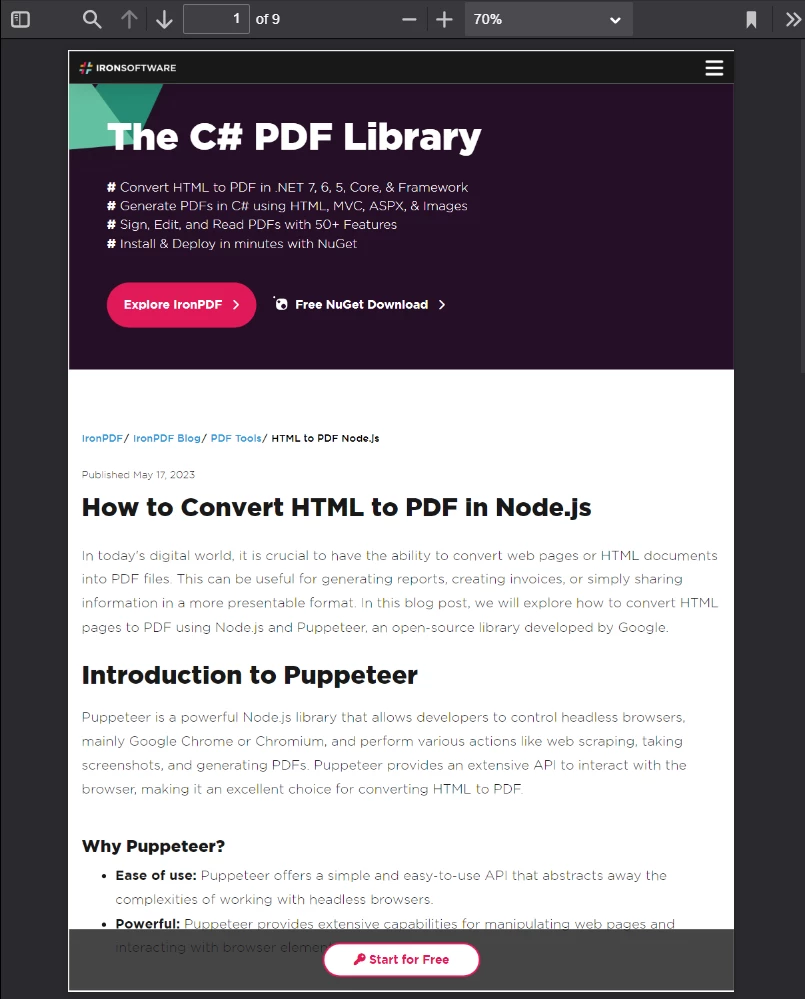
**如果它在Google Chrome中看起來不錯,那麼在轉換為PDF時也會不錯。 這包括包含大量CSS和JavaScript渲染頁面設計。**
[[t:(如果頁面引用來自本地文件路徑的資產,確保在HTML文件位置下存在所有引用的CSS文件、圖片和腳本。 IronPDF的Chrome渲染引擎會像瀏覽器一樣解析這些路徑。)]]
### 如何從URL建立PDF?
`PdfDocument.fromUrl`獲取並渲染實時網頁為PDF。 將任何公開可存取的URL作為參數傳遞。 IronPDF的Chrome渲染引擎檢索該頁面,載入所有資產,並產生像素級完美的PDF——不需要手動下載HTML。
```javascript
import { PdfDocument } from "@ironsoftware/ironpdf";
import './config.js'; // Import the configuration script

// Convert a live web page to a PDF
const pdf = await PdfDocument.fromUrl("https://en.wikipedia.org/wiki/PDF");

// Save the document
await pdf.saveAs("url-to-pdf.pdf");
```
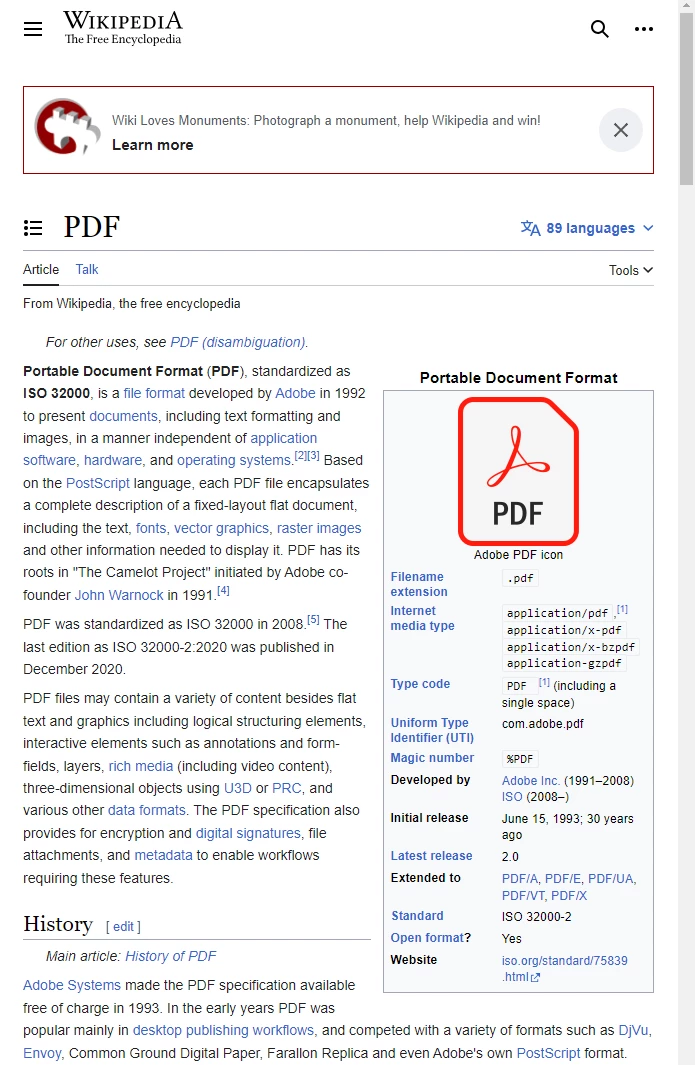
**在標準網頁瀏覽器中顯示的有關PDF格式的維基百科文章。**
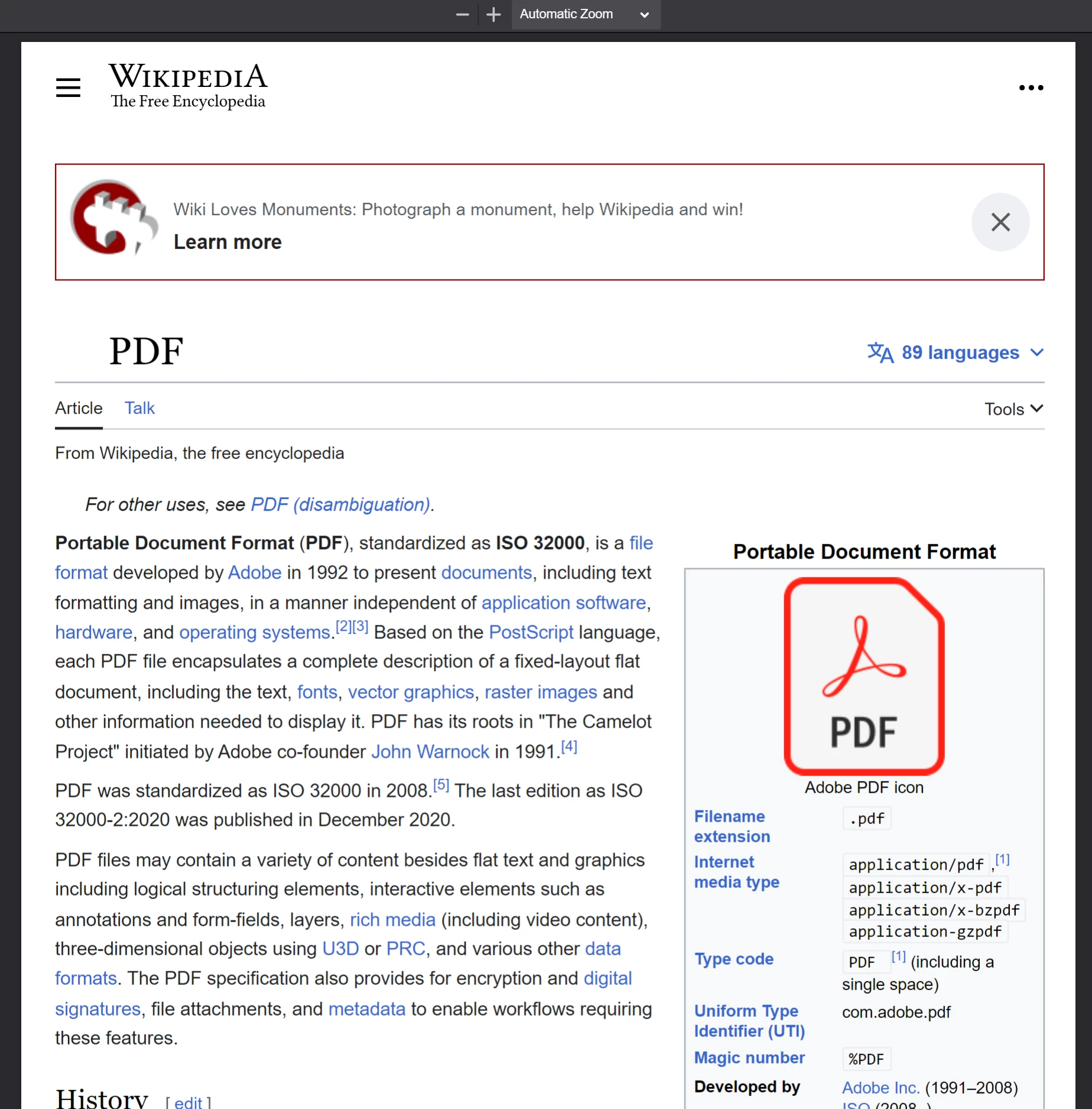
**從調用`PdfDocument.fromUrl`上的維基百科文章相應生成的PDF。 注意其與原始網頁的接近程度。**
[[n:(基於URL的轉換要求目標伺服器從運行IronPDF的機器可存取。 需要額外配置頁面後的身份驗證、VPN或防火牆。使用`ChromePdfRenderOptions`。)]]
### 如何從Zip存檔建立PDF?
`PdfDocument.fromZip`將ZIP歸檔中的特定HTML文件轉換為PDF。 當分發將HTML、CSS和圖片資產捆綁在一起的自包HTML項目時,特別有用。
在此範例中,假設項目目錄包含具有以下結構的ZIP文件:
```plaintext
//:path=/static-assets/ironpdf-nodejs/content-code-examples/tutorials/html-to-pdf/zip-structure.txt
html-zip.zip
├─ index.html
├─ style.css
├─ logo.png
```
`index.html`文件中包含:
```html
//:path=/static-assets/ironpdf-nodejs/content-code-examples/tutorials/html-to-pdf/index.html
<!DOCTYPE html>
<html lang="en">
<head>
<meta charset="UTF-8">
<meta name="viewport" content="width=device-width, initial-scale=1">
<title>Hello world!</title>
<link rel="stylesheet" href="style.css">
</head>
<body>
<h1>Hello from IronPDF!</h1>
<a href="https://ironpdf.com/nodejs/">
<img src="logo.png" alt="適用於 Node.js 的 IronPDF">
</a>
</body>
</html>
```
和`style.css`聲明頁面布局和字體規則:
```css
//:path=/static-assets/ironpdf-nodejs/content-code-examples/tutorials/html-to-pdf/style.css
@font-face {
font-family: 'Gotham-Black';
src: url('gotham-black-webfont.eot?') format('embedded-opentype'),
url('gotham-black-webfont.woff2') format('woff2'),
url('gotham-black-webfont.woff') format('woff'),
url('gotham-black-webfont.ttf') format('truetype'),
url('gotham-black-webfont.svg') format('svg');
font-weight: normal;
font-style: normal;
font-display: swap;
}
body {
display: flex;
flex-direction: column;
justify-content: center;
margin-left: auto;
margin-right: auto;
margin-top: 200px;
margin-bottom: auto;
color: white;
background-color: black;
text-align: center;
font-family: "Helvetica"
}
h1 {
font-family: "Gotham-Black";
margin-bottom: 70px;
font-size: 32pt;
}
img {
width: 400px;
height: auto;
}
p {
text-decoration: underline;
font-size: smaller;
}
```

**假設的HTML ZIP文件內的樣本圖片。**
調用`fromZip`時,指定ZIP文件的路徑作為第一個參數,並指定配置物件作為第二個。 設置`mainHtmlFile`屬性為存檔內需要轉換的HTML文件名稱:
```javascript
import { PdfDocument } from "@ironsoftware/ironpdf";
import './config.js'; // Import the configuration script
// Convert an HTML file from a ZIP archive to PDF
PdfDocument.fromZip("./html-zip.zip", {
mainHtmlFile: "index.html"
}).then(async (pdf) => {
return await pdf.saveAs("html-zip-to-pdf.pdf");
});
```
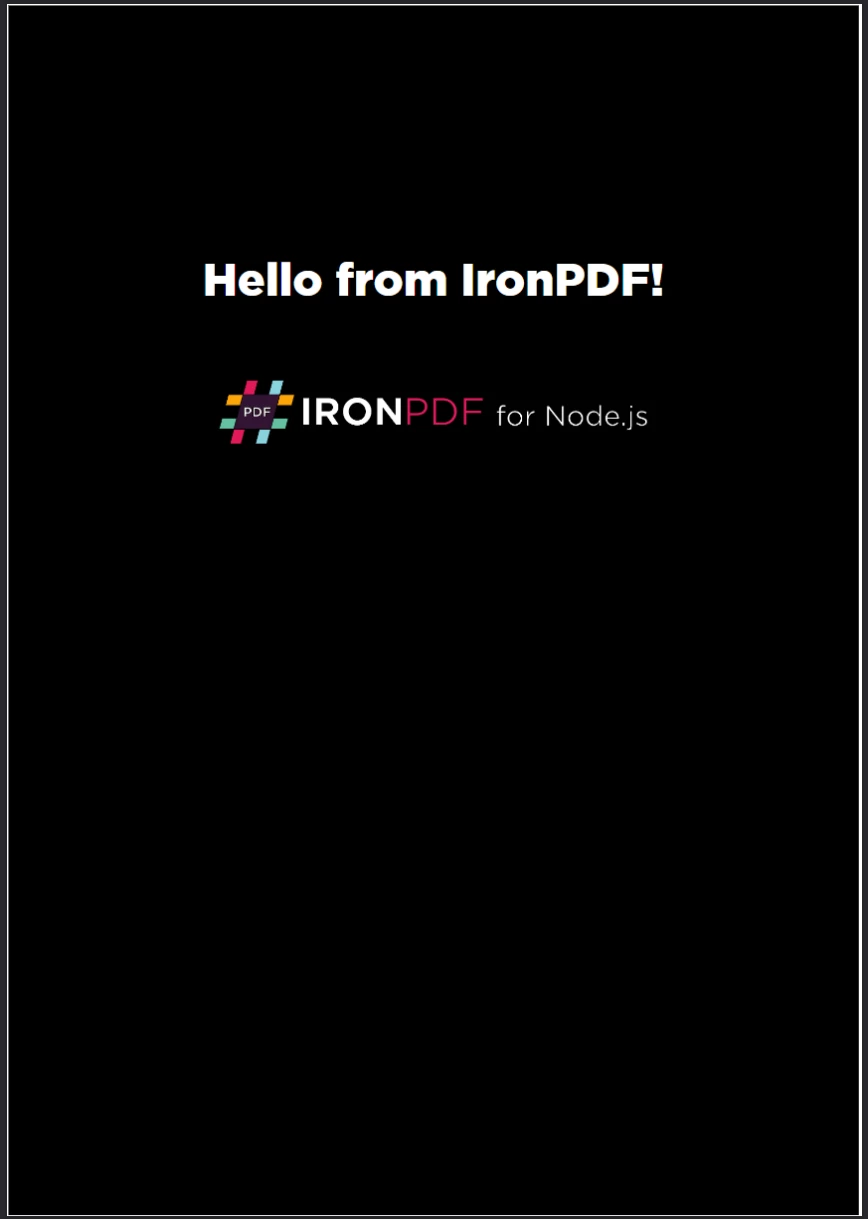
**使用`PdfDocument.fromZip`進行PDF建立。 該函式成功渲染了ZIP文件中的HTML程式碼以及其捆綁的資產。**
## IronPDF支持哪些高級渲染選項?
[`ChromePdfRenderOptions`](/nodejs/object-reference/api/interfaces/ChromePdfRenderOptions.html)接口提供了對PDF渲染行為的細膩自定義屬性。 這些設置在PDF生成之前應用,涵蓋佈局、視覺外觀和動態內容的邊界情況。
IronPDF對每次轉換應用預設渲染設置。 使用`defaultChromePdfRenderOptions`函式檢索這些預設值:
```javascript
import { defaultChromePdfRenderOptions } from "@ironsoftware/ironpdf";
// Retrieve a ChromePdfRenderOptions object with default settings
var options = defaultChromePdfRenderOptions();
```
根據需要修改返回物件的屬性,並將其傳遞給任何轉換方法的`renderOptions`參數。
### 如何新增標頭和頁腳?
`textFooter`屬性將自定義基於文字的內容附加到每個新渲染的PDF頁面。 以下範例使用不同的字體從Google搜索主頁建立帶有自定義標頭和頁腳的PDF:
```javascript
import { PdfDocument, defaultChromePdfRenderOptions, AffixFonts } from "@ironsoftware/ironpdf";
import './config.js'; // Import the configuration script
// Start from default render options
var options = defaultChromePdfRenderOptions();
// Configure a text-based header
options.textHeader = {
centerText: "https://www.adobe.com",
dividerLine: true,
font: AffixFonts.CourierNew,
fontSize: 12,
leftText: "URL to PDF"
};
// Configure a text-based footer
options.textFooter = {
centerText: "IronPDF for Node.js",
dividerLine: true,
fontSize: 14,
font: AffixFonts.Helvetica,
rightText: "HTML to PDF in Node.js"
};
// Render the page with custom headers and footers applied
PdfDocument.fromUrl("https://www.google.com/", { renderOptions: options }).then(async (pdf) => {
return await pdf.saveAs("add-custom-headers-footers-1.pdf");
});
```
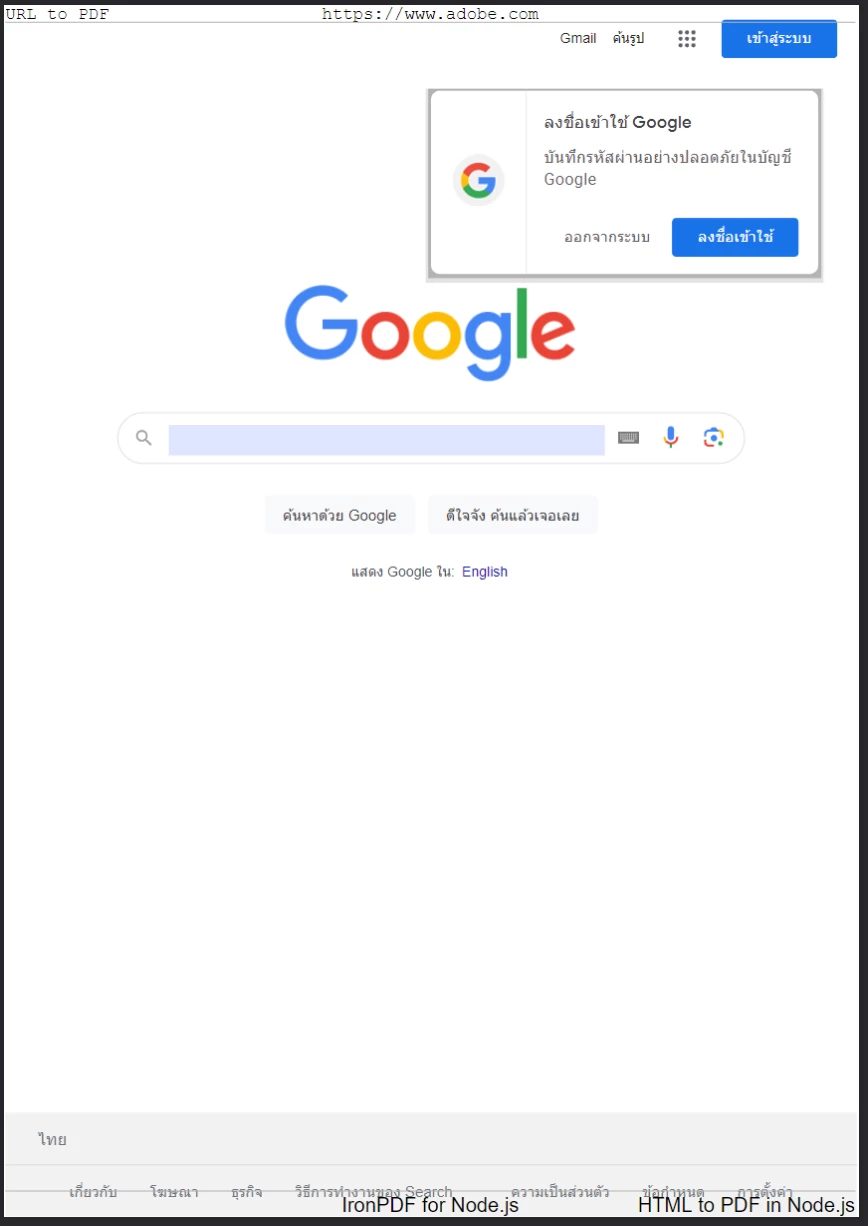
**使用`textFooter`從Google主頁生成帶有自定義文字標頭和頁腳的PDF。**
對於更豐富的標頭和頁腳佈局,請改用`htmlFooter`屬性。 這些屬性接受原始HTML片段,提供對排版、圖片和對齊的完整控制。 下面的範例在標頭中以粗體居中頁面URL,並在頁腳嵌入一個logo圖片:
```javascript
import { PdfDocument, defaultChromePdfRenderOptions } from "@ironsoftware/ironpdf";
import './config.js'; // Import the configuration script
// Start from default render options
var options = defaultChromePdfRenderOptions();
// Define a rich HTML header
options.htmlHeader = {
htmlFragment: "<strong>https://www.google.com/</strong>",
dividerLine: true,
dividerLineColor: "blue",
loadStylesAndCSSFromMainHtmlDocument: true,
};
// Define a rich HTML footer with a logo
options.htmlFooter = {
htmlFragment: "<img src='logo.png' alt='IronPDF for Node.js' style='display: block; width: 150px; height: auto; margin-left: auto; margin-right: auto;'>",
dividerLine: true,
loadStylesAndCSSFromMainHtmlDocument: true
};
// Apply custom HTML headers and footers during rendering
await PdfDocument.fromUrl("https://www.google.com/", { renderOptions: options }).then(async (pdf) => {
return await pdf.saveAs("add-html-headers-footers.pdf");
});
```
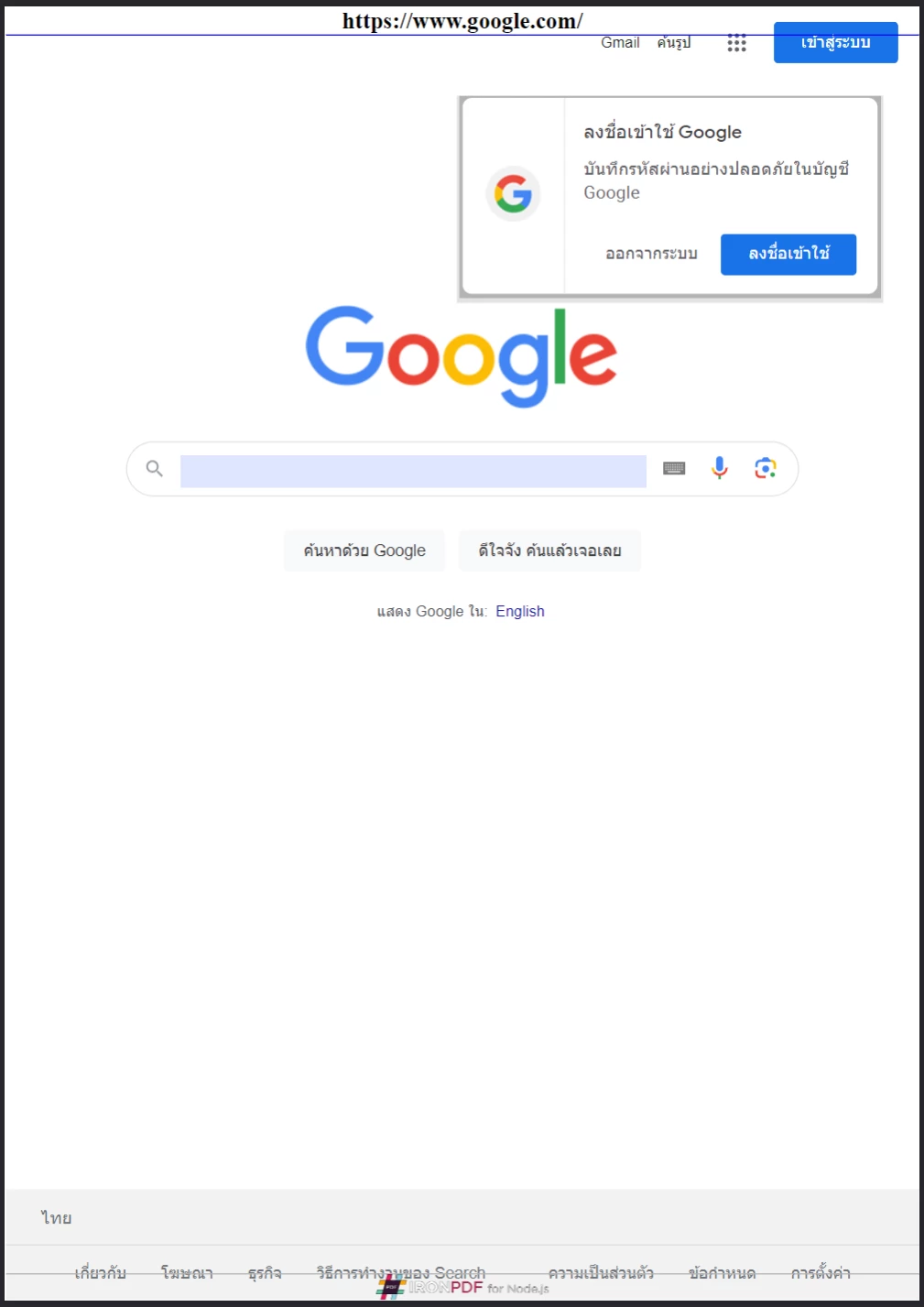
**IronPDF支持基於HTML的標頭和頁腳,提供對每個頁面上品牌和佈局的完整控制。**
### 如何控制頁面大小、方向和邊距?
`ChromePdfRenderOptions`中控制每個渲染頁面的物理佈局。 以下範例將Google主頁轉換為帶有自定義邊距、A5橫向和灰階輸出的頁面:
```javascript
import { PdfDocument, defaultChromePdfRenderOptions, PaperSize, FitToPaperModes, PdfPaperOrientation } from "@ironsoftware/ironpdf";
import './config.js'; // Import the configuration script
// Start from default render options
var options = defaultChromePdfRenderOptions();
// Set page margins in millimeters
options.margin = {
top: 50,
bottom: 50,
left: 60,
right: 60
};
// Configure paper size, fit mode, orientation, and color mode
options.paperSize = PaperSize.A5;
options.fitToPaperMode = FitToPaperModes.FitToPage;
options.paperOrientation = PdfPaperOrientation.Landscape;
options.grayScale = true;
// Render with the customized layout settings
PdfDocument.fromUrl("https://www.google.com/", { renderOptions: options }).then(async (pdf) => {
return await pdf.saveAs("set-margins-and-page-size.pdf");
});
```
`Legal`。 `Landscape`。 這些設置提供了對印刷就緒文件輸出尺寸的精確控制。
[[t:(在為印刷工作流生成PDF時,始終需要顯式指定邊距。 預設邊距可能不符合目標列印機或紙張格式的要求。)]]
### 如何處理動態網頁?
通過JavaScript定時器、延遲載入或API調用異步載入內容的頁面可能在IronPDF引擎捕獲它們時未完全渲染。 `ChromePdfRenderOptions`上配置,指導Chrome渲染引擎在達到指定條件後再捕獲頁面。
以下程式碼塊設置IronPDF以在捕獲頁面內容前等待20秒:
```javascript
import { PdfDocument, defaultChromePdfRenderOptions, WaitForType } from "@ironsoftware/ironpdf";
import './config.js'; // Import the configuration script
// Configure the renderer to wait 20 seconds before capturing
var options = defaultChromePdfRenderOptions();
options.waitFor = {
type: WaitForType.RenderDelay,
delay: 20000
};
PdfDocument.fromUrl("https://ironpdf.com/nodejs/", { renderOptions: options }).then(async (pdf) => {
return await pdf.saveAs("waitfor-renderdelay.pdf");
});
```
或者,配置IronPDF等待特定的DOM元素出現後再渲染。 這在內容在JavaScript框架完成組合後注入的頁面中特別有用:
```javascript
import { PdfDocument, defaultChromePdfRenderOptions, WaitForType } from "@ironsoftware/ironpdf";
import './config.js'; // Import the configuration script
// Configure the renderer to wait for a specific DOM element (up to 20 seconds)
var options = defaultChromePdfRenderOptions();
options.waitFor = {
type: WaitForType.HtmlElement,
htmlQueryStr: "div.ProseMirror",
maxWaitTime: 20000,
};
PdfDocument.fromUrl("https://app.surferseo.com/drafts/s/V7VkcdfgFz-dpkldsfHDGFFYf4jjSvvjsdf", { renderOptions: options }).then(async (pdf) => {
return await pdf.saveAs("waitfor-htmlelement.pdf");
});
```
`WaitForType.HtmlElement`策略使用標準CSS查詢選擇器。 渲染引擎輪詢元素的存在,直到`maxWaitTime`毫秒過去或找到元素——以先發生者為准。
[[w:(設置過長的等待時間可能顯著增加高吞吐量應用中的PDF生成時間。 使用能可靠捕獲您的使用案例要求的內容的最小延遲。)]]
## 如何從HTML模板生成PDF?
一個常見的現實世界自動化模式是從共享的HTML模板生成一批PDF,將資料庫、API或電子表格中的佔位符值替換為實際資料。 IronPDF的`PdfDocument`上直接處理此問題。
以下的樣本發票模板(改編自公開獲得的[CodePen發票模板](https://codepen.io/tjoen/pen/wvgvLX))使用了如`{INVOICE-NUMBER}`的大括號佔位符作為替換內容:
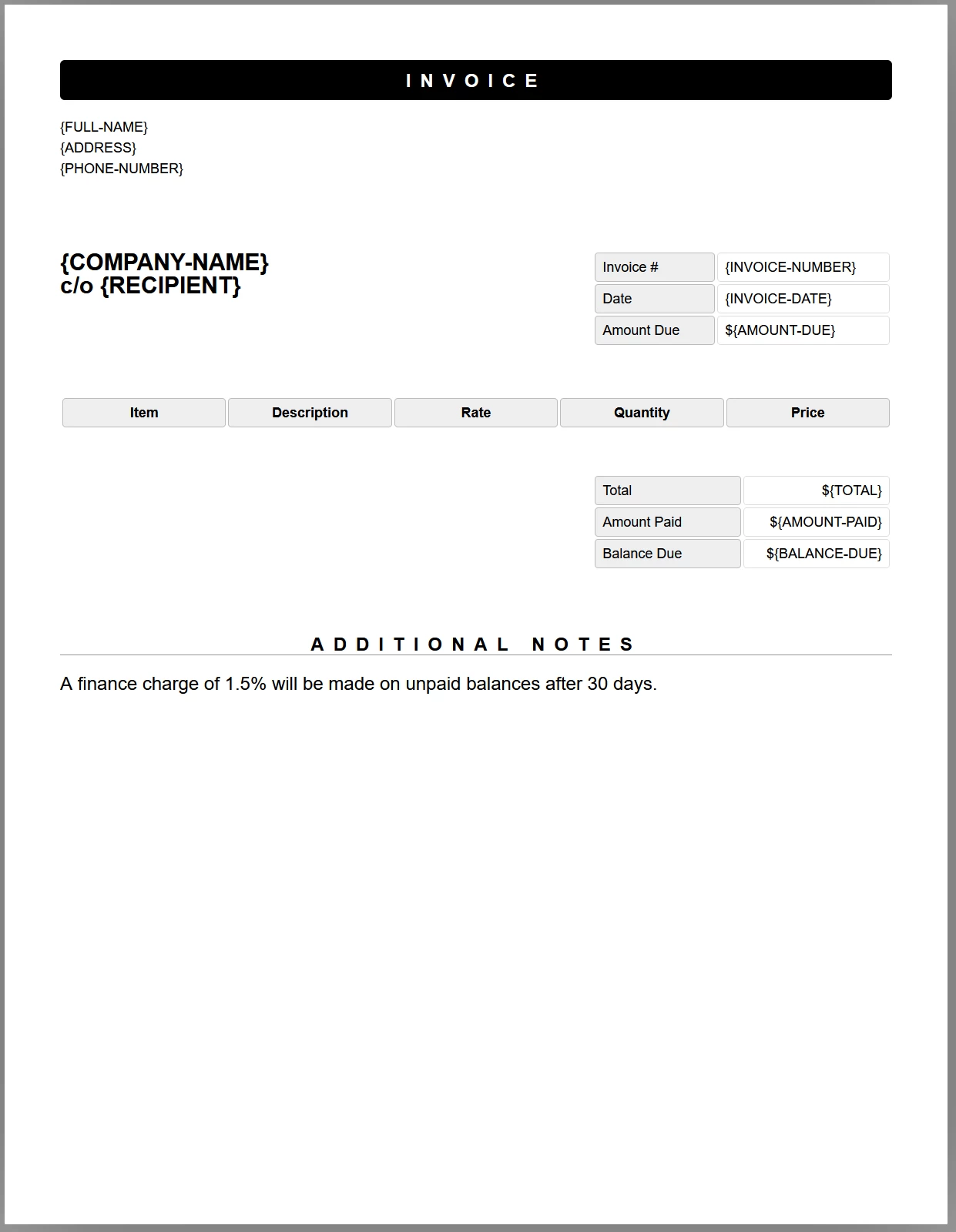
**帶有佔位符標籤的樣本發票模板。 JavaScript程式碼將在文件保存為PDF之前將每個標籤替換為實際資料。**
以下程式碼載入模板,將每個佔位符替換為測試資料,並將結果保存為PDF:
```javascript
//:path=/static-assets/ironpdf-nodejs/content-code-examples/tutorials/html-to-pdf/html-template-to-pdf.js
import { PdfDocument } from "@ironsoftware/ironpdf";
import './config.js'; // Import the configuration script
/**
* Loads an HTML template from the file system as a PdfDocument.
*/
async function getTemplateHtml(fileLocation) {
return PdfDocument.fromHtml(fileLocation);
}
/**
* Saves a PdfDocument to the specified file path.
*/
async function generatePdf(pdf, location) {
return pdf.saveAs(location);
}
/**
* Replaces a named placeholder in the PdfDocument with a data value.
*/
async function addTemplateData(pdf, key, value) {
return pdf.replaceText(key, value);
}
// Path to the HTML invoice template
const template = "./sample-invoice.html";
// Load the template, fill in all placeholder values, then save the PDF
getTemplateHtml(template).then(async (doc) => {
await addTemplateData(doc, "{FULL-NAME}", "Lizbeth Presland");
await addTemplateData(doc, "{ADDRESS}", "678 Manitowish Alley, Portland, OG");
await addTemplateData(doc, "{PHONE-NUMBER}", "(763) 894-4345");
await addTemplateData(doc, "{INVOICE-NUMBER}", "787");
await addTemplateData(doc, "{INVOICE-DATE}", "August 28, 2023");
await addTemplateData(doc, "{AMOUNT-DUE}", "13,760.13");
await addTemplateData(doc, "{RECIPIENT}", "Celestyna Farmar");
await addTemplateData(doc, "{COMPANY-NAME}", "BrainBook");
await addTemplateData(doc, "{TOTAL}", "13,760.13");
await addTemplateData(doc, "{AMOUNT-PAID}", "0.00");
await addTemplateData(doc, "{BALANCE-DUE}", "13,760.13");
await addTemplateData(doc, "{ITEM}", "Training Sessions");
await addTemplateData(doc, "{DESCRIPTION}", "60 Minute instruction");
await addTemplateData(doc, "{RATE}", "3,440.03");
await addTemplateData(doc, "{QUANTITY}", "4");
await addTemplateData(doc, "{PRICE}", "13,760.13");
return doc;
}).then(async (doc) => await generatePdf(doc, "html-template-to-pdf.pdf"));
```
上面的程式碼定義了三個異步幫助函式:
- `PdfDocument`物件中。
- `PdfDocument.replaceText`替換佔位符鍵為其實際資料值。
- `PdfDocument`寫入目標文件路徑。
每個`replaceText`調用直接在記憶體中的PDF表示上操作,因此可以在不從磁盤重新載入文件的情況下連結多個替換。 生成的PDF保留了原始模板中的所有CSS樣式、字體和佈局。
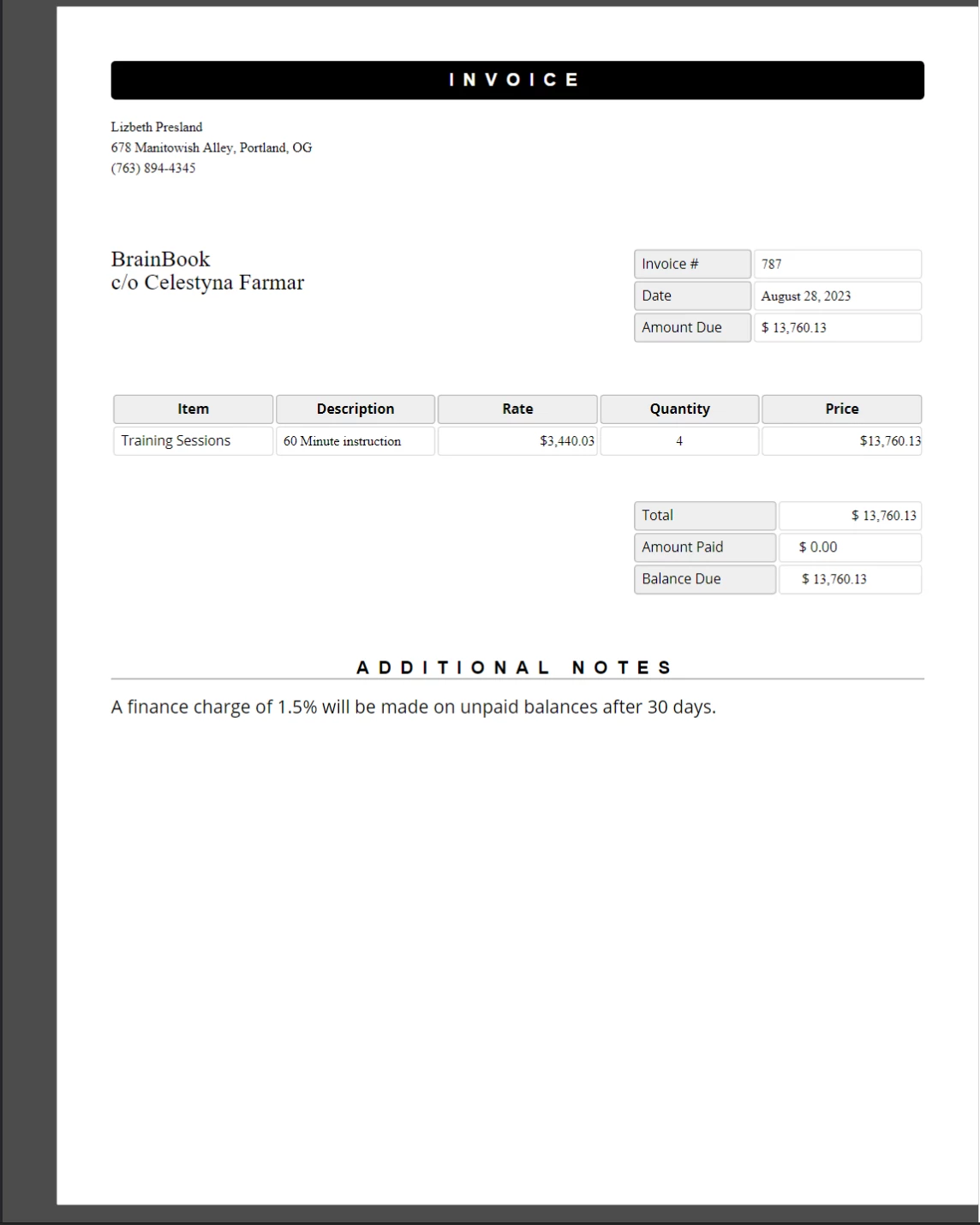
**將佔位符值替換為真實資料的完成PDF發票。 原始模板的CSS樣式和佈局被精確保留。**
這種方法在批量文件生成中具有良好的擴展性。 為每個輸出文件調用`generatePdf`。
## 接下來的步驟是什麼?
本教程涵蓋了Node.js中IronPDF的核心HTML至PDF轉換方法和最常用的渲染選項。 以下主題擴展了您在這裡學到的知識,進入更專門的領域。
- **[在Node.js中編輯和加蓋PDF](/nodejs/tutorials/edit-pdf/)** - 以編程方式對現有PDF文件應用蓋章、註解和文字編輯。
- **[在Node.js中合併和拆分PDF](/nodejs/tutorials/merge-pdfs/)** - 將多個PDF合併為一個,或將一個PDF拆分為單獨的頁面。
- **[在Node.js中新增水印至PDF](/nodejs/tutorials/watermark-pdf/)** - 在PDF的每一頁上應用文字或圖片水印,精確控制其位置。
- **[IronPDF Node.js API參考](/nodejs/object-reference/api/)** - 瀏覽`AffixFonts`和所有其他導出類和接口的完整API。
- **[獲取免費試用授權金鑰](#trial-license)** - 通過激活免費的30天試用授權生成無水印的生產質量PDF。
Ask ChatGPT about this page
Ask Gemini about this page
Ask Perplexity about this page
IronPDF最強大和最受歡迎的功能是能夠從原始HTML、CSS和JavaScript建立高保真PDF。 本教程引導Node.js開發者通過每種實用方法將HTML內容轉換為PDF,從單行字串轉換到動態模板驅動的文件生成。
IronPDF是一個高級API程式庫,幫助開發者快速將強大的PDF處理功能整合到軟體應用中。 IronPDF在多種編程語言 中可用。 有關建立PDF的詳細資訊,請參閱.NET 、Java 和Python 的官方文件頁面。 本教程涵蓋了其在Node.js項目中的應用。
如何開始使用IronPDF for Node.js?
Start using IronPDF in your project today with a free trial.
安裝IronPDF程式庫
在您選擇的Node.js項目中運行以下NPM命令來安裝IronPDF Node.js包:
> npm i @ironsoftware/ironpdf
npm i @ironsoftware/ironpdf
您也可以手動下載並安裝IronPDF包 。
如何安裝IronPDF引擎?
Node.js的IronPDF需要IronPDF引擎二進制文件 才能運行。
安裝IronPDF引擎是可選的。 @ironsoftware/ironpdf包在首次執行時會自動下載並安裝適合您操作系統的二進制文件。 在互聯網存取受限或不可用的環境中,建議明確安裝。
通過安裝適合您操作系統的包 來安裝IronPDF引擎二進制文件。
如何應用授權金鑰?
預設情況下,IronPDF會將其生成或修改的所有文件用水印進行標記。 要移除水印,將有效的授權金鑰設置到全域licenseKey屬性中:
import { IronPdfGlobalConfig } from "@ironsoftware/ironpdf" ; // Retrieve the global configuration object var config = IronPdfGlobalConfig .getConfig(); // Set a valid license key to remove watermarks config.licenseKey = "{YOUR-LICENSE-KEY-HERE}" ; import { IronPdfGlobalConfig } from "@ironsoftware/ironpdf";
// Retrieve the global configuration object
var config = IronPdfGlobalConfig.getConfig();
// Set a valid license key to remove watermarks
config.licenseKey = "{YOUR-LICENSE-KEY-HERE}";
JavaScript
獲取免費試用授權金鑰 或從授權頁面購買授權金鑰 。
設置授權金鑰和其他全域配置設置 在調用其他庫函式之前。 這可確保應用程式的最佳性能和正確行為。 本教程中剩餘的程式碼範例假設授權金鑰已經在一個單獨的config.js文件中應用,並在每個腳本的頂部導入:
import { PdfDocument } from "@ironsoftware/ironpdf" ; import './config.js' ; // Import the configuration script // ... import { PdfDocument } from "@ironsoftware/ironpdf";
import './config.js'; // Import the configuration script
// ...
JavaScript
獲取授權金鑰,請參訪ironpdf.com/nodejs/licensing/,以生成不含水印的PDF文件。
如何在Node.js中將HTML轉換為PDF?
IronPDF Node.js庫提供了四種從HTML內容建立PDF文件的方法:
從HTML程式碼字串建立
從本地HTML文件建立
從線上URL建立
從壓縮的ZIP存檔建立
每種方法都以PdfDocumentPdfDocument代表由某些源內容生成的PDF文件,驅動著IronPDF的主要建立和編輯功能。
如何從HTML字串建立PDF?
PdfDocument.fromHtml從原始HTML標記字串生成PDF。這種方法在四種方法中提供了最大的靈活性,因為HTML字串幾乎可以來自任何地方——文字文件、資料流、HTML模板引擎或動態構建的標記。
import { PdfDocument } from "@ironsoftware/ironpdf" ; import './config.js' ; // Import the configuration script // Create a PDF from an HTML string const pdf = await PdfDocument .fromHtml( "<h1>Hello from IronPDF!</h1>" ); // Save the PDF document to the file system await pdf.saveAs( "html-string-to-pdf.pdf" ); import { PdfDocument } from "@ironsoftware/ironpdf";
import './config.js'; // Import the configuration script
// Create a PDF from an HTML string
const pdf = await PdfDocument.fromHtml("<h1>Hello from IronPDF!</h1>");
// Save the PDF document to the file system
await pdf.saveAs("html-string-to-pdf.pdf");
JavaScript
PdfDocument類實例的Promise。 獲得該實例後,調用saveAs並提供一個目標文件路徑,將PDF寫入磁盤。 保存的PDF文件會將HTML渲染得與標準瀏覽器顯示完全一致。
The PDF generated from the HTML string <h1>Hello from IronPDF!</h1>. 由PdfDocument.fromHtml生成的PDF文件看起來就像網頁內容一樣。
如何從HTML文件建立PDF?
PdfDocument.fromHtml也接受本地HTML文件的路徑。 將有效的文件路徑作為第一個參數傳遞,而不是標記字串。 這是在處理引用本地CSS、JavaScript和圖片資產的保存網頁時的首選方法。
以下範例將範例網頁 轉換為PDF:
import { PdfDocument } from "@ironsoftware/ironpdf" ; import './config.js' ; // Import the configuration script // Render a PDF from a local HTML file const pdf = await PdfDocument .fromHtml( "./sample2.html" ); // Save the PDF document to the project directory await pdf.saveAs( "html-file-to-pdf-1.pdf" ); import { PdfDocument } from "@ironsoftware/ironpdf";
import './config.js'; // Import the configuration script
// Render a PDF from a local HTML file
const pdf = await PdfDocument.fromHtml("./sample2.html");
// Save the PDF document to the project directory
await pdf.saveAs("html-file-to-pdf-1.pdf");
JavaScript
在Google Chrome中顯示的樣本HTML頁面。 從文件樣本網站下載此頁面及類似頁面:https://filesamples.com/samples/code/html/sample2.html
IronPDF保留了原始HTML文件的外觀,並保留了連結、表單和其他交互元素的功能。 這種保真度延伸到包含段落、列表、圖片、超連結和客戶端腳本的復雜頁面。
這個PDF是從上述HTML文件範例生成的。 將其外觀與前一張圖片進行比較——IronPDF用高保真度保留了佈局。
IronPDF處理的不只是簡單標記的頁面。以下範例將一個功能豐富的頁面轉換為源自多個外部CSS文件、圖片和腳本資產的內容:
import { PdfDocument } from "@ironsoftware/ironpdf" ; import './config.js' ; // Import the configuration script // Render a PDF from a complex HTML page with external assets PdfDocument .fromHtml( "./sample4.html" ).then( async (pdf) => { return await pdf.saveAs( "html-file-to-pdf-2.pdf" ); }); import { PdfDocument } from "@ironsoftware/ironpdf";
import './config.js'; // Import the configuration script
// Render a PDF from a complex HTML page with external assets
PdfDocument.fromHtml("./sample4.html").then(async (pdf) => {
return await pdf.saveAs("html-file-to-pdf-2.pdf");
});
JavaScript
如果它在Google Chrome中看起來不錯,那麼在轉換為PDF時也會不錯。 這包括包含大量CSS和JavaScript渲染頁面設計。
如果頁面引用來自本地文件路徑的資產,確保在HTML文件位置下存在所有引用的CSS文件、圖片和腳本。 IronPDF的Chrome渲染引擎會像瀏覽器一樣解析這些路徑。
如何從URL建立PDF?
PdfDocument.fromUrl獲取並渲染實時網頁為PDF。 將任何公開可存取的URL作為參數傳遞。 IronPDF的Chrome渲染引擎檢索該頁面,載入所有資產,並產生像素級完美的PDF——不需要手動下載HTML。
import { PdfDocument } from "@ironsoftware/ironpdf" ; import './config.js' ; // Import the configuration script // Convert a live web page to a PDF const pdf = await PdfDocument .fromUrl( "https://en.wikipedia.org/wiki/PDF" ); // Save the document await pdf.saveAs( "url-to-pdf.pdf" ); import { PdfDocument } from "@ironsoftware/ironpdf";
import './config.js'; // Import the configuration script
// Convert a live web page to a PDF
const pdf = await PdfDocument.fromUrl("https://en.wikipedia.org/wiki/PDF");
// Save the document
await pdf.saveAs("url-to-pdf.pdf");
JavaScript
在標準網頁瀏覽器中顯示的有關PDF格式的維基百科文章。
從調用PdfDocument.fromUrl上的維基百科文章相應生成的PDF。 注意其與原始網頁的接近程度。
基於URL的轉換要求目標伺服器從運行IronPDF的機器可存取。 需要額外配置頁面後的身份驗證、VPN或防火牆。使用ChromePdfRenderOptions。
如何從Zip存檔建立PDF?
PdfDocument.fromZip將ZIP歸檔中的特定HTML文件轉換為PDF。 當分發將HTML、CSS和圖片資產捆綁在一起的自包HTML項目時,特別有用。
在此範例中,假設項目目錄包含具有以下結構的ZIP文件:
//:path=/static-assets/ironpdf-nodejs/content-code-examples/tutorials/html-to-pdf/zip-structure.txt html-zip.zip ├─ index.html ├─ style.css ├─ logo.png //:path=/static-assets/ironpdf-nodejs/content-code-examples/tutorials/html-to-pdf/zip-structure.txt
html-zip.zip
├─ index.html
├─ style.css
├─ logo.png
Text
index.html文件中包含:
//:path=/static-assets/ironpdf-nodejs/content-code-examples/tutorials/html-to-pdf/index.html
<!DOCTYPE html>
<html lang="en">
  <head>
    <meta charset="UTF-8">
    <meta name="viewport" content="width=device-width, initial-scale=1">
    <title>Hello world!</title>
    <link rel="stylesheet" href="style.css">
  </head>
  <body>
    <h1>Hello from IronPDF!</h1>
    <a href="https://ironpdf.com/nodejs/">
      <img src="logo.png" alt="適用於 Node.js 的 IronPDF">
    </a>
  </body>
</html>
//:path=/static-assets/ironpdf-nodejs/content-code-examples/tutorials/html-to-pdf/index.html
<!DOCTYPE html>
<html lang="en">
<head>
<meta charset="UTF-8">
<meta name="viewport" content="width=device-width, initial-scale=1">
<title>Hello world!</title>
<link rel="stylesheet" href="style.css">
</head>
<body>
<h1>Hello from IronPDF!</h1>
<a href="https://ironpdf.com/nodejs/">
<img src="logo.png" alt="適用於 Node.js 的 IronPDF">
</a>
</body>
</html>
HTML
和style.css聲明頁面布局和字體規則:
//:path=/static-assets/ironpdf-nodejs/content-code-examples/tutorials/html-to-pdf/style.css
@font-face {
  font-family: 'Gotham-Black';
  src: url('gotham-black-webfont.eot?') format('embedded-opentype'),
       url('gotham-black-webfont.woff2') format('woff2'),
       url('gotham-black-webfont.woff') format('woff'),
       url('gotham-black-webfont.ttf') format('truetype'),
       url('gotham-black-webfont.svg') format('svg');
  font-weight: normal;
  font-style: normal;
  font-display: swap;
}

body {
  display: flex;
  flex-direction: column;
  justify-content: center;
  margin-left: auto;
  margin-right: auto;
  margin-top: 200px;
  margin-bottom: auto;
  color: white;
  background-color: black;
  text-align: center;
  font-family: "Helvetica"
}

h1 {
  font-family: "Gotham-Black";
  margin-bottom: 70px;
  font-size: 32pt;
}

img {
  width: 400px;
  height: auto;
}

p {
  text-decoration: underline;
  font-size: smaller;
}
//:path=/static-assets/ironpdf-nodejs/content-code-examples/tutorials/html-to-pdf/style.css
@font-face {
font-family: 'Gotham-Black';
src: url('gotham-black-webfont.eot?') format('embedded-opentype'),
url('gotham-black-webfont.woff2') format('woff2'),
url('gotham-black-webfont.woff') format('woff'),
url('gotham-black-webfont.ttf') format('truetype'),
url('gotham-black-webfont.svg') format('svg');
font-weight: normal;
font-style: normal;
font-display: swap;
}
body {
display: flex;
flex-direction: column;
justify-content: center;
margin-left: auto;
margin-right: auto;
margin-top: 200px;
margin-bottom: auto;
color: white;
background-color: black;
text-align: center;
font-family: "Helvetica"
}
h1 {
font-family: "Gotham-Black";
margin-bottom: 70px;
font-size: 32pt;
}
img {
width: 400px;
height: auto;
}
p {
text-decoration: underline;
font-size: smaller;
}
Text
假設的HTML ZIP文件內的樣本圖片。
調用fromZip時,指定ZIP文件的路徑作為第一個參數,並指定配置物件作為第二個。 設置mainHtmlFile屬性為存檔內需要轉換的HTML文件名稱:
import { PdfDocument } from "@ironsoftware/ironpdf" ; import './config.js' ; // Import the configuration script // Convert an HTML file from a ZIP archive to PDF PdfDocument .fromZip( "./html-zip.zip" , { mainHtmlFile: "index.html" }).then( async (pdf) => { return await pdf.saveAs( "html-zip-to-pdf.pdf" ); }); import { PdfDocument } from "@ironsoftware/ironpdf";
import './config.js'; // Import the configuration script
// Convert an HTML file from a ZIP archive to PDF
PdfDocument.fromZip("./html-zip.zip", {
mainHtmlFile: "index.html"
}).then(async (pdf) => {
return await pdf.saveAs("html-zip-to-pdf.pdf");
});
JavaScript
使用PdfDocument.fromZip進行PDF建立。 該函式成功渲染了ZIP文件中的HTML程式碼以及其捆綁的資產。
IronPDF支持哪些高級渲染選項?
ChromePdfRenderOptions
IronPDF對每次轉換應用預設渲染設置。 使用defaultChromePdfRenderOptions函式檢索這些預設值:
import { defaultChromePdfRenderOptions } from "@ironsoftware/ironpdf" ; // Retrieve a ChromePdfRenderOptions object with default settings var options = defaultChromePdfRenderOptions(); import { defaultChromePdfRenderOptions } from "@ironsoftware/ironpdf";
// Retrieve a ChromePdfRenderOptions object with default settings
var options = defaultChromePdfRenderOptions();
JavaScript
根據需要修改返回物件的屬性,並將其傳遞給任何轉換方法的renderOptions參數。
如何新增標頭和頁腳?
textFooter屬性將自定義基於文字的內容附加到每個新渲染的PDF頁面。 以下範例使用不同的字體從Google搜索主頁建立帶有自定義標頭和頁腳的PDF:
import { PdfDocument , defaultChromePdfRenderOptions, AffixFonts } from "@ironsoftware/ironpdf" ; import './config.js' ; // Import the configuration script // Start from default render options var options = defaultChromePdfRenderOptions(); // Configure a text-based header options.textHeader = { centerText: "https://www.adobe.com" , dividerLine: true , font: AffixFonts . CourierNew , fontSize: 12 , leftText: "URL to PDF" }; // Configure a text-based footer options.textFooter = { centerText: "IronPDF for Node.js" , dividerLine: true , fontSize: 14 , font: AffixFonts . Helvetica , rightText: "HTML to PDF in Node.js" }; // Render the page with custom headers and footers applied PdfDocument .fromUrl( "https://www.google.com/" , { renderOptions: options }).then( async (pdf) => { return await pdf.saveAs( "add-custom-headers-footers-1.pdf" ); }); import { PdfDocument, defaultChromePdfRenderOptions, AffixFonts } from "@ironsoftware/ironpdf";
import './config.js'; // Import the configuration script
// Start from default render options
var options = defaultChromePdfRenderOptions();
// Configure a text-based header
options.textHeader = {
centerText: "https://www.adobe.com",
dividerLine: true,
font: AffixFonts.CourierNew,
fontSize: 12,
leftText: "URL to PDF"
};
// Configure a text-based footer
options.textFooter = {
centerText: "IronPDF for Node.js",
dividerLine: true,
fontSize: 14,
font: AffixFonts.Helvetica,
rightText: "HTML to PDF in Node.js"
};
// Render the page with custom headers and footers applied
PdfDocument.fromUrl("https://www.google.com/", { renderOptions: options }).then(async (pdf) => {
return await pdf.saveAs("add-custom-headers-footers-1.pdf");
});
JavaScript
使用textFooter從Google主頁生成帶有自定義文字標頭和頁腳的PDF。
對於更豐富的標頭和頁腳佈局,請改用htmlFooter屬性。 這些屬性接受原始HTML片段,提供對排版、圖片和對齊的完整控制。 下面的範例在標頭中以粗體居中頁面URL,並在頁腳嵌入一個logo圖片:
import { PdfDocument , defaultChromePdfRenderOptions } from "@ironsoftware/ironpdf" ; import './config.js' ; // Import the configuration script // Start from default render options var options = defaultChromePdfRenderOptions(); // Define a rich HTML header options.htmlHeader = { htmlFragment: "<strong>https://www.google.com/</strong>" , dividerLine: true , dividerLineColor: "blue" , loadStylesAndCSSFromMainHtmlDocument: true , }; // Define a rich HTML footer with a logo options.htmlFooter = { htmlFragment: "<img src='logo.png' alt='IronPDF for Node.js' style='display: block; width: 150px; height: auto; margin-left: auto; margin-right: auto;'>" , dividerLine: true , loadStylesAndCSSFromMainHtmlDocument: true }; // Apply custom HTML headers and footers during rendering await PdfDocument .fromUrl( "https://www.google.com/" , { renderOptions: options }).then( async (pdf) => { return await pdf.saveAs( "add-html-headers-footers.pdf" ); }); import { PdfDocument, defaultChromePdfRenderOptions } from "@ironsoftware/ironpdf";
import './config.js'; // Import the configuration script
// Start from default render options
var options = defaultChromePdfRenderOptions();
// Define a rich HTML header
options.htmlHeader = {
htmlFragment: "<strong>https://www.google.com/</strong>",
dividerLine: true,
dividerLineColor: "blue",
loadStylesAndCSSFromMainHtmlDocument: true,
};
// Define a rich HTML footer with a logo
options.htmlFooter = {
htmlFragment: "<img src='logo.png' alt='IronPDF for Node.js' style='display: block; width: 150px; height: auto; margin-left: auto; margin-right: auto;'>",
dividerLine: true,
loadStylesAndCSSFromMainHtmlDocument: true
};
// Apply custom HTML headers and footers during rendering
await PdfDocument.fromUrl("https://www.google.com/", { renderOptions: options }).then(async (pdf) => {
return await pdf.saveAs("add-html-headers-footers.pdf");
});
JavaScript
IronPDF支持基於HTML的標頭和頁腳,提供對每個頁面上品牌和佈局的完整控制。
如何控制頁面大小、方向和邊距?
ChromePdfRenderOptions中控制每個渲染頁面的物理佈局。 以下範例將Google主頁轉換為帶有自定義邊距、A5橫向和灰階輸出的頁面:
import { PdfDocument , defaultChromePdfRenderOptions, PaperSize , FitToPaperModes , PdfPaperOrientation } from "@ironsoftware/ironpdf" ; import './config.js' ; // Import the configuration script // Start from default render options var options = defaultChromePdfRenderOptions(); // Set page margins in millimeters options.margin = { top: 50 , bottom: 50 , left: 60 , right: 60 }; // Configure paper size, fit mode, orientation, and color mode options.paperSize = PaperSize . A5 ; options.fitToPaperMode = FitToPaperModes . FitToPage ; options.paperOrientation = PdfPaperOrientation . Landscape ; options.grayScale = true ; // Render with the customized layout settings PdfDocument .fromUrl( "https://www.google.com/" , { renderOptions: options }).then( async (pdf) => { return await pdf.saveAs( "set-margins-and-page-size.pdf" ); }); import { PdfDocument, defaultChromePdfRenderOptions, PaperSize, FitToPaperModes, PdfPaperOrientation } from "@ironsoftware/ironpdf";
import './config.js'; // Import the configuration script
// Start from default render options
var options = defaultChromePdfRenderOptions();
// Set page margins in millimeters
options.margin = {
top: 50,
bottom: 50,
left: 60,
right: 60
};
// Configure paper size, fit mode, orientation, and color mode
options.paperSize = PaperSize.A5;
options.fitToPaperMode = FitToPaperModes.FitToPage;
options.paperOrientation = PdfPaperOrientation.Landscape;
options.grayScale = true;
// Render with the customized layout settings
PdfDocument.fromUrl("https://www.google.com/", { renderOptions: options }).then(async (pdf) => {
return await pdf.saveAs("set-margins-and-page-size.pdf");
});
JavaScript
Legal。 Landscape。 這些設置提供了對印刷就緒文件輸出尺寸的精確控制。
在為印刷工作流生成PDF時,始終需要顯式指定邊距。 預設邊距可能不符合目標列印機或紙張格式的要求。
如何處理動態網頁?
通過JavaScript定時器、延遲載入或API調用異步載入內容的頁面可能在IronPDF引擎捕獲它們時未完全渲染。 ChromePdfRenderOptions上配置,指導Chrome渲染引擎在達到指定條件後再捕獲頁面。
以下程式碼塊設置IronPDF以在捕獲頁面內容前等待20秒:
import { PdfDocument , defaultChromePdfRenderOptions, WaitForType } from "@ironsoftware/ironpdf" ; import './config.js' ; // Import the configuration script // Configure the renderer to wait 20 seconds before capturing var options = defaultChromePdfRenderOptions(); options.waitFor = { type: WaitForType . RenderDelay , delay: 20000 }; PdfDocument .fromUrl( "https://ironpdf.com/nodejs/" , { renderOptions: options }).then( async (pdf) => { return await pdf.saveAs( "waitfor-renderdelay.pdf" ); }); import { PdfDocument, defaultChromePdfRenderOptions, WaitForType } from "@ironsoftware/ironpdf";
import './config.js'; // Import the configuration script
// Configure the renderer to wait 20 seconds before capturing
var options = defaultChromePdfRenderOptions();
options.waitFor = {
type: WaitForType.RenderDelay,
delay: 20000
};
PdfDocument.fromUrl("https://ironpdf.com/nodejs/", { renderOptions: options }).then(async (pdf) => {
return await pdf.saveAs("waitfor-renderdelay.pdf");
});
JavaScript
或者,配置IronPDF等待特定的DOM元素出現後再渲染。 這在內容在JavaScript框架完成組合後注入的頁面中特別有用:
import { PdfDocument , defaultChromePdfRenderOptions, WaitForType } from "@ironsoftware/ironpdf" ; import './config.js' ; // Import the configuration script // Configure the renderer to wait for a specific DOM element (up to 20 seconds) var options = defaultChromePdfRenderOptions(); options.waitFor = { type: WaitForType . HtmlElement , htmlQueryStr: "div.ProseMirror" , maxWaitTime: 20000 , }; PdfDocument .fromUrl( "https://app.surferseo.com/drafts/s/V7VkcdfgFz-dpkldsfHDGFFYf4jjSvvjsdf" , { renderOptions: options }).then( async (pdf) => { return await pdf.saveAs( "waitfor-htmlelement.pdf" ); }); import { PdfDocument, defaultChromePdfRenderOptions, WaitForType } from "@ironsoftware/ironpdf";
import './config.js'; // Import the configuration script
// Configure the renderer to wait for a specific DOM element (up to 20 seconds)
var options = defaultChromePdfRenderOptions();
options.waitFor = {
type: WaitForType.HtmlElement,
htmlQueryStr: "div.ProseMirror",
maxWaitTime: 20000,
};
PdfDocument.fromUrl("https://app.surferseo.com/drafts/s/V7VkcdfgFz-dpkldsfHDGFFYf4jjSvvjsdf", { renderOptions: options }).then(async (pdf) => {
return await pdf.saveAs("waitfor-htmlelement.pdf");
});
JavaScript
WaitForType.HtmlElement策略使用標準CSS查詢選擇器。 渲染引擎輪詢元素的存在,直到maxWaitTime毫秒過去或找到元素——以先發生者為准。
設置過長的等待時間可能顯著增加高吞吐量應用中的PDF生成時間。 使用能可靠捕獲您的使用案例要求的內容的最小延遲。
如何從HTML模板生成PDF?
一個常見的現實世界自動化模式是從共享的HTML模板生成一批PDF,將資料庫、API或電子表格中的佔位符值替換為實際資料。 IronPDF的PdfDocument上直接處理此問題。
以下的樣本發票模板(改編自公開獲得的CodePen發票模板 )使用了如{INVOICE-NUMBER}的大括號佔位符作為替換內容:
帶有佔位符標籤的樣本發票模板。 JavaScript程式碼將在文件保存為PDF之前將每個標籤替換為實際資料。
以下程式碼載入模板,將每個佔位符替換為測試資料,並將結果保存為PDF:
//:path=/static-assets/ironpdf-nodejs/content-code-examples/tutorials/html-to-pdf/html-template-to-pdf.js import { PdfDocument } from "@ironsoftware/ironpdf" ; import './config.js' ; // Import the configuration script /** * Loads an HTML template from the file system as a PdfDocument. */ async function getTemplateHtml(fileLocation) { return PdfDocument .fromHtml(fileLocation); } /** * Saves a PdfDocument to the specified file path. */ async function generatePdf(pdf, location) { return pdf.saveAs(location); } /** * Replaces a named placeholder in the PdfDocument with a data value. */ async function addTemplateData(pdf, key, value) { return pdf.replaceText(key, value); } // Path to the HTML invoice template const template = "./sample-invoice.html" ; // Load the template, fill in all placeholder values, then save the PDF getTemplateHtml(template).then( async (doc) => { await addTemplateData(doc, "{FULL-NAME}" , "Lizbeth Presland" ); await addTemplateData(doc, "{ADDRESS}" , "678 Manitowish Alley, Portland, OG" ); await addTemplateData(doc, "{PHONE-NUMBER}" , "(763) 894-4345" ); await addTemplateData(doc, "{INVOICE-NUMBER}" , "787" ); await addTemplateData(doc, "{INVOICE-DATE}" , "August 28, 2023" ); await addTemplateData(doc, "{AMOUNT-DUE}" , "13,760.13" ); await addTemplateData(doc, "{RECIPIENT}" , "Celestyna Farmar" ); await addTemplateData(doc, "{COMPANY-NAME}" , "BrainBook" ); await addTemplateData(doc, "{TOTAL}" , "13,760.13" ); await addTemplateData(doc, "{AMOUNT-PAID}" , "0.00" ); await addTemplateData(doc, "{BALANCE-DUE}" , "13,760.13" ); await addTemplateData(doc, "{ITEM}" , "Training Sessions" ); await addTemplateData(doc, "{DESCRIPTION}" , "60 Minute instruction" ); await addTemplateData(doc, "{RATE}" , "3,440.03" ); await addTemplateData(doc, "{QUANTITY}" , "4" ); await addTemplateData(doc, "{PRICE}" , "13,760.13" ); return doc; }).then( async (doc) => await generatePdf(doc, "html-template-to-pdf.pdf" )); //:path=/static-assets/ironpdf-nodejs/content-code-examples/tutorials/html-to-pdf/html-template-to-pdf.js
import { PdfDocument } from "@ironsoftware/ironpdf";
import './config.js'; // Import the configuration script
/**
* Loads an HTML template from the file system as a PdfDocument.
*/
async function getTemplateHtml(fileLocation) {
return PdfDocument.fromHtml(fileLocation);
}
/**
* Saves a PdfDocument to the specified file path.
*/
async function generatePdf(pdf, location) {
return pdf.saveAs(location);
}
/**
* Replaces a named placeholder in the PdfDocument with a data value.
*/
async function addTemplateData(pdf, key, value) {
return pdf.replaceText(key, value);
}
// Path to the HTML invoice template
const template = "./sample-invoice.html";
// Load the template, fill in all placeholder values, then save the PDF
getTemplateHtml(template).then(async (doc) => {
await addTemplateData(doc, "{FULL-NAME}", "Lizbeth Presland");
await addTemplateData(doc, "{ADDRESS}", "678 Manitowish Alley, Portland, OG");
await addTemplateData(doc, "{PHONE-NUMBER}", "(763) 894-4345");
await addTemplateData(doc, "{INVOICE-NUMBER}", "787");
await addTemplateData(doc, "{INVOICE-DATE}", "August 28, 2023");
await addTemplateData(doc, "{AMOUNT-DUE}", "13,760.13");
await addTemplateData(doc, "{RECIPIENT}", "Celestyna Farmar");
await addTemplateData(doc, "{COMPANY-NAME}", "BrainBook");
await addTemplateData(doc, "{TOTAL}", "13,760.13");
await addTemplateData(doc, "{AMOUNT-PAID}", "0.00");
await addTemplateData(doc, "{BALANCE-DUE}", "13,760.13");
await addTemplateData(doc, "{ITEM}", "Training Sessions");
await addTemplateData(doc, "{DESCRIPTION}", "60 Minute instruction");
await addTemplateData(doc, "{RATE}", "3,440.03");
await addTemplateData(doc, "{QUANTITY}", "4");
await addTemplateData(doc, "{PRICE}", "13,760.13");
return doc;
}).then(async (doc) => await generatePdf(doc, "html-template-to-pdf.pdf"));
JavaScript
上面的程式碼定義了三個異步幫助函式:
PdfDocument物件中。PdfDocument.replaceText替換佔位符鍵為其實際資料值。PdfDocument寫入目標文件路徑。
每個replaceText調用直接在記憶體中的PDF表示上操作,因此可以在不從磁盤重新載入文件的情況下連結多個替換。 生成的PDF保留了原始模板中的所有CSS樣式、字體和佈局。
將佔位符值替換為真實資料的完成PDF發票。 原始模板的CSS樣式和佈局被精確保留。
這種方法在批量文件生成中具有良好的擴展性。 為每個輸出文件調用generatePdf。
接下來的步驟是什麼?
本教程涵蓋了Node.js中IronPDF的核心HTML至PDF轉換方法和最常用的渲染選項。 以下主題擴展了您在這裡學到的知識,進入更專門的領域。
常見問題 使用IronPDF程式庫。通過npm install @ironsoftware/ironpdf安裝它,然後調用PdfDocument.fromHtml並附上HTML字串或文件路徑,或使用PdfDocument.fromUrl並附上網頁地址。使用PdfDocument.saveAs保存結果。
用HTML字串作為參數調用PdfDocument.fromHtml。該方法返回一個Promise,解析為PdfDocument實例。在結果上連結saveAs以將PDF寫入磁碟。
將有效的文件系統路徑傳遞給PdfDocument.fromHtml而不是HTML字串。IronPDF會像瀏覽器載入文件一樣解析相對CSS、圖像和脚本路徑。
使用目標URL調用PdfDocument.fromUrl。IronPDF使用其Chrome渲染引擎獲取頁面,並生成像素完美的PDF。目標URL必須可以從執行IronPDF的主機存取。
對於簡單的文字頁眉和頁腳,在ChromePdfRenderOptions物件上設置textHeader和textFooter屬性。對於更豐富的佈局,使用帶有原始HTML的htmlHeader和htmlFooter。將選項物件傳遞給任意轉換方法的renderOptions參數。
將options.paperSize設置為PaperSize枚舉中的值(如PaperSize.A4或PaperSize.Letter),並將options.paperOrientation設置為PdfPaperOrientation.Portrait或PdfPaperOrientation.Landscape。將配置好的選項傳遞給轉換方法。
使用ChromePdfRenderOptions上的waitFor屬性。將type設置為WaitForType.RenderDelay並提供以毫秒為單位的延遲,或將type設置為WaitForType.HtmlElement並提供CSS查詢選擇器。IronPDF將暫停渲染直到滿足條件。
調用PdfDocument.fromZip,第一個參數是ZIP文件的路徑,第二個參數是一個選項物件。將mainHtmlFile屬性設置為應轉換的存檔內HTML文件的名稱。
在調用任何轉換方法之前,將有效的授權金鑰應用於全域配置。使用IronPdfGlobalConfig.getConfig()檢索配置物件,然後將config.licenseKey設置為您的金鑰。在ironpdf.com上可以獲取免費試用授權。
使用PdfDocument.fromHtml載入模板,然後針對模板中的每個佔位符調用PdfDocument.replaceText,傳入佔位符字串及其替代值。在所有替換完成後,調用saveAs將最終的PDF寫入。
技術作家
Curtis Chau擁有Carleton大學的電腦科學學士學位,專精於前端開發,擁有Node.js、TypeScript、JavaScript和React的專業知識。Curtis熱衷於建立直觀且美觀的使用者介面,喜愛使用現代框架並建立結構良好、視覺吸引力的手冊。
...
閱讀更多 


 獲取授權金鑰,請參訪ironpdf.com/nodejs/licensing/,以生成不含水印的PDF文件。
 The PDF generated from the HTML string
  在Google Chrome中顯示的樣本HTML頁面。 從文件樣本網站下載此頁面及類似頁面:https://filesamples.com/samples/code/html/sample2.html
 這個PDF是從上述HTML文件範例生成的。 將其外觀與前一張圖片進行比較——IronPDF用高保真度保留了佈局。
 如果它在Google Chrome中看起來不錯,那麼在轉換為PDF時也會不錯。 這包括包含大量CSS和JavaScript渲染頁面設計。
 在標準網頁瀏覽器中顯示的有關PDF格式的維基百科文章。
 從調用
從調用 假設的HTML ZIP文件內的樣本圖片。
 使用
使用 使用
使用 IronPDF支持基於HTML的標頭和頁腳,提供對每個頁面上品牌和佈局的完整控制。
 帶有佔位符標籤的樣本發票模板。 JavaScript程式碼將在文件保存為PDF之前將每個標籤替換為實際資料。
 將佔位符值替換為真實資料的完成PDF發票。 原始模板的CSS樣式和佈局被精確保留。













