# Convert HTML to PDF in Node.js
IronPDF's most powerful and most popular feature is the ability to create high-fidelity PDFs from raw HTML, CSS, and JavaScript. This tutorial walks Node.js developers through every practical method for turning HTML content into PDFs - from a one-liner string conversion all the way to dynamic template-driven document generation.
IronPDF is a high-level API library that helps developers implement powerful PDF processing capabilities into software applications quickly. IronPDF is available in [multiple programming languages](/nodejs/licensing/). For detailed coverage on creating PDFs in [.NET](/tutorials/html-to-pdf/), [Java](/java/tutorials/html-to-pdf/), and [Python](/python/tutorials/html-to-pdf/), consult the official documentation pages. This tutorial covers its usage as it applies to Node.js projects.
*as-heading:2(Quickstart: Convert HTML to PDF in Node.js)*
<div class="hsg-featured-snippet">
<h2>How to Convert HTML to PDF in Node.js</h2>
<ol>
<li><a class="js-modal-open" data-modal-id="download-modal" href="#download-modal">Install the IronPDF Node.js library via NPM: <code>npm install @ironsoftware/ironpdf</code></a></li>
<li>Import the <strong>PdfDocument</strong> class from the <code>@ironsoftware/ironpdf</code> package.</li>
<li>Call <code>PdfDocument.fromHtml</code>, <code>PdfDocument.fromUrl</code>, or <code>PdfDocument.fromZip</code> depending on your HTML source.</li>
<li>Optionally configure rendering options: headers, footers, page size, orientation, and margins.</li>
<li>Call <code>PdfDocument.saveAs</code> to save the generated PDF to disk.</li>
</ol>
</div>
*as-heading:2(Table of Contents)*
- [How Do You Get Started with IronPDF for Node.js?](#getting-started)
- [How Do You Convert HTML to PDF in Node.js?](#convert-html-to-pdf)
- [How Do You Create a PDF from an HTML String?](#create-pdf-from-html-string)
- [How Do You Create a PDF from an HTML File?](#create-pdf-from-html-file)
- [How Do You Create a PDF from a URL?](#create-pdf-from-url)
- [How Do You Create a PDF from a Zip Archive?](#create-pdf-from-zip)
- [What Advanced Rendering Options Does IronPDF Support?](#advanced-rendering-options)
- [How Do You Add Headers and Footers?](#add-headers-footers)
- [How Do You Control Page Size, Orientation, and Margins?](#page-size-orientation-margins)
- [How Do You Handle Dynamic Web Pages?](#dynamic-web-pages)
- [How Do You Generate PDFs from an HTML Template?](#html-template-to-pdf)
- [What Are the Next Steps?](#next-steps)
## How Do You Get Started with IronPDF for Node.js?
!!!--LIBRARY_START_TRIAL_BLOCK--!!!
### Install the IronPDF Library
!!!--LIBRARY_NUGET_INSTALL_BLOCK--!!!
Install the IronPDF Node.js package by running the NPM command below in your chosen Node.js project:
```shell
:ProductInstall
```
You can also [download and install the IronPDF package manually](#download-modal).
### How Do You Install the IronPDF Engine?
IronPDF for Node.js requires an [IronPDF Engine binary](https://www.npmjs.com/package/@ironsoftware/ironpdf-engine-windows-x64) to function.
[[i:(Installing the IronPDF Engine is optional. The `@ironsoftware/ironpdf` package automatically downloads and installs the appropriate binary for your operating system on first execution. Explicit installation is recommended in environments where internet access is restricted or unavailable.)]]
Install the IronPDF Engine binary by [installing the appropriate package for your operating system](https://www.npmjs.com/package/@ironsoftware/ironpdf#for-windows-x64).
### How Do You Apply a License Key?
By default, IronPDF brands all documents it generates or modifies with a watermark. To remove the watermark, set the `licenseKey` property on the global `IronPdfGlobalConfig` object with a valid license key:
```js
:path=/static-assets/ironpdf-nodejs/content-code-examples/tutorials/html-to-pdf/config.js
```
[Obtain a free trial license key](#trial-license) or [purchase a license key](/nodejs/licensing/) from the licensing page.
[[i:(Set the license key and any other [global configuration settings](/nodejs/object-reference/api/interfaces/IronPdfConfig.html) before calling other library functions. This ensures optimal performance and correct behavior throughout the application.)]]
The remaining code examples in this tutorial assume that a license key has been applied in a separate `config.js` file, which is imported at the top of each script:
```js
:path=/static-assets/ironpdf-nodejs/content-code-examples/tutorials/html-to-pdf/config-import.js
```
The image above shows the watermark IronPDF adds to PDFs generated without a license key — obtain a key at ironpdf.com/nodejs/licensing/ to remove it.
## How Do You Convert HTML to PDF in Node.js?
The IronPDF Node.js library provides four approaches for creating PDF files from HTML content:
1. From a string of HTML code
2. From a local HTML file
3. From an online URL
4. From a compressed ZIP archive
Each approach uses the [`PdfDocument`](/nodejs/object-reference/api/classes/PdfDocument.html) class as its foundation. A `PdfDocument` represents a PDF file produced from some source content and drives most of IronPDF's core creation and editing features.
### How Do You Create a PDF from an HTML String?
`PdfDocument.fromHtml` generates PDFs from strings of raw HTML markup. This approach offers the most flexibility of the four methods because the HTML string can be sourced from virtually anywhere - text files, data streams, an HTML template engine, or dynamically constructed markup.
```js
:path=/static-assets/ironpdf-nodejs/content-code-examples/tutorials/html-to-pdf/html-string-to-pdf.js
```
`PdfDocument.fromHtml` returns a Promise that resolves to an instance of the `PdfDocument` class. After obtaining the instance, call `saveAs` with a target file path to write the PDF to disk. The saved PDF file renders the HTML exactly as a standards-compliant browser would display it.
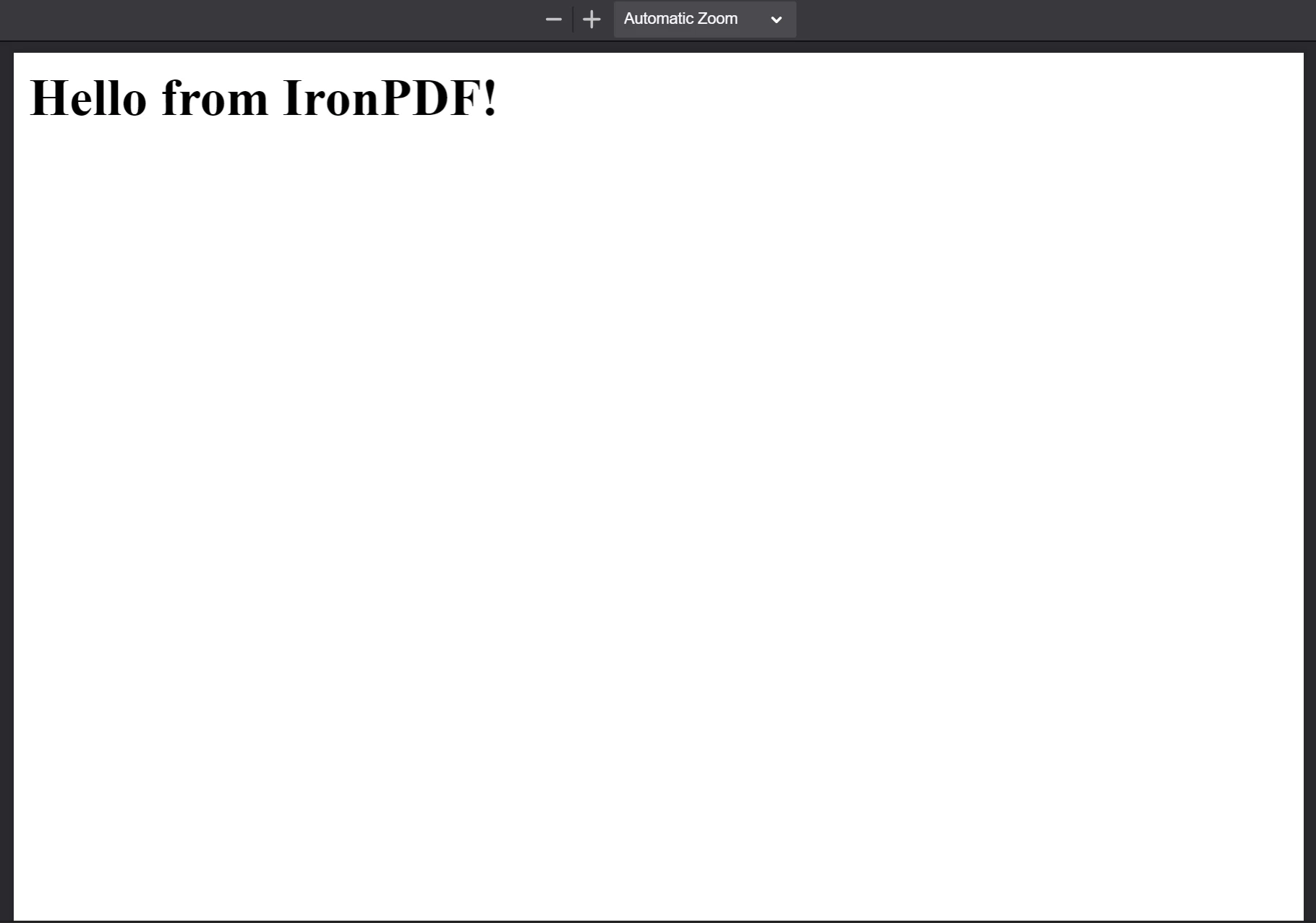
Above is the PDF generated from the HTML string `<h1>Hello from IronPDF!</h1>` — `PdfDocument.fromHtml` output appears just as web page content would.
### How Do You Create a PDF from an HTML File?
`PdfDocument.fromHtml` also accepts a path to a local HTML document. Instead of a string of markup, pass a valid file path as the first argument. This is the preferred approach when working with saved web pages that reference local CSS, JavaScript, and image assets.
The following example converts a [sample web page](https://filesamples.com/samples/code/html/sample2.html) into a PDF:
```js
:path=/static-assets/ironpdf-nodejs/content-code-examples/tutorials/html-to-pdf/html-file-to-pdf.js
```
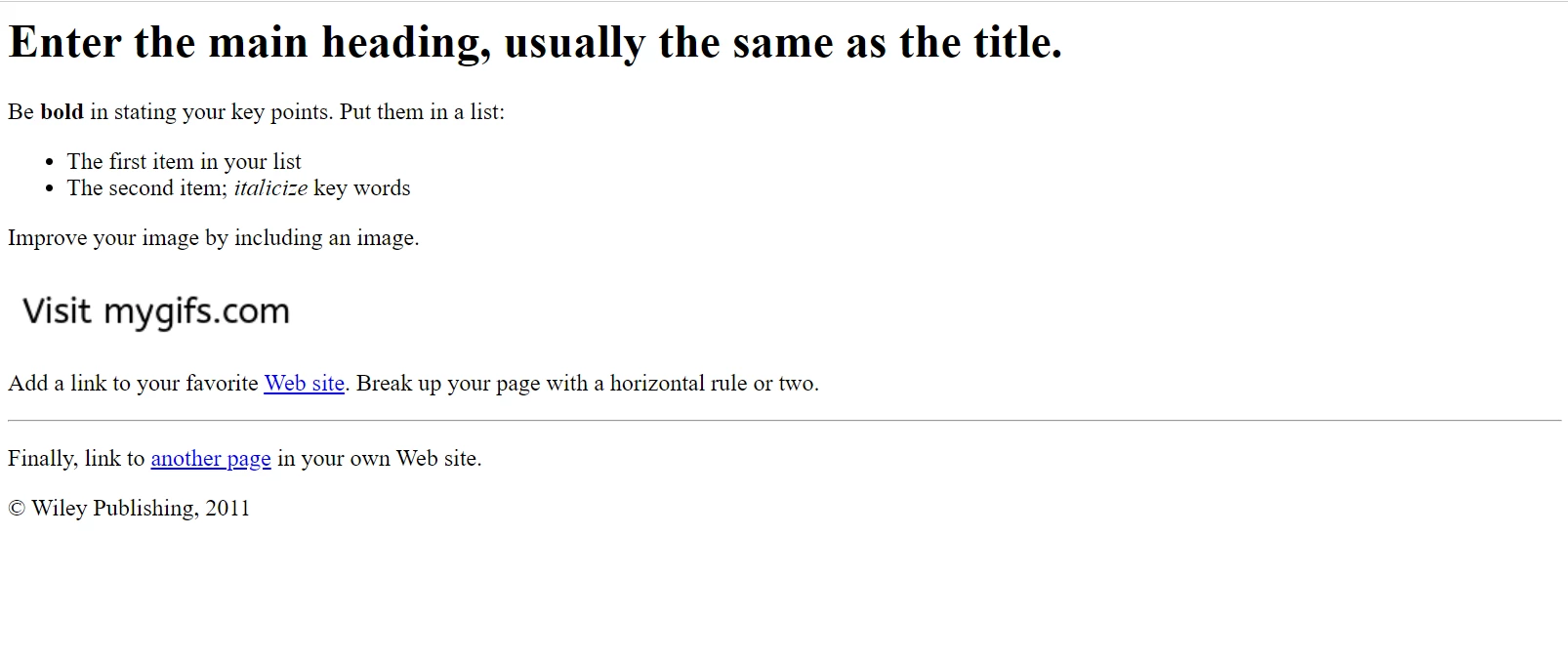
The image above shows the sample HTML page in Google Chrome before conversion. Download this and similar pages from https://filesamples.com/samples/code/html/sample2.html
IronPDF preserves the appearance of the original HTML document and retains the functionality of links, forms, and other interactive elements. This fidelity extends to complex pages that include paragraphs, lists, images, hyperlinks, and client-side scripting.
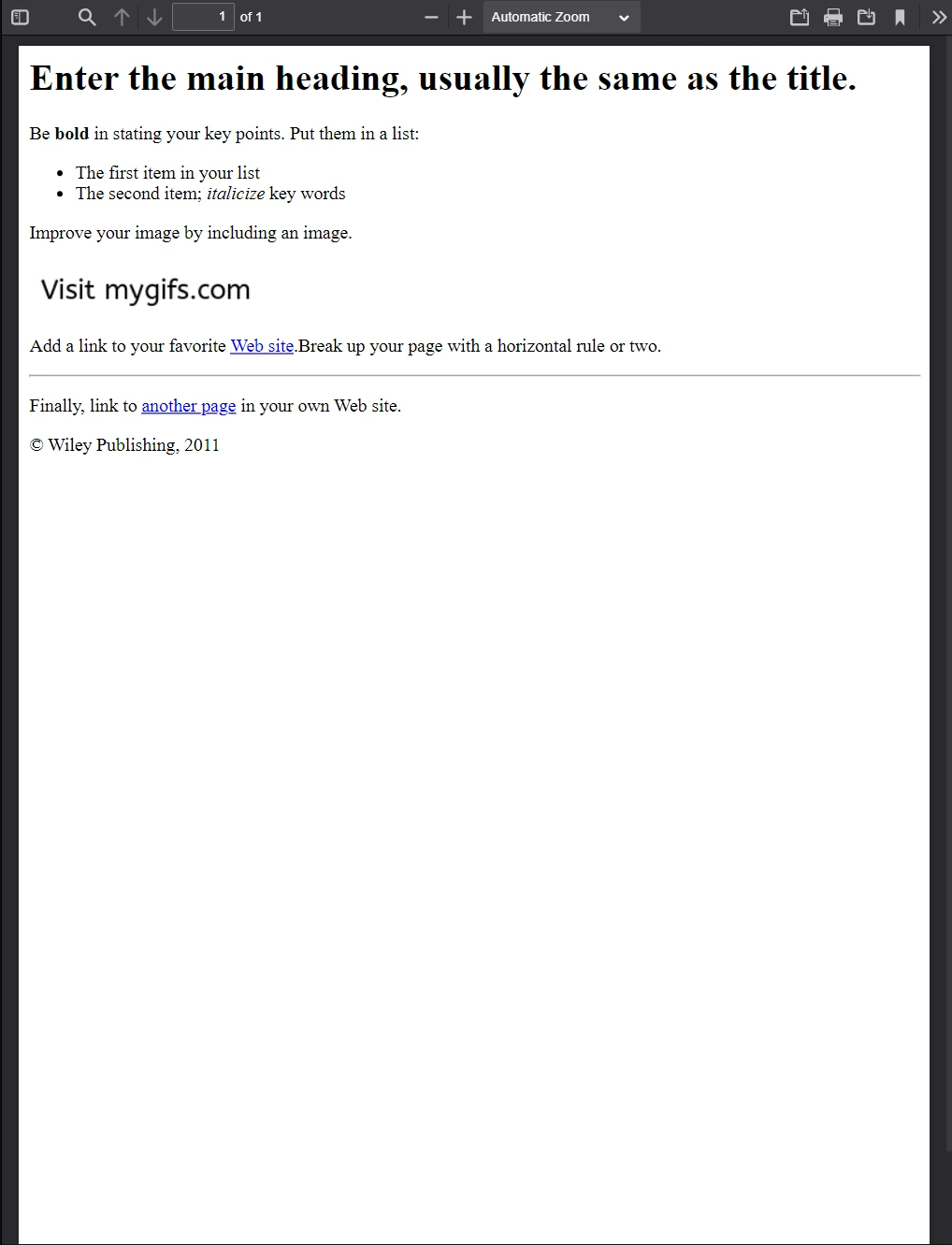
Above is the PDF generated from the sample HTML file — compare it with the previous image to see IronPDF preserve the layout with high fidelity.
IronPDF handles pages that go far beyond simple markup. The following example converts a feature-rich page that sources numerous external CSS files, images, and script assets:
```js
:path=/static-assets/ironpdf-nodejs/content-code-examples/tutorials/html-to-pdf/html-complex-file-to-pdf.js
```
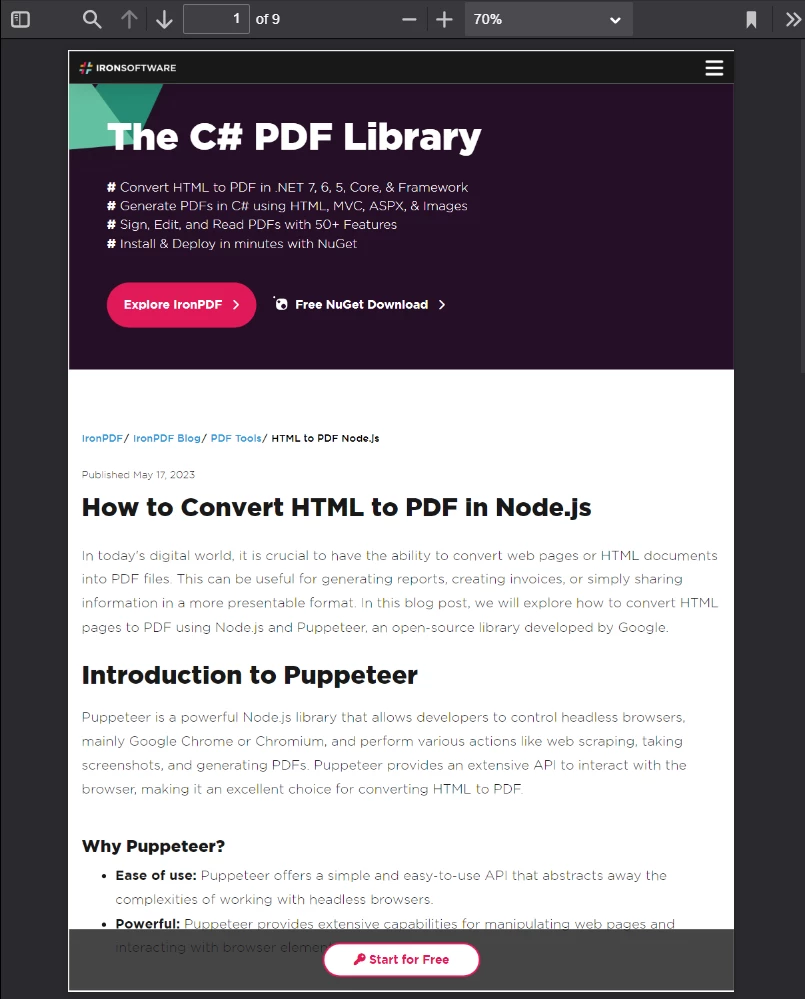
The image above shows a PDF from a CSS-heavy, JavaScript-rendered page: if it looks good in Google Chrome, it looks good as a PDF.
[[t:(If a page sources assets from local file paths, ensure all referenced CSS files, images, and scripts are present relative to the HTML file's location. IronPDF's Chrome rendering engine resolves these paths the same way a browser would.)]]
### How Do You Create a PDF from a URL?
`PdfDocument.fromUrl` fetches and renders a live web page as a PDF. Pass any publicly accessible URL as the argument. IronPDF's Chrome rendering engine retrieves the page, loads all assets, and produces a pixel-perfect PDF - no manual HTML download required.
```js
:path=/static-assets/ironpdf-nodejs/content-code-examples/tutorials/html-to-pdf/url-to-pdf.js
```
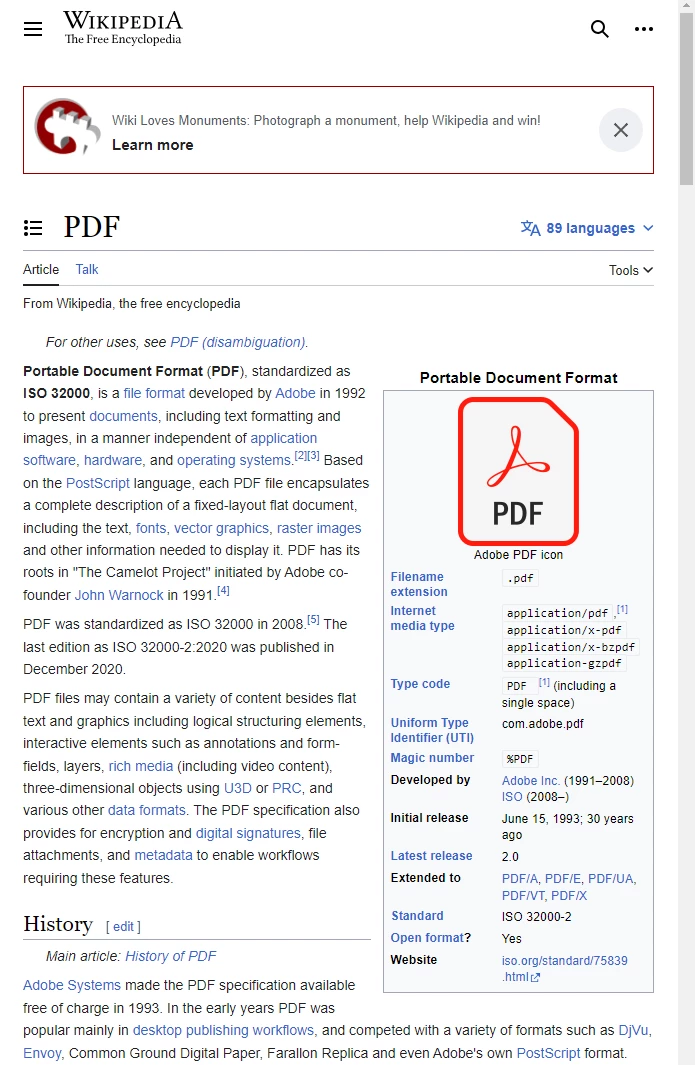
The image above shows the Wikipedia article about the PDF format as it appears in a standards-compliant web browser.
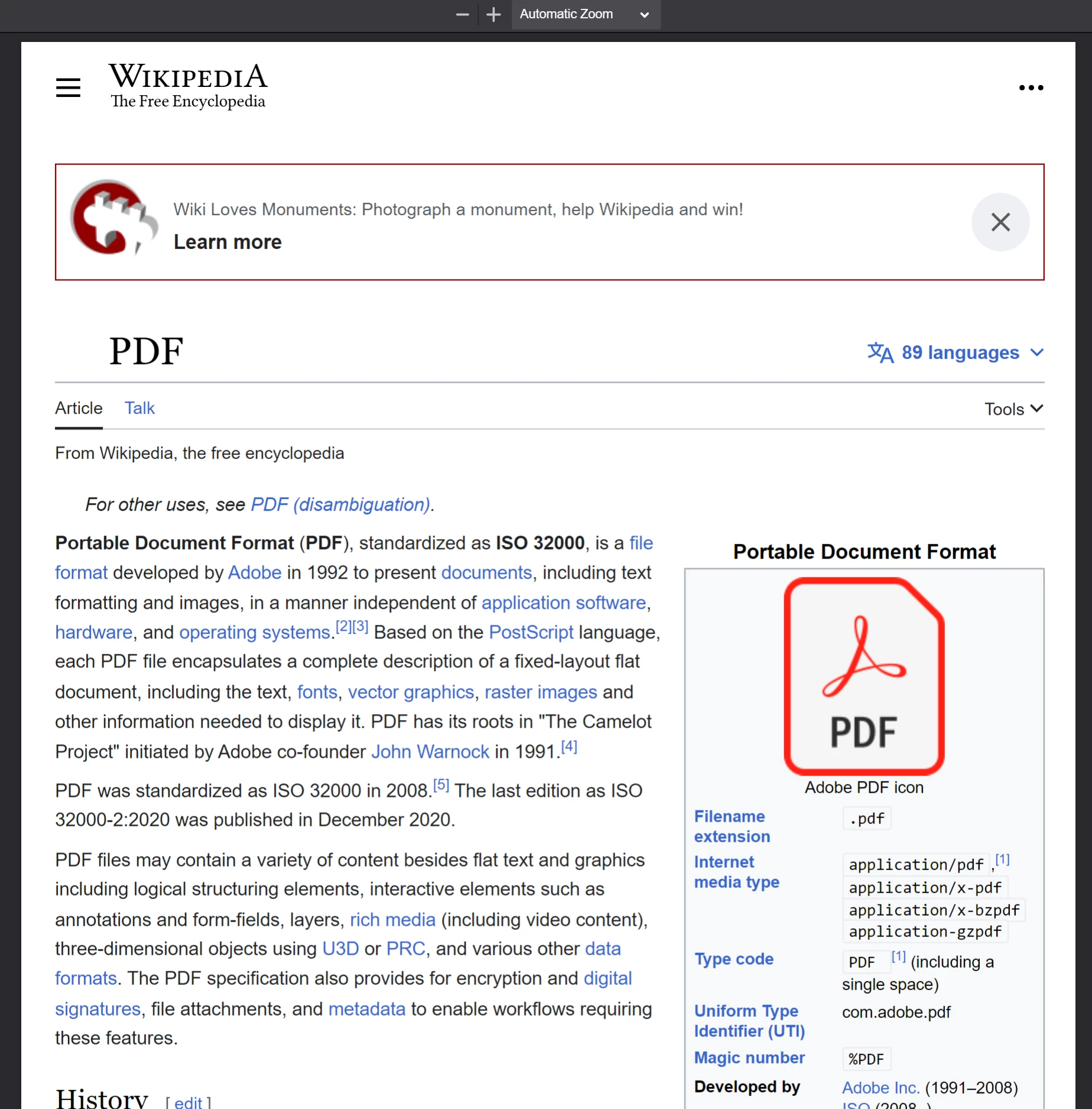
Above is the PDF produced by calling `PdfDocument.fromUrl` on the Wikipedia article — note its close resemblance to the original web page.
[[n:(URL-based conversions require that the target server is accessible from the machine running IronPDF. Pages behind authentication, VPNs, or firewalls may require additional configuration through `ChromePdfRenderOptions`.)]]
### How Do You Create a PDF from a Zip Archive?
`PdfDocument.fromZip` converts a specific HTML file contained in a ZIP archive into a PDF. This is particularly useful when distributing self-contained HTML projects that bundle their HTML, CSS, and image assets together.
For this example, assume the project directory contains a ZIP file with the following structure:
```plaintext
:path=/static-assets/ironpdf-nodejs/content-code-examples/tutorials/html-to-pdf/zip-structure.txt
```
The `index.html` file contains:
```html
:path=/static-assets/ironpdf-nodejs/content-code-examples/tutorials/html-to-pdf/index.html
```
And `style.css` declares the page layout and font rules:
```css
:path=/static-assets/ironpdf-nodejs/content-code-examples/tutorials/html-to-pdf/style.css
```

The image above shows the sample logo.png contained inside the hypothetical HTML ZIP file.
When calling `fromZip`, specify the path to the ZIP file as the first argument and a configuration object as the second. Set the `mainHtmlFile` property to the name of the HTML file inside the archive that should be converted:
```js
:path=/static-assets/ironpdf-nodejs/content-code-examples/tutorials/html-to-pdf/zip-to-pdf.js
```
Above is a PDF created with `PdfDocument.fromZip`, which renders the HTML from the ZIP archive along with its bundled assets.
## What Advanced Rendering Options Does IronPDF Support?
The [`ChromePdfRenderOptions`](/nodejs/object-reference/api/interfaces/ChromePdfRenderOptions.html) interface exposes properties for granular customization of PDF rendering behavior. These settings apply before the PDF is generated and cover layout, visual appearance, and edge cases for dynamic content.
IronPDF applies default rendering settings to every conversion. Retrieve these default values with the `defaultChromePdfRenderOptions` function:
```js
:path=/static-assets/ironpdf-nodejs/content-code-examples/tutorials/html-to-pdf/default-options.js
```
Modify the returned object's properties as needed and pass it to the `renderOptions` parameter of any conversion method.
### How Do You Add Headers and Footers?
The `textHeader` and `textFooter` properties affix custom text-based content to every page of a newly rendered PDF. The following example creates a PDF from the Google search homepage with a custom header and footer, each using a different font:
```js
:path=/static-assets/ironpdf-nodejs/content-code-examples/tutorials/html-to-pdf/custom-headers-footers.js
```
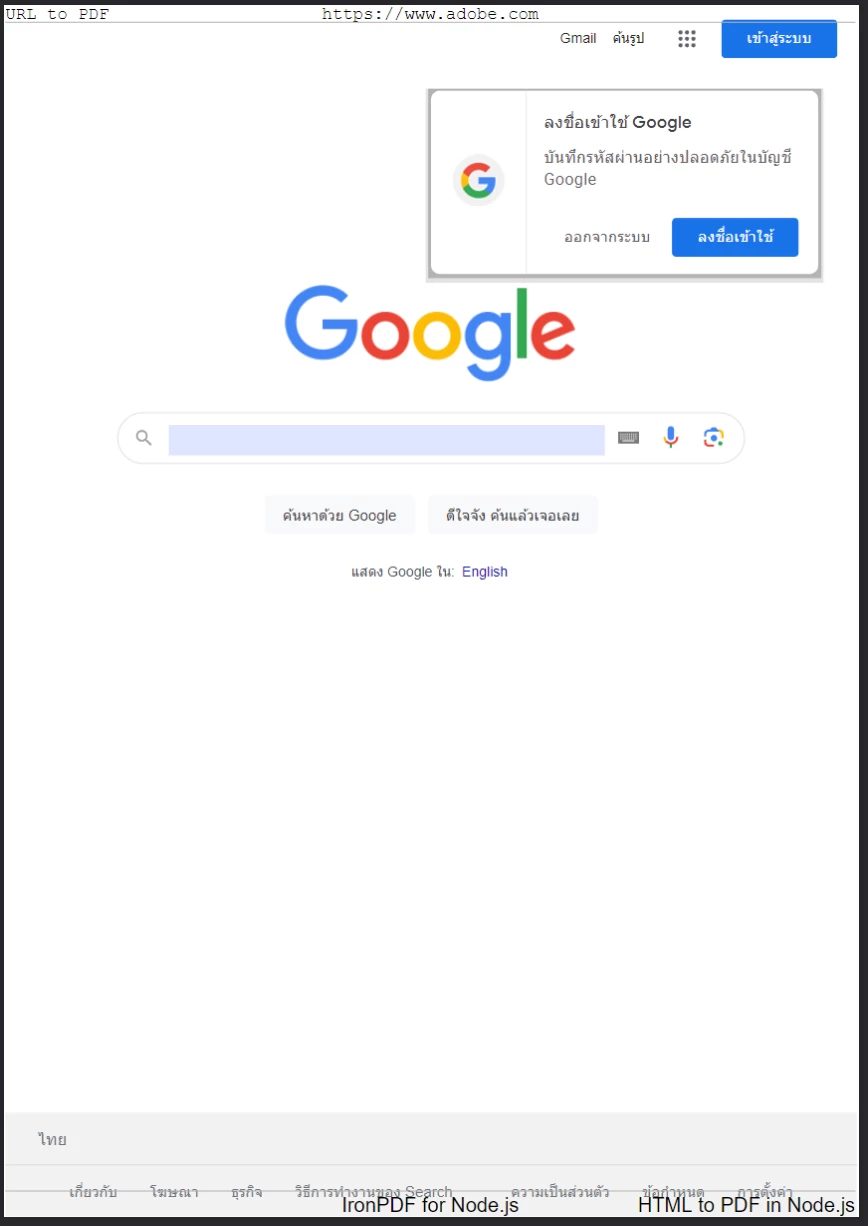
The image above shows a PDF of the Google home page with a custom text header and footer applied using `textHeader` and `textFooter`.
For richer header and footer layouts, use the `htmlHeader` and `htmlFooter` properties instead. These accept raw HTML fragments, giving full control over typography, images, and alignment. The example below centers the page URL in bold in the header and embeds a logo image in the footer:
```js
:path=/static-assets/ironpdf-nodejs/content-code-examples/tutorials/html-to-pdf/html-headers-footers.js
```
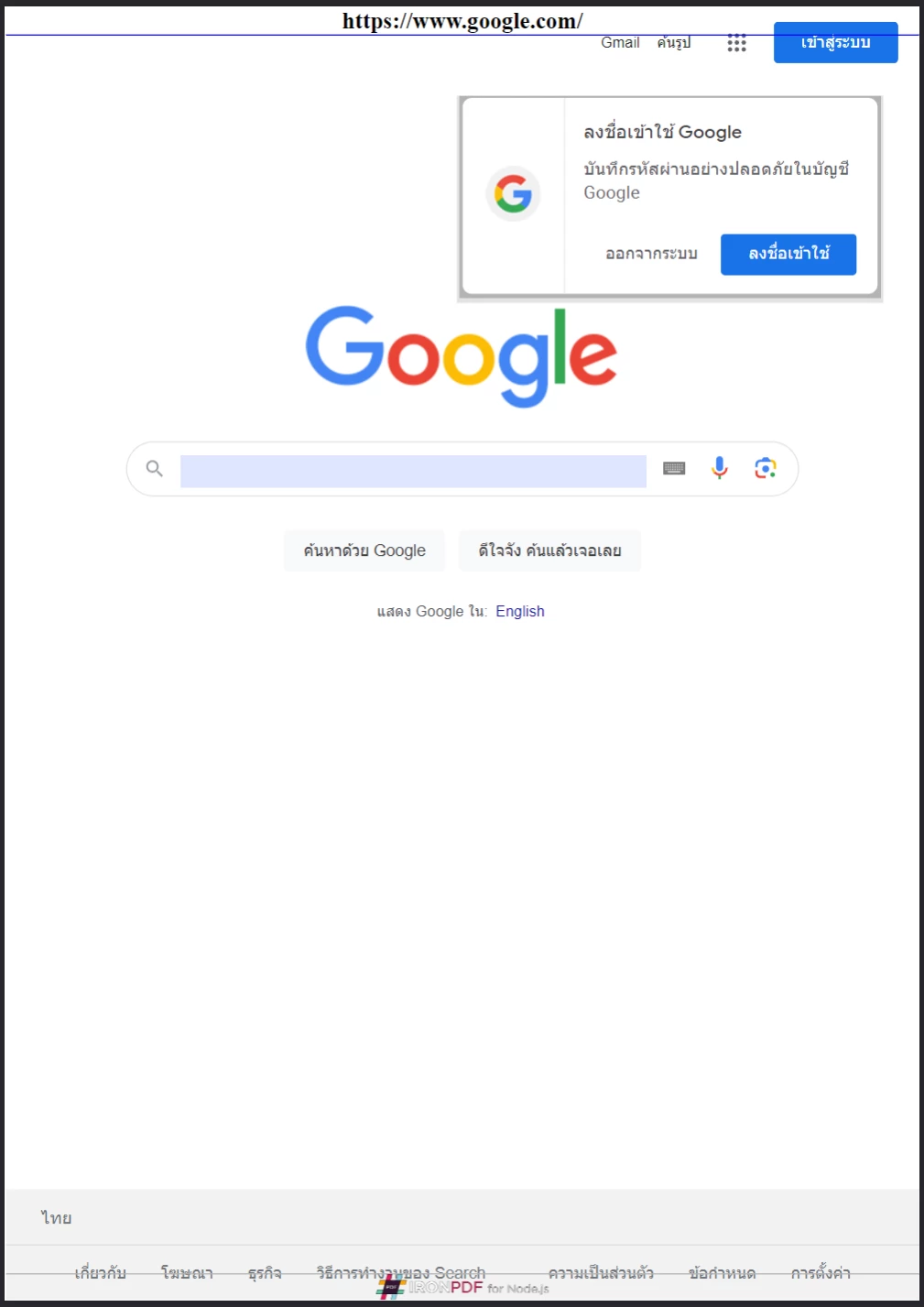
The image above shows a PDF with an HTML-based header (the page URL in bold) and footer (the IronPDF logo) — full control over branding and layout on every page.
### How Do You Control Page Size, Orientation, and Margins?
The `margin`, `paperSize`, `fitToPaperMode`, `paperOrientation`, and `grayScale` properties on `ChromePdfRenderOptions` control the physical layout of every rendered page. The following example converts the Google homepage with custom margins, A5 landscape orientation, and grayscale output:
```js
:path=/static-assets/ironpdf-nodejs/content-code-examples/tutorials/html-to-pdf/page-size-orientation.js
```
The `PaperSize` enumeration includes standard paper sizes such as `A4`, `A5`, `Letter`, and `Legal`. The `PdfPaperOrientation` enumeration supports `Portrait` and `Landscape`. These settings give precise control over output dimensions for print-ready documents.
[[t:(When generating PDFs for print workflows, always specify margins explicitly. Default margins may not match the requirements of your target printer or paper format.)]]
### How Do You Handle Dynamic Web Pages?
Pages that load content asynchronously - through JavaScript timers, lazy loading, or API calls - may not be fully rendered by the time IronPDF's engine captures them. The `WaitFor` mechanism, configured through the `waitFor` property on `ChromePdfRenderOptions`, instructs the Chrome renderer to pause until specified conditions are met before capturing the page.
The following code block sets IronPDF to wait 20 seconds before capturing the page content:
```js
:path=/static-assets/ironpdf-nodejs/content-code-examples/tutorials/html-to-pdf/waitfor-delay.js
```
Alternatively, configure IronPDF to wait until a specific DOM element appears before rendering. This is useful for pages where content is injected after a JavaScript framework finishes mounting:
```js
:path=/static-assets/ironpdf-nodejs/content-code-examples/tutorials/html-to-pdf/waitfor-element.js
```
The `WaitForType.HtmlElement` strategy uses a standard CSS query selector. The renderer polls for the element's presence until `maxWaitTime` milliseconds elapse or the element is found - whichever comes first.
[[w:(Setting excessively long wait times can significantly increase PDF generation time in high-throughput applications. Use the minimum delay that reliably captures the content your use case requires.)]]
## How Do You Generate PDFs from an HTML Template?
A common real-world automation pattern is generating a batch of PDFs from a shared HTML template, substituting placeholder values with data from a database, API, or spreadsheet. IronPDF's `replaceText` method on `PdfDocument` handles this directly.
The sample invoice template below (adapted from a publicly accessible [CodePen invoice template](https://codepen.io/tjoen/pen/wvgvLX)) uses curly-brace placeholders such as `{COMPANY-NAME}`, `{FULL-NAME}`, and `{INVOICE-NUMBER}` for substitutable content:
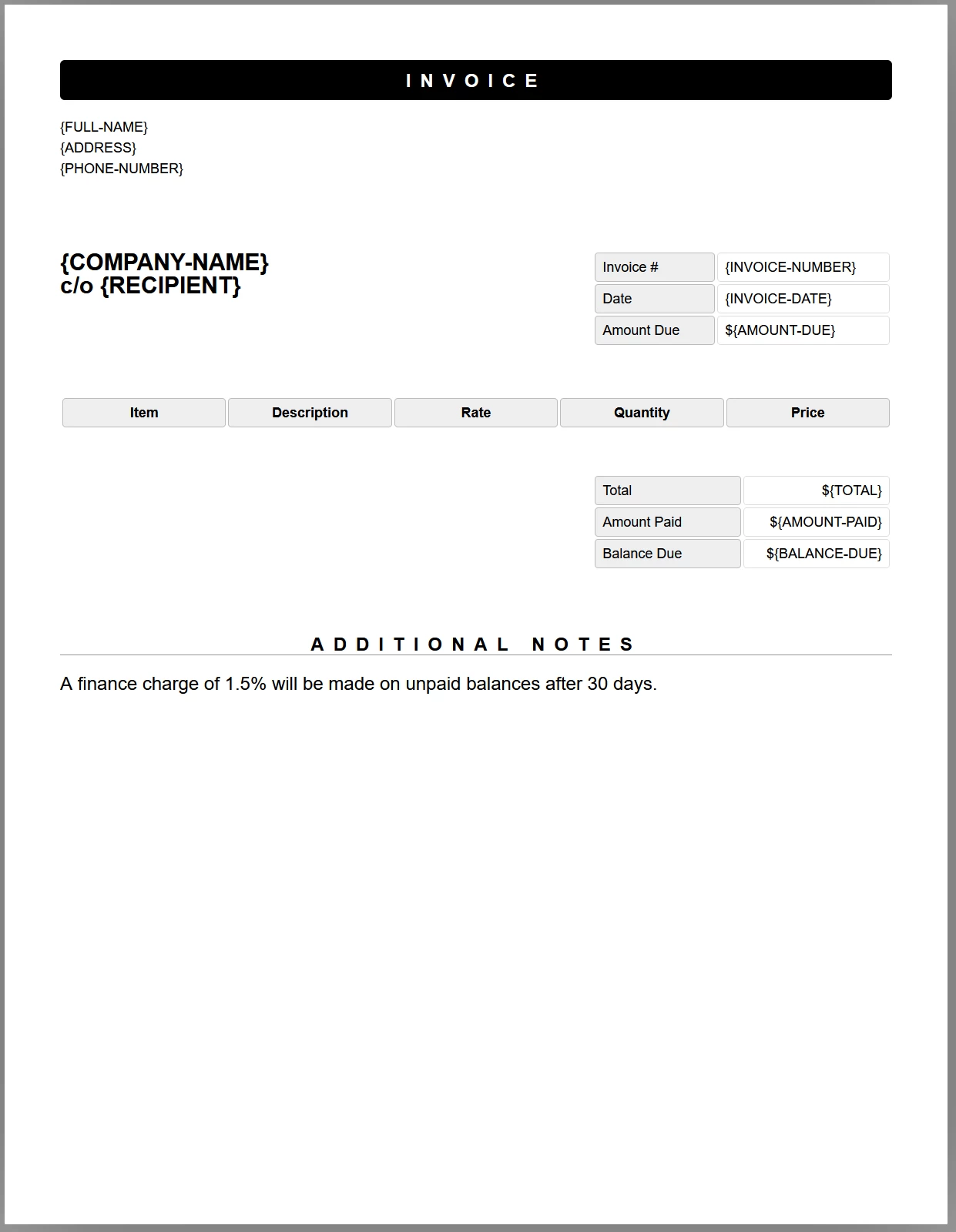
The image above shows a sample invoice HTML template with placeholder tags; JavaScript replaces each tag with real data before the document is saved as a PDF.
The following code loads the template, replaces every placeholder with test data, and saves the result as a PDF:
```js
:path=/static-assets/ironpdf-nodejs/content-code-examples/tutorials/html-to-pdf/html-template-to-pdf.js
```
The code above defines three async helper functions:
- `getTemplateHtml`: Loads an HTML file into a `PdfDocument` object using `PdfDocument.fromHtml`.
- `addTemplateData`: Calls `PdfDocument.replaceText` to substitute a placeholder key with its real data value.
- `generatePdf`: Writes the completed `PdfDocument` to a target file path.
Each `replaceText` call operates directly on the in-memory PDF representation, so multiple replacements can be chained without reloading the document from disk. The resulting PDF retains all CSS styles, fonts, and layout from the original template.
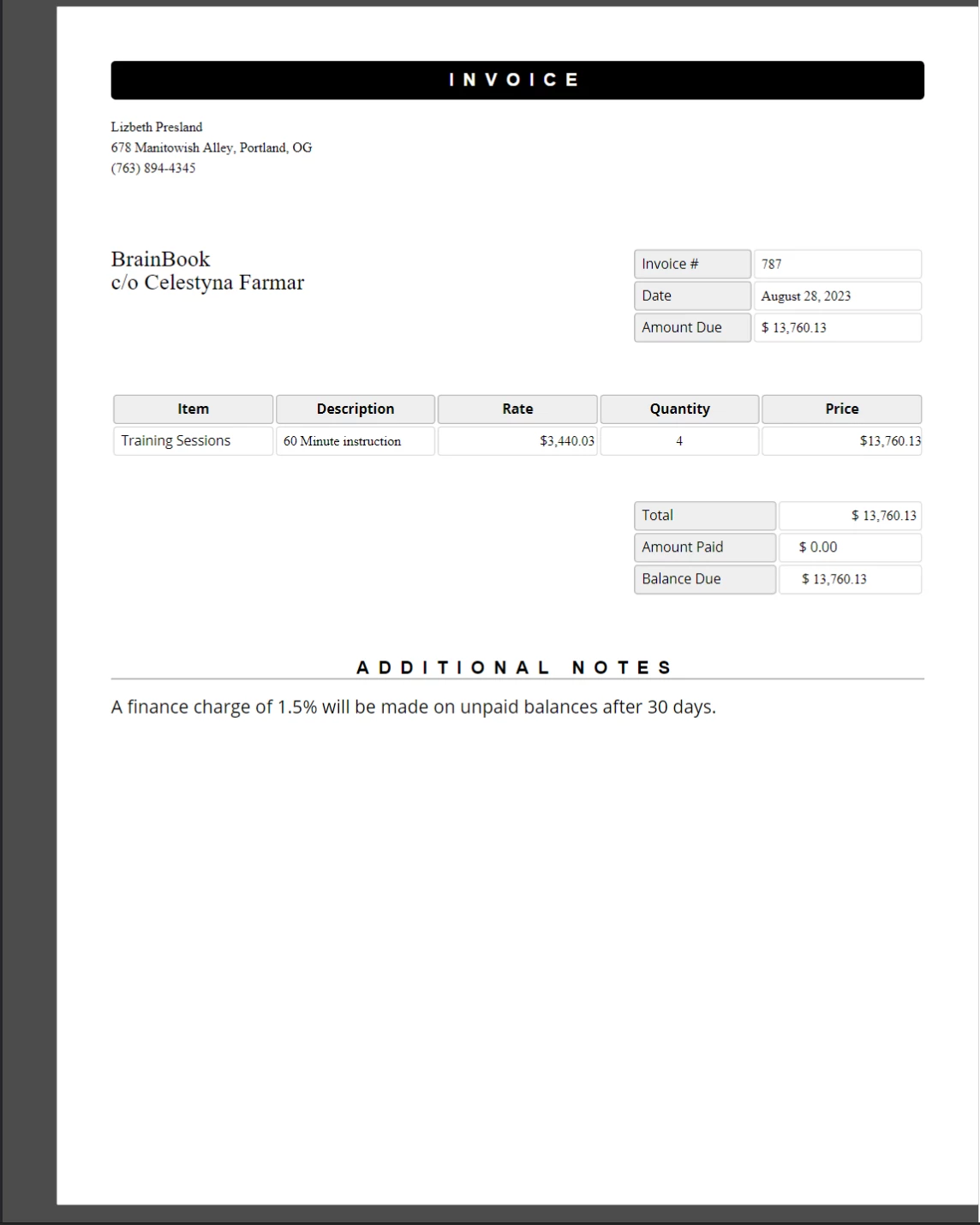
Above is the completed PDF invoice with placeholders replaced by real data — the original template's CSS styles and layout are preserved exactly.
This approach scales well for batch document generation. Call `getTemplateHtml` once per record to create a fresh `PdfDocument` for each output file, then chain the `addTemplateData` calls for that record's data before calling `generatePdf`.
## What Are the Next Steps?
This tutorial covers the core HTML-to-PDF conversion methods and the most frequently used rendering options in IronPDF for Node.js. The topics below extend what you have learned here into more specialized areas.
- **[Edit and Stamp PDFs in Node.js](/nodejs/tutorials/edit-pdf/)** - Apply stamps, annotations, and text edits to existing PDF documents programmatically.
- **[Merge and Split PDFs in Node.js](/nodejs/tutorials/merge-pdfs/)** - Combine multiple PDFs into a single document or split one PDF into separate pages.
- **[Add Watermarks to PDFs in Node.js](/nodejs/tutorials/watermark-pdf/)** - Apply text or image watermarks across every page of a PDF with precise positioning control.
- **[IronPDF Node.js API Reference](/nodejs/object-reference/api/)** - Browse the full API for `PdfDocument`, `ChromePdfRenderOptions`, `WaitFor`, `AffixFonts`, and all other exported classes and interfaces.
- **[Get a Free Trial License Key](#trial-license)** - Generate production-quality PDFs without watermarks by activating a free 30-day trial license.
IronPDF's most powerful and most popular feature is the ability to create high-fidelity PDFs from raw HTML, CSS, and JavaScript. This tutorial walks Node.js developers through every practical method for turning HTML content into PDFs - from a one-liner string conversion all the way to dynamic template-driven document generation.
IronPDF is a high-level API library that helps developers implement powerful PDF processing capabilities into software applications quickly. IronPDF is available in multiple programming languages. For detailed coverage on creating PDFs in .NET, Java, and Python, consult the official documentation pages. This tutorial covers its usage as it applies to Node.js projects.
Please note: Installing the IronPDF Engine is optional. The @ironsoftware/ironpdf package automatically downloads and installs the appropriate binary for your operating system on first execution. Explicit installation is recommended in environments where internet access is restricted or unavailable.
By default, IronPDF brands all documents it generates or modifies with a watermark. To remove the watermark, set the licenseKey property on the global IronPdfGlobalConfig object with a valid license key:
import { IronPdfGlobalConfig } from "@ironsoftware/ironpdf";// Retrieve the global configuration objectvar config = IronPdfGlobalConfig.getConfig();// Set a valid license key to remove watermarksconfig.licenseKey = "{YOUR-LICENSE-KEY-HERE}";
import { IronPdfGlobalConfig } from "@ironsoftware/ironpdf";

// Retrieve the global configuration object
var config = IronPdfGlobalConfig.getConfig();

// Set a valid license key to remove watermarks
config.licenseKey = "{YOUR-LICENSE-KEY-HERE}";
Please note: Set the license key and any other global configuration settings before calling other library functions. This ensures optimal performance and correct behavior throughout the application.
The remaining code examples in this tutorial assume that a license key has been applied in a separate config.js file, which is imported at the top of each script:
import { PdfDocument } from "@ironsoftware/ironpdf";import './config.js'; // Import the configuration script// ...
import { PdfDocument } from "@ironsoftware/ironpdf";
import './config.js'; // Import the configuration script
// ...
JavaScript
The image above shows the watermark IronPDF adds to PDFs generated without a license key — obtain a key at ironpdf.com/nodejs/licensing/ to remove it.
How Do You Convert HTML to PDF in Node.js?
The IronPDF Node.js library provides four approaches for creating PDF files from HTML content:
From a string of HTML code
From a local HTML file
From an online URL
From a compressed ZIP archive
Each approach uses the PdfDocument class as its foundation. A PdfDocument represents a PDF file produced from some source content and drives most of IronPDF's core creation and editing features.
How Do You Create a PDF from an HTML String?
PdfDocument.fromHtml generates PDFs from strings of raw HTML markup. This approach offers the most flexibility of the four methods because the HTML string can be sourced from virtually anywhere - text files, data streams, an HTML template engine, or dynamically constructed markup.
import { PdfDocument } from "@ironsoftware/ironpdf";import './config.js'; // Import the configuration script// Create a PDF from an HTML stringconst pdf = awaitPdfDocument.fromHtml("<h1>Hello from IronPDF!</h1>");// Save the PDF document to the file systemawait pdf.saveAs("html-string-to-pdf.pdf");
import { PdfDocument } from "@ironsoftware/ironpdf";
import './config.js'; // Import the configuration script

// Create a PDF from an HTML string
const pdf = await PdfDocument.fromHtml("<h1>Hello from IronPDF!</h1>");

// Save the PDF document to the file system
await pdf.saveAs("html-string-to-pdf.pdf");
JavaScript
PdfDocument.fromHtml returns a Promise that resolves to an instance of the PdfDocument class. After obtaining the instance, call saveAs with a target file path to write the PDF to disk. The saved PDF file renders the HTML exactly as a standards-compliant browser would display it.
Above is the PDF generated from the HTML string <h1>Hello from IronPDF!</h1> — PdfDocument.fromHtml output appears just as web page content would.
How Do You Create a PDF from an HTML File?
PdfDocument.fromHtml also accepts a path to a local HTML document. Instead of a string of markup, pass a valid file path as the first argument. This is the preferred approach when working with saved web pages that reference local CSS, JavaScript, and image assets.
The following example converts a sample web page into a PDF:
import { PdfDocument } from "@ironsoftware/ironpdf";import './config.js'; // Import the configuration script// Render a PDF from a local HTML fileconst pdf = awaitPdfDocument.fromHtml("./sample2.html");// Save the PDF document to the project directoryawait pdf.saveAs("html-file-to-pdf-1.pdf");
import { PdfDocument } from "@ironsoftware/ironpdf";
import './config.js'; // Import the configuration script

// Render a PDF from a local HTML file
const pdf = await PdfDocument.fromHtml("./sample2.html");

// Save the PDF document to the project directory
await pdf.saveAs("html-file-to-pdf-1.pdf");
IronPDF preserves the appearance of the original HTML document and retains the functionality of links, forms, and other interactive elements. This fidelity extends to complex pages that include paragraphs, lists, images, hyperlinks, and client-side scripting.
Above is the PDF generated from the sample HTML file — compare it with the previous image to see IronPDF preserve the layout with high fidelity.
IronPDF handles pages that go far beyond simple markup. The following example converts a feature-rich page that sources numerous external CSS files, images, and script assets:
import { PdfDocument } from "@ironsoftware/ironpdf";import './config.js'; // Import the configuration script// Render a PDF from a complex HTML page with external assetsPdfDocument.fromHtml("./sample4.html").then(async (pdf) => { return await pdf.saveAs("html-file-to-pdf-2.pdf");});
import { PdfDocument } from "@ironsoftware/ironpdf";
import './config.js'; // Import the configuration script

// Render a PDF from a complex HTML page with external assets
PdfDocument.fromHtml("./sample4.html").then(async (pdf) => {
    return await pdf.saveAs("html-file-to-pdf-2.pdf");
});
JavaScript
The image above shows a PDF from a CSS-heavy, JavaScript-rendered page: if it looks good in Google Chrome, it looks good as a PDF.
Tips: If a page sources assets from local file paths, ensure all referenced CSS files, images, and scripts are present relative to the HTML file's location. IronPDF's Chrome rendering engine resolves these paths the same way a browser would.
How Do You Create a PDF from a URL?
PdfDocument.fromUrl fetches and renders a live web page as a PDF. Pass any publicly accessible URL as the argument. IronPDF's Chrome rendering engine retrieves the page, loads all assets, and produces a pixel-perfect PDF - no manual HTML download required.
import { PdfDocument } from "@ironsoftware/ironpdf";import './config.js'; // Import the configuration script// Convert a live web page to a PDFconst pdf = awaitPdfDocument.fromUrl("https://en.wikipedia.org/wiki/PDF");// Save the documentawait pdf.saveAs("url-to-pdf.pdf");
import { PdfDocument } from "@ironsoftware/ironpdf";
import './config.js'; // Import the configuration script

// Convert a live web page to a PDF
const pdf = await PdfDocument.fromUrl("https://en.wikipedia.org/wiki/PDF");

// Save the document
await pdf.saveAs("url-to-pdf.pdf");
JavaScript
The image above shows the Wikipedia article about the PDF format as it appears in a standards-compliant web browser.
Above is the PDF produced by calling PdfDocument.fromUrl on the Wikipedia article — note its close resemblance to the original web page.
Important: URL-based conversions require that the target server is accessible from the machine running IronPDF. Pages behind authentication, VPNs, or firewalls may require additional configuration through ChromePdfRenderOptions.
How Do You Create a PDF from a Zip Archive?
PdfDocument.fromZip converts a specific HTML file contained in a ZIP archive into a PDF. This is particularly useful when distributing self-contained HTML projects that bundle their HTML, CSS, and image assets together.
For this example, assume the project directory contains a ZIP file with the following structure:
The image above shows the sample logo.png contained inside the hypothetical HTML ZIP file.
When calling fromZip, specify the path to the ZIP file as the first argument and a configuration object as the second. Set the mainHtmlFile property to the name of the HTML file inside the archive that should be converted:
import { PdfDocument } from "@ironsoftware/ironpdf";import './config.js'; // Import the configuration script// Convert an HTML file from a ZIP archive to PDFPdfDocument.fromZip("./html-zip.zip", { mainHtmlFile: "index.html"}).then(async (pdf) => { return await pdf.saveAs("html-zip-to-pdf.pdf");});
import { PdfDocument } from "@ironsoftware/ironpdf";
import './config.js'; // Import the configuration script

// Convert an HTML file from a ZIP archive to PDF
PdfDocument.fromZip("./html-zip.zip", {
  mainHtmlFile: "index.html"
}).then(async (pdf) => {
  return await pdf.saveAs("html-zip-to-pdf.pdf");
});
JavaScript
Above is a PDF created with PdfDocument.fromZip, which renders the HTML from the ZIP archive along with its bundled assets.
What Advanced Rendering Options Does IronPDF Support?
The ChromePdfRenderOptions interface exposes properties for granular customization of PDF rendering behavior. These settings apply before the PDF is generated and cover layout, visual appearance, and edge cases for dynamic content.
IronPDF applies default rendering settings to every conversion. Retrieve these default values with the defaultChromePdfRenderOptions function:
import { defaultChromePdfRenderOptions } from "@ironsoftware/ironpdf";// Retrieve a ChromePdfRenderOptions object with default settingsvar options = defaultChromePdfRenderOptions();
import { defaultChromePdfRenderOptions } from "@ironsoftware/ironpdf";

// Retrieve a ChromePdfRenderOptions object with default settings
var options = defaultChromePdfRenderOptions();
JavaScript
Modify the returned object's properties as needed and pass it to the renderOptions parameter of any conversion method.
How Do You Add Headers and Footers?
The textHeader and textFooter properties affix custom text-based content to every page of a newly rendered PDF. The following example creates a PDF from the Google search homepage with a custom header and footer, each using a different font:
import { PdfDocument, defaultChromePdfRenderOptions, AffixFonts } from "@ironsoftware/ironpdf";import './config.js'; // Import the configuration script// Start from default render optionsvar options = defaultChromePdfRenderOptions();// Configure a text-based headeroptions.textHeader = { centerText: "https://www.adobe.com", dividerLine: true, font: AffixFonts.CourierNew, fontSize: 12, leftText: "URL to PDF"};// Configure a text-based footeroptions.textFooter = { centerText: "IronPDF for Node.js", dividerLine: true, fontSize: 14, font: AffixFonts.Helvetica, rightText: "HTML to PDF in Node.js"};// Render the page with custom headers and footers appliedPdfDocument.fromUrl("https://www.google.com/", { renderOptions: options }).then(async (pdf) => { return await pdf.saveAs("add-custom-headers-footers-1.pdf");});
import { PdfDocument, defaultChromePdfRenderOptions, AffixFonts } from "@ironsoftware/ironpdf";
import './config.js'; // Import the configuration script

// Start from default render options
var options = defaultChromePdfRenderOptions();

// Configure a text-based header
options.textHeader = {
  centerText: "https://www.adobe.com",
  dividerLine: true,
  font: AffixFonts.CourierNew,
  fontSize: 12,
  leftText: "URL to PDF"
};

// Configure a text-based footer
options.textFooter = {
  centerText: "IronPDF for Node.js",
  dividerLine: true,
  fontSize: 14,
  font: AffixFonts.Helvetica,
  rightText: "HTML to PDF in Node.js"
};

// Render the page with custom headers and footers applied
PdfDocument.fromUrl("https://www.google.com/", { renderOptions: options }).then(async (pdf) => {
  return await pdf.saveAs("add-custom-headers-footers-1.pdf");
});
JavaScript
The image above shows a PDF of the Google home page with a custom text header and footer applied using textHeader and textFooter.
For richer header and footer layouts, use the htmlHeader and htmlFooter properties instead. These accept raw HTML fragments, giving full control over typography, images, and alignment. The example below centers the page URL in bold in the header and embeds a logo image in the footer:
import { PdfDocument, defaultChromePdfRenderOptions } from "@ironsoftware/ironpdf";import './config.js'; // Import the configuration script// Start from default render optionsvar options = defaultChromePdfRenderOptions();// Define a rich HTML headeroptions.htmlHeader = { htmlFragment: "<strong>https://www.google.com/</strong>", dividerLine: true, dividerLineColor: "blue", loadStylesAndCSSFromMainHtmlDocument: true,};// Define a rich HTML footer with a logooptions.htmlFooter = { htmlFragment: "<img src='logo.png' alt='IronPDF for Node.js' style='display: block; width: 150px; height: auto; margin-left: auto; margin-right: auto;'>", dividerLine: true, loadStylesAndCSSFromMainHtmlDocument: true};// Apply custom HTML headers and footers during renderingawaitPdfDocument.fromUrl("https://www.google.com/", { renderOptions: options }).then(async (pdf) => { return await pdf.saveAs("add-html-headers-footers.pdf");});
import { PdfDocument, defaultChromePdfRenderOptions } from "@ironsoftware/ironpdf";
import './config.js'; // Import the configuration script

// Start from default render options
var options = defaultChromePdfRenderOptions();

// Define a rich HTML header
options.htmlHeader = {
  htmlFragment: "<strong>https://www.google.com/</strong>",
  dividerLine: true,
  dividerLineColor: "blue",
  loadStylesAndCSSFromMainHtmlDocument: true,
};

// Define a rich HTML footer with a logo
options.htmlFooter = {
  htmlFragment: "<img src='logo.png' alt='IronPDF for Node.js' style='display: block; width: 150px; height: auto; margin-left: auto; margin-right: auto;'>",
  dividerLine: true,
  loadStylesAndCSSFromMainHtmlDocument: true
};

// Apply custom HTML headers and footers during rendering
await PdfDocument.fromUrl("https://www.google.com/", { renderOptions: options }).then(async (pdf) => {
  return await pdf.saveAs("add-html-headers-footers.pdf");
});
JavaScript
The image above shows a PDF with an HTML-based header (the page URL in bold) and footer (the IronPDF logo) — full control over branding and layout on every page.
How Do You Control Page Size, Orientation, and Margins?
The margin, paperSize, fitToPaperMode, paperOrientation, and grayScale properties on ChromePdfRenderOptions control the physical layout of every rendered page. The following example converts the Google homepage with custom margins, A5 landscape orientation, and grayscale output:
import { PdfDocument, defaultChromePdfRenderOptions, PaperSize, FitToPaperModes, PdfPaperOrientation } from "@ironsoftware/ironpdf";import './config.js'; // Import the configuration script// Start from default render optionsvar options = defaultChromePdfRenderOptions();// Set page margins in millimetersoptions.margin = { top: 50, bottom: 50, left: 60, right: 60};// Configure paper size, fit mode, orientation, and color modeoptions.paperSize = PaperSize.A5;options.fitToPaperMode = FitToPaperModes.FitToPage;options.paperOrientation = PdfPaperOrientation.Landscape;options.grayScale = true;// Render with the customized layout settingsPdfDocument.fromUrl("https://www.google.com/", { renderOptions: options }).then(async (pdf) => { return await pdf.saveAs("set-margins-and-page-size.pdf");});
import { PdfDocument, defaultChromePdfRenderOptions, PaperSize, FitToPaperModes, PdfPaperOrientation } from "@ironsoftware/ironpdf";
import './config.js'; // Import the configuration script

// Start from default render options
var options = defaultChromePdfRenderOptions();

// Set page margins in millimeters
options.margin = {
  top: 50,
  bottom: 50,
  left: 60,
  right: 60
};

// Configure paper size, fit mode, orientation, and color mode
options.paperSize = PaperSize.A5;
options.fitToPaperMode = FitToPaperModes.FitToPage;
options.paperOrientation = PdfPaperOrientation.Landscape;
options.grayScale = true;

// Render with the customized layout settings
PdfDocument.fromUrl("https://www.google.com/", { renderOptions: options }).then(async (pdf) => {
  return await pdf.saveAs("set-margins-and-page-size.pdf");
});
JavaScript
The PaperSize enumeration includes standard paper sizes such as A4, A5, Letter, and Legal. The PdfPaperOrientation enumeration supports Portrait and Landscape. These settings give precise control over output dimensions for print-ready documents.
Tips: When generating PDFs for print workflows, always specify margins explicitly. Default margins may not match the requirements of your target printer or paper format.
How Do You Handle Dynamic Web Pages?
Pages that load content asynchronously - through JavaScript timers, lazy loading, or API calls - may not be fully rendered by the time IronPDF's engine captures them. The WaitFor mechanism, configured through the waitFor property on ChromePdfRenderOptions, instructs the Chrome renderer to pause until specified conditions are met before capturing the page.
The following code block sets IronPDF to wait 20 seconds before capturing the page content:
import { PdfDocument, defaultChromePdfRenderOptions, WaitForType } from "@ironsoftware/ironpdf";import './config.js'; // Import the configuration script// Configure the renderer to wait 20 seconds before capturingvar options = defaultChromePdfRenderOptions();options.waitFor = { type: WaitForType.RenderDelay, delay: 20000};PdfDocument.fromUrl("https://ironpdf.com/nodejs/", { renderOptions: options }).then(async (pdf) => { return await pdf.saveAs("waitfor-renderdelay.pdf");});
import { PdfDocument, defaultChromePdfRenderOptions, WaitForType } from "@ironsoftware/ironpdf";
import './config.js'; // Import the configuration script

// Configure the renderer to wait 20 seconds before capturing
var options = defaultChromePdfRenderOptions();
options.waitFor = {
  type: WaitForType.RenderDelay,
  delay: 20000
};

PdfDocument.fromUrl("https://ironpdf.com/nodejs/", { renderOptions: options }).then(async (pdf) => {
  return await pdf.saveAs("waitfor-renderdelay.pdf");
});
JavaScript
Alternatively, configure IronPDF to wait until a specific DOM element appears before rendering. This is useful for pages where content is injected after a JavaScript framework finishes mounting:
import { PdfDocument, defaultChromePdfRenderOptions, WaitForType } from "@ironsoftware/ironpdf";import './config.js'; // Import the configuration script// Configure the renderer to wait for a specific DOM element (up to 20 seconds)var options = defaultChromePdfRenderOptions();options.waitFor = { type: WaitForType.HtmlElement, htmlQueryStr: "div.ProseMirror", maxWaitTime: 20000,};PdfDocument.fromUrl("https://app.surferseo.com/drafts/s/V7VkcdfgFz-dpkldsfHDGFFYf4jjSvvjsdf", { renderOptions: options }).then(async (pdf) => { return await pdf.saveAs("waitfor-htmlelement.pdf");});
import { PdfDocument, defaultChromePdfRenderOptions, WaitForType } from "@ironsoftware/ironpdf";
import './config.js'; // Import the configuration script

// Configure the renderer to wait for a specific DOM element (up to 20 seconds)
var options = defaultChromePdfRenderOptions();
options.waitFor = {
  type: WaitForType.HtmlElement,
  htmlQueryStr: "div.ProseMirror",
  maxWaitTime: 20000,
};

PdfDocument.fromUrl("https://app.surferseo.com/drafts/s/V7VkcdfgFz-dpkldsfHDGFFYf4jjSvvjsdf", { renderOptions: options }).then(async (pdf) => {
  return await pdf.saveAs("waitfor-htmlelement.pdf");
});
JavaScript
The WaitForType.HtmlElement strategy uses a standard CSS query selector. The renderer polls for the element's presence until maxWaitTime milliseconds elapse or the element is found - whichever comes first.
Warning: Setting excessively long wait times can significantly increase PDF generation time in high-throughput applications. Use the minimum delay that reliably captures the content your use case requires.
How Do You Generate PDFs from an HTML Template?
A common real-world automation pattern is generating a batch of PDFs from a shared HTML template, substituting placeholder values with data from a database, API, or spreadsheet. IronPDF's replaceText method on PdfDocument handles this directly.
The sample invoice template below (adapted from a publicly accessible CodePen invoice template) uses curly-brace placeholders such as {COMPANY-NAME}, {FULL-NAME}, and {INVOICE-NUMBER} for substitutable content:
The image above shows a sample invoice HTML template with placeholder tags; JavaScript replaces each tag with real data before the document is saved as a PDF.
The following code loads the template, replaces every placeholder with test data, and saves the result as a PDF:
import { PdfDocument } from "@ironsoftware/ironpdf";import './config.js'; // Import the configuration script/** * Loads an HTML template from the file system as a PdfDocument. */async function getTemplateHtml(fileLocation) { returnPdfDocument.fromHtml(fileLocation);}/** * Saves a PdfDocument to the specified file path. */async function generatePdf(pdf, location) { return pdf.saveAs(location);}/** * Replaces a named placeholder in the PdfDocument with a data value. */async function addTemplateData(pdf, key, value) { return pdf.replaceText(key, value);}// Path to the HTML invoice templateconst template = "./sample-invoice.html";// Load the template, fill in all placeholder values, then save the PDFgetTemplateHtml(template).then(async (doc) => { await addTemplateData(doc, "{FULL-NAME}", "Lizbeth Presland"); await addTemplateData(doc, "{ADDRESS}", "678 Manitowish Alley, Portland, OG"); await addTemplateData(doc, "{PHONE-NUMBER}", "(763) 894-4345"); await addTemplateData(doc, "{INVOICE-NUMBER}", "787"); await addTemplateData(doc, "{INVOICE-DATE}", "August 28, 2023"); await addTemplateData(doc, "{AMOUNT-DUE}", "13,760.13"); await addTemplateData(doc, "{RECIPIENT}", "Celestyna Farmar"); await addTemplateData(doc, "{COMPANY-NAME}", "BrainBook"); await addTemplateData(doc, "{TOTAL}", "13,760.13"); await addTemplateData(doc, "{AMOUNT-PAID}", "0.00"); await addTemplateData(doc, "{BALANCE-DUE}", "13,760.13"); await addTemplateData(doc, "{ITEM}", "Training Sessions"); await addTemplateData(doc, "{DESCRIPTION}", "60 Minute instruction"); await addTemplateData(doc, "{RATE}", "3,440.03"); await addTemplateData(doc, "{QUANTITY}", "4"); await addTemplateData(doc, "{PRICE}", "13,760.13"); return doc;}).then(async (doc) => await generatePdf(doc, "html-template-to-pdf.pdf"));
import { PdfDocument } from "@ironsoftware/ironpdf";
import './config.js'; // Import the configuration script

/**
 * Loads an HTML template from the file system as a PdfDocument.
 */
async function getTemplateHtml(fileLocation) {
  return PdfDocument.fromHtml(fileLocation);
}

/**
 * Saves a PdfDocument to the specified file path.
 */
async function generatePdf(pdf, location) {
  return pdf.saveAs(location);
}

/**
 * Replaces a named placeholder in the PdfDocument with a data value.
 */
async function addTemplateData(pdf, key, value) {
  return pdf.replaceText(key, value);
}

// Path to the HTML invoice template
const template = "./sample-invoice.html";

// Load the template, fill in all placeholder values, then save the PDF
getTemplateHtml(template).then(async (doc) => {
    await addTemplateData(doc, "{FULL-NAME}", "Lizbeth Presland");
    await addTemplateData(doc, "{ADDRESS}", "678 Manitowish Alley, Portland, OG");
    await addTemplateData(doc, "{PHONE-NUMBER}", "(763) 894-4345");
    await addTemplateData(doc, "{INVOICE-NUMBER}", "787");
    await addTemplateData(doc, "{INVOICE-DATE}", "August 28, 2023");
    await addTemplateData(doc, "{AMOUNT-DUE}", "13,760.13");
    await addTemplateData(doc, "{RECIPIENT}", "Celestyna Farmar");
    await addTemplateData(doc, "{COMPANY-NAME}", "BrainBook");
    await addTemplateData(doc, "{TOTAL}", "13,760.13");
    await addTemplateData(doc, "{AMOUNT-PAID}", "0.00");
    await addTemplateData(doc, "{BALANCE-DUE}", "13,760.13");
    await addTemplateData(doc, "{ITEM}", "Training Sessions");
    await addTemplateData(doc, "{DESCRIPTION}", "60 Minute instruction");
    await addTemplateData(doc, "{RATE}", "3,440.03");
    await addTemplateData(doc, "{QUANTITY}", "4");
    await addTemplateData(doc, "{PRICE}", "13,760.13");
    return doc;
}).then(async (doc) => await generatePdf(doc, "html-template-to-pdf.pdf"));
JavaScript
The code above defines three async helper functions:
getTemplateHtml: Loads an HTML file into a PdfDocument object using PdfDocument.fromHtml.
addTemplateData: Calls PdfDocument.replaceText to substitute a placeholder key with its real data value.
generatePdf: Writes the completed PdfDocument to a target file path.
Each replaceText call operates directly on the in-memory PDF representation, so multiple replacements can be chained without reloading the document from disk. The resulting PDF retains all CSS styles, fonts, and layout from the original template.
Above is the completed PDF invoice with placeholders replaced by real data — the original template's CSS styles and layout are preserved exactly.
This approach scales well for batch document generation. Call getTemplateHtml once per record to create a fresh PdfDocument for each output file, then chain the addTemplateData calls for that record's data before calling generatePdf.
What Are the Next Steps?
This tutorial covers the core HTML-to-PDF conversion methods and the most frequently used rendering options in IronPDF for Node.js. The topics below extend what you have learned here into more specialized areas.
IronPDF Node.js API Reference - Browse the full API for PdfDocument, ChromePdfRenderOptions, WaitFor, AffixFonts, and all other exported classes and interfaces.
Get a Free Trial License Key - Generate production-quality PDFs without watermarks by activating a free 30-day trial license.
Frequently Asked Questions
How can I convert an HTML string to PDF using IronPDF in Node.js?
To convert an HTML string to PDF using IronPDF in Node.js, you can use the `PdfDocument.fromHtml` method. This function generates a PDF from a raw HTML markup string, allowing for dynamic HTML content creation.
What steps are needed to convert an HTML file to PDF with IronPDF?
To convert an HTML file to PDF with IronPDF, you first import the `PdfDocument` class, then use the `PdfDocument.fromHtml` method with a file path as the argument. Finally, save the PDF using the `saveAs` method.
How do you create a PDF from a URL in Node.js with IronPDF?
Use the `PdfDocument.fromUrl` method to create a PDF from a live web page URL. This feature fetches the webpage, loads all associated assets, and generates a browser-equivalent PDF file.
Can IronPDF convert HTML content from a ZIP archive to PDF?
Yes, IronPDF can convert HTML content from a ZIP archive to PDF using the `PdfDocument.fromZip` method. Specify the path to the ZIP file and designate the main HTML file within.
What advanced rendering options are available with IronPDF?
Advanced rendering options in IronPDF include setting custom headers and footers, controlling page size, orientation, and margins, and handling dynamic content with wait conditions through `ChromePdfRenderOptions`.
How can you add headers and footers to a PDF in IronPDF?
To add headers and footers to a PDF in IronPDF, configure the `textHeader`, `textFooter`, `htmlHeader`, or `htmlFooter` properties within `ChromePdfRenderOptions` to incorporate custom content and styling.
How do you handle dynamic web pages during PDF conversion with IronPDF?
For dynamic web pages, use the `waitFor` property in `ChromePdfRenderOptions` to define a render delay or wait for a specific DOM element before capturing the page content as a PDF.
What is the process for generating PDFs from an HTML template in IronPDF?
To generate PDFs from an HTML template, load the template with `PdfDocument.fromHtml`, replace placeholder text with real data using `replaceText`, and save the document with `saveAs`.
How do you ensure high fidelity in HTML to PDF conversion using IronPDF?
IronPDF ensures high fidelity in conversions by using a Chrome-based rendering engine that supports HTML5, CSS, and JavaScript, resulting in PDFs that mimic browser-rendered pages closely.
What are the licensing requirements to remove watermarks from PDFs created with IronPDF?
To remove watermarks from PDFs created with IronPDF, apply a valid license key using the `licenseKey` property on the global `IronPdfGlobalConfig` object. You can obtain keys from IronPDF's licensing page.
Curtis Chau holds a Bachelor’s degree in Computer Science (Carleton University) and specializes in front-end development with expertise in Node.js, TypeScript, JavaScript, and React. Passionate about crafting intuitive and aesthetically pleasing user interfaces, Curtis enjoys working with modern frameworks and creating well-structured, visually appealing manuals.




























