# Converting HTML to PDF in Python
IronPDF gives Python developers a direct path from HTML markup to production-ready PDF files. No intermediate design tools, no proprietary layout engines, no separate rendering pipeline. The library's `ChromePdfRenderer` class uses a Chromium-based engine under the hood, so any HTML that displays correctly in Chrome will convert accurately to PDF. This tutorial walks through every supported conversion method (HTML strings, local HTML files, and live URLs) and then covers the rendering options that let you control page size, margins, headers, footers, and more.
A companion tutorial is available for [converting HTML to PDF in .NET applications](/tutorials/html-to-pdf/) if you need the C# or VB.NET workflow.
*as-heading:2(Quickstart: Convert HTML to PDF in Python)*
<div class="hsg-featured-snippet">
<h3>Minimal Workflow (5 steps)</h3>
<img style="display: block;float:right;vertical-align:top;width: 250px;height: auto;" src="/static-assets/pdf/images/html-to-pdf-python.png" alt="IronPDF Python library converting an HTML page to a PDF file" />
<ol>
<li><a class="js-modal-open" data-modal-id="download-modal" href="#download-modal">Install IronPDF for Python via pip</a></li>
<li>Import the library with <code>from ironpdf import *</code></li>
<li>Instantiate <code>ChromePdfRenderer</code></li>
<li>Call <code>RenderHtmlAsPdf</code>, <code>RenderUrlAsPdf</code>, or <code>RenderHtmlFileAsPdf</code></li>
<li>Save the result with <code>pdf.SaveAs("output.pdf")</code></li>
</ol>
</div>
<hr style="clear: both;" class="separator" />
*as-heading:2(Table of Contents)*
- [How Do You Install IronPDF for Python?](#installing-ironpdf-pdf-library-for-python)
- [How Do You Configure IronPDF Before Converting?](#how-do-you-configure-ironpdf-before-converting)
- [How Do You Convert an HTML String to PDF?](#how-do-you-convert-an-html-string-to-pdf)
- [How Do You Convert a URL to PDF?](#how-do-you-convert-a-url-to-pdf)
- [How Do You Convert an HTML File to PDF?](#how-do-you-convert-an-html-file-to-pdf)
- [How Do You Control PDF Rendering Options?](#how-do-you-control-pdf-rendering-options)
- [How Do You Add Custom Headers and Footers?](#how-do-you-add-custom-headers-and-footers)
- [What Are the Next Steps?](#what-are-the-next-steps)
<hr class="separator" />
<p class="main-content__segment-title">Getting Started</p>
## How Do You Install IronPDF for Python?
!!!--LIBRARY_NUGET_INSTALL_BLOCK--!!!
IronPDF is distributed via pip, Python's standard package manager. Run the following command in a terminal to install the latest version:
```shell
:ProductInstall
```
To pin a specific release (useful in CI pipelines or containerized environments) append the version number:
```shell
:InstallCmd pip install ironpdf==2026.7.0.2
```
[[i:(IronPDF for Python is built on top of the IronPDF .NET library and requires the [.NET 6.0 SDK](https://dotnet.microsoft.com/en-us/download/dotnet/6.0) or later. Install the SDK before running any IronPDF Python code.)]]
The first time IronPDF initializes, it downloads a compatible Chromium binary. This download takes a moment on a fresh machine but only happens once per environment. Subsequent runs start up much faster because the binary is cached locally.
<hr class="separator" />
<p class="main-content__segment-title">How-To Guide and Code Examples</p>
## How Do You Configure IronPDF Before Converting?
Two setup tasks are worth completing before the first conversion call: setting a license key and, optionally, configuring a log file location.
### Importing the Package
Every Python file that uses IronPDF needs this single import line. Place it at the top of the file:
```python
from ironpdf import *
```
All IronPDF classes (`ChromePdfRenderer`, `PdfDocument`, `License`, `Logger`, and the rest) become available through this wildcard import.
### Setting a License Key
Without a license key, IronPDF adds a tiled watermark to every generated PDF. The watermark is suitable for development and testing, but production deployments require a valid key.
<div class="content-img-align-center">
<div class="center-image-wrapper">
<iframe loading="lazy" src="/static-assets/ironpdf-python/tutorials/html-to-pdf/html-to-pdf-no-license.pdf" width="100%" height="500px">
</iframe>
<p class="content__image-caption">PDFs generated without a license key include a tiled watermark. Visit the <a href="/python/licensing/">licensing page</a> to obtain a key.</p>
</div>
</div>
Set the key before any other IronPDF calls:
```python
from ironpdf import *

# Set the license key before any PDF operations
License.LicenseKey = "IRONPDF-MYLICENSE-KEY-1EF01"
```
[Start a free trial](https://ironpdf.com/python/#trial-license) to receive a temporary key, or [purchase a license](/python/licensing/) for unrestricted production use.
### Configuring Log Output
IronPDF writes diagnostic output to a file named `Default.log` in the script's working directory. To redirect logging to a different path or capture more detail for debugging, set the `Logger` properties before the first conversion:
```python
from ironpdf import *
# Configure logging before running any conversions
Logger.EnableDebugging = True
Logger.LogFilePath = "ironpdf-debug.log"
Logger.LoggingMode = Logger.LoggingModes.All
```
[[i:(`Logger.LogFilePath` must be set before the first PDF conversion call. Changes made afterward have no effect on the current session.)]]
Detailed logs are most useful when diagnosing why a particular HTML page doesn't render as expected; they capture network requests, CSS loading events, and JavaScript execution timing.
## How Do You Convert an HTML String to PDF?
Converting an in-memory HTML string is the most direct approach and works well when the HTML is generated programmatically, for example, from a Jinja2 template or a database-driven report.
### Basic HTML String Conversion
Instantiate `ChromePdfRenderer`, pass the HTML string to `RenderHtmlAsPdf`, and call `SaveAs` on the returned `PdfDocument`:
```python
from ironpdf import *
renderer = ChromePdfRenderer()
# Convert an HTML string to a PDF document
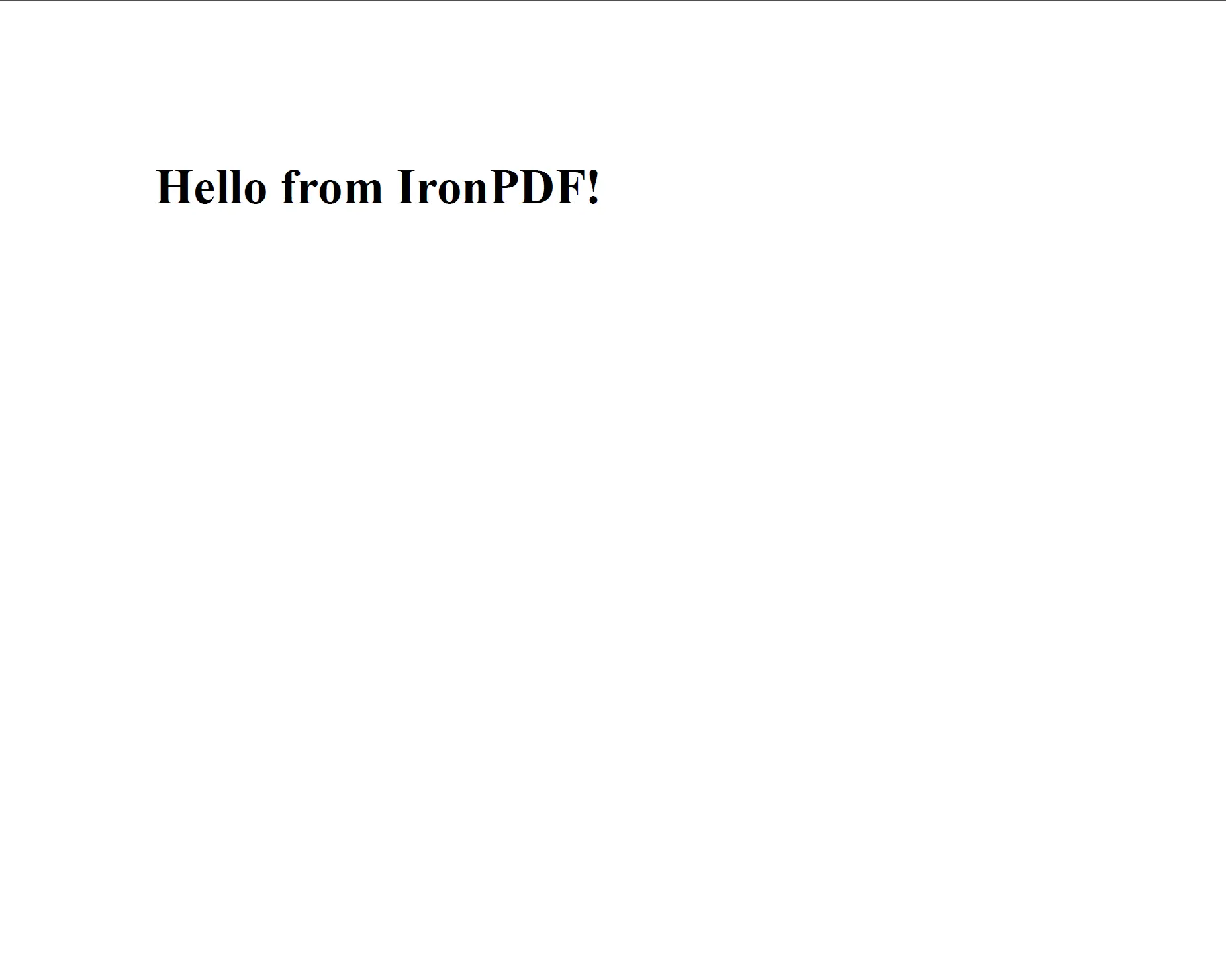
pdf = renderer.RenderHtmlAsPdf("<h1>Hello from IronPDF!</h1><p>Generated in Python.</p>")
pdf.SaveAs("hello.pdf")
```
<div class="content-img-align-center">
<div class="center-image-wrapper">
<a rel="nofollow" href="/static-assets/ironpdf-java/tutorials/html-to-pdf/html-to-pdf-5.webp" target="_blank"><img src="/static-assets/ironpdf-java/tutorials/html-to-pdf/html-to-pdf-5.webp" alt="PDF rendered from a simple HTML string showing a heading and paragraph" class="img-responsive add-shadow" /></a>
<p class="content__image-caption"><code>RenderHtmlAsPdf</code> processes HTML exactly as Chrome would, including CSS and JavaScript.</p>
</div>
</div>
The `ChromePdfRenderer` processes HTML, CSS, and JavaScript the same way a modern browser does. Any content that renders correctly in Chrome will produce an accurate PDF.
### HTML String with External Assets
When the HTML string references local assets (stylesheets, images, scripts), pass the directory path as the second argument to `RenderHtmlAsPdf`. IronPDF uses this path as the base URL when resolving relative references:
```python
from ironpdf import *
html_content = """
<html>
<head>
<title>Styled Report</title>
<link rel='stylesheet' href='assets/style.css'>
</head>
<body>
<h1>Monthly Report</h1>
<img src='assets/logo.png' alt='Company logo'>
<p>Data as of Q1 2024.</p>
</body>
</html>
"""
renderer = ChromePdfRenderer()
# The second argument sets the base path for resolving relative asset URLs
pdf = renderer.RenderHtmlAsPdf(html_content, "./")
pdf.SaveAs("styled-report.pdf")
```
<div class="content-img-align-center">
<div class="center-image-wrapper">
<a rel="nofollow" href="/static-assets/ironpdf-python/tutorials/html-to-pdf/html-to-pdf-html-string-to-pdf.webp" target="_blank"><img src="/static-assets/ironpdf-python/tutorials/html-to-pdf/html-to-pdf-html-string-to-pdf.webp" alt="PDF output from an HTML string that references external CSS and image assets" class="img-responsive add-shadow" /></a>
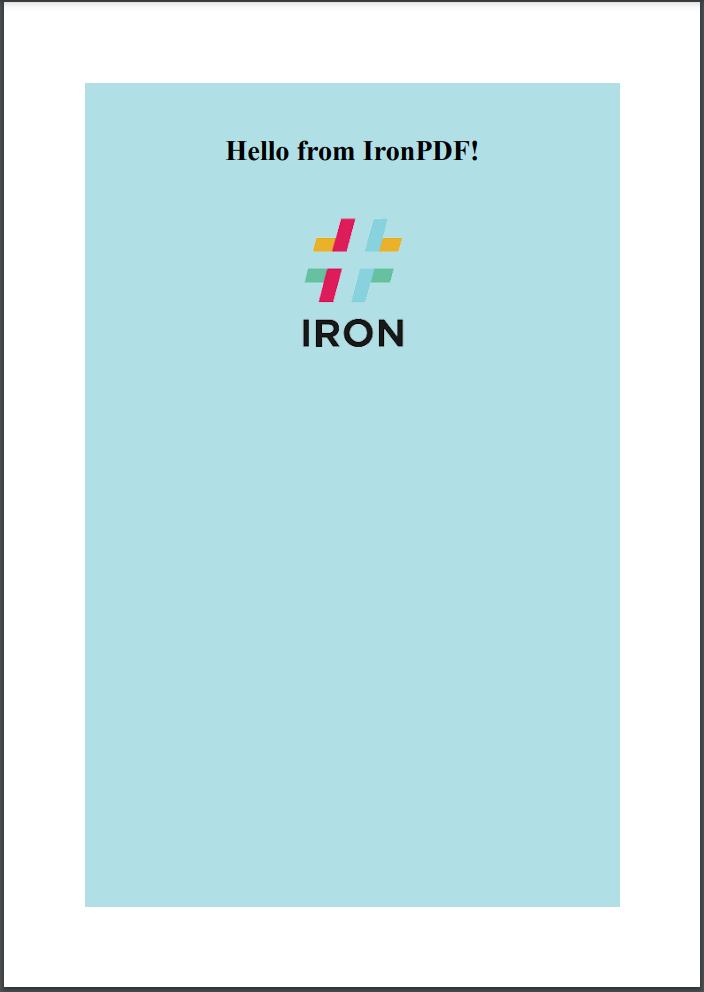
<p class="content__image-caption">External CSS and images load correctly when you supply a base path to <code>RenderHtmlAsPdf</code>.</p>
</div>
</div>
The base path can point to any local directory or a network share. Assets in subdirectories are resolved relative to it. For more patterns involving complex HTML strings, see the [HTML string to PDF code example](/python/examples/using-html-to-create-a-pdf/).
## How Do You Convert a URL to PDF?
The `RenderUrlAsPdf` method fetches a live URL, waits for the page to fully load (including any JavaScript-driven content) and converts the rendered result to PDF. This makes it suitable for capturing dashboards, reports, or any page where the final visual state depends on JavaScript execution.
```python
from ironpdf import *
renderer = ChromePdfRenderer()
# Fetch and convert a live web page to PDF
pdf = renderer.RenderUrlAsPdf("https://en.wikipedia.org/wiki/Portable_Document_Format")
pdf.SaveAs("wikipedia-pdf.pdf")
```
<div class="content-img-align-center">
<div class="center-image-wrapper">
<a rel="nofollow" href="/static-assets/ironpdf-java/tutorials/html-to-pdf/html-to-pdf-7.webp" target="_blank"><img src="/static-assets/ironpdf-java/tutorials/html-to-pdf/html-to-pdf-7.webp" alt="PDF generated from a Wikipedia article URL using IronPDF's RenderUrlAsPdf method" class="img-responsive add-shadow" /></a>
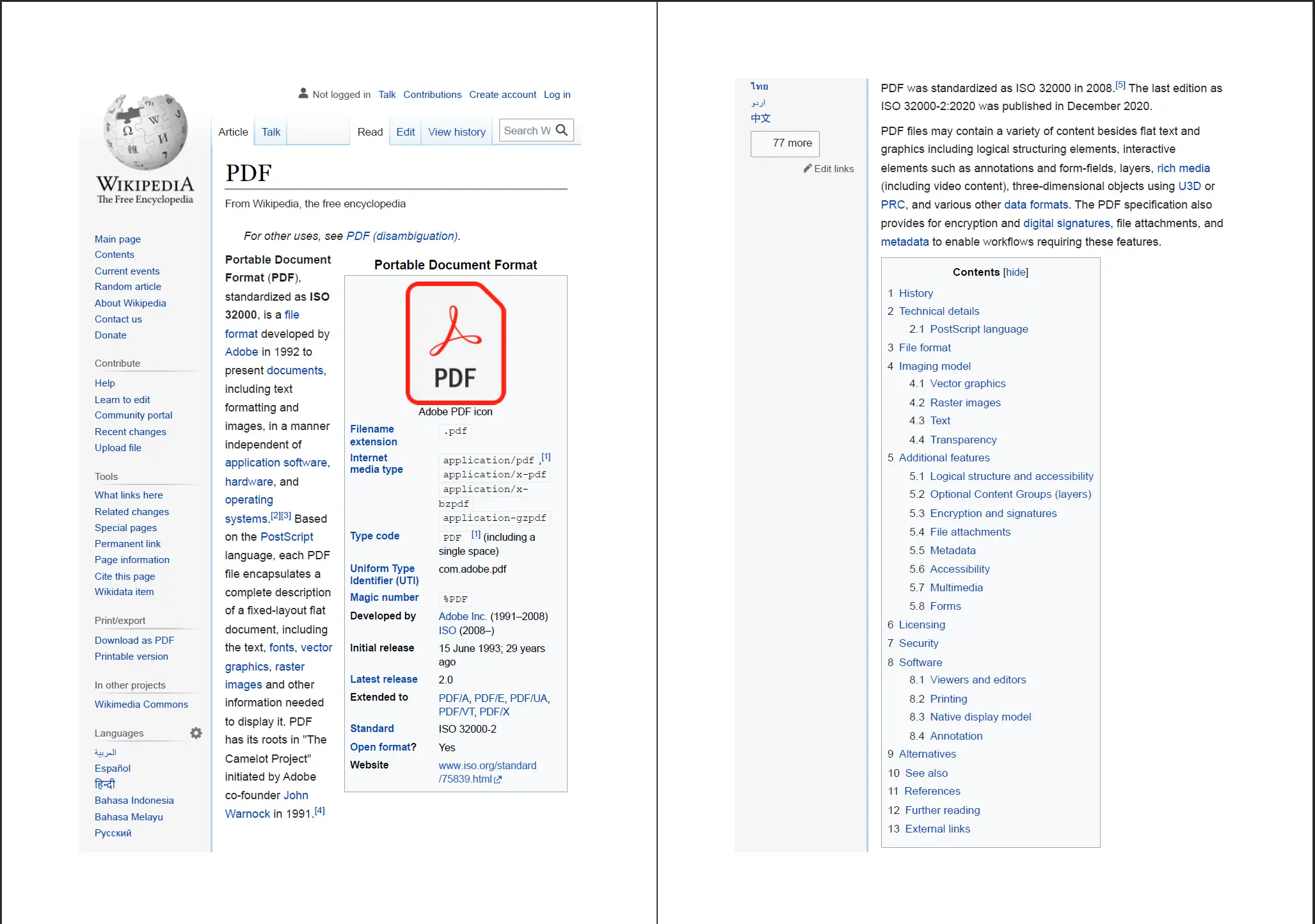
<p class="content__image-caption">IronPDF fetches the live URL and renders the full page (JavaScript included) before generating the PDF.</p>
</div>
</div>
[[t:(For pages that require authentication, set cookies or HTTP request headers on the `ChromePdfRenderer` instance before calling `RenderUrlAsPdf`. See the [HTTP login credentials guide](/python/examples/pdf-generation-settings/) for details.)]]
When the target page loads asynchronous content, IronPDF waits for the Chromium rendering engine to signal that the document is fully painted. For pages with heavy JavaScript or delayed network requests, consider adjusting `WaitFor` properties on `ChromePdfRenderOptions` (covered in the rendering options section below). The [URL to PDF code example](/python/examples/converting-a-url-to-a-pdf/) shows additional configuration patterns.
## How Do You Convert an HTML File to PDF?
`RenderHtmlFileAsPdf` accepts a path to a local HTML file and converts it directly. Relative paths inside the HTML (to CSS files, images, or JavaScript) are resolved against the HTML file's own directory automatically, so no base-path argument is needed.
```python
from ironpdf import *
renderer = ChromePdfRenderer()
# Convert a local HTML file (and its linked CSS/JS) to PDF
pdf = renderer.RenderHtmlFileAsPdf("invoices/TestInvoice1.html")
pdf.SaveAs("invoice.pdf")
```
This method is particularly useful for server-side document generation where an HTML template has already been written to disk, a common pattern when using Django or Flask to render Jinja2 templates to files before converting them to PDF for download.
IronPDF resolves any `<link>`, `<script>`, and `<img>` tags relative to the HTML file location, so linked stylesheets, embedded fonts, and images appear in the PDF exactly as they do in a browser. The process mirrors how `RenderHtmlAsPdf` handles inline assets, with the difference that no explicit base path needs to be supplied.
## How Do You Control PDF Rendering Options?
`ChromePdfRenderOptions` is the configuration object passed to `ChromePdfRenderer` (or directly to any of the render methods) to control page layout, margins, paper size, and other output characteristics. Setting options before conversion is the standard way to tailor the PDF output.
### Paper Size and Orientation
```python
from ironpdf import *
renderer = ChromePdfRenderer()
# Configure page layout before rendering
renderer.RenderingOptions.PaperSize = PdfPaperSize.A4
renderer.RenderingOptions.PaperOrientation = PdfPaperOrientation.Landscape
renderer.RenderingOptions.MarginTop = 20
renderer.RenderingOptions.MarginBottom = 20
renderer.RenderingOptions.MarginLeft = 15
renderer.RenderingOptions.MarginRight = 15
pdf = renderer.RenderHtmlAsPdf("<h1>Landscape Report</h1><p>Content here.</p>")
pdf.SaveAs("landscape-a4.pdf")
```
Margins are expressed in millimeters. `PdfPaperSize` supports all standard ISO sizes (A0 through A10, Letter, Legal, Tabloid) as well as `Custom` for arbitrary dimensions defined by `CustomPaperWidth` and `CustomPaperHeight`.
### Custom Paper Dimensions
When standard paper sizes don't match the output requirement (for example, a receipt or label printer format), define width and height explicitly:
```python
from ironpdf import *
renderer = ChromePdfRenderer()
# Set a custom paper size (in millimetres)
renderer.RenderingOptions.PaperSize = PdfPaperSize.Custom
renderer.RenderingOptions.CustomPaperWidth = 80 # 80 mm receipt roll width
renderer.RenderingOptions.CustomPaperHeight = 200
pdf = renderer.RenderHtmlAsPdf("<h2>Receipt</h2><p>Total: $12.50</p>")
pdf.SaveAs("receipt.pdf")
```
[[n:(Custom paper sizes are especially useful for thermal receipt printers and label formats such as 4×6 inch shipping labels.)]]
### Enabling JavaScript Execution
By default, IronPDF executes JavaScript during rendering. If a page relies on JavaScript to generate visible content (charts, data tables, dynamic form values), this behavior means the rendered PDF reflects the final DOM state. To disable JavaScript for pages where it is unnecessary:
```python
from ironpdf import *
renderer = ChromePdfRenderer()
# Disable JavaScript for static HTML pages
renderer.RenderingOptions.EnableJavaScript = False
pdf = renderer.RenderHtmlAsPdf("<p>Static content only.</p>")
pdf.SaveAs("static.pdf")
```
Disabling JavaScript reduces rendering time for simple, static HTML documents.
For more rendering configuration details, see [PDF generation settings](/python/examples/pdf-generation-settings/) and the [custom paper size example](/python/examples/custom-pdf-paper-size/).
## How Do You Add Custom Headers and Footers?
Headers and footers in IronPDF are applied through `HtmlHeaderFooter` or `TextHeaderFooter` objects attached to the renderer's `RenderingOptions`. `HtmlHeaderFooter` gives you full HTML and CSS control, ideal for branded letterheads with logos. `TextHeaderFooter` is simpler and covers most text-based requirements including dynamic page numbers.
### Text-Based Header and Footer
```python
from ironpdf import *
renderer = ChromePdfRenderer()
# Add a text header with the document title
renderer.RenderingOptions.TextHeader = TextHeaderFooter()
renderer.RenderingOptions.TextHeader.CenterText = "Quarterly Report — Q1 2024"
renderer.RenderingOptions.TextHeader.DrawDividerLine = True
renderer.RenderingOptions.TextHeader.FontSize = 10
# Add a footer with page numbers
renderer.RenderingOptions.TextFooter = TextHeaderFooter()
renderer.RenderingOptions.TextFooter.RightText = "Page {page} of {total-pages}"
renderer.RenderingOptions.TextFooter.FontSize = 9
renderer.RenderingOptions.TextFooter.DrawDividerLine = True
html = "<h1>Executive Summary</h1><p>Revenue increased 12% year-over-year.</p>"
pdf = renderer.RenderHtmlAsPdf(html)
pdf.SaveAs("report-with-footer.pdf")
```
The `{page}` and `{total-pages}` placeholders are replaced at render time with the correct values. Other available placeholders include `{date}`, `{time}`, and `{url}`.
### HTML-Based Header with Logo
When a branded header is required (a company logo, a color band, or a formatted address block), use `HtmlHeaderFooter` instead:
```python
from ironpdf import *
renderer = ChromePdfRenderer()
header_html = """
<div style="font-family: Arial, sans-serif; border-bottom: 2px solid #003366; padding: 8px 0;">
<img src='assets/logo.png' style='height: 40px; float: left;' alt='Company logo'>
<span style='float: right; font-size: 11px; color: #666;'>Confidential</span>
<div style='clear:both;'></div>
</div>
"""
renderer.RenderingOptions.HtmlHeader = HtmlHeaderFooter()
renderer.RenderingOptions.HtmlHeader.HtmlFragment = header_html
renderer.RenderingOptions.HtmlHeader.BaseUrl = "./"
html_body = "<h1>Project Status Update</h1><p>All milestones on track.</p>"
pdf = renderer.RenderHtmlAsPdf(html_body, "./")
pdf.SaveAs("branded-report.pdf")
```
[[i:(Set `BaseUrl` on `HtmlHeaderFooter` to the same base path used for the document body. This ensures images and stylesheets referenced inside the header HTML resolve correctly.)]]
The header and footer appear on every page of the generated PDF, including multi-page documents. For a working example with page-level metadata in the footer, see the [HTML headers and footers code example](/python/examples/html-headers-and-footers/).
### Margin Adjustments for Headers and Footers
When adding a header or footer, increase the corresponding margin so the content doesn't overlap the page body:
```python
from ironpdf import *
renderer = ChromePdfRenderer()
renderer.RenderingOptions.MarginTop = 30 # Make room for header
renderer.RenderingOptions.MarginBottom = 20 # Make room for footer
renderer.RenderingOptions.TextHeader = TextHeaderFooter()
renderer.RenderingOptions.TextHeader.CenterText = "Internal Use Only"
renderer.RenderingOptions.TextFooter = TextHeaderFooter()
renderer.RenderingOptions.TextFooter.CenterText = "Page {page} of {total-pages}"
pdf = renderer.RenderHtmlAsPdf("<h1>Internal Document</h1><p>Body content.</p>")
pdf.SaveAs("margined-report.pdf")
```
For layout-critical documents, combine margin adjustments with `PaperSize` settings to match the output exactly to a print specification. Additional layout controls (such as `IronSoftwareSystemDrawingColor` background fills and CSS `@page` rules) are detailed in the [custom margins example](/python/examples/ironpdf-set-custom-margins/).
<hr class="separator" />
## What Are the Next Steps?
This tutorial covered the three core HTML-to-PDF conversion methods and the rendering options that control their output. The following guides build on this foundation and cover more specialized tasks:
- **[PDF Generation Settings](/python/examples/pdf-generation-settings/)**: Deep dive into `ChromePdfRenderOptions`: DPI, background rendering, CSS media type, JavaScript wait strategies, and print vs. screen mode.
- **[HTML Headers and Footers](/python/examples/html-headers-and-footers/)**: Branded header and footer templates with logos, page numbers, dates, and multi-column layouts.
- **[Custom Margins and Paper Size](/python/examples/ironpdf-set-custom-margins/)**: Fine-tune page geometry for print-ready output and non-standard formats.
- **[Add Watermarks to PDFs](/python/examples/pdf-watermarking/)**: Stamp text or image watermarks onto existing or newly generated PDFs.
- **[Extract Text from PDFs](/python/examples/extract-pdf-text/)**: Read text content from generated or existing PDFs programmatically.
[Start a free 30-day trial](https://ironpdf.com/python/#trial-license) to generate unlimited, watermark-free PDFs during evaluation. When ready for production, view [licensing options](/python/licensing/) for teams and enterprise deployments.
IronPDF gives Python developers a direct path from HTML markup to production-ready PDF files. No intermediate design tools, no proprietary layout engines, no separate rendering pipeline. The library's ChromePdfRenderer class uses a Chromium-based engine under the hood, so any HTML that displays correctly in Chrome will convert accurately to PDF. This tutorial walks through every supported conversion method (HTML strings, local HTML files, and live URLs) and then covers the rendering options that let you control page size, margins, headers, footers, and more.
IronPDF is distributed via pip, Python's standard package manager. Run the following command in a terminal to install the latest version:
> pip install ironpdf
pip install ironpdf
To pin a specific release (useful in CI pipelines or containerized environments) append the version number:
> pip install ironpdf==2026.7.0.2
pip install ironpdf==2026.7.0.2
Please note: IronPDF for Python is built on top of the IronPDF .NET library and requires the .NET 6.0 SDK or later. Install the SDK before running any IronPDF Python code.
The first time IronPDF initializes, it downloads a compatible Chromium binary. This download takes a moment on a fresh machine but only happens once per environment. Subsequent runs start up much faster because the binary is cached locally.
How-To Guide and Code Examples
How Do You Configure IronPDF Before Converting?
Two setup tasks are worth completing before the first conversion call: setting a license key and, optionally, configuring a log file location.
Importing the Package
Every Python file that uses IronPDF needs this single import line. Place it at the top of the file:
from ironpdf import *
from ironpdf import *
Python
All IronPDF classes (ChromePdfRenderer, PdfDocument, License, Logger, and the rest) become available through this wildcard import.
Setting a License Key
Without a license key, IronPDF adds a tiled watermark to every generated PDF. The watermark is suitable for development and testing, but production deployments require a valid key.
PDFs generated without a license key include a tiled watermark. Visit the licensing page to obtain a key.
Set the key before any other IronPDF calls:
from ironpdf import *# Set the license key before any PDF operationsLicense.LicenseKey = "IRONPDF-MYLICENSE-KEY-1EF01"
from ironpdf import *

# Set the license key before any PDF operations
License.LicenseKey = "IRONPDF-MYLICENSE-KEY-1EF01"
IronPDF writes diagnostic output to a file named Default.log in the script's working directory. To redirect logging to a different path or capture more detail for debugging, set the Logger properties before the first conversion:
from ironpdf import *# Configure logging before running any conversionsLogger.EnableDebugging = TrueLogger.LogFilePath = "ironpdf-debug.log"Logger.LoggingMode = Logger.LoggingModes.All
from ironpdf import *

# Configure logging before running any conversions
Logger.EnableDebugging = True
Logger.LogFilePath = "ironpdf-debug.log"
Logger.LoggingMode = Logger.LoggingModes.All
Python
Please note: Logger.LogFilePath must be set before the first PDF conversion call. Changes made afterward have no effect on the current session.
Detailed logs are most useful when diagnosing why a particular HTML page doesn't render as expected; they capture network requests, CSS loading events, and JavaScript execution timing.
How Do You Convert an HTML String to PDF?
Converting an in-memory HTML string is the most direct approach and works well when the HTML is generated programmatically, for example, from a Jinja2 template or a database-driven report.
Basic HTML String Conversion
Instantiate ChromePdfRenderer, pass the HTML string to RenderHtmlAsPdf, and call SaveAs on the returned PdfDocument:
from ironpdf import *renderer = ChromePdfRenderer()# Convert an HTML string to a PDF documentpdf = renderer.RenderHtmlAsPdf("<h1>Hello from IronPDF!</h1><p>Generated in Python.</p>")pdf.SaveAs("hello.pdf")
from ironpdf import *

renderer = ChromePdfRenderer()

# Convert an HTML string to a PDF document
pdf = renderer.RenderHtmlAsPdf("<h1>Hello from IronPDF!</h1><p>Generated in Python.</p>")

pdf.SaveAs("hello.pdf")
Python
RenderHtmlAsPdf processes HTML exactly as Chrome would, including CSS and JavaScript.
The ChromePdfRenderer processes HTML, CSS, and JavaScript the same way a modern browser does. Any content that renders correctly in Chrome will produce an accurate PDF.
HTML String with External Assets
When the HTML string references local assets (stylesheets, images, scripts), pass the directory path as the second argument to RenderHtmlAsPdf. IronPDF uses this path as the base URL when resolving relative references:
from ironpdf import *html_content = """<html> <head> <title>Styled Report</title> <link rel='stylesheet' href='assets/style.css'> </head> <body> <h1>Monthly Report</h1> <img src='assets/logo.png' alt='Company logo'> <p>Data as of Q1 2024.</p> </body></html>"""renderer = ChromePdfRenderer()# The second argument sets the base path for resolving relative asset URLspdf = renderer.RenderHtmlAsPdf(html_content, "./")pdf.SaveAs("styled-report.pdf")
from ironpdf import *

html_content = """
<html>
  <head>
    <title>Styled Report</title>
    <link rel='stylesheet' href='assets/style.css'>
  </head>
  <body>
    <h1>Monthly Report</h1>
    <img src='assets/logo.png' alt='Company logo'>
    <p>Data as of Q1 2024.</p>
  </body>
</html>
"""

renderer = ChromePdfRenderer()

# The second argument sets the base path for resolving relative asset URLs
pdf = renderer.RenderHtmlAsPdf(html_content, "./")

pdf.SaveAs("styled-report.pdf")
Python
External CSS and images load correctly when you supply a base path to RenderHtmlAsPdf.
The base path can point to any local directory or a network share. Assets in subdirectories are resolved relative to it. For more patterns involving complex HTML strings, see the HTML string to PDF code example.
How Do You Convert a URL to PDF?
The RenderUrlAsPdf method fetches a live URL, waits for the page to fully load (including any JavaScript-driven content) and converts the rendered result to PDF. This makes it suitable for capturing dashboards, reports, or any page where the final visual state depends on JavaScript execution.
from ironpdf import *renderer = ChromePdfRenderer()# Fetch and convert a live web page to PDFpdf = renderer.RenderUrlAsPdf("https://en.wikipedia.org/wiki/Portable_Document_Format")pdf.SaveAs("wikipedia-pdf.pdf")
from ironpdf import *

renderer = ChromePdfRenderer()

# Fetch and convert a live web page to PDF
pdf = renderer.RenderUrlAsPdf("https://en.wikipedia.org/wiki/Portable_Document_Format")

pdf.SaveAs("wikipedia-pdf.pdf")
Python
IronPDF fetches the live URL and renders the full page (JavaScript included) before generating the PDF.
Tips: For pages that require authentication, set cookies or HTTP request headers on the ChromePdfRenderer instance before calling RenderUrlAsPdf. See the HTTP login credentials guide for details.
When the target page loads asynchronous content, IronPDF waits for the Chromium rendering engine to signal that the document is fully painted. For pages with heavy JavaScript or delayed network requests, consider adjusting WaitFor properties on ChromePdfRenderOptions (covered in the rendering options section below). The URL to PDF code example shows additional configuration patterns.
How Do You Convert an HTML File to PDF?
RenderHtmlFileAsPdf accepts a path to a local HTML file and converts it directly. Relative paths inside the HTML (to CSS files, images, or JavaScript) are resolved against the HTML file's own directory automatically, so no base-path argument is needed.
from ironpdf import *renderer = ChromePdfRenderer()# Convert a local HTML file (and its linked CSS/JS) to PDFpdf = renderer.RenderHtmlFileAsPdf("invoices/TestInvoice1.html")pdf.SaveAs("invoice.pdf")
from ironpdf import *

renderer = ChromePdfRenderer()

# Convert a local HTML file (and its linked CSS/JS) to PDF
pdf = renderer.RenderHtmlFileAsPdf("invoices/TestInvoice1.html")

pdf.SaveAs("invoice.pdf")
Python
This method is particularly useful for server-side document generation where an HTML template has already been written to disk, a common pattern when using Django or Flask to render Jinja2 templates to files before converting them to PDF for download.
IronPDF resolves any <link>, <script>, and <img> tags relative to the HTML file location, so linked stylesheets, embedded fonts, and images appear in the PDF exactly as they do in a browser. The process mirrors how RenderHtmlAsPdf handles inline assets, with the difference that no explicit base path needs to be supplied.
How Do You Control PDF Rendering Options?
ChromePdfRenderOptions is the configuration object passed to ChromePdfRenderer (or directly to any of the render methods) to control page layout, margins, paper size, and other output characteristics. Setting options before conversion is the standard way to tailor the PDF output.
Margins are expressed in millimeters. PdfPaperSize supports all standard ISO sizes (A0 through A10, Letter, Legal, Tabloid) as well as Custom for arbitrary dimensions defined by CustomPaperWidth and CustomPaperHeight.
Custom Paper Dimensions
When standard paper sizes don't match the output requirement (for example, a receipt or label printer format), define width and height explicitly:
from ironpdf import *renderer = ChromePdfRenderer()# Set a custom paper size (in millimetres)renderer.RenderingOptions.PaperSize = PdfPaperSize.Customrenderer.RenderingOptions.CustomPaperWidth = 80 # 80 mm receipt roll widthrenderer.RenderingOptions.CustomPaperHeight = 200pdf = renderer.RenderHtmlAsPdf("<h2>Receipt</h2><p>Total: $12.50</p>")pdf.SaveAs("receipt.pdf")
from ironpdf import *

renderer = ChromePdfRenderer()

# Set a custom paper size (in millimetres)
renderer.RenderingOptions.PaperSize = PdfPaperSize.Custom
renderer.RenderingOptions.CustomPaperWidth = 80   # 80 mm receipt roll width
renderer.RenderingOptions.CustomPaperHeight = 200

pdf = renderer.RenderHtmlAsPdf("<h2>Receipt</h2><p>Total: $12.50</p>")
pdf.SaveAs("receipt.pdf")
Python
Important: Custom paper sizes are especially useful for thermal receipt printers and label formats such as 4×6 inch shipping labels.
Enabling JavaScript Execution
By default, IronPDF executes JavaScript during rendering. If a page relies on JavaScript to generate visible content (charts, data tables, dynamic form values), this behavior means the rendered PDF reflects the final DOM state. To disable JavaScript for pages where it is unnecessary:
from ironpdf import *renderer = ChromePdfRenderer()# Disable JavaScript for static HTML pagesrenderer.RenderingOptions.EnableJavaScript = Falsepdf = renderer.RenderHtmlAsPdf("<p>Static content only.</p>")pdf.SaveAs("static.pdf")
from ironpdf import *

renderer = ChromePdfRenderer()

# Disable JavaScript for static HTML pages
renderer.RenderingOptions.EnableJavaScript = False

pdf = renderer.RenderHtmlAsPdf("<p>Static content only.</p>")
pdf.SaveAs("static.pdf")
Python
Disabling JavaScript reduces rendering time for simple, static HTML documents.
Headers and footers in IronPDF are applied through HtmlHeaderFooter or TextHeaderFooter objects attached to the renderer's RenderingOptions. HtmlHeaderFooter gives you full HTML and CSS control, ideal for branded letterheads with logos. TextHeaderFooter is simpler and covers most text-based requirements including dynamic page numbers.
Text-Based Header and Footer
from ironpdf import *renderer = ChromePdfRenderer()# Add a text header with the document titlerenderer.RenderingOptions.TextHeader = TextHeaderFooter()renderer.RenderingOptions.TextHeader.CenterText = "Quarterly Report — Q1 2024"renderer.RenderingOptions.TextHeader.DrawDividerLine = Truerenderer.RenderingOptions.TextHeader.FontSize = 10# Add a footer with page numbersrenderer.RenderingOptions.TextFooter = TextHeaderFooter()renderer.RenderingOptions.TextFooter.RightText = "Page {page} of {total-pages}"renderer.RenderingOptions.TextFooter.FontSize = 9renderer.RenderingOptions.TextFooter.DrawDividerLine = Truehtml = "<h1>Executive Summary</h1><p>Revenue increased 12% year-over-year.</p>"pdf = renderer.RenderHtmlAsPdf(html)pdf.SaveAs("report-with-footer.pdf")
from ironpdf import *

renderer = ChromePdfRenderer()

# Add a text header with the document title
renderer.RenderingOptions.TextHeader = TextHeaderFooter()
renderer.RenderingOptions.TextHeader.CenterText = "Quarterly Report — Q1 2024"
renderer.RenderingOptions.TextHeader.DrawDividerLine = True
renderer.RenderingOptions.TextHeader.FontSize = 10

# Add a footer with page numbers
renderer.RenderingOptions.TextFooter = TextHeaderFooter()
renderer.RenderingOptions.TextFooter.RightText = "Page {page} of {total-pages}"
renderer.RenderingOptions.TextFooter.FontSize = 9
renderer.RenderingOptions.TextFooter.DrawDividerLine = True

html = "<h1>Executive Summary</h1><p>Revenue increased 12% year-over-year.</p>"
pdf = renderer.RenderHtmlAsPdf(html)
pdf.SaveAs("report-with-footer.pdf")
Python
The {page} and {total-pages} placeholders are replaced at render time with the correct values. Other available placeholders include {date}, {time}, and {url}.
HTML-Based Header with Logo
When a branded header is required (a company logo, a color band, or a formatted address block), use HtmlHeaderFooter instead:
Please note: Set BaseUrl on HtmlHeaderFooter to the same base path used for the document body. This ensures images and stylesheets referenced inside the header HTML resolve correctly.
The header and footer appear on every page of the generated PDF, including multi-page documents. For a working example with page-level metadata in the footer, see the HTML headers and footers code example.
Margin Adjustments for Headers and Footers
When adding a header or footer, increase the corresponding margin so the content doesn't overlap the page body:
from ironpdf import *renderer = ChromePdfRenderer()renderer.RenderingOptions.MarginTop = 30 # Make room for headerrenderer.RenderingOptions.MarginBottom = 20 # Make room for footerrenderer.RenderingOptions.TextHeader = TextHeaderFooter()renderer.RenderingOptions.TextHeader.CenterText = "Internal Use Only"renderer.RenderingOptions.TextFooter = TextHeaderFooter()renderer.RenderingOptions.TextFooter.CenterText = "Page {page} of {total-pages}"pdf = renderer.RenderHtmlAsPdf("<h1>Internal Document</h1><p>Body content.</p>")pdf.SaveAs("margined-report.pdf")
from ironpdf import *

renderer = ChromePdfRenderer()

renderer.RenderingOptions.MarginTop = 30     # Make room for header
renderer.RenderingOptions.MarginBottom = 20  # Make room for footer

renderer.RenderingOptions.TextHeader = TextHeaderFooter()
renderer.RenderingOptions.TextHeader.CenterText = "Internal Use Only"

renderer.RenderingOptions.TextFooter = TextHeaderFooter()
renderer.RenderingOptions.TextFooter.CenterText = "Page {page} of {total-pages}"

pdf = renderer.RenderHtmlAsPdf("<h1>Internal Document</h1><p>Body content.</p>")
pdf.SaveAs("margined-report.pdf")
Python
For layout-critical documents, combine margin adjustments with PaperSize settings to match the output exactly to a print specification. Additional layout controls (such as IronSoftwareSystemDrawingColor background fills and CSS @page rules) are detailed in the custom margins example.
What Are the Next Steps?
This tutorial covered the three core HTML-to-PDF conversion methods and the rendering options that control their output. The following guides build on this foundation and cover more specialized tasks:
PDF Generation Settings: Deep dive into ChromePdfRenderOptions: DPI, background rendering, CSS media type, JavaScript wait strategies, and print vs. screen mode.
HTML Headers and Footers: Branded header and footer templates with logos, page numbers, dates, and multi-column layouts.
Add Watermarks to PDFs: Stamp text or image watermarks onto existing or newly generated PDFs.
Extract Text from PDFs: Read text content from generated or existing PDFs programmatically.
Start a free 30-day trial to generate unlimited, watermark-free PDFs during evaluation. When ready for production, view licensing options for teams and enterprise deployments.
Frequently Asked Questions
What is the purpose of IronPDF in Python?
IronPDF provides a straightforward way for Python developers to convert HTML markup directly into production-ready PDF files. Utilizing a Chromium-based engine, it ensures accurate conversions of HTML to PDF.
How do you convert HTML strings to PDF with IronPDF in Python?
To convert HTML strings to PDF, you use the `ChromePdfRenderer` class. Call the `RenderHtmlAsPdf` function with the HTML string and then save the document using the `SaveAs` method.
How can you convert a URL to a PDF using IronPDF?
Use the `RenderUrlAsPdf` method from the `ChromePdfRenderer` class. This method fetches a live URL, waits for the page to fully load, and converts the rendered page to a PDF document.
How do you handle external assets when converting HTML to PDF?
When converting HTML that references local assets, provide a base path using the second argument in the `RenderHtmlAsPdf` method. This helps IronPDF resolve asset paths correctly.
How do you configure PDF rendering options in IronPDF?
PDF rendering options are configured using `ChromePdfRenderOptions`. You can set parameters for page layout, margins, paper size, and enabling or disabling JavaScript execution.
What is necessary before starting an IronPDF conversion in Python?
Before starting a conversion, it is important to set a license key to avoid a watermark and configure any necessary log output settings with IronPDF.
How do you add custom headers and footers in PDFs created with IronPDF?
IronPDF allows you to add headers and footers through `HtmlHeaderFooter` or `TextHeaderFooter` objects. These can include text, images, page numbers, and more.
What are some use cases for custom paper sizes in IronPDF?
Custom paper sizes are useful for formats not supported by standard sizes, like thermal printer receipts or shipping labels.
Can IronPDF execute JavaScript during PDF conversion?
Yes, IronPDF can execute JavaScript during the rendering process to ensure that any dynamic content generated by JavaScript is included in the final PDF.
How can you start using IronPDF in Python?
You can install IronPDF using pip, configure any necessary options like license keys or logging, and then utilize functionalities like `RenderHtmlAsPdf` to convert HTML to PDFs.
Curtis Chau holds a Bachelor’s degree in Computer Science (Carleton University) and specializes in front-end development with expertise in Node.js, TypeScript, JavaScript, and React. Passionate about crafting intuitive and aesthetically pleasing user interfaces, Curtis enjoys working with modern frameworks and creating well-structured, visually appealing manuals.