
How to Convert a PDF to an Image File in Node.js

IronPDF for Node.js converts PDF pages to images with a single method call. The rasterizeToImageFiles method produces PNG, JPG, GIF, BMP, and other formats from any PDF -- single-page or multi-page -- with direct control over output resolution and page selection.
The method automatically detects the output format from the file extension you supply, so switching between formats requires no configuration changes. For environments where the extension cannot be changed, an explicit ImageType enum value overrides the extension-based detection. The IronPDF Node.js documentation covers the full range of supported input sources, including file paths, byte buffers, and HTML strings converted to PDF before rasterization.
- Install IronPDF:
npm install @ironsoftware/ironpdf - Import
PdfDocumentfrom the package - Load your PDF with
PdfDocument.fromFile() - Call
rasterizeToImageFiles()with the output path
import { PdfDocument } from "@ironsoftware/ironpdf";

PdfDocument.fromFile("./sample.pdf").then((pdf) => {
    pdf.rasterizeToImageFiles("./output.png");
});Minimal Workflow (5 steps)
- Install IronPDF for Node.js via npm
- Import the
PdfDocumentclass - Load a PDF file using
PdfDocument.fromFile() - Call
rasterizeToImageFiles()with the desired output path and extension - For multi-page PDFs, the method appends page numbers to each output filename automatically
How Do I Install IronPDF for Node.js?
Install IronPDF's Node.js package from npm to convert PDFs to PNG, JPG, GIF, BMP, and other image formats.
Before converting PDFs to images in production, configure your license key. The package also requires the IronPDF Engine to be installed on your system - this binary handles all PDF rendering operations and must be present for conversion to function.
What Are the System Requirements?
Node.js 12 or later is required. The IronPDF Engine binary is downloaded automatically the first time the package loads, but you can also install it manually if your deployment environment restricts outbound network access. The @ironsoftware/ironpdf package is available on the npm registry and carries no native module compilation step, which keeps CI pipelines straightforward.
How Do I Convert a PDF to an Image?
The rasterizeToImageFiles method reads a PDF document and writes one image file per page to the output path you provide. For single-page PDFs, it produces exactly one image. For multi-page PDFs, it appends a page number suffix to each filename automatically.
The example below loads a sample PDF from Learning Container and converts it to a PNG file.
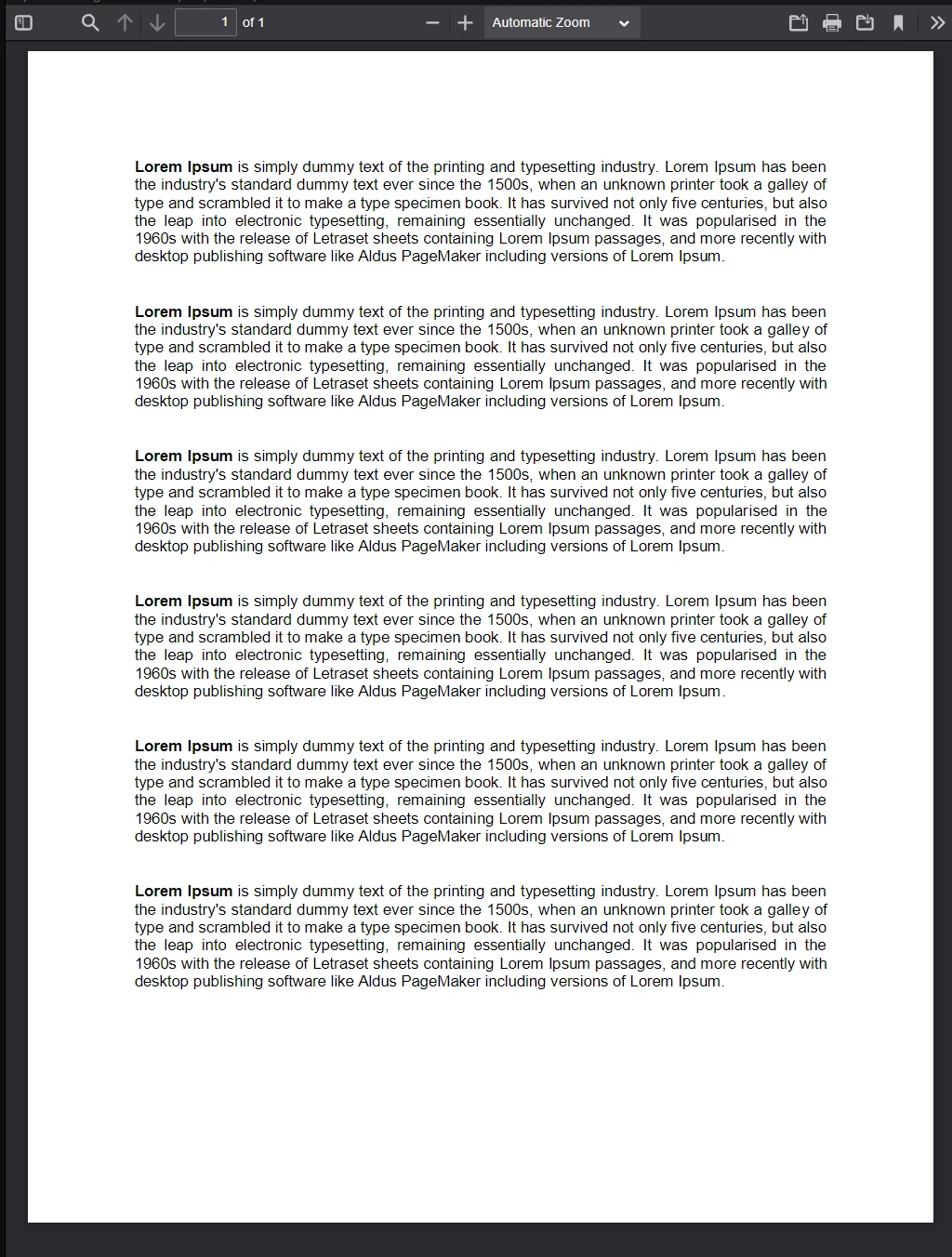
The image above shows the one-page Lorem Ipsum sample PDF used as input, opened in a viewer. Download this and other test PDFs from Learning Container.
import { PdfDocument } from "@ironsoftware/ironpdf";

// Load the PDF and convert it to a PNG image.
// The output path determines the format — change .png to .jpg for JPEG output.
PdfDocument.fromFile("./sample-pdf-file.pdf").then((pdf) => {
    pdf.rasterizeToImageFiles("./images/sample-pdf-file.png");
    return pdf;
}).catch((error) => {
    console.error("Error converting PDF to image:", error);
});PdfDocument.fromFile loads the PDF and returns a Promise resolving to a PdfDocument object. The .then callback receives the resolved document and calls rasterizeToImageFiles with the destination path. The file extension in the path - .png here - tells IronPDF which format to produce. The .catch block handles any read or conversion errors.
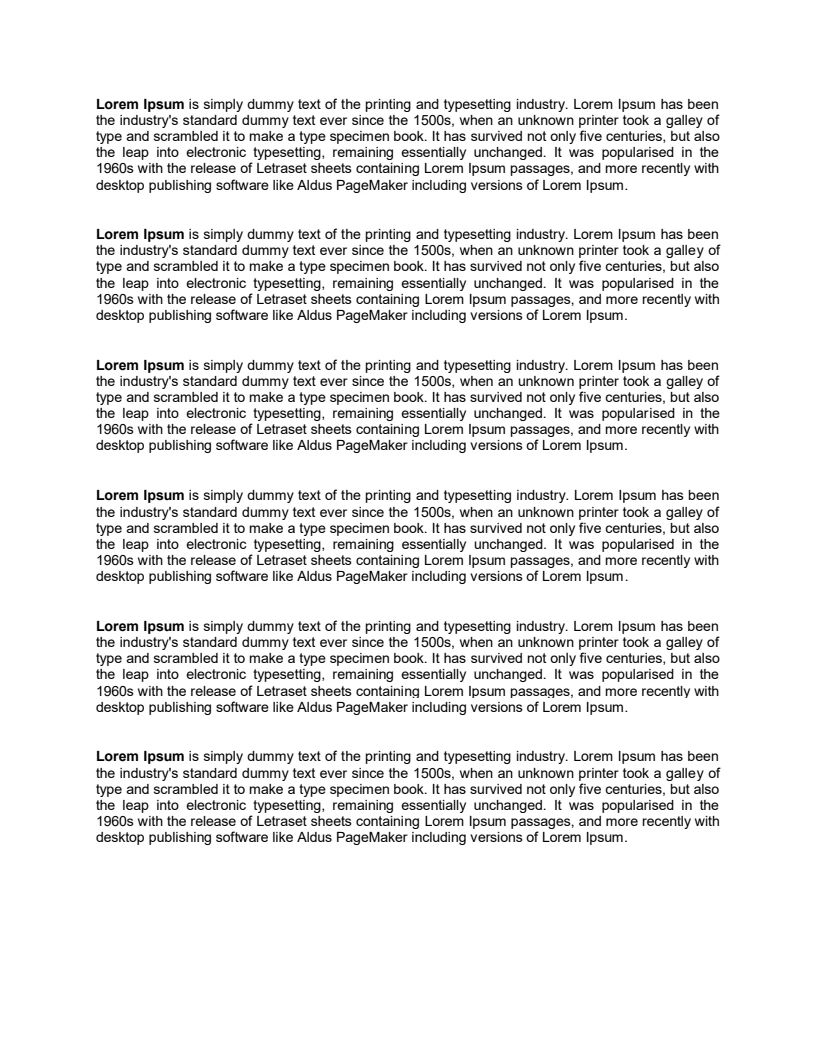
Above is the PNG rendered from the sample PDF — IronPDF converts the document in three lines of code.
For more detailed examples of this method's options, see the PDF to Images code example page.
How Do I Convert a PDF to JPEG Format?
Format selection is automatic: whatever extension you pass to rasterizeToImageFiles determines the output format. To produce a JPEG instead of a PNG, change the extension in the destination path:
// Switch to JPEG by changing the file extension in the output path.
pdf.rasterizeToImageFiles("./images/pdf-to-jpeg.jpg");When the output filename cannot be controlled - for example, in automated pipelines with fixed naming schemes - pass an ImageType value in the options object to override extension-based detection:
import { PdfDocument, ImageType } from "@ironsoftware/ironpdf";

// ImageType.JPG forces JPEG output regardless of the file extension.
const options = {
    type: ImageType.JPG,
    dpi: 300
};
PdfDocument.fromFile("./sample-pdf-file.pdf").then((pdf) => {
    pdf.rasterizeToImageFiles("./images/output.png", options);
    return pdf;
});The type property in the options object takes precedence over the filename extension. In the example above, rasterizeToImageFiles produces a JPEG file even though the destination path ends with .png. The same pattern applies to GIF and BMP outputs.
How Do DPI Settings Affect Output Quality?
The dpi property in the options object controls the pixel density of the rasterized output. Higher values produce larger files with more detail; lower values reduce file size at the cost of sharpness.
dpi: 300 produces print-quality images suitable for high-resolution printing or archiving. For screen display or thumbnail generation, dpi: 96 reduces file size while maintaining adequate clarity for web use.A DPI of 150 is a reasonable default for most archive or preview scenarios - the output is crisp enough for reading on screen and the file sizes remain manageable. For content that will be printed or subjected to OCR processing after conversion, 300 DPI or higher is preferred.
How Do I Convert a Multi-Page PDF to Images?
For documents with more than one page, rasterizeToImageFiles creates one image per page. IronPDF appends a zero-based page index to each output filename, keeping the output organized without additional code on your part.
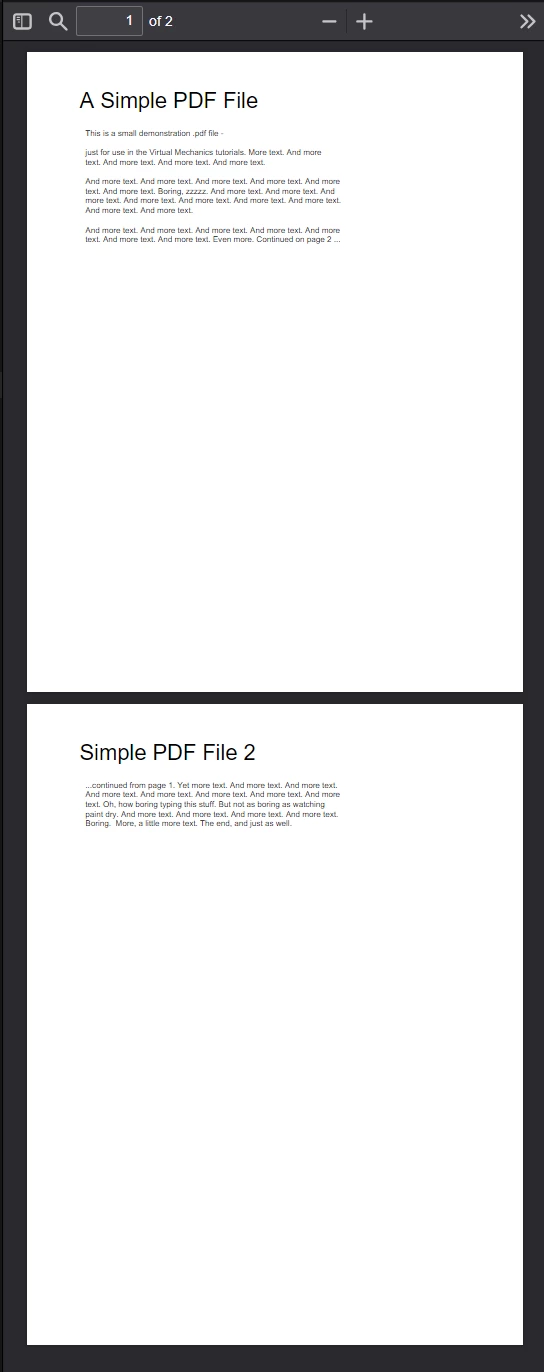
The image above shows a two-page sample PDF open in a viewer; IronPDF creates one image file per page during conversion.
import { PdfDocument } from "@ironsoftware/ironpdf";

// Each page of the PDF becomes a separate image file.
// Output filenames: multipage-pdf-page_1.png, multipage-pdf-page_2.png, etc.
PdfDocument.fromFile("./multipage-pdf.pdf").then((pdf) => {
    pdf.rasterizeToImageFiles("./images/multipage-pdf/multipage-pdf-page.png");
});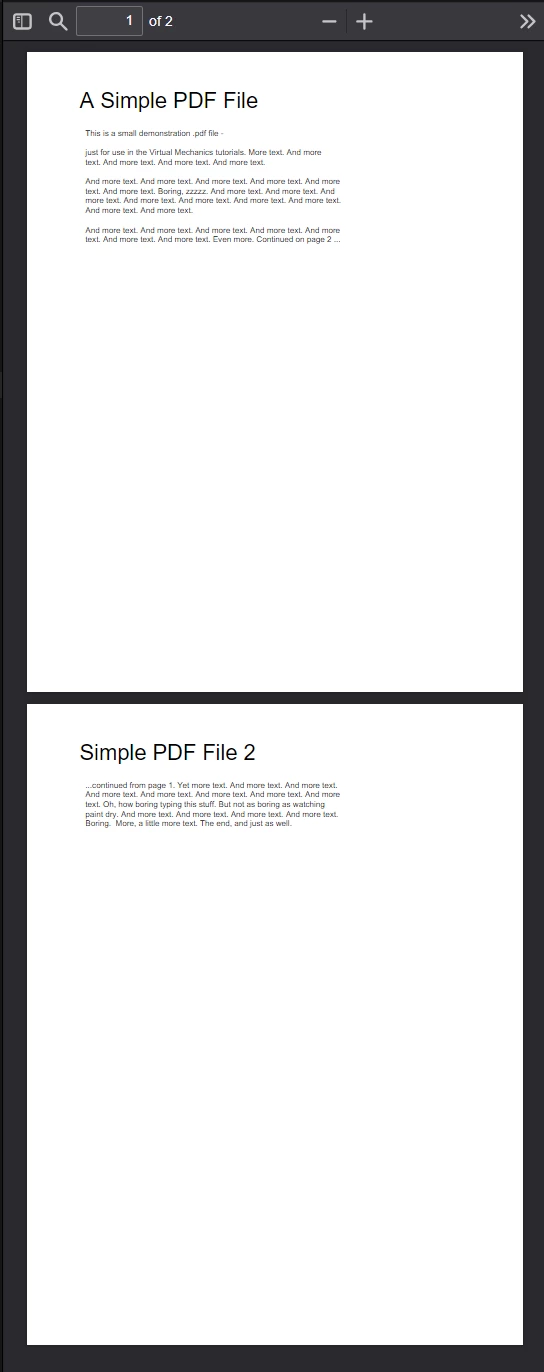
Above are the two PNG files produced from the two-page PDF; IronPDF names each output file with its page number.
This automatic page-splitting behavior works with all supported image formats. Pair it with the fromPages option in the next section to convert only specific pages from large documents. For working in the opposite direction, the image to PDF example shows how to combine multiple image files into a single PDF document.
How Are Output Filenames Structured?
The filename pattern uses a one-based page number appended before the file extension. If the output path is ./images/report-page.png, a three-page PDF produces report-page_1.png, report-page_2.png, and report-page_3.png. The output directory must exist before calling rasterizeToImageFiles - the method does not create missing directories automatically.
rasterizeToImageFiles. The method throws an error if the target directory does not exist. Use Node.js's fs.mkdirSync('./images/output', { recursive: true }) to create it in advance.How Do I Convert Only Specific Pages?
The fromPages property in the options object accepts an array of zero-based page indexes. Only the specified pages are rasterized; all others are skipped. This is useful when working with large PDFs where only a subset of pages is needed - for instance, extracting cover and section-start pages for a document preview. When you need to work with individual pages before converting them, the Node.js API reference for PdfDocument documents additional page-level operations.
import { PdfDocument, ImageType } from "@ironsoftware/ironpdf";

// Convert only pages 1, 4, 6, and 9 (zero-indexed: 0, 3, 5, 8) to BMP.
const options = {
    type: ImageType.BMP,
    fromPages: [0, 3, 5, 8],
    dpi: 150
};
PdfDocument.fromFile("./sample-pdf-with-images.pdf").then((pdf) => {
    pdf.rasterizeToImageFiles(
        "./images/multipage-selective-pdf/multipage-pdf-page.bmp",
        options
    );
}).catch((error) => {
    console.error("Failed to convert pages:", error);
});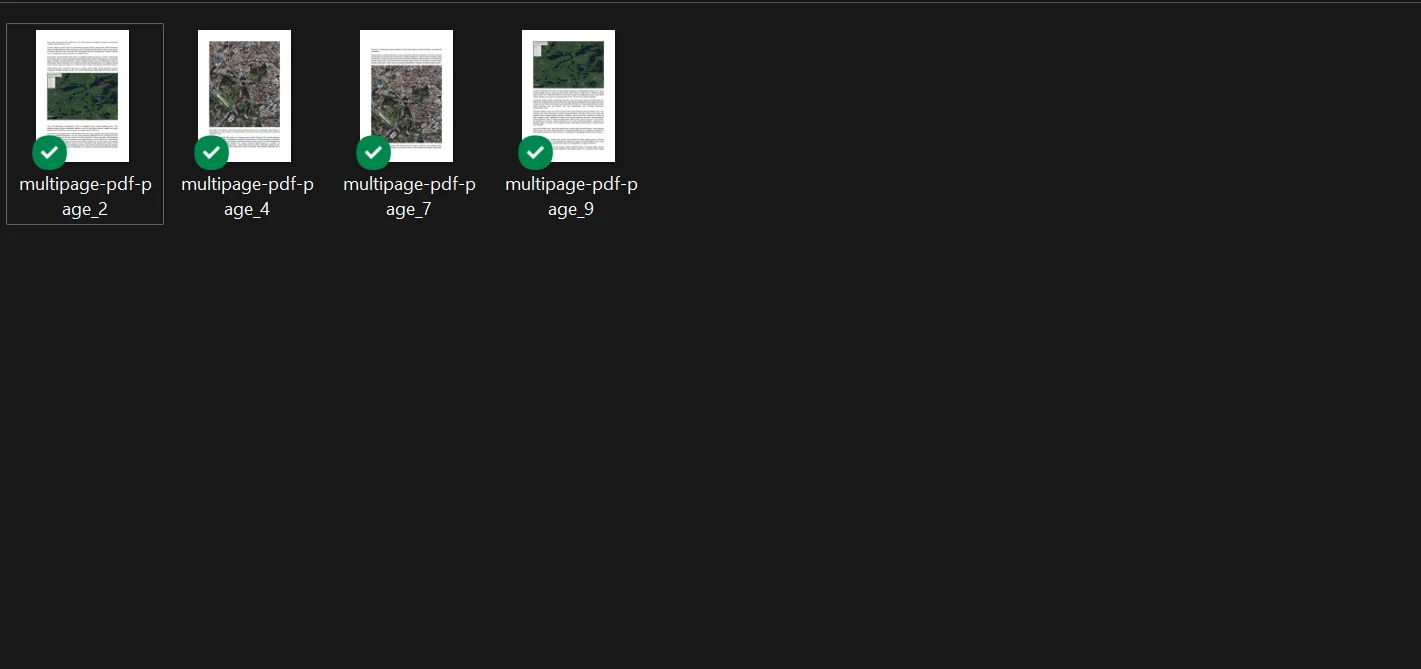
The image above shows four BMP files — pages 1, 4, 7, and 9 — the only pages specified in the fromPages array; the other pages were not processed.
Page indexes in fromPages are zero-based, so [0, 3, 5, 8] targets the first, fourth, sixth, and ninth pages. The DPI value of 150 balances output quality against file size - suitable for archive or preview use cases. Selective conversion is compatible with all supported image types.
What Is the Difference Between Zero-Based and One-Based Page Numbers?
fromPages uses zero-based indexing, matching JavaScript's standard array convention. Page 1 of the document corresponds to index 0, page 2 to index 1, and so on. This differs from the one-based page numbers that appear in PDF viewers. When translating viewer page numbers to fromPages indexes, subtract one from each page number.
pdf.pageCount() from the PdfDocument API and use [pdf.pageCount() - 1] as the fromPages value.What Are the Next Steps for PDF-to-Image Conversion?
IronPDF's rasterizeToImageFiles method handles format selection, multi-page splitting, and selective page conversion in a consistent API. The options object is the single extension point for format overrides, DPI control, and page filtering.
To go further, the IronPDF Node.js API reference documents all parameters available on rasterizeToImageFiles and the PdfDocument class. The PDF to Images code example shows rasterizeToImageFiles used with additional configuration. To work in the opposite direction, see converting images to PDF files or converting multi-frame TIFF files to PDF.
Start your free trial of IronPDF for Node.js to test PDF-to-image conversion in your own project. View licensing options to find the plan that fits your team.
Ready to see what else IronPDF can do? Check out the full Node.js tutorial here: HTML to PDF in Node.js
Frequently Asked Questions
How can I convert a PDF to an image in Node.js using IronPDF?
You can convert a PDF to an image using IronPDF for Node.js with the `rasterizeToImageFiles` method. This method allows you to specify the output path and desired image format, automating format detection based on the file extension you provide.
What image formats are supported by IronPDF for PDF to image conversion?
IronPDF supports converting PDF files to various image formats, including PNG, JPG, GIF, and BMP. The output format is determined by the file extension or can be explicitly set using an `ImageType` enum.
How do I install IronPDF for Node.js?
Install IronPDF by running `npm install @ironsoftware/ironpdf`. Make sure to configure your license key and verify that the IronPDF Engine is installed on your system.
Can I customize the DPI settings when converting PDFs to images?
Yes, you can control the pixel density of the output image by setting the `dpi` property in the options object. Higher DPI values produce more detailed images, suitable for printing or archiving.
How do I handle multi-page PDF conversion?
When converting multi-page PDFs, IronPDF automatically appends a page index to each output filename, creating one image file per PDF page.
Is it possible to convert only specific pages of a PDF to images?
Yes, you can specify particular pages for conversion using the `fromPages` property in the options object. This property accepts an array of zero-based page indexes to select which pages to rasterize.
What should I do if I require a certain image format in automated workflows?
If you need a specific image format despite the file extension in your workflow, use the `ImageType` value in the options object to set the image type, overriding the extension-based format detection.
What are the system requirements for using IronPDF in a Node.js environment?
You need Node.js version 12 or later, and the IronPDF package will automatically download the IronPDF Engine binary necessary for rendering PDFs upon first run.
Can IronPDF handle converting images to PDF as well?
Yes, IronPDF supports converting images to PDF files. You can learn more from their [image to PDF example](https://ironpdf.com/nodejs/examples/image-to-pdf/), complementing the PDF to image conversion process.
How does IronPDF ensure output filename structure during PDF conversion?
IronPDF appends a one-based page number to the output filenames for multi-page PDFs, maintaining organization. Ensure the output directory exists before calling the `rasterizeToImageFiles` method.

Curtis Chau holds a Bachelor’s degree in Computer Science (Carleton University) and specializes in front-end development with expertise in Node.js, TypeScript, JavaScript, and React. Passionate about crafting intuitive and aesthetically pleasing user interfaces, Curtis enjoys working with modern frameworks and creating well-structured, visually appealing manuals.













