Node.jsでHTMLをPDFに変換する Copy for LLMs Copy page as Markdown for LLMs
# Node.jsでHTMLをPDFに変換する
IronPDFの最も強力で最も人気のある機能は、生のHTML、CSS、JavaScriptから高忠実度のPDFを作成できることです。 このチュートリアルでは、Node.js開発者にHTMLコンテンツをPDFに変換するための実践的な方法をすべて案内します。 - 1行の文字列変換から動的テンプレート駆動のドキュメント生成まで。
IronPDFは、高レベルのAPIライブラリであり、開発者が強力なPDF処理機能をソフトウェアアプリケーションに迅速に実装するのを支援します。 IronPDFは[複数のプログラミング言語](/nodejs/licensing/)で利用可能です。 詳細なカバレッジについては、[.NET](/tutorials/html-to-pdf/)、[Java](/java/tutorials/html-to-pdf/)、[Python](/python/tutorials/html-to-pdf/)でPDFを作成する公式ドキュメンテーションページをご覧ください。 このチュートリアルでは、その使用方法をNode.jsプロジェクトに適用する方法を説明しています。
*as-heading:2(クイックスタート: Node.jsでHTMLをPDFに変換)*
<div class="hsg-featured-snippet">
<h2>Node.jsでHTMLをPDFに変換する方法</h2>
<ol>
<li><a class="js-modal-open" data-modal-id="download-modal" href="#download-modal">NPMを介してIronPDF Node.jsライブラリをインストールします: <code>npm install @ironsoftware/ironpdf</code></a></li>
<li><code>@ironsoftware/ironpdf</code>パッケージから<strong>PdfDocument</strong>クラスをインポートしてください。</li>
<li><code>PdfDocument.fromHtml</code>、<code>PdfDocument.fromUrl</code>、または<code>PdfDocument.fromZip</code>をHTMLソースに応じて呼び出します。</li>
<li>オプションでレンダリングオプションを設定します: ヘッダー、フッター、ページサイズ、向き、余白。</li>
<li>生成されたPDFをディスクに保存するために<code>PdfDocument.saveAs</code>を呼び出します。</li>
</ol>
</div>
*as-heading:2(目次)*
- [IronPDF for Node.jsの始め方は?](#getting-started)
- [Node.jsでHTMLをPDFに変換するには?](#convert-html-to-pdf)
- [HTML文字列からPDFを作成するには?](#create-pdf-from-html-string)
- [HTMLファイルからPDFを作成するには?](#create-pdf-from-html-file)
- [URLからPDFを作成するには?](#create-pdf-from-url)
- [ZipアーカイブからPDFを作成するには?](#create-pdf-from-zip)
- [IronPDFがサポートする高級レンダリングオプションは?](#advanced-rendering-options)
- [ヘッダーとフッターを追加するには?](#add-headers-footers)
- [ページサイズ、向き、余白を制御するには?](#page-size-orientation-margins)
- [動的なウェブページを処理するには?](#dynamic-web-pages)
- [HTMLテンプレートからPDFを生成するには?](#html-template-to-pdf)
- [次のステップは何ですか?](#next-steps)
## IronPDF for Node.js を使い始めるにはどうすればよいですか?
!!!--LIBRARY_START_TRIAL_BLOCK--!!!
### IronPDFライブラリをインストールする
!!!--LIBRARY_NUGET_INSTALL_BLOCK--!!!
以下のNPMコマンドを選択したNode.jsプロジェクトで実行してIronPDF Node.jsパッケージをインストールします。
```shell
:ProductInstall
```
[IronPDFパッケージの手動ダウンロードとインストール](#download-modal)も可能です。
### IronPDF エンジンをインストールするにはどうすればよいですか?
IronPDF for Node.jsは機能するために[IronPDFエンジンのバイナリ](https://www.npmjs.com/package/@ironsoftware/ironpdf-engine-windows-x64)を必要とします。
[[i:(Install the IronPDF Engine is optional. `@ironsoftware/ironpdf`パッケージは最初の実行時に適切なバイナリをオペレーティングシステムに自動的にダウンロードおよびインストールします。 インターネットアクセスが制限されている環境や利用できない環境では、明示的なインストールが推奨されます。)]]
適切なオペレーティングシステム用[パッケージをインストール](https://www.npmjs.com/package/@ironsoftware/ironpdf#for-windows-x64)してIronPDFエンジンのバイナリをインストールします。
### ライセンスキーの適用方法を教えてください
デフォルトでは、IronPDFは生成または修正されたすべてのドキュメントにウォーターマークを表示します。 透かしを削除するには、有効なライセンスキーを持ったグローバル`licenseKey`プロパティを設定します:
```javascript
import { IronPdfGlobalConfig } from "@ironsoftware/ironpdf";

// Retrieve the global configuration object
var config = IronPdfGlobalConfig.getConfig();

// Set a valid license key to remove watermarks
config.licenseKey = "{YOUR-LICENSE-KEY-HERE}";
```
[無料トライアルライセンスキーを取得](#trial-license)するか[ライセンスキーを購入](/nodejs/licensing/)してライセンスページから入手してください。
[[i:(ライセンスキーを設定し、他の[global configuration settings](/nodejs/object-reference/api/interfaces/IronPdfConfig.html)を他のライブラリ機能を呼び出す前に設定します。 これにより、アプリケーション全体で最適なパフォーマンスと正しい動作が保証されます。)]]
このチュートリアルの残りのコード例は、個別の`config.js`ファイルにライセンスキーが適用され、各スクリプトのトップでインポートされたことを前提としています:
```javascript
import { PdfDocument } from "@ironsoftware/ironpdf";
import './config.js'; // Import the configuration script
// ...
```
<strong>ironpdf.com/nodejs/licensing/でライセンスキーを取得し、透かしなしのPDFドキュメントを生成してください。</strong>
## Node.jsでHTMLをPDFに変換するにはどうすればよいですか?
IronPDF Node.jsライブラリは、HTMLコンテンツからPDFファイルを作成するための4つのアプローチを提供します。
1.HTMLコードの文字列から
2.ローカルのHTMLファイルから
3. オンラインURLから
4. 圧縮されたZIPアーカイブから
各アプローチは[`PdfDocument`](/nodejs/object-reference/api/classes/PdfDocument.html)クラスを基盤としています。 `PdfDocument`は何らかのソースコンテンツから生成されたPDFファイルを表し、IronPDFのコア作成および編集機能のほとんどを駆動します。
### HTML文字列からPDFを作成するには?
`PdfDocument.fromHtml`は生のHTMLマークアップの文字列からPDFを生成します。このアプローチは4つの方法の中で最も柔軟性があり、HTML文字列はテキストファイル、データストリーム、HTMLテンプレートエンジン、または動的に作成されたマークアップなど、ほぼどこからでも取得できます。
```javascript
import { PdfDocument } from "@ironsoftware/ironpdf";
import './config.js'; // Import the configuration script

// Create a PDF from an HTML string
const pdf = await PdfDocument.fromHtml("<h1>Hello from IronPDF!</h1>");

// Save the PDF document to the file system
await pdf.saveAs("html-string-to-pdf.pdf");
```
`PdfDocument`クラスのインスタンスに解決するPromiseを返します。 インスタンスを取得した後、ターゲットファイルパスで`saveAs`を呼び出してPDFをディスクに書き込みます。 保存されたPDFファイルは、標準に準拠したブラウザが表示するのと正確に同じようにHTMLをレンダリングします。
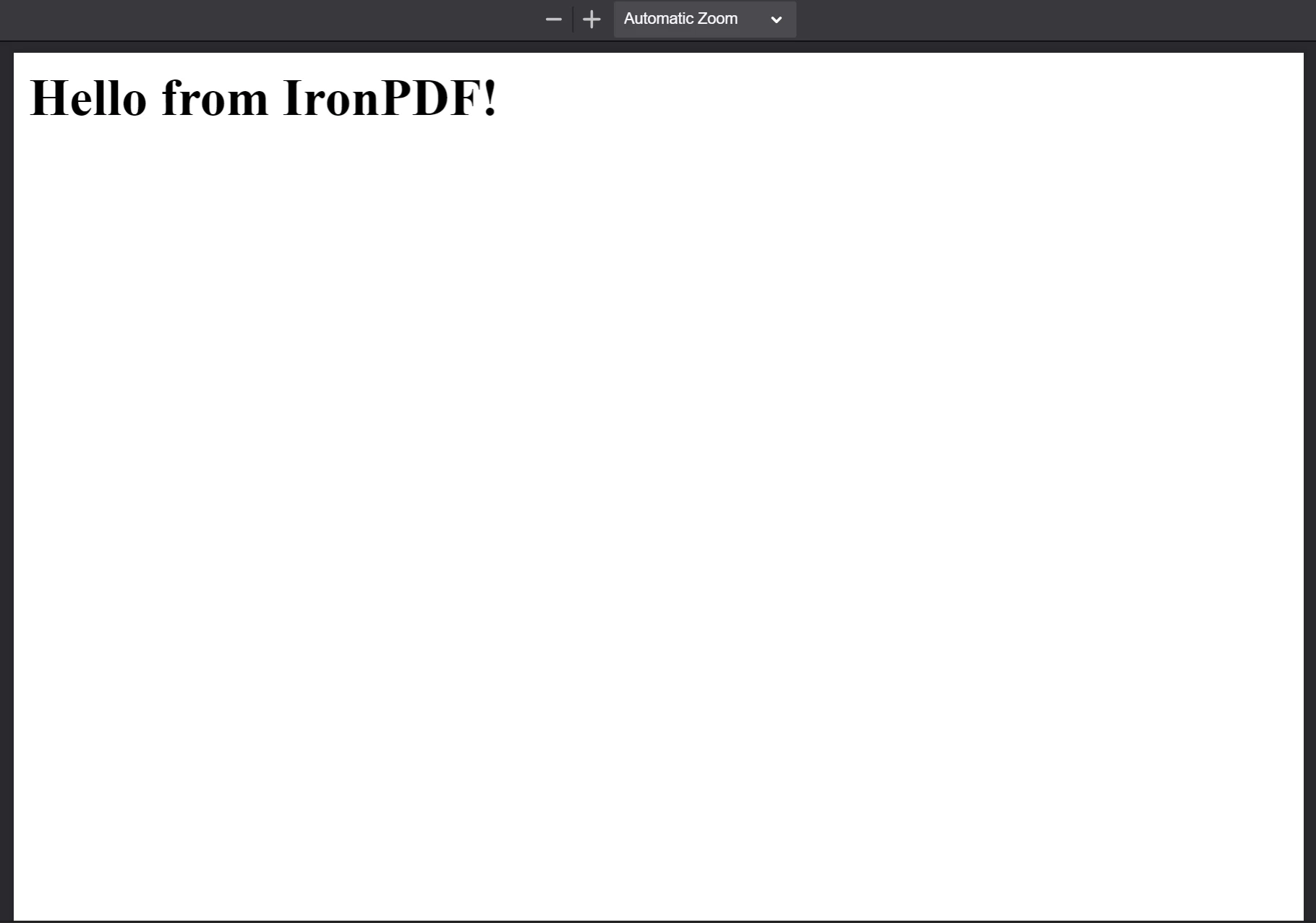
**The PDF generated from the HTML string `<h1>Hello from IronPDF!</h1>`. `PdfDocument.fromHtml`が生成したPDFファイルは、ウェブページのコンテンツと同様に表示されます。**
### HTMLファイルからPDFを作成するには?
`PdfDocument.fromHtml`はローカルHTMLドキュメントへのパスも受け付けます。 マークアップの文字列ではなく、有効なファイルパスを最初の引数として渡します。 保存されたウェブページとローカルCSS、JavaScript、および画像リソースを参照する場合、推奨されるアプローチです。
次の例では、[サンプルウェブページ](https://filesamples.com/samples/code/html/sample2.html)をPDFに変換します。
```javascript
import { PdfDocument } from "@ironsoftware/ironpdf";
import './config.js'; // Import the configuration script

// Render a PDF from a local HTML file
const pdf = await PdfDocument.fromHtml("./sample2.html");

// Save the PDF document to the project directory
await pdf.saveAs("html-file-to-pdf-1.pdf");
```
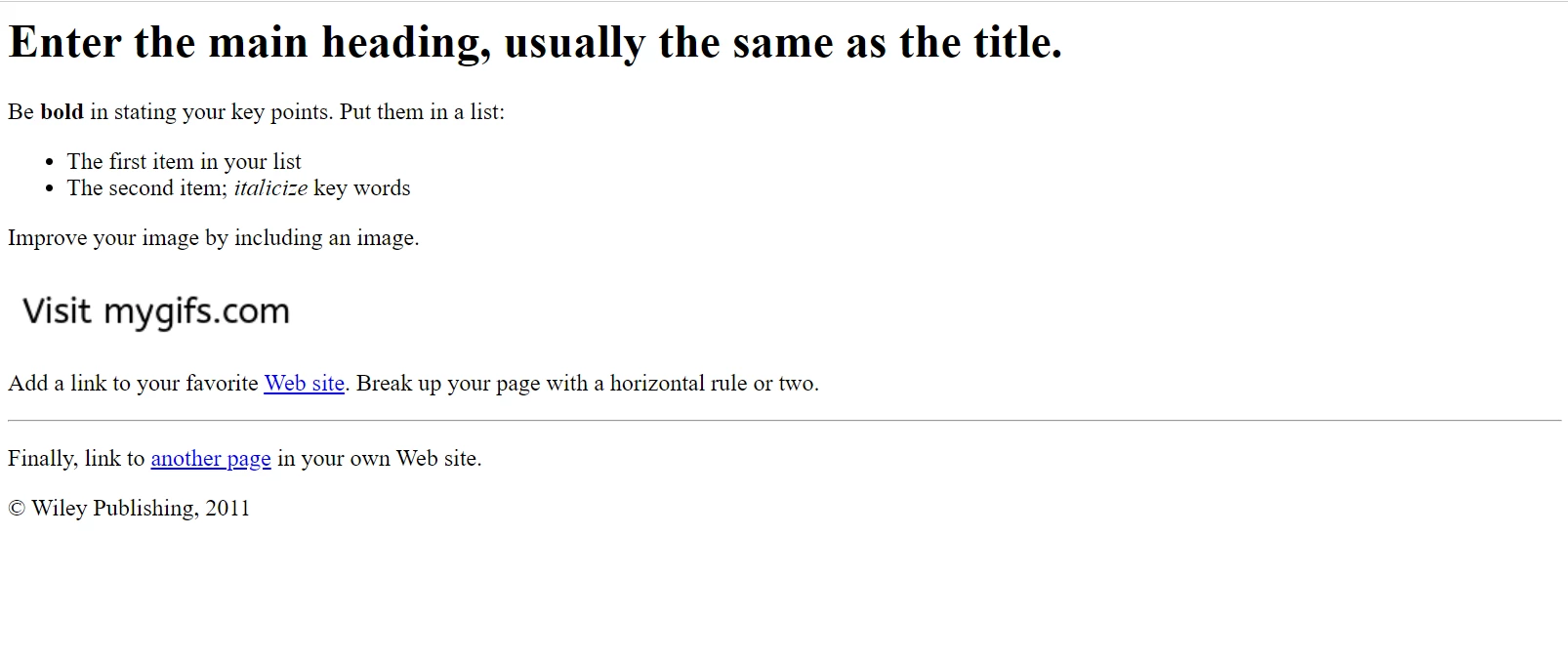
**Google Chromeに表示されたサンプルHTMLページ。 このページおよび類似のページをファイルサンプルズウェブサイトからダウンロードしてください: https://filesamples.com/samples/code/html/sample2.html**
IronPDFは元のHTMLドキュメントの外観を保持し、リンク、フォーム、その他のインタラクティブな要素の機能を維持します。 この忠実度は、段落、リスト、画像、ハイパーリンク、およびクライアント側スクリプトを含む複雑なページにまで及びます。
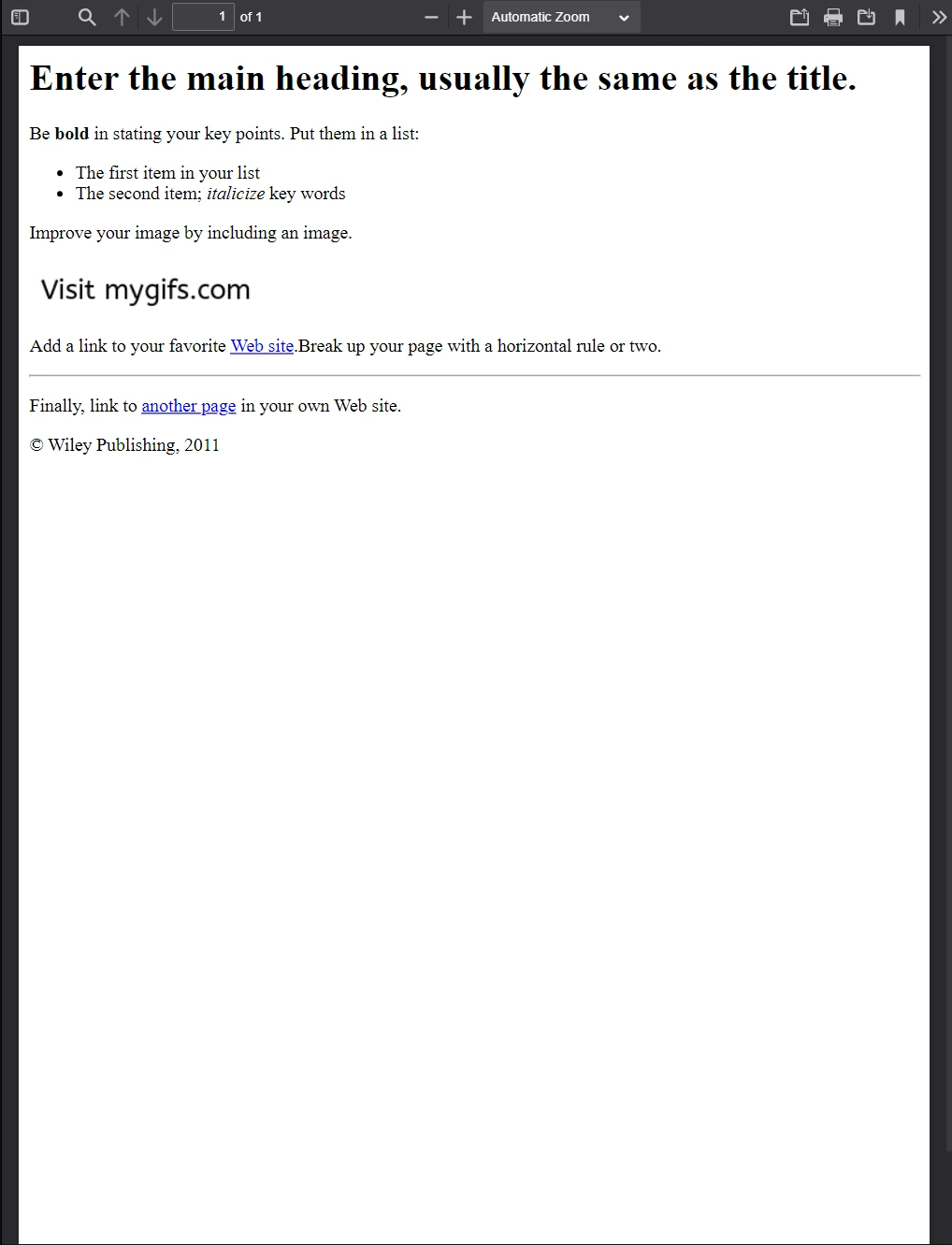
**上記のHTMLファイル例から生成されたこのPDF。 前の画像とその外観を比較してください - IronPDFは高精度でレイアウトを保持します。**
IronPDFは単純なマークアップをはるかに超えるページを処理します。次の例では、複数の外部CSSファイル、画像、およびスクリプトアセットをソースにしたリッチなページを変換します。
```javascript
import { PdfDocument } from "@ironsoftware/ironpdf";
import './config.js'; // Import the configuration script

// Render a PDF from a complex HTML page with external assets
PdfDocument.fromHtml("./sample4.html").then(async (pdf) => {
    return await pdf.saveAs("html-file-to-pdf-2.pdf");
});
```
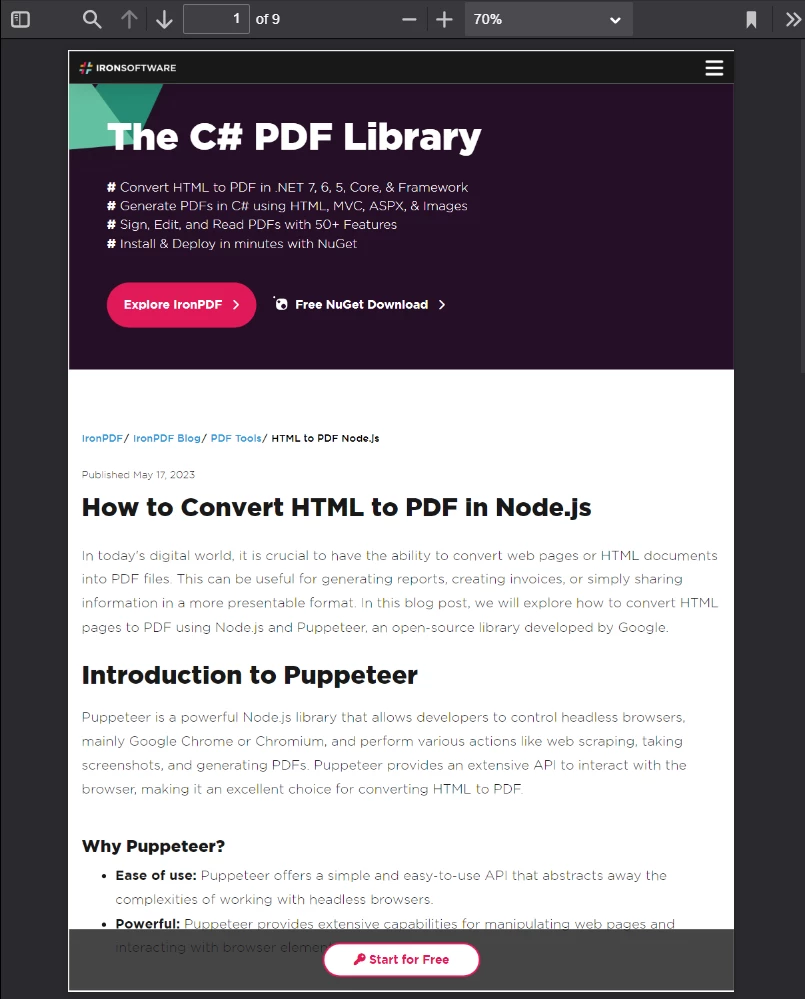
**Google Chromeで見た目が良ければ、PDFに変換したときも見た目が良くなります。 これには、CSSが多用され、JavaScriptでレンダリングされたページデザインが含まれています。**
[[t:(ページがローカルファイルパスからアセットをソースとしている場合、HTMLファイルの場所に対してすべての参照されたCSSファイル、画像、およびスクリプトが存在することを確認してください。 IronPDFのChromeレンダリングエンジンはこれらのパスをブラウザがするのと同じように解決します。)]]
### URLからPDFを作成するには?
`PdfDocument.fromUrl`はライブウェブページをPDFとして取得してレンダリングします。 引数としてパブリックにアクセス可能な任意のURLを渡します。 IronPDFのChromeレンダリングエンジンがページを取得し、すべてのアセットを読み込み、ピクセルパーフェクトなPDFを生成します。 - 手動でHTMLをダウンロードする必要はありません。
```javascript
import { PdfDocument } from "@ironsoftware/ironpdf";
import './config.js'; // Import the configuration script

// Convert a live web page to a PDF
const pdf = await PdfDocument.fromUrl("https://en.wikipedia.org/wiki/PDF");

// Save the document
await pdf.saveAs("url-to-pdf.pdf");
```
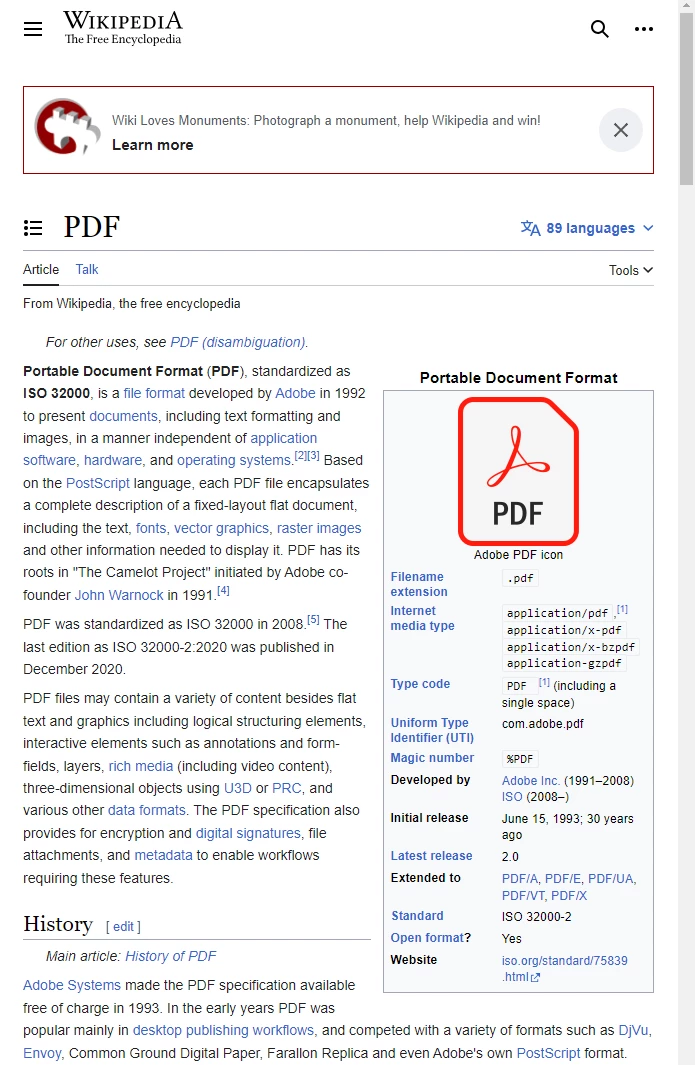
**標準に準拠したウェブブラウザで表示されるPDFフォーマットに関するウィキペディアの記事**。
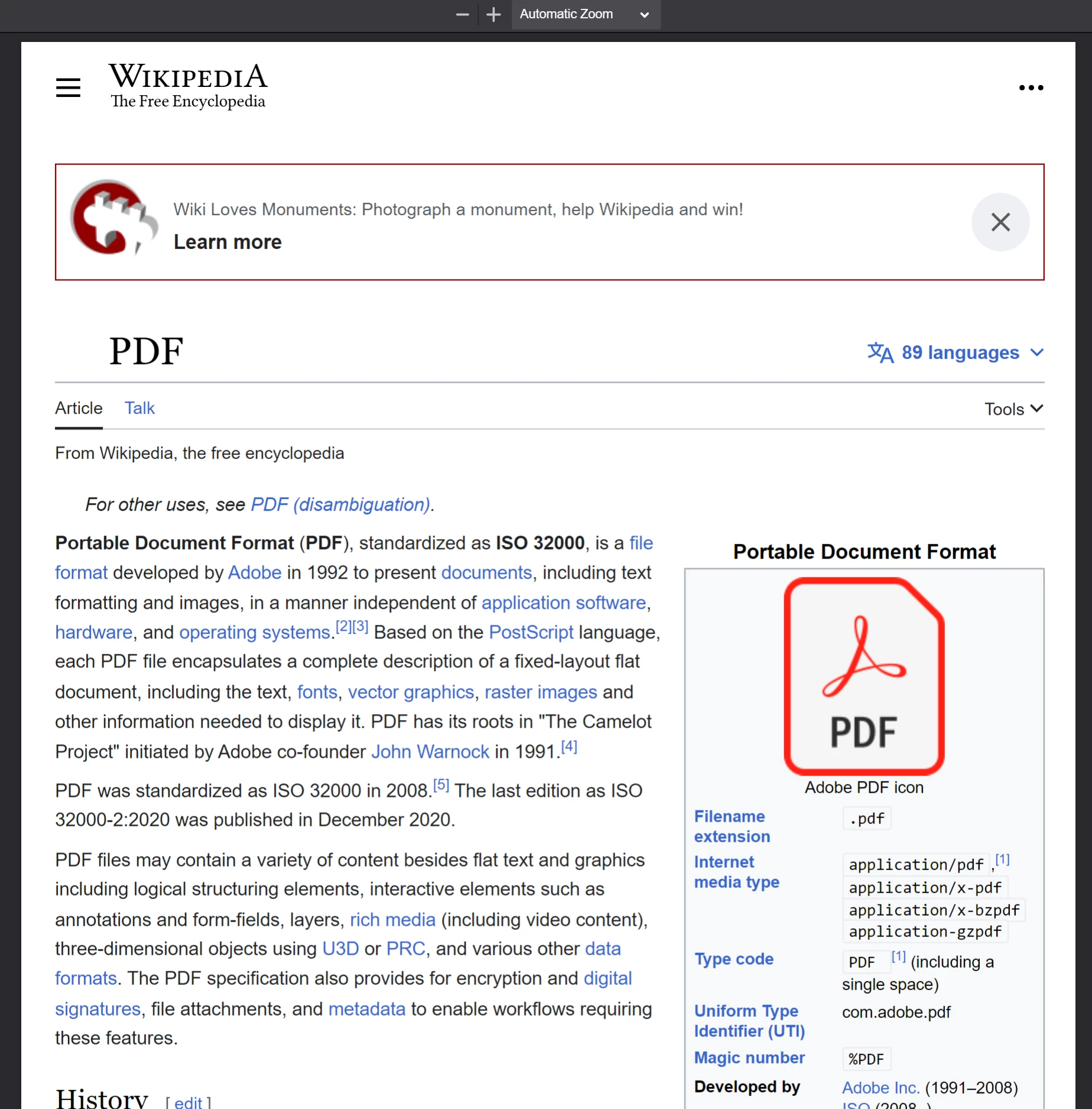
**Wikipedia記事で`PdfDocument.fromUrl`を呼び出して生成されたPDF。 元のウェブページによく似ていることに注意してください。**
[[n:(URLベースの変換では、対象サーバーがIronPDFを実行しているマシンからアクセス可能である必要があります。 認証、VPN、またはファイアウォールの後ろのページは、`ChromePdfRenderOptions`を通じて追加の構成を必要とする場合があります。)]]
### ZipアーカイブからPDFを作成するには?
`PdfDocument.fromZip`はZIPアーカイブに含まれる特定のHTMLファイルをPDFに変換します。 これは、HTML、CSS、および画像アセットを一緒にバンドルする自己完結型のHTMLプロジェクトを配布する際に特に有用です。
この例では、プロジェクトディレクトリに次の構造を持つZIPファイルがあると仮定します。
```plaintext
//:path=/static-assets/ironpdf-nodejs/content-code-examples/tutorials/html-to-pdf/zip-structure.txt
html-zip.zip
├─ index.html
├─ style.css
├─ logo.png
```
`index.html`ファイルには以下が含まれます:
```html
//:path=/static-assets/ironpdf-nodejs/content-code-examples/tutorials/html-to-pdf/index.html
<!DOCTYPE html>
<html lang="en">
<head>
<meta charset="UTF-8">
<meta name="viewport" content="width=device-width, initial-scale=1">
<title>Hello world!</title>
<link rel="stylesheet" href="style.css">
</head>
<body>
<h1>Hello from IronPDF!</h1>
<a href="https://ironpdf.com/nodejs/">
<img src="logo.png" alt="Node.js 向け IronPDF">
</a>
</body>
</html>
```
`style.css`はページレイアウトとフォントルールを宣言します:
```css
//:path=/static-assets/ironpdf-nodejs/content-code-examples/tutorials/html-to-pdf/style.css
@font-face {
font-family: 'Gotham-Black';
src: url('gotham-black-webfont.eot?') format('embedded-opentype'),
url('gotham-black-webfont.woff2') format('woff2'),
url('gotham-black-webfont.woff') format('woff'),
url('gotham-black-webfont.ttf') format('truetype'),
url('gotham-black-webfont.svg') format('svg');
font-weight: normal;
font-style: normal;
font-display: swap;
}
body {
display: flex;
flex-direction: column;
justify-content: center;
margin-left: auto;
margin-right: auto;
margin-top: 200px;
margin-bottom: auto;
color: white;
background-color: black;
text-align: center;
font-family: "Helvetica"
}
h1 {
font-family: "Gotham-Black";
margin-bottom: 70px;
font-size: 32pt;
}
img {
width: 400px;
height: auto;
}
p {
text-decoration: underline;
font-size: smaller;
}
```

**仮想HTML ZIPファイル内のサンプル画像。**
`fromZip`を呼び出す際は、第1引数としてZIPファイルへのパスを指定し、第2引数として構成オブジェクトを指定してください。 `mainHtmlFile` プロパティを、変換するべきアーカイブ内のHTMLファイルの名前に設定します:
```javascript
import { PdfDocument } from "@ironsoftware/ironpdf";
import './config.js'; // Import the configuration script
// Convert an HTML file from a ZIP archive to PDF
PdfDocument.fromZip("./html-zip.zip", {
mainHtmlFile: "index.html"
}).then(async (pdf) => {
return await pdf.saveAs("html-zip-to-pdf.pdf");
});
```
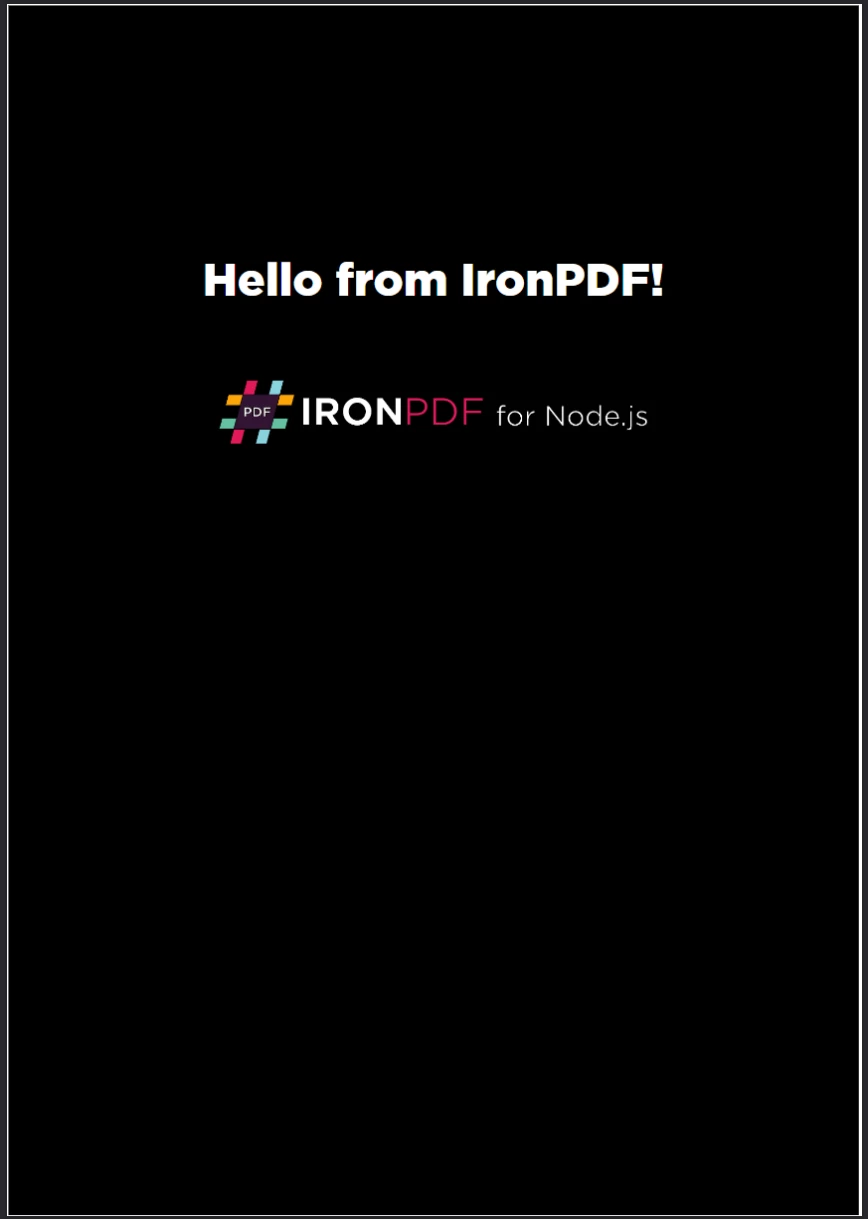
**`PdfDocument.fromZip`を使用したPDF作成。 この関数は、ZIPファイルからのHTMLコードとそれにバンドルされたアセットを正常にレンダリングします。**
## IronPDFはどのような高度なレンダリングオプションをサポートしていますか?
[`ChromePdfRenderOptions`](/nodejs/object-reference/api/interfaces/ChromePdfRenderOptions.html)インターフェースはPDFレンダリングの動作を詳細にカスタマイズするためのプロパティを公開します。 これらの設定は、PDFが生成される前に適用され、動的コンテンツのレイアウト、視覚的外観、エッジケースをカバーします。
IronPDFは、すべての変換にデフォルトのレンダリング設定を適用します。 `defaultChromePdfRenderOptions`関数を使用してこれらのデフォルト値を取得します:
```javascript
import { defaultChromePdfRenderOptions } from "@ironsoftware/ironpdf";
// Retrieve a ChromePdfRenderOptions object with default settings
var options = defaultChromePdfRenderOptions();
```
必要に応じて返されたオブジェクトのプロパティを修正し、変換メソッドの`renderOptions`パラメータに渡します。
### ヘッダーとフッターを追加するにはどうすればよいですか?
`textFooter`プロパティは、新たにレンダリングされたPDFの各ページにカスタムテキストベースのコンテンツを付加します。 以下の例では、Google検索ホームページからPDFを作成し、異なるフォントを使用したカスタムヘッダーとフッターを追加します。
```javascript
import { PdfDocument, defaultChromePdfRenderOptions, AffixFonts } from "@ironsoftware/ironpdf";
import './config.js'; // Import the configuration script
// Start from default render options
var options = defaultChromePdfRenderOptions();
// Configure a text-based header
options.textHeader = {
centerText: "https://www.adobe.com",
dividerLine: true,
font: AffixFonts.CourierNew,
fontSize: 12,
leftText: "URL to PDF"
};
// Configure a text-based footer
options.textFooter = {
centerText: "IronPDF for Node.js",
dividerLine: true,
fontSize: 14,
font: AffixFonts.Helvetica,
rightText: "HTML to PDF in Node.js"
};
// Render the page with custom headers and footers applied
PdfDocument.fromUrl("https://www.google.com/", { renderOptions: options }).then(async (pdf) => {
return await pdf.saveAs("add-custom-headers-footers-1.pdf");
});
```
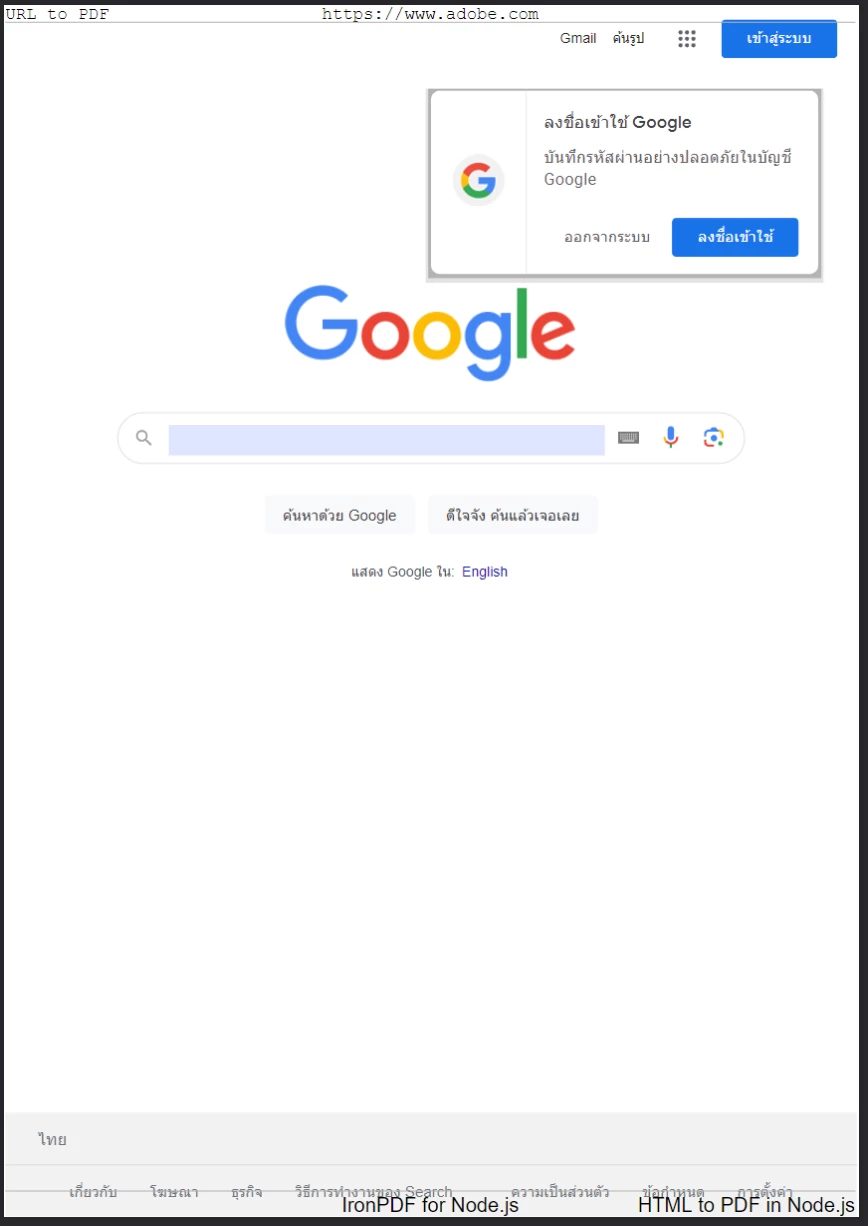
**Googleホームページのカスタムテキストヘッダーとフッターを`textFooter`を使用して適用したPDF。**
より豊かなヘッダーとフッターレイアウトには、`htmlFooter`プロパティを代わりに使用します。 これらは生のHTMLフラグメントを受け取り、タイポグラフィ、画像、配置に完全な制御を与えます。 以下の例では、ヘッダーにページURLを太字で中央に、フッターにロゴ画像を埋め込みます。
```javascript
import { PdfDocument, defaultChromePdfRenderOptions } from "@ironsoftware/ironpdf";
import './config.js'; // Import the configuration script
// Start from default render options
var options = defaultChromePdfRenderOptions();
// Define a rich HTML header
options.htmlHeader = {
htmlFragment: "<strong>https://www.google.com/</strong>",
dividerLine: true,
dividerLineColor: "blue",
loadStylesAndCSSFromMainHtmlDocument: true,
};
// Define a rich HTML footer with a logo
options.htmlFooter = {
htmlFragment: "<img src='logo.png' alt='IronPDF for Node.js' style='display: block; width: 150px; height: auto; margin-left: auto; margin-right: auto;'>",
dividerLine: true,
loadStylesAndCSSFromMainHtmlDocument: true
};
// Apply custom HTML headers and footers during rendering
await PdfDocument.fromUrl("https://www.google.com/", { renderOptions: options }).then(async (pdf) => {
return await pdf.saveAs("add-html-headers-footers.pdf");
});
```
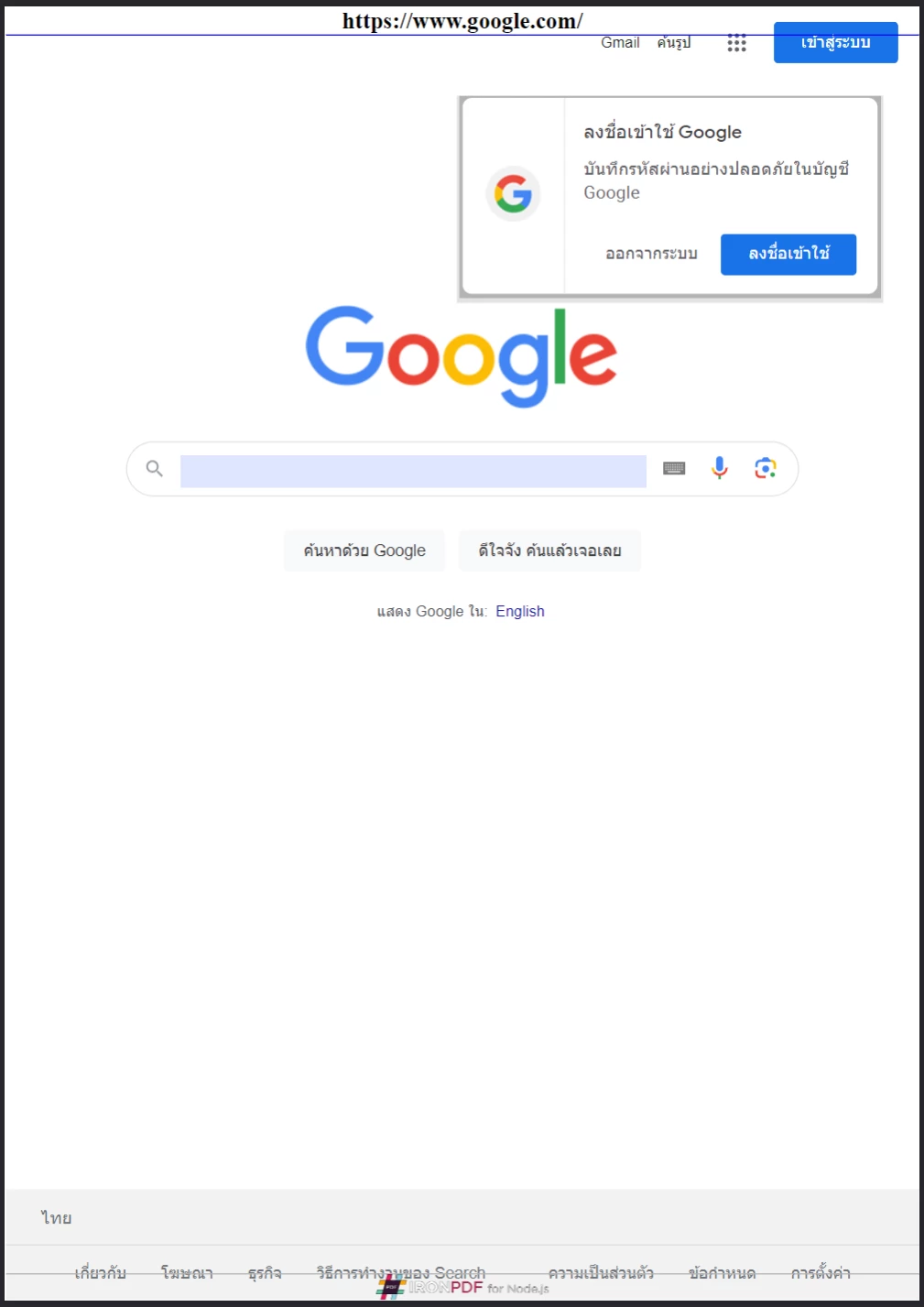
**IronPDFはHTMLベースのヘッダーとフッターをサポートしており、各ページのブランディングとレイアウトに完全な管理を提供します。**
### ページサイズ、向き、マージンをどうコントロールしますか?
`ChromePdfRenderOptions`でレンダリングされた各ページの物理的レイアウトを制御します。 以下の例は、Googleホームページをカスタムマージン、A5横向き、およびグレースケール出力で変換します:
```javascript
import { PdfDocument, defaultChromePdfRenderOptions, PaperSize, FitToPaperModes, PdfPaperOrientation } from "@ironsoftware/ironpdf";
import './config.js'; // Import the configuration script
// Start from default render options
var options = defaultChromePdfRenderOptions();
// Set page margins in millimeters
options.margin = {
top: 50,
bottom: 50,
left: 60,
right: 60
};
// Configure paper size, fit mode, orientation, and color mode
options.paperSize = PaperSize.A5;
options.fitToPaperMode = FitToPaperModes.FitToPage;
options.paperOrientation = PdfPaperOrientation.Landscape;
options.grayScale = true;
// Render with the customized layout settings
PdfDocument.fromUrl("https://www.google.com/", { renderOptions: options }).then(async (pdf) => {
return await pdf.saveAs("set-margins-and-page-size.pdf");
});
```
`Legal`などの標準的な用紙サイズが含まれます。 `Landscape`をサポートします。 これらの設定は、印刷対応ドキュメントの出力寸法を正確に制御することができます。
[[t:(印刷ワークフロー用にPDFを生成する際は、必ずマージンを明示的に指定してください。 デフォルトのマージンは、ターゲットプリンターや紙の形式の要件に一致しない場合があります。)]]
### 動的なウェブページをどのように処理しますか?
JavaScriptのタイマー、遅延読み込み、API呼び出しを介して非同期でコンテンツをロードするページは、IronPDFのエンジンがそれらをキャプチャする頃には完全にレンダリングされていない可能性があります。 `waitFor`プロパティを介して設定され、Chromeレンダラーにページをキャプチャする前に指定した条件を満たすまで待機するよう指示します。
以下のコードブロックは、ページコンテンツをキャプチャする前にIronPDFが20秒間待機するように設定します:
```javascript
import { PdfDocument, defaultChromePdfRenderOptions, WaitForType } from "@ironsoftware/ironpdf";
import './config.js'; // Import the configuration script
// Configure the renderer to wait 20 seconds before capturing
var options = defaultChromePdfRenderOptions();
options.waitFor = {
type: WaitForType.RenderDelay,
delay: 20000
};
PdfDocument.fromUrl("https://ironpdf.com/nodejs/", { renderOptions: options }).then(async (pdf) => {
return await pdf.saveAs("waitfor-renderdelay.pdf");
});
```
または、特定のDOM要素が表示されるまで待機するようにIronPDFを構成してください。 これは、JavaScriptフレームワークがマウントを終了した後にコンテンツが挿入されるページに便利です:
```javascript
import { PdfDocument, defaultChromePdfRenderOptions, WaitForType } from "@ironsoftware/ironpdf";
import './config.js'; // Import the configuration script
// Configure the renderer to wait for a specific DOM element (up to 20 seconds)
var options = defaultChromePdfRenderOptions();
options.waitFor = {
type: WaitForType.HtmlElement,
htmlQueryStr: "div.ProseMirror",
maxWaitTime: 20000,
};
PdfDocument.fromUrl("https://app.surferseo.com/drafts/s/V7VkcdfgFz-dpkldsfHDGFFYf4jjSvvjsdf", { renderOptions: options }).then(async (pdf) => {
return await pdf.saveAs("waitfor-htmlelement.pdf");
});
```
`WaitForType.HtmlElement`戦略は標準のCSSクエリセレクターを使用します。 レンダラーは、`maxWaitTime`ミリ秒が経過するか要素が見つかるまで要素の存在をポーリングします - いずれかが先に来た場合です。
[[w:(過剰に長い待機時間を設定すると、高スループットアプリケーションでのPDF生成時間が大幅に増加する可能性があります。 あなたのユースケースが必要とするコンテンツを確実にキャプチャするために最小限の遅延を使用してください。)]]
## HTMLテンプレートからPDFを生成する方法は?
一般的な現実世界の自動化パターンは、データベース、API、またはスプレッドシートからのデータでプレースホルダー値を置換して、共有HTMLテンプレートからバッチのPDFを生成することです。 IronPDFの`PdfDocument`でこれを直接処理します。
以下の請求書テンプレートのサンプル([CodePen請求書テンプレート](https://codepen.io/tjoen/pen/wvgvLX)から改編)は、`{INVOICE-NUMBER}`のようなカールブラケットプレースホルダーを使用して置換可能なコンテンツをサポートしています:
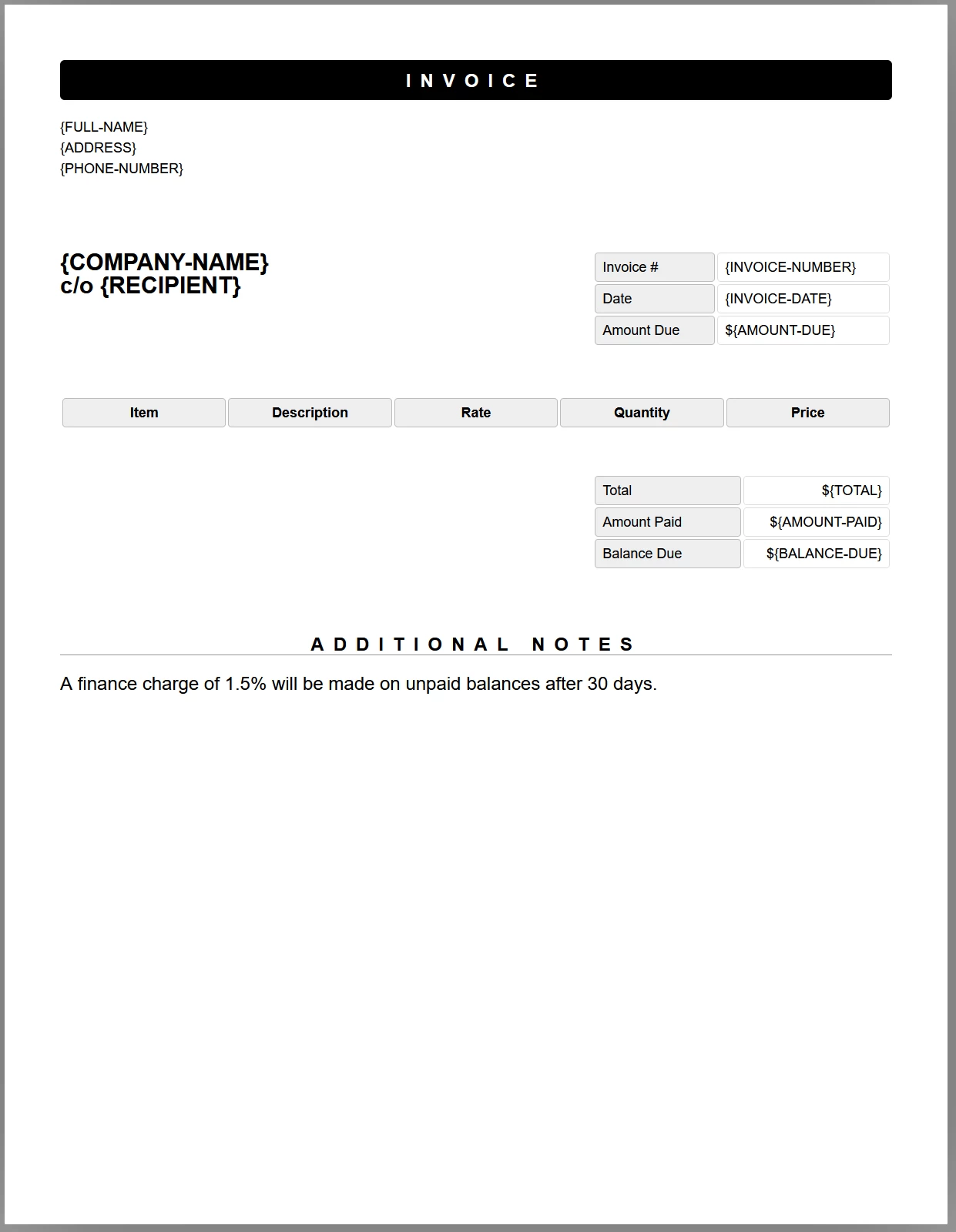
**プレースホルダータグを含むサンプル請求書テンプレート。 JavaScriptコードは、PDFとして保存される前に実データで各タグを置換します。**
以下のコードは、テンプレートを読み込み、すべてのプレースホルダーをテストデータで置換し、結果をPDFとして保存します:
```javascript
//:path=/static-assets/ironpdf-nodejs/content-code-examples/tutorials/html-to-pdf/html-template-to-pdf.js
import { PdfDocument } from "@ironsoftware/ironpdf";
import './config.js'; // Import the configuration script
/**
* Loads an HTML template from the file system as a PdfDocument.
*/
async function getTemplateHtml(fileLocation) {
return PdfDocument.fromHtml(fileLocation);
}
/**
* Saves a PdfDocument to the specified file path.
*/
async function generatePdf(pdf, location) {
return pdf.saveAs(location);
}
/**
* Replaces a named placeholder in the PdfDocument with a data value.
*/
async function addTemplateData(pdf, key, value) {
return pdf.replaceText(key, value);
}
// Path to the HTML invoice template
const template = "./sample-invoice.html";
// Load the template, fill in all placeholder values, then save the PDF
getTemplateHtml(template).then(async (doc) => {
await addTemplateData(doc, "{FULL-NAME}", "Lizbeth Presland");
await addTemplateData(doc, "{ADDRESS}", "678 Manitowish Alley, Portland, OG");
await addTemplateData(doc, "{PHONE-NUMBER}", "(763) 894-4345");
await addTemplateData(doc, "{INVOICE-NUMBER}", "787");
await addTemplateData(doc, "{INVOICE-DATE}", "August 28, 2023");
await addTemplateData(doc, "{AMOUNT-DUE}", "13,760.13");
await addTemplateData(doc, "{RECIPIENT}", "Celestyna Farmar");
await addTemplateData(doc, "{COMPANY-NAME}", "BrainBook");
await addTemplateData(doc, "{TOTAL}", "13,760.13");
await addTemplateData(doc, "{AMOUNT-PAID}", "0.00");
await addTemplateData(doc, "{BALANCE-DUE}", "13,760.13");
await addTemplateData(doc, "{ITEM}", "Training Sessions");
await addTemplateData(doc, "{DESCRIPTION}", "60 Minute instruction");
await addTemplateData(doc, "{RATE}", "3,440.03");
await addTemplateData(doc, "{QUANTITY}", "4");
await addTemplateData(doc, "{PRICE}", "13,760.13");
return doc;
}).then(async (doc) => await generatePdf(doc, "html-template-to-pdf.pdf"));
```
上記のコードは、3つの非同期ヘルパー関数を定義しています:
- `PdfDocument`オブジェクトにロードします。
- `PdfDocument.replaceText`を呼び出します。
- `PdfDocument`をターゲットファイルパスに書き込みます。
各`replaceText`呼び出しはインメモリのPDF表現上で直接動作するため、ドキュメントをディスクから再読み込みすることなく複数の置換を連鎖できます。 生成されたPDFは、元のテンプレートのCSSスタイル、フォント、およびレイアウトをすべて保持します。
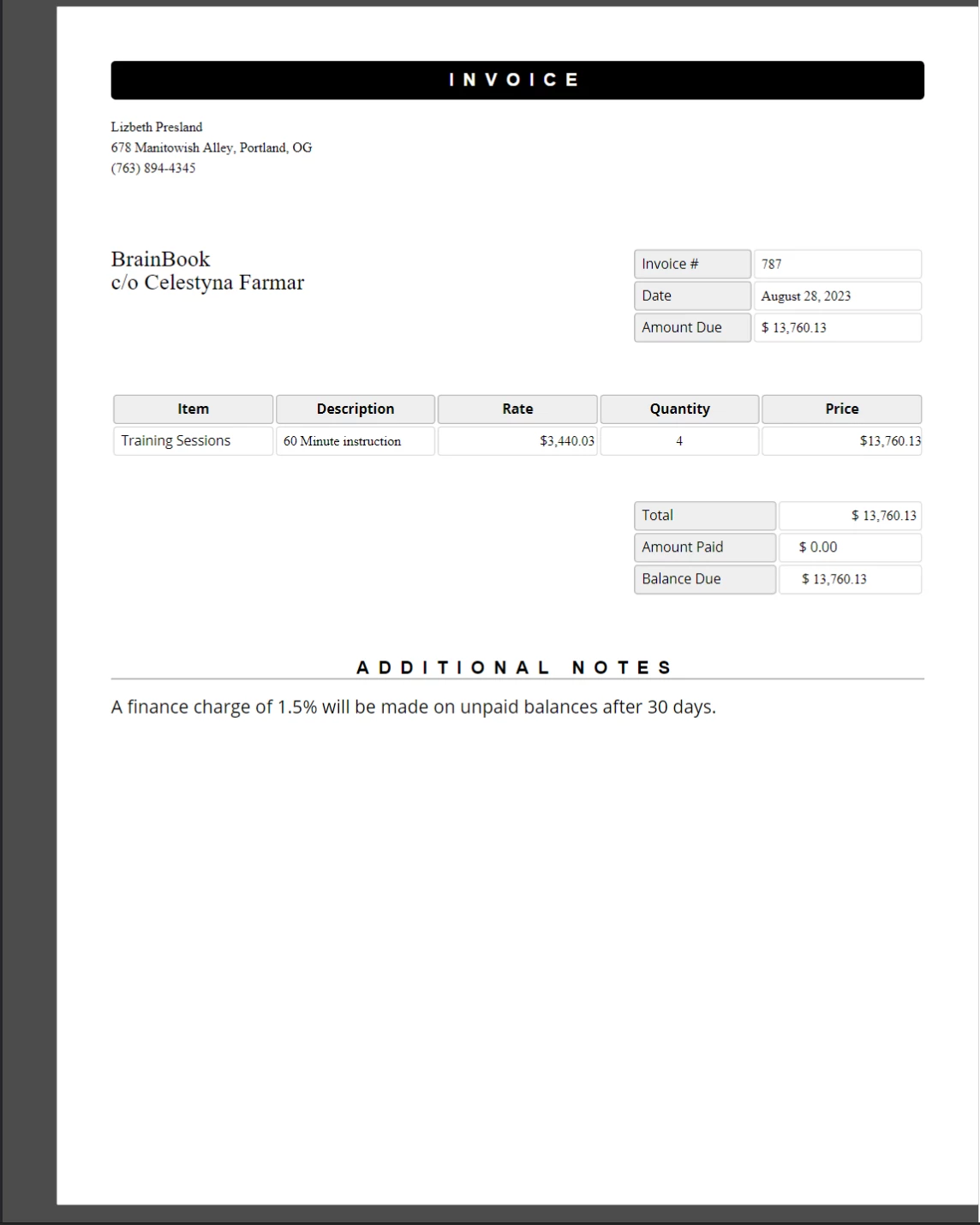
**実データでプレースホルダーの値が置換された完成PDF請求書。 元のテンプレートのCSSスタイルとレイアウトが正確に保持されています。**
このアプローチはバッチドキュメント生成に適しています。 新しい出力ファイルごとに新しい`generatePdf`を呼び出します。
## 次のステップは何ですか?
このチュートリアルでは、IronPDF for Node.jsで使用頻度の高いレンダリングオプションとHTMLからPDFへの変換の主要な方法について説明します。 以下のトピックは、ここで学んだことをより専門的な領域に拡張します。
- **[Node.jsでのPDF編集とスタンピング](/nodejs/tutorials/edit-pdf/)** - 既存のPDFドキュメントにプログラムによってスタンプ、注釈、テキスト編集を適用します。
- **[Node.jsでのPDFのマージと分割](/nodejs/tutorials/merge-pdfs/)** - 複数のPDFを1つのドキュメントに結合する、または1つのPDFを個別のページに分割する。
- **[Node.jsでのPDFへのウォーターマークの追加](/nodejs/tutorials/watermark-pdf/)** - 各ページにテキストまたは画像のウォーターマークを正確な位置制御とともに追加します。
- **[IronPDF Node.js APIリファレンス](/nodejs/object-reference/api/)** - `AffixFonts`、および他のすべてのエクスポートされたクラスとインターフェースの完全なAPIを閲覧します。
- **[無料トライアルライセンスキーを取得する](#trial-license)** - 無料30日間のトライアルライセンスをアクティブにすると、ウォーターマークなしでプロダクション品質のPDFを生成できます。
Ask ChatGPT about this page
Ask Gemini about this page
Ask Perplexity about this page
IronPDFの最も強力で最も人気のある機能は、生のHTML、CSS、JavaScriptから高忠実度のPDFを作成できることです。 このチュートリアルでは、Node.js開発者にHTMLコンテンツをPDFに変換するための実践的な方法をすべて案内します。 - 1行の文字列変換から動的テンプレート駆動のドキュメント生成まで。
IronPDFは、高レベルのAPIライブラリであり、開発者が強力なPDF処理機能をソフトウェアアプリケーションに迅速に実装するのを支援します。 IronPDFは複数のプログラミング言語 で利用可能です。 詳細なカバレッジについては、.NET 、Java 、Python でPDFを作成する公式ドキュメンテーションページをご覧ください。 このチュートリアルでは、その使用方法をNode.jsプロジェクトに適用する方法を説明しています。
IronPDF for Node.js を使い始めるにはどうすればよいですか?
Start using IronPDF in your project today with a free trial.
IronPDFライブラリをインストールする
以下のNPMコマンドを選択したNode.jsプロジェクトで実行してIronPDF Node.jsパッケージをインストールします。
> npm i @ironsoftware/ironpdf
npm i @ironsoftware/ironpdf
IronPDFパッケージの手動ダウンロードとインストール も可能です。
IronPDF エンジンをインストールするにはどうすればよいですか?
IronPDF for Node.jsは機能するためにIronPDFエンジンのバイナリ を必要とします。
Install the IronPDF Engine is optional. @ironsoftware/ironpdfパッケージは最初の実行時に適切なバイナリをオペレーティングシステムに自動的にダウンロードおよびインストールします。 インターネットアクセスが制限されている環境や利用できない環境では、明示的なインストールが推奨されます。
適切なオペレーティングシステム用パッケージをインストール してIronPDFエンジンのバイナリをインストールします。
ライセンスキーの適用方法を教えてください
デフォルトでは、IronPDFは生成または修正されたすべてのドキュメントにウォーターマークを表示します。 透かしを削除するには、有効なライセンスキーを持ったグローバルlicenseKeyプロパティを設定します:
import { IronPdfGlobalConfig } from "@ironsoftware/ironpdf" ; // Retrieve the global configuration object var config = IronPdfGlobalConfig .getConfig(); // Set a valid license key to remove watermarks config.licenseKey = "{YOUR-LICENSE-KEY-HERE}" ; import { IronPdfGlobalConfig } from "@ironsoftware/ironpdf";
// Retrieve the global configuration object
var config = IronPdfGlobalConfig.getConfig();
// Set a valid license key to remove watermarks
config.licenseKey = "{YOUR-LICENSE-KEY-HERE}";
JavaScript
無料トライアルライセンスキーを取得 するかライセンスキーを購入 してライセンスページから入手してください。
ライセンスキーを設定し、他のglobal configuration settings を他のライブラリ機能を呼び出す前に設定します。 これにより、アプリケーション全体で最適なパフォーマンスと正しい動作が保証されます。 このチュートリアルの残りのコード例は、個別のconfig.jsファイルにライセンスキーが適用され、各スクリプトのトップでインポートされたことを前提としています:
import { PdfDocument } from "@ironsoftware/ironpdf" ; import './config.js' ; // Import the configuration script // ... import { PdfDocument } from "@ironsoftware/ironpdf";
import './config.js'; // Import the configuration script
// ...
JavaScript
ironpdf.com/nodejs/licensing/でライセンスキーを取得し、透かしなしのPDFドキュメントを生成してください。
Node.jsでHTMLをPDFに変換するにはどうすればよいですか?
IronPDF Node.jsライブラリは、HTMLコンテンツからPDFファイルを作成するための4つのアプローチを提供します。
1.HTMLコードの文字列から
2.ローカルのHTMLファイルから
3. オンラインURLから
4. 圧縮されたZIPアーカイブから
各アプローチはPdfDocumentPdfDocumentは何らかのソースコンテンツから生成されたPDFファイルを表し、IronPDFのコア作成および編集機能のほとんどを駆動します。
HTML文字列からPDFを作成するには?
PdfDocument.fromHtmlは生のHTMLマークアップの文字列からPDFを生成します。このアプローチは4つの方法の中で最も柔軟性があり、HTML文字列はテキストファイル、データストリーム、HTMLテンプレートエンジン、または動的に作成されたマークアップなど、ほぼどこからでも取得できます。
import { PdfDocument } from "@ironsoftware/ironpdf" ; import './config.js' ; // Import the configuration script // Create a PDF from an HTML string const pdf = await PdfDocument .fromHtml( "<h1>Hello from IronPDF!</h1>" ); // Save the PDF document to the file system await pdf.saveAs( "html-string-to-pdf.pdf" ); import { PdfDocument } from "@ironsoftware/ironpdf";
import './config.js'; // Import the configuration script
// Create a PDF from an HTML string
const pdf = await PdfDocument.fromHtml("<h1>Hello from IronPDF!</h1>");
// Save the PDF document to the file system
await pdf.saveAs("html-string-to-pdf.pdf");
JavaScript
PdfDocumentクラスのインスタンスに解決するPromiseを返します。 インスタンスを取得した後、ターゲットファイルパスでsaveAsを呼び出してPDFをディスクに書き込みます。 保存されたPDFファイルは、標準に準拠したブラウザが表示するのと正確に同じようにHTMLをレンダリングします。
The PDF generated from the HTML string <h1>Hello from IronPDF!</h1>. PdfDocument.fromHtmlが生成したPDFファイルは、ウェブページのコンテンツと同様に表示されます。
HTMLファイルからPDFを作成するには?
PdfDocument.fromHtmlはローカルHTMLドキュメントへのパスも受け付けます。 マークアップの文字列ではなく、有効なファイルパスを最初の引数として渡します。 保存されたウェブページとローカルCSS、JavaScript、および画像リソースを参照する場合、推奨されるアプローチです。
次の例では、サンプルウェブページ をPDFに変換します。
import { PdfDocument } from "@ironsoftware/ironpdf" ; import './config.js' ; // Import the configuration script // Render a PDF from a local HTML file const pdf = await PdfDocument .fromHtml( "./sample2.html" ); // Save the PDF document to the project directory await pdf.saveAs( "html-file-to-pdf-1.pdf" ); import { PdfDocument } from "@ironsoftware/ironpdf";
import './config.js'; // Import the configuration script
// Render a PDF from a local HTML file
const pdf = await PdfDocument.fromHtml("./sample2.html");
// Save the PDF document to the project directory
await pdf.saveAs("html-file-to-pdf-1.pdf");
JavaScript
Google Chromeに表示されたサンプルHTMLページ。 このページおよび類似のページをファイルサンプルズウェブサイトからダウンロードしてください: https://filesamples.com/samples/code/html/sample2.html
IronPDFは元のHTMLドキュメントの外観を保持し、リンク、フォーム、その他のインタラクティブな要素の機能を維持します。 この忠実度は、段落、リスト、画像、ハイパーリンク、およびクライアント側スクリプトを含む複雑なページにまで及びます。
上記のHTMLファイル例から生成されたこのPDF。 前の画像とその外観を比較してください - IronPDFは高精度でレイアウトを保持します。
IronPDFは単純なマークアップをはるかに超えるページを処理します。次の例では、複数の外部CSSファイル、画像、およびスクリプトアセットをソースにしたリッチなページを変換します。
import { PdfDocument } from "@ironsoftware/ironpdf" ; import './config.js' ; // Import the configuration script // Render a PDF from a complex HTML page with external assets PdfDocument .fromHtml( "./sample4.html" ).then( async (pdf) => { return await pdf.saveAs( "html-file-to-pdf-2.pdf" ); }); import { PdfDocument } from "@ironsoftware/ironpdf";
import './config.js'; // Import the configuration script
// Render a PDF from a complex HTML page with external assets
PdfDocument.fromHtml("./sample4.html").then(async (pdf) => {
return await pdf.saveAs("html-file-to-pdf-2.pdf");
});
JavaScript
Google Chromeで見た目が良ければ、PDFに変換したときも見た目が良くなります。 これには、CSSが多用され、JavaScriptでレンダリングされたページデザインが含まれています。
ページがローカルファイルパスからアセットをソースとしている場合、HTMLファイルの場所に対してすべての参照されたCSSファイル、画像、およびスクリプトが存在することを確認してください。 IronPDFのChromeレンダリングエンジンはこれらのパスをブラウザがするのと同じように解決します。
URLからPDFを作成するには?
PdfDocument.fromUrlはライブウェブページをPDFとして取得してレンダリングします。 引数としてパブリックにアクセス可能な任意のURLを渡します。 IronPDFのChromeレンダリングエンジンがページを取得し、すべてのアセットを読み込み、ピクセルパーフェクトなPDFを生成します。 - 手動でHTMLをダウンロードする必要はありません。
import { PdfDocument } from "@ironsoftware/ironpdf" ; import './config.js' ; // Import the configuration script // Convert a live web page to a PDF const pdf = await PdfDocument .fromUrl( "https://en.wikipedia.org/wiki/PDF" ); // Save the document await pdf.saveAs( "url-to-pdf.pdf" ); import { PdfDocument } from "@ironsoftware/ironpdf";
import './config.js'; // Import the configuration script
// Convert a live web page to a PDF
const pdf = await PdfDocument.fromUrl("https://en.wikipedia.org/wiki/PDF");
// Save the document
await pdf.saveAs("url-to-pdf.pdf");
JavaScript
標準に準拠したウェブブラウザで表示されるPDFフォーマットに関するウィキペディアの記事 。
Wikipedia記事でPdfDocument.fromUrlを呼び出して生成されたPDF。 元のウェブページによく似ていることに注意してください。
URLベースの変換では、対象サーバーがIronPDFを実行しているマシンからアクセス可能である必要があります。 認証、VPN、またはファイアウォールの後ろのページは、ChromePdfRenderOptionsを通じて追加の構成を必要とする場合があります。
ZipアーカイブからPDFを作成するには?
PdfDocument.fromZipはZIPアーカイブに含まれる特定のHTMLファイルをPDFに変換します。 これは、HTML、CSS、および画像アセットを一緒にバンドルする自己完結型のHTMLプロジェクトを配布する際に特に有用です。
この例では、プロジェクトディレクトリに次の構造を持つZIPファイルがあると仮定します。
//:path=/static-assets/ironpdf-nodejs/content-code-examples/tutorials/html-to-pdf/zip-structure.txt html-zip.zip ├─ index.html ├─ style.css ├─ logo.png //:path=/static-assets/ironpdf-nodejs/content-code-examples/tutorials/html-to-pdf/zip-structure.txt
html-zip.zip
├─ index.html
├─ style.css
├─ logo.png
Text
index.htmlファイルには以下が含まれます:
//:path=/static-assets/ironpdf-nodejs/content-code-examples/tutorials/html-to-pdf/index.html
<!DOCTYPE html>
<html lang="en">
  <head>
    <meta charset="UTF-8">
    <meta name="viewport" content="width=device-width, initial-scale=1">
    <title>Hello world!</title>
    <link rel="stylesheet" href="style.css">
  </head>
  <body>
    <h1>Hello from IronPDF!</h1>
    <a href="https://ironpdf.com/nodejs/">
      <img src="logo.png" alt="Node.js 向け IronPDF">
    </a>
  </body>
</html>
//:path=/static-assets/ironpdf-nodejs/content-code-examples/tutorials/html-to-pdf/index.html
<!DOCTYPE html>
<html lang="en">
<head>
<meta charset="UTF-8">
<meta name="viewport" content="width=device-width, initial-scale=1">
<title>Hello world!</title>
<link rel="stylesheet" href="style.css">
</head>
<body>
<h1>Hello from IronPDF!</h1>
<a href="https://ironpdf.com/nodejs/">
<img src="logo.png" alt="Node.js 向け IronPDF">
</a>
</body>
</html>
HTML
style.cssはページレイアウトとフォントルールを宣言します:
//:path=/static-assets/ironpdf-nodejs/content-code-examples/tutorials/html-to-pdf/style.css
@font-face {
  font-family: 'Gotham-Black';
  src: url('gotham-black-webfont.eot?') format('embedded-opentype'),
       url('gotham-black-webfont.woff2') format('woff2'),
       url('gotham-black-webfont.woff') format('woff'),
       url('gotham-black-webfont.ttf') format('truetype'),
       url('gotham-black-webfont.svg') format('svg');
  font-weight: normal;
  font-style: normal;
  font-display: swap;
}

body {
  display: flex;
  flex-direction: column;
  justify-content: center;
  margin-left: auto;
  margin-right: auto;
  margin-top: 200px;
  margin-bottom: auto;
  color: white;
  background-color: black;
  text-align: center;
  font-family: "Helvetica"
}

h1 {
  font-family: "Gotham-Black";
  margin-bottom: 70px;
  font-size: 32pt;
}

img {
  width: 400px;
  height: auto;
}

p {
  text-decoration: underline;
  font-size: smaller;
}
//:path=/static-assets/ironpdf-nodejs/content-code-examples/tutorials/html-to-pdf/style.css
@font-face {
font-family: 'Gotham-Black';
src: url('gotham-black-webfont.eot?') format('embedded-opentype'),
url('gotham-black-webfont.woff2') format('woff2'),
url('gotham-black-webfont.woff') format('woff'),
url('gotham-black-webfont.ttf') format('truetype'),
url('gotham-black-webfont.svg') format('svg');
font-weight: normal;
font-style: normal;
font-display: swap;
}
body {
display: flex;
flex-direction: column;
justify-content: center;
margin-left: auto;
margin-right: auto;
margin-top: 200px;
margin-bottom: auto;
color: white;
background-color: black;
text-align: center;
font-family: "Helvetica"
}
h1 {
font-family: "Gotham-Black";
margin-bottom: 70px;
font-size: 32pt;
}
img {
width: 400px;
height: auto;
}
p {
text-decoration: underline;
font-size: smaller;
}
Text
仮想HTML ZIPファイル内のサンプル画像。
fromZipを呼び出す際は、第1引数としてZIPファイルへのパスを指定し、第2引数として構成オブジェクトを指定してください。 mainHtmlFile プロパティを、変換するべきアーカイブ内のHTMLファイルの名前に設定します:
import { PdfDocument } from "@ironsoftware/ironpdf" ; import './config.js' ; // Import the configuration script // Convert an HTML file from a ZIP archive to PDF PdfDocument .fromZip( "./html-zip.zip" , { mainHtmlFile: "index.html" }).then( async (pdf) => { return await pdf.saveAs( "html-zip-to-pdf.pdf" ); }); import { PdfDocument } from "@ironsoftware/ironpdf";
import './config.js'; // Import the configuration script
// Convert an HTML file from a ZIP archive to PDF
PdfDocument.fromZip("./html-zip.zip", {
mainHtmlFile: "index.html"
}).then(async (pdf) => {
return await pdf.saveAs("html-zip-to-pdf.pdf");
});
JavaScript
PdfDocument.fromZipを使用したPDF作成。 この関数は、ZIPファイルからのHTMLコードとそれにバンドルされたアセットを正常にレンダリングします。
IronPDFはどのような高度なレンダリングオプションをサポートしていますか?
ChromePdfRenderOptions
IronPDFは、すべての変換にデフォルトのレンダリング設定を適用します。 defaultChromePdfRenderOptions関数を使用してこれらのデフォルト値を取得します:
import { defaultChromePdfRenderOptions } from "@ironsoftware/ironpdf" ; // Retrieve a ChromePdfRenderOptions object with default settings var options = defaultChromePdfRenderOptions(); import { defaultChromePdfRenderOptions } from "@ironsoftware/ironpdf";
// Retrieve a ChromePdfRenderOptions object with default settings
var options = defaultChromePdfRenderOptions();
JavaScript
必要に応じて返されたオブジェクトのプロパティを修正し、変換メソッドのrenderOptionsパラメータに渡します。
ヘッダーとフッターを追加するにはどうすればよいですか?
textFooterプロパティは、新たにレンダリングされたPDFの各ページにカスタムテキストベースのコンテンツを付加します。 以下の例では、Google検索ホームページからPDFを作成し、異なるフォントを使用したカスタムヘッダーとフッターを追加します。
import { PdfDocument , defaultChromePdfRenderOptions, AffixFonts } from "@ironsoftware/ironpdf" ; import './config.js' ; // Import the configuration script // Start from default render options var options = defaultChromePdfRenderOptions(); // Configure a text-based header options.textHeader = { centerText: "https://www.adobe.com" , dividerLine: true , font: AffixFonts . CourierNew , fontSize: 12 , leftText: "URL to PDF" }; // Configure a text-based footer options.textFooter = { centerText: "IronPDF for Node.js" , dividerLine: true , fontSize: 14 , font: AffixFonts . Helvetica , rightText: "HTML to PDF in Node.js" }; // Render the page with custom headers and footers applied PdfDocument .fromUrl( "https://www.google.com/" , { renderOptions: options }).then( async (pdf) => { return await pdf.saveAs( "add-custom-headers-footers-1.pdf" ); }); import { PdfDocument, defaultChromePdfRenderOptions, AffixFonts } from "@ironsoftware/ironpdf";
import './config.js'; // Import the configuration script
// Start from default render options
var options = defaultChromePdfRenderOptions();
// Configure a text-based header
options.textHeader = {
centerText: "https://www.adobe.com",
dividerLine: true,
font: AffixFonts.CourierNew,
fontSize: 12,
leftText: "URL to PDF"
};
// Configure a text-based footer
options.textFooter = {
centerText: "IronPDF for Node.js",
dividerLine: true,
fontSize: 14,
font: AffixFonts.Helvetica,
rightText: "HTML to PDF in Node.js"
};
// Render the page with custom headers and footers applied
PdfDocument.fromUrl("https://www.google.com/", { renderOptions: options }).then(async (pdf) => {
return await pdf.saveAs("add-custom-headers-footers-1.pdf");
});
JavaScript
GoogleホームページのカスタムテキストヘッダーとフッターをtextFooterを使用して適用したPDF。
より豊かなヘッダーとフッターレイアウトには、htmlFooterプロパティを代わりに使用します。 これらは生のHTMLフラグメントを受け取り、タイポグラフィ、画像、配置に完全な制御を与えます。 以下の例では、ヘッダーにページURLを太字で中央に、フッターにロゴ画像を埋め込みます。
import { PdfDocument , defaultChromePdfRenderOptions } from "@ironsoftware/ironpdf" ; import './config.js' ; // Import the configuration script // Start from default render options var options = defaultChromePdfRenderOptions(); // Define a rich HTML header options.htmlHeader = { htmlFragment: "<strong>https://www.google.com/</strong>" , dividerLine: true , dividerLineColor: "blue" , loadStylesAndCSSFromMainHtmlDocument: true , }; // Define a rich HTML footer with a logo options.htmlFooter = { htmlFragment: "<img src='logo.png' alt='IronPDF for Node.js' style='display: block; width: 150px; height: auto; margin-left: auto; margin-right: auto;'>" , dividerLine: true , loadStylesAndCSSFromMainHtmlDocument: true }; // Apply custom HTML headers and footers during rendering await PdfDocument .fromUrl( "https://www.google.com/" , { renderOptions: options }).then( async (pdf) => { return await pdf.saveAs( "add-html-headers-footers.pdf" ); }); import { PdfDocument, defaultChromePdfRenderOptions } from "@ironsoftware/ironpdf";
import './config.js'; // Import the configuration script
// Start from default render options
var options = defaultChromePdfRenderOptions();
// Define a rich HTML header
options.htmlHeader = {
htmlFragment: "<strong>https://www.google.com/</strong>",
dividerLine: true,
dividerLineColor: "blue",
loadStylesAndCSSFromMainHtmlDocument: true,
};
// Define a rich HTML footer with a logo
options.htmlFooter = {
htmlFragment: "<img src='logo.png' alt='IronPDF for Node.js' style='display: block; width: 150px; height: auto; margin-left: auto; margin-right: auto;'>",
dividerLine: true,
loadStylesAndCSSFromMainHtmlDocument: true
};
// Apply custom HTML headers and footers during rendering
await PdfDocument.fromUrl("https://www.google.com/", { renderOptions: options }).then(async (pdf) => {
return await pdf.saveAs("add-html-headers-footers.pdf");
});
JavaScript
IronPDFはHTMLベースのヘッダーとフッターをサポートしており、各ページのブランディングとレイアウトに完全な管理を提供します。
ページサイズ、向き、マージンをどうコントロールしますか?
ChromePdfRenderOptionsでレンダリングされた各ページの物理的レイアウトを制御します。 以下の例は、Googleホームページをカスタムマージン、A5横向き、およびグレースケール出力で変換します:
import { PdfDocument , defaultChromePdfRenderOptions, PaperSize , FitToPaperModes , PdfPaperOrientation } from "@ironsoftware/ironpdf" ; import './config.js' ; // Import the configuration script // Start from default render options var options = defaultChromePdfRenderOptions(); // Set page margins in millimeters options.margin = { top: 50 , bottom: 50 , left: 60 , right: 60 }; // Configure paper size, fit mode, orientation, and color mode options.paperSize = PaperSize . A5 ; options.fitToPaperMode = FitToPaperModes . FitToPage ; options.paperOrientation = PdfPaperOrientation . Landscape ; options.grayScale = true ; // Render with the customized layout settings PdfDocument .fromUrl( "https://www.google.com/" , { renderOptions: options }).then( async (pdf) => { return await pdf.saveAs( "set-margins-and-page-size.pdf" ); }); import { PdfDocument, defaultChromePdfRenderOptions, PaperSize, FitToPaperModes, PdfPaperOrientation } from "@ironsoftware/ironpdf";
import './config.js'; // Import the configuration script
// Start from default render options
var options = defaultChromePdfRenderOptions();
// Set page margins in millimeters
options.margin = {
top: 50,
bottom: 50,
left: 60,
right: 60
};
// Configure paper size, fit mode, orientation, and color mode
options.paperSize = PaperSize.A5;
options.fitToPaperMode = FitToPaperModes.FitToPage;
options.paperOrientation = PdfPaperOrientation.Landscape;
options.grayScale = true;
// Render with the customized layout settings
PdfDocument.fromUrl("https://www.google.com/", { renderOptions: options }).then(async (pdf) => {
return await pdf.saveAs("set-margins-and-page-size.pdf");
});
JavaScript
Legalなどの標準的な用紙サイズが含まれます。 Landscapeをサポートします。 これらの設定は、印刷対応ドキュメントの出力寸法を正確に制御することができます。
印刷ワークフロー用にPDFを生成する際は、必ずマージンを明示的に指定してください。 デフォルトのマージンは、ターゲットプリンターや紙の形式の要件に一致しない場合があります。
動的なウェブページをどのように処理しますか?
JavaScriptのタイマー、遅延読み込み、API呼び出しを介して非同期でコンテンツをロードするページは、IronPDFのエンジンがそれらをキャプチャする頃には完全にレンダリングされていない可能性があります。 waitForプロパティを介して設定され、Chromeレンダラーにページをキャプチャする前に指定した条件を満たすまで待機するよう指示します。
以下のコードブロックは、ページコンテンツをキャプチャする前にIronPDFが20秒間待機するように設定します:
import { PdfDocument , defaultChromePdfRenderOptions, WaitForType } from "@ironsoftware/ironpdf" ; import './config.js' ; // Import the configuration script // Configure the renderer to wait 20 seconds before capturing var options = defaultChromePdfRenderOptions(); options.waitFor = { type: WaitForType . RenderDelay , delay: 20000 }; PdfDocument .fromUrl( "https://ironpdf.com/nodejs/" , { renderOptions: options }).then( async (pdf) => { return await pdf.saveAs( "waitfor-renderdelay.pdf" ); }); import { PdfDocument, defaultChromePdfRenderOptions, WaitForType } from "@ironsoftware/ironpdf";
import './config.js'; // Import the configuration script
// Configure the renderer to wait 20 seconds before capturing
var options = defaultChromePdfRenderOptions();
options.waitFor = {
type: WaitForType.RenderDelay,
delay: 20000
};
PdfDocument.fromUrl("https://ironpdf.com/nodejs/", { renderOptions: options }).then(async (pdf) => {
return await pdf.saveAs("waitfor-renderdelay.pdf");
});
JavaScript
または、特定のDOM要素が表示されるまで待機するようにIronPDFを構成してください。 これは、JavaScriptフレームワークがマウントを終了した後にコンテンツが挿入されるページに便利です:
import { PdfDocument , defaultChromePdfRenderOptions, WaitForType } from "@ironsoftware/ironpdf" ; import './config.js' ; // Import the configuration script // Configure the renderer to wait for a specific DOM element (up to 20 seconds) var options = defaultChromePdfRenderOptions(); options.waitFor = { type: WaitForType . HtmlElement , htmlQueryStr: "div.ProseMirror" , maxWaitTime: 20000 , }; PdfDocument .fromUrl( "https://app.surferseo.com/drafts/s/V7VkcdfgFz-dpkldsfHDGFFYf4jjSvvjsdf" , { renderOptions: options }).then( async (pdf) => { return await pdf.saveAs( "waitfor-htmlelement.pdf" ); }); import { PdfDocument, defaultChromePdfRenderOptions, WaitForType } from "@ironsoftware/ironpdf";
import './config.js'; // Import the configuration script
// Configure the renderer to wait for a specific DOM element (up to 20 seconds)
var options = defaultChromePdfRenderOptions();
options.waitFor = {
type: WaitForType.HtmlElement,
htmlQueryStr: "div.ProseMirror",
maxWaitTime: 20000,
};
PdfDocument.fromUrl("https://app.surferseo.com/drafts/s/V7VkcdfgFz-dpkldsfHDGFFYf4jjSvvjsdf", { renderOptions: options }).then(async (pdf) => {
return await pdf.saveAs("waitfor-htmlelement.pdf");
});
JavaScript
WaitForType.HtmlElement戦略は標準のCSSクエリセレクターを使用します。 レンダラーは、maxWaitTimeミリ秒が経過するか要素が見つかるまで要素の存在をポーリングします - いずれかが先に来た場合です。
過剰に長い待機時間を設定すると、高スループットアプリケーションでのPDF生成時間が大幅に増加する可能性があります。 あなたのユースケースが必要とするコンテンツを確実にキャプチャするために最小限の遅延を使用してください。
HTMLテンプレートからPDFを生成する方法は?
一般的な現実世界の自動化パターンは、データベース、API、またはスプレッドシートからのデータでプレースホルダー値を置換して、共有HTMLテンプレートからバッチのPDFを生成することです。 IronPDFのPdfDocumentでこれを直接処理します。
以下の請求書テンプレートのサンプル(CodePen請求書テンプレート から改編)は、{INVOICE-NUMBER}のようなカールブラケットプレースホルダーを使用して置換可能なコンテンツをサポートしています:
プレースホルダータグを含むサンプル請求書テンプレート。 JavaScriptコードは、PDFとして保存される前に実データで各タグを置換します。
以下のコードは、テンプレートを読み込み、すべてのプレースホルダーをテストデータで置換し、結果をPDFとして保存します:
//:path=/static-assets/ironpdf-nodejs/content-code-examples/tutorials/html-to-pdf/html-template-to-pdf.js import { PdfDocument } from "@ironsoftware/ironpdf" ; import './config.js' ; // Import the configuration script /** * Loads an HTML template from the file system as a PdfDocument. */ async function getTemplateHtml(fileLocation) { return PdfDocument .fromHtml(fileLocation); } /** * Saves a PdfDocument to the specified file path. */ async function generatePdf(pdf, location) { return pdf.saveAs(location); } /** * Replaces a named placeholder in the PdfDocument with a data value. */ async function addTemplateData(pdf, key, value) { return pdf.replaceText(key, value); } // Path to the HTML invoice template const template = "./sample-invoice.html" ; // Load the template, fill in all placeholder values, then save the PDF getTemplateHtml(template).then( async (doc) => { await addTemplateData(doc, "{FULL-NAME}" , "Lizbeth Presland" ); await addTemplateData(doc, "{ADDRESS}" , "678 Manitowish Alley, Portland, OG" ); await addTemplateData(doc, "{PHONE-NUMBER}" , "(763) 894-4345" ); await addTemplateData(doc, "{INVOICE-NUMBER}" , "787" ); await addTemplateData(doc, "{INVOICE-DATE}" , "August 28, 2023" ); await addTemplateData(doc, "{AMOUNT-DUE}" , "13,760.13" ); await addTemplateData(doc, "{RECIPIENT}" , "Celestyna Farmar" ); await addTemplateData(doc, "{COMPANY-NAME}" , "BrainBook" ); await addTemplateData(doc, "{TOTAL}" , "13,760.13" ); await addTemplateData(doc, "{AMOUNT-PAID}" , "0.00" ); await addTemplateData(doc, "{BALANCE-DUE}" , "13,760.13" ); await addTemplateData(doc, "{ITEM}" , "Training Sessions" ); await addTemplateData(doc, "{DESCRIPTION}" , "60 Minute instruction" ); await addTemplateData(doc, "{RATE}" , "3,440.03" ); await addTemplateData(doc, "{QUANTITY}" , "4" ); await addTemplateData(doc, "{PRICE}" , "13,760.13" ); return doc; }).then( async (doc) => await generatePdf(doc, "html-template-to-pdf.pdf" )); //:path=/static-assets/ironpdf-nodejs/content-code-examples/tutorials/html-to-pdf/html-template-to-pdf.js
import { PdfDocument } from "@ironsoftware/ironpdf";
import './config.js'; // Import the configuration script
/**
* Loads an HTML template from the file system as a PdfDocument.
*/
async function getTemplateHtml(fileLocation) {
return PdfDocument.fromHtml(fileLocation);
}
/**
* Saves a PdfDocument to the specified file path.
*/
async function generatePdf(pdf, location) {
return pdf.saveAs(location);
}
/**
* Replaces a named placeholder in the PdfDocument with a data value.
*/
async function addTemplateData(pdf, key, value) {
return pdf.replaceText(key, value);
}
// Path to the HTML invoice template
const template = "./sample-invoice.html";
// Load the template, fill in all placeholder values, then save the PDF
getTemplateHtml(template).then(async (doc) => {
await addTemplateData(doc, "{FULL-NAME}", "Lizbeth Presland");
await addTemplateData(doc, "{ADDRESS}", "678 Manitowish Alley, Portland, OG");
await addTemplateData(doc, "{PHONE-NUMBER}", "(763) 894-4345");
await addTemplateData(doc, "{INVOICE-NUMBER}", "787");
await addTemplateData(doc, "{INVOICE-DATE}", "August 28, 2023");
await addTemplateData(doc, "{AMOUNT-DUE}", "13,760.13");
await addTemplateData(doc, "{RECIPIENT}", "Celestyna Farmar");
await addTemplateData(doc, "{COMPANY-NAME}", "BrainBook");
await addTemplateData(doc, "{TOTAL}", "13,760.13");
await addTemplateData(doc, "{AMOUNT-PAID}", "0.00");
await addTemplateData(doc, "{BALANCE-DUE}", "13,760.13");
await addTemplateData(doc, "{ITEM}", "Training Sessions");
await addTemplateData(doc, "{DESCRIPTION}", "60 Minute instruction");
await addTemplateData(doc, "{RATE}", "3,440.03");
await addTemplateData(doc, "{QUANTITY}", "4");
await addTemplateData(doc, "{PRICE}", "13,760.13");
return doc;
}).then(async (doc) => await generatePdf(doc, "html-template-to-pdf.pdf"));
JavaScript
上記のコードは、3つの非同期ヘルパー関数を定義しています:
PdfDocumentオブジェクトにロードします。PdfDocument.replaceTextを呼び出します。PdfDocumentをターゲットファイルパスに書き込みます。
各replaceText呼び出しはインメモリのPDF表現上で直接動作するため、ドキュメントをディスクから再読み込みすることなく複数の置換を連鎖できます。 生成されたPDFは、元のテンプレートのCSSスタイル、フォント、およびレイアウトをすべて保持します。
実データでプレースホルダーの値が置換された完成PDF請求書。 元のテンプレートのCSSスタイルとレイアウトが正確に保持されています。
このアプローチはバッチドキュメント生成に適しています。 新しい出力ファイルごとに新しいgeneratePdfを呼び出します。
次のステップは何ですか?
このチュートリアルでは、IronPDF for Node.jsで使用頻度の高いレンダリングオプションとHTMLからPDFへの変換の主要な方法について説明します。 以下のトピックは、ここで学んだことをより専門的な領域に拡張します。
よくある質問 IronPDFライブラリを使用します。npm install @ironsoftware/ironpdfでインストールし、次にPdfDocument.fromHtmlをHTML文字列またはファイルパスで呼び出し、またはPdfDocument.fromUrlをWebアドレスで呼び出します。結果をPdfDocument.saveAsで保存します。
HTML文字列を引数としてPdfDocument.fromHtmlを呼び出します。このメソッドはPdfDocumentインスタンスに解決されるPromiseを返します。PDFをディスクに書き込むためにsaveAsを結果にチェーンします。
HTML文字列の代わりに有効なファイルシステムパスをPdfDocument.fromHtmlに渡します。IronPDFは、CSS、画像、スクリプトの相対パスをブラウザがファイルをロードする場合と同じ方法で解決します。
ターゲットURLでPdfDocument.fromUrlを呼び出します。IronPDFは、Chromeレンダリングエンジンを使用してページを取得し、ピクセルパーフェクトなPDFを生成します。ターゲットURLはIronPDFを実行しているホストから公にアクセス可能でなければなりません。
シンプルなテキストヘッダーとフッターのためにChromePdfRenderOptionsオブジェクトのtextHeaderとtextFooterプロパティを設定します。リッチなレイアウトのためには、生のHTMLフラグメントを使用してhtmlHeaderおよびhtmlFooterを使用します。オプションオブジェクトをあらゆる変換メソッドのrenderOptionsパラメータに渡します。
options.paperSizeをPaperSize列挙型からの値(例:PaperSize.A4またはPaperSize.Letter)に設定し、options.paperOrientationをPdfPaperOrientation.PortraitまたはPdfPaperOrientation.Landscapeに設定します。設定済みのオプションを変換メソッドに渡します。
ChromePdfRenderOptionsのwaitForプロパティを使用します。typeをWaitForType.RenderDelayに設定し、ミリ秒単位の遅延を指定するか、typeをWaitForType.HtmlElementに設定し、CSSクエリセレクターを提供します。IronPDFは、条件が満たされるまでレンダリングを一時停止します。
PdfDocument.fromZipをZIPファイルへのパスを第1引数として呼び出し、オプションオブジェクトを第2引数とします。mainHtmlFileプロパティをアーカイブ内で変換すべきHTMLファイルの名前に設定します。
変換メソッドを呼び出す前に、グローバル設定に有効なライセンスキーを適用します。IronPdfGlobalConfig.getConfig()で設定オブジェクトを取得し、config.licenseKeyをキーに設定します。無料トライアルライセンスはironpdf.comで入手できます。
PdfDocument.fromHtmlでテンプレートをロードし、次にPdfDocument.replaceTextをテンプレート内の各プレースホルダーに対して呼び出し、プレースホルダー文字列とその置換値を渡します。すべての置換が完了したら、saveAsを呼び出して最終的なPDFを書き込みます。
テクニカルライター
Curtis Chauは、カールトン大学でコンピュータサイエンスの学士号を取得し、Node.js、TypeScript、JavaScript、およびReactに精通したフロントエンド開発を専門としています。直感的で美しいユーザーインターフェースを作成することに情熱を持ち、Curtisは現代のフレームワークを用いた開発や、構造の良い視覚的に魅力的なマニュアルの作成を楽しんでいます。
...
詳しく読む 


 ironpdf.com/nodejs/licensing/でライセンスキーを取得し、透かしなしのPDFドキュメントを生成してください。
 The PDF generated from the HTML string
  Google Chromeに表示されたサンプルHTMLページ。 このページおよび類似のページをファイルサンプルズウェブサイトからダウンロードしてください: https://filesamples.com/samples/code/html/sample2.html
 上記のHTMLファイル例から生成されたこのPDF。 前の画像とその外観を比較してください - IronPDFは高精度でレイアウトを保持します。
 Google Chromeで見た目が良ければ、PDFに変換したときも見た目が良くなります。 これには、CSSが多用され、JavaScriptでレンダリングされたページデザインが含まれています。
 標準に準拠したウェブブラウザで表示されるPDFフォーマットに関するウィキペディアの記事。
 Wikipedia記事で
 仮想HTML ZIPファイル内のサンプル画像。
 Googleホームページのカスタムテキストヘッダーとフッターを
 IronPDFはHTMLベースのヘッダーとフッターをサポートしており、各ページのブランディングとレイアウトに完全な管理を提供します。
 プレースホルダータグを含むサンプル請求書テンプレート。 JavaScriptコードは、PDFとして保存される前に実データで各タグを置換します。
 実データでプレースホルダーの値が置換された完成PDF請求書。 元のテンプレートのCSSスタイルとレイアウトが正確に保持されています。













