

Wkhtmltopdf Python과 Python용 IronPDF 비교

1. Introduction
PDFs play a crucial role in modern digital workflows, serving as a standard format for document storage and sharing. In Python, developers often turn to powerful libraries like wkhtmltopdf and IronPDF to generate and manipulate PDFs. Both libraries offer distinct features and capabilities, addressing different needs in the realm of PDF generation. In this comparison, we'll explore the strengths and use cases of each library to help developers make an informed choice.
2. What is wkhtmltopdf?
2.1 Overview
wkhtmltopdf is a command-line tool that utilizes the WebKit rendering engine to convert HTML or other markup languages into PDFs. Python developers commonly use the pdfkit library as a simple Python wrapper around wkhtmltopdf to integrate it seamlessly into their projects. Now, the python3-wkhtmltopdf package also provides a Python wrapper for the wkhtmltopdf command-line tool, making it more convenient to use wkhtmltopdf within Python scripts. The original wkhtmltopdf Python package is no longer maintained.
2.2 Key Features
2.2.1 HTML to PDF Conversion
wkhtmltopdf excels in converting HTML content to PDF, preserving styles, layout, and images. Its straightforward approach makes it suitable for scenarios where HTML-to-PDF conversion is the primary requirement.
2.2.2 Command-Line Interface
Being a command-line tool, wkhtmltopdf is easily scriptable and can be integrated into various workflows. It's particularly useful for automating batch PDF generation processes.
2.2.3 CSS Styling and JavaScript Support
wkhtmltopdf supports advanced CSS styling and executes JavaScript during the conversion process, allowing for rich and dynamic content in the resulting PDFs.
2.2.4 Flexibility and Customization
wkhtmltopdf provides flexibility in terms of page size, orientation, and other layout settings. Developers can tweak these parameters to achieve the desired look and feel in the generated PDFs.
2.2.5 Deployment and Dependencies
The tool is independent of external libraries and dependencies, simplifying deployment. However, users need to ensure that the wkhtmltopdf binary is available in their environment.
3. IronPDF for Python
3.1 Overview
IronPDF is a versatile Python library designed to facilitate PDF generation, editing, and manipulation. It provides a range of features for working with PDF files, such as generating PDFs from HTML, converting HTML to PDF, adding text and images to existing PDFs, and extracting content from PDF documents. It is particularly popular in .NET Framework, and its Python version aims to bring similar capabilities to Python developers.
3.2 Key Features
HTML to PDF Conversion: IronPDF excels in converting HTML to PDF, offering features like CSS styling, JavaScript execution, and custom headers and footers. It provides multiple ways to convert HTML content, including HTML strings, HTML files, and URLs.
Editing and Manipulation: One of the notable features of IronPDF is its ability to edit existing PDF files. Developers can add text, images, annotations, and more to PDF documents, making it a comprehensive solution for PDF manipulation.
Security Features: IronPDF includes robust security features such as password protection, encryption, and setting permissions on PDF documents. These features are crucial for handling sensitive information securely.
Customizable Rendering: Developers using IronPDF have granular control over the rendering process. Custom headers, footers, page margins, and specific HTML parts for conversion can be configured to achieve precise PDF outputs.
- Deployment and Dependencies: IronPDF seamlessly integrates with various Python environments, including ASP.NET, MVC, Windows Forms, and WPF. It supports both .NET Core and Framework, making it versatile for different project types. Additionally, it works with cloud services like Azure.
4. Create a Python Project
4.1 Set Up Python
Ensure that Python is installed on your system. You can download Python from the official Python website.
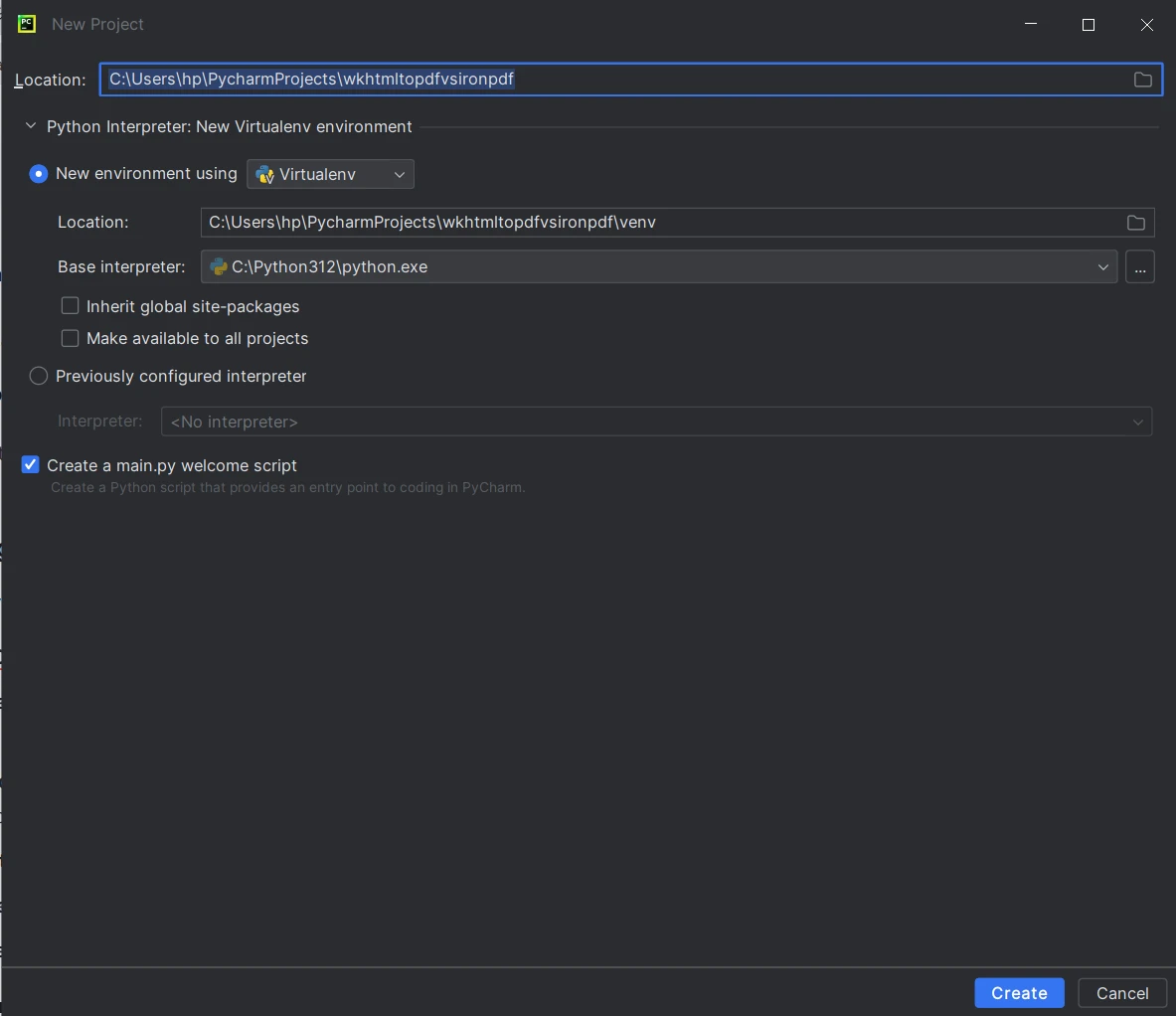
4.2 Creating a Project in PyCharm
For creating a Python project, any IDE can be used, here I'll use PyCharm, a renowned Python IDE. You can simply use any IDE or even a text editor.
- Open PyCharm: Launch PyCharm on your computer.
- Create New Project: Click on "Create New Project" on the welcome screen or go to File > New Project in the IDE.
- Set Project Location: Specify the project directory and optionally enable "Create a directory for the project."
- Select Interpreter: Choose an existing Python interpreter or create a new virtual environment.
- Configure Project: Set up project type, content root, and source root (defaults are usually fine).
- Click "Create": Hit the "Create" button to create the project.
5. Install wkhtmltopdf Utility
Download and Install wkhtmltopdf
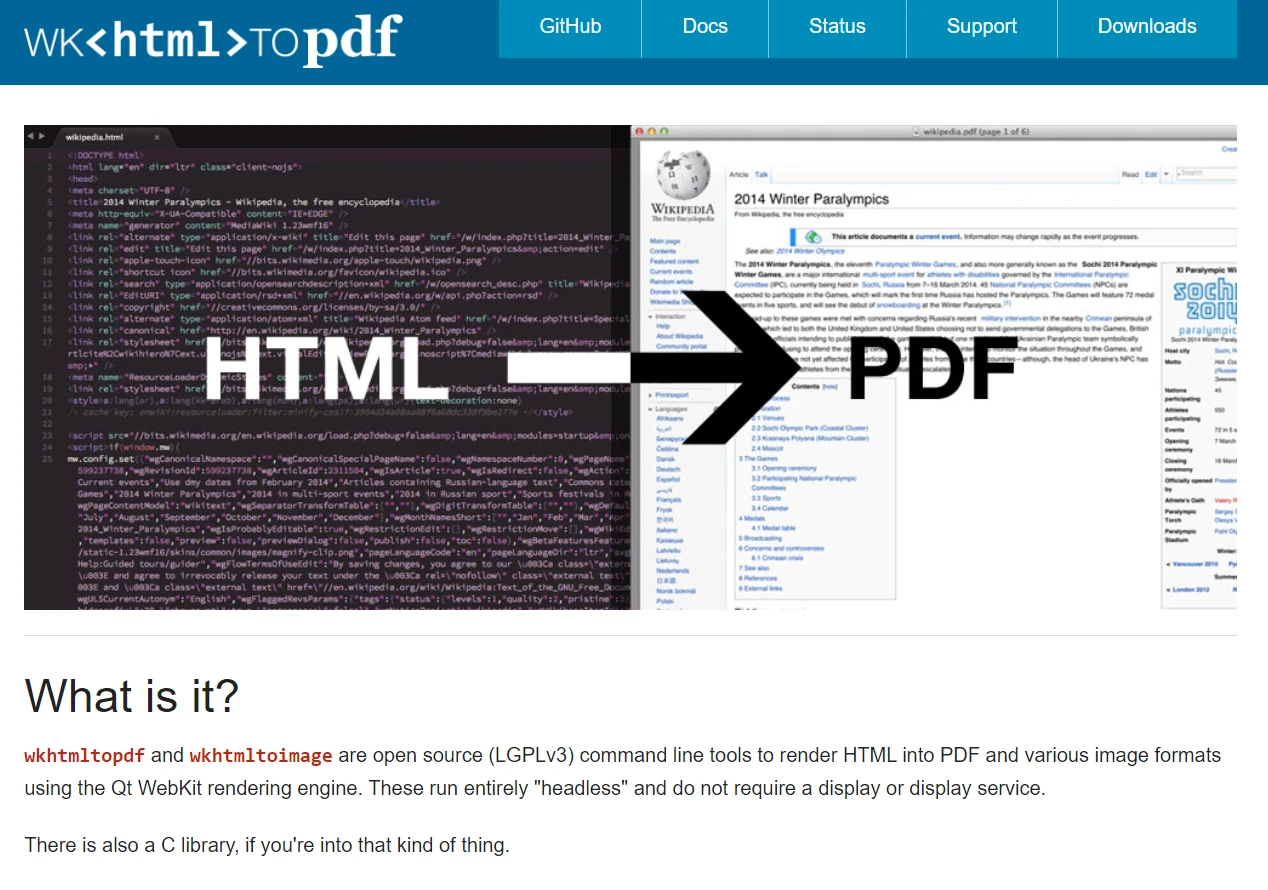
Visit the wkhtmltopdf downloads page and download the appropriate installer for your operating system.
Install wkhtmltopdf
Follow the installation instructions provided for your specific operating system. If you are on Windows, make sure to add it to the PATH environment variable to access it anywhere in the command line.
Verify Installation
Open a new terminal or command prompt and type wkhtmltopdf to ensure that the tool is installed correctly. You should see information about the available options.
Install wkhtmltopdf python package via pip
One such popular Python library for interacting with wkhtmltopdf is called pdfkit. Use the following command to install it on your production projects:
pip install pdfkitpip install pdfkit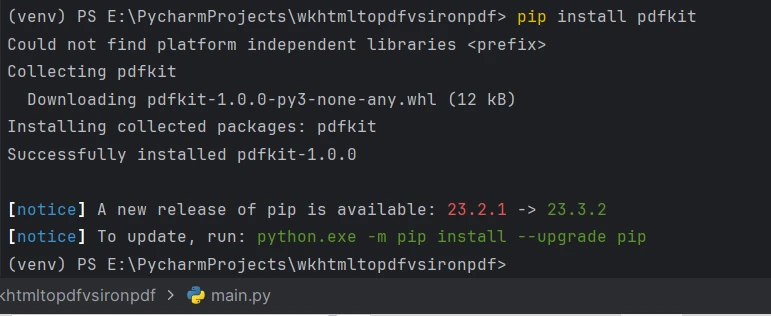
6. Install IronPDF
Install IronPDF via pip: Open a terminal or command prompt in PyCharm, and run the following command to install IronPDF using pip:
pip install ironpdf
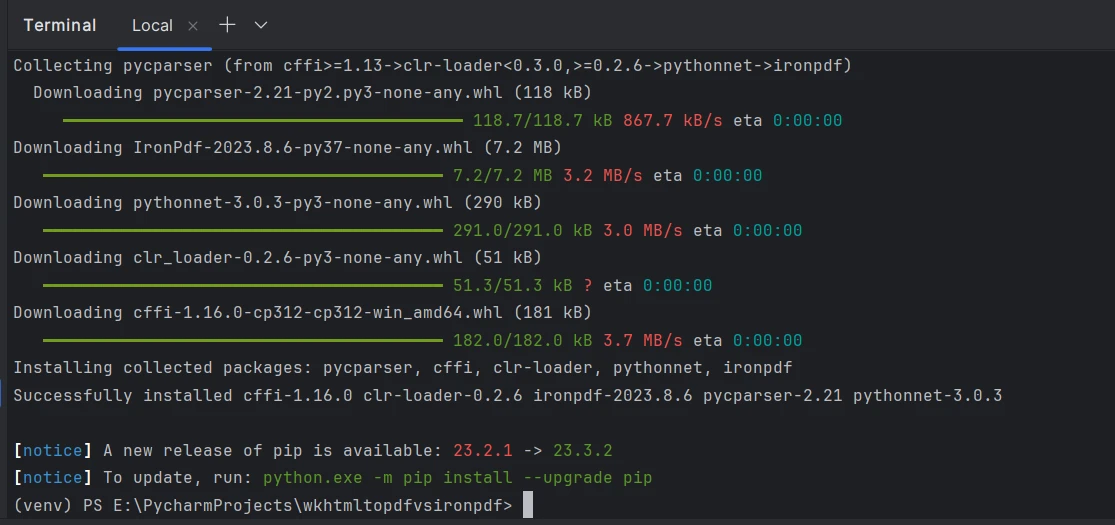
You can also download the Python package specific to your platform from the IronPDF website's downloads section at https://ironpdf.com/python/
7. Comparison
In this comparison, first, we will have a look at how to create a PDF document from HTML using both wkhtmltopdf lib and IronPDF lib. We will see how to generate a PDF from the following:
- HTML String to PDF
- HTML File to PDF
- URL to PDF
Additionally, we'll explore some optional arguments and features provided by both libraries.
7.1 Creating PDF File using IronPDF
First, we'll look at how IronPDF seamlessly renders HTML string, file, and URL to PDF, utilizing its ChromePdfRenderer engine.
7.1.1 HTML String to PDF
from ironpdf import ChromePdfRenderer

# Instantiate Renderer
renderer = ChromePdfRenderer()

# Create a PDF from an HTML string using Python
pdf = renderer.RenderHtmlAsPdf("<h1>Hello World</h1>")

# Export to a file or Stream
pdf.SaveAs("output.pdf")
from ironpdf import ChromePdfRenderer
# Instantiate Renderer
renderer = ChromePdfRenderer()
# Create a PDF from an HTML string using Python
pdf = renderer.RenderHtmlAsPdf("<h1>Hello World</h1>")
# Export to a file or Stream
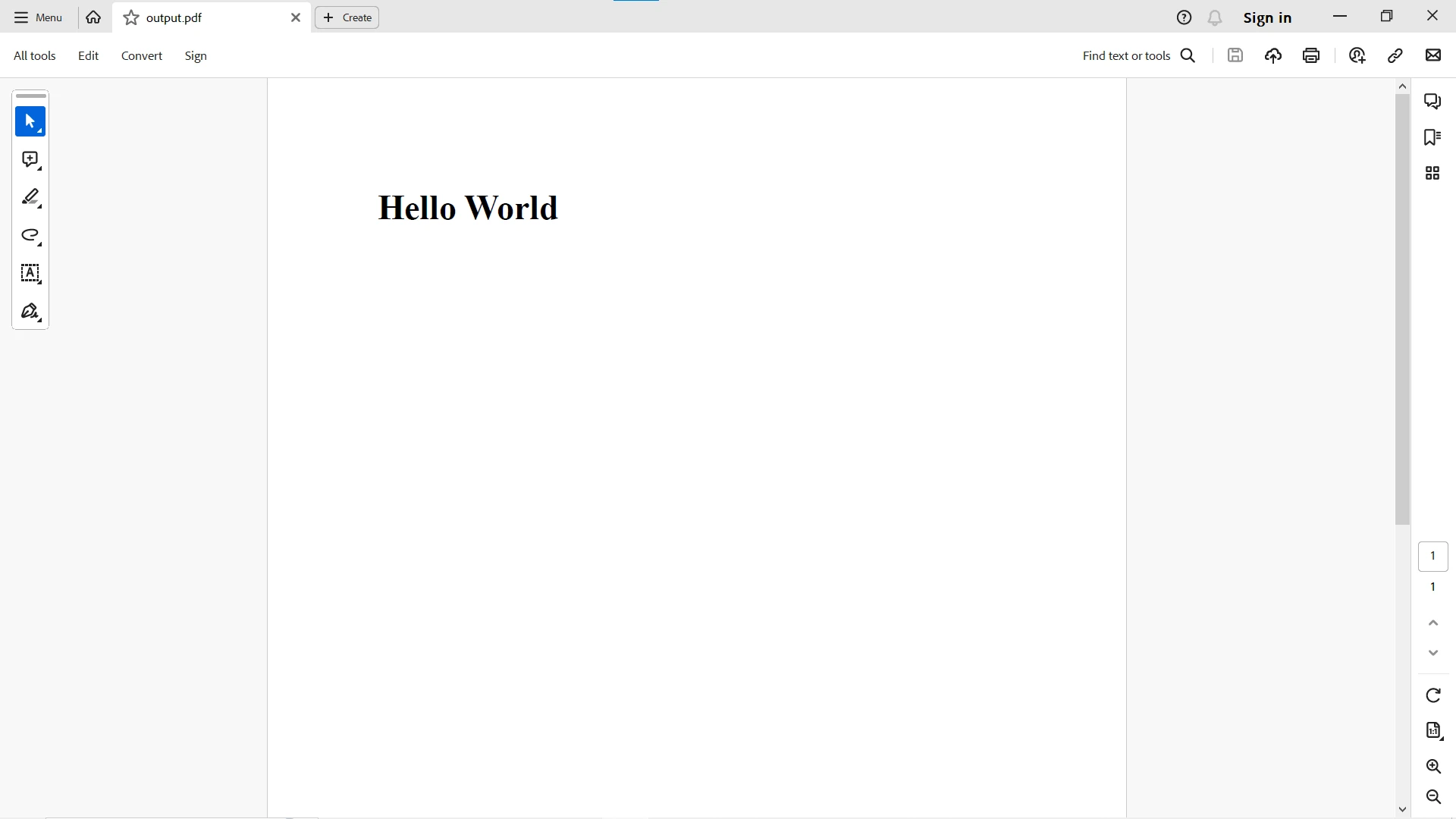
pdf.SaveAs("output.pdf")Here is the output of the HTML string converted to PDF:
7.1.2 HTML Files to PDF
from ironpdf import ChromePdfRenderer

# Instantiate Renderer
renderer = ChromePdfRenderer()

# Create a PDF from an existing HTML file using Python
pdf = renderer.RenderHtmlFileAsPdf("example.html")

# Export to a file or Stream
pdf.SaveAs("output.pdf")
from ironpdf import ChromePdfRenderer
# Instantiate Renderer
renderer = ChromePdfRenderer()
# Create a PDF from an existing HTML file using Python
pdf = renderer.RenderHtmlFileAsPdf("example.html")
# Export to a file or Stream
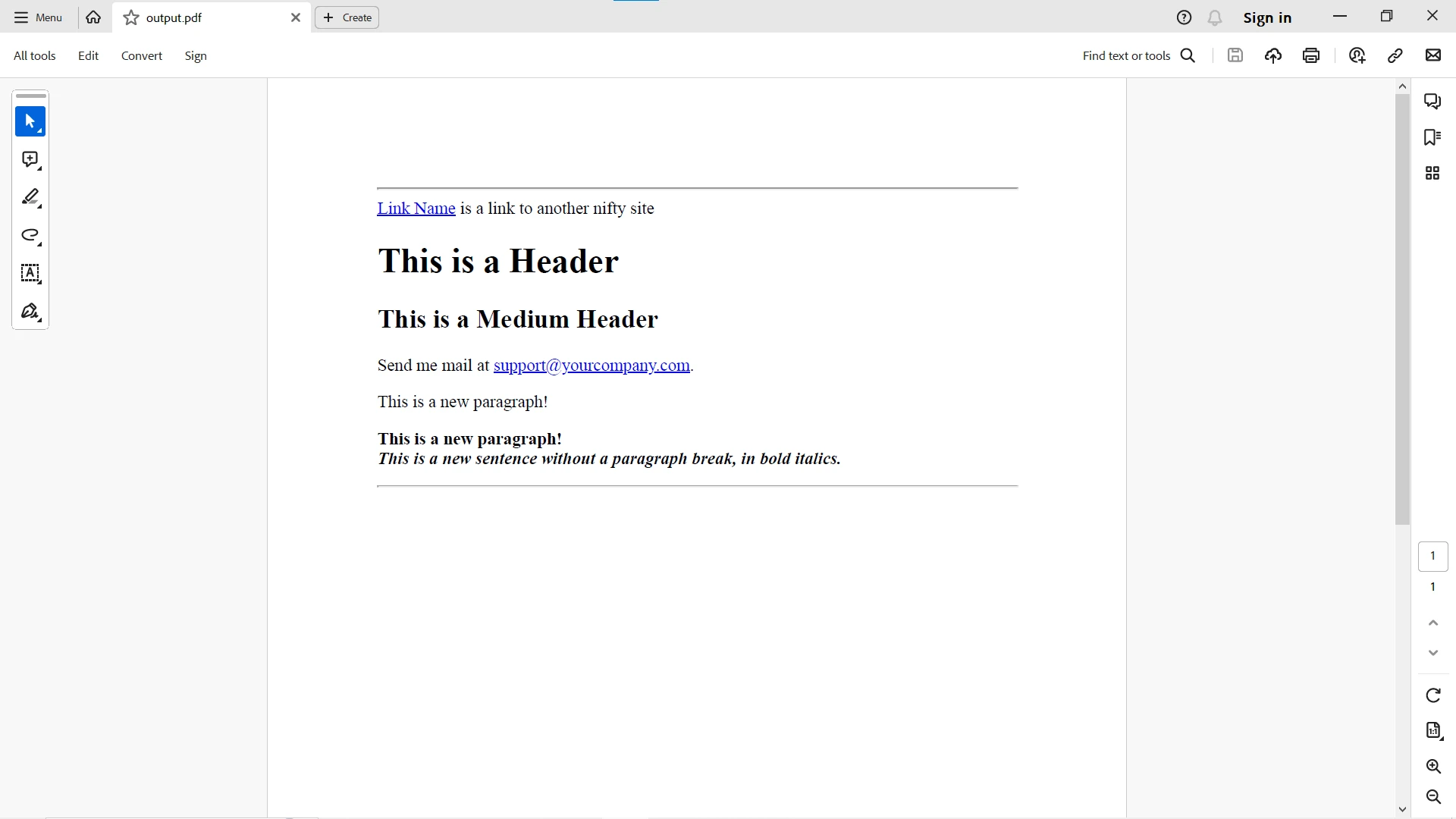
pdf.SaveAs("output.pdf")Here is the output of the HTML file converted to PDF:
7.1.3 HTML URL to PDF
from ironpdf import ChromePdfRenderer

# Instantiate Renderer
renderer = ChromePdfRenderer()

# Create a PDF from a URL or local file path
pdf = renderer.RenderUrlAsPdf("https://ironpdf.com/python")

# Export to a file or Stream
pdf.SaveAs("url.pdf")
from ironpdf import ChromePdfRenderer
# Instantiate Renderer
renderer = ChromePdfRenderer()
# Create a PDF from a URL or local file path
pdf = renderer.RenderUrlAsPdf("https://ironpdf.com/python")
# Export to a file or Stream
pdf.SaveAs("url.pdf")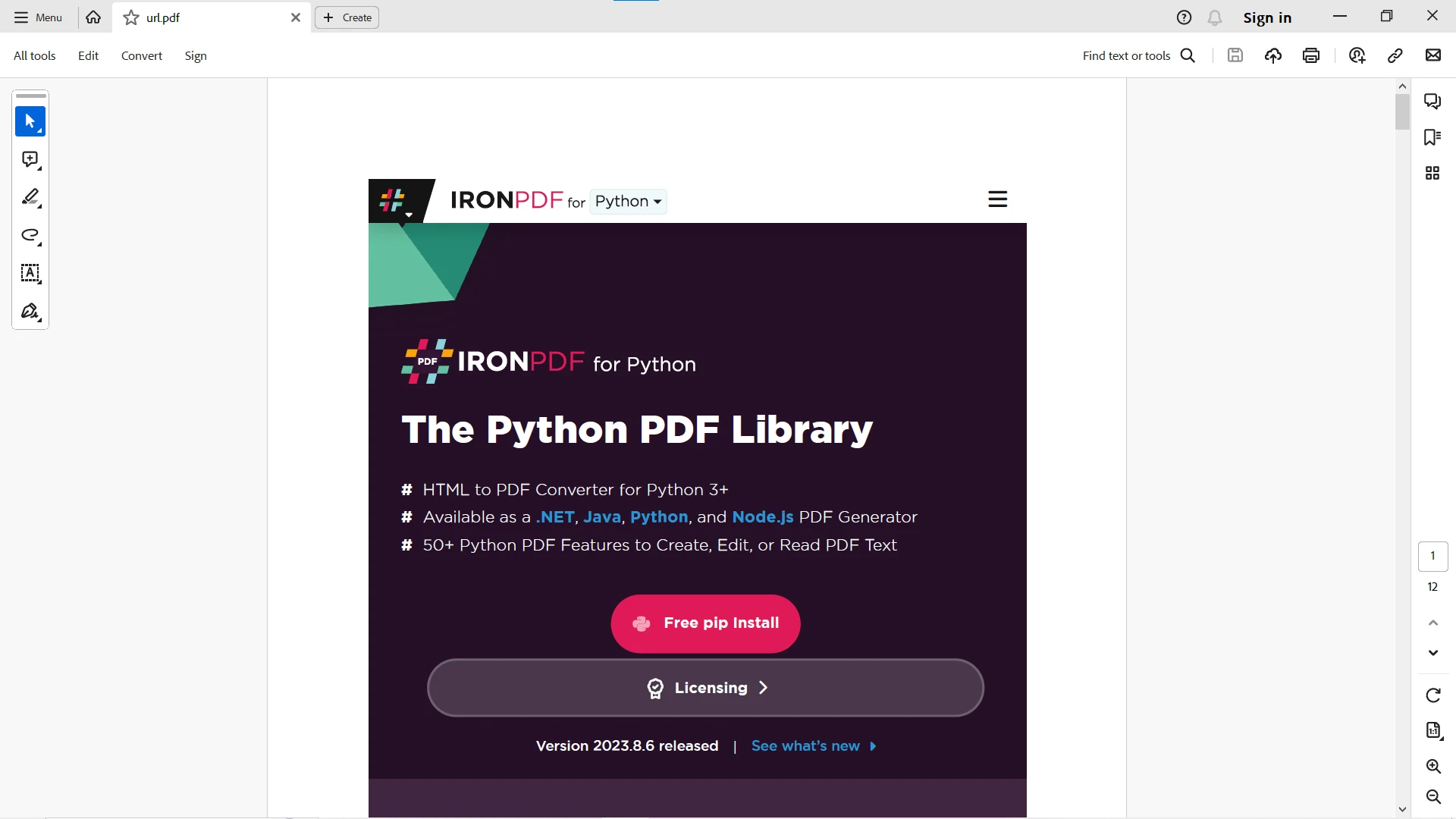
7.2 wkhtmltopdf
Now, we'll look to convert HTML string, file, and URL to PDF using the wkhtmltopdf and pdfkit packages. First, you need to set the PATH to wkhtmltopdf lib installation or manually add the configuration before the code:
config = pdfkit.configuration(wkhtmltopdf='PATH-to-WKHTMLTOPDF-EXECUTABLE-FILE')config = pdfkit.configuration(wkhtmltopdf='PATH-to-WKHTMLTOPDF-EXECUTABLE-FILE')7.2.1 HTML String to PDF
import pdfkit

# Configuration specifying the path to the wkhtmltopdf executable
config = pdfkit.configuration(wkhtmltopdf='PATH-to-WKHTMLTOPDF-EXECUTABLE-FILE')

# Create PDF from HTML string
pdfkit.from_string('<h1>Hello World!</h1>', 'out.pdf', configuration=config)
import pdfkit
# Configuration specifying the path to the wkhtmltopdf executable
config = pdfkit.configuration(wkhtmltopdf='PATH-to-WKHTMLTOPDF-EXECUTABLE-FILE')
# Create PDF from HTML string
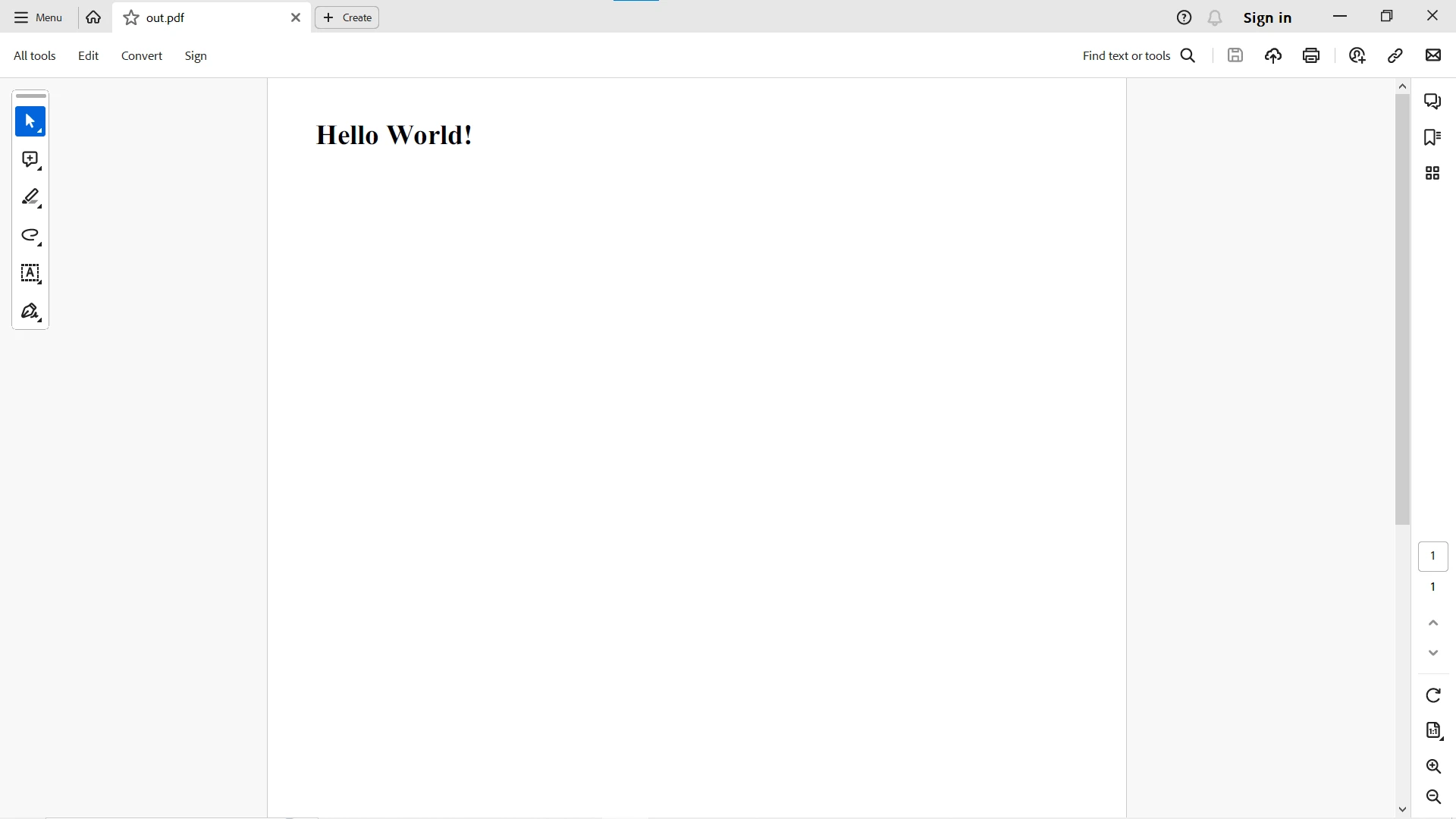
pdfkit.from_string('<h1>Hello World!</h1>', 'out.pdf', configuration=config)Here is the HTML string converted to PDF:
7.2.2 HTML Files to PDF
import pdfkit

# Configuration specifying the path to the wkhtmltopdf executable
config = pdfkit.configuration(wkhtmltopdf='PATH-to-WKHTMLTOPDF-EXECUTABLE-FILE')

# Create PDF from HTML file
pdfkit.from_file('example.html', 'index.pdf', configuration=config)
import pdfkit
# Configuration specifying the path to the wkhtmltopdf executable
config = pdfkit.configuration(wkhtmltopdf='PATH-to-WKHTMLTOPDF-EXECUTABLE-FILE')
# Create PDF from HTML file
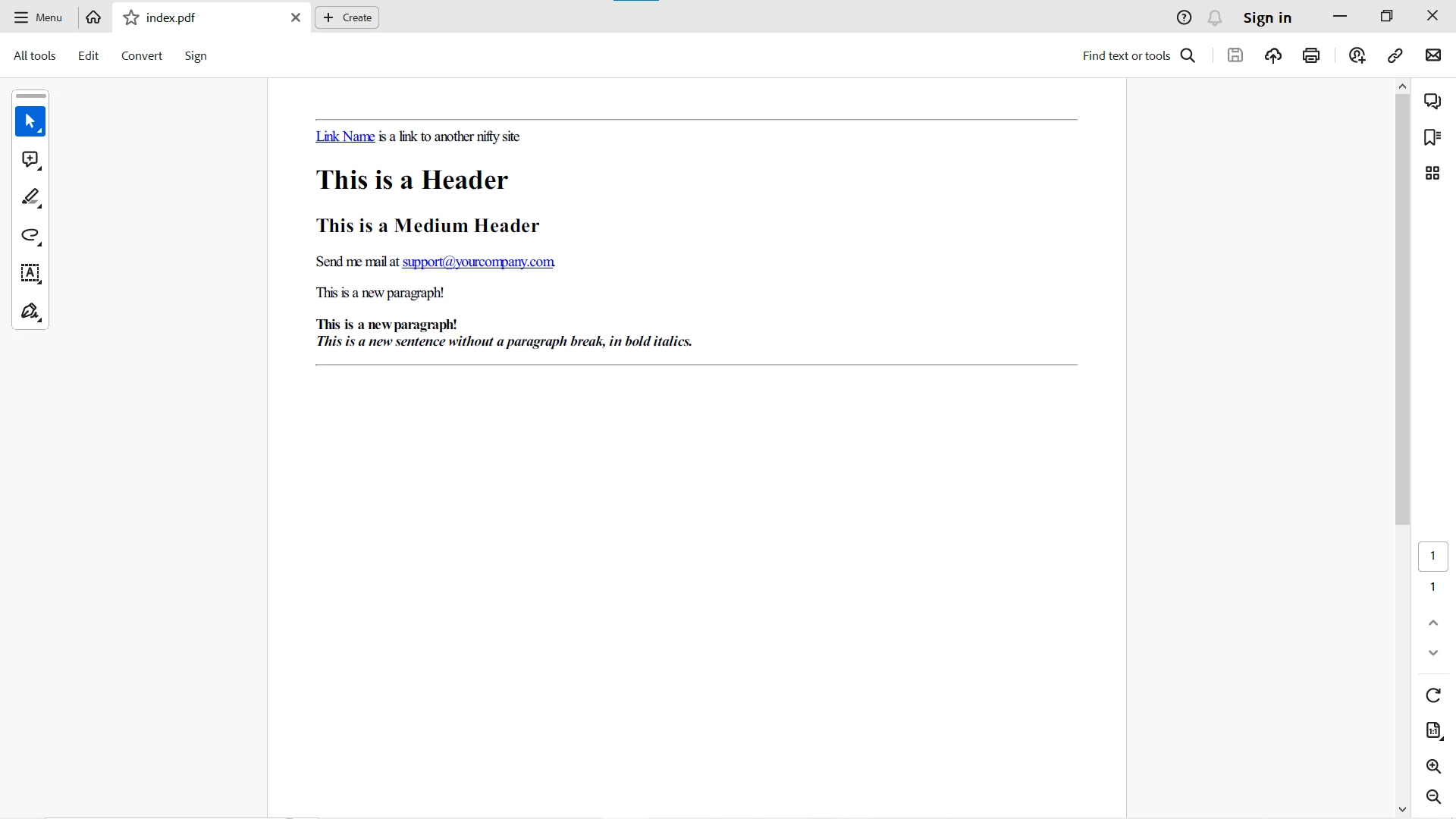
pdfkit.from_file('example.html', 'index.pdf', configuration=config)Here is the HTML file converted to PDF:
7.2.3 HTML URL to PDF
import pdfkit

# Configuration specifying the path to the wkhtmltopdf executable
config = pdfkit.configuration(wkhtmltopdf='PATH-to-WKHTMLTOPDF-EXECUTABLE-FILE')

# Create PDF from URL
pdfkit.from_url('https://google.com', 'example.pdf', configuration=config)
import pdfkit
# Configuration specifying the path to the wkhtmltopdf executable
config = pdfkit.configuration(wkhtmltopdf='PATH-to-WKHTMLTOPDF-EXECUTABLE-FILE')
# Create PDF from URL
pdfkit.from_url('https://google.com', 'example.pdf', configuration=config)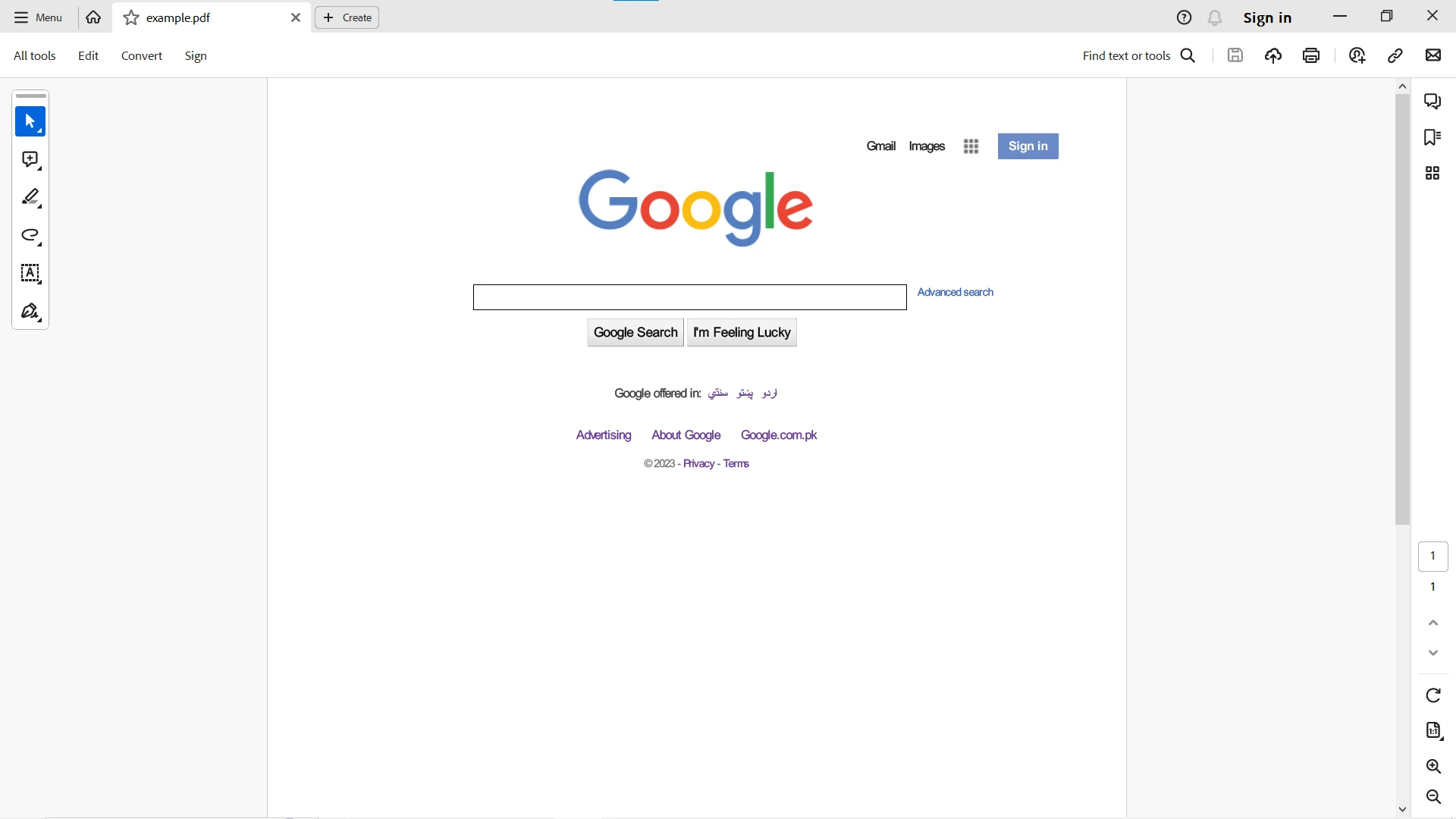
7.3 Comparison
In an overall comparison of the codes above and the functionalities both libraries provide, here is a detailed comparison of the code and features they provide for PDF generation:
1. Ease of Use
IronPDF provides a concise and Pythonic API, making it straightforward to use for HTML-to-PDF conversion. The code is clean and expressive.
wkhtmltopdf is simple and easy to use, but the syntax may be less Pythonic compared to IronPDF. Moreover, it is primarily a command-line tool and is dependent on another Python package to run wkhtmltopdf successfully in a Python environment.
2. Flexibility
IronPDF offers a high degree of flexibility with extensive customization options for rendering, editing, and securing PDFs. Here is a code example where you can create optional arguments as HTML Rendering Settings:
from ironpdf import ChromePdfRenderer

# Instantiate Renderer
renderer = ChromePdfRenderer()

# Many rendering options to use to customize!
renderer.RenderingOptions.SetCustomPaperSizeInInches(12.5, 20)
renderer.RenderingOptions.PrintHtmlBackgrounds = True
renderer.RenderingOptions.PaperOrientation = PdfPaperOrientation.Landscape
renderer.RenderingOptions.Title = "My PDF Document Name"
renderer.RenderingOptions.EnableJavaScript = True
renderer.RenderingOptions.WaitFor.RenderDelay(50)  # in milliseconds
renderer.RenderingOptions.CssMediaType = PdfCssMediaType.Screen
renderer.RenderingOptions.FitToPaperMode = FitToPaperModes.Zoom
renderer.RenderingOptions.Zoom = 100
renderer.RenderingOptions.CreatePdfFormsFromHtml = True

# Supports margin customization!
renderer.RenderingOptions.MarginTop = 40  # millimeters
renderer.RenderingOptions.MarginLeft = 20  # millimeters
renderer.RenderingOptions.MarginRight = 20  # millimeters
renderer.RenderingOptions.MarginBottom = 40  # millimeters

# Can set FirstPageNumber if you have a cover page
renderer.RenderingOptions.FirstPageNumber = 1  # use 2 if a cover page will be appended

# Settings have been set, we can render:
renderer.RenderUrlAsPdf("https://www.wikipedia.org/").SaveAs("my-content.pdf")
from ironpdf import ChromePdfRenderer
# Instantiate Renderer
renderer = ChromePdfRenderer()
# Many rendering options to use to customize!
renderer.RenderingOptions.SetCustomPaperSizeInInches(12.5, 20)
renderer.RenderingOptions.PrintHtmlBackgrounds = True
renderer.RenderingOptions.PaperOrientation = PdfPaperOrientation.Landscape
renderer.RenderingOptions.Title = "My PDF Document Name"
renderer.RenderingOptions.EnableJavaScript = True
renderer.RenderingOptions.WaitFor.RenderDelay(50) # in milliseconds
renderer.RenderingOptions.CssMediaType = PdfCssMediaType.Screen
renderer.RenderingOptions.FitToPaperMode = FitToPaperModes.Zoom
renderer.RenderingOptions.Zoom = 100
renderer.RenderingOptions.CreatePdfFormsFromHtml = True
# Supports margin customization!
renderer.RenderingOptions.MarginTop = 40 # millimeters
renderer.RenderingOptions.MarginLeft = 20 # millimeters
renderer.RenderingOptions.MarginRight = 20 # millimeters
renderer.RenderingOptions.MarginBottom = 40 # millimeters
# Can set FirstPageNumber if you have a cover page
renderer.RenderingOptions.FirstPageNumber = 1 # use 2 if a cover page will be appended
# Settings have been set, we can render:
renderer.RenderUrlAsPdf("https://www.wikipedia.org/").SaveAs("my-content.pdf")wkhtmltopdf is flexible for basic conversion tasks but may require additional tools for more advanced PDF manipulation. Here, pdfkit provides rendering options that serve this purpose:
import pdfkit

options = {
    'page-size': 'Letter',
    'orientation': 'Landscape',
    'margin-top': '0.75in',
    'margin-right': '0.75in',
    'margin-bottom': '0.75in',
    'margin-left': '0.75in',
    'encoding': "UTF-8",
    'custom-header': [
        ('Accept-Encoding', 'gzip')
    ],
    'no-outline': None
}

pdfkit.from_file('index.html', 'index.pdf', options=options)
import pdfkit
options = {
'page-size': 'Letter',
'orientation': 'Landscape',
'margin-top': '0.75in',
'margin-right': '0.75in',
'margin-bottom': '0.75in',
'margin-left': '0.75in',
'encoding': "UTF-8",
'custom-header': [
('Accept-Encoding', 'gzip')
],
'no-outline': None
}
pdfkit.from_file('index.html', 'index.pdf', options=options)3. Features
IronPDF provides advanced features like PDF/A compliance, editing, merging, and security settings. Here is a list of Passwords, Security & Metadata options and features provided by IronPDF:
from ironpdf import PdfDocument

# Open an Encrypted File, alternatively create a new PDF from Html
pdf = PdfDocument.FromFile("encrypted.pdf", "password")

# Edit file metadata
pdf.MetaData.Author = "Satoshi Nakamoto"
pdf.MetaData.Keywords = "SEO, Friendly"
pdf.MetaData.ModifiedDate = Now()

# The following code makes a PDF read-only and will disallow copy & paste and printing
pdf.SecuritySettings.RemovePasswordsAndEncryption()
pdf.SecuritySettings.MakePdfDocumentReadOnly("secret-key")
pdf.SecuritySettings.AllowUserAnnotations = False
pdf.SecuritySettings.AllowUserCopyPasteContent = False
pdf.SecuritySettings.AllowUserFormData = False
pdf.SecuritySettings.AllowUserPrinting = PdfPrintSecurity.FullPrintRights

# Change or set the document encryption password
pdf.SecuritySettings.OwnerPassword = "top-secret"  # password to edit the pdf
pdf.SecuritySettings.UserPassword = "sharable"  # password to open the pdf

pdf.SaveAs("secured.pdf")
from ironpdf import PdfDocument
# Open an Encrypted File, alternatively create a new PDF from Html
pdf = PdfDocument.FromFile("encrypted.pdf", "password")
# Edit file metadata
pdf.MetaData.Author = "Satoshi Nakamoto"
pdf.MetaData.Keywords = "SEO, Friendly"
pdf.MetaData.ModifiedDate = Now()
# The following code makes a PDF read-only and will disallow copy & paste and printing
pdf.SecuritySettings.RemovePasswordsAndEncryption()
pdf.SecuritySettings.MakePdfDocumentReadOnly("secret-key")
pdf.SecuritySettings.AllowUserAnnotations = False
pdf.SecuritySettings.AllowUserCopyPasteContent = False
pdf.SecuritySettings.AllowUserFormData = False
pdf.SecuritySettings.AllowUserPrinting = PdfPrintSecurity.FullPrintRights
# Change or set the document encryption password
pdf.SecuritySettings.OwnerPassword = "top-secret" # password to edit the pdf
pdf.SecuritySettings.UserPassword = "sharable" # password to open the pdf
pdf.SaveAs("secured.pdf")wkhtmltopdf is more focused on HTML-to-PDF conversion and lacks some advanced features provided by IronPDF.
4. Integration
IronPDF seamlessly integrates with Python environments, making it easy to deploy.
wkhtmltopdf requires the wkhtmltopdf binary to be available, which may need additional considerations during deployment.
5. Syntax
- IronPDF's syntax is clean and well-integrated into Python code.
- wkhtmltopdf's syntax is straightforward but may feel less integrated into Python compared to IronPDF.
8. Support and Documentation
8.1 IronPDF
Documentation Quality and Availability
IronPDF stands out for its comprehensive and user-friendly documentation, catering to both novice and seasoned developers. The documentation encompasses detailed guides, API references, and an abundance of code examples, facilitating a smoother understanding and implementation of the library's features across multiple languages, such as Python, Java, C#, and Node.js.
Support Options
IronPDF offers a diverse set of support options, ensuring developers receive assistance promptly. These include a dedicated support team accessible via email, active participation in developer forums, and a Live Support option on the website for real-time help.
8.2 wkhtmltopdf
Documentation Quality and Availability
wkhtmltopdf, being an open-source project, provides documentation available on its official GitHub repository and other online platforms. While it covers fundamental usage and installation, the documentation might not match the depth or beginner-friendly nature of some commercial alternatives.
GitHub Issues and Community Support
Support for wkhtmltopdf is primarily community-driven. Users can report issues and seek assistance through GitHub issues, relying on community discussions and forums for problem-solving. The community actively engages in discussions, sharing experiences and solutions.
9. Licensing Models
9.1 wkhtmltopdf
wkhtmltopdf follows an open-source licensing model. It is distributed under the GNU Affero General Public License (AGPL), a free and open-source software license. The AGPL is a copyleft license, requiring that any modified version of the software also be distributed under the AGPL. Here are key points regarding wkhtmltopdf's licensing:
Open Source
wkhtmltopdf is freely available and open-source, allowing users to view, modify, and distribute the source code.
AGPL License
Distributed under the GNU AGPL, which requires any changes made to the code to be released under the same license.
Free to Use
Users can freely download, use, and modify the software without incurring any licensing fees.
Copyleft Provision
The copyleft provision of the AGPL ensures that any derivative work must also be open source.
9.2 IronPDF
IronPDF follows a commercial licensing model. The licensing for IronPDF is based on different editions, each catering to specific needs and usage scenarios. The available editions are:
Lite Edition
- Priced at a one-time fee for cloud deployment.
- Designed for smaller projects or teams with basic PDF processing requirements.
Professional Edition
- Priced at a one-time fee for cloud use.
- Suitable for professional developers requiring more advanced PDF features and capabilities.
Unlimited Edition
- Priced at a one-time fee for cloud deployment.
- Ideal for large-scale enterprise use, offering extensive features with no limitations on usage.
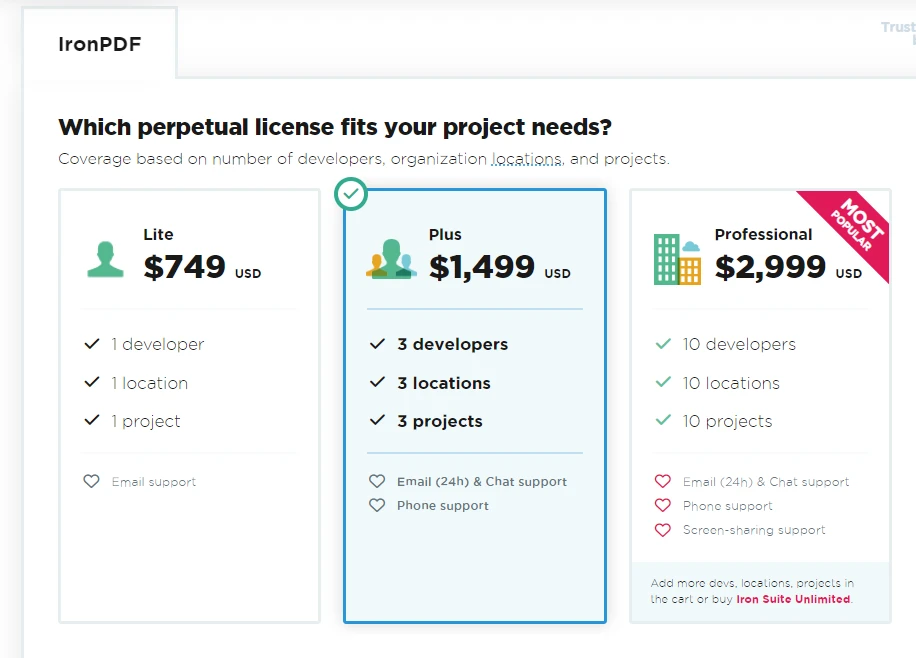
IronPDF licenses are perpetual, meaning they don't expire, and developers receive updates and support based on the chosen edition. The licensing model provides flexibility for developers to choose the edition that aligns with their project requirements. For further information on licensing and add-ons, please visit the license page.
10. Conclusion
In conclusion, after a thorough comparison between wkhtmltopdf and IronPDF for Python, it becomes evident that IronPDF emerges as the superior choice for projects with advanced PDF requirements. While wkhtmltopdf is well-suited for straightforward HTML-to-PDF conversion tasks, leveraging its simplicity and command-line interface, it may fall short when faced with more intricate PDF manipulations, often necessitating additional tools.
On the contrary, IronPDF proves to be a standout choice, particularly for projects requiring a higher degree of sophistication. It excels in providing a user-friendly API that comes equipped with extensive customization options. This makes IronPDF an ideal solution for tasks demanding comprehensive PDF manipulation, editing, and robust security features. Its flexibility extends beyond mere layout settings, allowing developers to seamlessly integrate it into various Python environments.
IronPDF's documentation excels in its depth and accessibility, offering a comprehensive resource for developers. In contrast, wkhtmltopdf, relying on community support, may suit developers comfortable with community forums and self-directed issue resolution.
IronPDF is free for development but with a watermark on generated PDFs and offers a free trial to test out its complete functionality without a watermark in commercial mode. Download the software from here.
자주 묻는 질문
Python에서 HTML을 PDF로 변환하려면 어떻게 해야 하나요?
IronPDF의 RenderHtmlAsPdf 메서드를 사용하여 HTML 문자열을 PDF로 변환할 수 있습니다. 또한 IronPDF는 RenderHtmlFileAsPdf를 사용하여 HTML 파일을 PDF로 변환할 수 있습니다.
PDF 생성에 IronPDF를 사용하면 어떤 이점이 있나요?
IronPDF는 사용자 친화적인 API, 광범위한 사용자 지정 옵션, 고급 PDF 조작 기능, 강력한 보안 설정, 다양한 Python 환경과의 통합을 제공하므로 복잡한 PDF 생성 프로젝트에 이상적입니다.
PDF 생성을 위해 다른 서비스와 비교했을 때 IronPDF는 어떻게 다른가요?
IronPDF는 복잡한 PDF 조작을 위한 사용자 친화적인 API와 함께 광범위한 편집 및 보안 기능을 제공하는 반면, wkhtmltopdf는 간단한 HTML-PDF 작업에 초점을 맞춘 보다 간단한 명령줄 도구입니다.
IronPDF를 웹 애플리케이션과 통합할 수 있나요?
예, IronPDF는 웹 애플리케이션에 쉽게 통합할 수 있으므로 개발자는 Python 기반 웹 프로젝트 내에서 PDF 문서를 동적으로 생성, 편집 및 보호할 수 있습니다.
IronPDF에 사용할 수 있는 라이선스 옵션은 무엇인가요?
IronPDF는 다양한 프로젝트 요구 사항을 충족하는 여러 에디션에 걸쳐 영구 라이선스가 포함된 상용 라이선스 모델을 제공합니다. 개발자는 평가판으로 기능을 살펴볼 수 있습니다.
PDF/A 규정 준수를 위해 IronPDF를 사용할 수 있나요?
예, IronPDF는 보관 및 법률 문서에 필수적인 PDF/A 규정을 지원하여 PDF가 장기 보존을 위한 국제 표준을 준수하도록 보장합니다.
Python에서 PDF 라이브러리를 사용할 때 흔히 발생하는 문제 해결 시나리오는 무엇인가요?
일반적인 문제로는 설치 오류, 종속성 충돌, 잘못된 파일 경로 등이 있습니다. IronPDF의 경우 pip를 사용하여 라이브러리가 올바르게 설치되었는지 확인하고 설명서를 따르면 많은 문제를 해결할 수 있습니다.
Python 환경에서 IronPDF를 설치하려면 어떻게 해야 하나요?
IronPDF를 설치하려면 Python 패키지 관리자 pip를 사용하여 pip install IronPDF 명령으로 설치할 수 있습니다. 원활한 설치를 위해 사용 중인 환경이 필요한 종속성을 충족하는지 확인하세요.
IronPDF로 고급 PDF 조작을 수행할 수 있나요?
예, IronPDF를 사용하면 기존 PDF 편집, 주석 추가, 암호화를 통한 PDF 보안, 특정 프로젝트 요구 사항에 대한 렌더링 설정 사용자 지정과 같은 고급 PDF 조작이 가능합니다.
IronPDF는 개발자를 위한 지원 및 문서를 제공하나요?
IronPDF는 상세한 문서와 다양한 지원 옵션을 제공하여 개발자가 기능을 효율적으로 활용하고 PDF 생성 및 조작 중 발생하는 문제를 해결할 수 있도록 지원합니다.







 무료로 시작하세요
 무료로 시작하세요
 무료 라이브 데모 예약하기



 신용카드나 계정 생성은 필요하지 않습니다.









