

Python을 사용하여 PDF 파일에 텍스트를 추가하는 방법

Since they maintain formatting across various platforms and devices, PDFs are one of the most popular and adaptable formats for digital documents. Even so, there are situations where more customization or annotation is required, even though PDFs are great at preserving document integrity. This is where IronPDF for Python comes into play, providing strong tools to add text, annotations, and other components to PDF documents dynamically using programming. In this article, we are using IronPDF for Python to add text to the PDF file.
How to Use Python to Add Text to a PDF File
- Install the IronPDF library to create and edit PDFs using Python.
- Verify that IronPDF is set up in the Python environment.
- Add the IronPDF classes that your Python script needs.
- Open the PDF file using IronPDF.
- Add the text into the PDF file.
- Save the new PDF file to a path.
What is IronPDF for Python
IronPDF is a feature-rich PDF library that was designed for .NET, but it can also be used in Python by using the Python .NET library. With this integration, IronPDF's powerful features for creating, editing, and converting PDF documents are available to Python developers. Users can convert PDFs to image formats like JPEG and PNG, extract text and photos, split and merge PDFs, add watermarks, and create PDFs from HTML. A tool for many different PDF manipulations is IronPDF.
Because of its vast functionality and great efficiency, the library is an important tool for developers who need to incorporate complex PDF manipulation capabilities into their Python projects. Developers can streamline and automate challenging PDF processing tasks using IronPDF and Python, boosting workflow efficiency and document management effectiveness.
Features of IronPDF
Convert HTML to PDF
Creating PDF files with the HTML string or HTML is possible with IronPDF.
Merging PDF files
Combining multiple PDF files into one or dividing one PDF file into multiple parts PDF file.
Add or Remove PDF pages
You can add, remove, or rearrange pages in a PDF file using IronPDF.
Convert PDF to Images
Export PDF pages as PNG or JPEG files to create crisp PNG or JPEG images using IronPDF. Using this feature to create thumbnails or previews is highly recommended.
Extracting text from PDF document
You can extract text from PDF files for use or analysis at a later time.
Extract Images from PDF
You can extract embedded photos from PDF documents using IronPDF.
Manipulate PDF files
Modifying PDF files, filling out and retrieving data from PDF forms programmatically using the IronPDF library. This can help make form submission management easier.
Security
With IronPDF, we can add or remove password protection from PDFs to ensure that documents are secure. Control permissions to prevent the PDF from being printed, copied, or edited.
Add Custom Headers and Footers
With IronPDF, you can add your own headers and footers to PDF documents. For example, PDF headers and footers may contain dates and page numbers.
Add CSS style
Use CSS to style the data when converting HTML to PDF format using IronPDF.
Efficient PDF management
IronPDF helps organize and efficiently manage batch processes for large quantities of PDF files.
High-Quality Output
IronPDF for Python ensures that the image and PDF outputs are of a quality suitable for use in a formal context, maintaining the integrity of the original content, whether it's text, images, or complex layouts.
Setup Environment
Prerequisites
Before beginning the guide, ensure the subsequent are set up for your computer:
- Because IronPDF was developed with the .NET 6.0 SDK, ensure that the .NET 6.0 runtime is installed on your machine.
- Python 3.0+: You need to have Python 3.0 or a later version installed in order to follow the examples in this lesson.
- pip: Since IronPDF depends on the Python package installer pip, install it first.
New Project in PyCharm
In this article, PyCharm, an IDE for Python programming, will be utilized.
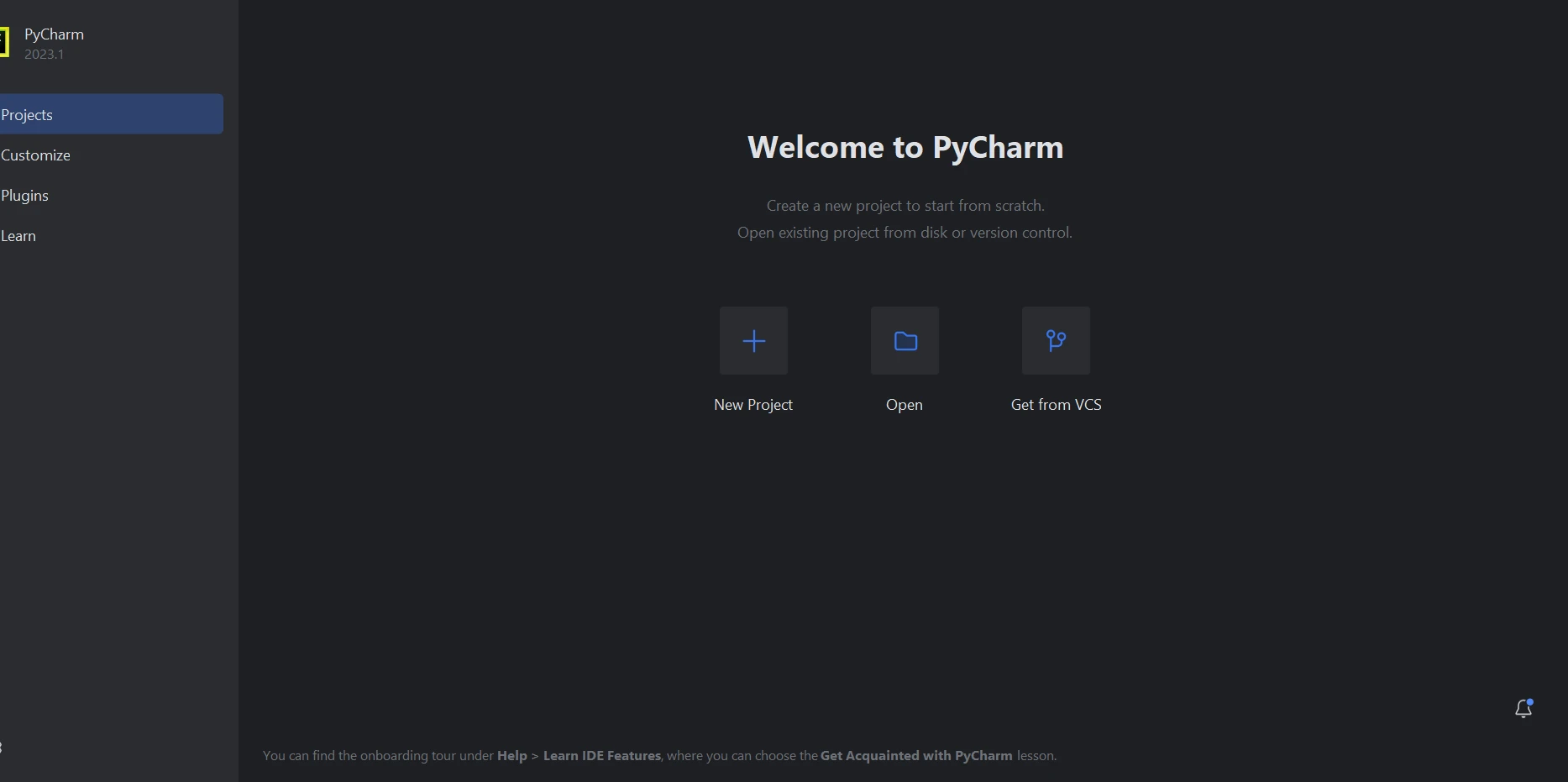
Choose "New Project" when the PyCharm IDE has launched.

Clicking "New Project" brings up a new window where you can change the project's location and surroundings. The screenshot below shows that this new window is up and running.
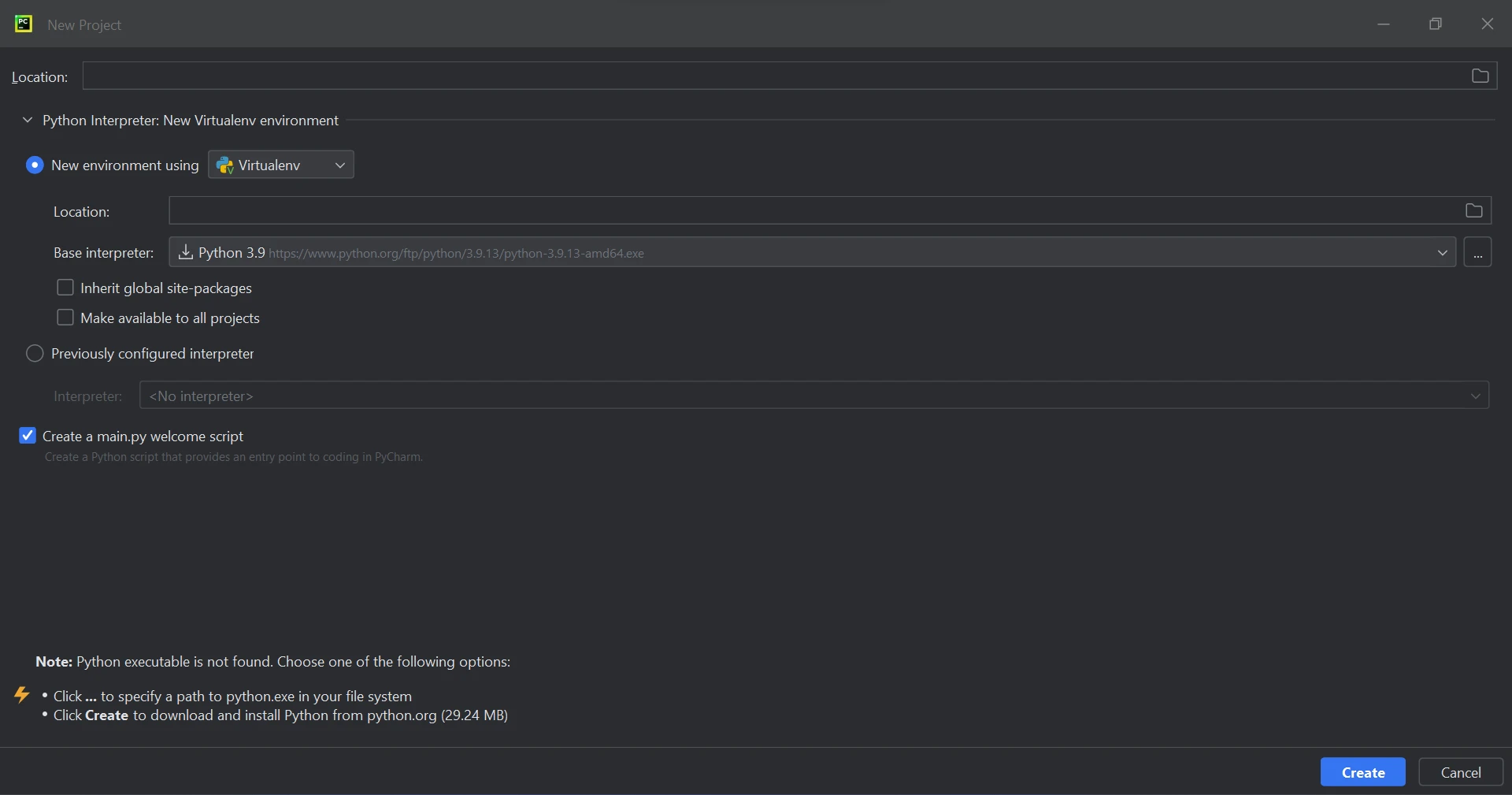
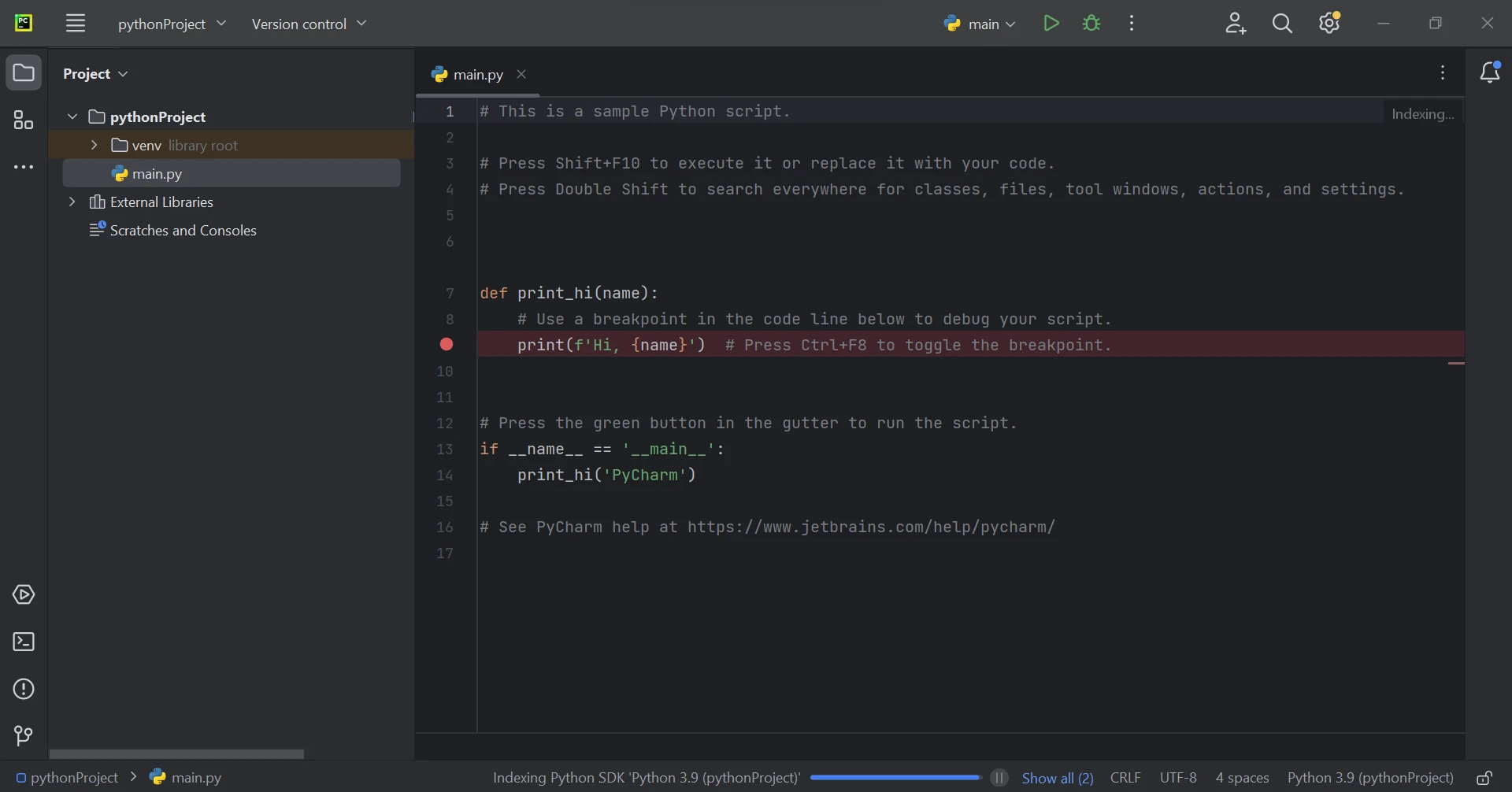
After selecting the project location and environment route, click "Create" to begin a new project. As a result, a new tab will open with the application creation window. Python 3.9 will be used in this course.
IronPDF Library Requirement
IronPDF is essentially a Python library with support for .NET 6.0. This means that you need to install the .NET 6.0 runtime on your machine in order to use IronPDF in Python projects. Users of Linux and macOS X might need to manually install the .NET runtime before using this Python module. Make sure you have the necessary runtime environment configured by following the .NET website's installation instructions before integrating IronPDF into your development process.
IronPDF Library Setup
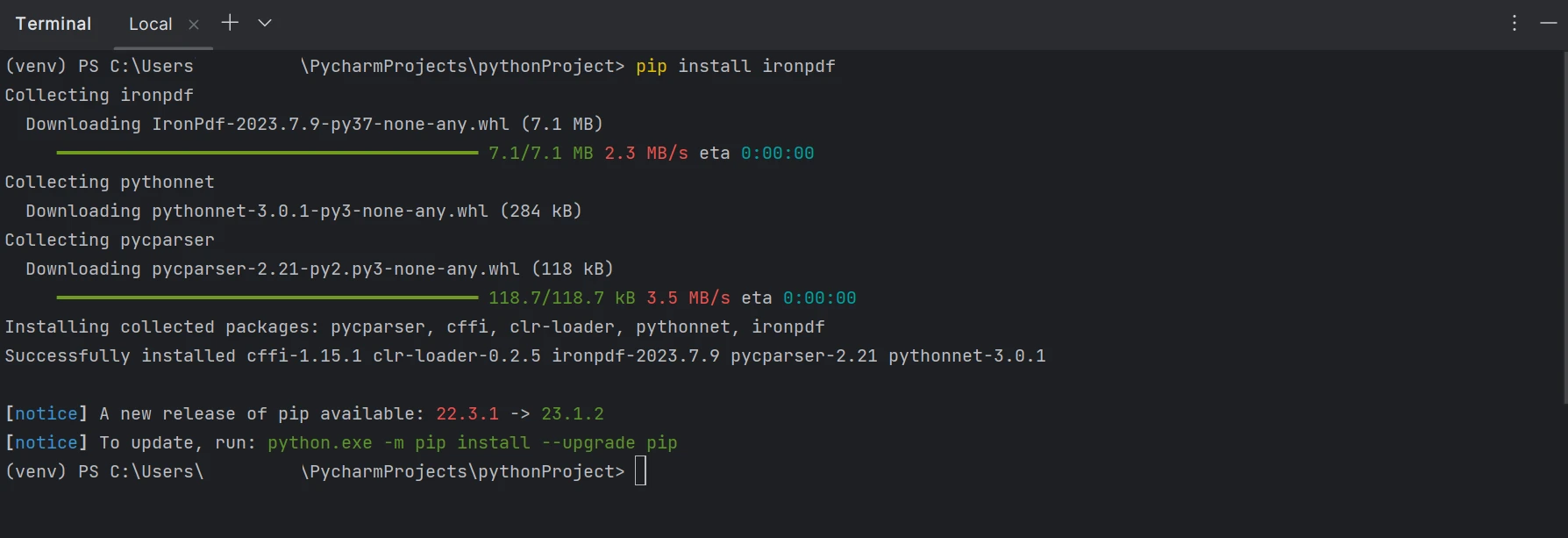
Creating, editing, and opening files with the '.pdf' extension requires the installation of the 'IronPDF' package. Open the PyCharm terminal window and type the following command to install this package:
pip install ironpdf
The screenshot below shows the setup for the 'IronPDF' package.
Add Text to PDF using IronPDF
The Python code snippet that is supplied demonstrates how to use IronPDF to efficiently add formatted text to an already-existing PDF document.
# Import IronPDF library
from ironpdf import *

# Set your license key for IronPDF
License.LicenseKey = "YOUR KEY HERE"

# Text you want to add to the PDF
text_to_add = "This is the text I'm adding to the PDF."

# Optional: Set text formatting using HTML tags (e.g., <b>bold</b> or <i>italic</i>)
formatted_text = f"<b>{text_to_add}</b>"

# Initialize the renderer to convert HTML to PDF
renderer = ChromePdfRenderer()

# Load the existing PDF file
pdf_document = PdfDocument.FromFile("Example.pdf")

# Create a new PDF with the added text using HTML
new_pdf = renderer.RenderHtmlAsPdf(f"<p>{formatted_text}</p>")

# Append the newly created PDF with text to the existing PDF
pdf_document.AppendPdf(new_pdf)

# Save the modified PDF with a new name (optional)
# Replace 'outpdf.pdf' with your desired output path
pdf_document.SaveAs('outpdf.pdf')
# Import IronPDF library
from ironpdf import *
# Set your license key for IronPDF
License.LicenseKey = "YOUR KEY HERE"
# Text you want to add to the PDF
text_to_add = "This is the text I'm adding to the PDF."
# Optional: Set text formatting using HTML tags (e.g., <b>bold</b> or <i>italic</i>)
formatted_text = f"<b>{text_to_add}</b>"
# Initialize the renderer to convert HTML to PDF
renderer = ChromePdfRenderer()
# Load the existing PDF file
pdf_document = PdfDocument.FromFile("Example.pdf")
# Create a new PDF with the added text using HTML
new_pdf = renderer.RenderHtmlAsPdf(f"<p>{formatted_text}</p>")
# Append the newly created PDF with text to the existing PDF
pdf_document.AppendPdf(new_pdf)
# Save the modified PDF with a new name (optional)
# Replace 'outpdf.pdf' with your desired output path
pdf_document.SaveAs('outpdf.pdf')In the above program, the license key required for IronPDF operation is set up initially. The text_to_add variable defines the content to be inserted into the PDF in this code example. The formatted_text variable allows for the optional formatting of the text using HTML tags, showcasing the versatility of applying styles like bold.
To start a renderer and enable the script to convert HTML material into a PDF document, it makes use of ChromePdfRenderer. Then, PdfDocument.FromFile() loads the input PDF file, "Example.pdf," readying it for editing. After formatting, the text (contained in HTML tags to preserve order) is converted to a new PdfDocument object (new_pdf) using the RenderHtmlAsPdf method. The newly created PdfDocument (new_pdf) is then appended to the original PdfDocument (pdf_document) using the pdf_document.AppendPdf(new_pdf) method, therefore incorporating the new material seamlessly.
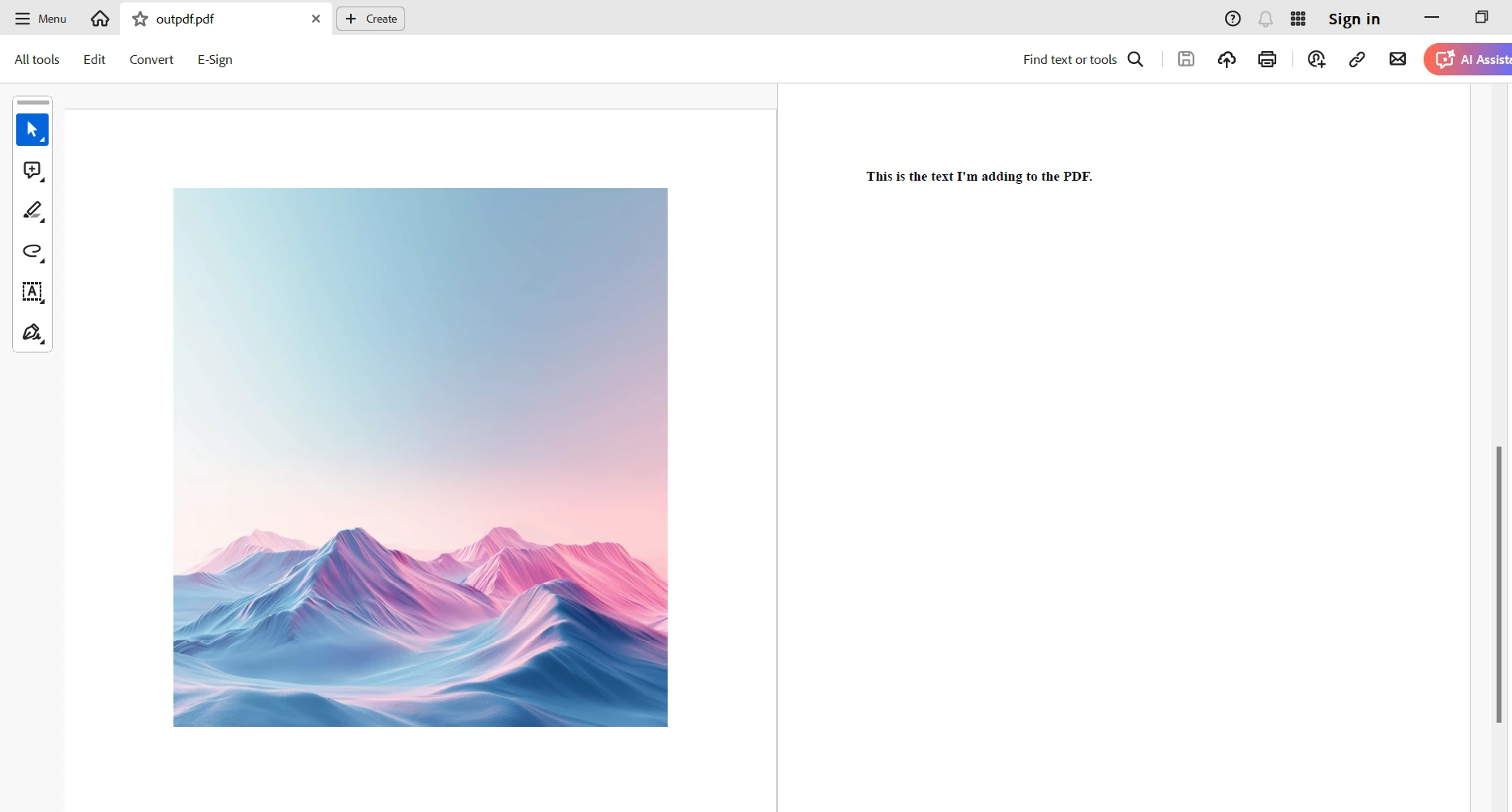
Lastly, using the SaveAs method, the output PDF file is saved as "outpdf.pdf" with the newly added formatted text included in a new PDF page. This method demonstrates how IronPDF may be used to programmatically improve PDF documents. It gives developers the ability to dynamically add formatted text and smoothly incorporate it into pre-existing PDF files, making it appropriate for a variety of applications, from report creation to document customization.
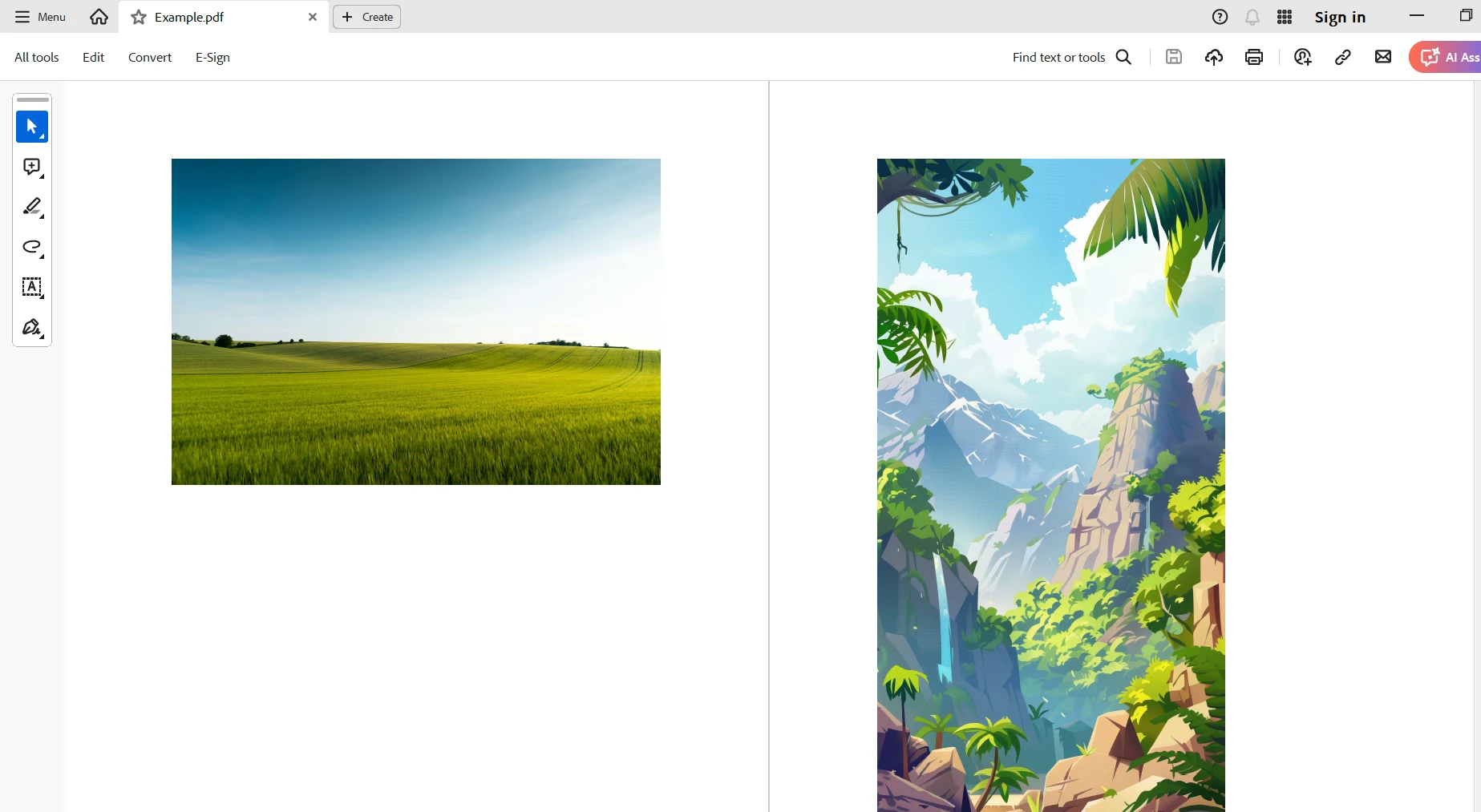
Existing PDF file
The sample PDF that we use is shown below.
OUTPUT PDF
The result of adding text to the new page is seen below.
Conclusion
Finally, IronPDF for Python shows itself to be an effective tool for adding text dynamically to PDF documents. With the use of well-known HTML tags, developers may use this feature to dynamically insert and format text within pre-existing PDF files, giving them a variety of versatile stylistic options like bold and italics. With IronPDF's ChromePdfRenderer, developers can easily add dynamic text elements to documents, making them more useful for a variety of applications. This may be achieved by converting HTML-formatted text into PDF material.
All things considered, IronPDF makes it easier to handle and customize documents in Python programs, enabling developers to precisely and easily meet a wide range of PDF manipulation requirements. IronPDF offers the capabilities required to accomplish complex document customization while preserving the integrity and portability of PDF files, whether the goal is to improve instructional materials, automate the creation of documents, or incorporate branded content into reports.
IronPDF offers a free trial for use in development, staging, and production environments. IronPDF provides free licensing with temporal and redistribution limitations. Please visit the IronPDF license page for more details regarding the trial version and licensing cost.
For more information on how to get started with IronPDF, please visit the documentation page and code examples. To find out more about Iron Software's other offerings, please checkout this link.
자주 묻는 질문
Python을 사용하여 PDF에 텍스트를 추가하려면 어떻게 해야 하나요?
기존 PDF를 로드하고 ChromePdfRenderer 메서드와 함께 HTML 형식의 텍스트를 사용하여 스타일이 지정된 텍스트를 PDF 콘텐츠로 변환하는 방식으로 Python용 IronPDF를 사용하여 PDF에 텍스트를 추가할 수 있습니다. 이를 통해 동적이고 유연한 텍스트 추가가 가능합니다.
Python용 IronPDF를 설정하기 위한 전제 조건은 무엇인가요?
Python에서 IronPDF를 설정하려면 .NET 6.0 런타임, Python 3.0 이상 및 pip 패키지 인스톨러가 필요합니다. 이러한 전제 조건은 IronPDF가 개발 환경에서 효과적으로 작동하도록 보장합니다.
Python용 IronPDF는 HTML 콘텐츠를 PDF로 변환할 수 있나요?
예, Python용 IronPDF는 HTML 콘텐츠를 PDF 파일로 변환하여 웹 페이지 또는 HTML 문자열에서 RenderHtmlAsPdf 메서드를 사용하여 PDF를 생성할 수 있는 간단한 방법을 제공합니다.
Python에서 여러 PDF 파일을 병합하려면 어떻게 하나요?
IronPDF를 사용하면 각 PDF를 로드하고 제공되는 병합 기능을 사용하여 여러 PDF를 하나의 문서로 병합할 수 있어 효율적인 문서 관리가 가능합니다.
Python 라이브러리를 사용하여 PDF에서 텍스트와 이미지를 추출할 수 있나요?
예, Python용 IronPDF를 사용하면 PDF 문서에서 텍스트와 이미지를 추출할 수 있습니다. 이 기능은 콘텐츠 분석 및 다양한 애플리케이션 내에서 재사용하는 데 유용합니다.
Python 라이브러리를 사용하여 PDF 문서를 보호하려면 어떻게 해야 하나요?
IronPDF는 비밀번호 보호를 추가하고 편집, 인쇄, 복사를 제한하는 옵션을 제공하여 PDF 문서를 무단 액세스로부터 안전하게 보호할 수 있습니다.
Python용 IronPDF를 사용하여 PDF에 머리글과 바닥글을 추가할 수 있나요?
예, IronPDF를 사용하면 전문적인 문서 레이아웃을 위해 페이지 번호 및 날짜와 같은 세부 정보를 포함할 수 있는 머리글과 바닥글을 추가하여 PDF를 사용자 지정할 수 있습니다.
IronPDF는 개발자를 위한 무료 평가판을 제공하나요?
IronPDF는 개발자가 개발, 스테이징 및 프로덕션 환경에서 사용할 수 있는 무료 평가판을 제공하므로 구매하기 전에 기능을 평가할 수 있습니다.
Linux 또는 macOS에서 IronPDF를 실행하려면 어떻게 해야 하나요?
Linux 또는 macOS에서 IronPDF를 실행하려면 .NET 런타임이 올바르게 설치 및 구성되었는지 확인하세요. .NET 웹사이트의 설치 지침에 따라 필요한 환경을 설정하세요.









 무료로 시작하세요
 무료로 시작하세요
 무료 라이브 데모 예약하기



 신용카드나 계정 생성은 필요하지 않습니다.









