푸터 콘텐츠로 바로가기
PYTHON용 IRONPDF 사용

Python에서 텍스트와 이미지가 포함된 PDF 파일을 만드는 방법

In this digital day and age, the need to generate PDF documents with dynamic content, including text and images, is a common requirement. Python is a popular programming language which makes it easy to automate routine processes to save time and energy. Having a versatile library to create PDF files with text and images in Python can be very handy for automatic generation of reports, receipts, or invoices. IronPDF, a versatile Python library, simplifies the process of creating PDFs with rich content.

In this article, we will explore how to use IronPDF to generate PDFs that include both text and images in a Python project.

How to Create PDF Files with Text and Images in Python

  1. Install IronPDF for Python Library
  2. Instantiate ChromePdfRenderer
  3. Add Text Content
  4. Add Image as binary data
  5. Create HTML String with text and images
  6. Render HTML to PDF using RenderHtmlAsPdf
  7. Save PDF file using SaveAs method

Introduction to IronPDF

IronPDF is a feature-rich Python library that provides developers with powerful tools for creating, manipulating, and processing PDF documents. With IronPDF, you can easily incorporate text, images, tables, and other elements into your PDFs, making it a valuable asset for a wide range of applications, from report generation to document creation.

How to Create PDF Files with Text and Images in Python: Figure 1 - IronPDF for Python: The Python PDF Library

Key Features of IronPDF:

  • Easy Integration: IronPDF seamlessly integrates with popular Python development environments, making it accessible to developers using tools like PyCharm.
  • Rich Text Support: It supports rich text formatting, allowing developers to create visually appealing PDF documents with ease.
  • Image Handling: IronPDF enables the inclusion of images in PDFs, providing flexibility in designing and customizing documents.
  • Cross-Platform Compatibility: IronPDF works across different platforms, ensuring that generated PDFs can be viewed and interacted with consistently.

Prerequisites

Before diving into the process to create PDF documents using IronPDF, ensure that you have the following prerequisites in place:

  1. Python Installed: Python needs to be installed on your computer. You can download and install the latest version from the official Python website (https://www.python.org/).
  2. PyCharm IDE: Use PyCharm or any other Python IDE of your choice. PyCharm is a popular integrated development environment that provides a comfortable workspace for Python development.
  3. IronPDF: IronPDF library downloaded from here or installed using PIP (Python Package Manager). Microsoft .NET runtime is also required to successfully use IronPDF functionality. Linux, Mac, and Windows users can download the .NET 6.0 version using this download link.

Create Python Project in PyCharm

Once the prerequisites are met, open PyCharm and create a new Python project. Set up a virtual environment for your project to manage dependencies effectively.

  1. Click on File > New Project.
  2. In the "New Project" window:
    • Enter a name for your project in the "Location" field.
    • Choose the location where you want to save your project files.
  3. Under "Project Interpreter," select the Python interpreter. It will automatically detect the Python Interpreter if you installed Python.
  4. Choose the project type. For a simple Python project, you can stick with the default settings.

    How to Create PDF Files with Text and Images in Python: Figure 2 - Open PyCharm IDE. Go to File Menu - click on New Project. Enter the name and location for your Python project. Next, select the Python interpreter under Project Interpreter. Click on Create button to create the project. Once the Python project is created, open a new python file and use it to write code to generate PDF files using IronPDF.

  5. Click Create to create the project.
  6. Open a new python file and save it to write code to generate PDF files using Python library - IronPDF.

Install IronPDF for Python Using PIP

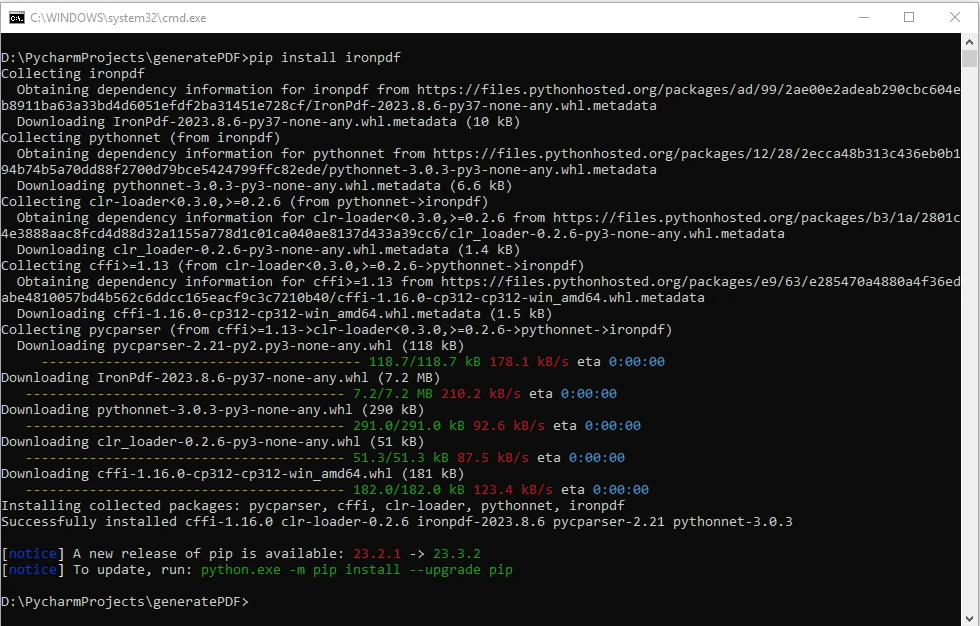
To install IronPDF, use the following PIP command in your project's terminal or command prompt:

 pip install ironpdf

This command will automatically download and install the IronPDF library along with its dependencies.

How to Create PDF Files with Text and Images in Python: Figure 3 - To install IronPDF, use the following command in your project's terminal or command prompt: pip install ironpdf

Creating a Simple PDF with Text and Images

Let's walk through the steps to create a single PDF page document that includes both text and image using IronPDF:

Step 1: Import IronPDF

In this step, we import all the required modules from IronPDF. We import ChromePdfRenderer for rendering PDFs and base64 for encoding image data.

from ironpdf import ChromePdfRenderer
import base64
from ironpdf import ChromePdfRenderer
import base64
PYTHON

Step 2: Instantiate ChromePdfRenderer

Here, we will create an instance of the ChromePdfRenderer, which will be used to render the HTML content into a PDF.

# Instantiate Renderer
renderer = ChromePdfRenderer()
# Instantiate Renderer
renderer = ChromePdfRenderer()
PYTHON

Step 3: Add Text Content

In this step, we will define an HTML string (html_content) that includes the structure of the HTML document, including the header, body, and a section with text content that is later converted to a single PDF file. CSS styling is used to position the text and image.

# HTML String with Text 
html_content = """
<!DOCTYPE html>
<html lang="en">
<head>
    <meta charset="UTF-8">
    <meta name="viewport" content="width=device-width, initial-scale=1.0">
    <title>PDF Generation Example</title>
    <style>
        body {
            margin: 0; /* Remove default margin */
            padding: 20px; /* Add padding for better visibility */
            position: relative; /* Set the body as a relative position */
        }
        header {
            text-align: center;
        }
        section {
            margin-top: 20px; /* Add margin to separate sections */
        }
        img {
            position: absolute;
            top: 20px; /* Adjust the top position */
            right: 20px; /* Adjust the right position */
        }
    </style>
</head>
<body>
    <header>
        # PDF Generation Example
    </header>
    <section id="contentSection">
        ## Text and Image in PDF
        <p>This PDF includes both text and an embedded image:</p>
        <p>IronPDF developed by Ironsoftware is a great PDF creating library for .NET, Python, JAVA, Node.JS.</p>
"""
# HTML String with Text 
html_content = """
<!DOCTYPE html>
<html lang="en">
<head>
    <meta charset="UTF-8">
    <meta name="viewport" content="width=device-width, initial-scale=1.0">
    <title>PDF Generation Example</title>
    <style>
        body {
            margin: 0; /* Remove default margin */
            padding: 20px; /* Add padding for better visibility */
            position: relative; /* Set the body as a relative position */
        }
        header {
            text-align: center;
        }
        section {
            margin-top: 20px; /* Add margin to separate sections */
        }
        img {
            position: absolute;
            top: 20px; /* Adjust the top position */
            right: 20px; /* Adjust the right position */
        }
    </style>
</head>
<body>
    <header>
        # PDF Generation Example
    </header>
    <section id="contentSection">
        ## Text and Image in PDF
        <p>This PDF includes both text and an embedded image:</p>
        <p>IronPDF developed by Ironsoftware is a great PDF creating library for .NET, Python, JAVA, Node.JS.</p>
"""
PYTHON

Step 4: Add Image

Here, we will open and read an image file (ironpdf-logo.png) in binary mode, convert it to a base64-encoded data URI, and embed it in the HTML string. The image is then positioned using CSS styles to appear in the top-right corner.

# Read image and convert to base64 string
with open("ironpdf-logo.png", "rb") as f:
    pngBinaryData = f.read()
    imgDataUri = "data:image/png;base64," + base64.b64encode(pngBinaryData).decode("utf-8")
    imgHtml = f"""
        <img src='{imgDataUri}' width=100px height=100px
            alt="IronPDF Logo">
    </section>
</body>
</html>
"""
# Read image and convert to base64 string
with open("ironpdf-logo.png", "rb") as f:
    pngBinaryData = f.read()
    imgDataUri = "data:image/png;base64," + base64.b64encode(pngBinaryData).decode("utf-8")
    imgHtml = f"""
        <img src='{imgDataUri}' width=100px height=100px
            alt="IronPDF Logo">
    </section>
</body>
</html>
"""
PYTHON

Step 5: Join Text and Image HTML String

This step concatenates the text and image HTML strings to create the complete HTML content (full_html_content) that will be rendered into a PDF output file.

full_html_content = html_content + imgHtml
PYTHON

Step 6: Render HTML Content as PDF File

Here, the RenderHtmlAsPdf method is used to convert the HTML to PDF using the ChromePdfRenderer.

# Create a PDF from the HTML string
pdf = renderer.RenderHtmlAsPdf(full_html_content)
# Create a PDF from the HTML string
pdf = renderer.RenderHtmlAsPdf(full_html_content)
PYTHON

Step 7: Save PDF File

Finally, the resulting PDF is saved as "output_with_text_and_image_top_right.pdf". This file will contain the formatted text and the embedded image positioned in the top-right corner.

# Save the PDF to a file
pdf.SaveAs("output_with_text_and_image_top_right.pdf")
# Save the PDF to a file
pdf.SaveAs("output_with_text_and_image_top_right.pdf")
PYTHON

Output PDF Document

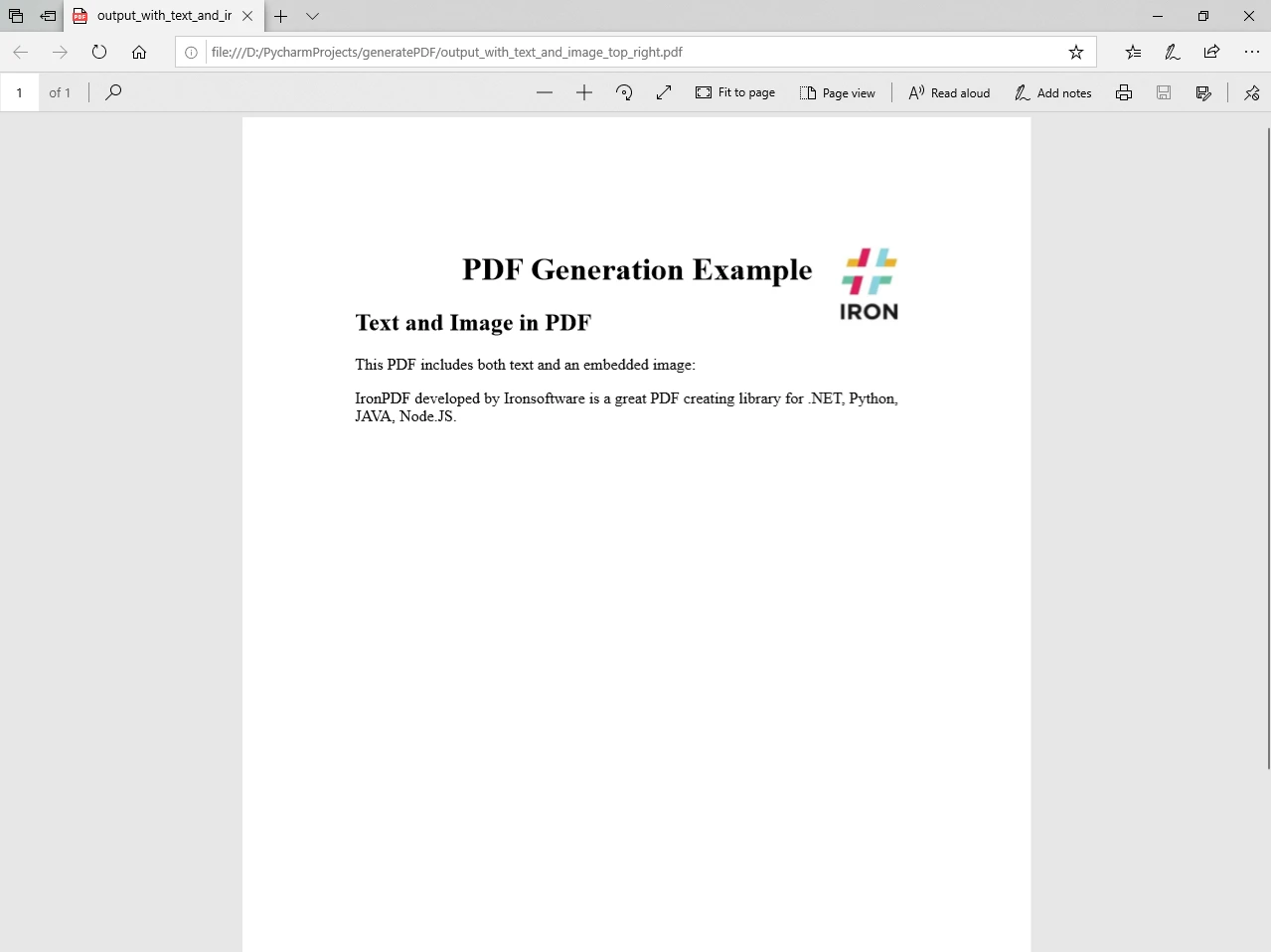
Now after executing the program, the output PDF file is as follows:

How to Create PDF Files with Text and Images in Python: Figure 4 - OUTPUT: output_with_text_and_image_top_right.pdf

Similarly, multiple PDF pages can be added to a PDF file with ease.

Advanced Usage: Customizing Text and Image Placement

IronPDF provides additional features for fine-tuning the placement and styling of text and images within the PDF using an external CSS/JavaScript file. The base path can be sent as an optional argument to the RenderHtmlAsPdf method as demonstrated in the following code:

# Advanced Example with HTML Assets
# Load external HTML assets: Images, CSS, and JavaScript.
# An optional BasePath 'C:\site\assets\' is set as the file location to load assets from.
myAdvancedPdf = renderer.RenderHtmlAsPdf("<img src='icons/iron.png'>", r"C:\site\assets")
myAdvancedPdf.SaveAs("html-with-assets.pdf")
# Advanced Example with HTML Assets
# Load external HTML assets: Images, CSS, and JavaScript.
# An optional BasePath 'C:\site\assets\' is set as the file location to load assets from.
myAdvancedPdf = renderer.RenderHtmlAsPdf("<img src='icons/iron.png'>", r"C:\site\assets")
myAdvancedPdf.SaveAs("html-with-assets.pdf")
PYTHON

In this advanced code example, we are taking the concept of embedding an image further through external sources. The HTML content within the RenderHtmlAsPdf method includes an  related to Advanced Usage: Customizing Text and Image Placementtag pointing to an image file (iron.png) located in the specified assets directory (C:\site\assets\). Additionally, this directory is set as the BasePath parameter.

In RenderHtmlAsPdf you can send a complete HTML web page as shown in the above steps. The CSS file can be referenced using the base path as the second optional parameter. For more detailed information on other ways of generating PDF format or modifying an existing PDF file, please visit the code examples and documentation page.

Conclusion

In this article, we explored how to use IronPDF to create PDF files with text and images in a Python project. With its intuitive API and powerful features, IronPDF empowers developers to generate dynamic and visually appealing PDF documents effortlessly. Whether you're creating reports, documentation, or any other type of content, IronPDF provides a reliable and flexible solution for PDF generation in Python. Experiment with the customization options to tailor your PDFs to specific design requirements, making IronPDF a valuable tool for your document generation needs.

IronPDF license or you can contact support for further queries.

How to Create PDF Files with Text and Images in Python: Figure 5 - IronPDF for Python License Information

You can download and install the library from IronPDF's website.

자주 묻는 질문

Python을 사용하여 텍스트와 이미지가 포함된 PDF를 만들려면 어떻게 해야 하나요?

IronPDF의 ChromePdfRenderer를 사용하여 Python에서 텍스트와 이미지가 포함된 PDF를 만들 수 있습니다. 먼저 IronPDF 라이브러리를 설치한 다음 원하는 콘텐츠로 HTML 문자열을 만듭니다. RenderHtmlAsPdf 메서드를 사용하여 HTML을 PDF로 렌더링하고 마지막으로 SaveAs 메서드를 사용하여 PDF를 저장합니다.

Python에서 사용하기 위해 PDF 라이브러리를 설치하는 단계는 무엇인가요?

Python용 IronPDF 라이브러리를 설치하려면 PIP 패키지 관리자를 사용하면 됩니다. 명령줄 또는 터미널에서 pip install ironpdf 명령을 실행하여 라이브러리를 종속 요소와 함께 다운로드하고 설치합니다.

Python에서 PDF 생성 라이브러리를 사용하려면 어떤 전제 조건이 필요하나요?

컴퓨터에 Python이 설치되어 있어야 하며, 개발을 위한 PyCharm과 같은 IDE와 IronPDF 라이브러리가 필요합니다. 또한 IronPDF가 작동하려면 Microsoft .NET 런타임이 필요합니다.

Python 라이브러리와 함께 외부 CSS 또는 JavaScript를 사용하여 PDF를 사용자 정의할 수 있나요?

예, IronPDF를 사용하면 외부 CSS 및 JavaScript 파일을 사용하여 PDF의 레이아웃과 디자인을 사용자 지정할 수 있습니다. 이 기능은 텍스트 및 이미지 배치를 위한 고급 사용자 지정 옵션을 제공합니다.

PDF Python 라이브러리가 플랫폼 간 호환성을 처리할 수 있나요?

IronPDF는 플랫폼 간 호환이 가능하도록 설계되어 생성한 PDF를 다양한 운영 체제에서 일관되게 보고 상호 작용할 수 있습니다.

Python으로 PDF를 생성할 때 이미지에 Base64 인코딩을 사용하는 이유는 무엇인가요?

Base64 인코딩은 이미지 바이너리 데이터를 HTML에 직접 삽입할 수 있는 문자열 형식으로 변환하는 데 사용됩니다. 이를 통해 외부 파일을 참조하지 않고도 이미지를 PDF에 포함할 수 있습니다.

Python용 IronPDF의 주요 기능은 무엇인가요?

IronPDF는 Python 환경과의 간편한 통합, 서식 있는 텍스트 및 이미지 지원, 플랫폼 간 호환성 등의 기능을 제공합니다. 이러한 기능 덕분에 동적 콘텐츠가 포함된 PDF를 생성할 수 있는 다목적 툴입니다.

IronPDF는 동적 PDF 문서 생성을 어떻게 지원하나요?

IronPDF는 개발자가 텍스트 및 이미지와 같은 동적 콘텐츠가 포함된 PDF를 생성할 수 있는 강력한 API를 제공합니다. 서식을 지정하기 위해 HTML과 CSS를 지원하므로 Python에서 시각적으로 매력적인 문서를 쉽게 만들 수 있습니다.

커티스 차우
기술 문서 작성자

커티스 차우는 칼턴 대학교에서 컴퓨터 과학 학사 학위를 취득했으며, Node.js, TypeScript, JavaScript, React를 전문으로 하는 프론트엔드 개발자입니다. 직관적이고 미적으로 뛰어난 사용자 인터페이스를 만드는 데 열정을 가진 그는 최신 프레임워크를 활용하고, 잘 구성되고 시각적으로 매력적인 매뉴얼을 제작하는 것을 즐깁니다.


커티스는 개발 분야 외에도 사물 인터넷(IoT)에 깊은 관심을 가지고 있으며, 하드웨어와 소프트웨어를 통합하는 혁신적인 방법을 연구합니다. 여가 시간에는 게임을 즐기거나 디스코드 봇을 만들면서 기술에 대한 애정과 창의성을 결합합니다.