Python에서 PDF 파일을 생성하는 방법
In the ever-evolving field of software development, creating and manipulating PDF (Portable Document Format) files is a common requirement. Python, being a versatile and powerful programming language, offers various libraries for handling PDF generation tasks. One such library is IronPDF, a comprehensive tool that simplifies PDF generation in Python.
In this article, we will explore IronPDF for Python, its features, the prerequisites for using it, and step-by-step instructions to generate PDFs in a Python project using IronPDF.
Python PDF Generation Tutorial
- Install IronPDF for Python Library
- Instantiate
ChromePdfRendererObject - Generate a PDF document using an HTML string
- Generate a PDF document using an HTML file
- Generate a PDF document using a URL
IronPDF - Introduction and Features
IronPDF is a Python library that helps to create PDF documents, and edit or manipulate any existing PDF files within Python applications.
It provides a simple yet powerful API to create PDF files with features like text formatting, images, tables, and more.
With IronPDF, developers can seamlessly integrate PDF functionality into their Python projects, making it an ideal choice for a wide range of applications, including reports, invoices, and documentation.
Key Features of IronPDF:
- Easy Integration: IronPDF seamlessly integrates with popular Python development environments, making it accessible to developers using tools like PyCharm.
- Rich Text Support: It supports rich text formatting, allowing developers to create visually appealing PDF documents with ease.
- Image Handling: IronPDF enables the inclusion of images in PDFs, providing flexibility in designing and customizing documents.
- Cross-Platform Compatibility: IronPDF works across different platforms, ensuring that generated PDFs can be viewed and interacted with consistently.
- Document Settings: IronPDF offers robust document settings, empowering users to control PDF metadata, set permissions and passwords for enhanced security to generate encrypted PDF files, and seamlessly integrate digital signatures for document authenticity and integrity.
Prerequisites
Before diving into the PDF generation process using IronPDF, ensure that you have the following prerequisites in place:
- Python Installed: Python programming language needs to be installed on your system. You can download and install the latest version from the official Python website (https://www.python.org/).
- PyCharm IDE: Use PyCharm or any other Python IDE of your choice. PyCharm is a popular integrated development environment that provides a comfortable workspace for Python development.
- IronPDF: IronPDF library downloaded from here or installed using PIP (Python Package Manager). .NET runtime is also required to successfully use IronPDF functionality. Linux, Mac, and Windows users can download the .NET 6.0 version from here.
Create a Python Project in PyCharm
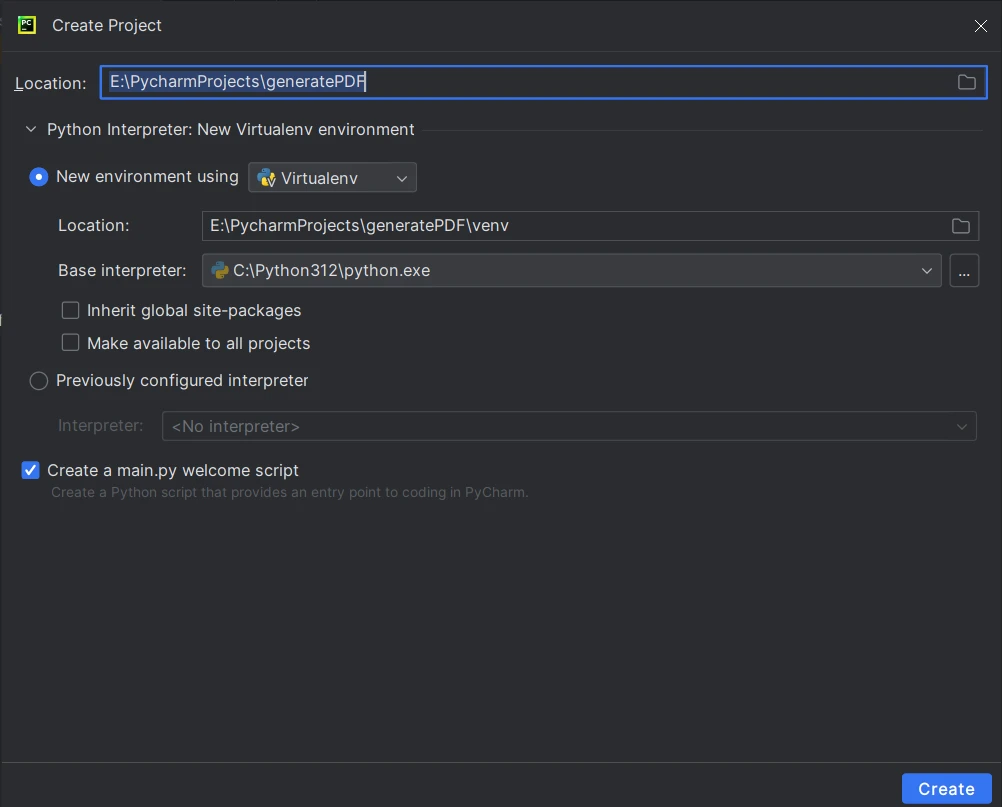
Once the prerequisites are met, open PyCharm and create a new Python project. Set up a virtual environment for your project to manage dependencies effectively.
- Click on File > New Project.
- In the "New Project" window:
- Enter a name for your project in the "Location" field.
- Choose the location where you want to save your project files.
- Under "Project Interpreter," select the Python interpreter you configured in Step 3.
Choose the project type. For a simple Python project, you can stick with the default settings.

- Click Create to create the project.
Install IronPDF for Python Using PIP
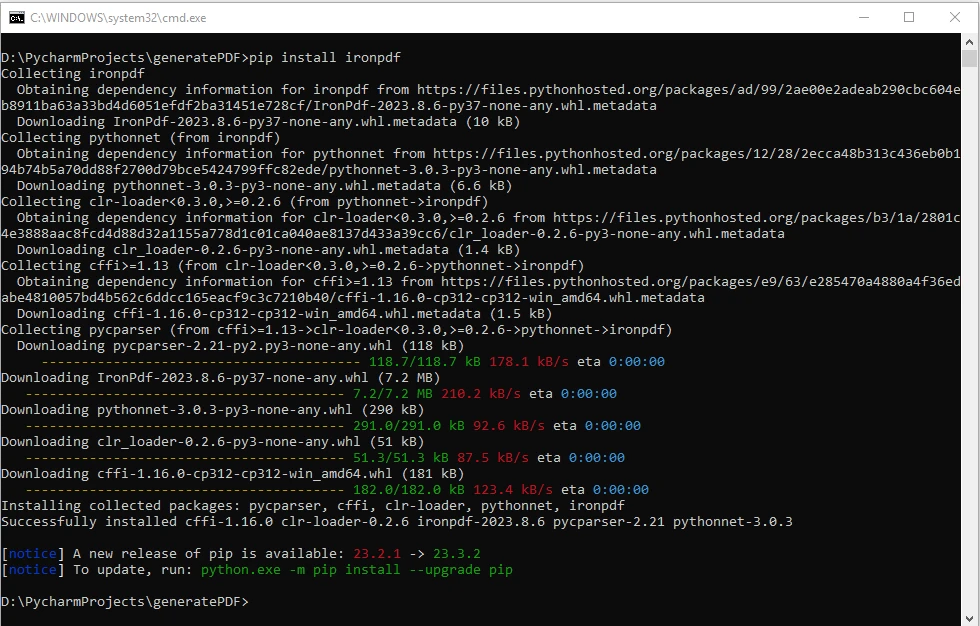
To install IronPDF, use the following PIP command in your project's terminal or command prompt:
pip install ironpdf
This command will automatically download and install the IronPDF library along with its dependencies.

Steps to Generate PDF in Python
Now that IronPDF is installed, we'll explore three common scenarios for PDF generation using IronPDF: from an HTML string, an HTML file, and a URL.
1. Generate PDF using an HTML String
IronPDF allows you to generate PDFs from HTML. For creating PDF files from an HTML string, you can follow these simple steps:
from ironpdf import ChromePdfRenderer
# Instantiate ChromePdfRenderer
renderer = ChromePdfRenderer()
# Create a PDF from an HTML string using Python
pdf = renderer.RenderHtmlAsPdf("<h1>Hello World</h1>")
# Export the PDF to a file
pdf.SaveAs("output_htmlstring.pdf")from ironpdf import ChromePdfRenderer
# Instantiate ChromePdfRenderer
renderer = ChromePdfRenderer()
# Create a PDF from an HTML string using Python
pdf = renderer.RenderHtmlAsPdf("<h1>Hello World</h1>")
# Export the PDF to a file
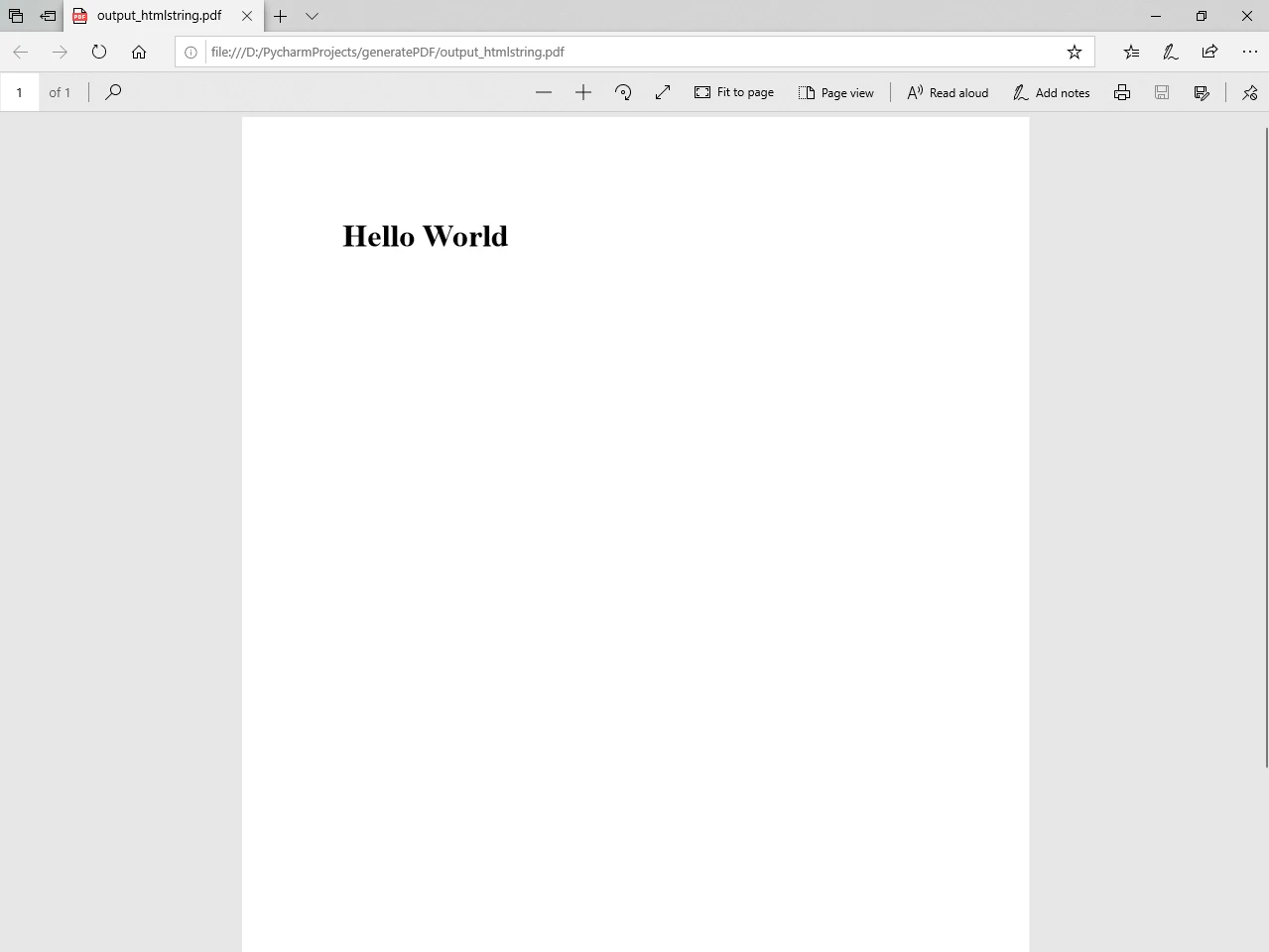
pdf.SaveAs("output_htmlstring.pdf")This code initializes the ChromePdfRenderer, renders an HTML string as a PDF, and saves the PDF document to a file named "output_htmlstring.pdf".
You can also handle more complex scenarios by including external HTML assets such as images, CSS, and JavaScript:
# Advanced Example with HTML Assets
# Load external HTML assets: Images, CSS, and JavaScript.
# An optional BasePath 'C:\\site\\assets\\' is set as the file location to load assets from
myAdvancedPdf = renderer.RenderHtmlAsPdf("<img src='icons/iron.png'>", r"C:\site\assets")
myAdvancedPdf.SaveAs("html-with-assets.pdf")# Advanced Example with HTML Assets
# Load external HTML assets: Images, CSS, and JavaScript.
# An optional BasePath 'C:\\site\\assets\\' is set as the file location to load assets from
myAdvancedPdf = renderer.RenderHtmlAsPdf("<img src='icons/iron.png'>", r"C:\site\assets")
myAdvancedPdf.SaveAs("html-with-assets.pdf")Output PDF File
After executing the HTML String to PDF code, you will find a file named output_htmlstring.pdf in your project directory, containing the generated PDF document.

2. Generate PDF using an HTML File
Creating a PDF from an existing HTML file is straightforward. Here's an example:
from ironpdf import ChromePdfRenderer
# Instantiate ChromePdfRenderer
renderer = ChromePdfRenderer()
# Create a PDF from an existing HTML file using Python
pdf = renderer.RenderHtmlFileAsPdf("example.html")
# Export the PDF to a file
pdf.SaveAs("output_htmlfile.pdf")from ironpdf import ChromePdfRenderer
# Instantiate ChromePdfRenderer
renderer = ChromePdfRenderer()
# Create a PDF from an existing HTML file using Python
pdf = renderer.RenderHtmlFileAsPdf("example.html")
# Export the PDF to a file
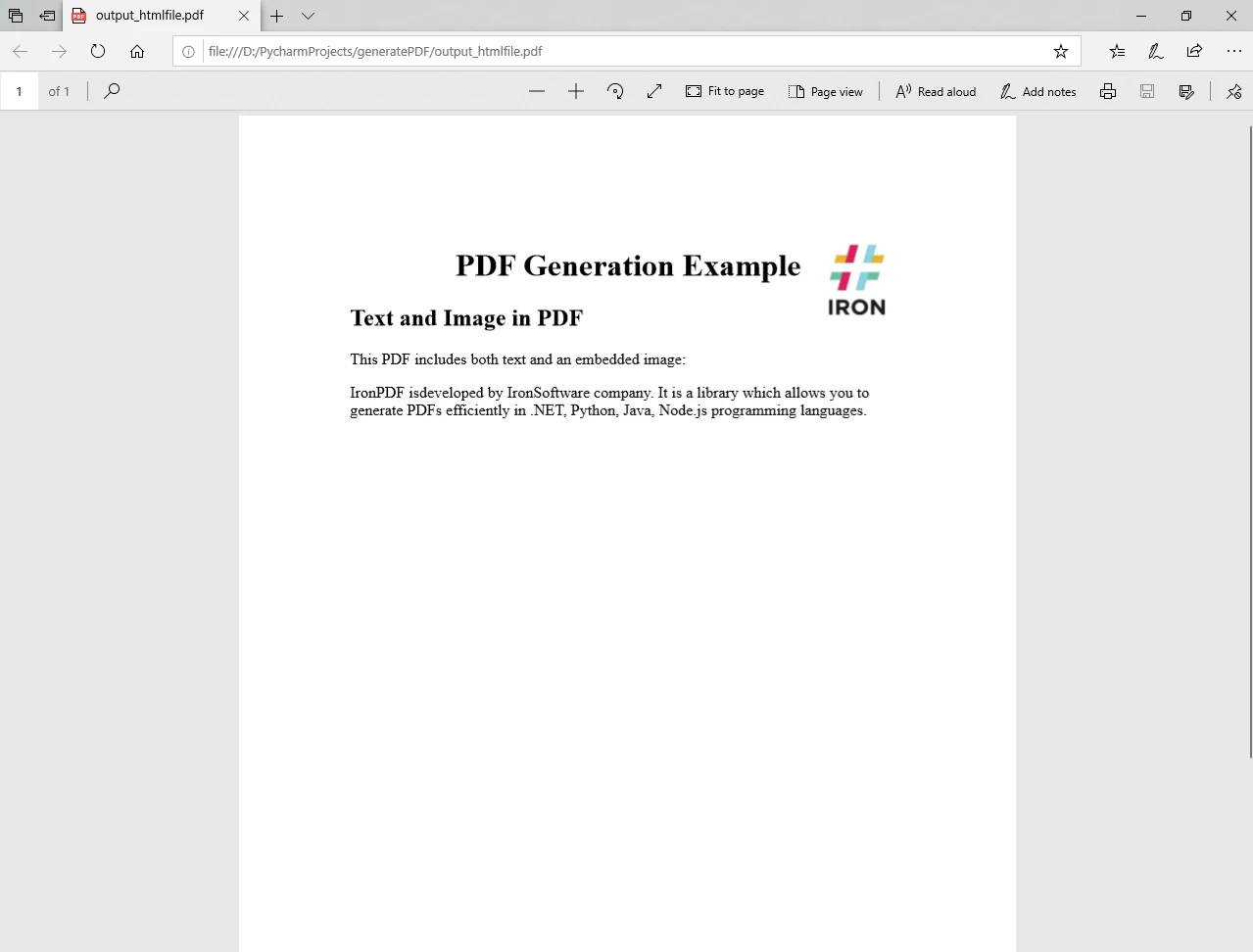
pdf.SaveAs("output_htmlfile.pdf")This snippet uses the ChromePdfRenderer to render an HTML file ("example.html") into a PDF using the RenderHtmlFileAsPdf method, and saves it as "output_htmlfile.pdf".
Output PDF File
After executing the above code, you will find a file named output_htmlfile.pdf in your project directory, containing the generated PDF document.

3. Generate PDF using a URL
Generating a PDF from a URL or a local file path is also possible with IronPDF:
from ironpdf import ChromePdfRenderer
# Instantiate ChromePdfRenderer
renderer = ChromePdfRenderer()
# Create a PDF from a URL or local file path
pdf = renderer.RenderUrlAsPdf("https://ironpdf.com/python/")
# Export the PDF to a file
pdf.SaveAs("output_url.pdf")from ironpdf import ChromePdfRenderer
# Instantiate ChromePdfRenderer
renderer = ChromePdfRenderer()
# Create a PDF from a URL or local file path
pdf = renderer.RenderUrlAsPdf("https://ironpdf.com/python/")
# Export the PDF to a file
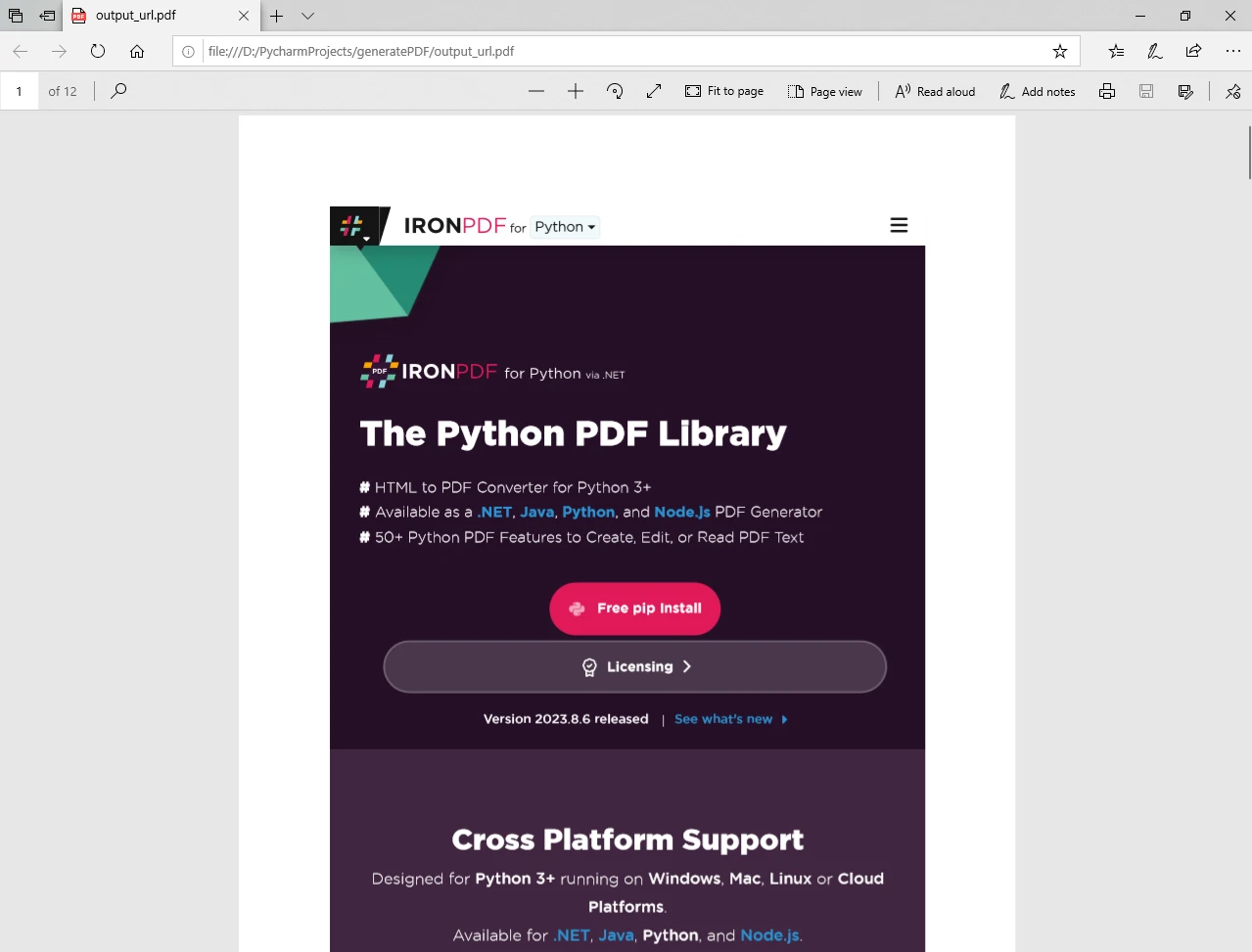
pdf.SaveAs("output_url.pdf")In this case, the code renders the content of the specified URL ("https://ironpdf.com/python/") into a PDF and saves the output file as "output_url.pdf".
Output PDF File
After executing the Python program, you will find a file named output_url.pdf in your project directory, containing the generated PDF document.

With these examples, you can leverage IronPDF to cover a range of scenarios for PDF generation in your Python projects. Whether it's simple HTML strings, existing HTML files, or content from URLs, IronPDF provides a seamless and efficient solution for your PDF generation needs.
For more information on how to generate PDF files, and manipulate and configure different options, please visit the code examples and documentation pages.
Conclusion
IronPDF simplifies PDF generation in Python, offering a feature-rich and easy-to-use library for developers. In this article, we explored the introduction and features of IronPDF, the prerequisites for using it, and a step-by-step guide to generating PDFs in a Python project.
By leveraging IronPDF, developers can enhance their applications with robust PDF functionality, opening up possibilities for creating sophisticated and professional-looking documents.
자주 묻는 질문
Python에서 HTML 문자열로 PDF를 생성하려면 어떻게 해야 하나요?
IronPDF의 ChromePdfRenderer 클래스를 사용하여 HTML 문자열에서 PDF를 생성할 수 있습니다. HTML 문자열과 함께 RenderHtmlAsPdf 메서드를 사용한 다음 SaveAs 메서드를 사용하여 PDF를 저장합니다.
Python에서 웹 페이지를 PDF로 변환할 수 있나요?
예, IronPDF를 사용하면 RenderUrlAsPdf 메서드를 사용하여 웹 페이지를 PDF 문서로 변환할 수 있습니다. 이 기능은 라이브 웹 페이지의 콘텐츠와 레이아웃을 캡처하는 데 유용합니다.
Python에서 PDF 생성 라이브러리를 사용하기 위한 전제 조건은 무엇인가요?
IronPDF를 사용하려면 Python, PyCharm과 같은 IDE, IronPDF 라이브러리 및 .NET 런타임이 설치되어 있는지 확인하세요. IronPDF는 .NET 버전 6.0과 호환되며 Linux, Mac, Windows를 지원합니다.
IronPDF는 PDF 문서에서 이미지 처리를 지원하나요?
예, IronPDF는 PDF 문서 내에 이미지를 포함할 수 있도록 이미지 처리를 지원합니다. 적절한 기본 경로를 사용하여 이미지, CSS 및 JavaScript와 같은 외부 HTML 자산을 로드할 수 있습니다.
Python PDF 생성용 IronPDF는 어떻게 설치하나요?
pip install IronPdf 명령을 사용하여 IronPDF를 설치합니다. 이 명령은 필요한 종속 요소와 함께 IronPDF 라이브러리를 다운로드하여 설치합니다.
PyCharm에서 PDF 생성을 위한 새 Python 프로젝트를 만드는 과정은 어떻게 되나요?
PDF 생성을 위해 PyCharm에서 새 Python 프로젝트를 만들려면 파일 > 새 프로젝트로 이동하여 프로젝트 이름을 입력하고, 위치를 선택하고, Python 인터프리터를 선택한 다음 만들기를 클릭하여 프로젝트를 초기화합니다.
IronPDF 라이브러리는 플랫폼 간 호환이 가능한가요?
예, IronPDF는 다양한 운영 체제에서 원활하게 작동하는 완벽한 크로스 플랫폼 호환성을 갖추고 있어 일관된 PDF 문서 상호 작용 및 보기를 보장합니다.
IronPDF는 Python에서 PDF 생성을 위해 어떤 기능을 제공하나요?
IronPDF는 간편한 통합, 서식 있는 텍스트, 이미지 처리, 플랫폼 간 호환성, 메타데이터 및 디지털 서명을 포함한 고급 문서 설정과 같은 기능을 제공합니다.
IronPDF는 Python 프로젝트를 어떻게 향상시키나요?
IronPDF는 보고서, 송장 및 문서와 같은 애플리케이션의 범위를 넓혀 전문가 수준의 PDF 문서를 생성할 수 있는 간단하면서도 강력한 API를 제공하여 Python 프로젝트를 향상시킵니다.