


Jak stworzyć konwerter PDF w C#

Możliwość tworzenia dokumentów PDF z różnych typów plików to świetny sposób na stworzenie skompilowanej, łatwej do odczytania wersji oryginalnego pliku. Na przykład, możesz mieć swoje portfolio wyświetlane jako stronę internetową, ale chcesz przekonwertować je na łatwy do zaprezentowania plik PDF, aby udostępnić go potencjalnym pracodawcom. A może masz wykresy pełne istotnych danych, które chcesz wyświetlić w ramach raportu? Dzięki konwerterowi PDF możesz przekonwertować raport i wykresy do formatu PDF oraz połączyć je w jeden dokument, który łatwo udostępnisz.
Dzisiaj przyjrzymy się, jak konwertować pliki do formatu PDF przy użyciu języka C#. Przyjrzymy się również IronPDF, potężnej bibliotece .NET do obsługi plików PDF, oraz temu, jak można ją wykorzystać do konwersji plików PDF. Niezależnie od tego, czy masz do czynienia z HTML, obrazami czy innymi dokumentami, IronPDF zapewnia prosty i wydajny sposób programowego tworzenia i edycji plików PDF.
Dlaczego warto używać IronPDF do konwersji plików PDF?
IronPDF to biblioteka zgodna ze standardami branżowymi, która upraszcza tworzenie i konwersję plików PDF. Obsługuje konwersję szerokiej gamy formatów do PDF, takich jak HTML, obrazy, a nawet inne pliki PDF. Najważniejsze cechy to:
- Wysokiej jakości renderowanie plików PDF: Dzięki silnej obsłudze nowoczesnych standardów internetowych IronPDF jest w stanie konsekwentnie generować wysokiej jakości pliki PDF z treści internetowych, takich jak HTML i strony internetowe.
- Generowanie plików PDF: Generuj dokumenty PDF z formatów plików takich jak obrazy, HTML, DOCX i Markdown.
- Security features: With IronPDF, handling PDF security such as PDF encryption and digital signing, is a breeze.
- Easy integration: IronPDF integrates smoothly with ASP.NET and desktop applications.
Zainstaluj IronPDF
Before we can begin converting files to PDF documents using IronPDF, we must install it and get it set up within our project. Thankfully, thanks to IronPDF's easy implementation, this can be done in no time. To install the IronPDF library, you can run the following command in the NuGet Package Manager Console:
Install-Package IronPdf
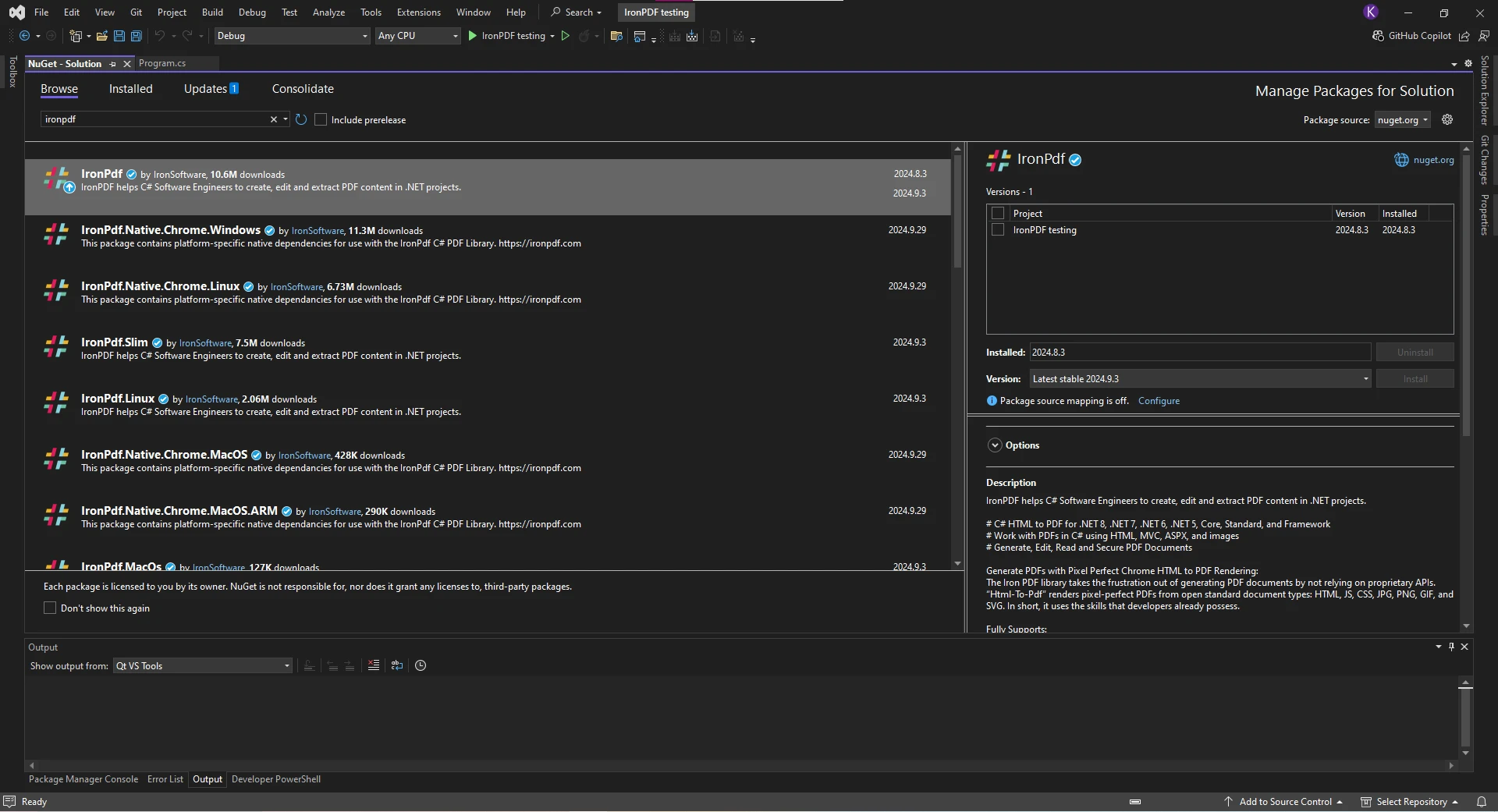
Alternatively, you can install it using Manage NuGet Packages for Solution:
C# PDF Conversion
Now, we can look at how IronPDF tackles PDF conversion from different file types. As we touched on earlier, IronPDF is a powerful PDF library capable of handling PDF conversion from many file types. This makes it extremely versatile in situations where you need to convert more than just HTML to PDF, which is what many other PDF libraries focus on. With IronPDF, you're able to do all your conversions in one place, without the need to install additional libraries.
Konwersja ciągu znaków HTML do formatu PDF
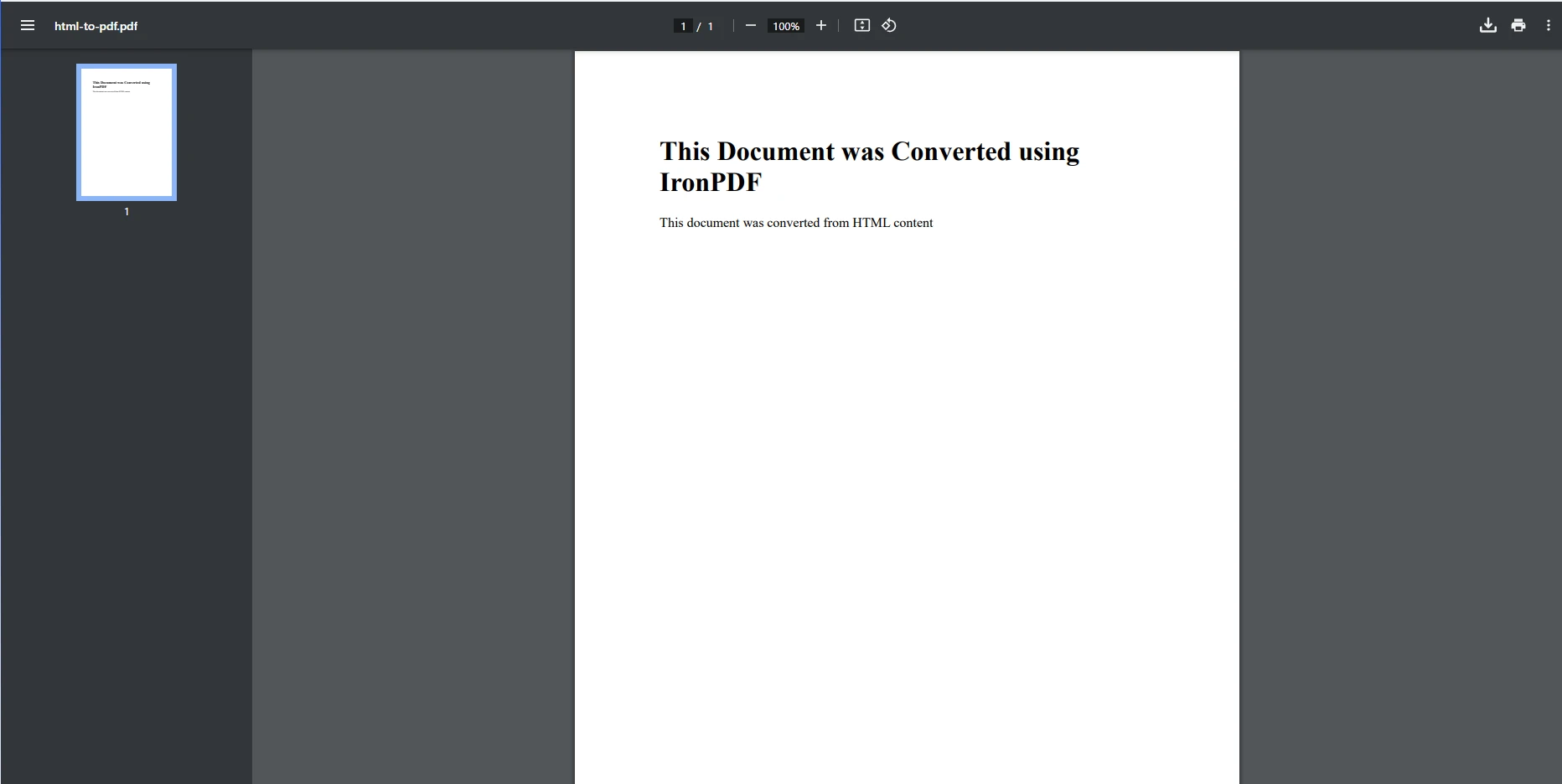
One of the most common scenarios for PDF conversion is converting HTML content into a PDF document, and IronPDF makes this process seamless. For this example, we'll be converting an HTML string, but the process is similar for an HTML document, HTML page, or HTML files. First, we'll create a ChromePdfRenderer instance to render our HTML content as a PDF. Then, using RenderHtmlAsPdf(), we can convert the HTML content to PDF, before finally saving the PDF.
using IronPdf;

class Program
{
    static void Main(string[] args)
    {
        // HTML content to convert
        string html = "<h1>This Document was Converted using IronPDF</h1><p>This document was converted from HTML content</p>";

        // Instantiate the ChromePdfRenderer class
        ChromePdfRenderer renderer = new ChromePdfRenderer();

        // Render the HTML content into a PDF document
        PdfDocument pdf = renderer.RenderHtmlAsPdf(html);

        // Save the rendered PDF document to a file
        pdf.SaveAs("html-to-pdf.pdf");
    }
}
using IronPdf;
class Program
{
static void Main(string[] args)
{
// HTML content to convert
string html = "<h1>This Document was Converted using IronPDF</h1><p>This document was converted from HTML content</p>";
// Instantiate the ChromePdfRenderer class
ChromePdfRenderer renderer = new ChromePdfRenderer();
// Render the HTML content into a PDF document
PdfDocument pdf = renderer.RenderHtmlAsPdf(html);
// Save the rendered PDF document to a file
pdf.SaveAs("html-to-pdf.pdf");
}
}Imports IronPdf
Friend Class Program
Shared Sub Main(ByVal args() As String)
' HTML content to convert
Dim html As String = "<h1>This Document was Converted using IronPDF</h1><p>This document was converted from HTML content</p>"
' Instantiate the ChromePdfRenderer class
Dim renderer As New ChromePdfRenderer()
' Render the HTML content into a PDF document
Dim pdf As PdfDocument = renderer.RenderHtmlAsPdf(html)
' Save the rendered PDF document to a file
pdf.SaveAs("html-to-pdf.pdf")
End Sub
End ClassWynik
URL do pliku PDF
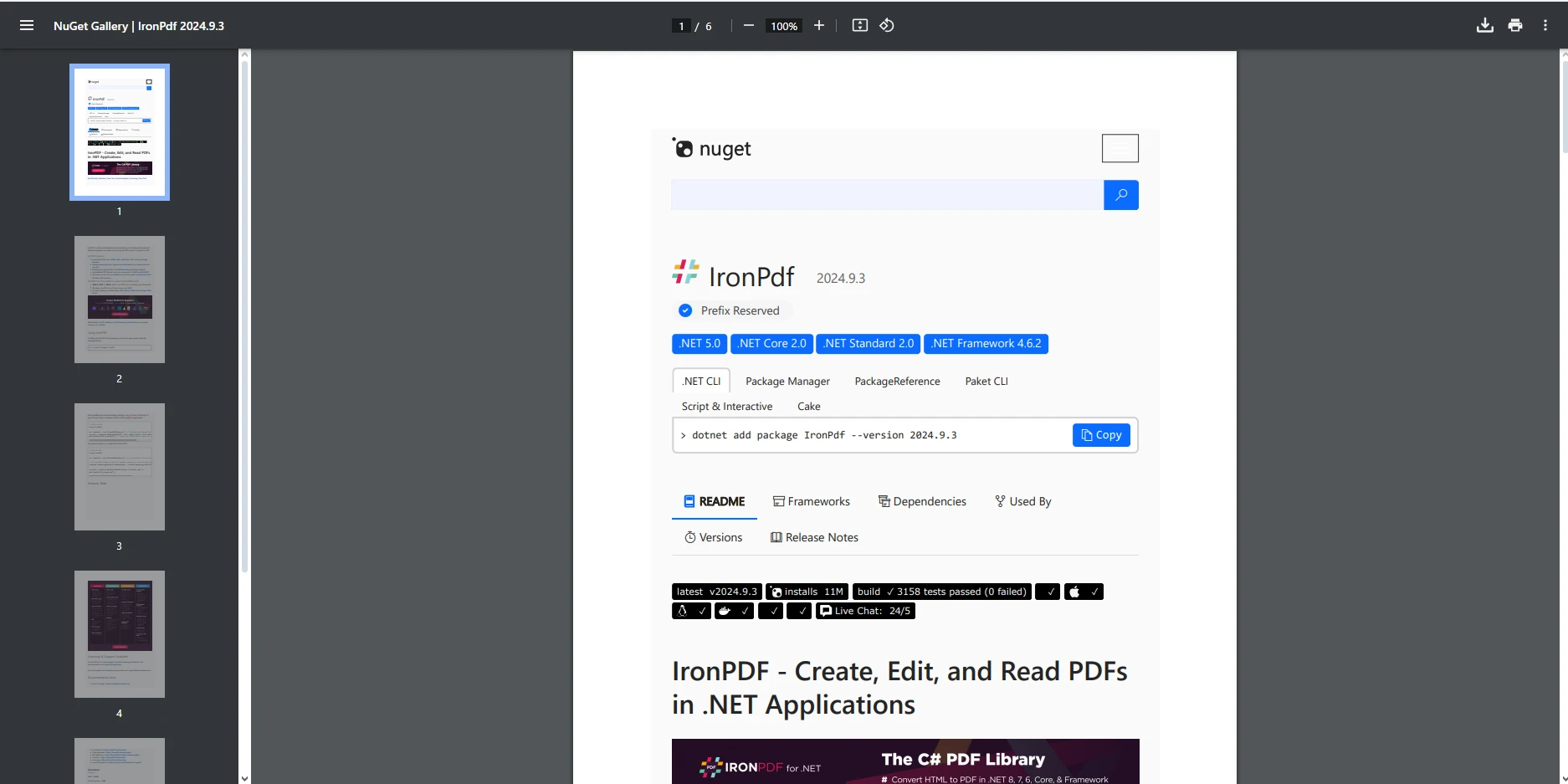
Another common method of PDF conversion is converting a URL to PDF. This way, we can capture entire web pages as a pixel-perfect PDF. Using the URL https://www.nuget.org/packages/IronPdf/, we will utilize the ChromePdfRenderer class and IronPDF's support for modern web standards to generate a high-quality PDF in just a few lines of code.
using System;
using IronPdf;

class Program
{
    static void Main(string[] args)
    {
        // Instantiate the ChromePdfRenderer
        ChromePdfRenderer renderer = new ChromePdfRenderer();

        // Render the URL content into a PDF
        PdfDocument pdf = renderer.RenderUrlAsPdf("https://www.nuget.org/packages/IronPdf/");

        // Save the PDF to a file
        pdf.SaveAs("url-to-pdf.pdf");
    }
}
using System;
using IronPdf;
class Program
{
static void Main(string[] args)
{
// Instantiate the ChromePdfRenderer
ChromePdfRenderer renderer = new ChromePdfRenderer();
// Render the URL content into a PDF
PdfDocument pdf = renderer.RenderUrlAsPdf("https://www.nuget.org/packages/IronPdf/");
// Save the PDF to a file
pdf.SaveAs("url-to-pdf.pdf");
}
}Imports System
Imports IronPdf
Friend Class Program
Shared Sub Main(ByVal args() As String)
' Instantiate the ChromePdfRenderer
Dim renderer As New ChromePdfRenderer()
' Render the URL content into a PDF
Dim pdf As PdfDocument = renderer.RenderUrlAsPdf("https://www.nuget.org/packages/IronPdf/")
' Save the PDF to a file
pdf.SaveAs("url-to-pdf.pdf")
End Sub
End ClassWynik
Converting Images to PDF
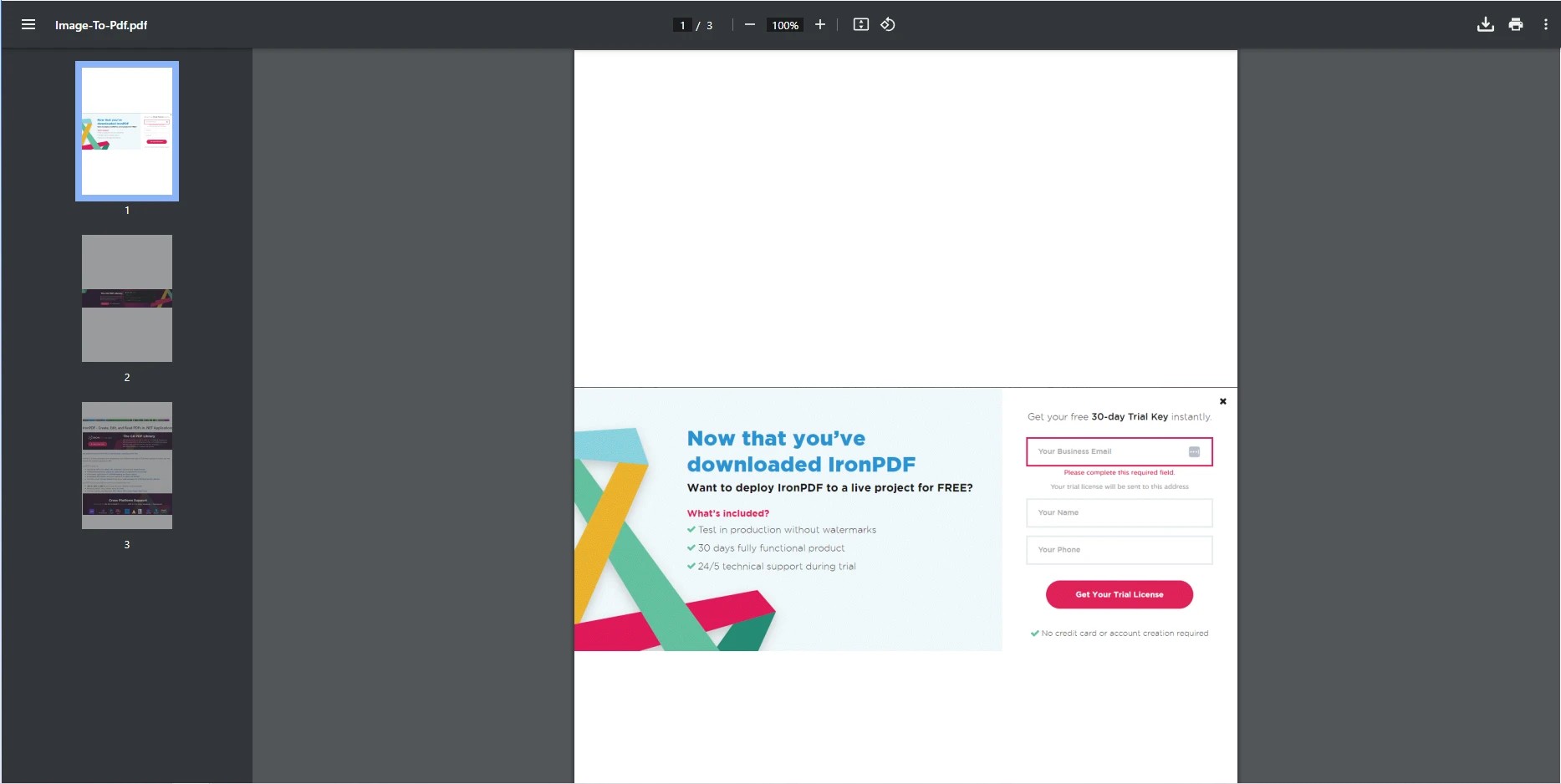
IronPDF also supports the conversion of image file types, such as PNG, JPG, and GIF, to PDFs. This is a great way of compiling multiple images into one document. For our example, we'll take three different images, each in a different image format, and convert them into new PDFs, before merging them into one PDF to demonstrate how this can be used to convert multiple images into the same PDF. The ImageToPdfConverter class is used to carry out the conversion of the images.
using System.Collections.Generic;
using IronPdf;

class Program
{
    static void Main(string[] args)
    {
        // Define image file paths
        string jpgFile = "image-jpg.jpg";
        string pngFile = "image-png.png";
        string gifFile = "image-gif.gif";

        // Convert each image to a separate PDF document
        PdfDocument pdfA = ImageToPdfConverter.ImageToPdf(gifFile);
        PdfDocument pdfB = ImageToPdfConverter.ImageToPdf(pngFile);
        PdfDocument pdfC = ImageToPdfConverter.ImageToPdf(jpgFile);

        // Combine all the PDFs into a single document
        List<PdfDocument> pdfFiles = new List<PdfDocument> { pdfA, pdfB, pdfC };
        PdfDocument mergedPdf = PdfDocument.Merge(pdfFiles);

        // Save the merged PDF document to a file
        mergedPdf.SaveAs("images-to-pdf.pdf");
    }
}
using System.Collections.Generic;
using IronPdf;
class Program
{
static void Main(string[] args)
{
// Define image file paths
string jpgFile = "image-jpg.jpg";
string pngFile = "image-png.png";
string gifFile = "image-gif.gif";
// Convert each image to a separate PDF document
PdfDocument pdfA = ImageToPdfConverter.ImageToPdf(gifFile);
PdfDocument pdfB = ImageToPdfConverter.ImageToPdf(pngFile);
PdfDocument pdfC = ImageToPdfConverter.ImageToPdf(jpgFile);
// Combine all the PDFs into a single document
List<PdfDocument> pdfFiles = new List<PdfDocument> { pdfA, pdfB, pdfC };
PdfDocument mergedPdf = PdfDocument.Merge(pdfFiles);
// Save the merged PDF document to a file
mergedPdf.SaveAs("images-to-pdf.pdf");
}
}Imports System.Collections.Generic
Imports IronPdf
Friend Class Program
Shared Sub Main(ByVal args() As String)
' Define image file paths
Dim jpgFile As String = "image-jpg.jpg"
Dim pngFile As String = "image-png.png"
Dim gifFile As String = "image-gif.gif"
' Convert each image to a separate PDF document
Dim pdfA As PdfDocument = ImageToPdfConverter.ImageToPdf(gifFile)
Dim pdfB As PdfDocument = ImageToPdfConverter.ImageToPdf(pngFile)
Dim pdfC As PdfDocument = ImageToPdfConverter.ImageToPdf(jpgFile)
' Combine all the PDFs into a single document
Dim pdfFiles As New List(Of PdfDocument) From {pdfA, pdfB, pdfC}
Dim mergedPdf As PdfDocument = PdfDocument.Merge(pdfFiles)
' Save the merged PDF document to a file
mergedPdf.SaveAs("images-to-pdf.pdf")
End Sub
End ClassWynik
Converting DOCX Files to PDF
IronPDF handles DOCX to PDF conversion seamlessly, in just a couple of lines of code. First, we will create a new instance of the DocxToPdfRenderer class, which we then use to convert the DOCX file using RenderDocxAsPdf(), before finally saving the PDF.
using IronPdf;

class Program
{
    static void Main(string[] args)
    {
        // Instantiate the DocxToPdfRenderer
        DocxToPdfRenderer renderer = new DocxToPdfRenderer();

        // Convert the DOCX file to a PDF
        PdfDocument pdf = renderer.RenderDocxAsPdf("Meeting notes.docx");

        // Save the converted PDF document
        pdf.SaveAs("docx-to-pdf.pdf");
    }
}
using IronPdf;
class Program
{
static void Main(string[] args)
{
// Instantiate the DocxToPdfRenderer
DocxToPdfRenderer renderer = new DocxToPdfRenderer();
// Convert the DOCX file to a PDF
PdfDocument pdf = renderer.RenderDocxAsPdf("Meeting notes.docx");
// Save the converted PDF document
pdf.SaveAs("docx-to-pdf.pdf");
}
}Imports IronPdf
Friend Class Program
Shared Sub Main(ByVal args() As String)
' Instantiate the DocxToPdfRenderer
Dim renderer As New DocxToPdfRenderer()
' Convert the DOCX file to a PDF
Dim pdf As PdfDocument = renderer.RenderDocxAsPdf("Meeting notes.docx")
' Save the converted PDF document
pdf.SaveAs("docx-to-pdf.pdf")
End Sub
End Class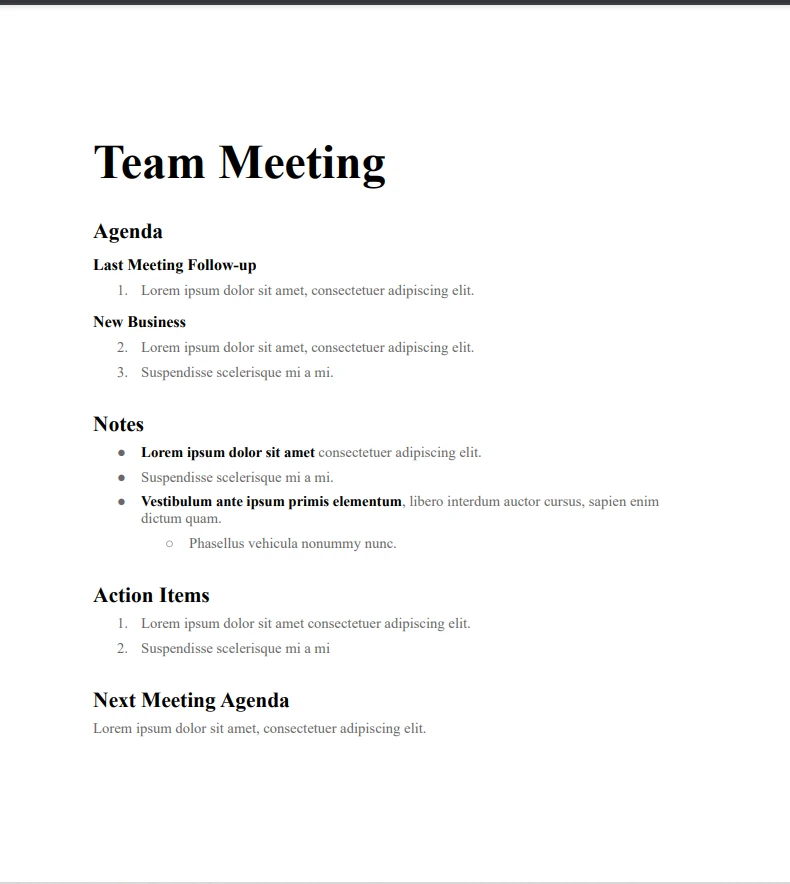
Wnioski
In today's digital landscape, converting documents into a universally accessible format like PDF is crucial for ensuring consistency, portability, and professional presentation. With IronPDF, integrating robust C# PDF converter capabilities into your applications is not only efficient but also incredibly flexible.
Throughout this tutorial, we demonstrated how easy it is to convert HTML files, web pages, images, URLs, and even DOCX files into polished, professional PDFs. But this is just the tip of the iceberg. IronPDF offers a wide array of features beyond basic conversion, such as:
- Merging multiple PDFs into a single document.
- Adding security features like password protection and digital signatures.
- Extracting text and images from existing PDFs.
- Generating dynamic PDFs with real-time data, making it ideal for generating invoices, reports, and certificates.
Ready to take your document processing to the next level? Start experimenting with IronPDF today with its free trial, and unlock the full potential of PDF manipulation in your C# projects.
For further exploration of advanced features, optimizations, and practical examples, visit the official IronPDF documentation and join a community of developers transforming the way PDFs are handled in modern applications.
Często Zadawane Pytania
Jak mogę przekonwertować zawartość HTML do formatu PDF w języku C#?
Mozesz uzyc klasy ChromePdfRenderer biblioteki IronPDF, aby konwertowac zawartosc HTML na PDF. Metoda RenderHtmlAsPdf() pozwala na bezproblemowe renderowanie ciagow HTML do dokumentow PDF.
Jaki jest najlepszy sposob konwersji URL na PDF w C#?
IronPDF zapewnia prosty sposob konwersji URL na PDF przy uzyciu klasy ChromePdfRenderer. Ta funkcja przechwytuje cala strone internetowa jako idealny pikselowy PDF.
Jak przekonwertowac obrazy na PDF, uzywajac C#?
Z IronPDF mozesz konwertowac pliki obrazow takich jak PNG, JPG i GIF na PDF przy uzyciu klasy ImageToPdfConverter. Umożliwia to latwe laczenie wielu obrazow w jeden dokument PDF.
Czy moge przekonwertowac pliki DOCX na PDF w C#?
Tak, mozesz przekonwertowac pliki DOCX na PDF przy uzyciu klasy DocxToPdfRenderer IronPDF. Metoda RenderDocxAsPdf() pomaga w tworzeniu i zapisywaniu zawartosci DOCX jako PDF.
Jakie sa kluczowe funkcje IronPDF do konwersji PDF?
IronPDF oferuje funkcje takie jak renderowanie o wysokiej wiernosc, integracja z ASP.NET, ochrona haslem, podpisy cyfrowe oraz mozliwosc laczenia i wydobywania zawartosci z PDF.
Czy istnieje sposob na polaczenie wielu PDF w jeden, uzywajac C#?
IronPDF pozwala na polaczenie wielu PDF w jeden dokument. Mozna to zrobic uzywajac funkcjonalnosci laczenia PDF dostarczonych przez biblioteke.
Jak moge dodac zabezpieczenia do moich dokumentow PDF?
IronPDF oferuje funkcje zabezpieczen, takie jak ochrona haslem i podpisy cyfrowe, zapewniajac poufnosc i autentycznosc dokumentow PDF.
Jakie zasoby sa dostepne dla lepszego poznania IronPDF?
Na oficjalnej stronie IronPDF mozesz znalezc obfite zasoby i dokumentacje, w tym samouczki, przyklady oraz szczegolowy przewodnik dokumentacji API.
Czy IronPDF jest w pełni kompatybilny z .NET 10?
Tak — IronPDF zostal zaprojektowany do obslugi .NET 10 (a takze .NET 9, 8, 7, 6, Core, Standard, i Framework). Mozesz go zainstalowac za pomoca NuGet i korzystac z pelnego zakresu funkcji konwersji HTML, URL, obrazow, DOCX, edycji, podpisywania i wdrazania bez specjalnych obejsc.
• Oficjalna lista zgodnosci obejmuje .NET 10 wsrod obslugiwanych platform.
Czy moge uzyc async/await z IronPDF w .NET 10 do nieblokujacego generowania PDF?
Absolutnie. IronPDF w pelni obsluguje async/await w .NET 10, umozliwiajac operacje nieblokujace podczas renderowania PDF (np. z uzyciem RenderHtmlAsPdfAsync()), asynchronicznego zapisywania plikow, oraz plynnej integracji z aplikacjami responsywnymi lub opartymi na uslugach. Zapewnia to lepsza wydajnosc i skalowalnosc we wspolczesnych srodowiskach programistycznych .NET 10.










 Rozpocznij za DARMO
 Rozpocznij za DARMO
 Zarezerwuj darmowe Demo na żywo





 Nie wymaga karty kredytowej ani tworzenia konta










