


Zaktualizowano 21 kwietnia 2026
linkify-react (Jak to działa: Przewodnik dla deweloperów)
Linkify React to lekki i łatwy w użyciu pakiet npm, który automatyzuje konwersję zwykłego tekstu zawierającego adresy URL
Czytaj więcej

W nowoczesnym tworzeniu stron internetowych zapewnienie użytkownikom szybkiej informacji zwrotnej ma kluczowe znaczenie dla płynnego działania serwisu. Powiadomienia typu toast to skuteczny sposób na przekazywanie wiadomości bez zakłócania pracy użytkownika. Pakiet React-toastify jest popularnym wyborem do implementacji powiadomień toastowych w aplikacjach React ze względu na swoją prostotę i elastyczność. Przyjrzymy się również pakietowi IronPDF NPM, służącemu do generowania, edycji i zarządzania dokumentami PDF. Ten artykuł poprowadzi Cię przez proces integracji React-toastify i IronPDF z Twoim projektem React.
React-toastify to pakiet NPM, który pozwala dodawać dostosowywalne powiadomienia toast do aplikacji React z minimalną konfiguracją. Oferuje szeroki zakres funkcji, w tym różne typy powiadomień, funkcję automatycznego zamykania, własne stylowanie i wiele więcej.
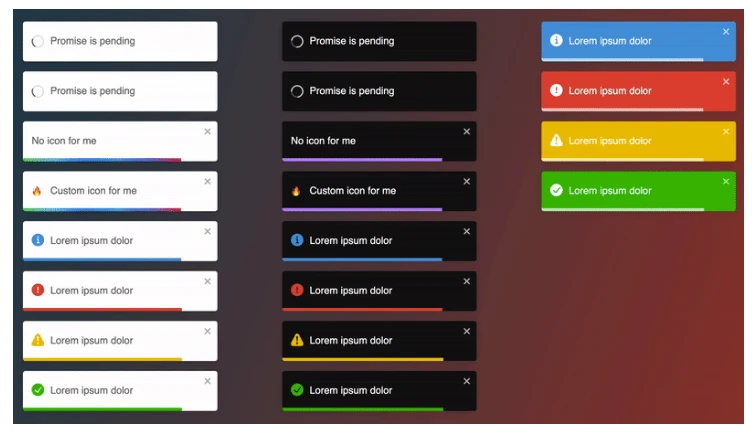
Aby rozpocząć pracę z react-toastify, należy zainstalować pakiet za pośrednictwem NPM lub Yarn. Uruchom następujące polecenie w katalogu głównym projektu:
npm install react-toastifyor
yarn add react-toastifyPo zainstalowaniu pakietu można rozpocząć korzystanie z react-toastify w aplikacji React. Poniżej znajduje się prosty przykład kodu demonstrujący, jak zintegrować i używać react-toastify.
Najpierw musisz zaimportować niezbędne komponenty z react-toastify:
import React from 'react';
import { ToastContainer, toast } from 'react-toastify';
import 'react-toastify/dist/ReactToastify.css';Następnie dodaj komponent ToastContainer do swojej aplikacji.
function App() {
return (
<div>
<ToastContainer />
</div>
);
}Powiadomienie toast można wywołać przy użyciu funkcji toast. Oto przykład kodu pokazujący, jak wyświetlić komunikat o sukcesie:
function notify() {
toast.success("Success! This is a success message.", {
position: toast.POSITION.TOP_RIGHT
});
}
function App() {
return (
<div>
<button onClick={notify}>Show Toast</button>
<ToastContainer />
</div>
);
}React-toastify oferuje wiele zaawansowanych funkcji, które pozwalają dostosować zachowanie i wygląd toastów za pomocą hooków onOpen i onClose.
import React from 'react';
import { ToastContainer, toast } from 'react-toastify';
import 'react-toastify/dist/ReactToastify.css';
function App() {
const notify = () => {
toast("Hello there", {
onOpen: () => window.alert('Called when I open'),
onClose: () => window.alert('Called when I close')
});
};
return (
<div>
<button onClick={notify}>Notify</button>
<ToastContainer />
</div>
);
}
export default App;W tym przykładzie:
Można wyświetlać toasty w różnych pozycjach na ekranie, korzystając z opcji pozycji:
toast.info("Information message", {
  position: "top-right"
});Można ustawić czas, przez który toast jest wyświetlany, korzystając z opcji autoClose:
toast.warn("Warning message", {
  autoClose: 5000 // Auto close after 5 seconds
});Niestandardowe stylowanie można zastosować do toastów przy użyciu opcji className i stylu:
toast.error("Error message", {
  className: 'custom-toast',
  style: { background: 'red', color: 'white' }
});Toasty można programowo usunąć przy użyciu metody toast.dismiss:
const toastId = toast("This toast can be dismissed");
function dismissToast() {
toast.dismiss(toastId);
}Oto pełen przykład demonstrujący użycie różnych funkcji react-toastify:
import React from 'react';
import { ToastContainer, toast } from 'react-toastify';
import 'react-toastify/dist/ReactToastify.css';
function App() {
const notify = () => {
toast.success("Success! This is a success message.", {
position: "top-right"
});
toast.info("Information message", {
position: "bottom-left"
});
toast.warn("Warning message", {
autoClose: 5000
});
toast.error("Error message", {
  className: 'custom-toast',
  style: { background: 'red', color: 'white' }
});
};
return (
<div>
<button onClick={notify}>Show Toasts</button>
<ToastContainer />
</div>
);
}
export default App;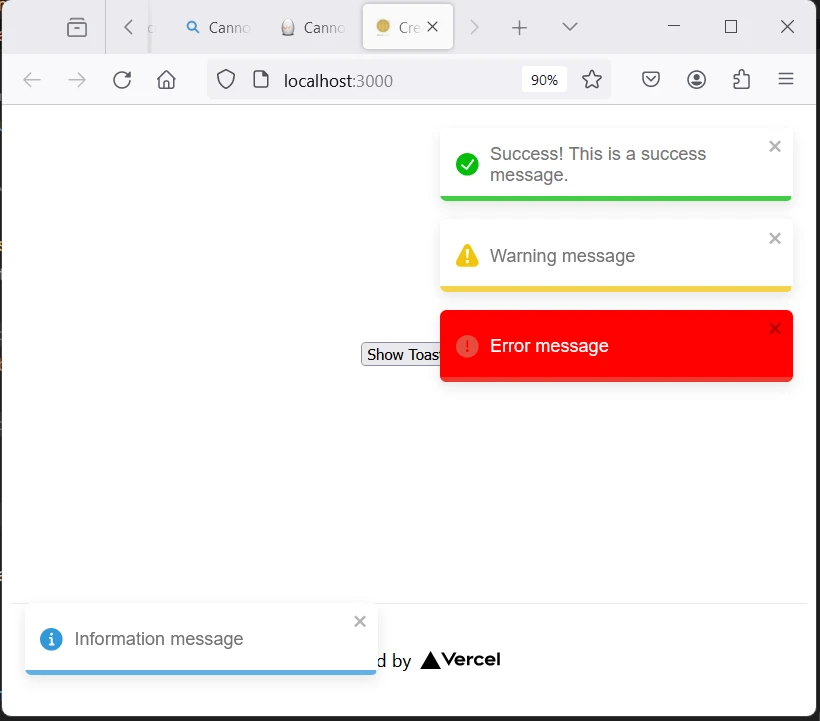
IronPDF to potężna biblioteka C#, która pozwala programistom generować i edytować PDF w ich projektach .NET. Niezależnie od tego, czy potrzebujesz tworzyć PDF z HTML, manipulować istniejącymi PDF czy konwertować strony internetowe na format PDF, IronPDF ma Cię pokryć.
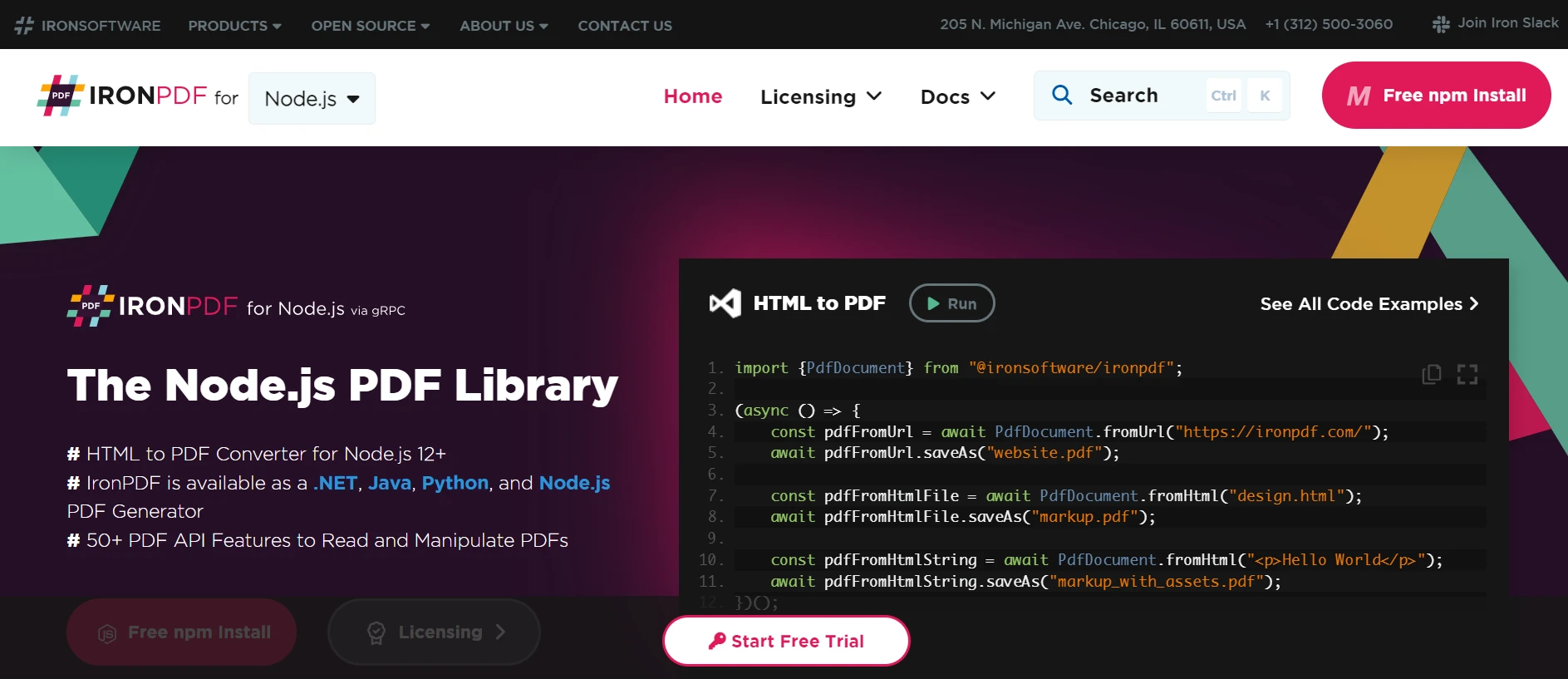
Oto kilka kluczowych funkcji i zastosowań:
IronPDF może konwertować strony HTML, czy to z URL, pliku HTML, czy ciągu HTML, na PDF. Można również konwertować lokalne pliki HTML lub ciągi HTML na PDF.
IronPDF działa bezproblemowo na różnych platformach, w tym na:
IronPDF pozwala na:
Można stosować szablony stron, nagłówki, stopki, numery stron i niestandardowe marginesy. IronPDF obsługuje kodowanie znaków UTF-8, bazowe URL, kodowanie zasobów i więcej.
IronPDF przestrzega różnych standardów PDF, w tym wersji PDF (1.2 - 1.7), PDF/UA (PDF/UA-1) i PDF/A (PDF/A-3b).
Zainstaluj zależności: Najpierw utwórz nowy projekt Next.js (jeśli jeszcze tego nie zrobiłeś) za pomocą poniższego polecenia. Zapoznaj się ze stroną konfiguracja.
npx create-next-app@latest my-pdf-app --use-npm --example "https://github.com/vercel/next-learn/tree/main/basics/learn-starter"Następnie przejdź do katalogu projektu:
cd my-pdf-appZainstaluj wymagane pakiety:
Tworzenie PDF: Teraz zróbmy prosty przykład generowania PDF przy użyciu IronPDF. W komponencie Next.js (np. pages/index.tsx) dodaj następujący kod:
import Head from 'next/head';
import styles from '../styles/Home.module.css';
import { ToastContainer, toast } from 'react-toastify';
import 'react-toastify/dist/ReactToastify.css';
import { useState } from "react";

export default function Home() {
    const [textInput, setTextInput] = useState('');

    // Function to show toast notifications
    const notify = () => {
        toast.success("Success! This is a success message.", {
            position: "top-right"
        });
        toast.info("Information message", {
            position: "bottom-left"
        });
        toast.warn("Warning message", {
            autoClose: 5000
        });
        toast.error("Error message", {
            className: 'custom-toast',
            style: { background: 'red', color: 'white' }
        });
    };

    // Function to generate a PDF
    const generatePdf = async () => {
        try {
            const response = await fetch('/api/pdf?url=' + textInput);
            const blob = await response.blob();
            const url = window.URL.createObjectURL(new Blob([blob]));
            const link = document.createElement('a');
            link.href = url;
            link.setAttribute('download', 'example.pdf');
            document.body.appendChild(link);
            link.click();
            link.parentNode.removeChild(link);
        } catch (error) {
            console.error('Error generating PDF:', error);
        }
    };

    // Handler for input change
    const handleChange = (event) => {
        setTextInput(event.target.value);
    }

    return (
        <div className={styles.container}>
            <Head>
                <title>Demo Toaster and Generate PDF From IronPDF</title>
                <link rel="icon" href="/favicon.ico"/>
            </Head>
            <main>
                <h1>Demo Toaster and Generate PDF From IronPDF</h1>
                <button style={{margin: 20, padding: 5}} onClick={notify}>Show Toasts</button>
                <p>
                    <span>Enter Url To Convert to PDF:</span>{" "}
                    <input type="text" value={textInput} onChange={handleChange} />
                </p>
                <button style={{margin: 20, padding: 5}} onClick={generatePdf}>Generate PDF</button>
                <ToastContainer />
            </main>
            <style jsx>{`
                main {
                    padding: 5rem 0;
                    flex: 1;
                    display: flex;
                    flex-direction: column;
                    justify-content: center;
                    align-items: center;
                }
                footer {
                    width: 100%;
                    height: 100px;
                    border-top: 1px solid #eaeaea;
                    display: flex;
                    justify-content: center;
                    align-items: center;
                }
                footer img {
                    margin-left: 0.5rem;
                }
                footer a {
                    display: flex;
                    justify-content: center;
                    align-items: center;
                    text-decoration: none;
                    color: inherit;
                }
                code {
                    background: #fafafa;
                    border-radius: 5px;
                    padding: 0.75rem;
                    font-size: 1.1rem;
                    font-family: Menlo,
                    Monaco,
                    Lucida Console,
                    Liberation Mono,
                    DejaVu Sans Mono,
                    Bitstream Vera Sans Mono,
                    Courier New,
                    monospace;
                }
            `}</style>
            <style jsx global>{`
                html,
                body {
                    padding: 0;
                    margin: 0;
                    font-family: -apple-system,
                    BlinkMacSystemFont,
                    Segoe UI,
                    Roboto,
                    Oxygen,
                    Ubuntu,
                    Cantarell,
                    Fira Sans,
                    Droid Sans,
                    Helvetica Neue,
                    sans-serif;
                }
                * {
                    box-sizing: border-box;
                }
            `}</style>
        </div>
    );
}Ponieważ IronPDF działa tylko na Node.js, następnie dodaj API dla aplikacji, gdzie PDF jest generowany przy użyciu Node.js.
Utwórz plik pdf.js w folderze pages/api i dodaj poniższy kod:
// pages/api/pdf.js
import { IronPdfGlobalConfig, PdfDocument } from "@ironsoftware/ironpdf";

// Apply your IronPDF license key
IronPdfGlobalConfig.getConfig().licenseKey = "Add Your Key Here";

export default async function handler(req, res) {
    try {
        const url = req.query.url;
        const pdf = await PdfDocument.fromUrl(url);
        const data = await pdf.saveAsBuffer();
        console.log('data PDF:', data);
        res.setHeader('Content-Type', 'application/pdf');
        res.setHeader('Content-Disposition', 'attachment; filename=awesomeIron.pdf');
        res.send(data);
    } catch (error) {
        console.error('Error generating PDF:', error);
        res.status(500).end();
    }
}Uwaga: W powyższym kodzie dodaj własny klucz licencyjny.
Uruchom aplikację: Uruchom aplikację Next.js:
npm run devor
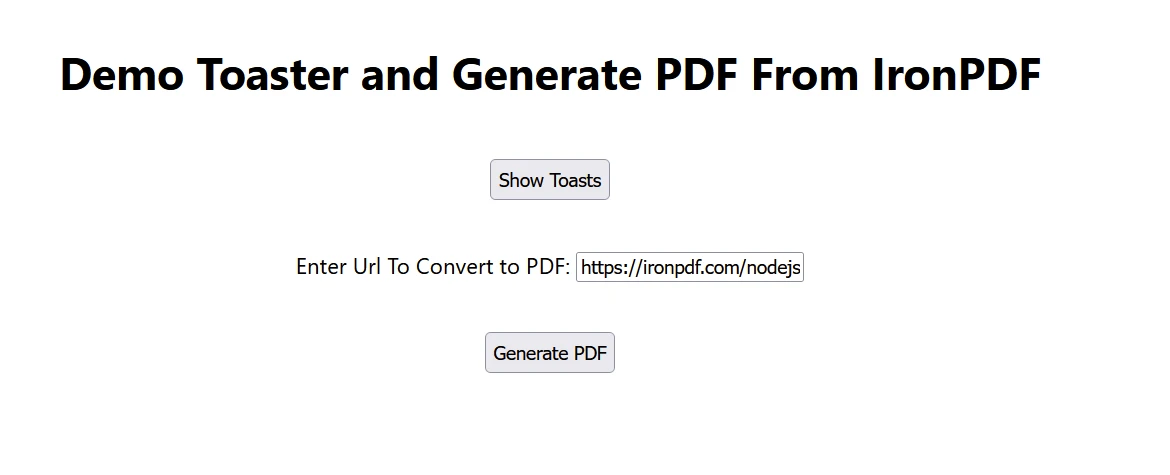
yarn devOtwórz przeglądarkę i przejdź do http://localhost:3000, aby zobaczyć poniższą witrynę:
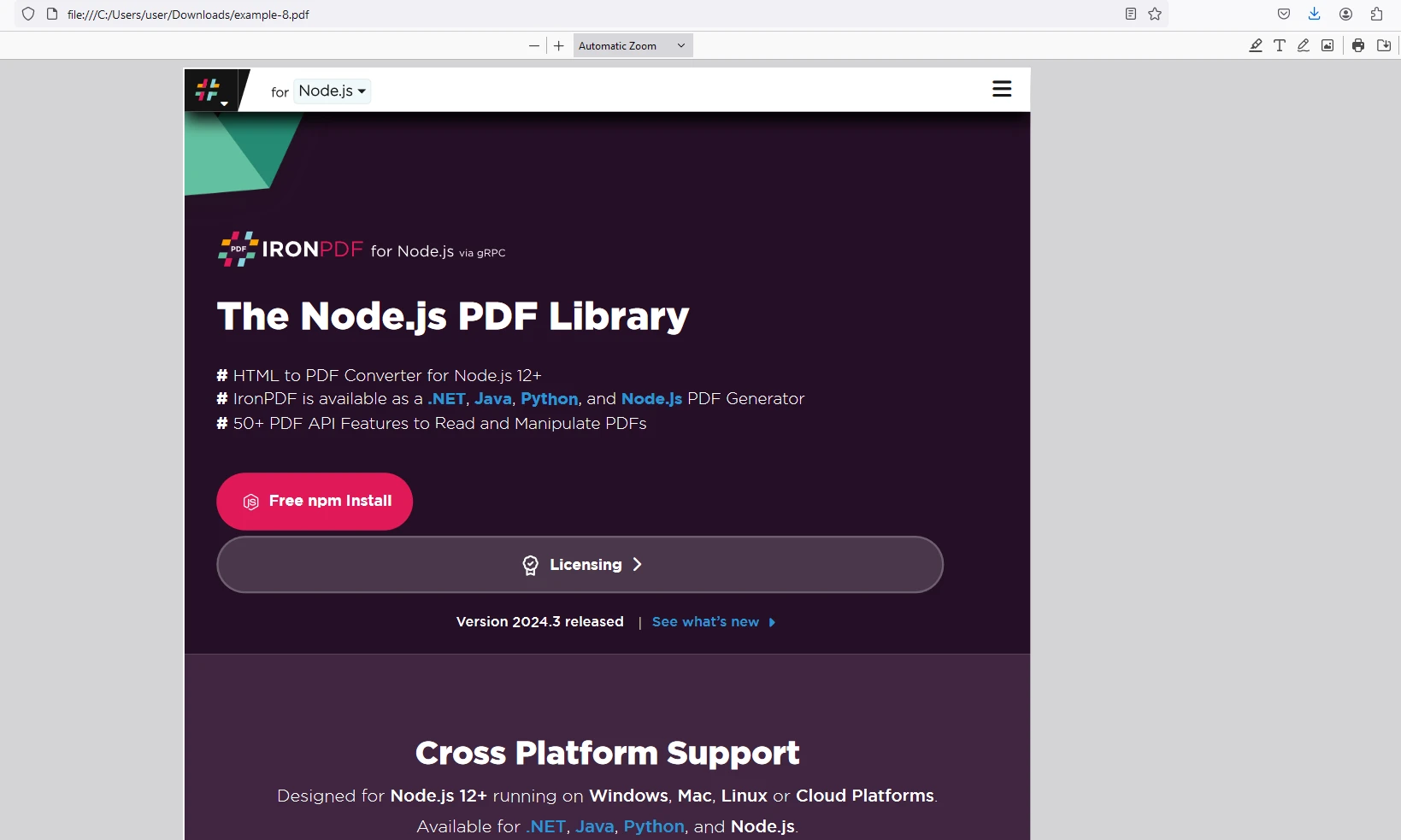
Teraz kliknij przycisk "Pokaż toasty", aby zobaczyć powiadomienia toast.
Aby uzyskać informacje na temat licencji IronPDF, zapraszamy do odwiedzenia strony IronPDF Licensing.
Umieść klucz licencyjny w aplikacji, jak pokazano poniżej:
import { IronPdfGlobalConfig, PdfDocument } from "@ironsoftware/ironpdf";
// Apply your IronPDF license key
IronPdfGlobalConfig.getConfig().licenseKey = "Add Your Key Here";React-toastify to potężna i łatwa w użyciu biblioteka do dodawania powiadomień toast w aplikacjach React. Dzięki szerokiej gamie funkcji i opcji personalizacji, możesz poprawić doświadczenie użytkownika, zapewniając informacje zwrotne w czasie rzeczywistym w bardzo prosty i nieinwazyjny sposób. Z kolei IronPDF jest zdecydowanie najbardziej wszechstronną biblioteką korporacyjną z możliwością generowania, edytowania i zarządzania dokumentami PDF. Podążając za krokami przedstawionymi w tym artykule, możesz szybko zintegrować React-toastify i IronPDF z projektem i zacząć wykorzystywać ich możliwości.
Więcej informacji o rozpoczęciu pracy z IronPDF znajdziesz na ich stronie z dokumentacją oraz przykładami kody.

Curtis Chau posiada tytuł licencjata z informatyki (Uniwersytet Carleton) i specjalizuje się w front-endowym rozwoju, z ekspertką w Node.js, TypeScript, JavaScript i React. Pasjonuje się tworzeniem intuicyjnych i estetycznie przyjemnych interfejsów użytkownika, Curtis cieszy się pracą z nowoczesnymi frameworkami i tworzeniem dobrze zorganizowanych, atrakcyjnych wizualnie podręczników.

IronPDF jest częścią IRONSUITE
10 produktów API .NET dla twoich dokumentów biurowych

Kiedy potrzebujesz, aby twój PDF wyglądał jak HTML, szybko.

