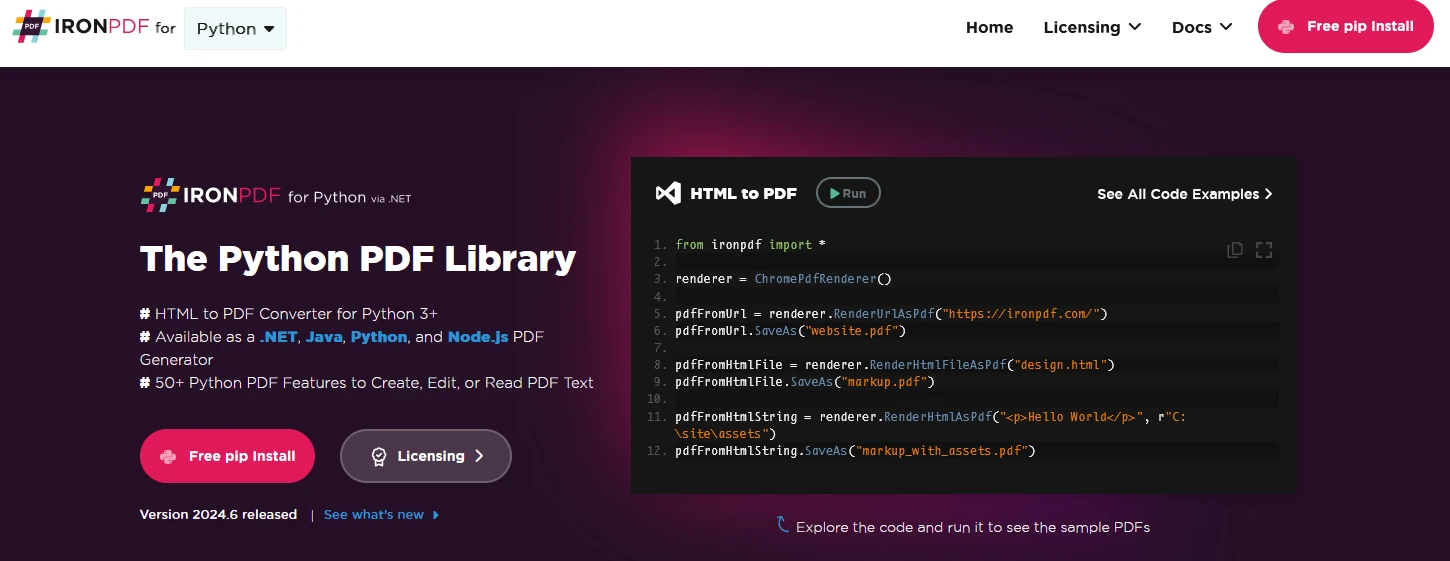
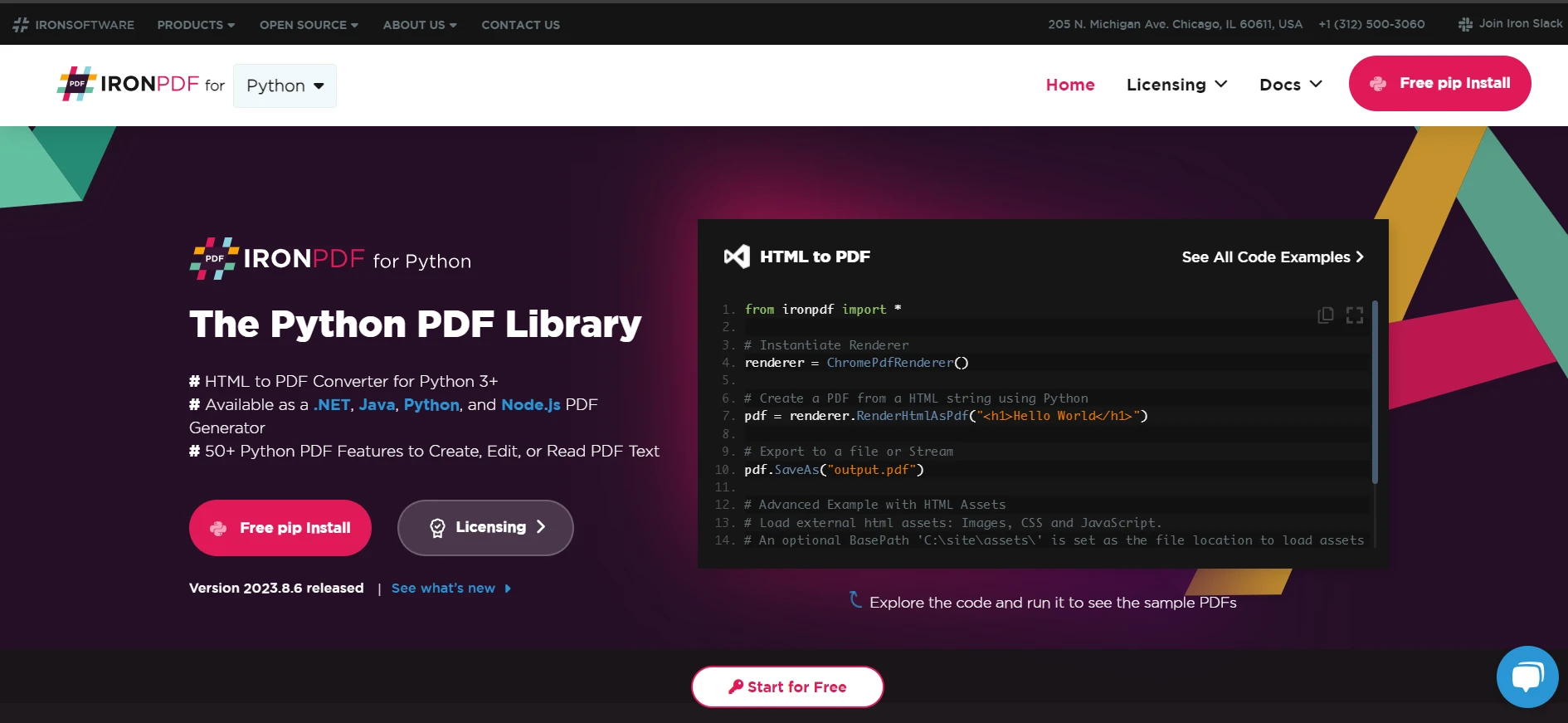
from ironpdf import *

# Instantiate Renderer
renderer = ChromePdfRenderer()

# Create a PDF from a HTML string using Python
pdf = renderer.RenderHtmlAsPdf("<h1>Hello World</h1>")

# Export to a file or Stream
pdf.SaveAs("output.pdf")

# Advanced Example with HTML Assets
# Load external html assets: Images, CSS and JavaScript.
# An optional BasePath 'C:\site\assets\' is set as the file location to load assets from
myAdvancedPdf = renderer.RenderHtmlAsPdf("<img src='icons/iron.png'>", r"C:\site\assets")
myAdvancedPdf.SaveAs("html-with-assets.pdf")
from ironpdf import *# Instantiate Rendererrenderer = ChromePdfRenderer()# Create a PDF from a HTML string using Pythonpdf = renderer.RenderHtmlAsPdf("<h1>Hello World</h1>")# Export to a file or Streampdf.SaveAs("output.pdf")# Advanced Example with HTML Assets# Load external html assets: Images, CSS and JavaScript.# An optional BasePath 'C:\site\assets\' is set as the file location to load assets frommyAdvancedPdf = renderer.RenderHtmlAsPdf("<img src='icons/iron.png'>", r"C:\site\assets")myAdvancedPdf.SaveAs("html-with-assets.pdf")
PORÓWNANIA PRODUKTÓW
Porównanie między Wkhtmltopdf Python & IronPDF dla Python
## 1. Wprowadzenie
PDFy odgrywają kluczową rolę w nowoczesnych cyfrowych przepływach pracy, służąc jako standardowy format do przechowywania i udostępniania dokumentów. W Pythonie programiści często sięgają po potężne biblioteki, takie jak [wkhtmltopdf](https://stackoverflow.com/questions/9144874/is-it-possible-to-install-the-wkhtmltopdf-python-package-on-windows) oraz IronPDF, aby generować i manipulować PDF-ami. Obie biblioteki oferują unikalne funkcje i możliwości, zaspokajając różne potrzeby w zakresie generowania PDF-ów. W tym porównaniu przeanalizujemy mocne strony i przypadki użycia każdej z bibliotek, aby pomóc programistom w podjęciu świadomej decyzji.
## 2. Czym jest wkhtmltopdf?
### 2.1 Przegląd
[wkhtmltopdf](https://wkhtmltopdf.org/index.html) to narzędzie wiersza poleceń korzystające z silnika renderującego WebKit do konwersji HTML lub innych języków znaczników do PDF-ów. Programiści Pythona często używają biblioteki [pdfkit](https://pypi.org/project/pdfkit/) jako prostego wrappera Pythona wokół wkhtmltopdf, aby zintegrować ją bezproblemowo w swoich projektach. Obecnie pakiet [python3-wkhtmltopdf](https://pypi.org/project/py3-wkhtmltopdf/) również dostarcza Pythona-wrappera dla narzędzia wiersza poleceń wkhtmltopdf, co ułatwia użycie wkhtmltopdf w skryptach Pythona. Oryginalny pakiet Pythona [wkhtmltopdf](https://pypi.org/project/wkhtmltopdf/) nie jest już utrzymywany.
### 2.2 Kluczowe funkcje
#### 2.2.1 Konwersja HTML do PDF
wkhtmltopdf doskonale sprawdza się w konwersji treści HTML na PDF, zachowując style, układ i obrazy. Jej prostota sprawia, że doskonale nadaje się do scenariuszy, w których konwersja HTML do PDF jest głównym wymaganiem.
#### 2.2.2 Interfejs wiersza poleceń
Jako narzędzie wiersza poleceń, wkhtmltopdf jest łatwo programowalne i może być zintegrowane z różnymi przepływami pracy. Jest szczególnie przydatne do automatyzacji procesów masowego generowania PDF-ów.
#### 2.2.3 Obsługa stylizacji CSS i JavaScriptu
wkhtmltopdf obsługuje zaawansowaną stylizację CSS i wykonuje JavaScript podczas procesu konwersji, co pozwala na uzyskanie bogatej i dynamicznej zawartości w wyniku PDF.
#### 2.2.4 Elastyczność i dostosowanie
wkhtmltopdf zapewnia elastyczność w zakresie rozmiaru strony, orientacji i innych ustawień układu. Programiści mogą dostosowywać te parametry, aby osiągnąć pożądany wygląd w generowanych PDF-ach.
#### 2.2.5 Wdrożenie i zależności
Narzędzie jest niezależne od zewnętrznych bibliotek i zależności, co upraszcza wdrożenie. Jednak użytkownicy muszą upewnić się, że wkhtmltopdf binarka jest dostępna w ich środowisku.
## 3. IronPDF for Python
### 3.1 Przegląd
[IronPDF](/python/) to wszechstronna biblioteka Pythona zaprojektowana w celu ułatwienia generowania, edytowania i manipulacji PDF-ami. Oferuje szereg funkcji do pracy z plikami PDF, takich jak generowanie PDF-ów z HTML, konwersja HTML do PDF, dodawanie tekstu i obrazów do istniejących PDF-ów oraz wyodrębnianie zawartości z dokumentów PDF. Jest szczególnie popularna w .NET Framework, a jej wersja na Pythona ma na celu przybliżenie podobnych możliwości programistom Pythona.
### 3.2 Kluczowe funkcje
* **Konwersja HTML do PDF:** IronPDF wyróżnia się przy konwersji HTML do PDF, oferując funkcje takie jak stylizacja CSS, wykonywanie JavaScriptu i niestandardowe nagłówki oraz stopki. Zapewnia wiele sposobów konwersji treści HTML, w tym ciągi HTML, pliki HTML i URL-e.
* **Edycja i manipulacja:** Jedną z godnych uwagi funkcji IronPDF jest możliwość edytowania istniejących plików PDF. Programiści mogą dodawać tekst, obrazy, adnotacje i więcej do dokumentów PDF, czyniąc go kompleksowym rozwiązaniem do manipulacji PDF-ami.
* **Funkcje bezpieczeństwa:** IronPDF zawiera solidne funkcje bezpieczeństwa, takie jak ochrona hasłem, szyfrowanie i ustawianie uprawnień na dokumentach PDF. Te funkcje są kluczowe do bezpiecznego przetwarzania wrażliwych informacji.
* **Dostosowywalne renderowanie:** Programiści korzystający z IronPDF mają szczegółową kontrolę nad procesem renderowania. Niestandardowe nagłówki, stopki, marginesy strony i określone części HTML do konwersji mogą być konfigurowane, aby uzyskać precyzyjne wyniki PDF.
* **Wdrożenie i zależności:** IronPDF bezproblemowo integruje się z różnymi środowiskami Pythona, w tym ASP.NET, MVC, Windows Forms i WPF. Obsługuje zarówno .NET Core, jak i Framework, co czyni go wszechstronnym dla różnych typów projektów. Dodatkowo, działa z usługami chmurowymi, takimi jak Azure.
## 4. Tworzenie projektu w Pythonie
### 4.1 Skonfiguruj Python
Upewnij się, że Python jest zainstalowany na Twoim systemie. Możesz pobrać Python z [**oficjalnej strony Pythona**](https://www.python.org/downloads/).
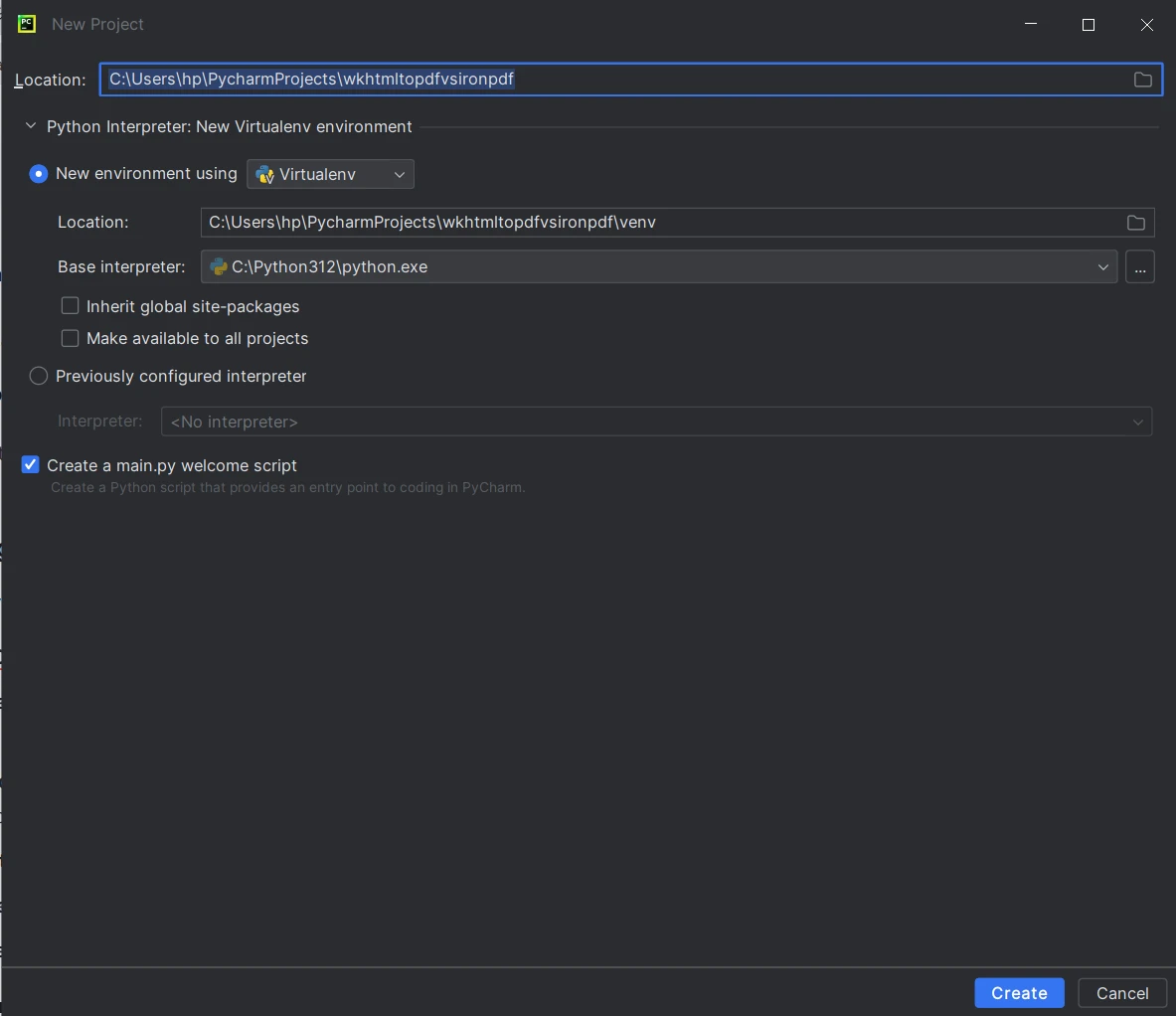
### 4.2 Tworzenie projektu w PyCharm
Do tworzenia projektu Pythona można użyć dowolnego IDE, tutaj użyję PyCharm, znanego IDE dla Pythona. Możesz po prostu użyć dowolnego IDE lub nawet edytora tekstu.
1. **Otwórz PyCharm:** Uruchom PyCharm na swoim komputerze.
2. **Utwórz nowy projekt:** Kliknij 'Utwórz nowy projekt' na ekranie powitalnym lub przejdź do Plik > Nowy projekt w IDE.
3. **Ustaw lokalizację projektu:** Określ katalog projektu i opcjonalnie włącz 'Utwórz katalog dla projektu'.
4. **Wybierz interpreter:** Wybierz istniejący interpreter Pythona lub stwórz nowe wirtualne środowisko.
5. **Skonfiguruj projekt:** Ustaw typ projektu, katalog główny i katalog źródłowy (domyślne ustawienia są zazwyczaj w porządku).
6. **Kliknij 'Utwórz':** Kliknij przycisk 'Utwórz' aby utworzyć projekt.
## 5. Instalacja narzędzia wkhtmltopdf
### Pobierz i zainstaluj wkhtmltopdf
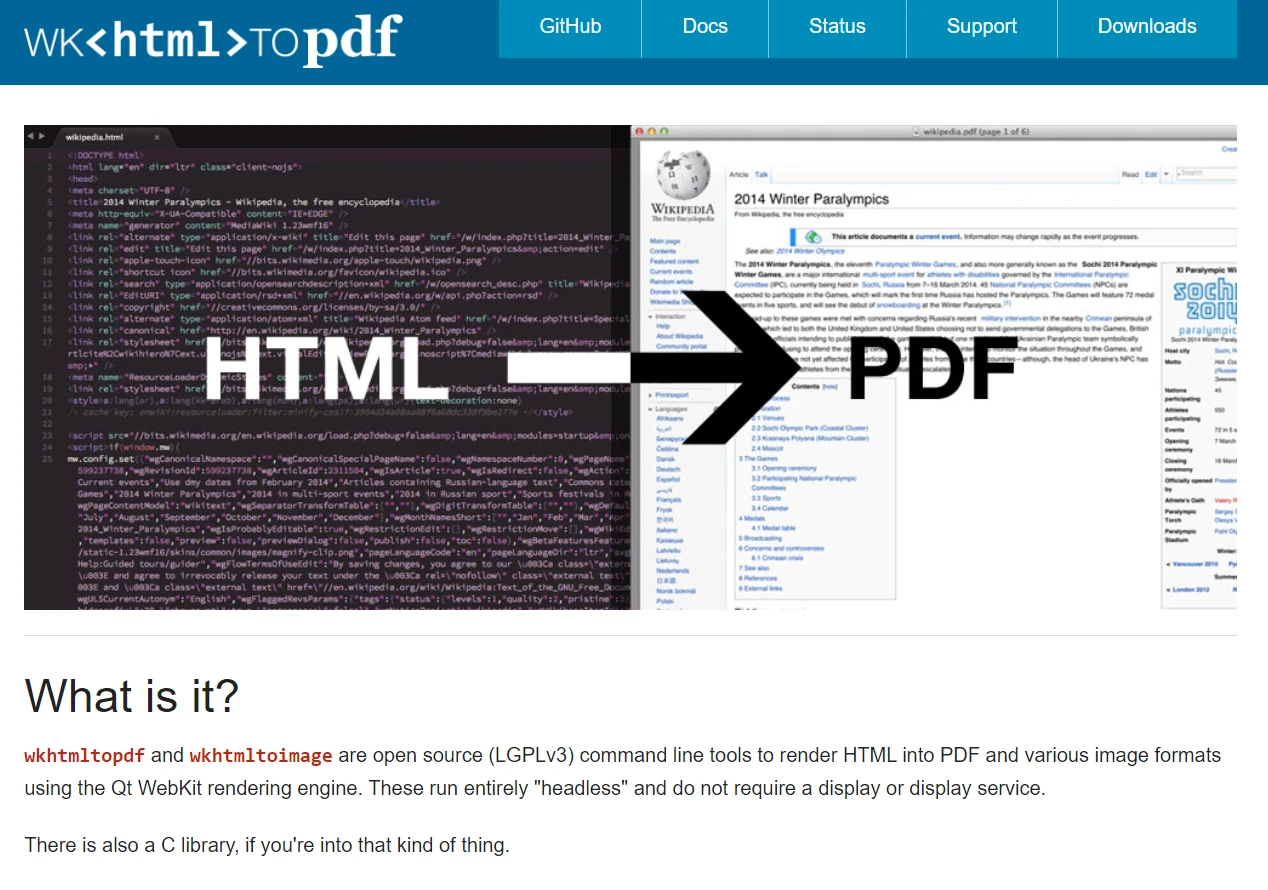
Odwiedź stronę pobierania [wkhtmltopdf](https://wkhtmltopdf.org/downloads.html) i pobierz odpowiedni instalator dla swojego systemu operacyjnego.
### Zainstaluj wkhtmltopdf
Postępuj zgodnie z instrukcjami instalacji dla swojego systemu operacyjnego. Jeśli używasz systemu Windows, upewnij się, że dodano go do zmiennej środowiskowej PATH, aby uzyskać do niego dostęp z dowolnego miejsca w linii poleceń.
* **On macOS:** Install wkhtmltopdf using [**Homebrew**](https://formulae.brew.sh/cask/wkhtmltopdf):
```shell
brew install --cask wkhtmltopdf
```
* **On Debian/Ubuntu:** Install wkhtmltopdf using [**APT**](https://help.ubuntu.com/community/AptGet/Howto):
```shell
sudo apt-get install wkhtmltopdf
```
### Zweryfikuj instalację
Otwórz nowy terminal lub wiersz polecenia i wpisz `wkhtmltopdf`, aby upewnić się, że narzędzie zostało poprawnie zainstalowane. Powinieneś zobaczyć informacje o dostępnych opcjach.
### Zainstaluj pakiet Python wkhtmltopdf za pomocą pip
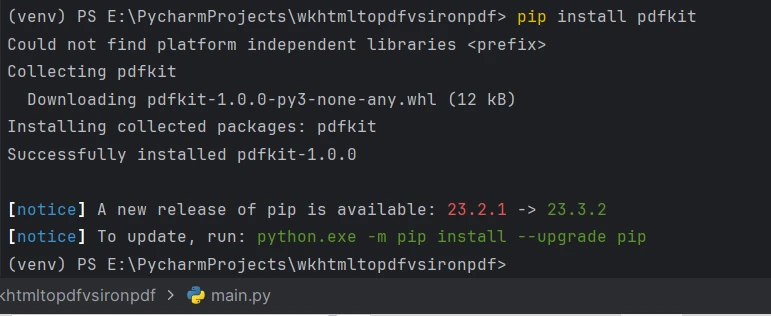
Jedną z popularnych bibliotek Pythona do pracy z wkhtmltopdf jest [pdfkit](https://pypi.org/project/pdfkit/). Użyj następującego polecenia, aby zainstalować go w swoich projektach produkcji:
```shell
pip install pdfkit
```
## 6. Instalacja IronPDF
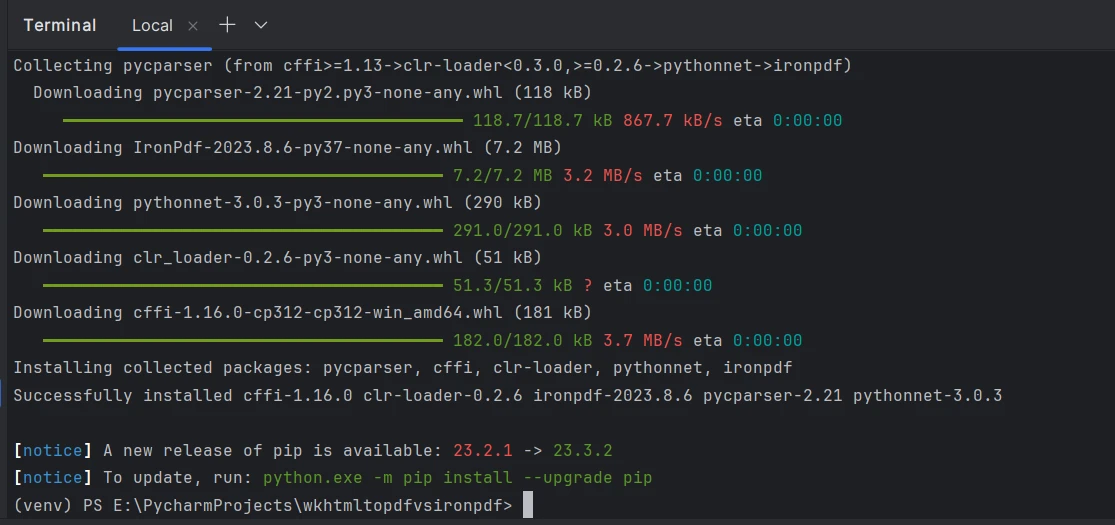
**Zainstaluj IronPDF za pomocą pip:** Otwórz terminal lub wiersz polecenia w PyCharm i uruchom następujące polecenie, aby zainstalować IronPDF przy pomocy pip:
```shell
:ProductInstall
```
Możesz także pobrać pakiet Pythona specyficzny dla swojej platformy z sekcji pobierania na stronie internetowej IronPDF pod adresem [https://ironpdf.com/python/](/python/)
## 7. Porównanie
W tym porównaniu najpierw zobaczymy, jak stworzyć dokument PDF z HTML za pomocą biblioteki wkhtmltopdf i biblioteki IronPDF. Zobaczymy, jak wygenerować PDF z następujących źródeł:
1. Ciąg znaków HTML do pliku PDF
2. Plik HTML do PDF
3. URL do PDF
Dodatkowo zbadamy niektóre opcjonalne argumenty i funkcje oferowane przez obie biblioteki.
### 7.1 Tworzenie pliku PDF za pomocą IronPDF
Najpierw zbadamy, jak IronPDF bezproblemowo renderuje [ciąg HTML](/python/examples/using-html-to-create-a-pdf/), [plik](/python/examples/file-to-pdf/) i [URL](/python/examples/converting-a-url-to-a-pdf/) do PDF, korzystając z jego `ChromePdfRenderer` silnika.
#### 7.1.1 Ciąg HTML do PDF
```python
from ironpdf import ChromePdfRenderer

# Instantiate Renderer
renderer = ChromePdfRenderer()

# Create a PDF from an HTML string using Python
pdf = renderer.RenderHtmlAsPdf("<h1>Hello World</h1>")

# Export to a file or Stream
pdf.SaveAs("output.pdf")
```
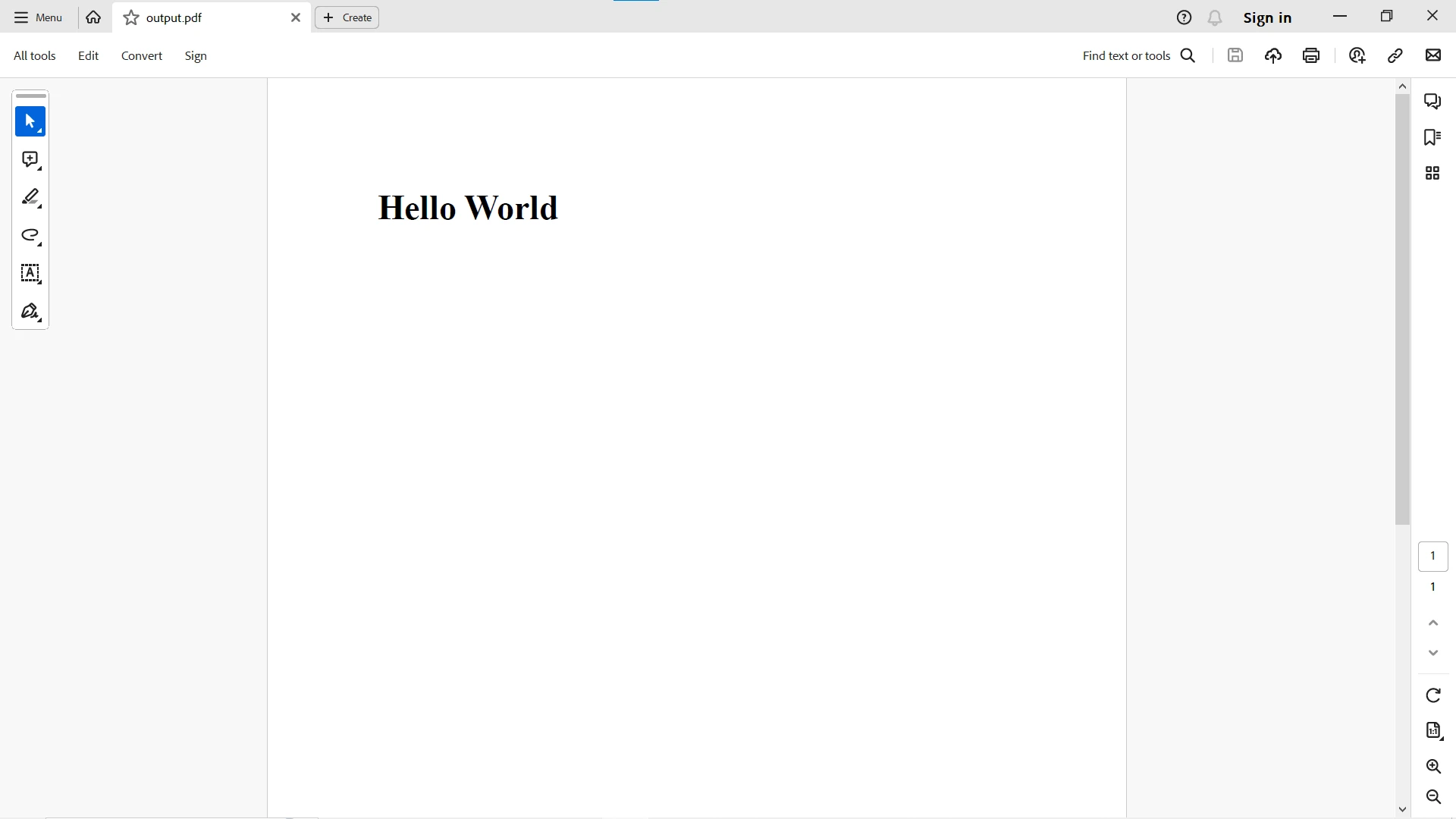
Oto wynik konwersji ciągu HTML na PDF:
#### 7.1.2 Pliki HTML do PDF
```python
from ironpdf import ChromePdfRenderer
# Instantiate Renderer
renderer = ChromePdfRenderer()
# Create a PDF from an existing HTML file using Python
pdf = renderer.RenderHtmlFileAsPdf("example.html")
# Export to a file or Stream
pdf.SaveAs("output.pdf")
```
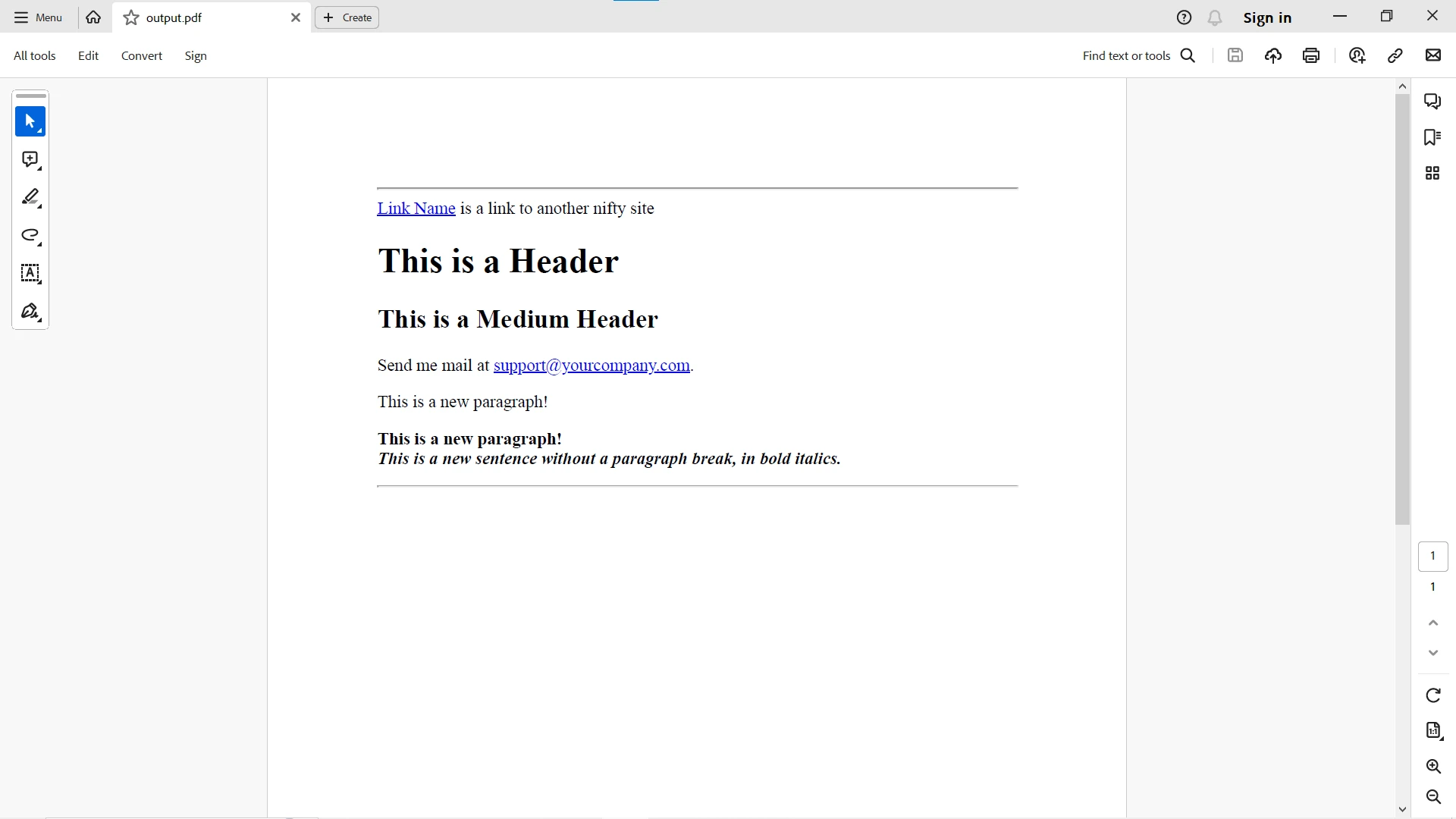
Oto wynik konwersji pliku HTML na PDF:
#### 7.1.3 URL HTML do PDF
```python
from ironpdf import ChromePdfRenderer
# Instantiate Renderer
renderer = ChromePdfRenderer()
# Create a PDF from a URL or local file path
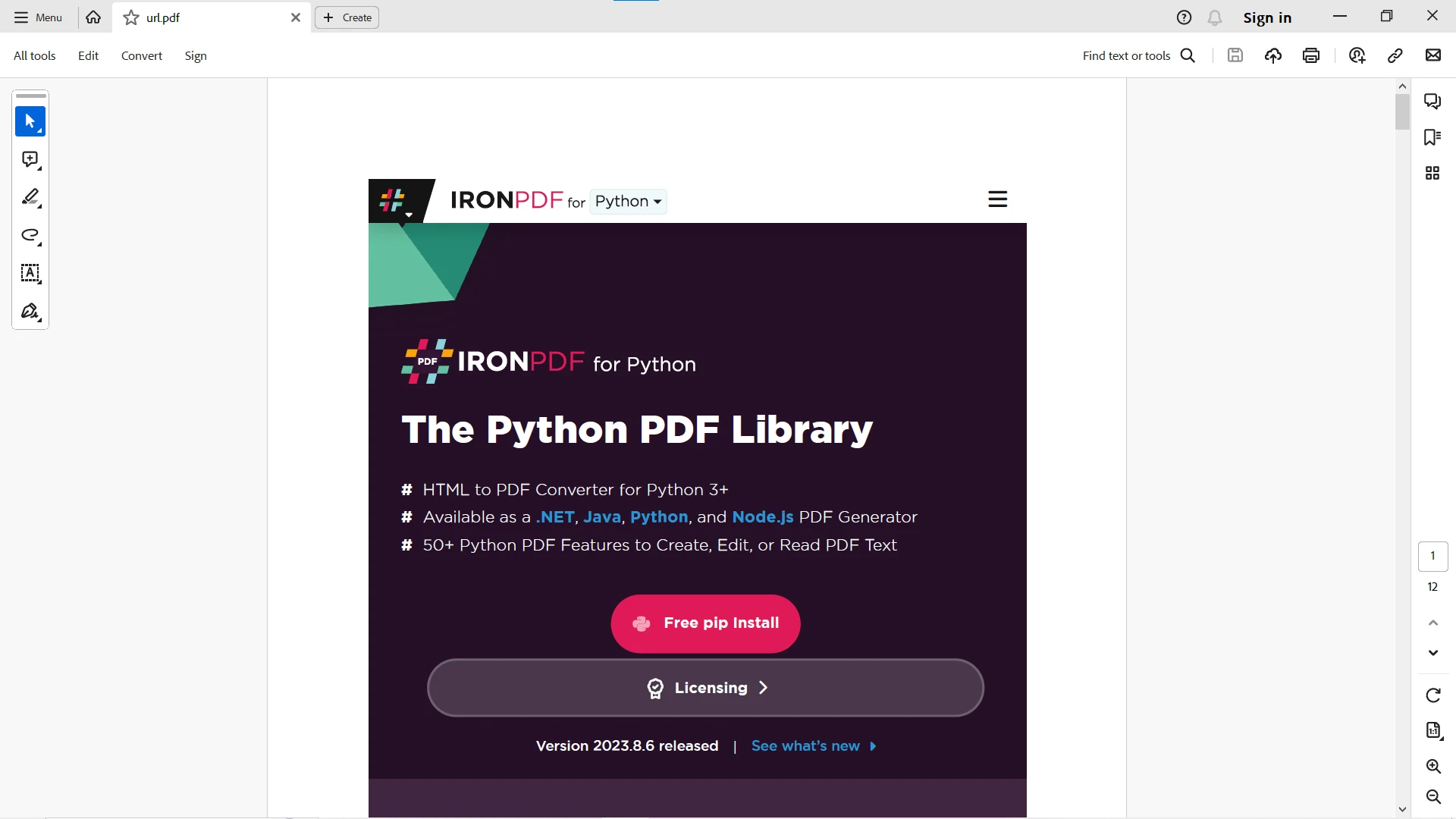
pdf = renderer.RenderUrlAsPdf("https://ironpdf.com/python")
# Export to a file or Stream
pdf.SaveAs("url.pdf")
```
### 7.2 Wkhtmltopdf
Teraz zajmiemy się konwersją ciągu HTML, pliku i URL do PDF za pomocą pakietów wkhtmltopdf i `pdfkit`. Najpierw trzeba ustawić PATH instalacji biblioteki wkhtmltopdf lub ręcznie dodać konfigurację przed kodem:
```python
config = pdfkit.configuration(wkhtmltopdf='PATH-to-WKHTMLTOPDF-EXECUTABLE-FILE')
```
#### 7.2.1 Ciąg HTML do PDF
```python
import pdfkit
# Configuration specifying the path to the wkhtmltopdf executable
config = pdfkit.configuration(wkhtmltopdf='PATH-to-WKHTMLTOPDF-EXECUTABLE-FILE')
# Create PDF from HTML string
pdfkit.from_string('<h1>Hello World!</h1>', 'out.pdf', configuration=config)
```
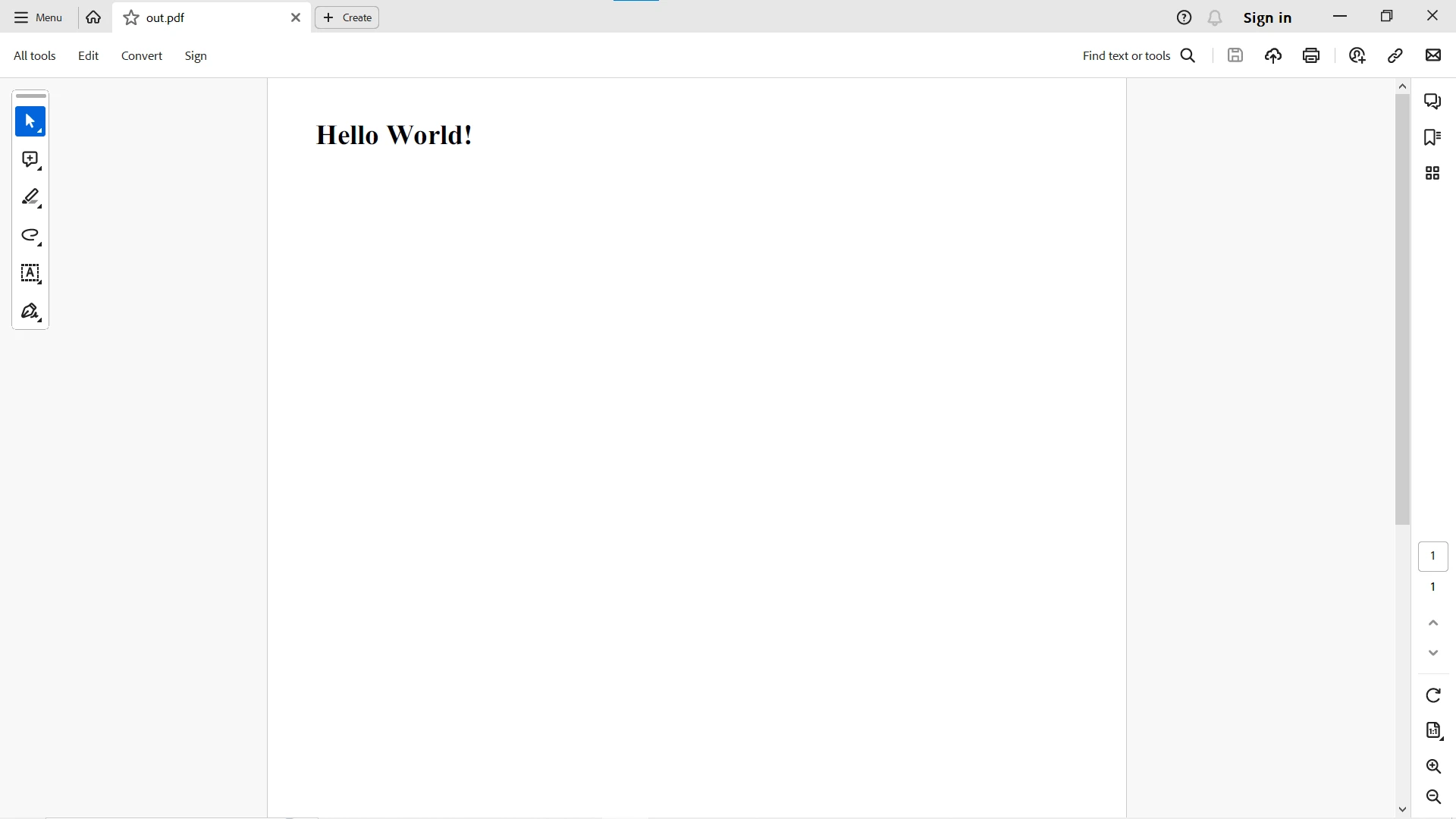
Oto ciąg HTML przekonwertowany na PDF:
#### 7.2.2 Pliki HTML do PDF
```python
import pdfkit
# Configuration specifying the path to the wkhtmltopdf executable
config = pdfkit.configuration(wkhtmltopdf='PATH-to-WKHTMLTOPDF-EXECUTABLE-FILE')
# Create PDF from HTML file
pdfkit.from_file('example.html', 'index.pdf', configuration=config)
```
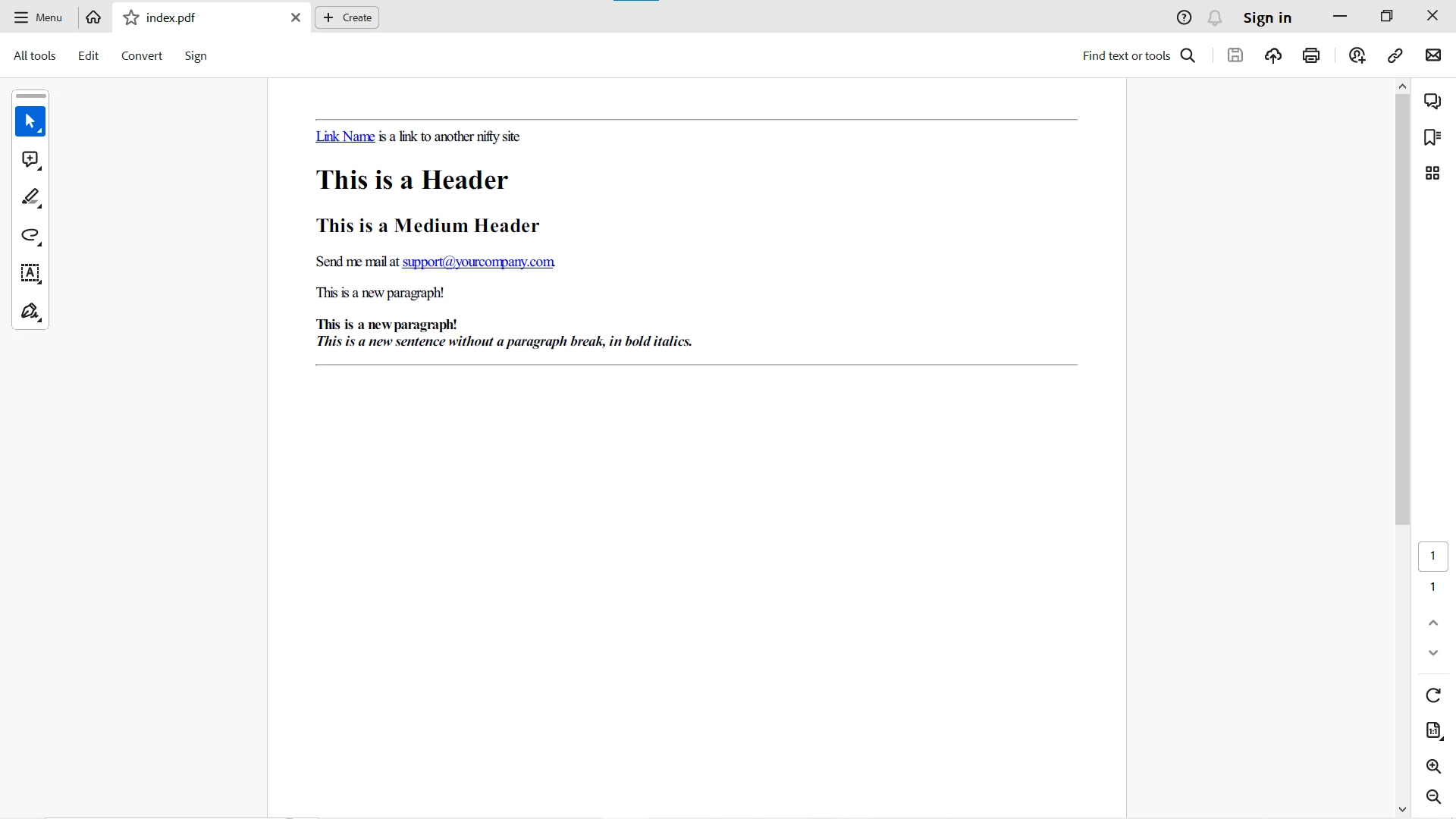
Oto plik HTML przekonwertowany na PDF:
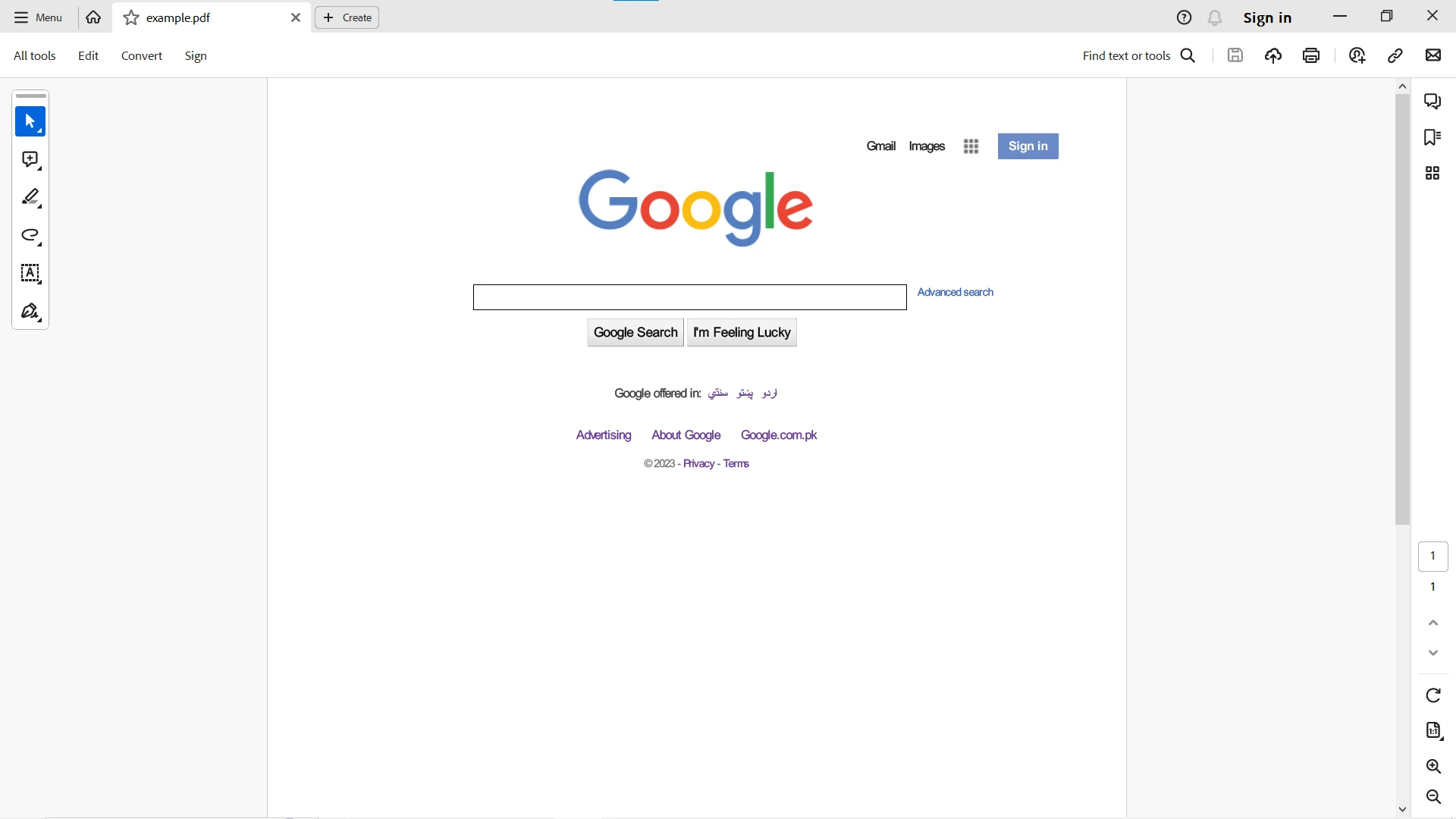
#### 7.2.3 URL HTML do PDF
```python
import pdfkit
# Configuration specifying the path to the wkhtmltopdf executable
config = pdfkit.configuration(wkhtmltopdf='PATH-to-WKHTMLTOPDF-EXECUTABLE-FILE')
# Create PDF from URL
pdfkit.from_url('https://google.com', 'example.pdf', configuration=config)
```
### 7.3 Porównanie
W ogólnym porównaniu powyższych kodów i funkcjonalności, jakie oferują obie biblioteki, oto szczegółowe porównanie kodu i funkcji, jakie oferują do generowania PDF:
#### 1. Łatwość użycia
IronPDF oferuje zwięzłe i Pythoniczne API, dzięki czemu jest ono proste w użyciu do konwersji HTML na PDF. Kod jest czysty i wyrazisty.
wkhtmltopdf jest proste i łatwe w użyciu, ale składnia może być mniej Pythoniczna w porównaniu z IronPDF. Ponadto, jest to przede wszystkim narzędzie wiersza poleceń i zależy od innego pakietu Pythona, aby wkhtmltopdf działał poprawnie w środowisku Pythona.
#### 2. Elastyczność
IronPDF oferuje wysoki stopień elastyczności z szerokimi opcjami dostosowywania do renderowania, edytowania i zabezpieczania PDF-ów. Oto przykład kodu, w którym można stworzyć opcjonalne argumenty jako [Ustawienia renderowania HTML](/python/examples/pdf-generation-settings/):
```python
from ironpdf import ChromePdfRenderer
# Instantiate Renderer
renderer = ChromePdfRenderer()
# Many rendering options to use to customize!
renderer.RenderingOptions.SetCustomPaperSizeInInches(12.5, 20)
renderer.RenderingOptions.PrintHtmlBackgrounds = True
renderer.RenderingOptions.PaperOrientation = PdfPaperOrientation.Landscape
renderer.RenderingOptions.Title = "My PDF Document Name"
renderer.RenderingOptions.EnableJavaScript = True
renderer.RenderingOptions.WaitFor.RenderDelay(50) # in milliseconds
renderer.RenderingOptions.CssMediaType = PdfCssMediaType.Screen
renderer.RenderingOptions.FitToPaperMode = FitToPaperModes.Zoom
renderer.RenderingOptions.Zoom = 100
renderer.RenderingOptions.CreatePdfFormsFromHtml = True
# Supports margin customization!
renderer.RenderingOptions.MarginTop = 40 # millimeters
renderer.RenderingOptions.MarginLeft = 20 # millimeters
renderer.RenderingOptions.MarginRight = 20 # millimeters
renderer.RenderingOptions.MarginBottom = 40 # millimeters
# Can set FirstPageNumber if you have a cover page
renderer.RenderingOptions.FirstPageNumber = 1 # use 2 if a cover page will be appended
# Settings have been set, we can render:
renderer.RenderUrlAsPdf("https://www.wikipedia.org/").SaveAs("my-content.pdf")
```
wkhtmltopdf jest elastyczne do podstawowych zadań konwersji, ale może wymagać dodatkowych narzędzi do bardziej zaawansowanej manipulacji PDF-ami. Tutaj `pdfkit` zapewnia opcje renderowania, które służą temu celowi:
```python
import pdfkit
options = {
'page-size': 'Letter',
'orientation': 'Landscape',
'margin-top': '0.75in',
'margin-right': '0.75in',
'margin-bottom': '0.75in',
'margin-left': '0.75in',
'encoding': "UTF-8",
'custom-header': [
('Accept-Encoding', 'gzip')
],
'no-outline': None
}
pdfkit.from_file('index.html', 'index.pdf', options=options)
```
#### 3. Funkcje
IronPDF dostarcza zaawansowanych funkcji, takich jak zgodność z PDF/A, edytowanie, łączenie i ustawienia bezpieczeństwa. Oto lista opcji i funkcji [hasła, bezpieczeństwo i metadane](/python/examples/security-and-metadata/) dostarczanych przez IronPDF:
```python
from ironpdf import PdfDocument
# Open an Encrypted File, alternatively create a new PDF from Html
pdf = PdfDocument.FromFile("encrypted.pdf", "password")
# Edit file metadata
pdf.MetaData.Author = "Satoshi Nakamoto"
pdf.MetaData.Keywords = "SEO, Friendly"
pdf.MetaData.ModifiedDate = Now()
# The following code makes a PDF read-only and will disallow copy & paste and printing
pdf.SecuritySettings.RemovePasswordsAndEncryption()
pdf.SecuritySettings.MakePdfDocumentReadOnly("secret-key")
pdf.SecuritySettings.AllowUserAnnotations = False
pdf.SecuritySettings.AllowUserCopyPasteContent = False
pdf.SecuritySettings.AllowUserFormData = False
pdf.SecuritySettings.AllowUserPrinting = PdfPrintSecurity.FullPrintRights
# Change or set the document encryption password
pdf.SecuritySettings.OwnerPassword = "top-secret" # password to edit the pdf
pdf.SecuritySettings.UserPassword = "sharable" # password to open the pdf
pdf.SaveAs("secured.pdf")
```
wkhtmltopdf koncentruje się bardziej na konwersji HTML do PDF i brakuje mu niektórych zaawansowanych funkcji dostarczanych przez IronPDF.
#### 4. Integracja
IronPDF bezproblemowo integruje się z środowiskami Pythona, co ułatwia wdrożenie.
wkhtmltopdf wymaga dostępności binarki wkhtmltopdf, co może wymagać dodatkowych rozważań podczas wdrażania.
#### 5. Składnia
* Składnia IronPDF jest czysta i dobrze zintegrowana z kodem Pythona.
* Składnia wkhtmltopdf jest prosta, ale może wydawać się mniej zintegrowana z Pythonem w porównaniu do IronPDF.
## 8. Wsparcie i dokumentacja
### 8.1 IronPDF
#### Jakość i dostępność dokumentacji
IronPDF wyróżnia się obejmującą i przyjazną użytkownikowi [dokumentacją](/python/docs/), odpowiadającą zarówno początkującym, jak i doświadczonym programistom. Dokumentacja zawiera szczegółowe przewodniki, referencje API i obfitość [przykładów kodu](/python/examples/using-html-to-create-a-pdf/), ułatwiając płynniejsze zrozumienie i wdrożenie funkcji biblioteki w różnych językach, takich jak Python, Java, C# i Node.js.
#### Opcje wsparcia
IronPDF oferuje zróżnicowany zestaw opcji wsparcia, zapewniając, że programiści otrzymują pomoc na czas. Obejmują one dedykowany zespół wsparcia dostępny za pośrednictwem e-maila, aktywne uczestnictwo w forach deweloperów oraz opcję wsparcia na żywo na stronie internetowej dla uzyskania pomocy w czasie rzeczywistym.
### 8.2 wkhtmltopdf
#### Jakość i dostępność dokumentacji
wkhtmltopdf, będąc projektem open-source, oferuje dokumentację dostępną w oficjalnym repozytorium GitHub oraz innych platformach online. Chociaż obejmuje podstawowe użycie i instalację, dokumentacja może nie dorównywać głębokości lub przyjazności dla początkujących niektórym komercyjnym alternatywom.
#### Problemy GitHub i wsparcie społecznościowe
Wsparcie dla wkhtmltopdf jest głównie napędzane przez społeczność. Użytkownicy mogą zgłaszać problemy i szukać pomocy za pośrednictwem problemów GitHub, polegając na dyskusjach społecznościowych i forach w celu rozwiązywania problemów. Społeczność aktywnie angażuje się w dyskusje, dzieląc się doświadczeniami i rozwiązaniami.
## 9. Modele licencjonowania
### 9.1 wkhtmltopdf
wkhtmltopdf stosuje model licencjonowania open-source. Jest dystrybuowany na podstawie licencji GNU Affero General Public License (AGPL), która jest bezpłatną i open-source'ową licencją oprogramowania. AGPL to licencja copyleft, wymagając, aby każda zmodyfikowana wersja oprogramowania również była dystrybuowana na podstawie AGPL. Oto kluczowe informacje na temat licencjonowania wkhtmltopdf:
#### Otwarte źródło
wkhtmltopdf jest dostępne bezpłatnie i open-source, umożliwiając użytkownikom oglądanie, modyfikację i dystrybucję kodu źródłowego.
#### Licencja AGPL
Dystrybuowane na podstawie licencji GNU AGPL, która wymaga, aby zmiany dokonane w kodzie były uwalniane na tej samej licencji.
#### Bez opłat
Użytkownicy mogą bezpłatnie pobierać, używać i modyfikować oprogramowanie bez ponoszenia opłat licencyjnych.
#### Postanowienie copyleft
Postanowienie copyleft w licencji AGPL zapewnia, że każda praca pochodna musi również być open source.
### 9.2 IronPDF
IronPDF stosuje model licencjonowania komercyjnego. Licencjonowanie IronPDF opiera się na różnych edycjach, każda odpowiadająca specyficznym potrzebom i scenariuszom użycia. Dostępne edycje to:
#### Wersja Lite
* Cena jednorazowa dla wdrożenia chmurowego.
* Zaprojektowana dla mniejszych projektów lub zespołów z podstawowymi wymaganiami dotyczącymi przetwarzania PDF.
#### Wersja Professional
* Cena jednorazowa dla użycia chmurowego.
* Odpowiednia dla profesjonalnych programistów wymagających bardziej zaawansowanych funkcji i możliwości PDF.
#### Wersja bez ograniczeń
* Cena jednorazowa dla wdrożenia chmurowego.
* Idealna do używania na dużą skalę w przedsiębiorstwie, oferując szerokie funkcje bez ograniczeń w użyciu.
Licencje IronPDF są wieczyste, co oznacza, że nie wygasają, a programiści otrzymują aktualizacje i wsparcie w oparciu o wybraną edycję. Model licencjonowania zapewnia elastyczność programistom do wyboru edycji, która odpowiada ich wymaganiom projektowym. Więcej informacji na temat licencjonowania i dodatków można znaleźć na [stronie licencyjnej](licensing).
## 10. Wnioski
Podsumowując, po dokładnym porównaniu wkhtmltopdf i IronPDF dla Pythona, staje się oczywiste, że IronPDF wyróżnia się jako lepszy wybór dla projektów z zaawansowanymi wymaganiami dotyczącymi PDF. Podczas gdy wkhtmltopdf jest odpowiednie do prostych zadań konwersji HTML do PDF, korzystając z jego prostoty i interfejsu wiersza poleceń, może nie sprostać bardziej złożonym manipulacjom PDF, często wymagającym dodatkowych narzędzi.
Wręcz przeciwnie, IronPDF okazuje się być wyjątkowym wyborem, szczególnie dla projektów wymagających wyższego stopnia zaawansowania. Wyróżnia się, oferując przyjazne użytkownikowi API, wyposażone w obszerne opcje dostosowywania. Dzięki temu IronPDF jest idealnym rozwiązaniem dla zadań wymagających kompleksowej manipulacji PDF, edycji i solidnych funkcji bezpieczeństwa. Jego elastyczność wykracza poza same ustawienia układu, umożliwiając programistom bezproblemową integrację z różnorodnymi środowiskami Pythona.
Dokumentacja IronPDF wyróżnia się głębokością i dostępnością, oferując wszechstronne źródło dla programistów. W przeciwieństwie do tego, wkhtmltopdf, polegające na wsparciu społecznościowym, może odpowiadać programistom komfortowym z forum społecznościowymi i samodzielnym rozwiązywaniem problemów.
IronPDF jest bezpłatne dla rozwoju, ale z znakiem wodnym na generowanych PDF-ach i oferuje [bezpłatną wersję testową](trial-license) do wypróbowania pełnej funkcjonalności bez znaku wodnego w trybie komercyjnym. Pobierz oprogramowanie z [tutaj](download-modal).
[[i:(wkhtmltopdf jest zarejestrowanym znakiem towarowym jego wlasciciela. Ta strona nie jest powiazana, zatwierdzona ani sponsorowana przez wkhtmltopdf. Wszystkie nazwy produktów, logo i marki są własnością ich odpowiednich właścicieli. Porównania mają charakter wyłącznie informacyjny i odzwierciedlają informacje dostępne publicznie w momencie pisania.)]]
PDFy odgrywają kluczową rolę w nowoczesnych cyfrowych przepływach pracy, służąc jako standardowy format do przechowywania i udostępniania dokumentów. W Pythonie programiści często sięgają po potężne biblioteki, takie jak wkhtmltopdf oraz IronPDF, aby generować i manipulować PDF-ami. Obie biblioteki oferują unikalne funkcje i możliwości, zaspokajając różne potrzeby w zakresie generowania PDF-ów. W tym porównaniu przeanalizujemy mocne strony i przypadki użycia każdej z bibliotek, aby pomóc programistom w podjęciu świadomej decyzji.
2. Czym jest wkhtmltopdf?
2.1 Przegląd
wkhtmltopdf to narzędzie wiersza poleceń korzystające z silnika renderującego WebKit do konwersji HTML lub innych języków znaczników do PDF-ów. Programiści Pythona często używają biblioteki pdfkit jako prostego wrappera Pythona wokół wkhtmltopdf, aby zintegrować ją bezproblemowo w swoich projektach. Obecnie pakiet python3-wkhtmltopdf również dostarcza Pythona-wrappera dla narzędzia wiersza poleceń wkhtmltopdf, co ułatwia użycie wkhtmltopdf w skryptach Pythona. Oryginalny pakiet Pythona wkhtmltopdf nie jest już utrzymywany.
2.2 Kluczowe funkcje
2.2.1 Konwersja HTML do PDF
wkhtmltopdf doskonale sprawdza się w konwersji treści HTML na PDF, zachowując style, układ i obrazy. Jej prostota sprawia, że doskonale nadaje się do scenariuszy, w których konwersja HTML do PDF jest głównym wymaganiem.
2.2.2 Interfejs wiersza poleceń
Jako narzędzie wiersza poleceń, wkhtmltopdf jest łatwo programowalne i może być zintegrowane z różnymi przepływami pracy. Jest szczególnie przydatne do automatyzacji procesów masowego generowania PDF-ów.
2.2.3 Obsługa stylizacji CSS i JavaScriptu
wkhtmltopdf obsługuje zaawansowaną stylizację CSS i wykonuje JavaScript podczas procesu konwersji, co pozwala na uzyskanie bogatej i dynamicznej zawartości w wyniku PDF.
2.2.4 Elastyczność i dostosowanie
wkhtmltopdf zapewnia elastyczność w zakresie rozmiaru strony, orientacji i innych ustawień układu. Programiści mogą dostosowywać te parametry, aby osiągnąć pożądany wygląd w generowanych PDF-ach.
2.2.5 Wdrożenie i zależności
Narzędzie jest niezależne od zewnętrznych bibliotek i zależności, co upraszcza wdrożenie. Jednak użytkownicy muszą upewnić się, że wkhtmltopdf binarka jest dostępna w ich środowisku.
3. IronPDF for Python
3.1 Przegląd
IronPDF to wszechstronna biblioteka Pythona zaprojektowana w celu ułatwienia generowania, edytowania i manipulacji PDF-ami. Oferuje szereg funkcji do pracy z plikami PDF, takich jak generowanie PDF-ów z HTML, konwersja HTML do PDF, dodawanie tekstu i obrazów do istniejących PDF-ów oraz wyodrębnianie zawartości z dokumentów PDF. Jest szczególnie popularna w .NET Framework, a jej wersja na Pythona ma na celu przybliżenie podobnych możliwości programistom Pythona.
3.2 Kluczowe funkcje
Konwersja HTML do PDF: IronPDF wyróżnia się przy konwersji HTML do PDF, oferując funkcje takie jak stylizacja CSS, wykonywanie JavaScriptu i niestandardowe nagłówki oraz stopki. Zapewnia wiele sposobów konwersji treści HTML, w tym ciągi HTML, pliki HTML i URL-e.
Edycja i manipulacja: Jedną z godnych uwagi funkcji IronPDF jest możliwość edytowania istniejących plików PDF. Programiści mogą dodawać tekst, obrazy, adnotacje i więcej do dokumentów PDF, czyniąc go kompleksowym rozwiązaniem do manipulacji PDF-ami.
Funkcje bezpieczeństwa: IronPDF zawiera solidne funkcje bezpieczeństwa, takie jak ochrona hasłem, szyfrowanie i ustawianie uprawnień na dokumentach PDF. Te funkcje są kluczowe do bezpiecznego przetwarzania wrażliwych informacji.
Dostosowywalne renderowanie: Programiści korzystający z IronPDF mają szczegółową kontrolę nad procesem renderowania. Niestandardowe nagłówki, stopki, marginesy strony i określone części HTML do konwersji mogą być konfigurowane, aby uzyskać precyzyjne wyniki PDF.
Wdrożenie i zależności: IronPDF bezproblemowo integruje się z różnymi środowiskami Pythona, w tym ASP.NET, MVC, Windows Forms i WPF. Obsługuje zarówno .NET Core, jak i Framework, co czyni go wszechstronnym dla różnych typów projektów. Dodatkowo, działa z usługami chmurowymi, takimi jak Azure.
4. Tworzenie projektu w Pythonie
4.1 Skonfiguruj Python
Upewnij się, że Python jest zainstalowany na Twoim systemie. Możesz pobrać Python z oficjalnej strony Pythona.
4.2 Tworzenie projektu w PyCharm
Do tworzenia projektu Pythona można użyć dowolnego IDE, tutaj użyję PyCharm, znanego IDE dla Pythona. Możesz po prostu użyć dowolnego IDE lub nawet edytora tekstu.
Otwórz PyCharm: Uruchom PyCharm na swoim komputerze.
Utwórz nowy projekt: Kliknij 'Utwórz nowy projekt' na ekranie powitalnym lub przejdź do Plik > Nowy projekt w IDE.
Ustaw lokalizację projektu: Określ katalog projektu i opcjonalnie włącz 'Utwórz katalog dla projektu'.
Wybierz interpreter: Wybierz istniejący interpreter Pythona lub stwórz nowe wirtualne środowisko.
Skonfiguruj projekt: Ustaw typ projektu, katalog główny i katalog źródłowy (domyślne ustawienia są zazwyczaj w porządku).
Kliknij 'Utwórz': Kliknij przycisk 'Utwórz' aby utworzyć projekt.
5. Instalacja narzędzia wkhtmltopdf
Pobierz i zainstaluj wkhtmltopdf
Odwiedź stronę pobierania wkhtmltopdf i pobierz odpowiedni instalator dla swojego systemu operacyjnego.
Zainstaluj wkhtmltopdf
Postępuj zgodnie z instrukcjami instalacji dla swojego systemu operacyjnego. Jeśli używasz systemu Windows, upewnij się, że dodano go do zmiennej środowiskowej PATH, aby uzyskać do niego dostęp z dowolnego miejsca w linii poleceń.
Otwórz nowy terminal lub wiersz polecenia i wpisz wkhtmltopdf, aby upewnić się, że narzędzie zostało poprawnie zainstalowane. Powinieneś zobaczyć informacje o dostępnych opcjach.
Zainstaluj pakiet Python wkhtmltopdf za pomocą pip
Jedną z popularnych bibliotek Pythona do pracy z wkhtmltopdf jest pdfkit. Użyj następującego polecenia, aby zainstalować go w swoich projektach produkcji:
pip install pdfkit
pip install pdfkit
SHELL
6. Instalacja IronPDF
Zainstaluj IronPDF za pomocą pip: Otwórz terminal lub wiersz polecenia w PyCharm i uruchom następujące polecenie, aby zainstalować IronPDF przy pomocy pip:
> pip install ironpdf
pip install ironpdf
Możesz także pobrać pakiet Pythona specyficzny dla swojej platformy z sekcji pobierania na stronie internetowej IronPDF pod adresem https://ironpdf.com/python/
7. Porównanie
W tym porównaniu najpierw zobaczymy, jak stworzyć dokument PDF z HTML za pomocą biblioteki wkhtmltopdf i biblioteki IronPDF. Zobaczymy, jak wygenerować PDF z następujących źródeł:
Ciąg znaków HTML do pliku PDF
Plik HTML do PDF
URL do PDF
Dodatkowo zbadamy niektóre opcjonalne argumenty i funkcje oferowane przez obie biblioteki.
7.1 Tworzenie pliku PDF za pomocą IronPDF
Najpierw zbadamy, jak IronPDF bezproblemowo renderuje ciąg HTML, plik i URL do PDF, korzystając z jego ChromePdfRenderer silnika.
7.1.1 Ciąg HTML do PDF
from ironpdf importChromePdfRenderer# Instantiate Rendererrenderer = ChromePdfRenderer()# Create a PDF from an HTML string using Pythonpdf = renderer.RenderHtmlAsPdf("<h1>Hello World</h1>")# Export to a file or Streampdf.SaveAs("output.pdf")
from ironpdf import ChromePdfRenderer

# Instantiate Renderer
renderer = ChromePdfRenderer()

# Create a PDF from an HTML string using Python
pdf = renderer.RenderHtmlAsPdf("<h1>Hello World</h1>")

# Export to a file or Stream
pdf.SaveAs("output.pdf")
Python
Oto wynik konwersji ciągu HTML na PDF:
7.1.2 Pliki HTML do PDF
from ironpdf importChromePdfRenderer# Instantiate Rendererrenderer = ChromePdfRenderer()# Create a PDF from an existing HTML file using Pythonpdf = renderer.RenderHtmlFileAsPdf("example.html")# Export to a file or Streampdf.SaveAs("output.pdf")
from ironpdf import ChromePdfRenderer

# Instantiate Renderer
renderer = ChromePdfRenderer()

# Create a PDF from an existing HTML file using Python
pdf = renderer.RenderHtmlFileAsPdf("example.html")

# Export to a file or Stream
pdf.SaveAs("output.pdf")
Python
Oto wynik konwersji pliku HTML na PDF:
7.1.3 URL HTML do PDF
from ironpdf importChromePdfRenderer# Instantiate Rendererrenderer = ChromePdfRenderer()# Create a PDF from a URL or local file pathpdf = renderer.RenderUrlAsPdf("https://ironpdf.com/python")# Export to a file or Streampdf.SaveAs("url.pdf")
from ironpdf import ChromePdfRenderer

# Instantiate Renderer
renderer = ChromePdfRenderer()

# Create a PDF from a URL or local file path
pdf = renderer.RenderUrlAsPdf("https://ironpdf.com/python")

# Export to a file or Stream
pdf.SaveAs("url.pdf")
Python
7.2 Wkhtmltopdf
Teraz zajmiemy się konwersją ciągu HTML, pliku i URL do PDF za pomocą pakietów wkhtmltopdf i pdfkit. Najpierw trzeba ustawić PATH instalacji biblioteki wkhtmltopdf lub ręcznie dodać konfigurację przed kodem:
import pdfkit# Configuration specifying the path to the wkhtmltopdf executableconfig = pdfkit.configuration(wkhtmltopdf='PATH-to-WKHTMLTOPDF-EXECUTABLE-FILE')# Create PDF from HTML stringpdfkit.from_string('<h1>Hello World!</h1>', 'out.pdf', configuration=config)
import pdfkit

# Configuration specifying the path to the wkhtmltopdf executable
config = pdfkit.configuration(wkhtmltopdf='PATH-to-WKHTMLTOPDF-EXECUTABLE-FILE')

# Create PDF from HTML string
pdfkit.from_string('<h1>Hello World!</h1>', 'out.pdf', configuration=config)
Python
Oto ciąg HTML przekonwertowany na PDF:
7.2.2 Pliki HTML do PDF
import pdfkit# Configuration specifying the path to the wkhtmltopdf executableconfig = pdfkit.configuration(wkhtmltopdf='PATH-to-WKHTMLTOPDF-EXECUTABLE-FILE')# Create PDF from HTML filepdfkit.from_file('example.html', 'index.pdf', configuration=config)
import pdfkit

# Configuration specifying the path to the wkhtmltopdf executable
config = pdfkit.configuration(wkhtmltopdf='PATH-to-WKHTMLTOPDF-EXECUTABLE-FILE')

# Create PDF from HTML file
pdfkit.from_file('example.html', 'index.pdf', configuration=config)
Python
Oto plik HTML przekonwertowany na PDF:
7.2.3 URL HTML do PDF
import pdfkit# Configuration specifying the path to the wkhtmltopdf executableconfig = pdfkit.configuration(wkhtmltopdf='PATH-to-WKHTMLTOPDF-EXECUTABLE-FILE')# Create PDF from URLpdfkit.from_url('https://google.com', 'example.pdf', configuration=config)
import pdfkit

# Configuration specifying the path to the wkhtmltopdf executable
config = pdfkit.configuration(wkhtmltopdf='PATH-to-WKHTMLTOPDF-EXECUTABLE-FILE')

# Create PDF from URL
pdfkit.from_url('https://google.com', 'example.pdf', configuration=config)
Python
7.3 Porównanie
W ogólnym porównaniu powyższych kodów i funkcjonalności, jakie oferują obie biblioteki, oto szczegółowe porównanie kodu i funkcji, jakie oferują do generowania PDF:
1. Łatwość użycia
IronPDF oferuje zwięzłe i Pythoniczne API, dzięki czemu jest ono proste w użyciu do konwersji HTML na PDF. Kod jest czysty i wyrazisty.
wkhtmltopdf jest proste i łatwe w użyciu, ale składnia może być mniej Pythoniczna w porównaniu z IronPDF. Ponadto, jest to przede wszystkim narzędzie wiersza poleceń i zależy od innego pakietu Pythona, aby wkhtmltopdf działał poprawnie w środowisku Pythona.
2. Elastyczność
IronPDF oferuje wysoki stopień elastyczności z szerokimi opcjami dostosowywania do renderowania, edytowania i zabezpieczania PDF-ów. Oto przykład kodu, w którym można stworzyć opcjonalne argumenty jako Ustawienia renderowania HTML:
from ironpdf importChromePdfRenderer# Instantiate Rendererrenderer = ChromePdfRenderer()# Many rendering options to use to customize!renderer.RenderingOptions.SetCustomPaperSizeInInches(12.5, 20)renderer.RenderingOptions.PrintHtmlBackgrounds = Truerenderer.RenderingOptions.PaperOrientation = PdfPaperOrientation.Landscaperenderer.RenderingOptions.Title = "My PDF Document Name"renderer.RenderingOptions.EnableJavaScript = Truerenderer.RenderingOptions.WaitFor.RenderDelay(50) # in millisecondsrenderer.RenderingOptions.CssMediaType = PdfCssMediaType.Screenrenderer.RenderingOptions.FitToPaperMode = FitToPaperModes.Zoomrenderer.RenderingOptions.Zoom = 100renderer.RenderingOptions.CreatePdfFormsFromHtml = True# Supports margin customization!renderer.RenderingOptions.MarginTop = 40 # millimetersrenderer.RenderingOptions.MarginLeft = 20 # millimetersrenderer.RenderingOptions.MarginRight = 20 # millimetersrenderer.RenderingOptions.MarginBottom = 40 # millimeters# Can set FirstPageNumber if you have a cover pagerenderer.RenderingOptions.FirstPageNumber = 1 # use 2 if a cover page will be appended# Settings have been set, we can render:renderer.RenderUrlAsPdf("https://www.wikipedia.org/").SaveAs("my-content.pdf")
from ironpdf import ChromePdfRenderer

# Instantiate Renderer
renderer = ChromePdfRenderer()

# Many rendering options to use to customize!
renderer.RenderingOptions.SetCustomPaperSizeInInches(12.5, 20)
renderer.RenderingOptions.PrintHtmlBackgrounds = True
renderer.RenderingOptions.PaperOrientation = PdfPaperOrientation.Landscape
renderer.RenderingOptions.Title = "My PDF Document Name"
renderer.RenderingOptions.EnableJavaScript = True
renderer.RenderingOptions.WaitFor.RenderDelay(50)  # in milliseconds
renderer.RenderingOptions.CssMediaType = PdfCssMediaType.Screen
renderer.RenderingOptions.FitToPaperMode = FitToPaperModes.Zoom
renderer.RenderingOptions.Zoom = 100
renderer.RenderingOptions.CreatePdfFormsFromHtml = True

# Supports margin customization!
renderer.RenderingOptions.MarginTop = 40  # millimeters
renderer.RenderingOptions.MarginLeft = 20  # millimeters
renderer.RenderingOptions.MarginRight = 20  # millimeters
renderer.RenderingOptions.MarginBottom = 40  # millimeters

# Can set FirstPageNumber if you have a cover page
renderer.RenderingOptions.FirstPageNumber = 1  # use 2 if a cover page will be appended

# Settings have been set, we can render:
renderer.RenderUrlAsPdf("https://www.wikipedia.org/").SaveAs("my-content.pdf")
Python
wkhtmltopdf jest elastyczne do podstawowych zadań konwersji, ale może wymagać dodatkowych narzędzi do bardziej zaawansowanej manipulacji PDF-ami. Tutaj pdfkit zapewnia opcje renderowania, które służą temu celowi:
IronPDF dostarcza zaawansowanych funkcji, takich jak zgodność z PDF/A, edytowanie, łączenie i ustawienia bezpieczeństwa. Oto lista opcji i funkcji hasła, bezpieczeństwo i metadane dostarczanych przez IronPDF:
from ironpdf importPdfDocument# Open an Encrypted File, alternatively create a new PDF from Htmlpdf = PdfDocument.FromFile("encrypted.pdf", "password")# Edit file metadatapdf.MetaData.Author = "Satoshi Nakamoto"pdf.MetaData.Keywords = "SEO, Friendly"pdf.MetaData.ModifiedDate = Now()# The following code makes a PDF read-only and will disallow copy & paste and printingpdf.SecuritySettings.RemovePasswordsAndEncryption()pdf.SecuritySettings.MakePdfDocumentReadOnly("secret-key")pdf.SecuritySettings.AllowUserAnnotations = Falsepdf.SecuritySettings.AllowUserCopyPasteContent = Falsepdf.SecuritySettings.AllowUserFormData = Falsepdf.SecuritySettings.AllowUserPrinting = PdfPrintSecurity.FullPrintRights# Change or set the document encryption passwordpdf.SecuritySettings.OwnerPassword = "top-secret" # password to edit the pdfpdf.SecuritySettings.UserPassword = "sharable" # password to open the pdfpdf.SaveAs("secured.pdf")
from ironpdf import PdfDocument

# Open an Encrypted File, alternatively create a new PDF from Html
pdf = PdfDocument.FromFile("encrypted.pdf", "password")

# Edit file metadata
pdf.MetaData.Author = "Satoshi Nakamoto"
pdf.MetaData.Keywords = "SEO, Friendly"
pdf.MetaData.ModifiedDate = Now()

# The following code makes a PDF read-only and will disallow copy & paste and printing
pdf.SecuritySettings.RemovePasswordsAndEncryption()
pdf.SecuritySettings.MakePdfDocumentReadOnly("secret-key")
pdf.SecuritySettings.AllowUserAnnotations = False
pdf.SecuritySettings.AllowUserCopyPasteContent = False
pdf.SecuritySettings.AllowUserFormData = False
pdf.SecuritySettings.AllowUserPrinting = PdfPrintSecurity.FullPrintRights

# Change or set the document encryption password
pdf.SecuritySettings.OwnerPassword = "top-secret"  # password to edit the pdf
pdf.SecuritySettings.UserPassword = "sharable"  # password to open the pdf

pdf.SaveAs("secured.pdf")
Python
wkhtmltopdf koncentruje się bardziej na konwersji HTML do PDF i brakuje mu niektórych zaawansowanych funkcji dostarczanych przez IronPDF.
4. Integracja
IronPDF bezproblemowo integruje się z środowiskami Pythona, co ułatwia wdrożenie.
wkhtmltopdf wymaga dostępności binarki wkhtmltopdf, co może wymagać dodatkowych rozważań podczas wdrażania.
5. Składnia
Składnia IronPDF jest czysta i dobrze zintegrowana z kodem Pythona.
Składnia wkhtmltopdf jest prosta, ale może wydawać się mniej zintegrowana z Pythonem w porównaniu do IronPDF.
8. Wsparcie i dokumentacja
8.1 IronPDF
Jakość i dostępność dokumentacji
IronPDF wyróżnia się obejmującą i przyjazną użytkownikowi dokumentacją, odpowiadającą zarówno początkującym, jak i doświadczonym programistom. Dokumentacja zawiera szczegółowe przewodniki, referencje API i obfitość przykładów kodu, ułatwiając płynniejsze zrozumienie i wdrożenie funkcji biblioteki w różnych językach, takich jak Python, Java, C# i Node.js.
Opcje wsparcia
IronPDF oferuje zróżnicowany zestaw opcji wsparcia, zapewniając, że programiści otrzymują pomoc na czas. Obejmują one dedykowany zespół wsparcia dostępny za pośrednictwem e-maila, aktywne uczestnictwo w forach deweloperów oraz opcję wsparcia na żywo na stronie internetowej dla uzyskania pomocy w czasie rzeczywistym.
8.2 wkhtmltopdf
Jakość i dostępność dokumentacji
wkhtmltopdf, będąc projektem open-source, oferuje dokumentację dostępną w oficjalnym repozytorium GitHub oraz innych platformach online. Chociaż obejmuje podstawowe użycie i instalację, dokumentacja może nie dorównywać głębokości lub przyjazności dla początkujących niektórym komercyjnym alternatywom.
Problemy GitHub i wsparcie społecznościowe
Wsparcie dla wkhtmltopdf jest głównie napędzane przez społeczność. Użytkownicy mogą zgłaszać problemy i szukać pomocy za pośrednictwem problemów GitHub, polegając na dyskusjach społecznościowych i forach w celu rozwiązywania problemów. Społeczność aktywnie angażuje się w dyskusje, dzieląc się doświadczeniami i rozwiązaniami.
9. Modele licencjonowania
9.1 wkhtmltopdf
wkhtmltopdf stosuje model licencjonowania open-source. Jest dystrybuowany na podstawie licencji GNU Affero General Public License (AGPL), która jest bezpłatną i open-source'ową licencją oprogramowania. AGPL to licencja copyleft, wymagając, aby każda zmodyfikowana wersja oprogramowania również była dystrybuowana na podstawie AGPL. Oto kluczowe informacje na temat licencjonowania wkhtmltopdf:
Otwarte źródło
wkhtmltopdf jest dostępne bezpłatnie i open-source, umożliwiając użytkownikom oglądanie, modyfikację i dystrybucję kodu źródłowego.
Licencja AGPL
Dystrybuowane na podstawie licencji GNU AGPL, która wymaga, aby zmiany dokonane w kodzie były uwalniane na tej samej licencji.
Bez opłat
Użytkownicy mogą bezpłatnie pobierać, używać i modyfikować oprogramowanie bez ponoszenia opłat licencyjnych.
Postanowienie copyleft
Postanowienie copyleft w licencji AGPL zapewnia, że każda praca pochodna musi również być open source.
9.2 IronPDF
IronPDF stosuje model licencjonowania komercyjnego. Licencjonowanie IronPDF opiera się na różnych edycjach, każda odpowiadająca specyficznym potrzebom i scenariuszom użycia. Dostępne edycje to:
Wersja Lite
Cena jednorazowa dla wdrożenia chmurowego.
Zaprojektowana dla mniejszych projektów lub zespołów z podstawowymi wymaganiami dotyczącymi przetwarzania PDF.
Wersja Professional
Cena jednorazowa dla użycia chmurowego.
Odpowiednia dla profesjonalnych programistów wymagających bardziej zaawansowanych funkcji i możliwości PDF.
Wersja bez ograniczeń
Cena jednorazowa dla wdrożenia chmurowego.
Idealna do używania na dużą skalę w przedsiębiorstwie, oferując szerokie funkcje bez ograniczeń w użyciu.
Licencje IronPDF są wieczyste, co oznacza, że nie wygasają, a programiści otrzymują aktualizacje i wsparcie w oparciu o wybraną edycję. Model licencjonowania zapewnia elastyczność programistom do wyboru edycji, która odpowiada ich wymaganiom projektowym. Więcej informacji na temat licencjonowania i dodatków można znaleźć na stronie licencyjnej.
10. Wnioski
Podsumowując, po dokładnym porównaniu wkhtmltopdf i IronPDF dla Pythona, staje się oczywiste, że IronPDF wyróżnia się jako lepszy wybór dla projektów z zaawansowanymi wymaganiami dotyczącymi PDF. Podczas gdy wkhtmltopdf jest odpowiednie do prostych zadań konwersji HTML do PDF, korzystając z jego prostoty i interfejsu wiersza poleceń, może nie sprostać bardziej złożonym manipulacjom PDF, często wymagającym dodatkowych narzędzi.
Wręcz przeciwnie, IronPDF okazuje się być wyjątkowym wyborem, szczególnie dla projektów wymagających wyższego stopnia zaawansowania. Wyróżnia się, oferując przyjazne użytkownikowi API, wyposażone w obszerne opcje dostosowywania. Dzięki temu IronPDF jest idealnym rozwiązaniem dla zadań wymagających kompleksowej manipulacji PDF, edycji i solidnych funkcji bezpieczeństwa. Jego elastyczność wykracza poza same ustawienia układu, umożliwiając programistom bezproblemową integrację z różnorodnymi środowiskami Pythona.
Dokumentacja IronPDF wyróżnia się głębokością i dostępnością, oferując wszechstronne źródło dla programistów. W przeciwieństwie do tego, wkhtmltopdf, polegające na wsparciu społecznościowym, może odpowiadać programistom komfortowym z forum społecznościowymi i samodzielnym rozwiązywaniem problemów.
IronPDF jest bezpłatne dla rozwoju, ale z znakiem wodnym na generowanych PDF-ach i oferuje bezpłatną wersję testową do wypróbowania pełnej funkcjonalności bez znaku wodnego w trybie komercyjnym. Pobierz oprogramowanie z tutaj.
Zwróć uwagę: wkhtmltopdf jest zarejestrowanym znakiem towarowym jego wlasciciela. Ta strona nie jest powiazana, zatwierdzona ani sponsorowana przez wkhtmltopdf. Wszystkie nazwy produktów, logo i marki są własnością ich odpowiednich właścicieli. Porównania mają charakter wyłącznie informacyjny i odzwierciedlają informacje dostępne publicznie w momencie pisania.
Curtis Chau posiada tytuł licencjata z informatyki (Uniwersytet Carleton) i specjalizuje się w front-endowym rozwoju, z ekspertką w Node.js, TypeScript, JavaScript i React. Pasjonuje się tworzeniem intuicyjnych i estetycznie przyjemnych interfejsów użytkownika, Curtis cieszy się pracą z nowoczesnymi frameworkami i tworzeniem dobrze zorganizowanych, atrakcyjnych wizualnie podręczników.