from ironpdf import *

# Instantiate Renderer
renderer = ChromePdfRenderer()

# Create a PDF from a HTML string using Python
pdf = renderer.RenderHtmlAsPdf("<h1>Hello World</h1>")

# Export to a file or Stream
pdf.SaveAs("output.pdf")

# Advanced Example with HTML Assets
# Load external html assets: Images, CSS and JavaScript.
# An optional BasePath 'C:\site\assets\' is set as the file location to load assets from
myAdvancedPdf = renderer.RenderHtmlAsPdf("<img src='icons/iron.png'>", r"C:\site\assets")
myAdvancedPdf.SaveAs("html-with-assets.pdf")
from ironpdf import *# Instantiate Rendererrenderer = ChromePdfRenderer()# Create a PDF from a HTML string using Pythonpdf = renderer.RenderHtmlAsPdf("<h1>Hello World</h1>")# Export to a file or Streampdf.SaveAs("output.pdf")# Advanced Example with HTML Assets# Load external html assets: Images, CSS and JavaScript.# An optional BasePath 'C:\site\assets\' is set as the file location to load assets frommyAdvancedPdf = renderer.RenderHtmlAsPdf("<img src='icons/iron.png'>", r"C:\site\assets")myAdvancedPdf.SaveAs("html-with-assets.pdf")
KORZYSTANIE Z IRONPDF FOR PYTHON
Jak odczytywać zeskanowane pliki PDF w języku Python
W erze transformacji cyfrowej nie da się przecenić znaczenia dokumentów PDF dla udostępniania i przechowywania informacji.
Jednak powszechne stosowanie [zeskanowanych plików PDF](https://towardsdatascience.com/extracting-text-from-scanned-pdf-using-pytesseract-open-cv-cd670ee38052), które często zawierają obrazy zamiast tekstu z możliwością wyszukiwania, stanowi poważne wyzwanie, jeśli chodzi o pozyskiwanie wartościowych danych.
W tym miejscu Python jawi się jako wszechstronne i potężne rozwiązanie, umacniając swoją pozycję jako język programowania z wyboru do automatyzacji różnorodnych zadań, czego doskonałym przykładem jest pozyskiwanie informacji ze skanowanych dokumentów.
Elastyczność i rozbudowane możliwości języka Python pozwalają użytkownikom sprawnie poruszać się po złożonych treściach skanowanych dokumentów, zapewniając usprawnione podejście do uzyskiwania dostępu do danych z plików PDF opartych na obrazach oraz ich wykorzystywania.
Python jest jednym z najczęściej używanych języków programowania dzięki swojej zaawansowanej funkcjonalności. Odwiedź [stronę Wikipedia poświęconą Pythonowi](https://en.wikipedia.org/wiki/Python_(programming_language), aby dowiedzieć się o języku programowania Python i jego strukturalnym formacie.
W tym artykule omówimy, jak czytać zeskanowane PDF-y w języku programowania Python z pomocą [IronPDF](/python/) dla biblioteki Python PDF.
## Jak czytac zeskanowane PDF w Pythonie
1. Create a new project in [PyCharm](https://www.jetbrains.com/pycharm/promo/?source=google&medium=cpc&campaign=APAC_en_AU_PyCharm_Branded&term=pycharm&content=536947779564&gclid=EAIaIQobChMImJnalpPPgwMVQqlmAh0lzQspEAAYASAAEgJ9FPD_BwE).
2. Aby najpierw przeczytać zeskanowany plik PDF, zainstaluj bibliotekę PDF IronPDF.
3. Zaimportuj wymagane zależności.
4. Załaduj zeskanowany plik PDF przy użyciu metody `PdfDocument.FromFile`.
5. Wyodrębnij cały tekst z zeskanowanego pliku PDF przy użyciu metody `ExtractAllText`.
6. Wydrukuj cały tekst z pliku PDF przy użyciu metody `print()`.
## IronPDF for Python
[IronPDF](/python/) dla Python to mocna biblioteka stworzona przez Iron Software, umożliwiająca bezproblemową integrację możliwości generowania i manipulacji PDF-ami w aplikacjach Python.
To wszechstronne narzędzie umożliwia programistom łatwe tworzenie, modyfikowanie i interakcję z dokumentami PDF, wspierając zadania, takie jak dynamiczne generowanie raportów, konwersja HTML na PDF i wyodrębnianie zawartości z istniejących plików PDF.
Dzięki przyjaznemu dla użytkownika API, kompleksowej dokumentacji i szerokiemu zakresowi funkcji, IronPDF upraszcza proces włączania zaawansowanych funkcji PDF do projektów Python, czyniąc go nieocenionym zasobem dla programistów, którzy chcą wzbogacić swoje aplikacje o profesjonalnej klasy możliwości przetwarzania dokumentów.
### Funkcje IronPDF
IronPDF for Python jest wyposażony w wiele funkcji, które czynią go potężnym narzędziem do generowania PDF i manipulacji strukturą plików tekstowych.
Niektóre z jego kluczowych funkcji to:
1. **Konwersja HTML na PDF:** Konwertuj zawartość HTML, w tym CSS i obrazy, na wysokiej jakości dokumenty PDF, pozwalając programistom korzystać z istniejącej zawartości opartej na sieci w swoich procesach generowania PDF i tworzenia przeszukiwalnych plików PDF.
2. **Manipulacja tekstem i obrazem:** Łatwo dodawaj i manipuluj tekstem, obrazami i innymi elementami w dokumentach PDF, zapewniając pewną kontrolę nad układem i wyglądem generowanych PDF.
3. **Łączenie i dzielenie dokumentów:** Łącz kilka dokumentów PDF w jeden plik lub dziel duże PDF na mniejsze, łatwiejsze do zarządzania pliki, oferując elastyczność w organizacji dokumentów.
4. **Formularze PDF:** Twórz i wypełniaj interaktywne formularze PDF programowo, ułatwiając automatyzację zadań związanych z formularzami w aplikacjach biznesowych.
5. **Funkcje bezpieczeństwa:** Implementuj szyfrowanie i ochronę hasłem, aby zabezpieczyć dokumenty PDF, gwarantując, że poufne informacje pozostaną tajne i chronione przed nieuprawnionym dostępem.
6. **Wyodrębnianie tekstu:** Wyodrębniaj treść tekstową z dokumentów PDF w celach analizy lub indeksacji, umożliwiając programistom pracę z danymi tekstowymi zawartymi w plikach PDF dzięki zdolnościom rozpoznawania tekstu przez IronPDF.
### Instalowanie IronPDF dla Python
Zanim zaczniemy z tutorialem kodu, najpierw zobaczmy, jak zainstalować IronPDF dla Python.
Najpierw upewnij się, że Python jest zainstalowany w systemie, a także masz dobry IDE Python jak PyCharm. Powinien być zainstalowany również PIP, aby zainstalować IronPDF dla Python.
1. Najpierw stwórz nowy projekt Python lub otwórz istniejący.
2. Otwórz konsolę i uruchom następującą koemde, a następnie naciśnij enter.
```shell
:ProductInstall
```
3. Tak po prostu, IronPDF dla Python jest zintegrowany z twoim projektem Python.
## Czytanie zeskanowanych plików PDF przy użyciu IronPDF For Python
W tej sekcji zobaczymy, jak możesz [wyodrębnić tekst](/python/examples/extract-pdf-text/) z zeskanowanych plików PDF używając IronPDF.
```python
from ironpdf import *  # Import everything from ironpdf

# Set the license key for IronPDF
License.LicenseKey = "Your License Key"

# Load the scanned PDF document
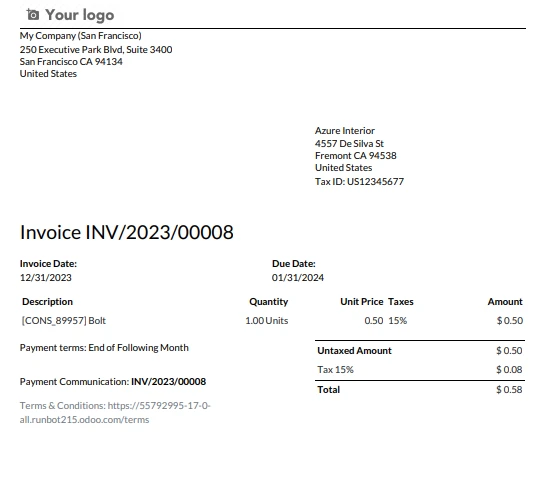
pdf = PdfDocument.FromFile("C:/Users/buttw/INV_2023_00008.pdf")

# Extract all text from the PDF document
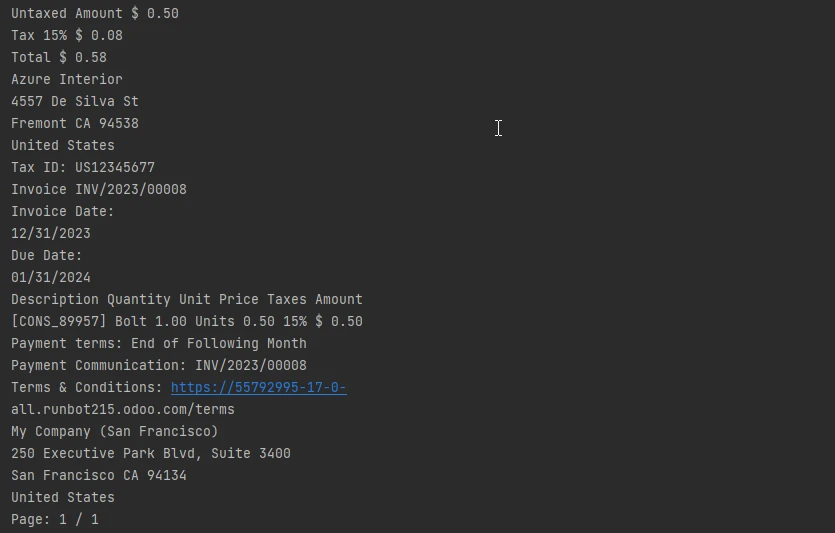
all_text = pdf.ExtractAllText()

# Print the extracted text
print(all_text)
```
Powyższy przykład kodu wyodrębnia tekst z zeskanowanych plików PDF. Poniżej znajdziesz rozbicie powyższego kodu:
1. **Zaimportuj Moduł IronPDF:**
```python
from ironpdf import *
```
Ta linia importuje niezbędne moduły i klasy z biblioteki IronPDF. Asteriks (`*`) oznacza, że wszystkie klasy i funkcje z modułu powinny zostać zaimportowane.
2. **Ustaw Klucz Licencyjny:**
```python
License.LicenseKey = "Your License Key"
```
Ta linia ustawia klucz licencyjny dla IronPDF. Musisz zastąpić `"Your License Key"` rzeczywistym kluczem licencyjnym uzyskanym od Iron Software.
Klucz licencyjny jest niezbędny do używania IronPDF i jest zazwyczaj dostarczany przy zakupie produktu.
3. **Załaduj Zeskanowany Dokument PDF:**
```python
pdf = PdfDocument.FromFile("C:/Users/buttw/INV_2023_00008.pdf")
```
Ta linia ładuje zeskanowany dokument PDF znajdujący się w określonej ścieżce pliku (`"C:/Users/buttw/INV_2023_00008.pdf"`). Metoda `PdfDocument.FromFile` jest używana do utworzenia obiektu `PdfDocument` z podanego pliku.
4. **Wyodrębnij Tekst z Dokumentu PDF:**
```python
all_text = pdf.ExtractAllText()
```
Ta linia wyodrębnia całą treść tekstową z załadowanego dokumentu PDF, używając [**metody ExtractAllText**](/python/examples/extract-pdf-text/) ze wszystkich stron. Wyodrębniony tekst jest następnie przechowywany w zmiennej `all_text`.
5. **Wydrukuj Wyodrębniony Tekst:**
```python
print(all_text)
```
W końcu ta linia drukuje wyodrębniony tekst na konsolę. Zmienna `all_text` zawiera treść tekstową zeskanowanego dokumentu PDF.
#### Plik wejściowy PDF
#### Tekst wyjściowy
## Wnioski
W dziedzinie cyfrowego przetwarzania dokumentów język programowania Python pojawia się jako wszechstronne rozwiązanie do stopniowego rozwiązywania problemów związanych z zeskanowanymi PDF-ami zawierającymi obrazy zamiast przeszukiwalnego tekstu.
Synergia między elastycznością Pythona a solidnymi możliwościami IronPDF for Python dostarcza przekonującej drogi dla programistów do bezproblemowej integracji funkcjonalności generowania, manipulacji i wyodrębniania PDF-ów w ich projektach.
[IronPDF](/python/), opracowany przez Iron Software, okazuje się kluczowy w tym wypadku, oferując funkcje takie jak konwersja plików PDF z różnych typów dokumentów, konwersja stron HTML na PDF, manipulacja tekstem i obrazami, a także wyodrębnianie tekstu oparte na OCR z zeskanowanych PDF.
Zaprezentowany przykład kodu demonstruje prostą implementację IronPDF do czytania tekstu ze strony zeskanowanego PDF, prezentując potencjalne możliwości skutecznego wyodrębniania danych i zwiększania możliwości przetwarzania dokumentów w aplikacjach Python.
W miarę jak rośnie zapotrzebowanie na zaawansowaną obsługę PDF-ów, IronPDF for Python jest cennym narzędziem umożliwiającym programistom łatwe pokonywanie trudności związanych z zeskanowaną zawartością.
IronPDF for Python oferuje [licencję próbną](trial-license), co jest świetną okazją dla programistów, by poznać funkcje IronPDF.
Kompletny samouczek na temat wyodrębnia tekstu z zeskanowanych PDF-ów można znaleźć [tutaj](/python/blog/using-ironpdf-for-python/extract-text-from-scanned-pdf-python/).
W erze transformacji cyfrowej nie da się przecenić znaczenia dokumentów PDF dla udostępniania i przechowywania informacji.
Jednak powszechne stosowanie zeskanowanych plików PDF, które często zawierają obrazy zamiast tekstu z możliwością wyszukiwania, stanowi poważne wyzwanie, jeśli chodzi o pozyskiwanie wartościowych danych.
W tym miejscu Python jawi się jako wszechstronne i potężne rozwiązanie, umacniając swoją pozycję jako język programowania z wyboru do automatyzacji różnorodnych zadań, czego doskonałym przykładem jest pozyskiwanie informacji ze skanowanych dokumentów.
Elastyczność i rozbudowane możliwości języka Python pozwalają użytkownikom sprawnie poruszać się po złożonych treściach skanowanych dokumentów, zapewniając usprawnione podejście do uzyskiwania dostępu do danych z plików PDF opartych na obrazach oraz ich wykorzystywania.
Python jest jednym z najczęściej używanych języków programowania dzięki swojej zaawansowanej funkcjonalności. Odwiedź [stronę Wikipedia poświęconą Pythonowi](https://en.wikipedia.org/wiki/Python_(programming_language), aby dowiedzieć się o języku programowania Python i jego strukturalnym formacie.
W tym artykule omówimy, jak czytać zeskanowane PDF-y w języku programowania Python z pomocą IronPDF dla biblioteki Python PDF.
Aby najpierw przeczytać zeskanowany plik PDF, zainstaluj bibliotekę PDF IronPDF.
Zaimportuj wymagane zależności.
Załaduj zeskanowany plik PDF przy użyciu metody PdfDocument.FromFile.
Wyodrębnij cały tekst z zeskanowanego pliku PDF przy użyciu metody ExtractAllText.
Wydrukuj cały tekst z pliku PDF przy użyciu metody print().
IronPDF for Python
IronPDF dla Python to mocna biblioteka stworzona przez Iron Software, umożliwiająca bezproblemową integrację możliwości generowania i manipulacji PDF-ami w aplikacjach Python.
To wszechstronne narzędzie umożliwia programistom łatwe tworzenie, modyfikowanie i interakcję z dokumentami PDF, wspierając zadania, takie jak dynamiczne generowanie raportów, konwersja HTML na PDF i wyodrębnianie zawartości z istniejących plików PDF.
Dzięki przyjaznemu dla użytkownika API, kompleksowej dokumentacji i szerokiemu zakresowi funkcji, IronPDF upraszcza proces włączania zaawansowanych funkcji PDF do projektów Python, czyniąc go nieocenionym zasobem dla programistów, którzy chcą wzbogacić swoje aplikacje o profesjonalnej klasy możliwości przetwarzania dokumentów.
Funkcje IronPDF
IronPDF for Python jest wyposażony w wiele funkcji, które czynią go potężnym narzędziem do generowania PDF i manipulacji strukturą plików tekstowych.
Niektóre z jego kluczowych funkcji to:
Konwersja HTML na PDF: Konwertuj zawartość HTML, w tym CSS i obrazy, na wysokiej jakości dokumenty PDF, pozwalając programistom korzystać z istniejącej zawartości opartej na sieci w swoich procesach generowania PDF i tworzenia przeszukiwalnych plików PDF.
Manipulacja tekstem i obrazem: Łatwo dodawaj i manipuluj tekstem, obrazami i innymi elementami w dokumentach PDF, zapewniając pewną kontrolę nad układem i wyglądem generowanych PDF.
Łączenie i dzielenie dokumentów: Łącz kilka dokumentów PDF w jeden plik lub dziel duże PDF na mniejsze, łatwiejsze do zarządzania pliki, oferując elastyczność w organizacji dokumentów.
Formularze PDF: Twórz i wypełniaj interaktywne formularze PDF programowo, ułatwiając automatyzację zadań związanych z formularzami w aplikacjach biznesowych.
Funkcje bezpieczeństwa: Implementuj szyfrowanie i ochronę hasłem, aby zabezpieczyć dokumenty PDF, gwarantując, że poufne informacje pozostaną tajne i chronione przed nieuprawnionym dostępem.
Wyodrębnianie tekstu: Wyodrębniaj treść tekstową z dokumentów PDF w celach analizy lub indeksacji, umożliwiając programistom pracę z danymi tekstowymi zawartymi w plikach PDF dzięki zdolnościom rozpoznawania tekstu przez IronPDF.
Instalowanie IronPDF dla Python
Zanim zaczniemy z tutorialem kodu, najpierw zobaczmy, jak zainstalować IronPDF dla Python.
Najpierw upewnij się, że Python jest zainstalowany w systemie, a także masz dobry IDE Python jak PyCharm. Powinien być zainstalowany również PIP, aby zainstalować IronPDF dla Python.
Najpierw stwórz nowy projekt Python lub otwórz istniejący.
Otwórz konsolę i uruchom następującą koemde, a następnie naciśnij enter.
> pip install ironpdf
pip install ironpdf
Tak po prostu, IronPDF dla Python jest zintegrowany z twoim projektem Python.
Czytanie zeskanowanych plików PDF przy użyciu IronPDF For Python
W tej sekcji zobaczymy, jak możesz wyodrębnić tekst z zeskanowanych plików PDF używając IronPDF.
from ironpdf import * # Import everything from ironpdf# Set the license key for IronPDFLicense.LicenseKey = "Your License Key"# Load the scanned PDF documentpdf = PdfDocument.FromFile("C:/Users/buttw/INV_2023_00008.pdf")# Extract all text from the PDF documentall_text = pdf.ExtractAllText()# Print the extracted textprint(all_text)
from ironpdf import *  # Import everything from ironpdf

# Set the license key for IronPDF
License.LicenseKey = "Your License Key"

# Load the scanned PDF document
pdf = PdfDocument.FromFile("C:/Users/buttw/INV_2023_00008.pdf")

# Extract all text from the PDF document
all_text = pdf.ExtractAllText()

# Print the extracted text
print(all_text)
Python
Powyższy przykład kodu wyodrębnia tekst z zeskanowanych plików PDF. Poniżej znajdziesz rozbicie powyższego kodu:
Zaimportuj Moduł IronPDF:
from ironpdf import *
from ironpdf import *
Python
Ta linia importuje niezbędne moduły i klasy z biblioteki IronPDF. Asteriks (*) oznacza, że wszystkie klasy i funkcje z modułu powinny zostać zaimportowane.
Ustaw Klucz Licencyjny:
License.LicenseKey = "Your License Key"
License.LicenseKey = "Your License Key"
Python
Ta linia ustawia klucz licencyjny dla IronPDF. Musisz zastąpić "Your License Key" rzeczywistym kluczem licencyjnym uzyskanym od Iron Software.
Klucz licencyjny jest niezbędny do używania IronPDF i jest zazwyczaj dostarczany przy zakupie produktu.
Załaduj Zeskanowany Dokument PDF:
pdf = PdfDocument.FromFile("C:/Users/buttw/INV_2023_00008.pdf")
pdf = PdfDocument.FromFile("C:/Users/buttw/INV_2023_00008.pdf")
Python
Ta linia ładuje zeskanowany dokument PDF znajdujący się w określonej ścieżce pliku ("C:/Users/buttw/INV_2023_00008.pdf"). Metoda PdfDocument.FromFile jest używana do utworzenia obiektu PdfDocument z podanego pliku.
Wyodrębnij Tekst z Dokumentu PDF:
all_text = pdf.ExtractAllText()
all_text = pdf.ExtractAllText()
Python
Ta linia wyodrębnia całą treść tekstową z załadowanego dokumentu PDF, używając metody ExtractAllText ze wszystkich stron. Wyodrębniony tekst jest następnie przechowywany w zmiennej all_text.
Wydrukuj Wyodrębniony Tekst:
print(all_text)
print(all_text)
Python
W końcu ta linia drukuje wyodrębniony tekst na konsolę. Zmienna all_text zawiera treść tekstową zeskanowanego dokumentu PDF.
Plik wejściowy PDF
Tekst wyjściowy
Wnioski
W dziedzinie cyfrowego przetwarzania dokumentów język programowania Python pojawia się jako wszechstronne rozwiązanie do stopniowego rozwiązywania problemów związanych z zeskanowanymi PDF-ami zawierającymi obrazy zamiast przeszukiwalnego tekstu.
Synergia między elastycznością Pythona a solidnymi możliwościami IronPDF for Python dostarcza przekonującej drogi dla programistów do bezproblemowej integracji funkcjonalności generowania, manipulacji i wyodrębniania PDF-ów w ich projektach.
IronPDF, opracowany przez Iron Software, okazuje się kluczowy w tym wypadku, oferując funkcje takie jak konwersja plików PDF z różnych typów dokumentów, konwersja stron HTML na PDF, manipulacja tekstem i obrazami, a także wyodrębnianie tekstu oparte na OCR z zeskanowanych PDF.
Zaprezentowany przykład kodu demonstruje prostą implementację IronPDF do czytania tekstu ze strony zeskanowanego PDF, prezentując potencjalne możliwości skutecznego wyodrębniania danych i zwiększania możliwości przetwarzania dokumentów w aplikacjach Python.
W miarę jak rośnie zapotrzebowanie na zaawansowaną obsługę PDF-ów, IronPDF for Python jest cennym narzędziem umożliwiającym programistom łatwe pokonywanie trudności związanych z zeskanowaną zawartością.
IronPDF for Python oferuje licencję próbną, co jest świetną okazją dla programistów, by poznać funkcje IronPDF.
Kompletny samouczek na temat wyodrębnia tekstu z zeskanowanych PDF-ów można znaleźć tutaj.
Curtis Chau posiada tytuł licencjata z informatyki (Uniwersytet Carleton) i specjalizuje się w front-endowym rozwoju, z ekspertką w Node.js, TypeScript, JavaScript i React. Pasjonuje się tworzeniem intuicyjnych i estetycznie przyjemnych interfejsów użytkownika, Curtis cieszy się pracą z nowoczesnymi frameworkami i tworzeniem dobrze zorganizowanych, atrakcyjnych wizualnie podręczników.













