



已更新 2026年4月23日
deepstream io(開發人員的工作原理)
在這篇文章中,我們將學習如何使用開放即時伺服器 deepstream 和 IronPDF 生成 PDF。
閱讀更多

圖形和複雜網路研究是用來建模複雜連結和互動的計算機科學和數學的基本概念。 圖形的節點,有時也稱為頂點,和邊,有時稱為連結,從本質上來說,僅僅是實體及其關係的視覺表示和解釋,通過連結節點的邊來顯示。
更廣義而言,用於運輸系統、社交網路和通信網路的所有圖形都被認為是網路。 通過查看圖形和網路,我們可以理解並克服與連接性、流量和網路結構相關的問題。 這項工作提供了對多個領域的見解,從社會動態和組織結構到高效路由和優化的算法。 這些概念在網路理論、運籌學和資料科學中非常重要。
在本文中,我們使用igraph展示如何生成網路圖形並使用靈活且可靠的IronPDF程式庫將其列印到PDF文件。
Igraph是一個強大的Python套件,用於生成、操作和分析複雜的圖形和網路。 它提供了一個巨大的工具包來處理圖形,從生成到操作及其可視化。 Python igraph通過多種算法方便了網路分析的實施,計算各種中心性指標、最短路徑、社區結構等。
因此,這個程式庫為有向和無向圖提供了良好的可視化,具有適應性的布局和屬性。Igraph非常靈活且速度快,常用於分析困難的關係資料應用,如資料科學、計算生物學和社交網路研究。
要開始使用Python的基本圖論操作和配置,請使用以下步驟來建立、配置和使用igraph。
您必須先安裝igraph套件。可以使用以下pip命令來安裝:
pip install igraph這是一個簡單的範例,向您展示如何使用igraph來構建和設置圖形:
from igraph import Graph, plot

# Create an empty graph
g = Graph()

# Add vertices (nodes)
g.add_vertices(5)  # Adding 5 vertices

# Add edges (connections between vertices)
g.add_edges([(0, 1), (1, 2), (2, 3), (3, 4), (4, 0), (0, 2)])  # Adding edges

# Add vertex ids and edge attributes
g.vs["name"] = ["A", "B", "C", "D", "E"]  # Vertex labels
g.es["weight"] = [1, 2, 3, 4, 5, 6]  # Edge weights

# Print basic graph structural properties
print("Number of vertices:", g.vcount())
print("Number of edges:", g.ecount())
print("Graph summary:", g.summary())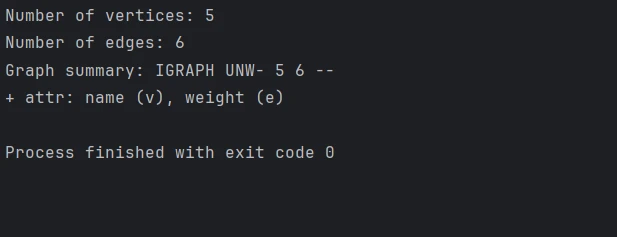
我們可以使用igraph的一些內建功能來繪製圖形。 使用以下內容更改外觀和布局:
# Define a layout for the graph
layout = g.layout("circle")  # Layout in a circular arrangement

# Plot the graph with labels and custom options
plot(
    g,
    layout=layout,
    vertex_label=g.vs["name"],  # Label vertices
    vertex_color="lightblue",   # Vertex color
    edge_width=g.es["weight"],  # Edge width based on weight
    vertex_size=30,             # Vertex size
    edge_color="grey",          # Edge color
    bbox=(300, 300),            # Size of the plot
    margin=20                   # Margin around the plot
)

# Save the plotted graph to a file
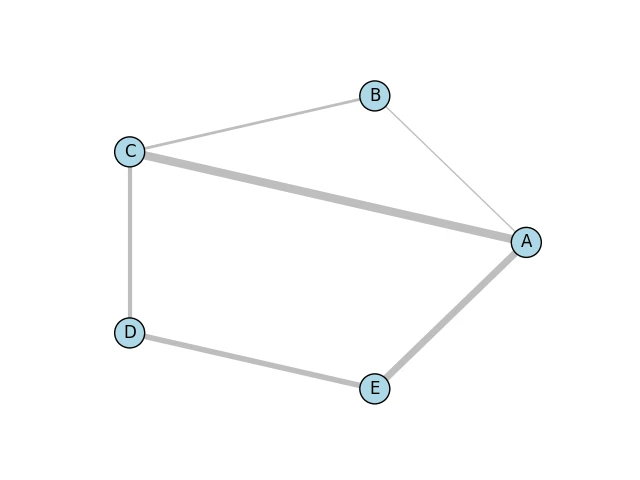
plot(g, layout=layout, bbox=(300, 300), margin=20).save('exampleGraph.png') 下面是通過Matplotlib程式庫和Cairo程式庫的Python綁定生成的簡單圖形圖像。
執行各種圖形操作和分析,例如計算中心性、尋找社區或識別最短路徑:
# Calculate degree centrality for each vertex
degrees = g.degree()
print("Degrees of vertices:", degrees)

# Compute shortest path between two vertices that don't have a predefined distance
shortest_path = g.shortest_paths_dijkstra(source=0, target=3)
print("Shortest path from vertex 0 to 3:", shortest_path)

# Detect communities using the Louvain method
communities = g.community_multilevel()
print("Detected communities:", communities)
我們甚至可以使用IronPDF Python模組以程式化的方式生成和編輯PDF。 使用這個程式庫,您將有極大的能力從HTML建立PDF文件、合併兩個或多個PDF文件,甚至使用現有的PDF並修改它們以包括文字、照片和註釋。 IronPDF允許您從任何HTML網站或適合生成報告、發票和其他具有預設樣式的文件生成專業品質的PDF。
其一些高級功能包括編輯頁面布局、文件加密以及從PDF中提取文字。 它將幫助開發者在提高您產品的整體實用性方面更具競爭優勢,前提是他們可以更好地處理PDF。
您可以使用以下命令來安裝啟用IronPDF功能的Python接口項目所需的套件:
這是在Python中合併igraph和IronPDF的步驟:首先,您將使用igraph建立一個圖形並顯示它。 然後,將生成的可視化轉換為PDF。
from igraph import Graph, plot
import matplotlib.pyplot as plt
from ironpdf import ImageToPdfConverter, License
import warnings

# Suppress warnings for cleaner output
warnings.filterwarnings('ignore')

# Ensure that you have replaced the string with your own license key
License.LicenseKey = "YOUR LICENSE KEY GOES HERE"

# Create an empty graph
g = Graph()

# Add adjacent vertices (nodes)
g.add_vertices(5)  # Adding 5 vertices

# Add edges (connections between vertices)
g.add_edges([(0, 1), (1, 2), (2, 3), (3, 4), (4, 0), (0, 2)])  # Adding edges

# Add vertex and edge attributes
g.vs["name"] = ["A", "B", "C", "D", "E"]  # Vertex labels
g.es["weight"] = [1, 2, 3, 4, 5, 6]  # Edge weights

# Define a layout for the graph
layout = g.layout("circle")  # Layout in a circular arrangement

# Create a plot using matplotlib
fig, ax = plt.subplots()

# Plot the graph with specified layout and styles
plot(
    g,
    target=ax,
    layout=layout,
    vertex_label=g.vs["name"],  # Label vertices
    vertex_color="lightblue",   # Vertex color
    edge_width=g.es["weight"],  # Edge width based on weight
    vertex_size=30,             # Vertex size
    edge_color="grey",          # Edge color
    bbox=(300, 300),            # Size of the plot
    margin=20                   # Margin around the plot
)

# Save the plot as a PNG image
plt.savefig('result.png')

# Convert the image to a PDF file
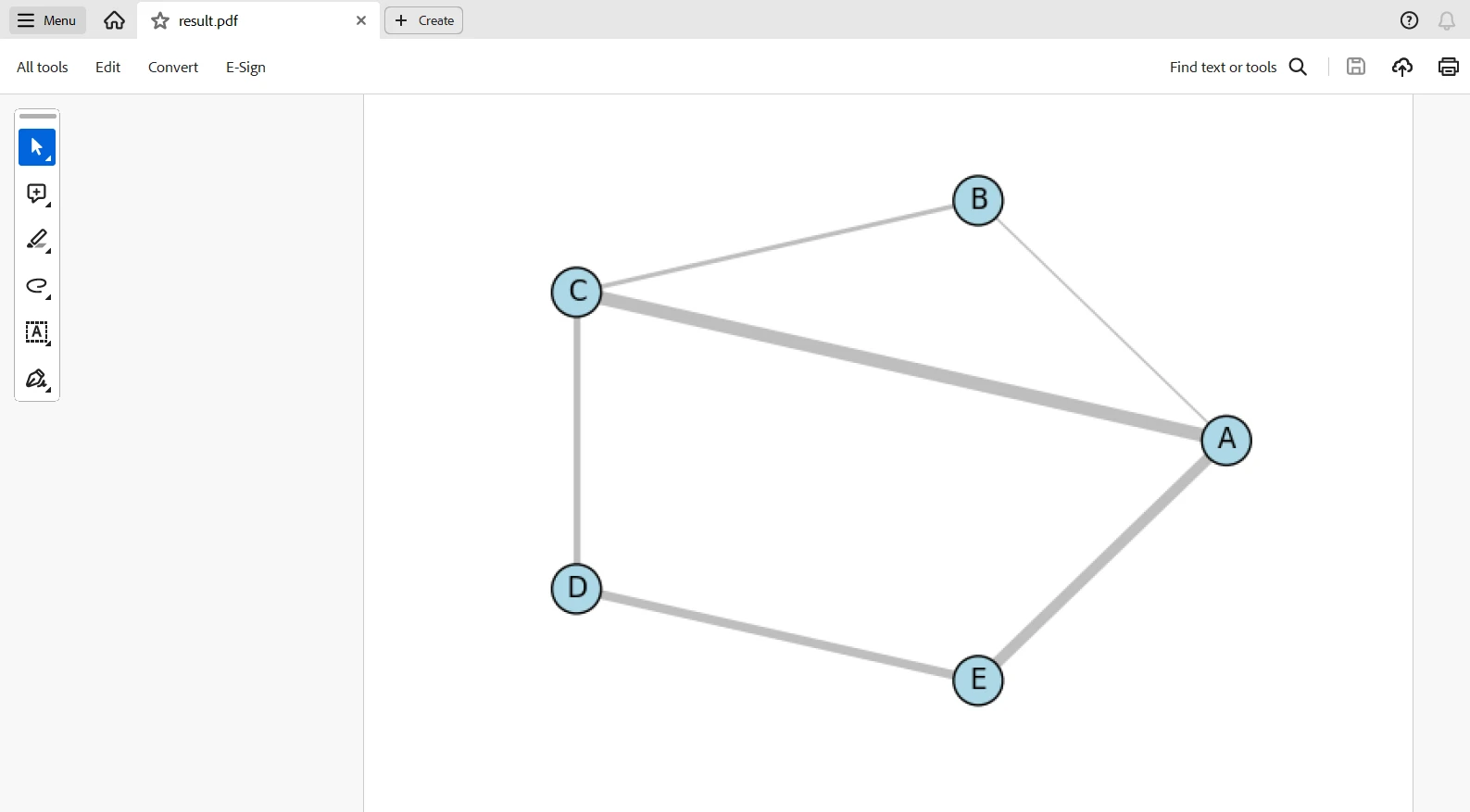
ImageToPdfConverter.ImageToPdf('result.png').SaveAs("result.pdf")此腳本將通過igraph生成圖形,並使用matplotlib可視化它,然後使用IronPDF將圖表轉換為PDF。 此程式碼將導入所有必要的程式庫並設置IronPDF與授權金鑰。 建立一個具有五個頂點和六條邊的空圖,並為清晰起見新增權重和標籤。
圖形呈圓形排列,繪圖涉及matplotlib和若干可視化屬性,如頂點顏色和大小以及邊線宽度。 然後,結果作為圖像文件result.png被保存。 最後,使用IronPDF的ImageToPdfConverter將其轉換為PDF,result.pdf。 圖形建立、可視化和PDF生成被組合為一個工作流程。
需要授權金鑰以便讓程式碼在沒有水印的情況下運行。 您可以在此連結註冊免費試用授權。 請注意,您可以在不提供身份證明的情況下註冊。 您只需輸入您的電子郵件地址即可註冊免費試用版。
借助IronPDF和igraph的力量,您可以開發用於可視化和呈現複雜圖形資料的解決方案。 通過igraph,您可以輕鬆建立和分析複雜的網路,同時使用IronPDF無縫地將資料可視化轉換為專業級的PDF文件。 這些結合的力量將幫助您開發完整的報告,包括圖形分析和視覺呈現。
此整合能促進各種要求全面網路文件化的應用程式的開發,包括學術研究、商業分析和資料驅動的報告。 此外,它結合了高品質的文件輸出和對圖形進行強大操作的能力。最重要的是,Iron Software提供多種程式庫,使開發多平台和操作系統(例如Windows、Android、MAC、Linux等)的應用變得更容易。

Curtis Chau擁有Carleton大學的電腦科學學士學位,專精於前端開發,擁有Node.js、TypeScript、JavaScript和React的專業知識。Curtis熱衷於建立直觀且美觀的使用者介面,喜愛使用現代框架並建立結構良好、視覺吸引力的手冊。


IronPDF 是 IRONSUITE 的一部分
10 款適用於辦公室文件的 .NET API 產品

當您需要您的PDF看起來像HTML一樣快速。











