


How to Set PDF Passwords and Permissions in C#

IronPDF enables you to protect PDF documents with passwords and permissions in C#, supporting both user passwords for opening files and owner passwords for controlling editing, printing, and copying rights with 128-bit encryption. This comprehensive security feature allows developers to implement document protection strategies that meet enterprise compliance requirements.
Password protection involves encrypting the document to restrict unauthorized access. It typically includes two types of passwords: the user password (or open password), required to open the document, and the owner password (or permissions password), which controls permissions for editing, printing, and other actions. Understanding these different password types is crucial when implementing PDF security in your .NET applications.
IronPDF supports everything you need for password and permissions for your existing and new PDF files. Granular metadata and security settings can be applied, including the ability to limit PDF documents to be unprintable, read-only, and encrypted. 128-bit encryption, decryption, and password protection are all supported. These features integrate seamlessly with other IronPDF capabilities like digital signatures and PDF compression.
Quickstart: Set PDF Passwords and Permissions with IronPDF
Get started with IronPDF to secure your documents quickly. This example shows how to set both user and owner passwords while configuring permissions to prevent unauthorized printing. Following these simple steps, you can protect your PDF files effectively using C# .NET, ensuring your sensitive data remains confidential. IronPDF makes it straightforward to implement robust security measures in your applications, whether you're working with HTML to PDF conversions or existing documents.
PdfDocument.FromFile
Minimal Workflow (5 steps)
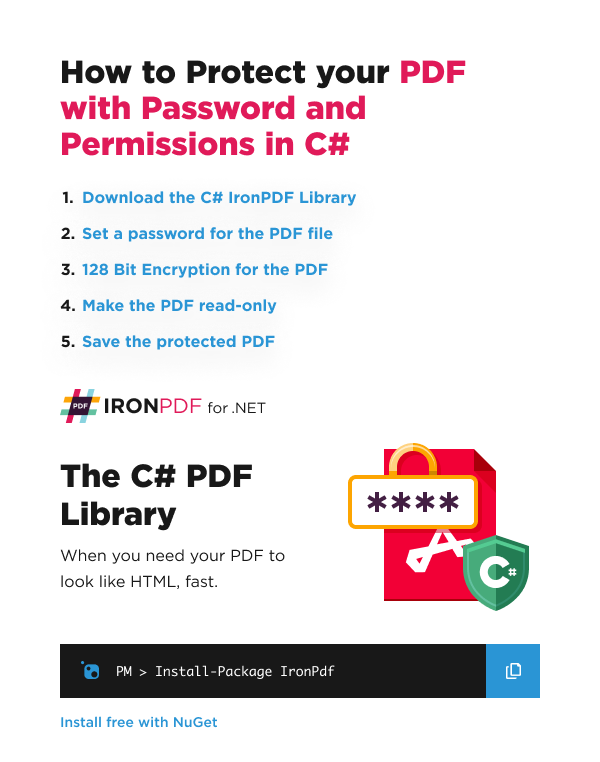
- Download C# library to protect PDF with password
- Set
OwnerPasswordproperty to prevent PDF file from being edited - Set
UserPasswordproperty to prevent PDF file from being opened - Encrypt PDF file with 128 Bit Encryption
- Supply the password to
FromFilemethod to open PDF document
How Do I Set a Password for a PDF?
What's the Difference Between User and Owner Passwords?
The User Password (also known as the open password) is required to open and view the PDF document. Without this password, the PDF cannot be accessed at all. In contrast, the Owner Password (or permissions password) grants full control over the document's security settings. When you open a PDF with the owner password, you can modify permissions, remove passwords, and have unrestricted access to all document features. This dual-password system provides flexible security options for different use cases, from simple document protection to complex permission management scenarios.
Why Should I Use Both Password Types?
Using both password types creates a comprehensive security strategy. The user password ensures only authorized individuals can view the document, while the owner password provides administrative control. This is particularly useful in business environments where you might want employees to view documents (using the user password) but only managers to modify permissions or remove protection (using the owner password). Additionally, this approach aligns with compliance requirements in many industries that mandate different access levels for sensitive documents.
What Happens When Users Enter Each Password?
When users enter the user password, they gain read access to the document based on the permissions you've set. They can view the content but may be restricted from printing, copying text, or making modifications. When the owner password is entered, all restrictions are lifted, and the user gains full administrative privileges over the document, including the ability to change passwords and modify permission settings.
We have an example PDF file that we want to protect using IronPDF. Let's execute the following code to add a password to the PDF. In this example, we will use the password password123. This approach works seamlessly whether you're creating PDFs from HTML or working with existing documents.
:path=/static-assets/pdf/content-code-examples/how-to/pdf-permissions-passwords-add-password.csusing IronPdf;
ChromePdfRenderer renderer = new ChromePdfRenderer();
PdfDocument pdf = renderer.RenderHtmlAsPdf("<h1>Secret Information:</h1> Hello World");
// Password to edit the pdf
pdf.SecuritySettings.OwnerPassword = "123password";
// Password to open the pdf
pdf.SecuritySettings.UserPassword = "password123";
pdf.SaveAs("protected.pdf");Imports IronPdf
Private renderer As New ChromePdfRenderer()
Private pdf As PdfDocument = renderer.RenderHtmlAsPdf("<h1>Secret Information:</h1> Hello World")
' Password to edit the pdf
pdf.SecuritySettings.OwnerPassword = "123password"
' Password to open the pdf
pdf.SecuritySettings.UserPassword = "password123"
pdf.SaveAs("protected.pdf")The result is the following PDF which you can view by typing the password password123.

My favorite library of this kind is IronPDF. It allows for fast and efficient manipulation of PDF files. It also has many valuable features, like exporting to PDF/A format and digitally signing PDF documents.

IronOCR means we can save $40,000 annually from manual processing, while enhancing productivity and freeing up resources for high-impact tasks. I would highly recommend it.

The IronSuite play a crucial role in our operations. These are tools that increase efficiencies across the business including creating floor plans and improving inventory management.

How Do I Open a PDF That Has a Password?
What Parameters Does FromFile Accept?
The FromFile method accepts two main parameters: the file path and an optional password string. When working with password-protected PDFs, you must provide the correct password as the second parameter. The method automatically detects whether the provided password is a user or owner password and grants appropriate access levels. This seamless integration makes it easy to work with protected documents in your C# applications.
How Do I Handle Incorrect Password Attempts?
When an incorrect password is provided, IronPDF throws a specific exception that you can catch and handle appropriately. Best practice involves implementing a try-catch block to manage password failures gracefully:
:path=/static-assets/pdf/content-code-examples/how-to/pdf-permissions-passwords-2.cstry
{
var pdf = PdfDocument.FromFile("protected.pdf", userPassword);
// Process the PDF
}
catch (IronPdf.Exceptions.IronPdfPasswordException ex)
{
// Handle incorrect password
Console.WriteLine("Invalid password provided");
}
Imports IronPdf.Exceptions

Try
    Dim pdf = PdfDocument.FromFile("protected.pdf", userPassword)
    ' Process the PDF
Catch ex As IronPdfPasswordException
    ' Handle incorrect password
    Console.WriteLine("Invalid password provided")
End TryCan I Remove Password Protection After Opening?
Yes, once you've opened a PDF with the owner password, you can remove all password protection using the RemovePasswordsAndEncryption() method. This is useful when you need to distribute previously protected documents or integrate them into systems that don't support password-protected PDFs.
This section describes how to open a PDF that has a password. The PdfDocument.FromFile method has a second optional parameter which is the password. Provide the correct password to this parameter to open the PDF. This functionality integrates well with other IronPDF features like merging PDFs and extracting text.
:path=/static-assets/pdf/content-code-examples/how-to/pdf-permissions-passwords-open-password.csusing IronPdf;
var pdf = PdfDocument.FromFile("protected.pdf", "password123");
//... perform PDF-tasks
pdf.SaveAs("protected_2.pdf"); // Saved as another fileImports IronPdf
Private pdf = PdfDocument.FromFile("protected.pdf", "password123")
'... perform PDF-tasks
pdf.SaveAs("protected_2.pdf") ' Saved as another fileHow Can I Configure Advanced Security and Permissions Settings?
Which Permissions Can I Control?
IronPDF provides granular control over PDF permissions through its SecuritySettings class. You can manage various permissions including:
AllowUserAnnotations: Controls whether users can add comments and annotationsAllowUserCopyPasteContent: Restricts text and image copyingAllowUserFormData: Manages form filling capabilitiesAllowUserPrinting: Sets printing permissions with options for high-quality or low-resolution printing
These permissions work in conjunction with password protection to create comprehensive security policies that match your specific requirements.
How Do Permissions Interact with Passwords?
Permission settings behave differently based on the password configuration. When no password is set, permissions are enforced but can potentially be bypassed by PDF editing software. With only a user password, entering it grants access according to the defined permissions. However, when both passwords are set, the user password provides restricted access while the owner password overrides all permissions, granting full control. This hierarchical system ensures proper access control for different user roles.
What Metadata Fields Can I Set?
The PdfDocument object also has metadata fields you may set such as Author and ModifiedDate. Additional metadata properties include Title, Subject, Keywords, Creator, and Producer. These fields are essential for document management systems and compliance requirements. You can set custom metadata fields as well, which is particularly useful for internal tracking and categorization. Learn more about metadata management in our detailed guide.
When Should I Use MakePdfDocumentReadOnly?
The MakePdfDocumentReadOnly method is ideal when you need to create a final, uneditable version of a document while maintaining some level of access control. This method combines password protection with restrictive permissions in a single call, making it perfect for archival purposes, legal documents, or final reports that should remain unchanged. It's particularly useful in document workflows where you need to ensure document integrity.
You can also disable user annotations, user printing, and many more as shown below:
:path=/static-assets/pdf/content-code-examples/how-to/pdf-permissions-passwords-advanced.csusing IronPdf;
// Open an Encrypted File, alternatively create a new PDF from HTML
var pdf = PdfDocument.FromFile("protected.pdf", "password123");
// Edit file security settings
// The following code makes a PDF read only and will disallow copy & paste and printing
pdf.SecuritySettings.RemovePasswordsAndEncryption();
pdf.SecuritySettings.MakePdfDocumentReadOnly("secret-key");
pdf.SecuritySettings.AllowUserAnnotations = false;
pdf.SecuritySettings.AllowUserCopyPasteContent = false;
pdf.SecuritySettings.AllowUserFormData = false;
pdf.SecuritySettings.AllowUserPrinting = IronPdf.Security.PdfPrintSecurity.FullPrintRights;
// Save the secure PDF
pdf.SaveAs("secured.pdf");Imports IronPdf
' Open an Encrypted File, alternatively create a new PDF from HTML
Private pdf = PdfDocument.FromFile("protected.pdf", "password123")
' Edit file security settings
' The following code makes a PDF read only and will disallow copy & paste and printing
pdf.SecuritySettings.RemovePasswordsAndEncryption()
pdf.SecuritySettings.MakePdfDocumentReadOnly("secret-key")
pdf.SecuritySettings.AllowUserAnnotations = False
pdf.SecuritySettings.AllowUserCopyPasteContent = False
pdf.SecuritySettings.AllowUserFormData = False
pdf.SecuritySettings.AllowUserPrinting = IronPdf.Security.PdfPrintSecurity.FullPrintRights
' Save the secure PDF
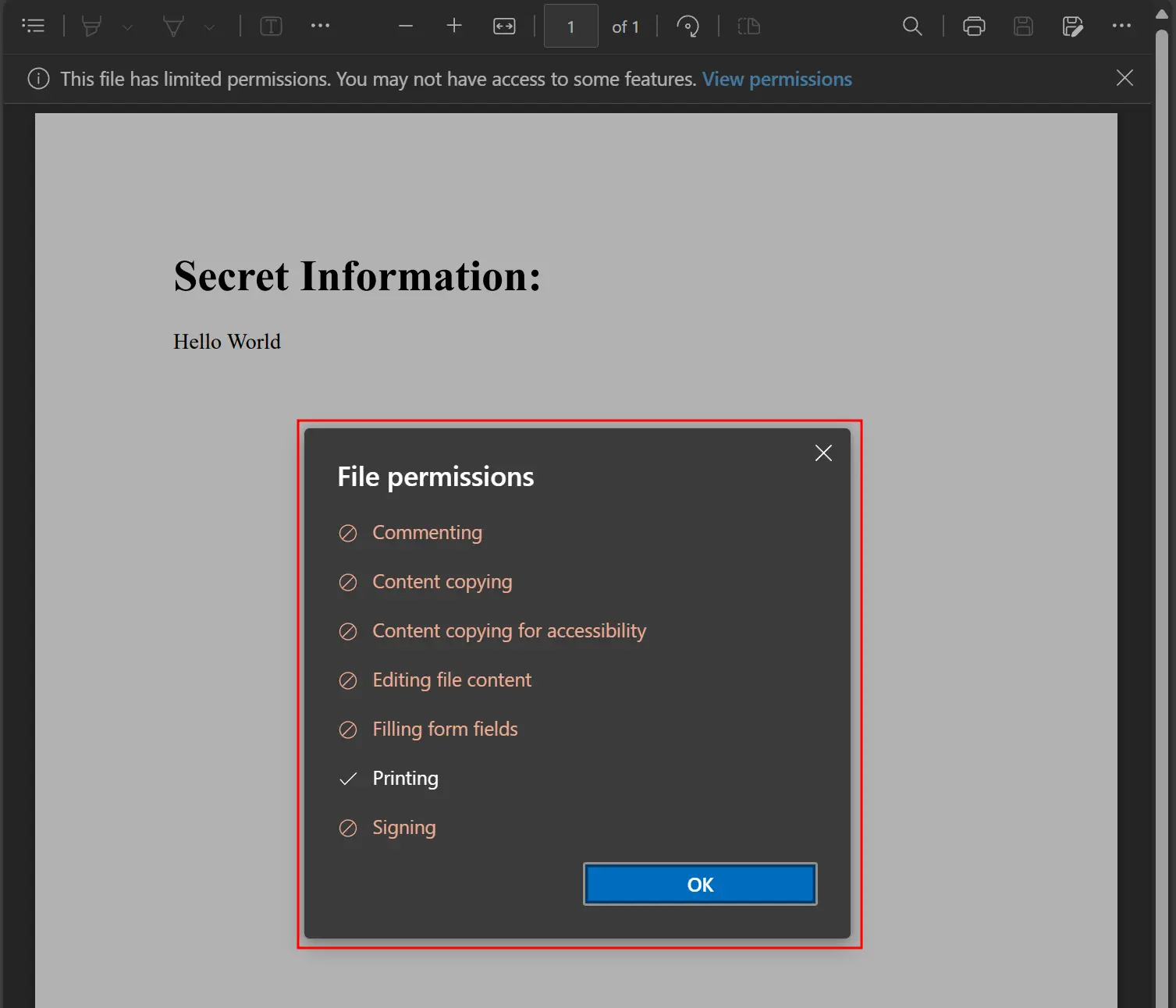
pdf.SaveAs("secured.pdf")The permissions setting is related to the document password and behaves as follows. For example, setting the AllowUserCopyPasteContent property to false is intended to prevent copy/paste of content:
- No password set: Without a password, copy/paste of content remains blocked.
- User password set: When a user password is set, entering the correct password will allow copy/paste of content.
- Owner password set: When an owner password is set, entering only the user password will not unlock the copy/paste feature. However, entering the correct owner password will allow copy/paste of content.
A closely related article discusses predefined and custom metadata. Learn more by following this link: "How to Set and Edit PDF Metadata."
Ready to see what else you can do? Check out our tutorial page here: Sign and Secure PDFs
For enterprise applications requiring advanced security features, consider exploring PDF/A compliance for long-term document preservation or implementing digital signatures with HSM for enhanced authentication. IronPDF's security features integrate seamlessly with Azure deployment scenarios and support various rendering options to meet your specific requirements.
Frequently Asked Questions
How do I add password protection to a PDF file in C#?
You can add password protection to PDFs using IronPDF by setting the SecuritySettings properties. Simply load your PDF document, then set the UserPassword property to require a password for opening the file, and/or set the OwnerPassword property to control editing permissions. IronPDF supports 128-bit encryption for secure document protection.
What's the difference between user password and owner password for PDFs?
In IronPDF, the user password (or open password) is required to open and view the PDF document, while the owner password (or permissions password) controls what actions users can perform on the document, such as editing, printing, or copying content. You can set both passwords independently using the SecuritySettings.UserPassword and SecuritySettings.OwnerPassword properties.
Can I prevent users from printing or copying content from my PDF?
Yes, IronPDF allows you to set granular permissions on your PDF documents. You can use the SecuritySettings.Permissions property to restrict actions like printing, copying, or editing. For example, setting Permissions.NoPrinting will prevent users from printing the document even if they have the user password.
What level of encryption does the PDF security feature support?
IronPDF supports 128-bit encryption for PDF documents, providing enterprise-grade security for your sensitive files. This encryption level is applied automatically when you set passwords or permissions on your PDF documents using the SecuritySettings properties.
How do I remove password protection from an existing PDF?
To remove password protection from a PDF using IronPDF, you first need to open the protected document by providing the password to the FromFile method. Once opened, you can clear the security settings by resetting the UserPassword and OwnerPassword properties to empty strings, then save the document without protection.
Can I add security settings when converting HTML to PDF?
Yes, IronPDF allows you to apply security settings immediately after converting HTML to PDF. After creating a PDF from HTML content, you can access the SecuritySettings properties to set passwords and permissions before saving the final document, ensuring your converted files are protected from the start.


Still Scrolling?
Want proof fast? PM > Install-Package IronPdf
run a sample watch your HTML become a PDF.








 Get started for FREE
 Get started for FREE
 Book Free Live Demo
















