using IronPdf;

// Disable local disk access or cross-origin requests
Installation.EnableWebSecurity = true;

// Instantiate Renderer
var renderer = new ChromePdfRenderer();

// Create a PDF from a HTML string using C#
var pdf = renderer.RenderHtmlAsPdf("<h1>Hello World</h1>");

// Export to a file or Stream
pdf.SaveAs("output.pdf");

// Advanced Example with HTML Assets
// Load external html assets: Images, CSS and JavaScript.
// An optional BasePath 'C:\site\assets\' is set as the file location to load assets from
var myAdvancedPdf = renderer.RenderHtmlAsPdf("<img src='icons/iron.png'>", @"C:\site\assets\");
myAdvancedPdf.SaveAs("html-with-assets.pdf");
using IronPdf;// Disable local disk access or cross-origin requestsInstallation.EnableWebSecurity = true;// Instantiate Renderervar renderer = new ChromePdfRenderer();// Create a PDF from a HTML string using C#var pdf = renderer.RenderHtmlAsPdf("<h1>Hello World</h1>");// Export to a file or Streampdf.SaveAs("output.pdf");// Advanced Example with HTML Assets// Load external html assets: Images, CSS and JavaScript.// An optional BasePath 'C:\site\assets\' is set as the file location to load assets fromvar myAdvancedPdf = renderer.RenderHtmlAsPdf("<img src='icons/iron.png'>", @"C:\site\assets\");myAdvancedPdf.SaveAs("html-with-assets.pdf");
PM >Install-Package IronPdf
Install-Package IronPdf
ENTWICKLER-UPDATES
Bugsnag C# (Wie es für Entwickler funktioniert) | IronPDF
Willkommen bei dem Leitfaden, der für fortgeschrittene C#-Entwickler entwickelt wurde und die ihre Fähigkeiten in der Anwendungsüberwachung und PDF-Erstellung verbessern möchten. In der heutigen Entwicklungsumgebung sind Effizienz, Zuverlässigkeit und grundlegende Konfiguration entscheidend. Hier kommt Bugsnag C# ins Spiel. Diese Bibliothek bietet eine robuste Lösung für die Integration von Bugsnag, Überwachung und Fehlerberichterstattung in Echtzeit in Ihren .NET-Anwendungen. [IronPDF](http://ironpdf.com) ergänzt dies, indem es ein leistungsstarkes Werkzeug zur Erstellung, Bearbeitung und Konvertierung von PDFs in C# bereitstellt. Zusammen können diese Bibliotheken die Funktionalität und Zuverlässigkeit Ihrer Anwendungen erheblich verbessern.
## Introduction to Bugsnag C#
Bugsnag C# ist eine dedizierte Bibliothek zur Fehlerüberwachung in .NET-Anwendungen mit Echtzeit-Benachrichtigungen und nahtloser Integration für zuverlässige Anwendungen. Es sticht durch seine Fähigkeit hervor, nicht nur Ausnahmen in Echtzeit zu erfassen und zu melden, sondern auch durch sein umfassendes Dashboard, das Einblicke in die Gesundheit Ihrer Anwendung bietet. Ob Sie mit .NET Core, ASP.NET oder einem anderen .NET-Framework arbeiten, Bugsnag C# bietet die notwendigen Werkzeuge, um Ihre Anwendungen am Laufen zu halten.
Diese Bibliothek vereinfacht den Prozess der Fehlerbehebung, indem sie automatisch nicht abgefangene Ausnahmen erfasst und sie an das Bugsnag-Dashboard meldet. Diese Funktionalität sorgt dafür, dass Sie sich jederzeit der Probleme Ihrer Nutzer bewusst sind und dank sofortiger Benachrichtigung durch den Bugsnag-Notifier schnell und effektiv Probleme lösen können.
Nun, lassen Sie uns fortfahren, wie Sie mit Bugsnag C# in Ihren Projekten beginnen können.
## Getting Started with Bugsnag C#
Die Integration von Bugsnag C# in Ihre .NET-Projekte ist unkompliziert. Dieser Prozess umfasst einige wesentliche Schritte: Einrichten Ihres Bugsnag-Projekts, Installieren des Bugsnag-Pakets und Konfigurieren zur Überwachung und Berichterstattung von Fehlern. Diese Einrichtung stellt sicher, dass Ihre Anwendungen stets auf Probleme überwacht werden und Sie sofortige Benachrichtigungen und detaillierte Fehlerberichte erhalten.
### Einrichten von Bugsnag C# in .NET-Projekten
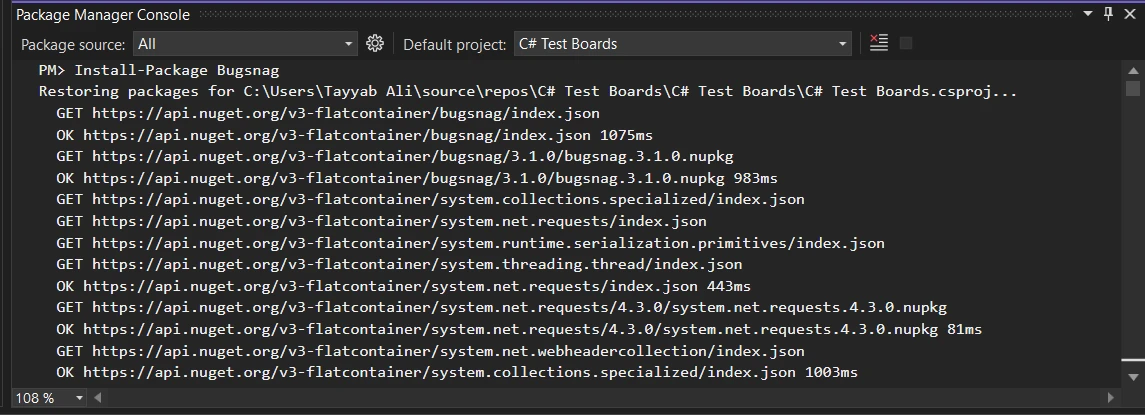
Zu Beginn müssen Sie Bugsnag zu Ihrem Projekt hinzufügen. Dies erfolgt durch die Installation des Bugsnag-Pakets aus NuGet, dem Paketmanager for .NET. Gehen Sie zur NuGet-Konsole in Visual Studio. Führen Sie den folgenden Befehl aus:
```shell
:InstallCmd Install-Package Bugsnag
```
### Ein grundlegendes Code-Beispiel
Nach der Installation von Bugsnag besteht der nächste Schritt darin, es innerhalb Ihrer Anwendung zu konfigurieren und Ihre Bugsnag-Konfiguration zu einer **privaten schreibgeschützten Bugsnag**-Instanz für verbesserte Sicherheit und Kontrolle zu machen. Um Ihr Projekt mit dem Bugsnag-Client zu initialisieren, müssen Sie zunächst einen Bugsnag-API-Schlüssel erhalten. Dieser verbindet Ihre Anwendung mit dem Bugsnag-Dashboard.
```csharp
using Bugsnag;

namespace YourNamespace
{
    class Program
    {
        static void Main(string[] args)
        {
            // Initialize Bugsnag configuration with your API key
            var settings = new Configuration("api_key_here");
            var client = new Client(settings);

            // Example of manually notifying Bugsnag of an issue
            try
            {
                // Your code here. For example:
                throw new System.NotImplementedException("This is a test exception.");
            }
            catch (System.Exception ex)
            {
                // Notify Bugsnag of the exception
                client.Notify(ex);
            }
        }
    }
}
```
Dieses Code-Snippet zeigt, wie man Bugsnag in einer einfachen .NET-Konsolenanwendung einrichtet. Die **Notify-Methode** des Bugsnag-Notifizierers sendet die abgefangene Ausnahme an Bugsnag. Es meldet nicht nur **Ausnahmen in der Produktion**, sondern ermöglicht es Ihnen auch, den Fehler im Bugsnag-Dashboard zu sehen, was die Fehlerbehandlung optimiert.
Nun, da Sie Bugsnag eingerichtet haben und bereit sind, Fehler zu melden, lassen Sie uns in seine Funktionen eintauchen und wie Sie diese nutzen können, um Ihre Anwendung effektiv zu überwachen.
## Implementing Features of Bugsnag C#
Mit Bugsnag, das in Ihr .NET-Projekt integriert ist, sind Sie bestens gerüstet, um Fehlerüberwachung und Ausnahmebehandlung effektiver anzugehen. Lassen Sie uns einige der wesentlichen Funktionen von Bugsnag C# erkunden, die Ihnen helfen können, seine Möglichkeiten innerhalb Ihrer Anwendungen voll auszuschöpfen.
### Automatische Fehlerberichterstattung
Einer der wesentlichen Vorteile von Bugsnag ist seine Fähigkeit, nicht abgefangene Ausnahmen automatisch zu erfassen und zu melden. Dies bedeutet, dass alle Ausnahmen, die in Ihrer Anwendung geworfen werden und die Sie nicht manuell abfangen, dennoch an das Bugsnag-Dashboard gemeldet werden. So können Sie die automatische Fehlerberichterstattung aktivieren:
```csharp
var settings = new Configuration("your_bugsnag_api_key_here")
{
AutoCaptureSessions = true // Automatically captures and reports sessions
};
var client = new Client(settings);
```
Diese Konfiguration stellt sicher, dass jede Sitzung überwacht wird und alle nicht abgefangenen Ausnahmen automatisch gemeldet werden, was Ihnen einen umfassenden Überblick über die Stabilität Ihrer Anwendung bietet.
### Konfigurationsoptionen für detaillierte Fehlerkontrolle
Die Anpassung der Art und Weise, wie Bugsnag Fehler meldet, kann den Nutzen der erhaltenden Fehlerinformationen erheblich verbessern. Bugsnag C# bietet verschiedene Konfigurationsmöglichkeiten zur Verfeinerung der Fehlerberichterstattung. Zum Beispiel können Sie festlegen, welche Ausnahmen ignoriert werden sollen, benutzerdefinierte Diagnoseninformationen hinzufügen und die Menge an Benutzerdaten kontrollieren, die mit Fehlerberichten gesendet werden:
```csharp
var settings = new Configuration("your_bugsnag_api_key_here")
{
ProjectNamespaces = new[] { "YourNamespace" }, // Only report errors from specific namespaces
IgnoreClasses = new[] { "System.Exception" }, // Ignore specific exception types
ReleaseStage = "production" // Set the current release stage of your application
};
```
Diese Einrichtung hilft, sich auf die Fehler zu konzentrieren, die für Ihre Anwendung am wichtigsten sind, während die Privatsphäre und Datensicherheit der Benutzer gewährleistet bleibt.
### Verbesserung von Fehlerberichten mit Benutzerdaten und Metadaten
Das Hinzufügen von Benutzerinformationen und benutzerdefinierten Metadaten zu Ihren Fehlerberichten kann wertvollen Kontext liefern und die Diagnose und Behebung von Problemen erleichtern. So können Sie Ihre Fehlerberichte verbessern:
```csharp
client.BeforeNotify(report =>
{
report.Event.User = new User { Id = "user_id", Name = "User Name", Email = "user@example.com" };
report.Event.AddMetadata("Order", new { OrderId = 123, Status = "Processing" });
});
```
Dieses Code-Snippet fügt jedem Fehlerbericht Benutzerdetails und benutzerdefinierte Metadaten über eine Bestellung hinzu. Dieser zusätzliche Kontext kann entscheidend sein, um die Umstände zu verstehen, die zu einem Fehler geführt haben.
Durch die Nutzung dieser Funktionen von Bugsnag C# können Sie tiefere Einblicke in die Fehler gewinnen, die Ihre Anwendung betreffen, Fehlerbehebung nach dem realen Benutzerimpact priorisieren und letztendlich die Zuverlässigkeit und das Nutzererlebnis Ihrer Software verbessern.
## Integration von BugSnag mit IronPDF
[IronPDF](/) ist eine umfassende Bibliothek, die für .NET-Entwickler entwickelt wurde und eine Vielzahl von Werkzeugen zur Erstellung, Bearbeitung und Extraktion von PDF-Inhalten bietet. Diese Bibliothek zeichnet sich durch ihre einfache [Konvertierung von HTML in PDF](/examples/using-html-to-create-a-pdf/) aus, die sie zu einem bevorzugten Tool für die dynamische Erstellung von Berichten, Rechnungen und anderen Dokumenten macht.
### Warum IronPDF mit BugSnag zusammenführen?
Die Kombination von IronPDF mit BugSnag verbessert Ihre Fähigkeit, die Qualität in Dokumentenmanagementsystemen aufrechtzuerhalten. Während IronPDF die Hauptarbeit der PDF-Erstellung und -Manipulation übernimmt, tritt BugSnag als Ihr wachsamer Wächter auf, der jede Ausnahme oder Fehler überwacht und erfasst.
### Installation der IronPDF-Bibliothek
Um loszulegen, stellen Sie sicher, dass IronPDF Teil Ihres Projekts ist. Wenn Sie den NuGet-Paketmanager verwenden, ist es ein Kinderspiel. Führen Sie einfach den folgenden Befehl in Ihrer Paketmanager-Konsole aus:
```shell
:ProductInstall
```
Dieser Befehl holt die neueste Version von IronPDF und integriert sie in Ihr Projekt, sodass Sie mit der Erstellung und Bearbeitung von PDFs beginnen können.
Sie können die IronPDF-Bibliothek auch mit dem NuGet-Paketmanager installieren. Gehen Sie über das Menü "Tools" zur NuGet-Paketverwaltung in der Symbolleiste. Gehen Sie zur Registerkarte "Durchsuchen" und suchen Sie nach IronPDF. Klicken Sie auf das Suchergebnis von IronPDF und drücken Sie die Installationsschaltfläche. Es wird die IronPDF-Bibliothek in Ihrem Projekt installieren.
### Code-Beispiel: Abfangen von Fehlern mit BugSnag in einem IronPDF-Kontext
Lassen Sie uns nun ein praktisches Beispiel betrachten. Stellen Sie sich vor, Sie erstellen ein PDF aus HTML-Inhalten und möchten stille potentielle Probleme erfassen und protokollieren. Unten ist ein Beispiel:
**Stellen Sie sicher, dass BugSnag konfiguriert ist:** Bevor Sie sich mit dem Code befassen, vergewissern Sie sich, dass BugSnag in Ihrem Projekt ordnungsgemäß eingerichtet ist. Sie werden dies typischerweise in Ihrer Startkonfiguration tun, indem Sie BugSnag mit Ihrem API-Schlüssel registrieren.
**PDF-Erstellung mit Fehlerprotokollierung:** In diesem Schritt erfahren Sie, wie Sie mit IronPDF aus HTML eine PDF-Datei erstellen, wobei BugSnag bereitsteht, um eventuelle Fehler abzufangen.
```csharp
using IronPdf;
using Bugsnag;
public class PdfGenerator
{
private readonly IClient _bugsnagClient;
public PdfGenerator(IClient bugsnagClient)
{
_bugsnagClient = bugsnagClient;
}
public void GeneratePdfFromHtml(string htmlContent)
{
try
{
// Use IronPDF to render HTML as PDF
var renderer = new ChromePdfRenderer();
var pdf = renderer.RenderHtmlAsPdf(htmlContent);
// Save the rendered PDF to a file
pdf.SaveAs("example.pdf");
}
catch (Exception ex)
{
// Notify Bugsnag of the exception
_bugsnagClient.Notify(ex);
// Optionally re-throw the exception for further handling
throw;
}
}
}
```
In diesem Beispiel wird **ChromePdfRenderer** verwendet, um HTML-Inhalt in ein PDF zu konvertieren. Wenn etwas schief geht, wird die **Notify**-Methode von BugSnag aufgerufen und die Ausnahme wird protokolliert, ohne den Anwendungsfluss zu unterbrechen.
## Abschluss
Bugsnag für C# bietet eine praktische, effiziente Lösung für Fehlerüberwachung und -behebung. Es ist eine Mischung aus Echtzeit-Fehlerberichterstattung, detaillierter Diagnostik und anpassbarer Fehlerbehandlung. Durch die Integration von Bugsnag können Entwickler nicht nur ihre Arbeitsabläufe, sondern auch die Zuverlässigkeit und Qualität ihrer Anwendungen verbessern. Für diejenigen, die tiefer in die Möglichkeiten von Bugsnag eintauchen oder zu seiner kontinuierlichen Entwicklung beitragen möchten, stehen auf der offiziellen Bugsnag-Website Ressourcen zur Verfügung, darunter umfassende Dokumentationen und eine lebendige Entwicklergemeinschaft. Und Sie können auch die [kostenlose Testversion von IronPDF](trial-license) erkunden und ab `$liteLicense` mehr über die [Lizenzoptionen](/licensing/) erfahren.
Willkommen bei dem Leitfaden, der für fortgeschrittene C#-Entwickler entwickelt wurde und die ihre Fähigkeiten in der Anwendungsüberwachung und PDF-Erstellung verbessern möchten. In der heutigen Entwicklungsumgebung sind Effizienz, Zuverlässigkeit und grundlegende Konfiguration entscheidend. Hier kommt Bugsnag C# ins Spiel. Diese Bibliothek bietet eine robuste Lösung für die Integration von Bugsnag, Überwachung und Fehlerberichterstattung in Echtzeit in Ihren .NET-Anwendungen. IronPDF ergänzt dies, indem es ein leistungsstarkes Werkzeug zur Erstellung, Bearbeitung und Konvertierung von PDFs in C# bereitstellt. Zusammen können diese Bibliotheken die Funktionalität und Zuverlässigkeit Ihrer Anwendungen erheblich verbessern.
Introduction to Bugsnag C#
Bugsnag C# ist eine dedizierte Bibliothek zur Fehlerüberwachung in .NET-Anwendungen mit Echtzeit-Benachrichtigungen und nahtloser Integration für zuverlässige Anwendungen. Es sticht durch seine Fähigkeit hervor, nicht nur Ausnahmen in Echtzeit zu erfassen und zu melden, sondern auch durch sein umfassendes Dashboard, das Einblicke in die Gesundheit Ihrer Anwendung bietet. Ob Sie mit .NET Core, ASP.NET oder einem anderen .NET-Framework arbeiten, Bugsnag C# bietet die notwendigen Werkzeuge, um Ihre Anwendungen am Laufen zu halten.
Diese Bibliothek vereinfacht den Prozess der Fehlerbehebung, indem sie automatisch nicht abgefangene Ausnahmen erfasst und sie an das Bugsnag-Dashboard meldet. Diese Funktionalität sorgt dafür, dass Sie sich jederzeit der Probleme Ihrer Nutzer bewusst sind und dank sofortiger Benachrichtigung durch den Bugsnag-Notifier schnell und effektiv Probleme lösen können.
Nun, lassen Sie uns fortfahren, wie Sie mit Bugsnag C# in Ihren Projekten beginnen können.
Getting Started with Bugsnag C#
Die Integration von Bugsnag C# in Ihre .NET-Projekte ist unkompliziert. Dieser Prozess umfasst einige wesentliche Schritte: Einrichten Ihres Bugsnag-Projekts, Installieren des Bugsnag-Pakets und Konfigurieren zur Überwachung und Berichterstattung von Fehlern. Diese Einrichtung stellt sicher, dass Ihre Anwendungen stets auf Probleme überwacht werden und Sie sofortige Benachrichtigungen und detaillierte Fehlerberichte erhalten.
Einrichten von Bugsnag C# in .NET-Projekten
Zu Beginn müssen Sie Bugsnag zu Ihrem Projekt hinzufügen. Dies erfolgt durch die Installation des Bugsnag-Pakets aus NuGet, dem Paketmanager for .NET. Gehen Sie zur NuGet-Konsole in Visual Studio. Führen Sie den folgenden Befehl aus:
PM > Install-Package Bugsnag
Install-Package Bugsnag
Ein grundlegendes Code-Beispiel
Nach der Installation von Bugsnag besteht der nächste Schritt darin, es innerhalb Ihrer Anwendung zu konfigurieren und Ihre Bugsnag-Konfiguration zu einer privaten schreibgeschützten Bugsnag-Instanz für verbesserte Sicherheit und Kontrolle zu machen. Um Ihr Projekt mit dem Bugsnag-Client zu initialisieren, müssen Sie zunächst einen Bugsnag-API-Schlüssel erhalten. Dieser verbindet Ihre Anwendung mit dem Bugsnag-Dashboard.
using Bugsnag;namespace YourNamespace{ class Program { static voidMain(string[] args) { // Initialize Bugsnag configuration with your API key var settings = new Configuration("api_key_here"); var client = new Client(settings); // Example of manually notifying Bugsnag of an issue try { // Your code here. For example: throw new System.NotImplementedException("This is a test exception."); } catch (System.Exception ex) { // Notify Bugsnag of the exception client.Notify(ex); } } }}
using Bugsnag;

namespace YourNamespace
{
    class Program
    {
        static void Main(string[] args)
        {
            // Initialize Bugsnag configuration with your API key
            var settings = new Configuration("api_key_here");
            var client = new Client(settings);

            // Example of manually notifying Bugsnag of an issue
            try
            {
                // Your code here. For example:
                throw new System.NotImplementedException("This is a test exception.");
            }
            catch (System.Exception ex)
            {
                // Notify Bugsnag of the exception
                client.Notify(ex);
            }
        }
    }
}
ImportsBugsnagNamespaceYourNamespaceFriend Class ProgramShared Sub Main(ByVal args() AsString) ' Initialize Bugsnag configuration with your API key Dim settings = New Configuration("api_key_here") Dim client As New Client(settings) ' Example of manually notifying Bugsnag of an issueTry ' Your code here. For example:Throw New System.NotImplementedException("This is a test exception.")Catch ex AsSystem.Exception ' Notify Bugsnag of the exception client.Notify(ex)EndTry End Sub End ClassEndNamespace
Imports Bugsnag

Namespace YourNamespace
	Friend Class Program
		Shared Sub Main(ByVal args() As String)
			' Initialize Bugsnag configuration with your API key
			Dim settings = New Configuration("api_key_here")
			Dim client As New Client(settings)

			' Example of manually notifying Bugsnag of an issue
			Try
				' Your code here. For example:
				Throw New System.NotImplementedException("This is a test exception.")
			Catch ex As System.Exception
				' Notify Bugsnag of the exception
				client.Notify(ex)
			End Try
		End Sub
	End Class
End Namespace
Dieses Code-Snippet zeigt, wie man Bugsnag in einer einfachen .NET-Konsolenanwendung einrichtet. Die Notify-Methode des Bugsnag-Notifizierers sendet die abgefangene Ausnahme an Bugsnag. Es meldet nicht nur Ausnahmen in der Produktion, sondern ermöglicht es Ihnen auch, den Fehler im Bugsnag-Dashboard zu sehen, was die Fehlerbehandlung optimiert.
Nun, da Sie Bugsnag eingerichtet haben und bereit sind, Fehler zu melden, lassen Sie uns in seine Funktionen eintauchen und wie Sie diese nutzen können, um Ihre Anwendung effektiv zu überwachen.
Implementing Features of Bugsnag C#
Mit Bugsnag, das in Ihr .NET-Projekt integriert ist, sind Sie bestens gerüstet, um Fehlerüberwachung und Ausnahmebehandlung effektiver anzugehen. Lassen Sie uns einige der wesentlichen Funktionen von Bugsnag C# erkunden, die Ihnen helfen können, seine Möglichkeiten innerhalb Ihrer Anwendungen voll auszuschöpfen.
Automatische Fehlerberichterstattung
Einer der wesentlichen Vorteile von Bugsnag ist seine Fähigkeit, nicht abgefangene Ausnahmen automatisch zu erfassen und zu melden. Dies bedeutet, dass alle Ausnahmen, die in Ihrer Anwendung geworfen werden und die Sie nicht manuell abfangen, dennoch an das Bugsnag-Dashboard gemeldet werden. So können Sie die automatische Fehlerberichterstattung aktivieren:
var settings = new Configuration("your_bugsnag_api_key_here"){AutoCaptureSessions = true // Automatically captures and reports sessions};var client = new Client(settings);
var settings = new Configuration("your_bugsnag_api_key_here")
{
    AutoCaptureSessions = true // Automatically captures and reports sessions
};
var client = new Client(settings);
Dim settings = New Configuration("your_bugsnag_api_key_here") With {.AutoCaptureSessions = True}Dim client As New Client(settings)
Dim settings = New Configuration("your_bugsnag_api_key_here") With {.AutoCaptureSessions = True}
Dim client As New Client(settings)
Diese Konfiguration stellt sicher, dass jede Sitzung überwacht wird und alle nicht abgefangenen Ausnahmen automatisch gemeldet werden, was Ihnen einen umfassenden Überblick über die Stabilität Ihrer Anwendung bietet.
Konfigurationsoptionen für detaillierte Fehlerkontrolle
Die Anpassung der Art und Weise, wie Bugsnag Fehler meldet, kann den Nutzen der erhaltenden Fehlerinformationen erheblich verbessern. Bugsnag C# bietet verschiedene Konfigurationsmöglichkeiten zur Verfeinerung der Fehlerberichterstattung. Zum Beispiel können Sie festlegen, welche Ausnahmen ignoriert werden sollen, benutzerdefinierte Diagnoseninformationen hinzufügen und die Menge an Benutzerdaten kontrollieren, die mit Fehlerberichten gesendet werden:
var settings = new Configuration("your_bugsnag_api_key_here"){ProjectNamespaces = new[] { "YourNamespace" }, // Only report errors from specific namespacesIgnoreClasses = new[] { "System.Exception" }, // Ignore specific exception typesReleaseStage = "production" // Set the current release stage of your application};
var settings = new Configuration("your_bugsnag_api_key_here")
{
    ProjectNamespaces = new[] { "YourNamespace" }, // Only report errors from specific namespaces
    IgnoreClasses = new[] { "System.Exception" }, // Ignore specific exception types
    ReleaseStage = "production" // Set the current release stage of your application
};
Dim settings = New Configuration("your_bugsnag_api_key_here") With { .ProjectNamespaces = { "YourNamespace" }, .IgnoreClasses = { "System.Exception" }, .ReleaseStage = "production"}
Dim settings = New Configuration("your_bugsnag_api_key_here") With {
	.ProjectNamespaces = { "YourNamespace" },
	.IgnoreClasses = { "System.Exception" },
	.ReleaseStage = "production"
}
Diese Einrichtung hilft, sich auf die Fehler zu konzentrieren, die für Ihre Anwendung am wichtigsten sind, während die Privatsphäre und Datensicherheit der Benutzer gewährleistet bleibt.
Verbesserung von Fehlerberichten mit Benutzerdaten und Metadaten
Das Hinzufügen von Benutzerinformationen und benutzerdefinierten Metadaten zu Ihren Fehlerberichten kann wertvollen Kontext liefern und die Diagnose und Behebung von Problemen erleichtern. So können Sie Ihre Fehlerberichte verbessern:
client.BeforeNotify(report =>{ report.Event.User = new User { Id = "user_id", Name = "User Name", Email = "user@example.com" }; report.Event.AddMetadata("Order", new { OrderId = 123, Status = "Processing" });});
client.BeforeNotify(report =>
{
    report.Event.User = new User { Id = "user_id", Name = "User Name", Email = "user@example.com" };
    report.Event.AddMetadata("Order", new { OrderId = 123, Status = "Processing" });
});
client.BeforeNotify(Sub(report) report.Event.User = New UserWith { .Id = "user_id", .Name = "User Name", .Email = "user@example.com" } report.Event.AddMetadata("Order", New With {Key .OrderId = 123,Key .Status = "Processing" })End Sub)
client.BeforeNotify(Sub(report)
	report.Event.User = New User With {
		.Id = "user_id",
		.Name = "User Name",
		.Email = "user@example.com"
	}
	report.Event.AddMetadata("Order", New With {
		Key .OrderId = 123,
		Key .Status = "Processing"
	})
End Sub)
Dieses Code-Snippet fügt jedem Fehlerbericht Benutzerdetails und benutzerdefinierte Metadaten über eine Bestellung hinzu. Dieser zusätzliche Kontext kann entscheidend sein, um die Umstände zu verstehen, die zu einem Fehler geführt haben.
Durch die Nutzung dieser Funktionen von Bugsnag C# können Sie tiefere Einblicke in die Fehler gewinnen, die Ihre Anwendung betreffen, Fehlerbehebung nach dem realen Benutzerimpact priorisieren und letztendlich die Zuverlässigkeit und das Nutzererlebnis Ihrer Software verbessern.
Integration von BugSnag mit IronPDF
IronPDF ist eine umfassende Bibliothek, die für .NET-Entwickler entwickelt wurde und eine Vielzahl von Werkzeugen zur Erstellung, Bearbeitung und Extraktion von PDF-Inhalten bietet. Diese Bibliothek zeichnet sich durch ihre einfache Konvertierung von HTML in PDF aus, die sie zu einem bevorzugten Tool für die dynamische Erstellung von Berichten, Rechnungen und anderen Dokumenten macht.
Warum IronPDF mit BugSnag zusammenführen?
Die Kombination von IronPDF mit BugSnag verbessert Ihre Fähigkeit, die Qualität in Dokumentenmanagementsystemen aufrechtzuerhalten. Während IronPDF die Hauptarbeit der PDF-Erstellung und -Manipulation übernimmt, tritt BugSnag als Ihr wachsamer Wächter auf, der jede Ausnahme oder Fehler überwacht und erfasst.
Installation der IronPDF-Bibliothek
Um loszulegen, stellen Sie sicher, dass IronPDF Teil Ihres Projekts ist. Wenn Sie den NuGet-Paketmanager verwenden, ist es ein Kinderspiel. Führen Sie einfach den folgenden Befehl in Ihrer Paketmanager-Konsole aus:
PM > Install-Package IronPdf
Install-Package IronPdf
Dieser Befehl holt die neueste Version von IronPDF und integriert sie in Ihr Projekt, sodass Sie mit der Erstellung und Bearbeitung von PDFs beginnen können.
Sie können die IronPDF-Bibliothek auch mit dem NuGet-Paketmanager installieren. Gehen Sie über das Menü "Tools" zur NuGet-Paketverwaltung in der Symbolleiste. Gehen Sie zur Registerkarte "Durchsuchen" und suchen Sie nach IronPDF. Klicken Sie auf das Suchergebnis von IronPDF und drücken Sie die Installationsschaltfläche. Es wird die IronPDF-Bibliothek in Ihrem Projekt installieren.
Code-Beispiel: Abfangen von Fehlern mit BugSnag in einem IronPDF-Kontext
Lassen Sie uns nun ein praktisches Beispiel betrachten. Stellen Sie sich vor, Sie erstellen ein PDF aus HTML-Inhalten und möchten stille potentielle Probleme erfassen und protokollieren. Unten ist ein Beispiel:
Stellen Sie sicher, dass BugSnag konfiguriert ist: Bevor Sie sich mit dem Code befassen, vergewissern Sie sich, dass BugSnag in Ihrem Projekt ordnungsgemäß eingerichtet ist. Sie werden dies typischerweise in Ihrer Startkonfiguration tun, indem Sie BugSnag mit Ihrem API-Schlüssel registrieren.
PDF-Erstellung mit Fehlerprotokollierung: In diesem Schritt erfahren Sie, wie Sie mit IronPDF aus HTML eine PDF-Datei erstellen, wobei BugSnag bereitsteht, um eventuelle Fehler abzufangen.
using IronPdf;using Bugsnag;public class PdfGenerator{ private readonly IClient _bugsnagClient; publicPdfGenerator(IClient bugsnagClient) { _bugsnagClient = bugsnagClient; } public voidGeneratePdfFromHtml(string htmlContent) { try { // Use IronPDF to render HTML as PDF var renderer = new ChromePdfRenderer(); var pdf = renderer.RenderHtmlAsPdf(htmlContent); // Save the rendered PDF to a file pdf.SaveAs("example.pdf"); } catch (Exception ex) { // Notify Bugsnag of the exception _bugsnagClient.Notify(ex); // Optionally re-throw the exception for further handling throw; } }}
using IronPdf;
using Bugsnag;

public class PdfGenerator
{
    private readonly IClient _bugsnagClient;

    public PdfGenerator(IClient bugsnagClient)
    {
        _bugsnagClient = bugsnagClient;
    }

    public void GeneratePdfFromHtml(string htmlContent)
    {
        try
        {
            // Use IronPDF to render HTML as PDF
            var renderer = new ChromePdfRenderer();
            var pdf = renderer.RenderHtmlAsPdf(htmlContent);

            // Save the rendered PDF to a file
            pdf.SaveAs("example.pdf");
        }
        catch (Exception ex)
        {
            // Notify Bugsnag of the exception
            _bugsnagClient.Notify(ex);

            // Optionally re-throw the exception for further handling
            throw;
        }
    }
}
ImportsIronPdfImportsBugsnagPublic Class PdfGenerator PrivateReadOnly _bugsnagClient AsIClient Public Sub New(bugsnagClient AsIClient) _bugsnagClient = bugsnagClient End Sub Public Sub GeneratePdfFromHtml(htmlContent AsString)Try ' Use IronPDF to render HTML as PDF Dim renderer = New ChromePdfRenderer() Dim pdf = renderer.RenderHtmlAsPdf(htmlContent) ' Save the rendered PDF to a file pdf.SaveAs("example.pdf")Catch ex AsException ' Notify Bugsnag of the exception _bugsnagClient.Notify(ex) ' Optionally re-throw the exception for further handlingThrowEndTry End SubEnd Class
Imports IronPdf
Imports Bugsnag

Public Class PdfGenerator
    Private ReadOnly _bugsnagClient As IClient

    Public Sub New(bugsnagClient As IClient)
        _bugsnagClient = bugsnagClient
    End Sub

    Public Sub GeneratePdfFromHtml(htmlContent As String)
        Try
            ' Use IronPDF to render HTML as PDF
            Dim renderer = New ChromePdfRenderer()
            Dim pdf = renderer.RenderHtmlAsPdf(htmlContent)

            ' Save the rendered PDF to a file
            pdf.SaveAs("example.pdf")
        Catch ex As Exception
            ' Notify Bugsnag of the exception
            _bugsnagClient.Notify(ex)

            ' Optionally re-throw the exception for further handling
            Throw
        End Try
    End Sub
End Class
In diesem Beispiel wird ChromePdfRenderer verwendet, um HTML-Inhalt in ein PDF zu konvertieren. Wenn etwas schief geht, wird die Notify-Methode von BugSnag aufgerufen und die Ausnahme wird protokolliert, ohne den Anwendungsfluss zu unterbrechen.
Abschluss
Bugsnag für C# bietet eine praktische, effiziente Lösung für Fehlerüberwachung und -behebung. Es ist eine Mischung aus Echtzeit-Fehlerberichterstattung, detaillierter Diagnostik und anpassbarer Fehlerbehandlung. Durch die Integration von Bugsnag können Entwickler nicht nur ihre Arbeitsabläufe, sondern auch die Zuverlässigkeit und Qualität ihrer Anwendungen verbessern. Für diejenigen, die tiefer in die Möglichkeiten von Bugsnag eintauchen oder zu seiner kontinuierlichen Entwicklung beitragen möchten, stehen auf der offiziellen Bugsnag-Website Ressourcen zur Verfügung, darunter umfassende Dokumentationen und eine lebendige Entwicklergemeinschaft. Und Sie können auch die kostenlose Testversion von IronPDF erkunden und ab $999 mehr über die Lizenzoptionen erfahren.
Jacob Mellor ist Chief Technology Officer bei Iron Software und ein visionärer Ingenieur, der Pionierarbeit in der C# PDF-Technologie leistet. Als der ursprüngliche Entwickler hinter der Kern-Codebasis von Iron Software hat er die Produktarchitektur des Unternehmens seit seiner Gründung geprägt und es zusammen mit CEO Cameron Rimington in ein Unternehmen mit mehr als 50 Mitarbeitern verwandelt, das die NASA, Tesla und globale Regierungsbehörden beliefert.
























