using IronPdf;

// Disable local disk access or cross-origin requests
Installation.EnableWebSecurity = true;

// Instantiate Renderer
var renderer = new ChromePdfRenderer();

// Create a PDF from a HTML string using C#
var pdf = renderer.RenderHtmlAsPdf("<h1>Hello World</h1>");

// Export to a file or Stream
pdf.SaveAs("output.pdf");

// Advanced Example with HTML Assets
// Load external html assets: Images, CSS and JavaScript.
// An optional BasePath 'C:\site\assets\' is set as the file location to load assets from
var myAdvancedPdf = renderer.RenderHtmlAsPdf("<img src='icons/iron.png'>", @"C:\site\assets\");
myAdvancedPdf.SaveAs("html-with-assets.pdf");
using IronPdf;// Disable local disk access or cross-origin requestsInstallation.EnableWebSecurity = true;// Instantiate Renderervar renderer = new ChromePdfRenderer();// Create a PDF from a HTML string using C#var pdf = renderer.RenderHtmlAsPdf("<h1>Hello World</h1>");// Export to a file or Streampdf.SaveAs("output.pdf");// Advanced Example with HTML Assets// Load external html assets: Images, CSS and JavaScript.// An optional BasePath 'C:\site\assets\' is set as the file location to load assets fromvar myAdvancedPdf = renderer.RenderHtmlAsPdf("<img src='icons/iron.png'>", @"C:\site\assets\");myAdvancedPdf.SaveAs("html-with-assets.pdf");
Contenido del cuerpo:
Los enums, que son abreviaturas de enumeraciones, son una característica poderosa que permite a los desarrolladores establecer un conjunto de constantes nombradas. Estas constantes hacen que el código sea más legible y fácil de mantener al proporcionar nombres significativos para los valores. En este artículo, exploraremos los conceptos básicos y avanzados de los enums en C# a través de varios ejemplos y explicaciones. Nuestro objetivo es proporcionar una comprensión completa de los enums y cómo pueden ser utilizados eficazmente en sus aplicaciones de C# usando la [biblioteca IronPDF para la generación de PDF en .NET](/).
## Introduction to Enum in C#
Un enum es un tipo de valor en C# que permite que una variable sea un conjunto de constantes predefinidas, cada una referida como un miembro enum. La palabra clave **enum** se utiliza para declarar un tipo de enumeración, proporcionando una manera de agrupar valores constantes bajo un solo nombre. Los enums mejoran la legibilidad del código y reducen los errores causados por el paso de valores incorrectos.
```csharp
// Define an enum with four members
enum Season { Spring, Summer, Autumn, Winter }
```
En el código anterior, **Season** es un tipo enum con cuatro miembros: Spring, Summer, Autumn y Winter. Al definir este enum, ahora podemos crear variables del tipo **Season** que solo pueden contener uno de estos cuatro valores.
## Tipos subyacentes de Enums
### Entender el valor entero de los miembros de Enum
Por defecto, el tipo subyacente de un enum en C# es int, conocido como el tipo integral subyacente, y los valores enteros de los miembros de enum comienzan desde 0. El valor entero de cada miembro se incrementa en 1 desde el miembro anterior a menos que se especifique explícitamente. También puede definir el tipo subyacente de un enum para que sea cualquier otro tipo integral.
```csharp
// Define an enum with a byte underlying type and specific values
enum Season : byte { Spring = 1, Summer, Autumn = 4, Winter }
```
En este ejemplo, el enum **Season** tiene un byte como su tipo subyacente. Spring se asigna explícitamente un valor de 1, lo que lo convierte en el valor predeterminado, mientras que a Summer, Autumn y Winter se les asignan valores correspondientes según su orden.
### Uso de Enums en su código
Para usar un enum, simplemente declare una variable del tipo enum especificado y asígnele un valor del enum, como uno de los diferentes valores definidos dentro de la declaración del enum, usando la sintaxis de puntos.
```csharp
// Declare a Season variable and assign it an enum member value
Season currentSeason = Season.Autumn;
```
Esta línea crea una variable **currentSeason** del tipo **Season** y le asigna el valor **Autumn**. Esto deja claro que **currentSeason** solo puede contener un valor que sea un **Season** válido.
### Conversión entre valores Enum y enteros
Puede convertir un valor de enum a su valor entero correspondiente usando casting y viceversa. Esto es útil cuando necesita almacenar o transmitir datos en su forma numérica.
```csharp
// Convert Season.Autumn to its integer value and vice versa
int autumnInt = (int)Season.Autumn; // autumnInt will be 4
Season season = (Season)4; // season will be Season.Autumn
```
Aquí, **autumnInt** tendrá el valor 4, que corresponde a **Autumn** en el enum **Season**. Por el contrario, **season** se establecerá en **Autumn** al convertir el entero 4 de nuevo a un **Season**.
## Trabajando con métodos Enum
C# proporciona varios métodos para trabajar con enums, como **`Enum.GetName()`**, **`Enum.GetNames()`**, **`Enum.GetValue()`**, y **`Enum.GetValues()`**, que son útiles para acceder a las constantes int asociadas con cada miembro de enum.
```csharp
// Get names of all enum members and print them
string[] names = Enum.GetNames(typeof(Season));
foreach (string name in names)
{
Console.WriteLine(name);
}
```
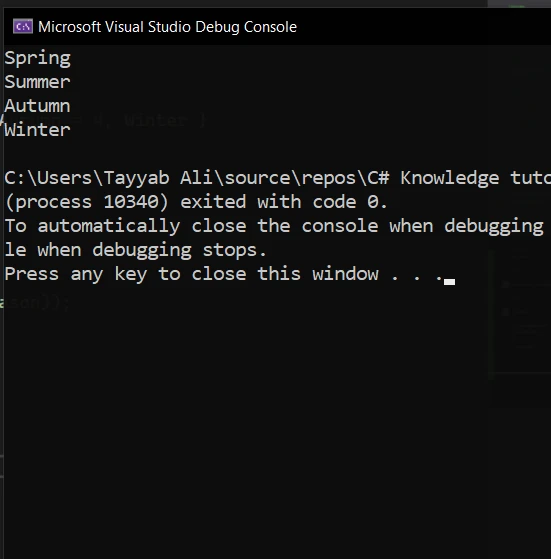
Este fragmento de código imprime los nombres de todos los miembros del enum **Season**. Tales métodos son increíblemente útiles para iterar sobre todos los posibles valores de un enum o convertir entre la representación de cadena y el valor del enum.
### Asignación de valores específicos a miembros de Enum
Puede asignar valores enteros específicos a los miembros de enum para controlar explícitamente su valor numérico.
```csharp
// Define an enum with custom integer values for members
enum ErrorCode : int { None = 0, NotFound = 404, Unauthorized = 401 }
```
En este ejemplo, **ErrorCode** es un enum con valores enteros personalizados asignados a cada miembro. Esto es útil para códigos numéricos predefinidos, como los códigos de estado HTTP.
### Uso de Enums como Bit Flags
Al usar el atributo **[Flags]**, puede definir un enum como un conjunto de banderas de bit. Esto le permite almacenar una combinación de valores en una sola variable enum.
```csharp
[Flags]
// Define an enum for permissions using bit flags
enum Permissions { None = 0, Read = 1, Write = 2, Execute = 4 }
```
Con el enum **Permissions** definido anteriormente, puede combinar diferentes permisos usando el operador OR a nivel de bit.
```csharp
// Combine permissions using bitwise OR
Permissions myPermissions = Permissions.Read | Permissions.Write;
```
Esto establece **myPermissions** a una combinación de permisos de **Read** y **Write**.
### Enumeraciones y sentencias Switch
Los enums funcionan excepcionalmente bien con las sentencias **switch**, lo que le permite ejecutar diferentes bloques de código basados en el valor del enum.
```csharp
// Use a switch statement with an enum
Season season = Season.Summer;
switch (season)
{
case Season.Spring:
Console.WriteLine("It's spring.");
break;
case Season.Summer:
Console.WriteLine("It's summer.");
break;
case Season.Autumn:
Console.WriteLine("It's autumn.");
break;
case Season.Winter:
Console.WriteLine("It's winter.");
break;
}
```
Este código imprimirá "Es verano." porque la variable **season** se establece en **Season.Summer**.
### Parar cadena a Enum
C# le permite analizar una cadena para obtener el valor de enum correspondiente usando el método **`Enum.Parse()`**.
```csharp
// Parse a string into an enum value
string input = "Winter";
Season season = (Season)Enum.Parse(typeof(Season), input);
```
Este código convierte la cadena **"Winter"** a su valor de enum correspondiente **Season.Winter**.
## Integrating IronPDF with Enums in C#
[IronPDF PDF Library for Dynamic Document Generation](/) es una biblioteca PDF para aplicaciones .NET que ayuda a los desarrolladores a crear, editar y manipular documentos PDF con facilidad. Esta poderosa biblioteca puede ser particularmente útil en escenarios donde se requiere la generación dinámica de PDF, como la generación de informes o facturas. En esta sección, exploraremos cómo integrar IronPDF con enums de C# para [crear informes PDF a partir de HTML en .NET](/examples/using-html-to-create-a-pdf/), y también cubriremos el proceso de instalación de IronPDF en su proyecto.
Con IronPDF, puedes convertir cualquier HTML, URL o página web en un PDF que se vea exactamente como la fuente. Es una gran opción para generar PDFs para facturas, informes y otros contenidos basados en la web. ¿Listo para convertir [HTML a PDF](/tutorials/html-to-pdf/)? IronPDF lo hace sin esfuerzo.
```csharp
using IronPdf;
class Program
{
static void Main(string[] args)
{
var renderer = new ChromePdfRenderer();
// 1. Convert HTML String to PDF
var htmlContent = "<h1>Hello, IronPDF!</h1><p>This is a PDF from an HTML string.</p>";
var pdfFromHtmlString = renderer.RenderHtmlAsPdf(htmlContent);
pdfFromHtmlString.SaveAs("HTMLStringToPDF.pdf");
// 2. Convert HTML File to PDF
var htmlFilePath = "path_to_your_html_file.html"; // Specify the path to your HTML file
var pdfFromHtmlFile = renderer.RenderHtmlFileAsPdf(htmlFilePath);
pdfFromHtmlFile.SaveAs("HTMLFileToPDF.pdf");
// 3. Convert URL to PDF
var url = "http://ironpdf.com"; // Specify the URL
var pdfFromUrl = renderer.RenderUrlAsPdf(url);
pdfFromUrl.SaveAs("URLToPDF.pdf");
}
}
```
### Instalación de IronPDF
La instalación de IronPDF es muy fácil usando la consola del administrador de paquetes NuGet. Abra la consola del administrador de paquetes en Visual Studio y escriba el siguiente comando:
```shell
:ProductInstall
```
Este comando instalará IronPDF en nuestro proyecto.
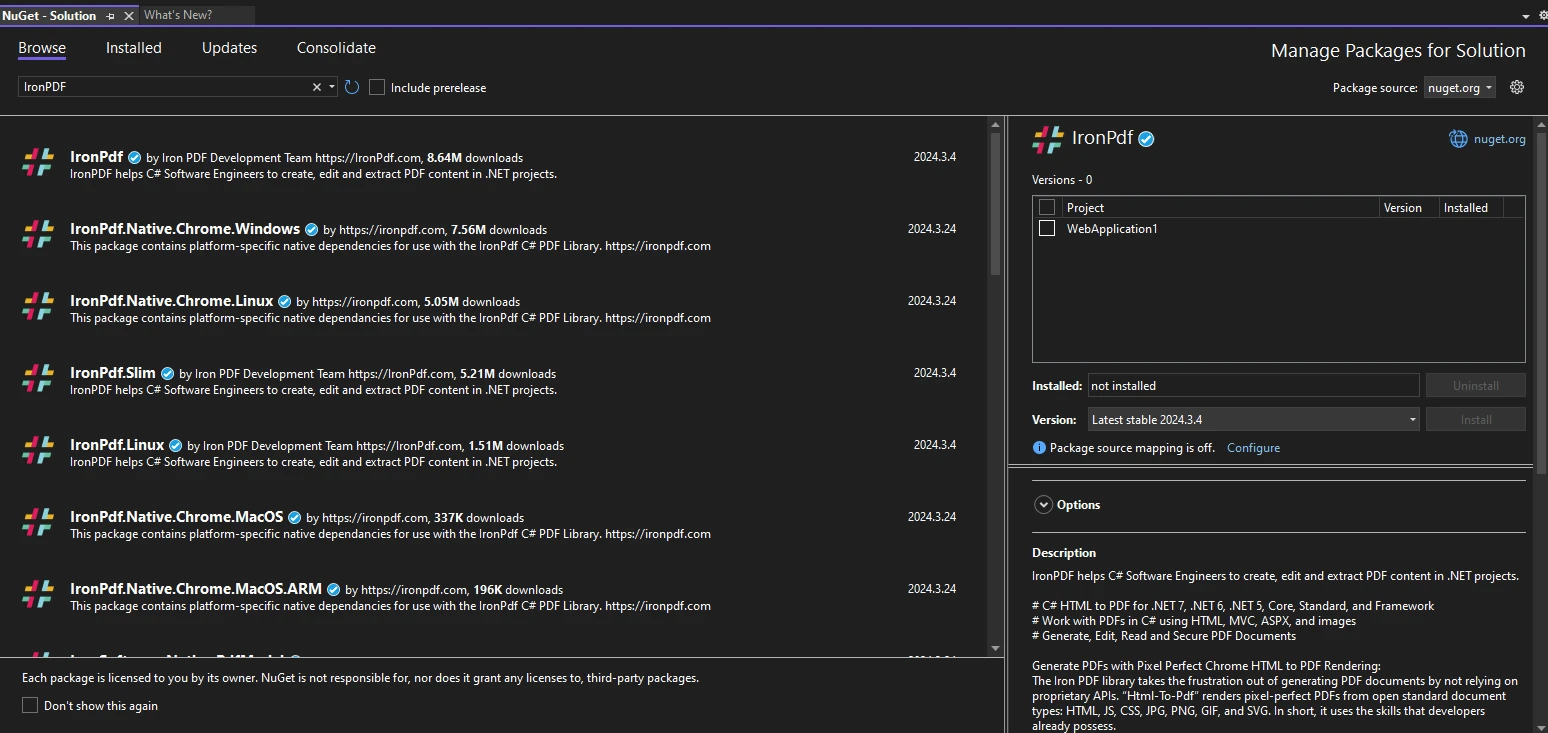
Una forma alternativa es instalar IronPDF en su proyecto utilizando Visual Studio. En Visual Studio, haga clic derecho en el explorador de soluciones y haga clic en Administrador de Paquetes NuGet para Soluciones. Luego, haga clic en la pestaña de búsqueda en el lado izquierdo. Luego, busque IronPDF, haga clic en instalar y agréguelo a su proyecto.
### Uso de IronPDF con Enums
Consideremos un escenario en el que desea generar un documento PDF que incluya un informe sobre los datos de ventas estacionales. Puede usar enums para representar diferentes temporadas e IronPDF para generar el informe PDF. Primero, defina un enum para las estaciones:
```csharp
public enum Season
{
Spring,
Summer,
Autumn,
Winter
}
```
A continuación, escribiremos un método que genere un informe PDF basado en la temporada seleccionada. Este método utilizará IronPDF para crear un documento PDF simple que describa los datos de ventas para la temporada dada.
```csharp
using IronPdf;
public class SalesReportGenerator
{
public static void GenerateSeasonalSalesReport(Season season)
{
IronPdf.License.LicenseKey = "License-Key";
var Renderer = new IronPdf.ChromePdfRenderer();
var htmlTemplate = $"<h1>Sales Report for {season}</h1><p>This section contains sales data for the {season} season.</p>";
var pdf = Renderer.RenderHtmlAsPdf(htmlTemplate);
var outputPath = $@"{season}SalesReport.pdf";
pdf.SaveAs(outputPath);
Console.WriteLine($"PDF report generated: {outputPath}");
}
}
```
En este ejemplo, definimos un método **GenerateSeasonalSalesReport** que toma un enum **Season** como parámetro. Utiliza la clase **ChromePdfRenderer** de IronPDF para generar un PDF a partir de una cadena HTML que incluye el nombre de la temporada y un texto de marcador de posición para los datos de ventas. El PDF se guarda luego con un nombre de archivo que incluye el nombre de la temporada.
### Ejecución
Para generar un informe de ventas estacional, llame al método **GenerateSeasonalSalesReport** con una temporada específica:
```csharp
static void Main(string[] args)
{
SalesReportGenerator.GenerateSeasonalSalesReport(Season.Winter);
}
```
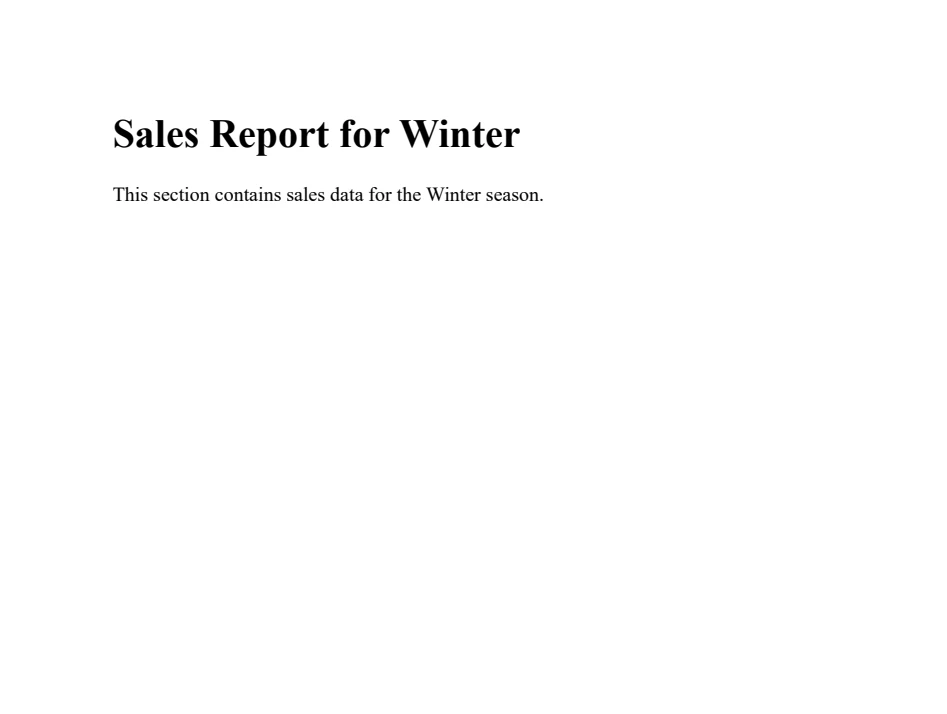
Esta llamada genera un documento PDF llamado **WinterSalesReport.pdf**, que incluye el informe de ventas para la temporada de invierno.
## Conclusión
Los enums en C# ofrecen una manera segura de trabajar con conjuntos de constantes nombradas relacionadas. Mejoran la legibilidad del código, reducen errores y facilitan una organización de código más limpia. Agrupando valores constantes relacionados bajo un nombre significativo, los enums hacen que su código sea más fácil de entender y mantener.
La integración de IronPDF con enums en C# permite la generación dinámica de documentos PDF basados en tipos enumerados. IronPDF ofrece una [prueba gratuita de sus completas herramientas PDF](trial-license), proporcionando una gama de opciones para adaptarse a diferentes necesidades y escalas de proyecto.
Contenido del cuerpo:
Los enums, que son abreviaturas de enumeraciones, son una característica poderosa que permite a los desarrolladores establecer un conjunto de constantes nombradas. Estas constantes hacen que el código sea más legible y fácil de mantener al proporcionar nombres significativos para los valores. En este artículo, exploraremos los conceptos básicos y avanzados de los enums en C# a través de varios ejemplos y explicaciones. Nuestro objetivo es proporcionar una comprensión completa de los enums y cómo pueden ser utilizados eficazmente en sus aplicaciones de C# usando la biblioteca IronPDF para la generación de PDF en .NET.
Introduction to Enum in C#
Un enum es un tipo de valor en C# que permite que una variable sea un conjunto de constantes predefinidas, cada una referida como un miembro enum. La palabra clave enum se utiliza para declarar un tipo de enumeración, proporcionando una manera de agrupar valores constantes bajo un solo nombre. Los enums mejoran la legibilidad del código y reducen los errores causados por el paso de valores incorrectos.
// Define an enum with four membersenum Season { Spring, Summer, Autumn, Winter }
// Define an enum with four members
enum Season { Spring, Summer, Autumn, Winter }
' Define an enum with four membersFriendEnumSeasonSpringSummerAutumnWinterEndEnum
' Define an enum with four members
Friend Enum Season
	Spring
	Summer
	Autumn
	Winter
End Enum
En el código anterior, Season es un tipo enum con cuatro miembros: Spring, Summer, Autumn y Winter. Al definir este enum, ahora podemos crear variables del tipo Season que solo pueden contener uno de estos cuatro valores.
Tipos subyacentes de Enums
Entender el valor entero de los miembros de Enum
Por defecto, el tipo subyacente de un enum en C# es int, conocido como el tipo integral subyacente, y los valores enteros de los miembros de enum comienzan desde 0. El valor entero de cada miembro se incrementa en 1 desde el miembro anterior a menos que se especifique explícitamente. También puede definir el tipo subyacente de un enum para que sea cualquier otro tipo integral.
// Define an enum with a byte underlying type and specific valuesenum Season : byte { Spring = 1, Summer, Autumn = 4, Winter }
// Define an enum with a byte underlying type and specific values
enum Season : byte { Spring = 1, Summer, Autumn = 4, Winter }
' Define an enum with a byte underlying type and specific valuesFriendEnumSeasonAsByteSpring = 1SummerAutumn = 4WinterEndEnum
' Define an enum with a byte underlying type and specific values
Friend Enum Season As Byte
	Spring = 1
	Summer
	Autumn = 4
	Winter
End Enum
En este ejemplo, el enum Season tiene un byte como su tipo subyacente. Spring se asigna explícitamente un valor de 1, lo que lo convierte en el valor predeterminado, mientras que a Summer, Autumn y Winter se les asignan valores correspondientes según su orden.
Uso de Enums en su código
Para usar un enum, simplemente declare una variable del tipo enum especificado y asígnele un valor del enum, como uno de los diferentes valores definidos dentro de la declaración del enum, usando la sintaxis de puntos.
// Declare a Season variable and assign it an enum member valueSeason currentSeason = Season.Autumn;
// Declare a Season variable and assign it an enum member value
Season currentSeason = Season.Autumn;
' Declare a Season variable and assign it an enum member valueDim currentSeason AsSeason = Season.Autumn
' Declare a Season variable and assign it an enum member value
Dim currentSeason As Season = Season.Autumn
Esta línea crea una variable currentSeason del tipo Season y le asigna el valor Autumn. Esto deja claro que currentSeason solo puede contener un valor que sea un Season válido.
Conversión entre valores Enum y enteros
Puede convertir un valor de enum a su valor entero correspondiente usando casting y viceversa. Esto es útil cuando necesita almacenar o transmitir datos en su forma numérica.
// Convert Season.Autumn to its integer value and vice versaint autumnInt = (int)Season.Autumn; // autumnInt will be 4Season season = (Season)4; // season will be Season.Autumn
// Convert Season.Autumn to its integer value and vice versa
int autumnInt = (int)Season.Autumn;     // autumnInt will be 4
Season season = (Season)4;              // season will be Season.Autumn
ImportsSystem' Convert Season.Autumn to its integer value and vice versaDim autumnInt AsInteger = CInt(Math.Truncate(Season.Autumn)) ' autumnInt will be 4Dim season AsSeason = CType(4, Season) ' season will be Season.Autumn
Imports System

' Convert Season.Autumn to its integer value and vice versa
Dim autumnInt As Integer = CInt(Math.Truncate(Season.Autumn)) ' autumnInt will be 4
Dim season As Season = CType(4, Season) ' season will be Season.Autumn
Aquí, autumnInt tendrá el valor 4, que corresponde a Autumn en el enum Season. Por el contrario, season se establecerá en Autumn al convertir el entero 4 de nuevo a un Season.
Trabajando con métodos Enum
C# proporciona varios métodos para trabajar con enums, como Enum.GetName(), Enum.GetNames(), Enum.GetValue(), y Enum.GetValues(), que son útiles para acceder a las constantes int asociadas con cada miembro de enum.
// Get names of all enum members and print themstring[] names = Enum.GetNames(typeof(Season));foreach (string name in names){Console.WriteLine(name);}
// Get names of all enum members and print them
string[] names = Enum.GetNames(typeof(Season));
foreach (string name in names)
{
    Console.WriteLine(name);
}
' Get names of all enum members and print themDim names() AsString = System.Enum.GetNames(GetType(Season))For Each name AsStringIn namesConsole.WriteLine(name)Next name
' Get names of all enum members and print them
Dim names() As String = System.Enum.GetNames(GetType(Season))
For Each name As String In names
	Console.WriteLine(name)
Next name
Este fragmento de código imprime los nombres de todos los miembros del enum Season. Tales métodos son increíblemente útiles para iterar sobre todos los posibles valores de un enum o convertir entre la representación de cadena y el valor del enum.
Asignación de valores específicos a miembros de Enum
Puede asignar valores enteros específicos a los miembros de enum para controlar explícitamente su valor numérico.
// Define an enum with custom integer values for membersenum ErrorCode : int { None = 0, NotFound = 404, Unauthorized = 401 }
// Define an enum with custom integer values for members
enum ErrorCode : int { None = 0, NotFound = 404, Unauthorized = 401 }
' Define an enum with custom integer values for membersFriendEnumErrorCodeAsIntegerNone = 0NotFound = 404Unauthorized = 401EndEnum
' Define an enum with custom integer values for members
Friend Enum ErrorCode As Integer
	None = 0
	NotFound = 404
	Unauthorized = 401
End Enum
En este ejemplo, ErrorCode es un enum con valores enteros personalizados asignados a cada miembro. Esto es útil para códigos numéricos predefinidos, como los códigos de estado HTTP.
Uso de Enums como Bit Flags
Al usar el atributo [Flags], puede definir un enum como un conjunto de banderas de bit. Esto le permite almacenar una combinación de valores en una sola variable enum.
[Flags]// Define an enum for permissions using bit flagsenum Permissions { None = 0, Read = 1, Write = 2, Execute = 4 }
[Flags]
// Define an enum for permissions using bit flags
enum Permissions { None = 0, Read = 1, Write = 2, Execute = 4 }
' Define an enum for permissions using bit flags<Flags>FriendEnumPermissionsNone = 0Read = 1Write = 2Execute = 4EndEnum
' Define an enum for permissions using bit flags
<Flags>
Friend Enum Permissions
	None = 0
	Read = 1
	Write = 2
	Execute = 4
End Enum
Con el enum Permissions definido anteriormente, puede combinar diferentes permisos usando el operador OR a nivel de bit.
// Combine permissions using bitwise OR
Permissions myPermissions = Permissions.Read | Permissions.Write;
' Combine permissions using bitwise ORDim myPermissions AsPermissions = Permissions.ReadOrPermissions.Write
' Combine permissions using bitwise OR
Dim myPermissions As Permissions = Permissions.Read Or Permissions.Write
Esto establece myPermissions a una combinación de permisos de Read y Write.
Enumeraciones y sentencias Switch
Los enums funcionan excepcionalmente bien con las sentencias switch, lo que le permite ejecutar diferentes bloques de código basados en el valor del enum.
// Use a switch statement with an enumSeason season = Season.Summer;switch (season){ case Season.Spring:Console.WriteLine("It's spring."); break; case Season.Summer:Console.WriteLine("It's summer."); break; case Season.Autumn:Console.WriteLine("It's autumn."); break; case Season.Winter:Console.WriteLine("It's winter."); break;}
// Use a switch statement with an enum
Season season = Season.Summer;
switch (season)
{
    case Season.Spring:
        Console.WriteLine("It's spring.");
        break;
    case Season.Summer:
        Console.WriteLine("It's summer.");
        break;
    case Season.Autumn:
        Console.WriteLine("It's autumn.");
        break;
    case Season.Winter:
        Console.WriteLine("It's winter.");
        break;
}
' Use a switch statement with an enumDim season AsSeason = Season.SummerSelect Case season CaseSeason.SpringConsole.WriteLine("It's spring.") CaseSeason.SummerConsole.WriteLine("It's summer.") CaseSeason.AutumnConsole.WriteLine("It's autumn.") CaseSeason.WinterConsole.WriteLine("It's winter.")End Select
' Use a switch statement with an enum
Dim season As Season = Season.Summer
Select Case season
	Case Season.Spring
		Console.WriteLine("It's spring.")
	Case Season.Summer
		Console.WriteLine("It's summer.")
	Case Season.Autumn
		Console.WriteLine("It's autumn.")
	Case Season.Winter
		Console.WriteLine("It's winter.")
End Select
Este código imprimirá "Es verano." porque la variable season se establece en Season.Summer.
Parar cadena a Enum
C# le permite analizar una cadena para obtener el valor de enum correspondiente usando el método Enum.Parse().
// Parse a string into an enum valuestring input = "Winter";Season season = (Season)Enum.Parse(typeof(Season), input);
// Parse a string into an enum value
string input = "Winter";
Season season = (Season)Enum.Parse(typeof(Season), input);
' Parse a string into an enum valueDim input AsString = "Winter"Dim season AsSeason = DirectCast(System.Enum.Parse(GetType(Season), input), Season)
' Parse a string into an enum value
Dim input As String = "Winter"
Dim season As Season = DirectCast(System.Enum.Parse(GetType(Season), input), Season)
Este código convierte la cadena "Winter" a su valor de enum correspondiente Season.Winter.
Integrating IronPDF with Enums in C#
IronPDF PDF Library for Dynamic Document Generation es una biblioteca PDF para aplicaciones .NET que ayuda a los desarrolladores a crear, editar y manipular documentos PDF con facilidad. Esta poderosa biblioteca puede ser particularmente útil en escenarios donde se requiere la generación dinámica de PDF, como la generación de informes o facturas. En esta sección, exploraremos cómo integrar IronPDF con enums de C# para crear informes PDF a partir de HTML en .NET, y también cubriremos el proceso de instalación de IronPDF en su proyecto.
Con IronPDF, puedes convertir cualquier HTML, URL o página web en un PDF que se vea exactamente como la fuente. Es una gran opción para generar PDFs para facturas, informes y otros contenidos basados en la web. ¿Listo para convertir HTML a PDF? IronPDF lo hace sin esfuerzo.
using IronPdf;class Program{ static voidMain(string[] args) { var renderer = new ChromePdfRenderer(); // 1. Convert HTML String to PDF var htmlContent = "<h1>Hello, IronPDF!</h1><p>This is a PDF from an HTML string.</p>"; var pdfFromHtmlString = renderer.RenderHtmlAsPdf(htmlContent); pdfFromHtmlString.SaveAs("HTMLStringToPDF.pdf"); // 2. Convert HTML File to PDF var htmlFilePath = "path_to_your_html_file.html"; // Specify the path to your HTML file var pdfFromHtmlFile = renderer.RenderHtmlFileAsPdf(htmlFilePath); pdfFromHtmlFile.SaveAs("HTMLFileToPDF.pdf"); // 3. Convert URL to PDF var url = "http://ironpdf.com"; // Specify the URL var pdfFromUrl = renderer.RenderUrlAsPdf(url); pdfFromUrl.SaveAs("URLToPDF.pdf"); }}
using IronPdf;

class Program
{
    static void Main(string[] args)
    {
        var renderer = new ChromePdfRenderer();

        // 1. Convert HTML String to PDF
        var htmlContent = "<h1>Hello, IronPDF!</h1><p>This is a PDF from an HTML string.</p>";
        var pdfFromHtmlString = renderer.RenderHtmlAsPdf(htmlContent);
        pdfFromHtmlString.SaveAs("HTMLStringToPDF.pdf");

        // 2. Convert HTML File to PDF
        var htmlFilePath = "path_to_your_html_file.html"; // Specify the path to your HTML file
        var pdfFromHtmlFile = renderer.RenderHtmlFileAsPdf(htmlFilePath);
        pdfFromHtmlFile.SaveAs("HTMLFileToPDF.pdf");

        // 3. Convert URL to PDF
        var url = "http://ironpdf.com"; // Specify the URL
        var pdfFromUrl = renderer.RenderUrlAsPdf(url);
        pdfFromUrl.SaveAs("URLToPDF.pdf");
    }
}
ImportsIronPdfFriend Class ProgramShared Sub Main(ByVal args() AsString) Dim renderer = New ChromePdfRenderer() ' 1. Convert HTML String to PDF Dim htmlContent = "<h1>Hello, IronPDF!</h1><p>This is a PDF from an HTML string.</p>" Dim pdfFromHtmlString = renderer.RenderHtmlAsPdf(htmlContent) pdfFromHtmlString.SaveAs("HTMLStringToPDF.pdf") ' 2. Convert HTML File to PDF Dim htmlFilePath = "path_to_your_html_file.html" ' Specify the path to your HTML file Dim pdfFromHtmlFile = renderer.RenderHtmlFileAsPdf(htmlFilePath) pdfFromHtmlFile.SaveAs("HTMLFileToPDF.pdf") ' 3. Convert URL to PDF Dim url = "http://ironpdf.com" ' Specify the URL Dim pdfFromUrl = renderer.RenderUrlAsPdf(url) pdfFromUrl.SaveAs("URLToPDF.pdf") End SubEnd Class
Imports IronPdf

Friend Class Program
	Shared Sub Main(ByVal args() As String)
		Dim renderer = New ChromePdfRenderer()

		' 1. Convert HTML String to PDF
		Dim htmlContent = "<h1>Hello, IronPDF!</h1><p>This is a PDF from an HTML string.</p>"
		Dim pdfFromHtmlString = renderer.RenderHtmlAsPdf(htmlContent)
		pdfFromHtmlString.SaveAs("HTMLStringToPDF.pdf")

		' 2. Convert HTML File to PDF
		Dim htmlFilePath = "path_to_your_html_file.html" ' Specify the path to your HTML file
		Dim pdfFromHtmlFile = renderer.RenderHtmlFileAsPdf(htmlFilePath)
		pdfFromHtmlFile.SaveAs("HTMLFileToPDF.pdf")

		' 3. Convert URL to PDF
		Dim url = "http://ironpdf.com" ' Specify the URL
		Dim pdfFromUrl = renderer.RenderUrlAsPdf(url)
		pdfFromUrl.SaveAs("URLToPDF.pdf")
	End Sub
End Class
Instalación de IronPDF
La instalación de IronPDF es muy fácil usando la consola del administrador de paquetes NuGet. Abra la consola del administrador de paquetes en Visual Studio y escriba el siguiente comando:
PM > Install-Package IronPdf
Install-Package IronPdf
Este comando instalará IronPDF en nuestro proyecto.
Una forma alternativa es instalar IronPDF en su proyecto utilizando Visual Studio. En Visual Studio, haga clic derecho en el explorador de soluciones y haga clic en Administrador de Paquetes NuGet para Soluciones. Luego, haga clic en la pestaña de búsqueda en el lado izquierdo. Luego, busque IronPDF, haga clic en instalar y agréguelo a su proyecto.
Uso de IronPDF con Enums
Consideremos un escenario en el que desea generar un documento PDF que incluya un informe sobre los datos de ventas estacionales. Puede usar enums para representar diferentes temporadas e IronPDF para generar el informe PDF. Primero, defina un enum para las estaciones:
public enum Season{Spring,Summer,Autumn,Winter}
public enum Season
{
    Spring,
    Summer,
    Autumn,
    Winter
}
PublicEnumSeasonSpringSummerAutumnWinterEndEnum
Public Enum Season
	Spring
	Summer
	Autumn
	Winter
End Enum
A continuación, escribiremos un método que genere un informe PDF basado en la temporada seleccionada. Este método utilizará IronPDF para crear un documento PDF simple que describa los datos de ventas para la temporada dada.
using IronPdf;public class SalesReportGenerator{ public static voidGenerateSeasonalSalesReport(Season season) {IronPdf.License.LicenseKey = "License-Key"; varRenderer = new IronPdf.ChromePdfRenderer(); var htmlTemplate = $"<h1>Sales Report for {season}</h1><p>This section contains sales data for the {season} season.</p>"; var pdf = Renderer.RenderHtmlAsPdf(htmlTemplate); var outputPath = $@"{season}SalesReport.pdf"; pdf.SaveAs(outputPath);Console.WriteLine($"PDF report generated: {outputPath}"); }}
using IronPdf;
public class SalesReportGenerator
{
    public static void GenerateSeasonalSalesReport(Season season)
    {
        IronPdf.License.LicenseKey = "License-Key";
        var Renderer = new IronPdf.ChromePdfRenderer();
        var htmlTemplate = $"<h1>Sales Report for {season}</h1><p>This section contains sales data for the {season} season.</p>";
        var pdf = Renderer.RenderHtmlAsPdf(htmlTemplate);
        var outputPath = $@"{season}SalesReport.pdf";
        pdf.SaveAs(outputPath);
        Console.WriteLine($"PDF report generated: {outputPath}");
    }
}
ImportsIronPdfPublic Class SalesReportGenerator PublicShared Sub GenerateSeasonalSalesReport(ByVal season AsSeason)IronPdf.License.LicenseKey = "License-Key" DimRenderer = New IronPdf.ChromePdfRenderer() Dim htmlTemplate = $"<h1>Sales Report for {season}</h1><p>This section contains sales data for the {season} season.</p>" Dim pdf = Renderer.RenderHtmlAsPdf(htmlTemplate) Dim outputPath = $"{season}SalesReport.pdf" pdf.SaveAs(outputPath)Console.WriteLine($"PDF report generated: {outputPath}") End SubEnd Class
Imports IronPdf
Public Class SalesReportGenerator
	Public Shared Sub GenerateSeasonalSalesReport(ByVal season As Season)
		IronPdf.License.LicenseKey = "License-Key"
		Dim Renderer = New IronPdf.ChromePdfRenderer()
		Dim htmlTemplate = $"<h1>Sales Report for {season}</h1><p>This section contains sales data for the {season} season.</p>"
		Dim pdf = Renderer.RenderHtmlAsPdf(htmlTemplate)
		Dim outputPath = $"{season}SalesReport.pdf"
		pdf.SaveAs(outputPath)
		Console.WriteLine($"PDF report generated: {outputPath}")
	End Sub
End Class
En este ejemplo, definimos un método GenerateSeasonalSalesReport que toma un enum Season como parámetro. Utiliza la clase ChromePdfRenderer de IronPDF para generar un PDF a partir de una cadena HTML que incluye el nombre de la temporada y un texto de marcador de posición para los datos de ventas. El PDF se guarda luego con un nombre de archivo que incluye el nombre de la temporada.
Ejecución
Para generar un informe de ventas estacional, llame al método GenerateSeasonalSalesReport con una temporada específica:
Shared Sub Main(ByVal args() AsString)SalesReportGenerator.GenerateSeasonalSalesReport(Season.Winter)End Sub
Shared Sub Main(ByVal args() As String)
	SalesReportGenerator.GenerateSeasonalSalesReport(Season.Winter)
End Sub
Esta llamada genera un documento PDF llamado WinterSalesReport.pdf, que incluye el informe de ventas para la temporada de invierno.
Conclusión
Los enums en C# ofrecen una manera segura de trabajar con conjuntos de constantes nombradas relacionadas. Mejoran la legibilidad del código, reducen errores y facilitan una organización de código más limpia. Agrupando valores constantes relacionados bajo un nombre significativo, los enums hacen que su código sea más fácil de entender y mantener.
La integración de IronPDF con enums en C# permite la generación dinámica de documentos PDF basados en tipos enumerados. IronPDF ofrece una prueba gratuita de sus completas herramientas PDF, proporcionando una gama de opciones para adaptarse a diferentes necesidades y escalas de proyecto.
Jacob Mellor es Director de Tecnología de Iron Software y un ingeniero visionario pionero en la tecnología C# PDF. Como desarrollador original de la base de código principal de Iron Software, ha dado forma a la arquitectura de productos de la empresa desde su creación, transformándola, junto con el director ejecutivo Cameron Rimington, en una empresa de más de 50 personas que presta servicios a la NASA, Tesla y organismos gubernamentales de todo el mundo.


























