


更新日 2026年4月21日
linkify-react(そのしくみ:開発者向けガイド)
Linkify React は、URL を含むプレインテキストの変換を自動化する軽量で使いやすい npm パッケージです。
詳しく読む

認証は、ユーザーがデータと機能に安全にアクセスできるようにし、インフラストラクチャサポートを提供することから、現代のウェブアプリケーションにとって重要です。 NextAuth.jsは、Next.jsとシームレスに連携するように設計された強力で柔軟な認証ライブラリです。 この記事では、Next.jsプロジェクトでNextAuth.jsをセットアップして使用する方法を探り、ユーザーデータを簡単に保護する方法を紹介します。 私たちはまた、IronPDFライブラリと統合して、直感的なステートレス認証をプロジェクトに組み込む方法を示します。
NextAuth.jsは、Next.jsアプリケーション用のオープンソースの認証ライブラリで、ウェブアプリに柔軟で安全な認証を実装する方法を提供します。NextAuth.jsを使用することで、開発者はユーザー認証とセッション管理の複雑さを管理することなく、Next.jsプロジェクトに認証を簡単に統合できます。
パッケージは非常に構成可能であり、開発者が認証フローをカスタマイズし、APIルートを保護し、ユーザーセッションをシームレスに処理することができます。 アカウントへのアクセス管理、JSON Webトークンの暗号化およびデコード、カスタムクッキーセキュリティポリシーとセッション属性の確立に関するプロシージャを作成できる拡張機能により、アカウントへのアクセスを調整し、セッション検証の頻度を制御することができます。
NextAuth.jsは以下の利点を提供します:
まず、新しいNext.jsプロジェクトを作成しましょう。 ターミナルを開き、次のコマンドを実行します:
npx create-next-app@latest my-next-auth-app
cd my-next-auth-app次に、NextAuth.jsをインストールします:
npm install next-auth認証を処理するためのAPIルート用の新しいファイルを作成します。 ディレクトリ[...nextauth].jsファイルを作成します。
// pages/api/auth/[...nextauth].js
import NextAuth from 'next-auth';
import GitHubProvider from 'next-auth/providers/github';
import GoogleProvider from 'next-auth/providers/google';

// Configuring NextAuth to use GitHub and Google providers for authentication
export default NextAuth({
  providers: [
    GitHubProvider({
      clientId: process.env.GITHUB_ID,
      clientSecret: process.env.GITHUB_SECRET,
    }),
    GoogleProvider({
      clientId: process.env.GOOGLE_CLIENT_ID,
      clientSecret: process.env.GOOGLE_CLIENT_SECRET,
    }),
  ],
  secret: process.env.NEXTAUTH_SECRET, // Secret for encrypting tokens if needed
});プロジェクトのルートに環境変数を格納するための.env.localファイルを作成します。
# Just make sure to fill out the variables with your actual information!
GITHUB_ID=your_github_client_id
GITHUB_SECRET=your_github_client_secret
GOOGLE_CLIENT_ID=your_google_client_id
GOOGLE_CLIENT_SECRET=your_google_client_secret
NEXTAUTH_SECRET=your_nextauth_secretそれでは、アプリケーションに認証を追加しましょう。 ログインボタンとユーザー情報を表示するプロファイルコンポーネントを作成します。
// components/LoginButton.js
import { signIn, signOut, useSession } from 'next-auth/react';

const LoginButton = () => {
  const { data: session, status } = useSession();
  const loading = status === "loading"; // Used to determine loading state
  return (
    <div>
      {!session && ( // Render sign-in buttons when session is not active
        <>
          <button onClick={() => signIn('github')}>Sign in with GitHub</button>
          <button onClick={() => signIn('google')}>Sign in with Google</button>
        </>
      )}
      {session && ( // Display user info and sign-out option when session is active
        <>
          <p>Signed in as {session.user.email}</p>
          <button onClick={() => signOut()}>Sign out</button>
        </>
      )}
    </div>
  );
};

export default LoginButton;LoginButtonコンポーネントは、NextAuth.jsを使用してNext.jsアプリケーションでユーザー認証を処理します。 useSessionフックを使用して、ユーザーがログインしているかどうかを判断します。 ユーザーが認証されていない場合、GitHubまたはGoogleを使用してサインインできるボタンを表示します。 ユーザーが認証されている場合、メールアドレスとサインアウトするボタンを含むメッセージを表示します。 このコンポーネントは、セッションオブジェクトを操作して、ユーザーのログインおよびログアウトアクションを管理するためのシンプルなインターフェースを提供します。
ルートを保護し、認証されたユーザーのみが特定のページにアクセスできるようにするために、NextAuth.jsのgetSession関数を使用します。
// pages/protected.js
import { getSession } from 'next-auth/react';

const ProtectedPage = ({ session }) => {
  if (!session) {
    return <p>You need to be authenticated to view this page.</p>;
  }
  return <p>Welcome, {session.user.email}!</p>;
};

export async function getServerSideProps(context) {
  const session = await getSession(context); // Fetch session data server-side
  return {
    props: { session },
  };
}

export default ProtectedPage;Next.jsアプリケーションのProtectedPageコンポーネントは、NextAuth.jsを使用して、認証されたユーザーのみがアクセスできるようにします。 ユーザーのセッションプロパティをサーバーサイドでgetServerSidePropsを使用して取得し、それをコンポーネントにプロップとして渡します。 ユーザーが認証されていない場合、認証が必要というメッセージが表示されます。 ユーザーが認証されている場合、メールアドレスを表示して歓迎します。 このセットアップにより、ログインしているユーザーのみがページのコンテンツにアクセスできることが保証されます。
IronPDFは、開発者がNode.jsプロジェクトでPDFを生成および編集できる強力なNode.js PDFライブラリです。 HTMLからPDFを作成したり、既存のPDFを操作したり、ウェブページをPDF形式に変換する必要がある場合は、IronPDFがサポートします。
HTMLコンテンツを簡単にPDFドキュメントに変換します。 この機能は、動的なPDFをウェブコンテンツから生成するのに特に便利です。
URLから直接PDFを生成し、ウェブページのコンテンツをプログラム的にキャプチャしてPDFファイルとして保存することができます。
既存のPDFドキュメントを簡単にマージ、分割、および操作します。 IronPDFは、ページの追加やドキュメントの分割などの機能を提供します。
パスワードで暗号化したりデジタル署名を適用したりしてPDFドキュメントを保護します。 IronPDFは、機密文書の不正アクセスから保護するためのオプションを提供します。
テキスト、画像、およびフォーマットの正確なレンダリングを備えた高品質のPDFドキュメントを作成します。 IronPDFは、生成されたPDFが元のコンテンツの忠実度を保つことを保証します。
IronPDFは、Windows、Linux、macOSを含む様々なプラットフォームと互換性があり、幅広い開発環境に適しています。
npmパッケージを使用してNode.jsアプリケーションにIronPDFを簡単に統合します。 APIは十分に文書化されており、プロジェクトにPDF生成機能を組み込むのが簡単です。
IronPDFパッケージをインストールするには、次のコマンドを使用します:
yarn add @ironsoftware/ironpdf @ironsoftware/ironpdf-engine-windows-x64**依存関係のインストール:**まず、次のコマンドを使用して新しい Next.js プロジェクトを作成します (まだ作成していない場合)。
npx create-next-app@latest nextauth-pdf --use-npm --example "https://github.com/vercel/next-learn/tree/main/basics/learn-starter"次に、プロジェクトディレクトリに移動します。
cd nextauth必要なパッケージをインストールします。
yarn add @ironsoftware/ironpdf @ironsoftware/ironpdf-engine-windows-x64
yarn add next-auth**PDF 生成 API:**最初のステップは、PDF ドキュメントを生成するためのバックエンド API を作成することです。 IronPDFはサーバー側でのみ実行されるため、ユーザーがPDFを生成したいときに呼び出すAPIを作成する必要があります。 パスpages/api/pdf.jsにファイルを作成し、以下の内容を追加します。
// pages/api/pdf.js
import { IronPdf } from "@ironsoftware/ironpdf";
import { format } from 'date-fns'; // Import the format function for date formatting

// Apply your IronPDF license key
IronPdf.GlobalSettings.LicenseKey = "Your license key goes here";

export default async function handler(req, res) {
  try {
    const currentDate = new Date();
    const formattedDate = format(currentDate, 'MMMM do, yyyy');
    // Defining the HTML content for the PDF
    let content = "<h1>Demo React Hook Form and Generate PDF Using IronPDF</h1>";
    content += `<p>Date: ${currentDate}</p>`;
    content += `<p>Formatted Date: ${formattedDate}</p>`;
    // Convert HTML content to PDF
    const pdf = await IronPdf.HtmlToPdfDocument({ htmlContent: content });
    const data = await pdf.toBuffer(); // Convert the PDF to a buffer for response
    res.setHeader("Content-Type", "application/pdf");
    res.setHeader(
      "Content-Disposition",
      "attachment; filename=awesomeIron.pdf"
    );
    res.send(data); // Send the PDF file as a response
  } catch (error) {
    console.error("Error generating PDF:", error);
    res.status(500).end();
  }
}これは、IronPDFライブラリを使用してPDFファイルを生成するNext.js APIルートを作成します。 ヘッダーと現在の日付を含むHTML文字列を作成し、date-fnsを使用して日付をフォーマットし、そのHTMLをPDFに変換します。 生成されたPDFは、応答でダウンロード可能なファイルとして返されます。 このアプローチは、レポート、請求書、その他のドキュメントをその場で作成するのに便利な、サーバーサイド環境での動的なPDF生成を可能にします。
それでは、Next-Authを使用してフロントエンドウェブサイトにGITログインを追加しましょう。 これには、ユーザーのGitIDとシークレットを取得する必要があります。 Gitアカウントにログインし、以下のように開発者設定に移動します:
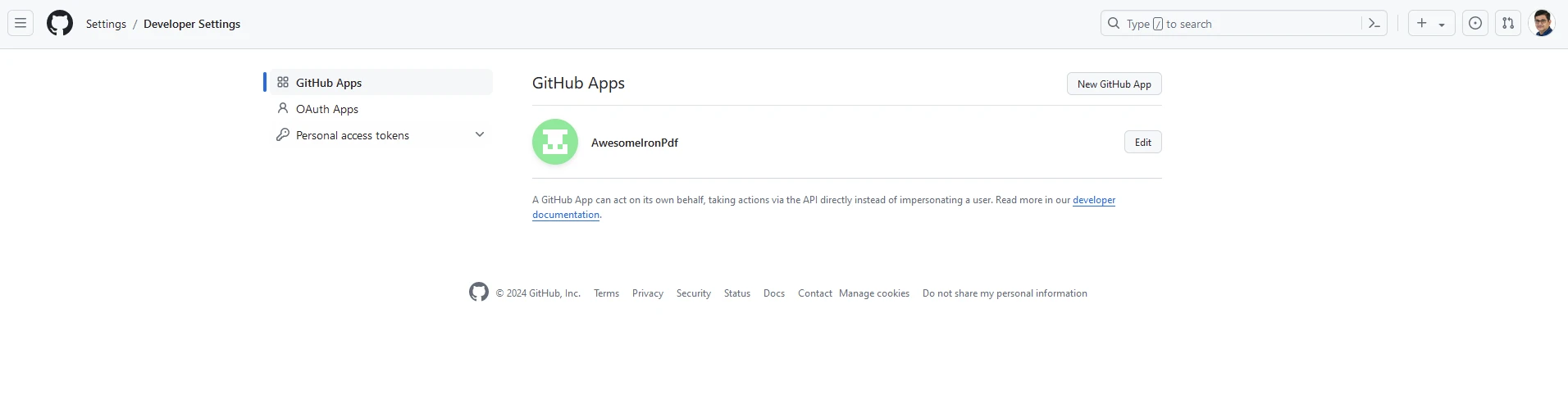
_New GitHub App_をクリックして、ウェブサイトの詳細を追加します:
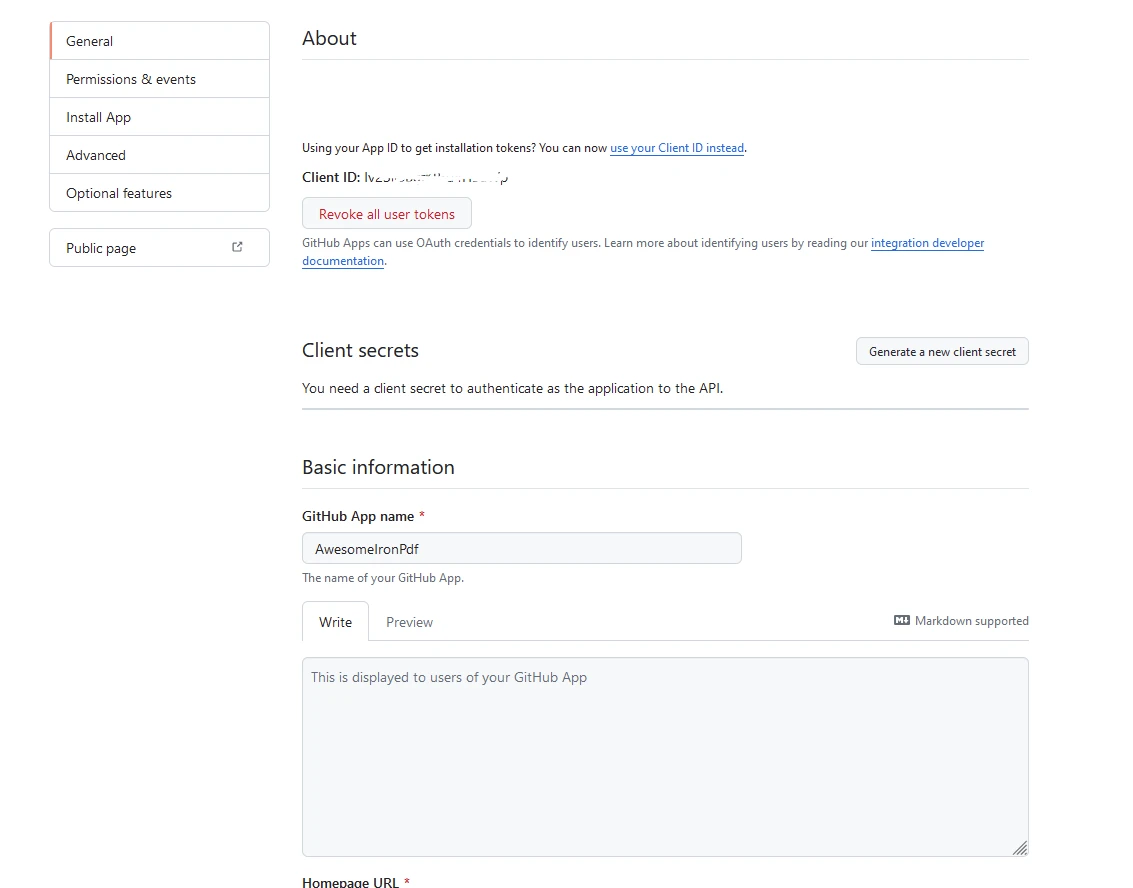
App IDとClient IDを安全な場所に保存してください。 次に、プロジェクトのルートに環境変数を格納するための.env.localファイルを作成します。
# Here you can use the App and Client ID you just got from GitHub
GITHUB_ID=your_github_client_id
GITHUB_SECRET=your_github_client_secret
NEXTAUTH_SECRET=secret認証を処理するためのAPIルート用の新しいファイルを作成します。 ディレクトリ[...nextauth].jsファイルを作成します。
// pages/api/auth/[...nextauth].js
import NextAuth from 'next-auth';
import GitHubProvider from 'next-auth/providers/github';

// Setting up NextAuth with GitHub provider
export default NextAuth({
  providers: [
    GitHubProvider({
      clientId: process.env.GITHUB_ID,
      clientSecret: process.env.GITHUB_SECRET,
    }),
  ],
  secret: process.env.NEXTAUTH_SECRET,
});そしてLoginButton.jsというコンポーネントを追加します。 それには次の内容が含まれます:
// components/LoginButton.js
import { useSession, signIn, signOut } from "next-auth/react"

export default function Component() {
  const { data: session } = useSession()
  if (session) { // Display sign-out button and user info when session is active
    return (
      <>
        Signed in as {session.user.email} <br />
        <button onClick={() => signOut()}>Sign out</button>
      </>
    )
  }
  return ( // Display sign-in button when not signed in
    <>
      Not signed in <br />
      <button onClick={() => signIn()}>Sign in</button>
    </>
  )
}以下のようにindex.jsを修正します。
// pages/index.js
import Head from "next/head";
import styles from "../styles/Home.module.css";
import React, { useState, useEffect } from "react";
import { format } from "date-fns";
import LoginButton from "../components/LoginButton";
import { useSession } from "next-auth/react";

export default function Home() {
  const [text, setText] = useState("");
  const { data: session } = useSession();

  useEffect(() => {
    const currentDate = new Date();
    const formattedDate = format(currentDate, "MMMM do, yyyy");
    setText(formattedDate); // Set initial text state to formatted current date
  }, []);

  const generatePdf = async () => {
    try {
      const response = await fetch("/api/pdf-datefns?f=" + text);
      const blob = await response.blob();
      const url = window.URL.createObjectURL(new Blob([blob]));
      const link = document.createElement("a");
      link.href = url;
      link.setAttribute("download", "awesomeIron.pdf");
      document.body.appendChild(link);
      link.click();
      link.parentNode.removeChild(link); // Clean up after downloading
    } catch (error) {
      console.error("Error generating PDF:", error);
    }
  };

  const handleChange = (event) => {
    setText(event.target.value); // Update the text state with input value
  };

  return (
    <div className={styles.container}>
      <Head>
        <title>Generate PDF Using IronPDF</title>
        <link rel="icon" href="/favicon.ico" />
      </Head>
      <main>
        <h1>Demo Next Auth and Generate PDF Using IronPDF</h1>
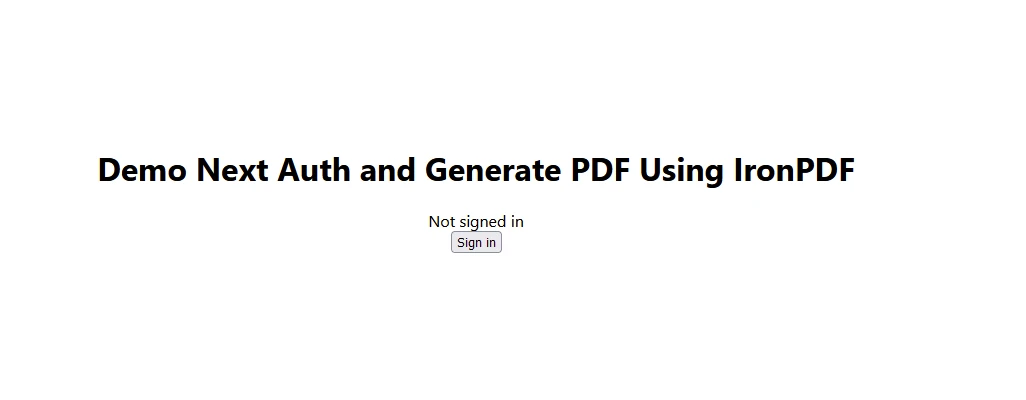
        {!session && <LoginButton />}
        {session && (
          <>
            <p className="w-full text-center">
              <span className="px-4 text-xl border-gray-500">
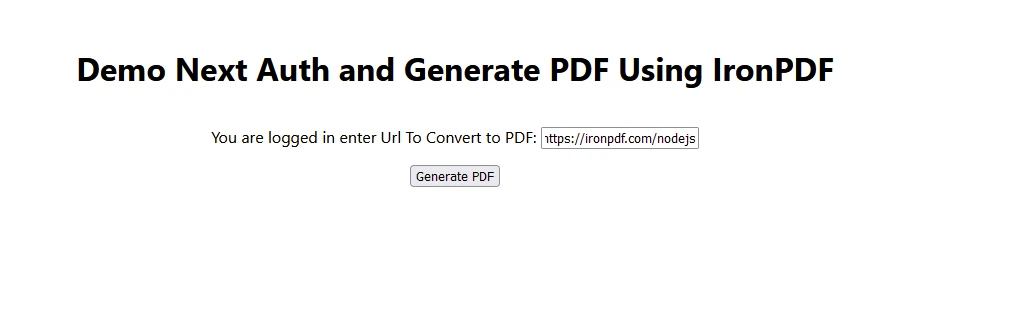
                You are logged in enter URL to convert to PDF:
              </span>
              <input
                className="border border-gray-700 w-1/4"
                onChange={handleChange}
                placeholder="Enter URL here..."
              />
            </p>
            <button
              className="rounded-sm bg-blue-800 p-2 m-12 text-xl text-white"
              onClick={generatePdf}
            >
              Generate PDF
            </button>
          </>
        )}
      </main>
      <style jsx>{`
        main {
          padding: 5rem 0;
          flex: 1;
          display: flex;
          flex-direction: column;
          justify-content: center;
          align-items: center;
        }
        footer {
          width: 100%;
          height: 100px;
          border-top: 1px solid #eaeaea;
          display: flex;
          justify-content: center;
          align-items: center;
        }
        footer img {
          margin-left: 0.5rem;
        }
        footer a {
          display: flex;
          justify-content: center;
          align-items: center;
          text-decoration: none;
          color: inherit;
        }
        code {
          background: #fafafa;
          border-radius: 5px;
          padding: 0.75rem;
          font-size: 1.1rem;
          font-family:
            Menlo,
            Monaco,
            Lucida Console,
            Liberation Mono,
            DejaVu Sans Mono,
            Bitstream Vera Sans Mono,
            Courier New,
            monospace;
        }
      `}</style>
      <style jsx global>{`
        html,
        body {
          padding: 0;
          margin: 0;
          font-family:
            -apple-system,
            BlinkMacSystemFont,
            Segoe UI,
            Roboto,
            Oxygen,
            Ubuntu,
            Cantarell,
            Fira Sans,
            Droid Sans,
            Helvetica Neue,
            sans-serif;
        }
        * {
          box-sizing: border-box;
        }
      `}</style>
    </div>
  );
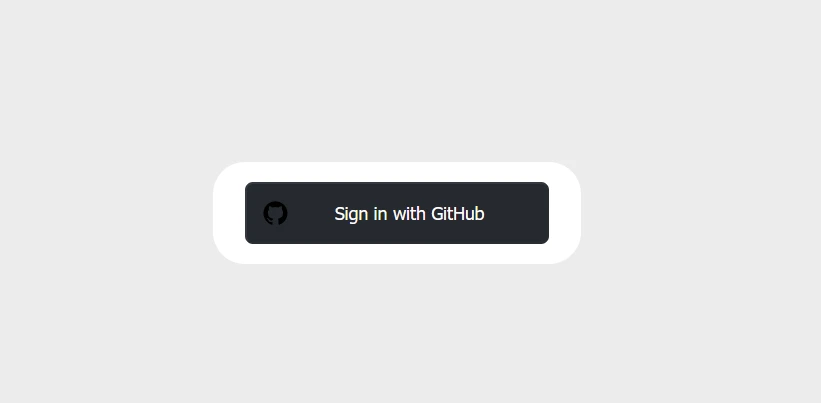
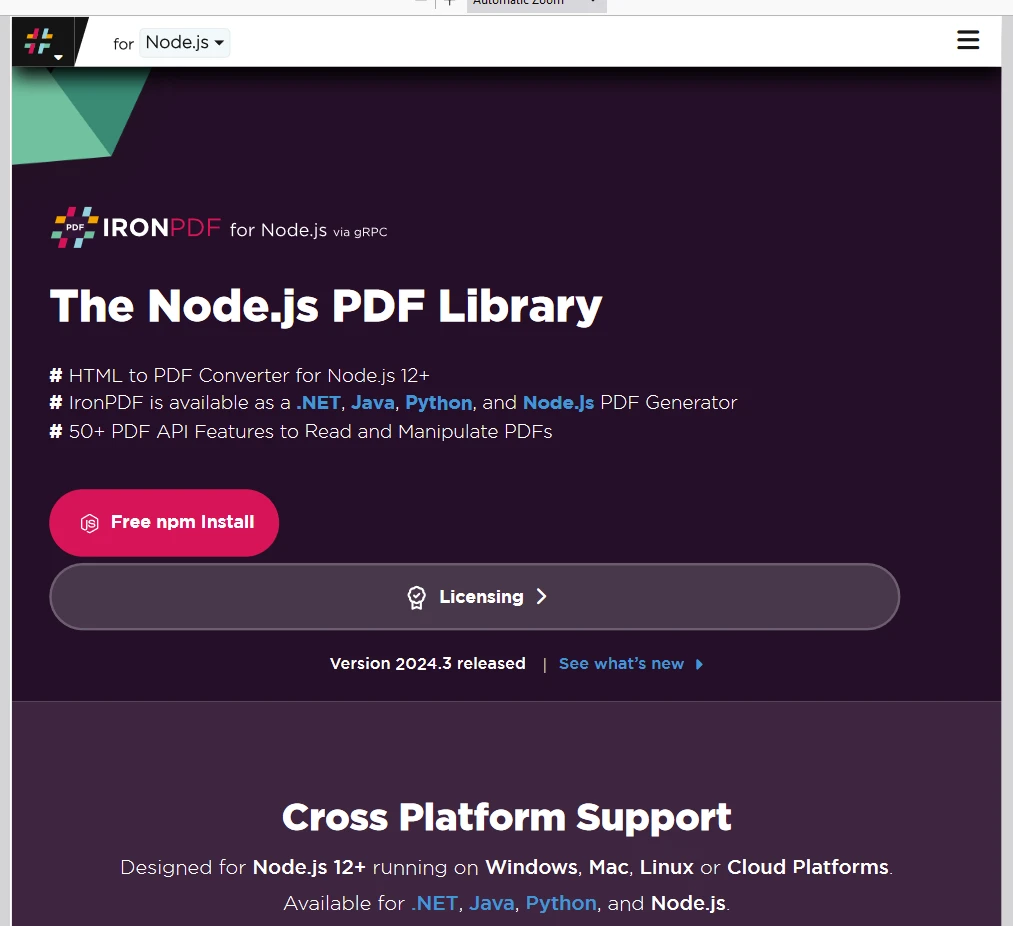
}
コードの先頭に受け取ったライセンスキーを配置することを忘れないでください:
// Adjust paths as necessary depending on how you import IronPDF
import { IronPdfGlobalConfig, PdfDocument } from "@ironsoftware/ironpdf";

// Apply your IronPDF license key
IronPdfGlobalConfig.getConfig().licenseKey = "Add Your key here";最終的に、NextAuth.jsはNext.jsアプリケーションに認証を追加するプロセスを簡素化します。 複数のプロバイダーをサポートし、堅牢なセキュリティ機能を備えているため、ユーザー認証の処理に最適です。 NextAuth.js のドキュメントを参照して、より高度な構成や機能を探索することができます。 その上、IronPDF Node.jsは、現代のアプリケーション開発にうまく統合され、堅牢なPDF生成と操作機能をアプリケーションに提供します。

Curtis Chauは、カールトン大学でコンピュータサイエンスの学士号を取得し、Node.js、TypeScript、JavaScript、およびReactに精通したフロントエンド開発を専門としています。直感的で美しいユーザーインターフェースを作成することに情熱を持ち、Curtisは現代のフレームワークを用いた開発や、構造の良い視覚的に魅力的なマニュアルの作成を楽しんでいます。

IronPDF はIRONSUITEの一部です
オフィス文書向けの.NET API製品10個

PDFがHTMLのように見える必要があるとき、迅速に。











