



푸터 콘텐츠로 바로가기
.NET 도움말

Jupyter Notebook C# (How it Works For Developers)

Introduction to Jupyter Notebook

Jupyter Notebook is a web application that allows you to create and share documents containing live runnable code snippets, visualizations, equations, and narrative text. It is an open-source project widely recognized for its robustness in data science and research. Jupyter Notebook has now fully embraced C# through integration with .NET Core. This integration is pivotal for C# developers and data analysts inclined towards .NET technologies, as it combines the rich features of Jupyter Notebooks with the robustness of C# and the .NET framework to provide more interactive experiences.

Understanding the .NET Core Integration

.NET Core is a versatile and cross-platform framework from Microsoft that now works hand-in-hand with Jupyter Notebooks through the .NET Interactive tool. This combination offers a powerful platform for creating rich interactive documentation, complete with runnable C# code snippets. With .NET Core, you can leverage the strengths of C# and F# in an interactive environment, making it ideal for tutorials, data analysis, and much more.

Setting Up Jupyter Notebook for C#

To start with Jupyter Notebooks in C#, the .NET SDK needs to be installed. This Software Development Kit is a collection of libraries and tools that empower developers to build and run .NET applications and services. Once you have the .NET SDK, the next step is to install the .NET Interactive tool specific to Jupyter.

Installing the .NET Interactive Tool

The .NET Interactive tool can be installed as a global tool on your machine using the following command:

dotnet tool install --global Microsoft.dotnet-interactive
SHELL

Post-installation, this tool enables you to integrate C# with Jupyter by running the following command to connect the .NET Interactive tool with Jupyter:

dotnet interactive jupyter install
SHELL

Setting up Your First C# Notebook

To create a new C# notebook in Jupyter, go to the Jupyter dashboard, then click on 'New' and select 'C# (.NET Interactive)'. This creates a blank notebook, a canvas where you can start scripting in C#.

Working with a C# Kernel in Jupyter

In a Jupyter Notebook with a C# kernel, you can write and execute C# code interactively in cells. Each cell in the notebook can contain code, which you can run independently. This feature is excellent for testing small code snippets or developing step-by-step tutorials. For example, you can write simple C# code in a new cell to display output:

// Print a message to the console
Console.WriteLine("Hello, Jupyter Notebook C#!");
// Print a message to the console
Console.WriteLine("Hello, Jupyter Notebook C#!");
$vbLabelText   $csharpLabel

Advanced Features in C# Jupyter Notebooks

The integration of C# Jupyter Notebooks with Visual Studio Code enhances the development experience, especially for those accustomed to Microsoft's IDE. Within VSCode, you can utilize the command palette to execute Jupyter-specific commands and provide a smooth transition between different development environments.

Interactive Documentation and Code Execution

A standout feature of Jupyter Notebook is the ability to create interactive documentation. This means you can write a piece of code, document it, and allow others to execute and modify it directly within the notebook. It's a powerful way to demonstrate code functionality and share knowledge.

Managing Jupyter Notebooks

To effectively manage Jupyter Notebooks, it's essential to understand the workings of the Jupyter server. Commands like jupyter kernelspec list help in listing all the available kernels. Managing these kernels is crucial for a smooth cross-language experience in Jupyter.

Integrating with Python and Other Languages

Jupyter Notebooks' flexibility in supporting multiple languages allows for seamless integration between Python and C#. If you also have Python installed, you can switch between the languages within the same notebook, making it an invaluable aid for polyglot programming and data analysis. Here's an example of using Python and C# in the same notebook:

# Python code
print("Hello from Python!")
# Python code
print("Hello from Python!")
PYTHON
// C# code in another cell
Console.WriteLine("Hello from C#!");
// C# code in another cell
Console.WriteLine("Hello from C#!");
$vbLabelText   $csharpLabel

Integrating IronPDF with C# Jupyter Notebooks

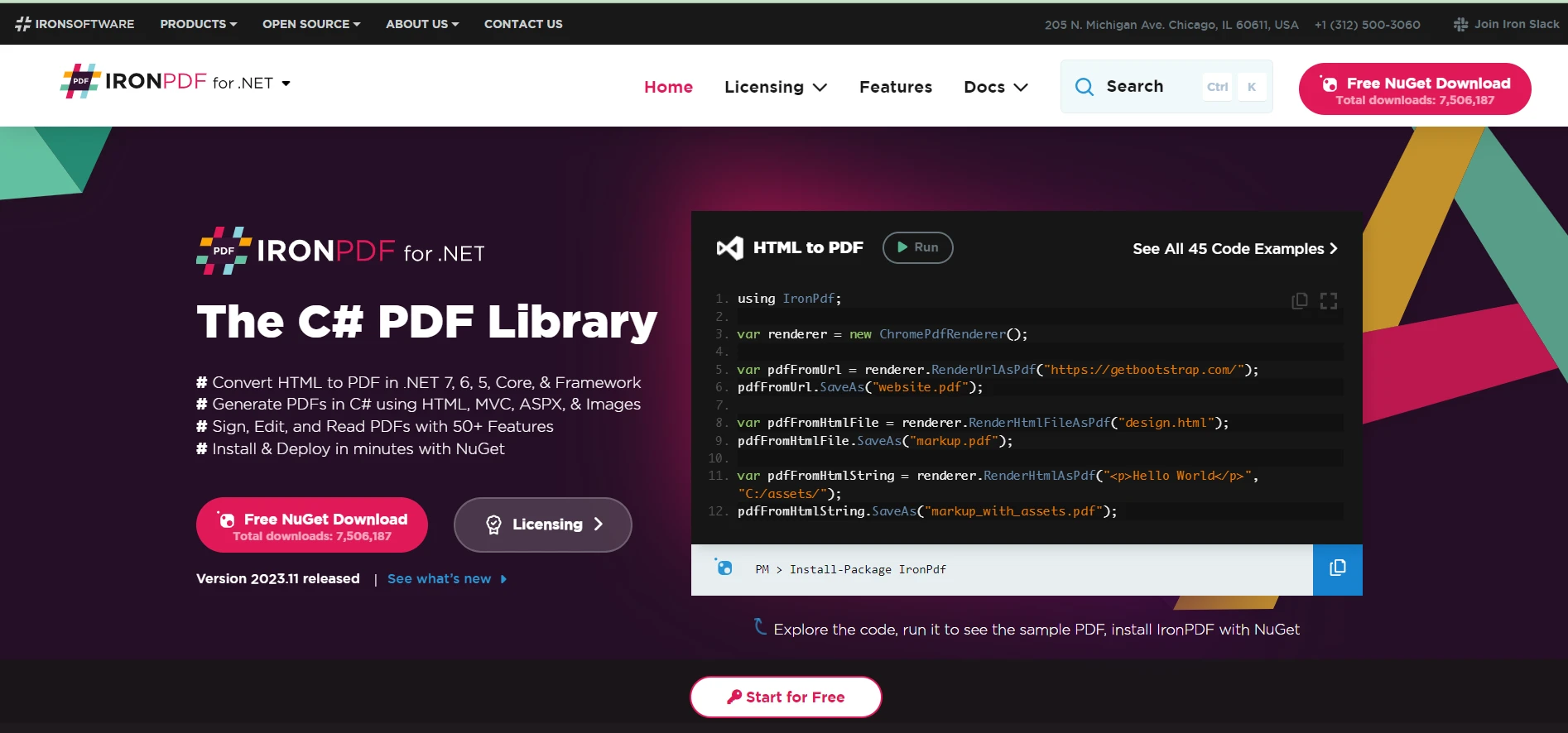
Jupyter Notebook C# (How It Works For Developers) Figure 1 - Webpage For IronPDF for .NET

IronPDF for .NET PDF Solutions is a robust C# library designed to work with PDF files, offering features like HTML to PDF conversion, PDF editing, and more. Integrating IronPDF into a Jupyter Notebook environment can greatly enhance its capabilities, especially for creating and manipulating PDF documents within the notebook.

IronPDF provides a simple yet powerful API for C# developers. It enables tasks such as converting HTML pages to PDFs, generating PDFs from HTML strings, and saving PDFs to specific file paths.

In the context of Jupyter Notebooks, IronPDF can serve as an extension to an interactive documentation generator for C#. It allows users to not only write and test C# code for generating or manipulating PDFs but also to see the results in real-time. This integration is especially beneficial for educational purposes, demonstrations, or producing rich and interactive technical documentation.

Conclusion

Jupyter Notebook's expansion to include support for C# via .NET Interactive Notebooks is a landmark achievement for the .NET community. It significantly enriches the Jupyter ecosystem, introducing the power and convenience of interactive programming to C# developers and amateurs.

Notably, IronPDF offers a free trial of IronPDF Features for users to explore its capabilities online, and licenses for the tool start at $liteLicense, making it a valuable investment for professionals seeking advanced PDF manipulation and generation features in their C# projects. And if you want to know more about the implementation of IronPDF or general information, the link to the IronPDF Blog on PDF and .NET is available.

자주 묻는 질문

주피터 노트북에서 C#을 어떻게 활용할 수 있나요?

C#은 대화형 코딩과 문서화가 가능한 .NET 인터랙티브 도구를 통해 Jupyter Notebook에서 활용할 수 있습니다. 이 통합은 C#과 F#을 지원하여 개발자에게 튜토리얼, 데이터 분석 등을 만들 수 있는 강력한 플랫폼을 제공합니다.

C#용 Jupyter Notebook을 구성하려면 어떤 단계가 필요하나요?

C#용 Jupyter Notebook을 구성하려면 .NET SDK와 .NET Interactive 도구를 설치해야 합니다. .NET Interactive 도구는 닷넷 도구 설치 --global Microsoft.dotnet-interactive 명령으로 설치할 수 있으며, 노트북에서 C#을 활용할 수 있게 해줍니다.

C#의 통합으로 Jupyter Notebook이 어떻게 향상되나요?

C#과 Jupyter Notebook의 통합을 통해 개발자는 대화형 환경 내에서 .NET Core의 기능을 활용할 수 있습니다. 이는 풍부한 문서와 대화형 코드 스니펫을 만드는 데 특히 유용하며 개발 경험을 향상시킵니다.

주피터 노트북은 C#과 Python 코드를 모두 실행할 수 있나요?

예, Jupyter 노트북은 C#과 Python을 비롯한 여러 프로그래밍 언어를 실행할 수 있습니다. 이러한 유연성 덕분에 개발자는 단일 노트북 내에서 여러 언어의 장점을 활용할 수 있어 다국어 프로그래밍 및 데이터 분석에 유용합니다.

비주얼 스튜디오 코드와 함께 주피터 노트북을 사용하면 어떤 이점이 있나요?

비주얼 스튜디오 코드와 함께 Jupyter 노트북을 사용하면 IDE 내에 Jupyter 전용 명령어를 통합하여 개발 환경을 개선할 수 있습니다. 이는 Microsoft의 도구에 익숙한 개발자에게 원활한 환경을 제공하여 효율적인 코드 작성 및 테스트를 가능하게 합니다.

개발자가 PDF 기능을 Jupyter 노트북에 통합하려면 어떻게 해야 하나요?

개발자는 IronPDF와 같은 도구를 사용해 PDF 기능을 Jupyter 노트북에 통합할 수 있습니다. 이를 통해 노트북 내에서 직접 PDF 문서를 생성, 조작, 테스트할 수 있어 데모 및 교육 기능이 향상됩니다.

.NET 애플리케이션을 위한 PDF 처리 툴은 어떤 기능을 제공하나요?

IronPDF와 같은 .NET용 PDF 처리 도구는 HTML에서 PDF로 변환, PDF 편집, HTML 문자열에서 PDF 생성 등의 기능을 제공합니다. 이러한 도구는 개발자가 애플리케이션 내에서 PDF 작업을 효율적으로 관리할 수 있는 강력한 API를 제공합니다.

개발자는 .NET에서 PDF 처리에 대한 자세한 정보를 어디에서 찾을 수 있나요?

개발자는 .NET 애플리케이션에서 PDF 도구의 기능 및 사용법에 대한 자세한 글과 업데이트를 제공하는 IronPDF 블로그에서 .NET에서의 PDF 처리에 대한 자세한 정보를 확인할 수 있습니다.

데이터 과학과 연구에서 Jupyter Notebook은 어떤 역할을 하나요?

주피터 노트북은 라이브 코드, 수식, 시각화, 내러티브 텍스트가 포함된 문서를 작성하고 공유할 수 있어 데이터 과학 및 연구에 유용한 도구입니다. C#과의 통합으로 이러한 분야에서 그 활용도가 더욱 향상되었습니다.

커티스 차우
기술 문서 작성자

커티스 차우는 칼턴 대학교에서 컴퓨터 과학 학사 학위를 취득했으며, Node.js, TypeScript, JavaScript, React를 전문으로 하는 프론트엔드 개발자입니다. 직관적이고 미적으로 뛰어난 사용자 인터페이스를 만드는 데 열정을 가진 그는 최신 프레임워크를 활용하고, 잘 구성되고 시각적으로 매력적인 매뉴얼을 제작하는 것을 즐깁니다.

커티스는 개발 분야 외에도 사물 인터넷(IoT)에 깊은 관심을 가지고 있으며, 하드웨어와 소프트웨어를 통합하는 혁신적인 방법을 연구합니다. 여가 시간에는 게임을 즐기거나 디스코드 봇을 만들면서 기술에 대한 애정과 창의성을 결합합니다.






