PDF (Portable Document Format) 파일은 여러 플랫폼 간 일관된 형식으로 문서를 공유하고 보존하는 데 널리 사용됩니다. 이 기사에서는 wkhtmltopdf 라이브러리를 사용하여 C++에서 PDF 파일을 생성하는 방법을 탐구할 것입니다. HTML 콘텐츠를 PDF 파일로 변환하는 오픈 소스 명령줄 도구입니다. 이 라이브러리의 강력한 기능을 활용하여 우리의 C++ 애플리케이션에서 HTML 콘텐츠로부터 PDF 문서를 프로그래밍 방식으로 생성할 수 있습니다.
wkhtmltopdf 라이브러리
wkhtmltopdf는 HTML 웹 페이지 또는 HTML 콘텐츠를 PDF 문서로 변환하는 오픈 소스 명령줄 도구 및 렌더링 엔진입니다. 이 도구는 WebKit 렌더링 엔진을 사용하여 HTML, CSS, JavaScript를 파싱하고 렌더링하며, 그런 다음 렌더링된 콘텐츠를 바탕으로 PDF 파일을 생성합니다.
"wkhtmltopdf C++ 라이브러리" ("wkhtmltopdf C API"로도 알려져 있습니다). 이 라이브러리는 wkhtmltopdf 명령줄 도구에 대한 C++ 인터페이스를 제공하여 C++ 애플리케이션 내에서 HTML 콘텐츠로부터 PDF 파일을 직접 생성할 수 있습니다. wkhtmltopdf 라이브러리를 사용하여 C++에서 HTML을 PDF로 변환하는 단계별 과정을 알아봅시다.
필수 조건
C++에서 PDF 파일을 생성하려면 다음이 필요합니다:
- 시스템에 설치된 GCC 또는 Clang과 같은 C++ 컴파일러. C++ 프로그래밍을 지원하는 어떤 IDE도 사용할 수 있습니다.
- wkhtmltopdf 라이브러리를 다운로드 및 설치합니다. 최신 버전을 공식 wkhtmltopdf 웹사이트에서 다운로드하여 운영 체제의 지시에 따라 설치할 수 있습니다.
- C++ 프로그래밍에 대한 기본 지식.
C++ Code::Blocks에서 PDF 프로젝트 생성
Code::Blocks에서 프로젝트를 생성한 후 라이브러리 폴더와 파일을 링크하기 위한 아래 단계를 따르십시오. 다른 IDE를 사용하는 경우 옵션이 다를 수 있지만, 프로젝트에서 다운로드한 라이브러리를 참조해야 작동합니다.
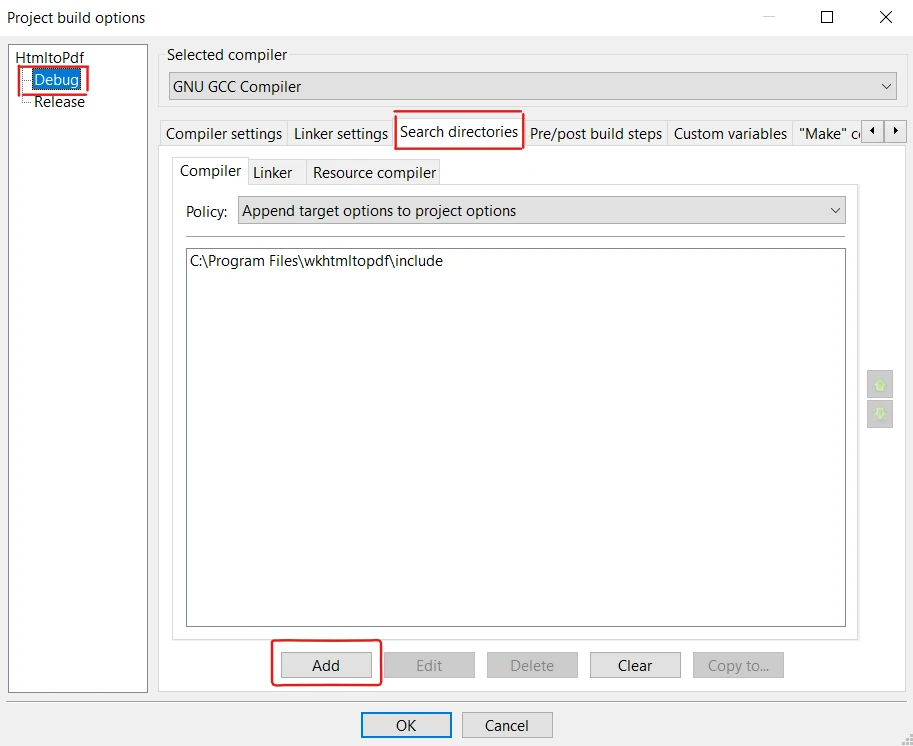
1. 검색 디렉토리에 포함 폴더 추가하기
Code::Blocks가 필요한 헤더 파일을 찾을 수 있도록 검색 디렉토리를 설정해야 합니다.
- 메뉴 모음에서 "프로젝트" 메뉴를 클릭하고 "빌드 옵션"을 선택합니다. 반드시 "디버그"를 선택하세요.
- "빌드 옵션" 대화 상자에서 "검색 디렉토리" 탭을 선택합니다.
- "컴파일러" 탭에서 "추가" 버튼을 클릭합니다.
- wkhtmltox 헤더 파일이 있는 디렉토리로 이동하여 선택합니다 (예: C:\Program Files\wkhtmltopdf\include).
- 마지막으로 대화 상자를 닫기 위해 "확인"을 클릭합니다.
2. 링크 설정에서 라이브러리 연결하기
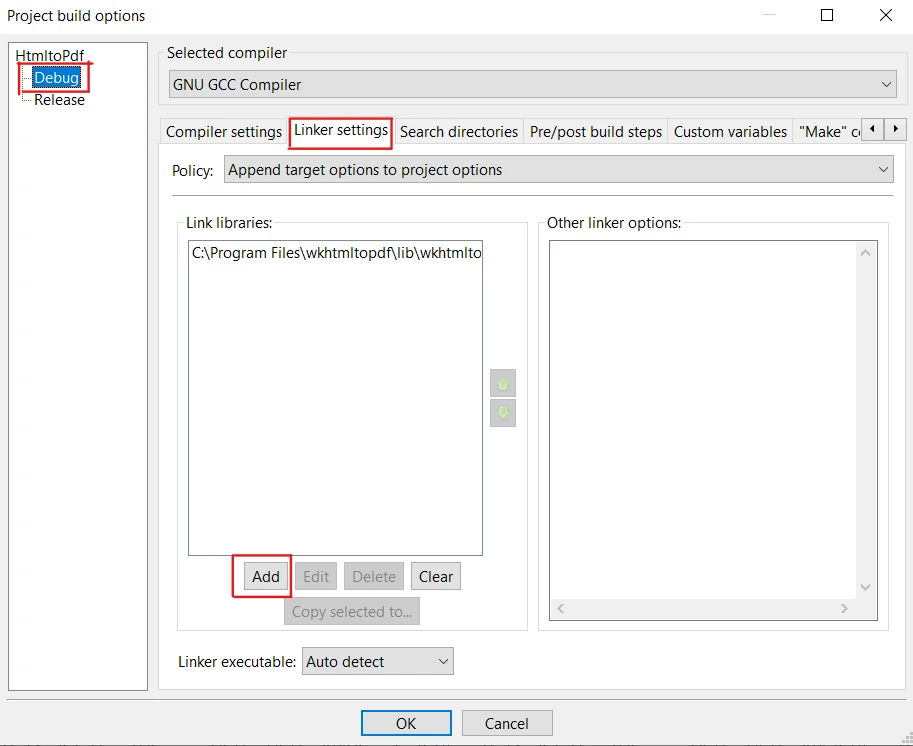
wkhtmltox 라이브러리에 링크하려면 다음 단계를 따르십시오:
- 다시 메뉴 모음에서 "프로젝트" 메뉴를 클릭하고 "빌드 옵션"을 선택합니다. 반드시 "디버그"를 선택하세요.
- "빌드 옵션" 대화 상자에서 "링커 설정" 탭을 선택합니다.
- '라이브러리 연결' 탭에서 '추가' 버튼을 클릭하세요.
- wkhtmltox 라이브러리 파일이 있는 디렉터리(e.g., C:\Program Files\wkhtmltopdf\lib)로 이동하여 적절한 라이브러리 파일을 선택하세요.
- 라이브러리를 프로젝트에 추가하려면 '열기'를 클릭하세요.
- 마지막으로 대화 상자를 닫기 위해 "확인"을 클릭합니다.
wkhtmltopdf를 사용하여 C++에서 PDF 생성하는 단계
1. 필요한 라이브러리 포함하기
시작하기 위해, 먼저 우리의 C++ 프로그램에서 wkhtmltopdf 라이브러리의 기능을 활용하기 위해 필요한 헤더 파일을 포함할 것입니다. 아래의 헤더 파일들을 main.cpp 소스 코드 파일의 시작 부분에 포함하세요:
#include <iostream>
#include <fstream>
#include <string>
#include <wkhtmltox/pdf.h> // Include wkhtmltopdf library headers
#include <iostream>
#include <fstream>
#include <string>
#include <wkhtmltox/pdf.h> // Include wkhtmltopdf library headers
Text
2. GUI 구성 요소 비활성화
GUI와 함께 작업하지 않는 경우, 오류를 피하기 위해 이것을 비활성화해야 합니다. 코드는 다음과 같습니다.
wkhtmltopdf_init(false); // Initialize the wkhtmltopdf library in non-GUI mode
wkhtmltopdf_init(false); // Initialize the wkhtmltopdf library in non-GUI mode
Text
3. 설정 및 변환기 초기화
다음으로, 전역 및 객체 설정 포인터를 초기화하고 나서 wkhtmltopdf 변환기를 초기화해야 합니다.
wkhtmltopdf_global_settings* gs = wkhtmltopdf_create_global_settings();
wkhtmltopdf_object_settings* os = wkhtmltopdf_create_object_settings();
wkhtmltopdf_converter* converter = wkhtmltopdf_create_converter(gs);
wkhtmltopdf_global_settings* gs = wkhtmltopdf_create_global_settings();
wkhtmltopdf_object_settings* os = wkhtmltopdf_create_object_settings();
wkhtmltopdf_converter* converter = wkhtmltopdf_create_converter(gs);
Text
4. PDF 콘텐츠 추가하기
이제, 우리 새로운 PDF 문서에 일부 콘텐츠를 채우기 위해 HTML 문자열을 만들어봅시다. 코드는 다음과 같습니다.
std::string htmlString = "<html><body><h1>Create a PDF in C++ using WKHTMLTOPDF Library</h1></body></html>";
wkhtmltopdf_add_object(converter, os, htmlString.c_str());
std::string htmlString = "<html><body><h1>Create a PDF in C++ using WKHTMLTOPDF Library</h1></body></html>";
wkhtmltopdf_add_object(converter, os, htmlString.c_str());
Text
5. HTML 문자열을 PDF 파일로 변환
wkhtmltopdf는 HTML 콘텐츠를 PDF로 변환하는 변환기 메서드를 제공합니다. 여기 코드 조각이 있습니다:
wkhtmltopdf_convert(converter); // Converts HTML content to PDF
wkhtmltopdf_convert(converter); // Converts HTML content to PDF
Text
6. 메모리 버퍼로 출력 받기
wkhtmltopdf_get_output 함수로 PDF 데이터를 메모리 버퍼 스트림으로 가져올 수 있습니다. 또한 PDF의 길이를 반환합니다. 다음의 예제가 이 작업을 수행할 것입니다:
const unsigned char* pdfData;
int pdfLength = wkhtmltopdf_get_output(converter, &pdfData); // Get PDF data and length
const unsigned char* pdfData;
int pdfLength = wkhtmltopdf_get_output(converter, &pdfData); // Get PDF data and length
Text
7. PDF 파일 저장하기
pdfData 포인터는 이제 wkhtmltopdf_converter의 문자 스트림을 갖게 됩니다. PDF 파일로 저장하기 위해, 먼저 PDF를 저장하고 싶은 파일 경로를 지정할 것입니다. 그런 다음 출력 파일 스트림을 사용하여 파일을 바이너리 모드로 열고, pdfData을 reinterpret_cast 함수를 사용하여 형변환하여 파일에 씁니다. 마지막으로 파일을 닫습니다.
const char* outputPath = "file.pdf";
std::ofstream outputFile(outputPath, std::ios::binary); // Open file in binary mode
outputFile.write(reinterpret_cast<const char*>(pdfData), pdfLength); // Write PDF data
outputFile.close(); // Close the file
const char* outputPath = "file.pdf";
std::ofstream outputFile(outputPath, std::ios::binary); // Open file in binary mode
outputFile.write(reinterpret_cast<const char*>(pdfData), pdfLength); // Write PDF data
outputFile.close(); // Close the file
Text
8. 메모리 해제
PDF 파일을 성공적으로 생성한 후에는 wkhtmltopdf에 의해 할당된 리소스를 정리하는 것이 중요합니다. 그렇지 않으면 메모리 누수가 발생할 수 있습니다.
wkhtmltopdf_destroy_converter(converter); // Destroy the converter
wkhtmltopdf_destroy_object_settings(os);  // Destroy object settings
wkhtmltopdf_destroy_global_settings(gs);  // Destroy global settings
wkhtmltopdf_deinit();                     // Deinitialize the library

std::cout << "PDF created successfully." << std::endl; // Inform the user
wkhtmltopdf_destroy_converter(converter); // Destroy the converter
wkhtmltopdf_destroy_object_settings(os);  // Destroy object settings
wkhtmltopdf_destroy_global_settings(gs);  // Destroy global settings
wkhtmltopdf_deinit();                     // Deinitialize the library

std::cout << "PDF created successfully." << std::endl; // Inform the user
Text
9. 코드 실행 및 PDF 파일 생성
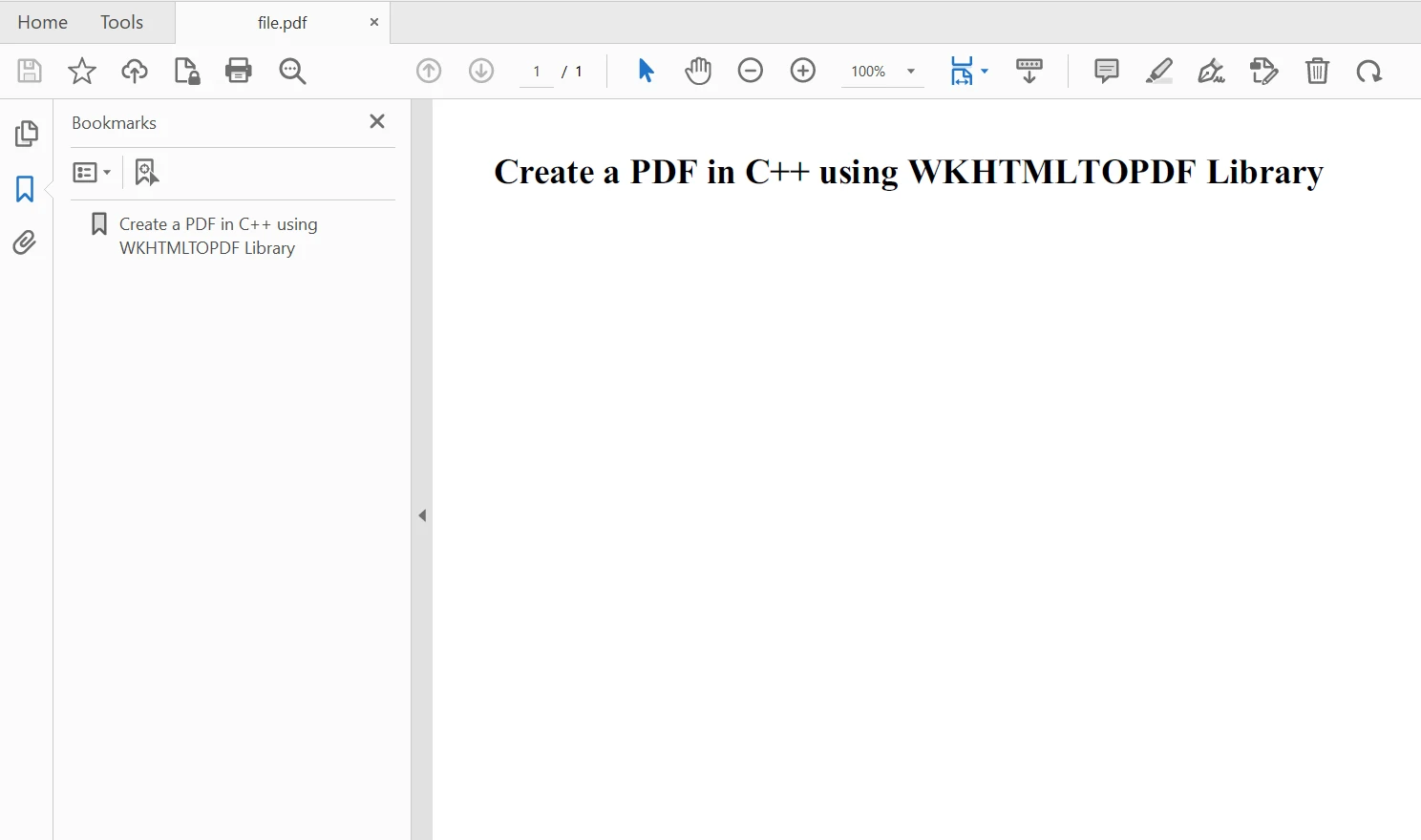
이제 프로젝트를 빌드하고 F9를 사용하여 코드를 실행하세요. 출력이 생성되어 프로젝트 폴더에 저장됩니다. 결과 PDF는 다음과 같습니다:
Create PDF File in C#
IronPDF
IronPDF는 개발자가 HTML에서 PDF 문서를 손쉽게 생성할 수 있도록 하는 .NET C# PDF 라이브러리입니다. 이것은 HTML에서 PDF 파일을 생성하는 프로세스를 단순화하는 직관적인 API를 제공합니다.
IronPDF는 PDF 작업에 있어서 강력하고 다재다능합니다. 이것은 간단한 HTML 문서뿐만 아니라 CSS 스타일링, JavaScript 상호 작용, 심지어 동적 콘텐츠가 있는 복잡한 웹 페이지에서도 PDF를 생성합니다. 게다가, 변환 메서드에 빠르게 액세스하여 다양한 PDF 변환기를 개발할 수 있습니다.
HTML 문자열에서 PDF 변환을 사용하여 IronPDF로 PDF 생성 예제 코드는 다음과 같습니다:
using IronPdf;

// Instantiate Renderer
var renderer = new ChromePdfRenderer();

// Create a PDF from an HTML string using C#
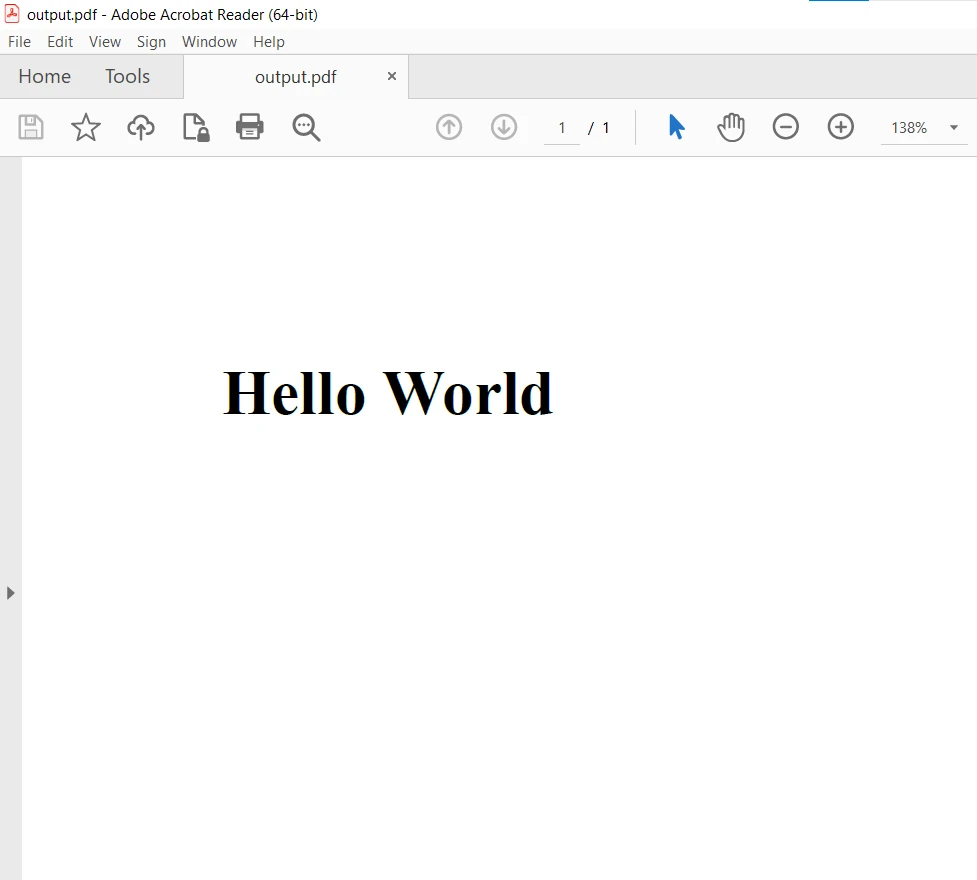
var pdf = renderer.RenderHtmlAsPdf("<h1>Hello World</h1>");

// Export to a file or Stream
pdf.SaveAs("output.pdf");
using IronPdf;

// Instantiate Renderer
var renderer = new ChromePdfRenderer();

// Create a PDF from an HTML string using C#
var pdf = renderer.RenderHtmlAsPdf("<h1>Hello World</h1>");

// Export to a file or Stream
pdf.SaveAs("output.pdf");
Imports IronPdf
' Instantiate Renderer
Private renderer = New ChromePdfRenderer()
' Create a PDF from an HTML string using C#
Private pdf = renderer.RenderHtmlAsPdf("<h1>Hello World</h1>")
' Export to a file or Stream
pdf.SaveAs("output.pdf")
Imports IronPdf

' Instantiate Renderer
Private renderer = New ChromePdfRenderer()

' Create a PDF from an HTML string using C#
Private pdf = renderer.RenderHtmlAsPdf("<h1>Hello World</h1>")

' Export to a file or Stream
pdf.SaveAs("output.pdf")
HTML 콘텐츠를 PDF로 렌더링하기 위해 ChromePdfRenderer의 인스턴스를 생성합니다. RenderHtmlAsPdf 메서드를 renderer 객체에 호출하고 HTML 문자열을 전달합니다. 이것은 PDF 문서를 생성하며, 그런 다음 SaveAs 메서드를 사용하여 PDF 문서를 저장합니다.
IronPDF를 사용하여 다양한 리소스에서 PDF 생성에 대한 자세한 내용은 이 IronPDF 코드 예제 페이지를 방문하세요.
결론
이 글에서는 wkhtmltopdf C++ 라이브러리를 사용하여 C++에서 PDF 생성 및 IronPDF를 사용하여 C#에서 PDF 문서를 생성하는 방법을 탐구했습니다.
IronPDF를 사용하여 HTML 콘텐츠에서 PDF 파일을 생성하는 것은 .NET Framework 언어에서는 쉬운 작업이 됩니다. 그것의 광범위한 기능 세트는 C# 프로젝트에서 HTML에서 PDF로 변환이 필요한 개발자에게 가치 있는 도구가 됩니다. 보고서, 청구서, 또는 정밀한 HTML-to-PDF 변환이 필요한 기타 문서를 생성하는 경우에도 IronPDF는 신뢰성과 효율성을 갖춘 솔루션입니다.
IronPDF는 개발 목적에 대해서는 무료이지만, 상업적 사용을 위해서는 라이선스가 필요합니다. 상업적 사용을 위한 무료 체험판도 제공되어 전체 기능을 테스트할 수 있습니다. IronPDF 다운로드하여 직접 사용해 보세요.













