using IronPdf;

// Disable local disk access or cross-origin requests
Installation.EnableWebSecurity = true;

// Instantiate Renderer
var renderer = new ChromePdfRenderer();

// Create a PDF from a HTML string using C#
var pdf = renderer.RenderHtmlAsPdf("<h1>Hello World</h1>");

// Export to a file or Stream
pdf.SaveAs("output.pdf");

// Advanced Example with HTML Assets
// Load external html assets: Images, CSS and JavaScript.
// An optional BasePath 'C:\site\assets\' is set as the file location to load assets from
var myAdvancedPdf = renderer.RenderHtmlAsPdf("<img src='icons/iron.png'>", @"C:\site\assets\");
myAdvancedPdf.SaveAs("html-with-assets.pdf");
using IronPdf;// Disable local disk access or cross-origin requestsInstallation.EnableWebSecurity = true;// Instantiate Renderervar renderer = new ChromePdfRenderer();// Create a PDF from a HTML string using C#var pdf = renderer.RenderHtmlAsPdf("<h1>Hello World</h1>");// Export to a file or Streampdf.SaveAs("output.pdf");// Advanced Example with HTML Assets// Load external html assets: Images, CSS and JavaScript.// An optional BasePath 'C:\site\assets\' is set as the file location to load assets fromvar myAdvancedPdf = renderer.RenderHtmlAsPdf("<img src='icons/iron.png'>", @"C:\site\assets\");myAdvancedPdf.SaveAs("html-with-assets.pdf");
PDF 파일은 서로 다른 플랫폼에서 서식을 유지할 수 있는 능력 때문에 문서 교환에 널리 사용되는 형식입니다. 다양한 응용 프로그램에서 프로그래밍 방식으로 PDF 파일의 내용을 읽는 것은 매우 유용합니다.
이 기사에서는 `Xpdf` 명령줄 도구를 사용하여 C++에서 PDF 파일의 텍스트를 보는 방법을 배웁니다. `Xpdf`는 텍스트 추출을 포함하여 PDF 파일 작업을 위한 명령줄 유틸리티와 C++ 라이브러리를 제공합니다. 우리의 C++ PDF 뷰어 프로그램에 `Xpdf`을 통합하면 PDF 파일의 텍스트 콘텐츠를 효율적으로 보고 프로그램적으로 처리할 수 있습니다.
## `Xpdf` - C++ 라이브러리 및 명령줄 도구
[Xpdf](https://www.xpdfreader.com/)는 PDF 파일 작업을 위한 다양한 도구와 라이브러리를 제공하는 오픈 소스 소프트웨어 스위트입니다. 파싱, 렌더링, 인쇄 및 텍스트 추출과 같은 PDF 관련 기능을 가능하게 하는 다양한 명령줄 유틸리티 및 C++ 라이브러리를 포함하고 있습니다. Xpdf의 명령줄 도구는 또한 터미널에서 직접 PDF 파일을 보는 방법을 제공합니다.
Xpdf의 주요 구성 요소 중 하나는 주로 PDF 파일에서 텍스트 콘텐츠를 추출하는 것으로 알려진 `pdftotext`입니다. 그러나 `pdftops` 및 `pdfimages`과 같은 다른 도구와 결합하여 사용하면 `Xpdf`를 통해 사용자는 PDF 콘텐츠를 다양한 방식으로 볼 수 있습니다. `pdftotext` 도구는 추가 처리 또는 분석을 위한 PDF의 텍스트 정보 추출에 유용하며, 텍스트를 추출할 페이지를 지정하는 옵션을 제공합니다.
## 필수 조건
시작하기 전에 다음과 같은 사전 준비 사항을 확인하세요:
1. 시스템에 설치된 GCC 또는 Clang과 같은 C++ 컴파일러. 이 목적을 위해 [Code::Blocks IDE](http://www.codeblocks.org/)를 사용할 것입니다.
2. Xpdf 명령줄 도구가 설치되어 명령줄에서 접근할 수 있어야 합니다. [Xpdf 다운로드](https://www.xpdfreader.com/download.html)하여 환경에 맞는 버전을 설치하세요. 그 후, 파일 시스템의 어느 위치에서나 접근할 수 있도록 시스템 환경 변수 경로에 Xpdf의 bin 디렉토리를 설정하세요.
## PDF 뷰어 프로젝트 생성
1. **Code::Blocks 열기:** 컴퓨터에서 Code::Blocks IDE를 실행합니다.
2. **새 프로젝트 생성:** 상단 메뉴에서 "파일"을 클릭하고 드롭다운 메뉴에서 "새로 만들기"를 선택합니다. 그런 다음 하위 메뉴에서 "프로젝트"를 클릭합니다.
3. **프로젝트 유형 선택:** "템플릿에서 새로 만들기" 창에서 "콘솔 응용 프로그램"을 선택하고 "Go"를 클릭합니다. 그런 다음 "C/C++" 언어를 선택하고 "다음"을 클릭합니다.
4. **프로젝트 세부 사항 입력:** "프로젝트 제목" 필드에 프로젝트 이름을 입력하세요(예: "PDFViewer"). 프로젝트 파일을 저장할 위치를 선택하고 "다음"을 클릭합니다.
5. **컴파일러 선택:** 프로젝트에 사용할 컴파일러를 선택하세요. 기본적으로 Code::Blocks는 시스템에 있는 사용 가능한 컴파일러를 자동으로 감지해야 합니다. 그렇지 않으면 목록에서 적절한 컴파일러를 선택하고 "완료"를 클릭합니다.
## C++에서 PDF에서 텍스트를 보는 단계
### 필요한 헤더 포함
먼저, **main.cpp** 파일에 필요한 헤더 파일을 추가해 봅시다:
```cpp
#include <cstdlib>
#include <iostream>
#include <fstream>
#include <cstdio>

using namespace std; // Use standard namespace for convenience
```
### 입력 및 출력 경로 설정
```cpp
string pdfPath = "input.pdf";
string outputFilePath = "output.txt";
```
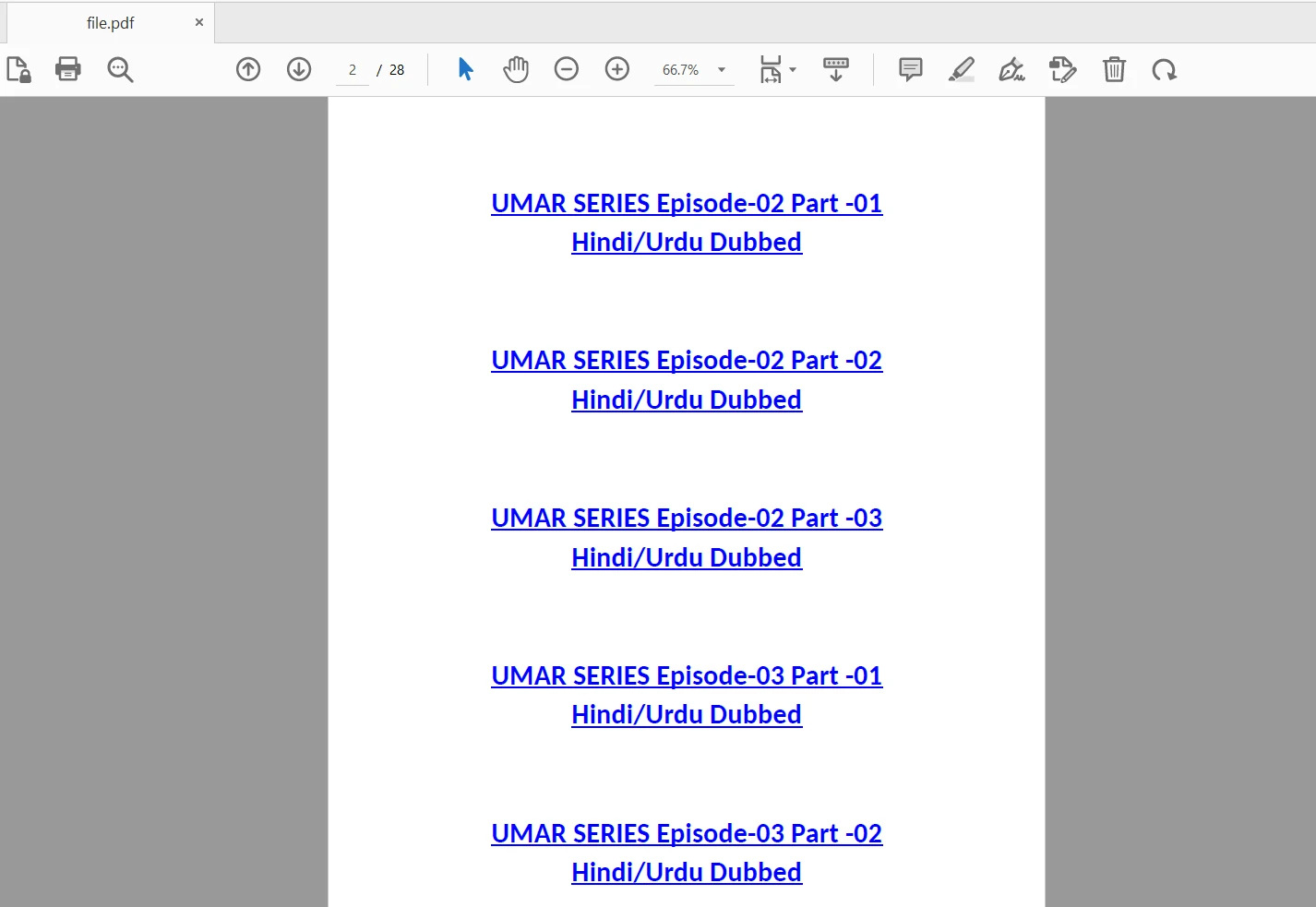
`main` 함수에서 우리는 두 문자열을 선언합니다: `pdfPath` 및 `outputFilePath`. `pdfPath`는 입력 PDF 파일의 경로를 저장하고, `outputFilePath`는 추출된 텍스트가 저장될 경로를 일반 텍스트 파일로 저장합니다.
입력 파일은 다음과 같습니다:
### `pdftotext` 명령 실행
```cpp
// Construct the command to execute pdftotext with input and output paths
string command = "pdftotext " + pdfPath + " " + outputFilePath;
// Execute the command using system function and capture the status
int status = system(command.c_str());
```
여기에서 우리는 PDF 파일의 내용을 보기 위해 열기 위해 `pdfPath` 및 `outputFilePath` 변수를 사용하여 `pdftotext` 명령을 구성합니다. 그런 다음 명령을 실행하기 위해 `system` 함수를 호출하고, 그 반환 값은 `status` 변수에 저장됩니다.
### 텍스트 추출 상태 확인
```cpp
if (status == 0)
{
cout << "Text extraction successful." << endl;
}
else
{
cout << "Text extraction failed." << endl;
}
```
`status` 변수를 확인하여 `pdftotext` 명령이 성공적으로 실행되었는지 확인합니다. 만약 `status`가 0과 같다면, 텍스트 추출이 성공적으로 완료되었음을 의미하며, 우리는 성공 메시지를 출력합니다. 만약 `status`이 0이 아닌 경우, 이는 오류를 나타내며, 우리는 오류 메시지를 출력합니다.
### 추출된 텍스트 읽고 표시
```cpp
// Open the output file to read the extracted text
ifstream outputFile(outputFilePath);
if (outputFile.is_open())
{
string textContent;
string line;
while (getline(outputFile, line))
{
textContent += line + "\n"; // Concatenate each line to the text content
}
outputFile.close();
cout << "Text content extracted from PDF:" << endl;
cout << textContent << endl;
}
else
{
cout << "Failed to open output file." << endl;
}
```
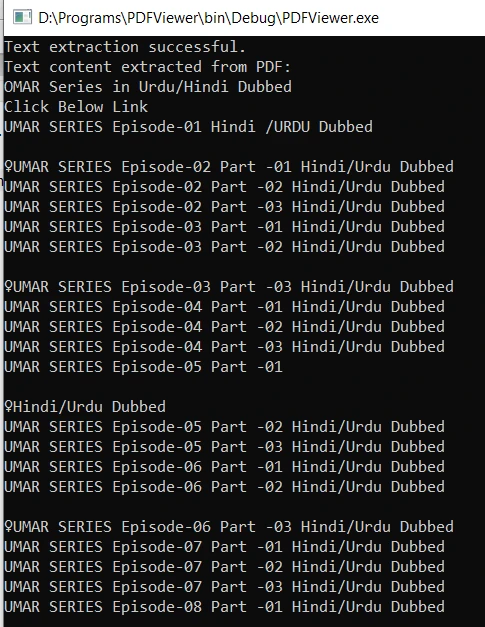
위의 샘플 코드에서, 우리는 `outputFile` (`pdftotext`에 의해 생성된 텍스트 파일)을 열어 그 내용을 줄 단위로 읽고 `textContent` 문자열에 저장합니다. 마지막으로, 파일을 닫고 추출된 텍스트 내용을 콘솔에 출력합니다.
### 출력 파일 제거
편집 가능한 출력 텍스트 파일이 필요 없거나 디스크 공간을 확보하고 싶다면, 메인 함수를 끝내기 전에 다음 명령을 사용해 프로그램 끝에서 간단히 삭제하십시오.
```cpp
// Remove the output file to free up disk space and if output is not needed
remove(outputFilePath.c_str());
```
### 프로그램 컴파일 및 실행
"Ctrl+F9" 단축키를 사용하여 코드를 빌드합니다. 성공적으로 컴파일되면, 실행 가능한 파일이 지정된 PDF 문서에서 텍스트 콘텐츠를 추출하여 콘솔에 표시합니다. 출력 결과는 다음과 같습니다.
## View PDF files in C#
[IronPDF .NET C# Library](/)는 C# 애플리케이션 내에서 PDF 파일을 쉽게 볼 수 있도록 하는 강력한 .NET C# PDF 라이브러리입니다. Chromium 웹 브라우저 엔진을 활용하여, IronPDF는 이미지, 폰트, 복잡한 서식을 포함하여 PDF 콘텐츠를 정확하게 렌더링하고 표시합니다. 편리한 사용자 인터페이스와 광범위한 기능을 갖춘 개발자들은 프로젝트에 IronPDF를 원활하게 통합할 수 있어 PDF 문서를 효율적이고 상호 작용적으로 볼 수 있습니다. 보고서, 청구서, 또는 기타 PDF 콘텐츠를 표시하기 위한 것이든, IronPDF는 C#에서 기능이 풍부한 PDF 뷰어를 만드는 강력한 솔루션을 제공합니다.
Visual Studio에 IronPDF NuGet 패키지를 설치하려면 다음 단계를 따르세요:
1. **Visual Studio 열기:** Visual Studio 또는 선호하는 다른 IDE를 시작하세요.
2. **프로젝트 생성 또는 열기:** 새로 만든 C# 프로젝트를 생성하거나 IronPDF 패키지를 설치하고자 하는 기존 프로젝트를 엽니다.
3. **NuGet 패키지 관리자 열기:** Visual Studio에서 '도구' > 'NuGet 패키지 관리자' > '솔루션용 NuGet 패키지 관리'로 이동하세요. 또는 솔루션 탐색기를 클릭한 후 '솔루션용 NuGet 패키지 관리'를 선택하세요.
4. **IronPDF 검색:** 'NuGet 패키지 관리자' 창에서 '찾아보기' 탭을 클릭한 후 검색 창에 'IronPDF'를 입력하여 검색하세요. 또한, [NuGet IronPDF 패키지](https://www.nuget.org/packages/IronPdf/)를 방문하여 'IronPDF'의 최신 버전을 직접 다운로드할 수 있습니다.
5. **IronPDF 패키지 선택:** 'IronPDF' 패키지를 찾아 프로젝트에 선택하세요.
6. **IronPDF 설치:** 선택한 패키지를 설치하려면 '설치' 버튼을 클릭하세요.
7. 그러나 다음 명령을 사용하여 NuGet 패키지 관리자 콘솔을 통해 IronPDF를 설치할 수도 있습니다:
```shell
:ProductInstall
```
IronPDF를 사용하여 우리는 [PDF 문서에서 텍스트 및 이미지를 추출](/examples/reading-pdf-text/)하고 그것을 콘솔에 표시하여 볼 수 있습니다. 다음 코드는 이 작업을 수행하는 데 도움이 됩니다.
```csharp
using IronPdf;
using IronSoftware.Drawing;
using System.Collections.Generic;
// Extracting Image and Text content from Pdf Documents
// Open a 128-bit encrypted PDF
var pdf = PdfDocument.FromFile("encrypted.pdf", "password");
// Get all text to put in a search index
string text = pdf.ExtractAllText();
// Get all Images
var allImages = pdf.ExtractAllImages();
// Or even find the precise text and images for each page in the document
for (var index = 0 ; index < pdf.PageCount ; index++)
{
int pageNumber = index + 1;
text = pdf.ExtractTextFromPage(index);
List<AnyBitmap> images = pdf.ExtractBitmapsFromPage(index);
// Further processing here...
}
```
IronPDF에 대한 자세한 정보는 [IronPDF 문서](/docs/)를 방문하세요.
## 결론
이 기사에서는 Xpdf 명령줄 도구를 사용하여 C++에서 PDF 문서의 내용을 추출하고 보는 방법을 배웠습니다. 이 접근 방식은 C++ 애플리케이션 내에서 추출된 텍스트를 원활하게 처리하고 분석할 수 있도록 합니다.
[무료 체험판 라이선스](trial-license)를 통해 상업적 목적으로 테스트할 수 있습니다.
PDF 파일은 서로 다른 플랫폼에서 서식을 유지할 수 있는 능력 때문에 문서 교환에 널리 사용되는 형식입니다. 다양한 응용 프로그램에서 프로그래밍 방식으로 PDF 파일의 내용을 읽는 것은 매우 유용합니다.
이 기사에서는 Xpdf 명령줄 도구를 사용하여 C++에서 PDF 파일의 텍스트를 보는 방법을 배웁니다. Xpdf는 텍스트 추출을 포함하여 PDF 파일 작업을 위한 명령줄 유틸리티와 C++ 라이브러리를 제공합니다. 우리의 C++ PDF 뷰어 프로그램에 Xpdf을 통합하면 PDF 파일의 텍스트 콘텐츠를 효율적으로 보고 프로그램적으로 처리할 수 있습니다.
Xpdf - C++ 라이브러리 및 명령줄 도구
Xpdf는 PDF 파일 작업을 위한 다양한 도구와 라이브러리를 제공하는 오픈 소스 소프트웨어 스위트입니다. 파싱, 렌더링, 인쇄 및 텍스트 추출과 같은 PDF 관련 기능을 가능하게 하는 다양한 명령줄 유틸리티 및 C++ 라이브러리를 포함하고 있습니다. Xpdf의 명령줄 도구는 또한 터미널에서 직접 PDF 파일을 보는 방법을 제공합니다.
Xpdf의 주요 구성 요소 중 하나는 주로 PDF 파일에서 텍스트 콘텐츠를 추출하는 것으로 알려진 pdftotext입니다. 그러나 pdftops 및 pdfimages과 같은 다른 도구와 결합하여 사용하면 Xpdf를 통해 사용자는 PDF 콘텐츠를 다양한 방식으로 볼 수 있습니다. pdftotext 도구는 추가 처리 또는 분석을 위한 PDF의 텍스트 정보 추출에 유용하며, 텍스트를 추출할 페이지를 지정하는 옵션을 제공합니다.
필수 조건
시작하기 전에 다음과 같은 사전 준비 사항을 확인하세요:
시스템에 설치된 GCC 또는 Clang과 같은 C++ 컴파일러. 이 목적을 위해 Code::Blocks IDE를 사용할 것입니다.
Xpdf 명령줄 도구가 설치되어 명령줄에서 접근할 수 있어야 합니다. Xpdf 다운로드하여 환경에 맞는 버전을 설치하세요. 그 후, 파일 시스템의 어느 위치에서나 접근할 수 있도록 시스템 환경 변수 경로에 Xpdf의 bin 디렉토리를 설정하세요.
PDF 뷰어 프로젝트 생성
Code::Blocks 열기: 컴퓨터에서 Code::Blocks IDE를 실행합니다.
새 프로젝트 생성: 상단 메뉴에서 "파일"을 클릭하고 드롭다운 메뉴에서 "새로 만들기"를 선택합니다. 그런 다음 하위 메뉴에서 "프로젝트"를 클릭합니다.
프로젝트 유형 선택: "템플릿에서 새로 만들기" 창에서 "콘솔 응용 프로그램"을 선택하고 "Go"를 클릭합니다. 그런 다음 "C/C++" 언어를 선택하고 "다음"을 클릭합니다.
프로젝트 세부 사항 입력: "프로젝트 제목" 필드에 프로젝트 이름을 입력하세요(예: "PDFViewer"). 프로젝트 파일을 저장할 위치를 선택하고 "다음"을 클릭합니다.
컴파일러 선택: 프로젝트에 사용할 컴파일러를 선택하세요. 기본적으로 Code::Blocks는 시스템에 있는 사용 가능한 컴파일러를 자동으로 감지해야 합니다. 그렇지 않으면 목록에서 적절한 컴파일러를 선택하고 "완료"를 클릭합니다.
C++에서 PDF에서 텍스트를 보는 단계
필요한 헤더 포함
먼저, main.cpp 파일에 필요한 헤더 파일을 추가해 봅시다:
#include <cstdlib>#include <iostream>#include <fstream>#include <cstdio>using namespace std; // Use standard namespace for convenience
#include <cstdlib>
#include <iostream>
#include <fstream>
#include <cstdio>

using namespace std; // Use standard namespace for convenience
main 함수에서 우리는 두 문자열을 선언합니다: pdfPath 및 outputFilePath. pdfPath는 입력 PDF 파일의 경로를 저장하고, outputFilePath는 추출된 텍스트가 저장될 경로를 일반 텍스트 파일로 저장합니다.
입력 파일은 다음과 같습니다:
pdftotext 명령 실행
// Construct the command to execute pdftotext with input and output pathsstring command = "pdftotext " + pdfPath + " " + outputFilePath;// Execute the command using system function and capture the statusint status = system(command.c_str());
// Construct the command to execute pdftotext with input and output paths
string command = "pdftotext " + pdfPath + " " + outputFilePath;

// Execute the command using system function and capture the status
int status = system(command.c_str());
Text
여기에서 우리는 PDF 파일의 내용을 보기 위해 열기 위해 pdfPath 및 outputFilePath 변수를 사용하여 pdftotext 명령을 구성합니다. 그런 다음 명령을 실행하기 위해 system 함수를 호출하고, 그 반환 값은 status 변수에 저장됩니다.
status 변수를 확인하여 pdftotext 명령이 성공적으로 실행되었는지 확인합니다. 만약 status가 0과 같다면, 텍스트 추출이 성공적으로 완료되었음을 의미하며, 우리는 성공 메시지를 출력합니다. 만약 status이 0이 아닌 경우, 이는 오류를 나타내며, 우리는 오류 메시지를 출력합니다.
추출된 텍스트 읽고 표시
// Open the output file to read the extracted textifstream outputFile(outputFilePath);if (outputFile.is_open()) { string textContent; string line; while (getline(outputFile, line)) { textContent += line + "\n"; // Concatenate each line to the text content } outputFile.close(); cout << "Text content extracted from PDF:" << endl; cout << textContent << endl;} else { cout << "Failed to open output file." << endl;}
// Open the output file to read the extracted text
ifstream outputFile(outputFilePath);
if (outputFile.is_open())
{
    string textContent;
    string line;
    while (getline(outputFile, line))
    {
        textContent += line + "\n"; // Concatenate each line to the text content
    }
    outputFile.close();
    cout << "Text content extracted from PDF:" << endl;
    cout << textContent << endl;
}
else
{
    cout << "Failed to open output file." << endl;
}
Text
위의 샘플 코드에서, 우리는 outputFile (pdftotext에 의해 생성된 텍스트 파일)을 열어 그 내용을 줄 단위로 읽고 textContent 문자열에 저장합니다. 마지막으로, 파일을 닫고 추출된 텍스트 내용을 콘솔에 출력합니다.
출력 파일 제거
편집 가능한 출력 텍스트 파일이 필요 없거나 디스크 공간을 확보하고 싶다면, 메인 함수를 끝내기 전에 다음 명령을 사용해 프로그램 끝에서 간단히 삭제하십시오.
// Remove the output file to free up disk space and if output is not neededremove(outputFilePath.c_str());
// Remove the output file to free up disk space and if output is not needed
remove(outputFilePath.c_str());
Text
프로그램 컴파일 및 실행
"Ctrl+F9" 단축키를 사용하여 코드를 빌드합니다. 성공적으로 컴파일되면, 실행 가능한 파일이 지정된 PDF 문서에서 텍스트 콘텐츠를 추출하여 콘솔에 표시합니다. 출력 결과는 다음과 같습니다.
View PDF files in C#
IronPDF .NET C# Library는 C# 애플리케이션 내에서 PDF 파일을 쉽게 볼 수 있도록 하는 강력한 .NET C# PDF 라이브러리입니다. Chromium 웹 브라우저 엔진을 활용하여, IronPDF는 이미지, 폰트, 복잡한 서식을 포함하여 PDF 콘텐츠를 정확하게 렌더링하고 표시합니다. 편리한 사용자 인터페이스와 광범위한 기능을 갖춘 개발자들은 프로젝트에 IronPDF를 원활하게 통합할 수 있어 PDF 문서를 효율적이고 상호 작용적으로 볼 수 있습니다. 보고서, 청구서, 또는 기타 PDF 콘텐츠를 표시하기 위한 것이든, IronPDF는 C#에서 기능이 풍부한 PDF 뷰어를 만드는 강력한 솔루션을 제공합니다.
Visual Studio에 IronPDF NuGet 패키지를 설치하려면 다음 단계를 따르세요:
Visual Studio 열기: Visual Studio 또는 선호하는 다른 IDE를 시작하세요.
프로젝트 생성 또는 열기: 새로 만든 C# 프로젝트를 생성하거나 IronPDF 패키지를 설치하고자 하는 기존 프로젝트를 엽니다.
IronPDF 검색: 'NuGet 패키지 관리자' 창에서 '찾아보기' 탭을 클릭한 후 검색 창에 'IronPDF'를 입력하여 검색하세요. 또한, NuGet IronPDF 패키지를 방문하여 'IronPDF'의 최신 버전을 직접 다운로드할 수 있습니다.
IronPDF 패키지 선택: 'IronPDF' 패키지를 찾아 프로젝트에 선택하세요.
IronPDF 설치: 선택한 패키지를 설치하려면 '설치' 버튼을 클릭하세요.
그러나 다음 명령을 사용하여 NuGet 패키지 관리자 콘솔을 통해 IronPDF를 설치할 수도 있습니다:
PM > Install-Package IronPdf
Install-Package IronPdf
IronPDF를 사용하여 우리는 PDF 문서에서 텍스트 및 이미지를 추출하고 그것을 콘솔에 표시하여 볼 수 있습니다. 다음 코드는 이 작업을 수행하는 데 도움이 됩니다.
using IronPdf;using IronSoftware.Drawing;using System.Collections.Generic;// Extracting Image and Text content from Pdf Documents// Open a 128-bit encrypted PDFvar pdf = PdfDocument.FromFile("encrypted.pdf", "password");// Get all text to put in a search indexstring text = pdf.ExtractAllText();// Get all Imagesvar allImages = pdf.ExtractAllImages();// Or even find the precise text and images for each page in the documentfor (var index = 0 ; index < pdf.PageCount ; index++){ int pageNumber = index + 1; text = pdf.ExtractTextFromPage(index); List<AnyBitmap> images = pdf.ExtractBitmapsFromPage(index); // Further processing here...}
using IronPdf;
using IronSoftware.Drawing;
using System.Collections.Generic;

// Extracting Image and Text content from Pdf Documents
// Open a 128-bit encrypted PDF
var pdf = PdfDocument.FromFile("encrypted.pdf", "password");

// Get all text to put in a search index
string text = pdf.ExtractAllText();

// Get all Images
var allImages = pdf.ExtractAllImages();

// Or even find the precise text and images for each page in the document
for (var index = 0 ; index < pdf.PageCount ; index++)
{
    int pageNumber = index + 1;
    text = pdf.ExtractTextFromPage(index);
    List<AnyBitmap> images = pdf.ExtractBitmapsFromPage(index);
    // Further processing here...
}
ImportsIronPdfImportsIronSoftware.DrawingImportsSystem.Collections.Generic' Extracting Image and Text content from Pdf Documents' Open a 128-bit encrypted PDFPrivate pdf = PdfDocument.FromFile("encrypted.pdf", "password")' Get all text to put in a search indexPrivate text AsString = pdf.ExtractAllText()' Get all ImagesPrivate allImages = pdf.ExtractAllImages()' Or even find the precise text and images for each page in the documentFor index = 0 To pdf.PageCount - 1 Dim pageNumber AsInteger = index + 1 text = pdf.ExtractTextFromPage(index) Dim images AsList(OfAnyBitmap) = pdf.ExtractBitmapsFromPage(index) ' Further processing here...Next index
Imports IronPdf
Imports IronSoftware.Drawing
Imports System.Collections.Generic

' Extracting Image and Text content from Pdf Documents
' Open a 128-bit encrypted PDF
Private pdf = PdfDocument.FromFile("encrypted.pdf", "password")

' Get all text to put in a search index
Private text As String = pdf.ExtractAllText()

' Get all Images
Private allImages = pdf.ExtractAllImages()

' Or even find the precise text and images for each page in the document
For index = 0 To pdf.PageCount - 1
	Dim pageNumber As Integer = index + 1
	text = pdf.ExtractTextFromPage(index)
	Dim images As List(Of AnyBitmap) = pdf.ExtractBitmapsFromPage(index)
	' Further processing here...
Next index
커티스 차우는 칼턴 대학교에서 컴퓨터 과학 학사 학위를 취득했으며, Node.js, TypeScript, JavaScript, React를 전문으로 하는 프론트엔드 개발자입니다. 직관적이고 미적으로 뛰어난 사용자 인터페이스를 만드는 데 열정을 가진 그는 최신 프레임워크를 활용하고, 잘 구성되고 시각적으로 매력적인 매뉴얼을 제작하는 것을 즐깁니다.















