



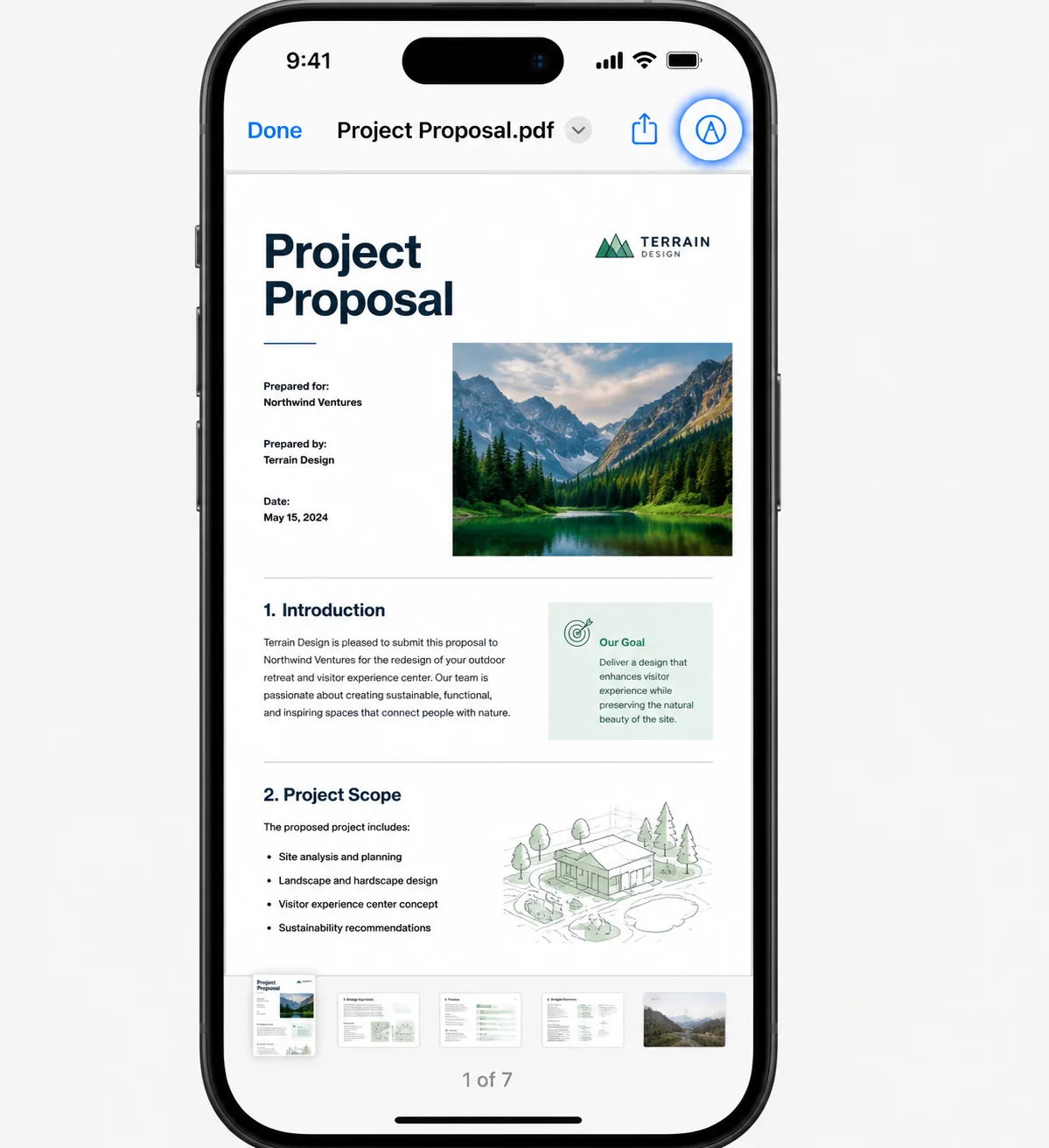
更新日 2026年8月16日
How to Sign a PDF on iPhone: Every Method Explained (2026)
Need to add your signature to a PDF from your iPhone? Learn every method, from the built-in Markup tool in Files to dedicated e-signature apps, no download required.
詳しく読む

PDFファイルは、異なるプラットフォーム間でフォーマットを保持できるため、ドキュメント交換のために広く使用されているフォーマットです。 さまざまなアプリケーションでは、プログラムでPDFファイルの内容を読み取ることが非常に価値があります。
この記事では、C++でXpdfコマンドラインツールを使用してPDFファイルからテキストを表示する方法を学びます。 Xpdfは、テキスト抽出を含むPDFファイルを扱うためのコマンドラインユーティリティとC++ライブラリのスイートを提供します。 C++のPDFビューアプログラムにXpdfを統合することで、PDFファイルからテキストコンテンツを効率的に表示し、プログラム的に処理することができます。
Xpdf - C++ライブラリとコマンドラインツールXpdfは、PDFファイルを操作するためのツールとライブラリの範囲を提供するオープンソースのソフトウェアスイートです。 PDF関連の機能を有効にするさまざまなコマンドラインユーティリティとC++ライブラリが含まれており、解析、レンダリング、印刷、テキスト抽出などを行うことが可能です。 Xpdfのコマンドラインツールは、ターミナルから直接PDFファイルを表示する方法も提供しています。
Xpdfの主要なコンポーネントのひとつがpdftotextで、主にPDFファイルからテキストコンテンツを抽出することで知られています。 しかし、Xpdfはユーザーが異なる方法でPDFコンテンツを表示できるようにします。 このpdftotextツールは、さらに処理や分析のためにPDFからテキスト情報を抽出する際に価値があると証明され、どのページからテキストを抽出するかを指定するオプションを提供します。
始める前に、次の前提条件が整っていることを確認してください。
まず、main.cppファイルに必要なヘッダーファイルを追加します。
#include <cstdlib>
#include <iostream>
#include <fstream>
#include <cstdio>

using namespace std; // Use standard namespace for conveniencestring pdfPath = "input.pdf";
string outputFilePath = "output.txt";outputFilePathという2つの文字列を宣言します。 outputFilePathはプレーンテキストファイルとして保存される抽出テキストのパスを保存します。
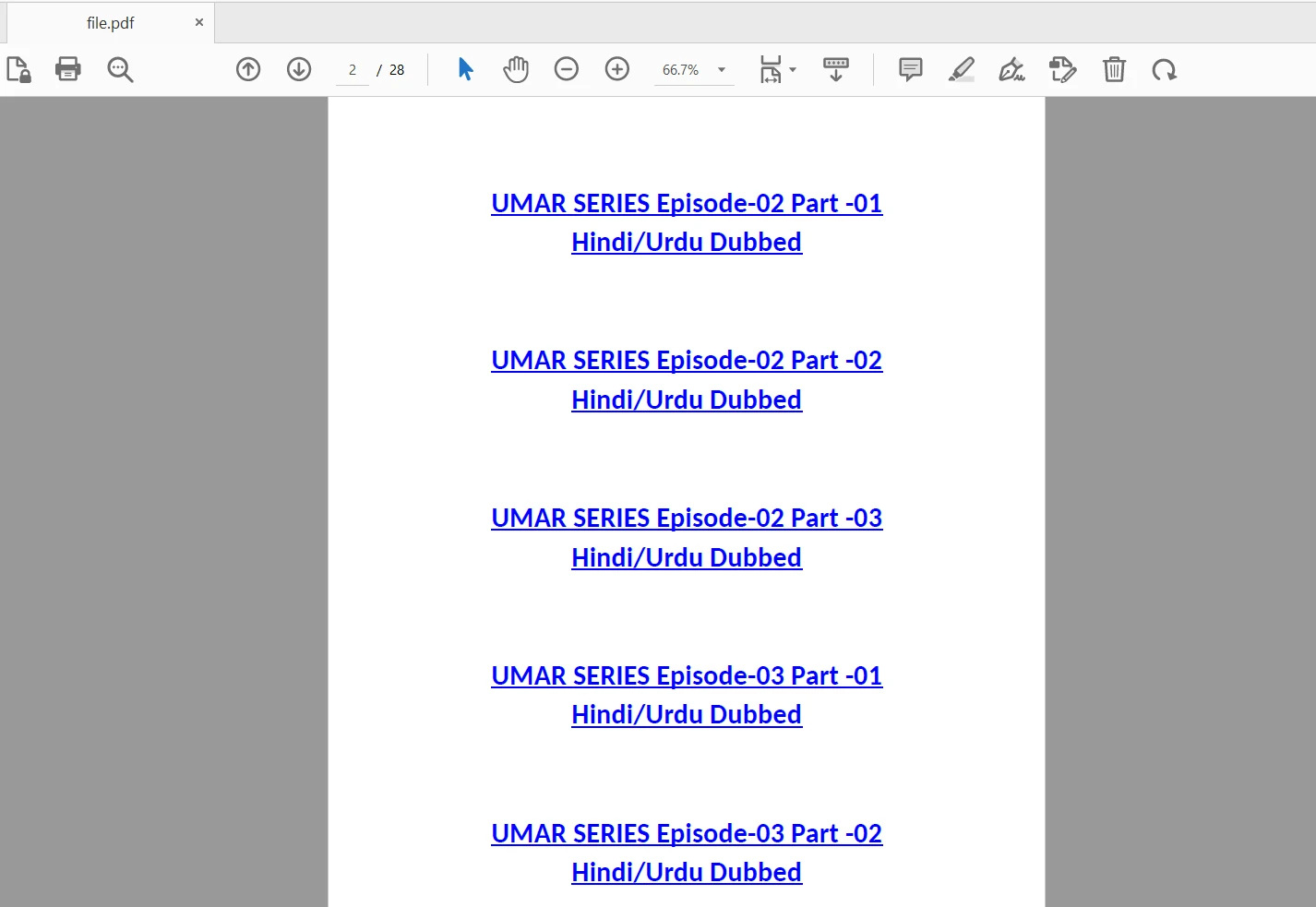
入力ファイルは以下の通りです:
pdftotextコマンドを実行する// Construct the command to execute pdftotext with input and output paths
string command = "pdftotext " + pdfPath + " " + outputFilePath;
// Execute the command using system function and capture the status
int status = system(command.c_str());ここでは、outputFilePath変数を使用して、PDFファイルを開いてその内容を表示します。 その後、status変数に格納されます。
if (status == 0)
{
    cout << "Text extraction successful." << endl;
}
else
{
    cout << "Text extraction failed." << endl;
}pdftotextコマンドが正常に実行されたかどうかを確認します。 もしstatusが0と等しい場合、テキスト抽出が成功したことを意味し、成功メッセージを出力します。 statusが0以外の場合、エラーを示し、エラーメッセージを出力します。
// Open the output file to read the extracted text
ifstream outputFile(outputFilePath);
if (outputFile.is_open())
{
    string textContent;
    string line;
    while (getline(outputFile, line))
    {
        textContent += line + "\n"; // Concatenate each line to the text content
    }
    outputFile.close();
    cout << "Text content extracted from PDF:" << endl;
    cout << textContent << endl;
}
else
{
    cout << "Failed to open output file." << endl;
}上記のサンプルコードでは、textContent文字列に格納します。 最終的にファイルを閉じて、抽出されたテキストコンテンツをコンソールに表示します。
編集可能な出力テキストファイルが不要な場合やディスクスペースを解放したい場合、プログラムの最後にmain関数を終了する前に、次のコマンドを使用してそれを削除します:
// Remove the output file to free up disk space and if output is not needed
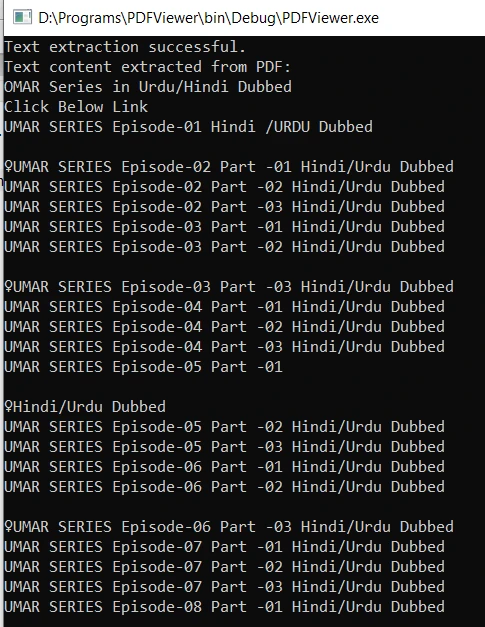
remove(outputFilePath.c_str());"Ctrl+F9"ショートカットキーを使用してコードをビルドします。 コンパイルが成功すると、実行ファイルは指定されたPDFドキュメントからテキストコンテンツを抽出し、コンソールに表示されます。 出力は以下の通りです。
IronPDF .NET 向け C#ライブラリは、C#アプリケーション内でPDFファイルを簡単に表示できる強力な.NET C# PDFライブラリです。 Chromiumウェブブラウザエンジンを活用することで、IronPDFは画像、フォント、複雑なフォーマットを含めたPDFコンテンツを正確にレンダリングおよび表示します。 使いやすいインターフェースと豊富な機能を備えたIronPDFは、開発者がC#プロジェクトにシームレスに統合でき、ユーザーがPDFドキュメントを効率的かつインタラクティブに表示できるようにします。 レポート、請求書、またはその他のPDFコンテンツを表示する必要がある場合でも、IronPDFはC#で豊富な機能を持つPDFビューアを作成するための堅牢なソリューションを提供します。
Visual StudioでIronPDF NuGetパッケージをインストールするには、次の手順を実行します:
Visual Studioを開く: Visual Studioまたはお好みの他のIDEを起動します。
プロジェクトを作成または開く: C#プロジェクトを新規作成するか、IronPDFパッケージをインストールしたい既存のプロジェクトを開きます。
NuGetパッケージマネージャーを開く: Visual Studioでは、"ツール" > "NuGetパッケージマネージャー" > "ソリューションのNuGetパッケージの管理"に行きます。 または、ソリューションエクスプローラーをクリックし、"ソリューションのNuGetパッケージの管理"を選択します。
IronPDFを検索: "NuGetパッケージマネージャー"ウィンドウで"参照"タブをクリックし、検索バーで"IronPDF"を検索します。 または、NuGet IronPDFパッケージを訪れて最新バージョンの"IronPDF"を直接ダウンロードします。
IronPDFパッケージを選択: "IronPDF"パッケージを見つけてプロジェクト用に選択します。
IronPDFをインストール: インストールボタンをクリックして選択したパッケージをインストールします。
ただし、NuGetパッケージマネージャーコンソールを使用して次のコマンドでIronPDFをインストールすることもできます:
IronPDFを使用して、PDFドキュメントからテキストや画像を抽出し、それらをコンソールで表示するなどの操作を実行できます。 次のコードはこのタスクを達成するのに役立ちます。
using IronPdf;
using IronSoftware.Drawing;
using System.Collections.Generic;

// Extracting Image and Text content from Pdf Documents
// Open a 128-bit encrypted PDF
var pdf = PdfDocument.FromFile("encrypted.pdf", "password");

// Get all text to put in a search index
string text = pdf.ExtractAllText();

// Get all Images
var allImages = pdf.ExtractAllImages();

// Or even find the precise text and images for each page in the document
for (var index = 0 ; index < pdf.PageCount ; index++)
{
    int pageNumber = index + 1;
    text = pdf.ExtractTextFromPage(index);
    List<AnyBitmap> images = pdf.ExtractBitmapsFromPage(index);
    // Further processing here...
}Imports IronPdf
Imports IronSoftware.Drawing
Imports System.Collections.Generic
' Extracting Image and Text content from Pdf Documents
' Open a 128-bit encrypted PDF
Private pdf = PdfDocument.FromFile("encrypted.pdf", "password")
' Get all text to put in a search index
Private text As String = pdf.ExtractAllText()
' Get all Images
Private allImages = pdf.ExtractAllImages()
' Or even find the precise text and images for each page in the document
For index = 0 To pdf.PageCount - 1
Dim pageNumber As Integer = index + 1
text = pdf.ExtractTextFromPage(index)
Dim images As List(Of AnyBitmap) = pdf.ExtractBitmapsFromPage(index)
' Further processing here...
Next indexIronPDFの詳細情報については、IronPDFドキュメンテーションをご覧ください。
この記事では、Xpdfコマンドラインツールを使用してC++でPDFドキュメントの内容を抽出および表示する方法を学びました。 このアプローチにより、C++アプリケーション内で抽出されたテキストをシームレスに処理および分析することができます。
商業目的でテストするための無料試用ライセンスが利用可能です。

Curtis Chauは、カールトン大学でコンピュータサイエンスの学士号を取得し、Node.js、TypeScript、JavaScript、およびReactに精通したフロントエンド開発を専門としています。直感的で美しいユーザーインターフェースを作成することに情熱を持ち、Curtisは現代のフレームワークを用いた開発や、構造の良い視覚的に魅力的なマニュアルの作成を楽しんでいます。

IronPDF はIRONSUITEの一部です
オフィス文書向けの.NET API製品10個

PDFがHTMLのように見える必要があるとき、迅速に。












