



업데이트됨 2026년 4월 21일
Java를 이용하여 TIFF 파일을 PDF로 변환하는 방법
이 종합 가이드는 IronPDF를 사용하여 Java 환경에서 TIFF 이미지를 PDF로 원활하게 변환하는 단계를 안내합니다.
더 읽어보기

IronPDF 는 PDF 문서를 생성, 읽기 및 편집하기 위한 Java 기반 PDF 라이브러리입니다 . 이 프로그램을 사용하면 사용자가 PDF 문서를 쉽고 정확하게 작업할 수 있습니다. IronPDF for Java는 IronPDF for .NET 의 성공을 기반으로 구축되었으며 다양한 플랫폼에서 효율성을 제공합니다. IronPDF for Java는 IronPdfEngine를 사용하며, 이는 빠르고 성능 최적화되어 있습니다.
IronPDF PDF 파일에서 텍스트와 이미지, 기타 개체를 추출하는 데 도움을 줍니다. 이 프로그램은 HTML 문자열, URL 및 이미지를 사용하여 PDF를 생성하는 데 도움이 됩니다. 또한 다양한 파일 형식 간의 변환도 가능합니다. 기존 PDF 문서 에 새 콘텐츠를 쉽게 추가하고 디지털 서명을 삽입할 뿐만 아니라 문서 메타데이터 도 추가할 수 있습니다. 이 프로그램은 특히 Java 8 이상, Scala 및 Kotlin을 지원하며 Windows, Linux 및 클라우드 플랫폼에서 사용할 수 있도록 설계되었습니다.
PDF 스탬프를 만들려면 다음과 같은 준비물이 필요합니다.
자바를 지원하는 IDE라면 어떤 것이든 사용 가능합니다. 자바 개발에 사용할 수 있는 IDE는 매우 많습니다. 이 시연에서는 IntelliJ IDE를 사용합니다. NetBeans, Eclipse 등을 사용할 수 있습니다.
Maven은 의존성 관리자로서 Java 프로젝트를 관리할 수 있도록 해줍니다. Java용 Maven은 공식 Maven 웹사이트 에서 다운로드할 수 있습니다. IntelliJ IDE for Java는 Maven을 지원합니다.
IronPDF for Java는 여러 가지 방법으로 다운로드하고 설치할 수 있습니다.
pom.xml 파일에 IronPDF 종속성을 추가합니다.<dependency>
<groupId>com.ironsoftware</groupId>
<artifactId>ironpdf</artifactId>
<version>LATEST_VERSION</version> <!-- Make sure to replace LATEST_VERSION with the actual version number -->
</dependency>이 종속성은 기존 PDF 문서에 콘텐츠를 추가하는 데에도 필요합니다. IntelliJ의 Maven 종속성 관리자에서 추가하거나 Maven 웹사이트에서 직접 다운로드할 수 있습니다. pom.xml 파일에 다음 종속성을 추가하세요:
<dependency>
    <groupId>org.slf4j</groupId>
    <artifactId>slf4j-simple</artifactId>
    <version>2.0.5</version>
</dependency>필수 구성 요소를 모두 설치했으면 다음 단계는 PDF 문서를 작업하는 데 필요한 IronPDF 패키지를 가져오는 것입니다. Main.java 파일 맨 위에 다음 코드를 추가하세요:
import com.ironsoftware.ironpdf.License;
import com.ironsoftware.ironpdf.PdfDocument;
import com.ironsoftware.ironpdf.edit.PageSelection;
import com.ironsoftware.ironpdf.metadata.MetadataManager;
import com.ironsoftware.ironpdf.security.PdfPrintSecurity;
import com.ironsoftware.ironpdf.security.SecurityManager;
import com.ironsoftware.ironpdf.security.SecurityOptions;
import com.ironsoftware.ironpdf.stamp.*;

import java.io.IOException;
import java.nio.file.Paths;
import java.util.Date;IronPDF 에서 사용할 수 있는 일부 메서드는 사용하려면 라이선스가 필요합니다. IronPDF 라이선스를 구매하거나 무료 체험판으로 사용해 볼 수 있습니다. 다음과 같이 키를 설정할 수 있습니다.
// Set the IronPDF license key
License.setLicenseKey("YOUR-KEY");새로운 내용을 스탬핑하기 위해 기존 문서를 가져오려면 PdfDocument 클래스를 사용합니다. 특정 경로에서 실제 파일 이름으로 파일을 로드하기 위해 정적 [fromFile](/java/object-reference/api/com/ironsoftware/ironpdf/PdfDocument.html#fromFile(java.nio.file.Path) 메서드를 사용합니다. 코드는 다음과 같습니다.
// Load an existing PDF document
PdfDocument pd = PdfDocument.fromFile(Paths.get("sample.pdf"));원본 문서를 불러왔습니다:
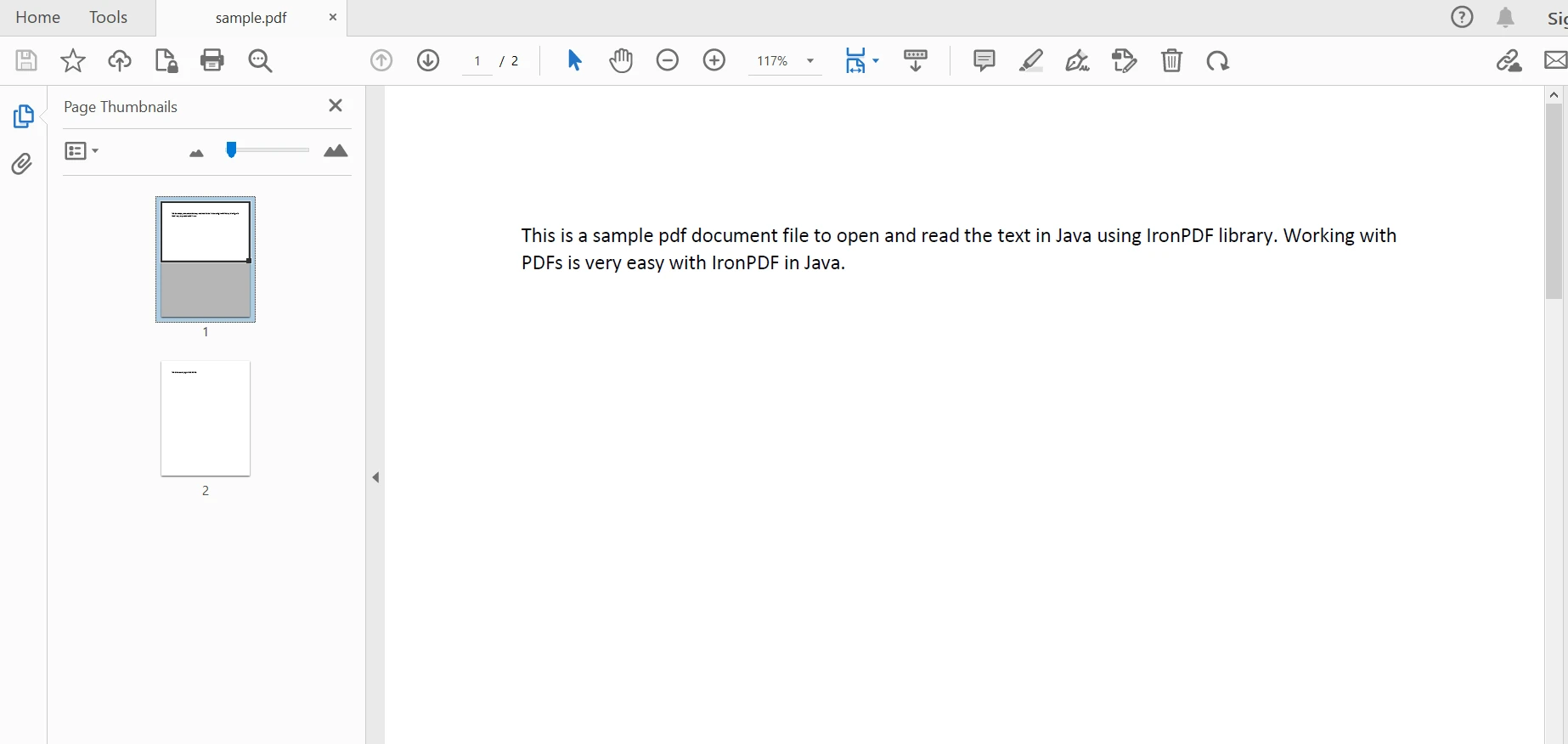 샘플 문서
샘플 문서
IronPDF 스탬프 패키지를 제공합니다. BarcodeStamper, HtmlStamper, ImageStamper, TextStamper 등을 포함한 유용한 스탬핑 옵션을 제공합니다. 이 PDF 문서에 새로운 HTML 콘텐츠를 추가하기 위해 HtmlStamper 클래스를 사용합니다. 이전 섹션에서 사용한 파일에 내용을 추가해 보겠습니다. 다음 코드는 이 작업을 수행하는 데 도움이 됩니다.
// Create an HtmlStamper and set its content
HtmlStamper htmlStamper = new HtmlStamper();
htmlStamper.setHtml("New content added!");HtmlStamper 객체를 생성한 후 setHtml 메서드를 사용하여 새로운 HTML 코드를 첨부합니다. 다음 단계는 기존 PDF 문서에 이를 적용하여 새 PDF 버전을 만드는 것입니다.
이전에 생성한 PdfDocument 객체를 사용하여 기존 문서에 HTML 코드를 추가합니다. [applyStamp](/java/object-reference/api/com/ironsoftware/ironpdf/PdfDocument.html#applyStamp(com.ironsoftware.ironpdf.stamp.Stamper)는 두 가지 오버로드를 제공합니다. 하나는 콘텐츠만 Stamper 객체로 수용하고, 다른 하나는 페이지 선택도 포함합니다.
// Apply the stamper to the PDF document
pd.applyStamp(htmlStamper);이렇게 하면 문자열 설명이 기존 문서에 추가됩니다.
파일을 저장하려면 PdfDocument 객체의 [saveAs](/java/object-reference/api/com/ironsoftware/ironpdf/PdfDocument.html#saveAs(java.lang.String) 메서드를 사용합니다.
// Save the modified PDF document
pd.saveAs("stamped.pdf");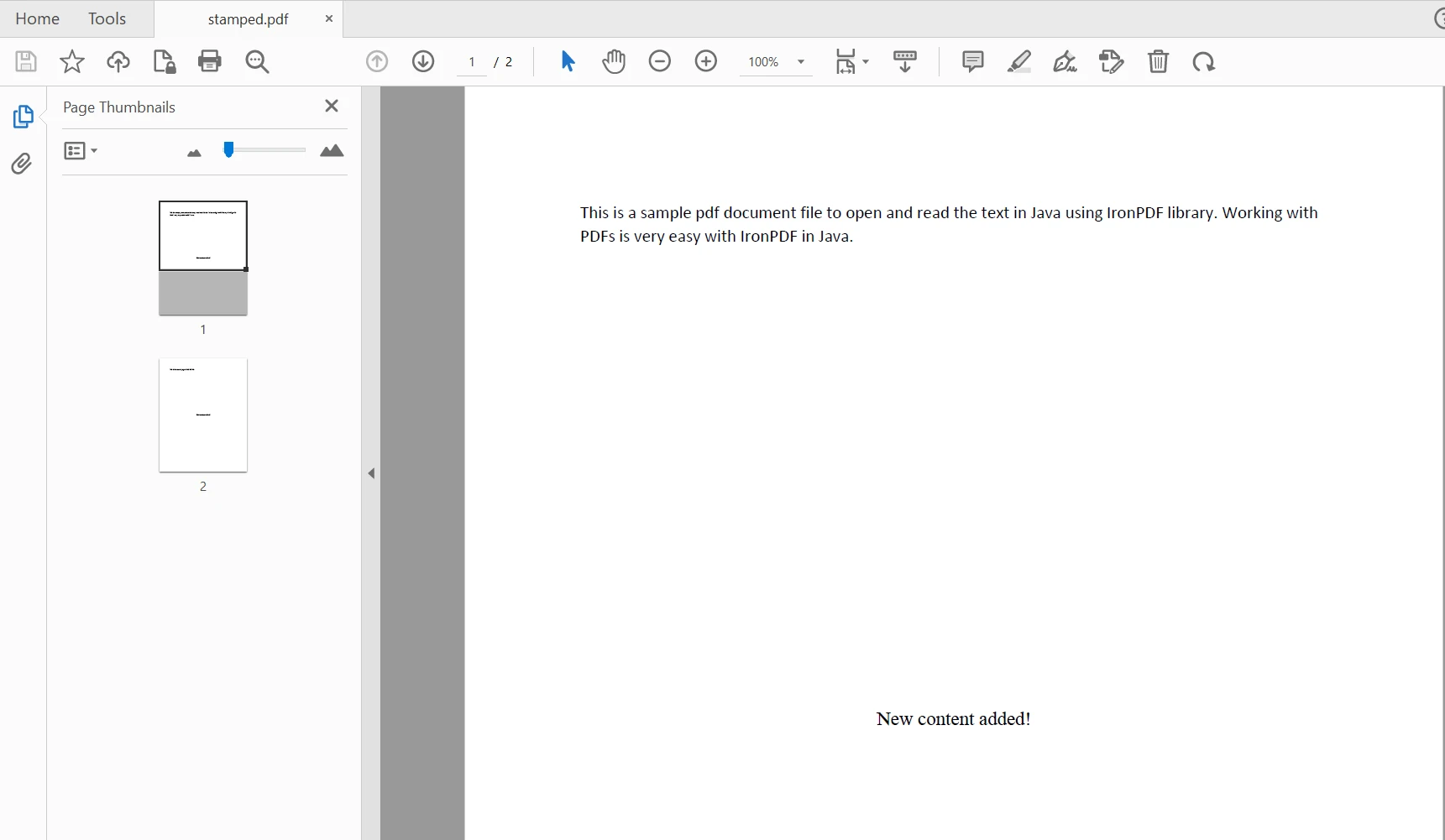 도장이 찍힌 PDF 파일
해당 HTML 문자열은 PDF 문서의 모든 페이지 중간에 추가됩니다.
특정 페이지에 콘텐츠를 추가하기 위해 applyStamp 메서드의 또 다른 오버로드를 사용할 수 있습니다.
// Stamp content to a specific page
pd.applyStamp(htmlStamper, PageSelection.singlePage(1));PageSelection 클래스는 페이지 번호를 제어하는 다양한 메서드를 제공합니다. firstPage, lastPage, allPages, 그리고 pageRange는 적절하게 콘텐츠를 추가할 수 있는 일부 메서드입니다.
기존 PDF 문서에 추가된 콘텐츠의 위치를 조정하기 위해 각 Stamper 클래스에서 [setVerticalAlignment](/java/object-reference/api/com/ironsoftware/ironpdf/stamp/Stamper.html#setVerticalAlignment(com.ironsoftware.ironpdf.stamp.VerticalAlignment), [setHorizontalAlignment](/java/object-reference/api/com/ironsoftware/ironpdf/stamp/Stamper.html#setHorizontalAlignment(com.ironsoftware.ironpdf.stamp.HorizontalAlignment), setWidth, setHeight 메서드를 사용할 수 있습니다. 다음 예제 코드는 텍스트를 페이지 왼쪽 하단에 배치하는 데 도움이 됩니다.
// Set the alignment of the stamper
htmlStamper.setHorizontalAlignment(HorizontalAlignment.LEFT);
htmlStamper.setVerticalAlignment(VerticalAlignment.BOTTOM);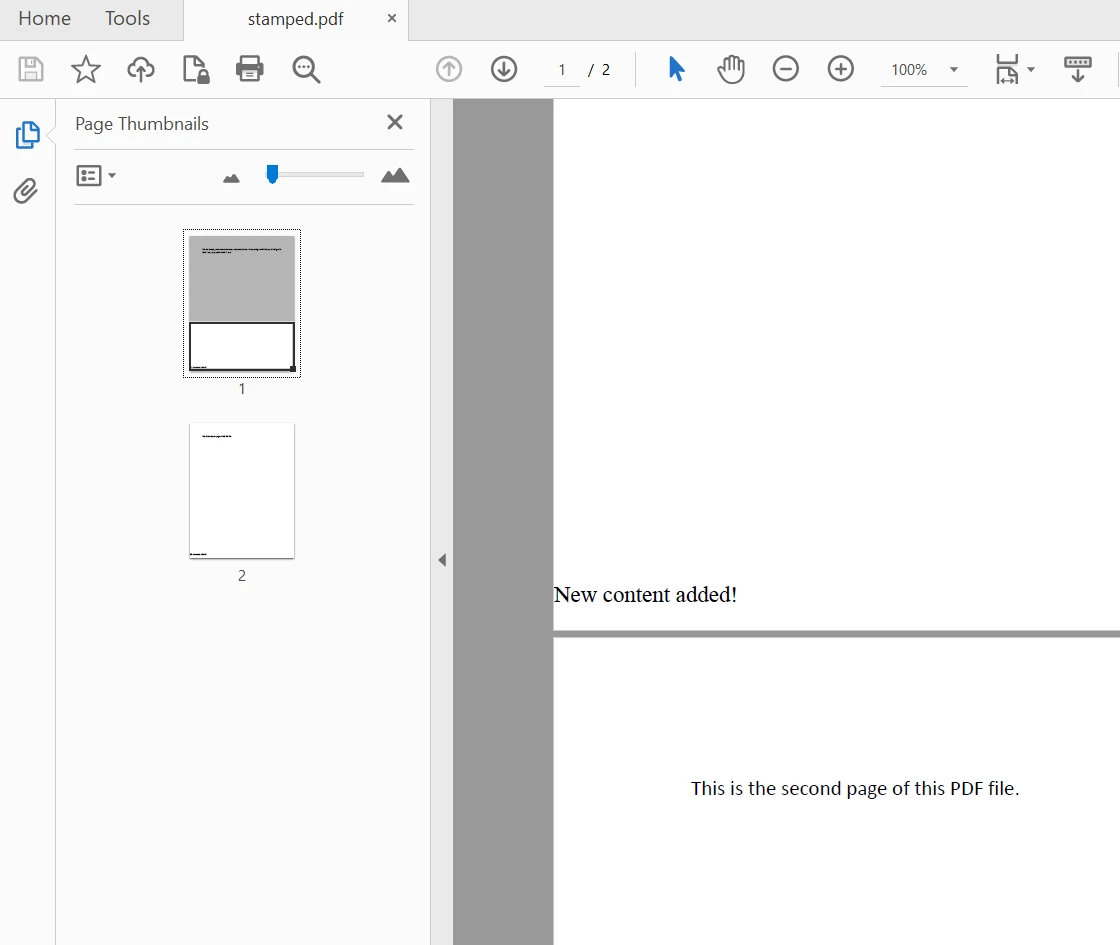 스탬프 정렬이 포함된 출력 PDF 파일
콘텐츠의 위치를 추가로 조정하려면 setVerticalOffset, setHorizontalOffset 메서드를 사용할 수 있습니다.
IronPDF 사용하여 PDF 파일을 다루는 방법에 대한 자세한 내용은 Java로 HTML을 PDF로 변환하는 코드 예제를 참조하세요.
IronPDF for Java는 다양한 기능을 제공하는 라이브러리로, 메타데이터 형태의 파일 설명, 사용자 권한, 사용자 암호 추가, 디지털 서명 추가, 서명된 문서를 생성하여 PDF 문서 버전을 저장하는 기능 등을 제공합니다.
// Edit file metadata
MetadataManager metadata = pd.getMetadata();
metadata.setAuthor("Satoshi Nakamoto");
metadata.setKeywords("SEO, Friendly");
metadata.setModifiedDate(new Date().toString());PDF 파일의 보안 옵션을 설정하여 데이터가 무단으로 사용되는 것을 방지할 수도 있습니다. It provides options to set setAllowUserPrinting, [setAllowUserEdits](/java/object-reference/api/com/ironsoftware/ironpdf/security/SecurityOptions.html#setAllowUserEdits(com.ironsoftware.ironpdf.security.PdfEditSecurity), [setAllowUserCopyPasteContent](/java/object-reference/api/com/ironsoftware/ironpdf/security/SecurityOptions.html#setAllowUserCopyPasteContent(java.lang.Boolean), [setAllowUserAnnotations](/java/object-reference/api/com/ironsoftware/ironpdf/security/SecurityOptions.html#setAllowUserAnnotations(java.lang.Boolean), [setUserPassword](/java/object-reference/api/com/ironsoftware/ironpdf/security/SecurityOptions.html#setUserPassword(java.lang.String), [setAllowUserFormData](/java/object-reference/api/com/ironsoftware/ironpdf/security/SecurityOptions.html#setAllowUserFormData(java.lang.Boolean) parameters to true or false. 다음 샘플 코드는 위에 언급된 모든 객체의 속성을 설정하는 데 도움이 됩니다.
// Edit file security settings
SecurityOptions securityOptions = new SecurityOptions();
securityOptions.setAllowUserCopyPasteContent(false);
securityOptions.setAllowUserAnnotations(false);
securityOptions.setAllowUserPrinting(PdfPrintSecurity.FULL_PRINT_RIGHTS);
securityOptions.setAllowUserFormData(false);
securityOptions.setOwnerPassword("top-secret");
securityOptions.setUserPassword("sharable");
// Change or set the document encryption password
SecurityManager securityManager = pd.getSecurity();
securityManager.removePasswordsAndEncryption();
securityManager.makePdfDocumentReadOnly("secret-key");
securityManager.setSecurityOptions(securityOptions);
pd.saveAs(Paths.get("assets/secured.pdf"));실제 파일에 디지털 서명을 삽입하는 방법에 대한 자세한 내용은 PDF 서명 관련 코드 예제를 참조하세요.
이 글에서는 자바를 사용하여 기존 PDF 문서에 콘텐츠를 삽입하는 방법에 대해 설명했습니다. 다양한 형식의 콘텐츠를 원본 문서의 원하는 위치에 추가하는 데 사용할 수 있는 유용한 스탬프 클래스가 포함된 스탬프 패키지가 있습니다.
위의 코드 예제에서도 볼 수 있듯이 IronPDF 는 매우 다재다능한 라이브러리입니다. 이 도구는 매우 간단하지만 강력한 PDF 생성 및 편집 도구입니다. 이를 통해 개발자는 모든 PDF 기능을 단일 자바 애플리케이션 프로그램에 쉽게 통합할 수 있습니다.
IronPDF 단일 개발에는 무료이며, 워터마크 없는 무료 평가판 라이선스를 제공하여 모든 기능을 테스트해 볼 수 있습니다. 하지만 상업적 용도로 사용하려면 IronPDF 와 라이선스 계약을 체결해야 합니다.
마지막으로, IronPDF 개발자들이 5가지 Iron Software 제품 모두를 2개 라이선스 가격으로 Iron Software 수 있는 특별 프로모션을 제공합니다.

커티스 차우는 칼턴 대학교에서 컴퓨터 과학 학사 학위를 취득했으며, Node.js, TypeScript, JavaScript, React를 전문으로 하는 프론트엔드 개발자입니다. 직관적이고 미적으로 뛰어난 사용자 인터페이스를 만드는 데 열정을 가진 그는 최신 프레임워크를 활용하고, 잘 구성되고 시각적으로 매력적인 매뉴얼을 제작하는 것을 즐깁니다.



IronPDF는 IRON SUITE 의 일부입니다.
10개의 .NET API 제품, 당신의 사무 문서를 위해

PDF 파일을 HTML처럼 빠르게 변환해야 할 때.

