푸터 콘텐츠로 바로가기
JAVA용 IRONPDF 사용

Java로 PDF 리더를 만드는 방법

This article will explore how you can read PDF files using IronPDF for Java.

How to Create a PDF Reader in Java

  1. Install the Java library for creating a PDF reader in Java.
  2. Utilize the Scanner(System.in) method to get the input path from the user.
  3. Use the PdfDocument.fromFile method to open PDF files from the path.
  4. Read text from a PDF file using [extractAllText](/java/object-reference/api/com/ironsoftware/ironpdf/PdfDocument.html#extractAllText()).
  5. Print the text in the console to read.

IronPDF for Java

Empowering developers to seamlessly generate, manipulate, and interact with PDF files, IronPDF stands as a robust and versatile library designed to streamline PDF-related tasks in Java applications. From automated report generation to interactive form creation, IronPDF offers a comprehensive set of features for PDF document handling. IronPDF allows developers to write to PDF files, create a new PDF file, edit existing files, and much more.

Its ease of integration with popular Java frameworks and libraries, coupled with a rich API, makes it a powerful asset for developers seeking to tackle PDF-related challenges effectively. This introductory article will explore the fundamental concepts, architecture, and myriad possibilities that IronPDF unlocks, providing Java developers with the knowledge to harness its full potential and simplify PDF document management in their projects.

IronPDF Features

IronPDF for Java is a powerful PDF library that provides a wide range of features to help Java developers work with PDF documents. Here is a list of some key features:

  1. PDF Generation: Create new PDF files from scratch with text, images, page dictionary, number of pages, and graphics.
  2. HTML to PDF Conversion: Convert HTML content to PDF format, preserving styles and layout.
  3. PDF Editing: Modify existing PDFs by adding or removing content, annotations, rotated pages, and form fields.
  4. PDF Merging and Splitting: Combine multiple PDF documents into a single file or split a PDF file into separate pages or documents based on the page number and number of pages in the file.
  5. Text Extraction: Extract text content from PDFs for search, analysis, or data processing.
  6. Page Manipulation: Rearrange, rotate, or delete pages within a PDF document.
  7. Image Handling: Add images to PDFs, extract images, or convert PDF pages to images (e.g., PNG, JPEG).
  8. Barcode Generation: Create barcodes within PDF documents for various applications.
  9. Watermarking: Add text or image watermarks to protect and brand your PDF file.
  10. Digital Signatures: Apply digital signatures for document authentication and integrity.

Installing IronPDF for Java

To install IronPDF, first, you need a good Java compiler. In today's article, IntelliJ IDEA is recommended.

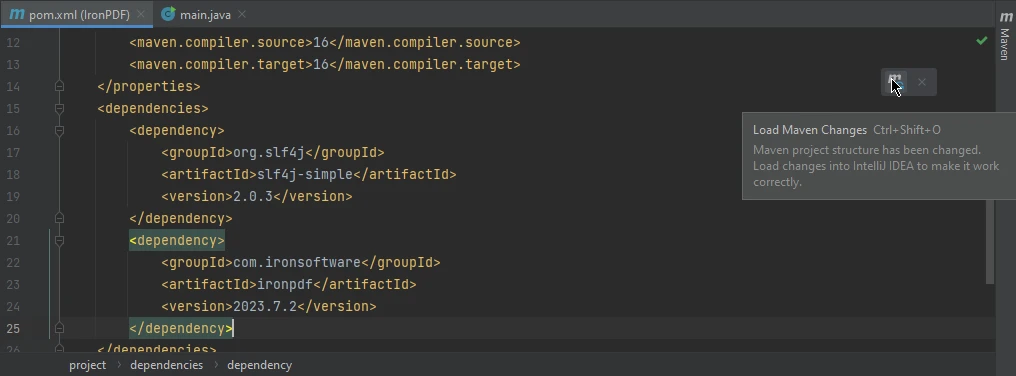
Open IntelliJ IDEA and create a new Maven project. Once the project is created, open the pom.xml file and write the following Maven dependencies in it to use IronPDF.


<dependency>
    <groupId>com.ironsoftware</groupId>
    <artifactId>ironpdf</artifactId>
    <version>your_version_here</version>
</dependency>

<dependency>
    <groupId>com.ironsoftware</groupId>
    <artifactId>ironpdf</artifactId>
    <version>your_version_here</version>
</dependency>
XML

Once these are added, click on the small button that appears on the right side of the screen to install these dependencies.

How to Create a PDF Reader in Java, Figure 1: The pom.xml file The pom.xml file

Creating a PDFReader to Read PDF Files

This section will introduce source code that will create a PDF reader that can read PDF files by getting the PDF file path from the user, extracting the text as a string value and printing it to the console for the user to read and get useful information from it.

import com.ironsoftware.ironpdf.*;
import java.io.IOException;
import java.nio.file.Paths;
import java.util.Scanner;

public class Main {
    public static void main(String[] args) {
        // Create Scanner for user input
        Scanner scanner = new Scanner(System.in);
        System.out.print("Enter the PDF file path: ");
        String filePath = scanner.nextLine();
        scanner.close();

        try {
            // Load PDF from file
            PdfDocument pdf = PdfDocument.fromFile(Paths.get(filePath));
            // Extract all text from the PDF
            String text = pdf.extractAllText();
            // Print the extracted text to the console
            System.out.println(text);
        } catch (IOException e) {
            System.err.println("An IOException occurred: " + e.getMessage());
        } catch (PdfException e) {
            System.err.println("A PdfException occurred: " + e.getMessage());
        } catch (Exception e) {
            System.err.println("An unexpected exception occurred: " + e.getMessage());
        }
    }
}
import com.ironsoftware.ironpdf.*;
import java.io.IOException;
import java.nio.file.Paths;
import java.util.Scanner;

public class Main {
    public static void main(String[] args) {
        // Create Scanner for user input
        Scanner scanner = new Scanner(System.in);
        System.out.print("Enter the PDF file path: ");
        String filePath = scanner.nextLine();
        scanner.close();

        try {
            // Load PDF from file
            PdfDocument pdf = PdfDocument.fromFile(Paths.get(filePath));
            // Extract all text from the PDF
            String text = pdf.extractAllText();
            // Print the extracted text to the console
            System.out.println(text);
        } catch (IOException e) {
            System.err.println("An IOException occurred: " + e.getMessage());
        } catch (PdfException e) {
            System.err.println("A PdfException occurred: " + e.getMessage());
        } catch (Exception e) {
            System.err.println("An unexpected exception occurred: " + e.getMessage());
        }
    }
}
JAVA

This Java code is designed to extract text content from a PDF file specified by the user. It begins by importing the necessary libraries, including com.ironsoftware.ironpdf.* for PDF processing and java.util.Scanner for user input. Inside the main function, it initializes a Scanner to capture user input from the console. The user is prompted to enter the file path of the PDF file they want to process.

Once the user provides the file path, the code reads it, creates a PdfDocument object using the IronPDF library, and then extracts all the text content from the specified PDF file.

PDFReader Read PDF File Example 1

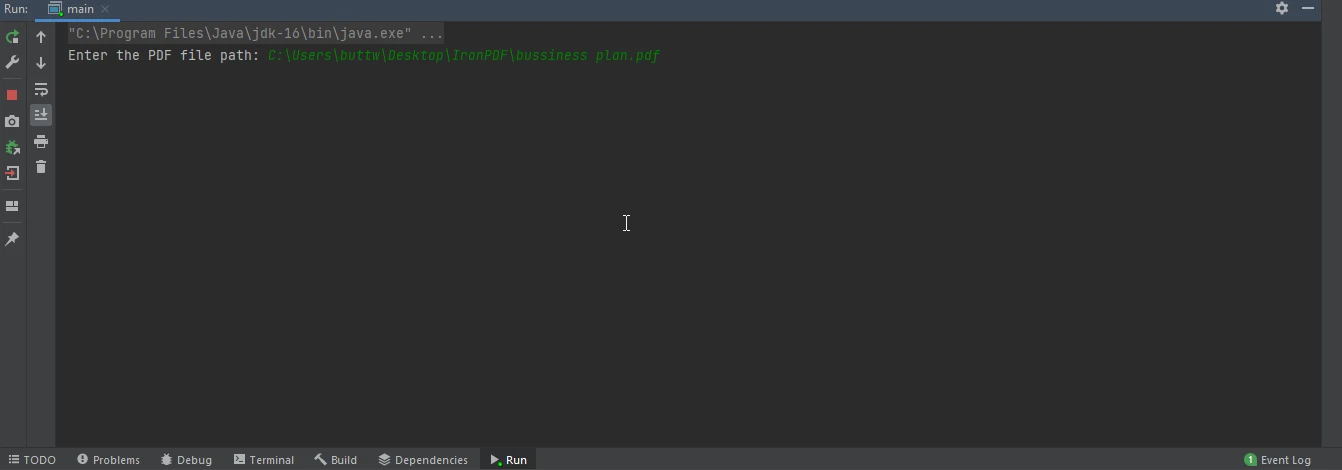
Run the Java program, and it will ask for the PDF file path. Enter the PDF file path and press enter.

How to Create a PDF Reader in Java, Figure 2: The main file The main file

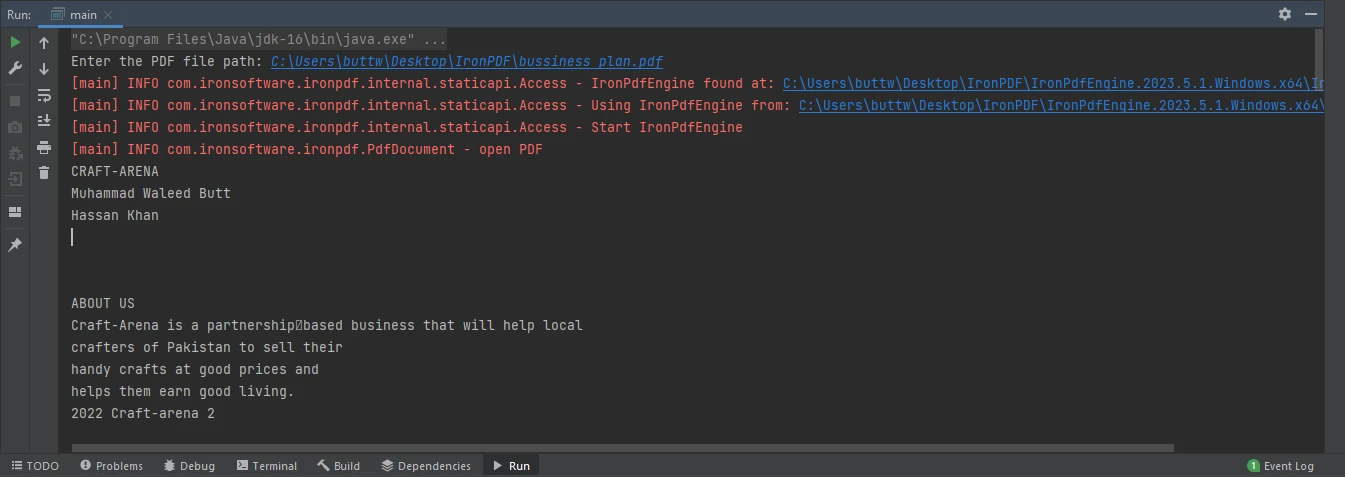
It will open the PDF file located at the path, extract its text, and print it in the console. Below is the output image.

How to Create a PDF Reader in Java, Figure 3: The console content The console content

PDFReader Read PDF Document Example 2

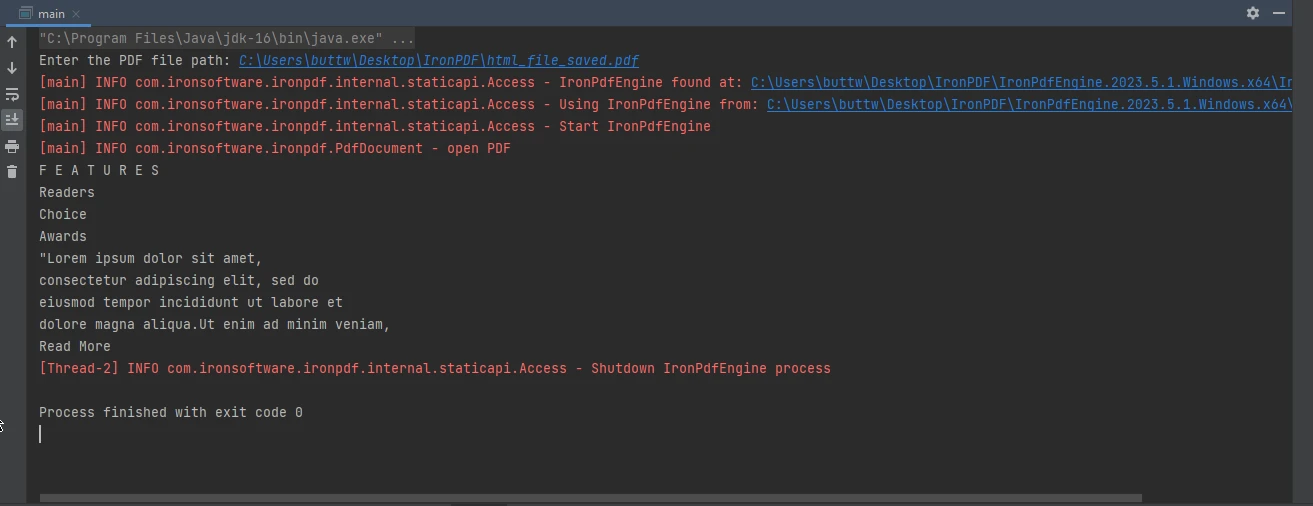
Rerun the Java program and enter a new file with another PDF file path.

How to Create a PDF Reader in Java, Figure 4: The console from example 2 The console from example 2

Conclusion

This article has provided an introduction to IronPDF for Java, including instructions for installation and a practical example of how to create a PDF reader to extract text from PDF files interactively. With the knowledge and tools provided in this guide, Java developers can take full advantage of IronPDF and simplify their PDF-related tasks in their projects, whether it's for generating reports, processing data, or creating interactive forms.

The complete article on how to read a PDF file can be found in this detailed blog. The code example on how to read a PDF file in Java is available on this example page.

Opt-in to IronPDF's trial today to begin exploring all of its features, and see how IronPDF can help improve your PDF-related tasks. If you find IronPDF to be beneficial to your working environment, be sure to purchase a license.

자주 묻는 질문

Java 프로젝트에 PDF 라이브러리를 설치하려면 어떻게 해야 하나요?

Java 프로젝트에 IronPDF와 같은 PDF 라이브러리를 설치하려면 IntelliJ IDEA에서 새 Maven 프로젝트를 생성하고 pom.xml 파일에 IronPDF Maven 종속성을 추가한 다음 종속성을 설치하세요.

Java로 PDF 파일을 읽으려면 어떻게 하나요?

Java에서 PDF 파일을 읽으려면 IronPDF의 PdfDocument.fromFile 메서드를 사용하여 PDF 파일을 열고 extractAllText로 텍스트 콘텐츠를 검색하면 됩니다.

Java PDF 라이브러리의 주요 기능은 무엇인가요?

IronPDF와 같은 포괄적인 Java PDF 라이브러리는 PDF 생성, HTML에서 PDF로 변환, PDF 편집, 병합 및 분할, 텍스트 추출, 페이지 조작, 이미지 처리, 바코드 생성, 워터마킹 및 디지털 서명 등의 기능을 제공합니다.

Java에서 HTML을 PDF로 변환하려면 어떻게 해야 하나요?

IronPDF를 사용하면 원본 스타일과 레이아웃을 보존하는 방법을 사용하여 HTML 콘텐츠를 PDF 형식으로 변환하여 정확한 렌더링을 보장할 수 있습니다.

Java 라이브러리를 사용하여 기존 PDF 파일을 편집할 수 있나요?

예, IronPDF와 같은 라이브러리를 사용하여 콘텐츠, 주석, 회전된 페이지 및 양식 필드를 추가하거나 제거하여 기존 PDF를 편집할 수 있습니다.

Java를 사용하여 PDF에서 텍스트를 추출하려면 어떻게 해야 하나요?

IronPDF는 검색, 분석 또는 데이터 처리 등의 목적으로 PDF에서 텍스트 콘텐츠를 추출할 수 있는 extractAllText 메서드를 제공합니다.

Java를 사용하여 PDF 리더를 만들려면 어떤 단계를 거쳐야 하나요?

Java에서 PDF 리더를 만들려면 IronPDF 라이브러리를 설치하고 메서드를 사용하여 PDF 경로를 가져온 다음 PdfDocument.fromFileextractAllText를 적용하여 텍스트를 읽고 인쇄하세요.

Java PDF 라이브러리가 디지털 서명을 지원하나요?

예, IronPDF는 PDF 문서에 디지털 서명을 적용하여 문서 인증 및 무결성을 보장합니다.

Java 개발자가 PDF 라이브러리를 사용해야 하는 이유는 무엇인가요?

IronPDF와 같은 PDF 라이브러리를 사용하면 PDF 문서 관리가 간소화되고 Java 프레임워크와 쉽게 통합되며 풍부한 API를 제공하여 PDF 관련 문제를 효과적으로 해결할 수 있습니다.

Java에서 PDF 라이브러리를 사용할 때 흔히 발생하는 문제 해결 시나리오는 무엇인가요?

일반적인 문제로는 Maven의 종속성 충돌, 잘못된 파일 경로, PDF 권한 처리 등이 있습니다. 적절한 설정을 보장하고 라이브러리 설명서를 참조하면 이러한 문제를 해결하는 데 도움이 될 수 있습니다.

커티스 차우
기술 문서 작성자

커티스 차우는 칼턴 대학교에서 컴퓨터 과학 학사 학위를 취득했으며, Node.js, TypeScript, JavaScript, React를 전문으로 하는 프론트엔드 개발자입니다. 직관적이고 미적으로 뛰어난 사용자 인터페이스를 만드는 데 열정을 가진 그는 최신 프레임워크를 활용하고, 잘 구성되고 시각적으로 매력적인 매뉴얼을 제작하는 것을 즐깁니다.


커티스는 개발 분야 외에도 사물 인터넷(IoT)에 깊은 관심을 가지고 있으며, 하드웨어와 소프트웨어를 통합하는 혁신적인 방법을 연구합니다. 여가 시간에는 게임을 즐기거나 디스코드 봇을 만들면서 기술에 대한 애정과 창의성을 결합합니다.