푸터 콘텐츠로 바로가기
JAVA용 IRONPDF 사용

Java에서 PDF 파일을 미리 보는 방법

This article will demonstrate how to use IronPDF to preview PDF files within a Java application.

IronPDF

IronPDF is a high-performance Java library, offering fast and accurate operations, making it an excellent choice for PDF-related tasks such as reading PDF files, extracting text and images, merging, and splitting.

With the help of the IronPDF library, you can create PDFs from HTML, URLs, and strings with precise pixel-perfect rendering.

Prerequisites

To create a document viewer for PDF documents in Java, you need the following things set in place.

  1. JDK (Java Development Kit) and Swing UI framework installed.
  2. A Java IDE (Integrated Development Environment) such as Eclipse, NetBeans, or IntelliJ IDEA.
  3. IronPDF library for Java (You can download it from the IronPDF website and include it in your project).

Setting up

  1. Create a new Java project in your chosen IDE. I'm using IntelliJ IDEA and created the project using Maven.
  2. Add the IronPDF library to your project using Maven by adding the dependencies shown below in your project's pom.xml file:

    
    <dependency>
        <groupId>com.ironsoftware</groupId>
        <artifactId>ironpdf</artifactId>
        <version>latest_version</version>
    </dependency>
    
    <dependency>
        <groupId>com.ironsoftware</groupId>
        <artifactId>ironpdf</artifactId>
        <version>latest_version</version>
    </dependency>
    XML
  3. Add the necessary imports:

    import com.ironsoftware.ironpdf.PdfDocument;
    
    import javax.imageio.ImageIO;
    import javax.swing.*;
    import javax.swing.border.EmptyBorder;
    import java.awt.image.BufferedImage;
    import java.io.File;
    import java.io.IOException;
    import java.nio.file.Paths;
    import java.util.ArrayList;
    import java.util.List;
    import com.ironsoftware.ironpdf.PdfDocument;
    
    import javax.imageio.ImageIO;
    import javax.swing.*;
    import javax.swing.border.EmptyBorder;
    import java.awt.image.BufferedImage;
    import java.io.File;
    import java.io.IOException;
    import java.nio.file.Paths;
    import java.util.ArrayList;
    import java.util.List;
    JAVA

Loading the PDF File Format

To view PDF documents, the next step is to load the PDF file in this Java PDF viewer application by using the PdfDocument class.

public class PDFPreview extends JFrame {

    private List<String> imagePaths = new ArrayList<>();

    private List<String> ConvertToImages() throws IOException {
        // Load the PDF document from a file
        PdfDocument pdfDocument = PdfDocument.fromFile(Paths.get("example.pdf"));
        // Convert the PDF pages to a list of BufferedImages
        List<BufferedImage> extractedImages = pdfDocument.toBufferedImages();
        int i = 1;
        // Iterate over the extracted images and save each to an image file
        for (BufferedImage extractedImage : extractedImages) {
            String fileName = "assets/images/" + i + ".png";
            ImageIO.write(extractedImage, "PNG", new File(fileName));
            // Store the file paths in the image paths list
            imagePaths.add("assets/images/" + i + ".png");
            i++;
        }
        return imagePaths;
    }
}
public class PDFPreview extends JFrame {

    private List<String> imagePaths = new ArrayList<>();

    private List<String> ConvertToImages() throws IOException {
        // Load the PDF document from a file
        PdfDocument pdfDocument = PdfDocument.fromFile(Paths.get("example.pdf"));
        // Convert the PDF pages to a list of BufferedImages
        List<BufferedImage> extractedImages = pdfDocument.toBufferedImages();
        int i = 1;
        // Iterate over the extracted images and save each to an image file
        for (BufferedImage extractedImage : extractedImages) {
            String fileName = "assets/images/" + i + ".png";
            ImageIO.write(extractedImage, "PNG", new File(fileName));
            // Store the file paths in the image paths list
            imagePaths.add("assets/images/" + i + ".png");
            i++;
        }
        return imagePaths;
    }
}
JAVA

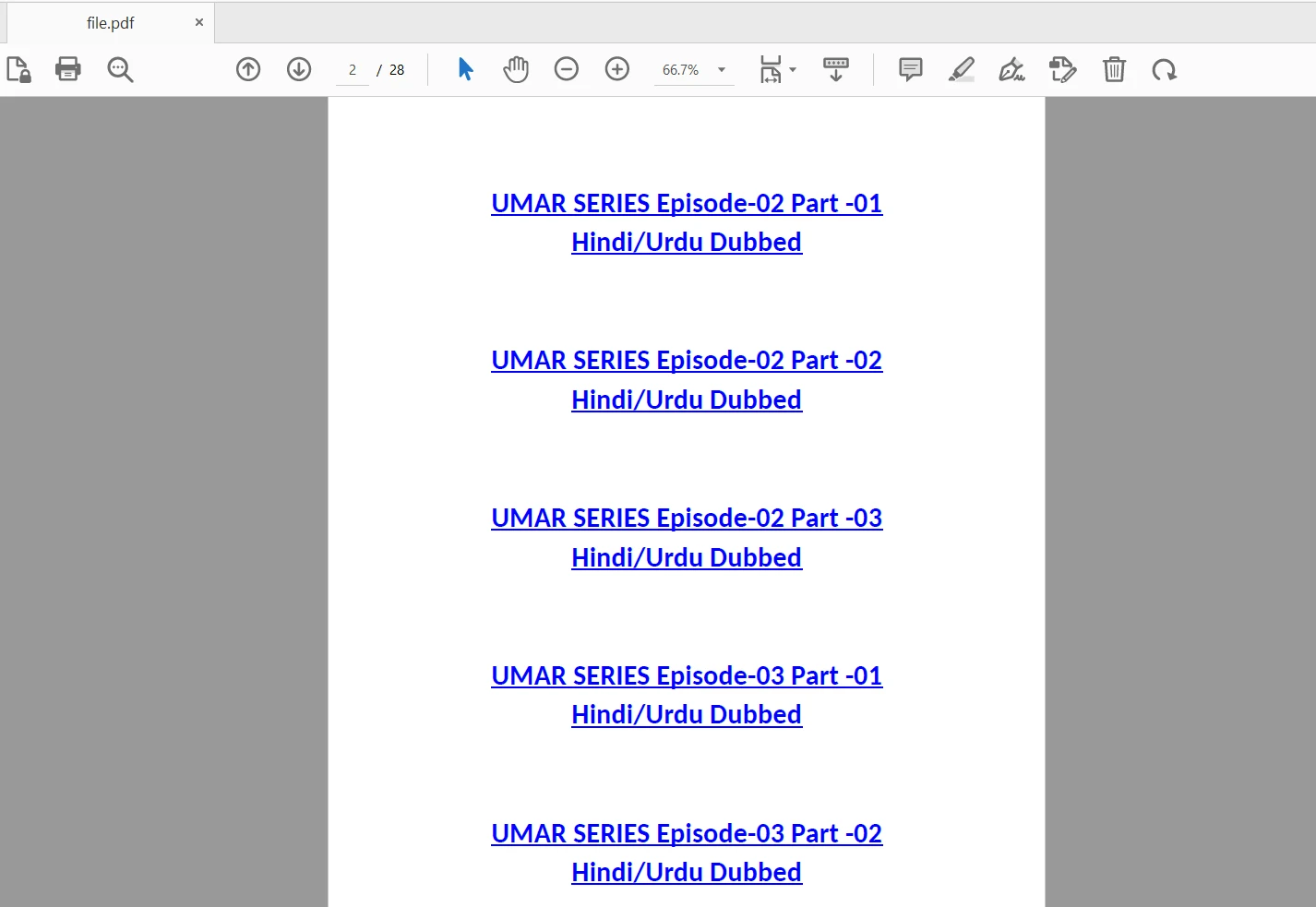
How to Preview PDF Files in Java, Figure 1: The output PDF file The output PDF file

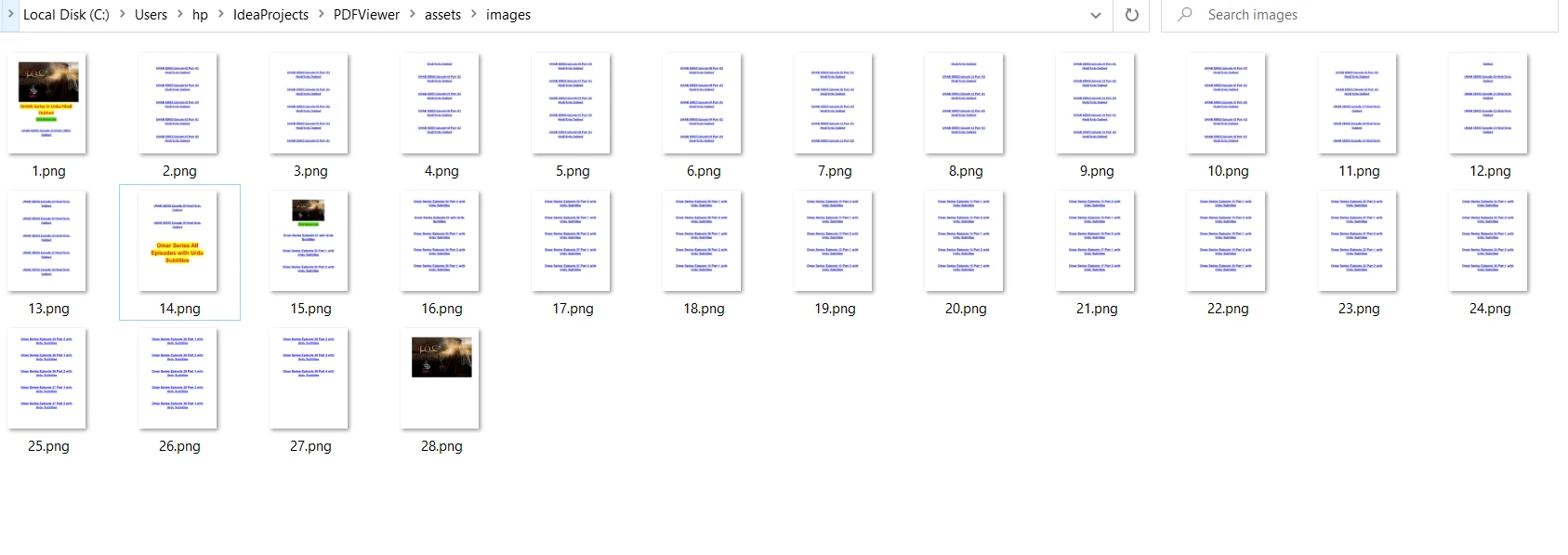
Converted to Images:

How to Preview PDF Files in Java, Figure 2: Convert PDF file to images Convert PDF file to images

Creating PDF Viewer Window

Now, you can display the converted images in a preview window using Java Swing components.

public class PDFPreview extends JFrame {
    private JPanel imagePanel;
    private JScrollPane scrollPane;

    public PDFPreview() {
        try {
            // Convert the PDF to images and store the image paths
            imagePaths = this.ConvertToImages();
        } catch (Exception e) {
            e.printStackTrace();
        }

        // Create imagePanel
        imagePanel = new JPanel();
        imagePanel.setLayout(new BoxLayout(imagePanel, BoxLayout.Y_AXIS));

        // Add images to the panel
        for (String imagePath : imagePaths) {
            ImageIcon imageIcon = new ImageIcon(imagePath);
            JLabel imageLabel = new JLabel(imageIcon);
            imageLabel.setBorder(new EmptyBorder(10, 10, 10, 10));
            imagePanel.add(imageLabel);
        }

        // Create the scroll pane and add imagePanel to it
        scrollPane = new JScrollPane(imagePanel);
        scrollPane.setVerticalScrollBarPolicy(JScrollPane.VERTICAL_SCROLLBAR_ALWAYS);

        // Set up the frame
        getContentPane().add(scrollPane);
        setTitle("PDF Viewer");
        setDefaultCloseOperation(JFrame.EXIT_ON_CLOSE);
        pack();
        setLocationRelativeTo(null);
        setVisible(true);
    }
}
public class PDFPreview extends JFrame {
    private JPanel imagePanel;
    private JScrollPane scrollPane;

    public PDFPreview() {
        try {
            // Convert the PDF to images and store the image paths
            imagePaths = this.ConvertToImages();
        } catch (Exception e) {
            e.printStackTrace();
        }

        // Create imagePanel
        imagePanel = new JPanel();
        imagePanel.setLayout(new BoxLayout(imagePanel, BoxLayout.Y_AXIS));

        // Add images to the panel
        for (String imagePath : imagePaths) {
            ImageIcon imageIcon = new ImageIcon(imagePath);
            JLabel imageLabel = new JLabel(imageIcon);
            imageLabel.setBorder(new EmptyBorder(10, 10, 10, 10));
            imagePanel.add(imageLabel);
        }

        // Create the scroll pane and add imagePanel to it
        scrollPane = new JScrollPane(imagePanel);
        scrollPane.setVerticalScrollBarPolicy(JScrollPane.VERTICAL_SCROLLBAR_ALWAYS);

        // Set up the frame
        getContentPane().add(scrollPane);
        setTitle("PDF Viewer");
        setDefaultCloseOperation(JFrame.EXIT_ON_CLOSE);
        pack();
        setLocationRelativeTo(null);
        setVisible(true);
    }
}
JAVA

Invoke the Main class Constructor

Finally, place the following code in the main method in the PDFPreview class:

public static void main(String[] args) {
    // Run the PDF viewer in the Event Dispatch Thread
    SwingUtilities.invokeLater(
        PDFPreview::new
    );
}
public static void main(String[] args) {
    // Run the PDF viewer in the Event Dispatch Thread
    SwingUtilities.invokeLater(
        PDFPreview::new
    );
}
JAVA

Code Explanation

  1. PDFPreview extends JFrame, a top-level container for window creation.
  2. Instance variables declared: imagePanel, scrollPane, and imagePaths.
  3. ConvertToImages() takes in PDF file example.pdf, and converts it to a series of images. The PdfDocument loads the PDF file and converts each page to a BufferedImage, then saves each as a PNG in the assets/images/ directory and adds the paths to imagePaths.
  4. PDFPreview() initializes the application. It calls ConvertToImages() to populate imagePaths.
  5. imagePanel is initialized and sets its layout as a vertical box layout.
  6. It iterates over imagePaths and creates ImageIcon for each image, adds them to JLabel, and adds labels to imagePanel.
  7. The source code creates JScrollPane and sets imagePanel as its viewport.
  8. Next, the code adds scrollPane to the frame's content pane, sets frame's title, sets default close operation, packs components, centers frame on the screen, and makes it visible.
  9. main() is the entry point of the program. It invokes the PDFPreview constructor using SwingUtilities.invokeLater() to ensure the Swing components are created and modified on the Event Dispatch Thread, the dedicated thread for GUI operations.

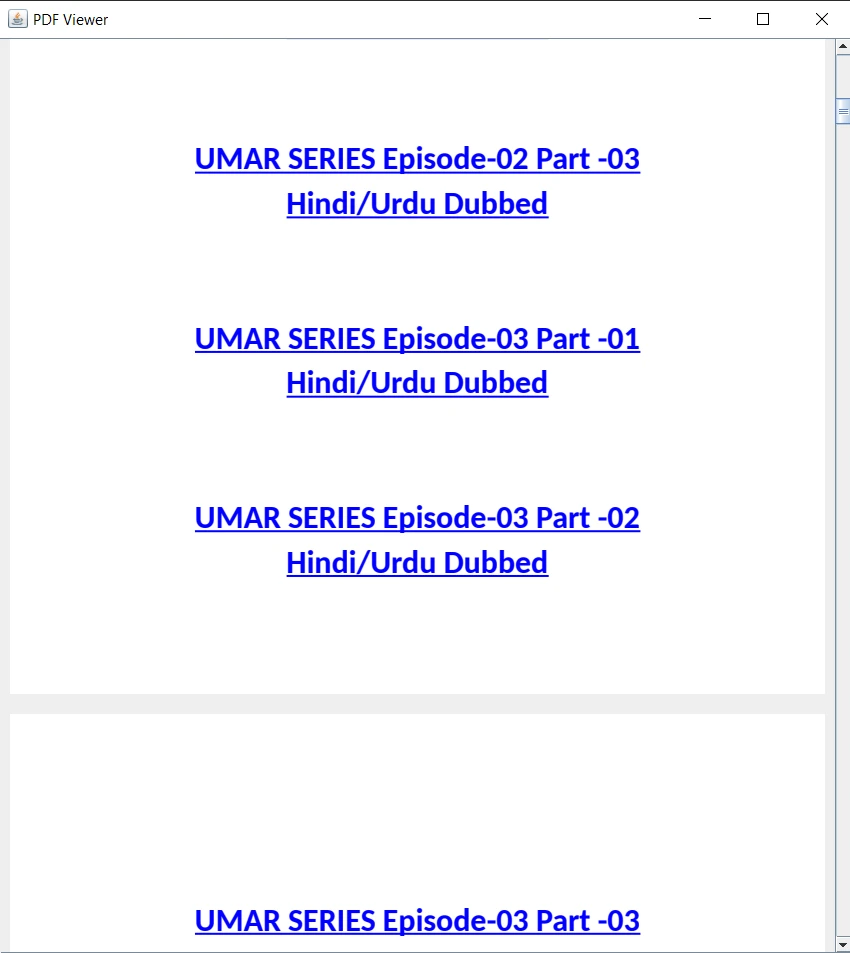
Now, execute the program and the PDF document file viewer will be displayed with the loaded PDF document.

How to Preview PDF Files in Java, Figure 3: The output PDF file The output PDF file

Conclusion

This article demonstrated how to use IronPDF for Java-based applications to preview PDF files within a Java application, and how to access and display a PDF file.

With IronPDF, you can easily integrate PDF preview functionality into your Java application. For detailed guidance and examples on utilizing IronPDF for Java, you can refer to this example. For the Java PDF reader tutorial visit this article to read PDF files.

IronPDF is free for development purposes. To learn more about the licensing details, you can visit the provided licensing page. A free trial for commercial use is also available.

자주 묻는 질문

Java 애플리케이션에서 PDF 파일을 미리 보려면 어떻게 해야 하나요?

IronPDF를 사용하여 PDF 페이지를 이미지로 변환한 다음 Java Swing 구성 요소를 사용하여 이러한 이미지를 표시함으로써 Java 애플리케이션에서 PDF 파일을 미리 볼 수 있습니다. 여기에는 PdfDocument 클래스로 PDF를 로드하고 페이지를 BufferedImage로 변환한 다음 JPanelJScrollPane를 사용하여 표시하는 것이 포함됩니다.

PDF 라이브러리를 Java 프로젝트에 통합하려면 어떤 단계를 거쳐야 하나요?

IronPDF를 Java 프로젝트에 통합하려면 프로젝트의 pom.xml 파일에 라이브러리를 그룹 ID 'com.ironsoftware' 및 아티팩트 ID 'ironpdf'와 함께 Maven 종속성으로 포함하세요. JDK와 Java IDE가 설치되어 있는지 확인합니다.

Java를 사용하여 PDF 페이지를 이미지로 변환하려면 어떻게 해야 하나요?

IronPDF를 사용하면 PdfDocument 클래스를 사용하여 PDF 문서를 로드하고 각 페이지를 BufferedImage로 변환하여 PDF 페이지를 이미지로 변환할 수 있습니다. 그런 다음 이러한 이미지를 PNG 파일로 저장하여 나중에 사용할 수 있습니다.

PDF 페이지를 이미지로 표시하려면 어떤 Java 구성 요소가 필요하나요?

Java에서 PDF 페이지를 이미지로 표시하려면 Java Swing 구성 요소, 특히 이미지를 보관하는 JPanel와 이미지를 스크롤할 수 있는 JScrollPane

Java로 PDF 뷰어를 만들 때 이벤트 디스패치 스레드가 중요한 이유는 무엇인가요?

이벤트 디스패치 스레드(EDT)는 모든 Swing 구성 요소가 GUI 작업을 위한 전용 스레드에서 생성 및 수정되도록 하여 Java 애플리케이션에서 발생할 수 있는 스레딩 문제를 방지하므로 매우 중요합니다.

개발용 라이선스 없이 Java용 IronPDF를 사용할 수 있나요?

예, IronPDF는 개발 중에 무료로 사용할 수 있습니다. 상업적 목적으로 사용할 수 있는 무료 평가판도 있으므로 라이선스를 구매하기 전에 기능을 살펴볼 수 있습니다.

Java에서 IronPDF를 사용하기 위한 추가 리소스는 어디에서 찾을 수 있나요?

Java에서 IronPDF를 사용하기 위한 추가 리소스, 예제 및 튜토리얼은 IronPDF 웹사이트에서 확인할 수 있습니다. 이러한 리소스에는 HTML에서 PDF를 만드는 방법과 다양한 PDF 조작 기법에 대한 가이드가 포함되어 있습니다.

PDF 페이지를 이미지로 변환하여 Java Swing에 표시하는 프로세스는 무엇인가요?

IronPDF를 사용하여 PDF 페이지를 이미지로 변환하려면 PdfDocument를 사용하여 PDF를 로드하고 각 페이지를 BufferedImage로 변환한 다음 PNG 파일로 저장하세요. 자바 스윙 애플리케이션에서 JPanelJScrollPane를 사용하여 이러한 이미지를 표시합니다.

커티스 차우
기술 문서 작성자

커티스 차우는 칼턴 대학교에서 컴퓨터 과학 학사 학위를 취득했으며, Node.js, TypeScript, JavaScript, React를 전문으로 하는 프론트엔드 개발자입니다. 직관적이고 미적으로 뛰어난 사용자 인터페이스를 만드는 데 열정을 가진 그는 최신 프레임워크를 활용하고, 잘 구성되고 시각적으로 매력적인 매뉴얼을 제작하는 것을 즐깁니다.


커티스는 개발 분야 외에도 사물 인터넷(IoT)에 깊은 관심을 가지고 있으며, 하드웨어와 소프트웨어를 통합하는 혁신적인 방법을 연구합니다. 여가 시간에는 게임을 즐기거나 디스코드 봇을 만들면서 기술에 대한 애정과 창의성을 결합합니다.