Python을 사용하여 PDF를 결합하는 방법
The Portable Document Format (PDF) has become the standard for exchanging documents across multiple devices in the current digital era. However, manipulating PDF files can be troublesome at times. Therefore, we can use Python to programmatically merge source PDF files into a single merged PDF file. The Python programming language is highly flexible and offers a lot of libraries and tools available for working with PDF files. Among these, IronPDF stands out as a potent tool for handling PDF files, offering features like smooth PDF creation, editing, and merging.
This post explains how to simplify PDF management operations by using IronPDF in Python to combine several PDF files into a single, coherent document.
How to Use Python to Combine PDFs
- Create a new Python file.
- Install the IronPDF for Python library.
- Import the PDF library.
- Create a PDF object and add PDF files.
- Merge PDF files and save the created file.
IronPDF
IronPDF is a Python library that offers an extensive feature set for programmatically interacting with PDF documents, to streamline PDF-related tasks. Built on the .NET foundation, IronPDF combines smoothly with Python, offering developers an extensive toolkit to create, modify, and convert PDF files.
IronPDF is a Python library that makes working with PDFs easier. It provides developers with a simple API to deal with PDF documents programmatically. IronPDF is a very useful tool for many applications, from document management systems to report production. It allows developers to easily create, modify, and merge PDF files.
Features of IronPDF
- PDF Generation: With IronPDF, developers may start from scratch when creating PDF documents. This means they can use their Python code to dynamically generate reports, invoices, and other structured documents. With support for text, graphics, tables, and hyperlinks, IronPDF makes it simple to create visually stunning and educational PDFs.
- PDF Manipulation: IronPDF provides a wide range of options for working with pre-existing PDF documents, in addition to creating new ones. Developers can easily append, divide, and combine PDF files, which improves productivity and streamlines document management operations.
- HTML to PDF Conversion: IronPDF makes it easier for developers to convert HTML information to PDF while maintaining the style, organization, and file formats of the final PDF documents. This functionality is particularly useful when creating print-friendly versions of web-based reports, documentation, and marketing materials.
- PDF Parsing and Extraction: With IronPDF, developers may programmatically analyze and process PDF files by easily extracting text, images, and other content from PDF documents. With IronPDF, you can extract useful insights from PDFs, whether you're analyzing data from financial reports or removing graphics from presentation slides.
- PDF Security: To protect PDF documents and guarantee their integrity and secrecy, IronPDF provides strong encryption and authorization settings. To strengthen document security in critical contexts, developers can encrypt PDFs with passwords, restrict printing and copying, and digitally sign documents to confirm their legitimacy.
Always keep in mind that IronPDF's features and accessibility in Python are subject to change, so make sure to check out the most recent and accurate information by visiting IronPDF's official documentation.
New Project in PyCharm
PyCharm is an IDE for writing Python programs, and it will be used in this session.
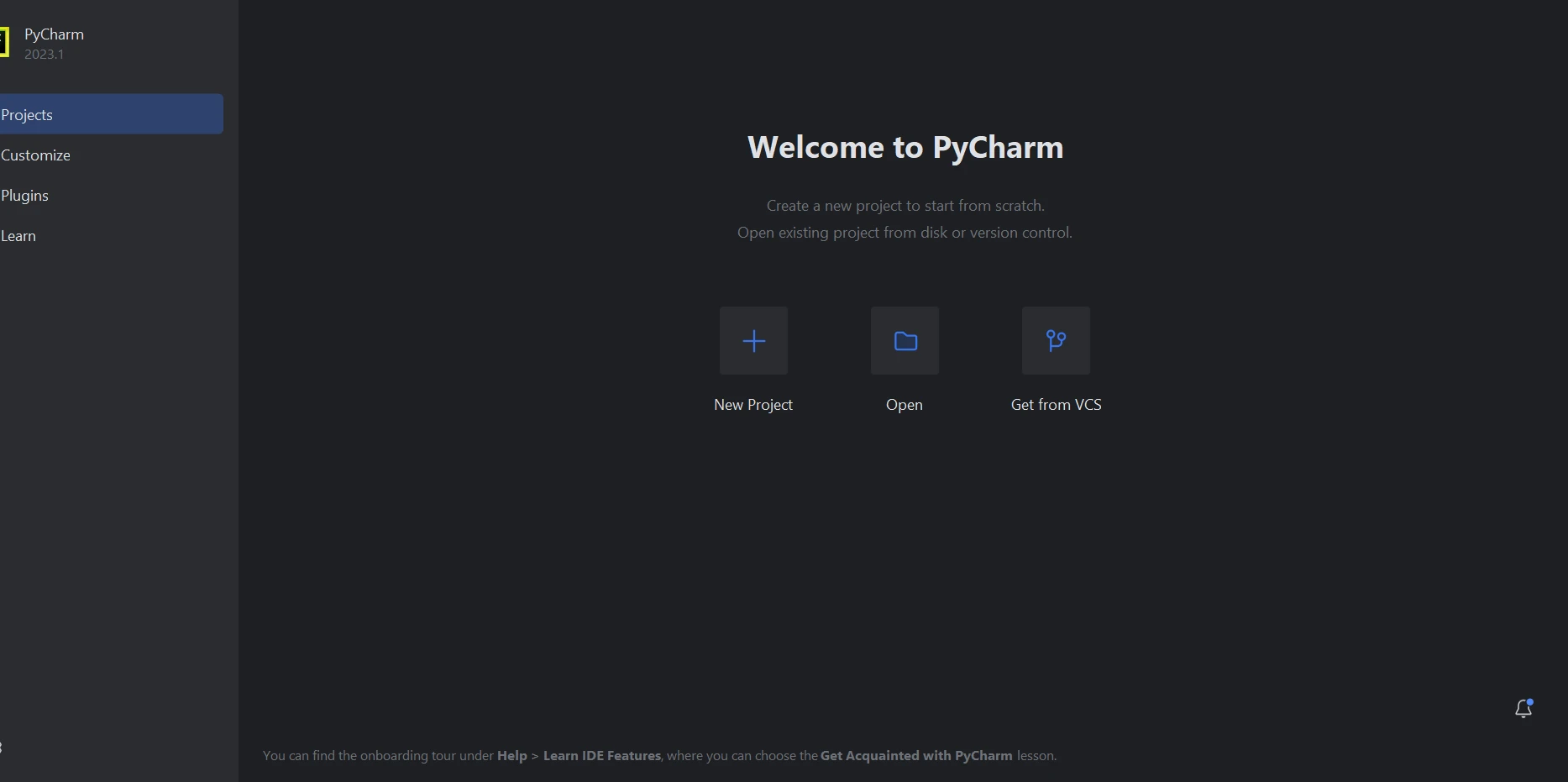
Select "New Project" when the PyCharm IDE opens.

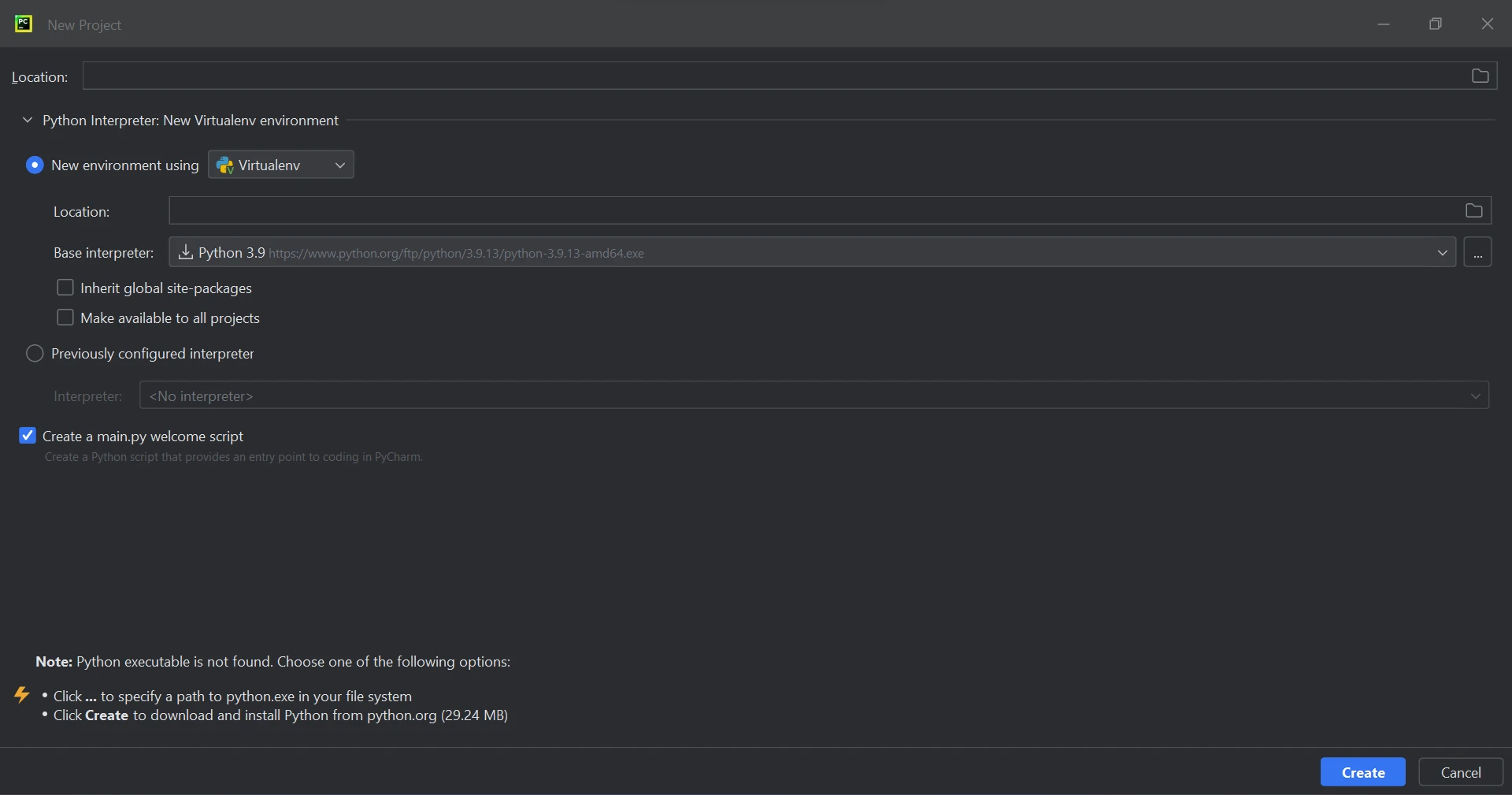
By selecting "New Project," you open a new window where you can alter the project's location and environment. This new window can be seen in action in the screenshot that follows.

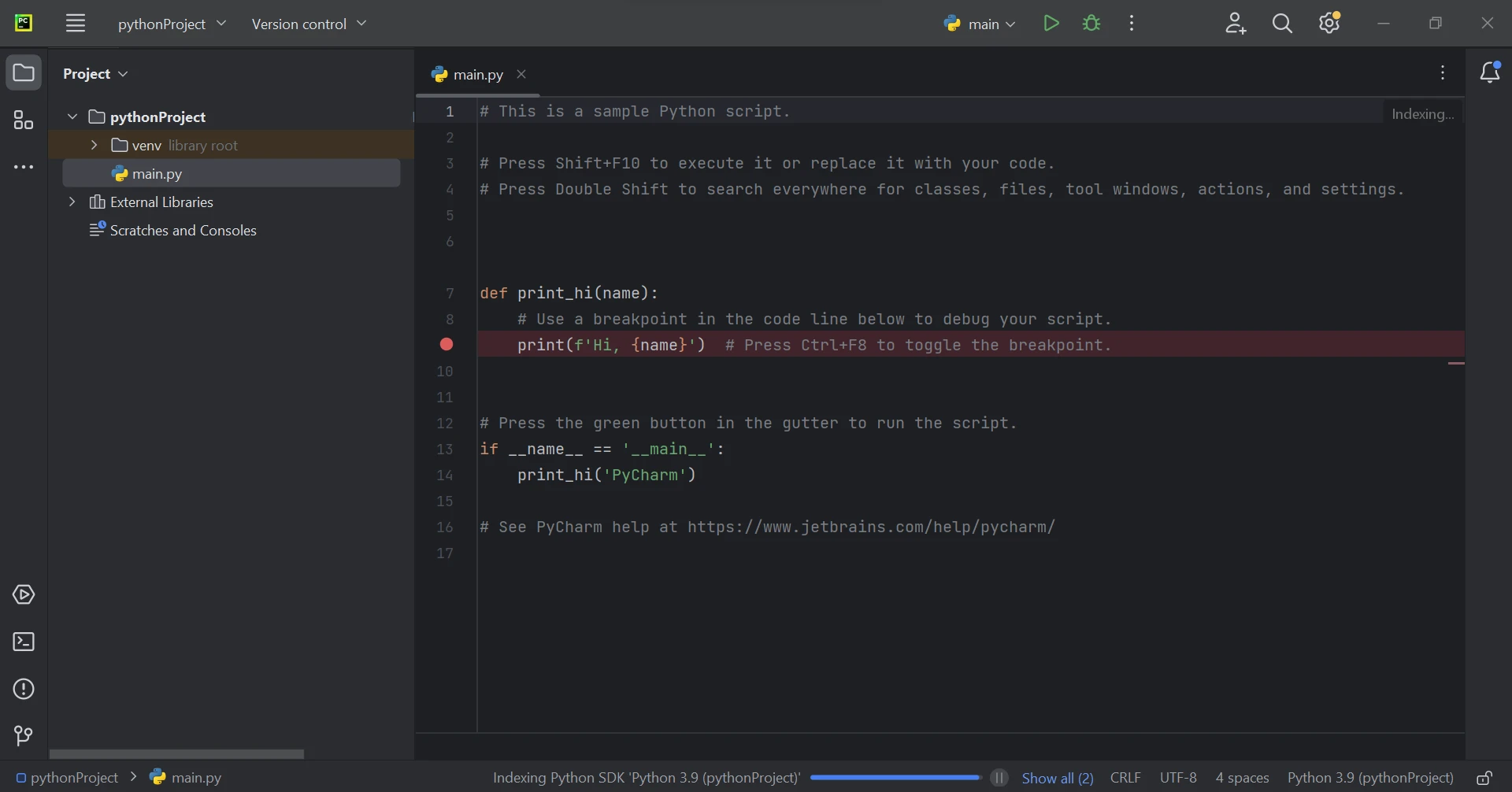
After selecting the project directory and configuring the Python environment, click the "Create" button to begin a new project. The project will open in a new tab after it has been created.

Requirements to Use IronPDF
Before viewing the code samples, confirm that the following requirements are met:
- Python: Python version 3.7 or higher is required for IronPDF to function properly.
- .NET 6.0 Runtime: The .NET 6.0 runtime environment is required for IronPDF's core functionalities. Download and install the necessary runtime from the official .NET website, depending on your operating system.
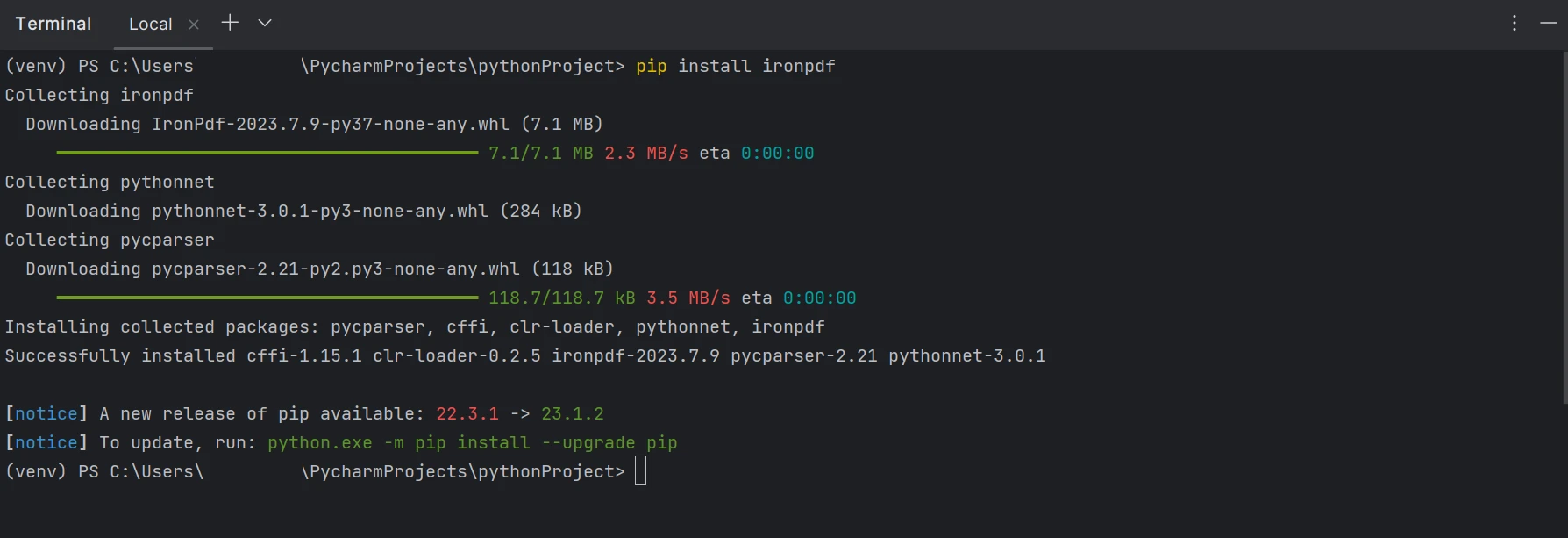
- How to Install the IronPDF Library: Use the pip package manager in your Python environment to install the IronPDF library. Run the following command at a command prompt or terminal window open:
pip install ironpdf
The configuration of the 'IronPDF' package is shown in the screenshot below.

Merge PDF files using IronPDF
IronPDF can be used to efficiently handle large or merge multiple PDF documents. Because of the built-in functionality for slow loading and incremental updates, you can process documents with less RAM. With the following lines of code, we may combine several PDF documents into a single PDF file.
The sample code for combining several PDF files is shown below.
from ironpdf import PdfDocument
# Load the first PDF file
first_pdf = PdfDocument.FromFile("A.pdf")
# Load the second PDF file
second_pdf = PdfDocument.FromFile("B.pdf")
# Merge the two PDF files
merged_pdf = PdfDocument.Merge(first_pdf, second_pdf)
# Save the merged PDF to a new file
merged_pdf.SaveAs("MergedDoc.pdf")from ironpdf import PdfDocument
# Load the first PDF file
first_pdf = PdfDocument.FromFile("A.pdf")
# Load the second PDF file
second_pdf = PdfDocument.FromFile("B.pdf")
# Merge the two PDF files
merged_pdf = PdfDocument.Merge(first_pdf, second_pdf)
# Save the merged PDF to a new file
merged_pdf.SaveAs("MergedDoc.pdf")The code snippets above demonstrate how to use IronPDF to combine PDF documents:
- We are first using the
FromFilefunction to import two PDF files, A.pdf and B.pdf, to establish local variables for thePdfDocumentobjects. - The
Mergefunction is called to merge these two PDF objects. - Finally, we use the
SaveAs()function to save the merged PDF into a single file namedMergedDoc.pdf.

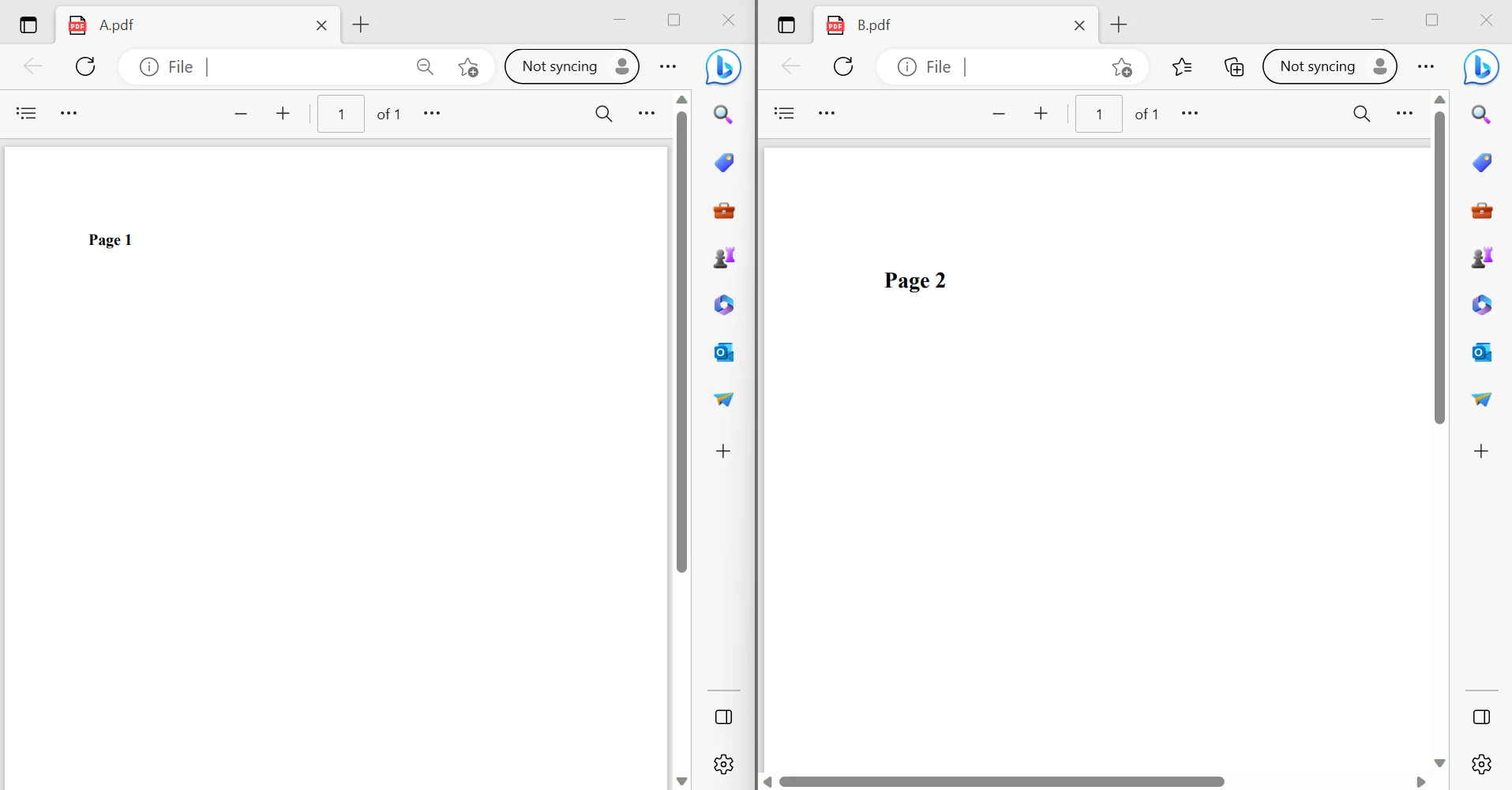
The two input PDF files are displayed in the image above. There will be a link to the final PDF file below.
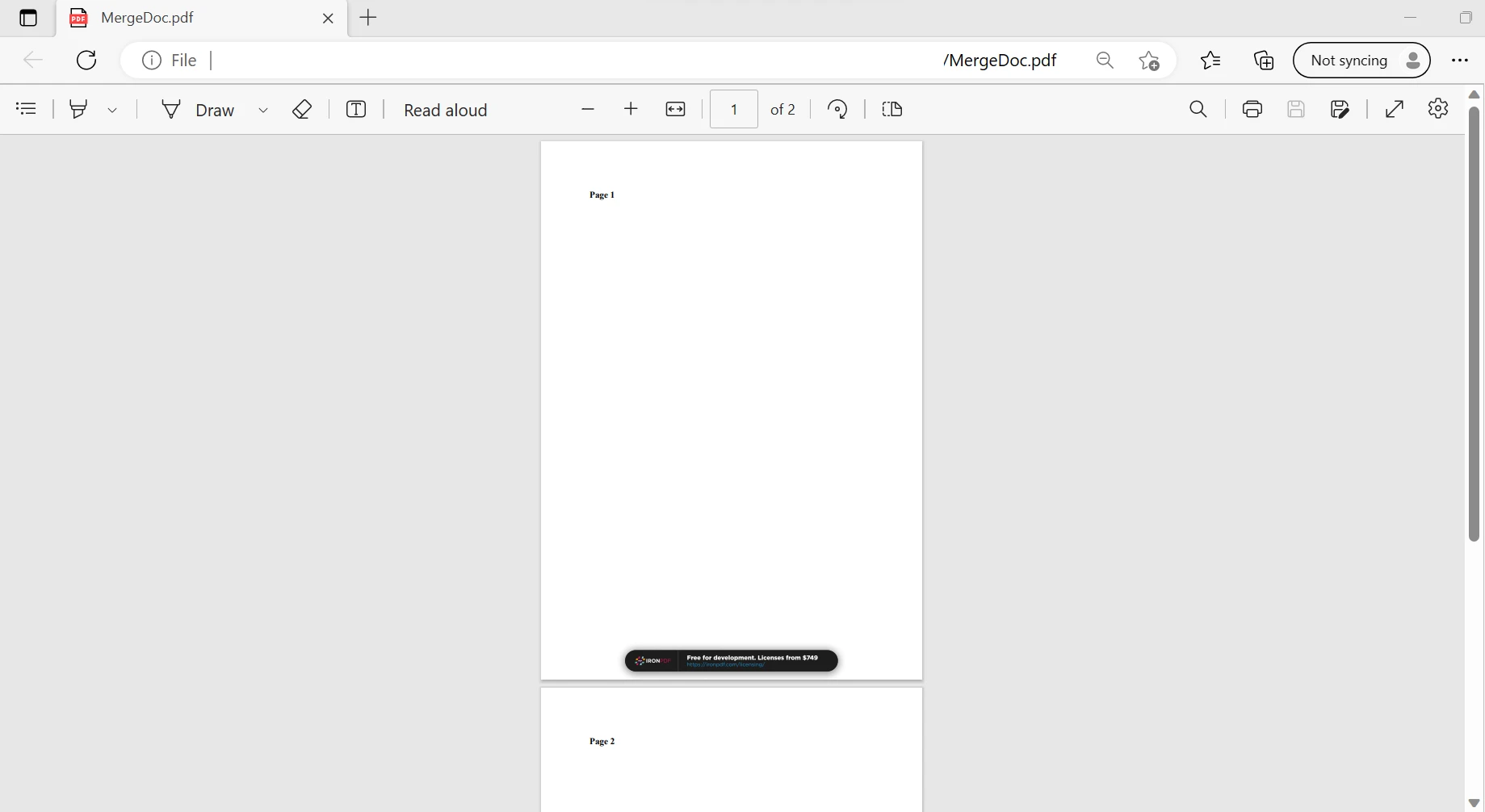
OUTPUT PDF FILE

The function merges all the PDF files that are saved into a single PDF file, as seen in the images above. Similarly, we can combine several PDF files. With just a few lines of code, IronPDF can complete this task in a few milliseconds. You may read this article here to find out more about IronPDF as well.
Conclusion
Finally, IronPDF offers a practical and effective solution for PDF management tasks by streamlining the process of merging PDF files in Python. Developers can easily combine several PDF documents into a single, coherent file by following the instructions provided in this article, which will increase productivity and streamline document management procedures.
IronPDF is a useful tool for Python projects as it enables developers to handle PDF files effortlessly, regardless of whether they're creating a document management system, creating reports, or automating operations connected to PDFs.
The $799 Lite edition of IronPDF includes a permanent license, upgrade options, and a year of software support. During the watermarked trial period, customers can evaluate the product in real-world situations. To find out more about IronPDF's price, licensing, and free trial, please visit the license page. Alternatively, go to this website to learn more about Iron Software.
자주 묻는 질문
Python을 사용하여 여러 PDF를 하나로 결합하려면 어떻게 해야 하나요?
IronPDF를 사용하여 Python에서 여러 PDF를 결합할 수 있습니다. 먼저 pip를 통해 IronPDF를 설치한 다음 라이브러리를 사용하여 각 PDF 파일을 PdfDocument 객체에 로드하고 병합한 다음 결합된 문서를 저장합니다.
Python에서 IronPDF를 사용하기 위한 전제 조건은 무엇인가요?
Python에서 IronPDF를 사용하려면 Python 버전 3.7 이상과 .NET 6.0 런타임 환경이 필요합니다. IronPDF의 모든 기능을 활용하려면 이 두 가지가 설치되어 있는지 확인하세요.
Python을 사용하여 HTML을 PDF로 변환할 수 있나요?
예, IronPDF는 Python에서 HTML을 PDF로 변환하는 기능을 제공합니다. RenderHtmlAsPdf 메서드를 사용하여 HTML 문자열을 PDF 문서로 변환할 수 있습니다.
Python 라이브러리로 대용량 PDF 파일을 효율적으로 처리할 수 있나요?
IronPDF는 대용량 PDF 파일을 효율적으로 처리하도록 설계되었습니다. 느린 로딩과 증분 업데이트를 지원하여 처리 중 메모리 사용량을 최소화합니다.
IronPDF는 Python에서 PDF 관리를 위해 어떤 기능을 제공하나요?
IronPDF는 PDF 생성, 편집, 병합, HTML을 PDF로 변환, 텍스트 추출, PDF 보안 옵션 등 다양한 기능을 제공합니다.
Python 프로젝트에 IronPDF를 설치하려면 어떻게 해야 하나요?
Python 패키지 관리자 pip를 사용하여 IronPDF를 설치할 수 있습니다. 명령 프롬프트 또는 터미널에서 pip install ironpdf 명령을 실행하여 프로젝트에 추가합니다.
Python 프로젝트에서 PDF 작업에 IronPDF를 사용하면 어떤 이점이 있나요?
IronPDF는 강력한 기능 세트와 효율적인 성능으로 문서 관리, 보고서 생성, PDF 관련 프로세스 자동화와 같은 작업을 간소화합니다.
구매하기 전에 IronPDF를 어떻게 사용해 볼 수 있나요?
IronPDF는 워터마크가 포함된 평가판 Lite 에디션을 제공합니다. 이를 통해 사용자는 구매하기 전에 실제 시나리오에서 기능과 성능을 평가할 수 있습니다.
Python용 IronPDF 학습을 위한 추가 리소스는 어디에서 찾을 수 있나요?
문서 및 튜토리얼을 포함한 추가 리소스는 IronPDF의 공식 웹사이트에서 찾을 수 있습니다. 여기에는 기능 및 사용법에 대한 포괄적인 지침이 나와 있습니다.