


Porównanie pomiędzy IronPDF i Devexpress PDF Viewer

Format PDF został stworzony przez firmę Adobe w celu dystrybucji dokumentów zawierających formatowanie tekstu i grafiki. Potrzebujemy osobnej aplikacji do otwierania plików PDF. W dzisiejszym świecie pliki PDF są absolutnie niezbędne. W wielu różnych firmach do fakturowania i generowania dokumentów używa się plików w formacie PDF. Programiści używają formatu PDF do tworzenia dokumentów dostosowanych do potrzeb swoich klientów. Dzięki dzisiejszym bibliotekom tworzenie plików PDF nigdy nie było łatwiejsze. Korzystając z tego typu bibliotek w projekcie, musimy wziąć pod uwagę takie czynniki, jak możliwości kompilacji, odczytu i konwersji, aby określić, która biblioteka jest najlepsza na rynku.
W niniejszym artykule porównamy dwie najpopularniejsze biblioteki PDF dla komponentów .NET. Te dwie biblioteki to:
- IronPDF
- Kontrolki przeglądarki PDF DevExpress
IronPDF i DevExpress PDF to dwie biblioteki, które można wykorzystać w aplikacji Microsoft .NET. IronPDF może służyć do tworzenia, odczytywania i modyfikowania plików PDF, zarówno online, jak i w aplikacji desktopowej. Jednak DevExpress może służyć wyłącznie do przeglądania plików PDF.
Funkcje IronPDF
IronPDF to wydajny konwerter plików PDF, który potrafi praktycznie wszystko to, co przeglądarka. Jest to przyjazna dla programistów biblioteka PDF, która sprawia, że tworzenie, odczytywanie i edycja plików PDF jest niezwykle łatwa. IronPDF konwertuje HTML na PDF przy użyciu silnika Chrome. IronPDF obsługuje między innymi aplikacje Windows Forms, HTML, ASPX, Razor HTML, .NET Core, ASP.NET, Windows Form, WPF, Xamarin, Blazor, Unity i HoloLens, a także inne komponenty internetowe. Aplikacje Microsoft .NET i .NET Core są obsługiwane przez IronPDF (zarówno aplikacje internetowe ASP.NET, jak i tradycyjne aplikacje Windows). IronPDF może być również wykorzystywany do tworzenia atrakcyjnych wizualnie plików PDF.
IronPDF może konwertować HTML5, JavaScript, CSS i obrazy na dokumenty PDF. W pliku można również umieścić nagłówek i stopkę. Może to również ułatwić czytanie plików PDF. IronPDF zawiera również solidny konwerter HTML na PDF, który obsługuje pliki PDF. IronPDF oferuje potężny silnik konwersji plików PDF. IronPDF nie ma żadnych zewnętrznych zależności.
- Źródła, które można wykorzystać do utworzenia pliku PDF, obejmują HTML, HTML5, ASPX oraz Razor/MVC View. Możemy nie tylko konwertować pliki HTML do formatu PDF, ale także pliki graficzne.
- Tworzenie interaktywnych dokumentów PDF, wypełnianie i przesyłanie interaktywnych formularzy, łączenie i dzielenie dokumentów PDF, wyodrębnianie tekstu i obrazów z dokumentów PDF, wyszukiwanie tekstu w dokumentach PDF, rasteryzacja stron PDF do obrazów oraz konwersja dokumentów PDF to tylko niektóre z czynności, które możemy wykonać za pomocą IronPDF.
- Na początek utwórz dokument, korzystając z oficjalnej strony internetowej IronPDF. Obsługuje również niestandardowe dane logowania do sieci, agenty użytkownika, serwery proxy, pliki cookie, nagłówki HTTP oraz zmienne formularzy służące do logowania za pomocą formularzy logowania HTML.
- Po podaniu nazwy użytkownika i hasła IronPDF umożliwia nam otwieranie dokumentów chronionych.
- IronPDF to program, który odczytuje i wypełnia puste pola w istniejących dokumentach PDF.
- Posiada możliwość wyodrębniania obrazów z dokumentów.
- Pozwala nam dostosowywać dokumenty za pomocą nagłówków, stopek, tekstu, obrazów, zakładek, znaków wodnych i innych elementów.
- Pozwala nam to dzielić i łączyć strony w nowym lub istniejącym dokumencie.
- Nawet bez programu Acrobat Reader możemy konwertować dokumenty na obiekty PDF.
- Plik CSS można przekonwertować na dokumenty PDF.
- Pliki typu media CSS można przekształcić w dokumenty.
- Wypełnij istniejące formularze PDF i dodaj nowe.
Funkcje DevExpress PDF
DevExpress udostępnia kontrolki WinForms, które można wykorzystać w aplikacjach Windows dostępnych w Visual Studio. Zawiera listę elementów sterujących WinForms, które umożliwiają użytkownikom dostęp do plików PDF. Zapewnia również kontrolki dla kontrolek WPF i kontrolek formularzy ASP.NET.
Przeglądarka PDF wyświetla pliki PDF bezpośrednio w aplikacji WinForms bez konieczności instalowania zewnętrznej przeglądarki PDF na komputerze. Kontrolka PDF Viewer w Windows Forms umożliwia przeglądanie, edycję i drukowanie dokumentów PDF bezpośrednio z poziomu aplikacji. Przeglądarka plików PDF nie tylko wyświetla dokumenty — pozwala również użytkownikom na zmianę pól formularzy, dodawanie adnotacji do dokumentów oraz korzystanie ze schowka. DevExpress is available for all .NET Frameworks and Libraries. It also provides controls and extensions for ASP.NET, MVC, ASP.NET Core, etc.
The PDF Viewer supports a rich set of document content types, including:
- JPX / JBIG2 Images
- Patterns
- Transparency Groups
- Type 3 Fonts
- Interactive Forms
And yes, the DevExpress WinForms PDF control is powered by DirectX — with remarkable text rendering and text initializing support.
A full user interface is included with the PDF view for WinForms. It can be used to change the way a document is displayed, such as rotating it clockwise and counterclockwise, zooming in on-page content, and switching between recently-used page display styles.
Hand tools, marquee zoom tools, and various keyboard and cursor interaction modes are available in the PDF Viewer controls. In the context menu, change the cursor mode, or pick the tool in the Command UI.
The Navigation Pane lets you hop to saved pages, navigate to a specific page using a thumbnail image, as well as organize a file and annotations.
DevExpress allows us to provide feedback and offers continuous support in response to queries. The support team can be contacted if feedback is needed in greater detail.
2. Tworzenie nowego projektu w Visual Studio
Open the Visual Studio software and go to the file menu. Select "new project" and then select "Console Application". W tym artykule wykorzystamy aplikację konsolową do generowania dokumentów PDF.
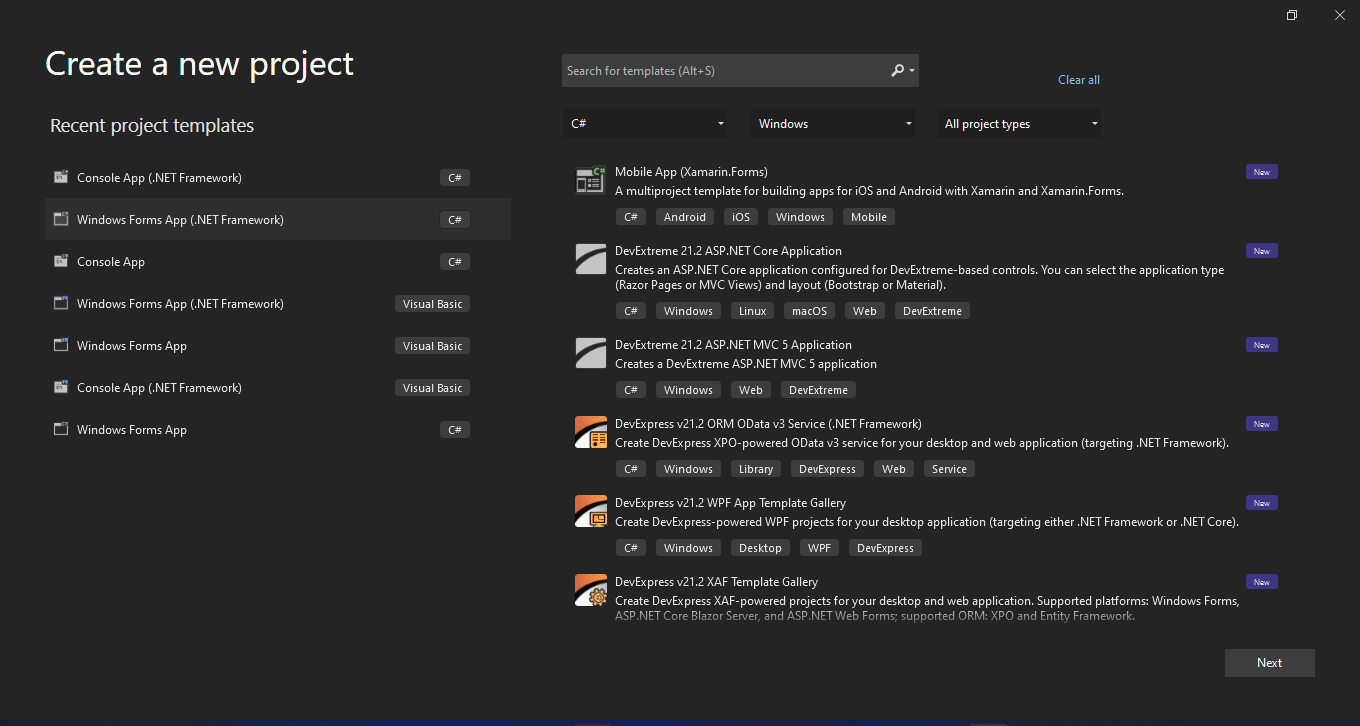
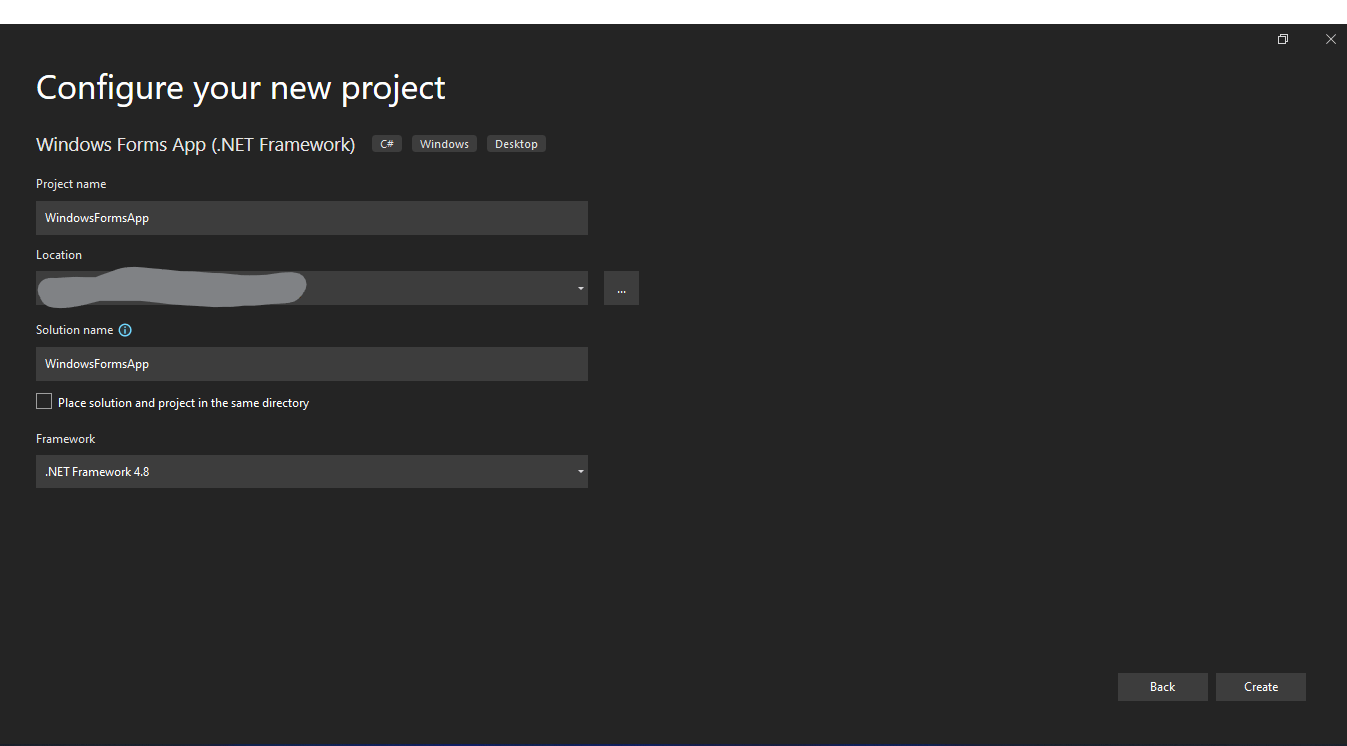
Wpisz nazwę projektu i wybierz ścieżkę do pliku w odpowiednim polu tekstowym. Then, click the Create button and select the required .NET Framework, as in the screenshot below:
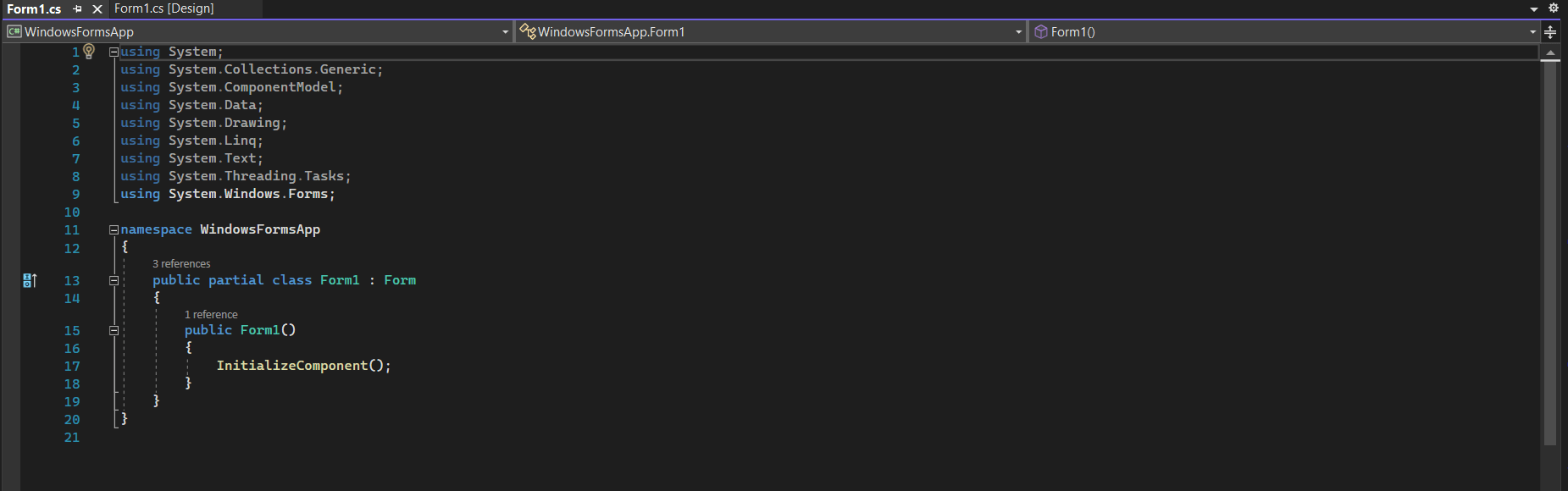
The Visual Studio project will now generate the structure for the selected application, and if you have selected the console, windows, and web application, it will now open the program.cs file where you can enter the code and build/run the application.
Następnie możemy dodać bibliotekę, aby przetestować kod.
3.0 Install the IronPDF Library
Bibliotekę IronPDF można pobrać i zainstalować na cztery sposoby.
Są to:
- Korzystanie z programu Visual Studio
- Korzystanie z wiersza poleceń programu Visual Studio
- Bezpośrednie pobranie ze strony NuGet
- Direct download from the IronPDF website
3.1 Using Visual Studio
The Visual Studio software provides the NuGet Package manager option to install the package directly to the solution. Poniższy zrzut ekranu pokazuje, jak otworzyć menedżera pakietów NuGet.
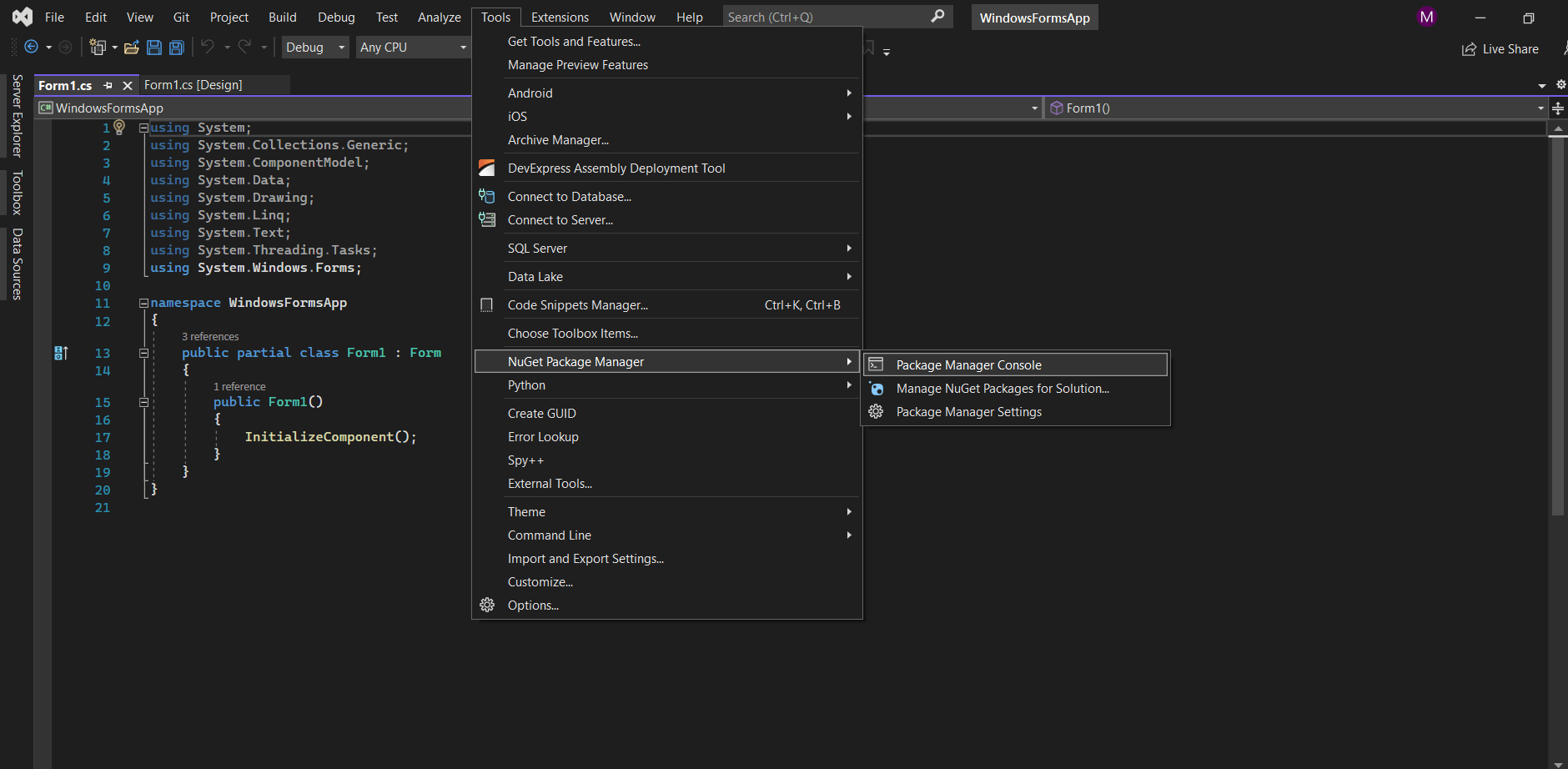
It provides a search box to show the list of packages from the NuGet website. In the package manager, we need to search for the keyword "IronPDF", as in the screenshot below:
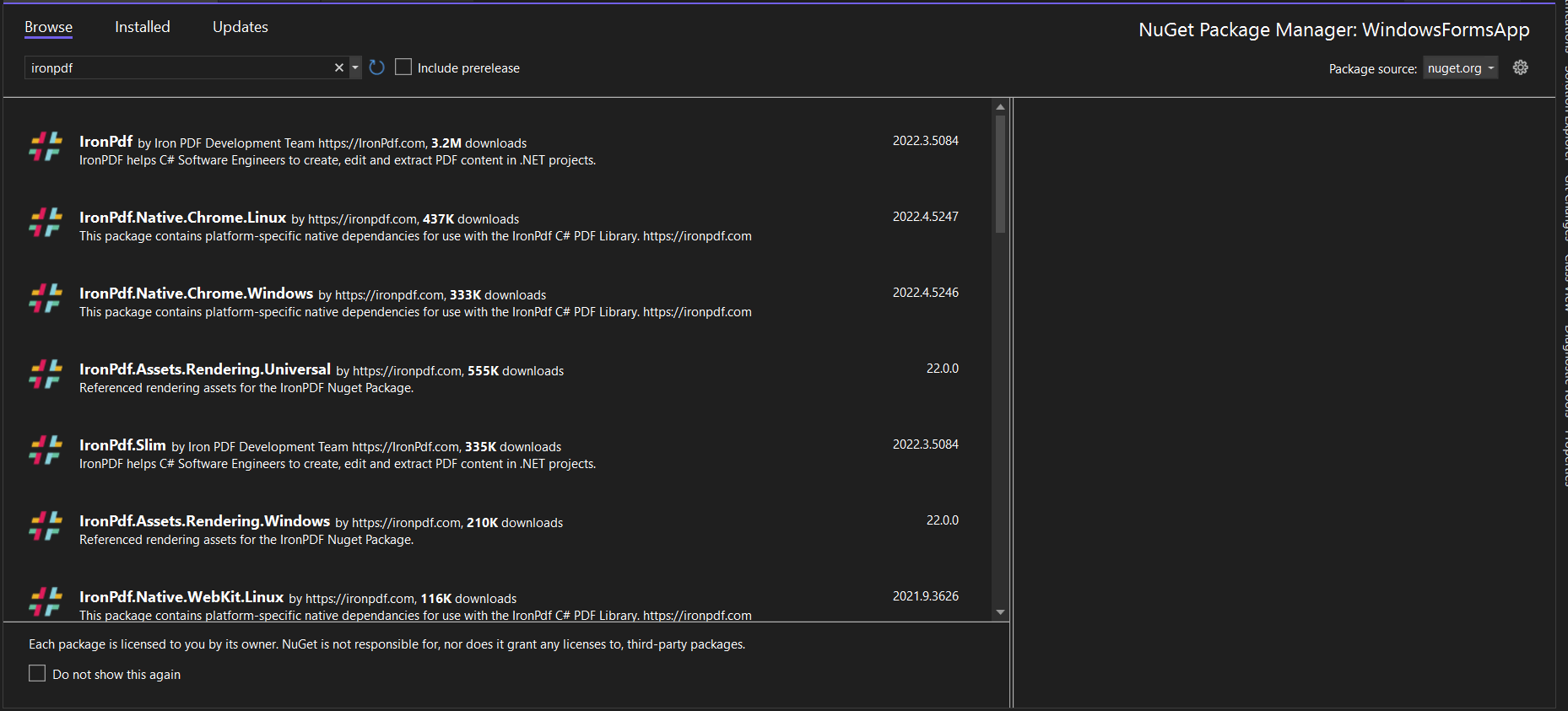
In the above image, we get the list of related search items. Musimy wybrać odpowiednią opcję, aby zainstalować pakiet w rozwiązaniu.
3.2 Korzystanie z wiersza poleceń programu Visual Studio
In Visual Studio, go to Tools-> NuGet Package manager -> Package manager console
Wprowadź następujący wiersz w zakładce konsoli menedżera pakietów:
Install-Package IronPdf
Pakiet zostanie teraz pobrany/zainstalowany w bieżącym projekcie i będzie gotowy do użycia.

3.3 Direct Download from the NuGet Website
Trzecim sposobem jest pobranie pakietu NuGet bezpośrednio ze strony internetowej.
- Navigate to the NuGet package page
- Wybierz opcję pakietu do pobrania z menu po prawej stronie.
- Kliknij dwukrotnie pobrany pakiet. Zostanie zainstalowany automatycznie.
- Następnie odśwież rozwiązanie i zacznij z niego korzystać w projekcie.
3.4 Direct Download from the IronPDF Website
Download the latest package directly from the IronPDF site. Po pobraniu wykonaj poniższe kroki, aby dodać pakiet do projektu.
- Kliknij prawym przyciskiem myszy projekt w oknie rozwiązania.
- Then, select option reference and browse the location of the downloaded reference.
- Next, click OK to add the reference.
4.0 Install the PDF Viewer Library
The PDF Viewer library can be downloaded and installed in four ways.
Są to:
- Korzystanie z programu Visual Studio
- Korzystanie z wiersza poleceń programu Visual Studio
- Direct download from the DevExpress website
Register DevExpress NuGet
To use NuGet to install DevExpress packages, you must first register the DevExpress NuGet feed as a package source.
- With a NuGet Feed URL or an authorization key, you can access DevExpress NuGet packages. For more information or updates, check the DevExpress documentation.
- In Visual Studio, open the Options panel (Tools -> Options) and register the DevExpress NuGet feed as a package source. Locate the Package Manager option in this dialogue and, as shown below, add the DevExpress Feed to the package source.
- If you use an authorization key, use
https://nuget.devexpress.com/apias the package source. - If you use a NuGet Feed URL, specify it as the package source.
- If you use an authorization key, use

4.1 Korzystanie z programu Visual Studio
As above, just go to the NuGet package manager and select the DevExpress NuGet package manager. Then, search for the keyword "Win.PdfViewer". It will provide all the related search results as below.

Select the first result option to install the package in the project.
4.2 Korzystanie z wiersza poleceń programu Visual Studio
In Visual Studio, go to Tools -> NuGet Package manager -> Package manager console
Wprowadź następujący wiersz w zakładce konsoli menedżera pakietów:
Install-Package DevExpress.Win.PdfViewer
Next, press Enter. This will prompt a login window as shown below. We need to enter the username as DevExpress and the password can be obtained from the DevExpress URL. This will authorize DevExpress to contact the server to download.
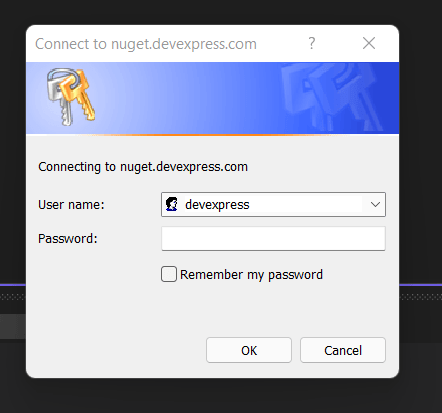
Next, the package will download/install to the current project and be ready to use.
4.3 Direct Download from the DevExpress Website
Visit the DevExpress Product Trial page, and it will redirect to the list of DLL options available to download the latest package directly from the website for various .NET framework environments; you can select the required package to download. Po pobraniu wykonaj poniższe kroki, aby dodać pakiet do projektu.
Once the file is downloaded, double-click the downloaded file and it will start the setup, as in the image below:
Next, click the installation button, and a new popup window will appear.
Select the required option to install.
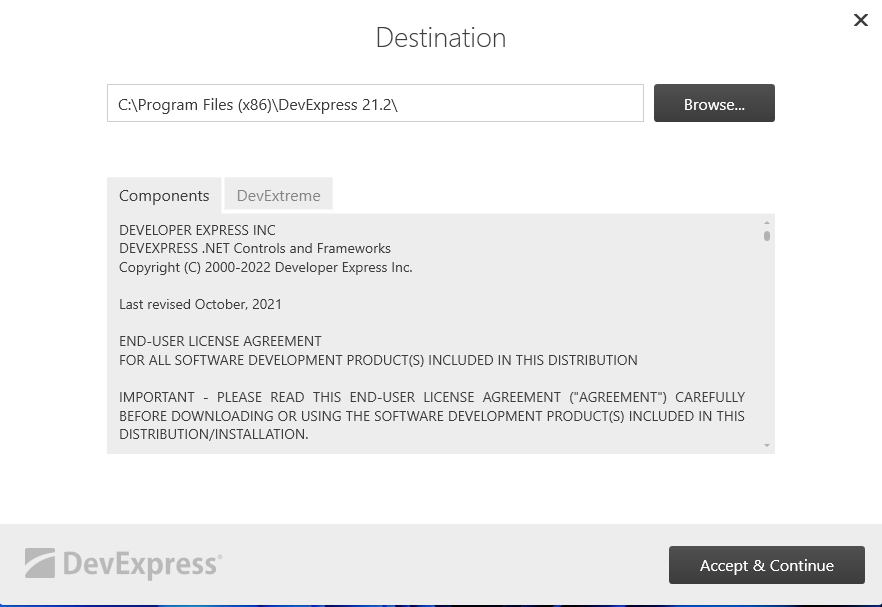
Then, accept the license, and the installation will be completed after a few minutes.
5.0 Create a PDF using IronPDF
We can easily generate PDF documents with IronPDF — it will generate an HTML file from a URL and convert it to a PDF.
The following steps make it easy to generate PDF documents.
using IronPdf;

// Create an instance of the ChromePdfRenderer
ChromePdfRenderer Renderer = new ChromePdfRenderer();

// Render a URL as a PDF and save it
var Pdf = Renderer.RenderUrlAsPdf("https://www.google.co.in/");
Pdf.SaveAs("result.pdf");

// Alternatively, do the above in a single line
new ChromePdfRenderer().RenderUrlAsPdf("https://www.google.co.in/").SaveAs("result.pdf");
using IronPdf;
// Create an instance of the ChromePdfRenderer
ChromePdfRenderer Renderer = new ChromePdfRenderer();
// Render a URL as a PDF and save it
var Pdf = Renderer.RenderUrlAsPdf("https://www.google.co.in/");
Pdf.SaveAs("result.pdf");
// Alternatively, do the above in a single line
new ChromePdfRenderer().RenderUrlAsPdf("https://www.google.co.in/").SaveAs("result.pdf");Imports IronPdf
' Create an instance of the ChromePdfRenderer
Private Renderer As New ChromePdfRenderer()
' Render a URL as a PDF and save it
Private Pdf = Renderer.RenderUrlAsPdf("https://www.google.co.in/")
Pdf.SaveAs("result.pdf")
' Alternatively, do the above in a single line
Call (New ChromePdfRenderer()).RenderUrlAsPdf("https://www.google.co.in/").SaveAs("result.pdf")In the above example, we can use two methods to convert the link into a document. One method is to generate a document by creating an IronPDF object, and another method is to create an object for RenderUrlAsPdf.
The above shows that we can convert it into a document using the RenderUrlAsPdf. We only need to pass the link and the save location. The time taken to complete the PDF conversion is approximately 3.4 seconds.
6.0 Creating a PDF from HTML Strings using IronPDF
We can transform HTML strings into PDF documents with the help of IronPDF. The following is an example of how to turn an HTML string into a document. It also has the ability to turn any HTML tag into a PDF.
using IronPdf;

// Render an HTML string as a PDF and save it
new ChromePdfRenderer().RenderHtmlAsPdf("<h1>Hello world!!</h1>").SaveAs("result.pdf");
using IronPdf;
// Render an HTML string as a PDF and save it
new ChromePdfRenderer().RenderHtmlAsPdf("<h1>Hello world!!</h1>").SaveAs("result.pdf");Imports IronPdf
' Render an HTML string as a PDF and save it
Call (New ChromePdfRenderer()).RenderHtmlAsPdf("<h1>Hello world!!</h1>").SaveAs("result.pdf")The preceding example demonstrates how to use RenderHtmlAsPdf to transform an HTML string. In addition, we can supply any number of HTML codes to the function that converts HTML to a string. We can save the document after retrieving the string using the "save as" function. It only takes approximately two seconds to complete the process.
Bootstrap Capability Matrix
PDF generation tools must support modern web frameworks for enterprise applications. This Bootstrap 5 demonstration shows IronPDF's comprehensive feature set using list groups and status badges.
using IronPdf;

var renderer = new ChromePdfRenderer();

string capabilityMatrix = @"
<!DOCTYPE html>
<html>
<head>
    <meta charset='utf-8'>
    <link href='https://cdn.jsdelivr.net/npm/bootstrap@5.3.0/dist/css/bootstrap.min.css' rel='stylesheet'>
    <style>
        .capability-item { border-left: 4px solid transparent; transition: all 0.2s; }
        .capability-item.supported { border-left-color: #198754; }
        .capability-item.limited { border-left-color: #ffc107; }
        @media print { .list-group-item { page-break-inside: avoid; } }
    </style>
</head>
<body class='bg-light'>
    <div class='container py-4'>
        <div class='card shadow-sm mb-4'>
            <div class='card-header bg-primary text-white'>
                <h3 class='mb-0'>PDF Library Feature Comparison</h3>
            </div>
            <div class='card-body'>
                <div class='row'>
                    <div class='col-md-6'>
                        <h5 class='text-primary mb-3'>Rendering Capabilities</h5>
                        <ul class='list-group list-group-flush'>
                            <li class='list-group-item capability-item supported d-flex justify-content-between'>
                                <span><strong>HTML5 Support</strong><br><small class='text-muted'>Modern semantic elements</small></span>
                                <span class='badge bg-success align-self-center'>Full</span>
                            </li>
                            <li class='list-group-item capability-item supported d-flex justify-content-between'>
                                <span><strong>CSS3 Layouts</strong><br><small class='text-muted'>Flexbox and Grid</small></span>
                                <span class='badge bg-success align-self-center'>Native</span>
                            </li>
                            <li class='list-group-item capability-item supported d-flex justify-content-between'>
                                <span><strong>JavaScript</strong><br><small class='text-muted'>Dynamic content rendering</small></span>
                                <span class='badge bg-success align-self-center'>V8 Engine</span>
                            </li>
                            <li class='list-group-item capability-item supported d-flex justify-content-between'>
                                <span><strong>Web Fonts</strong><br><small class='text-muted'>Google Fonts, custom fonts</small></span>
                                <span class='badge bg-success align-self-center'>Complete</span>
                            </li>
                        </ul>
                    </div>

                    <div class='col-md-6'>
                        <h5 class='text-success mb-3'>Document Operations</h5>
                        <ul class='list-group list-group-flush'>
                            <li class='list-group-item capability-item supported d-flex justify-content-between'>
                                <span><strong>Merge/Split</strong><br><small class='text-muted'>Combine or extract pages</small></span>
                                <span class='badge bg-success align-self-center'>Available</span>
                            </li>
                            <li class='list-group-item capability-item supported d-flex justify-content-between'>
                                <span><strong>Watermarking</strong><br><small class='text-muted'>Text and image stamps</small></span>
                                <span class='badge bg-success align-self-center'>Advanced</span>
                            </li>
                            <li class='list-group-item capability-item supported d-flex justify-content-between'>
                                <span><strong>Form Fields</strong><br><small class='text-muted'>Interactive PDF forms</small></span>
                                <span class='badge bg-success align-self-center'>Full Support</span>
                            </li>
                            <li class='list-group-item capability-item supported d-flex justify-content-between'>
                                <span><strong>Security</strong><br><small class='text-muted'>Encryption and signatures</small></span>
                                <span class='badge bg-success align-self-center'>AES-256</span>
                            </li>
                        </ul>
                    </div>
                </div>
            </div>
        </div>

        <div class='row g-3'>
            <div class='col-md-6'>
                <div class='card shadow-sm h-100'>
                    <div class='card-body'>
                        <h5 class='card-title text-primary'>✓ IronPDF Strengths</h5>
                        <ul class='mb-0'>
                            <li>Chrome-based rendering for accuracy</li>
                            <li>Complete Bootstrap 5 compatibility</li>
                            <li>Cross-platform deployment ready</li>
                            <li>Intuitive API with extensive docs</li>
                        </ul>
                    </div>
                </div>
            </div>
            <div class='col-md-6'>
                <div class='card shadow-sm h-100 bg-light'>
                    <div class='card-body'>
                        <h5 class='card-title text-warning'>⚠ DevExpress Notes</h5>
                        <ul class='mb-0'>
                            <li>Viewer-focused, not generation</li>
                            <li>Limited HTML-to-PDF conversion</li>
                            <li>Requires UI suite subscription</li>
                            <li>Complex licensing model</li>
                        </ul>
                    </div>
                </div>
            </div>
        </div>
    </div>
</body>
</html>";

var pdf = renderer.RenderHtmlAsPdf(capabilityMatrix);
pdf.SaveAs("capability-matrix.pdf");
using IronPdf;
var renderer = new ChromePdfRenderer();
string capabilityMatrix = @"
<!DOCTYPE html>
<html>
<head>
<meta charset='utf-8'>
<link href='https://cdn.jsdelivr.net/npm/bootstrap@5.3.0/dist/css/bootstrap.min.css' rel='stylesheet'>
<style>
.capability-item { border-left: 4px solid transparent; transition: all 0.2s; }
.capability-item.supported { border-left-color: #198754; }
.capability-item.limited { border-left-color: #ffc107; }
@media print { .list-group-item { page-break-inside: avoid; } }
</style>
</head>
<body class='bg-light'>
<div class='container py-4'>
<div class='card shadow-sm mb-4'>
<div class='card-header bg-primary text-white'>
<h3 class='mb-0'>PDF Library Feature Comparison</h3>
</div>
<div class='card-body'>
<div class='row'>
<div class='col-md-6'>
<h5 class='text-primary mb-3'>Rendering Capabilities</h5>
<ul class='list-group list-group-flush'>
<li class='list-group-item capability-item supported d-flex justify-content-between'>
<span><strong>HTML5 Support</strong><br><small class='text-muted'>Modern semantic elements</small></span>
<span class='badge bg-success align-self-center'>Full</span>
</li>
<li class='list-group-item capability-item supported d-flex justify-content-between'>
<span><strong>CSS3 Layouts</strong><br><small class='text-muted'>Flexbox and Grid</small></span>
<span class='badge bg-success align-self-center'>Native</span>
</li>
<li class='list-group-item capability-item supported d-flex justify-content-between'>
<span><strong>JavaScript</strong><br><small class='text-muted'>Dynamic content rendering</small></span>
<span class='badge bg-success align-self-center'>V8 Engine</span>
</li>
<li class='list-group-item capability-item supported d-flex justify-content-between'>
<span><strong>Web Fonts</strong><br><small class='text-muted'>Google Fonts, custom fonts</small></span>
<span class='badge bg-success align-self-center'>Complete</span>
</li>
</ul>
</div>
<div class='col-md-6'>
<h5 class='text-success mb-3'>Document Operations</h5>
<ul class='list-group list-group-flush'>
<li class='list-group-item capability-item supported d-flex justify-content-between'>
<span><strong>Merge/Split</strong><br><small class='text-muted'>Combine or extract pages</small></span>
<span class='badge bg-success align-self-center'>Available</span>
</li>
<li class='list-group-item capability-item supported d-flex justify-content-between'>
<span><strong>Watermarking</strong><br><small class='text-muted'>Text and image stamps</small></span>
<span class='badge bg-success align-self-center'>Advanced</span>
</li>
<li class='list-group-item capability-item supported d-flex justify-content-between'>
<span><strong>Form Fields</strong><br><small class='text-muted'>Interactive PDF forms</small></span>
<span class='badge bg-success align-self-center'>Full Support</span>
</li>
<li class='list-group-item capability-item supported d-flex justify-content-between'>
<span><strong>Security</strong><br><small class='text-muted'>Encryption and signatures</small></span>
<span class='badge bg-success align-self-center'>AES-256</span>
</li>
</ul>
</div>
</div>
</div>
</div>
<div class='row g-3'>
<div class='col-md-6'>
<div class='card shadow-sm h-100'>
<div class='card-body'>
<h5 class='card-title text-primary'>✓ IronPDF Strengths</h5>
<ul class='mb-0'>
<li>Chrome-based rendering for accuracy</li>
<li>Complete Bootstrap 5 compatibility</li>
<li>Cross-platform deployment ready</li>
<li>Intuitive API with extensive docs</li>
</ul>
</div>
</div>
</div>
<div class='col-md-6'>
<div class='card shadow-sm h-100 bg-light'>
<div class='card-body'>
<h5 class='card-title text-warning'>⚠ DevExpress Notes</h5>
<ul class='mb-0'>
<li>Viewer-focused, not generation</li>
<li>Limited HTML-to-PDF conversion</li>
<li>Requires UI suite subscription</li>
<li>Complex licensing model</li>
</ul>
</div>
</div>
</div>
</div>
</div>
</body>
</html>";
var pdf = renderer.RenderHtmlAsPdf(capabilityMatrix);
pdf.SaveAs("capability-matrix.pdf");Imports IronPdf
Dim renderer As New ChromePdfRenderer()
Dim capabilityMatrix As String = "
<!DOCTYPE html>
<html>
<head>
<meta charset='utf-8'>
<link href='https://cdn.jsdelivr.net/npm/bootstrap@5.3.0/dist/css/bootstrap.min.css' rel='stylesheet'>
<style>
.capability-item { border-left: 4px solid transparent; transition: all 0.2s; }
.capability-item.supported { border-left-color: #198754; }
.capability-item.limited { border-left-color: #ffc107; }
@media print { .list-group-item { page-break-inside: avoid; } }
</style>
</head>
<body class='bg-light'>
<div class='container py-4'>
<div class='card shadow-sm mb-4'>
<div class='card-header bg-primary text-white'>
<h3 class='mb-0'>PDF Library Feature Comparison</h3>
</div>
<div class='card-body'>
<div class='row'>
<div class='col-md-6'>
<h5 class='text-primary mb-3'>Rendering Capabilities</h5>
<ul class='list-group list-group-flush'>
<li class='list-group-item capability-item supported d-flex justify-content-between'>
<span><strong>HTML5 Support</strong><br><small class='text-muted'>Modern semantic elements</small></span>
<span class='badge bg-success align-self-center'>Full</span>
</li>
<li class='list-group-item capability-item supported d-flex justify-content-between'>
<span><strong>CSS3 Layouts</strong><br><small class='text-muted'>Flexbox and Grid</small></span>
<span class='badge bg-success align-self-center'>Native</span>
</li>
<li class='list-group-item capability-item supported d-flex justify-content-between'>
<span><strong>JavaScript</strong><br><small class='text-muted'>Dynamic content rendering</small></span>
<span class='badge bg-success align-self-center'>V8 Engine</span>
</li>
<li class='list-group-item capability-item supported d-flex justify-content-between'>
<span><strong>Web Fonts</strong><br><small class='text-muted'>Google Fonts, custom fonts</small></span>
<span class='badge bg-success align-self-center'>Complete</span>
</li>
</ul>
</div>
<div class='col-md-6'>
<h5 class='text-success mb-3'>Document Operations</h5>
<ul class='list-group list-group-flush'>
<li class='list-group-item capability-item supported d-flex justify-content-between'>
<span><strong>Merge/Split</strong><br><small class='text-muted'>Combine or extract pages</small></span>
<span class='badge bg-success align-self-center'>Available</span>
</li>
<li class='list-group-item capability-item supported d-flex justify-content-between'>
<span><strong>Watermarking</strong><br><small class='text-muted'>Text and image stamps</small></span>
<span class='badge bg-success align-self-center'>Advanced</span>
</li>
<li class='list-group-item capability-item supported d-flex justify-content-between'>
<span><strong>Form Fields</strong><br><small class='text-muted'>Interactive PDF forms</small></span>
<span class='badge bg-success align-self-center'>Full Support</span>
</li>
<li class='list-group-item capability-item supported d-flex justify-content-between'>
<span><strong>Security</strong><br><small class='text-muted'>Encryption and signatures</small></span>
<span class='badge bg-success align-self-center'>AES-256</span>
</li>
</ul>
</div>
</div>
</div>
</div>
<div class='row g-3'>
<div class='col-md-6'>
<div class='card shadow-sm h-100'>
<div class='card-body'>
<h5 class='card-title text-primary'>✓ IronPDF Strengths</h5>
<ul class='mb-0'>
<li>Chrome-based rendering for accuracy</li>
<li>Complete Bootstrap 5 compatibility</li>
<li>Cross-platform deployment ready</li>
<li>Intuitive API with extensive docs</li>
</ul>
</div>
</div>
</div>
<div class='col-md-6'>
<div class='card shadow-sm h-100 bg-light'>
<div class='card-body'>
<h5 class='card-title text-warning'>⚠ DevExpress Notes</h5>
<ul class='mb-0'>
<li>Viewer-focused, not generation</li>
<li>Limited HTML-to-PDF conversion</li>
<li>Requires UI suite subscription</li>
<li>Complex licensing model</li>
</ul>
</div>
</div>
</div>
</div>
</div>
</body>
</html>"
Dim pdf = renderer.RenderHtmlAsPdf(capabilityMatrix)
pdf.SaveAs("capability-matrix.pdf")Output: A comprehensive capability matrix PDF with Bootstrap 5 list groups, badges, and card layouts. IronPDF perfectly renders all utility classes, flexbox justification, and responsive grid systems, showcasing superior Bootstrap framework support.
For more information on Bootstrap support, see the Bootstrap & Flexbox CSS Guide.
7.0 Reading PDF Using IronPDF
IronPDF is a program that allows us to read existing PDF files. The following is an example of how to use IronPDF to read an existing PDF.
using IronPdf;

// Read an existing PDF file
var pdfDocument = PdfDocument.FromFile("result.pdf");

// Extract all text from the PDF
string AllText = pdfDocument.ExtractAllText();
using IronPdf;
// Read an existing PDF file
var pdfDocument = PdfDocument.FromFile("result.pdf");
// Extract all text from the PDF
string AllText = pdfDocument.ExtractAllText();Imports IronPdf
' Read an existing PDF file
Private pdfDocument = PdfDocument.FromFile("result.pdf")
' Extract all text from the PDF
Private AllText As String = pdfDocument.ExtractAllText()The FromFile method is used to read a PDF from an existing file and transform it into a PdfDocument object, as shown in the code above. We can read the text and images accessible on PDF pages using this object. The object has a method called ExtractAllText that extracts all of the text from a PDF document into a string.
8.0 Creating a PDF Viewer Application
A PDF viewer application can be created with the following steps:
- Create a new Windows Forms Application project in Microsoft® Visual Studio.
- On the form, drag the PDF Viewer item from the DX.21.2: Common Controls toolbox menu.
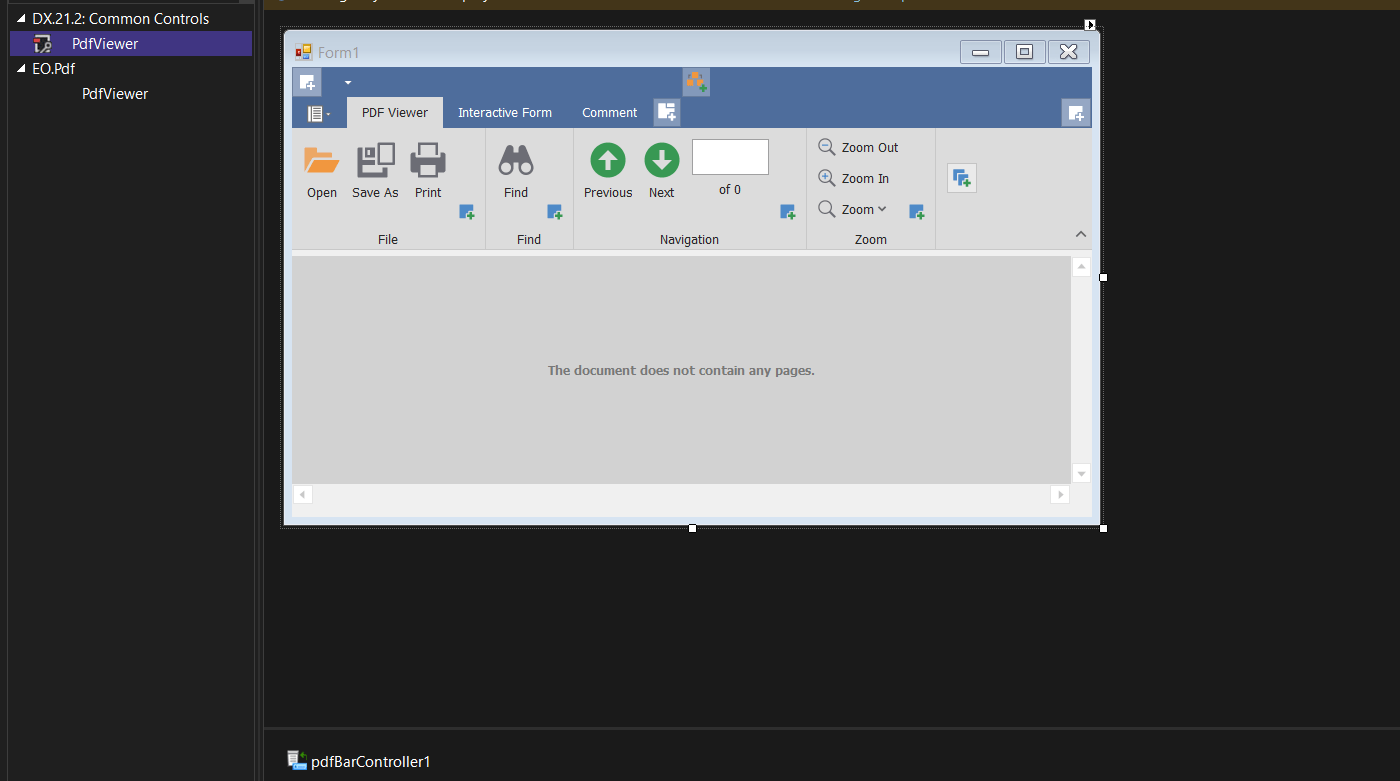
- In the PDF Viewer control Tasks menu, click the smart tag for the PDF Viewer and choose Dock in the parent container. This causes the PDF Viewer to enlarge to the size of the form.
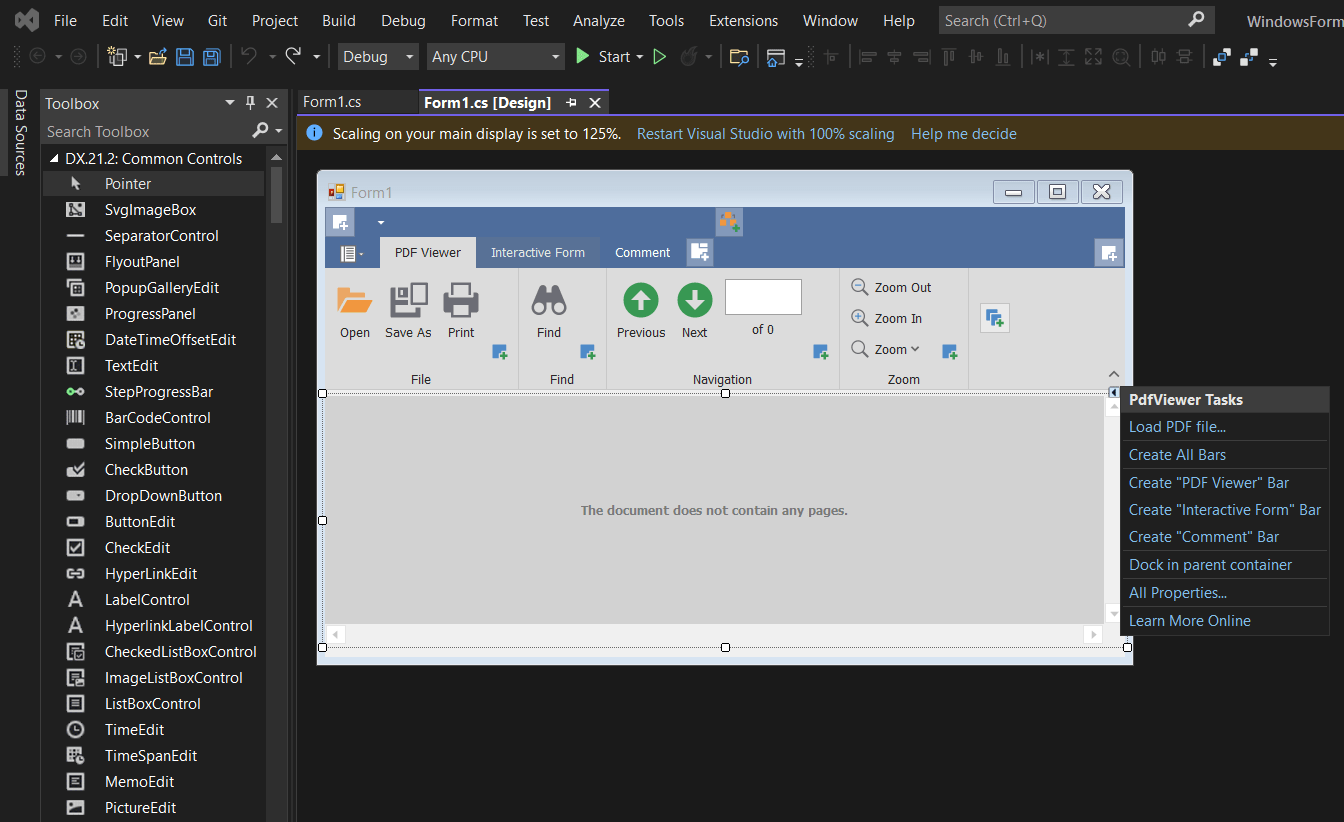
- To use the PDF Viewer control, you must first load a document. To access the PDF Viewer's activities list, click its smart tag. Click the Load PDF option in the actions list.
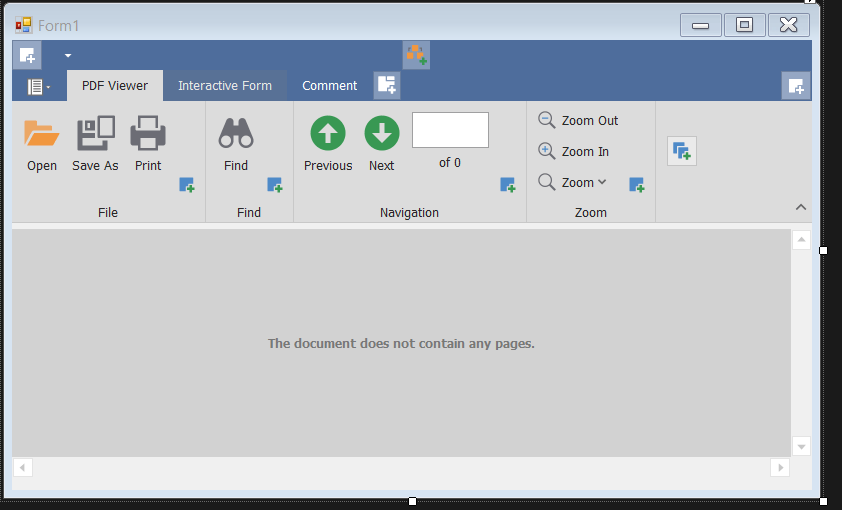
- The dialog box "Open" displays. Locate the document to be opened in this dialog and click Open.
We can perform the following tasks using the controls:
Navigate through PDFs
Easily navigate and explore a PDF file. The Viewer controls come with a wide range of document navigation options, including:
- Bookmarks and Links
- The pane of Navigation (customizable document navigation UI)
- Thumbnails for all the pages
- UI with a ribbon
The Viewer keeps track of all visited pages and allows users to switch back and forth between them as needed. You can also use the Find panel to search for PDF material, exactly like in Adobe Reader (options include case-sensitive and whole word search).
Examine and comment
Users have the ability to add, edit, and delete comments. The Viewer for WinForms has a full set of annotation capabilities, including a text highlighter and sticky notes.
- Collaborate without difficulty
- Additional capabilities/options include:
- Replies and reviews can be added
- Configure the markup tool's options (color and opacity)
- Comments can be sorted, filtered, and searched
- A comprehensive API
- Zoom in and zoom out using DevExpress.
A PDF form you can fill out
AcroForms allow you to edit documents. After you've added the Viewer to your WinForms project, your users will be able to edit any PDF that contains form field data. Each field in the Viewer is shown according to the form type it belongs to, such as text box, radio button, combo box with auto-complete, check box, and lists.
You can import from or export to the following formats if your PDF contains AcroForm data: FDF, XFDF, XML, and TXT.
Open and save files that have been attached
In the Navigation Pane of DevExpress PDF Viewers, associated files are displayed. A PDF attached to a file can be opened and saved to a disc. When opening a file connected to the PDF, the Viewer additionally has the option of displaying a security warning.
PDF Printing
The Viewer comes with a Print Preview Dialog that includes a full set of printing choices inspired by Adobe. A real-time preview, page range selection, DPI settings, and orientation are among them.
9.0 Conclusion
In this article, we have compared IronPDF and DevExpress. There are a number of common features available in both libraries. IronPDF considers the user's Chrome settings to render the HTML, but DevExpress runs on a separate engine that ignores the current user settings to render the HTML. IronPDF can render the HTML quicker than DevExpress.
In terms of performance, IronPDF is faster than DevExpress. Also, the PDF Viewer cannot create PDFs using IronPDF; it can only view them. Royalty-free redistribution coverage comes with IronPDF at extra cost, but this is simply not available with DevExpress. IronPDF offers significantly more features when compared with the DevExpress PDF controls.
In conclusion, we prefer IronPDF because of its high-performance levels and the wide variety of features available to developers working with PDFs. IronPDF also provides good support and documentation that ensures users can make full and effective use of the impressive array of features on offer.
Często Zadawane Pytania
Jak mogę przekonwertować HTML na PDF w języku C#?
Możesz użyć metody RenderHtmlAsPdf biblioteki IronPDF do konwersji ciągów HTML na pliki PDF. Możesz również konwertować pliki HTML na pliki PDF za pomocą metody RenderHtmlFileAsPdf.
Jakie są różnice między IronPDF a DevExpress PDF Viewer?
IronPDF to wszechstronne narzędzie do tworzenia, odczytu i edycji plików PDF na wielu platformach, oferujące rozbudowane możliwości konwersji HTML do PDF. Natomiast DevExpress PDF Viewer koncentruje się przede wszystkim na przeglądaniu plików PDF i obsługuje dodawanie adnotacji do dokumentów oraz wypełnianie formularzy.
Czy mogę wyodrębnić tekst i obrazy z istniejącego pliku PDF za pomocą biblioteki?
Tak, IronPDF umożliwia wyodrębnianie tekstu i obrazów z istniejących plików PDF za pomocą swojego kompleksowego interfejsu API.
Jakie platformy obsługują IronPDF do zarządzania plikami PDF?
IronPDF obsługuje szeroki zakres platform, w tym aplikacje Windows Forms, ASP.NET, .NET Core, WPF, Xamarin, Blazor, Unity i HoloLens.
Jak zainstalować IronPDF w projekcie .NET?
IronPDF można zainstalować w projekcie .NET za pomocą menedżera pakietów NuGet w Visual Studio, wiersza poleceń Visual Studio lub pobierając go bezpośrednio ze stron internetowych NuGet lub IronPDF.
Dlaczego programiści mieliby wybrać IronPDF zamiast DevExpress PDF Viewer?
Programiści mogą preferować IronPDF ze względu na jego rozbudowane funkcje, w tym konwersję HTML do PDF, tworzenie interaktywnych plików PDF oraz wysoką wydajność. Oferuje on również doskonałe wsparcie techniczne i dokumentację, co sprawia, że jest preferowanym wyborem w porównaniu z DevExpress.
Jakie są typowe scenariusze rozwiązywania problemów podczas korzystania z bibliotek PDF?
Typowe scenariusze rozwiązywania problemów obejmują zapewnienie prawidłowej instalacji biblioteki, sprawdzenie zgodności z Wersją .NET oraz obsługę wyjątków związanych ze ścieżkami plików lub uprawnieniami podczas tworzenia lub konwersji plików PDF.
Na jakie funkcje należy zwrócić uwagę w bibliotece do zarządzania plikami PDF?
Kluczowe funkcje, które należy wziąć pod uwagę, to konwersja HTML do PDF, wyodrębnianie tekstu i obrazów, interaktywne formularze, opcje dostosowywania dokumentów oraz obsługa różnych platform. IronPDF oferuje wszystkie te funkcje, co czyni go kompleksowym rozwiązaniem do zarządzania plikami PDF.








 Rozpocznij za DARMO
 Rozpocznij za DARMO
 Zarezerwuj darmowe Demo na żywo





 Nie wymaga karty kredytowej ani tworzenia konta










