


Porównanie IronPDF i HiQPdf C#

Overview of IronPDF and HiQPdf
For developers working with .NET, finding the right PDF solution is essential to building feature-rich applications, and in today's modern age, it can be hard to find the right tool for your needs with the rising number of products offering PDF conversion technology. In this comparison, we'll evaluate IronPDF and HiQPdf, two popular HTML-to-PDF libraries used in .NET projects. While both libraries offer robust PDF generation capabilities, IronPDF stands out due to its more comprehensive features, cross-platform compatibility, and intuitive API.
Whether you're looking for advanced editing options, cross-platform support, or ease of use, this side-by-side comparison of IronPDF and HiQPdf will help you make an informed decision.
Key Features at a Glance
IronPDF is a versatile PDF library for C# and .NET that enables seamless PDF generation, editing, and manipulation. Supporting .NET 8, 7, 6, and Core, it's equipped with a rich toolset for developers to handle everything from HTML to PDF conversion to advanced security options like encryption and digital signatures. With IronPDF, you can add text or HTML headers to each PDF page, use web fonts for better text customization, extract text, create stylish PDF documents, and more!
HiQPdf, on the other hand, focuses primarily on HTML to PDF conversion, offering solid support for CSS3, JavaScript, SVG, and Canvas elements. While it provides reliable PDF generation, HiQPdf lacks some of the advanced features and flexibility that IronPDF offers, especially when it comes to cross-platform compatibility and detailed document editing.
Key Feature Comparison: PDF Functionality in IronPDF vs. HiQPdf
Funkcje IronPDF
- PDF conversion: IronPDF can convert HTML to PDF, with its full support for modern web standards, you can be assured that IronPDF will consistently return pixel-perfect PDFs from your HTML page or content. IronPDF can also convert PDF files from other formats such as DOCX, images, RTF, and more.
- PDF Generation: With IronPDF, you can generate PDFs from URLs, ASPX files, or HTML strings.
- Security features: With IronPDF, you can always be assured that any sensitive PDF files are secure thanks to its security features. Use IronPDF to encrypt your PDF files, set passwords, and set permissions for your PDF files.
- PDF editing features: With IronPDF you can process existing PDF documents, edit them, and read PDF files with ease. IronPDF offers editing features such as adding headers and footers, stamping text and images onto the PDF pages, adding custom watermarks to the PDF, working with PDF forms, and splitting or merging PDF files.
- Integration: Seamlessly integrates with ASP.NET and MVC applications.
- PDF version support: Can support PDF version 1.2-1.7
For a comprehensive list of IronPDF features, visit IronPDF Features.
HiQPdf Features:
- HTML to PDF Conversion: Supports HTML5, CSS3, JavaScript, SVG, and canvas elements. HiQPdf is capable of handling complex page layouts with precise fidelity.
- JavaScript Execution in PDFs: Runs JavaScript inside the PDF post-conversion, enabling interactive features.
- Annotations & Bookmarks: Adds standard PDF annotations like comments and highlights.
- Custom Paper Size Support: Provides options for defining custom paper sizes during PDF creation.
- Basic Password Protection: Secures PDFs with basic password options for restricting access and modification.
- Page Break CSS Attributes: Control the page breaks in your generated PDF documents using the CSS property
'page-break-before:always'. - Merge & Split PDFs: Combines multiple PDFs into a single document, or splits large PDFs into smaller files for better manageability.
IronPDF has a broader feature set, offering more advanced PDF editing, security, and cross-platform compatibility, giving it an edge over HiQPdf.
Cross-Platform Compatibility
One of the key differentiators between IronPDF and HiQPdf is cross-platform compatibility. IronPDF offers seamless support for Windows, Linux, and macOS, making it an excellent choice for developers working in diverse environments. It's also compatible with Docker, Azure, AWS, and major .NET versions including .NET 8, 7, 6, and .NET Core.
HiQPdf, while functional, is more limited in its platform support, focusing primarily on Windows environments.
Comparison of Top Highlight Features with Code Examples Between IronPDF vs. HiQPdf
Konwersja HTML do PDF
IronPDF:
using IronPdf;

// Create a new PDF renderer
var renderer = new ChromePdfRenderer();

// Render HTML to PDF
var pdf = renderer.RenderHtmlAsPdf("<h1>Hello World</h1>");
pdf.SaveAs("output.pdf");

// Render HTML to PDF with assets
var myAdvancedPdf = renderer.RenderHtmlAsPdf("<img src='icons/iron.png'>", @"C:\site\assets\");
myAdvancedPdf.SaveAs("html-with-assets.pdf");
using IronPdf;
// Create a new PDF renderer
var renderer = new ChromePdfRenderer();
// Render HTML to PDF
var pdf = renderer.RenderHtmlAsPdf("<h1>Hello World</h1>");
pdf.SaveAs("output.pdf");
// Render HTML to PDF with assets
var myAdvancedPdf = renderer.RenderHtmlAsPdf("<img src='icons/iron.png'>", @"C:\site\assets\");
myAdvancedPdf.SaveAs("html-with-assets.pdf");Imports IronPdf
' Create a new PDF renderer
Private renderer = New ChromePdfRenderer()
' Render HTML to PDF
Private pdf = renderer.RenderHtmlAsPdf("<h1>Hello World</h1>")
pdf.SaveAs("output.pdf")
' Render HTML to PDF with assets
Dim myAdvancedPdf = renderer.RenderHtmlAsPdf("<img src='icons/iron.png'>", "C:\site\assets\")
myAdvancedPdf.SaveAs("html-with-assets.pdf")HiQPdf:
// Create the HTML to PDF converter
HtmlToPdf htmlToPdfConverter = new HtmlToPdf();

// Convert HTML code to a PDF file
htmlToPdfConverter.ConvertHtmlToFile("<b>Hello World</b>", null, "result.pdf");
// Create the HTML to PDF converter
HtmlToPdf htmlToPdfConverter = new HtmlToPdf();
// Convert HTML code to a PDF file
htmlToPdfConverter.ConvertHtmlToFile("<b>Hello World</b>", null, "result.pdf");' Create the HTML to PDF converter
Dim htmlToPdfConverter As New HtmlToPdf()
' Convert HTML code to a PDF file
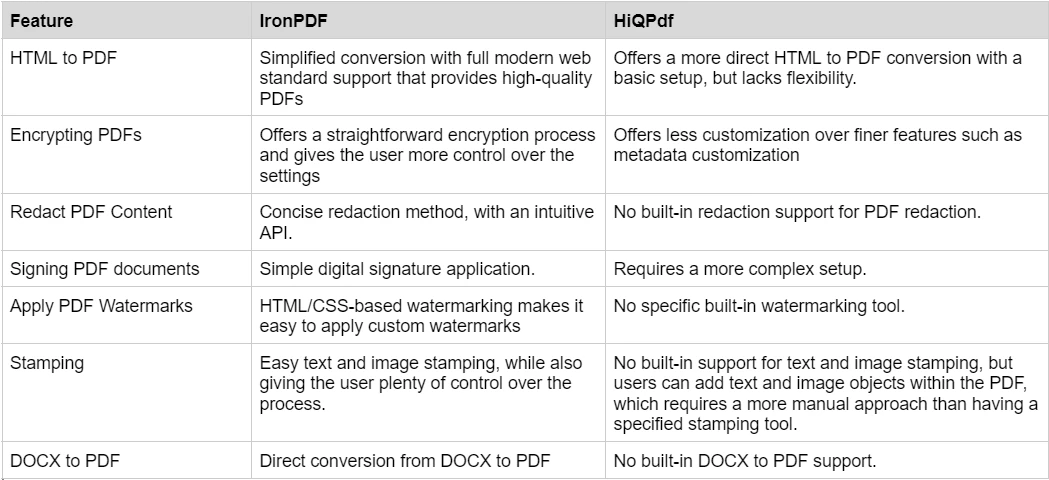
htmlToPdfConverter.ConvertHtmlToFile("<b>Hello World</b>", Nothing, "result.pdf")For HTML to PDF conversion, IronPDF provides a simple approach by using the ChromePdfRenderer to render HTML content into a PDF, whether you're working with HTML documents, strings, or URLs. IronPDF also supports advanced scenarios, such as rendering HTML with local assets like images. HiQPdf, on the other hand, uses the HtmlToPdf class, where the HTML content is directly converted into a PDF file with a more basic setup. Both libraries handle HTML to PDF conversion effectively, but IronPDF offers additional flexibility with asset handling.
Encrypting PDF Documents
IronPDF Example:
using IronPdf;

// Load an existing PDF
var pdf = PdfDocument.FromFile("encrypted.pdf", "password");

// Set metadata and remove existing passwords
pdf.MetaData.Author = "Satoshi Nakamoto";
pdf.MetaData.Keywords = "SEO, Friendly";
pdf.MetaData.ModifiedDate = DateTime.Now;

// Update security settings
pdf.SecuritySettings.RemovePasswordsAndEncryption();
pdf.SecuritySettings.MakePdfDocumentReadOnly("secret-key");
pdf.SecuritySettings.AllowUserAnnotations = false;
pdf.SecuritySettings.AllowUserCopyPasteContent = false;
pdf.SecuritySettings.AllowUserFormData = false;
pdf.SecuritySettings.AllowUserPrinting = IronPdf.Security.PdfPrintSecurity.FullPrintRights;

// Set a new password and save the document
pdf.Password = "my-password";
pdf.SaveAs("secured.pdf");
using IronPdf;
// Load an existing PDF
var pdf = PdfDocument.FromFile("encrypted.pdf", "password");
// Set metadata and remove existing passwords
pdf.MetaData.Author = "Satoshi Nakamoto";
pdf.MetaData.Keywords = "SEO, Friendly";
pdf.MetaData.ModifiedDate = DateTime.Now;
// Update security settings
pdf.SecuritySettings.RemovePasswordsAndEncryption();
pdf.SecuritySettings.MakePdfDocumentReadOnly("secret-key");
pdf.SecuritySettings.AllowUserAnnotations = false;
pdf.SecuritySettings.AllowUserCopyPasteContent = false;
pdf.SecuritySettings.AllowUserFormData = false;
pdf.SecuritySettings.AllowUserPrinting = IronPdf.Security.PdfPrintSecurity.FullPrintRights;
// Set a new password and save the document
pdf.Password = "my-password";
pdf.SaveAs("secured.pdf");Imports IronPdf
' Load an existing PDF
Private pdf = PdfDocument.FromFile("encrypted.pdf", "password")
' Set metadata and remove existing passwords
pdf.MetaData.Author = "Satoshi Nakamoto"
pdf.MetaData.Keywords = "SEO, Friendly"
pdf.MetaData.ModifiedDate = DateTime.Now
' Update security settings
pdf.SecuritySettings.RemovePasswordsAndEncryption()
pdf.SecuritySettings.MakePdfDocumentReadOnly("secret-key")
pdf.SecuritySettings.AllowUserAnnotations = False
pdf.SecuritySettings.AllowUserCopyPasteContent = False
pdf.SecuritySettings.AllowUserFormData = False
pdf.SecuritySettings.AllowUserPrinting = IronPdf.Security.PdfPrintSecurity.FullPrintRights
' Set a new password and save the document
pdf.Password = "my-password"
pdf.SaveAs("secured.pdf")HiQPdf:
// Create the HTML to PDF converter
HtmlToPdf htmlToPdfConverter = new HtmlToPdf();

// Set encryption mode and level
htmlToPdfConverter.Document.Security.EncryptionMode = GetSelectedEncryptionMode();
htmlToPdfConverter.Document.Security.EncryptionLevel = GetSelectedEncryptionLevel();

// Set open and permissions passwords
htmlToPdfConverter.Document.Security.OpenPassword = textBoxOpenPassword.Text;
htmlToPdfConverter.Document.Security.PermissionsPassword = textBoxPermissionsPassword.Text;

// Set PDF document permissions
htmlToPdfConverter.Document.Security.AllowPrinting = checkBoxAllowPrint.Checked;
htmlToPdfConverter.Document.Security.AllowCopyContent = checkBoxAllowCopy.Checked;
htmlToPdfConverter.Document.Security.AllowEditContent = checkBoxAllowEdit.Checked;
htmlToPdfConverter.Document.Security.AllowEditAnnotations = checkBoxAllowEditAnnotations.Checked;
htmlToPdfConverter.Document.Security.AllowFormFilling = checkBoxAllowFillForms.Checked;

// Set default permissions password if necessary
if (htmlToPdfConverter.Document.Security.PermissionsPassword == string.Empty &&
    (htmlToPdfConverter.Document.Security.OpenPassword != string.Empty || !IsDefaultPermission(htmlToPdfConverter.Document.Security)))
{
    htmlToPdfConverter.Document.Security.PermissionsPassword = "admin";
}
// Create the HTML to PDF converter
HtmlToPdf htmlToPdfConverter = new HtmlToPdf();
// Set encryption mode and level
htmlToPdfConverter.Document.Security.EncryptionMode = GetSelectedEncryptionMode();
htmlToPdfConverter.Document.Security.EncryptionLevel = GetSelectedEncryptionLevel();
// Set open and permissions passwords
htmlToPdfConverter.Document.Security.OpenPassword = textBoxOpenPassword.Text;
htmlToPdfConverter.Document.Security.PermissionsPassword = textBoxPermissionsPassword.Text;
// Set PDF document permissions
htmlToPdfConverter.Document.Security.AllowPrinting = checkBoxAllowPrint.Checked;
htmlToPdfConverter.Document.Security.AllowCopyContent = checkBoxAllowCopy.Checked;
htmlToPdfConverter.Document.Security.AllowEditContent = checkBoxAllowEdit.Checked;
htmlToPdfConverter.Document.Security.AllowEditAnnotations = checkBoxAllowEditAnnotations.Checked;
htmlToPdfConverter.Document.Security.AllowFormFilling = checkBoxAllowFillForms.Checked;
// Set default permissions password if necessary
if (htmlToPdfConverter.Document.Security.PermissionsPassword == string.Empty &&
(htmlToPdfConverter.Document.Security.OpenPassword != string.Empty || !IsDefaultPermission(htmlToPdfConverter.Document.Security)))
{
htmlToPdfConverter.Document.Security.PermissionsPassword = "admin";
}' Create the HTML to PDF converter
Dim htmlToPdfConverter As New HtmlToPdf()
' Set encryption mode and level
htmlToPdfConverter.Document.Security.EncryptionMode = GetSelectedEncryptionMode()
htmlToPdfConverter.Document.Security.EncryptionLevel = GetSelectedEncryptionLevel()
' Set open and permissions passwords
htmlToPdfConverter.Document.Security.OpenPassword = textBoxOpenPassword.Text
htmlToPdfConverter.Document.Security.PermissionsPassword = textBoxPermissionsPassword.Text
' Set PDF document permissions
htmlToPdfConverter.Document.Security.AllowPrinting = checkBoxAllowPrint.Checked
htmlToPdfConverter.Document.Security.AllowCopyContent = checkBoxAllowCopy.Checked
htmlToPdfConverter.Document.Security.AllowEditContent = checkBoxAllowEdit.Checked
htmlToPdfConverter.Document.Security.AllowEditAnnotations = checkBoxAllowEditAnnotations.Checked
htmlToPdfConverter.Document.Security.AllowFormFilling = checkBoxAllowFillForms.Checked
' Set default permissions password if necessary
If htmlToPdfConverter.Document.Security.PermissionsPassword = String.Empty AndAlso (htmlToPdfConverter.Document.Security.OpenPassword <> String.Empty OrElse Not IsDefaultPermission(htmlToPdfConverter.Document.Security)) Then
htmlToPdfConverter.Document.Security.PermissionsPassword = "admin"
End IfWhen it comes to encrypting PDF documents, IronPDF provides a straightforward approach with its API. Developers can remove existing passwords, set new security settings, restrict user actions like annotations, copy-pasting, and form data entry, and make the document read-only. IronPDF allows for metadata modification, password protection, as well as fine control over printing permissions.
HiQPdf also offers PDF encryption but with a slightly different process, focusing on setting encryption mode, level, open password, and permissions password. It allows granular control over document permissions such as printing, content copying, and editing, with default permissions available when not explicitly set. Both libraries provide comprehensive security settings, but IronPDF offers additional features like metadata customization and easier handling of document read-only mode.
Redacting PDF document content
IronPDF Example:
using IronPdf;

// Load an existing PDF
PdfDocument pdf = PdfDocument.FromFile("novel.pdf");

// Redact specific text
pdf.RedactTextOnAllPages("are");

// Save the updated PDF
pdf.SaveAs("redacted.pdf");
using IronPdf;
// Load an existing PDF
PdfDocument pdf = PdfDocument.FromFile("novel.pdf");
// Redact specific text
pdf.RedactTextOnAllPages("are");
// Save the updated PDF
pdf.SaveAs("redacted.pdf");Imports IronPdf
' Load an existing PDF
Private pdf As PdfDocument = PdfDocument.FromFile("novel.pdf")
' Redact specific text
pdf.RedactTextOnAllPages("are")
' Save the updated PDF
pdf.SaveAs("redacted.pdf")HiQPdf does not offer explicit redaction functionality in its listed features. It is mainly focused on PDF generation, conversion, and manipulation, such as creating PDFs from HTML.
IronPDF provides a straightforward approach to redacting content from your PDF document pages. For example, developers can easily redact specific text throughout a document with a few lines of code, as seen in the above code snippet. In contrast, HiQPdf lacks explicit redaction functionality in its feature set, primarily focusing on PDF generation, conversion, and manipulation, such as creating PDFs from HTML.
Digitally Signing PDF Files
IronPDF Example:
using IronPdf;
using IronPdf.Signing;
using System.Security.Cryptography.X509Certificates;

// Create a PDF from HTML
ChromePdfRenderer renderer = new ChromePdfRenderer();
PdfDocument pdf = renderer.RenderHtmlAsPdf("<h1>foo</h1>");

// Load a digital certificate and sign the PDF
X509Certificate2 cert = new X509Certificate2("IronSoftware.pfx", "123456", X509KeyStorageFlags.Exportable);
var sig = new PdfSignature(cert);
pdf.Sign(sig);

// Save the signed PDF
pdf.SaveAs("signed.pdf");
using IronPdf;
using IronPdf.Signing;
using System.Security.Cryptography.X509Certificates;
// Create a PDF from HTML
ChromePdfRenderer renderer = new ChromePdfRenderer();
PdfDocument pdf = renderer.RenderHtmlAsPdf("<h1>foo</h1>");
// Load a digital certificate and sign the PDF
X509Certificate2 cert = new X509Certificate2("IronSoftware.pfx", "123456", X509KeyStorageFlags.Exportable);
var sig = new PdfSignature(cert);
pdf.Sign(sig);
// Save the signed PDF
pdf.SaveAs("signed.pdf");Imports IronPdf
Imports IronPdf.Signing
Imports System.Security.Cryptography.X509Certificates
' Create a PDF from HTML
Private renderer As New ChromePdfRenderer()
Private pdf As PdfDocument = renderer.RenderHtmlAsPdf("<h1>foo</h1>")
' Load a digital certificate and sign the PDF
Private cert As New X509Certificate2("IronSoftware.pfx", "123456", X509KeyStorageFlags.Exportable)
Private sig = New PdfSignature(cert)
pdf.Sign(sig)
' Save the signed PDF
pdf.SaveAs("signed.pdf")HiQPdf:
// Create a PDF document
PdfDocument document = new PdfDocument();

// Add a page to the document
PdfPage page1 = document.AddPage();

// Create fonts for text
Font sysFont = new Font("Times New Roman", 10, System.Drawing.GraphicsUnit.Point);
PdfFont pdfFontEmbed = document.CreateFont(sysFont, true);

// Add a title to the PDF document
PdfText titleTextTransImage = new PdfText(5, 20, "Click the image below to open the digital signature", pdfFontEmbed);
titleTextTransImage.ForeColor = Color.Navy;
PdfLayoutInfo textLayoutInfo = page1.Layout(titleTextTransImage);

// Layout a PNG image with alpha transparency
PdfImage transparentPdfImage = new PdfImage(5, 50, Server.MapPath("~") + @"\DemoFiles\Images\HiQPdfLogo_small.png");
PdfLayoutInfo imageLayoutInfo = page1.Layout(transparentPdfImage);

// Apply digital signature
PdfCertificatesCollection pdfCertificates = PdfCertificatesCollection.FromFile(Server.MapPath("~") + @"\DemoFiles\Pfx\hiqpdf.pfx", "hiqpdf");
PdfDigitalSignature digitalSignature = new PdfDigitalSignature(pdfCertificates[0]);
digitalSignature.SigningReason = "My signing reason";
digitalSignature.SigningLocation = "My signing location";
digitalSignature.SignerContactInfo = "My contact info";
document.AddDigitalSignature(digitalSignature, imageLayoutInfo.LastPdfPage, imageLayoutInfo.LastPageRectangle);

try
{
    // Write the PDF document to a memory buffer
    byte[] pdfBuffer = document.WriteToMemory();

    // Inform the browser about the binary data format
    HttpContext.Current.Response.AddHeader("Content-Type", "application/pdf");

    // Let the browser know how to open the PDF document and the file name
    HttpContext.Current.Response.AddHeader("Content-Disposition", String.Format("attachment; filename=DigitalSignatures.pdf; size={0}",
                pdfBuffer.Length.ToString()));

    // Write the PDF buffer to HTTP response
    HttpContext.Current.Response.BinaryWrite(pdfBuffer);

    // End the HTTP response
    HttpContext.Current.Response.End();
}
finally
{
    document.Close();
}
// Create a PDF document
PdfDocument document = new PdfDocument();
// Add a page to the document
PdfPage page1 = document.AddPage();
// Create fonts for text
Font sysFont = new Font("Times New Roman", 10, System.Drawing.GraphicsUnit.Point);
PdfFont pdfFontEmbed = document.CreateFont(sysFont, true);
// Add a title to the PDF document
PdfText titleTextTransImage = new PdfText(5, 20, "Click the image below to open the digital signature", pdfFontEmbed);
titleTextTransImage.ForeColor = Color.Navy;
PdfLayoutInfo textLayoutInfo = page1.Layout(titleTextTransImage);
// Layout a PNG image with alpha transparency
PdfImage transparentPdfImage = new PdfImage(5, 50, Server.MapPath("~") + @"\DemoFiles\Images\HiQPdfLogo_small.png");
PdfLayoutInfo imageLayoutInfo = page1.Layout(transparentPdfImage);
// Apply digital signature
PdfCertificatesCollection pdfCertificates = PdfCertificatesCollection.FromFile(Server.MapPath("~") + @"\DemoFiles\Pfx\hiqpdf.pfx", "hiqpdf");
PdfDigitalSignature digitalSignature = new PdfDigitalSignature(pdfCertificates[0]);
digitalSignature.SigningReason = "My signing reason";
digitalSignature.SigningLocation = "My signing location";
digitalSignature.SignerContactInfo = "My contact info";
document.AddDigitalSignature(digitalSignature, imageLayoutInfo.LastPdfPage, imageLayoutInfo.LastPageRectangle);
try
{
// Write the PDF document to a memory buffer
byte[] pdfBuffer = document.WriteToMemory();
// Inform the browser about the binary data format
HttpContext.Current.Response.AddHeader("Content-Type", "application/pdf");
// Let the browser know how to open the PDF document and the file name
HttpContext.Current.Response.AddHeader("Content-Disposition", String.Format("attachment; filename=DigitalSignatures.pdf; size={0}",
pdfBuffer.Length.ToString()));
// Write the PDF buffer to HTTP response
HttpContext.Current.Response.BinaryWrite(pdfBuffer);
// End the HTTP response
HttpContext.Current.Response.End();
}
finally
{
document.Close();
}' Create a PDF document
Dim document As New PdfDocument()
' Add a page to the document
Dim page1 As PdfPage = document.AddPage()
' Create fonts for text
Dim sysFont As New Font("Times New Roman", 10, System.Drawing.GraphicsUnit.Point)
Dim pdfFontEmbed As PdfFont = document.CreateFont(sysFont, True)
' Add a title to the PDF document
Dim titleTextTransImage As New PdfText(5, 20, "Click the image below to open the digital signature", pdfFontEmbed)
titleTextTransImage.ForeColor = Color.Navy
Dim textLayoutInfo As PdfLayoutInfo = page1.Layout(titleTextTransImage)
' Layout a PNG image with alpha transparency
Dim transparentPdfImage As New PdfImage(5, 50, Server.MapPath("~") & "\DemoFiles\Images\HiQPdfLogo_small.png")
Dim imageLayoutInfo As PdfLayoutInfo = page1.Layout(transparentPdfImage)
' Apply digital signature
Dim pdfCertificates As PdfCertificatesCollection = PdfCertificatesCollection.FromFile(Server.MapPath("~") & "\DemoFiles\Pfx\hiqpdf.pfx", "hiqpdf")
Dim digitalSignature As New PdfDigitalSignature(pdfCertificates(0))
digitalSignature.SigningReason = "My signing reason"
digitalSignature.SigningLocation = "My signing location"
digitalSignature.SignerContactInfo = "My contact info"
document.AddDigitalSignature(digitalSignature, imageLayoutInfo.LastPdfPage, imageLayoutInfo.LastPageRectangle)
Try
' Write the PDF document to a memory buffer
Dim pdfBuffer() As Byte = document.WriteToMemory()
' Inform the browser about the binary data format
HttpContext.Current.Response.AddHeader("Content-Type", "application/pdf")
' Let the browser know how to open the PDF document and the file name
HttpContext.Current.Response.AddHeader("Content-Disposition", String.Format("attachment; filename=DigitalSignatures.pdf; size={0}", pdfBuffer.Length.ToString()))
' Write the PDF buffer to HTTP response
HttpContext.Current.Response.BinaryWrite(pdfBuffer)
' End the HTTP response
HttpContext.Current.Response.End()
Finally
document.Close()
End TryIn digitally signing PDF files, IronPDF offers a straightforward approach by allowing developers to create a PDF document from HTML content, sign it with a digital certificate, and save it with minimal code. HiQPdf, on the other hand, requires a more complex setup, where a PDF document is created programmatically by adding a page and embedding fonts. A title and an image are included, followed by the application of a digital signature using a specified certificate, along with detailed metadata like signing reason and location.
Applying Custom Watermarks
IronPDF Example:
using IronPdf;

// Create a PDF renderer and render URL
var renderer = new ChromePdfRenderer();
var pdf = renderer.RenderUrlAsPdf("https://www.nuget.org/packages/IronPdf");

// Apply a watermark to the PDF
pdf.ApplyWatermark("<h2 style='color:red'>SAMPLE</h2>", 30, IronPdf.Editing.VerticalAlignment.Middle, IronPdf.Editing.HorizontalAlignment.Center);

// Save the PDF
pdf.SaveAs(@"C:\Path\To\Watermarked.pdf");
using IronPdf;
// Create a PDF renderer and render URL
var renderer = new ChromePdfRenderer();
var pdf = renderer.RenderUrlAsPdf("https://www.nuget.org/packages/IronPdf");
// Apply a watermark to the PDF
pdf.ApplyWatermark("<h2 style='color:red'>SAMPLE</h2>", 30, IronPdf.Editing.VerticalAlignment.Middle, IronPdf.Editing.HorizontalAlignment.Center);
// Save the PDF
pdf.SaveAs(@"C:\Path\To\Watermarked.pdf");Imports IronPdf
' Create a PDF renderer and render URL
Private renderer = New ChromePdfRenderer()
Private pdf = renderer.RenderUrlAsPdf("https://www.nuget.org/packages/IronPdf")
' Apply a watermark to the PDF
pdf.ApplyWatermark("<h2 style='color:red'>SAMPLE</h2>", 30, IronPdf.Editing.VerticalAlignment.Middle, IronPdf.Editing.HorizontalAlignment.Center)
' Save the PDF
pdf.SaveAs("C:\Path\To\Watermarked.pdf")HiQPdf:
No built-in dedicated watermarking tool.
When applying custom watermarks, IronPDF provides a straightforward solution with built-in support for adding watermarks to PDFs. In the example, a URL is rendered as a PDF, and a customizable watermark with HTML styling is applied at the center of the page. This allows for easy modification of the watermark's content, style, and placement. In contrast, HiQPdf lacks a built-in, dedicated watermarking tool, making it less convenient for developers needing this functionality directly within the library.
Stamping Images and Text to PDFs
IronPDF Example (Text Stamp):
using IronPdf;
using IronPdf.Editing;

// Create a PDF from HTML
ChromePdfRenderer renderer = new ChromePdfRenderer();
PdfDocument pdf = renderer.RenderHtmlAsPdf("<h1>Example HTML Document!</h1>");

// Create and apply a text stamp
TextStamper textStamper = new TextStamper()
{
    Text = "Text Stamper!",
    FontFamily = "Bungee Spice",
    UseGoogleFont = true,
    FontSize = 30,
    IsBold = true,
    IsItalic = true,
    VerticalAlignment = VerticalAlignment.Top
};

pdf.ApplyStamp(textStamper);
pdf.SaveAs("stampText.pdf");
using IronPdf;
using IronPdf.Editing;
// Create a PDF from HTML
ChromePdfRenderer renderer = new ChromePdfRenderer();
PdfDocument pdf = renderer.RenderHtmlAsPdf("<h1>Example HTML Document!</h1>");
// Create and apply a text stamp
TextStamper textStamper = new TextStamper()
{
Text = "Text Stamper!",
FontFamily = "Bungee Spice",
UseGoogleFont = true,
FontSize = 30,
IsBold = true,
IsItalic = true,
VerticalAlignment = VerticalAlignment.Top
};
pdf.ApplyStamp(textStamper);
pdf.SaveAs("stampText.pdf");Imports IronPdf
Imports IronPdf.Editing
' Create a PDF from HTML
Private renderer As New ChromePdfRenderer()
Private pdf As PdfDocument = renderer.RenderHtmlAsPdf("<h1>Example HTML Document!</h1>")
' Create and apply a text stamp
Private textStamper As New TextStamper() With {
.Text = "Text Stamper!",
.FontFamily = "Bungee Spice",
.UseGoogleFont = True,
.FontSize = 30,
.IsBold = True,
.IsItalic = True,
.VerticalAlignment = VerticalAlignment.Top
}
pdf.ApplyStamp(textStamper)
pdf.SaveAs("stampText.pdf")IronPDF Example (Image Stamp):
using IronPdf;
using IronPdf.Editing;

// Create a PDF from HTML
ChromePdfRenderer renderer = new ChromePdfRenderer();
PdfDocument pdf = renderer.RenderHtmlAsPdf("<h1>Example HTML Document!</h1>");

// Create and apply an image stamp
ImageStamper imageStamper = new ImageStamper(new Uri("/img/svgs/iron-pdf-logo.svg"))
{
    VerticalAlignment = VerticalAlignment.Top
};

pdf.ApplyStamp(imageStamper, 0);
pdf.SaveAs("stampImage.pdf");
using IronPdf;
using IronPdf.Editing;
// Create a PDF from HTML
ChromePdfRenderer renderer = new ChromePdfRenderer();
PdfDocument pdf = renderer.RenderHtmlAsPdf("<h1>Example HTML Document!</h1>");
// Create and apply an image stamp
ImageStamper imageStamper = new ImageStamper(new Uri("/img/svgs/iron-pdf-logo.svg"))
{
VerticalAlignment = VerticalAlignment.Top
};
pdf.ApplyStamp(imageStamper, 0);
pdf.SaveAs("stampImage.pdf");Imports IronPdf
Imports IronPdf.Editing
' Create a PDF from HTML
Private renderer As New ChromePdfRenderer()
Private pdf As PdfDocument = renderer.RenderHtmlAsPdf("<h1>Example HTML Document!</h1>")
' Create and apply an image stamp
Private imageStamper As New ImageStamper(New Uri("/img/svgs/iron-pdf-logo.svg")) With {.VerticalAlignment = VerticalAlignment.Top}
pdf.ApplyStamp(imageStamper, 0)
pdf.SaveAs("stampImage.pdf")HiQPdf:
HiQPdf does not have a dedicated stamping tool for directly adding text or images as stamps onto PDF documents. However, it allows you to add text, images, and graphic objects to PDFs, which can serve a similar purpose. This can be accomplished by creating text objects and image objects within the PDF using the features available in the library.
IronPDF offers dedicated classes for stamping text and images directly onto any existing PDF document or newly created ones, making the process straightforward for developers. In contrast, HiQPdf lacks a dedicated stamping tool; instead, it allows users to add text and image objects within the PDF, requiring a more manual approach to achieve similar results.
DOCX to PDF Conversion
IronPDF Example:
using IronPdf;

// Render DOCX to PDF
DocxToPdfRenderer renderer = new DocxToPdfRenderer();
PdfDocument pdf = renderer.RenderDocxAsPdf("Modern-chronological-resume.docx");

// Save the converted PDF
pdf.SaveAs("pdfFromDocx.pdf");
using IronPdf;
// Render DOCX to PDF
DocxToPdfRenderer renderer = new DocxToPdfRenderer();
PdfDocument pdf = renderer.RenderDocxAsPdf("Modern-chronological-resume.docx");
// Save the converted PDF
pdf.SaveAs("pdfFromDocx.pdf");Imports IronPdf
' Render DOCX to PDF
Private renderer As New DocxToPdfRenderer()
Private pdf As PdfDocument = renderer.RenderDocxAsPdf("Modern-chronological-resume.docx")
' Save the converted PDF
pdf.SaveAs("pdfFromDocx.pdf")HiQPdf:
As HiQPdf is primarily an HTML to PDF converter library, it doesn't offer any built-in DOCX to PDF tools.
IronPDF offers direct support for DOCX to PDF conversion through its DocxToPdfRenderer class, while HiQPdf lacks built-in tools for converting DOCX files to PDF, focusing instead on HTML to PDF conversion.
Summary of Code Examples Comparison
To learn more about the rich set of features IronPDF has to offer, and see them in action, check out the IronPDF how-to guides which take a deep dive into each feature, explore how they work, and give you the skills you need to be a PDF pro.
Modern CSS Framework and Bootstrap Rendering
As modern web applications increasingly adopt CSS frameworks like Bootstrap for rapid development and consistent UI design, PDF generation libraries must accurately preserve these framework layouts to maintain professional quality.
IronPDF: Complete Bootstrap and Framework Support
Silnik renderujący Chromium firmy IronPDF zapewnia kompleksową obsługę wszystkich nowoczesnych frameworków CSS:
- Bootstrap 5: Full flexbox and CSS Grid with all responsive utilities
- Bootstrap 4: Complete card systems, navigation, and form components
- Tailwind CSS: All utility classes and responsive modifiers
- Foundation: Complete grid and component systems
- Modern CSS3: Flexbox, Grid, custom properties, animations, transforms
Validated with production examples: Bootstrap homepage and Bootstrap templates convert with pixel-perfect accuracy.
Code Example: Blog Post List with Bootstrap
using IronPdf;

var renderer = new ChromePdfRenderer();

string bootstrapBlog = @"
<!DOCTYPE html>
<html>
<head>
    <link href='https://cdn.jsdelivr.net/npm/bootstrap@5.3.0/dist/css/bootstrap.min.css' rel='stylesheet'>
</head>
<body>
    <div class='container my-5'>
        <h1 class='text-center mb-5'>Latest Blog Posts</h1>

        <article class='card mb-4 shadow-sm'>
            <div class='row g-0'>
                <div class='col-md-4'>
                    <img src='https://via.placeholder.com/400x300' class='img-fluid rounded-start' alt='Blog post'>
                </div>
                <div class='col-md-8'>
                    <div class='card-body d-flex flex-column h-100'>
                        <div class='d-flex justify-content-between align-items-center mb-2'>
                            <span class='badge bg-primary'>Technology</span>
                            <small class='text-muted'>March 15, 2025</small>
                        </div>
                        <h2 class='card-title h4'>The Future of Web Development</h2>
                        <p class='card-text flex-grow-1'>Exploring emerging trends in web development including serverless architecture, edge computing, and the evolution of JavaScript frameworks...</p>
                        <div class='mt-auto'>
                            <a href='#' class='btn btn-outline-primary'>Read More</a>
                        </div>
                    </div>
                </div>
            </div>
        </article>

        <article class='card mb-4 shadow-sm'>
            <div class='row g-0'>
                <div class='col-md-4'>
                    <img src='https://via.placeholder.com/400x300' class='img-fluid rounded-start' alt='Blog post'>
                </div>
                <div class='col-md-8'>
                    <div class='card-body d-flex flex-column h-100'>
                        <div class='d-flex justify-content-between align-items-center mb-2'>
                            <span class='badge bg-success'>Tutorial</span>
                            <small class='text-muted'>March 10, 2025</small>
                        </div>
                        <h2 class='card-title h4'>Mastering Docker Containerization</h2>
                        <p class='card-text flex-grow-1'>A comprehensive guide to Docker containerization, from basics to advanced deployment strategies for production environments...</p>
                        <div class='mt-auto'>
                            <a href='#' class='btn btn-outline-primary'>Read More</a>
                        </div>
                    </div>
                </div>
            </div>
        </article>

        <nav aria-label='Blog pagination'>
            <ul class='pagination justify-content-center'>
                <li class='page-item disabled'>
                    <a class='page-link'>Previous</a>
                </li>
                <li class='page-item active'><a class='page-link' href='#'>1</a></li>
                <li class='page-item'><a class='page-link' href='#'>2</a></li>
                <li class='page-item'><a class='page-link' href='#'>3</a></li>
                <li class='page-item'>
                    <a class='page-link' href='#'>Next</a>
                </li>
            </ul>
        </nav>
    </div>
</body>
</html>";

var pdf = renderer.RenderHtmlAsPdf(bootstrapBlog);
pdf.SaveAs("blog-posts.pdf");
using IronPdf;
var renderer = new ChromePdfRenderer();
string bootstrapBlog = @"
<!DOCTYPE html>
<html>
<head>
<link href='https://cdn.jsdelivr.net/npm/bootstrap@5.3.0/dist/css/bootstrap.min.css' rel='stylesheet'>
</head>
<body>
<div class='container my-5'>
<h1 class='text-center mb-5'>Latest Blog Posts</h1>
<article class='card mb-4 shadow-sm'>
<div class='row g-0'>
<div class='col-md-4'>
<img src='https://via.placeholder.com/400x300' class='img-fluid rounded-start' alt='Blog post'>
</div>
<div class='col-md-8'>
<div class='card-body d-flex flex-column h-100'>
<div class='d-flex justify-content-between align-items-center mb-2'>
<span class='badge bg-primary'>Technology</span>
<small class='text-muted'>March 15, 2025</small>
</div>
<h2 class='card-title h4'>The Future of Web Development</h2>
<p class='card-text flex-grow-1'>Exploring emerging trends in web development including serverless architecture, edge computing, and the evolution of JavaScript frameworks...</p>
<div class='mt-auto'>
<a href='#' class='btn btn-outline-primary'>Read More</a>
</div>
</div>
</div>
</div>
</article>
<article class='card mb-4 shadow-sm'>
<div class='row g-0'>
<div class='col-md-4'>
<img src='https://via.placeholder.com/400x300' class='img-fluid rounded-start' alt='Blog post'>
</div>
<div class='col-md-8'>
<div class='card-body d-flex flex-column h-100'>
<div class='d-flex justify-content-between align-items-center mb-2'>
<span class='badge bg-success'>Tutorial</span>
<small class='text-muted'>March 10, 2025</small>
</div>
<h2 class='card-title h4'>Mastering Docker Containerization</h2>
<p class='card-text flex-grow-1'>A comprehensive guide to Docker containerization, from basics to advanced deployment strategies for production environments...</p>
<div class='mt-auto'>
<a href='#' class='btn btn-outline-primary'>Read More</a>
</div>
</div>
</div>
</div>
</article>
<nav aria-label='Blog pagination'>
<ul class='pagination justify-content-center'>
<li class='page-item disabled'>
<a class='page-link'>Previous</a>
</li>
<li class='page-item active'><a class='page-link' href='#'>1</a></li>
<li class='page-item'><a class='page-link' href='#'>2</a></li>
<li class='page-item'><a class='page-link' href='#'>3</a></li>
<li class='page-item'>
<a class='page-link' href='#'>Next</a>
</li>
</ul>
</nav>
</div>
</body>
</html>";
var pdf = renderer.RenderHtmlAsPdf(bootstrapBlog);
pdf.SaveAs("blog-posts.pdf");Imports IronPdf
Dim renderer As New ChromePdfRenderer()
Dim bootstrapBlog As String = "
<!DOCTYPE html>
<html>
<head>
<link href='https://cdn.jsdelivr.net/npm/bootstrap@5.3.0/dist/css/bootstrap.min.css' rel='stylesheet'>
</head>
<body>
<div class='container my-5'>
<h1 class='text-center mb-5'>Latest Blog Posts</h1>
<article class='card mb-4 shadow-sm'>
<div class='row g-0'>
<div class='col-md-4'>
<img src='https://via.placeholder.com/400x300' class='img-fluid rounded-start' alt='Blog post'>
</div>
<div class='col-md-8'>
<div class='card-body d-flex flex-column h-100'>
<div class='d-flex justify-content-between align-items-center mb-2'>
<span class='badge bg-primary'>Technology</span>
<small class='text-muted'>March 15, 2025</small>
</div>
<h2 class='card-title h4'>The Future of Web Development</h2>
<p class='card-text flex-grow-1'>Exploring emerging trends in web development including serverless architecture, edge computing, and the evolution of JavaScript frameworks...</p>
<div class='mt-auto'>
<a href='#' class='btn btn-outline-primary'>Read More</a>
</div>
</div>
</div>
</div>
</article>
<article class='card mb-4 shadow-sm'>
<div class='row g-0'>
<div class='col-md-4'>
<img src='https://via.placeholder.com/400x300' class='img-fluid rounded-start' alt='Blog post'>
</div>
<div class='col-md-8'>
<div class='card-body d-flex flex-column h-100'>
<div class='d-flex justify-content-between align-items-center mb-2'>
<span class='badge bg-success'>Tutorial</span>
<small class='text-muted'>March 10, 2025</small>
</div>
<h2 class='card-title h4'>Mastering Docker Containerization</h2>
<p class='card-text flex-grow-1'>A comprehensive guide to Docker containerization, from basics to advanced deployment strategies for production environments...</p>
<div class='mt-auto'>
<a href='#' class='btn btn-outline-primary'>Read More</a>
</div>
</div>
</div>
</div>
</article>
<nav aria-label='Blog pagination'>
<ul class='pagination justify-content-center'>
<li class='page-item disabled'>
<a class='page-link'>Previous</a>
</li>
<li class='page-item active'><a class='page-link' href='#'>1</a></li>
<li class='page-item'><a class='page-link' href='#'>2</a></li>
<li class='page-item'><a class='page-link' href='#'>3</a></li>
<li class='page-item'>
<a class='page-link' href='#'>Next</a>
</li>
</ul>
</nav>
</div>
</body>
</html>"
Dim pdf = renderer.RenderHtmlAsPdf(bootstrapBlog)
pdf.SaveAs("blog-posts.pdf")Output: A professional blog list with Bootstrap's card layouts, flexbox alignment, badge components, and pagination—all accurately rendered in the PDF.
HiQPdf: Limited Modern Framework Support
HiQPdf uses WebKit-based HTML rendering with significant limitations for modern CSS frameworks:
- WebKit Engine: Older WebKit version with incomplete CSS3 support
- Limited Flexbox: Bootstrap 4/5 flexbox layouts may not render correctly
- No CSS Grid: Modern grid systems are not supported
- Bootstrap 3 Limit: Only older table-based Bootstrap versions work reliably
- JavaScript Limitations: Reduced JavaScript execution compared to modern browsers
Developer-reported issues with HiQPdf:
- Bootstrap navigation components render with alignment problems
- Flexbox-based card layouts don't display correctly
- Responsive utilities and breakpoints ignored in PDF output
- Complex Bootstrap components require significant CSS workarounds
Development impact: Applications using Bootstrap 4+ require substantial additional work with HiQPdf. Teams must either maintain parallel simplified CSS for PDF generation (double maintenance burden), limit UI to Bootstrap 3 (sacrificing modern features), or extensively test and manually fix components (time-consuming and fragile).
For comprehensive Bootstrap compatibility guidance, see the Bootstrap & Flexbox CSS Guide.
Documentation and Support: IronPDF vs. HiQPdf
IronPDF Documentation and Support
IronPDF offers a developer-friendly documentation experience. Its robust documentation ensures that developers, whether beginners or advanced users, can effectively integrate IronPDF into their projects. Some of the key aspects of IronPDF's documentation include:
- Step-by-Step Guides: Comprehensive tutorials for every feature, ensuring developers have a clear path from start to finish.
- 24/5 Technical Support: Engineers are available to assist with any questions or issues during working hours, Monday to Friday.
- Live Chat: Real-time support to resolve licensing or technical questions.
- Email Support: Users can reach out for detailed inquiries, and the response is prompt and helpful.
- API Reference: Detailed API documentation with examples for each method and property.
- Code Samples: Ready-to-use code snippets for common tasks such as HTML to PDF, encryption, watermarking, and more.
- Regularne aktualizacje: Dokumentacja jest często aktualizowana, aby odzwierciedlać zmiany w bibliotece i nowe funkcje.
For more information, check out IronPDF's extensive documentation, and visit the Iron Software YouTube Channel.
Dokumentacja i wsparcie HiQPdf
HiQPdf udostępnia podstawową dokumentację, która obejmuje większość jego kluczowych funkcji. Chociaż oferuje funkcje konwersji HTML do PDF oraz podstawowej edycji plików PDF, dokumentacja nie jest tak szczegółowa i wyczerpująca jak w przypadku IronPDF. Kluczowe aspekty dokumentacji HiQPdf obejmują:
- Podstawowa dokumentacja API: Zawiera listę metod konwersji HTML do PDF oraz podstawowych operacji na plikach PDF.
- Przykłady kodu: Ograniczone przykłady kodu dotyczące konwersji HTML do PDF oraz ustawień stron.
- Minimalne wytyczne dotyczące wieloplatformowości: Skupia się głównie na środowiskach Windows, zawierając mniej wskazówek dotyczących wdrożeń wieloplatformowych.
- Wsparcie e-mail: Głównie w sprawach dotyczących licencji i podstawowych pytań technicznych.
- Ograniczone wsparcie na żywo: mniej opcji pomocy w czasie rzeczywistym.
Aby uzyskać więcej szczegółów technicznych na temat HiQPdf, użytkownicy muszą przeszukać dodatkowe zasoby lub fora zewnętrzne.
Ceny i licencje: IronPDF vs. HiQPdf
Ceny i licencje IronPDF
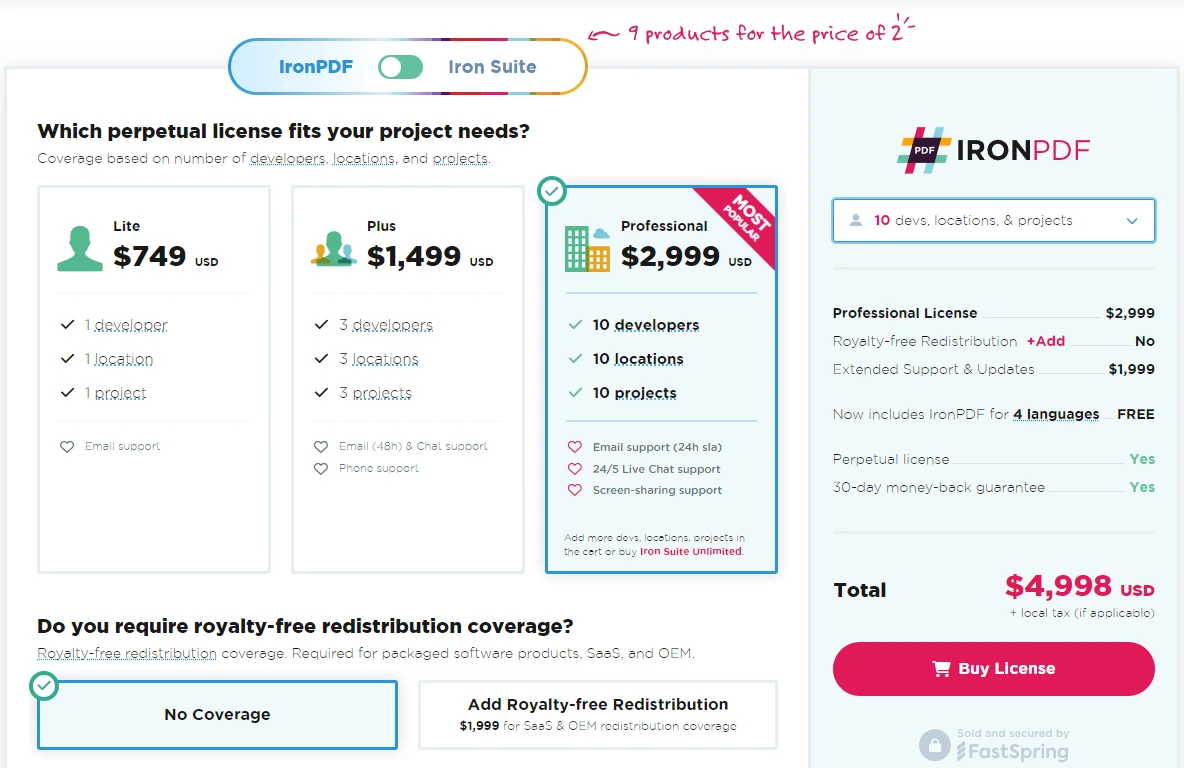
IronPDF has different levels and additional features for purchasing a license. Programiści mogą również kupić pakiet Iron Suite, który zapewnia dostęp do wszystkich produktów Iron Software w cenie dwóch. Jeśli nie jesteś gotowy na zakup licencji, IronPDF oferuje bezpłatną wersję próbną, dzięki której możesz zapoznać się ze wszystkimi funkcjami programu przed podjęciem decyzji o zakupie licencji.
Pricing (as of 2025):
- Licencje wieczyste: Oferujemy szeroki wybór licencji wieczystych w zależności od wielkości zespołu, potrzeb projektowych i liczby lokalizacji. Każdy typ licencji obejmuje wsparcie e-mail.
- Lite License: This license costs $799 and supports one developer, one location, and one project.
- Plus License: Supporting three developers, three locations, and three projects, this is the next step up from the lite license and costs $1,199. The Plus license offers chat support and phone support in addition to basic email support.
- Professional License: This license is suitable for larger teams, supporting ten developers, ten locations, and ten projects for $2,399. It offers the same contact support channels as the previous tiers but also offers screen-sharing support.
- Royalty-free redistribution: IronPDF's licensing also offers royalty-free redistribution coverage for an extra $2,399
- Nieprzerwane wsparcie techniczne: IronPDF oferuje dostęp do bieżących aktualizacji produktu, aktualizacji funkcji zabezpieczeń oraz wsparcia ze strony zespołu inżynierów za 999 USD rocznie lub jednorazową opłatą w wysokości 1999 USD za 5-letnią subskrypcję.
- Iron Suite: For $1,498, you get access to all Iron Software products including IronPDF, IronOCR, IronWord, IronXL, IronBarcode, IronQR, IronZIP, IronPrint, and IronWebScraper.
Ceny i licencje HiQPdf
HiQPdf oferuje również różne opcje licencyjne, ale jego ceny są zazwyczaj nieco bardziej sztywne:
- Licencja dla startupów: 245 USD dla jednego programisty z jedną aplikacją
- Licencja dla programisty: 495 USD dla jednego programisty na dowolną liczbę aplikacji.
- Team License: 795 USD dla maksymalnie pięciu programistów pracujących nad dowolną liczbą aplikacji.
- Licencja Enterprise: 1095 USD dla nieograniczonej liczby programistów z dowolną liczbą aplikacji.
Chociaż HiQPdf ma konkurencyjną cenę, nie oferuje takiej samej wartości jak pakiet IronPDF w ramach Iron Suite, ani tak szerokiego zakresu zaawansowanych funkcji wliczonych w cenę.
Wnioski
Zarówno IronPDF, jak i HiQPdf to solidne wybory dla programistów .NET, którzy chcą zintegrować funkcjonalność PDF ze swoimi aplikacjami. Jednak IronPDF wyróżnia się bogatym zestawem funkcji, łatwością obsługi i solidną dokumentacją. Dzięki kompatybilności z różnymi platformami, bogatym przykładom kodu i doskonałemu wsparciu technicznemu, IronPDF jest doskonałym rozwiązaniem dla programistów, którzy potrzebują kompleksowej funkcjonalności PDF w różnych środowiskach.
Jeśli szukasz kompletnego rozwiązania, które oferuje doskonałą wydajność, elastyczność i wsparcie, IronPDF jest wysoce zalecanym wyborem. Co więcej, zdolność IronPDF do łatwego obsługi zaawansowanych funkcji, takich jak szyfrowanie, redagowanie i podpisy cyfrowe, wyróżnia go na tle HiQPdf.
Często Zadawane Pytania
Jak mogę przekonwertować HTML na PDF w języku C#?
Możesz użyć metody RenderHtmlAsPdf biblioteki IronPDF do konwersji ciągów HTML na pliki PDF. Możesz również konwertować pliki HTML na pliki PDF za pomocą metody RenderHtmlFileAsPdf.
Jakie platformy są obsługiwane przez IronPDF?
IronPDF jest kompatybilny z systemami Windows, Linux, macOS, Docker, Azure, AWS oraz głównymi wersjami .NET, w tym .NET 8, 7, 6 i .NET Core.
Czy w języku C# można stosować podpisy cyfrowe w plikach PDF?
Tak, IronPDF umożliwia stosowanie podpisów cyfrowych w dokumentach PDF za pomocą swojego API. Można określić certyfikaty oraz metadane, takie jak powód podpisania i lokalizacja.
Jak mogę dodać znak wodny do dokumentu PDF?
IronPDF zawiera wbudowaną obsługę dodawania niestandardowych znaków wodnych do plików PDF. Możesz łatwo zintegrować znaki wodne ze swoimi dokumentami PDF za pomocą API IronPDF.
Jakie funkcje bezpieczeństwa zapewnia IronPDF?
IronPDF oferuje zaawansowane funkcje bezpieczeństwa, w tym szyfrowanie, ochronę hasłem, ustawienia uprawnień oraz możliwość ustawienia dokumentów jako tylko do odczytu.
Czy IronPDF obsługuje konwersję plików DOCX do formatu PDF?
Tak, IronPDF obsługuje konwersję plików DOCX do formatu PDF. Możesz użyć klasy DocxToPdfRenderer, aby płynnie konwertować dokumenty DOCX na pliki PDF.
W jaki sposób IronPDF obsługuje konwersję HTML do PDF?
IronPDF wykorzystuje ChromePdfRenderer do renderowania treści HTML do plików PDF, obsługując dokumenty HTML, ciągi znaków, adresy URL oraz scenariusze z lokalnymi zasobami, takimi jak obrazy.
Jakie wsparcie i dokumentację oferuje IronPDF?
IronPDF oferuje obszerną dokumentację zawierającą przewodniki krok po kroku, obszerne dokumentacje API oraz przykłady kodu. Zapewnia również wsparcie techniczne 24/5 poprzez czat na żywo i e-mail.
Czy IronPDF może służyć do redagowania treści w dokumentach PDF?
Tak, IronPDF zapewnia proste rozwiązanie do redagowania określonych fragmentów tekstu w całym dokumencie PDF, umożliwiając programistom efektywne zarządzanie poufnymi informacjami.
Jakie rodzaje licencji są dostępne dla IronPDF?
IronPDF oferuje różne licencje, w tym Lite, Plus, Professional oraz Iron Suite, który zapewnia dostęp do wszystkich produktów Iron Software. Oferuje również opcje redystrybucji bez opłat licencyjnych.








 Rozpocznij za DARMO
 Rozpocznij za DARMO
 Zarezerwuj darmowe Demo na żywo





 Nie wymaga karty kredytowej ani tworzenia konta










