IronPDF 和 HiQPdf 的概覽
對於使用 .NET 的開發人員來說,找到合適的 PDF 解決方案是構建功能豐富應用程式的關鍵。在現代社會中,隨著提供 PDF 轉換技術的產品日益繁多,很難找到適合您需求的工具。 在此比較中,我們將評估IronPDF 和 HiQPdf,這兩個在 .NET 專案中常用的 HTML 到 PDF 程式庫。 雖然兩個程式庫都提供強大的 PDF 生成功能,但 IronPDF 脫穎而出,因為其功能更全面、跨平台相容性更強且具備直觀的 API。
無論您是在尋找進階編輯功能、跨平台支援還是操作簡便性,這篇 IronPDF 和 HiQPdf 的並排比較將幫助您做出明智的決定。
一覽無遺的關鍵功能
IronPDF 是 C# 和 .NET 的多功能 PDF 程式庫,可實現無縫的 PDF 生成、編輯和操作。 支援 .NET 8、7、6 和 Core,它為開發人員提供豐富的工具集,以處理從 HTML 到 PDF 的轉換到進階安全選項如加密和數位簽名的各種需求。 使用 IronPDF,您可以為每頁 PDF 新增文字或 HTML 頁首,使用網頁字體進行更好的文字自定義,提取文字,建立時尚的 PDF 文件等等!
另一方面,HiQPdf 主要專注於 HTML 到 PDF 的轉換,提供對 CSS3、JavaScript、SVG 和 Canvas 元素的良好支援。 雖然它提供可靠的 PDF 生成,但 HiQPdf 缺少一些 IronPDF 提供的進階功能和靈活性,尤其是在跨平台相容性和詳細文件編輯方面。
關鍵功能比較:IronPDF 與 HiQPdf 之間的 PDF 功能
IronPDF功能
- PDF 轉換: IronPDF 可以將 HTML 轉換為 PDF,並且其對現代網頁標準的全面支援,您可以確信 IronPDF 將始終如一地從您的 HTML 頁面或內容返回完美無瑕的 PDF。 IronPDF還可以從其他格式(如DOCX、圖像、RTF等)轉換PDF文件。
- PDF生成: 使用IronPDF,您可以從URL、ASPX文件或HTML字串生成PDF。
- 安全功能: 使用IronPDF,您可以放心任何敏感的PDF文件都是安全的,這是由於其安全功能。 使用IronPDF來加密您的PDF文件,設定密碼,並為您的PDF文件設定權限。
- PDF編輯功能: 使用IronPDF,您可以輕鬆地處理現有的PDF文件,編輯它們,並閱讀PDF文件。 IronPDF提供編輯功能,如新增橫幅和頁腳,在PDF頁面上蓋上文字和圖像,在PDF中新增自定義水印,處理PDF表單,並拆分或合併PDF文件。
- 整合: 無縫整合ASP.NET和MVC應用程式。
- PDF版本支持: 能支持PDF版本1.2-1.7
欲獲得IronPDF功能的完整列表,請存取IronPDF Features。
HiQPdf 功能:
- HTML 到 PDF 轉換: 支援 HTML5、CSS3、JavaScript、SVG 和 canvas 元素。 HiQPdf 能夠精確地處理復雜的頁面佈局。
- PDF 中的 JavaScript 執行: 在 PDF 轉換後執行 JavaScript,啟用互動功能。
- 註釋與書籤: 新增標準 PDF 註釋,如評論和高亮顯示。
- 自定義紙張尺寸支援: 提供在建立 PDF 過程中定義自定義紙張尺寸的選項。
- 基本密碼保護: 使用基本密碼選項保護 PDF,以限制存取和修改。
- 頁面中斷 CSS 屬性: 使用 CSS 屬性
'page-break-before:always' 控制生成的 PDF 文件中的頁面中斷。
- 合併和拆分 PDF: 將多個 PDF 合併為一個文件,或將大 PDF 拆分為更小的文件以便於管理。
IronPDF 擁有更廣泛的功能集,提供更先進的 PDF 編輯、安全性和跨平台相容性,這使得它優於 HiQPdf。
跨平台相容性
IronPDF 和 HiQPdf 之間的關鍵區別之一是跨平台相容性。 IronPDF 提供對 Windows、Linux 和 macOS 的無縫支援,這使得它成為在多樣化環境中工作的開發人員的絕佳選擇。 它還與 Docker、Azure、AWS 和主要 .NET 版本(包括 .NET 8、7、6 和 .NET Core)相容。
HiQPdf 雖然功能正常,但在平台支持上更有限,主要專注於 Windows 環境。
IronPDF 與 HiQPdf 之間的重點功能與程式碼範例比較
HTML到PDF轉換
IronPDF:
using IronPdf;

// Create a new PDF renderer
var renderer = new ChromePdfRenderer();

// Render HTML to PDF
var pdf = renderer.RenderHtmlAsPdf("<h1>Hello World</h1>");
pdf.SaveAs("output.pdf");

// Render HTML to PDF with assets
var myAdvancedPdf = renderer.RenderHtmlAsPdf("<img src='icons/iron.png'>", @"C:\site\assets\");
myAdvancedPdf.SaveAs("html-with-assets.pdf");
using IronPdf;

// Create a new PDF renderer
var renderer = new ChromePdfRenderer();

// Render HTML to PDF
var pdf = renderer.RenderHtmlAsPdf("<h1>Hello World</h1>");
pdf.SaveAs("output.pdf");

// Render HTML to PDF with assets
var myAdvancedPdf = renderer.RenderHtmlAsPdf("<img src='icons/iron.png'>", @"C:\site\assets\");
myAdvancedPdf.SaveAs("html-with-assets.pdf");
Imports IronPdf
' Create a new PDF renderer
Private renderer = New ChromePdfRenderer()
' Render HTML to PDF
Private pdf = renderer.RenderHtmlAsPdf("<h1>Hello World</h1>")
pdf.SaveAs("output.pdf")
' Render HTML to PDF with assets
Dim myAdvancedPdf = renderer.RenderHtmlAsPdf("<img src='icons/iron.png'>", "C:\site\assets\")
myAdvancedPdf.SaveAs("html-with-assets.pdf")
Imports IronPdf

' Create a new PDF renderer
Private renderer = New ChromePdfRenderer()

' Render HTML to PDF
Private pdf = renderer.RenderHtmlAsPdf("<h1>Hello World</h1>")
pdf.SaveAs("output.pdf")

' Render HTML to PDF with assets
Dim myAdvancedPdf = renderer.RenderHtmlAsPdf("<img src='icons/iron.png'>", "C:\site\assets\")
myAdvancedPdf.SaveAs("html-with-assets.pdf")
HiQPdf:
// Create the HTML to PDF converter
HtmlToPdf htmlToPdfConverter = new HtmlToPdf();

// Convert HTML code to a PDF file
htmlToPdfConverter.ConvertHtmlToFile("<b>Hello World</b>", null, "result.pdf");
// Create the HTML to PDF converter
HtmlToPdf htmlToPdfConverter = new HtmlToPdf();

// Convert HTML code to a PDF file
htmlToPdfConverter.ConvertHtmlToFile("<b>Hello World</b>", null, "result.pdf");
' Create the HTML to PDF converter
Dim htmlToPdfConverter As New HtmlToPdf()
' Convert HTML code to a PDF file
htmlToPdfConverter.ConvertHtmlToFile("<b>Hello World</b>", Nothing, "result.pdf")
' Create the HTML to PDF converter
Dim htmlToPdfConverter As New HtmlToPdf()

' Convert HTML code to a PDF file
htmlToPdfConverter.ConvertHtmlToFile("<b>Hello World</b>", Nothing, "result.pdf")
對於 HTML 到 PDF 轉換,IronPDF 提供了一種簡單的方法,使用 ChromePdfRenderer 將 HTML 內容渲染為 PDF,無論您是使用 HTML 文件、字串還是 URL。 IronPDF 還支持進階場景,如使用本地資源(如圖片)渲染 HTML。 另一方面,HiQPdf 使用 HtmlToPdf 類,其中 HTML 內容直接轉換為 PDF 文件,設置更加基本。儘管兩個程式庫都能有效處理 HTML 到 PDF 的轉換,但 IronPDF 在資產處理方面提供了更多靈活性。
加密 PDF 文件
IronPDF範例:
using IronPdf;

// Load an existing PDF
var pdf = PdfDocument.FromFile("encrypted.pdf", "password");

// Set metadata and remove existing passwords
pdf.MetaData.Author = "Satoshi Nakamoto";
pdf.MetaData.Keywords = "SEO, Friendly";
pdf.MetaData.ModifiedDate = DateTime.Now;

// Update security settings
pdf.SecuritySettings.RemovePasswordsAndEncryption();
pdf.SecuritySettings.MakePdfDocumentReadOnly("secret-key");
pdf.SecuritySettings.AllowUserAnnotations = false;
pdf.SecuritySettings.AllowUserCopyPasteContent = false;
pdf.SecuritySettings.AllowUserFormData = false;
pdf.SecuritySettings.AllowUserPrinting = IronPdf.Security.PdfPrintSecurity.FullPrintRights;

// Set a new password and save the document
pdf.Password = "my-password";
pdf.SaveAs("secured.pdf");
using IronPdf;

// Load an existing PDF
var pdf = PdfDocument.FromFile("encrypted.pdf", "password");

// Set metadata and remove existing passwords
pdf.MetaData.Author = "Satoshi Nakamoto";
pdf.MetaData.Keywords = "SEO, Friendly";
pdf.MetaData.ModifiedDate = DateTime.Now;

// Update security settings
pdf.SecuritySettings.RemovePasswordsAndEncryption();
pdf.SecuritySettings.MakePdfDocumentReadOnly("secret-key");
pdf.SecuritySettings.AllowUserAnnotations = false;
pdf.SecuritySettings.AllowUserCopyPasteContent = false;
pdf.SecuritySettings.AllowUserFormData = false;
pdf.SecuritySettings.AllowUserPrinting = IronPdf.Security.PdfPrintSecurity.FullPrintRights;

// Set a new password and save the document
pdf.Password = "my-password";
pdf.SaveAs("secured.pdf");
Imports IronPdf
' Load an existing PDF
Private pdf = PdfDocument.FromFile("encrypted.pdf", "password")
' Set metadata and remove existing passwords
pdf.MetaData.Author = "Satoshi Nakamoto"
pdf.MetaData.Keywords = "SEO, Friendly"
pdf.MetaData.ModifiedDate = DateTime.Now
' Update security settings
pdf.SecuritySettings.RemovePasswordsAndEncryption()
pdf.SecuritySettings.MakePdfDocumentReadOnly("secret-key")
pdf.SecuritySettings.AllowUserAnnotations = False
pdf.SecuritySettings.AllowUserCopyPasteContent = False
pdf.SecuritySettings.AllowUserFormData = False
pdf.SecuritySettings.AllowUserPrinting = IronPdf.Security.PdfPrintSecurity.FullPrintRights
' Set a new password and save the document
pdf.Password = "my-password"
pdf.SaveAs("secured.pdf")
Imports IronPdf

' Load an existing PDF
Private pdf = PdfDocument.FromFile("encrypted.pdf", "password")

' Set metadata and remove existing passwords
pdf.MetaData.Author = "Satoshi Nakamoto"
pdf.MetaData.Keywords = "SEO, Friendly"
pdf.MetaData.ModifiedDate = DateTime.Now

' Update security settings
pdf.SecuritySettings.RemovePasswordsAndEncryption()
pdf.SecuritySettings.MakePdfDocumentReadOnly("secret-key")
pdf.SecuritySettings.AllowUserAnnotations = False
pdf.SecuritySettings.AllowUserCopyPasteContent = False
pdf.SecuritySettings.AllowUserFormData = False
pdf.SecuritySettings.AllowUserPrinting = IronPdf.Security.PdfPrintSecurity.FullPrintRights

' Set a new password and save the document
pdf.Password = "my-password"
pdf.SaveAs("secured.pdf")
HiQPdf:
// Create the HTML to PDF converter
HtmlToPdf htmlToPdfConverter = new HtmlToPdf();

// Set encryption mode and level
htmlToPdfConverter.Document.Security.EncryptionMode = GetSelectedEncryptionMode();
htmlToPdfConverter.Document.Security.EncryptionLevel = GetSelectedEncryptionLevel();

// Set open and permissions passwords
htmlToPdfConverter.Document.Security.OpenPassword = textBoxOpenPassword.Text;
htmlToPdfConverter.Document.Security.PermissionsPassword = textBoxPermissionsPassword.Text;

// Set PDF document permissions
htmlToPdfConverter.Document.Security.AllowPrinting = checkBoxAllowPrint.Checked;
htmlToPdfConverter.Document.Security.AllowCopyContent = checkBoxAllowCopy.Checked;
htmlToPdfConverter.Document.Security.AllowEditContent = checkBoxAllowEdit.Checked;
htmlToPdfConverter.Document.Security.AllowEditAnnotations = checkBoxAllowEditAnnotations.Checked;
htmlToPdfConverter.Document.Security.AllowFormFilling = checkBoxAllowFillForms.Checked;

// Set default permissions password if necessary
if (htmlToPdfConverter.Document.Security.PermissionsPassword == string.Empty &&
    (htmlToPdfConverter.Document.Security.OpenPassword != string.Empty || !IsDefaultPermission(htmlToPdfConverter.Document.Security)))
{
    htmlToPdfConverter.Document.Security.PermissionsPassword = "admin";
}
// Create the HTML to PDF converter
HtmlToPdf htmlToPdfConverter = new HtmlToPdf();

// Set encryption mode and level
htmlToPdfConverter.Document.Security.EncryptionMode = GetSelectedEncryptionMode();
htmlToPdfConverter.Document.Security.EncryptionLevel = GetSelectedEncryptionLevel();

// Set open and permissions passwords
htmlToPdfConverter.Document.Security.OpenPassword = textBoxOpenPassword.Text;
htmlToPdfConverter.Document.Security.PermissionsPassword = textBoxPermissionsPassword.Text;

// Set PDF document permissions
htmlToPdfConverter.Document.Security.AllowPrinting = checkBoxAllowPrint.Checked;
htmlToPdfConverter.Document.Security.AllowCopyContent = checkBoxAllowCopy.Checked;
htmlToPdfConverter.Document.Security.AllowEditContent = checkBoxAllowEdit.Checked;
htmlToPdfConverter.Document.Security.AllowEditAnnotations = checkBoxAllowEditAnnotations.Checked;
htmlToPdfConverter.Document.Security.AllowFormFilling = checkBoxAllowFillForms.Checked;

// Set default permissions password if necessary
if (htmlToPdfConverter.Document.Security.PermissionsPassword == string.Empty &&
    (htmlToPdfConverter.Document.Security.OpenPassword != string.Empty || !IsDefaultPermission(htmlToPdfConverter.Document.Security)))
{
    htmlToPdfConverter.Document.Security.PermissionsPassword = "admin";
}
' Create the HTML to PDF converter
Dim htmlToPdfConverter As New HtmlToPdf()
' Set encryption mode and level
htmlToPdfConverter.Document.Security.EncryptionMode = GetSelectedEncryptionMode()
htmlToPdfConverter.Document.Security.EncryptionLevel = GetSelectedEncryptionLevel()
' Set open and permissions passwords
htmlToPdfConverter.Document.Security.OpenPassword = textBoxOpenPassword.Text
htmlToPdfConverter.Document.Security.PermissionsPassword = textBoxPermissionsPassword.Text
' Set PDF document permissions
htmlToPdfConverter.Document.Security.AllowPrinting = checkBoxAllowPrint.Checked
htmlToPdfConverter.Document.Security.AllowCopyContent = checkBoxAllowCopy.Checked
htmlToPdfConverter.Document.Security.AllowEditContent = checkBoxAllowEdit.Checked
htmlToPdfConverter.Document.Security.AllowEditAnnotations = checkBoxAllowEditAnnotations.Checked
htmlToPdfConverter.Document.Security.AllowFormFilling = checkBoxAllowFillForms.Checked
' Set default permissions password if necessary
If htmlToPdfConverter.Document.Security.PermissionsPassword = String.Empty AndAlso (htmlToPdfConverter.Document.Security.OpenPassword <> String.Empty OrElse Not IsDefaultPermission(htmlToPdfConverter.Document.Security)) Then
htmlToPdfConverter.Document.Security.PermissionsPassword = "admin"
End If
' Create the HTML to PDF converter
Dim htmlToPdfConverter As New HtmlToPdf()

' Set encryption mode and level
htmlToPdfConverter.Document.Security.EncryptionMode = GetSelectedEncryptionMode()
htmlToPdfConverter.Document.Security.EncryptionLevel = GetSelectedEncryptionLevel()

' Set open and permissions passwords
htmlToPdfConverter.Document.Security.OpenPassword = textBoxOpenPassword.Text
htmlToPdfConverter.Document.Security.PermissionsPassword = textBoxPermissionsPassword.Text

' Set PDF document permissions
htmlToPdfConverter.Document.Security.AllowPrinting = checkBoxAllowPrint.Checked
htmlToPdfConverter.Document.Security.AllowCopyContent = checkBoxAllowCopy.Checked
htmlToPdfConverter.Document.Security.AllowEditContent = checkBoxAllowEdit.Checked
htmlToPdfConverter.Document.Security.AllowEditAnnotations = checkBoxAllowEditAnnotations.Checked
htmlToPdfConverter.Document.Security.AllowFormFilling = checkBoxAllowFillForms.Checked

' Set default permissions password if necessary
If htmlToPdfConverter.Document.Security.PermissionsPassword = String.Empty AndAlso (htmlToPdfConverter.Document.Security.OpenPassword <> String.Empty OrElse Not IsDefaultPermission(htmlToPdfConverter.Document.Security)) Then
	htmlToPdfConverter.Document.Security.PermissionsPassword = "admin"
End If
在加密 PDF 文件時,IronPDF 提供了通過其 API 的簡單方法。 開發人員可以移除現有的密碼,設置新的安全設置,限制使用者操作,如新增註釋、複製粘貼和表單資料輸入,並使文件只讀。 IronPDF 允許修改元資料、設置密碼保護,以及對列印權限進行精細控制。
HiQPdf 也提供 PDF 加密功能,但使用略有不同的過程,主要關注於設置加密模式、級別、打開密碼和權限密碼。 它允許對文件權限進行精細控制,如列印、內容複製和編輯,預設權限在未明確設置時可用。 兩個程式庫都提供全面的安全設置,但 IronPDF 提供了額外的功能,如元資料自定義和更容易處理的文件只讀模式。
屏蔽 PDF 文件內容
IronPDF範例:
using IronPdf;

// Load an existing PDF
PdfDocument pdf = PdfDocument.FromFile("novel.pdf");

// Redact specific text
pdf.RedactTextOnAllPages("are");

// Save the updated PDF
pdf.SaveAs("redacted.pdf");
using IronPdf;

// Load an existing PDF
PdfDocument pdf = PdfDocument.FromFile("novel.pdf");

// Redact specific text
pdf.RedactTextOnAllPages("are");

// Save the updated PDF
pdf.SaveAs("redacted.pdf");
Imports IronPdf
' Load an existing PDF
Private pdf As PdfDocument = PdfDocument.FromFile("novel.pdf")
' Redact specific text
pdf.RedactTextOnAllPages("are")
' Save the updated PDF
pdf.SaveAs("redacted.pdf")
Imports IronPdf

' Load an existing PDF
Private pdf As PdfDocument = PdfDocument.FromFile("novel.pdf")

' Redact specific text
pdf.RedactTextOnAllPages("are")

' Save the updated PDF
pdf.SaveAs("redacted.pdf")
HiQPdf 在其列出的功能中沒有提供明確的屏蔽功能。 它主要專注於 PDF 生成、轉換和操作,如從 HTML 建立 PDF。
IronPDF 提供了一種簡單的方法來屏蔽您的 PDF 文件頁面內容。 例如,開發人員可以輕鬆地編輯整個文件中的特定文字,僅需幾行程式碼,如上面的程式碼片段所示。 與此相反,HiQPdf 在其功能集中缺乏明確的屏蔽功能,主要專注於 PDF 生成、轉換和操作,如從 HTML 建立 PDF。
數位簽署 PDF 文件
IronPDF範例:
using IronPdf;
using IronPdf.Signing;
using System.Security.Cryptography.X509Certificates;

// Create a PDF from HTML
ChromePdfRenderer renderer = new ChromePdfRenderer();
PdfDocument pdf = renderer.RenderHtmlAsPdf("<h1>foo</h1>");

// Load a digital certificate and sign the PDF
X509Certificate2 cert = new X509Certificate2("IronSoftware.pfx", "123456", X509KeyStorageFlags.Exportable);
var sig = new PdfSignature(cert);
pdf.Sign(sig);

// Save the signed PDF
pdf.SaveAs("signed.pdf");
using IronPdf;
using IronPdf.Signing;
using System.Security.Cryptography.X509Certificates;

// Create a PDF from HTML
ChromePdfRenderer renderer = new ChromePdfRenderer();
PdfDocument pdf = renderer.RenderHtmlAsPdf("<h1>foo</h1>");

// Load a digital certificate and sign the PDF
X509Certificate2 cert = new X509Certificate2("IronSoftware.pfx", "123456", X509KeyStorageFlags.Exportable);
var sig = new PdfSignature(cert);
pdf.Sign(sig);

// Save the signed PDF
pdf.SaveAs("signed.pdf");
Imports IronPdf
Imports IronPdf.Signing
Imports System.Security.Cryptography.X509Certificates
' Create a PDF from HTML
Private renderer As New ChromePdfRenderer()
Private pdf As PdfDocument = renderer.RenderHtmlAsPdf("<h1>foo</h1>")
' Load a digital certificate and sign the PDF
Private cert As New X509Certificate2("IronSoftware.pfx", "123456", X509KeyStorageFlags.Exportable)
Private sig = New PdfSignature(cert)
pdf.Sign(sig)
' Save the signed PDF
pdf.SaveAs("signed.pdf")
Imports IronPdf
Imports IronPdf.Signing
Imports System.Security.Cryptography.X509Certificates

' Create a PDF from HTML
Private renderer As New ChromePdfRenderer()
Private pdf As PdfDocument = renderer.RenderHtmlAsPdf("<h1>foo</h1>")

' Load a digital certificate and sign the PDF
Private cert As New X509Certificate2("IronSoftware.pfx", "123456", X509KeyStorageFlags.Exportable)
Private sig = New PdfSignature(cert)
pdf.Sign(sig)

' Save the signed PDF
pdf.SaveAs("signed.pdf")
HiQPdf:
// Create a PDF document
PdfDocument document = new PdfDocument();

// Add a page to the document
PdfPage page1 = document.AddPage();

// Create fonts for text
Font sysFont = new Font("Times New Roman", 10, System.Drawing.GraphicsUnit.Point);
PdfFont pdfFontEmbed = document.CreateFont(sysFont, true);

// Add a title to the PDF document
PdfText titleTextTransImage = new PdfText(5, 20, "Click the image below to open the digital signature", pdfFontEmbed);
titleTextTransImage.ForeColor = Color.Navy;
PdfLayoutInfo textLayoutInfo = page1.Layout(titleTextTransImage);

// Layout a PNG image with alpha transparency
PdfImage transparentPdfImage = new PdfImage(5, 50, Server.MapPath("~") + @"\DemoFiles\Images\HiQPdfLogo_small.png");
PdfLayoutInfo imageLayoutInfo = page1.Layout(transparentPdfImage);

// Apply digital signature
PdfCertificatesCollection pdfCertificates = PdfCertificatesCollection.FromFile(Server.MapPath("~") + @"\DemoFiles\Pfx\hiqpdf.pfx", "hiqpdf");
PdfDigitalSignature digitalSignature = new PdfDigitalSignature(pdfCertificates[0]);
digitalSignature.SigningReason = "My signing reason";
digitalSignature.SigningLocation = "My signing location";
digitalSignature.SignerContactInfo = "My contact info";
document.AddDigitalSignature(digitalSignature, imageLayoutInfo.LastPdfPage, imageLayoutInfo.LastPageRectangle);

try
{
    // Write the PDF document to a memory buffer
    byte[] pdfBuffer = document.WriteToMemory();

    // Inform the browser about the binary data format
    HttpContext.Current.Response.AddHeader("Content-Type", "application/pdf");

    // Let the browser know how to open the PDF document and the file name
    HttpContext.Current.Response.AddHeader("Content-Disposition", String.Format("attachment; filename=DigitalSignatures.pdf; size={0}",
                pdfBuffer.Length.ToString()));

    // Write the PDF buffer to HTTP response
    HttpContext.Current.Response.BinaryWrite(pdfBuffer);

    // End the HTTP response
    HttpContext.Current.Response.End();
}
finally
{
    document.Close();
}
// Create a PDF document
PdfDocument document = new PdfDocument();

// Add a page to the document
PdfPage page1 = document.AddPage();

// Create fonts for text
Font sysFont = new Font("Times New Roman", 10, System.Drawing.GraphicsUnit.Point);
PdfFont pdfFontEmbed = document.CreateFont(sysFont, true);

// Add a title to the PDF document
PdfText titleTextTransImage = new PdfText(5, 20, "Click the image below to open the digital signature", pdfFontEmbed);
titleTextTransImage.ForeColor = Color.Navy;
PdfLayoutInfo textLayoutInfo = page1.Layout(titleTextTransImage);

// Layout a PNG image with alpha transparency
PdfImage transparentPdfImage = new PdfImage(5, 50, Server.MapPath("~") + @"\DemoFiles\Images\HiQPdfLogo_small.png");
PdfLayoutInfo imageLayoutInfo = page1.Layout(transparentPdfImage);

// Apply digital signature
PdfCertificatesCollection pdfCertificates = PdfCertificatesCollection.FromFile(Server.MapPath("~") + @"\DemoFiles\Pfx\hiqpdf.pfx", "hiqpdf");
PdfDigitalSignature digitalSignature = new PdfDigitalSignature(pdfCertificates[0]);
digitalSignature.SigningReason = "My signing reason";
digitalSignature.SigningLocation = "My signing location";
digitalSignature.SignerContactInfo = "My contact info";
document.AddDigitalSignature(digitalSignature, imageLayoutInfo.LastPdfPage, imageLayoutInfo.LastPageRectangle);

try
{
    // Write the PDF document to a memory buffer
    byte[] pdfBuffer = document.WriteToMemory();

    // Inform the browser about the binary data format
    HttpContext.Current.Response.AddHeader("Content-Type", "application/pdf");

    // Let the browser know how to open the PDF document and the file name
    HttpContext.Current.Response.AddHeader("Content-Disposition", String.Format("attachment; filename=DigitalSignatures.pdf; size={0}",
                pdfBuffer.Length.ToString()));

    // Write the PDF buffer to HTTP response
    HttpContext.Current.Response.BinaryWrite(pdfBuffer);

    // End the HTTP response
    HttpContext.Current.Response.End();
}
finally
{
    document.Close();
}
' Create a PDF document
Dim document As New PdfDocument()
' Add a page to the document
Dim page1 As PdfPage = document.AddPage()
' Create fonts for text
Dim sysFont As New Font("Times New Roman", 10, System.Drawing.GraphicsUnit.Point)
Dim pdfFontEmbed As PdfFont = document.CreateFont(sysFont, True)
' Add a title to the PDF document
Dim titleTextTransImage As New PdfText(5, 20, "Click the image below to open the digital signature", pdfFontEmbed)
titleTextTransImage.ForeColor = Color.Navy
Dim textLayoutInfo As PdfLayoutInfo = page1.Layout(titleTextTransImage)
' Layout a PNG image with alpha transparency
Dim transparentPdfImage As New PdfImage(5, 50, Server.MapPath("~") & "\DemoFiles\Images\HiQPdfLogo_small.png")
Dim imageLayoutInfo As PdfLayoutInfo = page1.Layout(transparentPdfImage)
' Apply digital signature
Dim pdfCertificates As PdfCertificatesCollection = PdfCertificatesCollection.FromFile(Server.MapPath("~") & "\DemoFiles\Pfx\hiqpdf.pfx", "hiqpdf")
Dim digitalSignature As New PdfDigitalSignature(pdfCertificates(0))
digitalSignature.SigningReason = "My signing reason"
digitalSignature.SigningLocation = "My signing location"
digitalSignature.SignerContactInfo = "My contact info"
document.AddDigitalSignature(digitalSignature, imageLayoutInfo.LastPdfPage, imageLayoutInfo.LastPageRectangle)
Try
' Write the PDF document to a memory buffer
Dim pdfBuffer() As Byte = document.WriteToMemory()
' Inform the browser about the binary data format
HttpContext.Current.Response.AddHeader("Content-Type", "application/pdf")
' Let the browser know how to open the PDF document and the file name
HttpContext.Current.Response.AddHeader("Content-Disposition", String.Format("attachment; filename=DigitalSignatures.pdf; size={0}", pdfBuffer.Length.ToString()))
' Write the PDF buffer to HTTP response
HttpContext.Current.Response.BinaryWrite(pdfBuffer)
' End the HTTP response
HttpContext.Current.Response.End()
Finally
document.Close()
End Try
' Create a PDF document
Dim document As New PdfDocument()

' Add a page to the document
Dim page1 As PdfPage = document.AddPage()

' Create fonts for text
Dim sysFont As New Font("Times New Roman", 10, System.Drawing.GraphicsUnit.Point)
Dim pdfFontEmbed As PdfFont = document.CreateFont(sysFont, True)

' Add a title to the PDF document
Dim titleTextTransImage As New PdfText(5, 20, "Click the image below to open the digital signature", pdfFontEmbed)
titleTextTransImage.ForeColor = Color.Navy
Dim textLayoutInfo As PdfLayoutInfo = page1.Layout(titleTextTransImage)

' Layout a PNG image with alpha transparency
Dim transparentPdfImage As New PdfImage(5, 50, Server.MapPath("~") & "\DemoFiles\Images\HiQPdfLogo_small.png")
Dim imageLayoutInfo As PdfLayoutInfo = page1.Layout(transparentPdfImage)

' Apply digital signature
Dim pdfCertificates As PdfCertificatesCollection = PdfCertificatesCollection.FromFile(Server.MapPath("~") & "\DemoFiles\Pfx\hiqpdf.pfx", "hiqpdf")
Dim digitalSignature As New PdfDigitalSignature(pdfCertificates(0))
digitalSignature.SigningReason = "My signing reason"
digitalSignature.SigningLocation = "My signing location"
digitalSignature.SignerContactInfo = "My contact info"
document.AddDigitalSignature(digitalSignature, imageLayoutInfo.LastPdfPage, imageLayoutInfo.LastPageRectangle)

Try
	' Write the PDF document to a memory buffer
	Dim pdfBuffer() As Byte = document.WriteToMemory()

	' Inform the browser about the binary data format
	HttpContext.Current.Response.AddHeader("Content-Type", "application/pdf")

	' Let the browser know how to open the PDF document and the file name
	HttpContext.Current.Response.AddHeader("Content-Disposition", String.Format("attachment; filename=DigitalSignatures.pdf; size={0}", pdfBuffer.Length.ToString()))

	' Write the PDF buffer to HTTP response
	HttpContext.Current.Response.BinaryWrite(pdfBuffer)

	' End the HTTP response
	HttpContext.Current.Response.End()
Finally
	document.Close()
End Try
在數位簽署PDF 文件時,IronPDF 提供了一種簡單的方法,允許開發人員從 HTML 內容建立 PDF 文件,使用數字證書簽署它,並使用最少的程式碼保存它。 另一方面,HiQPdf 需要更複雜的設置,通過新增頁面和嵌入字體程式建立 PDF 文件。 加入標題和圖片後,應用使用指定證書的數位簽章,並附有簽署原因和地點等詳細元資料。
應用自訂水印
IronPDF範例:
using IronPdf;

// Create a PDF renderer and render URL
var renderer = new ChromePdfRenderer();
var pdf = renderer.RenderUrlAsPdf("https://www.nuget.org/packages/IronPdf");

// Apply a watermark to the PDF
pdf.ApplyWatermark("<h2 style='color:red'>SAMPLE</h2>", 30, IronPdf.Editing.VerticalAlignment.Middle, IronPdf.Editing.HorizontalAlignment.Center);

// Save the PDF
pdf.SaveAs(@"C:\Path\To\Watermarked.pdf");
using IronPdf;

// Create a PDF renderer and render URL
var renderer = new ChromePdfRenderer();
var pdf = renderer.RenderUrlAsPdf("https://www.nuget.org/packages/IronPdf");

// Apply a watermark to the PDF
pdf.ApplyWatermark("<h2 style='color:red'>SAMPLE</h2>", 30, IronPdf.Editing.VerticalAlignment.Middle, IronPdf.Editing.HorizontalAlignment.Center);

// Save the PDF
pdf.SaveAs(@"C:\Path\To\Watermarked.pdf");
Imports IronPdf
' Create a PDF renderer and render URL
Private renderer = New ChromePdfRenderer()
Private pdf = renderer.RenderUrlAsPdf("https://www.nuget.org/packages/IronPdf")
' Apply a watermark to the PDF
pdf.ApplyWatermark("<h2 style='color:red'>SAMPLE</h2>", 30, IronPdf.Editing.VerticalAlignment.Middle, IronPdf.Editing.HorizontalAlignment.Center)
' Save the PDF
pdf.SaveAs("C:\Path\To\Watermarked.pdf")
Imports IronPdf

' Create a PDF renderer and render URL
Private renderer = New ChromePdfRenderer()
Private pdf = renderer.RenderUrlAsPdf("https://www.nuget.org/packages/IronPdf")

' Apply a watermark to the PDF
pdf.ApplyWatermark("<h2 style='color:red'>SAMPLE</h2>", 30, IronPdf.Editing.VerticalAlignment.Middle, IronPdf.Editing.HorizontalAlignment.Center)

' Save the PDF
pdf.SaveAs("C:\Path\To\Watermarked.pdf")
HiQPdf:
沒有內建的專用浮水印工具。
在應用自定義浮水印時,IronPDF 提供了一種簡單的解決方案,內建支援在 PDF 中新增浮水印。 在範例中,一個 URL 被渲染為 PDF,並在頁面中央應用具有 HTML 樣式的可自定義浮水印。 這允許輕鬆修改浮水印的內容、樣式和放置位置。 與此相反,HiQPdf 缺少內建的專用浮水印工具,這使得需要在程式庫中直接擁有此功能的開發人員更加不便。
將圖片和文字加蓋到 PDFs 中
IronPDF 範例(文字印章):
using IronPdf;
using IronPdf.Editing;

// Create a PDF from HTML
ChromePdfRenderer renderer = new ChromePdfRenderer();
PdfDocument pdf = renderer.RenderHtmlAsPdf("<h1>Example HTML Document!</h1>");

// Create and apply a text stamp
TextStamper textStamper = new TextStamper()
{
    Text = "Text Stamper!",
    FontFamily = "Bungee Spice",
    UseGoogleFont = true,
    FontSize = 30,
    IsBold = true,
    IsItalic = true,
    VerticalAlignment = VerticalAlignment.Top
};

pdf.ApplyStamp(textStamper);
pdf.SaveAs("stampText.pdf");
using IronPdf;
using IronPdf.Editing;

// Create a PDF from HTML
ChromePdfRenderer renderer = new ChromePdfRenderer();
PdfDocument pdf = renderer.RenderHtmlAsPdf("<h1>Example HTML Document!</h1>");

// Create and apply a text stamp
TextStamper textStamper = new TextStamper()
{
    Text = "Text Stamper!",
    FontFamily = "Bungee Spice",
    UseGoogleFont = true,
    FontSize = 30,
    IsBold = true,
    IsItalic = true,
    VerticalAlignment = VerticalAlignment.Top
};

pdf.ApplyStamp(textStamper);
pdf.SaveAs("stampText.pdf");
Imports IronPdf
Imports IronPdf.Editing
' Create a PDF from HTML
Private renderer As New ChromePdfRenderer()
Private pdf As PdfDocument = renderer.RenderHtmlAsPdf("<h1>Example HTML Document!</h1>")
' Create and apply a text stamp
Private textStamper As New TextStamper() With {
.Text = "Text Stamper!",
.FontFamily = "Bungee Spice",
.UseGoogleFont = True,
.FontSize = 30,
.IsBold = True,
.IsItalic = True,
.VerticalAlignment = VerticalAlignment.Top
}
pdf.ApplyStamp(textStamper)
pdf.SaveAs("stampText.pdf")
Imports IronPdf
Imports IronPdf.Editing

' Create a PDF from HTML
Private renderer As New ChromePdfRenderer()
Private pdf As PdfDocument = renderer.RenderHtmlAsPdf("<h1>Example HTML Document!</h1>")

' Create and apply a text stamp
Private textStamper As New TextStamper() With {
	.Text = "Text Stamper!",
	.FontFamily = "Bungee Spice",
	.UseGoogleFont = True,
	.FontSize = 30,
	.IsBold = True,
	.IsItalic = True,
	.VerticalAlignment = VerticalAlignment.Top
}

pdf.ApplyStamp(textStamper)
pdf.SaveAs("stampText.pdf")
IronPDF 範例(圖片印章):
using IronPdf;
using IronPdf.Editing;

// Create a PDF from HTML
ChromePdfRenderer renderer = new ChromePdfRenderer();
PdfDocument pdf = renderer.RenderHtmlAsPdf("<h1>Example HTML Document!</h1>");

// Create and apply an image stamp
ImageStamper imageStamper = new ImageStamper(new Uri("/img/svgs/iron-pdf-logo.svg"))
{
    VerticalAlignment = VerticalAlignment.Top
};

pdf.ApplyStamp(imageStamper, 0);
pdf.SaveAs("stampImage.pdf");
using IronPdf;
using IronPdf.Editing;

// Create a PDF from HTML
ChromePdfRenderer renderer = new ChromePdfRenderer();
PdfDocument pdf = renderer.RenderHtmlAsPdf("<h1>Example HTML Document!</h1>");

// Create and apply an image stamp
ImageStamper imageStamper = new ImageStamper(new Uri("/img/svgs/iron-pdf-logo.svg"))
{
    VerticalAlignment = VerticalAlignment.Top
};

pdf.ApplyStamp(imageStamper, 0);
pdf.SaveAs("stampImage.pdf");
Imports IronPdf
Imports IronPdf.Editing
' Create a PDF from HTML
Private renderer As New ChromePdfRenderer()
Private pdf As PdfDocument = renderer.RenderHtmlAsPdf("<h1>Example HTML Document!</h1>")
' Create and apply an image stamp
Private imageStamper As New ImageStamper(New Uri("/img/svgs/iron-pdf-logo.svg")) With {.VerticalAlignment = VerticalAlignment.Top}
pdf.ApplyStamp(imageStamper, 0)
pdf.SaveAs("stampImage.pdf")
Imports IronPdf
Imports IronPdf.Editing

' Create a PDF from HTML
Private renderer As New ChromePdfRenderer()
Private pdf As PdfDocument = renderer.RenderHtmlAsPdf("<h1>Example HTML Document!</h1>")

' Create and apply an image stamp
Private imageStamper As New ImageStamper(New Uri("/img/svgs/iron-pdf-logo.svg")) With {.VerticalAlignment = VerticalAlignment.Top}

pdf.ApplyStamp(imageStamper, 0)
pdf.SaveAs("stampImage.pdf")
HiQPdf:
HiQPdf 沒有專用的加蓋工具,直接將文字或圖片新增為印章在 PDF 文件上。 但是,它允許您向 PDFs 新增文字、圖片和圖形物件,這可以實現類似的目的。 這可以通過在程式庫中使用提供的功能建立文字物件和圖像物件來完成。
IronPDF 提供專用類別直接加蓋文字和圖像到任何現有或新建立的 PDF 文件上,使開發人員的過程簡單化。 與此相反,HiQPdf 缺少專用的加蓋工具; 相反,它允許使用者在 PDF 中新增文字和圖像物件,需要更手動的方法才能實現類似的結果。
DOCX到PDF轉換
IronPDF範例:
using IronPdf;

// Render DOCX to PDF
DocxToPdfRenderer renderer = new DocxToPdfRenderer();
PdfDocument pdf = renderer.RenderDocxAsPdf("Modern-chronological-resume.docx");

// Save the converted PDF
pdf.SaveAs("pdfFromDocx.pdf");
using IronPdf;

// Render DOCX to PDF
DocxToPdfRenderer renderer = new DocxToPdfRenderer();
PdfDocument pdf = renderer.RenderDocxAsPdf("Modern-chronological-resume.docx");

// Save the converted PDF
pdf.SaveAs("pdfFromDocx.pdf");
Imports IronPdf
' Render DOCX to PDF
Private renderer As New DocxToPdfRenderer()
Private pdf As PdfDocument = renderer.RenderDocxAsPdf("Modern-chronological-resume.docx")
' Save the converted PDF
pdf.SaveAs("pdfFromDocx.pdf")
Imports IronPdf

' Render DOCX to PDF
Private renderer As New DocxToPdfRenderer()
Private pdf As PdfDocument = renderer.RenderDocxAsPdf("Modern-chronological-resume.docx")

' Save the converted PDF
pdf.SaveAs("pdfFromDocx.pdf")
HiQPdf:
由於 HiQPdf 主要是一個 HTML 到 PDF 轉換程式庫,它不提供任何內建的 DOCX 到 PDF 工具。
IronPDF 通過其 DocxToPdfRenderer 類提供直接的DOCX 到 PDF 轉換支持,而 HiQPdf 缺乏將 DOCX 文件轉換為 PDF 的內建工具,專注於 HTML 到 PDF 轉換。
程式碼範例比較總結
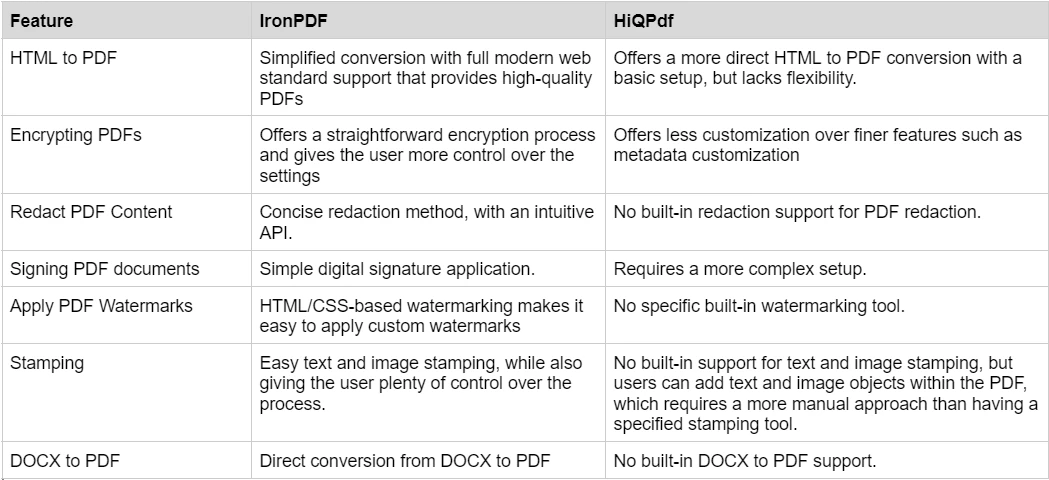
要了解IronPDF提供的豐富功能集,並了解這些功能的實際運行,請查看IronPDF的使用指南,深入探索每個功能的工作原理,並賦予您成為PDF專家的技能。
現代 CSS 框架和 Bootstrap 渲染
隨著現代網路應用越來越多地採用 CSS 框架(如 Bootstrap)進行快速開發和一致的 UI 設計,PDF 生成程式庫必須準確保留這些框架佈局,以保持專業品質。
IronPDF:完整的 Bootstrap 和框架支持
IronPDF的Chromium渲染引擎為所有現代CSS框架提供了全面支援:
- Bootstrap 5: 完整的 flexbox 和 CSS Grid,帶有所有響應式工具
- Bootstrap 4: 提供完整卡片系統、導航和表單組件
- Tailwind CSS: 所有實用類和響應式修飾符
- Foundation: 全面支持網格和組件系統
- 現代 CSS3: Flexbox、Grid、自定義屬性、動畫、變形
已通過實際範例驗證:Bootstrap 主頁和Bootstrap 範本以像素完美的準確度轉換。
程式碼範例:使用 Bootstrap 的部落格文章列表
using IronPdf;

var renderer = new ChromePdfRenderer();

string bootstrapBlog = @"
<!DOCTYPE html>
<html>
<head>
    <link href='https://cdn.jsdelivr.net/npm/bootstrap@5.3.0/dist/css/bootstrap.min.css' rel='stylesheet'>
</head>
<body>
    <div class='container my-5'>
        <h1 class='text-center mb-5'>Latest Blog Posts</h1>

        <article class='card mb-4 shadow-sm'>
            <div class='row g-0'>
                <div class='col-md-4'>
                    <img src='https://via.placeholder.com/400x300' class='img-fluid rounded-start' alt='Blog post'>
                </div>
                <div class='col-md-8'>
                    <div class='card-body d-flex flex-column h-100'>
                        <div class='d-flex justify-content-between align-items-center mb-2'>
                            <span class='badge bg-primary'>Technology</span>
                            <small class='text-muted'>March 15, 2025</small>
                        </div>
                        <h2 class='card-title h4'>The Future of Web Development</h2>
                        <p class='card-text flex-grow-1'>Exploring emerging trends in web development including serverless architecture, edge computing, and the evolution of JavaScript frameworks...</p>
                        <div class='mt-auto'>
                            <a href='#' class='btn btn-outline-primary'>Read More</a>
                        </div>
                    </div>
                </div>
            </div>
        </article>

        <article class='card mb-4 shadow-sm'>
            <div class='row g-0'>
                <div class='col-md-4'>
                    <img src='https://via.placeholder.com/400x300' class='img-fluid rounded-start' alt='Blog post'>
                </div>
                <div class='col-md-8'>
                    <div class='card-body d-flex flex-column h-100'>
                        <div class='d-flex justify-content-between align-items-center mb-2'>
                            <span class='badge bg-success'>Tutorial</span>
                            <small class='text-muted'>March 10, 2025</small>
                        </div>
                        <h2 class='card-title h4'>Mastering Docker Containerization</h2>
                        <p class='card-text flex-grow-1'>A comprehensive guide to Docker containerization, from basics to advanced deployment strategies for production environments...</p>
                        <div class='mt-auto'>
                            <a href='#' class='btn btn-outline-primary'>Read More</a>
                        </div>
                    </div>
                </div>
            </div>
        </article>

        <nav aria-label='Blog pagination'>
            <ul class='pagination justify-content-center'>
                <li class='page-item disabled'>
                    <a class='page-link'>Previous</a>
                </li>
                <li class='page-item active'><a class='page-link' href='#'>1</a></li>
                <li class='page-item'><a class='page-link' href='#'>2</a></li>
                <li class='page-item'><a class='page-link' href='#'>3</a></li>
                <li class='page-item'>
                    <a class='page-link' href='#'>Next</a>
                </li>
            </ul>
        </nav>
    </div>
</body>
</html>";

var pdf = renderer.RenderHtmlAsPdf(bootstrapBlog);
pdf.SaveAs("blog-posts.pdf");
using IronPdf;

var renderer = new ChromePdfRenderer();

string bootstrapBlog = @"
<!DOCTYPE html>
<html>
<head>
    <link href='https://cdn.jsdelivr.net/npm/bootstrap@5.3.0/dist/css/bootstrap.min.css' rel='stylesheet'>
</head>
<body>
    <div class='container my-5'>
        <h1 class='text-center mb-5'>Latest Blog Posts</h1>

        <article class='card mb-4 shadow-sm'>
            <div class='row g-0'>
                <div class='col-md-4'>
                    <img src='https://via.placeholder.com/400x300' class='img-fluid rounded-start' alt='Blog post'>
                </div>
                <div class='col-md-8'>
                    <div class='card-body d-flex flex-column h-100'>
                        <div class='d-flex justify-content-between align-items-center mb-2'>
                            <span class='badge bg-primary'>Technology</span>
                            <small class='text-muted'>March 15, 2025</small>
                        </div>
                        <h2 class='card-title h4'>The Future of Web Development</h2>
                        <p class='card-text flex-grow-1'>Exploring emerging trends in web development including serverless architecture, edge computing, and the evolution of JavaScript frameworks...</p>
                        <div class='mt-auto'>
                            <a href='#' class='btn btn-outline-primary'>Read More</a>
                        </div>
                    </div>
                </div>
            </div>
        </article>

        <article class='card mb-4 shadow-sm'>
            <div class='row g-0'>
                <div class='col-md-4'>
                    <img src='https://via.placeholder.com/400x300' class='img-fluid rounded-start' alt='Blog post'>
                </div>
                <div class='col-md-8'>
                    <div class='card-body d-flex flex-column h-100'>
                        <div class='d-flex justify-content-between align-items-center mb-2'>
                            <span class='badge bg-success'>Tutorial</span>
                            <small class='text-muted'>March 10, 2025</small>
                        </div>
                        <h2 class='card-title h4'>Mastering Docker Containerization</h2>
                        <p class='card-text flex-grow-1'>A comprehensive guide to Docker containerization, from basics to advanced deployment strategies for production environments...</p>
                        <div class='mt-auto'>
                            <a href='#' class='btn btn-outline-primary'>Read More</a>
                        </div>
                    </div>
                </div>
            </div>
        </article>

        <nav aria-label='Blog pagination'>
            <ul class='pagination justify-content-center'>
                <li class='page-item disabled'>
                    <a class='page-link'>Previous</a>
                </li>
                <li class='page-item active'><a class='page-link' href='#'>1</a></li>
                <li class='page-item'><a class='page-link' href='#'>2</a></li>
                <li class='page-item'><a class='page-link' href='#'>3</a></li>
                <li class='page-item'>
                    <a class='page-link' href='#'>Next</a>
                </li>
            </ul>
        </nav>
    </div>
</body>
</html>";

var pdf = renderer.RenderHtmlAsPdf(bootstrapBlog);
pdf.SaveAs("blog-posts.pdf");
Imports IronPdf
Dim renderer As New ChromePdfRenderer()
Dim bootstrapBlog As String = "
<!DOCTYPE html>
<html>
<head>
<link href='https://cdn.jsdelivr.net/npm/bootstrap@5.3.0/dist/css/bootstrap.min.css' rel='stylesheet'>
</head>
<body>
<div class='container my-5'>
<h1 class='text-center mb-5'>Latest Blog Posts</h1>
<article class='card mb-4 shadow-sm'>
<div class='row g-0'>
<div class='col-md-4'>
<img src='https://via.placeholder.com/400x300' class='img-fluid rounded-start' alt='Blog post'>
</div>
<div class='col-md-8'>
<div class='card-body d-flex flex-column h-100'>
<div class='d-flex justify-content-between align-items-center mb-2'>
<span class='badge bg-primary'>Technology</span>
<small class='text-muted'>March 15, 2025</small>
</div>
<h2 class='card-title h4'>The Future of Web Development</h2>
<p class='card-text flex-grow-1'>Exploring emerging trends in web development including serverless architecture, edge computing, and the evolution of JavaScript frameworks...</p>
<div class='mt-auto'>
<a href='#' class='btn btn-outline-primary'>Read More</a>
</div>
</div>
</div>
</div>
</article>
<article class='card mb-4 shadow-sm'>
<div class='row g-0'>
<div class='col-md-4'>
<img src='https://via.placeholder.com/400x300' class='img-fluid rounded-start' alt='Blog post'>
</div>
<div class='col-md-8'>
<div class='card-body d-flex flex-column h-100'>
<div class='d-flex justify-content-between align-items-center mb-2'>
<span class='badge bg-success'>Tutorial</span>
<small class='text-muted'>March 10, 2025</small>
</div>
<h2 class='card-title h4'>Mastering Docker Containerization</h2>
<p class='card-text flex-grow-1'>A comprehensive guide to Docker containerization, from basics to advanced deployment strategies for production environments...</p>
<div class='mt-auto'>
<a href='#' class='btn btn-outline-primary'>Read More</a>
</div>
</div>
</div>
</div>
</article>
<nav aria-label='Blog pagination'>
<ul class='pagination justify-content-center'>
<li class='page-item disabled'>
<a class='page-link'>Previous</a>
</li>
<li class='page-item active'><a class='page-link' href='#'>1</a></li>
<li class='page-item'><a class='page-link' href='#'>2</a></li>
<li class='page-item'><a class='page-link' href='#'>3</a></li>
<li class='page-item'>
<a class='page-link' href='#'>Next</a>
</li>
</ul>
</nav>
</div>
</body>
</html>"
Dim pdf = renderer.RenderHtmlAsPdf(bootstrapBlog)
pdf.SaveAs("blog-posts.pdf")
Imports IronPdf

Dim renderer As New ChromePdfRenderer()

Dim bootstrapBlog As String = "
<!DOCTYPE html>
<html>
<head>
    <link href='https://cdn.jsdelivr.net/npm/bootstrap@5.3.0/dist/css/bootstrap.min.css' rel='stylesheet'>
</head>
<body>
    <div class='container my-5'>
        <h1 class='text-center mb-5'>Latest Blog Posts</h1>

        <article class='card mb-4 shadow-sm'>
            <div class='row g-0'>
                <div class='col-md-4'>
                    <img src='https://via.placeholder.com/400x300' class='img-fluid rounded-start' alt='Blog post'>
                </div>
                <div class='col-md-8'>
                    <div class='card-body d-flex flex-column h-100'>
                        <div class='d-flex justify-content-between align-items-center mb-2'>
                            <span class='badge bg-primary'>Technology</span>
                            <small class='text-muted'>March 15, 2025</small>
                        </div>
                        <h2 class='card-title h4'>The Future of Web Development</h2>
                        <p class='card-text flex-grow-1'>Exploring emerging trends in web development including serverless architecture, edge computing, and the evolution of JavaScript frameworks...</p>
                        <div class='mt-auto'>
                            <a href='#' class='btn btn-outline-primary'>Read More</a>
                        </div>
                    </div>
                </div>
            </div>
        </article>

        <article class='card mb-4 shadow-sm'>
            <div class='row g-0'>
                <div class='col-md-4'>
                    <img src='https://via.placeholder.com/400x300' class='img-fluid rounded-start' alt='Blog post'>
                </div>
                <div class='col-md-8'>
                    <div class='card-body d-flex flex-column h-100'>
                        <div class='d-flex justify-content-between align-items-center mb-2'>
                            <span class='badge bg-success'>Tutorial</span>
                            <small class='text-muted'>March 10, 2025</small>
                        </div>
                        <h2 class='card-title h4'>Mastering Docker Containerization</h2>
                        <p class='card-text flex-grow-1'>A comprehensive guide to Docker containerization, from basics to advanced deployment strategies for production environments...</p>
                        <div class='mt-auto'>
                            <a href='#' class='btn btn-outline-primary'>Read More</a>
                        </div>
                    </div>
                </div>
            </div>
        </article>

        <nav aria-label='Blog pagination'>
            <ul class='pagination justify-content-center'>
                <li class='page-item disabled'>
                    <a class='page-link'>Previous</a>
                </li>
                <li class='page-item active'><a class='page-link' href='#'>1</a></li>
                <li class='page-item'><a class='page-link' href='#'>2</a></li>
                <li class='page-item'><a class='page-link' href='#'>3</a></li>
                <li class='page-item'>
                    <a class='page-link' href='#'>Next</a>
                </li>
            </ul>
        </nav>
    </div>
</body>
</html>"

Dim pdf = renderer.RenderHtmlAsPdf(bootstrapBlog)
pdf.SaveAs("blog-posts.pdf")
輸出: 一個專業的部落格列表,包含 Bootstrap 的卡片佈局、flexbox 對齊、徽章組件和分頁等功能,所有這些都準確地在 PDF 中呈現。
HiQPdf:有限的現代框架支持
HiQPdf 使用 WebKit 為基礎的 HTML 渲染技術,對現代 CSS 框架有顯著限制:
- WebKit 引擎: 舊版 WebKit,引擎對 CSS3 支援不完整
- 有限的 Flexbox: Bootstrap 4/5 的 flexbox 佈局可能無法正確渲染
- 不支持 CSS Grid: 不支持現代網格系統
- Bootstrap 3 限制: 只有較舊的基於表格的 Bootstrap 版本可以可靠運行
- JavaScript 限制: 與現代瀏覽器相比,JavaScript 執行能力減弱
開發人員報告 HiQPdf 的問題:
- Bootstrap 導航組件呈現對齊問題
- 基於 Flexbox 的卡片佈局無法正確顯示
- 響應式工具和斷點在 PDF 輸出中被忽略
- 複雜的 Bootstrap 組件需要大量 CSS 變通方法
開發影響: 使用 Bootstrap 4+ 的應用程式與 HiQPdf 需要大量額外工作。 團隊必須維護一個平行的簡化 CSS 版本進行 PDF 生成(雙重維護負擔),限制 UI 為 Bootstrap 3(犧牲現代功能),或者廣泛測試並手動修復組件(費時且脆弱)。
有關全面的 Bootstrap 相容性指南,請參閱Bootstrap & Flexbox CSS 指南。
文件和支持:IronPDF 與 HiQPdf
IronPDF 文件和支持
IronPDF 提供一個開發者友好的文件體驗。 其強大的文件能確保無論是初學者還是進階使用者都能有效地將 IronPDF 整合到他們的項目中。 IronPDF 文件的一些關鍵方面包括:
- 循序漸進指南: 提供每個功能的綜合教程,確保開發人員從開始到結束有明確的路徑。
- 24/5 技術支持: 工程師在周一至周五的工作時間可協助任何問題或問題。
- 即時聊天: 實時支持以解決許可或技術問題。
- 電子郵件支持: 使用者可以發起詳細諮詢,並獲得快速且有幫助的回復。
- API 參考: 詳細的 API 文件,包括每個方法和屬性的範例。
- 程式碼範例: 提供準備使用的程式碼片段,用於常見任務,如 HTML 到 PDF,加密,浮水印等。
- 定期更新: 文件頻繁更新,以反映程式庫的變更和新功能。
欲了解更多資訊,請查看IronPDF的詳盡文件,並存取Iron Software YouTube Channel。
HiQPdf 文件和支持
HiQPdf 提供基本的文件來支持其大部分核心功能。 雖然它提供 HTML 到 PDF 轉換和基本 PDF 操作功能,但文件缺乏 IronPDF 提供的深度和全面性。 HiQPdf 文件的主要方面包括:
- 基本 API 參考: 列出 HTML 到 PDF 和基本 PDF 操作的方法。
- 程式碼範例: 限於 HTML 到 PDF 轉換和頁面設置的樣本程式碼。
- 最小化跨平台指導: 主要關注於 Windows 環境,對跨平台部署指導較少。
- 電子郵件支持: 主要用於許可和基本技術查詢。
- 有限的即時支持: 實時支援選項較少。
對於 HiQPdf 的更多技術細節,使用者需要通過其他資源或外部論壇搜尋。
價格和許可:IronPDF 與 HiQPdf
IronPDF定價和許可
IronPDF提供不同層次和額外功能的授權選項。 開發人員還可以購買 Iron Suite,以兩倍價格獲得 Iron Software 所有產品的存取權。 如果您尚未準備好購買許可,IronPDF 提供免費試用,因此您可以在承諾購買許可之前探索其所有功能。
定價(截至2026年4月):
- 永久許可: 提供根據您團隊規模、專案需求和每種許可型別所包含地點數量而定範圍的永久許可,每種許可都有電子郵件支持。
- Lite 許可: 此許可費用為 $999,並支持一個開發人員、一個地點、一個專案。
- Plus 許可: 支持三個開發人員、三個地點、三個專案,這是從 Lite 許可升級的下一步,費用為 $1,499。 Plus授權除了基本的電子郵件支援外,還提供聊天支援和電話支援。
- Professional 許可: 此許可適合較大的團隊,支援十個開發人員、十個地點、十個專案,費用為 $2,399。 它提供與上一層級相同的聯絡支援渠道,但也提供螢幕共享支援。
- 免版稅再分發: IronPDF 的許可還提供免版稅再分發範疇,額外需付 $2,399
- 不間斷產品支持: IronPDF 提供持續存取的產品更新,安全功能升級和支持其工程團隊的支持,費用為 $999/年,或一次性購買 $1,999 以獲得五年保障。
- Iron Suite: For $2,998, you get access to all Iron Software products including IronPDF, IronOCR, IronWord, IronXL, IronBarcode, IronQR, IronZIP, IronPrint, and IronWebScraper.
HiQPdf 價格和許可
HiQPdf 也提供多種許可選擇,但其價格往往更限制剛性:
- Startup 許可: $245 一個開發人員,一個應用
- Developer 許可: $495 一個開發人員,任何數量的應用程式。
- Team 許可: $796 五個開發人員,可在任何數量的應用中工作。
- Enterprise 許可: $1,095,任何數量的開發人員,任何數量的應用。
雖然 HiQPdf 價格具競爭力,但它並不提供 IronPDF 的 Iron Suite 集合或價格包含的先進功能的範疇。
結論
IronPDF 和 HiQPdf 都是 .NET 開發人員在其應用中整合 PDF 功能的理想選擇。 然而,IronPDF 以其豐富的功能集,易用性和強大的文件支持脫穎而出。 依賴於其跨平台相容性,豐富的程式碼範例和優異的支持,IronPDF 是開發人員在不同環境中需要全面 PDF 功能的絕佳解決方案。
如果您正在尋找提供卓越性能、靈活性和支持的完整解決方案,IronPDF 是強烈推薦的選擇。此外,IronPDF 能夠輕鬆處理加密、屏蔽和數位簽章等先進功能的能力,使其與 HiQPdf 區別開來。
HiQPdf 是其各自所有者的註冊商標。 本網站與 HiQPdf 沒有關聯、認可或贊助。 所有產品名稱、徽標和品牌均為其各自所有者的財產。 比較僅供資訊參考,並反映了撰寫時的公開可用資訊。























