using IronPdf;

// Disable local disk access or cross-origin requests
Installation.EnableWebSecurity = true;

// Instantiate Renderer
var renderer = new ChromePdfRenderer();

// Create a PDF from a HTML string using C#
var pdf = renderer.RenderHtmlAsPdf("<h1>Hello World</h1>");

// Export to a file or Stream
pdf.SaveAs("output.pdf");

// Advanced Example with HTML Assets
// Load external html assets: Images, CSS and JavaScript.
// An optional BasePath 'C:\site\assets\' is set as the file location to load assets from
var myAdvancedPdf = renderer.RenderHtmlAsPdf("<img src='icons/iron.png'>", @"C:\site\assets\");
myAdvancedPdf.SaveAs("html-with-assets.pdf");
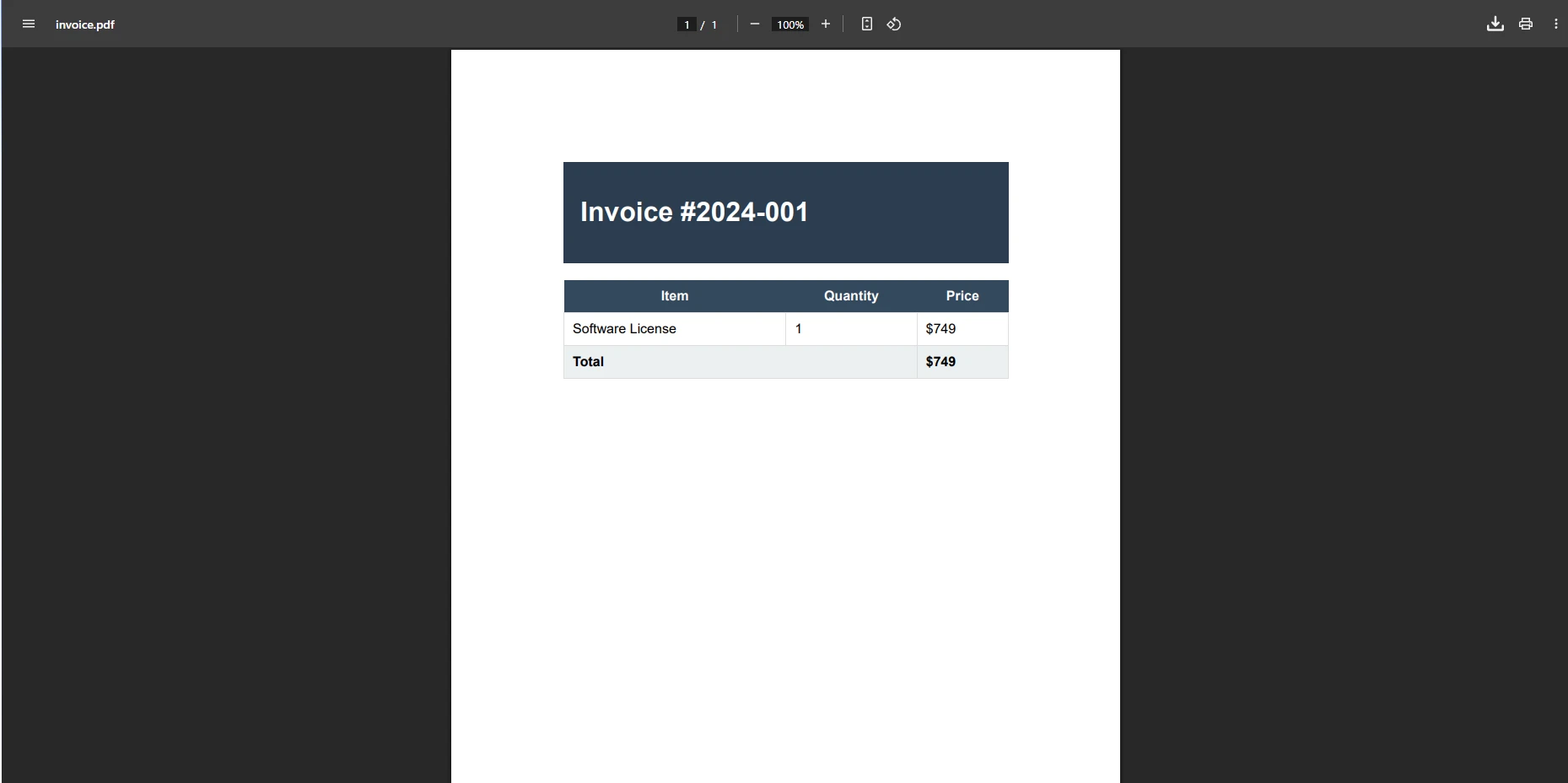
using IronPdf;// Disable local disk access or cross-origin requestsInstallation.EnableWebSecurity = true;// Instantiate Renderervar renderer = new ChromePdfRenderer();// Create a PDF from a HTML string using C#var pdf = renderer.RenderHtmlAsPdf("<h1>Hello World</h1>");// Export to a file or Streampdf.SaveAs("output.pdf");// Advanced Example with HTML Assets// Load external html assets: Images, CSS and JavaScript.// An optional BasePath 'C:\site\assets\' is set as the file location to load assets fromvar myAdvancedPdf = renderer.RenderHtmlAsPdf("<img src='icons/iron.png'>", @"C:\site\assets\");myAdvancedPdf.SaveAs("html-with-assets.pdf");
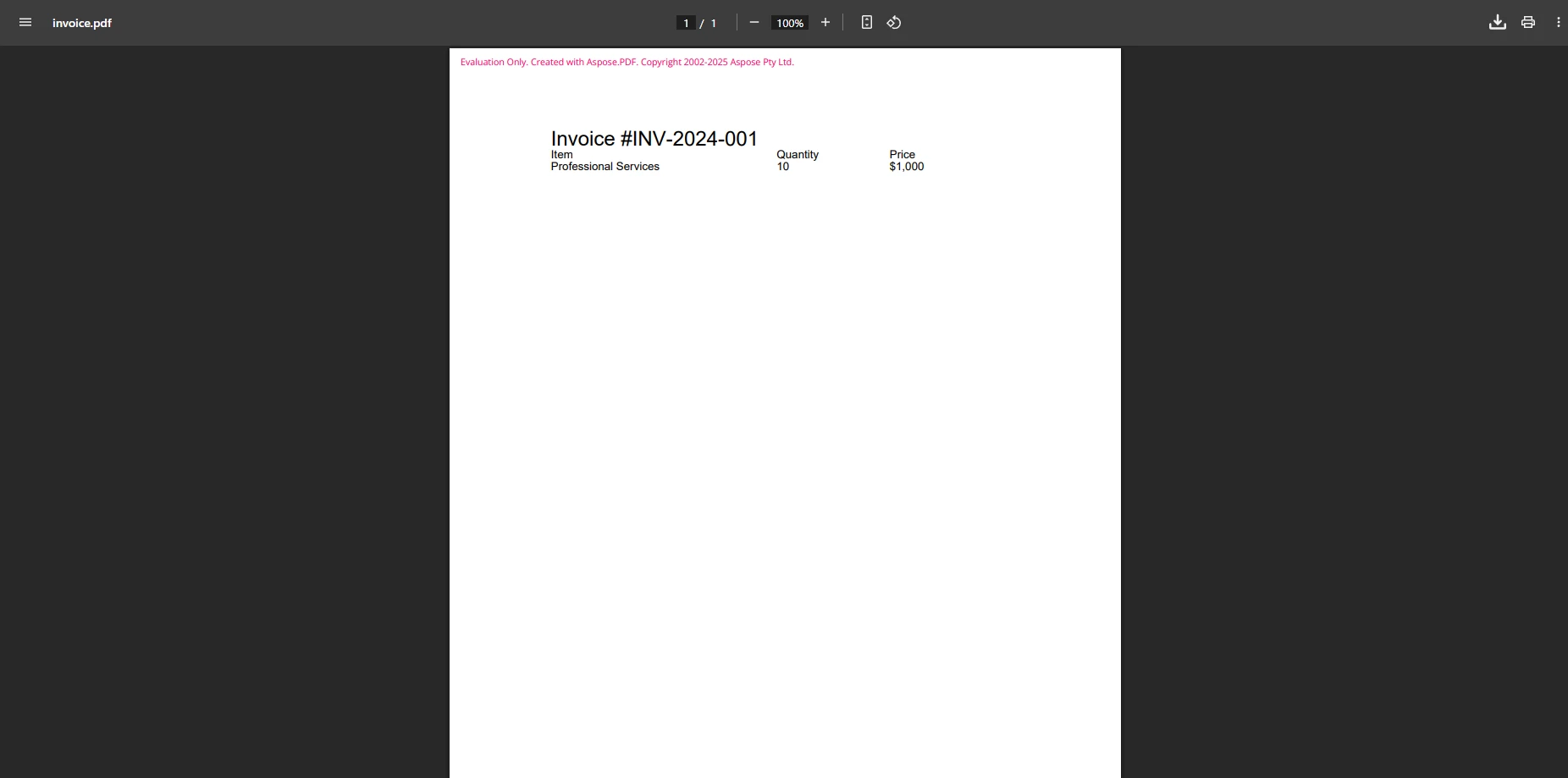
using Aspose.Pdf;using Aspose.Pdf.Text;// Create new documentDocument document = new Document();Page page = document.Pages.Add();// Add formatted textTextFragment title = new TextFragment("Invoice #INV-2024-001");title.TextState.FontSize = 18;title.TextState.Font = FontRepository.FindFont("Arial");page.Paragraphs.Add(title);// Create tableTable table = new Table();table.ColumnWidths = "200 100 100";// Add header rowRow headerRow = table.Rows.Add();headerRow.Cells.Add("Item");headerRow.Cells.Add("Quantity");headerRow.Cells.Add("Price");// Add data rowRow dataRow = table.Rows.Add();dataRow.Cells.Add("Professional Services");dataRow.Cells.Add("10");dataRow.Cells.Add("$1,000");page.Paragraphs.Add(table);document.Save("invoice.pdf");
using Aspose.Pdf;
using Aspose.Pdf.Text;

// Create new document
Document document = new Document();
Page page = document.Pages.Add();

// Add formatted text
TextFragment title = new TextFragment("Invoice #INV-2024-001");
title.TextState.FontSize = 18;
title.TextState.Font = FontRepository.FindFont("Arial");
page.Paragraphs.Add(title);

// Create table
Table table = new Table();
table.ColumnWidths = "200 100 100";

// Add header row
Row headerRow = table.Rows.Add();
headerRow.Cells.Add("Item");
headerRow.Cells.Add("Quantity");
headerRow.Cells.Add("Price");

// Add data row
Row dataRow = table.Rows.Add();
dataRow.Cells.Add("Professional Services");
dataRow.Cells.Add("10");
dataRow.Cells.Add("$1,000");

page.Paragraphs.Add(table);
document.Save("invoice.pdf");
ImportsAspose.PdfImportsAspose.Pdf.Text' Create new documentDim document As New Document()Dim page AsPage = document.Pages.Add()' Add formatted textDim title As New TextFragment("Invoice #INV-2024-001")title.TextState.FontSize = 18title.TextState.Font = FontRepository.FindFont("Arial")page.Paragraphs.Add(title)' Create tableDim table As New Table()table.ColumnWidths = "200 100 100"' Add header rowDim headerRow AsRow = table.Rows.Add()headerRow.Cells.Add("Item")headerRow.Cells.Add("Quantity")headerRow.Cells.Add("Price")' Add data rowDim dataRow AsRow = table.Rows.Add()dataRow.Cells.Add("Professional Services")dataRow.Cells.Add("10")dataRow.Cells.Add("$1,000")page.Paragraphs.Add(table)document.Save("invoice.pdf")
Imports Aspose.Pdf
Imports Aspose.Pdf.Text

' Create new document
Dim document As New Document()
Dim page As Page = document.Pages.Add()

' Add formatted text
Dim title As New TextFragment("Invoice #INV-2024-001")
title.TextState.FontSize = 18
title.TextState.Font = FontRepository.FindFont("Arial")
page.Paragraphs.Add(title)

' Create table
Dim table As New Table()
table.ColumnWidths = "200 100 100"

' Add header row
Dim headerRow As Row = table.Rows.Add()
headerRow.Cells.Add("Item")
headerRow.Cells.Add("Quantity")
headerRow.Cells.Add("Price")

' Add data row
Dim dataRow As Row = table.Rows.Add()
dataRow.Cells.Add("Professional Services")
dataRow.Cells.Add("10")
dataRow.Cells.Add("$1,000")

page.Paragraphs.Add(table)
document.Save("invoice.pdf")
Aspose 提供 PDF/A 合規性和高級的元資料管理,儘管隨著文件需求的增加其複雜性成比例增加。 該程式庫處理線性化的 PDF,以便快速的網路瀏覽,並支持多種 PDF 版本以滿足歸檔和合規性的工作流程。
什麼時候使用與生態系統對接的 PDF 程式庫有意義?
Syncfusion 的 PDF 程式庫在其更廣泛的組件套件中表現優良,提供完整工具包中的穩定 PDF 功能。 該程式庫提供可靠的 PDF 建立和編輯功能,同時保持合理的性能。 詳情比較見Syncfusion 與 IronPDF分析。
Syncfusion 的主要優勢是生態系統的一致性:如果您的項目已經依賴於 Syncfusion 的 UI 控件、網格或圖表,增加其 PDF 庫可以保持依賴樹的統一。 也就是說,PDF 組件不以 IronPDF 所達到的質量級別提供 HTML 到 PDF 的轉換。
如何使用 Syncfusion 實現 PDF 生成?
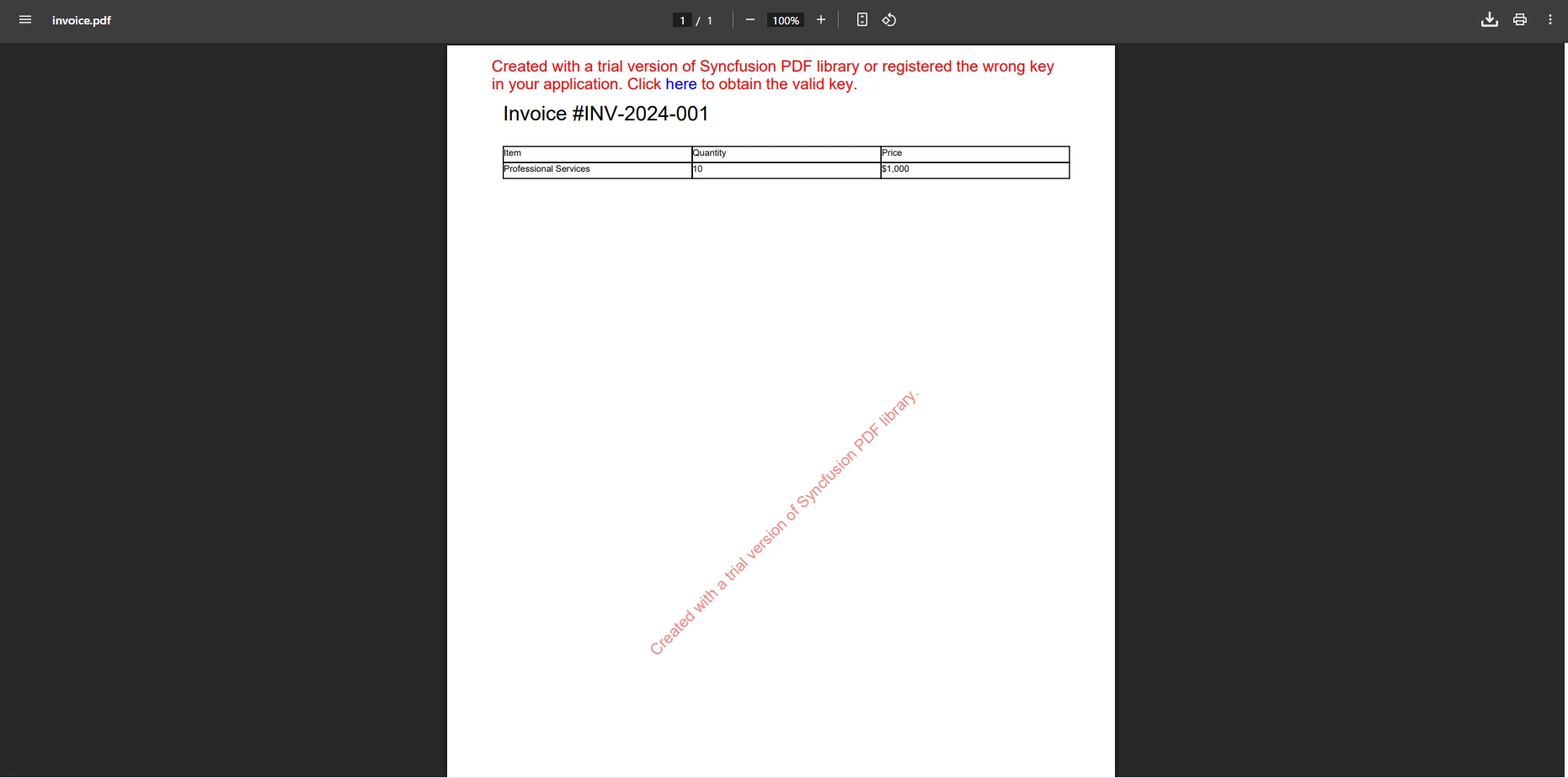
using Syncfusion.Pdf;using Syncfusion.Pdf.Graphics;using Syncfusion.Pdf.Grid;// Create documentPdfDocument document = new PdfDocument();PdfPage page = document.Pages.Add();PdfGraphics graphics = page.Graphics;// Draw textPdfFont font = new PdfStandardFont(PdfFontFamily.Helvetica, 18);graphics.DrawString("Invoice #INV-2024-001", font, PdfBrushes.Black, new PointF(10, 10));// Create grid for itemsPdfGrid grid = new PdfGrid();grid.Columns.Add(3);grid.Headers.Add(1);PdfGridRow header = grid.Headers[0];header.Cells[0].Value = "Item";header.Cells[1].Value = "Quantity";header.Cells[2].Value = "Price";PdfGridRow row = grid.Rows.Add();row.Cells[0].Value = "Professional Services";row.Cells[1].Value = "10";row.Cells[2].Value = "$1,000";grid.Draw(page, new PointF(10, 50));// Save documentusing FileStream stream = new FileStream("invoice.pdf", FileMode.Create);document.Save(stream);document.Close(true);
using Syncfusion.Pdf;
using Syncfusion.Pdf.Graphics;
using Syncfusion.Pdf.Grid;

// Create document
PdfDocument document = new PdfDocument();
PdfPage page = document.Pages.Add();
PdfGraphics graphics = page.Graphics;

// Draw text
PdfFont font = new PdfStandardFont(PdfFontFamily.Helvetica, 18);
graphics.DrawString("Invoice #INV-2024-001", font, PdfBrushes.Black, new PointF(10, 10));

// Create grid for items
PdfGrid grid = new PdfGrid();
grid.Columns.Add(3);
grid.Headers.Add(1);
PdfGridRow header = grid.Headers[0];
header.Cells[0].Value = "Item";
header.Cells[1].Value = "Quantity";
header.Cells[2].Value = "Price";

PdfGridRow row = grid.Rows.Add();
row.Cells[0].Value = "Professional Services";
row.Cells[1].Value = "10";
row.Cells[2].Value = "$1,000";

grid.Draw(page, new PointF(10, 50));

// Save document
using FileStream stream = new FileStream("invoice.pdf", FileMode.Create);
document.Save(stream);
document.Close(true);
ImportsSyncfusion.PdfImportsSyncfusion.Pdf.GraphicsImportsSyncfusion.Pdf.GridImportsSystem.IO' Create documentDim document As New PdfDocument()Dim page AsPdfPage = document.Pages.Add()Dim graphics AsPdfGraphics = page.Graphics' Draw textDim font AsPdfFont = New PdfStandardFont(PdfFontFamily.Helvetica, 18)graphics.DrawString("Invoice #INV-2024-001", font, PdfBrushes.Black, New PointF(10, 10))' Create grid for itemsDim grid As New PdfGrid()grid.Columns.Add(3)grid.Headers.Add(1)Dim header AsPdfGridRow = grid.Headers(0)header.Cells(0).Value = "Item"header.Cells(1).Value = "Quantity"header.Cells(2).Value = "Price"Dim row AsPdfGridRow = grid.Rows.Add()row.Cells(0).Value = "Professional Services"row.Cells(1).Value = "10"row.Cells(2).Value = "$1,000"grid.Draw(page, New PointF(10, 50))' Save documentUsing stream As New FileStream("invoice.pdf", FileMode.Create) document.Save(stream)EndUsingdocument.Close(True)
Imports Syncfusion.Pdf
Imports Syncfusion.Pdf.Graphics
Imports Syncfusion.Pdf.Grid
Imports System.IO

' Create document
Dim document As New PdfDocument()
Dim page As PdfPage = document.Pages.Add()
Dim graphics As PdfGraphics = page.Graphics

' Draw text
Dim font As PdfFont = New PdfStandardFont(PdfFontFamily.Helvetica, 18)
graphics.DrawString("Invoice #INV-2024-001", font, PdfBrushes.Black, New PointF(10, 10))

' Create grid for items
Dim grid As New PdfGrid()
grid.Columns.Add(3)
grid.Headers.Add(1)
Dim header As PdfGridRow = grid.Headers(0)
header.Cells(0).Value = "Item"
header.Cells(1).Value = "Quantity"
header.Cells(2).Value = "Price"

Dim row As PdfGridRow = grid.Rows.Add()
row.Cells(0).Value = "Professional Services"
row.Cells(1).Value = "10"
row.Cells(2).Value = "$1,000"

grid.Draw(page, New PointF(10, 50))

' Save document
Using stream As New FileStream("invoice.pdf", FileMode.Create)
    document.Save(stream)
End Using
document.Close(True)