
A Developer's Guide to Digitally Signing PDFs with C#

本綜合指南展示了使用IronPDF的 C# 開發人員如何數位簽署 PDF,涵蓋基於證書的簽名,視覺戳記和互動表單欄位以確保文件的真實性和安全性。
將簽名新增到PDF文件是許多應用程式中的常見要求,但"簽署"可能有不同的含義。 對某些人來說,這意味著使用安全證書來應用防篡改的數位簽名。 對其他人來說,這可能是將視覺的手寫簽名圖像蓋章到文件上,或新增一個電子簽署的互動表單欄位。
本指南為C#開發人員提供了如何透過IronPDF for .NET library完成所有這些任務的綜合演練。 我們將涵蓋從應用安全X509Certificate2數位簽名到蓋章圖形簽名及建立互動簽名欄位的一切,以確保您的PDF文件是正宗、安全和專業的。
快速開始使用IronPDF數位簽署您的PDF文件,過程簡單而直接。 此範例展示如何使用.pfx證書驗證並簽署PDF文件,確保文件的完整性和真實性。 按照這些步驟將數位簽署無縫整合到您的應用程式中。
-
1Install IronPDF with NuGet Package Manager
-
2複製並運行這段程式碼片段。
new IronPdf.Signing.PdfSignature("certificate.pfx", "password").SignPdfFile("input.pdf");C# -
3部署以在您的實時環境中測試
今天就開始在您的專案中使用IronPDF,透過免費試用
簡化工作流程(5個步驟)
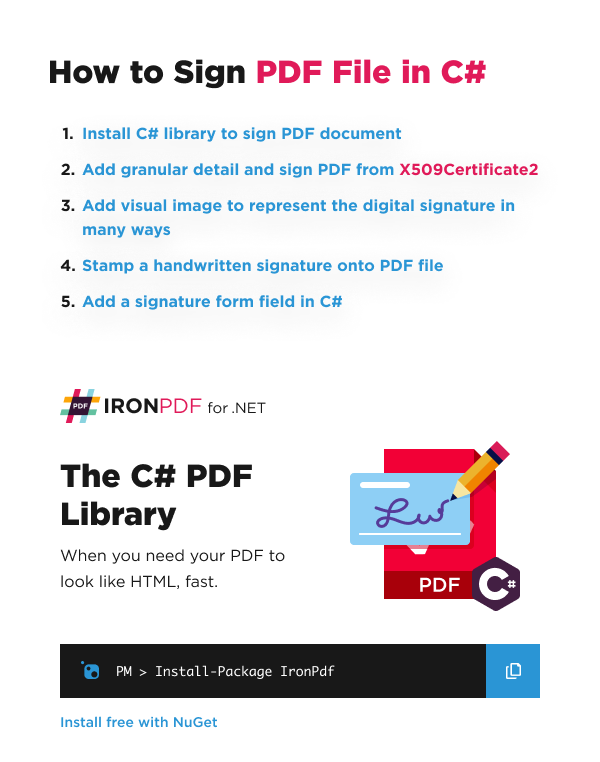
- Install the IronPDF library for .NET.
- 使用
X509Certificate2物件應用數位簽名。 - 新增視覺圖像來表示數位簽名。
- 將圖形或手寫簽名戳蓋到PDF文件上。
- 新增一個電子簽署的互動簽名表單欄位。
如何使用證書將數位簽名應用到PDF?
您可以使用數位證書文件(如.p12)將數位簽名應用到PDF文件上,以保證文件的真實性和完整性。 此過程確保文件自簽署後未被更改。 要查看數位簽署功能的完整概述,請參閱我們的綜合數位簽名指南。
IronPDF為此提供了一個簡單的API,支持多種方式應用數位簽名。 此功能的核心是圍繞PdfSignature類別,它封裝了簽名所需的證書以及所有相關的元資料。
| 簽署方法 | 描述 |
|---|---|
Sign | 使用您建立和配置的PdfSignature物件簽署PDF。 |
SignWithFile | 使用位於磁碟上的數位簽名證書文件(.pfx或.p12)簽署PDF。 |
SignWithStore | 使用您計算機的證書儲存中的數位簽章簽署PDF,透過其指紋ID標識。 |
使用X509Certificate2物件
為了得到最大的控制權,您可以從證書文件建立一個X509Certificate2標準,提供了一個穩固且安全的數位簽名方法。 建立證書物件時,請確保Exportable,這是底層加密API所要求的。查看我們程式碼庫中的數位簽名範例。
using IronPdf;
using IronPdf.Signing;
using System.Security.Cryptography.X509Certificates;

// Create a new PDF from an HTML string for demonstration.
var renderer = new ChromePdfRenderer();
var pdf = renderer.RenderHtmlAsPdf("<h1>Signed Document</h1><p>This document has been digitally signed.</p>");

// Load the certificate from a .pfx file with its password.
// The X509KeyStorageFlags.Exportable flag is crucial for allowing the private key to be used in the signing process.
var cert = new X509Certificate2("IronSoftware.pfx", "123456", X509KeyStorageFlags.Exportable);

// Create a PdfSignature object using the loaded certificate.
var signature = new PdfSignature(cert);

// Apply the signature to the PDF document.
pdf.Sign(signature);

// Save the securely signed PDF document.
pdf.SaveAs("Signed.pdf");Imports IronPdf
Imports IronPdf.Signing
Imports System.Security.Cryptography.X509Certificates
' Create a new PDF from an HTML string for demonstration.
Private renderer = New ChromePdfRenderer()
Private pdf = renderer.RenderHtmlAsPdf("<h1>Signed Document</h1><p>This document has been digitally signed.</p>")
' Load the certificate from a .pfx file with its password.
' The X509KeyStorageFlags.Exportable flag is crucial for allowing the private key to be used in the signing process.
Private cert = New X509Certificate2("IronSoftware.pfx", "123456", X509KeyStorageFlags.Exportable)
' Create a PdfSignature object using the loaded certificate.
Private signature = New PdfSignature(cert)
' Apply the signature to the PDF document.
pdf.Sign(signature)
' Save the securely signed PDF document.
pdf.SaveAs("Signed.pdf")上面的程式碼首先生成一個簡單的PDF。 然後,它將X509Certificate2物件中。 此物件代表數位身份,被傳遞到PdfSignature構造函式中。 最後,pdf.Sign方法將此簽名應用于文件然後保存它。 For more information on the X509Certificate2 class, you can refer to the official Microsoft documentation.
新增詳盡的細節到數位簽名中
數位簽名不僅可以包含證書, 您還可以嵌入豐富的元資料,提供簽名的背景。 這包括簽署地點、原因、聯絡資訊以及來自信任機構的安全時間戳。 您還可以設置和編輯元資料以獲得更多的文件屬性。
新增這些細節可以改善文件的審計線索,並且為驗證者提供有價值的資訊。 IronPDF還支持使用現代SHA512哈希算法的時間戳伺服器。
using IronPdf;
using IronPdf.Signing;
using IronSoftware.Drawing;
using System;

// Load an existing PDF document to be signed.
var pdf = PdfDocument.FromFile("invoice.pdf");

// Create a PdfSignature object directly from the certificate file and password.
var signature = new PdfSignature("IronSoftware.pfx", "123456");

// Add detailed metadata to the signature for a comprehensive audit trail.
// These properties enhance the signature's credibility and provide context
signature.SignatureDate = DateTime.Now;
signature.SigningContact = "legal@ironsoftware.com";
signature.SigningLocation = "Chicago, USA";
signature.SigningReason = "Contractual Agreement";

// Add a secure timestamp from a trusted Time Stamp Authority (TSA).
// This provides cryptographic proof of the signing time.
signature.TimeStampUrl = "http://timestamp.digicert.com";
signature.TimestampHashAlgorithm = TimestampHashAlgorithms.SHA256;

// Apply a visual appearance to the signature. (More on this in the next section)
signature.SignatureImage = new PdfSignatureImage("assets/visual-signature.png", 0, new Rectangle(350, 750, 200, 100));

// Sign the PDF document with the configured signature object.
pdf.Sign(signature);

// Save the final, signed PDF document.
pdf.SaveAs("DetailedSignature.pdf");如果簽名證書不在系統受信任的儲存中,您會在一些PDF查看器中看到警告圖標。 要獲得綠色勾選,證書必須被新增到查看器的受信任身份中。
如何將視覺表示新增至數位簽名?
雖然數位簽名是以加密方式嵌入在PDF中,但通常在頁面上顯示一個視覺表示是有用的。 這可以是一個公司標誌、手寫簽名圖像或其他圖形。 IronPDF使將圖像新增到PdfSignature物件變得容易。
您可以從文件或流載入一個圖像,並將其精確地放置在PDF的任何頁面上。 支持的圖像格式包括PNG、JPEG、GIF、BMP、TIFF和WebP。這種技術與您可能在PDF文件上戳記文字和圖像的方式類似。
using IronPdf.Signing;
using IronSoftware.Drawing;

// This example demonstrates various ways to add a visual image to a PDF signature.

// Create a PdfSignature object.
var signature = new PdfSignature("IronSoftware.pfx", "123456");

// Define the position and size for the signature image on the first page (index 0).
// Rectangle parameters: x position, y position, width, height
var signatureRectangle = new Rectangle(350, 750, 200, 100);

// Option 1: Set the SignatureImage property directly.
// This is the most straightforward approach
signature.SignatureImage = new PdfSignatureImage("assets/visual-signature.png", 0, signatureRectangle);

// Option 2: Use the LoadSignatureImageFromFile method.
// This method provides the same functionality with a different syntax
signature.LoadSignatureImageFromFile("assets/visual-signature.png", 0, signatureRectangle);

// Option 3: Load an image from a stream. This is useful for images generated in memory.
// Perfect for scenarios where images are retrieved from databases or web services
AnyBitmap image = AnyBitmap.FromFile("assets/visual-signature.png");
using (var imageStream = image.ToStream())
{
    signature.LoadSignatureImageFromStream(imageStream, 0, signatureRectangle);
}

// After configuring the signature image, apply it to a PDF.
var pdf = PdfDocument.FromFile("invoice.pdf");
pdf.Sign(signature);
pdf.SaveAs("VisualSignature.pdf");Imports IronPdf.Signing
Imports IronSoftware.Drawing
' This example demonstrates various ways to add a visual image to a PDF signature.
' Create a PdfSignature object.
Dim signature As New PdfSignature("IronSoftware.pfx", "123456")
' Define the position and size for the signature image on the first page (index 0).
' Rectangle parameters: x position, y position, width, height
Dim signatureRectangle As New Rectangle(350, 750, 200, 100)
' Option 1: Set the SignatureImage property directly.
' This is the most straightforward approach
signature.SignatureImage = New PdfSignatureImage("assets/visual-signature.png", 0, signatureRectangle)
' Option 2: Use the LoadSignatureImageFromFile method.
' This method provides the same functionality with a different syntax
signature.LoadSignatureImageFromFile("assets/visual-signature.png", 0, signatureRectangle)
' Option 3: Load an image from a stream. This is useful for images generated in memory.
' Perfect for scenarios where images are retrieved from databases or web services
Dim image As AnyBitmap = AnyBitmap.FromFile("assets/visual-signature.png")
Using imageStream = image.ToStream()
signature.LoadSignatureImageFromStream(imageStream, 0, signatureRectangle)
End Using
' After configuring the signature image, apply it to a PDF.
Dim pdf As PdfDocument = PdfDocument.FromFile("invoice.pdf")
pdf.Sign(signature)
pdf.SaveAs("VisualSignature.pdf")此程式碼展示了三種等效的方法來將視覺元件新增到數位簽名中。 無論您是在磁碟上還是記憶體中,有圖像,您都可以輕鬆將其戳記到PDF文件中,作為簽署過程的一部分。 這架起了隱形的加密安全和可見的文件批准之間的橋樑。
完成簽署後,如何控制文件權限?
當您簽署文件時,您可能希望指定事後允許哪些更改(如果有的話)。 例如,您可能希望完全鎖定文件,或僅允許使用者填寫表單欄位。 IronPDF讓您使用SignaturePermissions列舉來設置這些權限。 請參閱我們有關設置PDF密碼和權限的指南以了解更高級的權限控制。
設置簽名權限是管理文件生命週期的關鍵部分。 它確保在您的簽名被應用之後,文件的完整性依據您的規則得到維持。 如果使用者執行了不允許的操作,則簽名將被作廢。
SignaturePermissions 成員 | 定義 |
|---|---|
NoChangesAllowed | 不允許任何形式的更改。文件被有效地鎖定。 |
FormFillingAllowed | 只允許填寫現有的表單欄位和簽署。 |
AnnotationsAndFormFillingAllowed | 允許填寫表單、簽署、建立或修改註解。 |
保存和簽署特定的PDF修訂版本
PDF可以像版本控制系統一樣儲存更改的歷史記錄。 這被稱為增量保存。 當您簽署PDF時,簽名應用于文件的特定修訂版本。 這對於文件經過多個審批階段的工作流程來說至關重要。 在我們的詳細指南中了解有關PDF修訂歷史的管理。
在下面的範例中,我們載入一個PDF,進行編輯,然後簽署當前的修訂版本,同時僅允許未來進行表單填寫。 我們使用SaveAsRevision將當前狀態提交到文件的歷史記錄中,然後保存文件。
GetRevision
理解增量保存是高級PDF工作流程的關鍵。 雖然一個簡單的查看器可能僅顯示最新版本,但像Adobe Acrobat這樣的工具可以顯示整個修訂歷史,顯示誰簽署了哪個版本以及在簽名之間進行了哪些更改。 IronPDF為您提供了對此進程的完全程式控制。
對於需要高安全性和合規性管理複雜文件工作流程的企業,可能需要一個綜合解決方案。 Iron Software提供Iron Suite,包括IronPDF以進行簽署和操作,以及用于廣泛文件處理任務的其他資料庫,僅需一次性付款即可使用。
我如何管理和驗證多個修訂版本中的簽名?
一個PDF文件可以在其各個修訂版本中應用多個簽名。 IronPDF提供工具來有效管理這個歷史過程。
- 回滾到以前的修訂版本:您可以使用
RollBackToRevision方法將文件還原到早期狀態。 這將放棄所有更改和在那個修訂版本之後的簽名。 - 驗證所有簽名:
VerifyAllSignatures方法檢查文件的_所有_修訂版本中的_所有_簽名的有效性。 它僅在每個簽名均有效且沒有未經授權的更改時返回SignatureStatus.Valid。 - 移除簽名:
RemoveSignatures方法將從文件的每個修訂版本中刪除所有數位簽名,建立一個乾淨、未簽名的版本。
// Load a PDF with a complex signature history.
var pdf = PdfDocument.FromFile("multi_signed_report.pdf");

// Verify all signatures across all revisions.
// This ensures document integrity throughout its entire history
bool allSignaturesValid = pdf.VerifySignatures();
Console.WriteLine($"All signatures are valid: {allSignaturesValid}");

// Roll back to the first revision (index 0).
// Useful for reviewing the original document state
if (pdf.RevisionCount > 1)
{
    PdfDocument firstRevision = pdf.GetRevision(0);
    firstRevision.SaveAs("report_first_revision.pdf");
}

// Create a completely unsigned version of the document.
// This removes all digital signatures while preserving content
pdf.RemoveSignatures();
pdf.SaveAs("report_unsigned.pdf");Imports System
' Load a PDF with a complex signature history.
Dim pdf = PdfDocument.FromFile("multi_signed_report.pdf")
' Verify all signatures across all revisions.
' This ensures document integrity throughout its entire history
Dim allSignaturesValid As Boolean = pdf.VerifySignatures()
Console.WriteLine($"All signatures are valid: {allSignaturesValid}")
' Roll back to the first revision (index 0).
' Useful for reviewing the original document state
If pdf.RevisionCount > 1 Then
Dim firstRevision As PdfDocument = pdf.GetRevision(0)
firstRevision.SaveAs("report_first_revision.pdf")
End If
' Create a completely unsigned version of the document.
' This removes all digital signatures while preserving content
pdf.RemoveSignatures()
pdf.SaveAs("report_unsigned.pdf")


我該如何將手寫簽名戳到PDF上?
有時,您不需要數位簽名的加密安全性,只需要應用一個視覺、電子簽名,如掃描過的手寫簽名。 這通常被稱為戳記。 IronPDF可以使用其Stamp功能來做到這一點。 有關高級水印選項,請參閱我們的自訂水印指南。
讓我們從一個範本發票PDF和.png的手寫簽名圖像開始。
VerifySignatures
_在戳記簽名之前的原始發票PDF。
這是我們將要應用的簽名圖像:
 _一個手寫簽名圖像範例。
以下程式碼使用SignatureImage屬性將此圖像戳記到PDF的右下角。
using IronPdf.Editing;

// Load the existing PDF document.
var pdf = PdfDocument.FromFile("invoice.pdf");

// Create an HtmlStamp containing our signature image.
// HtmlStamp allows us to position HTML content precisely on the page
var signatureStamp = new HtmlStamp("<img src='assets/signature.png'/>")
{
    // Configure the stamp's position and appearance.
    VerticalAlignment = VerticalAlignment.Bottom,
    HorizontalAlignment = HorizontalAlignment.Right,
    Margin = 10,  // Add some space from the edge.
    Opacity = 90  // Make it slightly transparent for a more authentic look.
};

// Apply the stamp to all pages of the PDF.
// You can also specify specific page numbers if needed
pdf.ApplyStamp(signatureStamp);

// Save the modified PDF document.
pdf.SaveAs("official_invoice.pdf");Imports IronPdf.Editing
' Load the existing PDF document.
Dim pdf = PdfDocument.FromFile("invoice.pdf")
' Create an HtmlStamp containing our signature image.
' HtmlStamp allows us to position HTML content precisely on the page
Dim signatureStamp = New HtmlStamp("<img src='assets/signature.png'/>") With {
' Configure the stamp's position and appearance.
.VerticalAlignment = VerticalAlignment.Bottom,
.HorizontalAlignment = HorizontalAlignment.Right,
.Margin = 10, ' Add some space from the edge.
.Opacity = 90 ' Make it slightly transparent for a more authentic look.
}
' Apply the stamp to all pages of the PDF.
' You can also specify specific page numbers if needed
pdf.ApplyStamp(signatureStamp)
' Save the modified PDF document.
pdf.SaveAs("official_invoice.pdf")加蓋的PDF結果看起來如何?
執行程式碼之後,簽名圖像被戳記到文件上,建立了一個視覺上被簽署的發票。
_最終PDF中手寫簽名圖像被戳記在右下角。
如何將互動簽名欄位新增到PDF中?
對需要在像Adobe Acrobat這樣的PDF查看器中由終端使用者簽署的文件,您可以新增一個互動簽名表單欄位。 這建立了一個空白且可點擊的區域,提示使用者應用自己的數位簽名。 有關PDF表單的完整指南,請參閱我們的建立PDF表單教程。
您可以建立一個SignatureFormField並將其新增到PDF的表單集合中。 您可以精確控制其在頁面上的位置和大小。 這對於需要多個簽名的文件特別有用,或者當您需要收集外部方簽名時。
true``RemoveSignatures
using IronPdf.Forms;
using IronSoftware.Drawing;

// Create a new PDF to add the signature field to.
var renderer = new ChromePdfRenderer();
var pdf = renderer.RenderHtmlAsPdf("<h1>Please Sign Below</h1>");

// Define the properties for the signature form field.
string fieldName = "ClientSignature";  // Unique identifier for the field
int pageIndex = 0;  // Add to the first page (zero-indexed)
var fieldRect = new Rectangle(50, 200, 300, 100);  // Position: (x, y), Size: (width, height)

// Create the SignatureFormField object.
// This creates an interactive field that users can click to sign
var signatureField = new SignatureFormField(fieldName, pageIndex, fieldRect);

// Add the signature field to the PDF's form.
pdf.Form.Add(signatureField);

// Save the PDF with the new interactive signature field.
pdf.SaveAs("interactive_signature.pdf");Imports IronPdf.Forms
Imports IronSoftware.Drawing
' Create a new PDF to add the signature field to.
Dim renderer As New ChromePdfRenderer()
Dim pdf = renderer.RenderHtmlAsPdf("<h1>Please Sign Below</h1>")
' Define the properties for the signature form field.
Dim fieldName As String = "ClientSignature" ' Unique identifier for the field
Dim pageIndex As Integer = 0 ' Add to the first page (zero-indexed)
Dim fieldRect As New Rectangle(50, 200, 300, 100) ' Position: (x, y), Size: (width, height)
' Create the SignatureFormField object.
' This creates an interactive field that users can click to sign
Dim signatureField As New SignatureFormField(fieldName, pageIndex, fieldRect)
' Add the signature field to the PDF's form.
pdf.Form.Add(signatureField)
' Save the PDF with the new interactive signature field.
pdf.SaveAs("interactive_signature.pdf")當使用者打開此PDF時,他們將看到一個可點擊欄位,允許他們使用自己的數位ID完成簽署過程。 您可以在我們的如何建立PDF表單指南中了解更多關於建立和管理互動表單的資訊。
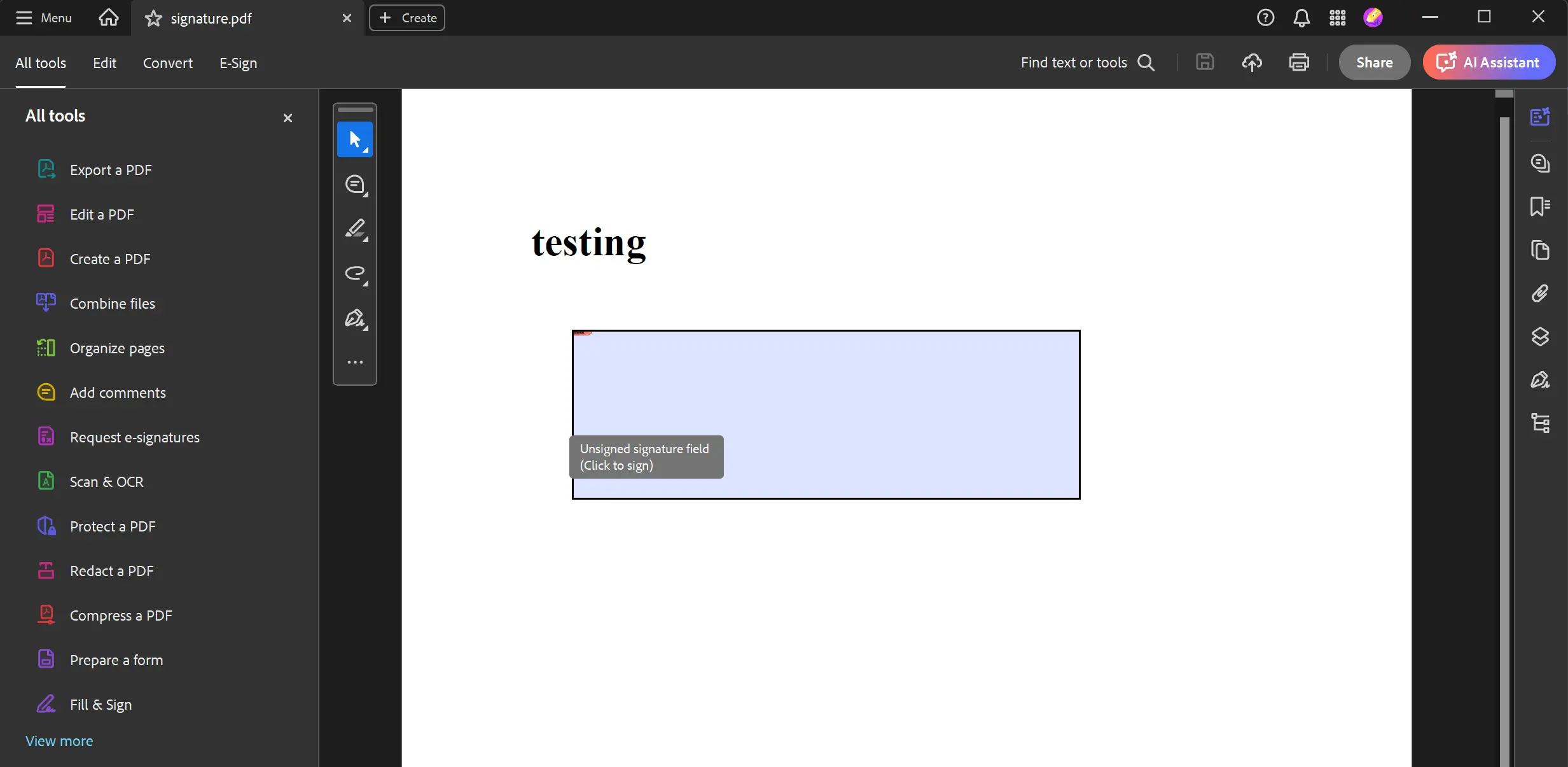 _程式生成新增到PDF文件中的未簽名、具有互動功能的簽名欄位。
我如何從已驗證的簽名中檢索簽名者名稱?
為了獲取簽名者的證書所有者的通用名稱 (CN),我們可以使用SignerName屬性。 下面是演示如何實現此目的的程式碼片段。
using IronPdf;
using System;

// Import the Signed PDF report
var pdf = PdfDocument.FromFile("multi_signed_report.pdf");

// Using GetVerifiedSignatures() obtain a list of `VerifiedSignature` objects from the PDF
pdf.GetVerifiedSignatures().ForEach(signature =>
{
    // Print out the SignerName of each `VerifiedSignature` object
    Console.WriteLine($"SignatureName: {signature.SignerName}");
});Imports IronPdf
Imports System
' Import the Signed PDF report
Dim pdf = PdfDocument.FromFile("multi_signed_report.pdf")
' Using GetVerifiedSignatures() obtain a list of `VerifiedSignature` objects from the PDF
pdf.GetVerifiedSignatures().ForEach(Sub(signature)
' Print out the SignerName of each `VerifiedSignature` object
Console.WriteLine($"SignatureName: {signature.SignerName}")
End Sub)導入簽名的PDF文件後,我們使用SignerName。
GetVerifiedSignatures``SignerName
請注意,該值是從證書的主題識別名稱 (SubjectDN) 中提取的,如果CN欄位不存在,則將返回空值。
IronPDF的PDF簽署下一步是什麼?
本指南展示了IronPDF強大而靈活的PDF簽署功能。 無論您需要應用詳細元資料的安全數位簽名、管理文件修訂、戳記視覺簽名或建立互動表單,IronPDF提供一套完善且對開發者友好的API來完成這些工作。
為了繼續探索,您可以下載IronPDF for .NET程式庫並獲取免費試用授權來在您的專案中測試其所有功能。 有關高級文件操作技術,包括新增註解和處理表單欄位,請查看我們的詳細文件和教程。
準備好瞭解您還可以做什麼嗎? 查看我們的教程頁面:簽署和保護PDF
常見問題
如何在 C# 中使用證書數位簽署 PDF?
using IronPDF,您只需一行程式碼即可數位簽署 PDF,使用 PdfSignature 類別。簡單地建立一個新的 PdfSignature 物件,使用您的證書檔案 (.pfx 或 .p12) 和密碼,然後調用 SignPdfFile() 方法。例如:new IronPdf.Signing.PdfSignature("certificate.pfx", "password").SignPdfFile("input.pdf")。這樣會應用一個防篡改的數位簽名,使用您的 X509Certificate2 來確保文件的真實性。
支持哪些型別的 PDF 簽名?
IronPDF 支持三種主要型別的 PDF 簽名:1) 使用 X509Certificate2 證書進行身份驗證和防篡改的數位簽名,2) 新增圖形或手寫簽名圖像到文件的可視簽名蓋章,以及 3) 允許使用者電子簽署 PDF 的交互式簽名表單欄位。每種型別都有助於文件安全和工作流需求。
可以用哪些證書格式進行數位簽名?
IronPDF 支持常見的數位證書格式,包括 .pfx(個人資訊交換)和 .p12 檔案。這些證書檔案包含數位簽名所需的公鑰和私鑰。IronPDF 中的 PdfSignature 類別可以與任何 X509Certificate2 物件合作,提供從載入到管理簽名證書的靈活性。
我可以在數位簽名中新增可視表示嗎?
是的,IronPDF 允許您在數位簽名中新增可視元素。您可以包括圖形表示,例如手寫簽名圖像、公司徽標或自定義蓋章在密碼學簽名旁。此結合了數位證書的安全性和可視確認,使簽署的文件既安全又專業。
如何建立一個使用者可以電子簽署的交互式簽名欄位?
IronPDF 使您能夠向 PDF 文件新增交互式簽名表單欄位。這些欄位允許使用者通過點擊並繪製他們的簽名或上傳簽名圖像來電子簽署文件。此功能非常適合需要收集簽名的文件,例如需要多方簽署的合同或表單。
簽署 PDF 是否可以確保文件完整性?
是的,當您使用 IronPDF 和 X509Certificate2 數位簽署 PDF 時,它會建立一個防篡改的密封,以確保文件的完整性。數位簽名保證文件自簽署後沒有被更改。任何在簽署後對 PDF 的修改都會使簽名失效,警告接收者文件可能已被攔截。
What feature does IronPDF provide for adding handwritten-looking signatures to PDFs?
IronPDF allows you to stamp handwritten-looking signatures onto PDFs using its watermark or stamp features. You can load an image of the signature and position it on the document, creating a visually signed PDF without the cryptographic elements of a digital signature.
How can I retrieve the signer's name from a verified signature in a PDF using IronPDF?
To retrieve the signer's name from a verified signature, use the `GetVerifiedSignatures` method in IronPDF, which returns a list of `VerifiedSignature` objects. From this list, access the `SignerName` property to get the common name extracted from the certificate used for signing.
Is it possible to roll back to a previous revision of a signed PDF document in IronPDF?
Yes, IronPDF allows you to roll back to a previous revision of a signed PDF document using the `RollBackToRevision` method. This feature is useful for reviewing the previous document state and managing multiple stages of document approval.
What steps should I take to get started with PDF signing using IronPDF?
To get started with PDF signing using IronPDF, download the IronPDF library for .NET and explore the comprehensive examples and documentation provided. You may also obtain a free trial license to test out features like digital and visual signatures, signature fields, and more in your projects.

Jacob Mellor是Iron Software的首席技術官,一位在C# PDF技術上開創先河的遠見工程師。作為Iron Software核心程式碼庫的原開發者,他從創立以來就一直在塑造公司的產品架構,與首席執行官Cameron Rimington一起將公司轉變為服務於NASA、特斯拉和全球政府公司的50多名人員的公司。













